Articles / Comparisonsupdated for DaVinci Resolve 21.1 (September 2026)
DaVinci Resolve Timeline Color Labels vs Flags
Quick answer
In DaVinci Resolve 21.1, use clip colors as a persistent visual category for timeline clips, such as scene or media type. Use flags for clip-level status or review tags, especially when you want to filter flagged edits in the Edit Index. Flags can identify timeline edits that share the same Media Pool source clip, so use a timeline color when you need to distinguish a particular edit.
DaVinci Resolve Timeline Color Labels vs Flags
I’ve watched a simple timeline turn into a mystery: colors seem to mean one thing, flags another, and then a flag appears on more than one edit. The fix is to give each tool a job before the project gets busy. This comparison uses DaVinci Resolve 21.1, the version listed in Blackmagic Design’s support center in September 2026.
What is the difference between DaVinci Resolve timeline color labels and flags?
DaVinci Resolve clip colors are visual labels for organizing clips; flags are colored tags for identifying clip status or grouping edits associated with the same source media. Both can be used to find timeline events through the Edit Index, but they communicate different things. The Resolve 21.1 manual is the reference for current controls; its relevant Edit page material is also available in the Chapter 40 text.
In this post, “color label” means the Clip Color assigned to a selected clip, not a color-management setting, node color, marker color, or bin color tag. “Flag” means the Edit page’s Flag Clip feature. Those names matter because Resolve has several different ways to use color.
| Question | Clip color | Flag |
|---|---|---|
| What does it communicate? | A broad visual category, such as scene, media type, or selected take | A clip-level tag, such as needs review or a source-related note |
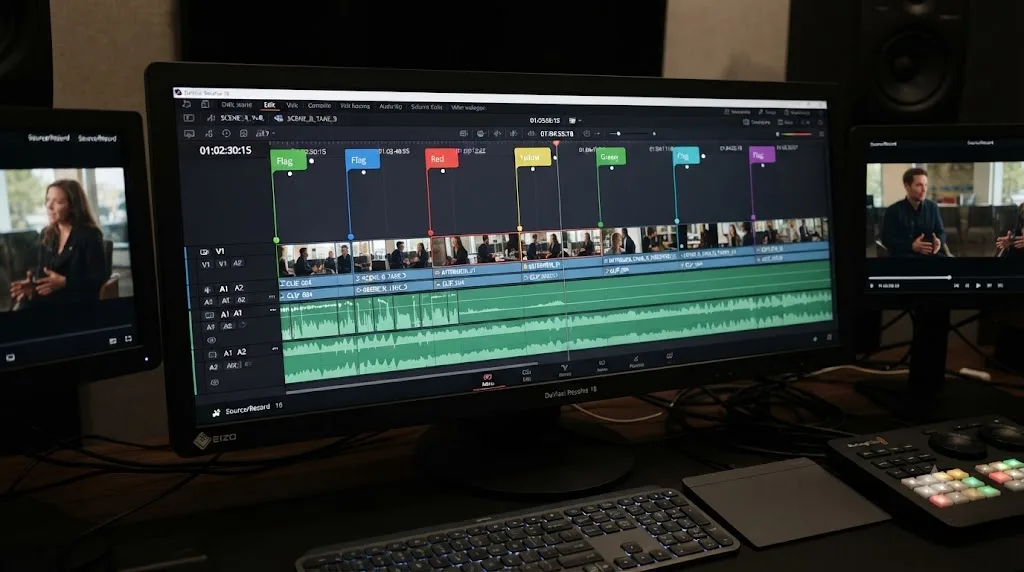
| What does the timeline look like? | The clip is tinted with its assigned color | A flag badge appears on the clip |
| Can it help find timeline events? | Yes. Use Show Clip Colors in the Edit Index | Yes. Use Show Flags in the Edit Index |
| Can you filter by a specific color? | Yes, the Edit Index filter offers color choices | Yes, the Edit Index filter offers color choices |
| Does a flag identify other edits using the same source? | That is not the flag’s source-linking behavior | Yes. Resolve’s Edit page description says flags identify clips and can indicate other clips that correspond to the same Media Pool item |
| Best use | A category you want to scan visually while editing | A status or source-related tag you may want to review or filter |
The first practical distinction is appearance versus status. Color changes the clip’s visual treatment. A flag adds a badge. Both can stand for information, but neither imposes a meaning on the project. Resolve doesn’t know that red means “problem,” blue means “dialogue,” or green means “approved.” You and your collaborators decide what the colors mean, then keep that convention consistent.
Use clip colors for categories you want to recognize at a glance, and flags for clip tags you want to inspect or filter.
A color label can suit a stable attribute that matters throughout the edit: scene, camera, media type, or a group of selects. A flag often suits a status that may change during review: check exposure, confirm a line, or revisit this take. Those are workflow recommendations, not built-in Resolve definitions. Pick the meaning that fits your team and write it down.
In Resolve 21’s manual, Blackmagic describes clip colors as an organizational tool and gives examples such as good takes, characters or subjects, and media types. The manual describes flags as identifying clips and indicating other clips that correspond to the same item of media in the Media Pool. That difference explains why the tools can appear similar but behave differently when you use a source clip more than once.
When should I use clip colors instead of flags?
Use clip colors when a clip belongs to a visual category that should stay easy to scan in the timeline. Use flags when you’re tagging a clip for a purpose such as review, or when you want to use the Edit Index’s flag filters. The best choice depends on what you want a teammate to understand from the label.
A useful rule is to ask: Would this information be more helpful as a visual category, or as a tag I want to filter? If it is a category, lean toward a clip color. If it is a status, lean toward a flag.
| Information you need to track | Suggested tool | Why |
|---|---|---|
| Dialogue, B-roll, graphics, or music | Clip color | A persistent category is easy to scan while moving through the edit |
| Scene or story section | Clip color | The color can make a group of related timeline clips visually distinct |
| “Needs review” or “check this” | Flag | A flag makes a clip-level status easy to filter in the Edit Index |
| “This source has another edit elsewhere” | Flag | Resolve’s manual describes flags as identifying edits that share a Media Pool source |
| A note at a specific frame | Marker | A marker can be placed at a point and include a note |
| “Approved” | Either, depending on what you need | Use a color for a visual approval category; use a flag if a filtered review list matters |
This is a convention, not a universal code. One editor may use color to identify each scene and reserve flags for review. Another may use color for select quality and flags for camera or source notes. Either can work if the team knows the legend and applies it consistently.
The two tools can also be useful together, but avoid giving the same color two unrelated meanings. If a yellow color means “interview” on one timeline and “needs revision” on another, a collaborator may not know which meaning applies when they see a yellow label. Make the color legend explicit in a project note, team guide, or handoff message.
Resolve’s manual documents 16 available clip colors in its Cut page description. Treat that as a palette to choose from, not as 16 meaningful categories you must use. A short legend is easier to remember than a full rainbow of undocumented meanings. The manual’s examples are starting points, not mandated standards. You can also use fewer colors than the available palette if that makes the timeline easier to read.
Why does a flag appear on multiple timeline clips?
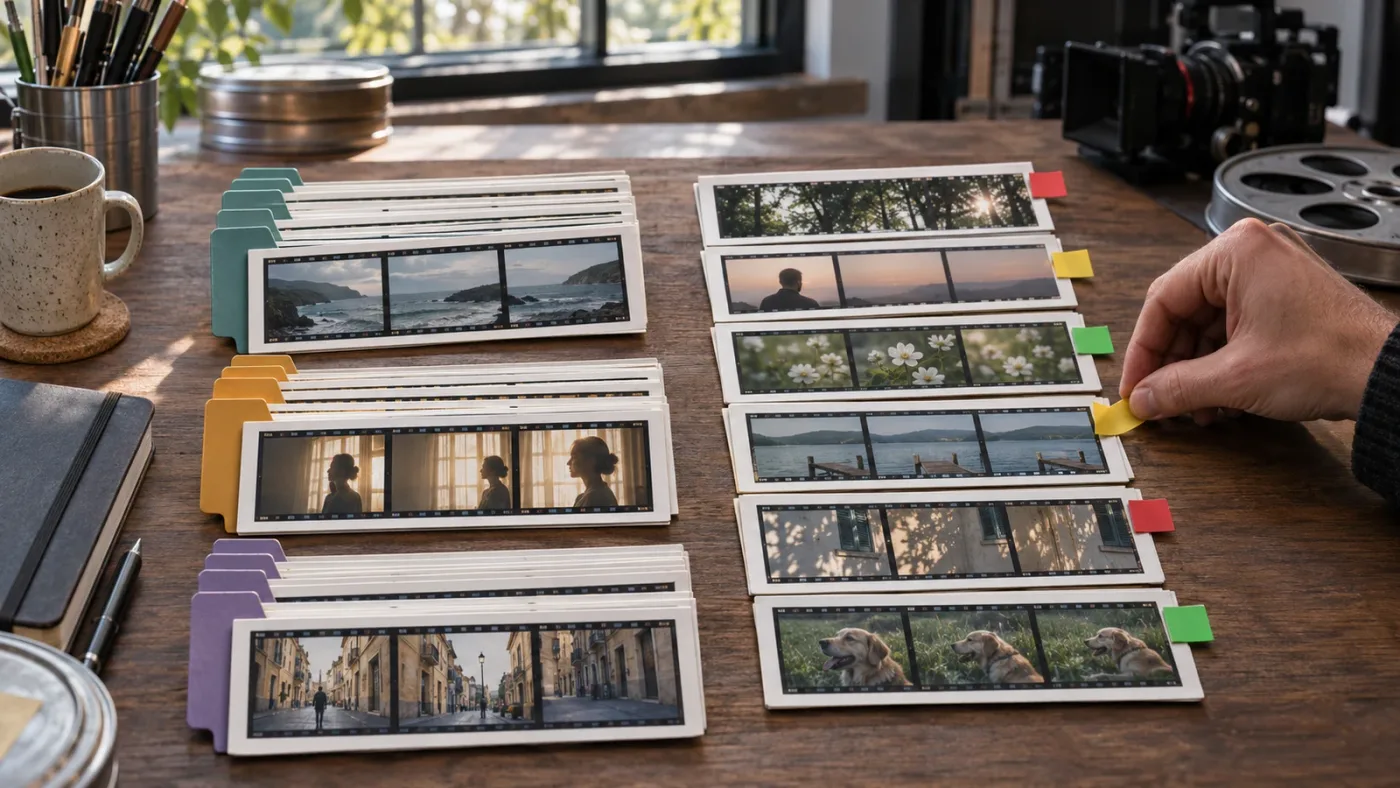
A flag can appear on multiple timeline edits because Resolve associates flags with the Media Pool source clip; timeline edits that refer to that same source may also be identified by the flag. If one source appears several times in the cut, a flag may not mean “only this edit.” That behavior is useful for source-wide information, but can surprise editors who meant to mark one occurrence. The Resolve 21 Edit page manual describes flags as identifying clips and indicating clips that correspond to the same Media Pool item.
Imagine an interview source with the same sentence used twice: once in the opening and once near the conclusion. If you flag the first timeline edit because the sentence needs an editorial check, don’t assume the flag is isolated to that one appearance. The flag may identify another use of that source as well. The flag can be telling you something about the underlying media, not only one timeline event.
That gives flags a useful job: spotting edits associated with a source that deserves attention. It also creates a limitation. If your question is “Which one of these two edits needs a trim?” a source-linked flag may be broader than you intend. Consider a clip color on the particular timeline edit, or use a marker at the precise point if the note is frame-specific. Then inspect the timeline and Edit Index to confirm that the visible result matches your intention.
Do not interpret a propagated flag as proof that you clicked the wrong clip or that your project is damaged. First check whether the other entries use the same Media Pool source. If they do, the flag’s source relationship may explain what you see.
A quick diagnostic:
- Select the flagged timeline clip.
- Use the contextual command to locate its source in the Media Pool, or identify the media item by name.
- Look for other timeline edits that use that same source.
- Decide whether your note belongs to the source generally or only to one edit.
- If it is one edit, choose a timeline-specific visual label or a point-specific marker instead, then check the result.
This distinction matters especially in interviews, multicamera edits, repeated reaction shots, and timelines built from selects. The source may be reused intentionally. A flag that appears more widely than expected can be a reminder to inspect every use, but it can’t tell you which use has the exact problem unless your own review process defines that meaning.
A Resolve flag can describe a source clip’s timeline uses, not just the single edit you clicked.
How visible are clip colors and flags in the timeline?
Clip colors tint the clip in the timeline; flags appear as badges on clips. The visual cue is different: a tint changes the broad appearance of a clip, while a flag badge signals that the clip carries a tag. Resolve’s manual describes flag controls in the Edit page toolbar and notes that flags appear over the clip’s name bar. Its Cut page manual describes clip-color display in the timeline and Media Pool views.
Use color when you want the timeline itself to reveal a repeated category. For instance, you could assign one color to interview clips and another to B-roll, or distinguish story sections during a rough cut. The category can be read without opening a filter, provided you remember the legend.
Use flags when the clip needs an additional cue but you don’t want its entire body to represent a category. A flag can say “look here” while leaving your category colors intact. That’s helpful when one clip has a stable type and a temporary review status at the same time.
However, visual visibility depends on your layout. A zoomed-out timeline, a busy set of tracks, or a small display can make tiny badges or distinctions harder to notice. A color label can be more obvious at a glance, but a large palette may make its meaning harder to remember. Neither tool guarantees that a collaborator will see or interpret the cue correctly.
Here is a simple illustrative legend for an interview edit:
| Label | Example meaning |
|---|---|
| Violet clip color | Interview dialogue |
| Teal clip color | B-roll |
| Orange clip color | Graphics or titles |
| Red flag | Check a factual statement |
| Green flag | Review a selected take |
| Marker with note | Exact frame where a subtitle or trim needs attention |
This is a worked example, not an observed project or a universal Resolve convention. You can change the colors and meanings to fit your material. The important point is to avoid making the same color mean incompatible things in different parts of the project.
If you want to mark an event at an exact frame, don’t substitute a clip flag for a marker. A flag operates at clip level; a marker can identify a position and carry notes. A clip may be visually labeled and also have one or more markers at specific moments. For client feedback that refers to a time or frame, a marker is often more precise than either a color label or a flag. The site’s guide to using markers for client review covers that separate workflow.
How do I filter timeline clips by color or flag?
Use the Edit Index options to choose Show Clip Colors or Show Flags, then select whether to show all matching labels or a specific color. In Resolve 21.1, the Edit Index is a list of events in the selected timeline, and its documented filters can isolate flagged clips or clips with clip colors. See the Resolve 21 Edit page manual.
A filter is useful when the timeline has outgrown what you can scan by eye. It gives you a list of matching events in the current timeline, including the option to filter by a particular flag or clip color. Use it to review a category, audit a status, or move through a set of clips with a shared tag.
A practical sequence:
- Open the Edit Index on the Edit page.
- Open the Edit Index options menu.
- Choose Show Flags to list clips with flags, or Show Clip Colors to list clips with clip colors.
- If the menu offers color choices, select the specific color you want to inspect.
- Review the listed events, then restore Show All when you want the full timeline list again.
The manual lists Show Flags and Show Clip Colors separately and says each can display all items of that type or only items with a particular color. The filters are not interchangeable. Choosing Show Flags does not mean “show clips with any kind of color label”; choosing Show Clip Colors does not mean “show all flags.” If the list is unexpectedly empty, verify which filter you chose and whether the selected timeline contains matching items.
Filtering is also different from changing a label. The filter narrows the Edit Index view; it doesn’t automatically recolor clips, remove flags, or rewrite your timeline. Think of it as a way to inspect a subset of timeline events.
Before using the filtered list as a handoff report, check its scope. The Edit Index displays events from the currently selected timeline, as described in Resolve’s manual. It isn’t a project-wide audit across every timeline. If your project has several versions or deliverables, select each relevant timeline in turn and inspect its labels separately.
If you expected a color to filter but nothing appears, check whether you applied a clip color or a different color-based feature. Bin color tags, marker colors, flags, and clip colors are separate concepts in Resolve. Confirm that the clip itself has the label you intended, that you are viewing the correct timeline, and that the filter is set to the matching feature and color.
Can I use a clip color and a flag on the same timeline clip?
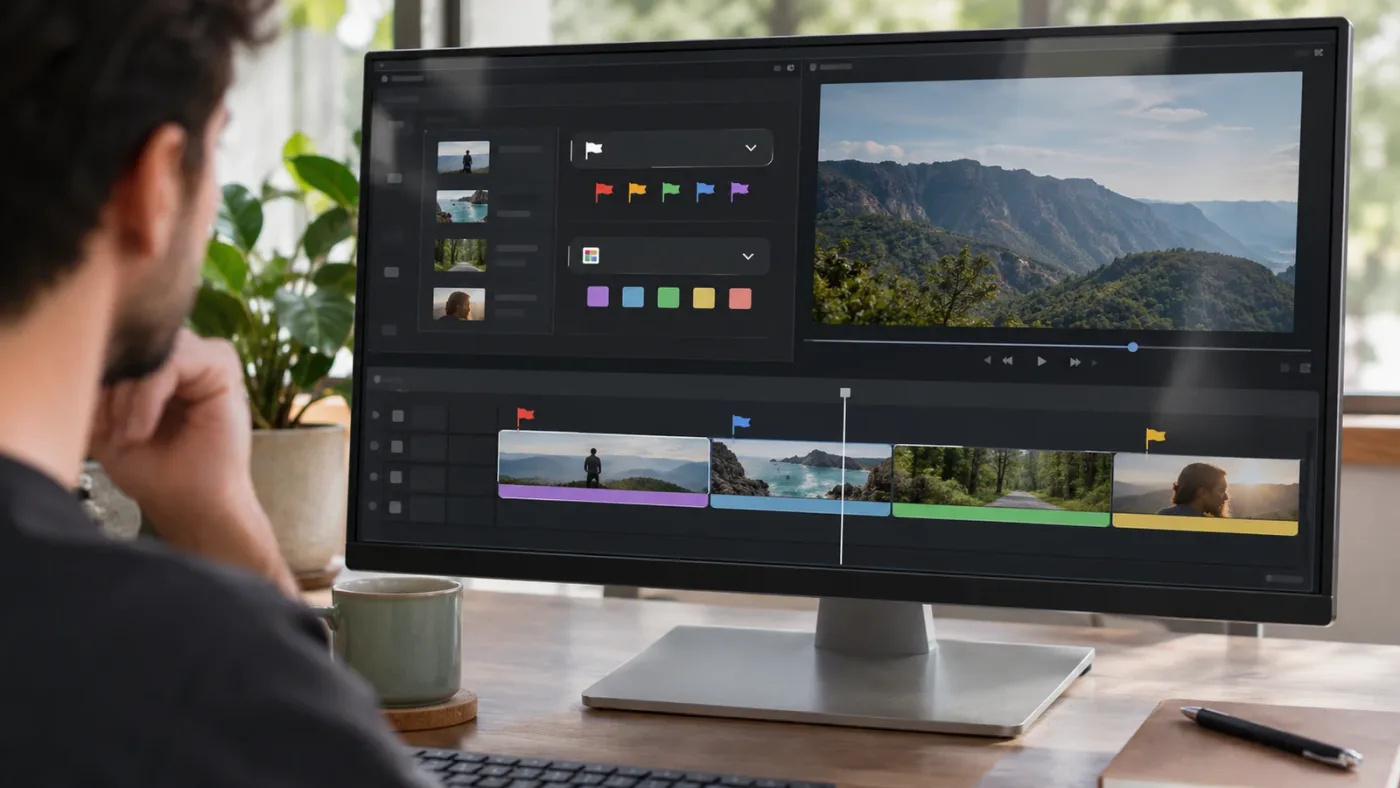
Yes. Clip color and flag are separate tools, so you can use both on one clip when each communicates different information. For example, use a color to show that a clip is B-roll, then add a flag to show that the shot needs review. Resolve’s Edit page toolbar documents flag controls separately from clip-color controls.
That combination works best when the legend stays simple. A color can answer “What kind of clip is this?” A flag can answer “What should I do with it?” Those questions don’t overlap, so a clip may carry both labels without either one having to do two jobs.
A modest convention might look like this:
- Clip color identifies broad media or story category.
- Flag indicates a review status or source-related concern.
- Marker records a note tied to a frame or time.
Suppose a project uses a blue clip color for interview material. One interview edit contains an unverified product name, so you flag it for review. If the concern is attached to a particular spoken word, add a marker at that point and write the note there. Each system carries one kind of information.
There is a trade-off. Multiple colors, flags, and markers can create a dense timeline if every concern gets another visual cue. Use a label only when it changes what someone should notice or do. If a status can be resolved, clear or update it during review; a stale red flag shouldn’t keep warning the team after the issue is fixed.
Check labels after moving or copying clips if the precise timeline placement matters. Resolve’s source-related flag behavior means that a tag may be meaningful beyond the single visible edit. If you need one event distinguished from another, validate the chosen tool in the Edit Index and timeline rather than relying on an assumption.
Why can’t I tell whether a colored clip is a label, flag, marker, or bin tag?
Resolve has several color-coded features, and the same basic color can appear in more than one place. A tinted timeline clip indicates a clip color; a badge on a clip indicates a flag; a marker sits at a point; and a bin color tag applies to a bin, not a timeline clip. The Resolve manual’s clip-color section documents clip colors separately from other organizing features.
These distinctions help diagnose a confusing timeline:
| What you see or select | Feature to check | What it is for |
|---|---|---|
| A timeline clip has an overall tint | Clip Color | Visual clip category |
| A small colored badge appears on a clip | Flag | Clip-level tag or source-related identification |
| A colored symbol sits at a position in a clip or timeline | Marker | Frame- or timeline-position note |
| A bin name has a colored background | Color Tag | Media Pool bin organization |
| A colored dot or patch appears in a Media Pool view | Clip Color or another displayed field | Check the column or thumbnail context before assuming |
A common mistake is to assume that every colored item belongs to the same tagging system. It doesn’t. Before changing anything, identify the feature in the relevant menu or index. If you choose Show Clip Colors, you are filtering clip-color labels. If you choose Show Flags, you are filtering flags. For frame-specific notes, use the Marker Index rather than expecting flags to behave like markers.
The distinction between bins and clips is especially easy to miss because both can be used for organization. A bin color tag marks a container in the Media Pool. A clip color marks clips. If your goal is to sort or filter source media before building the edit, bins and Media Pool metadata may be a better fit than adding visual labels throughout a finished timeline.
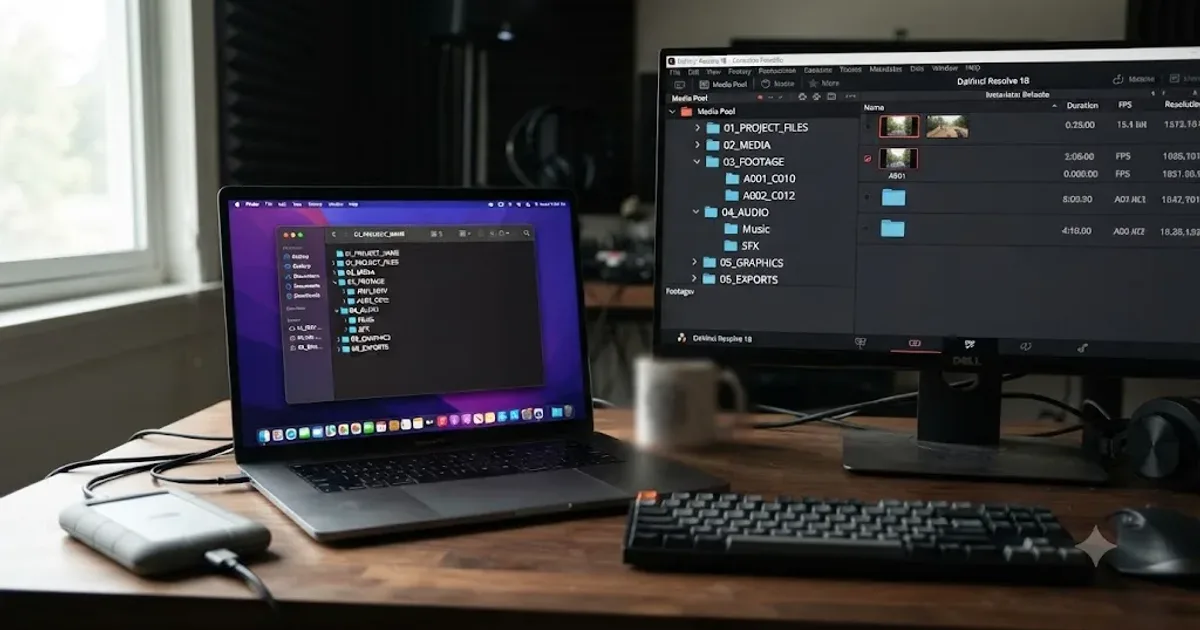
For a broader project structure, start with the separate jobs of bins, names, and labels. The guide to DaVinci Resolve folder and bin naming conventions explains where a durable folder structure helps and where a timeline-level cue is more useful.
What should a review workflow use: color labels, flags, or markers?
Use color labels for categories, flags for clip-level status, and markers for notes attached to a specific point. A review workflow can use all three, but each should answer a different question. That makes the timeline easier to scan and the filtered lists easier to trust.
A workable process for a short client edit:
- Choose the review questions first. Decide what the editor needs to identify: media type, story section, a review status, or a specific point needing correction.
- Assign clip colors to stable categories. For example, use a color for dialogue or B-roll if that distinction helps the editor navigate. Keep the legend short.
- Reserve flags for clip-level review tags. A flag might mean “confirm this shot” or “check this source.” Remember that flags can identify other edits that share a source clip.
- Use markers for precise notes. If a reviewer says that a word, sound, or visual issue occurs at a particular point, attach a marker where it happens and write a clear note.
- Filter the Edit Index when the timeline is busy. Choose Show Clip Colors or Show Flags, and narrow to a color if needed.
- Resolve statuses before handoff. Remove or update flags after the issue is addressed, and revisit marker notes that remain open.
- Tell collaborators what the legend means. Include the color and flag convention in the handoff message or project documentation.
The outcome you’re looking for is not “a colorful timeline.” It’s a timeline where someone else can distinguish category, status, and exact feedback without guessing. If your team already has a convention, follow it unless it is causing confusion. If there’s no convention, agree on a small one before applying labels across a large cut.
For solo work, a lightweight legend still helps. You may leave the project for a week, switch to another timeline, or return after making a new version. A written cue can prevent a color from becoming an unexplained decoration. In collaborative work, that cue matters even more because a label has no shared meaning until the team agrees on one.
The safest handoff includes both the labels and their definitions. “Red means needs review” is more useful than sending a project with unexplained red flags. If the color communicates scene or media type while the flag communicates current status, say so. If a client needs to comment on exact moments, markers with short notes are more precise. Don’t promise that a filter reveals every concern in a whole project; filter each timeline and inspect the relevant items.
A review label is useful only when the next editor knows what action it asks for.

Which tool should I choose for common editing situations?
Choose the feature that matches the scope of the information: a category belongs on the clip color, a clip-wide status can use a flag, and a precise point belongs on a marker. The table below is a decision aid based on the documented behavior in Resolve’s manual, followed by recommended conventions.
| Situation | Best starting choice | Why | What to check |
|---|---|---|---|
| Separate interview clips from B-roll at a glance | Clip color | The tint makes a visual category apparent in the timeline | Whether the same convention is used in other timelines |
| Identify shots that need editorial review | Flag | You can filter flagged clips in the Edit Index | Whether the source has other timeline uses |
| Mark one exact word or frame for correction | Marker | A marker can be placed at a specific point and can carry notes | Whether the note is clear enough for someone else |
| Review all clips assigned a given color | Clip color filter | Show Clip Colors can isolate a color in the Edit Index | That you selected the intended timeline |
| Find all clips with a particular flag | Flag filter | Show Flags can isolate a flag color in the Edit Index | That the flag’s source behavior fits the review task |
| Keep bins for scene, date, or camera group | Bin and metadata organization | Bins organize Media Pool material rather than timeline events | Whether you need a source library or a finished-edit cue |
| Distinguish two edits from one source | Timeline clip color or marker | A source-related flag may identify multiple edits from the same source | Confirm the result on each edit |
| Show “approved” to a collaborator | A documented color or flag convention | The tool alone cannot define what approved means to your team | State the meaning and who can change it |
Choose clip colors if ...
Choose clip colors if you need a broad visual category while navigating the timeline. They’re a good fit for footage type, scene grouping, selects, or other recurring distinctions. The color is immediately visible, but its meaning depends on your legend. If that meaning changes from one timeline to another, document the change.
Choose flags if ...
Choose flags if you need a clip-level tag that you can filter in the Edit Index, especially when the tag relates to the source or its uses across a timeline. Flags can help make a review pass more systematic. But if the problem belongs to one particular edit, be aware that other edits sharing the same source may also be identified.
Choose markers if ...
Choose markers if a comment belongs at an exact frame or timeline point. A marker can hold the note that explains the issue, which makes it better suited than a color label for feedback such as “trim after this word” or “check this frame.” Read the separate client-review marker guide if your process depends on review notes and handoffs.
Choose bins and metadata if ...
Choose bins and metadata if the task is organizing source material before or outside the edit. A timeline color doesn’t replace a useful bin structure or descriptive clip metadata. Bins help you group and retrieve source media; timeline labels help you recognize events in a particular edit. Many projects benefit from both because they solve different navigation problems.
Clip colors, flags, markers, and bins work best when each carries a different kind of information.
How do I choose a naming convention that won’t confuse my team?
Choose a small, written legend before applying labels, and give each feature one job. Resolve supplies colors and filtering controls; it doesn’t enforce a universal meaning for red, blue, green, or any other color. The team’s agreement is what turns a colored cue into useful project information.
A compact convention might use clip colors for categories and flags for review status:
| Feature | Example convention | Keep consistent by asking |
|---|---|---|
| Clip color | Blue = interview, teal = B-roll, orange = graphics | Is this a stable category? |
| Flag | Red = needs review, green = cleared | Is this a clip-level status or source concern? |
| Marker | Note describes a precise edit point | Where exactly does the action happen? |
| Bin | Group source media by shoot, scene, or media type | Is this source organization rather than timeline status? |
Treat those colors only as a worked example. Another team may prefer fewer categories, different colors, or a different review signal. The goal is not to adopt someone else’s color code. The goal is to avoid using the same cue to mean two different things.
When a project moves between editors, include the legend in the handoff. If the recipient opens the timeline and sees red flags, they should know whether to review every edit, inspect one source, or leave the clip untouched. If the label is only meaningful to the person who applied it, it won’t help the next editor.
For a shared project, consider documenting:
- What each used clip color means.
- What each flag color means.
- Whether flags are used for source-wide or edit-specific concerns.
- Whether markers are required for frame-specific notes.
- Who clears a flag or changes its status.
- Which timeline or version the legend applies to.
Avoid creating a color category for every unusual clip. Too many categories make the legend harder to remember and can make the timeline less readable. If a detail matters only once, a marker note or metadata field may be more useful than assigning another color with no repeatable meaning.
TryUncle is the on-screen assistant for DaVinci Resolve on Mac and Windows - ask in plain words and Uncle points at the exact control on your screen. If you want help locating a control while working, see TryUncle.
Why aren’t my color labels or flags showing up in the Edit Index?
The most common explanation is that the Edit Index is filtering a different feature, color, or timeline than the one you expect. Check the current timeline, open the Edit Index options, and choose the matching filter: Show Clip Colors for clip-color labels or Show Flags for flags. Resolve’s manual describes those as separate filters in the Edit Index.
Work through these checks before reapplying labels:
- Confirm the selected timeline. The Edit Index shows events in the selected timeline. A label in another version won’t automatically appear in the current list.
- Check the filter type. Clip colors and flags have separate menu options.
- Check the selected color. A filter limited to one color won’t list clips carrying another.
- Confirm the feature on the clip. A marker color, bin color tag, or color-management control is not the same as a clip color.
- Reset the index filter. Choose Show All, then test the specific filter again.
- Inspect the timeline visually. Confirm that the clip shows the tint or flag you intended before treating the index as the problem.
An empty filtered list doesn’t necessarily mean the label disappeared. The filter might be set to another color, the selected timeline might be different, or the feature might not be a clip color or flag at all. Resolve’s manual documents the Edit Index as a list of events in the selected timeline and includes separate options for flags and clip colors.
Also remember that a flag may be visible on additional timeline edits tied to the same source media. If more items appear than you expected, inspect whether the edits share a Media Pool source before clearing the flags. Removing a source-related tag without checking could remove information you wanted to retain.
If the timeline appears tinted but Show Clip Colors returns nothing, check what the color belongs to. A bin tag, marker, flag, or another interface indicator can look like a clip-color cue at a glance. Verify the clip’s assigned color using the relevant contextual menu. If the feature is a flag badge, use Show Flags instead.
If your interface layout differs from the manual, make sure you’re looking at the Edit page and its Edit Index rather than the Marker Index or Media Pool. The relevant menus are contextual, so the panel and page you have open affect which controls you see. The Blackmagic Design support center lists the DaVinci Resolve 21.1 manual for the current release context used here.
Which is better for timeline organization in DaVinci Resolve 21.1?
Neither is better for every job. Clip colors are the clearer choice for categories you want to scan visually; flags are the better fit for clip-level tags that you may need to filter, especially when source-related identification is useful. For an exact-frame note, choose a marker instead.
Here’s the short decision:
- Choose a clip color for scene, media type, or another visual category.
- Choose a flag for a clip tag or review status you want to find in the Edit Index.
- Choose a marker for feedback tied to one point.
- Choose a bin or metadata field for organizing source material rather than timeline events.
Start with one stable color convention and one flag convention. Test them on the relevant timeline, inspect the Edit Index, and tell collaborators what each cue means. If you need to distinguish two edits from the same source, check the flag behavior before relying on it as an edit-specific label.
That gives you a practical answer to “DaVinci Resolve timeline color labels vs flags”: use color labels to make categories visible, flags to tag clips for filtering or source-related review, and markers to leave notes at precise points. Keep the meanings separate, and the timeline will be easier to read without turning its colors into a guessing game.

Frequently asked questions
- What is the difference between a clip color and a flag in DaVinci Resolve?
- A clip color is a visual label you can use to group or identify clips. A flag is a colored tag attached to a clip, and it can identify timeline edits that share the same Media Pool source clip. Both can be filtered by color in the Edit Index.
- Why do multiple clips get a flag when I flag one timeline clip?
- Resolve flags clips that share the same Media Pool source clip, so other timeline edits from that source may show the flag too. Use a timeline clip color if you need a visual distinction for one particular edit, then confirm the result in your timeline.
- Can I filter timeline clips by color or flag in DaVinci Resolve 21?
- Yes. Open the Edit Index options and choose Show Clip Colors or Show Flags, then select all colors or a particular color. The Edit Index lists matching timeline events; it does not replace the timeline’s visual appearance.
- Should I use a flag or a marker for a review note?
- Use a flag when the status applies to a clip, such as needs review. Use a marker when the note belongs at a particular frame or timeline point. Markers have their own index and can carry notes.
Sources
Put this guide to work with TryUncle.
Ask about the step you’re on. TryUncle sees your screen and points at the control you need, so you can keep learning in your own project.
Get TryUncle for Mac or WindowsKeep reading
Guides · Jul 16, 2026 · 36 min
Folder and Bin Naming Conventions for DaVinci Resolve Projects
A practical naming system for DaVinci Resolve folders and bins: project structure, camera bins, Power Bins, Smart Bins, and what breaks relinking.
Guides · Jul 24, 2026 · 41 min
How to Use Markers in DaVinci Resolve for Client Review
Add, color-code, and export DaVinci Resolve markers for client review: the M key, marker colors, EDL export, and Blackmagic Cloud sync explained.
Comparisons · Nov 17, 2026 · 22 min
DaVinci Resolve Timeline Viewer vs Source Viewer: Difference
Learn the DaVinci Resolve timeline viewer and source viewer difference, when to use each, how selection and focus affect them, and what changes in Resolve 21.1.