Articles / Fixesupdated for DaVinci Resolve 21.0.2 (July 2026)
DaVinci Resolve Edit Page Toolbar Missing? Here's the Fix
Quick answer
A missing DaVinci Resolve Edit page toolbar is almost always a hidden panel, not lost software. Right-click the Interface Toolbar at the top of the page and re-enable it, or open Workspace > Reset UI Layout to restore every panel to its default position. If icons render broken or invisible instead of just absent, check Preferences > User > UI Settings for a display scaling mismatch.
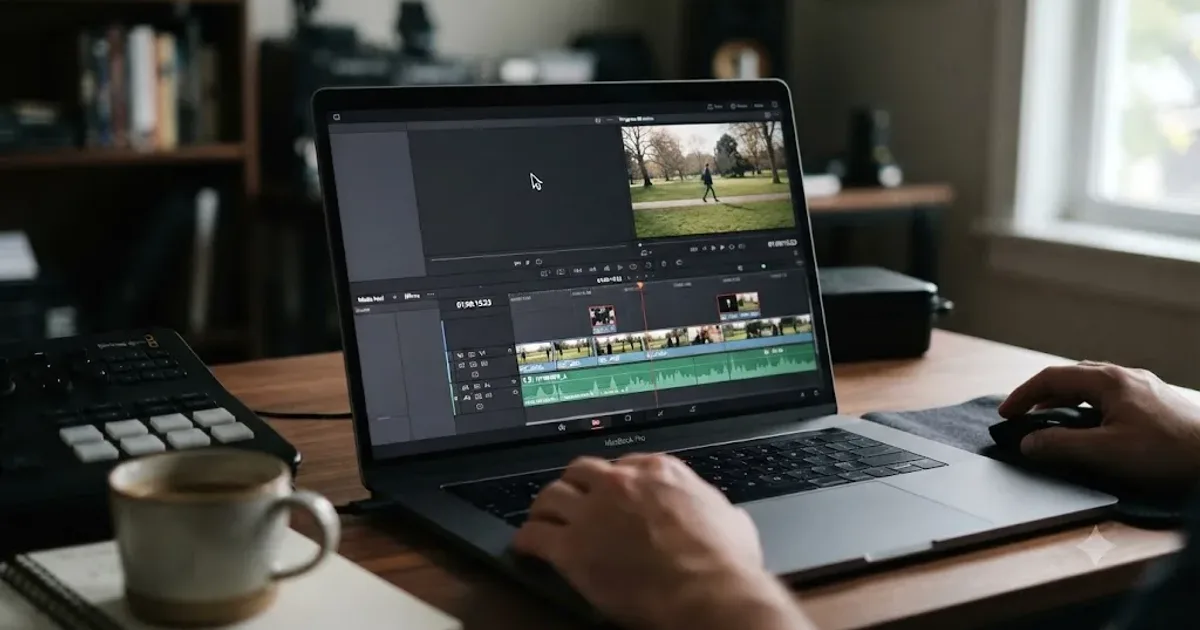
You open the Edit page and something's wrong. The Media Pool is gone, or the Effects Library, or the whole strip of icons that used to sit above your timeline. Nothing you click brings it back, and the panic sets in fast: did DaVinci Resolve lose your project?
It didn't. Every case I could find, across the official manual and years of forum reports, comes down to a panel that's hidden, squeezed to nothing, or displaced by a monitor change, never anything closer to data loss. Let's work through exactly why the toolbar disappears and exactly how to get it back.
What causes the DaVinci Resolve Edit page toolbar to go missing?
There are six real causes, and they split cleanly into two groups. The first group is a panel that's still there but not visible: toggled off, collapsed to zero width, or pushed off-screen by a monitor change. The second group is a broken layout or preferences file that needs a reset before anything displays correctly again.
A missing DaVinci Resolve toolbar is almost never lost software. It's a panel that's hidden, not deleted. That distinction matters because it tells you where to spend your first two minutes: in a menu, not in a reinstall.
| Cause | How common | Fix location |
|---|---|---|
| Panel toggled off in the Interface Toolbar | Very common | Right-click the Interface Toolbar |
| Panel or toolbar squeezed to zero width | Very common | Drag the panel boundary open |
| Broken or corrupted UI layout | Common | Workspace, Reset UI Layout |
| Monitor disconnected or resolution changed | Common on laptops | Workspace, Reset UI Layout |
| Display scaling mismatch (icons broken, not gone) | Common on Windows | Preferences, User, UI Settings |
| Corrupted preferences file after a crash or update | Uncommon | Preferences, System, Reset System Preferences |
Work down this table in order. Most people who write in convinced they've broken something find the fix inside the first two rows, and it costs them under a minute once they know where to look.
What exactly is the "Edit page toolbar," and which piece is actually missing?
This matters more than it sounds like it should, because "toolbar" gets used loosely to describe at least three different things on the Edit page, and the fix differs slightly depending on which one you mean.
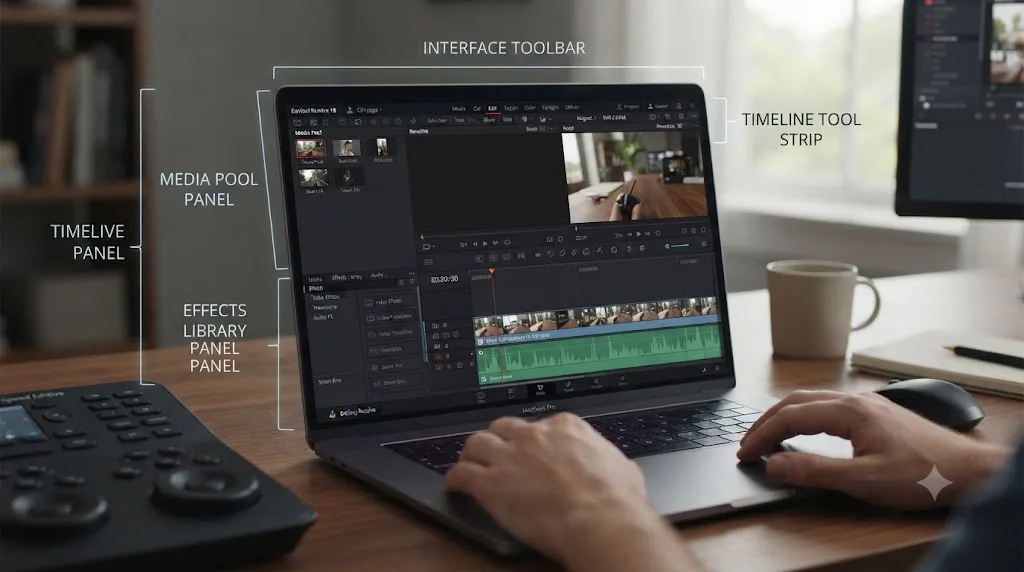
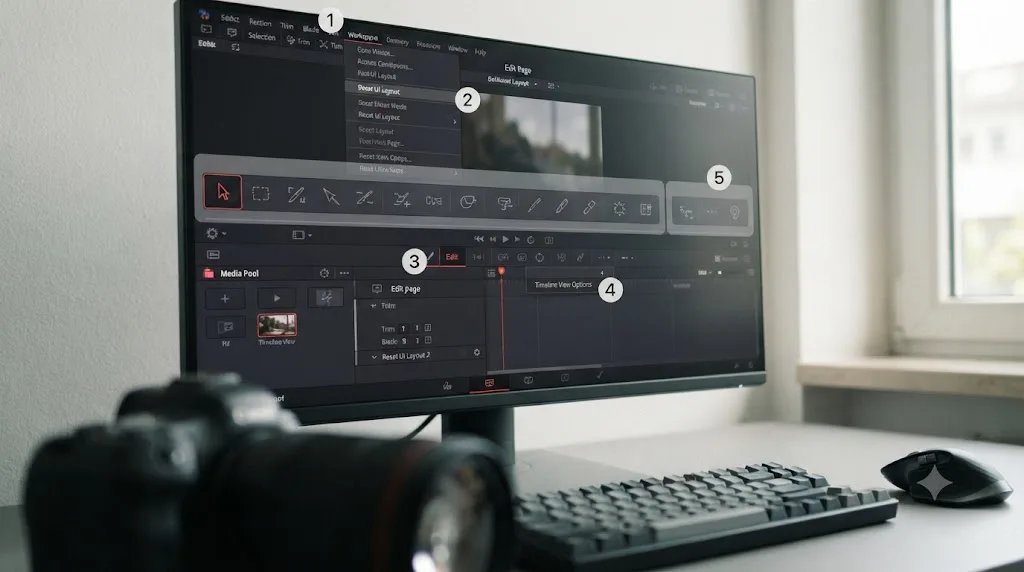
According to the DaVinci Resolve reference manual's own description, the strip that runs along the top of every page is officially called the Interface Toolbar, and it "contains buttons that let you show and hide different panels of functionality to accomplish different things." That's the row of small icons in the upper corners of the window, the ones that toggle the Media Pool, Effects Library, Inspector, Color panel, and other windows on and off. It's not the tools themselves, it's the switchboard that controls whether those tools are visible.
Separately, directly above the timeline, there's a shorter strip of mode-selection icons: the Arrow (Selection Mode), Trim tool, Blade tool, a Snapping toggle, Linked Selection, and a zoom slider. People also call this "the toolbar," and it's a different UI element from the Interface Toolbar, even though both can go missing for overlapping reasons.
And then there's the Effects Library and Media Pool themselves, the actual panels that live in the upper-left corner of the Edit page, which people sometimes describe as "the toolbar" too, since that's where their tools live day to day.
Whichever one of these three you mean, the fix path is nearly identical: check the Interface Toolbar's show/hide list first, then reset the layout if that doesn't work. Knowing the correct name matters mostly when you're searching Blackmagic's own forum or asking for help, since a precise description gets you a precise answer faster than "my toolbar is gone" does.
Did you accidentally toggle the panel off yourself?
This is the single most common cause, and it's also the easiest one to miss, because the click that caused it usually happened days ago and you've forgotten it entirely.
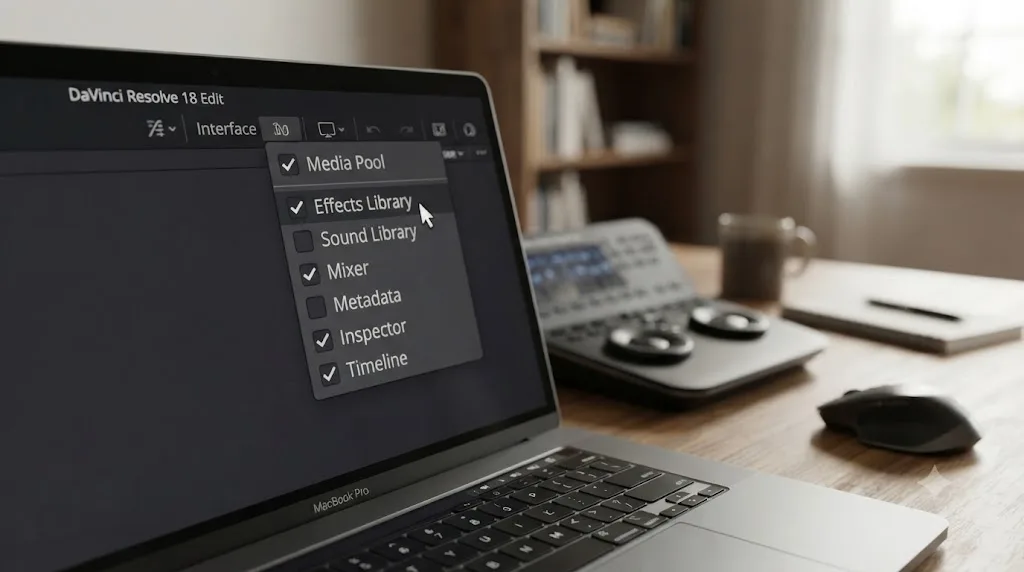
Per the manual's description of the Interface Toolbar, right-clicking that strip opens a menu that lets you "assign keyboard shortcuts to show and hide individual panels in your workspace for instant configuration of the UI," and "switch which panel appears within a particular geographical location of the UI, for example switching between showing the Media Pool or Effects in the upper-lefthand corner of the Cut or Edit pages." Both of those are useful features, and both are exactly the kind of thing a stray click or an unfamiliar keyboard shortcut can trigger without you noticing at the time.
A Blackmagic forum thread on this exact symptom, "Where have my effects windows gone?", walks through the practical fix: click the expand arrow at the top left, to the left of the Media Pool button, then click the Effects button to the right of it, since the panel hasn't actually left, it's just been switched to a different location or collapsed behind the timeline's own expand toggle.
On the Creative COW forum, one editor described this exact confusion on a thread titled "Video FX missing from the Edit page." Kenneth Maultsby explained his symptom precisely: "I have all my transitions but no Filters, Generators, but when I go to the Color page they are available." Another user on the same thread, Tom Watson, offered the standard troubleshooting order: "The first thing I would try would be to open a completely new project and see if the fx appears there." That test, a fresh empty project, is worth doing early in your own troubleshooting too, since it tells you in under a minute whether the problem is global or specific to one project's saved layout.
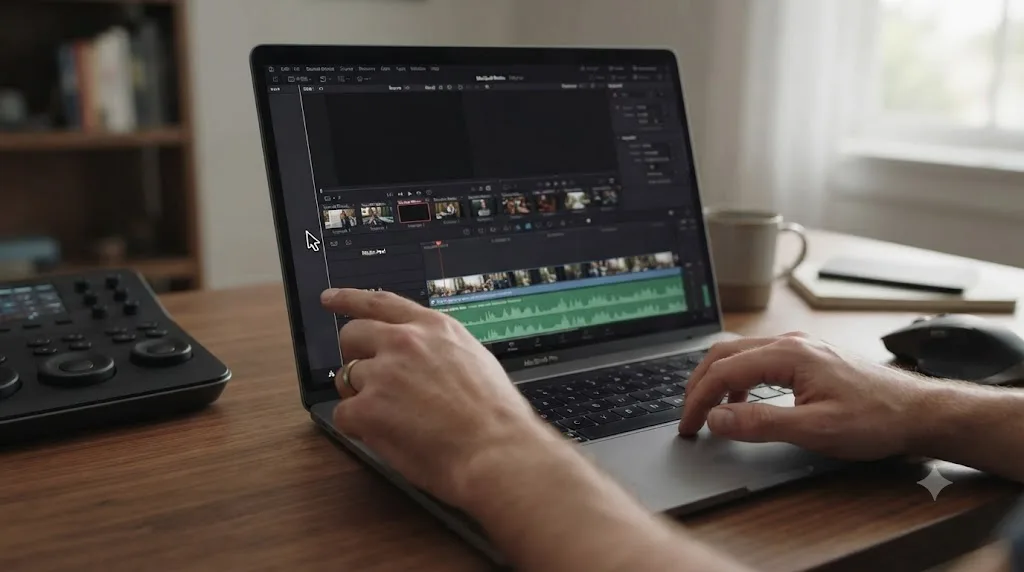
Is the panel actually there, just squeezed to zero width?
Almost as common as an outright toggle, and even easier to miss, because a panel at zero pixels wide looks exactly like a panel that isn't there at all.
DaVinci Resolve's panels are resizable by dragging their shared borders, and if a border gets dragged too far, or a window resize event from your OS collapses the layout, a panel can end up occupying no visible space while technically still existing in the layout tree. The forum thread on shrinking and expanding the timeline area describes this behavior directly: clicking the shrink/expand icon to the right of the window control buttons on Mac "will make the edit timeline retreat to the right, giving you back the Media Pool/Effects areas to the left of the timeline," which only makes sense as a fix if the reverse, a timeline expanding to swallow that space entirely, is what caused the panel to vanish in the first place.
A panel that's been dragged to zero width isn't gone. It's just too thin to see or click. The tell is your cursor: hover along the exact boundary where the missing panel used to sit, and if the pointer changes to a resize arrow (a double-headed arrow on both Mac and Windows), that boundary still exists and you can drag it back open. If the cursor doesn't change at all along that edge, the panel isn't squeezed, it's actually toggled off, and you're back to the Interface Toolbar fix from the previous section.
This cause shows up disproportionately on laptop screens and single-monitor setups, simply because there's less room for a mis-drag to go unnoticed before it swallows an entire panel. Anyone editing on a 13 or 14 inch laptop display should check this specific cause first if the missing element is a narrow one, like the Inspector's right-hand column, rather than a wide one like the whole toolbar strip.
Will Reset UI Layout bring the toolbar back?
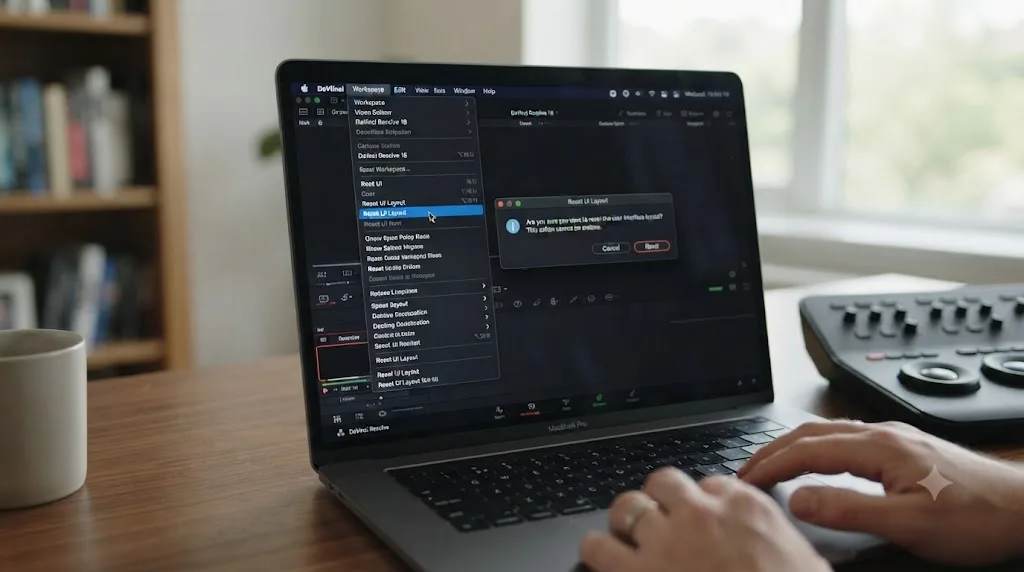
For most people, yes, and it's the single highest-leverage fix on this page because it doesn't require you to know which panel is missing or why.
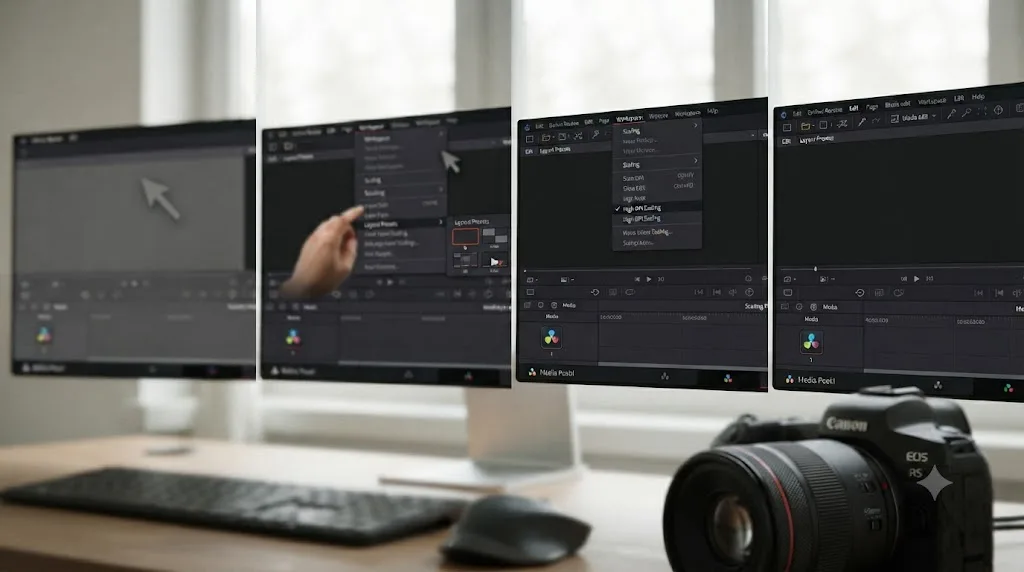
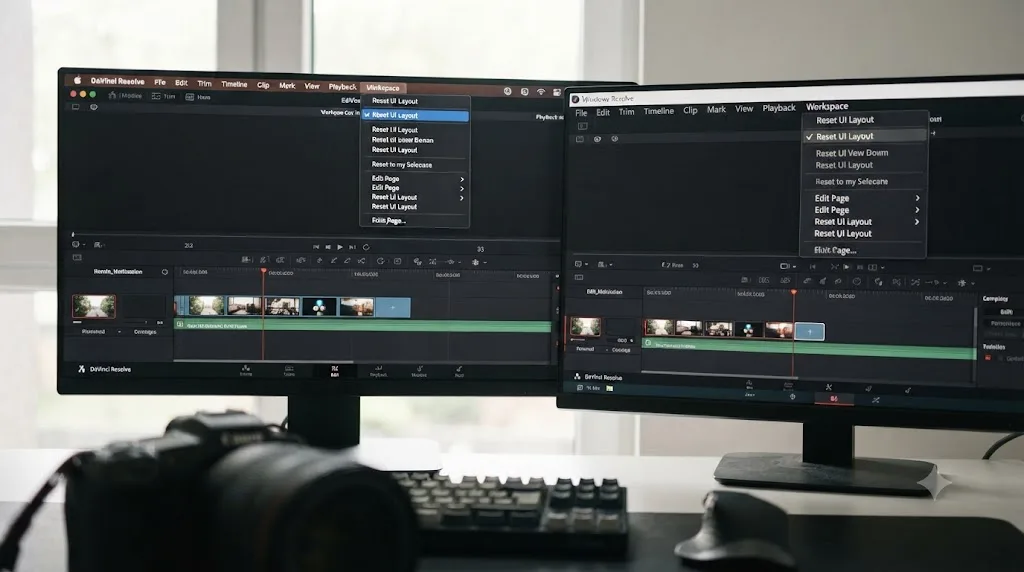
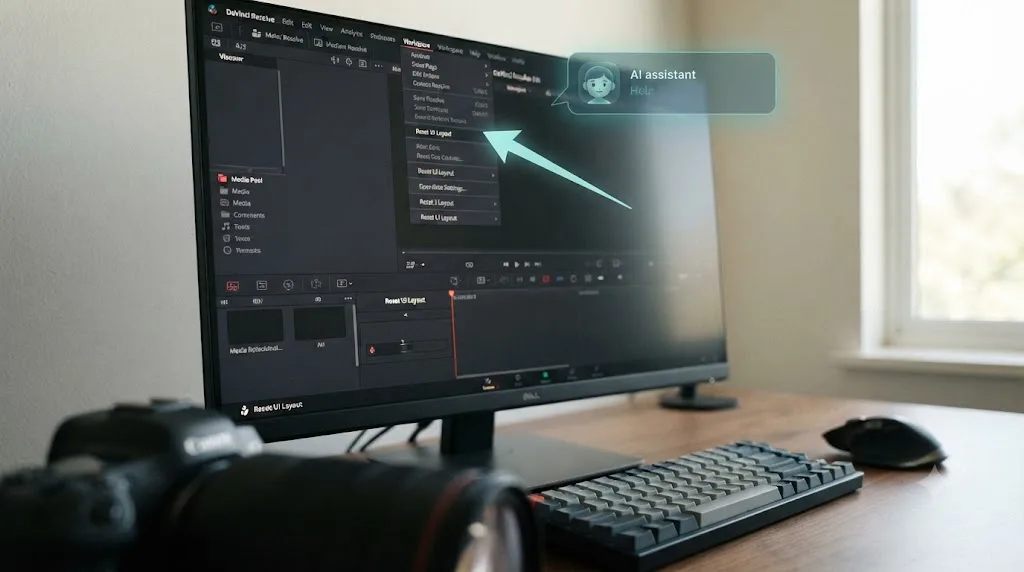
According to the DaVinci Resolve reference manual, "If you don't like the current layout and you want to go back to the default, choose Workspace > Reset UI Layout." That's the entire mechanism: one menu path, one confirmation click, and every panel on your current page snaps back to its factory position, sized for whatever screen resolution you're currently running.
A step-by-step guide from tutkit.com confirms the same path and adds a useful practical note: the reset applies to the page you're currently viewing, not every page at once, so if your Color page toolbar looks fine but your Edit page toolbar is missing, you only need to reset the Edit page, and your Color page layout, if you've customized it, stays untouched.
| Reset | What it fixes | What it doesn't touch |
|---|---|---|
| Workspace, Reset UI Layout | A hidden, collapsed, or misplaced toolbar or panel on the current page | Your project, timeline, media, or any other page's layout |
| Preferences, System, Reset System Preferences | A corrupted preferences file causing repeated layout failures | Your project files or media |
Reset UI Layout touches window positions only. It never touches your project, your timeline, or a single frame of your edit. That's worth saying plainly, because the biggest reason people delay trying this fix is fear that a "reset" of any kind might cost them work. It won't. Worst case, you spend sixty seconds afterward dragging panels back into a custom arrangement you'd built up over time.
Did unplugging a second monitor take your toolbar with it?
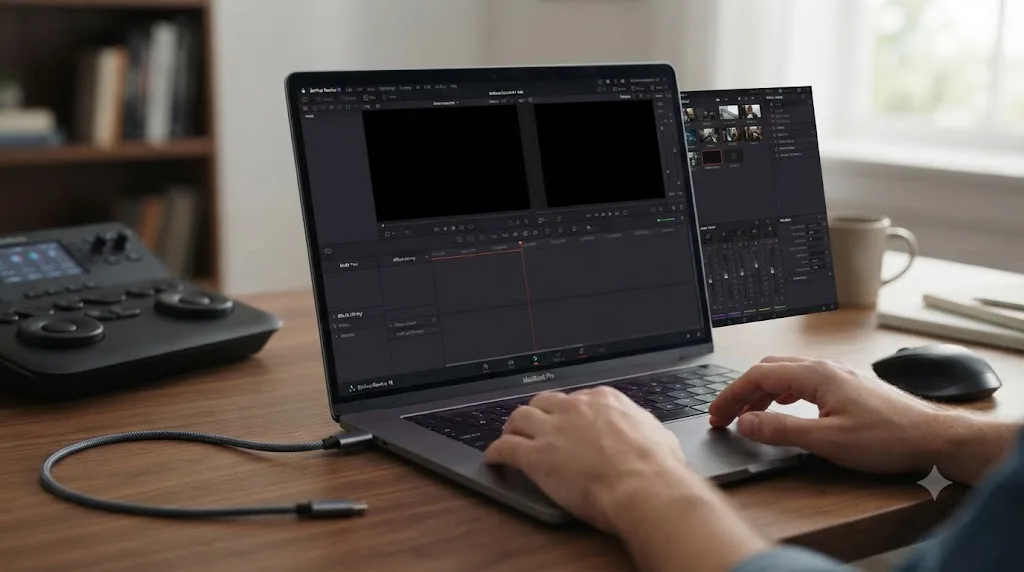
Yes, and this is one of the least obvious causes on this list because the connection between "I unplugged a cable" and "my toolbar is gone" isn't intuitive if you're not already looking for it.
A Blackmagic forum thread on a related symptom, "Primary window disappears every new launch," describes the underlying mechanism: Resolve's UI flashes up briefly and then either moves off-screen or fails to reappear, and this happens specifically around changes to monitor configuration, whether that's unplugging an external display, changing which monitor is set as primary, or simply waking from sleep with a different display arrangement than when Resolve last closed. Users on that thread found that discarding the preferences file, or repeatedly toggling which display is primary before relaunching, eventually forced the window back into a visible position.
The same mechanism explains a missing toolbar without the whole window disappearing. If a panel, rather than the entire application window, was positioned toward the edge of a second monitor when you last closed Resolve, and that monitor isn't connected anymore, the panel can end up rendered at coordinates that no longer correspond to any visible screen. It's not gone. It's just parked somewhere you can't currently see.
The fix is the same Reset UI Layout step covered above, but the order matters here specifically: if you can, reconnect the second monitor temporarily, confirm the missing toolbar reappears in its expected spot, and then reset the layout while both monitors are connected, so Resolve rebuilds the arrangement fresh rather than trying to guess where a now-disconnected display used to be. If reconnecting isn't an option, Reset UI Layout on your single remaining screen still works. It just may take Resolve a moment longer to settle into a sensible default the first time.
Are your toolbar icons broken or invisible instead of the toolbar just being absent?
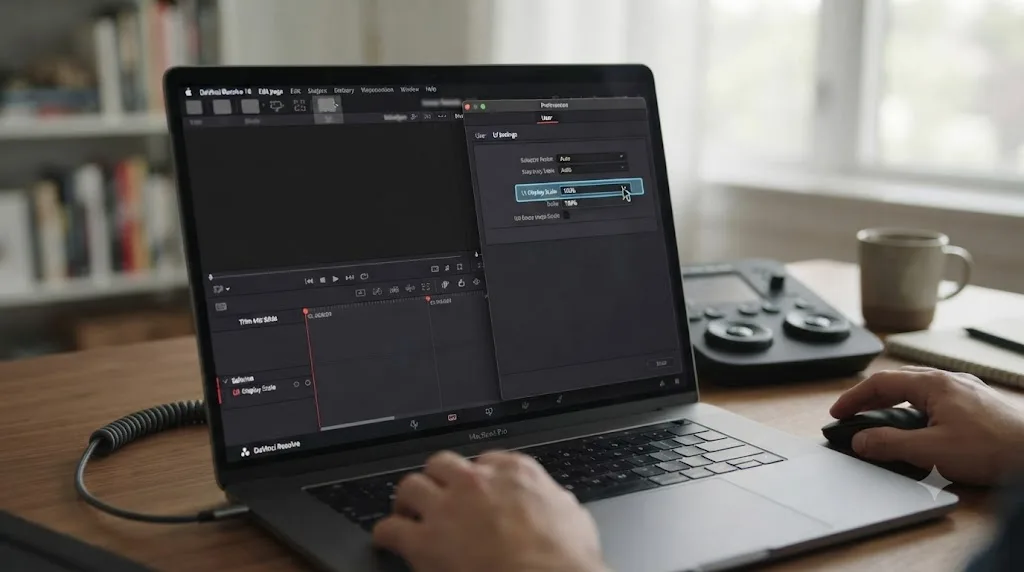
Worth distinguishing carefully, because this is a completely different problem with a completely different fix. A genuinely missing toolbar leaves blank space where it should be. A display scaling problem leaves the toolbar strip itself visible, but with icons that render as empty boxes, blurry glyphs, or nothing at all, which from a glance can look identical to "the toolbar is gone."
DaVinci Resolve derives its interface scaling from your operating system and display, and per multiple independent reports, only 100% and 200% scaling values are officially supported. A Blackmagic forum thread titled "18.1 - Where is UI Scale Option?" points to where this control actually lives: Preferences, under the User tab, in UI Settings, labeled UI Display Scale. If your Windows display scaling is set to something in between, 125% or 150% are the most commonly reported problem values, that mismatch between the OS-level scale and Resolve's own setting is what breaks icon rendering.
An independent write-up on filmmakingelements.com covering DaVinci Resolve UI scaling fixes confirms the same fix path and adds a Windows-specific detail: setting Windows display scaling to 125% while leaving Resolve's UI Display Scale at 100% is one of the most commonly reported mismatches, and dropping the Windows-side scale to 100%, or matching Resolve's own scale setting to your OS scale exactly, clears it for most people. A separate technical write-up on this same problem, from Himbeer's Blog covering high-DPI scaling fixes on Windows specifically, describes a more advanced override for stubborn cases: adding an environment variable, QT_ENABLE_HIGHDPI_SCALING set to 0, to the shortcut Resolve launches from, which forces the underlying UI framework to skip automatic OS-driven scaling altogether and rely only on Resolve's own internal scale setting.
| Symptom | Likely cause | Fix |
|---|---|---|
| Toolbar strip is completely blank, no icons at all | Panel toggled off or UI layout broken | Interface Toolbar right-click menu, or Reset UI Layout |
| Toolbar strip is visible, icons are blank boxes or blurry | Display scaling mismatch | Preferences, User, UI Settings, UI Display Scale |
| Toolbar strip is visible, some icons work and others don't | Scaling factor outside 100%/200% | Match Windows scale to Resolve's UI Display Scale, or set both to 100% |
A blank toolbar and a broken toolbar are two different bugs wearing the same disguise. If Reset UI Layout brings back an empty strip with no legible icons on it, stop troubleshooting panel visibility and go straight to the display scaling setting instead, since no amount of layout resetting fixes a rendering problem.
Could a corrupted preferences file be the real cause?
Less often than people assume, and worth ruling out only after the simpler fixes above haven't worked, since it's the most disruptive of the fixes on this page.
A Blackmagic forum thread titled "Menu bar missing" describes a version of this problem one level up from a single panel: the entire top menu bar disappearing, not just a panel within the Edit page. One suggested recovery path involves pressing Alt twice and holding on the second press, then, while holding Alt, pressing the down arrow followed by the right arrow repeatedly until a dropdown containing a Layout option appears, a workaround specific to how Windows handles a hidden menu bar rather than anything unique to Resolve. That's a keyboard-accessibility path, not a fix for the underlying cause, and it's worth knowing about mainly because a fully missing menu bar can make Reset UI Layout itself hard to reach through the mouse alone.
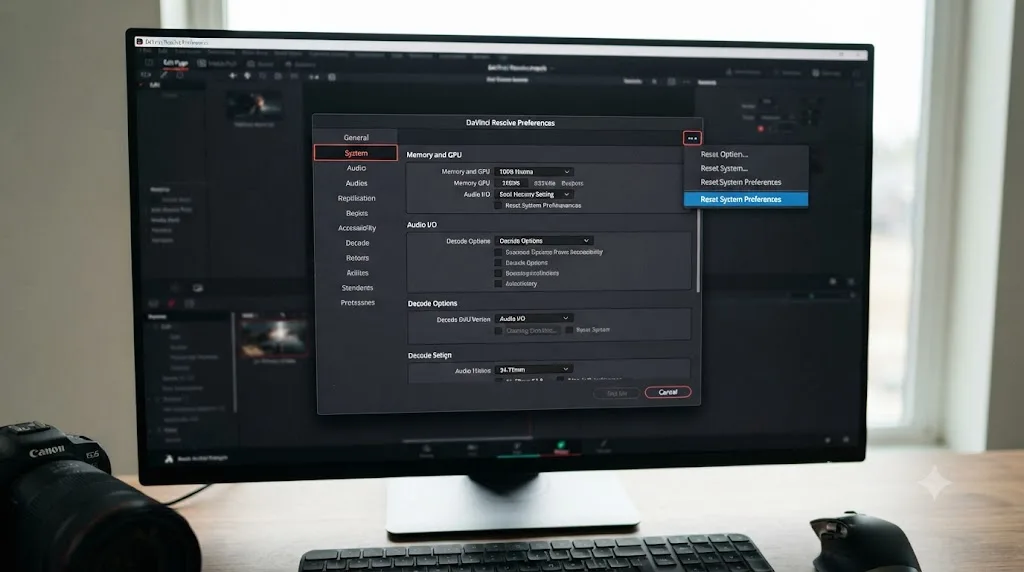
The more durable fix, once you can reach the menus again, is a preferences reset: open Preferences, go to the System tab, click the three dots in the upper right corner, and choose Reset System Preferences, then restart Resolve. This clears every setting back to Resolve's defaults, including whatever corrupted state was causing panels to fail to render or load correctly in the first place.
There's a real cost here worth stating honestly: a full preferences reset wipes custom keyboard shortcut presets, custom color schemes, and any other preference you've built up, not just the one setting causing your toolbar problem. It's a legitimate last resort, not a first move, and it should come after Reset UI Layout and the display scaling check, not before them.
If a corrupted preferences file has caused other symptoms too, not just a missing toolbar, our guide to DaVinci Resolve crashing covers the broader set of preference-related failures and the same reset path in more depth.
Is this happening only after a software update?
Sometimes, and it's worth checking your update timeline specifically before assuming a setting is to blame.
Blackmagic ships DaVinci Resolve 21 point releases on a steady cadence. The most recent as of this writing, 21.0.2, released in early July 2026, brought a batch of interface-adjacent fixes, according to coverage from CineD covering the release, including "faster image bypass switching" and "improved H.265 playback performance on NVIDIA GPUs." Neither of those line items is specifically about a missing toolbar, so don't read a point release changelog as confirmation your exact symptom has been patched just because it mentions the interface generally.
What a steady release cadence does tell you is practical: if your toolbar vanished right after installing an update, updating again to whatever the newest point release is, rather than trying to downgrade, is the right move. Resolve makes downgrading deliberately difficult once a project has been opened in a newer version, since project files aren't guaranteed to open cleanly in an older release afterward. A forward update is nearly always safer than a backward one, and Blackmagic's release pace means a genuine layout-rendering bug, if one exists in your specific build, has a real chance of already being fixed in the next point release.
A less obvious update-related cause: an update can occasionally reset your UI Display Scale preference back to its own default, especially on Windows, silently reintroducing the scaling mismatch covered earlier even if you'd previously set it correctly. If your toolbar problem reappears after every update despite you having fixed it before, check that setting again before assuming you're facing a new bug each time.
Does the toolbar behave differently on Cut, Color, or Fusion than on Edit?
Worth confirming early, because each page in DaVinci Resolve maintains its own independent layout state, even though switching between pages feels seamless.
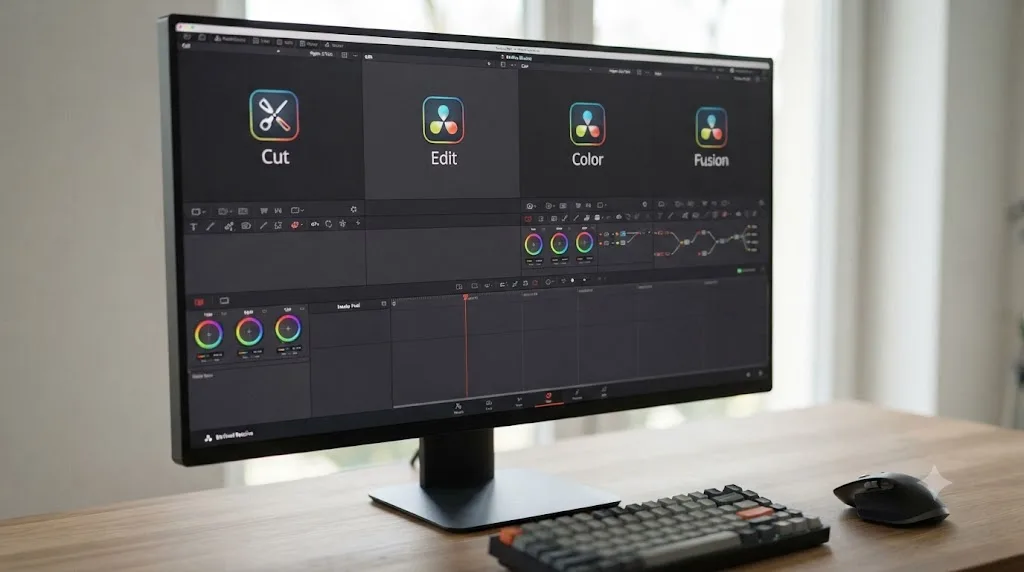
Our Cut page vs Edit page comparison covers the structural split in depth, but the piece that matters here directly: the Cut page's toolbar and panel set genuinely isn't identical to the Edit page's. The Cut page relies on a source tape and a dual timeline instead of a separate Effects Library panel in the same position, so a toolbar element you expect to see on Edit may simply not exist in the same form on Cut, and that's not a bug, it's a different design.
This matters for your troubleshooting specifically because Reset UI Layout only resets the page you're currently viewing. If your Edit page toolbar is missing and your Color page toolbar looks fine, that's expected, not evidence the problem is somehow selective or strange. Reset the Edit page specifically, and leave the other pages alone unless they show the same symptom.
If you switch to the Color page and its own panel layout, node graph, and scopes look intact while only Edit is affected, that's a useful signal the corruption or displacement is localized to the Edit page's saved layout state, not a global preferences failure. That distinction tells you Reset UI Layout on the Edit page alone is likely sufficient, without needing the more disruptive System Preferences reset covered earlier.
Could a GPU driver issue be causing rendering glitches, not just a hidden panel?
Rare compared to the causes above, but real, and worth ruling out if you've worked through the layout and scaling fixes without success.
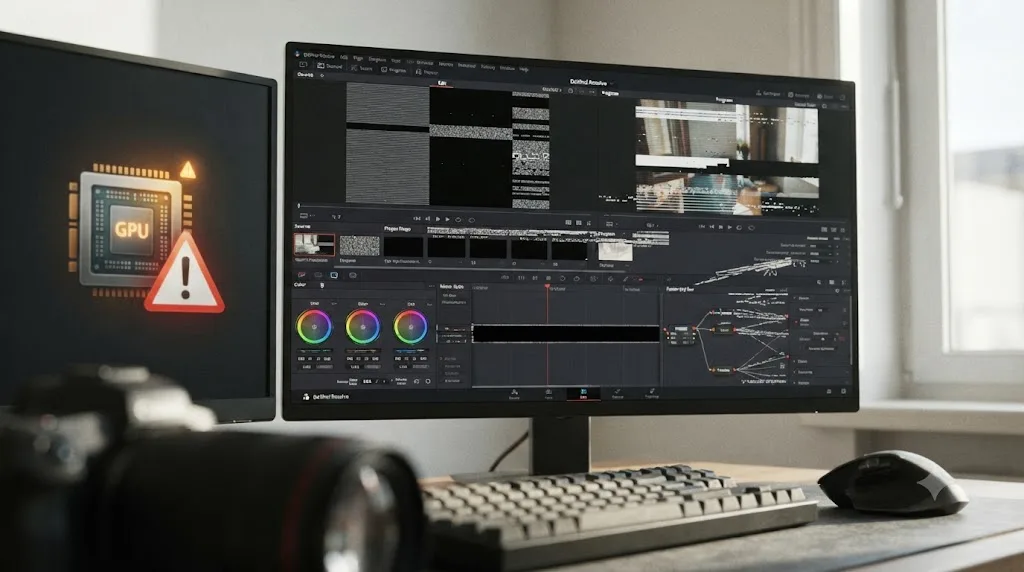
DaVinci Resolve leans heavily on your GPU to render its own interface, not just your footage, which is different from most editing software and part of why Blackmagic's own tech specs list a minimum GPU requirement even for the free version, not just for grading heavy timelines. Per Blackmagic's tech specs page, the application wants at least 4 GB of VRAM to run comfortably. A GPU driver that's out of date, corrupted, or from a manufacturer's beta channel can cause interface elements, including toolbars and panels, to render incorrectly or fail to draw at all, in a way that looks identical to a hidden panel but has nothing to do with your layout settings.
The tell here is scope: a GPU-driver-caused rendering glitch usually affects more than one panel, and often more than one page, since it's a rendering pipeline problem rather than a specific panel's visibility state. If your toolbar is missing and you're also seeing occasional flicker in the viewer, torn or partially drawn scopes on the Color page, or visual artifacts anywhere else in the interface, that combination points toward a driver update rather than another round of layout resets.
Updating to your GPU manufacturer's current stable driver, not a beta or a manually downloaded older version, is the fix, and it's worth doing before a preferences reset if you're seeing rendering symptoms beyond just the toolbar, since a driver problem won't resolve through anything inside Resolve's own settings.
What does the full diagnosis look like on a real setup?
Put the pieces together on a common case: a Windows editor on a laptop with a 15 inch, 1080p built-in display and a 27 inch external monitor set to 125% Windows scaling, working in DaVinci Resolve 21 on a client project that's been open for a few weeks.
The complaint: opened Resolve at a coffee shop on the laptop screen alone, external monitor left at home, and the Edit page toolbar and Effects Library are both gone, replaced by empty gray space above the timeline.
Working the table from the top of this guide in order: first, right-click the Interface Toolbar strip. Nothing's unchecked, every panel shows as enabled in the list, which rules out a simple toggle. Second, check for a squeezed panel by hovering the boundary where the Effects Library should sit. The cursor doesn't change to a resize arrow, which rules out a zero-width panel too. Third, Reset UI Layout from the Workspace menu. The toolbar reappears, but the icons render as blank gray boxes rather than actual glyphs, confirming this isn't a visibility problem at all, it's a rendering one.
That points straight at display scaling, since the layout has visibly rebuilt but the icons themselves are broken. Opening Preferences, User, UI Settings shows UI Display Scale set to 100%, but Windows' own display scaling, still configured for the 27 inch external monitor at 125% from when it was last connected, hasn't updated for the laptop's own built-in screen. Setting Windows display scaling to 100% for the laptop screen specifically, then relaunching Resolve, clears the broken icons immediately.
Total time from "my toolbar is gone" to "everything renders correctly": about four minutes, and zero changes made to the project file. That's the shape of nearly every version of this complaint. The panel was never lost. It was hidden, squeezed, displaced, or rendering wrong, and each of those has a specific, fast fix once you know which one you're looking at.
Does the fix differ between Mac and Windows?
Mostly not, but a few real differences are worth knowing before you follow advice written for the other platform.
Display scaling is the biggest divergence. macOS handles Retina and non-Retina scaling consistently at the operating system level, so Resolve's own 100%/200% scale options line up cleanly with what macOS already expects, and broken toolbar icons from a scaling mismatch are rare on Mac as a result. Windows scaling is more fragmented, since Windows lets users pick scale factors like 125%, 150%, or custom percentages that fall outside what Resolve officially supports, which is why nearly every scaling-related toolbar report traces back to a Windows machine rather than a Mac.
Menu bar behavior differs too. On Mac, the application menu bar lives at the top of the screen, separate from the Resolve window itself, and it's essentially never affected by the panel issues covered in this guide. On Windows, the menu bar is part of the application window, which means the "Menu bar missing" scenario covered earlier, where the entire top bar including Workspace disappears, is a Windows-specific failure mode that doesn't have a direct Mac equivalent.
Multi-monitor window recovery behaves similarly on both platforms in principle, since both remember window and panel positions relative to your display arrangement, but Windows users report the disconnected-monitor scenario more often, likely because laptop-plus-dock setups that connect and disconnect throughout the day are more common in Windows-based edit environments than in typical Mac laptop workflows.
What if nothing here fixes it?
Rare, but it happens, and at that point the remaining causes sit slightly outside the panel and layout system covered so far.
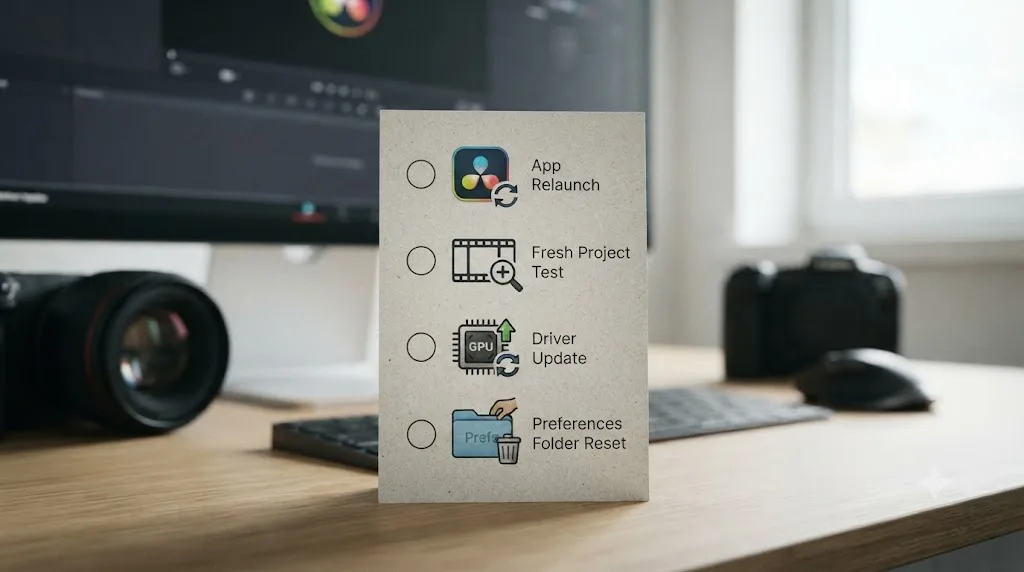
- Fully quit and relaunch DaVinci Resolve, not just close the project. A stuck internal rendering state, though uncommon, doesn't always clear through UI navigation alone, and a full relaunch costs nothing before a deeper reset.
- Test in a brand-new, empty project, exactly as Tom Watson suggested on the Creative COW thread referenced earlier. If a new project's toolbar renders normally and only your original project's saved layout is broken, the fix is project-specific, not a Resolve-wide setting.
- Update your GPU driver to the current stable release from your manufacturer, not a beta channel build, especially if you're seeing any rendering glitches beyond the toolbar itself.
- Rename or move your Resolve preferences folder rather than deleting it outright, then relaunch and let Resolve generate a fresh one. If the toolbar renders correctly with fresh preferences, your original folder was the cause, and you can selectively restore items like keyboard mapping presets from the renamed backup afterward.
- Reinstall DaVinci Resolve as close to a genuine last resort as this guide gets, and pair it with a preferences reset rather than relying on the reinstall alone, since a standard reinstall typically leaves your existing preferences folder untouched.
- Contact Blackmagic Design support directly with your exact OS version, Resolve version, GPU model and driver version, and monitor configuration. If you've ruled out every cause on this page, you may have found a genuine edge-case bug worth reporting.
What's the fastest thing to try first?
Work through these in order before you assume anything is actually broken:
- Open the Workspace menu and choose Reset UI Layout. This alone resolves the majority of missing-toolbar reports.
- Right-click the Interface Toolbar strip at the top of the page and check whether the panel you're missing is unchecked in the list.
- Hover the boundary where the missing panel should sit and check whether your cursor changes to a resize arrow, which means the panel's just squeezed to zero width.
- Open a brand-new, empty project and check whether the toolbar renders normally there, to isolate a project-specific layout from a global one.
- Open Preferences, User, UI Settings, and confirm UI Display Scale is set to 100% or 200%, especially if the toolbar renders but its icons look broken or blank.
- If a second monitor recently disconnected, reconnect it temporarily, confirm the panel reappears, and Reset UI Layout while both displays are connected.
- Update to the newest DaVinci Resolve 21 point release, especially if the problem started right after your last update.
- Reset System Preferences from Preferences, System, as a deeper step, understanding it clears other customizations too.
When is a missing toolbar actually a sign of something bigger?
Almost never on its own, but combine it with other symptoms and the picture changes. If your toolbar disappearing coincides with slow, laggy scrolling elsewhere in the app, our guide to choppy DaVinci Resolve playback covers the GPU and render cache causes behind broader performance problems that can produce rendering glitches alongside a missing panel. If it coincides with the timeline itself failing to respond to scroll or zoom input, that's a separate, unrelated symptom with its own causes, covered in our guide to a DaVinci Resolve timeline that won't scroll or zoom. And if Resolve has started crashing outright, not just displaying incorrectly, our DaVinci Resolve crashing guide covers the deeper preferences and stability fixes that a simple layout reset won't reach.
A missing toolbar in isolation, with everything else in the app behaving normally, points almost exclusively at the layout and scaling causes covered in this guide. It's when you start stacking symptoms that it's worth widening your troubleshooting beyond this page.
Learning where every one of these settings lives takes time most editors don't have mid-deadline, which is exactly the gap TryUncle is built for. TryUncle is an AI tutor for DaVinci Resolve on macOS. Ask in plain words and Uncle points at the exact control on your screen, instead of you cross-referencing a forum thread against a menu you've never opened before. It's a paid app, currently at founder pricing, and it's macOS only, so check TryUncle for the current rate if a live, on-screen pointer sounds more useful to you than another round of menu-hunting.
The bottom line
Your project is fine. Your toolbar isn't lost, it's hidden, squeezed, displaced by a monitor change, or rendering incorrectly because of a scaling mismatch, and every one of those has a specific, fast fix. Start with Reset UI Layout under the Workspace menu. If the toolbar comes back but looks broken, check UI Display Scale in Preferences next. Work down the table at the top of this guide before you consider anything as drastic as a reinstall, and you'll almost certainly have your toolbar back before you've finished your coffee.
Frequently asked questions
- Why did my DaVinci Resolve Edit page toolbar disappear?
- Almost always because a panel got toggled off, dragged out of view, or squeezed to zero width, not because anything broke. The usual triggers are an accidental click on the Interface Toolbar's own show/hide icons, a window resize or monitor change that shrank the panel to nothing, or a UI layout that got corrupted after a crash or update. Reset UI Layout under the Workspace menu fixes the vast majority of cases in one click.
- How do I get my toolbar back in DaVinci Resolve?
- Start with Workspace > Reset UI Layout, which rebuilds every panel on the current page to its factory position. If that doesn't work, right-click anywhere along the top Interface Toolbar and check whether the panel you're missing, such as the Effects Library or Inspector, is unchecked in the list that appears. If neither works, the panel may just be squeezed to zero width; drag from its edge back into the window.
- Does Reset UI Layout delete my project, timeline, or edits?
- No. Reset UI Layout only touches window and panel positions on the page you're currently viewing. It doesn't close your project, doesn't touch your timeline, media, or any render you've already done. Worst case, you spend a minute afterward dragging panels back to a custom arrangement you liked.
- Why do my toolbar icons look broken, blurry, or invisible instead of just gone?
- That's a display scaling mismatch, not a missing panel. DaVinci Resolve only officially supports 100% and 200% UI scaling and derives its rendering from your operating system's display settings. A Windows scale factor like 125% or 150% can render some icons as blank boxes or invisible glyphs, even though the toolbar itself is technically still there. Setting UI Display Scale to 100% in Preferences, under User and UI Settings, clears this in most reported cases.
- Why did unplugging my second monitor make the toolbar and other panels vanish?
- DaVinci Resolve remembers where its windows and panels sat relative to your monitor arrangement. When a monitor that held part of the interface disconnects, some panels can end up positioned off the visible screen entirely rather than resizing back onto your remaining display. They're not gone, just parked somewhere you can't see. Reset UI Layout brings them back onto whatever screen you're currently using.
- Is the Edit page 'toolbar' the same thing as the Effects Library and Media Pool panels?
- Not exactly, though people use 'toolbar' loosely to mean any of them. Blackmagic's own manual calls the row of show/hide icons along the top of the page the Interface Toolbar. It's a separate, smaller strip from the Media Pool, Effects Library, Inspector, and the mode-selection strip (Selection, Trim, Blade) directly above the timeline. All of them can independently go missing, and the fix is usually the same Reset UI Layout step regardless of which one you mean.
- Will reinstalling DaVinci Resolve fix a missing toolbar?
- Almost never, and it's not the right first step. A reinstall replaces application files, but your panel layout and preferences live in a separate preferences folder that a normal reinstall doesn't touch. If you've worked through Reset UI Layout, a preferences reset, and a display scaling check without success, a reinstall paired with a fresh preferences folder is a reasonable last resort, but it's rarely what actually fixes this specific symptom.
Sources
- DaVinci Resolve Reference Manual: Showing and Hiding Panels Using the Interface Toolbar
- DaVinci Resolve Reference Manual: Resetting to the Default Layout
- Creative COW: Video FX missing from the Edit page (Kenneth Maultsby, Tom Watson)
- Blackmagic Forum: Where have my effects windows gone?
- Blackmagic Forum: Change UI layout back to default
- Blackmagic Forum: Menu bar missing
- Blackmagic Forum: Primary window disappears every new launch
- Blackmagic Forum: Are there any to hide this toolbar in Edit page?
- Blackmagic Forum: Show/Hide ToolBars, or arrange vertically
- Blackmagic Forum: 18.1 - Where is UI Scale Option?
- filmmakingelements.com: 4 Fixes To Davinci Resolve UI Scaling Issues
- Himbeer's Blog: Fixing DaVinci Resolve high-DPI scaling on Windows
- tutkit.com: Resetting the UI layout in DaVinci Resolve, a step-by-step guide
- DaVinci Resolve - Tech Specs (Blackmagic Design)
- DaVinci Resolve - Edit (Blackmagic Design)
- CineD: DaVinci Resolve 21.0.2 Released, Keyframe Fixes, Retime Curve Improvements, and Better Fusion Vertical Transitions
Put this guide to work with TryUncle.
Ask about the step you’re on. TryUncle sees your screen and points at the control you need, so you can keep learning in your own project.
Get TryUncle for Mac or WindowsKeep reading
Fixes · Jul 17, 2026 · 25 min
DaVinci Resolve Timeline Won't Scroll or Zoom? Here's the Fix
Fix a DaVinci Resolve timeline that won't scroll or zoom: check 2D Timeline Scrolling, your modifier keys, trackpad gestures, and a stuck UI layout.
Comparisons · Jul 10, 2026 · 28 min
DaVinci Resolve Cut Page vs Edit Page: The Real Differences
A full side-by-side of DaVinci Resolve's Cut and Edit pages: timeline, trimming, multicam, and hardware differences, plus which one to use.
Guides · Jul 8, 2026 · 16 min
DaVinci Resolve Keyboard Shortcuts: The Complete Reference
Every essential DaVinci Resolve keyboard shortcut, organized by page: Edit, Cut, Color, Fairlight, Fusion, and Deliver, plus how to customize and share your own.