Articles / Fixesupdated for DaVinci Resolve 21.1 (October 2026)
DaVinci Resolve VST Plugin Not Showing? Fix It in 21
Quick answer
If a DaVinci Resolve VST plugin is not showing, first confirm it is an audio VST effect, then check its installed format and folder under DaVinci Resolve > Preferences > Audio Plugins. Enable the plugin, save, and fully restart Resolve. If it is still missing, check compatibility and where you are looking in Fairlight before changing files.
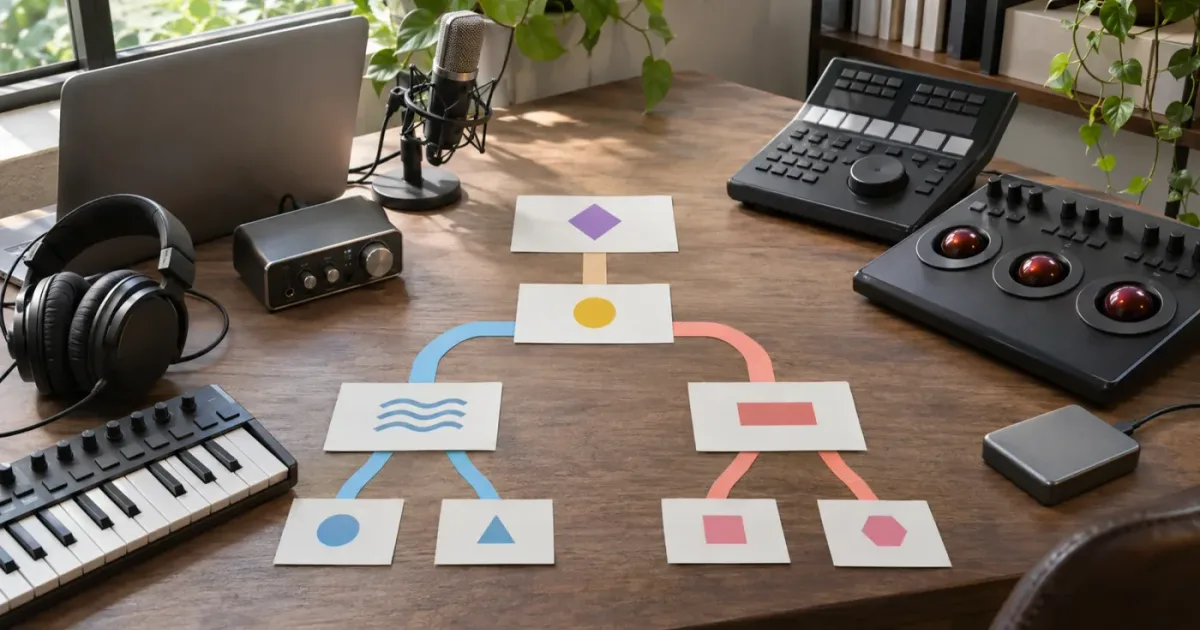
I start with the format, not a reinstall. “Plugin” can mean an audio effect, a video effect, a virtual instrument, or an app-specific extension, and DaVinci Resolve puts those in different places. I’ll separate those cases first, then walk through a careful scan and compatibility check.
As of October 2026, DaVinci Resolve 21.1 is the current manual version listed by Blackmagic Design. The main checks below apply to Resolve 21, but the wording and location of controls can shift between releases. Use the manual that matches your installed version, available through Blackmagic Design’s support center.
Why is my VST plugin not showing in DaVinci Resolve 21?
A missing VST in DaVinci Resolve 21 usually comes down to one of four things: Resolve is scanning the wrong folder, the plugin is disabled, the plugin format or operating system is incompatible, or you’re looking in the wrong effects panel. Check those before reinstalling anything.
“VST plugin” describes an audio plugin format. It does not tell Resolve which folder the installer chose, whether the plugin matches your computer, or whether you’re looking at an audio effect rather than a video effect. The fastest fix is a short diagnostic, not a long sequence of speculative changes.
Start here:
- Confirm that the missing item is an audio VST or VST3 effect, not an OFX video effect, a Fusion tool, or a standalone application.
- Confirm the plugin installed successfully and note its format and folder.
- Open DaVinci Resolve > Preferences > Audio Plugins. Check the listed VST folders and the plugin’s enabled state.
- Save your preferences, fully quit Resolve, and reopen it.
- Look for the plugin in Fairlight’s audio effects or the Edit page’s audio effects, not in the video-effects list.
- If it still isn’t there, check the plugin maker’s compatibility notes before removing caches or changing folders.
Resolve’s reference manual describes third-party VST and Audio Unit plugins as audio effects used in the Edit and Fairlight pages. Blackmagic’s Fairlight overview also distinguishes third-party VST and Mac Audio Unit plugins from Fairlight’s built-in effects. That distinction matters: installing an audio VST won’t make it appear in the video Effects Library.
A plugin’s file extension tells you where to investigate, not whether Resolve can use it.
This guide focuses on external audio plugins. If your missing item is a video effect, first check whether the vendor labels it OFX; don’t use the audio scan steps below. If it is an app extension that connects an asset service to Resolve, use that vendor’s installation and compatibility instructions instead. The word “plugin” alone is not enough to identify a fix.
What kind of plugin did I install?
Identify the plugin’s format and purpose before changing Resolve preferences. VST and VST3 are audio plugin formats, Audio Units are macOS audio plugins, and OFX is a separate plugin format commonly used for video effects.
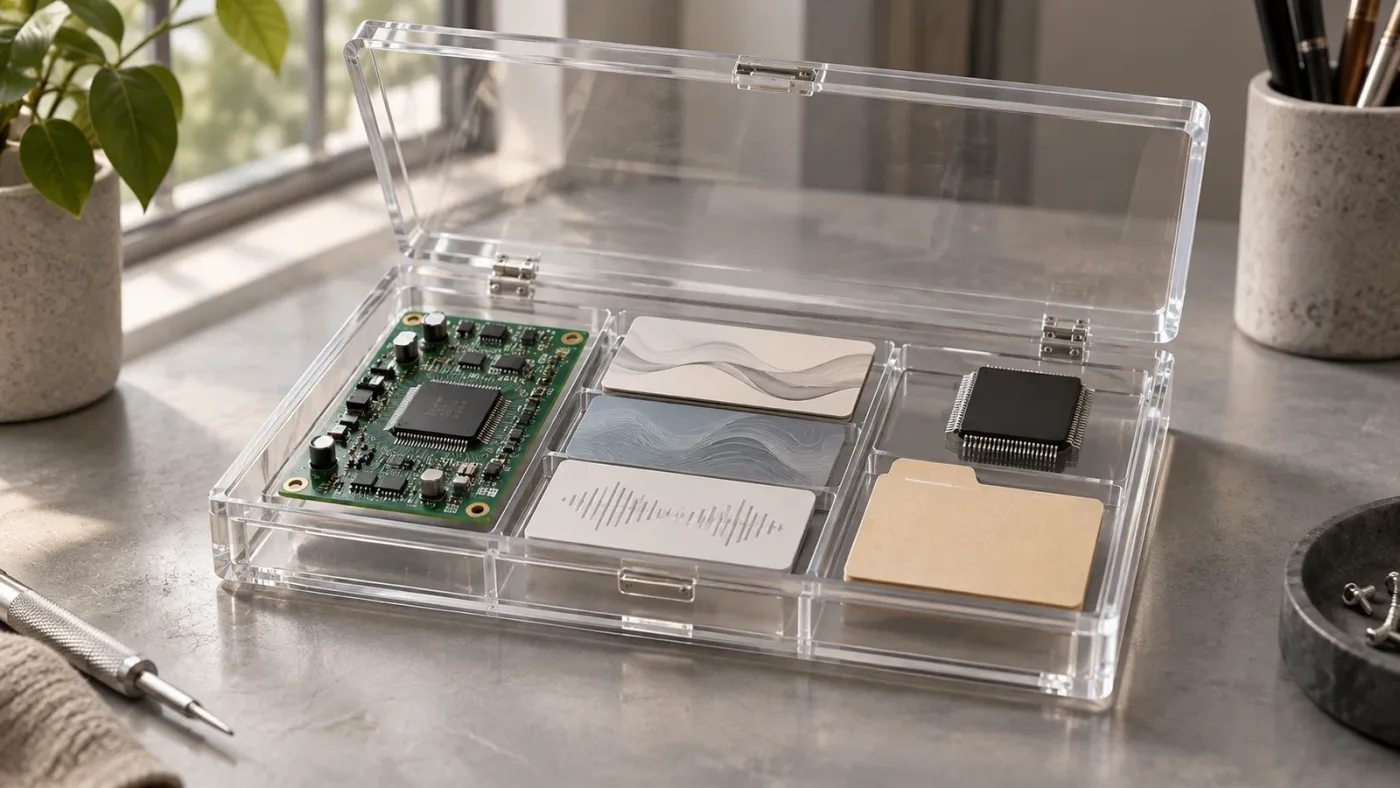
Plugin installers sometimes offer several formats in one package. You might install VST3 for one host, Audio Unit for another, and AAX for a third. The installer may select its own default formats, so the plugin appearing in another program doesn’t prove Resolve received the format or build it needs.
| What the vendor calls it | What it does | Where to look first in Resolve |
|---|---|---|
| VST or VST2 | Audio effect or instrument format | Preferences > Audio Plugins, then Fairlight or Edit audio effects |
| VST3 | Newer VST audio plugin format | Preferences > Audio Plugins, then Fairlight or Edit audio effects |
| AU or Audio Unit | macOS audio plugin format | Audio Plugin preferences and the audio effects panels on macOS |
| VSTi or instrument | Software instrument that generates sound | The relevant Fairlight instrument or track workflow, not a video effect list |
| OFX | Video effect or image-processing plugin | Video plugin preferences and the applicable video effects panel |
| Fusion macro or package | A Fusion composition or tool | Fusion’s effects and tool workflow |
| Workflow integration or extension | A separate app connection, often vendor-specific | The extension’s own installation instructions |
This table is a sorting aid, not a promise that every format works on every operating system or with every Resolve build. Check the plugin maker’s documentation for the exact version you installed. A plugin can be VST3 and still fail to load if its architecture, operating-system support, host requirements, or dependencies don’t match your setup.
The Resolve 21 reference manual is the best starting point for the host-side question. Blackmagic describes compatible third-party VST and Audio Unit audio plugins, while its Fairlight page describes both those plugin categories and built-in Fairlight FX. Those are related but not interchangeable: Fairlight FX ships with Resolve; third-party plugins must be installed and detected separately.
If you don’t know the format, don’t guess from the plugin’s name or the installer filename. Open the plugin maker’s product page or installation guide. Look for a section named “Formats,” “Supported hosts,” “System requirements,” or “Plugin locations.” If the installer has a custom selection screen, record which formats are checked before you proceed.
A VSTi instrument needs a little extra care. An instrument generates audio from MIDI or another input, so it doesn’t necessarily appear where you expect a compressor or reverb to appear. Blackmagic’s reference manual includes a Fairlight workflow involving a VSTi sampler on an audio track. That’s a different task from adding a standard audio effect to a clip or mixer channel.
If the installer offers multiple formats and you’re not sure which to use, select the format that the vendor explicitly says is supported by your Resolve version and operating system. Don’t install every version just to see what happens. Multiple copies or formats can make a plugin list harder to interpret, and they won’t fix an incompatible build.
Is my VST plugin installed in a folder DaVinci Resolve scans?
DaVinci Resolve can only scan plugin files it can reach through its configured audio-plugin locations. Check the plugin vendor’s chosen installation folder against the VST locations listed in Resolve’s Audio Plugins preferences.
First, use the plugin installer’s own repair or modify option if available. It can confirm which format was installed and where it went without requiring you to drag files around. Then compare that location with the paths shown in Resolve’s audio-plugin preferences.
For VST3, Steinberg’s developer documentation lists standard system and user locations. Common locations include:
| Platform | Common VST3 location |
|---|---|
| Windows, system-wide | C:\Program Files\Common Files\VST3 |
| Windows, per user | %LOCALAPPDATA%\Programs\Common\VST3 |
| macOS, system-wide | /Library/Audio/Plug-Ins/VST3/ |
| macOS, per user | ~/Library/Audio/Plug-ins/VST3/ |
| Linux, common system locations | Distribution-dependent locations such as /usr/lib/vst3/ or /usr/lib64/vst3/ |
These are standard VST3 locations, not a guarantee that a specific version of Resolve scans every one of them on every operating system. The VST3 specification describes locations that hosts can scan; the Resolve reference manual remains the better guide to Resolve’s own controls. Check the actual list in Preferences > Audio Plugins.
VST2 installers may use vendor-selected directories. A VST2 plugin might be installed in a custom folder that doesn’t match the VST3 location, even if the same installer offers both versions. The fix is usually to add the actual plugin directory in Resolve’s Audio Plugins preferences, not to move the plugin blindly.
On macOS, pay attention to the difference between the system Library and your user Library. /Library/Audio/Plug-Ins/VST3/ is a system-wide folder. ~/Library/Audio/Plug-ins/VST3/ is inside the signed-in user’s home folder. These paths are similar but not identical. If a plugin installer placed the file in one and Resolve is scanning only the other, the difference can explain why a plugin appears for one user account but not another.
On Windows, check whether the plugin was installed for the current user or for all users. %LOCALAPPDATA% points to the signed-in user’s local application data folder. The Program Files\Common Files location is system-wide. Don’t substitute one path for the other without confirming where the plugin actually landed.
For Linux, be especially cautious. A standard VST location is not proof that DaVinci Resolve’s Linux build supports your specific third-party audio plugin. Linux plugin compatibility depends on the Resolve build, the plugin’s format and dependencies, and its supported distribution. Check both Blackmagic’s documentation and the plugin vendor’s operating-system support before assuming that a path change will solve the problem.
If Resolve has an option to add a plugin directory, add the folder that contains the plugin in the format expected by the installer. Avoid pointing Resolve at your entire drive, a downloads folder, or an unrelated application’s plugin directory. A narrow path is easier to verify and less likely to trigger problems from unrelated files.
Use the plugin installer’s location as evidence; don’t assume every installer uses the same folder.
The VST3 developer portal says standard locations can be scanned recursively at startup, but a host’s actual scan behavior is up to the host application. That is why the paths listed in Resolve’s own preferences are the practical reference. If a path is missing, add the verified folder, save, and restart before changing anything else.
How do I rescan a VST plugin in DaVinci Resolve?
To rescan, open Resolve’s Audio Plugins preferences, confirm the relevant VST folder is listed, enable the plugin if it appears, save the change, and fully restart DaVinci Resolve. Restarting is important because plugin discovery may happen during application startup.
Use this sequence:
- Open a project, then open DaVinci Resolve > Preferences. The menu wording can vary slightly by operating system.
- Select Audio Plugins in the preferences sidebar.
- Find the VST or VST3 directory list. Confirm it includes the folder where the plugin installer placed the relevant plugin format.
- Review the plugin list, if shown. If the plugin is present but unchecked or disabled, enable it.
- Click Save or the equivalent confirmation button.
- Quit DaVinci Resolve completely. Closing a project window may not exit the application.
- Reopen Resolve and wait for startup to finish before checking the plugin list.
The user-visible result you want is a plugin that is detected and enabled in the audio-plugin preferences, then available in the appropriate audio effects menu. If the plugin appears in preferences but not in Fairlight, that’s a different branch: check its category and where you’re looking before changing the scan path again.
Some plugins take longer to load than others. If the app seems stalled during its first launch after installation, don’t force quit immediately unless Resolve is clearly unresponsive. Give the scan a moment. If Resolve eventually opens but the plugin is absent, continue with the checks below.
If your version of Resolve presents a rescan control, use it only after confirming the directory. A rescan of the wrong folder can repeat the same failure. If Resolve doesn’t show a separate rescan button, adding or verifying the location, saving, and restarting is a sensible first pass.
Waves’ vendor troubleshooting guide describes the same general pattern: verify the plugin file and scan location in Resolve’s Preferences > Audio Plugins, save, and restart the application. The guide includes its own vendor-specific paths and cache advice, so use those details only when they apply to the plugin you installed. Don’t copy a Waves cache fix to every other plugin without a reason.
After restart, avoid judging success from a single search field alone. Check the plugin’s category in the audio effects list. A plugin may be grouped under its function or vendor rather than shown under the name you expected. Search by the complete product name, the vendor name, and the effect type if the panel has a search box.
If you’ve installed multiple plugins from one vendor, test whether the missing plugin is the only absent item or whether the whole vendor’s plugins are missing. If all plugins from that vendor are absent, suspect the format choice, installation location, or compatibility. If only one plugin is absent, focus on that product’s install options, required dependencies, and Resolve support.
Why does my VST plugin show in Preferences but not in Fairlight?
A plugin listed in Preferences has been detected by Resolve, but it may be disabled, categorized differently, or designed for a different kind of audio track. Check its enabled state and category, then look in Fairlight’s audio effects or the Edit page’s audio effects.
Start by reopening Preferences > Audio Plugins and confirming the plugin is checked or otherwise enabled. If the plugin appears in a disabled or blacklisted group, don’t assume that means it is safe to force-load. Resolve may have disabled it after a load failure. Record the plugin name and any visible status before changing the setting.
Next, identify which type of plugin you installed:
- A standard audio effect, such as an equalizer, compressor, reverb, or noise-reduction tool, should be sought in an audio-effects workflow.
- A VSTi instrument may need an instrument-specific setup and an appropriate track or routing arrangement.
- A plugin that installs as OFX belongs to video effects, not Fairlight’s audio effects.
- A vendor integration that launches a separate panel may have its own menu, workspace, or login requirement.
DaVinci Resolve has several places that can look like “effects.” The video Effects Library is not the same as Fairlight’s audio effects list. On the Edit page, audio effects are associated with audio clips or tracks, while Fairlight offers additional audio-focused mixing controls. Check that you are applying an audio effect to an audio item or channel, rather than searching a video effect category.
The Resolve reference manual explains that Fairlight and the Edit page use compatible third-party audio plugins. It also describes plugin controls in the Fairlight mixer and track workflow. Use that manual to identify the correct host location for the kind of plugin you have. If the effect is detected but absent from a particular menu, the issue may be placement, not scanning.
A useful test is to open a project with a regular audio track, select an audio clip or channel, and inspect the audio effects choices. Don’t use a video-only clip or a video FX panel to test an audio plugin. The purpose is to establish that you’re checking a valid location, not to alter your actual mix.
If the plugin is an instrument, check the vendor’s instructions for Resolve support specifically. “VSTi” does not mean every host offers the same instrument workflow. Some plugins need MIDI input; some need a track configured to receive that input; and some are designed for a DAW workflow that Resolve does not provide in the way you expect. Resolve’s manual includes an example workflow for a VSTi sampler, but that does not guarantee support for every instrument or use case.
Also distinguish a missing plugin from a plugin that loads but produces no sound. If its name appears and its interface opens, the scan succeeded. Troubleshoot routing, track format, input, monitoring, or plugin-specific setup instead of repeating the scan. For a broader audio diagnosis, see our guide to DaVinci Resolve no audio.
Why is Resolve not finding a VST3 plugin?
A VST3 plugin can be missing because its folder isn’t in the scan list, the installed package is incomplete, the plugin’s architecture doesn’t match the host, or the plugin vendor doesn’t support your Resolve and operating-system combination. Confirm each item before clearing caches or reinstalling.
VST3 has a defined package structure. Steinberg’s documentation describes a .vst3 package on macOS and a bundle-like folder on Windows. A plugin isn’t always a single file that you can copy from one computer to another. On Windows, for example, the VST3 package can include separate binaries and supporting resources. On macOS, the package contains a bundle with a binary and metadata. Don’t pull one internal file out of the bundle and treat it as a complete plugin.
The visible name can also be misleading. A Windows VST3 package may appear as a folder ending in .vst3; the plugin binary is inside it. On macOS, Finder presents a bundle that can look like a single application-like item. Don’t rename the bundle, move its internal binary, or delete its resource files while trying to make Resolve see it.
Check the vendor’s install notes for these details:
- Does the installer offer VST2, VST3, AU, AAX, or another format?
- Which format does the vendor list for DaVinci Resolve?
- Which operating-system versions are supported?
- Is your computer Intel, Apple Silicon, or Windows on Arm?
- Does the plugin require a separate runtime, license manager, or activation?
- Does the vendor list DaVinci Resolve as a supported host, or only list other audio applications?
- Is the plugin’s minimum host version compatible with your Resolve version?
A plugin can work in one application and fail in Resolve because host support is not universal. The host controls how it discovers and loads a plugin. A vendor may support the plugin in a DAW but not test it in a video editor’s Fairlight page. Treat “VST3 compatible” as a format claim, not a guarantee of every feature working in every host.
Processor architecture is another real branch. Apple Silicon Macs, Intel Macs, standard Windows PCs, and Windows on Arm can require different plugin builds. A universal macOS package may support both Intel and Apple Silicon, but don’t assume it does unless the vendor says so. On Windows on Arm, compatibility can depend on whether both the host and plugin support compatible architectures.
A relevant note in the VST3 developer portal quotes Microsoft engineer Pete Brown: “Please offer both Arm64EC and x64 versions of your DAWs and plug-ins, and please stay up to date with the latest developer tooling and SDKs.” That statement is about Windows-on-Arm architecture support, not a promise about any specific plugin or DaVinci Resolve. The practical point is narrower: matching the plugin format isn’t enough if the host and plugin binaries can’t run together.
If you are on Windows on Arm, check whether the plugin maker supports your exact host architecture and whether its installer includes a compatible build. If you are on an Apple Silicon Mac, check whether the plugin supports native Apple Silicon or requires another supported operating mode. Follow the vendor’s instructions rather than changing Resolve’s launch mode as a guess.
If the vendor confirms that the plugin should work in your setup, run its installer’s repair function or reinstall only that plugin in the supported format. Then repeat the preference check and restart. A clean vendor installation is safer than copying plugin files from another computer or another audio application.
Where do I find DaVinci Resolve audio plugins on Windows?
On Windows, check Resolve’s Audio Plugins preferences and compare the listed folders with the folder where the plugin installer placed its VST or VST3 version. The standard global VST3 folder is C:\Program Files\Common Files\VST3, but an installer can use a different location or a per-user folder.
Use File Explorer to inspect the actual install location, not just the installer download. A setup file in Downloads is not the plugin itself. If the vendor uses a plugin manager, open it and confirm that the product is installed and activated. Then check the plugin’s format and path in the vendor’s own settings or documentation.
For VST3, check whether the plugin package is in the standard system folder or the user-level folder. Steinberg documents a per-user Windows VST3 location under %LOCALAPPDATA%\Programs\Common\VST3 and a global location under Program Files\Common Files\VST3. Resolve may not scan every standard folder automatically in every configuration. Confirm the path in Resolve’s preferences.
For VST2, the installer may use a custom location. If Resolve has no entry for that folder, add the folder listed by the installer or vendor. Avoid adding several broad folders at once. One verified path makes it easier to know whether the fix worked.
Check whether you installed the 32-bit or 64-bit plugin build if the vendor still offers both. The current Resolve desktop environment and plugin architecture must be compatible. A 32-bit plugin is not a suitable substitute for a current 64-bit host simply because the extension or product name looks right. Use the version the plugin maker supports for your host.
If the installer requires administrator access, rerun it through the vendor’s documented repair process. Don’t attempt to change permissions on a shared plugin directory as a first response. A permissions problem is possible, but changing folder security without evidence can affect other software and user accounts.
A useful Windows sequence is:
- Open the plugin vendor’s installer or management app.
- Confirm the plugin is installed in a Resolve-supported format.
- Note the exact folder.
- Open Resolve’s Audio Plugins preferences.
- Add that exact folder if it is absent.
- Enable the plugin if it appears in the list.
- Save and restart Resolve.
- Check the audio-effects list in Fairlight.
If the plugin is visible in Preferences but marked disabled, note that state. It may indicate a load failure rather than a missing path. Before re-enabling it, verify that the plugin vendor supports your Resolve version and operating system. If Resolve disables it again after restart, stop repeating the same toggle and ask the vendor about compatibility or crash logs.
Do not drag a .vst3 folder into Resolve’s application directory unless the plugin maker specifically directs you to do that. Standard VST3 locations and application-specific folders are different. Moving packages around can leave the vendor installer unaware of the change, break updates, or create duplicate entries.
Where do I find DaVinci Resolve audio plugins on Mac?
On macOS, check whether the plugin is installed in the system-wide VST3 folder, the current user’s VST3 folder, or the Audio Units folder, then compare that location with Resolve’s Audio Plugins preferences. The system-wide VST3 location is /Library/Audio/Plug-Ins/VST3/; the user location is ~/Library/Audio/Plug-ins/VST3/.
The two Library folders are easy to confuse. One starts at the root of the startup disk. The other is inside your home folder and is usually hidden in Finder’s normal view. An installer may use either. If the plugin was installed for another macOS user, it may not be in the current account’s user Library.
Check the plugin format, too. An AU plugin is not a VST3 plugin, even if both formats come from the same product installer. Resolve’s documentation lists Audio Units as a supported third-party audio plugin type, but an AU format is specific to macOS. If you installed only AU, don’t search for a .vst3 bundle and assume the installation failed.
If the plugin is installed in a standard location but not listed in Resolve, verify that the corresponding directory is in the Audio Plugins preferences. Add only the folder you confirmed. Save and fully restart Resolve. Then check the audio-effects list again.
Mac users should also verify the processor architecture the plugin vendor supports. An Intel-only plugin, an Apple-Silicon-native plugin, and a universal plugin may behave differently. Read the vendor’s compatibility notes for both your processor and the specific Resolve build. Don’t assume that “macOS compatible” means “compatible with every Mac processor.”
If you use a plugin license manager, confirm that the product is activated in the correct user account. Activation and discovery are separate issues: Resolve may scan the plugin but the plugin may refuse to load its full interface until the vendor’s license service is running or the product is authorized. Follow the vendor’s activation directions rather than deleting Resolve settings.
Avoid changing macOS security settings or removing quarantine attributes as a generic fix. If macOS reports that it blocked the app or plugin, follow the vendor’s current notarization and installation guidance. Disabling protections or running commands copied from an unrelated forum can expose your system or damage the plugin installation.
When an installer offers both VST3 and AU, install the format the vendor documents for Resolve. If its instructions say both are supported, you can choose one format and test it first. Installing several formats does not necessarily make Resolve’s list clearer, and duplicate formats may show up as separate entries.
Does Resolve 21 support VST3, VST2, Audio Units, and VSTi?
DaVinci Resolve 21’s manual describes compatible third-party VST and Audio Unit audio plugins, but support for a format does not guarantee every plugin will work. Confirm the exact format, operating system, host version, and plugin architecture with the maker.
Resolve’s manual is the primary host reference for the current major version. Blackmagic’s public Fairlight page says Resolve can use third-party Steinberg VST and Mac Audio Unit plugins. Use those vendor statements to establish the broad plugin categories, then check the plugin maker for product-specific host support. Compatibility is not a single yes-or-no property shared by all plugins.
Be careful when reading old forum answers. Discussions about earlier DaVinci Resolve releases may say VST3 is unsupported or describe a scan procedure from an older version. Those posts can explain why conflicting instructions exist, but an older statement shouldn’t override the current Resolve 21 manual. Check the date and version in any troubleshooting post you find.
The term “VST” is sometimes used loosely to refer to both VST2 and VST3. The plugin installer’s format label is more useful than a forum post that simply says “VST.” If the vendor offers both formats, check its Resolve-specific documentation. If it lists only VST3 and your preferences show a different folder, that’s a useful clue. If it offers only an unsupported format for your operating system, changing the scan path won’t convert it.
Audio Units are a separate format. They are relevant on macOS, not Windows. A Windows installer that offers VST3 but not AU is normal. A Mac installer may offer AU and VST3 options. Choose the format the plugin vendor recommends for Resolve, then confirm the installation path.
VSTi instruments are also different from audio effects. Resolve’s reference manual provides an example of a VSTi sampler in a Fairlight recording workflow, but an individual instrument might need MIDI input or routing that differs from a conventional effect. If the instrument appears in a list but won’t play, investigate its input and track setup. If it never appears, return to the format, path, architecture, and vendor-support checks.
Don’t treat plugin format as a version number. “VST3” alone doesn’t say how old or new the plugin is, what Resolve version it supports, or whether it was built for your processor. The vendor’s release notes and system requirements answer those questions.
Why does Resolve disable my plugin after scanning it?
If DaVinci Resolve disables a plugin after scanning, treat that as a possible load failure, not as proof that the plugin is harmless or merely hidden. Check the plugin maker’s compatibility notes and Resolve’s status before turning it back on.
The Resolve reference manual describes a safeguard that can automatically disable VST plugins that cause Resolve to crash while loading during startup. The practical implication is important: a plugin may be present in the scan folder but disabled because loading it was unsafe or unsuccessful. Repeatedly enabling it without checking the cause can lead to another failed startup.
Use a conservative troubleshooting order:
- Record the plugin name, format, version, and visible status.
- Check whether the plugin vendor supports your Resolve version and operating system.
- Check that the installer selected the correct plugin architecture.
- Confirm that any required licensing app or dependency is installed and running.
- Update or repair the plugin using the vendor’s installer if the vendor recommends it.
- Enable it once, save, and restart to see whether the status persists.
If Resolve disables the plugin again, don’t keep repeating the same toggle. Note whether the entire application crashes, becomes unresponsive, or opens but omits the plugin. Those outcomes point to different causes. A plugin load crash may require vendor support; a missing category may simply mean you’re checking the wrong panel.
Also consider whether the issue started after a plugin update or a Resolve update. A timing relationship is a clue, not proof. A recent update could change compatibility, but it could also coincide with an altered plugin path, a license-manager change, or a new user account. Record the exact Resolve and plugin versions before contacting support.
A safe isolation test is to temporarily disable or remove only the suspect plugin through the vendor’s supported installer or Resolve’s plugin preferences. Don’t delete unrelated plugin folders, configuration files, or system components to see if performance improves. If the problem disappears when that one plugin is disabled, report that evidence to the vendor.
If Resolve opens normally but the plugin interface fails, check the vendor’s release notes for host compatibility and known issues. If Resolve crashes during startup, use the vendor’s approved recovery steps first. In a critical project, prioritize opening Resolve without the suspect plugin and safeguarding a copy of the project before experimenting.
When contacting support, include:
- Resolve version and whether it is the Free or Studio edition
- Operating system version and processor type
- Plugin name, version, format, and vendor
- Whether the plugin appears in Audio Plugins preferences
- Whether Resolve disables it again after a restart
- The exact point where the failure occurs
A precise report helps the plugin maker distinguish a scan problem from a load failure. If you use a complex Fairlight mix, the issue may also affect playback or project behavior. For related monitoring symptoms, see our guide to high-latency audio monitoring in DaVinci Resolve.
Should I delete Resolve’s plugin cache or configuration files?
Don’t delete plugin configuration files as your first fix. First verify the plugin format, folder, enabled state, and compatibility; only consider a cache or configuration reset when the vendor’s instructions identify that exact file and explain how to recover it.
A configuration file can store plugin scan results or settings. Removing one may make Resolve rebuild a list, but it can also remove useful state or complicate troubleshooting. A vendor may recommend a particular file for its own product, but that advice is not automatically correct for every plugin or every Resolve version.
Waves’ troubleshooting article, for example, describes a specific plugin-configuration file and a vendor-specific reset procedure. That is a useful source if the missing plugin is a Waves product and the guidance matches your Resolve version. It is not a general instruction to delete similarly named files for unrelated vendors.
Before any reset:
- Quit Resolve fully.
- Confirm the exact file path and filename in current vendor or Blackmagic documentation.
- Make a copy of the file or move it to a clearly named backup folder instead of permanently deleting it.
- Change only the one item the instructions identify.
- Restart Resolve and observe whether the result changes.
- Keep the backup until you know the project and plugin list behave as expected.
Don’t edit a configuration file by hand unless the vendor explicitly instructs you to do so. Don’t delete the entire Resolve preferences folder as a plugin fix. Resetting all preferences can change unrelated controls and remove configuration you rely on, while leaving the actual plugin compatibility problem untouched.
Likewise, avoid broad fixes such as reinstalling Resolve, resetting the project database, changing the system audio driver, or removing every plugin. Those actions affect more than plugin discovery and can make the original fault harder to isolate. A targeted test is safer and gives you better evidence.
If a cache reset is necessary, keep a simple record of the original file name, location, date, and reason for moving it. Then restart and test with a simple audio track. If Resolve regenerates the file and the plugin still fails, restore the original or follow the vendor’s next documented step. Don’t continue deleting newly generated files in a loop.
Why does my plugin work in another audio app but not DaVinci Resolve?
A plugin working in another audio app proves that it can load in that app, not that it is compatible with DaVinci Resolve. Different hosts can scan different folders, support different formats, use different architectures, or implement plugin features differently.
Make a quick comparison before changing anything:
| Check | Other audio app | DaVinci Resolve |
|---|---|---|
| Installed format | What did its installer select? | What format does Resolve scan? |
| Plugin location | Which folder does the app use? | Is that folder listed in Audio Plugins preferences? |
| Host support | Does the vendor list this app? | Does the vendor list Resolve or Fairlight? |
| Architecture | Which build is running? | Does the plugin match Resolve’s build? |
| Status | Does the plugin open normally? | Is it detected, enabled, and listed in the correct category? |
The other application may load the plugin from a custom folder that Resolve doesn’t scan. It may also have a separate copy of the plugin in a shared VST3 folder. Compare the actual installed locations instead of assuming both apps found the same file.
The plugin may support a host-specific feature that Resolve doesn’t expose in the same way. A plugin can open and process audio but behave differently with automation, sidechains, presets, MIDI, or channel layouts. Those are compatibility questions for the plugin maker, not proof that Resolve failed to install it.
Use a clean, simple test rather than a demanding production project. Open a copy or a new project with a basic audio track, insert the plugin in a supported audio-effects location, and check whether the interface opens. Don’t use a complex session as your first diagnostic; routing, track formats, and existing processing can add confusion.
If the plugin is listed in Resolve’s preferences but does not appear in the effects menu, check its category and the manual’s placement guidance. If it appears and opens but behaves differently from another host, capture the specific behavior and send it to the vendor. State the host and plugin versions rather than simply reporting “it doesn’t work.”
If the plugin vendor confirms Resolve compatibility but the plugin remains absent, contact the vendor with your installation path and scan status. For Resolve Free users, Blackmagic notes that technical support for the free version is available through its community forums; Studio users can use the support options listed in the official support center. Don’t share licensed plugin files or project media publicly when asking for help.
Can I use a VST plugin in the Edit page, or only Fairlight?
Compatible audio plugins can be used in both the Edit and Fairlight pages, but the available controls and the place where you add an effect depend on whether you’re processing a clip, track, or mixer channel.
The Resolve 21 reference manual describes third-party audio plugin use in the Edit and Fairlight pages. That doesn’t mean every audio plugin appears in the video-effects list or in every audio slot. Use the audio controls associated with the clip or track you intend to process.
For clip-level processing, select the audio clip and inspect its audio effects controls. For track or bus processing, use the mixer or Fairlight channel workflow. The right choice depends on whether you want the plugin to affect one clip or multiple clips routed through a shared channel.
A plugin showing on a Fairlight channel strip may not show as an effect on a selected clip. The reverse can also happen if you’re checking a clip’s controls but installed a plugin intended for channel-level processing. Before troubleshooting discovery, decide which object you want to process.
If you’re following an older tutorial, compare its Resolve version and page. Interface layouts change, and a menu may be in a different place even though the plugin is still detected. Use the current reference manual and the vendor’s Resolve instructions rather than assuming a missing button means a failed installation.
If you’re new to the audio workflow, our guide to mixing audio in DaVinci Resolve with Fairlight explains how clip, track, and mixer processing fit together.
How do I tell a scan problem from a plugin that produces no sound?
If the plugin’s name appears in Resolve and its interface opens, the scan succeeded; troubleshoot audio routing, track setup, monitoring, or plugin activation instead. If it never appears in the preferences or an audio-effects list, stay with discovery and compatibility checks.
These symptoms are different:
| What you see | Likely troubleshooting area |
|---|---|
| Plugin absent from Audio Plugins preferences | Install format, scan path, operating-system support, architecture |
| Plugin present but disabled | Load failure, incompatibility, or previous startup issue |
| Plugin enabled in preferences but absent from effects menu | Category, audio-versus-video panel, track or effect placement |
| Plugin listed and interface opens, but no sound changes | Effect settings, bypass, routing, track format, input signal |
| Plugin works in a new project but not an existing one | Project routing, track settings, plugin state, or session-specific issue |
| Plugin loads, then Resolve crashes | Plugin compatibility, vendor update, or a documented host issue |
If the interface opens, check the plugin’s own bypass control, input meter, output level, and preset state. Then check whether the audio track is muted, whether the effect is bypassed in Resolve, and whether the signal is routed to the output you are monitoring. Make one change at a time.
Do not raise a track or master fader blindly to compensate for a silent plugin. A routing or bypass problem can look like a gain problem. Confirm that the audio clip itself plays and that the channel meters move before diagnosing the plugin’s processing.
If the plugin works on a new test track but not in an existing project, compare the track format and routing. A mono source, stereo track, multichannel bus, and instrument track can present different channel requirements. Check the plugin maker’s channel-format support and Resolve’s track configuration.
If the plugin itself is absent, don’t spend time changing audio monitoring devices. A monitoring problem cannot make a missing plugin appear in the scan list. Keep discovery and audio-output troubleshooting separate until you have evidence they share a cause.
What should I send plugin support if the VST still isn’t showing?
Send the plugin maker a short diagnostic record with your Resolve version, operating system, plugin format, install path, and what happens after a restart. Those details help support identify whether the issue is installation, discovery, compatibility, licensing, or loading.
Include the following:
- Exact Resolve version, such as DaVinci Resolve 21.1, and Free or Studio edition.
- Computer operating system and version.
- Processor type, such as Intel, Apple Silicon, or Windows on Arm.
- Plugin product name, version, and vendor.
- Installed format, such as VST2, VST3, AU, or VSTi.
- The actual installation folder shown by the installer or vendor manager.
- Whether that folder is listed in Preferences > Audio Plugins.
- Whether the plugin appears in preferences and whether it is enabled.
- Whether it appears in Fairlight or the Edit page’s audio effects.
- Whether Resolve opens, disables the plugin, hangs, or crashes during the scan.
State what you already tried, in order. “I added the vendor’s VST3 folder, enabled the plugin, saved preferences, restarted Resolve, and it remains absent” is more useful than “I reinstalled everything.” Avoid including account passwords, license keys, private project media, or proprietary plugin binaries in a public forum post.
If support asks for logs, use the vendor’s or Blackmagic Design’s official collection process. Don’t upload a full project, media archive, or crash dump to an unknown file-sharing service. If you need to share a project, make a separate copy and remove private media or credentials as appropriate.
Resolve Free users can consult the Blackmagic community forums, while the support center lists current software and support resources. The Resolve support page is the right place to confirm the current version and locate the appropriate support route.
What should I do next if the DaVinci Resolve VST plugin is still missing?
If the plugin remains missing after you confirm its format, path, enabled state, restart, and correct effects panel, stop repeating those steps and check the vendor’s Resolve-specific compatibility notes. A documented mismatch needs a compatible plugin build, not another scan.
Use this final decision path:
- Plugin not installed: run the vendor installer and select a supported audio format.
- Plugin installed outside a listed folder: add the exact vendor-confirmed folder in Audio Plugins preferences.
- Plugin listed but disabled: check the vendor’s compatibility notes before enabling it.
- Plugin enabled but absent from the list you opened: switch from video effects to the correct audio-effects panel.
- Plugin loads but has no effect: check bypass, routing, signal, track format, and plugin activation.
- Resolve disables or crashes on it: stop toggling it and contact the plugin vendor with the version and status details.
- Linux or an uncommon processor architecture: confirm both Resolve and plugin support directly; do not infer compatibility from the standard VST folder alone.
The plugin’s manufacturer is the best source for exact supported builds and installer behavior. Blackmagic’s manual is the best source for Resolve’s host-side controls. Use both, because neither source can confirm the other company’s entire compatibility matrix.
If you’re new to Resolve and the Audio Plugins preferences are hard to find, TryUncle offers on-screen guidance while you work through controls in DaVinci Resolve on Mac or Windows. TryUncle is the on-screen assistant for DaVinci Resolve on Mac and Windows, ask in plain words and Uncle points at the exact control on your screen.
A successful scan means the plugin is detected, enabled, and visible in the right audio-effects workflow.
If those conditions are met but the plugin still fails to load, save the exact details and ask the plugin maker for a Resolve-compatible build. Don’t delete broad preference folders or move plugin files without a vendor-supported reason.
How can I tell whether the plugin fix worked?
The fix is confirmed when Resolve lists the plugin as enabled, presents it in the appropriate audio-effects location, and opens its interface on a suitable audio clip or channel. If you expected audible processing, confirm the track receives signal and the plugin isn’t bypassed.
Use a short verification rather than relying on a single menu:
- Reopen Audio Plugins preferences and confirm the plugin remains enabled after restart.
- Open the correct audio-effects panel in Fairlight or the Edit page.
- Add the plugin to a suitable audio clip, track, or channel.
- Confirm its interface opens without an error.
- Check for signal at the relevant track or plugin meters.
- Compare the processed result with bypass enabled and disabled at a safe monitoring level.
A plugin appearing in the list proves discovery, not that every feature works. A plugin interface opening proves loading, not that the signal path is correct. Separate those checks and you’ll know which part is fixed.
If your goal was simply to make the plugin available, stop once Resolve can detect and open it. If you’re diagnosing a sound issue, continue with signal flow and the plugin vendor’s setup guide. Keep a note of the final working format and location so you can repeat the setup after a system migration or reinstall.
For Resolve 21, use the current Blackmagic manual and the plugin maker’s current instructions as your references. If their compatibility notes disagree, ask the vendor which configuration they support for your exact Resolve build. Then leave the plugin in its documented folder and get back to the mix.
Frequently asked questions
- Why is my VST plugin not showing in DaVinci Resolve 21?
- The most common reasons are that the plugin is the wrong type, its folder is not in Resolve's Audio Plugins preferences, it is disabled after a failed scan, or you are looking in a video-effects panel instead of Fairlight's audio effects. Check those in that order, then restart Resolve.
- Where do VST plugins go for DaVinci Resolve on Windows and Mac?
- VST3 installers usually use the standard VST3 folders: C:\Program Files\Common Files\VST3 on Windows, or /Library/Audio/Plug-Ins/VST3 on macOS. A per-user VST3 folder can also be used. For VST2, use the folder selected by the plugin installer and add that location in DaVinci Resolve > Preferences > Audio Plugins.
- Does DaVinci Resolve 21 support VST3 plugins?
- The Resolve 21 reference manual describes support for compatible third-party VST and Audio Unit audio plugins, but format support alone does not guarantee that a specific plugin, operating system, or processor architecture is compatible. Check the plugin maker's requirements and test the exact installed build.
- Why does my VST plugin show in Preferences but not in Fairlight?
- Being detected in Preferences does not mean the plugin will appear in every effect menu. Confirm it is enabled, then look under Fairlight or the Edit page's audio effects, not the video Effects Library. Instrument plugins may also require an instrument-compatible track and routing.
Sources
Put this guide to work with TryUncle.
Ask about the step you’re on. TryUncle sees your screen and points at the control you need, so you can keep learning in your own project.
Get TryUncle for Mac or WindowsKeep reading
Guides · Jul 11, 2026 · 31 min
How to Mix Audio in DaVinci Resolve Using Fairlight
Mix audio in DaVinci Resolve's Fairlight page: build a dialogue/music/effects bus structure, gain-stage your clips, EQ and compress dialogue, then duck music under it.
Fixes · Jul 7, 2026 · 26 min
DaVinci Resolve No Audio: Every Cause and How to Fix It
Timeline plays video but no sound? Check the mute and solo buttons, the I/O Engine setting, sample rate, and Export Audio, in that order. Full fix list.
Fixes · Jul 25, 2026 · 27 min
DaVinci Resolve High Latency Audio Monitoring: The Fix
Hearing your voice or your speakers late in DaVinci Resolve? Lower the buffer size, switch I/O Engine, and cache your plugins, in that order. Full fix list.