Articles / Fixesupdated for DaVinci Resolve 21.0.2 (July 2026)
DaVinci Resolve Wacom Tablet Pressure Sensitivity Fix
Quick answer
Wacom tablet pressure sensitivity not working in DaVinci Resolve almost always means Fusion's Paint node, not the Color page. Check that your Wacom driver is current, that Windows Ink or macOS Accessibility and Input Monitoring permissions aren't blocking the pen, and that the node's Vary Size or Vary Opacity is set to 'With Pressure.'
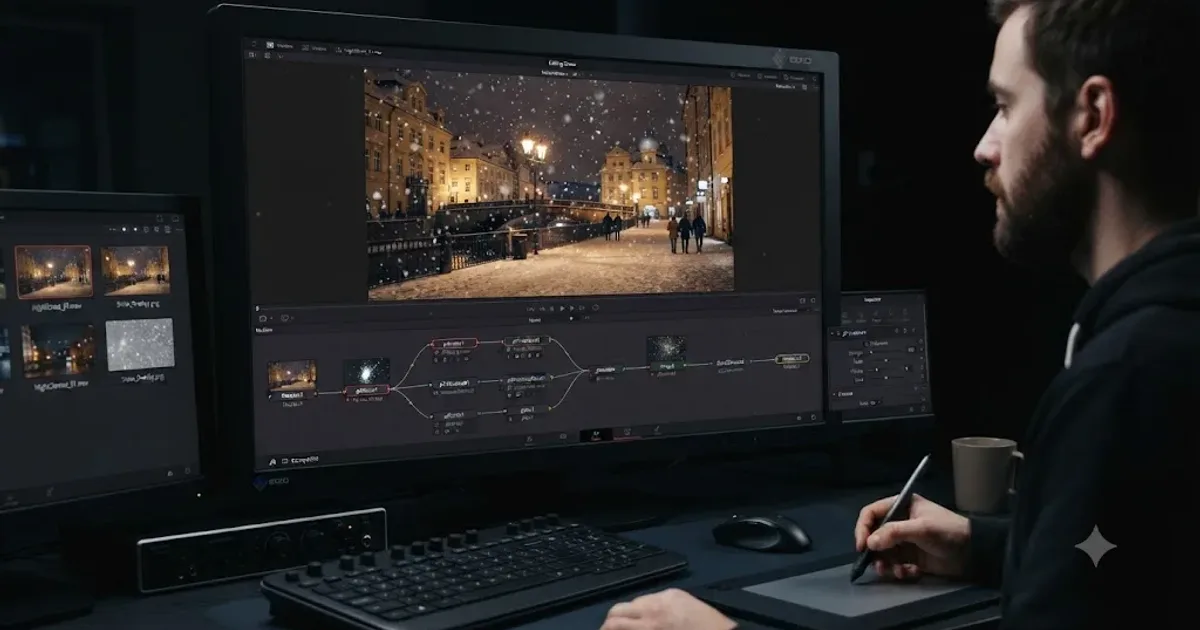
I've had a Wacom tablet on my desk through most of seven years of professional commercial editing, and the first time pressure sensitivity quietly stopped working in a Resolve project, I spent twenty minutes blaming the Paint node before I found out the tablet driver hadn't survived a macOS update. It's a specific kind of annoying: the pen still moves the cursor, so your brain assumes the hardware is fine, and the actual fault is hiding somewhere between three different pieces of software that don't talk to each other.
This is one of the questions that comes up on a loop inside our 100,000-plus member editing community, right alongside "why won't my mask paint stroke feel like it's pressure sensitive at all." As of July 2026, on DaVinci Resolve 21.0.2, the fix is almost never a broken tablet. It's a setting in the wrong state, in one of four specific places, and this guide walks through all four in the order that actually finds the problem fastest.
Why is Wacom pressure sensitivity not working in DaVinci Resolve?
Wacom pressure sensitivity fails in DaVinci Resolve for one of four reasons: you're testing it somewhere in the app that was never pressure-sensitive, the Fusion Paint node's own pressure setting is switched off, your Wacom driver or its OS permissions are broken, or a protocol conflict (Windows Ink versus WinTab) is stripping the pressure data before Resolve ever sees it.
That's the whole map. Everything below this section is one of those four branches, expanded into the specific screens, settings, and version numbers you'll actually run into. A pen that moves the cursor but ignores pressure is not proof the tablet is broken. Cursor movement and pressure data travel through the same USB or Bluetooth connection but get processed differently once they reach your computer, which is exactly why one can work while the other silently doesn't.
Here's the fast version, as a table, before the long version:
| Symptom | Most likely cause | Where to look |
|---|---|---|
| Pressure does nothing on the Color page | Not a bug. The Color page isn't pressure-sensitive. | Move to the Fusion page's Paint node |
| Cursor moves, but paint strokes are uniform width/opacity | Vary Size/Vary Opacity set to Constant | Paint node Inspector |
| Pen worked yesterday, stopped after a macOS update | macOS 26 Tahoe pen bug, or driver mismatch | Wacom driver version, macOS version |
| Pen worked yesterday, stopped after installing the tablet | Accessibility/Input Monitoring permission never granted | macOS Privacy and Security settings |
| Pressure feels "on/off" instead of gradual | Windows Ink enabled instead of WinTab | Wacom Tablet Properties |
| Pressure works in Photoshop, not in Resolve | Per-app driver profile, or node setting | Both the driver's app list and the Inspector |
| Pressure reads 0% no matter how hard you press | Worn nib, dead pen, or bad USB cable | Wacom's built-in diagnostic tool |
| Non-Wacom tablet (Huion, XP-Pen) loses pressure after an update | Third-party driver hasn't caught up yet | Manufacturer's own driver release notes |
Does the DaVinci Resolve Color page use pressure sensitivity at all?
No, and this single fact resolves a large share of "my pressure isn't working" reports before any troubleshooting even starts. The primary wheels, power windows, qualifiers, and every other control on DaVinci Resolve's Color page treat a Wacom stylus exactly the same way they treat a mouse: as a pointer with an x/y position and a click state, nothing more.
That's a design choice, not an oversight. Power windows and qualifier shapes need precise 2D positioning, the kind a stylus is arguably better at than a mouse, but neither tool reads how hard you're pressing. You could press a shape's edge with a feather touch or slam the pen down and Resolve's Color page would record the identical result. If you came looking for this fix because a stylus "feels the same as a mouse" while drawing a power window, that's not a malfunction. It's the Color page working as designed.
Our guide to trackballs versus mice for color grading covers this same territory from the hardware side: a stylus is a genuine upgrade over a mouse for drawing masks and windows because of its precision, not because of pressure, and working colorists disagree about whether it beats a dedicated control surface for the primary wheels at all. Pressure sensitivity, the thing this guide is actually about, lives in exactly one place in DaVinci Resolve: the Fusion page's Paint and Mask Paint nodes.
Pressure sensitivity in DaVinci Resolve exists in exactly two nodes, and nowhere else in the entire application. Not the Edit page, not the Cut page, not Fairlight, not the Color page's own paint-adjacent tools. If you're testing pressure anywhere outside Fusion's Paint or Mask Paint node and expecting a response, stop, because you're testing a feature that was never built into that part of the software.
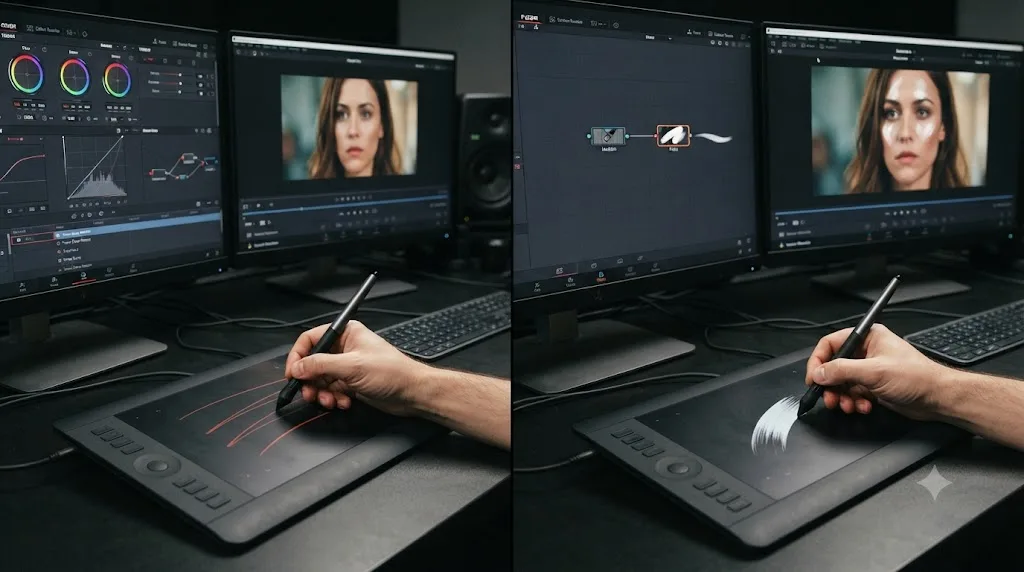
Is pressure sensitivity turned on inside Fusion's Paint node?
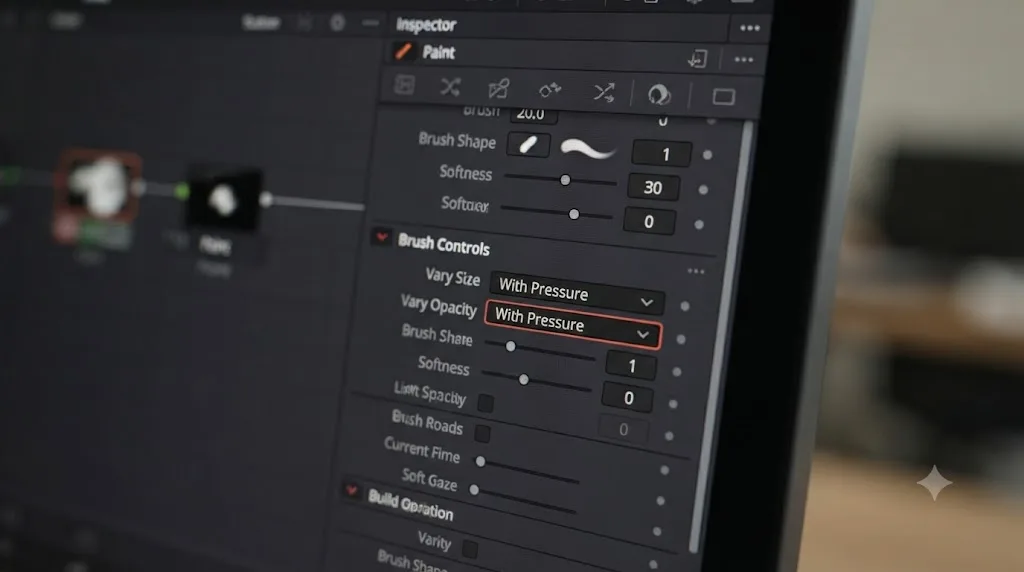
Check this before anything involving drivers or permissions, because it's the single most common cause that has nothing to do with your tablet. The Paint node's Inspector has two separate settings, Vary Size and Vary Opacity, and both default to Constant, meaning the stroke ignores pressure entirely until you change that setting yourself.
Open the Fusion page, select your Paint node, and look in the Inspector for the Stroke section. You'll find Vary Size with three options, Constant, With Pressure, and With Velocity, and Vary Opacity with the same three choices. Per the documented node controls, With Pressure means "the stroke size varies with the actual applied pressure," while With Velocity means the opposite kind of dynamic response, where "the faster the stroke, the thinner it is," tied to how quickly you move the pen rather than how hard you press it. The Mask Paint node, used for rotoscoping and matte refinement rather than visible paint strokes, has the identical pair of controls, so if you're troubleshooting a mask rather than a paint stroke, the fix lives in the same place under a different node name.
Here's the trap that catches people who've used pressure sensitivity in other software: pressing harder on the pen produces no visible change unless Vary Size or Vary Opacity is explicitly set to With Pressure inside the node itself. Photoshop, Procreate, and most illustration software wire pressure into the brush engine by default. Fusion's Paint node makes it an explicit, per-node choice, defaulting to off. That's not a bug. It's just a different default than the software you might be used to, and it means the very first thing to check, before any driver update or permission grant, is whether you actually turned the setting on.
Set Vary Size to With Pressure if you want a thinner line on a light touch and a thicker one when you bear down, which is the natural feel most people expect from a pressure-sensitive pen. Set Vary Opacity to With Pressure instead if you want the stroke's transparency to respond to pressure, useful for feathering a clone-tool patch or building up a rotoscoped edge gradually rather than in one flat pass. You can set both at once, and most cleanup and rotoscoping work benefits from doing exactly that.
Is your Wacom driver actually current?
An outdated Wacom driver is the second most common cause, and it's worth checking directly rather than assuming Windows or macOS installed it correctly on its own, because neither operating system ships a working Wacom driver out of the box. As of July 2026, Wacom's current professional driver is version 6.4.13-4, released April 28, 2026, supporting Windows 10 and 11 on x64 plus Windows 11 on ARM64, and macOS 13 through 15 plus macOS 26, according to Wacom's own drivers page.
Download that driver directly from Wacom's site rather than trusting whatever came bundled with the tablet in the box or whatever your OS auto-installed, since retail packaging and OS-bundled drivers both lag behind Wacom's own release cadence, sometimes by a full point version or more. Uninstall your existing driver completely before installing the new one. A driver update layered on top of a partially broken existing install is a common way to end up with a tablet that half-works, moving the cursor fine while silently dropping pressure data, which looks exactly like the symptom this guide is about even though the actual cause is a corrupted install rather than a missing setting.
Wacom's own support documentation on pressure failures is direct about where problems usually start: outdated or corrupted drivers, incorrect pen settings inside the tablet's own properties panel, or pressure support that's disabled inside the specific application you're using, according to Wacom's "Why is my pen pressure not working?" support article. That list maps almost exactly onto the four-branch structure this whole guide follows. Driver first, OS permissions second, protocol conflicts third, and the application's own setting last, because the application setting is usually the fastest one to rule out once you know where to look, which is why we covered the Paint node's own switch before this section.
A Wacom driver that's even one point release behind is a real, common, and completely avoidable cause of a pen that moves but doesn't press. Set a calendar reminder to check Wacom's drivers page every few months if you depend on pressure sensitivity for cleanup and rotoscoping work, since Wacom ships point releases frequently enough that "current" changes multiple times a year, and an old driver is one of the few causes on this list that a five-minute download fully resolves.
Does macOS 26 Tahoe break Wacom pen pressure in DaVinci Resolve?
Not pressure specifically, but it broke pen behavior badly enough that pressure problems got reported alongside it, and if you updated to macOS 26 recently and your Wacom pen has felt wrong since, this is almost certainly your cause. Wacom confirmed a bug across macOS 26.0, 26.1, and 26.2 that stopped its pens from clicking correctly in parts of the macOS user interface, including System Settings and notification panels, according to Wacom's own support article on macOS 26 Tahoe driver support.
Wacom's temporary fix made things more complicated rather than less. Driver versions 6.4.11-2 and 6.4.12-3 worked around Apple's UI click bug, but that workaround introduced what Wacom itself describes as a drawing compromise: the pen no longer registered input the instant it touched the tablet surface, creating a small but noticeable lag at the start of every stroke. That's precisely the kind of symptom that gets misdiagnosed as "pressure sensitivity is broken," because a stroke that starts a beat late, with pressure ramping up from a delayed zero instead of an immediate touch, feels wrong in a way that's easy to blame on the pressure system itself rather than on timing.
The good news is both halves of this bug are now fixed. Apple resolved the underlying UI click issue in macOS 26.3, and Wacom's driver 6.4.13 removes its own workaround now that Apple's fix makes it unnecessary. If you're troubleshooting pressure or pen response on a Mac running Tahoe, check two version numbers before anything else: your macOS version, which needs to be 26.3 or later, and your Wacom driver version, which needs to be 6.4.13 or later. Running an old driver against a new macOS, or a new driver against an old macOS, can each reproduce a version of this same symptom on their own.
A driver workaround for one bug can create a second, different-looking bug, which is exactly what happened with Wacom's own macOS 26 fix. That's worth remembering any time a "known issue" article describes a temporary patch. The patch itself becomes a new thing to update away from once the real fix ships, and staying on the interim version past that point is its own separate mistake.
Are macOS Accessibility and Input Monitoring permissions blocking your pen?
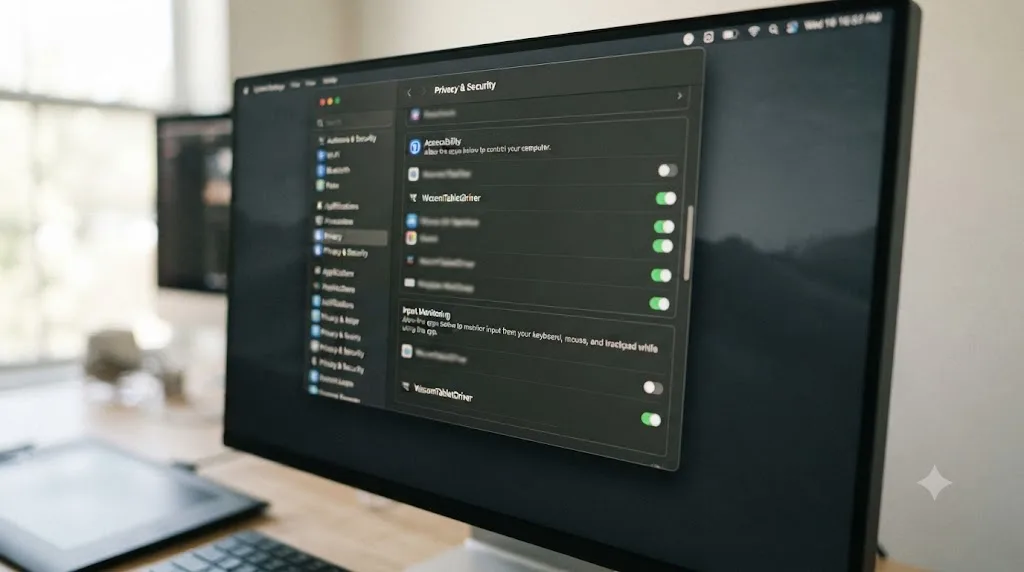
On Mac, a Wacom tablet that connects and moves the cursor but never delivers pressure is very often a permissions problem, not a driver or software problem, because macOS treats the Wacom driver as a background process that needs explicit user approval to monitor input and control other applications. Installing the driver isn't enough on its own. You also have to grant it access in two separate places.
Open System Settings, then Privacy and Security, and check two sections: Accessibility and Input Monitoring. Under Accessibility, enable the Wacom driver entries, which typically appear as com.wacom or a similarly named IOManager Driver process, according to MacHow2's Mac Wacom driver troubleshooting guide by Nick Mead. Under Input Monitoring, enable WacomTabletDriver and any related FirmwareUpdater entry. If either checkbox is unticked or the entry is missing entirely, the driver can still move your cursor, since basic pointer movement doesn't require these permissions, but it cannot deliver the deeper input stream that carries pressure and pen button data.
There's a timing trap buried in this step that catches a lot of people. Nick Mead's guide flags a strict window: permissions need to be granted within about 30 minutes of installing the driver, or the installer's permission prompts stop appearing reliably and you're left hunting through System Settings manually to find entries that should have prompted you automatically. If you installed the driver, got distracted, and came back an hour later to grant permissions, that delay itself can be the reason nothing works, independent of anything else on this list.
If you've missed that window and permissions still won't stick, the fix isn't reinstalling the driver again and hoping for a different result. Remove every Wacom-related entry from both the Accessibility and Input Monitoring lists, unplug the tablet, restart the Mac completely, then plug the tablet back in and work through the permission prompts fresh, since a stalled internal driver process (Wacom's IOManager) sometimes needs that full reset before it will prompt correctly a second time.
A Wacom pen that moves your cursor perfectly while ignoring pressure entirely is one of the clearest signs of a macOS permissions problem, not a hardware fault. Cursor tracking and pressure data travel through different permission gates on Mac, which is exactly why one keeps working while the other silently fails, and it's the reason "the tablet is detected" and "the tablet is fully working" are two different claims on macOS specifically.
Should DaVinci Resolve use Windows Ink or WinTab for a Wacom tablet?
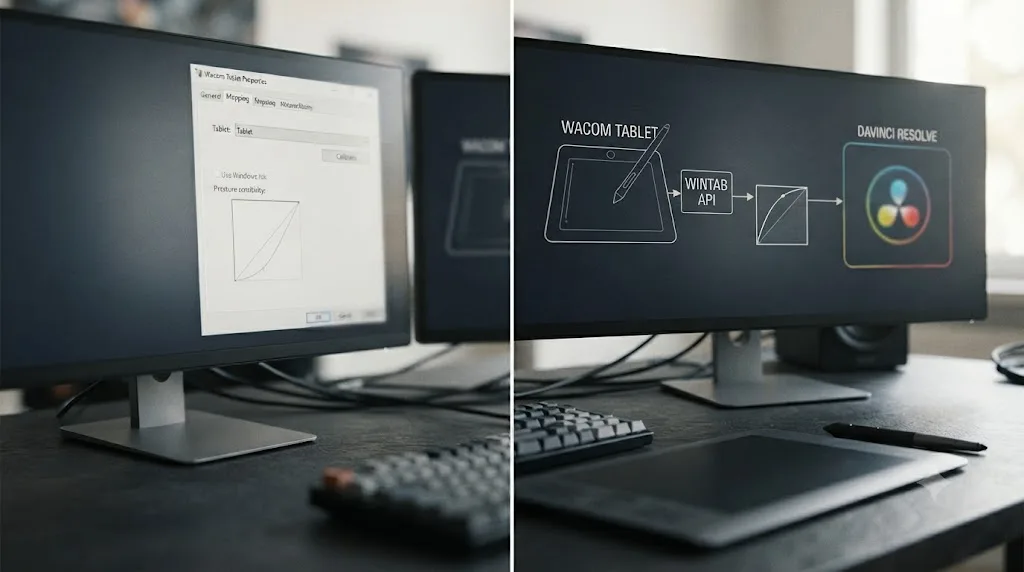
WinTab, if you're running a genuine Wacom tablet, and this setting is buried inside the Wacom driver's own properties panel rather than anywhere in DaVinci Resolve itself, which is exactly why it gets overlooked. WinTab is the older of the two tablet input protocols on Windows, dating back decades, and it's the one Wacom's own hardware was originally designed around, offering finer pressure gradation and more reliable pen-button support for Wacom devices specifically, per a technical breakdown from the Krita Artists community forum.
Windows Ink is Microsoft's newer, built-in alternative, and it exists mainly to give non-Wacom tablets, the ones with weaker or less consistent WinTab drivers, a more reliable path into Windows applications. If you own a genuine Wacom tablet and Windows Ink is switched on in your driver's settings, you can end up in a state where basic pen input works through one protocol while DaVinci Resolve is listening on the other, producing pressure that feels flattened, inconsistent, or entirely absent depending on which protocol Fusion's Paint node happens to poll.
The fix is a single toggle. Open Wacom Tablet Properties, find the Windows Ink option, usually on a Mapping or general options tab depending on your driver version, and switch it off. Restart the Wacom driver's background service after changing it, since a live protocol switch doesn't always take effect until the driver process restarts, and simply toggling the setting without a restart is a common reason people report "I already tried that and it didn't work."
If you own a non-Wacom tablet, a Huion, XP-Pen, or Gaomon device, this advice can flip. Several of those manufacturers' own WinTab implementations are less mature than Wacom's, and Windows Ink can genuinely work better for their hardware specifically. Windows Ink versus WinTab isn't a universal right answer. It's a question of which protocol your specific tablet's driver actually implements well, and Wacom hardware overwhelmingly points toward WinTab as the better-supported path into DaVinci Resolve.
Why does pen pressure work in Photoshop but not in DaVinci Resolve?
Because pressure support isn't a single global switch your operating system flips on for every application at once. It's configured twice over, once inside your tablet driver's per-application profile, and once inside the specific app you're using, and DaVinci Resolve's implementation happens to sit in a less obvious place than Photoshop's does.
Open Wacom Tablet Properties and check whether it has separate profiles for different applications. Many Wacom drivers let you assign different pen button mappings, pressure curves, and even Windows Ink versus WinTab preferences on a per-app basis, which means a setting tuned for Photoshop doesn't automatically carry over to DaVinci Resolve, and a tablet that's been configured exclusively around one piece of software for years can genuinely behave differently the first time you open a different one.
The bigger difference, though, is usually the application side, not the driver side. Photoshop wires pressure directly into its brush engine, so a pressure-sensitive brush responds the instant you touch a pressure-sensitive pen to the tablet, no extra setup required. DaVinci Resolve's Fusion Paint node, as covered earlier in this guide, requires you to explicitly set Vary Size or Vary Opacity to With Pressure before any response happens at all. If pressure works everywhere else on your machine and only fails inside Resolve specifically, the Paint node's own setting, not a driver or OS problem, is overwhelmingly the likely cause, and it's worth rechecking that setting again before assuming something deeper is wrong.
A tablet that works perfectly in one application and not in another usually means an app-level setting, not a broken driver, because a fully broken driver would fail the same way everywhere. That single observation, comparing behavior across two different apps on the same machine, is one of the fastest diagnostic tools available, and it costs nothing but opening a second piece of software you probably already have installed.
How do you test if your tablet is sending pressure data at all?
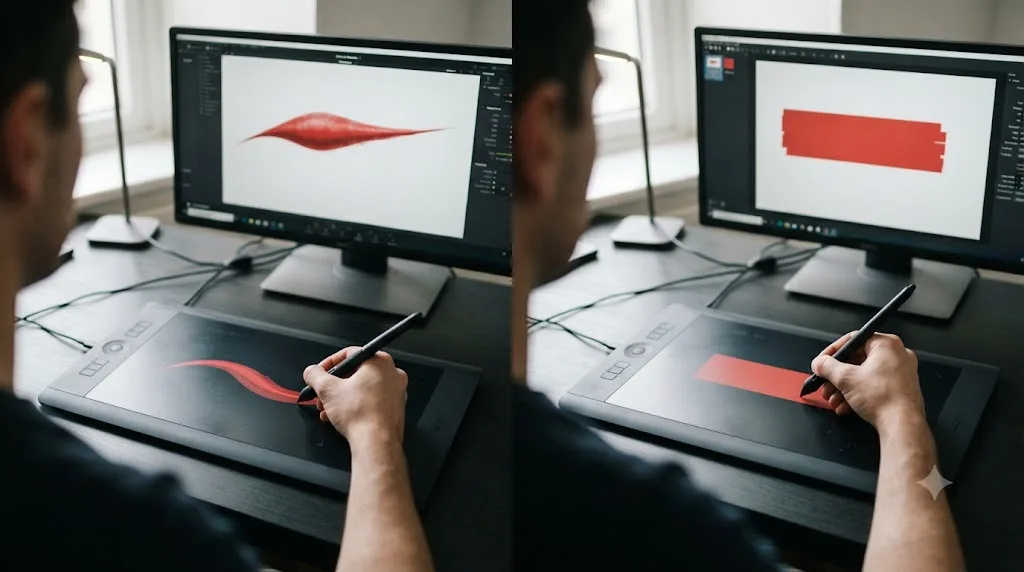
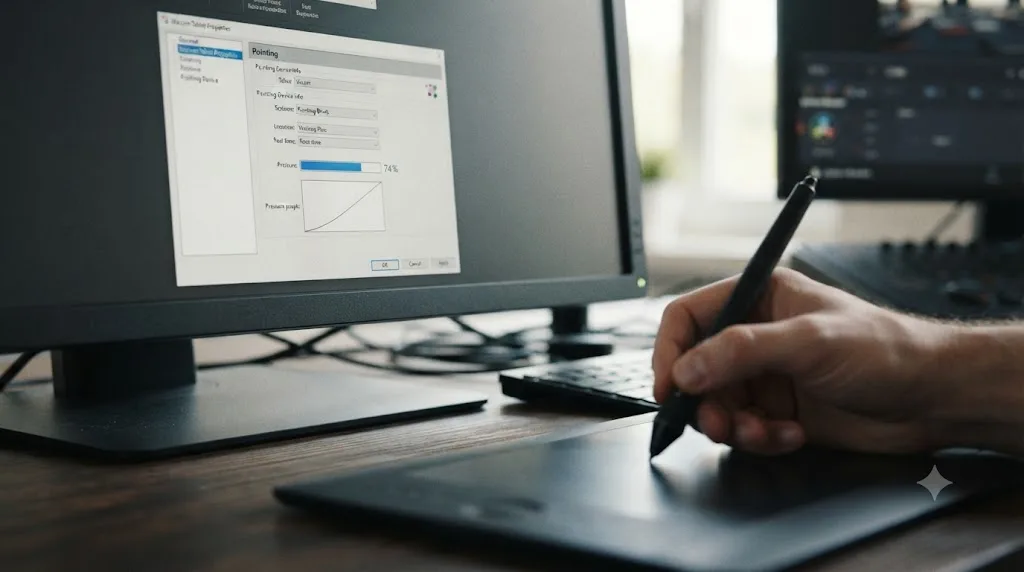
Run Wacom's own built-in diagnostic before touching DaVinci Resolve again, because it isolates the driver and hardware from the application entirely, telling you in under a minute whether the problem is upstream of Resolve or inside it. Open Wacom Tablet Properties, click About, then click Diagnose. Look for the Pointing Device Info section, then bring your pen near the tablet surface. You should see the Proximity field switch to "In" the moment the pen hovers close enough to be detected, according to Wacom's own pen pressure support article.
Now press the pen tip into the tablet, gradually increasing pressure from a light touch to a full press. Watch the pressure value in that same diagnostic panel. It should climb smoothly from 0% toward 100% as you bear down, and drop back toward 0% as you ease off. If that number climbs and falls exactly as expected, your driver and hardware are both working correctly, which means the problem is somewhere inside DaVinci Resolve specifically, most likely the Paint node's Vary Size or Vary Opacity setting covered earlier in this guide.
If the number never moves at all, staying flat at 0% regardless of how hard you press, or jumping straight to 100% the instant the pen touches down instead of ramping smoothly, the fault sits upstream of DaVinci Resolve entirely. That points back toward the driver, the OS permissions on Mac, the Windows Ink versus WinTab setting on Windows, or the hardware itself, not toward anything Resolve-specific, and no amount of adjusting node settings inside Fusion will fix a signal that never reaches the app in the first place.
This diagnostic step matters more than it looks like it should, because it turns a vague symptom, "pressure doesn't work," into a specific, binary answer about which half of the problem you're actually dealing with. Running Wacom's own diagnostic tool for thirty seconds before troubleshooting inside DaVinci Resolve can save an hour of adjusting the wrong settings. Do this step first, every time, before touching a single option inside Fusion.
What if pressure is stuck at 0% or 100% no matter what?
If Wacom's own diagnostic tool, from the previous section, shows a pressure reading that never changes regardless of how hard you press, you're looking at a hardware or connection problem rather than anything DaVinci Resolve, Fusion, or a driver setting can fix. Work through these causes roughly in order of how common and how cheap they are to rule out.
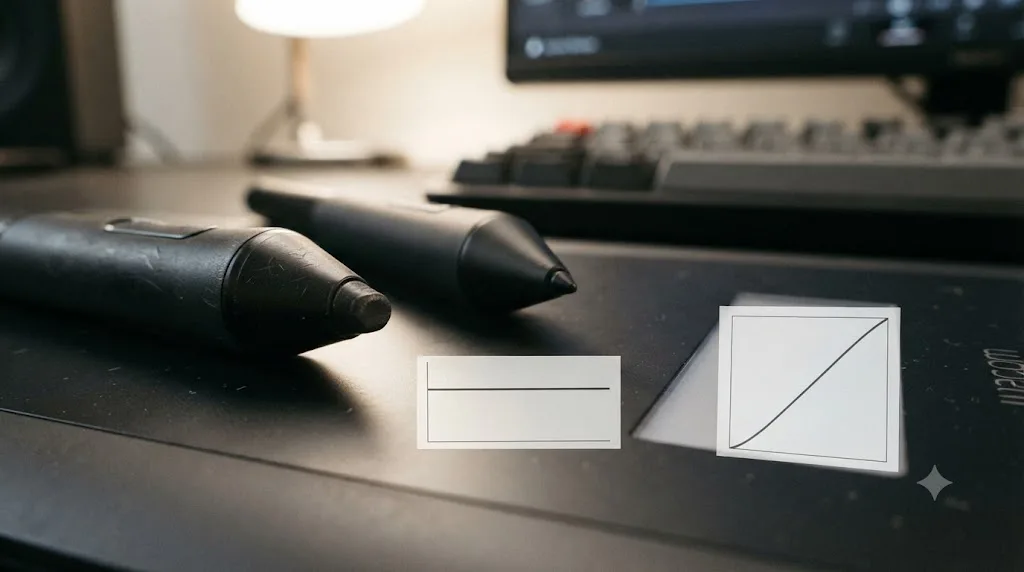
A worn or damaged pen nib is the single most common physical cause, especially on a tablet that's seen years of rotoscoping and cleanup work. The nib contains the pressure-sensing mechanism itself, and a nib worn down from heavy use, or one that's been bent or cracked from a drop, can flatten or completely kill pressure response while leaving basic pointer tracking untouched, since tracking uses a different part of the pen's internal sensor than pressure does. Wacom sells replacement nibs specifically for this reason, and swapping one in costs a few dollars and thirty seconds, making it the cheapest test on this entire list.
A dying pen battery, on tablets with battery-powered pens rather than Wacom's more common battery-free EMR design, can produce a similar flattened response as the charge drops, with pressure becoming unreliable well before the pen stops working entirely. If your specific pen model uses a battery, check or replace it before assuming a deeper fault.
A failing or marginal USB or Bluetooth connection can also cause this, particularly with wireless tablets where signal interference intermittently drops part of the data stream while cursor position, which needs far less bandwidth than a continuous pressure curve, keeps working. Try a different USB port, a different cable if your tablet uses a separate data cable, or move a Bluetooth-connected tablet closer to your computer and away from other wireless devices before concluding the pen itself has failed.
A cursor that tracks perfectly while pressure stays completely flat at 0% or 100% points at the pen and the connection, not at DaVinci Resolve, Fusion, or any driver setting covered earlier in this guide. If you've swapped the nib, confirmed the connection, and the diagnostic tool still shows a dead flat line, the pen or the tablet itself has likely failed, and it's time to contact Wacom support or your tablet's manufacturer rather than continuing to troubleshoot software.
Does a wired connection fix pressure issues that Bluetooth doesn't?
Sometimes, and it's worth testing directly if you're on a wireless Wacom tablet and pressure feels inconsistent rather than completely absent. A wired USB connection delivers a more stable, lower-latency data stream than Bluetooth, and pressure data specifically, which updates continuously throughout a stroke rather than as a single discrete event like a click, is more sensitive to that kind of intermittent packet loss than basic cursor position is.
If your tablet supports both connection types, plug it in via USB and repeat Wacom's diagnostic test from earlier in this guide. If the pressure reading suddenly climbs and falls smoothly where it previously stuttered or dropped out over Bluetooth, you've isolated the wireless connection itself as the cause, whether that's interference from nearby devices, distance from the receiver, or a driver-level Bluetooth bug rather than anything about DaVinci Resolve.
This isn't a permanent fix so much as a diagnostic step and a fallback. If wired reliably solves it, you have two real choices: work wired permanently when pressure-dependent rotoscoping or paint work matters most, or dig further into your specific Bluetooth environment, checking for interference from other 2.4GHz devices, updating your computer's own Bluetooth drivers separately from Wacom's tablet driver, or trying a different USB Bluetooth adapter if your desktop's built-in Bluetooth is weak. Creative Video Tips' setup guide for Wacom tablets in DaVinci Resolve recommends a wired connection generally for editing stability, not pressure specifically, but the same reasoning applies with even more force once pressure sensitivity is the thing you're depending on, per Creative Video Tips' Wacom setup guide.
A stable wired connection removes one entire category of pressure problems that a wireless connection can never fully rule out. That's worth remembering the next time you're deep into rotoscoping work on a deadline and pressure starts behaving strangely partway through a session. Before touching a single Fusion setting, try the cable.
Do Huion, XP-Pen, and other non-Wacom tablets work with DaVinci Resolve's pressure sensitivity?
Generally, yes. Fusion's Paint node reads pressure through the same operating-system-level tablet protocol regardless of which brand made your hardware, so a Huion, XP-Pen, or Gaomon tablet is fully capable of driving Vary Size and Vary Opacity exactly the way a Wacom tablet does, provided its own driver is correctly installed and up to date.
The real difference between Wacom and a third-party tablet isn't whether pressure sensitivity works in principle. It's what happens when something breaks. Every troubleshooting step in this guide involving driver updates, permission grants, and protocol settings applies just as directly to Huion and XP-Pen hardware, but you'll be checking that manufacturer's own driver download page and release notes instead of Wacom's, and their update cadence, documentation quality, and historical track record for fixing OS-compatibility bugs quickly all vary independently of anything covered here.
That matters most right after a major OS update, the exact kind of event that broke Wacom pen behavior on macOS 26 Tahoe, as covered earlier in this guide. Wacom, as the market leader, tends to ship compatibility fixes for major macOS and Windows releases relatively quickly, within weeks in the Tahoe case above. Smaller manufacturers don't always move at the same pace, so a pressure sensitivity failure that started right after upgrading your OS, on a non-Wacom tablet specifically, may simply mean waiting longer for that manufacturer's own fix rather than something you can resolve through settings alone.
If you're shopping for a first tablet specifically to use with DaVinci Resolve's Fusion Paint node, and you're weighing Wacom against a cheaper alternative, budget for that update-speed difference as part of the real cost, not just the sticker price. A cheaper tablet that loses pressure sensitivity for a month after every major OS update isn't actually cheaper once you count the lost work. That's not a knock against Huion or XP-Pen hardware specifically, both of which have improved substantially in recent years, but it's a real, documented pattern worth knowing before you buy.
Is a driver rollback sometimes the actual fix?
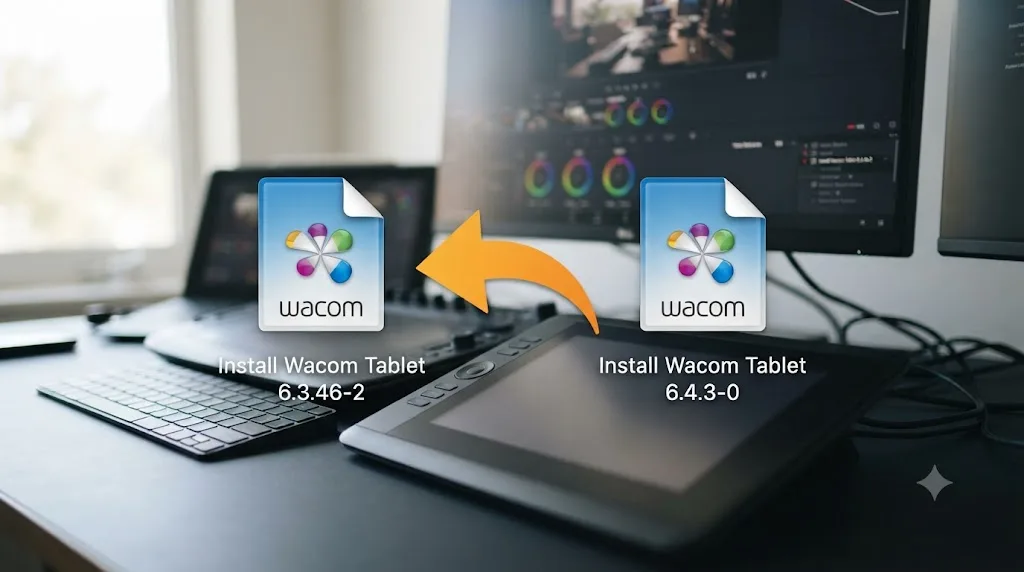
Occasionally, yes, and it's worth knowing this before you assume "update the driver" is always the right direction to move. Wacom driver and Fusion compatibility issues have shown up repeatedly on Blackmagic's own user forum across multiple DaVinci Resolve and Fusion versions, including reports specific to Fusion running on Windows 10, per a Blackmagic Forum thread on Wacom issues with Fusion, and version-specific complaints tied to Resolve and Fusion 17.4 reported in a separate Blackmagic Forum thread and a related Wacom bug report thread. The pattern across these reports is consistent: a specific Wacom driver version interacts badly with a specific Fusion or Resolve version, and the fix that worked for other users wasn't always the newest driver available at the time, sometimes it was stepping back to the previous stable release instead.
This doesn't mean you should distrust driver updates as a general rule. Section by section, this guide has recommended updating to Wacom's current driver as one of the first and most effective fixes, and that advice holds for the overwhelming majority of cases. But if you've already updated to the newest driver, worked through the OS permissions, confirmed Vary Size and Vary Opacity are set to With Pressure, and pressure sensitivity still misbehaves specifically after that update, and specifically inside DaVinci Resolve or Fusion rather than in other software on the same machine, a rollback to the previous driver version is a legitimate next step, not a desperate one.
Wacom's driver download page typically keeps at least the immediately previous release available, sometimes alongside full release notes documenting known issues for each version, which is worth checking before you roll back blind. If a known Fusion-specific bug is documented for your current driver version, that confirms the rollback is worth trying. If nothing's documented, a rollback is still reasonable as a test, since the Blackmagic forum threads above show this exact pattern recurring across multiple Resolve versions over several years, not a one-time fluke tied to a single release.
Sometimes the newest driver isn't the right driver for your specific combination of tablet, OS, and DaVinci Resolve version, and rolling back one release is a legitimate troubleshooting step, not an admission of defeat. Keep the old installer around after every update specifically so this option stays available to you without a separate download detour at the moment you actually need it.
Full checklist: fixing Wacom pressure sensitivity in DaVinci Resolve, in order
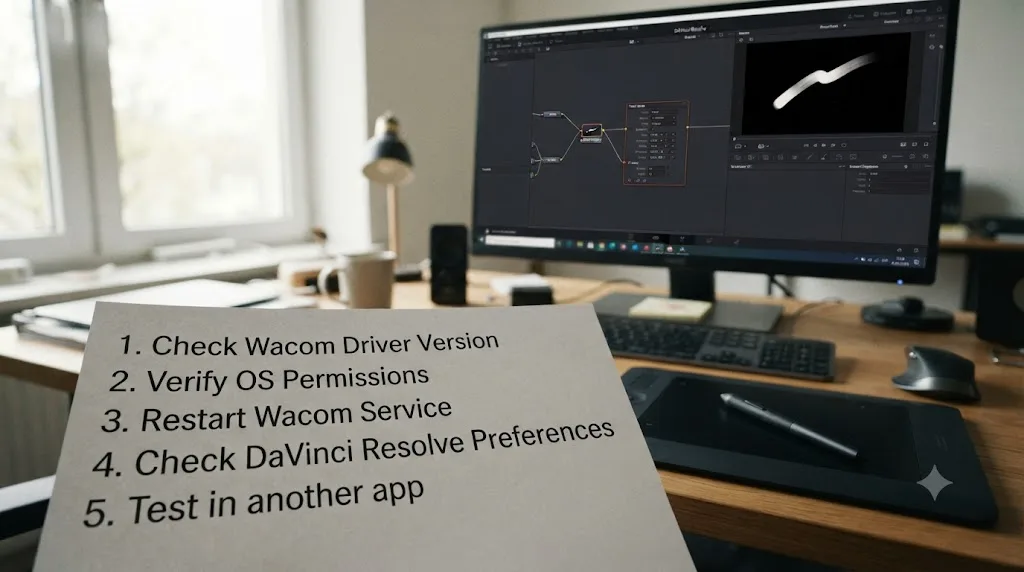
Work through these steps in sequence rather than jumping to whichever one sounds most likely to be your problem. Each step is quick to check, and doing them in order avoids wasted effort, like adjusting Fusion node settings before confirming the tablet is even sending pressure data at all.
- Confirm you're testing pressure in the right place. Pressure sensitivity only exists in Fusion's Paint and Mask Paint nodes. It does nothing on the Color page, Edit page, Cut page, or Fairlight.
- Run Wacom's own diagnostic. Open Wacom Tablet Properties, click About, then Diagnose, and watch the pressure percentage climb as you press the pen into the tablet. A flat 0% or 100% means the problem is upstream of DaVinci Resolve entirely.
- Update your Wacom driver. Download the current version (6.4.13-4 or later as of July 2026) directly from Wacom's site, uninstalling the old driver first.
- On Mac, check Accessibility and Input Monitoring permissions. Both need the Wacom driver entries enabled, granted within about 30 minutes of installing the driver, or the prompts stop appearing reliably.
- On Mac running macOS 26 Tahoe specifically, confirm you're on macOS 26.3 or later with Wacom driver 6.4.13 or later. Earlier versions of either carry a known pen-response bug and its interim workaround.
- On Windows, turn off Windows Ink in Wacom Tablet Properties. DaVinci Resolve reads pressure more reliably through the older WinTab protocol on genuine Wacom hardware.
- Set Vary Size and/or Vary Opacity to With Pressure in the Paint node's Inspector. Both default to Constant, meaning no visible response to pressure until you change this yourself.
- Test in a second application, like Photoshop, if you own it. If pressure works elsewhere and only fails in DaVinci Resolve, the problem is almost certainly the node setting in step 7, not your driver or OS.
- Check the pen nib and the physical connection. A worn nib or a marginal USB or Bluetooth connection can flatten pressure response while leaving cursor tracking untouched.
- Try a previous driver version if the newest one introduced the problem. Wacom and Fusion have a documented history of version-specific compatibility issues, and a rollback is a legitimate fix, not a last resort.
Ten steps sounds like a lot until you realize most people only need the first four or five to find their answer. The order matters more than the total count. Confirming scope and running the diagnostic tool first means you're never troubleshooting a Fusion setting when the actual fault was a missing macOS permission the whole time.
Is a graphics tablet even worth using in DaVinci Resolve if pressure keeps breaking?
Yes, and it's worth separating the hardware's value from the frustration of any one specific driver update, because a Wacom tablet does genuinely useful work inside DaVinci Resolve well beyond the pressure sensitivity this guide has been troubleshooting. Fusion's Paint and Mask Paint nodes are built specifically around the kind of natural, expressive strokes a stylus produces, and colorist Lewis Wood, describing his own switch to a Wacom Intuos Pro medium tablet on a Creative COW forum thread about grading and editing, put his experience plainly: "I rarely touch my mouse now when grading," calling the tablet "a fantastic tool, especially with resolve," per the Creative COW forum thread on Wacom for grading and editing.
That enthusiasm isn't universal even among people who've tried the same hardware for the same software. Fellow forum poster Sascha Haber, describing his own setup pairing a Wacom Intuos with a dedicated control surface for grading, was blunter about the limits of a stylus alone: "You just can not work properly with either a mouse or the stylus alone," a view that lines up with the trackball guide's broader point that no single input device covers every task DaVinci Resolve throws at you. A stylus earns its keep specifically in Fusion's paint and rotoscoping tools, and in drawing masks and windows on the Color page, not as a universal replacement for a mouse or a trackball panel everywhere else in the app.
If you've made it through this entire guide and pressure sensitivity still won't behave, one honest question is whether you're fighting a driver bug specific to your current combination of tablet model, OS version, and Wacom driver release, the kind documented repeatedly on Blackmagic's own forum across multiple DaVinci Resolve versions, rather than a setting you've simply missed. In that specific case, the fastest real fix is often patience: wait for the next Wacom driver point release, since this exact pattern, a version-specific bug that a later update quietly resolves, has repeated itself across Resolve 17, 17.4, and now the macOS 26 Tahoe generation, each time eventually fixed rather than permanent.
If the actual obstacle isn't the tablet at all, but knowing where in Fusion's Inspector a setting like Vary Size even lives, that's a different kind of stuck point entirely, and it's the specific gap TryUncle is the on-screen assistant for DaVinci Resolve on macOS - ask in plain words and Uncle points at the exact control on your screen, was built to close. Rather than pausing your rotoscoping session to search a forum thread for where a checkbox lives, you can ask directly and get pointed at the exact spot in the Fusion Paint node Inspector. It's a paid app at founder pricing, worth checking directly at TryUncle for the current rate.
A pen that presses harder and produces a thicker, more opaque stroke is a small thing to ask of a piece of software, and most of the time DaVinci Resolve delivers it without complaint. When it doesn't, the fault is almost never the tablet itself. It's a checkbox left at Constant, a permission never granted, a protocol fighting itself, or a driver one version behind where it needs to be, and every one of those is something you fix once and never think about again.
Frequently asked questions
- Why is my Wacom pen pressure not working in DaVinci Resolve?
- Most of the time it's one of four things: you're testing pressure somewhere in Resolve that was never pressure-sensitive to begin with (the Color page), the Fusion Paint node's Vary Size or Vary Opacity is set to Constant instead of With Pressure, your Wacom driver is outdated or its permissions were never granted, or Windows Ink is fighting the WinTab protocol Resolve actually reads. Work through the driver, the OS permissions, and the node settings in that order before assuming the tablet itself is broken.
- Does the DaVinci Resolve Color page support pressure sensitivity?
- No. The primary wheels, power windows, and qualifiers on the Color page treat a stylus exactly like a mouse; pressing harder does nothing there. Pressure sensitivity in DaVinci Resolve only exists inside Fusion's Paint and Mask Paint nodes, where it can vary a stroke's size or opacity.
- How do I turn on pressure sensitivity in Fusion's Paint node?
- Select the Paint node, open its Inspector, and find the Stroke controls for Vary Size and Vary Opacity. Both default to Constant. Change either one to With Pressure and your stroke's width or transparency will scale with how hard you press the pen, provided your driver is actually delivering pressure data to Resolve in the first place.
- Does macOS 26 Tahoe break Wacom pen pressure in DaVinci Resolve?
- It broke pen behavior generally, not pressure specifically. Wacom confirmed a bug in macOS 26.0 through 26.2 that stopped pens from clicking correctly in parts of the macOS interface, and its own driver workaround (versions 6.4.11-2 and 6.4.12-3) introduced a separate delay where the pen didn't register the instant it touched the tablet. Apple fixed the root bug in macOS 26.3, and Wacom's driver 6.4.13 removes the workaround. Update both if you're on Tahoe and pressure feels laggy or inconsistent.
- Should DaVinci Resolve use Windows Ink or WinTab for a Wacom tablet?
- WinTab, if you're on a genuine Wacom tablet. WinTab is the older, Wacom-native protocol with finer pressure gradation, while Windows Ink is a newer Microsoft API that tends to work better on non-Wacom hardware with weaker WinTab drivers. In the Wacom Tablet Properties panel, make sure Windows Ink is switched off so Resolve reads pressure through WinTab instead.
- Do Huion, XP-Pen, or other non-Wacom tablets work with DaVinci Resolve's pressure sensitivity?
- Generally yes, since Fusion's Paint node reads pressure through the same OS-level tablet driver protocol regardless of brand. The catch is driver quality and update cadence. Huion and XP-Pen ship their own drivers, not Wacom's, so if pressure breaks after a DaVinci Resolve or OS update, you're waiting on that manufacturer's own driver fix rather than Wacom's.
- Why does my pen pressure work in Photoshop but not in DaVinci Resolve?
- Because pressure support is configured per application, both inside your tablet driver's app-specific profile and inside the app itself. Photoshop reads pressure the moment you touch a pressure-sensitive brush; Fusion's Paint node needs Vary Size or Vary Opacity explicitly set to With Pressure first. Check both the driver's per-app settings and the node's Inspector rather than assuming a single global fix covers every program.
Sources
- Wacom Professional Driver (version, release date, OS support)
- Why is my pen pressure not working? (Wacom Support)
- Does Wacom have a driver for macOS 26 (Tahoe)? (Wacom Support)
- Paint Node (JayAreTV)
- Mask Paint Node (JayAreTV)
- How to Set Up a Wacom Tablet for DaVinci Resolve Like a Pro, by Julian Horsey (Geeky Gadgets)
- Wacom Tablet Setup & TIPS for DaVinci Resolve (Creative Video Tips)
- Why Is My Pressure Sensitivity Not Working Wacom, by David Ehlers (TechDrinking)
- How to Fix Wacom Tablet Driver Problems On Mac, by Nick Mead (MacHow2)
- Difference between WinTab and Windows Ink input (Krita Artists forum)
- Wacom for grading and editing (Creative COW forum)
- Blackmagic Forum - Wacom issues with Fusion in Windows 10
- Blackmagic Forum - V17.4 issues with Wacom
- Blackmagic Forum - Wacom bug in Fusion 17.4 (maybe also in Resolve)
- Blackmagic Forum - Mouse or Wacom for Davinci Resolve
- DaVinci Resolve - Fusion (Blackmagic Design product page, Paint tool description)
Keep reading
Comparisons · Jul 26, 2026 · 33 min
Trackball vs Mouse for Color Grading in DaVinci Resolve
Trackball panel or mouse for DaVinci Resolve color grading? Panel prices, the Lift/Gain math difference, ergonomics, and a buy-or-skip verdict.
Guides · Jul 10, 2026 · 32 min
DaVinci Resolve Fusion Page Tutorial for Beginners
Learn the DaVinci Resolve Fusion page from zero: nodes, MediaIn/MediaOut, the Merge node, planar tracking, and keying a green screen, step by step.
Guides · Jul 8, 2026 · 16 min
DaVinci Resolve Keyboard Shortcuts: The Complete Reference
Every essential DaVinci Resolve keyboard shortcut, organized by page: Edit, Cut, Color, Fairlight, Fusion, and Deliver, plus how to customize and share your own.