Articles / Comparisonsupdated for DaVinci Resolve 21.0.2 (July 2026)
Trackball vs Mouse for Color Grading in DaVinci Resolve
Quick answer
In DaVinci Resolve, a trackball panel beats a mouse for color grading because its three balls move Lift, Gamma, and Gain at once, and Resolve calculates those wheels differently by input device. A mouse still wins for power windows, masks, and keyframing. Most colorists use both: panel for color, mouse for everything else.
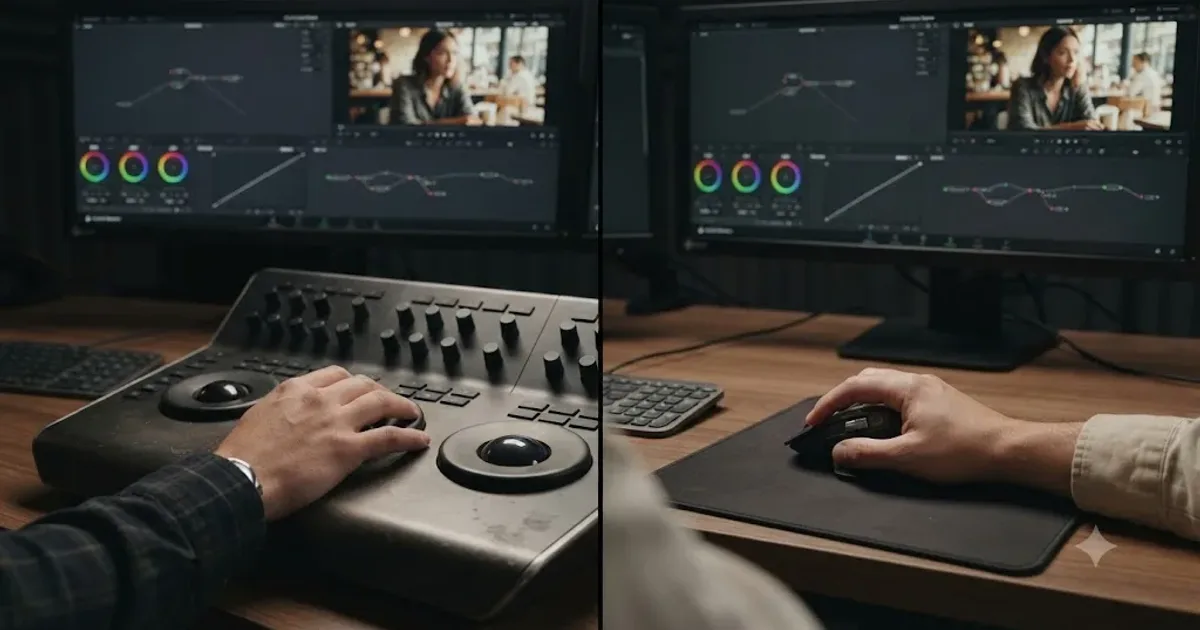
Your hand is probably on a mouse right now. Mine was too, for the first couple of years I graded professionally, moving a pointer around three separate color wheels one at a time and wondering why every session felt like it took longer than it should. Then I sat behind an actual trackball panel and felt, in about ten minutes, exactly how much time the mouse had been costing me.
That feeling is also how a lot of people end up overspending on hardware they don't need yet. In seven years of professional commercial editing, and inside a 100,000-plus member editing community where this exact question comes up on a loop, we've watched beginners drop real money on a panel before they can read a waveform, and watched working colorists limp along on a mouse for a year longer than made sense. This guide covers what the trackball actually changes about how DaVinci Resolve works, what a mouse still does better, what every real panel and alternative input device costs as of July 2026, and how to tell which one you need right now instead of which one looks best in a desk photo.
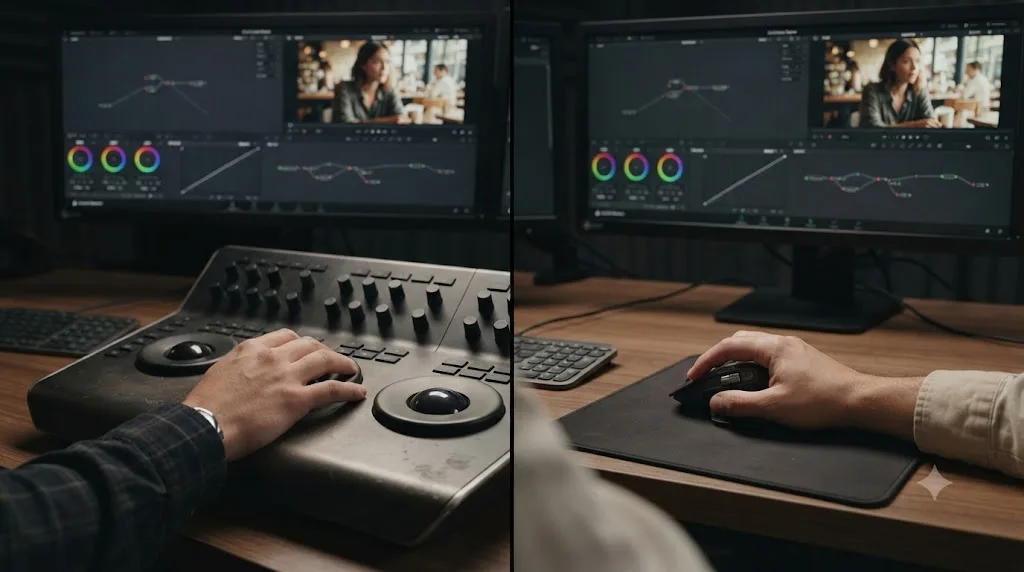
Trackball panel vs mouse in DaVinci Resolve: the honest comparison
A three-ball trackball panel is faster and mathematically different from a mouse for DaVinci Resolve's primary color wheels, because it can move Lift, Gamma, and Gain at the same time with three separate hands' worth of input. A mouse stays faster, and often mandatory, for power windows, masking, qualifiers, and every menu you click through to get there.
Here's the comparison as a table, because a table is the only honest way to show a decision with this many "it depends" attached to it.
| Task in DaVinci Resolve | Trackball panel | Mouse |
|---|---|---|
| Primary wheels (Lift, Gamma, Gain) | Faster, all three can move at once | Slower, one wheel at a time |
| Color balance math on typical shots | Smoother, per Patrick Inhofer's testing | Works, but takes more moves to match |
| Extreme color balance corrections | Can behave harshly, per Inhofer's testing | Gentler on the image, counterintuitively |
| Power windows and masks | Slow and imprecise | Fast and precise |
| Qualifiers and shape drawing | Awkward | Native and fast |
| Node tree navigation and menus | Needs a mouse anyway | Direct |
| Eyes-on-monitor muscle memory | High, once trained | Lower, you glance at the cursor |
| Multitasking three tonal ranges | Native to the hardware | Not possible with one pointer |
| Learning curve | Real, a few sessions to feel natural | None, you already know it |
| Entry price | $350 to $559 for a real 3-ball panel | $0, you already own one |
A trackball panel does not make you a better colorist. It makes you a faster one. That distinction matters more than most sales pages let on, and it's the thread running through every section below.
Why do professional colorists reach for a trackball instead of a mouse?
Professional colorists use trackball panels because the hardware lets both hands and, on a full panel, both hands' worth of fingers move Lift, Gamma, and Gain simultaneously, instead of clicking into one wheel, dragging, releasing, and clicking into the next. That single change, moving from serial adjustments to parallel ones, is where most of the speed comes from.
Patrick Inhofer, a working colorist and the founder of the color grading education site Mixing Light, wrote about switching from a mouse to a JL Cooper Eclipse CX control surface and tracking his own output across a real job. His diary entry is blunt about the difference:
"by the end of this 8 hour day I've color corrected almost 40 minutes of the show - nearly doubling my best output with a mouse during a 10 hour day."
He goes on to note that the claim colorists repeat to each other, that you'll grade twice as many shots with a control surface than with a mouse, carries some hyperbole but lands close enough to true that it's become industry folklore for a reason. His own explanation for why is worth sitting with: a control surface lets a colorist "shift attention from the interface and onto the picture," so the hands work from muscle memory while the eyes stay on the image instead of hunting for the right wheel on screen.
That's a genuinely different way of working, not just a faster version of the same one. On a mouse, part of your attention is always spent on cursor position, on remembering which wheel you're currently dragging, on the small mechanical overhead of click, drag, release, re-aim. On a panel, once the muscle memory sets in, your hands find Lift, Gamma, and Gain by feel the same way a pianist finds keys without looking down. A trackball panel does not make you a better colorist. It makes you a faster one. The taste, the judgment about whether a shot needs warmer skin or a lifted shadow, comes from experience no hardware can shortcut. The panel just removes friction between deciding and doing.
Worth noting: Inhofer's original diary entry is from 2008, describing a $6,500 to $7,000 control surface that predates DaVinci Resolve's own consumer-priced panels entirely. Mixing Light republished it in 2017 once Blackmagic's Mini Panel put a version of that experience within reach of a much wider group of colorists, and the underlying mechanism, both hands moving three wheels at once instead of one hand moving one wheel serially, hasn't changed regardless of which decade's hardware you're using.
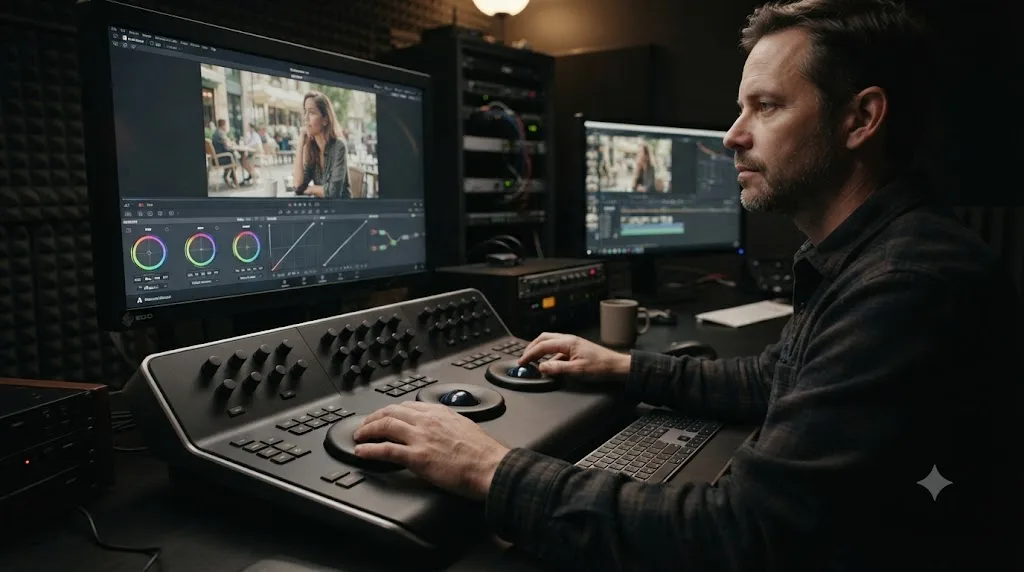
Does DaVinci Resolve actually calculate color differently with a mouse vs a trackball?
Yes, and this is the part most comparison posts skip because it requires actually testing the software instead of repeating industry folklore. Patrick Inhofer ran controlled tests inside DaVinci Resolve comparing mouse input against control surface input on the primary color wheels, and found the two produce genuinely different math, not just a different feel.
His finding, stated plainly: "the math in the Lift and Gain Primary Wheels is very different depending on your input device - mouse vs control surface." That's not a claim about ergonomics or speed. That's a claim about the actual numbers DaVinci Resolve computes when you nudge those wheels, and it means the same visual move, dragging a wheel the same apparent distance, can land you at a different result depending on whether your hand is on a mouse or a trackball.
Gamma, interestingly, doesn't share this problem. Inhofer found "the Gamma math to be the same between the two different input devices," which narrows the issue specifically to Lift and Gain rather than the whole primary correction toolset. And the difference isn't uniformly in the panel's favor. "On typical color correction tasks the behavior of the control surface is more desirable," Inhofer writes, but on the kind of aggressive corrections you make to salvage a badly white-balanced shot, the story flips: "with extreme color balance problems, the mouse behavior is actually better. On extreme corrections, the mouse is MUCH more gentle on our images and the control surface behavior is terrible!"
That last point deserves attention because it cuts against the assumption that a panel is simply better in every situation. On extreme color corrections, the mouse is gentler on the image than a control surface, which is the opposite of what most colorists expect walking in. If you're grading a shot that's badly underexposed or shot under a heavy uncorrected color cast, and a control surface move is producing harsh, unnatural-looking results, switching to the mouse for that specific correction isn't a downgrade. It's the tool doing the job it's actually better at in that narrow case.
The practical takeaway isn't "always use the panel" or "always use the mouse." It's knowing that the two inputs aren't interchangeable at the math level, so if a correction looks wrong on one input, it's worth trying the other before assuming your eye or your settings are the problem.
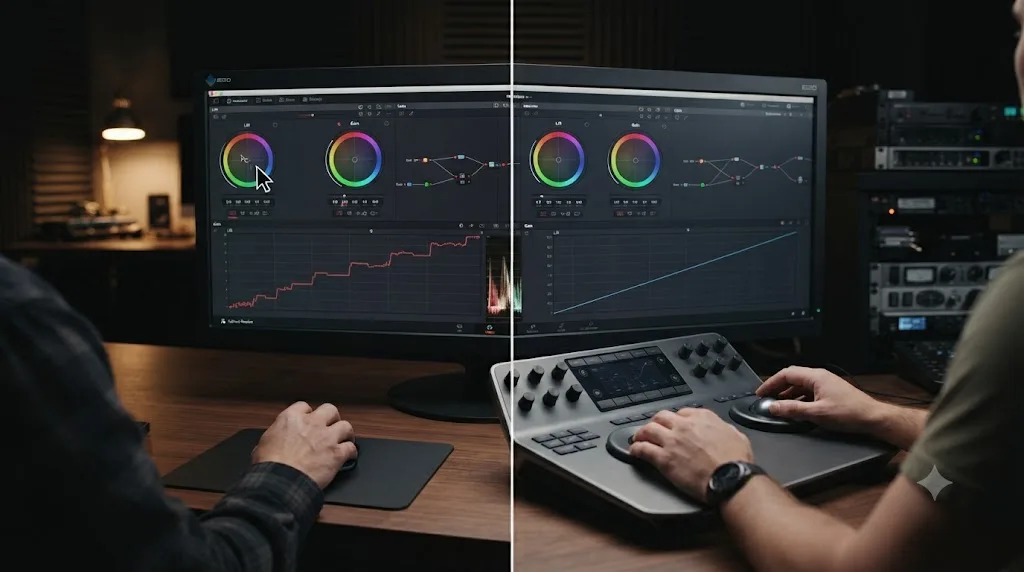
When is a mouse better than a trackball for grading?
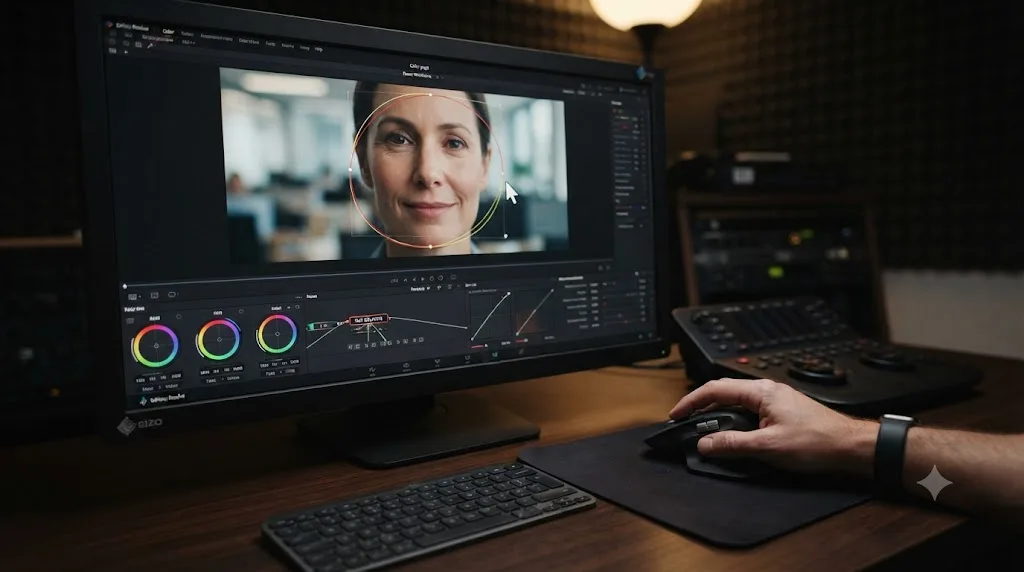
A mouse is better than a trackball panel for anything involving precise, arbitrary 2D positioning: power windows, masks, qualifier shapes, node tree layout, and every menu, dropdown, and dialog box in the interface. A trackball is built for moving three tonal ranges through a limited range of motion, not for dragging a soft-edged oval to sit exactly around someone's face.
Power windows make the case clearest. Positioning a window means dragging its center point, resizing it, rotating it, and softening its edge, four separate fine-motor tasks that a mouse handles natively because that's what a mouse is for. Trying to do the same thing with a trackball means translating a rolling-ball gesture into 2D screen position, which most colorists who've tried it describe as tediously slow, exactly the kind of task where the panel's strength, moving multiple values at once, becomes a liability instead of an advantage.
Blackmagic seems to agree with this division of labor at a hardware level. The $33,915 Advanced Panel, the company's flagship, top-of-the-line color surface built in collaboration with professional Hollywood colorists, ships with two dedicated USB Type-A connectors specifically described as being for a mouse and other USB devices. That's not an oversight or a compromise for budget buyers. It's Blackmagic building the assumption directly into their most expensive hardware: even a colorist working a $33,915 panel keeps a mouse plugged in, because masks and menus still need one.
The best colorists in the world still reach for a mouse the moment a power window needs to move. That's worth internalizing before you spend money assuming a panel replaces a mouse entirely. It doesn't. It replaces the specific, narrow slice of the job that involves the primary color wheels, and it does that slice extremely well. Everything else on the Color page, and everything on every other page in Resolve, still expects a pointer.
There's a secondary reason the mouse wins during qualifier work specifically: refining a HSL or RGB qualifier selection often means fine-tuning a small window over noise, edges, and softness sliders while watching a highlight matte update in real time, a task that benefits from the same precise, low-friction 2D control a mask needs. Our color grading basics guide covers where qualifiers and power windows sit in a typical node chain if you haven't built one yet, and every technique in it assumes a mouse, because that's genuinely the right tool for that stage of the work.
What does a DaVinci Resolve control panel actually cost?
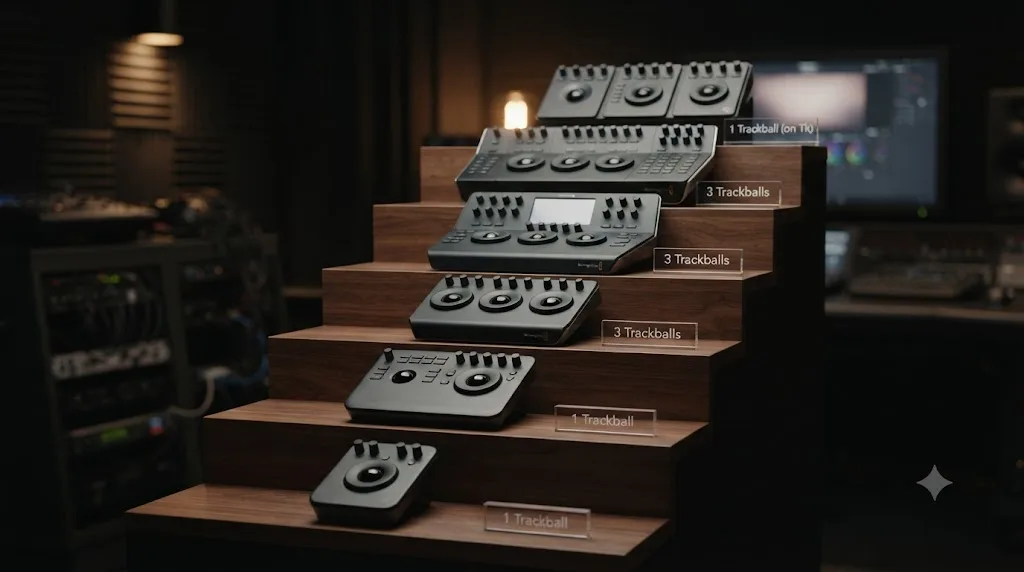
Real trackball panels for DaVinci Resolve range from $350 for a third-party entry model to $33,915 for Blackmagic's professional Advanced Panel, and the price you pay doesn't always buy you a DaVinci Resolve Studio license the way you might assume. Here's every panel worth considering, as of July 2026, with the numbers straight from the manufacturers.
| Panel | Price (USD) | Trackballs | Studio license included |
|---|---|---|---|
| Tangent Ripple (third-party) | ~$350 | 3 | No |
| DaVinci Resolve Speed Editor | $435 | 0 (editing keyboard, not a color panel) | Yes |
| DaVinci Resolve Micro Color Panel | $559 | 3, plus 12 correction knobs | No |
| Tangent Wave 2 (third-party) | ~$855-$903 | 3 | No |
| Tangent Element bundle (third-party, modular) | ~$2,470 | 4, spread across 4 separate panels | No |
| DaVinci Resolve Mini Panel | $2,319 | 3, plus 12 correction knobs and LCDs | Yes |
| DaVinci Resolve Advanced Panel | $33,915 | 3, one per sub-panel, plus a full pull-out keyboard | Yes |
Two things in that table trip people up. First, the cheapest official Blackmagic option, the $559 Micro Color Panel, doesn't come with a DaVinci Resolve Studio activation key in the box. Its "What's Included" list is just the panel itself and a welcome wallet with a software download QR code, per Blackmagic's own tech specs. If you want a panel and a Studio license in one purchase, the $435 Speed Editor and the $2,319 Mini Panel both bundle a Studio activation key, which is normally a $295 purchase on its own. Buy the Speed Editor specifically for that bundle and you're effectively paying $140 over the standalone Studio price for a full editing keyboard, though remember it has zero trackballs and won't touch your color grading workflow at all.
Second, the Advanced Panel's three trackballs are split one per sub-panel, the Trackball Panel, the Search Dial Panel, and the T-bar Panel, not three balls crammed onto one surface. That's a materially different physical footprint from the Micro Color Panel or Mini Panel, both of which put all three balls on a single compact unit you can move around a desk. The Advanced Panel is a fixed installation for a dedicated color suite, not something you pack into a bag.
Third-party panels fill the gap between the Micro Color Panel and the Mini Panel at a lower price point than either. The Tangent Ripple runs around $350 and gives you three-way trackball control aimed at students, editors, and casual colorists, per reviews from ProVideo Coalition and Videomaker. The step up, the Tangent Wave 2, runs roughly $855 to $903 and adds three optical trackballs with a more professional build, per The Post Flow's roundup of control surfaces. Above that sits Tangent's modular Element system, which the next section covers on its own, since it doesn't behave like a single fixed panel at all. Neither Tangent panel includes a DaVinci Resolve Studio license, since Tangent is a separate manufacturer that builds panels compatible with Resolve, Premiere Pro, and other NLEs, not a Blackmagic product.
What is Tangent's modular Element system, and is it worth it over the Ripple or Wave 2?
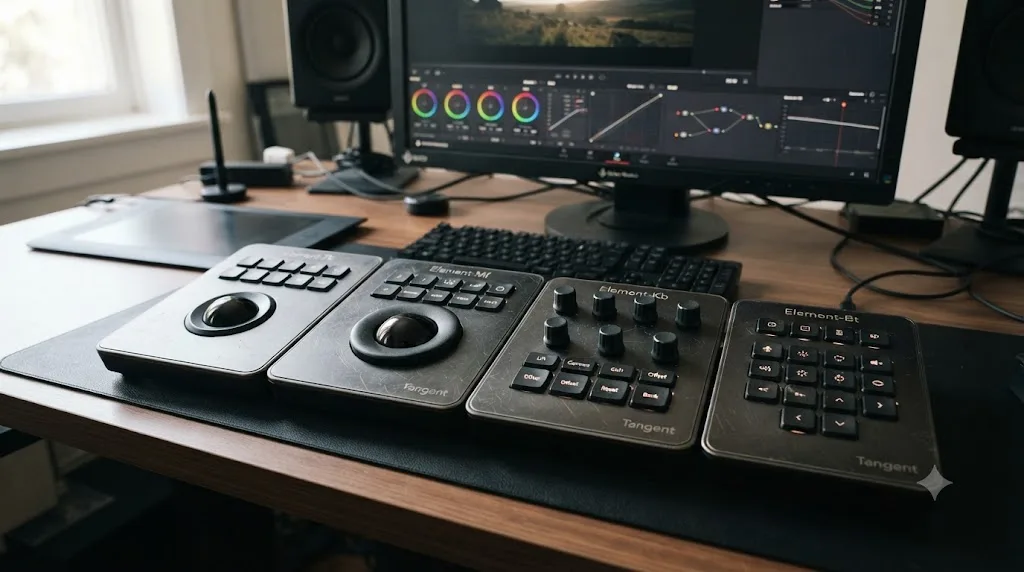
Tangent's Element system sits above the Ripple and Wave 2 in Tangent's own lineup, and it works differently from every other panel in this guide because you don't buy one box. You buy modules, and you decide how many you want plugged in at once, then add more later if your workflow grows into them.
The full Element bundle is four separate panels: the Tk panel (three trackballs for primary color), the Mf panel (a fourth trackball plus buttons for secondary and tracking work), the Kb panel (12 assignable knobs), and the Bt panel (extra tactile buttons). Bought as a complete four-panel bundle, the set runs about $2,470, per B&H Photo's listing for the Element bundle. That puts it well above the Ripple and Wave 2 in price, below Blackmagic's Mini Panel, and gives you more physical controls spread across more desk space than either single-unit option offers.
The Element system's real selling point isn't the trackball count, it's Tangent's Warp Engine software, which lets you remap any control on any Tangent panel to any function inside Resolve, according to Tangent's own DaVinci Resolve integration page. Element and Ripple owners can layer a custom map on top of Resolve's default control scheme without losing the native mapping entirely. Wave and Wave 2 owners have to pick one or the other, they can only run a custom map, not both at once. If you've ever wanted a specific knob to control saturation instead of contrast, or a button that jumps straight to a specific power window, that's what Warp Engine is for, and it's a level of customization neither Blackmagic panel offers out of the box, since Blackmagic's own panels run Resolve's native panel protocol with no scripting layer on top.
Buy into Element specifically if you already know you want more than three controls' worth of hands-on grading, and you want to scale into that setup gradually. Start with the Tk panel alone for the same core trackball function the Ripple or a Blackmagic panel gives you, then add the Mf, Kb, or Bt modules only once a real session shows you're reaching for that kind of control and don't have it. That's a meaningfully different buying pattern than a single fixed unit like the Mini Panel, where you pay for every knob and trackball on day one whether you end up using all of them or not.
A modular panel system means you can start with one module and add the rest later, instead of paying for four panels' worth of controls the day you decide you want three. The tradeoff is desk space and cable management. Four separate modules means four separate footprints instead of one compact unit, which is a real consideration if you're working from a small home setup rather than a dedicated grading suite with room to spread hardware across a desk. If you know from the start that you want trackballs, knobs, and buttons together, Blackmagic's Mini Panel packs all three into a single unit for less money than the full Element bundle, though it doesn't give you Warp Engine's custom mapping in return.
Is a Kensington or Logitech trackball mouse the same as a color panel?
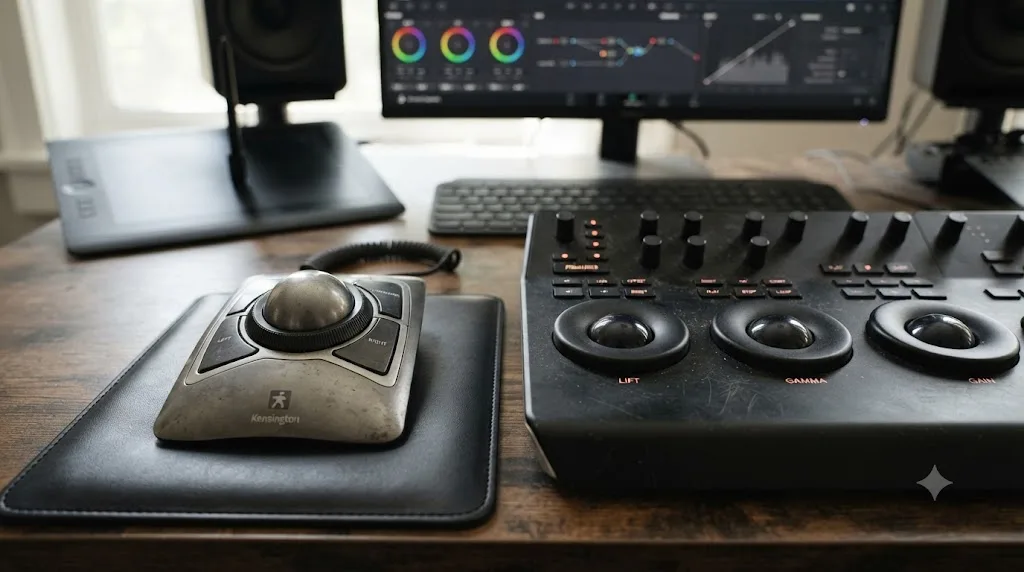
No. A Kensington or Logitech trackball mouse is a single-ball pointing device that replaces the physical motion of a mouse with a stationary ball you roll with your fingers or thumb, and DaVinci Resolve reads it exactly like the mouse it's substituting for. It moves one cursor. It does not connect to Lift, Gamma, and Gain the way a dedicated color panel does, and it will not change the Lift/Gain math discussed above, because as far as Resolve is concerned, it's a mouse.
This is the confusion this whole query usually hides. Someone searching "trackball vs mouse for color grading" has often just seen a $100 Kensington or Logitech trackball online and is wondering if that solves the problem professional colorists are talking about when they say "get a panel." It doesn't, at least not in the way a dedicated three-ball color panel does. Kensington sells a full line of these, from the $99.99 wired Expert Mouse to the $129.99 Expert Mouse TB800 EQ, and every one of them is a comfort and ergonomics upgrade over a standard mouse, not a color grading tool.
A Kensington or Logitech trackball is a comfortable mouse. It is not a color panel, and DaVinci Resolve treats it exactly like the mouse it's replacing. That doesn't make it worthless for a colorist. If your hand hurts after long sessions and a single-ball trackball mouse relieves that without changing your workflow, it's a reasonable upgrade for the same reason a better office chair is. Just don't expect it to unlock the simultaneous-wheel-movement advantage or the math difference covered earlier in this guide. That specific advantage requires three separate trackballs, each wired to a specific tonal range inside Resolve's panel protocol, which is a feature of dedicated panels like the Micro Color Panel, Mini Panel, Advanced Panel, or Tangent's lineup, not of any consumer trackball mouse regardless of price.
If you're deciding between the two, ask what problem you're actually solving. Wrist or hand discomfort during long sessions points toward a consumer trackball mouse, which costs $100 to $130 and works the moment you plug it in. Slow, serial color wheel adjustments during actual grading point toward a real three-ball color panel, which starts around $350 and requires a bit of muscle memory before it pays off.
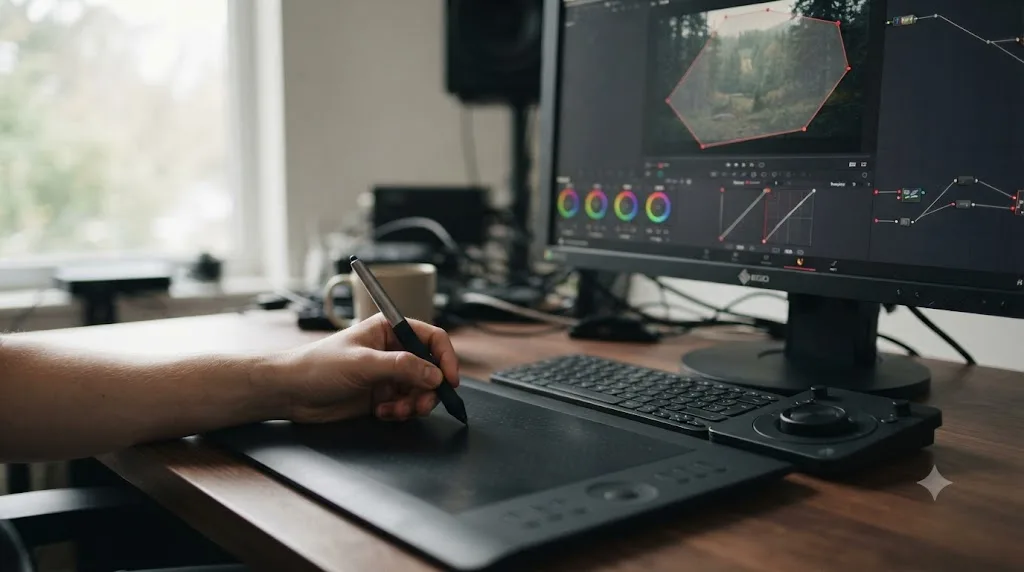
Is a graphics tablet or stylus better than a mouse for color grading?
A graphics tablet with a stylus is a genuine alternative to a mouse for some parts of color grading, and an inconsistent substitute for others, according to colorists who've actually tried it as a primary input device. It's worth considering as a middle step between a plain mouse and a full trackball panel, not as a replacement for either one.
PremiumBeat, a stock footage and post-production resource, makes the general case that "a stylus may actually improve your work, especially in regards to video editing, motion design and color grading," pointing to the same fine-motor precision advantage a stylus gives illustrators and photo retouchers, per PremiumBeat's post-production tablet guide. That precision genuinely helps with power windows and mask shapes, the exact tasks this guide already flagged as a mouse's strongest territory. A stylus is arguably even better at that specific job than a mouse, since drawing a soft-edged shape around a face is closer to drawing than to pointing and clicking, and a pen naturally varies pressure and angle in a way a mouse never will.
But working colorists who've actually tried a stylus for the color wheels themselves report real limits. On a Creative COW forum thread about grading with Wacom hardware, colorist Sascha Haber put it bluntly: "You just can not work properly with either a mouse or the stylus alone," describing on-screen color balls as too small and fiddly for precise stylus control compared to some competing grading tools, per the Creative COW forum thread on Wacom for grading and editing. Not everyone in that same thread agrees. Fellow poster Lewis Wood reported the opposite experience after buying a medium Intuos Pro tablet: "I rarely touch my mouse now when grading," calling it "a fantastic tool, especially with resolve." A third poster, Joseph Owens, splits the difference, using his Wacom Intuos3 specifically for power window shape manipulation while still reaching for a dedicated control surface for the actual color correction work.
That split is the honest answer, and it also depends on which kind of tablet you're talking about. A small, non-display tablet like an Intuos sits next to your keyboard the way a mouse would, and your eyes stay on the monitor while your hand moves the pen across a separate surface, the same disconnect a mouse has. A pen display, like a Wacom Cintiq, puts the drawing surface directly under the image you're grading, so you draw a power window shape exactly where you see it on screen instead of translating hand position to cursor position. That's a meaningfully different way of working, closer to painting than to pointing, though it also means dedicating real screen space and desk depth to a second display just for input.
A stylus is a strong upgrade over a mouse for masks and power windows, and an inconsistent one for the primary color wheels themselves. If your hands are already comfortable with a tablet from photo or design work, it's worth trying for grading before you spend money on anything else, since you may already own one. If you don't, buying a tablet specifically to replace your color wheel workflow is a bigger gamble than buying a dedicated three-ball panel, precisely because the colorists who've tried it disagree with each other about whether it actually works for that part of the job.
Is a trackball more ergonomic than a mouse for long grading sessions?
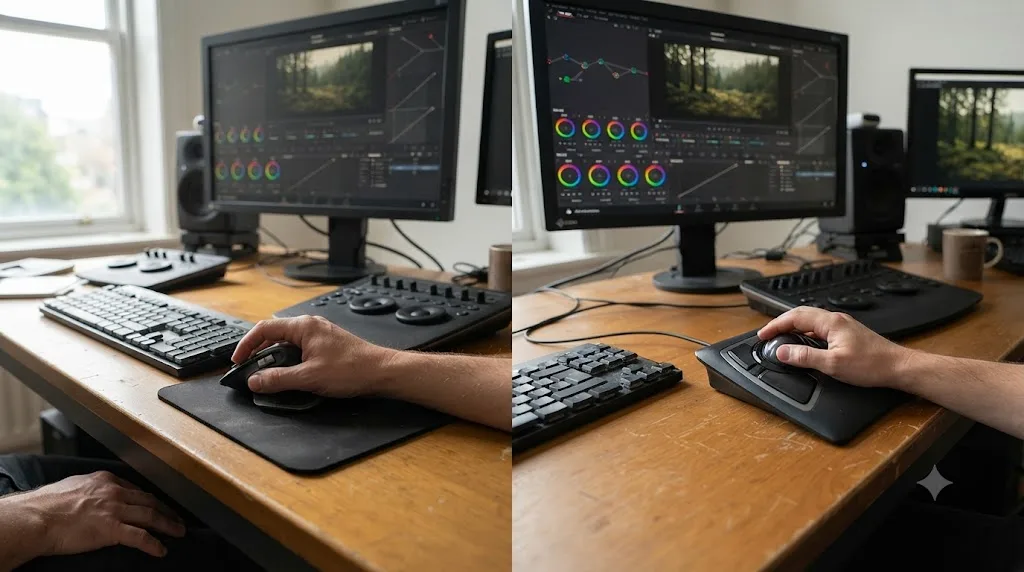
Probably, in theory, though the research backing that up is thinner than the confident claims around it suggest. A stationary trackball, whether it's a single-ball consumer mouse or a three-ball color panel, eliminates the repeated arm and wrist movement a standard mouse requires to travel across a mousepad, letting your wrist stay in a more consistent position across a long session.
Ergonomic Trends, a site focused specifically on input device ergonomics, is refreshingly honest about the state of the evidence here, noting that a fingers-operated trackball lets you spread the workload across different fingers, the palm, or the whole arm, which theoretically reduces the chance of repetitive strain injury compared to a mouse's more concentrated grip and click pattern. But the same source is upfront that this reasoning rests on ergonomic theory and design logic rather than a body of clinical research directly comparing trackball and mouse injury rates. If a claim about trackballs preventing carpal tunnel or RSI comes with a specific percentage attached and no cited study, treat it with the same skepticism you'd apply to an invented statistic in a blog post, because that's often exactly what it is.
What's not in dispute: color grading sessions run long, often multiple hours without a real break once a session gets going, and any input device that reduces sustained fine-motor strain over that duration is worth trying if your hands are telling you something's wrong. A three-ball color panel spreads the physical work across both hands simultaneously instead of one hand doing all the pointing, dragging, and clicking a mouse-only session requires, which is a meaningfully different physical load even before you get into which specific muscle groups are involved.
If ergonomics is your actual driver rather than grading speed, a $100 consumer trackball mouse is the cheaper way to test whether the stationary-ball design helps your particular hands before committing to a $350-plus color panel. It won't unlock the Lift/Gain math difference or the simultaneous three-wheel control covered earlier, but it will tell you, in a week or two of real use, whether the ergonomic theory holds up for you specifically.
How do you grade with just a mouse if you don't have a panel yet?
You grade with a mouse the same way most working colorists started, one wheel at a time, using keyboard shortcuts to speed up the parts a panel would otherwise handle. It's slower than a panel, but it's not broken, and every technique in DaVinci Resolve's color toolset is fully available on a mouse-only setup.
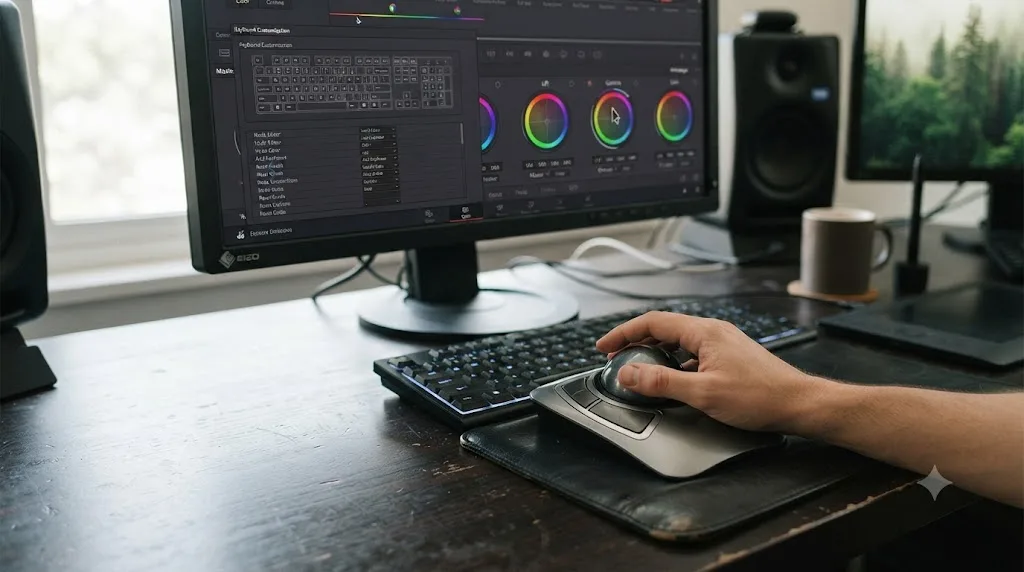
A few shortcuts make mouse-only grading noticeably faster once they're second nature. Option-click on a color wheel resets its RGB balance without touching the Luma value, and Shift-Option-click does the reverse, resetting Luma while leaving color balance alone, useful when you've nailed the tint on a wheel but overcorrected the brightness. Shift-Home resets the entire current node back to its default state if a correction goes sideways and you'd rather start that node over than undo one step at a time. If you want the full list beyond what's here, our complete DaVinci Resolve keyboard shortcuts reference breaks shortcuts down page by page, and Command-Option-K opens Keyboard Customization directly inside Resolve, where filtering by "Unassigned" shows you every command that doesn't have a default shortcut yet, in case you want to build your own mouse-and-keyboard combo tuned to your specific workflow.
One thing worth flagging if you're grading on a laptop: a trackpad is worse than a mouse for this work, not just slower. A trackpad's gesture-based scrolling and lack of a physical scroll wheel or click-drag precision makes fine color wheel adjustments genuinely harder to control than even a basic wired mouse, since a mouse gives you a stable surface and a mechanical scroll increment that a trackpad's smooth, momentum-based tracking doesn't replicate. If you're grading regularly on a laptop, a $20 wired mouse is a bigger upgrade over a bare trackpad than most people expect, and it's worth doing before you even think about a trackball panel.
Our guide to reading DaVinci Resolve's scopes and our color grading basics guide both assume a mouse-driven workflow throughout, because that's genuinely how most people learn the software, panel or no panel. Master the node system, the scopes, and the primary wheels on a mouse first. The panel, when you eventually get one, layers speed on top of skills you already have. It doesn't teach you the skills themselves.
Do you need DaVinci Resolve Studio to use a control panel?
No. Every panel covered in this guide, from the $350 Tangent Ripple to Blackmagic's own $559 Micro Color Panel, $2,319 Mini Panel, and $33,915 Advanced Panel, works with the completely free version of DaVinci Resolve. None of them require a Studio license to function, and Blackmagic's panels that do bundle a Studio activation key are including it as a purchase perk, not a functional requirement.
The real compatibility gate isn't free versus Studio. It's which download of Resolve you're running. Colorist Patrick Inhofer reported for Mixing Light that the Mac App Store build of DaVinci Resolve, which runs inside Apple's sandboxing restrictions, does not support Blackmagic's own control surfaces, quoting the specific gap directly: "Avid Artist Color and the Blackmagic Colorist Control Surfaces - not supported. But the other control surfaces are." That means a Blackmagic Micro Color Panel or Mini Panel plugged into an App Store copy of Resolve simply won't be recognized, while a Tangent panel from a different manufacturer will work fine on that same sandboxed install.
The fix, if you hit this, isn't buying a different panel. It's downloading Resolve directly from blackmagicdesign.com instead of through the Mac App Store. That direct download has no sandboxing restrictions and full support for every panel this guide covers, official Blackmagic hardware included. Our DaVinci Resolve Studio price guide covers the free-versus-Studio decision in full if that's the piece you're still weighing, but treat it as separate from the panel-compatibility question. They're two different gates, and confusing them is how people end up troubleshooting a "broken" panel that was never going to work with that particular Resolve install in the first place.
Do DaVinci Resolve panels work on Windows and Linux, or only on Mac?
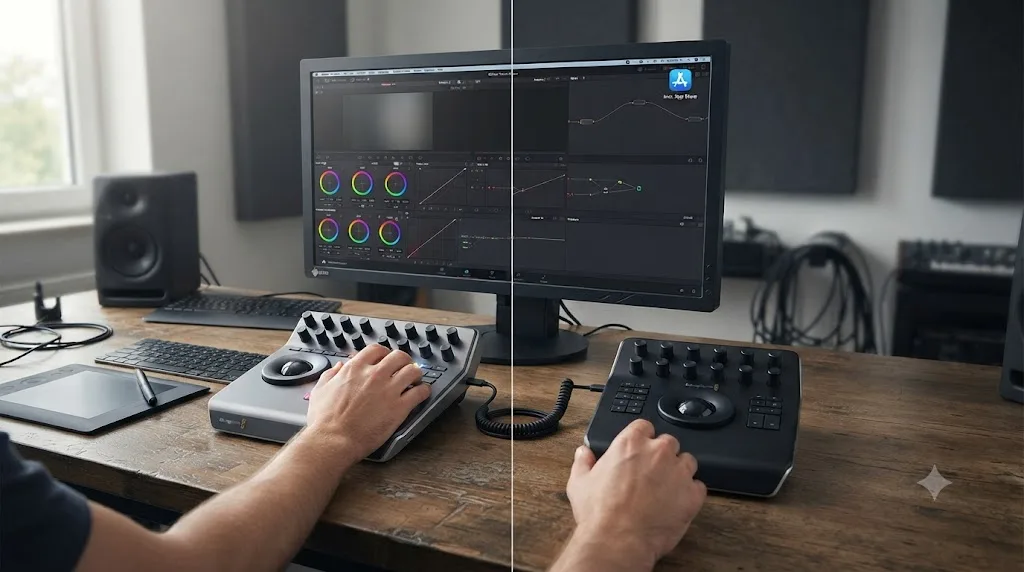
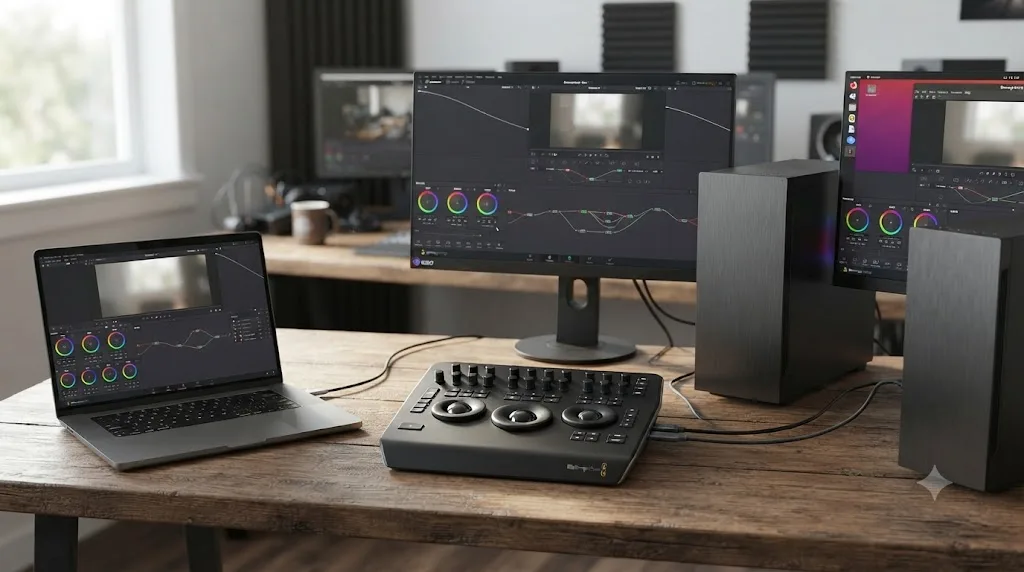
Yes. Every current Blackmagic control panel, the Micro Color Panel, Mini Panel, and Advanced Panel, officially supports Windows and Linux in addition to Mac, according to Blackmagic's own published tech specs for each unit. This isn't a Mac-first product line with token cross-platform support bolted on. The specs are close to identical across all three.
| Panel | Mac | Windows | Linux |
|---|---|---|---|
| Micro Color Panel | Mac 14.3 Sonoma or later | Windows 11 | Rocky Linux 8.6 |
| Mini Panel | Mac 13.0 Ventura, Mac 14.0 Sonoma or later | Windows 10 Creators Update, Windows 11 | Rocky Linux 8.6 |
| Advanced Panel | Mac 13.0 Ventura, Mac 14.0 Sonoma or later | Windows 10 Creators Update, Windows 11 | Rocky Linux 8.6 |
Source: Blackmagic's tech spec pages for the Micro Color Panel, Mini Panel, and Advanced Panel.
Every official Blackmagic color panel lists Rocky Linux 8.6 as a supported operating system, not just Mac and Windows. That surprises a lot of buyers who assume control surfaces are a Mac-only or Windows-only accessory the way some webcams and audio interfaces still are. If you're grading on Linux, per our guide to whether DaVinci Resolve runs on Linux at all, a Blackmagic panel isn't the part of your setup you need to worry about, since the panel's OS support tracks the same distro Blackmagic already validates the software itself against. The specific Rocky Linux point release matters more than the general "Linux" label, though. If you're running a different distribution, or an older Rocky Linux version, or a community-maintained build rather than Blackmagic's own package, test the panel before you commit to a workflow around it, since Blackmagic's compatibility claim is specific to that one distro and version, not to Linux in general.
Connectivity differs more than OS support does. The Micro Color Panel connects over USB-C or Bluetooth 4.2, which is why it can pair wirelessly to a laptop with no cable at all. The Mini Panel and Advanced Panel connect over wired USB only, with the Mini Panel adding Ethernet and Power over Ethernet options for permanent studio installs where you want one cable run instead of separate power and data, and the Advanced Panel skipping Ethernet entirely in favor of a dedicated 3-pin power connector on each sub-panel. If a wireless setup matters to you, the Micro Color Panel is currently the only official Blackmagic panel that offers it.
Third-party panels are a different story, and less consistent. Tangent's compatibility depends on the specific panel and driver version, and the company doesn't publish the same kind of unified spec sheet Blackmagic does across its whole lineup. If you're buying a Tangent panel for a Linux machine or an older Windows build specifically, confirm current driver support directly with Tangent before ordering rather than assuming parity with Blackmagic's hardware just because both brands say "DaVinci Resolve compatible" on the box.
Can a Loupedeck or stream deck replace a dedicated color panel?
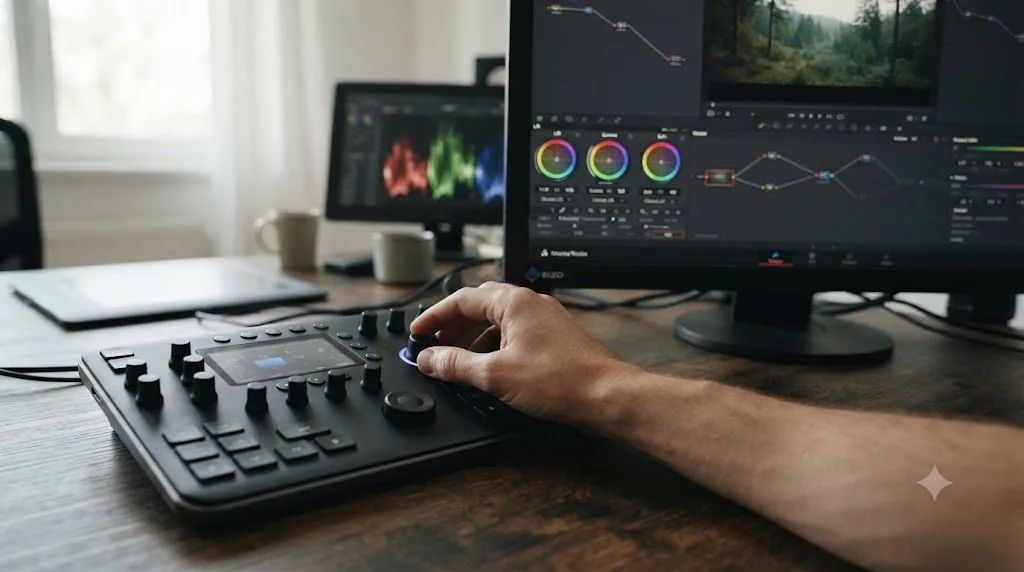
Not really, though it can get you closer than a plain mouse for less money than a real trackball panel. A Loupedeck CT or Loupedeck Live is a dial-and-button control surface built originally for photo editing and streaming, and third-party mapping packs let you assign its dials and buttons to DaVinci Resolve's Color page controls. But you're still turning a dial to move a color wheel, not rolling a trackball that moves it directly, and that's a different physical motion even when it lands on the same on-screen result.
Third-party developer Sideshow FX sells a DaVinci Resolve color control pack for Loupedeck hardware, separately for Windows and Mac, and it's explicitly not an official Blackmagic or Loupedeck product. The Windows version supports DaVinci Resolve 20 and later and does not work with the smaller Loupedeck Live S or Razer-branded Loupedeck devices, per Sideshow FX's Windows product page. The Mac version, per Sideshow FX's Mac product page, needs the separate Keyboard Maestro app installed to work at all, which is an extra piece of paid software layered on top of an already third-party mapping pack. Once configured, the pack reportedly reaches Primary Color, Primary Log, HDR grading, Color Slice, qualifiers, power windows, tracking, mattes and keys, sizing, and printer lights.
Pricing puts the Loupedeck route in an odd spot next to the panels covered earlier. A Loupedeck CT alone runs around $558, per a 2026 hands-on review from SLR Lounge, which already lands close to Blackmagic's own $559 Micro Color Panel before you've added the third-party mapping pack or, on Mac, the Keyboard Maestro license the setup depends on. That's a lot of cost and configuration for hardware that reaches a similar price point to a purpose-built color panel while delivering dial rotation instead of trackball movement.
A Loupedeck with a third-party Resolve pack turns dial rotation into color wheel movement, which is a meaningfully different physical motion than rolling a trackball, even when it reaches the same menu. Dials are precise for single-parameter nudges, the way a volume knob is precise, but they can't replicate a trackball's ability to move a wheel's hue and luminance at once with one gesture. If you already own a Loupedeck for photo work or streaming and want to try grading with it before spending money on dedicated hardware, it's a reasonable stepping stone, and you're only paying for the mapping pack rather than a whole new device. If you're starting from zero, a genuine three-ball panel like the Tangent Ripple gets you the actual mechanism professional colorists are talking about, for less money than a Loupedeck CT plus the mapping pack plus Keyboard Maestro combined.
What do you do if DaVinci Resolve doesn't detect your control panel?
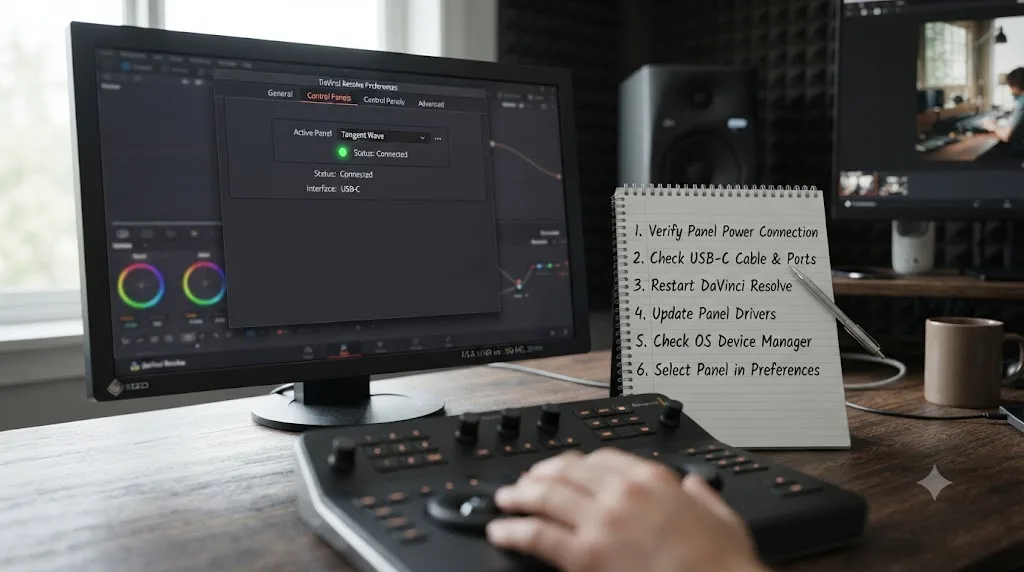
Work through this in order rather than jumping straight to "the panel is defective," since most detection failures trace back to software or configuration, not dead hardware.
- Confirm your Resolve version. Blackmagic's stated minimum for panel support across its current lineup is DaVinci Resolve 12.5, per the Micro Color Panel tech specs. A very old install is a real, if rare, cause of "no panel found."
- Check the install source. If you're on the Mac App Store build of Resolve and using a Blackmagic panel, no other step here will fix it, because that combination isn't supported at all, as covered earlier in this guide. Switch to the direct download from blackmagicdesign.com.
- Check the connection type. A USB-C panel plugged into a USB-A hub through a cheap adapter is a common, boring cause of intermittent detection. A Bluetooth panel that's paired to your operating system but not showing inside Resolve usually needs a fresh pairing, deleted and re-added, rather than a Resolve reinstall.
- Power cycle in a specific order. Per user troubleshooting shared on Blackmagic's own support forum, one workable sequence is: disconnect the panel, restart the computer with the panel unplugged, reconnect the panel, hold its Cut and Smooth Cut buttons for about a second, then launch Resolve. That resets the panel's internal state and the background process Resolve uses to talk to it, rather than just restarting software that was already running correctly and looking at the wrong problem.
- Suspect permissions and security software last. Resolve's panel communication runs through a background daemon process, and anything that blocks background processes, an aggressive permission lockdown, a security tool quarantining an unsigned driver, a recent OS update that reset app permissions, can stop that process from starting even though the panel itself is fine. One especially stubborn case reported on a Creative COW forum thread about Resolve control panel recognition involved a "massive permissions change" on the operating system that silently broke panel detection, where nothing short of a clean OS reinstall fixed it. That's an extreme, last-resort case, not a first troubleshooting step, but it's worth knowing it exists before you conclude your panel is defective and start a return process.
A control panel that Resolve won't detect is usually a software or permissions problem, not a dead panel, so work through the app version, the connection type, and the install source before you assume the hardware itself has failed. Reserve the "return the panel" decision for after those checks come up empty, and keep the receipt until they do.
Should you buy a panel before or after you've learned DaVinci Resolve's color tools?
After, in almost every case. A panel speeds up decisions you already know how to make. It does nothing for decisions you don't yet know how to make, which means buying one before you've built real fluency with nodes, scopes, and the primary wheels spends money on a problem you don't have yet while leaving the actual problem, not knowing the software, completely untouched.
Buying a color panel before you can read a waveform is money spent on the wrong problem. We've watched this exact pattern play out inside our 100,000-plus member editing community more times than we can count: someone buys a Micro Color Panel or a Tangent Ripple hoping it'll make color grading click, and it doesn't, because the panel accelerates hand movement, not understanding. The fastest way to learn DaVinci Resolve's color tools is still working through real footage on whatever input device you already own, checking your work against the scopes instead of your eyes, and building enough reps that you start to feel exactly which part of your workflow is genuinely bottlenecked by hardware and which part is bottlenecked by not knowing what to do next.
Once you're past that point, the signal to buy hardware is specific and physical, not aspirational. You'll notice it as a real, repeated friction: reaching for a wheel and consciously feeling how much faster a trackball would make that specific motion, session after session, not just once. That's a genuinely different signal than watching a colorist's setup video and wanting the same desk.
If you're still in the stuck-and-confused phase rather than the fast-but-limited-by-hardware phase, the obstacle usually isn't which input device you're using, it's not knowing which menu or slider handles the thing you're trying to do. TryUncle is the on-screen assistant for DaVinci Resolve on macOS - ask in plain words and Uncle points at the exact control on your screen, which solves a completely different problem than a trackball panel does. A panel makes known moves faster. TryUncle helps you find the move in the first place, live inside your own project, instead of pausing to search a forum or scrub through someone else's forty-minute tutorial video. It's a paid app at founder pricing, worth checking directly at TryUncle for the current rate, and it's built specifically for the stretch of learning where hardware isn't the bottleneck yet, but confidence is.
Trackball vs mouse vs control panel: which should you buy?
Here's the decision in table form, because after everything above, the actual choice usually comes down to which row describes you right now.
| Your situation | What to get |
|---|---|
| Still learning nodes, scopes, and the primary wheels | Nothing. Grade on the mouse you already have. |
| Comfortable with grading, but hands hurt on long sessions | A $100-$130 consumer trackball mouse (Kensington, Logitech) |
| Already own a Wacom tablet from photo or design work | Try it for power windows and masks before buying anything new |
| Grading regularly, feel the mouse slowing down primary wheel work | Tangent Ripple ($350) or Blackmagic Micro Color Panel ($559) |
| Want a Studio license bundled with real hardware | DaVinci Resolve Speed Editor ($435, no trackballs) or Mini Panel ($2,319, 3 trackballs) |
| Want a system you can expand module by module | Tangent Element, starting with the Tk trackball panel (~$2,470 for the full bundle) |
| Already own a Loupedeck for photo or streaming work | Try a third-party Resolve mapping pack before buying dedicated color hardware |
| Running a dedicated professional color suite full-time | DaVinci Resolve Advanced Panel ($33,915) |
| Working on the Mac App Store build of Resolve | A Tangent panel, not a Blackmagic panel, or switch to the direct download |
| Grading on Linux | Any current Blackmagic panel, they officially support Rocky Linux 8.6 |
| Doing power windows, masks, or qualifier work | A mouse or stylus, always, regardless of which panel you also own |
Choose a trackball panel if you already know DaVinci Resolve's color tools cold and you can point to specific, repeated moments where a mouse is visibly the thing slowing your session down. Choose to stay on a mouse if you're still building that fluency, since a panel accelerates skills you have and does nothing for skills you don't. And choose both, the way nearly every working colorist eventually does, once you're grading professionally enough that the primary wheels and the power windows are both eating real time in every session.
The mouse isn't going away regardless of what you buy. Even Blackmagic's $33,915 flagship ships with ports built in for one. The question was never trackball or mouse. It's when, if ever, adding a trackball to the mouse you already have actually earns back the money it costs.
Frequently asked questions
- Do professional colorists use a mouse or a trackball in DaVinci Resolve?
- Both, for different jobs. A trackball panel handles Lift, Gamma, and Gain because it can move all three tonal ranges at once, which a mouse's single pointer cannot do. The same colorist reaches for a mouse the moment a power window needs dragging, a mask needs shaping, or a keyframe needs clicking. Even Blackmagic's flagship $33,915 Advanced Panel ships with USB-A ports built in specifically for a mouse, because Blackmagic never designed it to replace one.
- Does DaVinci Resolve calculate color differently with a mouse than with a trackball panel?
- Yes, for the Lift and Gain wheels specifically. Colorist Patrick Inhofer documented that Resolve's math for those two controls changes depending on whether the input comes from a mouse or a control surface, while Gamma's math stays the same either way. On ordinary corrections the control surface behavior is smoother, but on extreme, aggressive color balance moves, Inhofer found the mouse is actually gentler on the image.
- What's the cheapest real trackball panel for DaVinci Resolve?
- The third-party Tangent Ripple runs about $350 and gives you three trackballs, Blackmagic's own entry point is the $559 Micro Color Panel, and neither includes a DaVinci Resolve Studio license in the box. If you want the Studio license bundled in, the $435 Speed Editor and the $2,319 Mini Panel both include a Studio activation key, though the Speed Editor is a jog-wheel editing keyboard, not a color trackball panel.
- Is a Kensington or Logitech trackball mouse the same as a DaVinci Resolve color panel?
- No, and this is the most common confusion buyers run into. A Kensington or Logitech trackball is a single-ball pointing device, a comfort upgrade over a regular mouse, and DaVinci Resolve reads it exactly like the mouse it replaces. A color panel like the Micro Color Panel or Mini Panel has three separate trackballs wired to Resolve's Lift, Gamma, and Gain controls specifically, which is the part that actually changes the math and the workflow.
- Do you need DaVinci Resolve Studio to use a control panel?
- No. Every panel covered here, from the Tangent Ripple to Blackmagic's own Micro Color Panel, Mini Panel, and Advanced Panel, works with the free version of DaVinci Resolve. Studio only matters for a separate reason: whether you downloaded Resolve from Blackmagic's own site or through the Mac App Store, because the sandboxed App Store build doesn't support Blackmagic's own control surfaces at all.
- Is a trackball panel worth buying before you've learned DaVinci Resolve's color tools?
- Usually not. A panel makes fast hands faster, it doesn't teach you what to do with them. Spend your first months learning the node system, scopes, and qualifiers on a plain mouse, and buy hardware once you can feel exactly where the mouse is slowing you down. That's also the cheapest way to find out whether you'd actually use a panel enough to justify its price.
- Does the App Store version of DaVinci Resolve work with control panels?
- Partly. Per colorist Patrick Inhofer's reporting for Mixing Light, Blackmagic's own control surfaces, the Micro Color Panel, Mini Panel, and Advanced Panel, are not supported on the Mac App Store build of Resolve, while other manufacturers' panels, like Tangent's, still work. If you plan to run a Blackmagic panel, download Resolve directly from blackmagicdesign.com instead of the App Store.
- Do DaVinci Resolve control panels work on Windows and Linux computers?
- Yes. Blackmagic's own tech specs list Windows 10 or 11 and Rocky Linux 8.6 as supported operating systems for the Micro Color Panel, Mini Panel, and Advanced Panel, alongside Mac. The Micro Color Panel is the only one of the three that also supports a wireless Bluetooth connection; the Mini Panel and Advanced Panel are wired USB only, though the Mini Panel adds Ethernet and Power over Ethernet options for permanent installs.
Sources
- DaVinci Resolve - Panels (Blackmagic Design)
- DaVinci Resolve Micro Color Panel - Tech Specs (Blackmagic Design)
- DaVinci Resolve Mini Panel - Tech Specs (Blackmagic Design)
- DaVinci Resolve Advanced Panel - Tech Specs (Blackmagic Design)
- DaVinci Resolve Speed Editor - Tech Specs (Blackmagic Design)
- DaVinci Resolve Studio product page (Blackmagic Design)
- Color Correction Math in DaVinci Resolve: Control Surface vs. Mouse, by Patrick Inhofer (Mixing Light)
- How Much Faster Can You Color Correct with a Colorist Control Surface? (Mixing Light)
- What You Need to Know About DaVinci Resolve Studio on the Mac App Store, by Patrick Inhofer (Mixing Light)
- Review: The Tangent Ripple Affordable Color Grading Control Surface, by Scott Simmons (ProVideo Coalition)
- Tangent Ripple Review (Videomaker)
- Best Color Grading Control Surfaces: Panels Worth Buying (The Post Flow)
- Trackball Products (Kensington)
- Trackball vs a Regular Mouse: When and For Whom? (Ergonomic Trends)
- DaVinci Resolve Keyboard Shortcuts: 2026 Complete Cheat Sheet (Pixflow)
- Tangent Element Panels Kit / Bundle - Tk, Mf, Kb, Bt (B&H Photo Video)
- Blackmagic DaVinci Resolve Media Application (Tangent)
- Why Use a Wacom Tablet or Stylus for Post Production? (PremiumBeat)
- Wacom for grading and editing (Creative COW forum)
- DaVinci Resolve Control Panel not recognized? (Creative COW forum)
- Davinci Resolve Color Panel for Loupedeck, Windows version (Sideshow FX)
- Davinci Resolve Color Panel for Loupedeck, Mac version (Sideshow FX)
- Loupedeck CT - A Hands On Review Of The New Creative Tool (SLR Lounge)
Put this guide to work with TryUncle.
Ask about the step you’re on. TryUncle sees your screen and points at the control you need, so you can keep learning in your own project.
Get TryUncle for Mac or WindowsKeep reading

Guides · Jul 7, 2026 · 35 min
How to Color Grade in DaVinci Resolve: The Basics
Learn how to color grade in DaVinci Resolve: build a node chain, balance shadows and highlights with Lift, Gamma, and Gain, and read the scopes.
Guides · Jul 10, 2026 · 30 min
How to Read DaVinci Resolve Scopes: Waveform and Vectorscope
Learn to read DaVinci Resolve's waveform, RGB Parade, and vectorscope: what balanced exposure, white balance, and skin tone actually look like on each.
Guides · Jul 15, 2026 · 29 min
How to Become a Colorist Using DaVinci Resolve
The real path to becoming a colorist with DaVinci Resolve: skills, free certification, demo reels, entry jobs, realistic pay, and how long it takes.