Articles / Fixesupdated for DaVinci Resolve 21.0.2 (July 2026)
DaVinci Resolve Won't Import MP4 from Android Phone: The Fix
Quick answer
DaVinci Resolve usually rejects an Android MP4 for one of four reasons: HEVC without the Windows codec extension, 10-bit HEVC from newer Samsung and Pixel phones, a variable frame rate file, or a corrupted transfer over MTP or a messaging app. Match your exact symptom to the cause below, then install the decoder, transcode, or re-transfer the file instead of guessing.
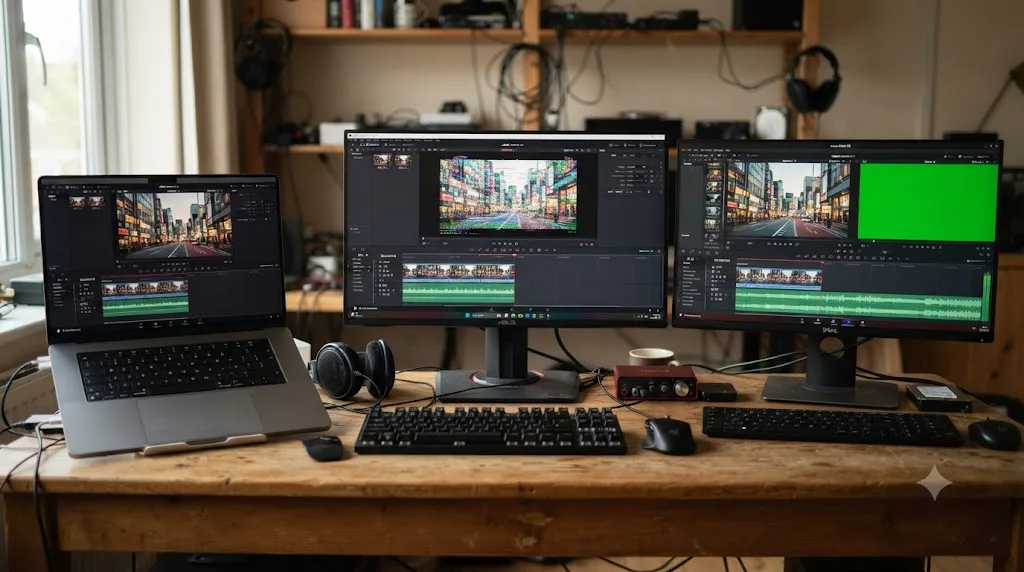
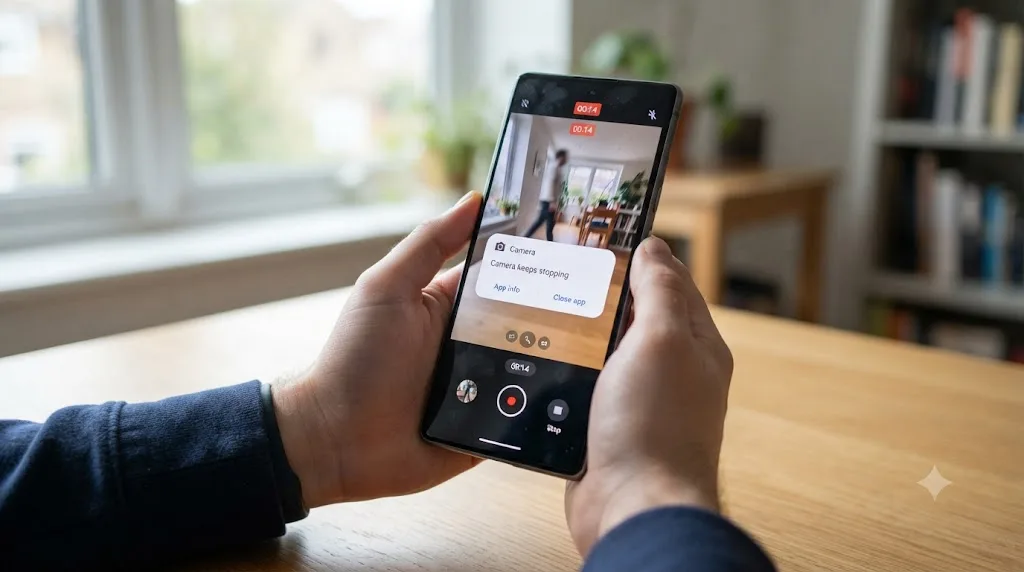
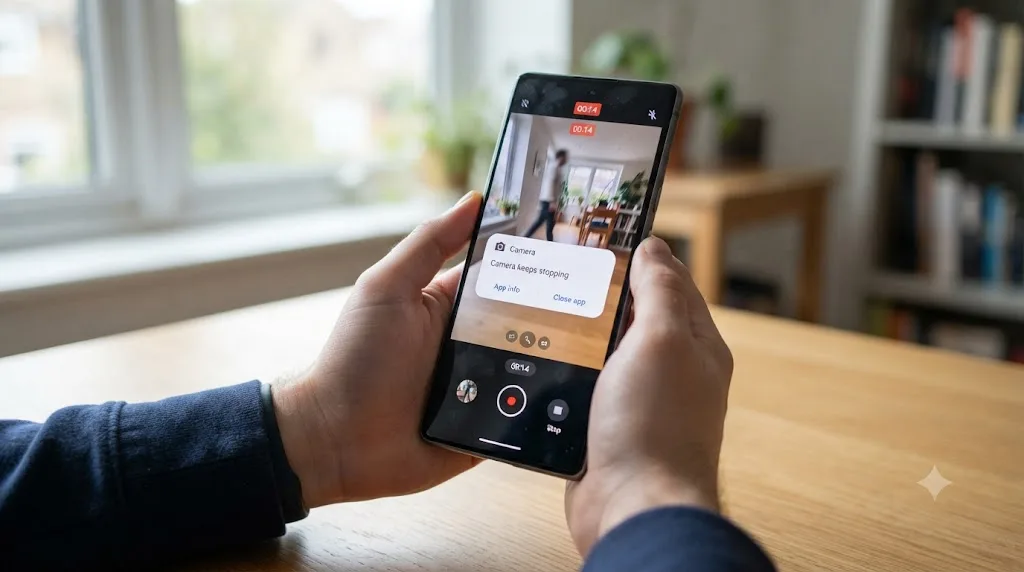
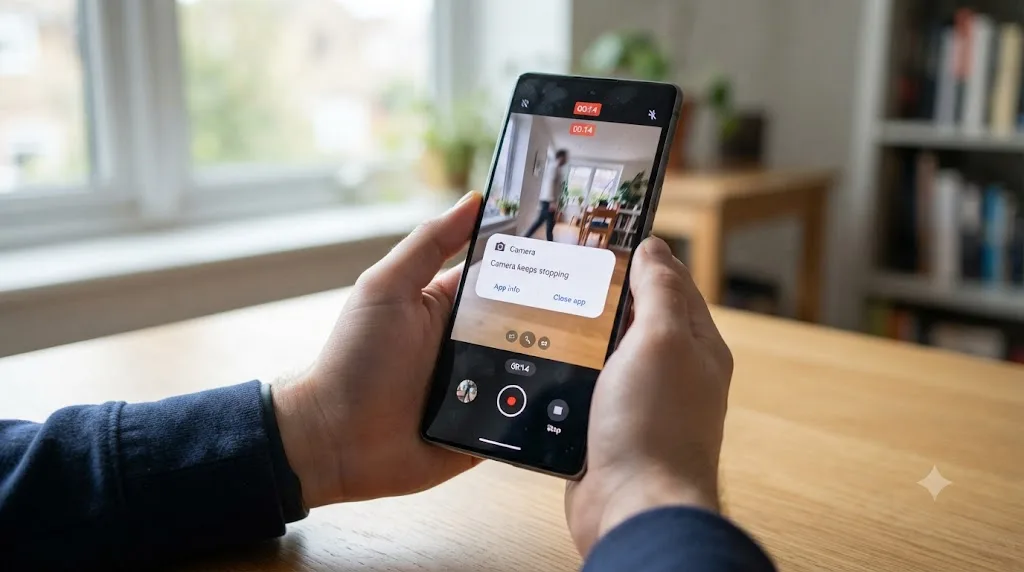
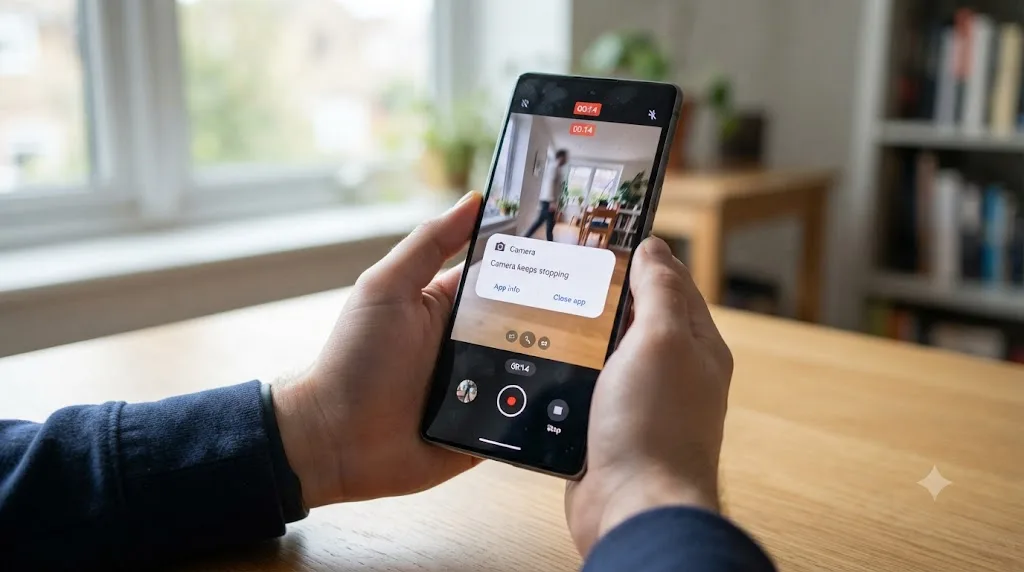
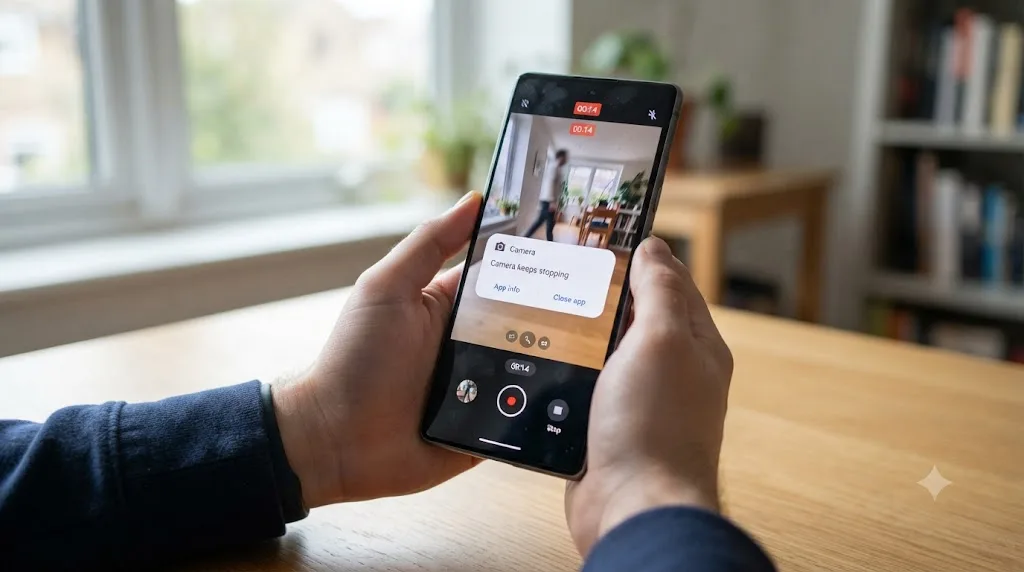
Your Android phone shot the clip fine. Your phone's gallery app plays it back fine. You drag it into DaVinci Resolve and get nothing: a flat rejection, a red Media Offline slate, or silence while the import dialog just sits there. Nobody told you which of those three things you're actually looking at, or why an iPhone clip from the same shoot imported without a fight.
Here's the part that saves you an afternoon: Android doesn't have one MP4 problem, it has four, and they need four completely different fixes. HEVC without a Windows decoder, 10-bit color on newer flagships, variable frame rate baked in by the camera app itself, and a corrupted transfer that happened before Resolve ever touched the file. Guess wrong and you'll transcode a file that never needed it, or spend an hour chasing a codec setting when the real problem is a bad USB cable.
What's actually happening when Resolve won't touch your Android MP4?
Work through this table before you touch a single setting. Each row points somewhere different, and confusing them is how people lose an afternoon.
| What you see | What's actually happening |
|---|---|
| An explicit "unsupported format" style error, or the import just silently does nothing | Resolve found the container but has no licensed decoder for the codec inside it |
| Clip shows red or "Media Offline" | Either the file Resolve is pointing at isn't the real file, or the same codec rejection is showing up as an offline flag instead of an error |
| Clip imports and plays but drifts out of sync, or races ahead of its audio | Variable frame rate, unrelated to codec support |
| Clip imports, plays, and looks correct, but is noticeably lower quality than what you remember shooting | The file was re-encoded somewhere between your camera and your Media Pool, most often a messaging app |
| Clip won't play in anything, not even your phone's own gallery | Genuine file corruption, usually from an interrupted recording or a failed transfer |
Android's fragmentation is the reason this list is longer than the equivalent iPhone list. Apple controls the hardware, the camera app, and the codec defaults on every device that ships. Android is Samsung, Google, Motorola, and a dozen other manufacturers, each running their own camera app on their own chipset, each making independent decisions about HEVC profiles, bitrate, and frame rate handling. Two phones sitting in the same room can produce technically different files from the same recording button.
Is this really a codec problem, or is the file actually broken?
Rule this out first. It takes thirty seconds and eliminates a whole category of wrong guesses.
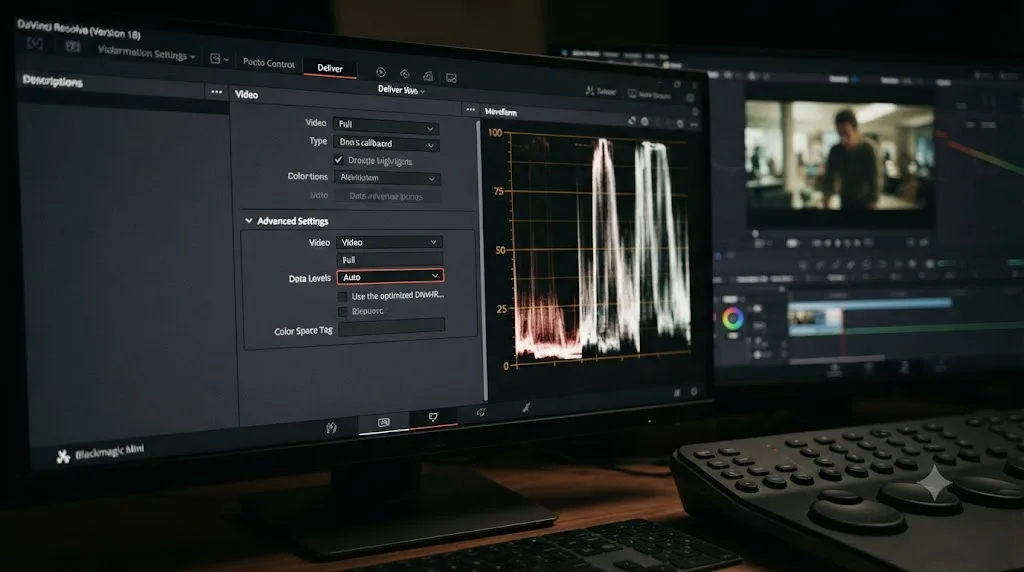
Open the file in VLC. VLC bundles nearly every decoder in existence and doesn't care about your operating system, your GPU, or which DaVinci Resolve license you're running. If it plays cleanly from start to finish with no glitches, the file itself is fine, and whatever's happening is specific to what Resolve can decode.
If VLC also stutters, refuses to open, or plays only a few seconds before failing, you're looking at genuine corruption, not a codec gap. That points toward an interrupted recording or a bad transfer, both covered further down this page, not a transcode.
Next, install MediaInfo, a free tool that reads a file's real codec, container, color depth, and frame rate mode, rather than trusting the .mp4 extension. You need three numbers before you can diagnose anything else on this page: the video Format (H.264 or HEVC), the Bit depth (8-bit or 10-bit), and the Frame rate mode (Constant or Variable).
A file that plays perfectly in VLC and your phone's gallery app proves the file isn't corrupt, and proves nothing about whether DaVinci Resolve specifically can decode it. Those are two separate questions. Conflating them is the single most common reason people spend an hour transcoding a file that was never broken, or worse, an hour hunting for corruption in a file that was fine all along.
Why is Android worse for this than iPhone?
If you've edited iPhone footage in Resolve before and Android feels harder, that's not your imagination. It comes down to who controls the encoder.
Google's own developer documentation lays out the baseline every Android device has to meet, and it's a lower, more variable bar than Apple's single hardware line. Per Android's official supported media formats page, H.264 Baseline Profile encoding is guaranteed on every Android version, but HEVC encoding only became available starting with Android 5.0, at Main Profile Level 3 for phones specifically. VP8 encoding arrived in Android 4.3, VP9 in Android 4.4, and starting with Android 14, Google made AV1 encoding mandatory across all new devices. That's four different codec generations a phone released in the last decade might be defaulting to, depending on its exact Android version and what its manufacturer's camera app chooses to use.
Every manufacturer builds their camera app on top of that baseline differently. Samsung, Google, and every other Android OEM ships its own camera software, tuned for its own chipset, defaulting to whatever combination of codec, bitrate, and frame rate its engineers decided balanced file size against quality. An iPhone video is one company's decision made consistently across every device it sells. An Android video is one of a dozen companies' decisions, made independently, running on chipsets from Qualcomm, MediaTek, and Samsung's own Exynos line, each with its own hardware encoder quirks. That's the entire reason this page needs more branches than a typical iPhone import guide. It's not that Android footage is worse. It's that there's more of it to account for.
The container format matters too. Android's own documentation is explicit that for 3GPP and MPEG-4 output, the file's moov atom, the index that tells a player where every frame lives, has to be written before the mdat atom holding the actual video data. A properly finished recording follows that rule without issue. A recording interrupted by a crashed camera app, a phone that ran out of storage mid-clip, or a battery that died before the file could finalize, sometimes never gets that index written at all, producing a file that looks like a normal MP4 in Finder or Explorer and opens as nothing anywhere, Resolve included. That's a different failure than a codec Resolve can't decode, and no HEVC extension or transcode fixes a file missing its own index.
| Codec | Android version it arrived | Where you're likely to see it |
|---|---|---|
| H.264 Baseline | Every Android version | Older or budget phones, some third-party camera apps |
| HEVC (H.265) Main Profile | Android 5.0+ | Default on most current Samsung, Pixel, and other flagship camera apps |
| VP9 | Android 4.4+ | Rare as a default camera codec, more common from specific apps or screen recorders |
| AV1 | Mandatory from Android 14+ | Increasingly available on very recent flagships, not yet a default camera recording codec |
Why does HEVC video from an Android phone fail to import on Windows?
This is the single most common trigger, and it's almost entirely a Windows problem, not an Android one.
Windows doesn't include a built-in HEVC (H.265) decoder the way macOS does at the system level. HEVC has been available to Android's camera encoder since Android 5.0, and it's now the default recording codec on a large share of current flagships, since it holds roughly the same visual quality as H.264 at meaningfully smaller file sizes. Plug that footage into a Windows editing machine, and Resolve reaches for a system-level HEVC decoder that Windows never installed in the first place.
A user on the Blackmagic Design forum hit exactly this wall trying to import Android device footage, and the practical answer that thread converges on is the same one that applies to iPhone and DJI footage on Windows: buy the decoder, don't fight the codec. The fix is one purchase and a restart.
- Open the Microsoft Store app on Windows.
- Search "HEVC Video Extensions" and purchase the listing published by Microsoft directly.
- Restart your computer completely, not just Resolve.
- Relaunch DaVinci Resolve and retry the import.
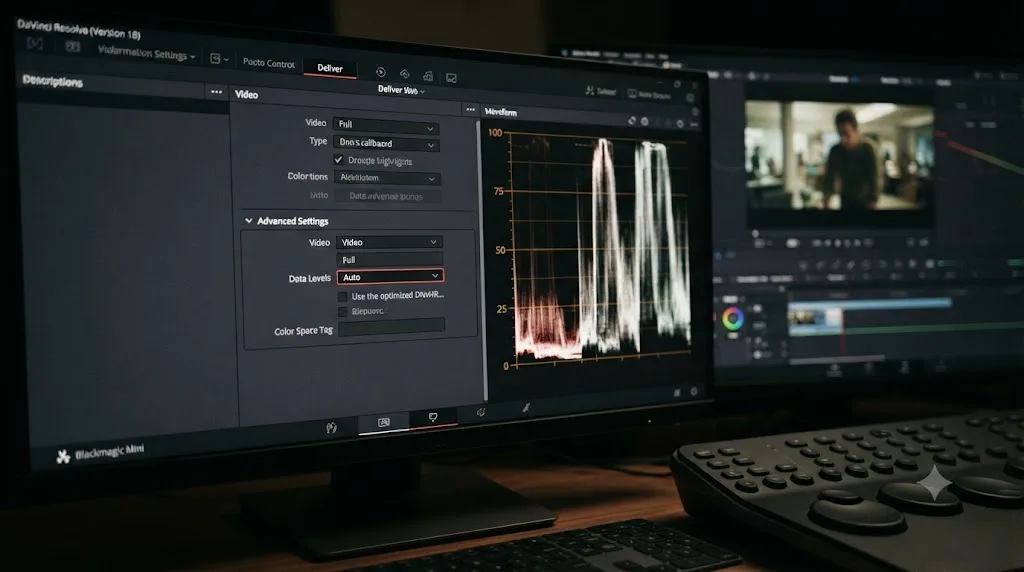
In most cases, the same clips that failed a moment ago import cleanly. If you're still stuck after this exact step, the next section covers the specific complication that trips people up right here.
Why does the same HEVC clip still fail after installing the extension?
Here's the part that's specific to newer Android flagships, and it's the same underlying wall DJI drone footage and iPhone HDR clips hit on Windows: 10-bit color depth stacked on top of the codec itself.
A handful of current Android phones can record HEVC at 10-bit rather than the standard 8-bit, usually tied to an HDR or "efficient video" recording mode. Samsung's Galaxy S23 Ultra and S24 Ultra are the clearest documented examples. On the Blackmagic Design forum thread specifically about a Samsung S23 Ultra MP4 file showing "Media Offline", the fix that actually worked wasn't installing anything, it was re-encoding the file with a specific pixel format flag: running the clip through FFmpeg with -pix_fmt yuv420p forced it down to standard 8-bit color, and only then would Resolve accept it into the Media Pool and play it. A separate thread on the same forum, reporting the identical Media Offline symptom on a Samsung S24 Ultra, points at the same underlying gap: standard HEVC decoding and 10-bit HEVC decoding are not the same capability, and having one doesn't guarantee the other on a given Windows PC and GPU combination.
Installing the HEVC extension and still getting a rejection on the exact same codec isn't a sign the extension failed. It's a sign you've hit a second, separate wall stacked behind the first one. The extension covers standard 8-bit HEVC decoding. Whether 10-bit HEVC decodes cleanly on top of that depends on your specific GPU generation and driver version, which is exactly the kind of variable that makes this problem inconsistent between two people with what looks like the same setup.
Two ways through it, once you've confirmed 10-bit is the actual cause:
- Transcode to an intermediate that handles 10-bit natively. ProRes and DNxHR both carry 10-bit color cleanly and decode consistently across Resolve installs, sidestepping the GPU-dependent HEVC decode path entirely.
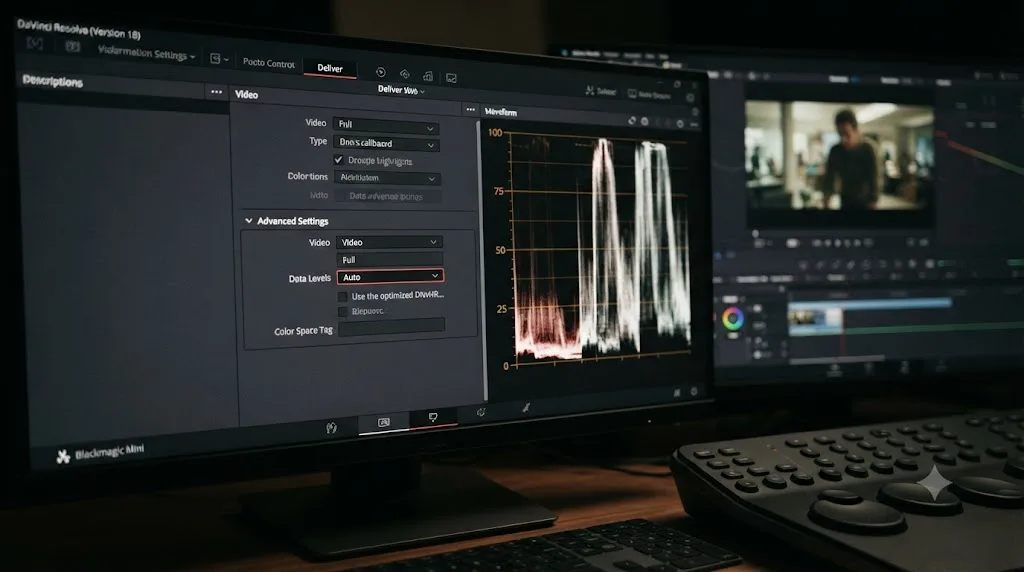
- Flatten to 8-bit if you don't need the extra color range. The FFmpeg command from the forum thread above, converting with
-pix_fmt yuv420p, does exactly this. You lose the HDR headroom, but for a standard Rec.709 delivery that headroom often wasn't buying you anything you'd use anyway.
| Layer | What it controls | Typical fix |
|---|---|---|
| Container | .mp4 wrapper | Rarely the actual problem |
| Codec | HEVC vs H.264 | HEVC Video Extensions (Windows) |
| Color depth | 8-bit vs 10-bit | Transcode to ProRes/DNxHR, or flatten to 8-bit |
| Frame rate mode | Constant vs Variable | Convert to CFR in HandBrake before import |
Where's the "efficient video" toggle on your phone, and should you turn it off?
If you'd rather avoid this fight at the shoot instead of fixing it after the fact, this is the setting that actually matters, and it's buried deeper than most people expect.
Samsung's camera app, going back to the Galaxy S9 and carried forward through the S23 and S24 lines, ships a recording mode Samsung calls High Efficiency Video, using HEVC by default to store equal or better quality video in a smaller file. Recent models add a second tier on top, a "prioritize saving space" option that compresses further at some cost to quality. Both use HEVC. Neither is labeled with the word "HEVC" directly in the menu, which is exactly why editors run into this codec without realizing they ever chose it. The setting typically lives under the camera app's own settings, in a video quality or resolution section, not under the phone's general system settings, since it's the camera app's own encoder choice rather than an OS-level toggle.
Most people never see the word HEVC anywhere in their phone's camera settings, because manufacturers label it as a storage-saving feature instead of a codec choice. That's a reasonable decision for a phone trying to conserve space for an average user. It's an invisible trap for anyone about to hand that footage to an editing app that doesn't have a licensed HEVC decoder installed.
If you're on Windows without the HEVC extension installed yet, or you're editing on a machine you don't fully control (a shared workstation, a rental, a lab computer), switching your phone's camera to a standard or "compatibility" video mode before a shoot that matters avoids this entire category of problem. You'll use more storage on the phone. You'll also never see this specific rejection again on that footage.
Why does Android video drift out of sync or play at the wrong speed?
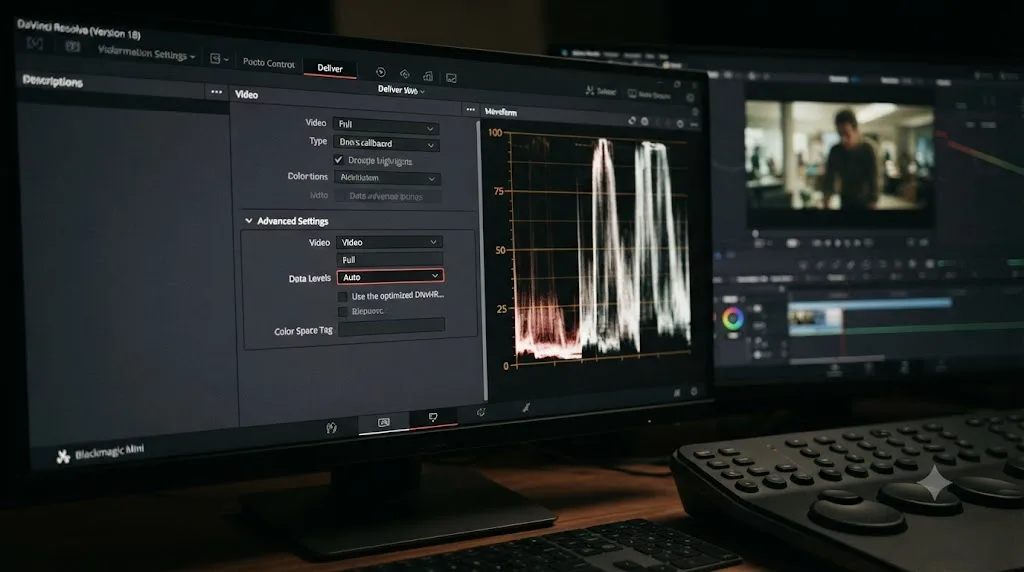
If your clip imports fine and plays, but the audio and video slowly pull apart, or the whole thing races through faster than it should, you're not looking at a codec rejection at all. This is a frame rate problem, and it's more common on Android than on iPhone for a specific, documented reason.
Most Android camera apps record with a variable frame rate rather than a constant one, adjusting the gap between frames on the fly based on available light and how much motion is in the scene. Writer Michael Kwan, covering exactly this mechanism, put the practical symptom plainly: "Variable frame rate video shot on an iPhone or other mobile device does not stick to the same frame rate throughout the clip. It might be 23fps here, 30fps here, and 28fps there," he wrote in a piece on fixing variable frame rate footage. Android phones are affected by this at least as often as iPhones, and a Blackmagic forum thread on importing Android device video specifically notes that the overwhelming majority of mobile phone recordings simply don't hold a constant framerate, which lines up with what shows up constantly in Resolve support threads: sync that's fine for the first few seconds of a clip and visibly wrong by the end.
Low light makes this worse specifically, not just generally. A phone's camera sensor needs more exposure time per frame in dim conditions to gather enough light, which some Android camera apps handle by dropping the effective frame rate rather than boosting sensor gain and accepting more noise. That's a reasonable trade-off for a phone trying to produce a watchable video in a dark room. It also means the exact same phone, the exact same camera app, can produce a rock-solid constant frame rate clip outdoors at noon and a genuinely variable one indoors after sunset, with no setting changed between the two.
DaVinci Resolve expects a constant, unchanging frame rate. As TimeBolt's explanation of the underlying mismatch puts it, most professional editing tools assume CFR, "while phones, screen recorders, and webcams often produce VFR output," and dropping a VFR file onto a constant-rate timeline is the main cause of audio that gradually drifts out of sync. In Resolve specifically, that shows up as audio sliding further from the picture the longer the clip plays, individual frames flashing unreadable mid-clip, or in worse cases the file rejecting outright because Resolve's parser can't reconcile the declared frame count against what's actually on disk.
Confirm this with MediaInfo before touching anything in Resolve. Check the Frame Rate Mode field specifically:
- Open the clip in MediaInfo.
- Check Frame Rate Mode under the video track. If it reads Variable, that's your entire diagnosis.
- Open HandBrake, a free, cross-platform tool.
- Under the Video tab's Framerate section, set Framerate mode to Constant. HandBrake's own documentation recommends "Same as Source" alongside Constant Framerate, so any variable portions get made constant at the same rate your source already used, rather than forcing an arbitrary new number.
- Encode, then import the converted file into Resolve, keeping the original as your archival copy.
A variable frame rate file doesn't have one true number waiting to be typed into Clip Attributes. It has no single correct answer at all, which is exactly why transcoding to a constant rate fixes it and adjusting a Resolve setting never fully will. If your Android clip is doing this and you'd rather understand the mechanism behind why Clip Attributes can only approximate a fix here, our guide to a DaVinci Resolve clip playing too fast covers the same underlying math from the speed side, including exactly why the audio track and video track drift apart at different rates once you're dealing with a frame rate mismatch.
Why does an Android clip show Media Offline instead of importing at all?
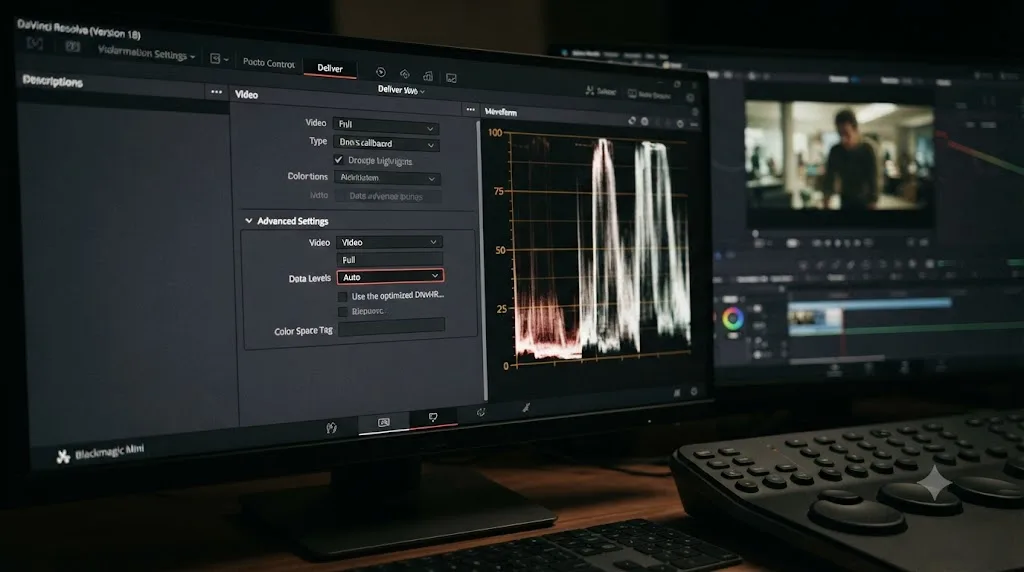
If color and frame rate both check out and the clip is still red, you're looking at a broken link between Resolve and the actual file, not a decoding problem. Two Android-specific causes account for most of these.
Google Photos deleted the local original. If you back up to Google Photos and have ever used its Free Up Space feature, this is worth checking first. Google's own support documentation is direct about what that feature does: it deletes the on-device copy of any photo or video that's finished backing up, and per Google's official help page, files younger than 30 days may be exempted, but anything older that's already synced gets removed from local storage once you run it. Unlike an iCloud placeholder, which leaves a hollow stub file sitting in the same spot with the same name, Google Photos genuinely removes the file. Point Resolve at a folder where that clip used to live, and there's nothing there at all, not even a broken pointer, just a video that now only exists inside the Google Photos app and its cloud copy.
The fix is redownloading the original from Google Photos before you edit, not relinking. Open the clip in the Google Photos app or on photos.google.com, download the original quality version back to a folder your editing machine can see, and import that copy instead of chasing a file Free Up Space already removed.
The transfer itself corrupted the file. Android phones move files to a PC over MTP, the Media Transfer Protocol, a standard that predates the era of multi-gigabyte 4K phone video by over a decade. A thread on XDA Forums capturing widespread frustration with the protocol describes exactly the failure mode that produces this symptom: large file transfers that drop partway through, connections that silently fail, and files that arrive smaller than they should be with no error telling you anything went wrong. A truncated or partially-written video file can look completely normal in File Explorer, correct filename, plausible file size at a glance, right up until Resolve tries to actually decode it and finds the data simply isn't all there.
A file that looks completely normal in File Explorer, with the right name and a believable size, can still be hollow or truncated, because MTP gives you no warning when a transfer fails partway through. That's precisely why this cause gets misdiagnosed as a codec problem so often. Nothing about the file's appearance tells you the transfer dropped data until Resolve tries, and fails, to actually read it.
To rule this out: check the file's exact byte size on your phone against the copy on your PC. If they don't match, or if you're not sure, re-copy the file, ideally over a data-rated USB-C cable (not a charge-only cable, which won't carry file transfers at all) with your phone set to File Transfer mode rather than Charging Only. Our full guide to DaVinci Resolve's Media Offline error covers the relink workflow itself and the render cache side of this problem if a bad transfer isn't your specific cause.
Why does a Google Photos backup leave nothing behind at all?
This deserves a closer look on its own, because the mechanism is genuinely different from the equivalent iPhone problem, and treating them the same wastes time.
On iPhone, iCloud's storage optimization replaces a local video with a small placeholder stub: same filename, same thumbnail, zero actual video data, waiting to be re-downloaded on demand. Point an editing app at it, and you get an instant, obvious offline flag, because the placeholder exists and Resolve can see it's empty.
Google Photos on Android works differently. Free Up Space doesn't leave a placeholder at all. It deletes the file outright, the moment it's confirmed backed up, unless it's less than 30 days old. A Google Photos placeholder isn't a hollow stub sitting where your video used to be. On Android, there usually isn't a file there at all once Free Up Space has run, which means Resolve isn't reading an empty file, it's finding nothing to read. If you're troubleshooting by checking whether a file "exists" in the folder and it genuinely doesn't, that's not a bug in your search. That's exactly what this feature is designed to do.
The practical upshot: before you assume a codec or transfer problem, open the Google Photos app itself and check whether the clip is marked as backed up with no local copy. If it is, download the original back down before touching Resolve at all. This is also worth checking proactively before any shoot where you'll be editing same-day: either pause Google Photos backup during active editing, or make sure Free Up Space isn't set to run automatically on a schedule that could pull your footage out from under you mid-project.
What if the video won't play anywhere at all, not even on your phone?
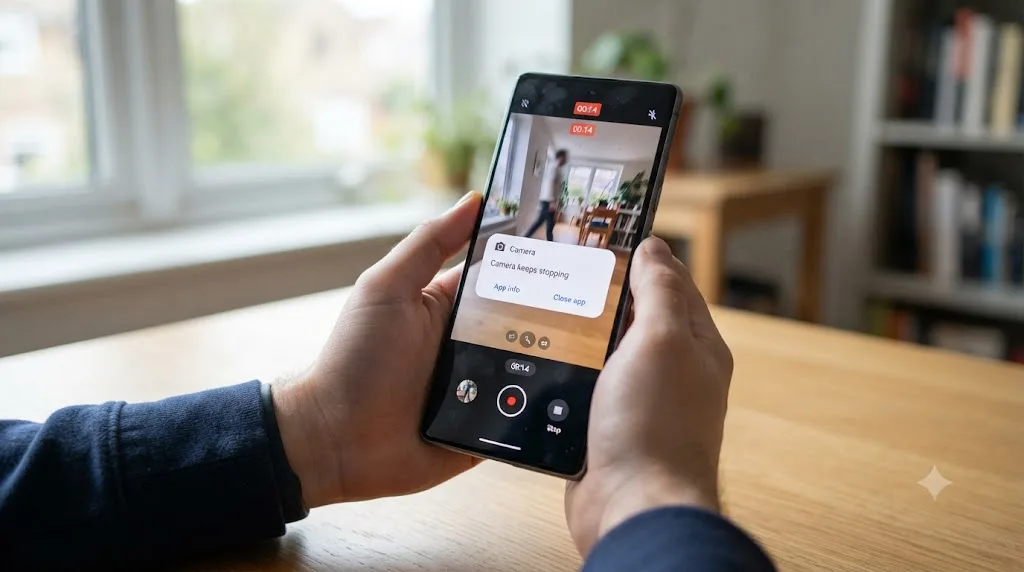
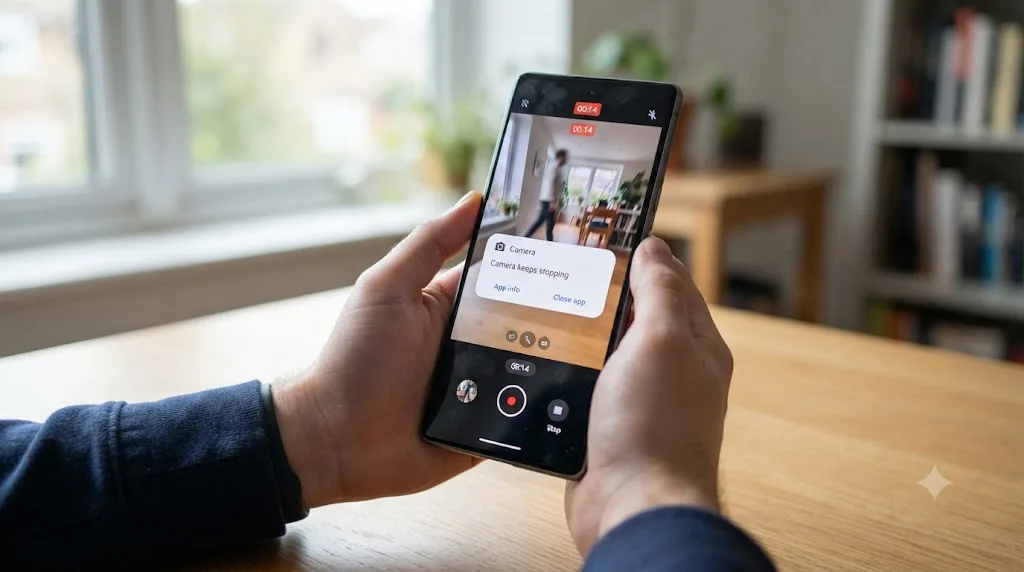
Everything above assumes the file is at least playable somewhere. If it isn't, not in Resolve, not in VLC, not even back on the phone that recorded it, you're looking at genuine corruption from the recording itself, and no codec extension or transcode fixes that.
Android's own documentation is specific about what a valid MP4 or 3GPP file needs: the moov atom, the file's own index of where every frame lives, has to be written before the mdat atom holding the actual compressed frames. A camera app writes that index as one of its last steps when you stop recording, because it doesn't know the final frame count and duration until the recording actually ends. If the app crashes mid-recording, the phone's storage fills up completely during a long clip, or the battery dies before you hit stop, that finalization step can simply never happen. The result is a file that has real video data sitting inside it but no valid index pointing to any of it, which most software, Resolve included, reads as a file with nothing playable at all rather than a file that's merely low quality or partially damaged.
This is genuinely rare compared to the codec and transfer issues above, but it's worth ruling in or out quickly, since the fix is completely different: there isn't one. A file missing its own moov atom isn't something FFmpeg, HandBrake, or a Resolve setting recovers cleanly in the general case; some specialized recovery tools can occasionally rebuild a missing index if the raw frame data is intact and the file wasn't also truncated, but that's a data-recovery job, not an import setting. If this is what you're looking at, check whether your camera app kept any auto-backup or cloud sync copy from before the crash, since that's a far more reliable path back to a working file than trying to repair the broken one by hand.
Does it matter which app you used to get the video onto your editing machine?
Yes, and this is worth checking before you blame the phone or Resolve at all, because a clip that looks fine but plays back with visibly worse quality than you remember shooting is rarely a Resolve problem in the first place.
Messaging apps re-encode video sent through their standard media-sharing path, and Android users lean on these apps constantly to get a clip from a phone to a laptop when a cable isn't handy. WhatsApp compresses video sent as a regular attachment hard, commonly capping resolution around 720p and cutting bitrate aggressively to keep files small and fast to send over mobile data. Send the same file as a Document or File attachment instead of through the normal gallery-share path, and most messaging apps skip that compression step entirely, transmitting the original bytes unchanged.
A clip that imports fine and plays fine but looks noticeably softer or blockier than what you shot isn't a Resolve import failure at all. It's a successfully imported, successfully re-encoded copy of your original, and the compression happened before Resolve ever saw the file. No troubleshooting inside Resolve fixes footage that already lost detail on the way there. The fix is upstream: transfer by cable, or send the file as a Document rather than through a chat app's normal media picker, and skip the re-encode step entirely.
If you're not sure whether this is what happened, MediaInfo tells you again: check the file's actual resolution and bitrate against what your phone's camera settings claim you shot at. A 4K recording that shows up as 1280x720 in MediaInfo didn't shrink itself. Something in the path it traveled compressed it down.
Do older or budget Android phones need different handling?
If you're working with footage from an older device, a budget phone still in circulation, or a recording made with a basic third-party camera app rather than the phone's default one, the codec picture shifts, and it's worth checking separately from everything above.
Older and lower-end Android hardware sometimes still defaults to H.264 Baseline Profile, the one video encoding format Android guarantees on every version and every device, rather than HEVC. That's actually good news for Resolve compatibility. H.264 has been broadly supported across Resolve, Windows, macOS, and Linux for years, and it's the one codec on this entire page unlikely to need a special extension or a transcode step just to open.
The audio side is where older or unusual recording apps can still cause trouble. Android's 3GPP container format, still used by some legacy recording and voice-memo style apps, supports AMR-NB and AMR-WB audio codecs alongside AAC. AMR was built for voice calls, not music or ambient sound, and it's a codec Resolve doesn't handle the way it handles standard AAC. A video that imports with picture but comes in completely silent, particularly one that started life as a voice recording or came from an older or unusual camera app rather than a phone's standard camera, is worth checking in MediaInfo specifically for its audio codec, not just its video codec. If it reads AMR-NB or AMR-WB, transcoding the file (video and audio together) in HandBrake to AAC audio resolves it in one pass.
Does the free version of Resolve treat Android video differently than Studio?
Partly, and it's worth knowing exactly where the line sits before you assume upgrading solves a problem it won't actually touch.
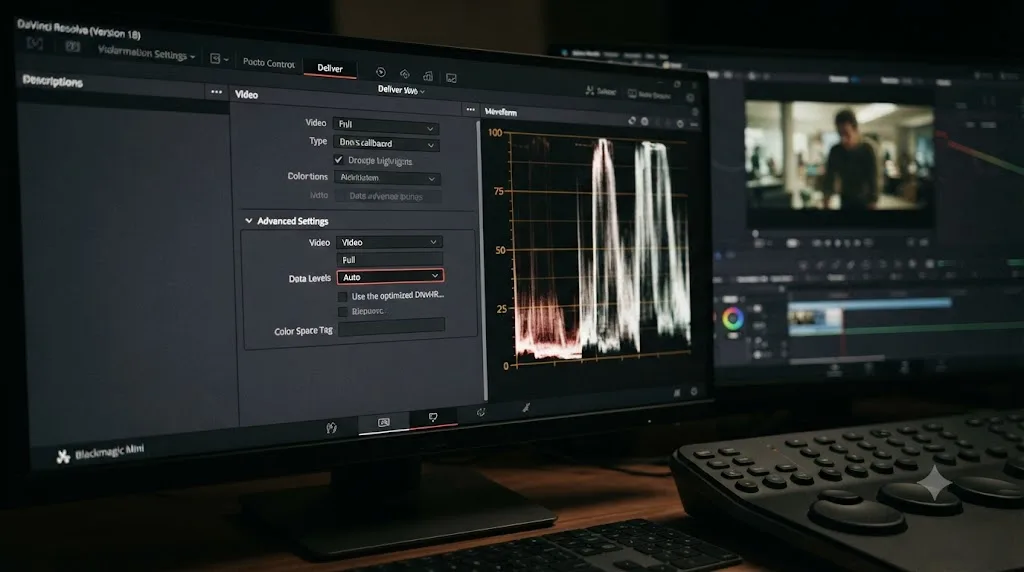
On Windows, the gap is specifically HEVC. The free version needs the Microsoft Store HEVC extension purchased separately, and even with it installed, 10-bit HEVC decoding can still depend on GPU and driver support in ways that are inconsistent between machines, as covered above with the Samsung Ultra examples. Studio includes broader hardware-accelerated HEVC decoding out of the box on supported systems, which is genuinely a real, practical difference if you're regularly pulling in HEVC footage from current-generation Android flagships.
On Linux, the gap is bigger and unrelated to HEVC specifically: Blackmagic's free Linux build doesn't decode H.264 or H.265 in any container at all, a deliberate licensing decision rather than a missing driver. That affects Android MP4 footage exactly as much as it affects iPhone footage or any other H.264/HEVC source, since the restriction is about the codec, not which device recorded it. Our full guide to DaVinci Resolve's Unsupported File Format error covers that Linux licensing split, and the general codec-versus-container distinction, in more depth if you're hitting it outside the Android-specific causes on this page.
Frame rate handling, on the other hand, doesn't change with your license at all. Mixed Frame Rate Format, Clip Attributes, and the entire variable-frame-rate transcode workflow covered above work identically in free and Studio. If your Android clip is drifting out of sync, buying Studio changes nothing about that specific problem. Match the fix to the actual cause, not to whichever fix happens to be for sale.
What does the full fix look like on a real clip, start to finish?
Here's the whole diagnosis applied to a situation that comes up constantly: a videographer shoots event B-roll on a Samsung Galaxy S24 Ultra alongside a mirrorless main camera, then imports everything into one Resolve project on a Windows editing PC the next morning.
First, confirm the transfer. The footage came over by USB-C cable with the phone set to File Transfer mode, and the file sizes on the PC match what the phone reports. No MTP corruption to chase.
Second, the import fails outright with the phone clips flagged red, "Media Offline," while the mirrorless footage sits in the same bin working fine. MediaInfo confirms the Samsung clips are HEVC. The HEVC Video Extensions are already installed and were working on other HEVC footage last week, which rules out the most common cause immediately.
Third, MediaInfo's Bit depth field reads 10-bit on the phone clips specifically, and the phone's camera app confirms the shoot used its "efficient video, prioritize quality" HDR mode. That's the second wall: standard HEVC decode is fine, 10-bit HEVC decode on this particular GPU isn't.
Fourth, the fix is a transcode, not another extension. The Android clips go through HandBrake set to output DNxHR, keeping 10-bit color intact rather than flattening to 8-bit, since the footage will sit in a real Rec.709 grade next to the mirrorless camera and the extra color range is worth preserving for that.
Fifth, one clip shot handheld indoors under low venue lighting plays back with the audio noticeably ahead of the picture by the end of its two-minute runtime. MediaInfo confirms Frame Rate Mode reads Variable on that one file specifically, consistent with the phone's camera app dropping frame rate in low light. That clip alone gets the HandBrake Constant Framerate treatment before being swapped back into the project.
Sixth, everything imports clean, plays in sync, and cuts convincingly against the mirrorless footage in the same timeline. Nothing about the process required a second guess once each symptom was matched to its actual cause instead of assumed to be the same problem repeating itself.
The full decision table: match your exact symptom to the fix
Work through this top to bottom and stop at the first row that matches what you're actually seeing.
| Your exact situation | Root cause | Fix |
|---|---|---|
| HEVC video, Windows, never installed anything for it | Missing system HEVC decoder | Buy and install HEVC Video Extensions, restart PC |
| Same HEVC video, extension already installed, still fails | 10-bit color depth from HDR or "efficient video" mode | Transcode to ProRes/DNxHR, or flatten to 8-bit with FFmpeg |
| Any H.264/H.265 file, Linux, free edition | Licensing gap in the free Linux build | Transcode before import, or edit on Windows/Mac |
| Clip imports, plays, but audio drifts or races ahead over time | Variable frame rate, often worse from low-light recording | Check Frame Rate Mode in MediaInfo; transcode to Constant in HandBrake |
| Clip shows red or "Media Offline," Google Photos backup in use | Free Up Space already deleted the local original | Redownload the original from the Google Photos app before importing |
| Clip shows red or "Media Offline," transferred via USB | Corrupted or truncated MTP transfer | Re-copy over a data cable in File Transfer mode; verify file size matches |
| Clip plays but looks noticeably lower quality than shot | Sent through a messaging app's normal media path | Transfer by cable, or send as a Document/File attachment instead |
| File won't play anywhere, not even on the phone | Interrupted recording, missing moov atom | No reliable Resolve fix; check for an auto-backup copy instead |
| Video imports but has no audio, from an older or unusual app | AMR-NB/AMR-WB audio in a 3GPP container | Transcode video and audio together to AAC in HandBrake |
How do you avoid losing an afternoon to this on your next shoot?
A short list of habits catches nearly everything on this page before it becomes an editing-day problem.
- Check your phone's video recording settings before a shoot that matters, not after. Find the "efficient video," HEVC, or HDR toggle in your camera app and switch to a standard or compatibility mode if you're editing on a Windows machine without the HEVC extension installed, or if you know you're headed to an unfamiliar PC.
- Transfer by cable in File Transfer mode, not through a messaging app, whenever you have the option. MTP has real, documented reliability problems with large files, but it still beats a WhatsApp re-encode that permanently throws away resolution and bitrate you can't get back.
- If you use Google Photos backup, know what Free Up Space actually does before you rely on it. It deletes local originals outright once they're backed up, not just optimizes them. Redownload from the app, don't go hunting for a local file that isn't there anymore.
- Run new footage through MediaInfo once, on import day, for any Android phone you haven't edited from before. Thirty seconds checking the real codec, bit depth, and Frame Rate Mode beats an hour of guessing later, and it tells you immediately which branch of this page actually applies to you.
- Keep the Windows HEVC extension installed proactively if you shoot Android footage regularly. It's a one-time dollar purchase that eliminates the single most common cause on this entire page before it ever shows up.
What if you're new to Resolve and this is your first hardware-adjacent wall?
If codec extensions, bit depth, and frame rate modes feel like a lot to sort through on top of just learning where things live in DaVinci Resolve, that's a completely normal place to be. Android's fragmented codec landscape trips up experienced editors too, mostly because there's no single manufacturer's documentation that covers every device the way Apple's does for iPhone.
TryUncle is an AI tutor for DaVinci Resolve on macOS, ask in plain words and Uncle points at the exact control on your screen. It watches your actual Resolve window and points at the exact setting or menu you need for your specific footage, instead of sending you back to a forum thread shot on a different Android phone with a different chipset than yours. Uncle isn't the only AI tool built around Resolve either; tools like Sottocut, PremiereCopilot, and cutagent.ai automate specific editing tasks, and chat-based assistants like heyeddie.ai answer questions about the app in a separate window. TryUncle's approach is different: it watches your live Resolve session and points at the actual control, rather than automating the edit for you or answering in a chat window disconnected from what's on your screen. Check TryUncle for current founder pricing if guided, on-screen help sounds like the faster path through your next codec wall.
What's the fastest path to a fix?
Confirm the file plays somewhere else first, VLC or your phone's own gallery. Then check MediaInfo for three things: the codec, the bit depth, and the Frame Rate Mode. If it's HEVC on Windows, install the Microsoft Store extension and restart. If it still fails after that, check for 10-bit color and transcode to ProRes, DNxHR, or 8-bit H.264. If it drifts out of sync, check Frame Rate Mode before touching Clip Attributes, and transcode to constant if it reads Variable. If it's flagged Media Offline, check whether Google Photos already deleted the local original, or whether the USB transfer dropped data along the way.
Nine times out of ten, your Android footage isn't broken, and Resolve isn't malfunctioning. Either your operating system is missing a decoder license, your phone's camera app made a color or frame rate choice that isn't labeled anywhere obvious, or the file got compressed, truncated, or deleted somewhere on its way from your phone to your Media Pool. Match the exact symptom to the exact cause, and the fix is almost always a single purchase, a single transcode, or a different transfer method, not another hour of drag-and-drop guessing.
Frequently asked questions
- Why does DaVinci Resolve reject MP4 video from my Android phone but the file plays fine everywhere else?
- Because Resolve only imports what it has a licensed decoder for, and general media players like VLC or your phone's own gallery app bundle far more decoders than Resolve does. A file playing elsewhere proves it isn't corrupt. It says nothing about whether Resolve specifically can decode its codec, color depth, or frame rate structure on your operating system and license tier.
- Why do HEVC videos from Samsung or Google Pixel phones fail to import on Windows?
- Windows doesn't ship a built-in HEVC decoder, and most current Android flagships default to HEVC recording to save storage. Buy the HEVC Video Extensions from the Microsoft Store for about a dollar, install it, restart your PC completely, and reopen the project.
- Why does my HEVC video still fail after I install the Microsoft HEVC extension?
- The extension covers standard 8-bit HEVC. Many newer Android phones, Samsung's Galaxy S23 and S24 Ultra especially, can record HEVC at 10-bit for HDR, which is a separate decoding profile the base extension doesn't always cover cleanly on every GPU. Transcode the clip to a 10-bit-friendly intermediate like ProRes or DNxHR, or convert it to 8-bit H.264 with FFmpeg or HandBrake.
- Why does Android video drift out of sync or play at the wrong speed in DaVinci Resolve?
- Most Android camera apps write video with a variable frame rate that shifts depending on light and motion, especially indoors or at night. Resolve expects a constant rate. Check Frame Rate Mode in the free MediaInfo utility; if it reads Variable, transcode to a constant frame rate in HandBrake before you import it.
- Why does my Android video show Media Offline in DaVinci Resolve instead of importing?
- Two Android-specific causes show up constantly: a Google Photos backup that already deleted the local original off your phone under Free Up Space, or a file that arrived corrupted or truncated over a USB MTP transfer, which has a long history of dropping data on large video files. Check that the actual file plays somewhere else first, then relink or re-transfer.
- Can transferring a video over USB actually corrupt the file before Resolve ever sees it?
- Yes. Android phones transfer files to a PC using MTP, a protocol built in 2004 for small media libraries, not multi-gigabyte 4K video. MTP has a documented history of dropping connections and truncating large files mid-copy on Windows, especially over a cheap or charge-only USB-C cable. Re-copy the file and check its size against the phone before assuming the format itself is the problem.
- Does sending myself a video through WhatsApp or Google Messages break it for editing?
- It can. Both apps re-encode video sent through their normal media path, typically capping resolution around 720p and cutting bitrate hard to save bandwidth. The file that lands in Resolve after that isn't corrupted, it's just a much lower-quality re-encode of your original. Send as a Document or File attachment instead, or better, transfer by USB cable, to skip the compression entirely.
- Does DaVinci Resolve's free version handle Android video differently than Studio?
- Yes, specifically around HEVC on Windows. The free version needs the Microsoft Store HEVC extension for standard HEVC and can still struggle with 10-bit HEVC depending on your GPU, while Studio includes broader hardware HEVC decoding out of the box. On Linux, the free version doesn't decode H.264 or H.265 at all, an unrelated licensing gap covered in our unsupported file format guide.
Sources
- Android Developers: Supported media formats (Google)
- DaVinci Resolve Supported Codec List (Blackmagic Design)
- DaVinci Resolve - Tech Specs (Blackmagic Design)
- Microsoft Store: HEVC Video Extensions
- Blackmagic Forum: Unable to import videos recorded from Android device
- Blackmagic Forum: Samsung S23 Ultra MP4 file "Media Offline"
- Blackmagic Forum: Media Offline for any video from my S24 Ultra
- Blackmagic Forum: Resolve does not accept mp4
- Blackmagic Forum: Having difficulty transcoding mobile phone video in Resolve
- Blackmagic Forum: Sensible Error Messages for Unsupported Codecs
- Google Photos Help: Free up space on your device (Android)
- John Chow dot Com: An Easy Fix for Editing Variable Frame Rate Videos (Michael Kwan)
- HandBrake Documentation: Frame Rate
- TimeBolt: Why is my audio out of sync with video? Probably Variable Frame Rate
- XDA Forums: MTP Sucks
- Samsung Members: New Recording Mode (HEVC encoding)
Put this guide to work with TryUncle.
Ask about the step you’re on. TryUncle sees your screen and points at the control you need, so you can keep learning in your own project.
Get TryUncle for Mac or WindowsKeep reading
Fixes · Jul 12, 2026 · 23 min
DaVinci Resolve Says Unsupported File Format: The Real Fix
DaVinci Resolve's Unsupported File Format error almost always means a codec problem, not a broken file. Match your exact symptom to the cause and fix it.
Fixes · Jul 7, 2026 · 26 min
DaVinci Resolve Media Offline: Every Cause and the Fix
Every reason DaVinci Resolve marks a clip media offline, and the exact relink, cache, and codec fixes for each cause, in order of how often they happen.
Fixes · Jul 12, 2026 · 27 min
DaVinci Resolve Clip Plays Too Fast? Fix the Wrong Frame Rate
A DaVinci Resolve clip playing too fast is almost always a wrong frame rate. Fix Clip Attributes, Mixed Frame Rate Format, and Playback Frame Rate step by step.