Articles / Guidesupdated for DaVinci Resolve 21.0.2 (July 2026)
DJI Mavic 3 Pro D-Log Color Grading in DaVinci Resolve
Quick answer
Grade the Mavic 3 Pro's Hasselblad camera with DaVinci Resolve's built-in DJI D-Gamut/D-Log Color Space Transform preset, since D-Log has one. Grade the medium tele and tele cameras with DJI's official D-Log M to Rec.709 LUT instead, since Resolve has no D-Log M preset. Shoot D-Log at ISO 400-1600, D-Log M at ISO 100-1600.
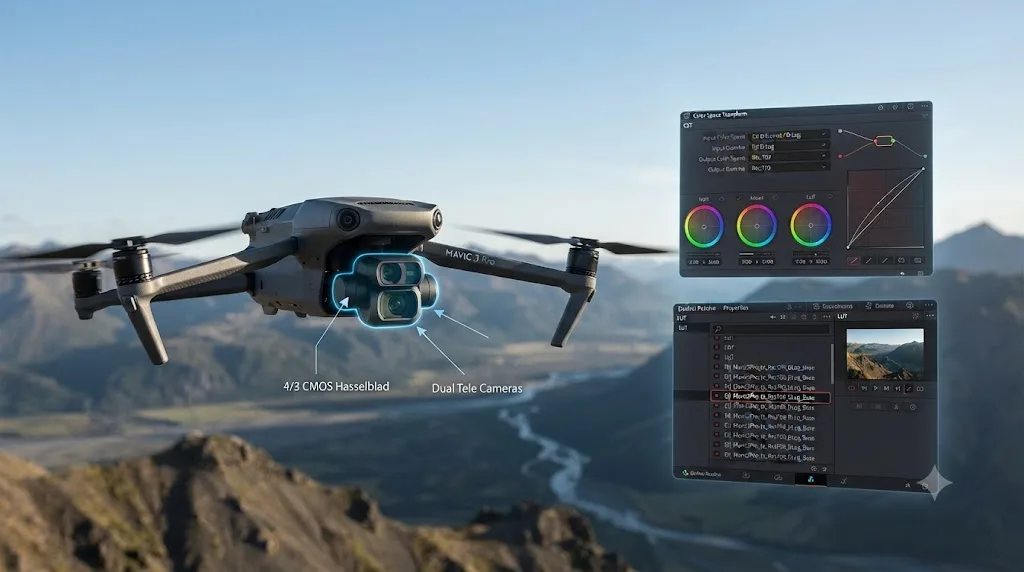
Your Mavic 3 Pro has three cameras. Two different log profiles are hiding across them, and DaVinci Resolve treats those two profiles completely differently. Grade the wrong one the wrong way and you get an oversaturated sky from one camera and a flat, unfinished-looking shot from the next, cut together in the same sequence.
That split is the whole story of grading this drone. The Hasselblad main camera shoots D-Log, an older DJI profile that Resolve actually understands, with a real Color Space Transform preset built for it. The medium tele and tele cameras shoot D-Log M, a newer profile DJI has never documented, which means Resolve has nothing built for it at all. In seven years of professional commercial editing, including projects for Fortune 500 clients, mixed footage from a single camera system needing two entirely different conversion methods is exactly the kind of detail that costs you a session if nobody tells you about it first. Here's every setting, ISO range, and firmware gotcha specific to this three-camera drone, plus what to do when a clip still looks wrong after you've converted it.
What is D-Log on the DJI Mavic 3 Pro, and why does it need special grading settings in DaVinci Resolve?
D-Log is the flat, low-contrast color profile recorded by the Mavic 3 Pro's Hasselblad main camera, and it needs a color space conversion before it looks like a normal image, the same as any log profile from any manufacturer. Per DJI's own specs page for the Mavic 3 Pro, the Hasselblad camera is a 4/3-inch CMOS sensor shooting 20 megapixel stills and video up to 5.1K, with a 24mm-equivalent lens at a variable f/2.8-f/11 aperture. It's the only one of the drone's three cameras that records D-Log specifically, at a documented ISO range of 400 to 1600.
That flat grey preview on import is doing exactly what a log profile is supposed to do: compress contrast, preserve highlight and shadow detail, and hand you a file with room to push before you commit to a final look. Sony's S-Log3, Canon's C-Log, and Panasonic's V-Log all work on the same principle. What's specific to the Mavic 3 Pro, and worth knowing before you touch a single node, is that D-Log on this drone is the older of two distinct DJI log profiles living on the same aircraft, and only one camera records it.
The main camera can also shoot 12-bit RAW stills with a native dynamic range up to 12.8 stops, according to the same specs page, a figure that gives you a sense of how much highlight and shadow detail D-Log is built to hold onto on video as well. D-Log on the Mavic 3 Pro's Hasselblad camera is a genuinely different profile from the D-Log M recorded by the drone's other two cameras, not a minor variant of the same curve. That distinction, more than any single Color Space Transform setting, is the thing most Mavic 3 Pro editors miss the first time they cut footage from all three cameras into one timeline.
What is D-Log M on the Mavic 3 Pro's tele cameras, and how is it different from D-Log?
D-Log M is a separate, newer DJI color profile recorded by the Mavic 3 Pro's medium tele and tele cameras, and while it looks similarly flat to D-Log on import, the two use different tonal curves that are not interchangeable in Resolve. Per DJI's specs page, the medium tele camera, a 1/1.3-inch, 48-megapixel sensor with a 70mm-equivalent f/2.8 lens, and the tele camera, a 1/2-inch, 12-megapixel sensor with a 166mm-equivalent f/3.4 lens, both shoot D-Log M and HLG at ISO 100-1600, distinct from the main camera's D-Log at ISO 400-1600.
Jakub Han, reviewing the drone for CineD at its April 2023 launch, described D-Log M directly against D-Log in the same review: he called it the "'slightly less flat' D-Log M color profile," as he wrote in CineD's Mavic 3 Pro announcement coverage. That's a useful, testable difference: D-Log M isn't a lower-latitude compromise profile, it's a curve DJI built with a slightly gentler flattening than D-Log, which is part of why applying D-Log's own conversion to a D-Log M clip produces color that's close but visibly wrong rather than obviously broken.
The three-camera split matters practically the moment you cut wide, tele, and telephoto shots from the same flight into one sequence. A drone shot of a subject from 24mm, 70mm, and 166mm in the same scene isn't unusual on this aircraft, and each of those three clips arrived in a different profile that needs a different fix. D-Log and D-Log M are two distinct DJI color profiles living on the same drone, and mistaking one for the other is the single most common cause of a Mavic 3 Pro clip looking wrong in Resolve. The next few sections walk through exactly why Resolve treats them so differently, and what to do about each one.
Does DaVinci Resolve have a Color Space Transform preset for DJI D-Log?
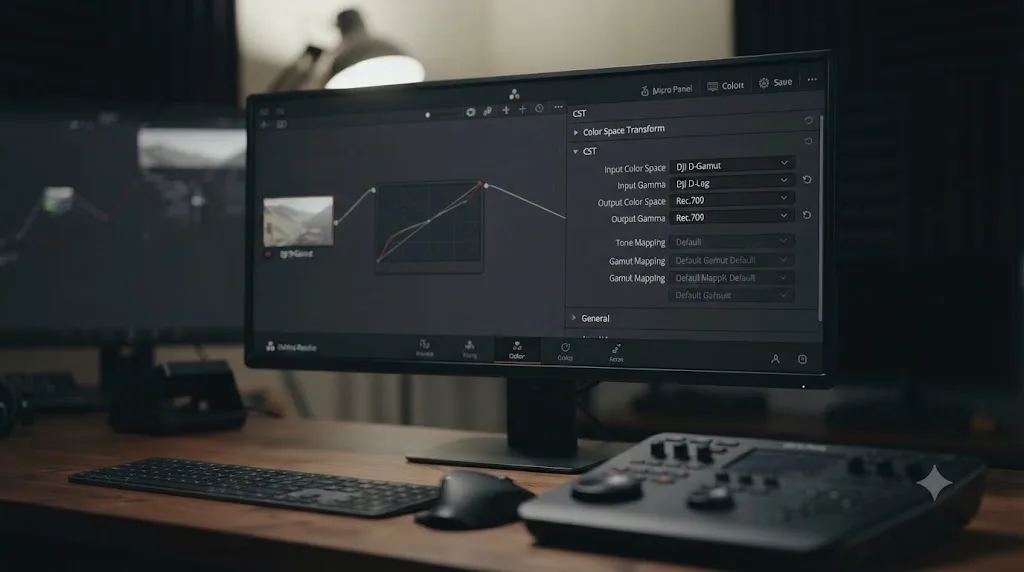
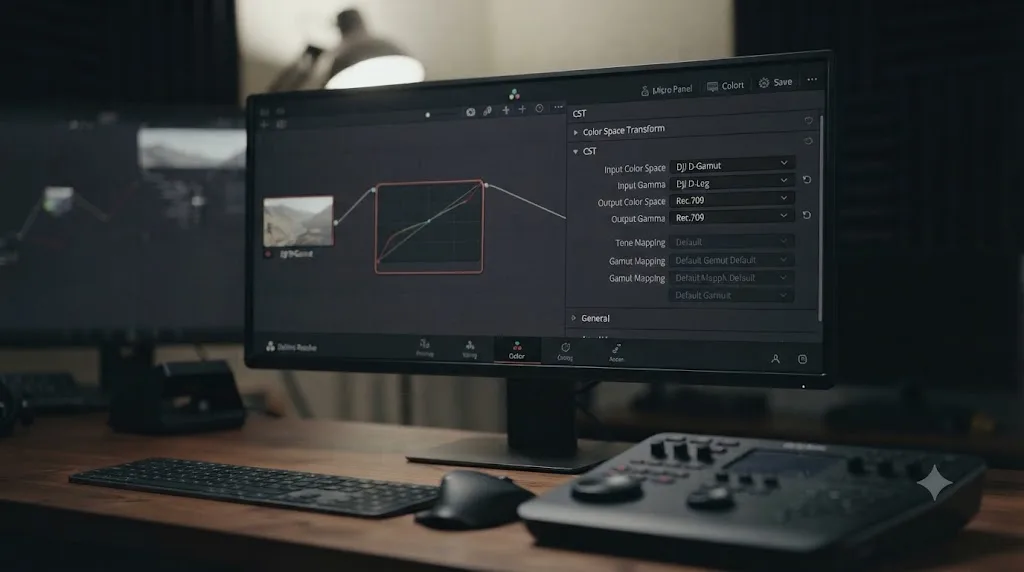
Yes. Resolve ships a working, documented preset for DJI's D-Log profile under its Color Space Transform effect, with Input Color Space DJI D-Gamut and Input Gamma DJI D-Log, the exact profile the Mavic 3 Pro's Hasselblad camera records. This is the one piece of good news in an otherwise inconsistent DJI story across this drone's three cameras.
That preset exists because DJI published the technical documentation behind D-Log years ago, the same original profile used on older DJI aircraft like the Phantom 4 series and the original Mavic Pro, per DJI's own support documentation on which models support D-Log mode, which lists the Mavic 3 Pro directly among current D-Log-capable models. Editors working through DJI's Color Space Transform settings in Resolve describe the standard setup consistently: Input Color Space DJI D-Gamut, Input Gamma DJI D-Log, Output Color Space Rec.709, Output Gamma Rec.709, a four-dropdown setup that requires no external LUT file at all.
That's a meaningfully different starting point from D-Log M, covered in detail further down this guide, which has no equivalent preset because DJI has never released the same documentation for it. DaVinci Resolve's Color Space Transform includes a genuinely working preset for D-Log specifically because DJI published the math behind it, a courtesy DJI has not extended to D-Log M. If you only ever shoot the Hasselblad camera on your Mavic 3 Pro, this single built-in preset is the entire grading setup you need.
What's the correct way to grade the Hasselblad camera's D-Log footage in DaVinci Resolve?
Add a Color Space Transform node to your first node with Input Color Space DJI D-Gamut, Input Gamma DJI D-Log, Output Color Space Rec.709, and Output Gamma Rec.709, then grade normally from there. That single node handles the entire conversion for any clip shot on the Hasselblad main camera in D-Log.
- Confirm the clip actually recorded in D-Log, not Normal, D-Log M, or HLG, by checking Clip Attributes in the Media Pool.
- Add a Color Space Transform effect to your first node on the Color page.
- Set Input Color Space to DJI D-Gamut and Input Gamma to DJI D-Log.
- Set Output Color Space to Rec.709 and Output Gamma to Rec.709.
- Grade from there the same way you would grade any converted Rec.709 source.
There's a second, project-wide way to get the same result: set Project Settings, Color Management, Color Science to DaVinci YRGB Color Managed, then assign DJI D-Gamut and DJI D-Log as the Input Color Space directly on each clip's Clip Attributes, rather than adding a manual node to every clip. That approach scales better across a project built almost entirely from Hasselblad D-Log footage, while a manual node gives you more per-clip control the moment you're mixing footage from the drone's other two cameras, or from a different camera entirely. Our full guide to color matching different cameras in DaVinci Resolve covers Resolve Color Management versus manual Color Space Transform in more depth if you're not sure which fits your project.
A single Color Space Transform node with DJI D-Gamut and DJI D-Log gets Hasselblad camera footage from flat to a normal-looking Rec.709 image in one step, no external LUT required. That's the cleanest, fastest grading setup on this entire drone. Everything else in this guide, unfortunately, applies to the other two cameras.
Why doesn't DaVinci Resolve have a Color Space Transform preset for D-Log M?
Resolve has no dedicated D-Log M preset because DJI has never published the technical documentation needed to build one, the same documentation gap that affects D-Log M on every DJI camera that records it, not just the Mavic 3 Pro's tele cameras. Zeb Gardner, a colorist who built and published a custom power grade for D-Log M after running into this exact wall, explained the mechanism plainly: "For files from a Canon camera encoded with Clog, Canon has provided documentation on the math behind this color space and how to convert it to others. With this documentation Black Magic was able to build a Color Space Transform (CST) inside Davinchi Resolve to allow basically 1 click conversion to the Rec 709 color space we commonly want to export to," Gardner wrote. He continued with the DJI side of the same comparison: "DJI has refused to provide any documentation for D-Log-M, so it is basically black box."
Editors running into this exact wall have been comparing notes on Blackmagic's own community forums for years. A discussion titled Color correcting D-Log M with CST problem describes clips that look "weird and very saturated" the moment a D-Log-tuned Color Space Transform is applied to D-Log M source, with the underlying explanation coming down to D-Log M using a genuinely different, customized tonal curve than D-Log rather than a minor variant of it. A separate thread, Color Space Transform Support for DJI DLog-M and D-Cinelike, documents the same confusion spreading across multiple DJI camera lines that share the D-Log M name, the Mavic 3 series among them.
That documentation gap is also why a small market of third-party D-Log M LUTs and power grades exists, Gardner's own release among them, alongside packs like gamut.io's DJI BaseLUTs, built specifically for D-Log and D-Log M on the Air 3 and Mavic 3 lines. Resolve's Color Space Transform menu can convert a documented log profile in one click and has nothing built at all for an undocumented one, and D-Log M on the Mavic 3 Pro's tele cameras falls squarely in the second category. DJI's own official LUT, covered next, is the reliable fix that doesn't require reverse-engineering anything yourself.
What's the correct way to grade the medium tele and tele cameras' D-Log M footage in DaVinci Resolve?
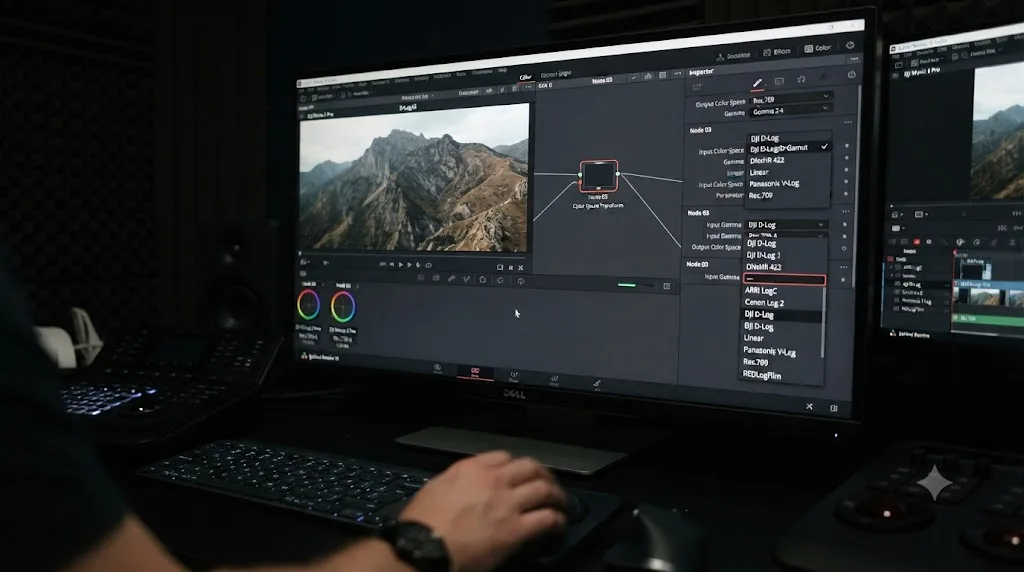
Apply DJI's official Mavic 3 D-Log M to Rec.709 LUT to a node, not a manual Color Space Transform, since no working CST preset exists for this profile. DJI publishes the LUT specifically for the Mavic 3 series through its Download Center, free to download as a .cube file, and it applies to both the medium tele and tele camera's D-Log M output.
- Confirm the clip is actually D-Log M, not Normal or HLG, by checking Clip Attributes.
- Download the Mavic 3 D-Log M to Rec.709 LUT from DJI's Download Center.
- Open Project Settings, Color Management, and click Open LUT Folder to find the directory Resolve watches, then copy the .cube file there.
- Right-click inside Resolve's LUT panel and choose Update Lists so the new file appears.
- Apply the LUT to your first node, ahead of any creative correction, and grade in Rec.709 from there.
Our full guide to installing LUTs in DaVinci Resolve walks through this exact folder-and-refresh mechanism in more detail if you've never added a custom LUT to Resolve before, including the refresh bug that trips up first-timers when a freshly copied LUT doesn't appear right away.
DJI also publishes a separate D-Log to Rec.709 vivid LUT for the Mavic 3 series, a punchier alternative conversion worth comparing against the standard LUT on a specific shot, though it's built around D-Log rather than D-Log M and isn't the file you want for tele camera footage. DJI's official D-Log M LUT is free, built specifically for this drone's medium tele and tele cameras, and it's the only reliable substitute for a Color Space Transform preset that Resolve simply doesn't have. Keep it live on a node rather than baking it into new files while you're still editing, so you can swap it or disable it in seconds if a better-tuned conversion comes along later.
Did the Mavic 3 Pro's 166mm tele camera always support D-Log M?
No, and this is the version delta most guides to this drone skip. At the Mavic 3 Pro's April 2023 launch, the 166mm tele camera was limited to Normal color only, with neither D-Log nor D-Log M available on it at all. Sam Kieldsen, reviewing the drone for Trusted Reviews, described the limitation directly: "it doesn't shoot video in D-Log, D-Log M or HLG though, only the Normal colour mode, which isn't ideal for post-production editing," he wrote, describing the tele camera specifically at review time.
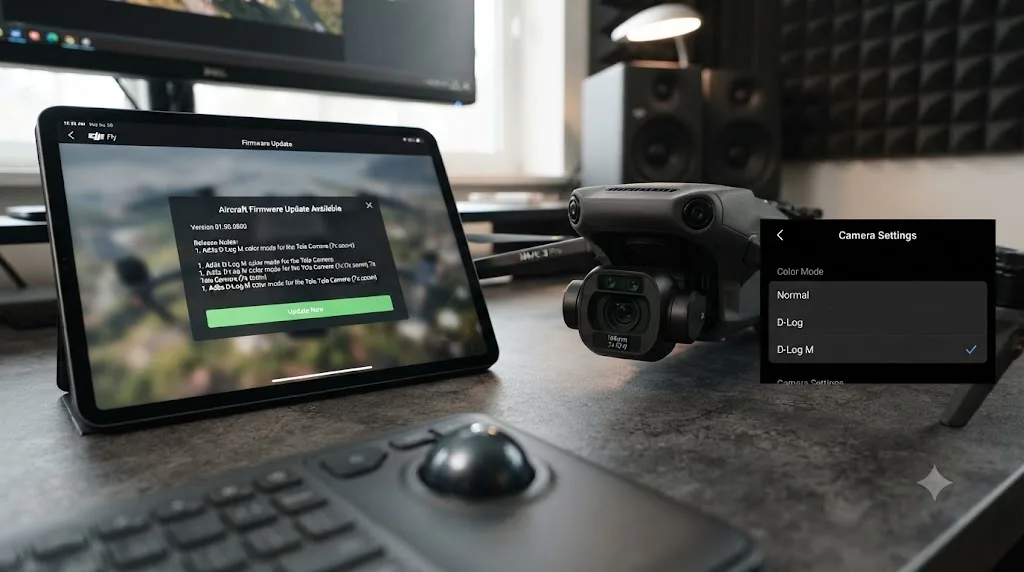
DJI closed that gap through a firmware update, adding 10-bit D-Log M and HLG recording to the 7x tele camera, according to coverage of the Mavic 3 series firmware updates from DroneXL. That's the reason DJI's current specs page lists D-Log M at ISO 100-1600 as available on all three of the drone's cameras today, a state that didn't exist for every camera at launch.
This matters directly if you're grading footage shot on an early Mavic 3 Pro before that update, or if you're troubleshooting a tele camera clip that seems to have no log option at all. If your 166mm tele camera clips come in flat and 8-bit with no D-Log M metadata, or the color mode menu on your drone simply doesn't offer it, check your aircraft firmware version before assuming DJI's LUT is somehow wrong for your file. Update through the DJI Fly app's firmware section, confirm the camera's color mode menu now shows D-Log M, and reshoot the test if you're prepping for a shoot that depends on it.
A firmware update, not a hardware change, is what brought D-Log M to the Mavic 3 Pro's 166mm tele camera, and footage shot before that update simply doesn't have the option this guide assumes it does. Check your firmware before you spend time troubleshooting a LUT that was never going to apply to Normal-color footage in the first place.
What ISO should you shoot D-Log and D-Log M at on the Mavic 3 Pro?
Shoot D-Log on the Hasselblad camera at ISO 400-1600, and D-Log M on the medium tele or tele camera at ISO 100-1600, the documented ranges from DJI's own specs page. Those ranges aren't arbitrary software limits. Each profile's tonal curve is built around sensor behavior across that specific range, and pushing past it by forcing a manual override trades a brighter preview for color response the curve was never calibrated to handle cleanly.
| Camera | Color mode | ISO range | Bit depth |
|---|---|---|---|
| Hasselblad (main) | Normal / Slow-mo | 100-6400 | 8 or 10-bit |
| Hasselblad (main) | D-Log | 400-1600 | 10-bit |
| Hasselblad (main) | D-Log M / HLG | 100-1600 | 10-bit |
| Hasselblad (main) | Night | 800-12,800 | Normal color only |
| Medium tele | Normal / Slow-mo | 100-6400 | 8 or 10-bit |
| Medium tele | D-Log M / HLG | 100-1600 | 10-bit |
| Tele | Normal / Slow-mo | 100-6400 | 8 or 10-bit |
| Tele | D-Log M / HLG | 100-1600 | 10-bit |
Notice the Hasselblad camera actually supports both D-Log and D-Log M, at different ISO ranges, per DJI's specs. That's a real choice on the main camera specifically: D-Log for the documented, one-click Color Space Transform covered earlier in this guide, or D-Log M for a curve Han's review describes as slightly less flat, at the cost of needing DJI's LUT instead of the built-in preset. The medium tele and tele cameras don't get that choice. D-Log M is their only log option.
Every log profile on the Mavic 3 Pro caps its ISO range well below the drone's Normal color ceiling, and that ceiling is a deliberate part of how each profile was tuned, not a limitation worth fighting with a manual override. If a shot needs more sensitivity than a log profile's ceiling offers, Night mode is DJI's own answer, though it drops back to Normal color and gives up the grading latitude in exchange for the extra stops.
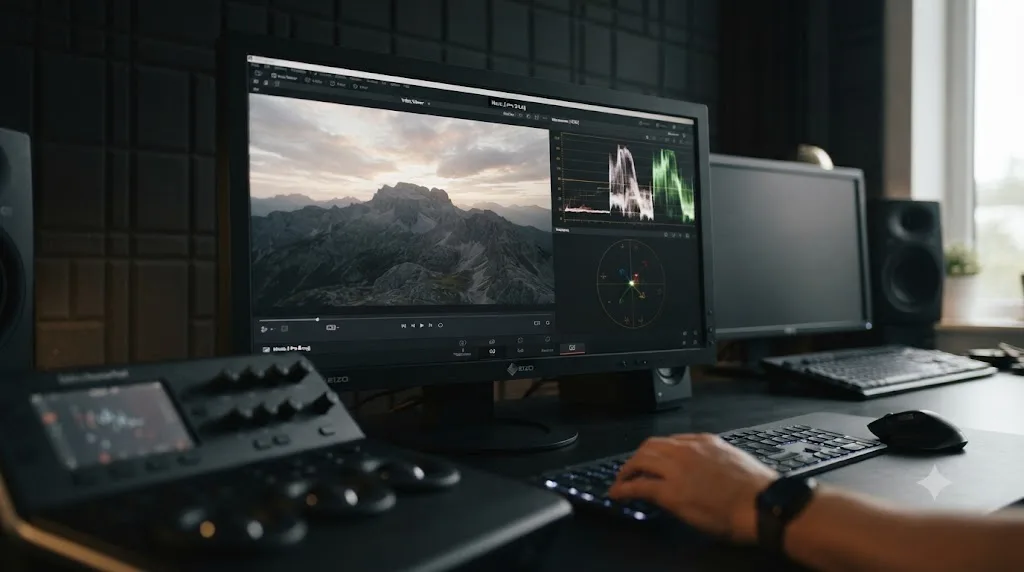
Should you shoot D-Log, D-Log M, or Normal color on the Mavic 3 Pro?
This decision happens before you ever open Resolve, and on the Mavic 3 Pro it's really two separate decisions, one for the Hasselblad camera and one for the tele cameras.
| Camera | Mode | Best for | Tradeoff |
|---|---|---|---|
| Hasselblad (main) | D-Log | Maximum grading latitude with the fastest Resolve setup | Needs a Color Space Transform node before it looks finished |
| Hasselblad (main) | D-Log M | Slightly less flat starting point, matching the tele cameras' profile | No CST preset; needs DJI's LUT, same as the tele cameras |
| Medium tele / Tele | D-Log M | The only log option on these two cameras | Needs DJI's LUT; no built-in Resolve preset exists |
| Any camera | Normal | Same-day delivery, no grading time budgeted | Least dynamic range and correction latitude |
There's a real argument for shooting D-Log M on the Hasselblad camera specifically when you're intercutting heavily with the tele cameras: all three cameras end up in the same profile, needing the same LUT-based conversion, rather than mixing D-Log's Color Space Transform with D-Log M's LUT across a single scene. The tradeoff is giving up the one camera on this drone that gets a genuinely one-click, documented conversion.
Choosing D-Log over D-Log M on the Hasselblad camera trades a small amount of cross-camera consistency for the fastest, most reliable grading setup this drone offers, and there's no wrong answer, only a different amount of setup work. If you rarely intercut all three cameras in the same sequence, D-Log's built-in preset is worth keeping. If you constantly cut between all three, matching everything to D-Log M's LUT-based workflow removes one variable from your node tree.
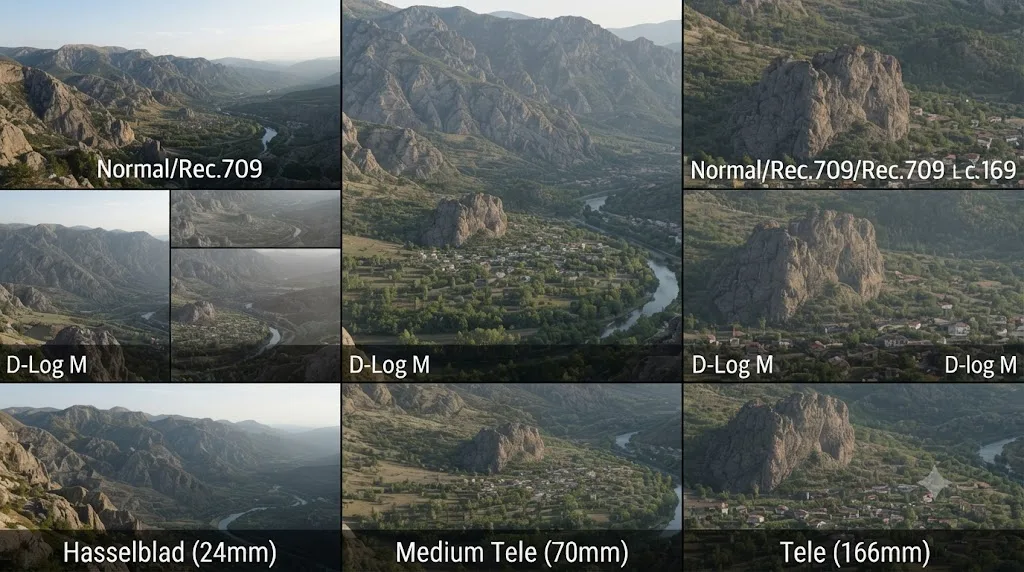
Should you shoot ProRes or H.264/H.265 on the Mavic 3 Pro?
If you're flying the standard Mavic 3 Pro, not the Cine edition, this isn't actually a choice. The base Mavic 3 Pro records H.264 or H.265 only, with no ProRes option on any of its three cameras, while ProRes across all three cameras is exclusive to the Mavic 3 Pro Cine, per heliguy's comparison of the Mavic 3 Pro against the Cine and Classic variants. That's a meaningful practical split: the Cine model ships with a 1TB internal SSD specifically to hold ProRes files large enough to need it, while the standard Pro carries 8GB of internal storage, about 7.9GB usable, plus a microSD slot, per DJI's own specs page.
For H.264/H.265 recording, the Hasselblad camera tops out at 200 Mbps, while the medium tele and tele cameras cap at 160 Mbps, per the same specs page. If your drone is a Cine unit and ProRes is actually available, expect substantially larger files: the Hasselblad camera's ProRes 422 HQ runs up to 3772 Mbps, nearly 19 times the H.265 bitrate, while the tele cameras' ProRes 422 HQ tops out at 1768 Mbps.
This isn't a color question at all, it's a storage and decode question that happens to sit next to the color workflow this guide covers. A standard Mavic 3 Pro editor never sees this choice; it's made for you by which hardware variant DJI sold you. ProRes on the Mavic 3 Pro is a Cine-exclusive feature tied to that model's 1TB SSD, not a menu option available on the standard drone regardless of your color mode. If you're troubleshooting a missing ProRes option in your camera settings, confirm which Mavic 3 Pro variant you actually own before assuming a setting is hidden somewhere.
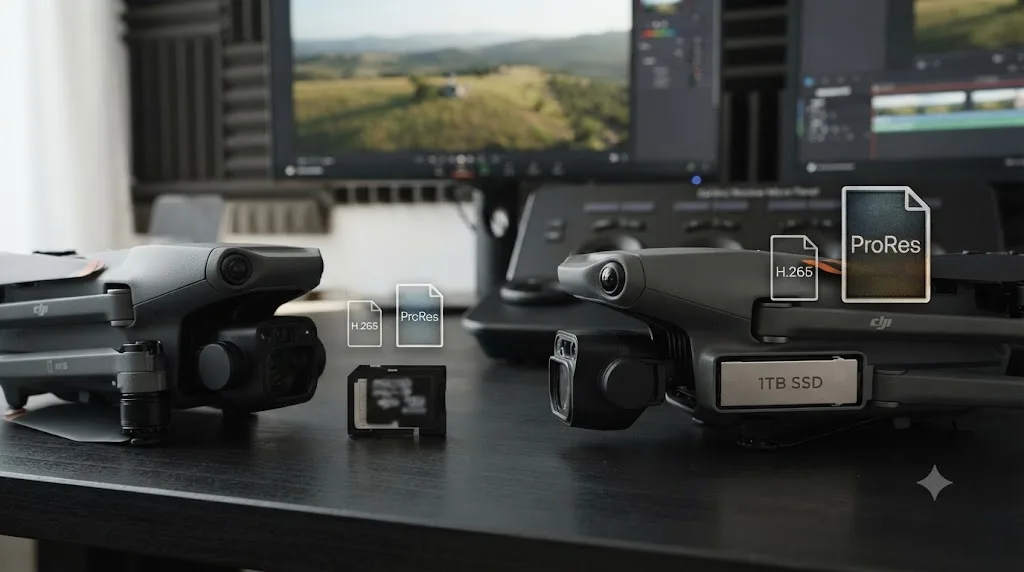
How do you grade all three Mavic 3 Pro cameras so they match in the same cut?
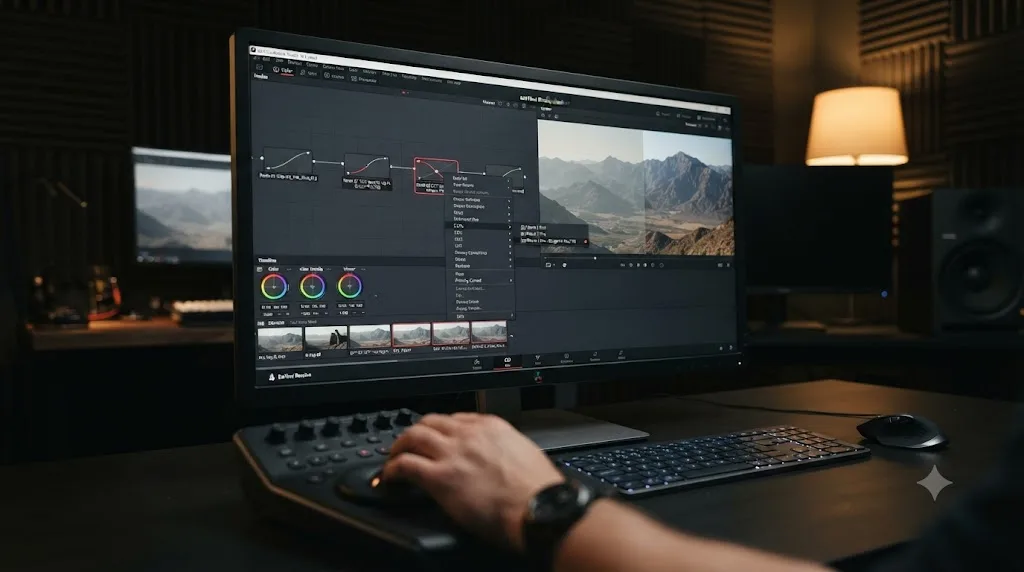
Convert each camera's footage with its own correct method first, D-Log through Color Space Transform on the Hasselblad camera and D-Log M through DJI's LUT on the other two, then cross-check on scopes before you commit to a creative grade. Only once every clip is sitting in a converted Rec.709 space does comparing them shot to shot actually mean anything.
The Mavic 3 Pro's three cameras don't share a sensor generation the way the Air 3's two matching cameras do. The Hasselblad camera runs a 4/3-inch sensor, the medium tele a 1/1.3-inch sensor, and the tele camera a 1/2-inch sensor, three genuinely different pieces of hardware behind three different lenses, per DJI's specs page. That's more variation to expect between cameras on this drone than on a twin-camera aircraft, and it's exactly why a scope check after conversion matters more here, not less.
- Sort every clip by which camera shot it and which color mode it recorded, using Clip Attributes.
- Apply the correct conversion per camera: Color Space Transform with DJI D-Gamut/D-Log for Hasselblad D-Log clips, DJI's official LUT for any D-Log M clip from any of the three cameras.
- Pull up a reference frame from each camera on the same subject or a consistent element, sky, ground, skin tone, and compare on the parade and waveform.
- If one camera reads consistently warmer, cooler, or more saturated than the others after conversion, isolate that camera's clips with a power grade or adjustment clip and apply a small secondary correction with Color Warper or RGB Mixer.
- Keep that secondary correction small. If you're pushing wheels or curves hard to make two cameras agree, check exposure or white balance drift within a single camera's clips first, since that's a more common cause of a stubborn mismatch than genuine sensor differences.
Our full guide to color matching different cameras in DaVinci Resolve covers Color Match and Shot Match in more depth for the fine-tuning pass once each camera's own conversion is already correct. Three genuinely different sensors behind three different lenses will not grade identically without a check, and the fix is a scope comparison and a small secondary correction, not a full re-grade of any single camera. Treat the Mavic 3 Pro's triple-camera system the way you'd treat any multi-camera shoot: convert each source correctly on its own terms first, then verify.
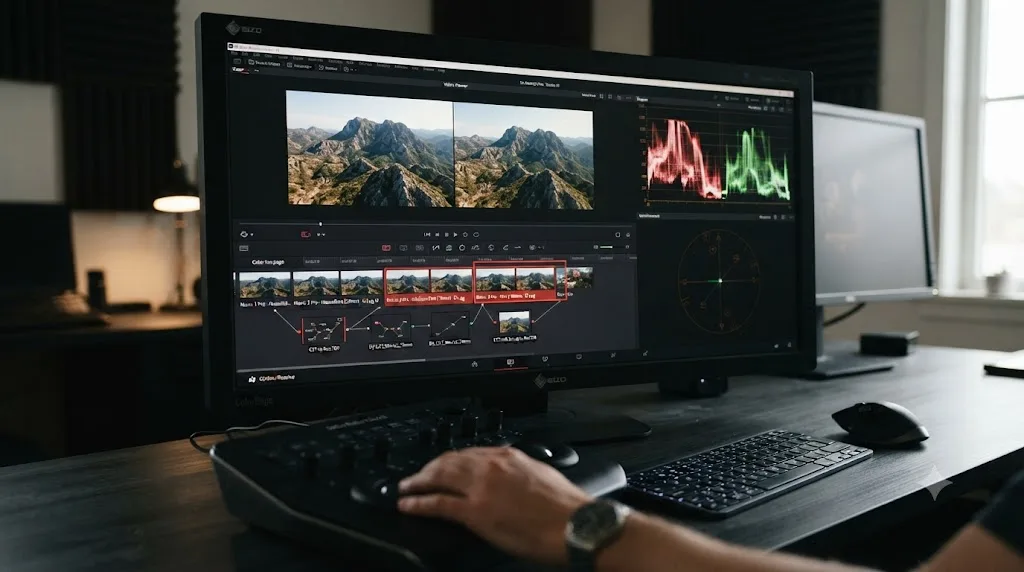
How does grading the Mavic 3 Pro compare to the Mavic 3 Classic and Mavic 3 Cine?
The Mavic 3 Classic drops the medium tele and tele cameras entirely, leaving only the Hasselblad main camera, so the D-Log-versus-D-Log-M split this guide covers doesn't apply to it at all. Per heliguy's comparison of the three Mavic 3 variants, the Classic ships with the same Hasselblad camera and D-Log support as the Pro, but with no second or third camera to worry about matching. If you're grading Classic footage, everything in this guide's D-Log sections applies directly, and everything about the tele cameras' D-Log M workflow simply doesn't come up.
The Mavic 3 Cine, an earlier release than the Mavic 3 Pro, also carries only the single Hasselblad camera but adds ProRes recording and a 1TB SSD, the same storage upgrade the newer Mavic 3 Pro Cine carries across all three of its cameras. Grading Mavic 3 Cine footage means the same single-camera D-Log workflow as the Classic, just with larger ProRes files instead of H.265.
Only the Mavic 3 Pro and Mavic 3 Pro Cine carry the three-camera, two-log-profile situation this guide is built around, since the Classic and the original Cine both ship with a single Hasselblad camera and no tele cameras at all. If you're not certain which Mavic 3 variant shot your footage, check Clip Attributes for the camera name and focal length before assuming every clip in your project needs the same conversion.
Do you need DaVinci Resolve Studio to grade Mavic 3 Pro footage?
Not for the color workflow this guide covers. Both the Hasselblad camera's Color Space Transform conversion and the tele cameras' LUT-based D-Log M conversion work identically in the free version of Resolve, with no functional restriction tied to a Studio license.
Where Studio actually earns its keep on this drone is decode performance and noise reduction, the same two places it matters on most modern camera footage. Blackmagic's own free version product page caps its stated codec support at, in the company's words, "virtually all 8-bit video formats," per the free product page, and every log profile on the Mavic 3 Pro records 10-bit by design. Plenty of 10-bit H.265 footage decodes fine in the free version on modern hardware, but on an older machine, or specifically on Windows without hardware-accelerated H.265 decode, Studio's broader decode support closes a real gap. Puget Systems' breakdown of hardware H.264/H.265 decoding in Resolve documents this specifically for Windows, where compatible Nvidia and AMD GPUs can offload H.265 decode work under Studio that the free version otherwise leaves to the CPU alone.
The second reason is noise reduction. TechGearLab's review of the drone found that "testing results consistently showed that the Mavic 3 Pro has extensive dynamic range and highlight capture, even in very low-light scenarios," per Kolby Anderson's review, but that strong low-light performance is specific to the Hasselblad main camera. The smaller-sensor tele camera shows noise sooner at higher ISO, and footage pushed toward D-Log M's ISO 1600 ceiling on that camera shows more visible grain once it's pulled out of the flat log curve. Resolve's Temporal and AI-assisted Spatial noise reduction tools are Studio-only, per Blackmagic's Studio product page.
Getting Mavic 3 Pro D-Log or D-Log M footage to grade correctly is a color management problem, and color management is not a feature Blackmagic gates behind the Studio license. Reach for Studio only if you've hit a genuine decode wall, need Dolby Vision or HDR10+ delivery, or specifically need noise reduction on a high-ISO tele camera shot.
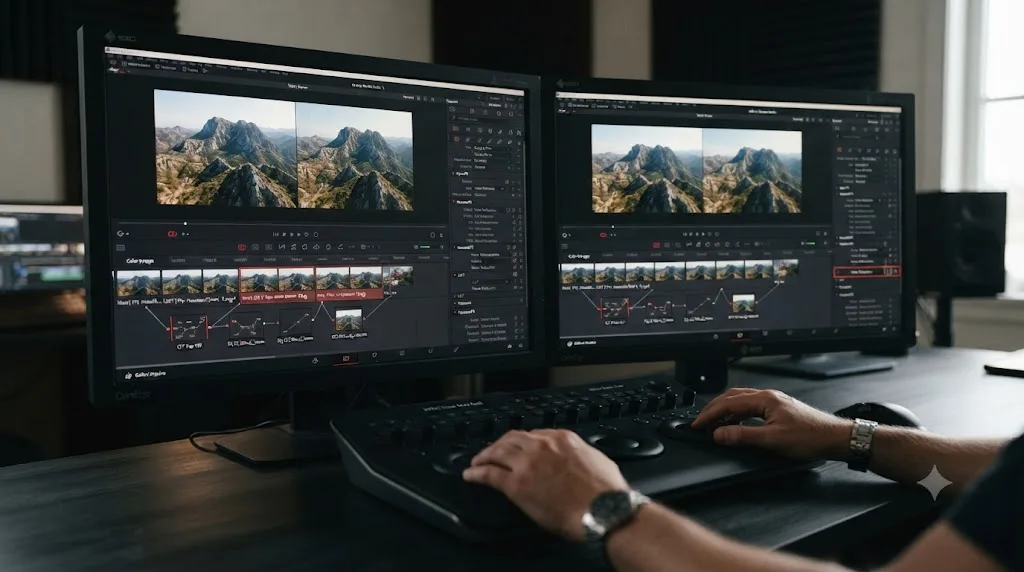
Why won't DaVinci Resolve import or play Mavic 3 Pro footage smoothly?
If your problem isn't color at all, and clips stutter, refuse to decode, or crash Resolve outright, that's a codec decode issue separate from everything covered above. The Hasselblad camera's H.264/H.265 footage runs up to 200 Mbps in 10-bit, and the tele cameras' H.264/H.265 footage runs up to 160 Mbps, both per DJI's specs page, codecs that compress efficiently for storage but are expensive to decode in real time without hardware acceleration.
On Windows specifically, Microsoft doesn't ship native HEVC decoding, and free Resolve doesn't implement its own HEVC decoder there either. That combination can mean a Windows machine running free Resolve fails to play, or fails to import at all, footage that decodes without complaint on a Mac, where macOS provides HEVC decoding at the operating system level that free Resolve can lean on. The practical fix is installing "HEVC Video Extensions" from the Microsoft Store, a small paid add-on typically under a dollar, and restarting Resolve before importing again.
If playback still stutters once files decode at all, that's usually a proxy problem rather than a codec-support one, especially on longer 5.1K Hasselblad clips or high-framerate DCI 4K footage at up to 120fps.
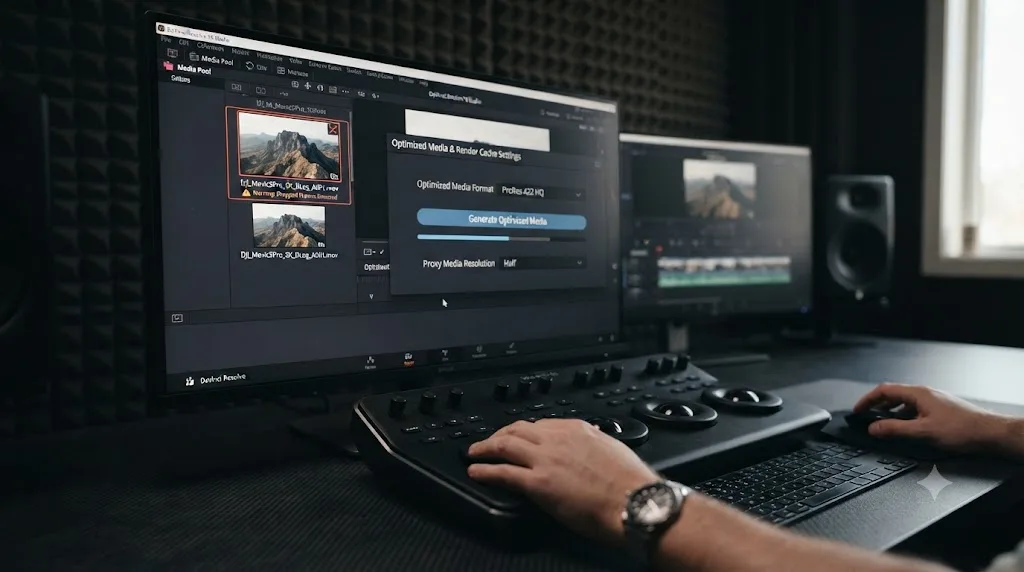
- Right-click a clip or bin in the Media Pool and choose Generate Optimized Media.
- Set your proxy resolution under Project Settings, Master Settings, Optimized Media and Render Cache, typically Quarter Resolution for 5.1K Hasselblad footage on a mid-range machine.
- Choose ProRes on Mac or DNxHR on Windows as your proxy codec.
- Edit against the lighter proxy, then let Resolve relink to full-resolution originals automatically for your final render.
Our full guide to proxy media setup for a slow laptop walks through the exact Project Settings panel and a decision tree for which resolution tier fits your specific hardware, if the quick version above doesn't fully resolve your case. A stuttering or unplayable Mavic 3 Pro clip is almost never a color problem, and no Color Space Transform setting or LUT fixes a decode limitation. Confirm which platform and version of Resolve you're running before you spend an editing session troubleshooting color on a file that hasn't actually decoded smoothly in the first place.
How do you grade a Mavic 3 Pro project alongside footage from a different camera's log profile?
Convert every source to its own correct working space before you start matching looks, not after. If you're cutting Mavic 3 Pro drone shots into a project built mostly from a Sony S-Log3, Canon C-Log, or Panasonic V-Log main camera, apply each source's correct conversion first: Color Space Transform for the Hasselblad camera's D-Log, DJI's LUT for any D-Log M clip from the tele cameras, and whatever your main camera vendor provides or Resolve's own Color Space Transform supports for that camera's log profile.
| Camera / log profile | Resolve's CST input color space |
|---|---|
| DJI D-Log (Mavic 3 Pro Hasselblad camera) | DJI D-Gamut / DJI D-Log |
| DJI D-Log M (Mavic 3 Pro medium tele / tele camera) | No dedicated preset; use DJI's official LUT instead |
| Sony S-Log3 | S-Gamut3.Cine / S-Log3 (or S-Gamut3 / S-Log3) |
| Canon C-Log2 / C-Log3 | Canon Cinema Gamut / Canon Log 2 or 3 |
| Panasonic V-Log | Panasonic V-Gamut / V-Log |
This order matters because log curves aren't interchangeable shortcuts. Applying an S-Log3-to-Rec.709 conversion to a D-Log M clip, or DJI's D-Log Color Space Transform to a D-Log M clip from the same drone's tele camera, produces the same kind of wrong result covered in the troubleshooting table further down this guide: color that looks approximately plausible but is built on math the clip was never encoded against.
Once every source is converted, Resolve's Color Match tool on the Color page gives you a fast first pass: sample a reference frame from your main camera and a corresponding frame from a drone shot, and let Resolve propose a correction. Treat that proposal as a starting point rather than a finished grade. Our guide to color matching different cameras in DaVinci Resolve covers Color Match and Shot Match in more depth, including when to trust the automated match and when to override it by hand. Convert each camera's footage to the same working space with its own correct tool before you try to match them, since matching two clips still sitting in two different log curves compares nothing meaningful. A Mavic 3 Pro shot dropped into a multi-camera project is a color-matching problem like any other, once, and only once, its own conversion is already done.
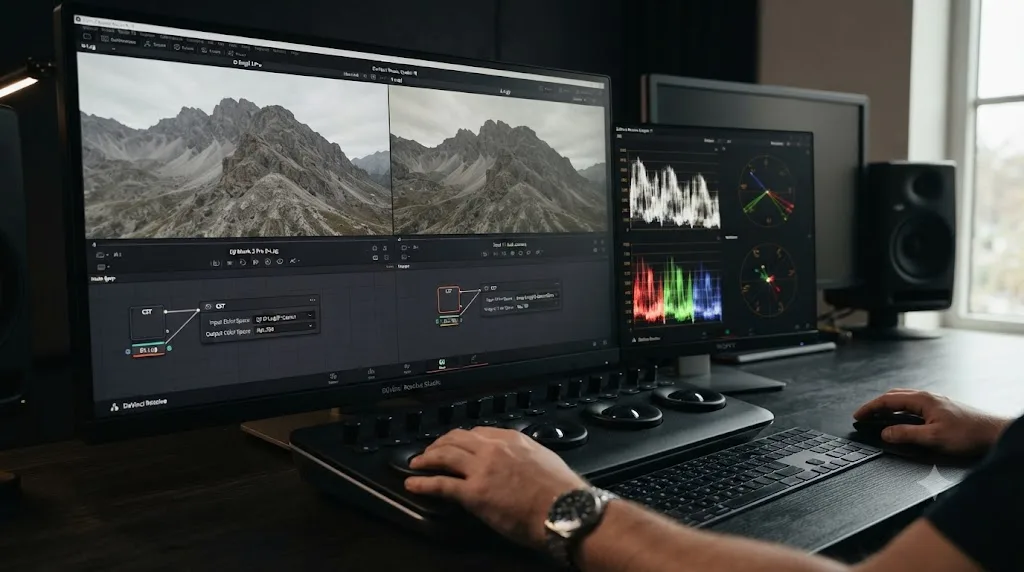
Why does Mavic 3 Pro D-Log or D-Log M footage still look wrong after grading?
Work through these in order before assuming your footage or your Resolve setup is somehow broken.
First, a mismatched conversion. Check whether you applied the D-Log Color Space Transform to a D-Log M clip, or DJI's D-Log M LUT to a D-Log clip. They sit close together conceptually, both flat, both DJI, both from the same drone, but they need genuinely different tools, covered in detail earlier in this guide.
Second, a doubled conversion. If a clip looks crushed, oversaturated, or hue-shifted in a way that doesn't respond normally to your color wheels, check whether a LUT and a Color Space Transform are both applied to the same clip. This is an easy mistake while experimenting with the built-in D-Log preset on a D-Log M clip before switching to the correct LUT and forgetting to remove the first attempt.
Third, the wrong camera assumption. A Mavic 3 Pro project mixes three cameras with two different log profiles, and it's genuinely easy to assume every clip in a bin came from the same camera when it didn't. Check Clip Attributes for the actual recording camera before applying any conversion.
Fourth, pre-firmware-update tele camera footage. If a 166mm tele camera clip has no D-Log M metadata at all, or the D-Log M LUT produces an odd result specifically on tele camera clips, confirm whether that footage was shot before DJI added D-Log M support to that camera through firmware, covered earlier in this guide.
Fifth, exposure outside the documented ISO range. Footage pushed past D-Log's 400-1600 or D-Log M's 100-1600 ceiling through a manual override can grade oddly no matter which conversion method you use, since each curve's math assumes exposure behavior inside its own documented range.
Sixth, cutting log footage next to Night mode or a different camera's log footage without converting each source correctly first. A Night mode clip run through either DJI conversion produces a specific, recognizable kind of wrong: color that looks like an incomplete or doubled conversion because it is one.
| Symptom | Likely cause | Fix |
|---|---|---|
| Oversaturated, overly contrasty color on a tele camera clip | DJI D-Log Color Space Transform applied to a D-Log M clip | Switch to DJI's official Mavic 3 D-Log M to Rec.709 LUT |
| Hasselblad clip looks flat despite a Color Space Transform being applied | DJI's D-Log M LUT applied to an actual D-Log clip | Switch to the DJI D-Gamut / DJI D-Log Color Space Transform instead |
| Crushed color that won't respond to normal grading | A LUT and Color Space Transform both applied to the same clip | Remove one; don't convert the same clip twice |
| 166mm tele camera clip has no log color, only flat 8-bit Normal | Footage shot before the firmware update that added D-Log M to this camera | Update aircraft firmware, reshoot, or grade the clip as Normal color |
| Noisy, muddy shadows after grading | Footage exposed past ISO 1600 via a manual override | Re-expose within the documented ISO range for that profile, or shoot Night mode instead |
| Three cameras don't quite match in a cut | Three different sensors behind three different lenses | Cross-check all three on scopes after each camera's correct conversion |
| Night mode or a different camera's log clip looks broken after a DJI conversion | A DJI LUT or CST applied to footage that was never that profile | Grade or convert each source with its own correct tool |
Most D-Log and D-Log M problems on the Mavic 3 Pro trace back to one of two things: the wrong conversion tool for the camera that shot the clip, or a firmware-era mismatch on the tele camera. Work through this table top to bottom before assuming your footage is somehow bad or your Resolve installation is misbehaving.
When the menus alone don't get you there fast enough
Everything in this guide is a settings problem with a settings answer, but a three-camera drone with two different log profiles means more menu-hunting than a single-camera setup, especially the first few times you're bouncing between Clip Attributes, the Color Space Transform panel, and the LUT browser trying to confirm which camera actually shot a given clip.
TryUncle is the on-screen assistant for DaVinci Resolve on macOS. Ask in plain words, and Uncle points at the exact control on your screen. If you're on a Mac asking "why does my Mavic 3 Pro tele camera footage look different from my main camera footage" out loud at your screen, that's a faster route to the right panel than re-reading this guide's troubleshooting table mid-session. It's a paid app, currently in founder pricing, first 100 seats, and macOS only, so it won't help a Windows editor working through Resolve's menus. Check TryUncle for current pricing before deciding if it fits your workflow.
It's worth knowing the category has other tools built on a different premise. Sottocut, PremiereCopilot, heyeddie.ai, and cutagent.ai automate parts of an edit or answer chat questions about your footage, rather than watching your live screen and pointing at controls. If your goal is automating a cut, those solve a different problem. If your goal is finding the right Color Space Transform setting or confirming which LUT a specific clip needs while you're mid-grade, on-screen guidance is the more direct tool for that specific job.
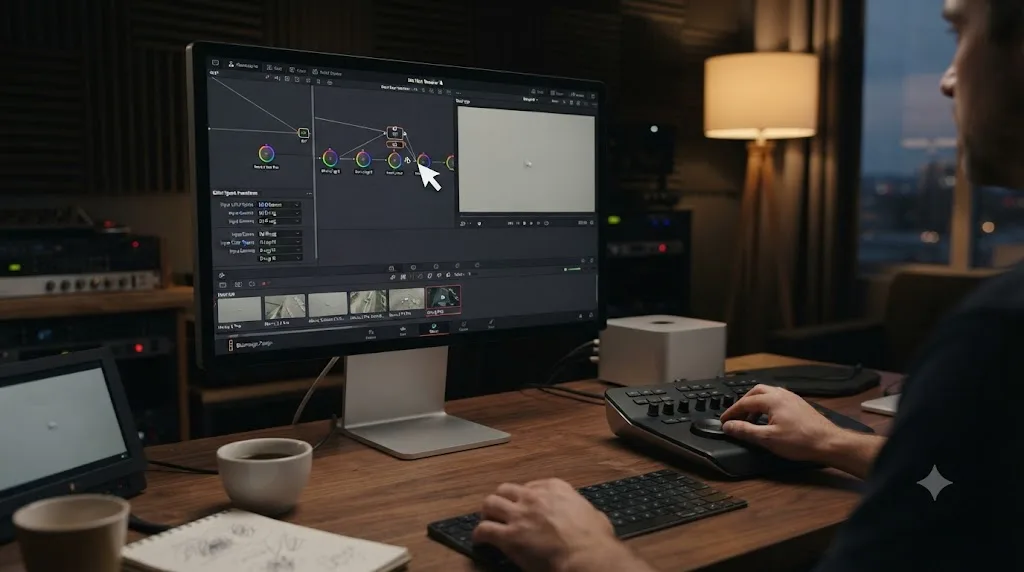
What's the full settings cheat sheet at a glance?
Before the table, here's the one-line version of everything above. Grade the Hasselblad camera's D-Log footage with a Color Space Transform set to DJI D-Gamut and DJI D-Log, no LUT needed. Grade any D-Log M clip, from the Hasselblad, medium tele, or tele camera, with DJI's official Mavic 3 D-Log M to Rec.709 LUT applied to a node, since no CST preset exists for that profile. Stay within each mode's documented ISO range, confirm your tele camera's firmware if D-Log M seems unavailable, and cross-check all three cameras on scopes before committing to a creative grade.
| Setting | Value |
|---|---|
| Hasselblad D-Log, Color Space Transform Input | DJI D-Gamut / DJI D-Log |
| Hasselblad D-Log, Color Space Transform Output | Rec.709 / Rec.709 |
| Medium tele / tele D-Log M | DJI's official Mavic 3 D-Log M to Rec.709 LUT, applied to a node |
| D-Log ISO range (Hasselblad only) | 400-1600 |
| D-Log M ISO range (all three cameras) | 100-1600 |
| Normal color ISO range | 100-6400 |
| Night mode ISO range | 800-12,800 (Normal color only) |
| ProRes availability | Cine models only; standard Mavic 3 Pro is H.264/H.265 only |
| Hasselblad H.264/H.265 max bitrate | 200 Mbps |
| Medium tele / tele H.264/H.265 max bitrate | 160 Mbps |
| Studio required for basic D-Log or D-Log M grade | No |
| Studio required for Noise Reduction | Yes |
| Studio required for hardware H.265 decode on Windows | Yes |
Match DJI D-Gamut and DJI D-Log on the Hasselblad camera's Color Space Transform, reach for DJI's official LUT the moment a clip is D-Log M instead, confirm your tele camera firmware before troubleshooting a missing log option, and cross-check all three cameras on scopes before you grade creatively. Most Mavic 3 Pro footage that "looks wrong" in Resolve isn't broken. It's one dropdown, one LUT, or one firmware check away from correct, and now you know which one applies to which camera.
Frequently asked questions
- What DaVinci Resolve Color Space Transform settings work for DJI Mavic 3 Pro D-Log footage?
- For the Hasselblad main camera's D-Log footage, set Input Color Space to DJI D-Gamut and Input Gamma to DJI D-Log, then Output Color Space to Rec.709 and Output Gamma to Rec.709. That preset exists in Resolve because DJI's original D-Log profile is documented. It does not apply to the medium tele or tele camera's D-Log M footage, which needs DJI's official LUT instead.
- Does DaVinci Resolve have a Color Space Transform preset for the Mavic 3 Pro's D-Log M footage?
- No. Resolve ships a working preset for D-Log, the profile the Hasselblad main camera records, but nothing built specifically for D-Log M, the profile the medium tele and tele cameras record. DJI has never published the color math behind D-Log M, so Blackmagic has nothing to build a Color Space Transform preset from. Use DJI's official D-Log M to Rec.709 LUT on those two cameras instead.
- What's the difference between D-Log and D-Log M on the Mavic 3 Pro?
- D-Log is the older, documented DJI log profile, recorded only by the Hasselblad main camera at ISO 400-1600, and it has a working Color Space Transform preset in Resolve. D-Log M is DJI's newer, undocumented profile, recorded by the medium tele and tele cameras at ISO 100-1600, and it needs a LUT because no CST preset exists for it. They are not interchangeable curves, and applying one's conversion to the other's footage produces visibly wrong color.
- What ISO should I shoot D-Log and D-Log M at on the Mavic 3 Pro?
- Stay at ISO 400-1600 for D-Log on the Hasselblad camera, and ISO 100-1600 for D-Log M on the medium tele or tele camera, per DJI's own specs. Those ranges are where each profile's tonal curve was actually tuned. Night mode reaches ISO 12,800 but drops both log profiles and records in Normal color instead.
- Did the Mavic 3 Pro's 166mm tele camera always support D-Log M?
- No. At the Mavic 3 Pro's April 2023 launch, reviewers found the 166mm tele camera limited to Normal color only, with no log option at all. DJI added 10-bit D-Log M and HLG support to that camera through a later firmware update. If your tele camera clips are coming in as flat 8-bit or won't take the D-Log M LUT cleanly, check your firmware version before assuming the LUT is wrong.
- Do I need DaVinci Resolve Studio to grade Mavic 3 Pro footage?
- No, not for the color conversion itself. Both the D-Log Color Space Transform and the D-Log M LUT workflow run identically in the free version. Studio matters if you're on Windows without hardware-accelerated H.265 decode, need Noise Reduction on a high-ISO clip, or want Dolby Vision or HDR10+ delivery.
- Should I shoot D-Log, D-Log M, or Normal color on the Mavic 3 Pro?
- D-Log on the Hasselblad camera for maximum grading latitude with a documented, one-click Resolve conversion. D-Log M on the tele cameras when you want that same latitude, accepting the extra LUT step. Normal color on any camera when you have no time to grade at all. The choice is about how much correction time you're budgeting, not raw image quality.
- Why does my Mavic 3 Pro footage still look wrong after I apply a LUT or Color Space Transform?
- Work through this in order: confirm the clip is actually the log profile you think it is in Clip Attributes, confirm you didn't apply D-Log's Color Space Transform to a D-Log M clip or vice versa, check for a doubled conversion (LUT and CST stacked on the same clip), and confirm your tele camera's footage was shot after the firmware update that added D-Log M. Most wrong-looking Mavic 3 Pro grades trace back to one of these four things.
Sources
- DJI: Mavic 3 Pro Specs
- DJI Download Center: Mavic 3 D-Log to Rec.709 LUT
- DJI Download Center: Mavic 3 D-Log M to Rec.709 LUT
- DJI Download Center: Mavic 3 D-Log to Rec.709 Vivid LUT
- DJI Support: What models support D-Log mode? What models have the official LUT files?
- CineD: DJI Mavic 3 Pro Announced, Three Focal Lengths in One Drone (Jakub Han)
- TechRadar: DJI Mavic 3 Pro price, release date, specs and features
- Trusted Reviews: DJI Mavic 3 Pro review (Sam Kieldsen)
- TechGearLab: DJI Mavic 3 Pro Review (Kolby Anderson)
- Blackmagic Forum: Color correcting D-Log M with CST problem
- Blackmagic Forum: Color Space Transform Support for DJI DLog-M and D-Cinelike
- Zeb Gardner: DJI D-Log-M Color Grading
- heliguy: Mavic 3 Pro Vs Mavic 3 Cine Vs Mavic 3 Classic
- DJI Store: Buy DJI Mavic 3 Pro, Triple-Lens Flagship Camera Drone
- Newsshooter: DJI Mavic 3 Pro with Tri-Camera System
- DroneXL: DJI Mavic 3 Series Firmware Update, It Can Do WHAT?!
- Blackmagic Design: DaVinci Resolve product page (free version specs)
- Blackmagic Design: DaVinci Resolve Studio product page
- Puget Systems: What H.264 and H.265 Hardware Decoding is Supported in DaVinci Resolve Studio?
- gamut.io: DJI BaseLUTs for D-Log/DLog-M, Air 3 and Mavic 3 Drones+
Put this guide to work with TryUncle.
Ask about the step you’re on. TryUncle sees your screen and points at the control you need, so you can keep learning in your own project.
Get TryUncle for Mac or WindowsKeep reading
Guides · Jul 26, 2026 · 42 min
DJI Air 3 D-Log M Grading Settings for DaVinci Resolve
DaVinci Resolve settings for DJI Air 3 D-Log M: why the built-in DJI D-Log preset fails, DJI's official LUT to use instead, and the right ISO range.
Guides · Jul 12, 2026 · 39 min
How to Color Match Different Cameras in DaVinci Resolve
Match footage shot on different cameras in DaVinci Resolve with Color Space Transform, Color Match, and Shot Match, plus settings by camera brand.
Guides · Jul 10, 2026 · 26 min
How to Install LUTs in DaVinci Resolve: Folders and Fixes
Install LUTs in DaVinci Resolve: find the real LUT folder, apply them to a node instead of a clip, and fix the LUT-not-showing-up refresh bug for good.