Articles / Guidesupdated for DaVinci Resolve 21.1 and current Epidemic Sound licensing guidance (September 2026)
Epidemic Sound Safelisting for a Client YouTube Channel
Quick answer
For epidemic sound safelisting for a client YouTube channel, use an active Epidemic Sound plan that covers client work, then clear the client's channel or specific video before publication. Keep the client's channel ownership separate from your licensing account, save the clearance record, and treat safelisting as claim prevention, not a guarantee.
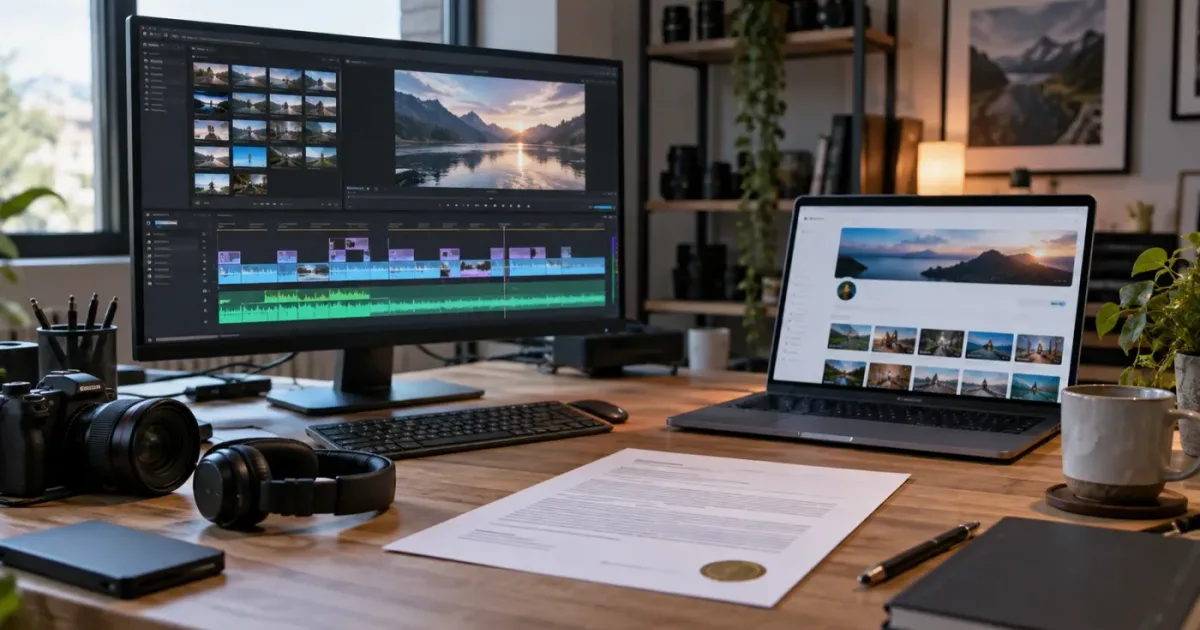
If a client owns the YouTube channel, I treat that channel as the destination to clear, not as an extension of my personal account. I also keep the edit, the license record, and the publishing handoff in separate places so one missing URL doesn't become a client emergency.
This is one of the recurring questions in our 100,000+ member professional video-editing community. After 7+ years of professional, commercial video editing, we’ve learned that most safelisting problems are not DaVinci Resolve problems. They’re identity, plan-scope, timing, or record-keeping problems.
As of September 2026, this guide applies to DaVinci Resolve 21 and the 21.1 update line, alongside the current Epidemic Sound licensing and safelisting guidance. Blackmagic Design lists the final DaVinci Resolve 21 release in its June 2026 support updates, while Epidemic Sound’s own documentation separates the editing plugin from the account-level clearing workflow. Blackmagic Design lists the Resolve 21 release in its support center.
What does Epidemic Sound safelisting do for a client YouTube channel?
Epidemic Sound safelisting connects a YouTube channel or individual video to an active Epidemic Sound account so platforms can recognize that the music use is licensed. It does not move channel ownership, give an editor access to the client’s Google account, or make every future upload on that channel covered automatically.
Disclosure: This post contains a tracked Epidemic Sound recommendation. We may earn from a qualifying sign-up, but the relationship does not change the plan or workflow advice below.
Epidemic Sound also calls this process clearing, clearlisting, permissionlisting, whitelisting, or allowlisting. Its current Help Center definition is practical: the channel or video is connected to the Epidemic Sound account, which signals to the platform that the account is licensed to use the service’s music and sound effects. Epidemic Sound describes safelisting as connecting channels or videos to an account.
That distinction matters when you edit in DaVinci Resolve 21. Resolve creates and exports the video. YouTube receives the upload and runs its own copyright systems. Epidemic Sound supplies the license and clearing record. Three systems touch the job, but only one of them owns the YouTube channel.
Safelisting connects a YouTube channel or video to an active Epidemic Sound subscription; it does not transfer channel ownership.
Channel clearing versus video clearing
You have two useful ways to handle a client job:
| Clearing choice | Best use | What you must verify | Main risk |
|---|---|---|---|
| Channel clearing | A recurring client channel will publish several covered videos | The exact channel URL, plan scope, channel allowance, and publishing use | A cleared channel can create false confidence if the plan does not cover the new use |
| Individual video clearing | A one-off job, a new client, or a channel you do not want to connect broadly | The exact video URL, active plan, track, and publication timing | The video may not have a stable public URL until the client creates it |
| Client invitation | The client should complete the clearing step from their own account or wants control of the record | The invitation recipient, project name, expiration, and active subscription | The link can expire before the client uses it |
For client work, I prefer channel clearing only when the relationship is recurring and the plan clearly covers the channel. For a one-off video, I prefer a video-level record because it narrows the scope of the handoff. That’s a workflow choice, not a promise that one method is legally better in every jurisdiction.
The official client-clearing instructions describe both direct video clearing and an invitation workflow. Direct clearing uses the video URL. An invitation creates a project link that the client can use themselves, and the current help page says the invitation link is valid for 30 days. It also says the client needs an active subscription to clear content through the invitation. Epidemic Sound’s client-clearing steps cover direct video clearing and 30-day invitations.
What safelisting does not prove
Safelisting is evidence that a destination was connected to a license workflow. It is not, by itself, proof that every possible use is allowed. You still need to check:
- The account had an active subscription or qualifying trial at the relevant time.
- The plan covered the person or company using the music.
- The plan covered the client relationship, if the client is a separate business.
- The plan covered the platform and distribution type.
- The correct channel or video URL was entered.
- The music in the exported video is the music you cleared.
- The content was published within the period and terms that apply to the license.
This is why I don’t hand a client a sentence that says, “The channel is safe forever.” The more accurate handoff says what was cleared, under which plan, for which use, and when.
YouTube itself makes the same broad point from the platform side. YouTube says its copyright systems identify matches, while copyright ownership and licensing questions remain matters between the relevant rights holders and the uploader. YouTube explains that Content ID identifies matches and applies a rights-holder policy.
Should I safelist the client’s channel or only the client’s video?
Safelist the client’s channel when the client has an ongoing, clearly covered publishing workflow; safelist the individual video when the job is isolated or the channel’s future use is uncertain. The decision should follow the scope of the license and the way the client publishes, not the convenience of your current Resolve project.
The wrong question is, “Which button clears everything?” The better question is, “Which publishing destination am I authorized to cover for this job?” That shift prevents a common mistake: clearing your own channel because it is the one you can access, then delivering a file that the client uploads somewhere else.
Use channel clearing for a recurring channel
Channel clearing can make sense when all of these are true:
- The client owns or controls the channel you will clear.
- The channel URL is unambiguous.
- The active plan permits the relevant channel count.
- The client’s videos stay within the plan’s allowed platform and commercial uses.
- You expect to deliver more than one covered upload.
- The client understands that clearing does not cover unrelated music, other rights holders, or uses outside the plan.
The channel should be identified by its URL, not by a nickname in a project brief. YouTube channels can have similar display names, and a client can have several brand channels under one Google account. Ask for the exact destination before you clear it.
I also ask whether the client publishes Shorts, long-form videos, livestreams, paid ads, podcasts, or the same edit on another platform. A YouTube channel clearance record may be useful for the YouTube upload, but it should not be described as universal coverage across other outlets unless the plan says it is.
Use video clearing for a one-off handoff
Video clearing is the cleaner choice when the job is a single upload or when you don’t want to connect a client’s whole channel to your account. The official workflow says to log in, open the account page, select Safelist, choose “Safelist a Video,” add the video link, and select “Clear.” The current client-video instructions list the video-clearing sequence.
The catch is timing. A video link usually becomes useful only after the client creates the upload in YouTube Studio. If the client wants you to clear the video before they publish it, ask them to create the upload as a private or unlisted draft and send you the URL. Do not assume that a local filename, a DaVinci Resolve project name, or a scheduled publish date is enough for an account-level safelist record.
If the client creates a new upload after an earlier one was cleared, record the new URL even when the export is identical.
Send a client invitation when the client should own the final step
An invitation is useful when you want the client to see and complete the clearing step from their side. The official instructions describe this feature as available with a Pro subscription, then outline creating an invitation from the Safelist area, entering a project name, creating the link, and sharing it with the client. The page says the link lasts 30 days and that an active subscription is required for the client to clear content through it. Epidemic Sound documents the client invitation workflow.
Use a project name that will still make sense later. “Client video” is weak. A name with the client project, Resolve version, and track title is better, provided it doesn’t expose confidential information.
An invitation does not replace a written handoff. Tell the client:
- Which channel or video the invitation is for.
- Which track or tracks are in the export.
- Who should use the link.
- When the link expires.
- What to do if YouTube shows a claim after upload.
If the client misses the 30-day window, generate a new invitation or complete the clearing directly if the account setup allows it. Don’t recycle a stale link and hope the client can use it.
Why ownership and licensing should stay separate
Your client’s YouTube channel is a publishing asset. Your Epidemic Sound account is a licensing account. Your Resolve project is an editing asset. Keep those three ownership questions separate in every proposal and delivery note.
The clean handoff is usually:
- The client keeps the Google and YouTube ownership.
- The editor receives only the access needed to edit, upload, or review.
- The editor or client uses the licensed account to clear the destination.
- The editor delivers the export and the license record.
- The client publishes from the client-owned channel.
That arrangement avoids a particularly expensive misunderstanding. The person who downloaded the music is not automatically the person who owns the client’s channel, and the person who owns the channel is not automatically covered by a plan intended only for personal creator channels.
Can I safelist a client YouTube channel with the Creator plan?
Treat the Creator plan as personal-channel coverage unless your account’s current terms explicitly say otherwise. Epidemic Sound’s current licensing guidance describes Creator for individual creators and one monetized channel per platform, while its Pro guidance is the tier aimed at professionals and freelancers creating commercial productions for themselves or clients.
The current plan documentation is specific enough to make this a real decision, not a guess:
| Plan described in current guidance | Channel or client detail | What it means for a freelance editor |
|---|---|---|
| Creator | Monetize one channel per platform and publish online creator content | A natural fit for a personal YouTube channel, not a default answer for a separate client channel |
| Pro | Monetize up to three channels per platform, publish digital ads, and publish sublicensed content for clients subject to the stated client revenue cap | The first plan to examine for recurring freelance client work |
| Business | Adds collaborator access and broader business uses, with current guidance describing three channels per platform | Consider it when the business, team, events, apps, or organizational use changes the licensing question |
| Enterprise | Custom coverage, unlimited platform monetization in the plan guide, seats, support, and distribution terms set by the deal | Ask for a custom answer when the client’s use goes beyond ordinary online publishing |
| Single-track license | One production or one video, depending on the license type | Consider it for a genuinely isolated project, after verifying eligibility and the exact production scope |
The numbers in this table come from current public plan guidance, but plan names and inclusions can change. Recheck the plan shown in the account at the moment you buy or renew. The crucial point is not that Pro is always right. The crucial point is that a personal Creator plan and a client-production plan are not interchangeable labels.
A client channel must be cleared at the destination where the client publishes the final video.
Recommendation: If you need recurring music and sound effects for client YouTube work, review Epidemic Sound’s current plan options and confirm client coverage, channel count, and ad rights before you subscribe.
The public licensing options page says the Creator plan is for content creators, influencers, vloggers, and individual streamers. It describes one set of personal channels per platform. The same page describes Pro for professionals and freelancers, including client work, digital ads, and up to three channels per platform. It also describes Business as a plan for brands, freelancers, and agencies creating content for their own channels or clients. Epidemic Sound’s plan guidance separates personal creator use from professional and client use.
For a closer plan comparison, see Epidemic Sound Creator vs Pro for DaVinci Resolve. That sibling page owns the broader plan comparison; this guide applies the decision to a client channel.
The client’s revenue can matter
The current plan guide describes Pro client content as subject to a yearly client revenue cap of USD $50 million. Check that number and the surrounding eligibility terms when you buy, but don’t reduce the decision to subscriber count or the size of the editing invoice. Check the legal entity, use, platform, and distribution.
Ads are not the same use as an organic upload
If the client will boost the video, place it in a paid social campaign, use it as a digital ad, or reuse the music in a separate campaign, organic YouTube clearance may not be enough. The current public pricing FAQ says ad campaigns require Pro or Enterprise. The plan guide also distinguishes ordinary online publishing from digital ads and other business uses. Epidemic Sound’s current pricing guidance distinguishes ad use from ordinary creator publishing.
Ask the client a plain question: “Will this exact video or track be used only as an organic upload on the cleared YouTube channel?” If the answer is no, write down the other uses before selecting the plan.
Single-track licensing can be the right answer
You don’t need a recurring subscription for every project. The current licensing options page lists private, personal, commercial, and business single-track choices, each with its own scope. It describes a private single-track license as covering one YouTube video with monetization rights, while commercial and business choices cover different production and URL combinations.
That can be a better fit when:
- You have one client video rather than a recurring channel.
- The client will not need a catalog for future edits.
- The exact production and URLs fit the single-track license.
- The client wants a project-specific paper trail.
- You have checked eligibility and the terms before buying.
It can be a worse fit when the client publishes weekly, needs multiple channels, or expects a growing series. In that case, a plan with channel clearing may simplify administration.
Don’t use a plan label as a shortcut for permission
“Creator,” “Pro,” “Business,” and “Enterprise” are useful starting points. They are not the whole contract. You still need the current terms, the correct account, and the correct publishing destination.
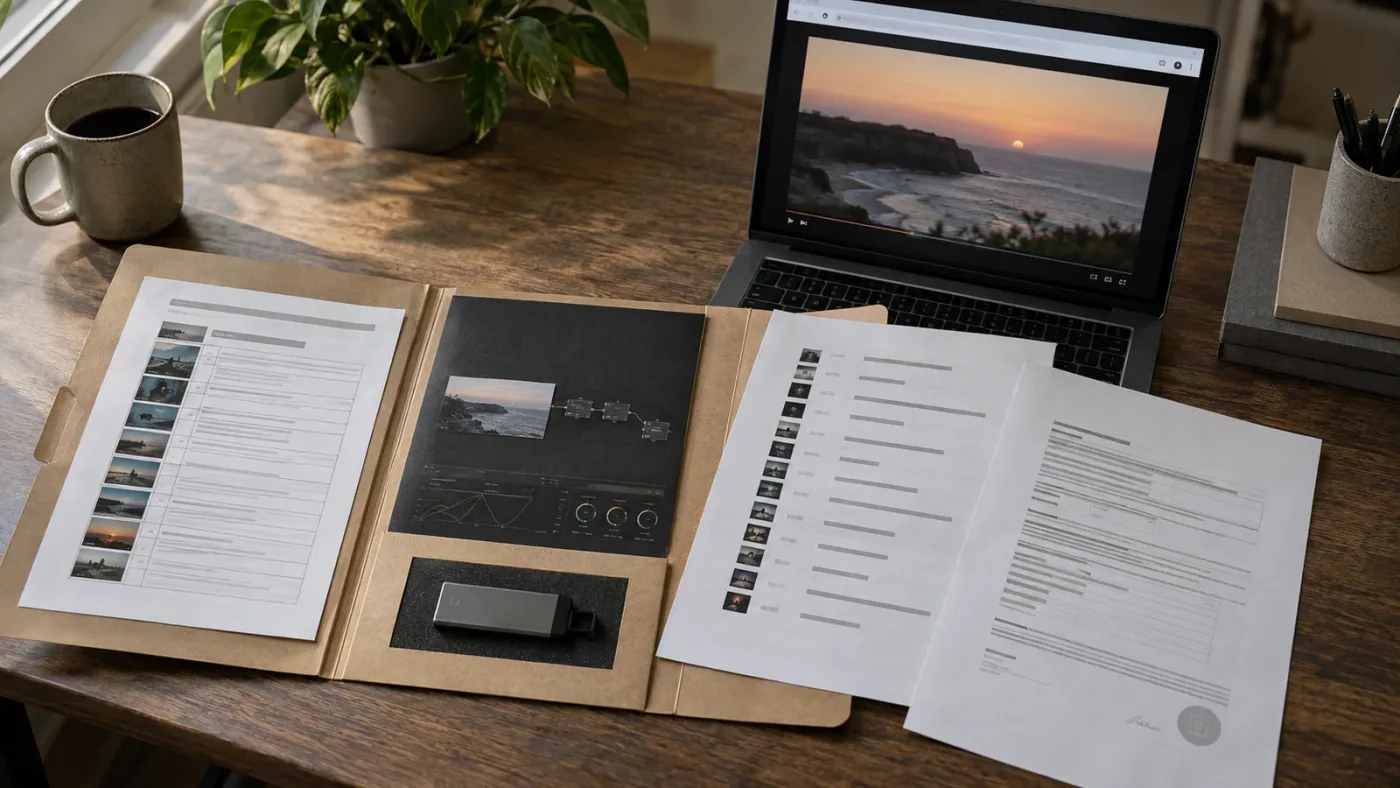
Before you clear a client channel, save a copy or record of the plan name and the applicable date. Plans change. A screenshot may help your own project file, but it is not a substitute for reading the terms, and the image itself should never be presented as proof that a future use is covered.

How do I safelist Epidemic Sound music for a client YouTube channel?
The practical sequence is: identify the exact destination, confirm an active plan that covers the use, select channel or video clearing, add the URL in the account, verify the entry, then publish only after the record matches the final upload. DaVinci Resolve 21 belongs in the edit and export steps, not in the decision about which YouTube destination is licensed.
Here is the workflow I would put in a client checklist.
1. Name the destination before you open Resolve
Write down:
- Client or company name.
- Exact YouTube channel URL.
- Channel handle, if the client uses one.
- Whether the client has multiple channels.
- Expected upload type.
- Whether the video will be used in ads.
- Other destinations that may need separate clearance.
Do this before you download the final music. A good project folder might contain a plain-text license-notes file with the destination, track title, track ID if available in the download record, plan, date, and editor name.
The point is not bureaucracy. It is identity. “The client’s YouTube” is not a unique destination.
2. Confirm who controls the upload
Ask whether the client will upload the final export or whether your team will upload it on the client’s behalf. This changes the handoff, but not the basic license question.
If the client uploads, request the exact draft URL once the upload exists. If you upload for the client, confirm that your access is authorized and that the client knows which channel will receive the video. Do not create a new channel or use your personal channel as a test without telling the client what you’re doing.
If the client has a channel under a Brand Account, confirm the actual channel URL. The display name in YouTube Studio may not be enough for someone working from a screenshot or email.
3. Confirm the plan before the final download
An active subscription is required to safelist channels or content according to the current safelisting guidance. The current licensing page also says an active subscription is needed for new downloads and for publishing new content with downloaded assets after the subscription period. Epidemic Sound’s current safelisting guidance requires an active subscription for clearing.
If you are working from a client’s account, ask the client to confirm the account and plan in writing. If you are working from your own account, confirm that the plan covers client work, the number of channels, and the expected use.
Do not solve an account mismatch by downloading the file again. A new download from the wrong account is still the wrong licensing setup.
4. Record the exact track used in the Resolve timeline
The final timeline may contain an edit version, a loop, a stem, or a shortened adaptation rather than the original full-length download. Record the source track and the form you used.
For example:
| Project record field | Example value to keep |
|---|---|
| Client | Client legal or working name |
| Channel | Exact YouTube channel URL |
| Video | Draft or final YouTube URL |
| Track | Track title and artist as shown in the account |
| Version | Full mix, instrumental, stem, shortened, or adapted |
| Account | Licensing account used for the download and clearing |
| Plan | Current plan name on the relevant date |
| Clear date | Date and time you cleared the destination |
| Publish date | Date the client made the video public |
| Other uses | Organic YouTube, paid ad, website, podcast, or other |
This is particularly useful when a project has several music cues. Clearing one track does not document the other two.
5. Choose channel or video clearing
If the job belongs to a recurring client channel and the plan allows that channel, clear the channel. If the job is isolated, clear the video. If the client wants to control the account action, create an invitation and send it while it is still valid.
The choice should be documented in the delivery note. Write “channel cleared” or “video cleared,” followed by the URL. Avoid “music cleared” with no destination.
6. Add the URL in the account
The current client-clearing instructions use the account page and a Safelist area. For a video, select “Safelist a Video,” add the link, and select “Clear.” For an invitation, use the invitation tab, create a project link, and share it with the client. Epidemic Sound’s published client workflow lists the account actions.
Labels can move as a service changes. If your screen differs, search the account help for “safelist” or “clear client videos” rather than guessing at a neighboring control.
7. Verify the entry before the upload goes public
Check the URL character by character. Verify the client name, channel name, video title, and track list. If the video is still private or unlisted, keep the record connected to that draft URL and recheck the final upload before publishing.
This is the most important pause in the workflow. Don’t send the client a “ready to publish” message while the record is still pending or while the wrong channel is selected.
8. Finish the DaVinci Resolve 21 export
Once the destination and license record are ready, complete the edit. In Resolve 21, keep the music in a clearly named audio track and preserve a copy of the project or export notes.
Blackmagic Design’s media workflow describes importing media into the Media Pool before editing. The same general idea keeps a downloaded music file visible in the project: import it to the Media Pool, place it on the timeline, and keep the file path stable until the export is complete. Blackmagic Design explains the Media Pool import workflow.
I use a simple track naming convention such as A3_MUSIC_EP_TrackName or A4_SFX_EP_ProjectCue. The prefix is for the edit. The EP marker tells the next editor that the audio came from Epidemic Sound and should be checked against the license record before the timeline is reused.
9. Let YouTube finish its checks
Upload the final export to the intended client channel. Review the notices and copyright sections before publication. If the upload is already public, check the video again after the initial processing settles.
YouTube says uploaded videos are scanned by Content ID when they match reference files submitted by copyright owners. A match can lead to monetization, tracking, or blocking depending on the rights holder’s policy and geography. YouTube explains the possible actions after a Content ID match.
The check is not a replacement for a license. It is a second control that can reveal a wrong URL, a different track, or an unexpected claim.
10. Close the handoff
Deliver these items with the final export:
- Final video filename.
- Music cue list.
- Client channel URL.
- Video URL, if the upload exists.
- Clearing method.
- Plan and account note.
- Date cleared.
- Instructions for an unexpected claim.
- Any limits on future reuse.
The client may not need every internal account detail, but you should keep it in the project archive. A clean handoff makes the next claim a lookup task instead of a memory test.
Why is my client YouTube channel still receiving an Epidemic Sound claim?
A correctly licensed and safelisted upload can still show a claim because safelisting reduces claim risk rather than guaranteeing that every automated match disappears. Start by checking the claimant, the matched timestamp, the music cue, the cleared destination, the plan scope, and the date of publication.
YouTube distinguishes a Content ID claim from a copyright strike. Its official help says a claim can affect monetization, visibility, or tracking, while a claim itself does not automatically equal a strike. A valid copyright removal request is a different process. YouTube explains the difference between claims and strikes.
A Content ID claim is not the same thing as a copyright strike.
YouTube product manager Julian Bill described the practical reason for checking the details: “it’s also important that they have knowledge of who is claiming content in their videos, where it appears, and what they can do about it.” The quote appears in YouTube’s official post about resolving manual Content ID claims.
Check 1: Is the claimant actually connected to the cleared track?
Open the claim details in YouTube Studio and note the claimant name, the claimed audio, and the timestamps. Compare that information with the music cue list from the Resolve timeline.
Possible mismatches include:
- The video contains a second music bed that was never recorded.
- A sound effect was downloaded from another provider.
- The final export includes temporary music under a muted track.
- A client changed the audio after you delivered the file.
- The match is against a different section of the timeline than you expected.
- The claimant is a rights holder for a separate element, not the Epidemic Sound cue.
Do not dispute a claim just because the client has an Epidemic Sound subscription. The subscription must cover the actual asset and the actual use.
Check 2: Was the correct channel cleared?
Compare the URL in the clearing record with the channel URL shown in the claim. Check the handle and the channel name. If the client has several channels, do not rely on the shared brand name.
If you cleared your personal channel but the client uploaded to the client channel, the music may be licensed in your workflow but not connected to the publishing destination that received the match. Fix the destination record before you decide how to respond.
Check 3: Was the correct video cleared?
If you used video-level clearing, compare the exact YouTube video URL. A new upload, re-upload, replacement file, or duplicate draft has a new URL. A cleared first draft does not automatically document every later upload.
This happens often when a client uploads a file, changes the thumbnail or title, deletes the video, then re-uploads a corrected export. The content may be nearly identical. The URL is not.
Check 4: Was the plan active when the video was published?
The current safelisting guidance says an active subscription is required to safelist a channel or video. It also says content published while the subscription was active can remain cleared after cancellation, provided the content was correctly safelisted and within the terms. That makes the publication date and clearing date important records.
If the client published after the plan ended, don’t treat an old download as current permission. The old subscription may explain why the file exists. It does not automatically authorize a new publication.
Check 5: Does the plan cover client work?
If the account is on a Creator plan intended for personal channels, a separate client channel can create a scope problem even when the track itself came from the catalog. Review the current plan terms, not just the plan name remembered from the purchase email.
The current plan guidance describes Pro for professionals and freelancers doing client work, and it gives channel limits and client-use details. It also distinguishes Business and Enterprise uses. The current plan overview explains the client-use distinctions.
Check 6: Was the video used in an ad or elsewhere?
An organic YouTube upload, a paid YouTube campaign, a website embed, a podcast, and a broadcast are not automatically the same licensed use. Epidemic Sound’s public plan guidance says ad campaigns require Pro or Enterprise. Other uses can have their own plan requirements.
If the client says, “We only uploaded it to YouTube,” ask whether the upload is organic or paid, and whether the same exported file was copied to another channel or campaign.
Check 7: Is the claim a false or delayed match?
Automated systems can identify a match before the licensing connection is reflected everywhere. The right response is a documented check, not panic and not a reflexive dispute.
If the account record is correct, the plan covers the use, and the track matches, follow the current Epidemic Sound support and dispute route. Keep the claim ID, video URL, claimant, track, timestamps, account, and plan in the project file.
Check 8: Did the client alter the audio after delivery?
Ask for the uploaded file or compare the client’s upload with the master export. If the client added a song, replaced your music, or used a version from another source, your cue sheet may not match the published video.
Resolve 21 can show several audio layers that are muted or disabled in the edit view. Check the final render settings and the actual exported file, not only the timeline state.
What if the claim is clearly wrong?
Use the documented facts to decide whether to dispute. YouTube says a dispute can be based on having the necessary rights, a copyright exception, or a belief that the match is an error. It also warns that you should dispute only when you are confident you have the relevant rights. YouTube lists the valid bases and the risks of unsupported disputes.
YouTube says the claimant has 30 days to respond to a dispute. If the claimant releases the claim, monetization settings can be restored when all claims are released. If the claimant rejects the dispute, you may be able to appeal, but an unsupported escalation can create a larger problem. YouTube documents the 30-day response window and dispute outcomes.
If revenue matters, the timing matters too. YouTube’s monetization guidance says that disputing within 5 days can hold revenue from the day the claim was placed, while a dispute submitted later starts holding revenue from the dispute date. YouTube explains the 5-day revenue timing rule.
A claim response template for the client
Use plain language. For example:
We found a Content ID claim on the client YouTube upload. We are checking the claimant, timestamp, track, channel URL, and Epidemic Sound clearing record. This is a claim, not automatically a copyright strike. We will dispute it only if the license and the published use match, and we’ll keep the claim ID in the project file.
That message gives the client a next step without promising an outcome you cannot control.

Does DaVinci Resolve 21 change the Epidemic Sound safelisting process?
DaVinci Resolve 21 does not decide whether a client YouTube channel is safelisted. Resolve handles the timeline, audio file, mix, and export; the Epidemic Sound account handles the clearing record; YouTube handles upload processing and Content ID notices.
Blackmagic Design’s support center lists the final Resolve 21 release in June 2026, and the 21.1 feature line belongs to the same current version family. The version number matters for the editing workflow, but not because Resolve has a built-in Epidemic Sound license switch. Blackmagic Design’s official support center lists Resolve 21 and Studio 21 releases.
Can I use the free version of DaVinci Resolve?
You can separate the free-versus-Studio question from the safelisting question. The current Epidemic Sound plugin help says DaVinci Resolve Studio is required for any plugin and that the free version does not support plugins. That means the in-Resolve plugin path is a Studio workflow. Epidemic Sound’s plugin guidance states the Studio requirement.
The licensing record itself is account-level. If you are using the free Resolve edition, the question becomes how you obtain the licensed audio and import it into the project, not whether the free edition can safelist a YouTube channel. Blackmagic Design describes the Media Pool as the place to import media before editing, so an editor can keep the file and the timeline organized without treating Resolve as the licensing authority. Blackmagic Design explains media import and the Media Pool.
Don’t tell a client, “The free version cleared the channel.” The account did. Resolve only edited the media.
What does the Resolve Studio plugin add?
The plugin can keep music search and some soundtracking actions near the Resolve Studio workspace. Current Epidemic Sound guidance says the plugin appears under Workspace, then Workflow Integrations, and supports dragging downloaded files to the timeline. It also documents stems and a setting for the download location.
The same guidance says the plugin does not support Timeline Sync. It also says the Mac App Store edition of Resolve Studio does not expose Workflow Integrations and that the version downloaded directly from Blackmagic Design is required for that plugin path. Epidemic Sound documents the plugin’s requirements and limitations.
This matters to a client workflow because a plugin failure can look like a licensing failure. If you cannot see Workflow Integrations, check:
- Are you running DaVinci Resolve Studio rather than the free edition?
- Was Studio purchased through the Mac App Store?
- Are you running the Blackmagic Design build?
- Is the Epidemic Sound Hub installed and current?
- Are you logged into the expected Epidemic Sound account?
- Is the subscription active?
- Is the plugin being opened from the expected Workspace menu?
If the plugin isn’t available, use the account-level clearing workflow and a conventional Resolve media import workflow. That keeps the client deadline moving while you troubleshoot the integration separately.
Should the plugin change how I archive a client project?
No. A plugin makes selection and download more convenient, but the project should still contain an exported license note and a clear audio cue list. The plugin’s presence does not tell a future editor which client channel received the video.
Store the record beside the Resolve project, not only in a browser bookmark. If a client returns six months later, you need the channel URL and the published video URL, not just the fact that you once searched for a track.
Why did music sound different after a stem download?
Treat a stem as a different project asset even if it came from the same source track. Record whether the timeline uses the full mix, a vocal stem, an instrumental stem, or multiple stems. If the mix changes after the first export, recheck the final file against the cue record.
The licensing question depends on the plan and use, while the technical question depends on what you placed on the Fairlight timeline. Resolve 21 gives you the tools to mix those layers. It does not tell YouTube that the account is authorized.
For a deeper integration troubleshooting branch, see our sibling guide on why the Epidemic Sound DaVinci Resolve plugin is not showing. That page owns the plugin visibility problem. This guide owns the client-channel clearing problem.
What should I check before the client publishes?
Run a pre-publish audit that connects the license, the Resolve export, and the YouTube destination. The audit should be short enough to use every time and specific enough to catch a wrong channel or unrecorded music cue.
License audit
- Is the account active on the date of the check?
- Is the selected plan appropriate for the client or business use?
- Is the plan’s channel or video allowance sufficient?
- Does the plan cover organic YouTube publishing?
- Does it cover paid ads if the client will run them?
- Is the track available under that account and plan?
- Did you record the track title, artist, and version used?
Destination audit
- Is the exact client channel URL in the record?
- Does the channel name match the client brief?
- Is this a long-form upload, Short, livestream, or ad campaign?
- Is the final video URL the one that was cleared?
- Did the client create a new upload after the first clearing step?
- Are there other client channels or brand accounts involved?
Resolve audit
- Is the music track enabled in the final timeline?
- Are any temporary music layers hidden but still included in the export?
- Did the client request a music change after clearing?
- Does the final exported file match the version you recorded?
- Are the audio tracks named clearly enough for another editor to audit?
- Is the project saved with the current Resolve 21 project version and media paths?
YouTube audit
- Did the upload go to the intended channel?
- Did YouTube report a claim or restriction?
- Who is the claimant?
- What timestamp and audio are identified?
- Is the status a Content ID claim, a block, or a removal request?
- Has the client been told what happens next?
This is where a short text record beats a long email chain. Use one line per deliverable. If the project has five videos, create five video rows even when all five came from the same channel.
A compact record format
Client: Example Company
Channel: https://www.youtube.com/@exact-client-channel
Video: [draft or final URL]
Resolve: 21.1
Track: [track title] by [artist]
Version used: [full mix, stem, or adaptation]
Account: [licensing account label]
Plan: [plan name]
Clearing: [channel or video]
Cleared: [date]
Published: [date]
Other use: [none, paid ad, website, podcast, or other]
Claim ID: [leave blank until needed]
The channel URL in a text record is data, not a marketing link. Keep it access-controlled if the client or project has confidentiality requirements.
What belongs in the client delivery email?
Keep it simple:
The final export uses the listed Epidemic Sound cue. The client YouTube destination was cleared using the channel or video URL shown below. Please publish from that destination. If YouTube displays a claim, do not delete or dispute it immediately. Send us the claimant name, matched timestamp, video URL, and screenshot or text from the claim details so we can compare it with the license record.
The last sentence is intentionally cautious. YouTube says it cannot decide copyright ownership or mediate ownership disputes. The editor can organize the evidence, but cannot guarantee what a claimant or platform will do. YouTube explains that it does not decide copyright ownership.
What happens if the client changes the channel after safelisting?
A channel rebrand, handle change, new Brand Account, or new channel can change the destination you need to verify. Treat a new channel URL or a new upload URL as a new audit event, even if the client uses the same public name.
Handle changes and channel identity
Ask the client whether the underlying channel is the same channel or a new channel. A display-name change does not necessarily mean the channel changed. A new channel created under the same company name is a different destination.
Record the URL you actually cleared. If the client later changes the handle, keep the original URL and the new handle in the project notes so the old publish record remains understandable.
Re-uploads after a technical fix
Suppose the first export has a typo, a loud pop, or the wrong end card. The client deletes it and uploads a corrected file. The corrected upload may have a new URL. Recheck the clear record for the new URL before publication.
The audio may be identical, but the destination record is different. That is enough reason to update the audit.
A second channel for regional publishing
If a client publishes the same video to a second language or regional channel, check the plan’s channel allowance. Do not assume that one cleared channel implies unlimited channels.
The current plan guide gives explicit channel numbers for some plan levels. Creator is described as one channel per platform, Pro as up to three, and Enterprise as custom or unlimited platform coverage in the published guide. Use the account’s current terms for the final decision. The current Epidemic Sound plan guidance lists channel differences.
MCN and network-managed channels
If the client channel is connected to a multi-channel network, ask whether the account workflow supports it. The current Epidemic Sound plugin Help Center says MCN users are not supported for file downloads in the DaVinci plugin. That is a plugin limitation, not a blanket statement about every possible account-level clearing workflow.
If the client’s channel is network-managed, document who owns the channel, who can publish, who controls the rights account, and who receives claim notices. A clean creator account and a managed network channel can have different approval paths.
Team access and freelancer boundaries
If more than one editor uses the account, maintain one shared project record. Don’t let each editor clear the same channel from a different account without a naming convention. Duplicate records make it hard to know which account and plan support a given export.
If the work moves from a freelancer to an agency, update the plan and ownership review. A client may accept the finished video from a freelancer while the agency’s ongoing workflow needs broader team or business coverage.
How should I handle cancellation after a client video is published?
Separate old qualifying videos from new publishing. Epidemic Sound’s current guidance says content published while the subscription was active can remain cleared forever when it was correctly safelisted and within the terms, but new content cannot be published with downloaded music after the subscription expires.
That gives you a clear rule for the archive: preserve proof of what was published while the plan was active, and block new uses until the account is active again or a new license is obtained.
A subscription cancellation stops new covered publishing, but it does not erase the clearance for qualifying videos published while the subscription was active.
What to archive before cancellation
Before the subscription ends, export or record:
- Client and channel URLs.
- Video URLs and publication dates.
- Track titles and artists.
- Account and plan name.
- Clearing method.
- Date of clearing.
- Other distribution uses.
- Claim IDs and resolution notes, if any.
The record helps prove what happened during the active period. It does not create permission for a new video after cancellation.
Can the client keep publishing new videos with old downloads?
Do not assume so. The current safelisting and plan guidance says new content published after the subscription period is not cleared by the old subscription and may be subject to claims. If the client wants to keep publishing, reactivate the plan or use a separate license that fits the new production.
The client may ask why the old video remains covered while the new video does not. The answer is that the license attaches different rights to different publication events. A previously qualifying published project and a new upload are separate questions.
What if the client edits an old published video?
Ask what “edit” means. A small metadata change is different from replacing the export, adding new music, or publishing a new version. If the client creates a new upload or a new distribution use, review the current license before proceeding.
If the same published YouTube video is updated through YouTube’s editing tools, keep the old record and document what changed. If the client exports a new file in Resolve 21 and uploads a replacement, treat it as a new publish event until the current terms say otherwise.
The sibling question about cancellation
Our related guide, Can I use Epidemic Sound music after cancelling?, goes deeper on the post-cancellation distinction. For this client-channel workflow, the action is simple: archive the qualifying published work, stop new covered publishing, and recheck the license before the next upload.
Which alternatives make sense for a client YouTube channel?
Epidemic Sound is not the only way to source music. The right alternative depends on how much catalog access, commercial scope, channel clearing, and future reuse the client needs.
| Option | Could be the better fit when | What to verify before choosing |
|---|---|---|
| Epidemic Sound | The client needs recurring music and sound effects, channel clearing, and a plan that explicitly covers the freelance or business use | Plan tier, channel limit, client scope, ad use, and post-cancellation rules |
| YouTube Audio Library | The client only needs music or sound effects for YouTube and wants the platform’s own library | Whether attribution is required for the chosen track and whether the client needs rights outside YouTube |
| Soundstripe | The project needs a single-use license or a different mix of individual and subscription licensing | Exact license type, client licensing option, channel clearance, and future reuse after subscription expiry |
| Artlist | The client wants a broader creative asset service that can include music plus footage, templates, or other production assets | The current plan, clearlist or channel process, client rights, and whether the asset can be reused after cancellation |
| Original or commissioned music | The client wants an asset controlled for a specific brand or campaign | Written ownership, composer rights, performance rights, territory, term, and Content ID handling |
YouTube’s own Audio Library is a real alternative for a YouTube-only workflow. YouTube says the library contains royalty-free production music and sound effects, and it describes Audio Library downloads as copyright-safe within YouTube. It also says Creative Commons tracks require attribution when the selected license says so. YouTube explains the Audio Library workflow and attribution filters.
Soundstripe’s current pricing page presents both subscriptions and single-use licenses, including a digital one-time option that says freelancers can license on behalf of clients. It also lists YouTube clearance features by plan. That can make it worth comparing for a one-off client job, but compare the license language rather than the feature headline. Soundstripe lists subscription and single-use options.
Artlist is another credible comparison when the client also needs footage, templates, or a broader stock catalog. Its current site presents music, sound effects, footage, templates, LUTs, and AI tools as separate or combined parts of its service. That breadth can be useful, but it also means you need to verify a more detailed plan and asset-license question. Artlist lists its current creative asset categories.
When YouTube Audio Library wins
Choose YouTube Audio Library when:
- The client only needs YouTube distribution.
- The selected track’s license fits the video.
- The client is comfortable with the available catalog.
- Attribution requirements are clear.
- You don’t need a separate sound-effects and music workflow across other platforms.
It removes a subscription decision, but it may not fit a client who wants the same cue on a website, paid campaign, podcast, or multiple social platforms.
When a single-use license wins
Choose a single-use license when the client has one production and wants a clearly bounded paper trail. This can be cleaner than paying for an ongoing subscription that the client will not use.
The tradeoff is future work. A single-use license may not cover the next episode, a second URL, a paid ad, or a re-edit. The exact wording decides.
When a broader asset service wins
Choose a broader service when the client’s bottleneck is not only music. If the same subscription also supplies footage, templates, sound effects, or other assets the client actually needs, the wider scope may justify the extra plan review.
The tradeoff is attention. A larger catalog can add more license categories, more plan boundaries, and more ways to use the wrong asset under the wrong terms. A narrow audio-first service may be easier to administer for a channel that mainly needs a reliable music bed.
When original music wins
Commissioned or original music can solve a different problem: brand ownership and uniqueness. It does not automatically solve YouTube administration. The contract should say who owns the composition and recording, who controls Content ID, who can reuse the cue, and how claims are released.
Don’t call any music option “claim-proof.” The honest verdict is narrower: choose the option whose documented license matches the client’s destination and use.

What should I do when the client wants the best way to learn DaVinci Resolve fast?
Learning DaVinci Resolve fast is separate from safelisting, but the separation is useful: learn the edit, then document the license. A tutorial, course, or app that teaches Resolve cannot grant permission to use a music track or clear a YouTube channel.
For this specific problem, the best way to learn DaVinci Resolve fast is to practice the complete handoff loop on a small, controlled project:
- Create a short Resolve 21 timeline.
- Import one licensed music file.
- Record the cue and account details.
- Use a test destination you control.
- Upload privately or unlisted.
- Inspect the copyright notices.
- Export the notes with the project.
That practice teaches the relationship between editing, licensing, and publishing without pretending that a Resolve shortcut changes the legal scope of a plan.
Blackmagic Design offers official Resolve training and documentation, and the DaVinci Resolve 21 update line has its own official guides. YouTube also publishes its own creator and copyright help. Those sources are the right starting points for the editing and platform parts of the workflow. The license provider remains the source for the plan and safelisting part.
An AI tool to learn DaVinci Resolve, a course, or a YouTube tutorial can explain where to place an audio clip. None of them should be treated as the authority for whether a client’s plan covers a particular channel, ad, or publication. That is why this page keeps the education question downstream of the licensing decision.
How do I keep a client YouTube channel safe after delivery?
Give the client a repeatable publishing checklist rather than a one-time promise. The client should know which channel was cleared, which uses were covered, what to send if a claim appears, and when a new project needs a new license check.
The client-facing four-line checklist
Before each upload, the client should confirm:
- This video is going to the cleared channel or video destination.
- The music in the final file matches the recorded cue list.
- The planned use is still within the active plan.
- Any YouTube claim details will be sent to the editor before a dispute or replacement.
That is enough for most handoffs. The project archive can contain the longer audit.
The editor-facing monthly review
For a recurring channel, review the account and destination when any of these events happen:
- The client changes plan.
- The client adds a channel.
- The editor changes the music library.
- A campaign adds paid media.
- A team member changes.
- The client starts publishing on a second platform.
- A video is re-uploaded after an edit.
- A claim arrives on a previously clear workflow.
This is not a reason to re-clear every old video every month. It is a reason to review the facts when the facts change.
The record that prevents a repeat mistake
Keep a short register with one row for each client destination. Include the active account, plan, channel URL, allowed use, clearing method, and review date. Add video-level rows only when a single-video license or a one-off clearing record needs separate tracking.
Do not put the register in a folder that disappears when a contractor leaves. Store it in the project or organization system the client has agreed to use, with appropriate access controls.
What to do when a claim arrives months later
Start with the published record. Find the video URL, publication date, channel, track, plan, and clearing method. Then compare the claimant and timestamps in YouTube Studio.
If everything matches, use the current support and dispute routes. If the audio or destination does not match, explain the mismatch to the client and decide whether to replace, remove, or relicense the music. If you cannot prove the use, do not invent certainty to make the email sound reassuring.
YouTube says that if you don’t submit a dispute, you can also resolve a claim by removing the claimed content. It lists trimming, replacing the song, or erasing the song as possible editing options, and warns that some saved YouTube Studio edits cannot be reverted after the June 2025 change. YouTube documents the available ways to remove claimed content.
Is Epidemic Sound safelisting a guarantee against every copyright claim?
No. Safelisting is a license-connection and claim-prevention step, not a guarantee that YouTube, a claimant, or another platform will never show a notice. The strongest workflow combines a matching plan, an active account, the correct destination, a pre-publication clearing step, and a record that lets you respond.
The final decision is simple:
- If the client has an ongoing channel and recurring covered uploads, verify a professional or business plan that explicitly fits the client use, then clear the exact channel.
- If the client has one video, verify a single-track or video-level route, then clear the exact video URL.
- If the client controls the final account action, send an invitation while it is valid.
- If a claim arrives, inspect the claimant and timestamp before you act.
- If the subscription ends, keep old qualifying publication records and stop treating old downloads as permission for new uploads.
Resolve 21 is where you edit the video. YouTube is where the client publishes it. The Epidemic Sound account is where the license and safelisting record live. Keep those boundaries visible, and the client handoff becomes predictable.
Frequently asked questions
- Can I safelist a client YouTube channel with an Epidemic Sound Creator plan?
- Usually no for a freelance client workflow. The Creator plan is described for personal creator channels, while the Pro plan is the current tier described for professionals and freelancers publishing client work. Check the plan terms shown in your account before you clear anything.
- Should the client or the editor safelist the YouTube channel?
- Either party can complete the clearing workflow if the correct account and permissions are available. The cleanest arrangement is for the editor to clear the client video or send the client an invitation, while the client keeps ownership of the YouTube channel and publishing account.
- Why did a client YouTube channel get an Epidemic Sound claim after safelisting?
- Check the track, channel or video URL, plan scope, and timing first. A claim can still be an error, can involve a different audio asset, or can result from clearing the wrong destination. Gather the license record and dispute only when you can document the right to use the music.
- What happens to a safelisted client video after an Epidemic Sound subscription ends?
- Epidemic Sound says content published while an active subscription or trial was in force can remain cleared if it was correctly safelisted and within the plan terms. New content published after the subscription ends is not covered by that old subscription.
- Does DaVinci Resolve 21 change Epidemic Sound YouTube safelisting?
- No. Resolve 21 is the editing application, while safelisting connects a YouTube channel or video to the music license. The Epidemic Sound plugin requires DaVinci Resolve Studio, but you can keep the licensing decision and YouTube publishing check separate from the timeline edit.
Sources
- Epidemic Sound safelisting and client video clearing guidance
- Epidemic Sound plan and licensing options
- Epidemic Sound plan comparison and cancellation guidance
- Epidemic Sound DaVinci Resolve Studio plugin requirements and limits
- YouTube: How Content ID works
- YouTube: Dispute a copyright claim
- YouTube: Monetization during copyright claim disputes
- YouTube: Copyright on YouTube
- YouTube: Audio Library music and sound effects
- YouTube official blog: More information and better tools to resolve manual Content ID claims
- Blackmagic Design: DaVinci Resolve 21 support and final release
- Blackmagic Design: DaVinci Resolve media workflow
- Soundstripe plans and single-use licensing
- Artlist creative assets and licensing products
Keep reading
Comparisons · Aug 24, 2026 · 46 min
Epidemic Sound Creator vs Pro for DaVinci Resolve
Epidemic Sound Creator vs Pro for DaVinci Resolve: choose the right plan for personal channels, client work, ads, and Resolve Studio.
Fixes · Aug 30, 2026 · 8 min
Epidemic Sound DaVinci Resolve Plugin Not Showing? Fix It
Epidemic Sound is missing from DaVinci Resolve 21? Check Studio, the Blackmagic download, Workflow Integrations, and the correct install path.

Guides · Aug 24, 2026 · 44 min
Can I Use Epidemic Sound Music After Cancelling?
Can you keep using Epidemic Sound music after cancelling? Here is the 2026 answer for DaVinci Resolve 21 projects, uploads, clients, and alternatives.