Articles / Guidesupdated for DaVinci Resolve 21.x (September 2026)
How to Choose a Resolve Template for a Pitch Video
Quick answer
To choose a Resolve template for a pitch video, start with the story and delivery versions, then shortlist restrained title, transition, or Fusion templates that expose editable text, timing, color, and media controls. Test the template in Resolve 21 with your footage before buying, and reject anything that competes with the pitch.

I’ve watched good pitches lose force because the graphics arrived before the idea did. The template looked expensive, but the edit felt like a demo reel.
After seven years of professional, commercial video editing, we judge a template by the decisions it leaves you free to make. The best one gives the story a clean frame, then gets out of the way.
As of September 2026, this guide is written for DaVinci Resolve 21.x. Resolve 21 introduced new Fusion graphics and broader support for square and vertical work, but a template still lives or dies by its controls, dependencies, and behavior in your project.
What does a Resolve template do in a pitch video?
A Resolve template is a reusable title, transition, generator, or Fusion composition that gives you a starting animation and a set of controls instead of a blank timeline. For a pitch video, its job is to clarify the product, structure a claim, identify a speaker, or connect two ideas without becoming a second story.
That definition matters because “template” covers several different things. A basic title is not the same as a lower third. A lower third is not the same as a logo reveal. A transition is not the same as an animated background. A Fusion composition can contain all of those, plus media, masks, 2D or 3D elements, and timing logic.
Blackmagic describes Fusion templates as compositions whose controls can be exposed on the Edit page. The official Fusion page says lower thirds, animated background generators, and custom transition templates can be created in Fusion and added to the Edit page, and that the template author decides which controls appear there. That is the central buying fact. The preview tells you what the designer made. The exposed controls tell you what you can actually change.
Grant Petty, CEO of Blackmagic Design, describes the larger Resolve idea this way: “With DaVinci Resolve, you get a complete set of editing, advanced color correction, professional Fairlight audio post production tools, Fusion visual effects and now photo editing all in one application.” The quote appears in Blackmagic’s DaVinci Resolve 21 New Features Guide. A pitch template should fit that all-in-one workflow, not force you to rebuild the idea in another application halfway through the edit.
For a pitch, the template usually earns its place in one of five roles:
- Orientation. A restrained opener establishes the company, product, speaker, or promise.
- Proof. A callout, number, diagram, or screen label directs attention to evidence.
- Structure. A chapter card separates problem, solution, market, traction, business model, or ask.
- Identity. A lower third, color system, logo treatment, or type pairing makes the film belong to the company.
- Closure. A final card presents the ask, contact detail, URL, or next action.
If you can’t name the job, don’t buy the template yet. A template selected because its preview is flashy will usually ask the story to serve the animation.
The right pitch-video template clarifies one idea at a time and stays subordinate to the argument.
Should you choose a title, lower third, transition, generator, or Fusion template?
Choose the smallest template type that solves the visual problem. A title or lower third is often enough for speaker identity and section labels. A generator fits a reusable background or shape system. A transition belongs between ideas, not on every cut. A full Fusion composition makes sense only when the pitch needs a more involved graphic or composited sequence.
| Pitch-video job | Best first choice | Controls to require | When the larger template is justified | What can go wrong |
|---|---|---|---|---|
| Name and role | Lower third | Name, role, font, size, color, position, in and out timing | Several speakers need a shared system | The lower third covers the face or stays too long |
| One-line promise | Title or Text+ title | Copy, line breaks, font, size, tracking, color, position, duration | The promise needs a branded entrance and exit | The animation delays the first sentence |
| Product proof | Callout or simple Fusion title | Copy, anchor point, line, color, scale, timing | The callout must follow or frame a product feature | The graphic points at the wrong thing after a crop |
| Section change | Chapter card or generator | Copy, background, logo, duration, color, version-safe layout | The pitch has a clear multi-part structure | Every section begins with the same heavy interruption |
| Connecting two shots | Built-in transition or restrained third-party transition | Duration, direction, softness, alignment | The transition carries meaning, such as a diagram or timeline | A decorative wipe makes the cut feel slower |
| Product interface or data | Fusion composition | Text, media, masks, animation timing, layout, render controls | The visual needs several coordinated layers | A hidden dependency makes revisions expensive |
| Final ask | Title card or generator | URL, contact, logo, contrast, duration, safe margins | The final frame has a deliberate brand lockup | Small type disappears on a phone |
Resolve’s own Edit page already includes a large built-in set of transitions, effects, and titles. Blackmagic’s current Edit page describes more than 100 transitions and more than 80 GPU and CPU accelerated effects, while its title section describes more than 100 Fusion title tools. Those are vendor counts, and the collection may change, but the decision is stable: start with the built-in library when a simple title or transition will do the job. A purchased template should buy you a useful control system or a look you genuinely need, not a decorative replacement for a dissolve.
The type also affects your revision path. A lower third placed over talking-head footage should be editable from the Inspector. A chapter card can be a full-screen clip, but it still needs a clean copy change. A generator may be useful across several timelines because its background and timing can be reused. A transition may be the wrong purchase if you need to change the words, colors, or media inside the graphic.
Think of template scope as risk. The more nodes, media, fonts, effects, and timing relationships a template contains, the more ways it can fail when the brief changes. That doesn’t make complex templates bad. It makes them expensive to change. Buy the complexity only when the pitch benefits from it.
What story must the template support before you judge its style?
Write the pitch as a sequence of decisions before you browse for a look. The template should support the sequence of problem, consequence, solution, proof, business case, and ask, or whatever structure the audience actually needs.
A pitch video is not defined by one universal runtime or one universal format. An investor update, a sales presentation, a product launch, and a founder introduction can all be called a pitch while asking for different edits. The recipient may want a link, an embedded video, a presentation insert, a social cutdown, or a private review file. That uncertainty is why the brief comes before the template.
Write these six lines at the top of the project:
- Audience: Who will watch, and what do they already know?
- Decision: What should the viewer believe, approve, fund, book, or do next?
- Proof: Which demonstrations, customer examples, numbers, or visuals support that decision?
- Voice: Who speaks, and what needs a name or role label?
- Brand: Which typefaces, colors, logo rules, product screens, and image treatments are mandatory?
- Delivery: Where will the file play, at what size, with which aspect ratios, and who will revise it?
Then mark each visual beat as essential, helpful, or ornamental. Essential beats get the template. Helpful beats get a simpler treatment. Ornamental beats have to earn their place later.
This is where many template purchases fail. The editor watches a preview with music and polished sample copy. The pitch arrives with a long product name, two lines of legal text, a different logo ratio, and a founder who needs to be identified twice. The preview did not lie. It simply answered a different brief.
Make a paper version of the graphic first. If the pitch has a product screenshot, write the exact label that must point to the feature. If the pitch has a market number, write the source and the unit. If the pitch has a final URL, write its longest realistic version. These small checks expose whether the template has enough room before you spend time installing it.
A good template lets the story change within boundaries. That means a long company name should wrap cleanly, a short claim should not look stranded, and a card should hold both a single proof point and a three-line explanation. The best purchase is often the least theatrical template with the most forgiving layout.
A template is ready for a pitch only after the pitch has a job for it.
How do I choose a Resolve template around the first five seconds?
Choose the opening template by asking what the viewer must understand before the first visual change. If the pitch begins with a person speaking, keep the opening graphic short and place the first useful words in the voice, not behind an animation.
The first five seconds are a practical design test, not a universal performance statistic. Put the opening line, the product or company name, and the first supporting visual into a rough timeline. Then audition the candidate template at the exact point where the viewer needs orientation.
Try three opening patterns:
- Human first. Start with a clean frame of the speaker. Add a lower third only after the viewer has seen who is talking. This suits founder pitches, sales introductions, and personal credibility.
- Problem first. Start with the pain point as readable type over relevant footage or a product screen. Use a minimal entrance so the words arrive before the motion becomes interesting.
- Product first. Start on the product, interface, object, or result. Use one callout to tell the viewer where to look, then let the spoken explanation carry the sequence.
The template should preserve the first readable idea. If the text appears after a long build, the template is wrong for that opening even if the animation is attractive. If a logo reveal pushes the first sentence below the fold, shorten it or remove it. If the lower third needs a full second to assemble, ask whether the name can simply be present.
You can test this without a finished edit. Make a ten-second string-out with a representative talking shot, the real logo, the longest likely title, and one piece of product imagery. Apply the template three times. Change the text, reduce the duration, and move the graphic to a different safe position. Any failure is evidence about the template, not an invitation to rationalize it.
The opening also tells you how much motion the rest of the pitch can carry. A moving opener, animated chapter cards, floating callouts, and a kinetic final card can make a short video feel like four visual systems arguing for attention. Choose a visual grammar, then reuse it lightly. A single entrance style, one title scale, and two or three brand colors can do more work than a library of unrelated effects.
For a product pitch, the strongest opening is often the one that establishes the product and the problem with almost no decoration. For a fundraising pitch, the strongest opening may be a speaker and a clear sentence. For a sales pitch, the strongest opening may be a visual result followed by the claim that explains it. The template follows that choice.
Which controls matter most when a pitch will be revised?
Prioritize controls that affect copy, hierarchy, brand, timing, and framing. A template with five useful Inspector controls is more valuable than one with thirty sliders you can’t interpret.
Blackmagic’s Fusion documentation makes this distinction clear by separating the composition from the controls exposed to the editor. When you build a template, you decide which parameters appear on the Edit page. That means the downloadable preview may include a beautifully organized node tree while the editor receives only a text field and a color picker. You need to know which side of that boundary you’re buying.
Use this audit before purchase:
| Control | Why a pitch needs it | Minimum test | Warning sign |
|---|---|---|---|
| Text content | Pitch copy changes late | Replace every sample phrase with the real longest phrase | Text is locked inside the Fusion page or cannot wrap |
| Font and weight | Brand teams notice typography immediately | Use the approved font and test a bold and regular line | The font is missing or the template assumes one unchangeable family |
| Line breaks | Product names and claims rarely match samples | Test one line, two lines, and a long phrase | A line break changes the animation or clips the last word |
| Color | Brand colors may differ from the preview | Apply the main, secondary, and contrast colors | Color controls change only a small part of the graphic |
| Position | Faces, screens, and logos move | Put the element left, center, and right | The layout collapses outside one preset position |
| Duration | The spoken edit may tighten or breathe | Try a short, normal, and extended version | The animation has no retiming method and leaves empty frames |
| Media | Product footage and logos change | Replace every included image or clip | Media is embedded, missing, or difficult to relink |
| Scale | Different crops need different framing | Test wide, square, and vertical compositions | Scaling exposes edges, masks, or 3D artifacts |
| Animation timing | Revision often changes when a beat lands | Move the clip edge and inspect in and out behavior | Elements pop, freeze, or disappear when trimmed |
| Background | The pitch may use video, a solid, or transparency | Toggle the background and inspect the edges | The background cannot be removed or recolored |
| Render behavior | The finished file must move through review | Render a short test with the real codec and frame rate | The template fails only at delivery time |
Do not confuse adjustability with editability. A position slider is useful only if it keeps the graphic inside the intended frame. A duration slider is useful only if all elements respond together. A color control is useful only if the contrast remains readable. The test is not “does the knob move?” The test is “does the result still communicate?”
Ask the seller for the documentation before you buy when the listing is unclear. You want the supported Resolve versions, the Free or Studio requirement, included fonts, plugin dependencies, media dependencies, installation method, and refund terms. If there is no documentation, treat that absence as a cost. You may become the support desk for a template you haven’t even used yet.
For a professional pitch, add one more question: can another editor understand the template after the file is handed off? A pitch can outlive the person who made it. Clear control names, sensible defaults, and a copy of the license or download record reduce that risk.
Why is a beautiful Resolve template wrong for a pitch video?
A beautiful template is wrong when its motion, density, or visual metaphor asks the viewer to admire the graphic instead of understand the claim. Pitch videos need visual hierarchy before visual novelty.
Reject a candidate when any of these tests fail:
- The animation delays the first meaningful word.
- The title uses more type styles than the brand can support.
- A transition announces itself at every edit point.
- The sample footage looks good only because it was selected for the template.
- The graphic requires a crop that hides the product or the speaker.
- The template uses tiny copy that works in a desktop preview but not in a small player.
- The logo enters with more force than the product claim.
- The animation implies a relationship that the pitch does not explain.
- The graphic turns a simple comparison into a busy diagram.
- A reviewer must pause the video to read the text.
These are not aesthetic objections. They are revision and comprehension risks. A template can be tasteful and still be wrong because the text does not fit. It can be plain and still be wrong because the product screen cannot be shown beside it. It can be technically compatible and still be wrong because the viewer needs to watch the speaker, not the title.
Use a subtraction pass. Duplicate the timeline, mute the template, and watch the pitch. Then turn the graphic back on and ask what became clearer. If the answer is only “it looks more finished,” that may be enough for a final card, but it is not enough for a central proof point.
Pitch graphics also need a consistent emotional temperature. A serious B2B workflow may not benefit from a playful bounce. A consumer product may not benefit from a rigid corporate card. A founder speaking about a painful problem may not benefit from a glossy logo animation. The design should support the voice and the promise.
The same rule applies to transitions. Use a transition when the change itself matters, such as moving from problem to solution or from a physical process to a product screen. Use a cut when the idea continues. Use a dissolve when time or mood changes. Use a graphic transition only when the brand system or story earns it.
The purpose of a template is not to prove that you bought a template. It is to make the pitch feel intentional while leaving the viewer with the argument.
Does DaVinci Resolve 21 change which templates are worth choosing?
Resolve 21 expands the template decision in two directions: it adds new graphics and improves the environment for square and vertical work, but it does not erase version, Studio, font, media, or performance constraints. Blackmagic documents those changes on its Resolve 21 What’s New page.
Blackmagic’s current Resolve 21 materials describe more than 70 new graphics in the Krokodove toolset for Fusion. The same release material describes improved keyframing and greater graphic format support on the Edit and Cut pages. The official What’s New page also points to square and vertical video resolutions in the project and timeline settings for social-oriented work. Those additions make Resolve 21 a stronger base for a multi-version pitch, but they don’t make an old third-party template responsive by magic.
Treat the version number as a boundary. A template built for an earlier major version may open cleanly, open with warnings, or open while missing a feature the author relied on. A template advertised as Resolve 21 may still require Studio, a particular font, a plugin, or a specific operating-system build. Version compatibility is a claim to verify, not a feeling you get from the preview.
Resolve 21 also gives you more built-in choices. Blackmagic lists over 100 motion-graphics effects in its release materials and more than 70 Krokodove graphics for Fusion. That changes the comparison between a free built-in option and a paid template. If the built-in title already gives you the right typography and timing, the paid template has to win on editability, brand consistency, speed of setup, or a specific visual requirement.
For a pitch, the useful Resolve 21 improvements are the ones that reduce version work:
| Resolve 21 capability or change | Why it matters to a pitch | What it does not guarantee |
|---|---|---|
| Krokodove graphics in Fusion | More built-in graphic starting points | That every third-party template will use or support them |
| Improved keyframing on Edit and Cut | Easier timing adjustments for simple graphics | That a packaged Fusion template exposes usable retiming controls |
| Greater graphic format support | More options for product marks and design assets | That a template’s included media is in a format your machine likes |
| Square and vertical project or timeline options | Cleaner planning for required cutdowns | That one 16:9 composition will reflow perfectly into 1:1 or 9:16 |
| Resolve 21.x point releases | Fixes and changes may improve current workflows | Backward compatibility with every older template |
The practical move is to create a Resolve 21 test project before you browse. Set the frame rate and timeline resolution that the pitch needs. Import a real product screen, the actual logo, the approved font, and one representative video clip. Then test the template there. A preview project made at the wrong resolution can hide the problem until late in the job.
If your pitch needs only a title and lower third, Resolve 21’s built-in library may be enough. If you need a visual system that repeats across several scenes and versions, a well-documented third-party template may save work. If you need a Fusion composition with unusual 2D or 3D behavior, plan time for a real compatibility test.
Resolve 21 expands your choices, but compatibility still belongs on the buyer’s checklist.
How do I know if a template works with Resolve 21 Free or Studio?
You know only after checking the listing, the documentation, and a test project. Resolve Free and Resolve Studio are not interchangeable for every effect, codec, or template dependency, so never infer Free compatibility from the fact that the file appears in the Effects Library.
Blackmagic’s US product page lists DaVinci Resolve 21 as free and Resolve Studio 21 at $295, while regional pricing can differ. The same product family includes Mac, Windows, and Linux builds. A third-party template can narrow that support even further. It may require Resolve Studio, a particular desktop version, or a system that can process its effects at a usable speed.
Use this compatibility checklist:
- Resolve major and point version. Is the template marked for Resolve 21, or does the vendor state a minimum such as Resolve 18 or newer?
- Free or Studio. Does the template use Studio-only effects, features, or codecs? Does the documentation explicitly say it works in the Free edition?
- Operating system. Is the template intended for macOS, Windows, Linux, or all three? Are the included fonts and installers cross-platform?
- Fusion or Edit location. Is it an Edit page title, generator, transition, or effect, or is it a Fusion composition that must be opened and installed differently?
- Fonts. Are the fonts included, licensed for your use, or merely named in the preview? What happens if the font is missing?
- Plugins. Does it depend on third-party OpenFX, ResolveFX, scripts, or a separate package?
- Media. Are sample videos, images, textures, and audio embedded, linked, or omitted? Can you replace them?
- Hardware. Does the vendor warn that complex templates may play slowly or render slowly on lower-powered systems?
- License. Can you use the template in a client pitch, a paid presentation, a public launch, and later revisions? Is the license tied to one editor, one project, or a subscription period?
- Support and updates. Who fixes the template if Resolve 21.x changes behavior?
Affiliate disclosure: This article contains an affiliate link. If you buy through it, we may earn a commission at no extra cost to you. The recommendation still depends on the workflow and license fit described here.
Artlist’s template guidance identifies Resolve 18 or newer as a baseline for its Resolve templates, while also warning that individual templates can have stricter version or Studio requirements. Its template guidance covers downloadable Resolve archives and different template types, but the listing for the specific asset still controls. That distinction is easy to miss when a library contains hundreds of unrelated files.
The safest test is deliberately boring. Create a copy of the project. Install the template. Replace the text. Replace the logo. Replace the media. Change the duration. Move it to a second timeline. Close and reopen Resolve. Render a short test. If the template survives those steps, you have evidence. If it fails, don’t let sunk cost turn a template into a production dependency.
If the seller provides a free sample or preview project, use it. If the seller provides only a rendered video, you can judge style but not editability. If the seller promises compatibility without naming the Resolve version or Studio requirement, ask for the missing detail before payment.
How do I install a .drfx or .setting template in Resolve 21?
Install a .drfx bundle through Resolve or the operating system, while a .setting file belongs in the correct Fusion template folder for its Edit page category. Always work from a copy of the project and follow the vendor’s current instructions when they differ from the generic process.
The Fusion 19.1 Reference Manual documents the core bundle workflow. A .drfx file can be double-clicked in the operating system, or dragged directly into the Fusion page in DaVinci Resolve. The manual also describes the Edit folder structure for Effects, Generators, Titles, and Transitions, plus a Fusion folder for Fusion templates. Resolve 21 may add or change features, but these file distinctions remain useful when a download arrives without a friendly installer.
1. Identify the file type and destination
Look at the extension before you open anything. A .drfx file is a Fusion Template Bundle. A .setting file is a template or macro definition that belongs in the folder for the type of thing it creates. A folder containing fonts, media, documentation, or a project file is not the same as the template itself.
Read the vendor’s README before moving files. Some downloads contain separate packages for Edit titles, transitions, generators, Fusion effects, and audio. Installing a title into a transition folder won’t turn it into a transition.
2. Import a .drfx bundle
The documented path is simple:
- Close unrelated projects and keep Resolve open if the vendor requires it.
- Double-click the
.drfxfile, or drag it into the Fusion page. - Accept the install dialog when Resolve presents it.
- Open the Effects Library and search the relevant category.
- Restart Resolve if the template does not appear and the vendor documentation recommends a restart.
The Fusion manual notes that the bundle contains the templates in one file. Deleting that bundle later removes the templates stored inside it, so keep a backup of the original download and record which project used it.
3. Place a .setting file in the right folder
For an Edit page title, the destination is the Edit/Titles folder inside the user Fusion Templates directory. Transitions, Effects, and Generators use their matching subfolders. The exact user-library path differs by operating system, and the safest way to find it is often the Effects Library’s folder command or the vendor’s current instructions.
The Fusion manual documents the folder structure used for Edit page templates. A Blackmagic forum reply from support also explains that .setting files go into the matching Edit subfolder and that a .drfx bundle belongs in the Fusion Templates folder. Forum guidance can be useful for locating a missing folder, but treat the manual and current vendor documentation as the primary sources.
4. Check fonts and media before opening the pitch
A template can appear in the library and still be unusable because a font is missing, a logo path is broken, or a sample clip is not included. Install only fonts you’re licensed to use. Replace sample media with a copy of your own file, then save a project version before changing the graphic.
5. Test the template on the Edit page
Drag the title, generator, or transition into a test timeline. Select it and inspect the available controls. If you need a Fusion edit, open the composition and identify which controls are exposed. Don’t start the real pitch until you know where the text, color, timing, and media changes live.
6. Record the installation for handoff
Keep the original download, the license receipt, the font list, and a short note describing the Resolve version. A later editor should not have to guess whether the graphic came from the built-in library, a .drfx bundle, a .setting file, or a plugin.
This procedure is intentionally conservative. Template installation is easy when the package is clean. It becomes a project risk when you scatter files across system folders, install several near-identical versions, and cannot tell which one the timeline references.
What should I test before buying a Resolve template?
Test the template against the real pitch, not only the seller’s sample. A buyer test should cover copy, brand, timing, framing, playback, render, handoff, and license.
Use a ten-minute test window for each shortlisted template. Put the same representative assets into each candidate so your judgment stays comparable:
- One talking-head shot with a face near the center.
- One product screen with small interface labels.
- One wide product or team shot.
- The actual logo in its real aspect ratio.
- The approved font or the closest legal substitute.
- The longest headline you expect to use.
- A short proof point with a number and unit.
- A final card with the full URL or contact detail.
Then run the following tests.
Copy test
Replace every sample with real language. Test an unusually short phrase and an unusually long one. Look for clipping, accidental line breaks, text that collides with a logo, and a title whose animation changes meaning when the words wrap.
Brand test
Apply the real colors and typography. Check contrast over light and dark footage. Test the logo at its actual size. A template that looks good with a white sample word on a dark background may be wrong for a brand that needs dark text over product footage.
Timing test
Trim the template shorter and extend it longer. Place it after dialogue instead of before dialogue. Put a marker at the exact spoken phrase that introduces the graphic. The animation should arrive with the thought. If it always takes one fixed amount of time, decide whether that timing fits the edit or whether the edit will have to bend around the template.
Framing test
Move the graphic around the frame. Try footage with a face on the left, center, and right. Try a product screen with important detail near the edge. The graphic should have a safe place in the composition without covering the thing the voice is explaining.
Version test
Duplicate the timeline for each intended delivery format. A single template may not reflow between 16:9, 1:1, and 9:16. Test the text size, logo position, crop, and callout anchors in each format. If the template has no responsive layout, decide whether separate instances or separate designs are cheaper than forcing one composition to do everything.
Playback test
Play the graphic with the surrounding pitch footage, not in isolation. If the template stutters, turn on the project’s normal proxy or cache workflow and see whether the issue is manageable. If the pitch must be reviewed live, a template that requires heavy caching may be the wrong choice even if the final render is fine.
Render test
Render the actual delivery codec, frame rate, and resolution. Inspect the edges of masks, gradients, glows, text, and transparent elements. Watch the file in the player or platform where the recipient will view it. A timeline preview is not the same as a finished upload.
Revision test
Ask someone else to change the copy while you watch. If they need a long explanation to find the controls, note that as a cost. If the template’s values have vague names or several controls affect one visual element, a later revision may be slow and error-prone.
License test
Save the license terms with the project. Confirm that the use covers the person or company buying the asset, the client if there is one, the intended distribution, and the period in which you can publish or revise the pitch. A template subscription is not automatically a perpetual right to every included asset.
The buyer test produces a yes or no decision. Keep a candidate only if it passes the story test, the editability test, the compatibility test, the performance test, and the license test. If it fails one of those, the preview is irrelevant.
Should you buy a single template or use a template library?
Buy a single template when one specific graphic solves a defined need. Consider a library when the pitch is part of recurring production and you will genuinely use several asset types or several compatible templates.
The choice is less about the size of a catalog than about the cost of unused choice. A library can help when you need a branded title system, a lower third, multiple chapter cards, a product callout, and a few visual alternatives for different audiences. It can be wasteful when you need one final card and already have the time to build a simple title in Resolve.
Artlist is one reasonable library option when you need downloadable Resolve templates alongside other production assets. Its cached guidance identifies titles, transitions, intros, slideshows, and other template categories, and it describes Resolve support with a stated Resolve 18-or-newer baseline. It also warns that individual templates can have stricter version or Studio requirements. You can browse Artlist’s current template and asset offering, but read the individual template page and license before you commit.
Artlist is strongest when the pitch is one part of a larger production workflow. You may need footage, music, sound effects, templates, LUTs, or plugins across several projects. It is weaker when you only need one title, when the project must remain completely independent of a subscription workflow, or when the specific template’s Resolve requirements are unclear.
The alternatives win in different situations:
| Option | Choose it when | Where it wins | What you still need to verify |
|---|---|---|---|
| Resolve built-in titles and Fusion tools | You need one simple graphic and want the fewest dependencies | No third-party purchase or asset license for the built-in tool | Whether the look and controls are enough for the brief |
| A single paid Resolve template | One distinctive graphic is the actual need | Lower catalog overhead and a focused purchase | Version, Free or Studio status, fonts, media, support, and client use |
| Artlist | You need Resolve templates plus a broader production-asset subscription | A combined workflow for recurring asset needs | The individual template, plan, active-subscription rules, and project license |
| Envato Elements | You want a broad design catalog that includes video and non-video assets | Useful when the same project also needs graphics, photos, fonts, or presentation assets | Per-project registration, template compatibility, and the exact license for the deliverable |
| Storyblocks | The work is footage-led and templates are one part of a larger stock workflow | Useful when video, images, audio, and templates are all part of recurring production | Plan scope, asset license, template compatibility, and publication terms |
Envato’s official video-creator page positions Elements as a broad creative-asset service with video templates and other design categories. Storyblocks’ official pricing page likewise groups footage, templates, images, audio, and other tools into its plan structure. Those category claims explain where the services may fit. They do not prove that a particular Resolve template will suit your pitch, so the same test project still applies.
Do not choose the library because its preview grid is larger. Choose it because the license, compatibility, and recurring need justify the subscription. If a one-off pitch is the only project on your calendar, a built-in title or one carefully selected template may be the honest answer.
How do I choose typography and brand controls for a pitch template?
Choose typography by reading the pitch at its smallest expected viewing size, then select a template that preserves hierarchy, contrast, and line length. Brand color controls matter only when they leave the text readable over the footage.
Start with the brand rules, not the template font. Record the primary typeface, fallback typeface, weights, capitalization, and whether the brand uses sentence case, title case, or all caps. Then see whether the template can reproduce those rules. If it cannot, ask whether the graphic is important enough to justify a different style.
The practical hierarchy is simple:
- Primary statement. The words that carry the claim or transition.
- Supporting label. The product name, speaker role, unit, source, or short qualifier.
- Context. The logo, section marker, or subtle decorative element.
Every template control should serve one of those levels. If all text arrives at the same size and speed, the viewer has to decide what matters. If the logo is larger than the claim, the brand is speaking louder than the message. If the support label uses a decorative font, it may look like a second voice.
Use real content to test line length. Product names often contain acronyms, punctuation, and words that do not wrap gracefully. A pitch claim may contain a percentage, a currency symbol, or a unit that needs to stay attached to a number. A location or job title may be much longer than the sample name in the preview.
Typography also affects localization. Even if you are delivering in one language today, ask whether a translation will expand the copy. A template with fixed-width masks, hard-coded line positions, or character-by-character animation may have less room than a simple title. You don’t need to redesign for every possible language, but you should know whether the control system can absorb a revision.
Test contrast over the actual footage. White type over a bright product shot may need a translucent plate, shadow, outline, or a different position. A color picker without a background control may not solve the problem. A pitch template needs a readable result under changing images, not just a pretty still frame.
The best template often exposes fewer style options. If the brand wants one type family and two colors, a template with a controlled palette can protect consistency. If the template exposes every possible glow, bevel, gradient, and outline, the editor can accidentally turn a clean pitch into a collection of unrelated choices.
Typography is the part of the template reviewers notice when they stop watching the animation. Make the words feel native to the brand, and the graphic can disappear into the pitch.
What if the pitch video needs 16:9, square, and vertical versions?
Plan separate timelines or deliberate alternate compositions for each required aspect ratio. Do not assume that a 16:9 template will automatically preserve typography, faces, product screens, and callout anchors in 1:1 or 9:16.
The delivery platform should decide the format. For YouTube on a computer, the standard aspect ratio is 16:9. YouTube lists 1920x1080 as its 1080p resolution and says the player adapts to other aspect ratios, while warning against adding padding or black bars directly to the video. YouTube’s recommended upload guidance also says video should be encoded in the frame rate in which it was recorded, with common rates including 24, 25, 30, 48, 50, and 60 frames per second.
Those facts are useful for a YouTube-hosted pitch, not a universal rule for every recipient. A private review link, presentation deck, social feed, website embed, or sales email may impose different constraints. Write the recipient’s requirement into the project before selecting the template.
For a 16:9 master, a 1920x1080 timeline is a common practical choice when the source and delivery brief support it. YouTube’s current upload guidance lists H.264 video and AAC-LC or Opus audio among its recommended options, with a 48 kHz audio sample rate. It lists 8 Mbps as the recommended video bitrate for 1080p SDR at standard frame rates and 12 Mbps at high frame rates. Those are YouTube upload recommendations, not a law of pitch-video quality. Use the target platform’s current documentation when the video goes somewhere else.
Use a layout plan like this:
| Version | Typical use | Template decision | Safe design move |
|---|---|---|---|
| 16:9 | YouTube, presentation, desktop review | Start with the full composition | Keep key text and product detail away from extreme edges |
| 1:1 | Square social or feed placement | Duplicate and reframe, then test every title | Shorten copy and give the central proof more room |
| 9:16 | Mobile-first social or vertical review | Use a vertical-aware variant or rebuild the layout | Stack text and media instead of shrinking the widescreen design |
Make the graphic responsive in your own process even if the template is not responsive. Keep a clean copy of the title, logo, background, and media elements. Create alternate instances when needed. A template that takes ten minutes to adapt once may still be a good purchase. A template that requires rebuilding every node for every ratio is a different decision.
Pay special attention to product screens. A widescreen interface can become unreadable when cropped into a tall frame. The answer may be a close-up, a scroll, a before-and-after pair, or a spoken explanation over a simpler background. Don’t solve a layout problem by shrinking the proof until it becomes decoration.
Check captions and subtitles too. Text that fits inside a widescreen title may compete with captions in a vertical version. If the pitch will be watched without sound, reserve space for readable subtitles before you add a lower third or callout.
A multi-format pitch needs a layout plan, not a single template stretched three ways.

Why is my Resolve template missing fonts, media, or controls?
Missing fonts, media, or controls usually mean the template has an unmet dependency, the file is in the wrong category, or the template was designed for a different Resolve version or edition. Diagnose the dependency before rebuilding the graphic.
The template appears but the type looks wrong
Check the font name, weight, and installation status. A missing font can trigger a fallback that changes line breaks, width, and animation timing. If the vendor supplied font files, verify that your use is licensed and that the font is installed for the user account running Resolve. If the template uses a font you cannot install, substitute it deliberately and retest every line.
The template is visible on Fusion but not Edit
The file may be a Fusion composition rather than an Edit page title, or it may be installed in the wrong folder. The Fusion manual distinguishes the Fusion folder from the Edit subfolders for Effects, Generators, Titles, and Transitions. Check the template type and destination before copying the file again.
The title opens but the Inspector is empty
The template may expose no Edit page controls, or it may require you to open the Fusion composition to edit the nodes. That is not always a bug. It may be a design choice. For a pitch, however, an empty Inspector is a warning because late copy and timing changes will cost more.
Sample media is offline
Relink or replace the media, then save the project. If the template expects a fixed filename, preserve the expected structure only in a test copy. Never overwrite the only copy of your pitch footage to satisfy a template.
The template is slow or stutters
Complex Fusion compositions, 3D elements, glows, particles, blur, and multiple layers can increase playback or render demand. Lower the viewer quality, use the project’s normal cache or proxy workflow, and render a short segment. If the pitch must be reviewed interactively and the template cannot play acceptably on the delivery machine, reject it or simplify it.
The template says it needs Studio
Take the requirement literally. Do not remove nodes or replace effects in the live pitch just to force Free compatibility unless you are comfortable owning the new design. Compare the cost of Resolve Studio, a built-in alternative, and a simpler third-party template.
The template breaks when you trim it
The animation may not be built for arbitrary durations. Test the original clip length, a shorter copy, and a longer copy. If the template has a keyframe stretcher or duration control, learn how it expects the clip to be edited. If it has neither, place it on a fixed-length graphic clip or choose a more flexible option.
The template looks different after a Resolve update
Save the original project and note the Resolve version before updating. Open a copy, test the template, and compare a render. Do not upgrade in the middle of a deadline without a rollback plan and a finished review file.
Troubleshooting is another reason to favor a small, documented template. The less you know about the nodes, dependencies, and intended controls, the more valuable the seller’s documentation becomes. A five-minute fix is fine. A mystery composition that only one editor understands is not a bargain.
How should you compare built-in Resolve tools, Artlist, Envato, and Storyblocks?
Compare the sources by control, compatibility, licensing, recurring need, and revision cost. No library wins every pitch-video situation, and a built-in Resolve title can be the best choice when it meets the brief.
| Source | Best fit | Resolve-specific question | Licensing question | Choose another option when |
|---|---|---|---|---|
| Blackmagic built-in library | One-off titles, transitions, effects, and simple graphics | Does the included tool expose enough Inspector controls? | Is the tool part of the installed software rather than a separate asset license? | The pitch needs a distinctive system or a packaged media workflow |
| Artlist | Recurring editors who need Resolve templates plus other production assets | Is the individual template marked for Resolve 21 and your Free or Studio edition? | Does the selected plan cover your personal, client, brand, and publication use? | You need one graphic, no subscription, or a template with uncertain requirements |
| Envato Elements | Projects that need video templates alongside broad design assets | Is the exact Resolve template compatible and documented? | Does project registration and the commercial license fit the deliverable? | You only need Resolve assets and don’t use the wider catalog |
| Storyblocks | Footage-led workflows with templates, images, and audio in the same recurring service | Does the exact template support your Resolve build? | Does the plan cover the pitch and the client’s distribution? | Your main need is a single branded motion graphic |
Artlist’s cached licensing guidance says stock assets used in a project completed and published during an active subscription can remain licensed in that published project after cancellation, while newly published projects after expiry are a separate concern. That is the kind of distinction a buyer needs to read carefully. It is not enough to see “commercial” in a plan summary and assume every future use is covered.
Envato and Storyblocks can be honest alternatives because they solve broader asset problems. Envato’s official page emphasizes unlimited downloads and per-project registration within its commercial licensing model. Storyblocks’ official pricing page presents a service combining footage, templates, images, audio, and other tools. Those are product-positioning claims from the vendors, not a promise that every template has the same Resolve support.
For a one-off pitch, use the following decision rule:
- Choose built-in Resolve tools if you need one title, lower third, or transition and can make it brand-appropriate.
- Choose a single template if you have a defined visual problem and the file passes a real test.
- Choose Artlist if you repeatedly need Resolve templates and other licensed production assets, and the plan fits your publishing situation.
- Choose Envato Elements if your pitch workflow also needs broad graphic, photo, font, presentation, or design assets.
- Choose Storyblocks if recurring footage is as important as the template and the current plan covers the intended project.
The honest winner is the option that survives the brief. A large catalog is not a creative strategy. A small built-in title that can be revised in ten seconds may beat a cinematic package that takes an hour to understand.
What is the best way to learn Resolve templates fast enough for a deadline?
The best way to learn Resolve templates fast is to learn the small workflow you need in a test project, then use free training or a focused course to fill the exact gap. A template should not become your substitute for knowing where its controls live.
Blackmagic’s official training page offers training videos and practical guides for new users and established professionals. Blackmagic also lists free online seminars for Resolve 21, including a 90-minute session for new users. Casey Faris publishes Resolve instruction on YouTube, and current Resolve 21 courses are available on Udemy. Those resources have different strengths: official materials establish the software’s vocabulary, YouTube is useful for a narrow stuck point, and a course offers a sequence you can follow.
Reddit’s DaVinci Resolve community is another place editors compare templates, versions, and fixes, but forum advice is anecdotal and can age quickly after a release. Use it to find the wording of a problem and the existence of a workaround, then verify the behavior in Resolve 21 and check the official documentation.
| Learning route | Best for | Strength | Limitation |
|---|---|---|---|
| Blackmagic official training | Learning the core Resolve vocabulary | Free official exercises, guides, and structured topics | May not explain the quirks of a specific third-party template |
| Casey Faris and other focused YouTube lessons | One visible task or concept | Fast demonstrations and practical context | Video versions and interface details can age |
| Udemy or another structured course | A complete beginner or editor changing systems | A sequence, practice, and a wider workflow | Quality, update dates, and scope differ by course |
| Reddit and forums | Edge cases and community troubleshooting | Real questions and alternative fixes | Advice is not guaranteed, current, or universal |
| A test project with the template | A deadline-driven purchase | Direct evidence about your files and controls | It takes discipline before the real edit |
The question “how do I learn DaVinci Resolve fast?” often hides a smaller question: which control do I need right now? Separate those goals. Learn enough to finish the pitch, then build a reusable understanding of titles, generators, Fusion compositions, media replacement, keyframes, and delivery.
If you are searching for an “AI tool to learn DaVinci Resolve” or an “app that helps you while using DaVinci Resolve,” be precise about whether you need instruction, screen-aware help, or an automated edit. An automated editor can save selection time. A course can build a sequence. A forum can provide a workaround. None of those replaces a compatibility test for a purchased template.
This article is about buying and using a template, not choosing a complete education path. If you need structured learning, compare the best DaVinci Resolve courses in 2026. If your immediate problem is building a repeatable set of title, transition, or graphic choices for a series, see how to choose a DaVinci Resolve template for a video series. The learning resource should match the problem instead of becoming another open tab.
Which pitch-video template should you choose?
Choose the simplest Resolve 21 template that matches the pitch’s job, survives your real footage, and can be revised in the required delivery formats. The verdict is based on fit, not on the number of effects in the preview.
Use this final decision matrix:
| Your situation | Choose first | Require before approval | Reject when |
|---|---|---|---|
| One founder introduction | Built-in lower third or restrained title | Real name, role, logo, and short timing test | The graphic competes with the face |
| Product demo with one key feature | Callout or simple Fusion title | Editable label, anchor position, and product-screen crop | The callout hides the feature or cannot move |
| Investor or sales pitch with clear sections | Minimal chapter card system | Consistent typography, color, and duration controls | Every section becomes a visual interruption |
| Multi-platform launch pitch | Version-aware title or generator system | 16:9, 1:1, and 9:16 tests where required | The widescreen layout is only being shrunk |
| Several pitches or recurring client work | Documented library or reusable custom template | License, compatibility, shared controls, and handoff notes | The subscription solves only one small graphic |
| One distinctive motion moment | Single paid template or custom Fusion build | Exact dependency and render test | The template has no usable documentation |
My default choice for most pitch videos is a restrained title or lower third, followed by a simple callout system if the product proof needs direction. I’d use a full Fusion template only when the graphic carries information that a plain title cannot carry. I’d choose a library only when the current project and the next few projects have a real need for the assets.
That order protects the edit. Start with the story. Define the delivery versions. Test the built-in tools. Shortlist a third-party template only when it solves a real problem. Audit the controls. Install it in a copy. Replace the sample content. Render the actual version. Keep the template if it gives you clarity and revision room.
If the template makes the pitch feel louder but not clearer, return to the built-in tools. If it makes the product easier to understand, keeps the brand consistent, and survives the required versions, it has earned its place.
For a pitch video, buy editability and delivery confidence before you buy spectacle.
Frequently asked questions
- What type of Resolve template is best for a pitch video?
- A restrained title, lower third, callout, or simple Fusion graphic is usually the best fit. Choose a template with editable text, brand colors, duration, and media controls, then verify it in Resolve 21 before committing to it.
- Can I use Resolve templates in the free version of DaVinci Resolve 21?
- Some templates work in Resolve Free, but compatibility is not universal. Check the product listing for Studio-only effects, version requirements, fonts, media, and other dependencies before buying or downloading.
- How do I know if a Resolve template is editable?
- Open the template documentation or test project and look for exposed Inspector controls. A useful pitch template lets you change copy, font, color, size, position, timing, and any included media without rebuilding the Fusion composition.
- What resolution should a pitch video use in DaVinci Resolve?
- Use the recipient's required format. For a standard YouTube computer upload, 16:9 at 1920x1080 is a defensible master, while square or vertical versions should be separate timelines when the brief requires them.
- Is a template library worth it for one pitch video?
- Usually not if you need one graphic and already have time to build it. A library becomes more reasonable when you need several pitch versions, recurring client work, or a mix of titles, transitions, footage, and other licensed assets.
Sources
- DaVinci Resolve 21 New Features Guide
- DaVinci Resolve 21 What’s New
- DaVinci Resolve Edit page
- DaVinci Resolve Fusion page
- Fusion 19.1 Reference Manual
- DaVinci Resolve product page
- DaVinci Resolve Training
- DaVinci Resolve 21 online seminars
- YouTube recommended upload encoding settings
- YouTube video resolution and aspect ratios
- Artlist Resolve templates and licensing information
- Envato Elements video creator catalog
- Storyblocks plans and pricing
- Casey Faris Resolve 21 beginner course
- DaVinci Resolve 21 course on Udemy
- Blackmagic Design forum template installation guidance
Keep reading

Guides · Sep 14, 2026 · 38 min
How to Choose a DaVinci Resolve Template for a Video Series
Learn how to choose a DaVinci Resolve template for a video series by checking repeatable segments, controls, compatibility, licensing, and testing.
Guides · Aug 29, 2026 · 8 min
DaVinci Resolve Title Templates for YouTube: What to Choose
Choose DaVinci Resolve title templates for YouTube by checking format, safe areas, version support, animation, and licensing before you edit.
Guides · Aug 27, 2026 · 8 min
Artlist DaVinci Resolve Templates Free Version Guide
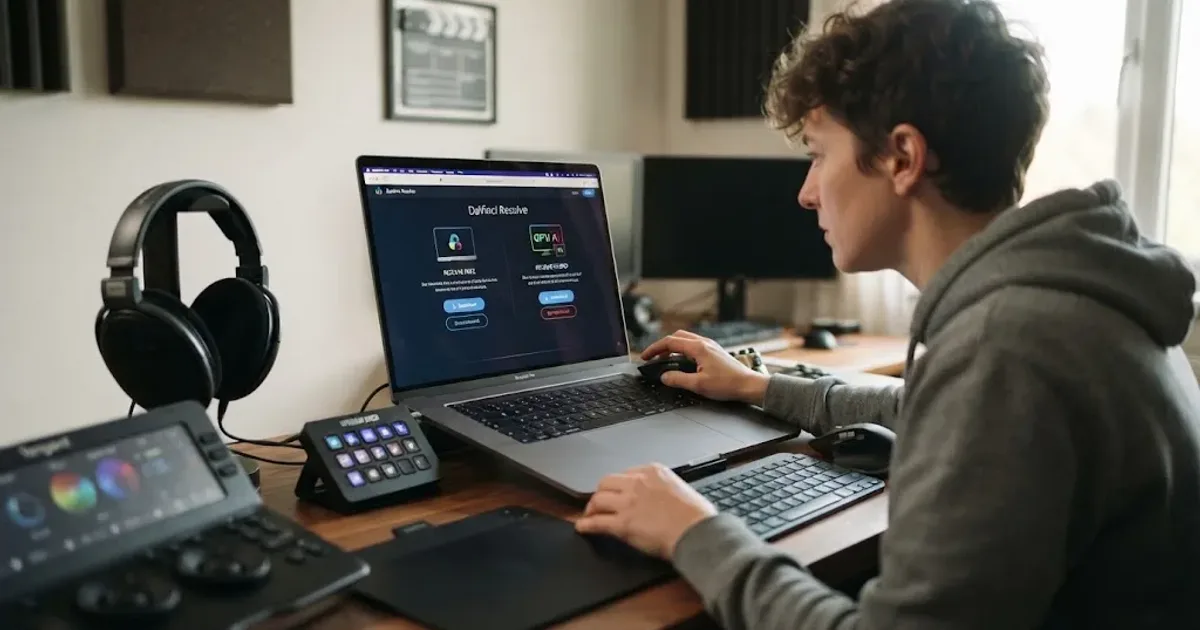
Can Artlist DaVinci Resolve templates work in the free version? Check Resolve 21 compatibility, Studio requirements, .dra installs, and fixes.