Articles / Guidesupdated for DaVinci Resolve 21.1 and current stock-footage licensing guidance (September 2026)
How to Choose Stock Footage for a Product Demo
Quick answer
To choose stock footage for a product demo, map every cutaway to a specific product claim, then filter clips by subject, action, camera direction, negative space, aspect ratio, and commercial rights. Prefer footage that supports the proof without pretending to show the product itself, and test the selects in a rough cut before downloading a full batch.
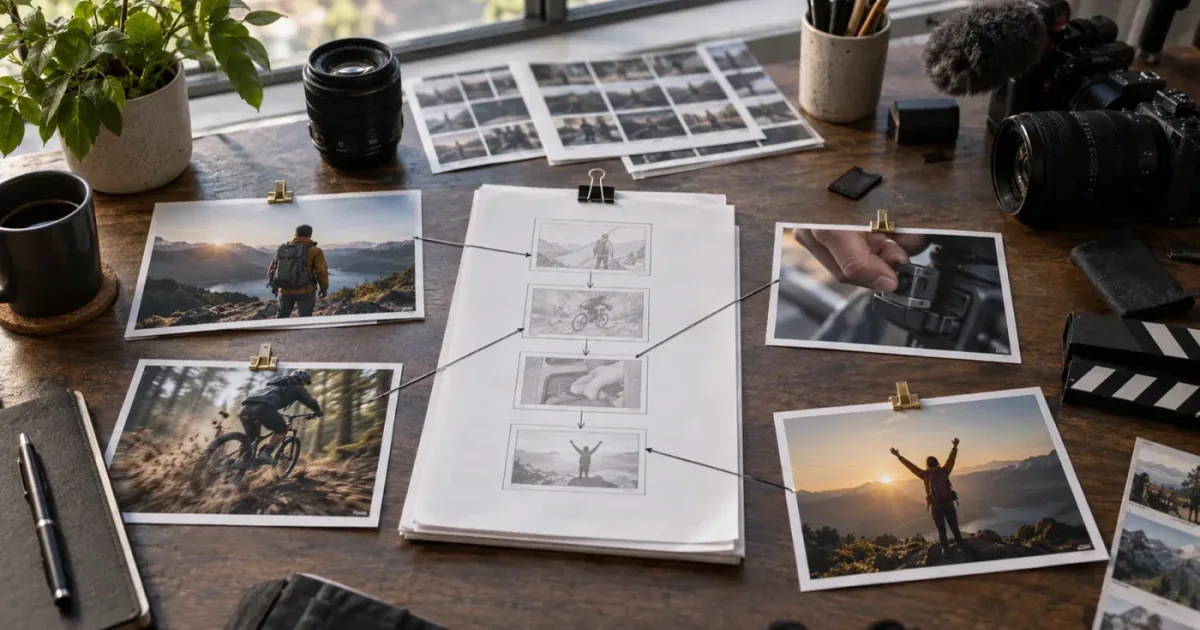
Stock footage can rescue a product demo. It can also make one look dishonest in less than a second.
The difference is rarely the price of the library or the resolution of the clip. It is the job you give the clip. After seven years of professional commercial editing, we treat every cutaway as a sentence in the argument, not as decoration. Our 100,000-plus member editing community asks versions of this question often: what can I show while the product is doing the explaining?
As of September 2026, DaVinci Resolve 21 is Blackmagic Design's current major release, and its Media Pool, metadata, Smart Bins, and timeline tools are enough to build a disciplined stock-footage workflow before you commit to a final edit. The method below starts with the message, moves through selection, and only then gets into libraries and licensing.
How do I choose stock footage for a product demo?
Choose stock footage for a product demo by assigning every candidate a precise editorial job. A useful clip should explain the user's context, show a relevant action, create scale, bridge two scenes, or give the viewer a result to feel, while the product's own footage supplies the proof.
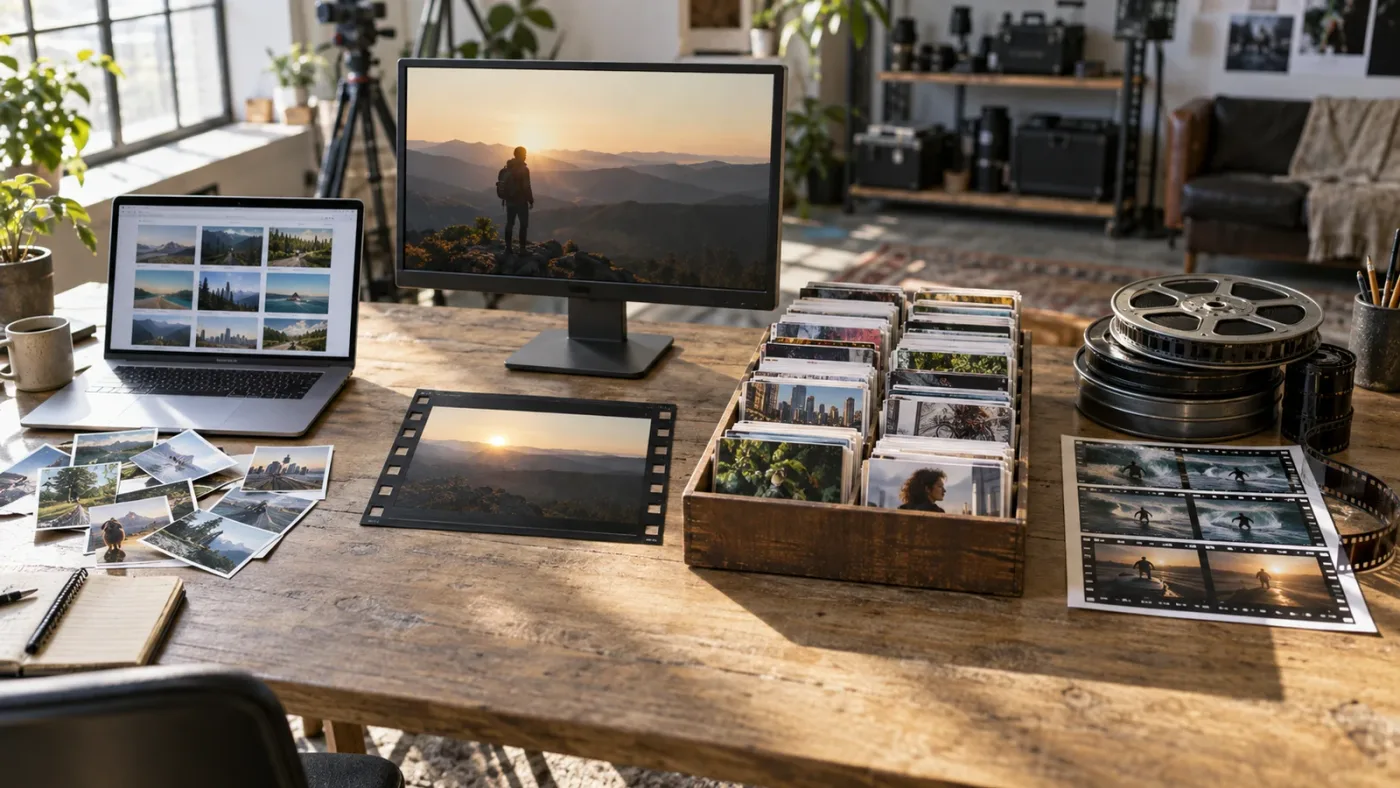
Stock footage is pre-recorded video that you license for use inside a new project, which is also how the B-roll and stock-footage guide from PremiumBeat defines the category. It is not a substitute for product evidence. A stock shot of a person typing can establish a work context. It cannot prove that your software saves a particular number of hours. A stock shot of a runner can communicate energy. It cannot prove that your shoe has a measured performance advantage.
That distinction gives you the first rule:
Stock footage should carry context and emotion while the product footage carries factual proof.
The strongest product demo uses stock footage to set up a question, then returns to the product to answer it.
The practical workflow is simple to state:
- Write the claim or beat that needs visual support.
- Decide whether the beat needs proof, context, motion, scale, or relief.
- Search for the action and situation, not for a vague mood.
- Reject any clip that creates a stronger implication than your evidence supports.
- Test the remaining clips in a rough cut before you download a large set.
If your demo starts with a screen recording of a task-management app, you might need a shot of a crowded desk, a person moving between meetings, a calendar close-up, or a calm end-of-day workspace. Those images do different jobs. The desk creates the problem. The meeting creates pressure. The calendar shows the type of work. The calm workspace suggests the benefit. None of them should pretend to be the app.
That is why the prettiest result in a stock search is often the wrong result. It may be too polished, too generic, or too literal. A model staring into a laptop with perfect light tells the viewer almost nothing. A hand sorting printed notes beside a real project board may support a specific explanation about coordination, even if it is less glamorous.
Start with the narration. If the voice says, "Your team loses requests across email, chat, and spreadsheets," the footage brief is not "modern office." It is "small team trying to reconcile messages and a spreadsheet, visible hand movement, mild pressure, no brand logos, room on the right for a screen-recording insert." That brief can produce a useful search. The vague phrase cannot.
What should stock footage prove in a product demo?
Stock footage should prove only the visual idea it can honestly represent. In a product demo, separate product proof from surrounding proof so the audience knows which images are evidence and which images are illustrative context.
Use this split before you search:
| Demo beat | What the viewer needs to understand | Best visual source | Stock-footage role |
|---|---|---|---|
| Problem | A recognizable situation exists | Interview, captured user story, or designed setup | Establish pressure or context |
| Product reveal | This is the thing being demonstrated | Your own product footage | Carry identity and factual proof |
| Feature explanation | A control produces a visible action | Screen recording or camera footage of the product | Add a short human reaction only if it matches |
| Workflow | Several steps connect into one process | Product footage plus diagrams or real process footage | Bridge stages or show physical context |
| Outcome | The user's situation changes | Measured result, customer-approved footage, or restrained illustrative cutaway | Add feeling or scale without inventing proof |
| Call to action | The viewer knows what to do next | Product brand assets or approved end card | Usually no stock needed |
The table is a guardrail against a common edit error. An editor records a strong screen capture, then places a stock shot of a delighted customer over the line describing a feature. The viewer may read that person as a testimonial. If no testimonial exists, the cutaway overclaims.
You can still use people. Just assign the shot a narrower meaning. A person looking at a dashboard can represent attention. A person sharing a screen can represent collaboration. A hand dragging a card can represent a physical analogy for organization. The shot becomes misleading when the edit presents the actor as a real customer, a verified user, or proof that the product produced a stated outcome.
Ask one question for every candidate: "What would a viewer reasonably believe this image proves?" If the answer is bigger than the script, reject the shot or change its placement.
For instance, imagine a product demo for a home air-quality monitor. The product footage shows the monitor changing readings as a window opens. Stock footage can show a family opening a window, dust moving in a sunbeam, or a city street outside. Those clips can set context. A stock shot of a doctor examining a child could imply a medical claim. It might be beautiful and relevant to the general topic, but it raises the stakes beyond what a monitor demonstration can prove.
This is not a reason to make the demo visually flat. It is a reason to use stock footage with a smaller claim. Strong commercial editing often depends on restraint. When the cutaway stops making promises it cannot keep, the product footage becomes more credible.
How do I translate the product demo script into a footage brief?
Translate the product demo script into a footage brief by turning each spoken beat into observable nouns, verbs, camera choices, and restrictions. A brief should tell you what needs to be in frame, what needs to happen, and what must not appear.
Use this seven-part template for each shot:
- Job: What does this shot do in the argument? Choose one primary job such as problem, context, action, scale, transition, result, or human reaction.
- Subject: Who or what is visible? Name the subject without a mood word. "Designer reviewing a printed layout" is searchable. "Creative energy" is not.
- Action: What changes during the shot? Searching, carrying, sorting, opening, comparing, waiting, presenting, or finishing are useful verbs.
- Framing: Do you need a wide, medium, close, overhead, point-of-view, detail, or moving shot? Frame is an editing decision, not a library afterthought.
- Direction and space: Which way should the subject look or move? Where will a title, product insert, or screen recording sit?
- Tone: Specify the emotional temperature, light, pace, and level of polish. Avoid empty adjectives such as "cinematic" unless you can define what that means for the edit.
- Restrictions: List logos, recognizable locations, uniforms, devices, visible text, age, wardrobe, client policy, commercial use, and required aspect ratios.
Here is a worked example for a project-management product:
| Script line | Job | Searchable brief | Reject when |
|---|---|---|---|
| "Requests arrive everywhere." | Problem | Overhead view of a small team sorting printed notes and laptop messages, natural office, no logos, moderate movement | The shot looks staged as a tech advertisement or shows a recognizable brand |
| "Bring them into one place." | Bridge | Hand gathers loose notes into a single tray, clean side light, movement left to right, empty area above | The action is too fast to read or the hand exits in the wrong direction |
| "Assign the owner in seconds." | Analogy | Close-up of a person placing a labeled card beside a colleague's notebook, no readable private data | The clip implies a real employee or shows names that create legal or privacy issues |
| "See what is next." | Context | Medium shot of a person reviewing a wall calendar with room on the left for a screen insert | The calendar dates contradict the season or the shot makes a health or financial claim |
| "Now the team can finish the work." | Outcome | Quiet end-of-day workspace with a person closing a notebook, restrained relief, no celebratory customer cue | The actor appears to endorse the product or the edit claims a measurable result |
The restrictions are not bureaucracy. They reduce wasted searches. If the demo will be delivered in 9:16 and a screen recording will occupy the center, a horizontal clip with a subject pinned to the middle may be unusable. If the client sells financial services, a generic office scene with visible account information may be inappropriate even when the stock library labels the clip commercial.
Write the brief before opening a library. Otherwise the library becomes the author. Search results start making decisions for you, and the finished demo turns into a sequence of attractive interruptions.
How do I search for stock footage that feels credible?
Search for stock footage that feels credible by combining a subject, an action, a setting, a shot type, and one useful restriction. Search engines and library filters work better when you describe what happens in the frame rather than naming the emotion you want the audience to have.
Try these query shapes:
[subject] + [action] + [setting][action] + [object] + [shot type][industry context] + [specific behavior] + [natural light][person or object] + [movement direction] + [negative space][process] + [close-up or overhead] + [no logos]
For the project-management example, test "small team sorting task cards overhead," "designer comparing printed notes close-up," "colleague reviewing calendar side view," and "person closing notebook at desk." Search "productive office" only as a secondary pass.
Use synonyms deliberately. A library may label the same idea as task board, kanban board, workflow board, cards, sticky notes, or project planning. Search the action again with a different noun. A candidate that looks like a perfect match may be tagged for "business meeting" even though you need "team handoff." The tags are clues, not a complete description.
Search in layers:
- Search the literal action.
- Add the environment.
- Add the camera or framing.
- Add a restriction such as no logo, copy space, or diverse team.
- Remove one term if the results are too narrow.
- Save several near-matches for comparison instead of downloading the first attractive result.
Use a small search log. Record the query, library, clip identifier, apparent job, and first reason for rejection. This stops you from looping through the same results and gives a producer a clear explanation when a candidate disappears from the cut.
Credibility also comes from visual specificity. A shot of somebody smiling at a laptop has a broad meaning. A shot of a person checking a delivery label, folding a prototype, or aligning samples has a narrow meaning. Narrow meaning is easier to connect to a product explanation without pretending that the footage depicts your exact customer.
The best search phrase often comes from the noun immediately before the verb in the script. "Compare invoices" becomes "person comparing invoices at desk." "Track a package" becomes "hand scanning parcel label close-up." "Prepare a lesson" becomes "teacher arranging worksheets in classroom." You are not searching for a commercial. You are searching for a physical image of the idea.
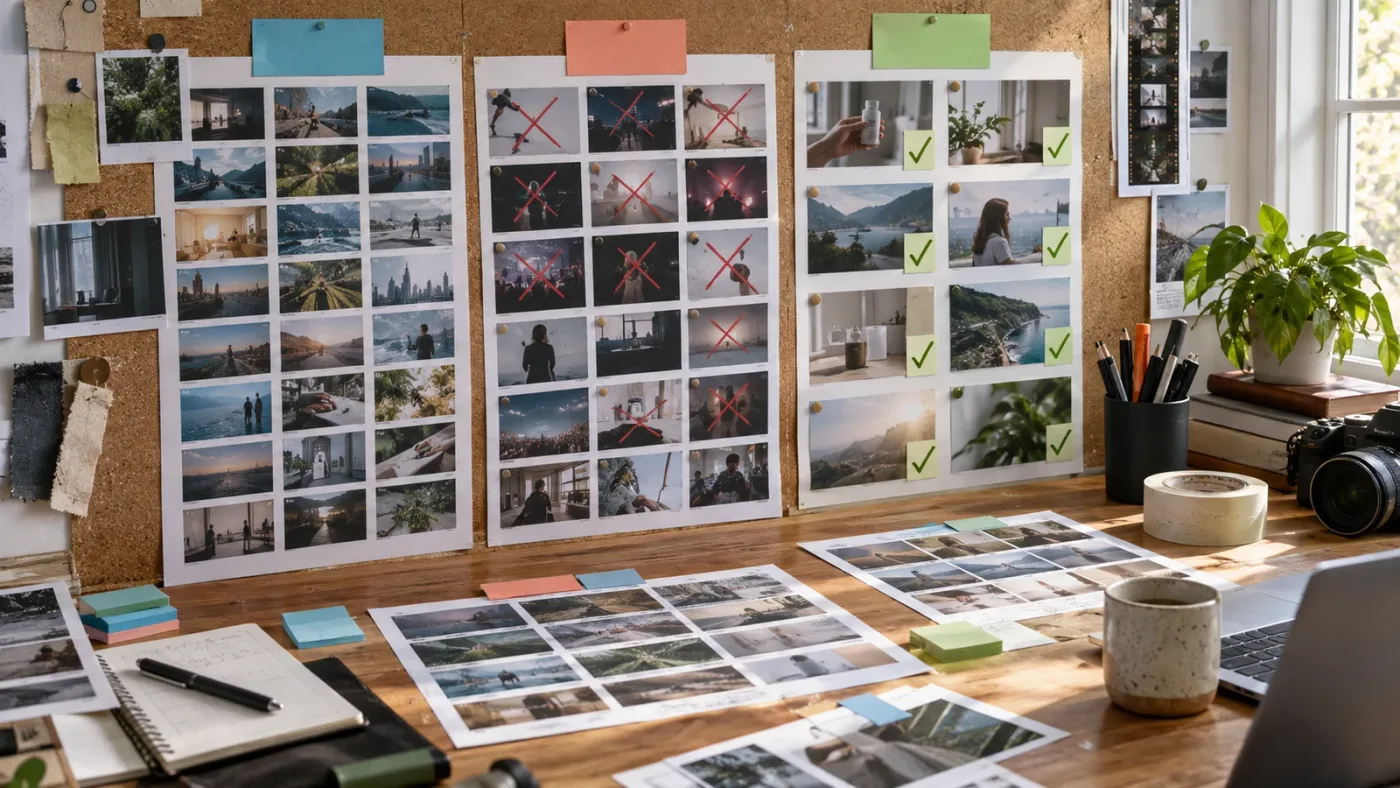
Why is stock footage making my product demo feel fake?
Stock footage makes a product demo feel fake when the clip's social cues, lighting, movement, or implied claim contradict the product footage. The problem is usually a mismatch in meaning or continuity, not a shortage of expensive-looking shots.
Run these mismatch tests:
The social test
Does the actor behave like a person in the situation, or like a person performing the idea of the situation? Someone searching a drawer for a cable may feel specific. Someone laughing at an empty laptop screen may feel like an advertisement for "happiness."
The technology test
Does the device, interface, operating system, or hardware resemble what your product uses? A clip of a hand tapping a tablet can work as a general action. It becomes distracting if your narration describes a desktop workflow and the cutaway shows a phone with a visibly different interaction.
The time test
Do wardrobe, lighting, weather, season, and production design belong to the same world as the demo? A summer outdoor stock clip inserted into a winter campaign can be intentional, but the choice needs a reason. Accidental time mismatch reads as assembled footage.
The brand test
Could a viewer mistake the logo, device, uniform, or environment for your product, partner, or customer? Remove visible brands when the association is not approved. Do not blur a prominent logo and assume the meaning has disappeared. A recognizable shape, interface, or uniform can still carry an association.
The performance test
Does the shot move at the same editorial speed as the product proof? A dramatic gimbal move can overwhelm a simple interface demonstration. A static close-up can slow down a fast operational story. Speed should support the explanation.
The consequence test
If you remove the voice-over, what does the sequence imply? If a viewer sees a worried person, a medical building, and your wellness product, the montage may imply clinical efficacy even if the narration says only that the product helps people track a habit.
When a clip feels fake, try changing its job before changing the library. The shot may work as a two-second transition, an opening texture, or a background under a title. It may fail as evidence but succeed as atmosphere. You do not need to force every good-looking asset into the most important sentence.
A believable cutaway creates a connection without pretending to be proof.
The same rule applies to stock footage of people using a computer. Avoid cutting from a real product screen to a stock screen in a way that suggests the actor is using your software. Use a crop, a short insert, a rack focus, or a reaction shot that makes the separation clear. Better still, use your own screen recording whenever the action itself matters.
Audio can expose the fakery. A silent stock clip under a voice-over may work. A clip with a distinct keyboard, office, or machine sound may clash with the project's sound bed. If you keep the production audio, decide whether it belongs in the scene. If you remove it, build a consistent sound layer rather than allowing unrelated room tone to appear for half a second.
Do not hide a weak match with speed ramps, aggressive zooms, or a wall of text. Effects can change attention, but they do not repair a false implication. Fix the editorial job.
The best stock clip is the one that leaves the product claim clearer than it found it.
How do I judge a stock clip before I download it?
Judge a stock clip before downloading it with a scorecard that covers story, editability, technical fit, and rights. A clip should earn its place through several small checks, not through a thumbnail and a vague feeling.
Use this matrix while previewing candidates:
| Check | Question | Strong signal | Automatic concern |
|---|---|---|---|
| Editorial job | Can I name the sentence this supports? | One clear job | "It looks cool" is the only reason |
| Subject | Is the subject specific enough? | Observable person, object, or place | Generic lifestyle pose |
| Action | Can the viewer read the action? | Start, change, or finish is visible | The action happens before you can understand it |
| Duration | Is there a usable handle before or after the action? | The moment can breathe around a cut | The clip begins and ends on the same gesture |
| Direction | Does movement or gaze fit neighboring shots? | Screen space and eyeline support the edit | Subject exits toward the next shot's wrong side |
| Composition | Is there room for the product proof or text? | Deliberate negative space | Subject is trapped under the UI or title |
| Continuity | Can it share a world with your footage? | Similar light, lens feeling, and pace | Stock style announces itself immediately |
| Detail | Are hands, faces, and objects usable? | Focus supports the actual action | Unintentional blur, awkward fingers, or unreadable movement |
| Brand safety | Are logos and private information controlled? | Clean or approved environment | Visible brand, account data, or distinctive property |
| Format | Can it survive the intended crop and delivery? | Native framing gives options | Important action sits at an edge you must crop away |
| License | Does the usage cover the finished demo? | Commercial or client-appropriate terms are clear | Editorial-only label or uncertain rights |
| Evidence | Can I retain the record? | Clip ID, receipt, license page, and date saved | You expect to find it again later |
The scorecard is deliberately unromantic. Product demos create pressure to move quickly, and the costliest mistake is often downloading a large bundle before discovering that half the footage cannot be used in the intended campaign.
Preview at the final display size when possible. A face that looks natural in a large library player may become a small, vague shape in a vertical social cut. A logo that seems invisible in a thumbnail may become obvious after you scale or sharpen the clip. Inspect the first frame, the middle of the action, and the outgoing frame.
Check the shot at normal speed and at the speed you expect to use. Slow motion can reveal camera shake, odd body mechanics, or motion blur. Fast playback can hide the exact problems that make an insert feel disconnected. If you are not certain about the source frame rate, preserve the downloaded file and its metadata. Do not make a final speed decision from a preview player alone.
Check the edges. Product demos frequently use a screen recording, title, or graphic beside the stock image. A hand, head, or important object that sits too close to the frame edge gives you no room to reframe. The clip may still work full-frame, but the choice should be deliberate.
Finally, name the reason you are keeping it. "Clip 04, problem context, left-to-right handoff, clear top space" is useful. "Good office clip" is not. A clean note makes the edit transferable when somebody else opens the project.
How do I choose stock footage for a product demo in DaVinci Resolve 21?
Choose stock footage for a product demo in DaVinci Resolve 21 by organizing candidates in the Media Pool before editing them into the timeline. Use bins for broad jobs and metadata or Smart Bins for repeatable filters such as aspect ratio, usage status, motion direction, and approval state.
Blackmagic's official Resolve 21 New Features Guide describes Smart Bins as procedurally populated bins that use metadata rules to filter the Media Pool, and the same guide adds support for custom metadata fields in Smart Bins, clip filters, data burn-ins, and naming tags. That makes a simple selection database possible inside the project.
Create a folder structure that reflects the story, not the vendor:
01_PRODUCT_PROOF02_PROBLEM_CONTEXT03_USER_ACTION04_SCALE_AND_ENVIRONMENT05_OUTCOME06_REJECTED07_LICENSE_RECORDS
Do not make one bin for every search phrase. Search phrases change. Editorial jobs usually survive the project.
After importing the candidates, add metadata that answers questions you will ask later:
| Metadata field | Example values | Why it helps |
|---|---|---|
| Editorial job | problem, action, bridge, scale, result | Finds clips by story purpose |
| Approval | candidate, selected, client review, rejected | Separates possibilities from cleared choices |
| Direction | left-to-right, right-to-left, static, toward camera | Helps continuity searches |
| Framing | wide, medium, close, overhead, POV | Makes shot-size gaps visible |
| Space | left, right, top, none | Finds clips that leave room for product proof |
| Rights | commercial, editorial, verify, cleared | Keeps license uncertainty visible |
| Format | horizontal, vertical, square, crop-safe | Supports alternate deliveries |
| Product relation | context only, analogy, approved product | Prevents stock from impersonating proof |
In Resolve 21, the point is not to create a perfect asset-management system. The point is to make your future self answer fewer questions. When the producer asks for a vertical version, a clip marked crop-safe is more useful than a folder called maybe good.
The Media page is a good place to review metadata and organize source material. The Cut or Edit page is where you learn whether a candidate actually works in the argument. Keep a short selects timeline rather than auditioning every clip inside the final sequence. Create one track for product proof, one for stock context, and one for temporary titles or notes if that helps you see the structure.
If playback struggles, use proxies or optimized media for the edit while preserving the original camera files. The official Resolve 21 material documents background proxy generation as an available background task. The selection question remains the same after the proxy is swapped for the original: does the shot support the claim?
The free and Studio editions matter less for stock selection than for the features you may use later. Blackmagic lists DaVinci Resolve 21 as available for Mac, Windows, and Linux, and lists DaVinci Resolve Studio 21 as a separate paid edition on its current product page. Do not choose a stock clip on the assumption that a Studio-only finishing tool will rescue a poor composition. Select footage that works in the version you actually use, then treat optional effects as finishing choices.
For a deeper import workflow, see our guide to how to use stock footage in DaVinci Resolve. If your project has a large number of clips, apply the same story-first naming system to your bins so the selection remains useful when another editor opens the project.
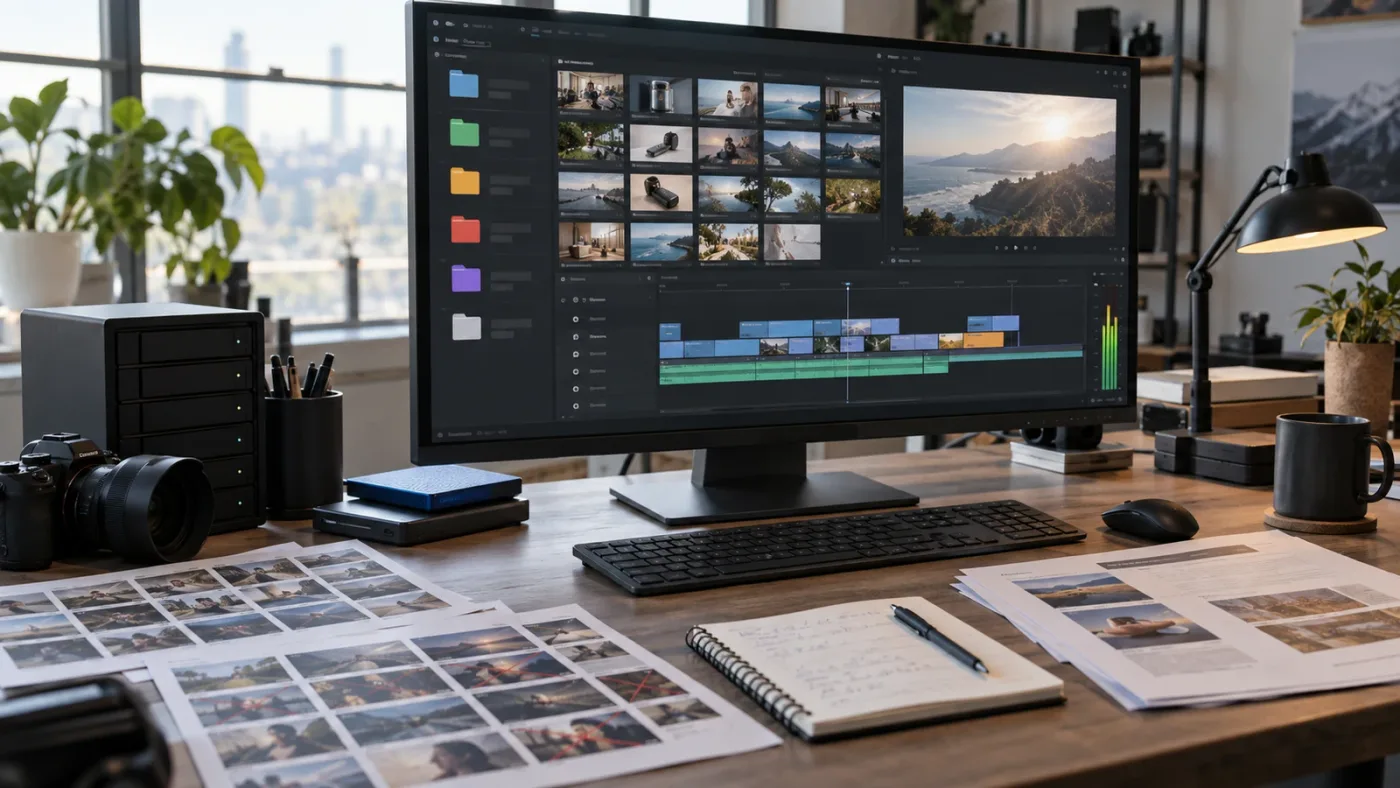
How do I match stock footage to the product's motion and screen recording?
Match stock footage to a product's motion and screen recording by comparing direction, eyeline, pace, and the point where attention lands. The stock clip does not need to look identical to the product footage, but the transition should feel motivated.
Use a simple continuity map:
| Product footage behavior | Stock footage that can bridge it | Check before keeping |
|---|---|---|
| Cursor travels left to right | Person or object moves left to right | The cut should not reverse the expected flow without a reason |
| User looks toward an interface | Subject looks into the space where the interface will appear | The eyeline should not point away from the proof |
| Screen recording accelerates | Physical action with a similar sense of progress | The stock motion should not become a distracting music-video beat |
| Product pauses on a result | Detail shot that gives the result time to register | Avoid adding a second, contradictory result |
| Interface cuts between steps | Hands or objects completing discrete steps | Keep the number of visual changes readable |
Direction is not a rigid law. A reversal can signal a problem, disagreement, or change. It becomes a problem when it happens by accident and the viewer has no narrative reason to reinterpret the space.
Eyeline works the same way. If your product UI appears on the right of a person, look for a subject facing or moving into that area. You can flip footage in DaVinci Resolve when needed, but flipping a recognizable product, sign, uniform, or written text creates a new set of problems. Solve the composition at selection time whenever possible.
Pace comes from more than frames per second. A subject can move slowly in a high-frame-rate clip, and a handheld camera can make a calm action feel urgent. Watch the gesture itself. When does the hand begin? When does the viewer understand the action? When does the shot stop being useful?
The cleanest transition often occurs on a shared action. A stock hand closes a notebook, then your product screen opens a project. A person turns toward a workstation, then the edit cuts to the interface. A parcel moves into a box, then the product footage shows the order being marked complete. The physical action gives the cut a reason to exist.
Do not manufacture continuity by repeating an action the product does not perform. If the product is a digital service, a stock shot of a physical button press can be an analogy, but it should remain an analogy. Let the actual interface do the explaining.
What color and frame-rate decisions keep stock footage believable?
Color and frame-rate decisions keep stock footage believable when they preserve the source's intent and make the full sequence share a visual world. Choose the project frame rate first, inspect each clip's native properties, and grade for consistency instead of forcing every clip into the same look.
YouTube's current upload guidance says content should be encoded and uploaded at the same frame rate in which it was recorded, and lists common rates including 24, 25, 30, 48, 50, and 60 frames per second. That guidance is for delivery, but it is also a useful warning during selection: a stock clip's frame-rate behavior affects motion, retiming, and the way it sits beside a product recording.
For a normal product demo, make the sequence's delivery requirement explicit before you search. If the master will be 30 fps, a 30 fps clip may require less interpretation than a 24 fps clip, but that does not automatically make it better. A 60 fps clip may give you room for a controlled slow-down, but only if the action and license support that choice. A frame rate alone does not create premium motion.
Color matching starts with exposure, white balance, contrast, and saturation. Do not reach for a heavy look first. A stock clip with warm window light can become strange beside a neutral screen recording if you push the whole edit toward a cinematic orange grade. The product proof usually benefits from clarity. The cutaway should support it, not announce a separate visual campaign.
Inspect highlights and skin tones. Overexposed windows, colored office lights, and highly stylized skin tones can become obvious when the clip appears for a single second. If the candidate has an unusual color cast that is part of its meaning, keep it deliberately. If it is an accident, reject it rather than asking a grade to perform a rescue.
Resolve 21 gives you the normal page-based workflow for editing, color, effects, audio, and delivery. Blackmagic presents Resolve 21 as available for Mac, Windows, and Linux, with a free edition and a separate Studio edition. You can use that structure to separate the work: rough selection on the Edit page, basic consistency on the Color page, and delivery checks on the Deliver page. The pages do not remove editorial judgment.
Keep source and output metadata visible in your notes. Record the source frame rate, resolution, color space if supplied, and any conversion applied. Do not assume that a library preview, a downloaded proxy, and the final master represent the same technical file.
If a candidate clip contains a slow-motion action, decide whether the demo needs the original speed, a retimed version, or only a single frame. A slow hand movement under a fast voice-over may make the product feel slow. A fast action cut to an interface may make the feature seem frantic. Motion is part of the claim.
How do I cut stock footage around the proof instead of hiding it?
Cut stock footage around the proof by letting the product footage arrive at the moment the viewer needs a concrete answer. Use the cutaway to create a question, add human context, or release attention, then return to the product before the audience has to guess what is happening.
A useful product-demo pattern is:
- State the problem in plain language.
- Show a short, specific cutaway that makes the problem recognizable.
- Introduce the product in its own visual language.
- Demonstrate one action and one response.
- Cut to a contextual image only if it adds scale, emotion, or a bridge.
- Return to the product for the next proof point.
This pattern prevents the stock library from taking over the edit. You can vary the order, but the product should not vanish for so long that the viewer forgets what is being demonstrated.
Use cutaways to hide a jump cut only when the image adds meaning. Our sibling guide to how to use cutaway footage to hide jump cuts covers that editing problem directly. A stock insert is not automatically valuable because it covers an edit. If the cutaway changes the subject, time, or implication, the audience may notice the cover-up more than the cut.
Build a rough cut with placeholders first. A colored card that says PROBLEM CONTEXT can tell you more than an hour of browsing. Once the rhythm works, search for an image that fulfills the placeholder. This keeps the edit in charge.
Listen to the sequence. A product demo can become difficult to understand when the narrator, product audio, stock production sound, music, and sound effects all compete for the same attention. Lower or remove production sound from a clip when it does not belong. Keep a useful sound such as a door, paper movement, machine start, or room tone when it makes the transition feel grounded.
Walter Murch's advice is blunt: "You are being paid to make decisions." His published editing text makes the point relevant here: choose for meaning, not attractiveness.
Do not make the stock shot louder than the product proof. A dramatic transition, a large camera move, or a fast montage can make the demo feel energetic while making the feature impossible to follow. Energy is useful only when the viewer can still explain what happened.
What legal checks should I make before using stock footage in a product demo?
Before using stock footage in a product demo, confirm that the clip is cleared for the actual commercial context, that people and property are appropriately released, and that the edit does not imply endorsement or make a misleading association. The license is part of the creative decision, not a task to postpone until export.
Start with the usage label. Commercial and editorial are not interchangeable. Shutterstock's current guidance describes editorial use as content for newsworthy or human-interest contexts and says Editorial Use Only content is not cleared for commercial use. That matters immediately when a product demo is an advertisement, sales asset, landing-page video, paid social campaign, or branded case study.
Adobe's published license terms also distinguish standard, extended, enhanced, and editorial restrictions. Its current terms describe a standard license limit of 500,000 copies or views for certain uses, while editorial-only assets have separate restrictions. Do not generalize that number to every license, asset type, platform, or vendor. Read the terms attached to the exact clip.
Then check people. Adobe's current model-release overview explains that a recognizable person needs permission for commercial licensing, including recognition based on a face, voice, tattoo, clothing, or distinctive surroundings. A person's face is not the only identifying feature. If the shot is meant to represent an anonymous customer, the safest choice is still a clip whose release and commercial status are clear.
A stock-footage license belongs in the edit decision as early as framing and color.
Check property and intellectual property as well. Visible logos, branded devices, artwork, distinctive buildings, tattoos, private interiors, and product packaging may introduce rights questions. A library's commercial label does not give you permission to present somebody else's brand as your partner or to imply that its product is part of your demo.
Use this rights checklist for every selected clip:
- Is the asset marked commercial, royalty-free, editorial, or something else?
- Does the license cover advertisements, product pages, social media, internal sales, and client distribution as needed?
- Are recognizable people covered by model releases?
- Are recognizable private locations, artwork, and branded objects covered by property or other permissions?
- Does the clip contain a logo, trademark, interface, uniform, vehicle, or packaging that could change the implication?
- Does the vendor require attribution or a particular credit line?
- Can the license be transferred to the client, or does the license remain tied to the downloader?
- Are there limits on broadcast, paid media, resale, templates, or stand-alone redistribution?
- Does a subscription need to remain active for new publications or new projects?
- Have you saved the clip ID, receipt, license page, and download date?
Do not treat "royalty-free" as "anything goes." It generally describes a licensing model, not an absence of conditions. The exact terms control.
For client work, discuss the license before the client approves the rough cut. A client may need the project for paid advertising, multiple regions, or a campaign that continues after your subscription ends. If you cannot answer who may publish, where, and for how long, the clip is not ready for final delivery.
For a fuller rights workflow, read our guide to how to license stock footage for client videos. Keep the license record with the project archive rather than in a personal inbox. A finished demo can outlive the editor who downloaded the file.
Which free stock footage source should I choose for a product demo?
Choose a free stock footage source when the clip's license, context, and limitations fit the project, not simply because the download price is zero. Free footage can be useful for internal prototypes, small commercial projects, and early rough cuts, but the creator still has to inspect rights and implication.
Pexels says its photos and videos can be used for free and that attribution is not required under its license. Its current commercial-project guidance also warns that depicted trademarks, logos, brands, and people may still carry third-party rights, and that you should not imply endorsement. That makes Pexels a practical source for context, but not a substitute for a rights review.
Pixabay's license summary likewise allows free use, no required attribution, and modification, while prohibiting stand-alone redistribution and warning that recognizable trademarks, logos, or brands can block commercial use in relation to goods and services. The summary also places responsibility on the user to check additional intellectual-property, privacy, property, and similar rights.
The useful distinction is this:
| Free-source strength | Free-source risk | Good product-demo use |
|---|---|---|
| Low barrier for rough-cut exploration | Clip may have weak metadata or uncertain context | Placeholder searches and internal concept edits |
| Commercial use may be permitted by the site license | Third-party rights can still apply | Generic hands, environments, objects, and wide scenes without brands |
| No subscription may be needed | A client may require a stronger paper trail | Small projects where the client has approved the risk and scope |
| Easy to modify | You can still create a misleading association | A short contextual bridge that clearly does not represent the product |
If you use a free source, save the page and the license summary on the date you download. Sites update terms. The exact clip can also have restrictions that the general license page does not spell out.
Do not use free footage to fake a customer story. A smiling person at a laptop is not a testimonial because it came from a free library. If the demo needs a testimonial, use a real approved customer recording or state the idea through narration and your own product evidence.
Free footage can be the right answer when the story needs only a simple visual bridge. It is less attractive when the project requires reliable coverage across many regions, recurring client campaigns, clear releases, or a large number of related shots that match in production style.
Which paid stock footage source should I choose for a product demo?
Choose a paid stock footage source when the project needs reliable discovery, a broader set of matching clips, stronger licensing documentation, or a recurring asset workflow. Compare the license and catalog fit before comparing visual polish.
There is no universal best library. The right choice depends on the job:
| Need | Start with | Why | Where to be careful |
|---|---|---|---|
| Occasional context shot | A free source or a single-asset marketplace | Avoids paying for a recurring catalog you will not use | Confirm the exact commercial rights and save the record |
| Broad production assets around footage | Artlist or a similar multi-asset subscription | Useful when the same project also needs music, sound effects, templates, or related assets | License tier, client coverage, and post-cancellation rules vary |
| Editorially controlled commercial footage | A marketplace with clear commercial and editorial filters | Easier to reject editorial-only material before the edit | Releases, trademarks, and platform-specific limits still require review |
| Large recurring footage demand | A footage-led subscription or team plan | More efficient when several projects need stock throughout the year | The cheapest plan may not cover clients, ads, or all channels |
| One exact hero clip | A one-off licensed purchase | Keeps the commitment tied to a defined deliverable | A one-off license may not include every intended use |
Disclosure: We may earn a commission if you choose Artlist through this link. The relationship does not change the selection framework or the licensing checks. Artlist is a reasonable option when you want stock footage inside a broader production-asset subscription rather than a footage-only search. The current Artlist resource describes footage as a stock-video category and documents a product that also includes other creative assets. It is a fit to investigate when your product demo needs a repeatable mix of footage and finishing materials.
Before downloading from any subscription library, open the current terms attached to the account you would use and confirm whether your plan covers client publication, paid media, the intended channels, and future projects. Treat those as buying questions, not footnotes.
Artlist wins when you regularly need several asset types and want one account to cover the search. A footage-only marketplace may win when you need one highly specific shot and do not want an ongoing subscription. A free source may win for a rough cut or a low-risk contextual insert. The honest answer is often to use different sources for different jobs.
Do not choose a provider because it promises to make the demo look professional. Libraries provide possibilities. The professional result comes from the claim map, the edit, and the rights record.
How many stock clips should a product demo use?
Use as many stock clips as the argument needs, and no more. A product demo does not need a fixed ratio of stock footage to screen recording because the correct balance depends on how much product behavior the viewer must understand.
You can make a useful first pass with one placeholder per story beat, then remove any clip that repeats the same job. If three shots all show "busy office," choose the one with the clearest action and use the saved time for a product proof or a cleaner transition.
Watch for four kinds of repetition:
- Three different people looking at screens.
- Three office wides with no change in meaning.
- Several hands moving objects only because the edit needs coverage.
- Multiple result shots that all imply success without evidence.
Repetition is not always bad. A product demo can use a recurring visual motif, such as a handoff, a line of movement, or a repeated workspace. The difference is intention. Repetition should create structure, not hide the fact that the editor ran out of ideas.
Let the product proof have room to work. If a feature needs four seconds of readable interaction, do not cut away at two seconds because a stock clip is waiting. If the interface is simple, a short contextual image can give the viewer a breath before the next step. Timing is part of credibility.
The right number also changes by deliverable. A sixty-second paid social cut may need rapid context and very little explanation. A three-minute sales demo may need longer screen proof, a customer-approved example, and fewer decorative cutaways. Do not apply a short-form montage rhythm to a tutorial-like product walkthrough.
What if the stock clip has the wrong aspect ratio, frame rate, or resolution?
If a stock clip has the wrong aspect ratio, frame rate, or resolution, decide whether the crop or conversion protects the action before you keep it. A technically usable file can still be an editorial failure when the important subject is cut away or the motion becomes distracting.
YouTube's current resolution guidance says the standard computer aspect ratio is 16:9 and lists 1920 by 1080 as the 1080p 16:9 resolution. It also says its player adapts to other aspect ratios and advises against adding black bars directly to the video. TikTok for Business guidance uses full-screen 9:16 as a central creative check for vertical content. Those platform facts should shape your search brief before the edit.
Use the destination matrix:
| Destination | Working frame to request or prioritize | Selection question |
|---|---|---|
| YouTube long-form | 16:9, with 1920 by 1080 as a common 1080p target | Does the shot still work when the product proof fills a conventional wide frame? |
| Vertical social | 9:16 full-screen composition | Is the subject large enough and away from crop-sensitive edges? |
| Square or feed variant | A crop-safe source with central action and clean background | Can the product insert and title survive a tighter frame? |
| Multiple versions | High-quality source with intentional negative space | Can you create versions without cutting away the meaning? |
These are delivery targets, not reasons to download every clip at the highest available setting. The source should have enough detail for the intended finish, but source resolution cannot repair a poor shot, a visible license problem, or the wrong action.
When converting a horizontal clip to vertical, protect faces, hands, devices, and the direction of movement. A subject who moves across a wide frame may become a subject who barely moves in a narrow crop. A shot with negative space on one side may become unusable if the crop has to follow the person.
When mixing frame rates, test the actual movement. Resolve can interpret and retime clips, but the best setting depends on the source and the desired result. Avoid making a clip slow only because it was captured at a high frame rate. Avoid making a clip fast only because the demo needs energy.
When mixing resolutions, watch detail and sharpening. A softer stock clip beside a crisp screen recording can work if the soft image is intentionally contextual. An accidental mismatch can make the product look unnaturally sharp or the stock footage look low quality. Grade and scale with restraint.
Never assume that a letterbox or pillarbox in a library preview belongs in your deliverable. Inspect the actual file. YouTube's guidance says to upload videos in their native aspect ratios and not add letterboxing or pillarboxing bars directly. Let the destination player handle its own framing where appropriate.
How do I review the finished demo for misleading context?
Review the finished demo for misleading context by watching it three ways: with the script, without the script, and with the product proof hidden. Each pass exposes a different kind of error.
The script pass
Read the narration or on-screen copy and ask whether every stock shot supports the exact words. If the line says "teams can see every request," a shot of one person organizing paper may be a metaphor, not proof. Make that relationship clear through timing and graphic treatment.
The silent pass
Mute the voice-over and watch the sequence. What does the picture alone promise? Does a stock actor look like a customer? Does a medical, financial, safety, or performance implication appear? Does the product seem to be doing what the stock footage depicts?
The proof pass
Temporarily hide the stock track. Is the product still understandable? If the demo collapses, the stock footage may be doing too much work. Context can strengthen proof, but it should not replace it.
Then check the sequence for these failures:
- The stock clip appears immediately after a claim and looks like evidence.
- A logo or device resembles the product without approval.
- The actor's expression functions like an invented testimonial.
- A cutaway shows a result that the product has not demonstrated.
- The crop hides the actual action and leaves only a mood.
- The color or frame rate makes the stock shot feel like a different production.
- A stock sound suggests an action that is not occurring.
- The clip's license does not match the destination or client use.
Show the rough cut to somebody who did not search for the footage. Do not ask, "Does this look good?" Ask, "What do you think this shot means?" Their answer can reveal an implication you no longer see because you know the intention.
This is also the point to remove footage. Editing is a sequence of decisions, and a good selection process must include the decision not to use a clip. A candidate can be perfectly attractive, correctly licensed, and still wrong for this sentence.
How do I make a final stock-footage shortlist for a product demo?
Make a final shortlist by keeping two or three viable candidates for each important cutaway, then choosing the one that makes the product proof clearest. The shortlist should be small enough to compare and documented enough for another person to audit.
Use a final record like this:
| Field | Example |
|---|---|
| Clip ID | Vendor identifier and downloaded filename |
| Editorial job | Problem context |
| Planned duration | Two seconds under narration line 04 |
| Entry and exit | Person looks toward the right, notebook closes on exit |
| Crop | Landscape master, vertical-safe subject |
| Audio | Production sound removed, room tone rebuilt |
| Color note | Lower saturation to sit beside neutral screen capture |
| Rights | Commercial use confirmed, license record saved |
| Client note | Context only, not a testimonial or product claim |
| Backup | Second candidate with similar direction and framing |
Give the final sequence a file-level inspection. Confirm the downloaded media opens, the filename matches the project record, the source is stored in the intended folder, and the license evidence is accessible to the person who will publish the demo. Resolve's Media Pool can show file properties and organization fields, but the project cannot answer a licensing question that was never recorded.
For a team, name the decision in the edit notes. "Use clip 18 for human context only" is better than "approved stock." The shorter note protects the next editor from changing the clip's meaning accidentally.
What is the best next step after choosing stock footage for a product demo?
The best next step after choosing stock footage for a product demo is to cut a rough proof sequence before buying or downloading more assets. Use placeholders for missing shots, place the real product footage at the center of the argument, and test every selected clip for meaning, continuity, format, and rights.
If the product proof is clear without stock, add only the cutaways that improve context or pacing. If the proof is unclear, rewrite the demo or capture better product footage. A stock library cannot solve a message that does not yet know what it wants to show.
The final decision is not "which library has the best clips?" It is "which clip helps this viewer understand this product without making a claim we cannot support?" Answer that question for every shot and the search gets faster, the Resolve project stays organized, and the finished demo earns more trust.
Start with the claim map. Then choose the footage.
Frequently asked questions
- How do I choose stock footage for a product demo?
- Choose each clip for a defined job in the script, not because it looks attractive in isolation. Check that the action, direction, framing, color, aspect ratio, and license support the product claim, then test the clip in context beside the real product footage.
- What kind of stock footage works best for a product demo?
- The best stock footage shows a believable context, human problem, physical action, scale, or result that the product demo can honestly connect to. Clips with simple backgrounds, useful negative space, and room for the product proof are usually easier to cut than generic glamour shots.
- Can I use free stock footage in a commercial product demo?
- You can use some free stock footage commercially, but the site license is only one part of the check. Pexels permits commercial use under its license, while Pexels and Pixabay both warn against implying endorsement or ignoring trademarks, logos, privacy rights, and other third-party rights.
- Should product-demo stock footage show the product itself?
- Usually no. Unless the clip depicts the exact product with permission, use stock footage to show the surrounding problem, user, environment, motion, or outcome, then let your own product footage carry the factual proof.
- What should I check before downloading stock footage for a client video?
- Check the commercial or editorial label, model and property release information, visible brands, license scope, client coverage, distribution channels, download record, and any restrictions on post-cancellation use. Save the license evidence with the project.
Sources
- DaVinci Resolve 21 product page
- DaVinci Resolve 21 New Features Guide
- Blackmagic Design support center
- YouTube recommended upload encoding settings
- YouTube video resolution and aspect ratios
- TikTok for Business creative checklist
- Adobe Stock license terms
- Adobe Stock model release overview
- Shutterstock editorial content guidance
- Shutterstock commercial and editorial content guide
- Pexels license
- Pexels commercial-project guidance
- Pixabay content license summary
- Artlist footage and templates resource
- B-roll definition and editing use
- Walter Murch, In the Blink of an Eye excerpt
Keep reading
Guides · Sep 2, 2026 · 8 min
How to Choose B Roll for a Video in Resolve 21
Learn how to choose B-roll for a video by matching every shot to the story, the edit, the format, and the footage source.
Guides · Sep 2, 2026 · 9 min
How to Use Stock Footage in DaVinci Resolve 21
Learn how to use stock footage in DaVinci Resolve 21, from licensed download and Media Pool organization to matching, proxies, and delivery.
Guides · Sep 5, 2026 · 8 min
How to License Stock Footage for Client Videos
Learn how to license stock footage for client videos, document rights, avoid raw-file mistakes, and deliver a clean DaVinci Resolve 21 project.