Articles / Guidesupdated for DaVinci Resolve 21.0.3 (September 2026)
How to Edit Video to Music Without Cutting on Beat
Quick answer
To edit video to music without cutting on beat, cut on musical phrases, lyric changes, swells, pauses, and visual action instead of every downbeat. In DaVinci Resolve 21, place markers on useful accents, build the picture's rhythm first, then use beat markers as reference rather than a cutting command.
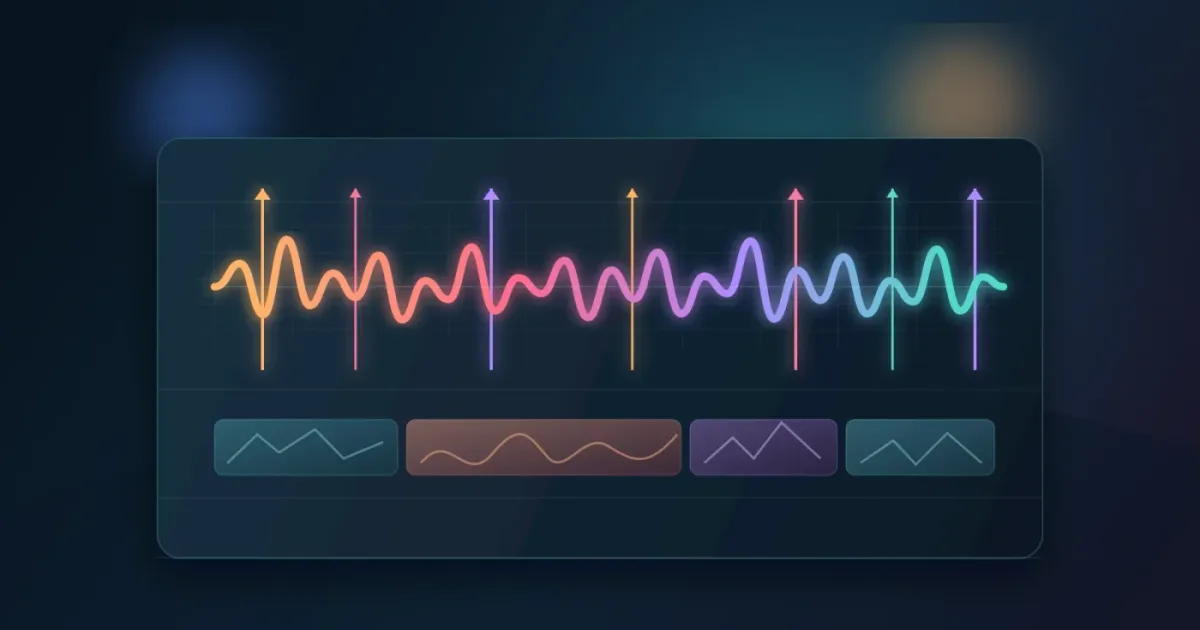
If you cut every time the kick lands, the edit starts to feel like a metronome with pictures attached. After seven years of professional commercial editing, our rule is simple: let music carry the energy, but let the story choose the cut.
This is one of the recurring questions in our 100,000+ member editing community. The useful answer is not “ignore the music.” It’s to listen for phrases, lyrics, swells, pauses, and changes in motion, then place the cut where the viewer feels a change rather than where a waveform happens to spike.
As of September 2026, this guide uses DaVinci Resolve 21.0.3. The manual workflow works in Resolve Free, while the optional beat-display and Music Editor tools have Studio limits noted below.
How do I edit video to music without cutting on beat?
To edit video to music without cutting on beat, cut on musical phrases, lyrics, pauses, swells, and visual action instead of treating every downbeat as an edit command. The beat still matters, but it becomes the floor under the edit rather than a grid that every shot must obey.
Start by separating three ideas that editors often mix together:
- A beat is a repeating pulse.
- A phrase is a larger musical thought made from several beats.
- An accent is any event that attracts attention, such as a snare hit, lyric, chord change, riser, drop, or sudden silence.
Tempo is measured in beats per minute. At 120 BPM, the music contains 120 pulses per minute, as Ableton's music lesson explains. That gives you a useful clock, not a demand. A 120 BPM track can support a cut every beat, every two beats, at the end of a four-beat phrase, or nowhere near a pulse if the picture has a stronger reason to change. Ableton's explanation of beat and tempo is a good refresher if BPM still feels abstract.
The practical sequence is:
- Put the music on the timeline.
- Listen once without touching the edit.
- Mark the large events first: intro, verse, chorus, drop, bridge, ending, and any obvious pause.
- Build a picture pass around action and story.
- Add a few cuts that answer the music's accents.
- Leave some beats unanswered.
That last step is the point. Hold through several beats, then let a lyric or visual turn give the next cut weight.
Music should shape the edit's energy, not dictate every edit point.
Why is cutting on every beat making my edit feel predictable?
Cutting on every beat often feels predictable because every pulse receives identical visual emphasis. The viewer learns the pattern quickly, so the edit has less room to build, pause, surprise, or release tension.
Try this listening test. Mute the video and tap along with the music. Now unmute it and notice whether every tap causes a shot change. If it does, make a second pass in which you keep the strongest shots across several pulses. Cut only when one of these things changes:
- The subject starts or completes an action.
- The camera direction changes.
- The lyric introduces new information.
- The harmony or instrumentation changes.
- The energy rises or drops.
- The audience needs a new piece of information.
- The current shot has finished saying what it needs to say.
Walter Murch gives the principle a sharper edge. In a CineMontage interview, he said, “Cutting to a music track usually confuses the issue.” His next point was to make the scene work on its own visual and dramatic terms in a musical way. That does not mean music is bad for editing. It means a track should support the cut, not bully it into existence. Read the Walter Murch interview.
What should I mark in DaVinci Resolve 21 instead of every beat?
In DaVinci Resolve 21, mark musical phrases and visual opportunities, not only detected beats. Resolve markers can carry a color, title, description, keywords, and duration, so they can become a small decision system for the edit rather than a row of anonymous dots. Blackmagic's Edit page documentation describes those marker fields and their use as reminders.
Create a simple marker language:
| Marker color | Label | What it means | Typical edit decision |
|---|---|---|---|
| Blue | Phrase | Start or end of a musical thought | Consider a new visual idea, not necessarily a cut |
| Green | Action | A gesture, reveal, turn, jump, or completed move | Cut when the action reads cleanly |
| Yellow | Lyric | A meaningful word or lyric change | Cut, hold, or change framing to protect the lyric |
| Red | Accent | Hit, swell, drop, silence, or chord change | Use for emphasis when the picture has a matching reason |
| Purple | Problem | A section that feels late, early, or crowded | Revisit the music or trim the picture later |
Press M to add a marker at the playhead in the timeline. Press M again to open its details, then name it. Blackmagic's Resolve beginner guide documents this marker shortcut. That small habit is faster than trying to remember why a cut felt promising ten minutes ago. The current Resolve Edit page also describes markers as clip or timeline indicators that can hold notes and keywords.
If your track has a clear pulse, make a second marker pass for beats. Use those markers as a visual reference, not a checklist. Resolve 21's New Features Guide shows Show Music Beats in the timeline context menu. Blackmagic's Studio feature table lists Show Music Beats and Music Editor as Studio features, so the free edition should not be assumed to include them. The Resolve 21 New Features Guide is the version-specific reference for the menu wording.
DaVinci Resolve 21's beat markers are reference points, not instructions to cut.
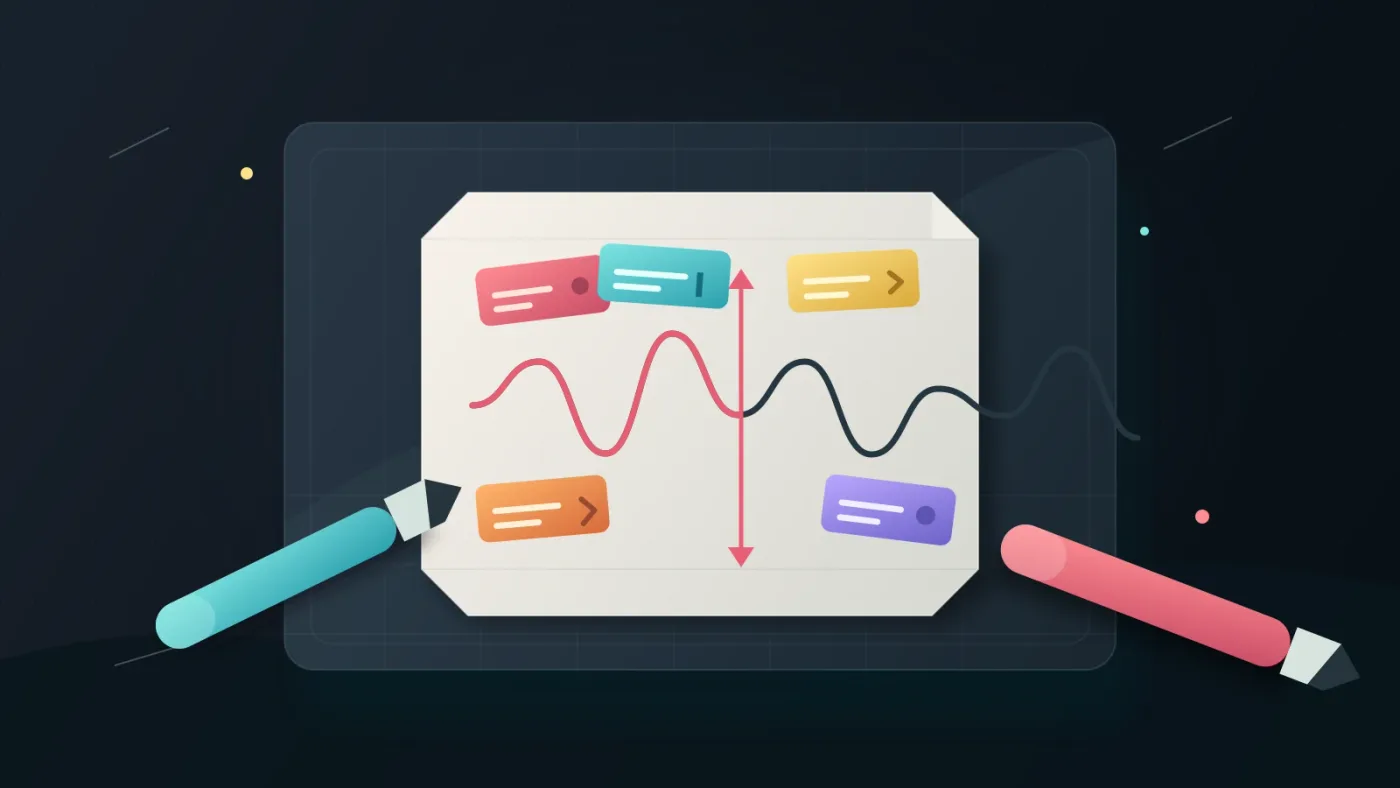
How do I cut on phrases, lyrics, and visual action?
Cut on phrases when you want a new visual idea, on lyrics when the words carry meaning, and on action when motion can hide or motivate the transition. Each choice creates a different kind of musical relationship.
Cut on the phrase
A phrase is a complete musical thought. It might be four or eight beats, but don’t assume the count is always obvious. Listen for a change in melody, chord movement, vocal delivery, or instrumentation. At that point, switch from one visual idea to another.
Example: a travel montage opens with wide shots of a train station. Let the first phrase establish place. On the next phrase, move to details of hands, tickets, and wheels. You changed the subject when the music changed its thought, not on every drum hit.
Cut on the lyric
Lyrics can be stronger edit points than drums. A new line can introduce a person, place, conflict, or emotional turn. Cutting directly on every syllable becomes literal and tiring, so protect the important words and let the supporting words play over a shot.
If the lyric says “go,” the cut does not have to land on that word. Cut before it and let the new shot reveal the consequence, or hold through the word and cut when the visual answer appears. Choose based on whether the word or reaction carries more weight.
Cut on action
Action gives the viewer a visual reason to accept the cut. A hand reaches for a door, a dancer turns, a car passes camera, or a subject looks off screen. Cut during the movement when possible, then let the new shot complete the action.
This is where off-beat editing can feel especially musical. The motion supplies continuity while the track supplies momentum. The viewer registers both, but neither one has to win every time.
Cut on silence or space
Silence is an event. A short pause before a chorus, a held note that leaves room after it, or a sudden drop in instrumentation can support a cut even when there is no drum hit. Give the pause a picture that can breathe. Then let the next shot arrive with the new energy.
Cut before the hit
Cutting a little before an expected accent can create anticipation. The new image is already on screen when the snare, chord, or downbeat arrives. This works well for reveals, product shots, and movement that should feel as if it has been pulled forward by the music.
Do not turn “a little before” into a hidden timing rule. The right offset depends on the action, shot content, and sound. Watch the whole passage and decide whether the cut creates tension or simply looks early.
Which DaVinci Resolve 21 tools help me edit without beat cuts?
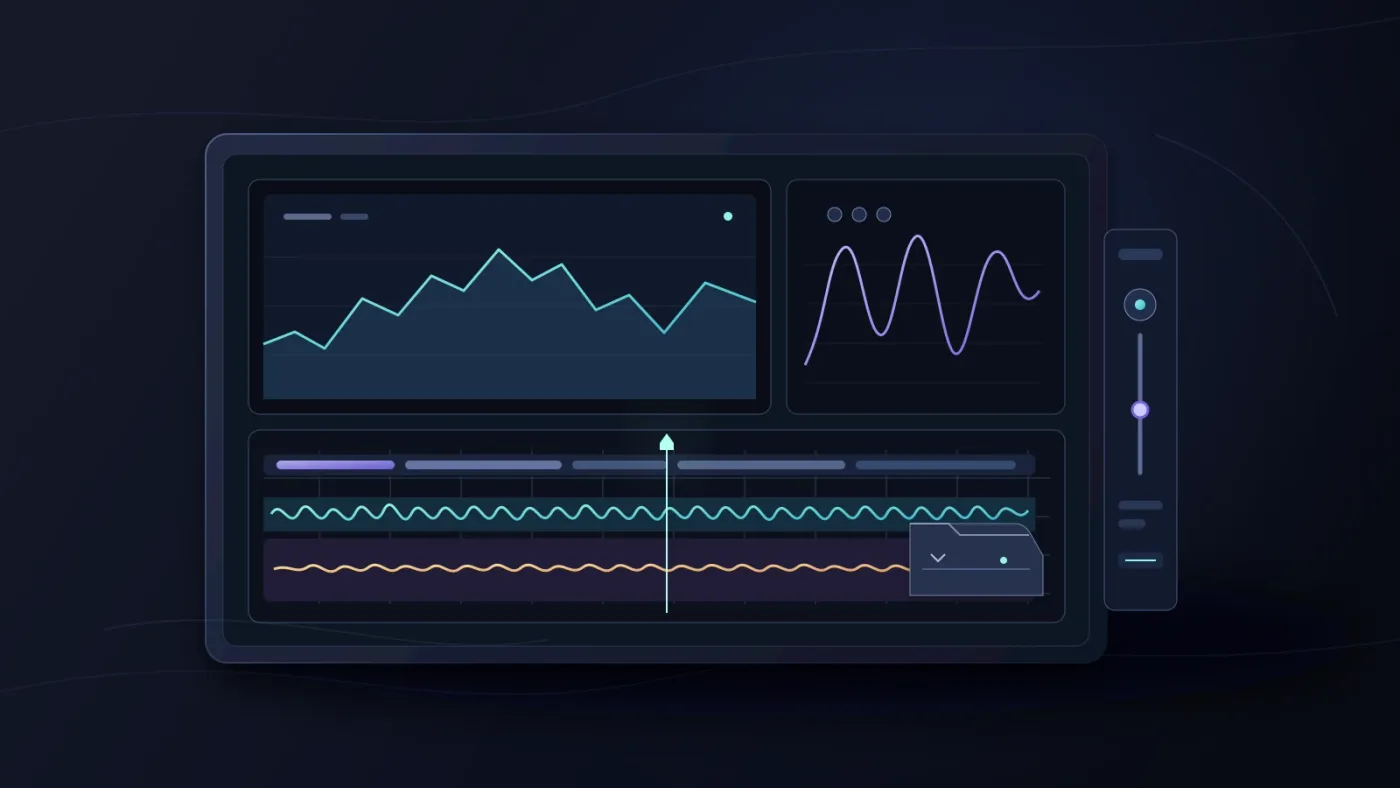
DaVinci Resolve 21 gives you enough timeline, marker, waveform, and Fairlight control to make this workflow manually. You don’t need an automatic cut-to-beat command to make a musical edit.
Use the Edit page for picture decisions. Keep the music on its own track, enlarge the audio waveform until you can see clear transients, and place timeline markers where the music or image gives you a reason to act. Use J, K, and L to review motion at different speeds, then use the arrow keys for frame-level checks. Blackmagic's shortcut sheet documents that familiar playback pattern. If your keyboard mapping differs, open Resolve's keyboard customization instead of trusting a shortcut list from another version.
Use the Fairlight page when the sound needs more attention. Blackmagic says the Fairlight timeline combines clip and waveform editing in one view. Its clip controls include volume, pan, pitch, and a six-band parametric EQ, while fade handles let you create fades directly on clips. Those tools matter here because a music edit often becomes more convincing when a transition is shaped in sound rather than forced into picture.
For example, let a cymbal tail continue under the next shot, pull the music down for a spoken line, or automate a small rise into a reveal. Fairlight's automation tools can record control changes over time, and its waveform updates in real time as you adjust clip levels. Blackmagic's Fairlight overview documents these controls.
Resolve 21 also adds Fairlight Folder Tracks. Blackmagic's New Features Guide says they combine selected tracks into a composite view while preserving original positions, and folder tracks support up to three levels of nesting. Use a folder for sound effects or dialogue while you judge music and picture together.
| Task | Resolve 21 choice | Why it helps a non-beat edit |
|---|---|---|
| Identify musical events | Timeline markers and notes | You can label why an area matters |
| Check the pulse | Show Music Beats where available | You see the beat without surrendering the cut |
| Refine picture timing | Edit page trim and frame stepping | You can keep a good shot and adjust its boundary precisely |
| Shape the transition | Fairlight fades, clip gain, and automation | The sound can bridge a cut instead of demanding one |
| Organize many sound layers | Fairlight Folder Tracks in Resolve 21 | You can inspect the music without losing the effects structure |
| Fit a cue to duration | Studio Music Editor | Useful for beat-driven tracks, but still requires editorial review |
The last row needs a warning. Blackmagic introduced Music Editor as a Studio feature that can shorten or extend beat-driven music to a target length without simply changing pitch or playback speed. Resolve 21 support notes mention improved beat-marker detection when resizing music with AI Music Editor. It’s useful when the picture already works and the cue needs a clean duration. It is not a substitute for deciding what the scene should feel like. Blackmagic's Music Editor documentation explains the original workflow and its limits.
For a deeper duration workflow, see our guide to fitting music to video length in DaVinci Resolve. For this page, the order matters: picture logic first, duration tool second.
How do I edit a 20-second montage without cutting on beat?
For a 20-second montage, choose a few visual chapters and let each chapter span more than one beat. A short example makes the method easier to apply.
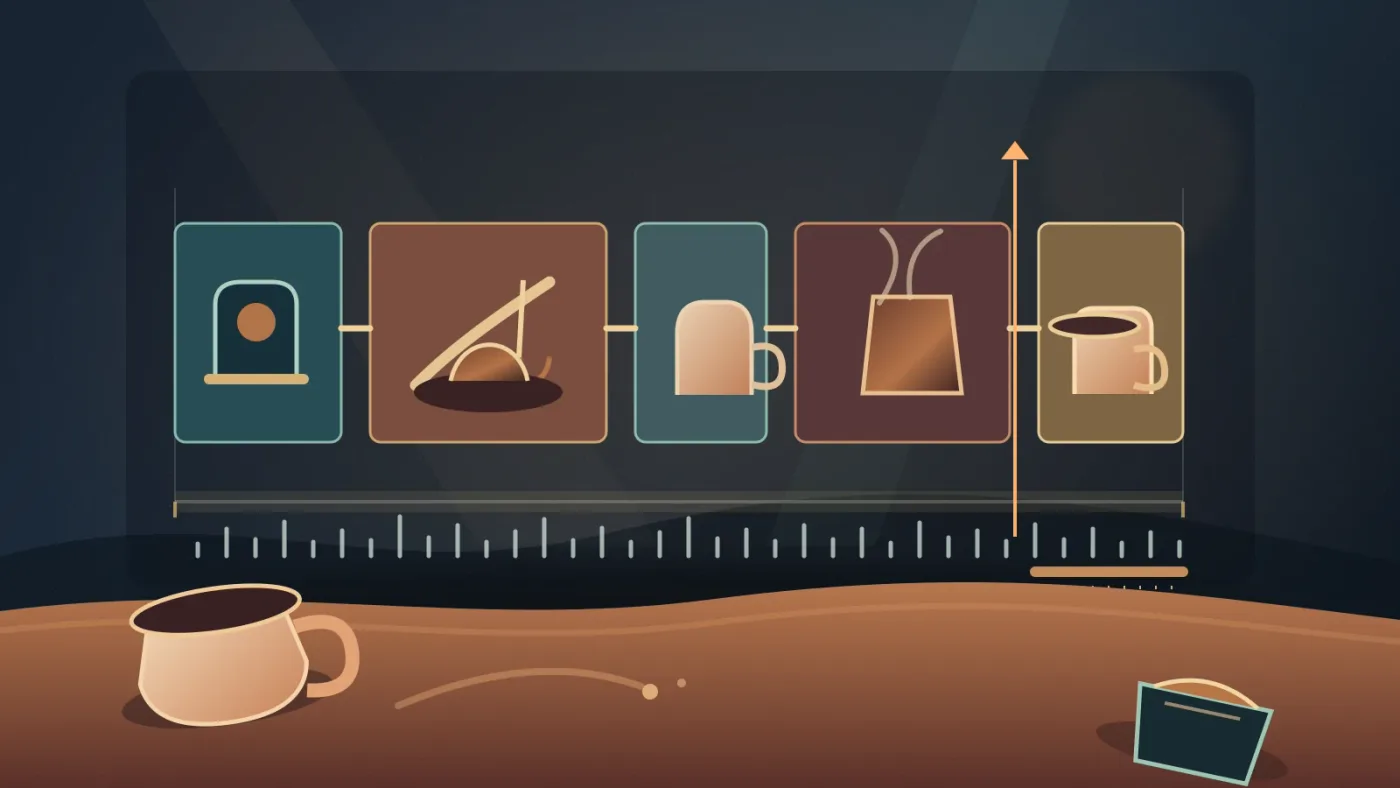
Imagine a 20-second coffee-shop montage with a 120 BPM track. One pulse is half a second, so a four-beat bar lasts two seconds. That is a calculation from the BPM definition, not a Resolve setting. If you cut on all 40 pulses, the viewer gets 40 equal visual instructions.
Try this instead:
- 0:00 to 0:04, establish the room. Hold a wide shot through the opening phrase. Let the music introduce the space while the viewer learns where they are.
- 0:04 to 0:08, introduce the process. Cut to the grinder, beans, or hands when the action begins. The cut can happen between beats if the hand movement motivates it.
- 0:08 to 0:12, build texture. Use two or three detail shots, but let one shot last across a beat. Cut on a change in action or a new lyric rather than the nearest kick.
- 0:12 to 0:16, create a lift. Use a rising shot, a pour, or a camera move as the music grows. Cut shortly before the strongest accent so the visual is ready when the accent arrives.
- 0:16 to 0:20, land the idea. Hold the finished drink or the customer reaction. Let the ending breathe instead of spending the last beats on tiny inserts.
Watch it twice. First ask whether the shots arrive with the music's energy. Then mute the music and ask whether the visual sequence still makes sense. If the montage collapses without its track, the music may be hiding weak picture decisions.
Billy Fox describes the same test in an interview about cutting rhythm: editors can work to an internal music rhythm before a cue is added, and he rarely adjusts picture edits just because of a hit. I’m not turning that into a universal law. I’m using it as a professional principle: a strong cut can carry rhythm before the soundtrack arrives. Read the Billy Fox interview.
A cut on a lyric, gesture, pause, or phrase change can feel more musical than a cut on the nearest drum hit.
What common mistakes make non-beat editing feel random?
Non-beat editing feels random when the cuts have no visual, story, or musical reason. The solution is not to snap everything back to the beat. Give each cut a job, then remove the cuts that only fill space.
Mistake 1: Replacing a rule with another rule
“Never cut on beat” is just as limiting as “always cut on beat.” Some hits deserve a cut. A drop, a reveal, a hard action, or the start of a chorus may be the obvious place to change the image. The goal is selective alignment.
Mistake 2: Chasing waveform spikes
A waveform shows amplitude, not meaning. A loud sound can be a useful accent, but it might also be a reverb tail, a layered texture, or a sound with no visual consequence. Listen to the phrase and watch the image before you move the edit.
Mistake 3: Cutting away from the lyric
If the lyric carries the information, a flashy cut can steal attention. Hold the shot, use a restrained reaction, or cut after the line has landed. The picture should not compete with the one word the viewer needs to hear.
Mistake 4: Making every shot the same length
Varied duration creates shape. A long hold can make the next short burst feel faster without changing the track. A series of quick shots can make a later two-second hold feel calm. Count beats only when counting helps you see the contrast.
Mistake 5: Solving a music problem with picture damage
If the best shot ends one second after the desired beat, don’t throw it away automatically. Move the music start, choose another musical section, let the shot run, or bridge the transition with sound. A clean story cut is usually more valuable than a mathematically tidy beat cut.
Mistake 6: Judging one edit point in isolation
An edit can look late alone and feel perfect in the full passage. Play at least one phrase before and after the cut. Blackmagic describes Fairlight as a workflow where you can fix problems while hearing them during playback, so judge the flow, not a frozen coordinate.
The strongest non-beat edits keep the audience oriented while the music carries the momentum.
Should I use a licensed music library for this workflow?
Use a licensed music library when you need repeatable access to music and sound effects for published work, but choose the license for the actual project and audience. Licensing makes the track usable within its terms; it does not tell you where the cut belongs.
Disclosure: this independent publication may earn a commission if you subscribe through the Epidemic Sound link below. The recommendation is limited to the licensing and soundtracking decision, and it does not change the editing method.
Epidemic Sound is a sensible option when you regularly need music, sound effects, stems, or track variations and want a subscription workflow. Its official materials describe plan-dependent publishing rights, channel coverage, and licensing terms, so check the current plan before client work or advertising. The DaVinci Resolve integration is for the paid Studio edition, not the free edition, and the plugin has its own installation limits.
If recurring licensed audio is the next bottleneck, check Epidemic Sound's current catalog and licensing options.
Artlist or a custom composer may be the better fit for a different buying brief. A one-off track license can be better when you only need one song and don’t want a recurring subscription. Those are different buying decisions from the editorial question on this page.
If you use any catalog, save the license information with the project. Check whether the plan covers personal publishing, client delivery, paid advertising, multiple channels, or new work after cancellation. Don’t describe a track as unrestricted just because it is called royalty-free.
For the related sound design that can hide a visual cut without forcing music to hit it, read how to make J-cuts and L-cuts in DaVinci Resolve. A music bed can also carry continuity under a sequence, which we cover in our DaVinci Resolve music bed tutorial.
What should I choose for my next edit?
Choose the picture-first workflow when the footage has story, action, dialogue, or a clear visual progression. Choose beat markers when you need orientation. Choose Music Editor when you own Studio and need a beat-driven cue to reach a target duration. Choose a new track when the current one keeps fighting the cut.
The next time you edit video to music without cutting on beat, make only three marker types at first: phrase, action, and lyric. Build the sequence with those decisions. Then add one or two beat-aligned cuts where the music and image genuinely agree.
If the edit feels flat, don’t add more cuts automatically. Hold a shot. Move the music. Protect the lyric. Let the action finish. The rhythm will usually become clearer when you stop asking every beat to prove that it exists.
That’s the verdict: cut with the music's phrasing, not its pulse alone.
Frequently asked questions
- How do I edit video to music without cutting on beat?
- Cut on phrases, lyric changes, swells, pauses, gestures, and changes in screen direction. Use the beat as a pulse for pacing, not as a rule that forces a cut at every downbeat.
- Why does cutting on every beat make my video feel repetitive?
- Cutting on every beat gives every musical pulse the same visual weight. Vary shot length and reserve cuts for accents, phrases, story information, or changes in action so the music can create momentum without controlling every edit.
- Can I use Show Music Beats in DaVinci Resolve 21 Free?
- Blackmagic's feature table lists Show Music Beats as a Studio feature, so Resolve Free users should not assume the command is available. You can still edit manually with waveforms, playback, and ordinary timeline markers.
- How do I make an off-beat cut feel intentional?
- Give the cut a reason the viewer can feel: land it on a lyric, a held note, a visual action, a pause, a change in texture, or the start of a new musical phrase. Then review the whole passage, not only the edit point.
- What is the best way to fit music to a video without re-cutting everything?
- Keep the strongest picture edit, then move the music start, choose a different section, or reshape the track around the edit. In Resolve Studio, Music Editor can help fit beat-driven music to a target duration, but it cannot decide which visual moments matter.
Sources
- DaVinci Resolve 21 New Features Guide, Blackmagic Design
- DaVinci Resolve 21.0.3 support materials, Blackmagic Design
- DaVinci Resolve Edit page, Blackmagic Design
- Fairlight audio workflow, Blackmagic Design
- DaVinci Resolve Studio and iPad Features, Blackmagic Design
- DaVinci Resolve 20 New Features Guide, AI Music Editor
- Beat and tempo, Ableton Learning Music
- Making Visual Music: an Interview with Walter Murch, CineMontage
- DaVinci Resolve 17 Beginner's Guide, Blackmagic Design
- DaVinci Resolve Mac Keyboard Shortcuts, Blackmagic Design
- Art of the Cut with Straight Outta Compton's editor Billy Fox
- Epidemic Sound music and licensing options
Put this guide to work with TryUncle.
Ask about the step you’re on. TryUncle sees your screen and points at the control you need, so you can keep learning in your own project.
Get TryUncle for Mac or WindowsKeep reading
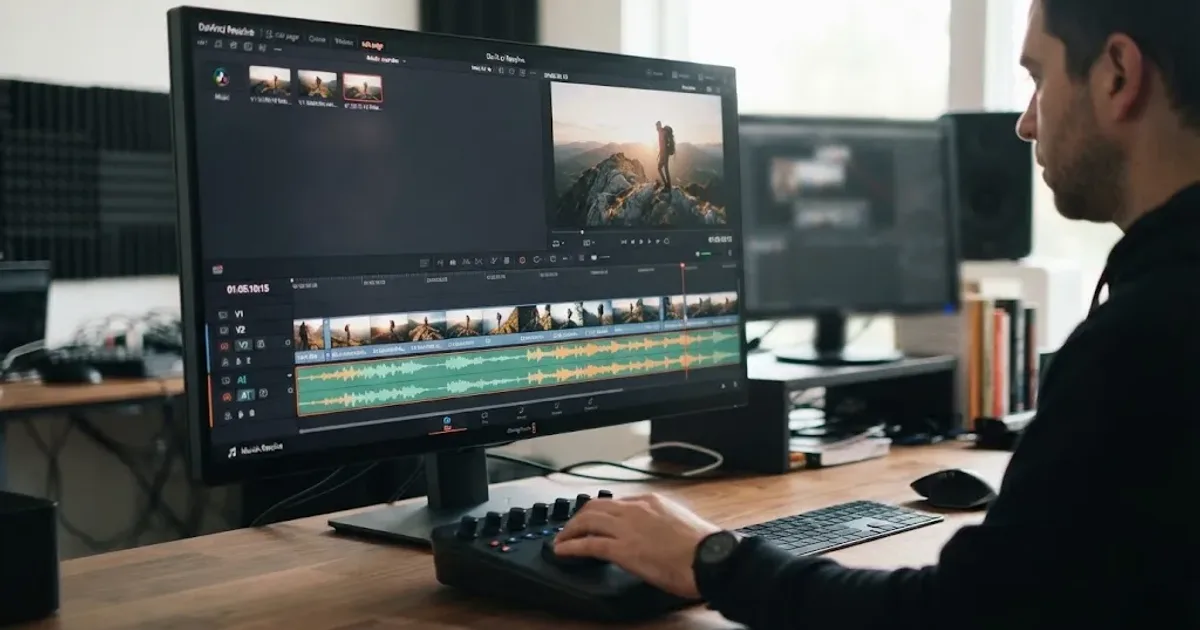
Guides · Aug 24, 2026 · 7 min
DaVinci Resolve Fit Music to Video Length: 21 Guide
Fit music to your video in DaVinci Resolve 21 with Music Editor, beat markers, Elastic Wave, and a clean manual fallback.
Guides · Sep 2, 2026 · 8 min
DaVinci Resolve Music Bed Tutorial for Resolve 21
Follow this DaVinci Resolve music bed tutorial to add, cut, duck, and mix background music under dialogue in Resolve 21.
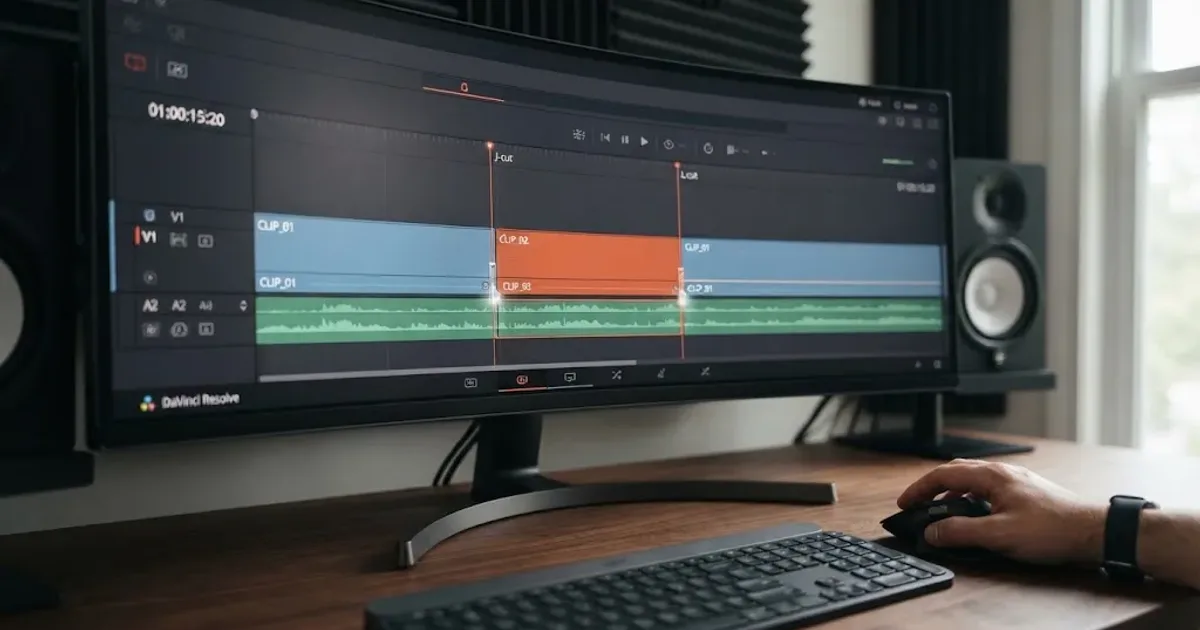
Guides · Aug 24, 2026 · 7 min
How to Make J-Cuts and L-Cuts in DaVinci Resolve
Learn the exact DaVinci Resolve 21 workflow for J-cuts and L-cuts, including Linked Selection, Trim Edit mode, shortcuts, and timing fixes.