Articles / Guidesupdated for DaVinci Resolve 21.0.4 (August 2026)
How to Make J-Cuts and L-Cuts in DaVinci Resolve
Quick answer
In DaVinci Resolve 21, make a J-cut or L-cut on the Edit page by turning off Linked Selection, then rolling only the video edit. Roll the video edit right for a J-cut, so incoming audio leads; roll it left for an L-cut, so outgoing audio continues. Use Trim Edit mode for precision.
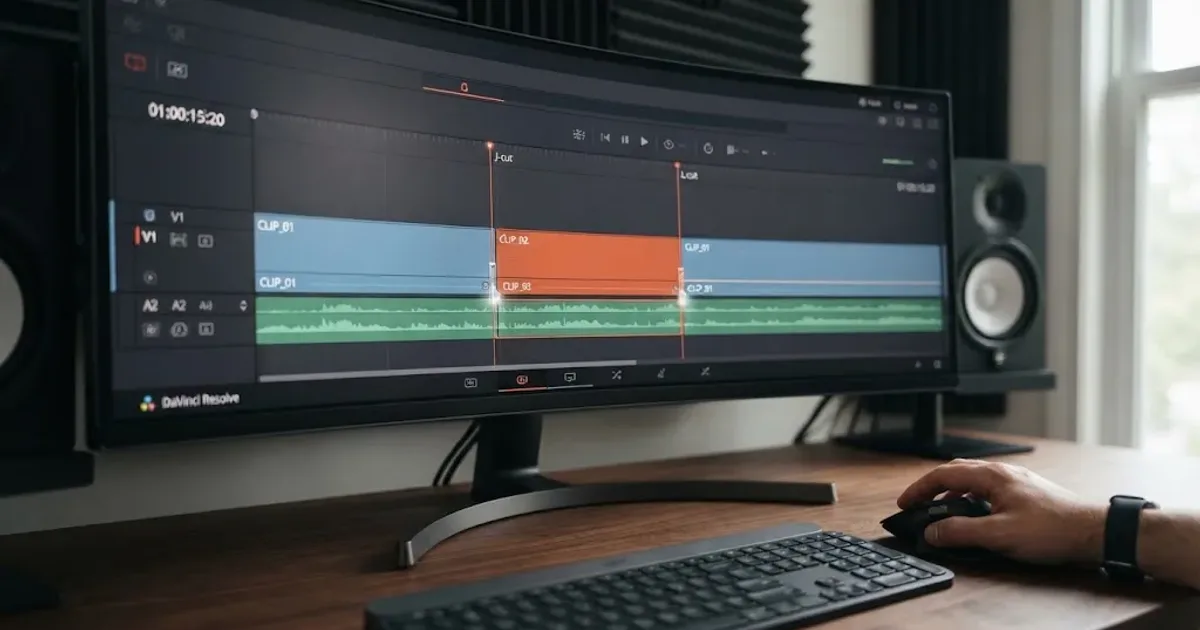
I use J-cuts and L-cuts whenever a straight audio-video cut feels too boxed in. After 7+ years of cutting commercial work in Resolve, I still start with the same move: separate the video trim from the linked audio, then roll the picture edit. This guide targets DaVinci Resolve 21.0.4, the current release listed by Blackmagic Design as of August 2026. We also run a 100,000+ member editing community, where this is a recurring question.
What are J-cuts and L-cuts in DaVinci Resolve?
A J-cut lets the next clip's audio arrive before its picture. An L-cut lets the current clip's audio continue after the picture has changed. Both are split edits because the audio and video edit points happen at different times, a definition Blackmagic uses in its editing training material.The official DaVinci Resolve 20 editor guide explains split edits in the section on rolling edit points.
| Edit | What the viewer hears and sees | Useful starting point |
|---|---|---|
| J-cut | The next clip's audio starts while the current picture is still on screen. | Bring in the next speaker, room tone, or scene sound early. |
| L-cut | The current clip's audio continues while the next picture is on screen. | Hold a reaction shot, B-roll, or a new location under the outgoing line. |
Ross Hockrow describes the distinction clearly: “A J-cut occurs when the audio from the next clip is heard before the video.” He defines the L-cut in the same passage as the picture switching before the audio, in Out of Order: Storytelling Techniques for Video and Cinema Editors, page 123 of the sample.
A J-cut leads the viewer into the next picture with sound, while an L-cut lets the previous thought live under the next picture.
A J-cut creates anticipation. An L-cut creates continuity or gives you room to show a reaction.
How do I prepare a timeline for a split edit?
Prepare a split edit on the Edit page with two linked clips touching at a cut, visible waveforms, and Linked Selection turned off before you trim. If you normally rough out sequences on the Cut page, move to the Edit page for this refinement. Our guide to Cut Page versus Edit Page differences explains that division of labor.
- Put the two shots next to each other on the timeline with their linked video and production audio aligned.
- Zoom in around the cut until you can see the video edit and both audio waveforms. Use a pause or natural change in thought as your starting point.
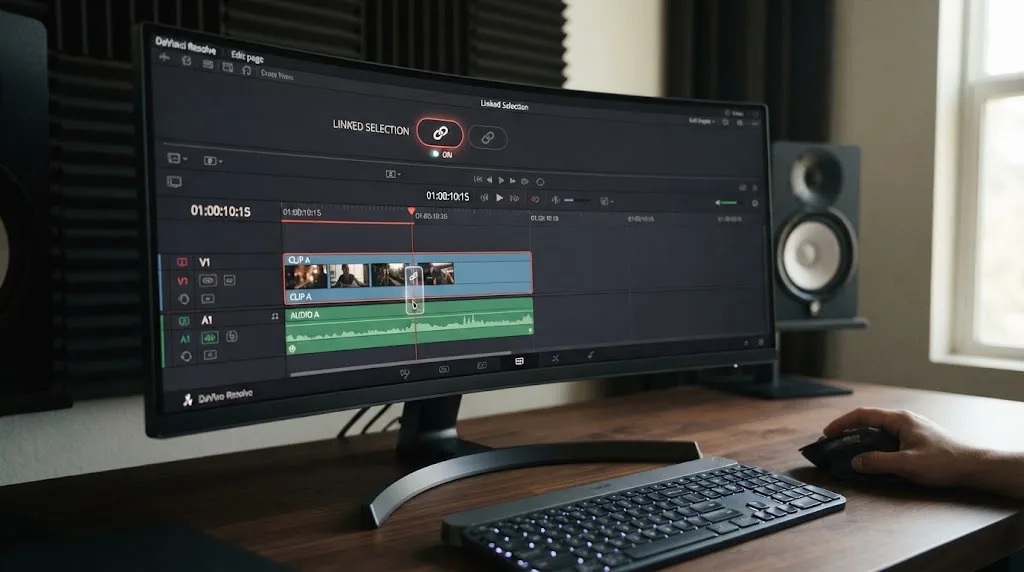
- Click the Linked Selection chain button in the timeline toolbar. Blackmagic documents the macOS shortcut as Shift-Command-L and the Windows shortcut as Shift-Control-L.The shortcut and its purpose are documented in the Resolve 20 Editor's Guide.
- Click Trim Edit mode, or press T. Blackmagic's guide identifies T as the shortcut for Trim Edit mode.The Trim Edit instructions appear in the same official guide.
How do I make a J-cut in DaVinci Resolve 21?
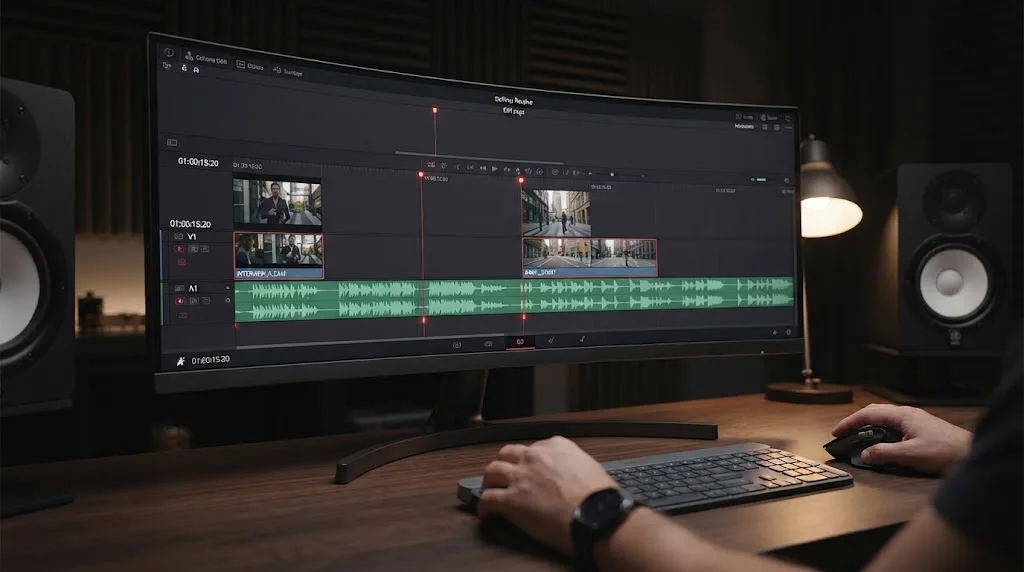
Make a J-cut by rolling the video edit to the right while the audio edit stays at the original cut. The incoming audio then starts first, and the incoming picture arrives afterward.
- Place the playhead near the cut between the outgoing shot and the incoming shot.
- Confirm that Linked Selection is off and Trim Edit mode is active.
- Move the pointer over the video edit point until Resolve shows the roll-trim cursor. Target the video portion, not the audio waveform.
- Drag the video edit to the right. The outgoing picture lasts longer, and the incoming picture starts later. The incoming audio still begins at the original boundary, so it plays under the tail of the outgoing picture.
- Play across the cut. If the new voice feels too early, reduce the roll. If the transition still feels abrupt, give the incoming line a little more room before the picture changes.
For a J-cut, roll only the video edit to the right and leave the audio edit at the original cut.
How do I make an L-cut in DaVinci Resolve 21?
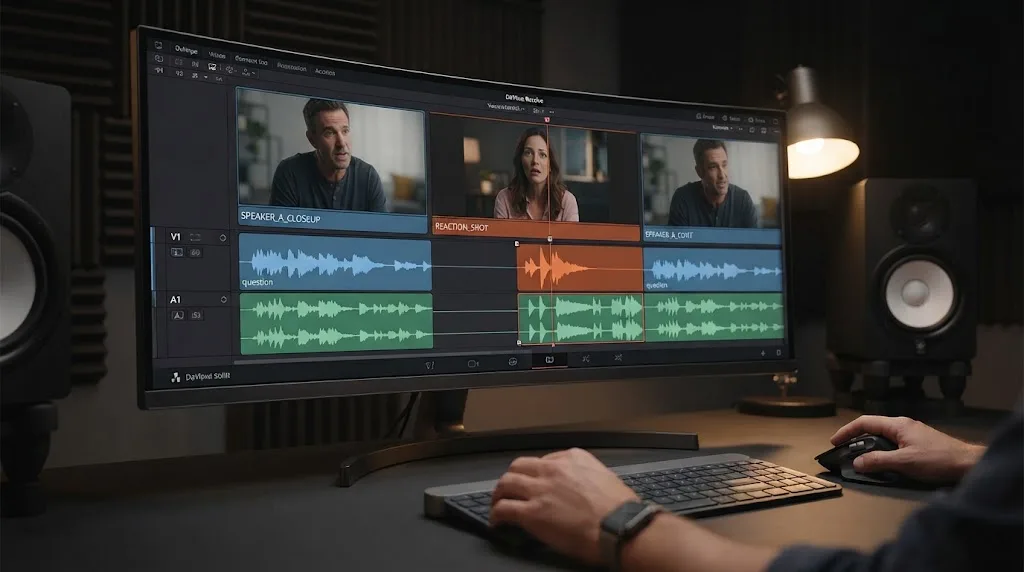
Make an L-cut by rolling the video edit to the left while the audio edit stays at the original cut. The next picture appears first, and the outgoing audio continues underneath it.
- Start with two adjacent clips, Linked Selection off, and Trim Edit mode active.
- Place the pointer over the video edit point until the roll-trim cursor appears.
- Drag the video edit to the left. The incoming picture begins earlier, while the outgoing audio keeps playing until its existing audio edit point.
- Review the first words after the picture change. The continuing audio should add meaning, reaction, or continuity rather than compete with the new visual.
- Trim back if the old line hangs on after its thought is complete.
Blackmagic's Beginner's Guide describes the direction directly: rolling the video edit to the left of the audio edit creates an L-cut. The same passage identifies the opposite direction as the J-cut.Read the split-edit explanation in Blackmagic's Beginner's Guide.
For an L-cut, roll only the video edit to the left and let the outgoing audio carry the viewer into the next shot.
Why is DaVinci Resolve moving my audio and video together?
DaVinci Resolve moves audio and video together when Linked Selection is enabled, or when you are trimming the linked clip instead of targeting only its video edit. Turn off Linked Selection, then check the trim cursor before dragging.
| What you see | Likely cause | Fix |
|---|---|---|
| Audio and video move as one unit | Linked Selection is on. | Press Shift-Command-L on macOS or Shift-Control-L on Windows. |
| The whole timeline shifts after the edit | You used a ripple trim instead of a roll. | Hover over the cut until the roll cursor appears. |
| The overlap cannot get longer | The source clip has no usable media beyond the current trim. | Choose a longer take, restore trimmed material, or make a shorter split edit. |
| The cut works but sounds unnatural | The overlap starts in the middle of a word or ends before the idea lands. | Move the edit toward a pause, comma, reaction, or clear change in thought. |
The last two problems are editorial rather than Resolve errors. A split edit cannot invent extra dialogue, and no shortcut can choose the right emotional beat. For more commands, see the site's DaVinci Resolve keyboard shortcuts reference.
What timing makes a J-cut or L-cut feel natural?
Use the speech and the reaction to choose timing, not a fixed number of frames. Ross Hockrow's published discussion of dialogue timing recommends following the punctuation and pauses in the performance.Read his discussion of dialogue timing and punctuation.
For a J-cut, listen for the first useful word from the next shot. Let that word create a question, then reveal the speaker or location. For an L-cut, watch the listener or B-roll and let the outgoing sentence finish where the picture gains more information.
Avoid cutting in the middle of a word. Commas, pauses, breaths, and reactions are better starting points than a random timeline position.
For a structured path beyond this technique, Blackmagic's official training hub is a free foundation. Casey Faris offers a separate Resolve-focused YouTube channel. The r/davinciresolve community is useful for version-specific troubleshooting.
Should I use music or sound effects under a J-cut or L-cut?
Start with the recorded dialogue and room tone. Add music or a sound effect only when it supports the transition, because a new layer can mask the very words that make the split edit work.
If you need licensed music, ambience, or transition effects for recurring projects, Epidemic Sound is one option. Disclosure: that link is an affiliate link. Its official DaVinci Resolve plugin can search for music and sound effects, then drop files into the timeline, but it requires DaVinci Resolve Studio. The free edition doesn't support the plugin.Epidemic Sound lists the plugin workflow and Studio requirement. You can also use your own recordings or another licensed library.
Don't use a music library to repair a weak edit. First make the J-cut or L-cut work with production audio alone. Then add a bed, ambience, or effect and rebalance it in Fairlight. For deeper dialogue mixing, see our guide to mixing audio in DaVinci Resolve with Fairlight.
What is the best way to learn DaVinci Resolve when a tutorial does not match?
The best way to learn DaVinci Resolve is to combine one official workflow, one small practice exercise, and version-aware troubleshooting. Make a short timeline with two dialogue clips, create one J-cut, create one L-cut, and then repeat both with a reaction shot.
As of August 2026, Resolve 21.0.4 is the release to use when you check a control against current documentation.Blackmagic's Support Center lists the Resolve 21.0.4 update. If a lesson shows a different trim result, check the version number, the trim cursor, Linked Selection, and whether the lesson is using a roll or ripple trim before changing other settings.
The fastest reliable practice is one J-cut, one L-cut, and one careful listen across each edit.
Make those three passes now. If the incoming voice leads, you made a J-cut. If the outgoing voice lingers over the new picture, you made an L-cut. The control is simple. The timing is the craft.
Frequently asked questions
- What is the difference between a J-cut and an L-cut in DaVinci Resolve?
- A J-cut brings the incoming clip's audio in before its video. An L-cut changes the picture first and lets the outgoing clip's audio continue underneath the next shot.
- How do I make a J-cut in DaVinci Resolve 21?
- On the Edit page, turn off Linked Selection, select Trim Edit mode, and roll the video edit to the right while leaving the audio edit in place.
- How do I make an L-cut in DaVinci Resolve 21?
- On the Edit page, turn off Linked Selection, select Trim Edit mode, and roll the video edit to the left while leaving the audio edit in place.
- Why is DaVinci Resolve moving my audio and video together?
- Linked Selection is probably enabled. Turn it off with Shift-Command-L on macOS or Shift-Control-L on Windows, then trim the video edit again.
Sources
- Blackmagic Design Support Center
- Blackmagic Design Announces DaVinci Resolve 21
- DaVinci Resolve 21 Reference Manual
- The Editor's Guide to DaVinci Resolve 20
- The Beginner's Guide to DaVinci Resolve 20
- Ross Hockrow, Out of Order: Storytelling Techniques for Video and Cinema Editors
- Blackmagic Design DaVinci Resolve Training
- Casey Faris on YouTube
- r/davinciresolve J-cut troubleshooting thread
- Epidemic Sound DaVinci Resolve Studio plugin
- Epidemic Sound DaVinci Resolve Studio plugin Help Center
Put this guide to work with TryUncle.
Ask about the step you’re on. TryUncle sees your screen and points at the control you need, so you can keep learning in your own project.
Get TryUncle for Mac or WindowsKeep reading
Comparisons · Jul 10, 2026 · 28 min
DaVinci Resolve Cut Page vs Edit Page: The Real Differences
A full side-by-side of DaVinci Resolve's Cut and Edit pages: timeline, trimming, multicam, and hardware differences, plus which one to use.
Guides · Jul 8, 2026 · 16 min
DaVinci Resolve Keyboard Shortcuts: The Complete Reference
Every essential DaVinci Resolve keyboard shortcut, organized by page: Edit, Cut, Color, Fairlight, Fusion, and Deliver, plus how to customize and share your own.
Guides · Jul 11, 2026 · 31 min
How to Mix Audio in DaVinci Resolve Using Fairlight
Mix audio in DaVinci Resolve's Fairlight page: build a dialogue/music/effects bus structure, gain-stage your clips, EQ and compress dialogue, then duck music under it.