Articles / Guidesupdated for DaVinci Resolve 21.0.3 (August 2026)
How to Replace Temp Music in DaVinci Resolve 21
Quick answer
To replace temp music in DaVinci Resolve, mute the original track, import the cleared track, and place it on a separate music track. For a same-length swap, enable only the audio destination and use Replace Edit with F11; it keeps the timeline position without rippling the edit.
When we replace temp music, we keep the cut intact. We mute the old track, test the final one, and protect every picture decision already made.
We see this question in our 100,000+ member professional video-editing community. After seven years of cutting commercial work in Resolve, our rule is simple: protect the timing first, then judge the new song on its own terms.
As of August 2026, this guide applies to DaVinci Resolve 21.0.3. Blackmagic lists the final Resolve 21 release and the later 21.0.3 update in its current support notes.
What is the safest way to replace temp music in DaVinci Resolve?
The safest method is to keep the temp track, mute it, add the replacement on a separate track, and remove the temp file only after the new mix is approved. That gives you an immediate A/B check and keeps the original timing available if the new song changes the shape of a scene.
Rename the tracks before you touch the edit:
| Track | Job | What to do |
|---|---|---|
| A1 Dialogue | Speech and narration | Leave active and easy to solo |
| A2 Music TEMP | The original edit reference | Lock or mute, but keep it |
| A3 Music FINAL | The cleared replacement | Edit and mix here |
| A4 SFX | Sound effects and transitions | Leave separate from music |
This structure separates song, edit, and mix problems while keeping the client reference available.
The safest music replacement changes the asset before it changes the edit.
If the temp file contains useful timing markers, keep them. You can also duplicate the timeline and work in a version called FINAL_MUSIC_REPLACE.
How do I prepare the replacement track without moving the edit?
Import the new music into the Media Pool, place it on a new audio track, and line up its intended start with the same picture moment as the temp track. Do not delete the reference music until you have checked the whole cut.
Use this preparation sequence:
- Save a new project version or duplicate the timeline.
- Rename the original track
Music TEMP, mute it, and lock it if you want to avoid accidental trims. - Create or select
Music FINALbelow the dialogue tracks. - Import the replacement file and place it at the intended start point.
- Keep the replacement selected while you decide whether it needs a direct swap or a manual edit.
Use Replace Edit for a song with the same structure and duration. For a different intro, chorus, or ending, place it manually and start on the important downbeat or story beat.
Our DaVinci Resolve guide to fitting music to video length covers the next decision: whether to trim, loop, or reshape a track when the song does not naturally end with the picture.
How do I use Replace Edit to swap music in DaVinci Resolve?
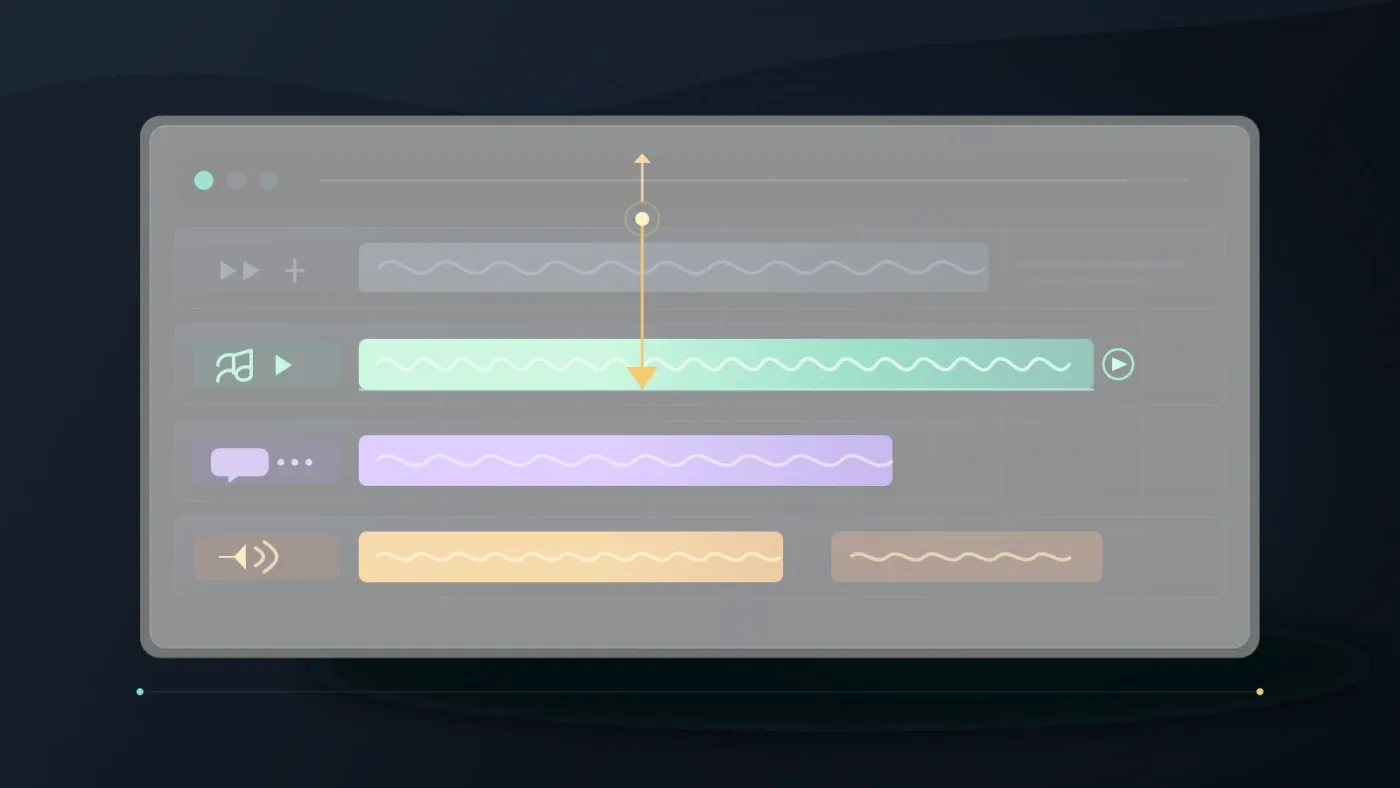
Use Replace Edit when the incoming music should occupy the existing timeline clip's duration. Blackmagic's Editor's Guide says the command uses the timeline clip duration, aligns the source and timeline playheads, and does not ripple the timeline. The documented shortcut is F11.
Here is the controlled swap:
- Put the timeline playhead inside the temp music clip, ideally at the point you want to align.
- Load the replacement music into the Source Viewer.
- Position the Source Viewer playhead at the matching musical or waveform point.
- In the timeline header, enable the destination control for
Music FINAL. - Disable video and any unrelated audio destination controls.
- Click Replace in the toolbar or press
F11. - Play across the cut and confirm that the new clip landed on the intended track.
The key protection is step 5. If video destination is active, you can replace more than the music. The official Editor's Guide notes that macOS may reserve F11 for Show Desktop. Try fn-F11 or change that macOS shortcut if needed.
In DaVinci Resolve, Replace Edit preserves the timeline position because it does not ripple the timeline.
There is one important limit. Replace Edit is duration-driven by the clip already in the timeline. If the temp clip is 42 seconds and the final song needs 58 seconds, a direct replacement is the wrong tool for the whole track. Use a new track, place the final song manually, and trim the picture-facing section to fit.

Why is the replacement track too short, too long, or out of sync?
The replacement usually feels wrong because the edit type, song structure, and alignment point do not match. Diagnose the symptom before you start trimming random bars from the middle.
| Problem | Likely cause | Better fix |
|---|---|---|
| The new song is too short | The source ends before the picture | Place it manually, loop a suitable section, or choose another track |
| The new song is too long | The full source is not needed for this cut | Trim the ending, shape a shorter version, or use a direct replacement only for the matching section |
| The downbeat feels late | The source playhead was aligned to the file start instead of the musical hit | Move the source playhead to the downbeat or a clear story cue, then replace or trim |
| The edit feels slower | The new song has a different tempo or longer musical phrases | Recut the music around picture beats instead of forcing the old waveform pattern |
| Dialogue is buried | The song has more energy in the speech range | Lower the music clip or track, automate a duck, and check the mix in Fairlight |
Music replacement is not a waveform-matching contest. A new song can be technically aligned and still be dramatically late. Mark key picture moments and reuse them for each candidate.
A replacement song must match the story beat, not merely the first frame of the old song.
How do I finish the new music mix in Fairlight?
Finish the replacement in Fairlight by checking clip gain, fades, track level, dialogue masking, and the final transition points. Fairlight is integrated with picture editing; Blackmagic describes it as supporting projects with over a thousand tracks on its Fairlight product page.
You do not need a complicated mix for this job:
- Add short fades at the start and end if the new file begins or stops abruptly.
- Use clip gain for a local correction and the track fader for the overall music balance.
- Lower the music under dialogue, then listen again without looking at the meters.
- Check the first entrance, major picture transitions, and the final tail.
- Make the final decision with dialogue and effects active.
Grant Petty, Blackmagic Design's CEO, writes in the official DaVinci Resolve 21 New Features Guide, “With DaVinci Resolve, you get a complete set of editing, advanced color correction, professional Fairlight audio post production tools”. That integrated workflow fits a decision between editorial timing and audio finishing.
When a dialogue mix needs more attention, use our guide to mixing audio in DaVinci Resolve with Fairlight. The point is not to make the music loud. The point is to make the words, picture, and musical energy agree.
Which licensed music should replace the temp track?
Choose the license around the finished video's use, not around the fact that a file downloaded successfully. A personal YouTube upload, a client's paid campaign, a podcast, and a broadcast deliverable can require different rights.
Music licensing is part of the replacement workflow, not a last-minute export check.
Disclosure: this section contains one affiliate recommendation. If you buy through the Epidemic Sound link, we may earn a commission at no extra cost to you. The relationship does not change the workflow or the alternatives below.
For editors who publish regularly, Epidemic Sound is one practical music-first option. Its Resolve plugin requires paid DaVinci Resolve Studio, not the free edition, and the service says to clear or safelist the relevant channel or video before publishing. Plan terms differ for personal, client, advertising, and organizational work.
The plugin is optional. You can download a licensed track and import it manually, which is the path for free Resolve users and Studio installations from the Mac App Store, where the integration is unavailable.
| Option | Choose it when | Watch for |
|---|---|---|
| Epidemic Sound | Recurring music and sound effects with a Resolve Studio plugin | Match the plan to your channels, clients, ads, and use |
| Artlist | Music plus footage, templates, or other production assets | Social and professional licenses differ |
| Soundstripe | Subscription and single-use licensing options | Confirm the exact project and distribution |
| Composer | A custom theme, precise changes, or exclusive terms | Agree on fee, revisions, rights, and delivery |
The Artlist plan information and Soundstripe plan information are useful comparison points, but neither replaces reading the license for your project. Our guide to music licensing for freelance video editors covers the client-rights question in more detail.
What should I check before removing the temp music?
Remove the temp track only after the final music passes a full-timeline and rights check. The replacement is finished when the edit still works, the mix is intelligible, and the publishing permission is documented.
Use this final check:
- Mute the final track and confirm you know exactly where the temp music used to carry the edit.
- Solo the final track once to catch clicks, abrupt starts, clipped tails, or accidental silence.
- Play from before the first entrance through the last frame of music.
- Check the music against dialogue, effects, titles, and client notes.
- Confirm the license covers the actual publisher, channel, client, ad placement, and date of publication.
- Keep the original temp track muted until approval and archive it with the project if the edit may return for revisions.
If the new song works only after you have forced it into every old cut, choose a different song or rebuild the music edit. The fastest fix is often a better structural match, not another trim.
Keep the temp track muted until the final music is approved and its publishing rights are clear.
For a same-duration swap, use Replace Edit and F11 with only the final audio destination enabled. For a different song structure, place the music manually on its own track, shape the entrances and exits, then finish the mix in Fairlight. That is the clean handoff from temp music to a final soundtrack.
Frequently asked questions
- How do I replace temp music in DaVinci Resolve?
- Mute the temp track, import the cleared music, place it on a separate audio track, and use Replace Edit with F11 when the replacement should occupy the same timeline duration.
- How do I replace a music track without moving the video in DaVinci Resolve?
- Enable only the destination audio track before using Replace Edit, so DaVinci Resolve replaces the music without overwriting the linked video or rippling the timeline.
- Why is the replacement music too short in DaVinci Resolve?
- Replace Edit uses the timeline clip duration, so a longer replacement can be cropped to the temp clip; place the new file manually when you need its full length.
- Why is my new music silent in DaVinci Resolve?
- Check that the new track is not muted or solo-isolated, its output is routed to the main bus, and its clip gain is not pulled down.
- Can I use licensed music in DaVinci Resolve 21?
- Yes, but the music license must cover your publishing use, and any required channel or video clearance should be completed before you publish.
Sources
Put this guide to work with TryUncle.
Ask about the step you’re on. TryUncle sees your screen and points at the control you need, so you can keep learning in your own project.
Get TryUncle for Mac or WindowsKeep reading
Guides · Aug 24, 2026 · 7 min
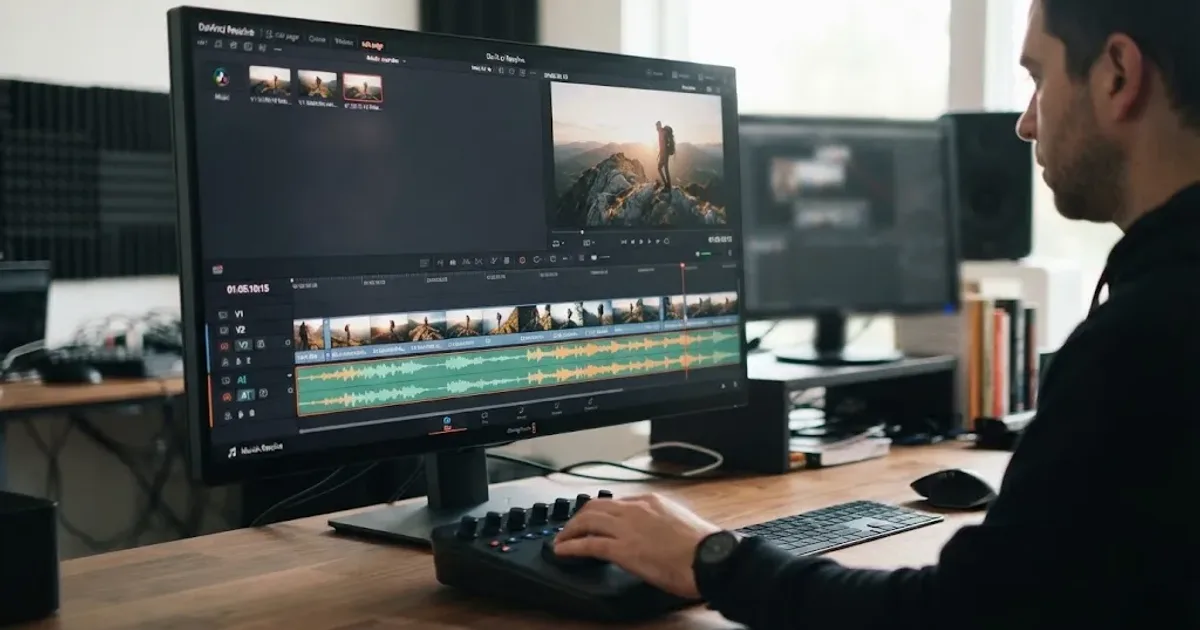
DaVinci Resolve Fit Music to Video Length: 21 Guide
Fit music to your video in DaVinci Resolve 21 with Music Editor, beat markers, Elastic Wave, and a clean manual fallback.
Guides · Aug 24, 2026 · 8 min
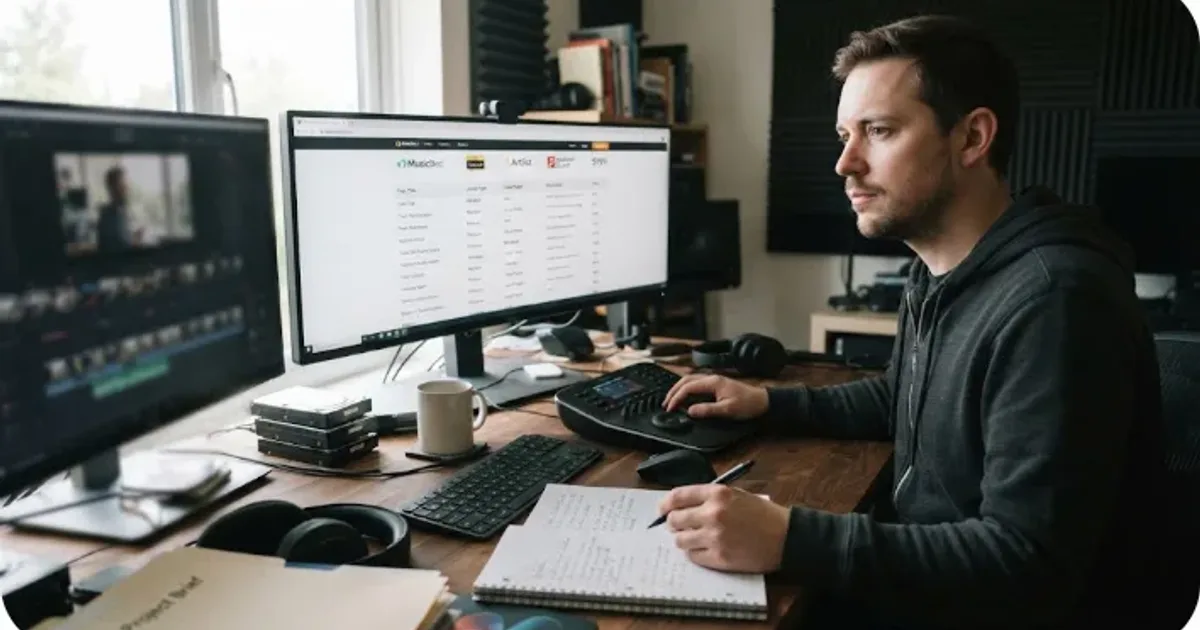
Music Licensing for Freelance Video Editors: Client Rights
Practical music licensing for freelance video editors, covering client handoffs, safelisting, platform rights, cancellation, and DaVinci Resolve 21.

Guides · Aug 26, 2026 · 8 min
Epidemic Sound Single Track License for One Video in Resolve 21
Need one Epidemic Sound track for a DaVinci Resolve 21 video? Match the license to your use, safelist it, and avoid paying for rights you don't need.