Articles / Guidesupdated for DaVinci Resolve 21.1 (September 2026)
How to Use Layer List in DaVinci Resolve 21
Quick answer
To use Layer List in DaVinci Resolve 21, open the Color page, find the Node Graph, and click the Layer List icon in its upper-left corner. Use each row to preview, select, enable or disable, lock, add, or remove nodes, then return to Graph view when you need to inspect connections.
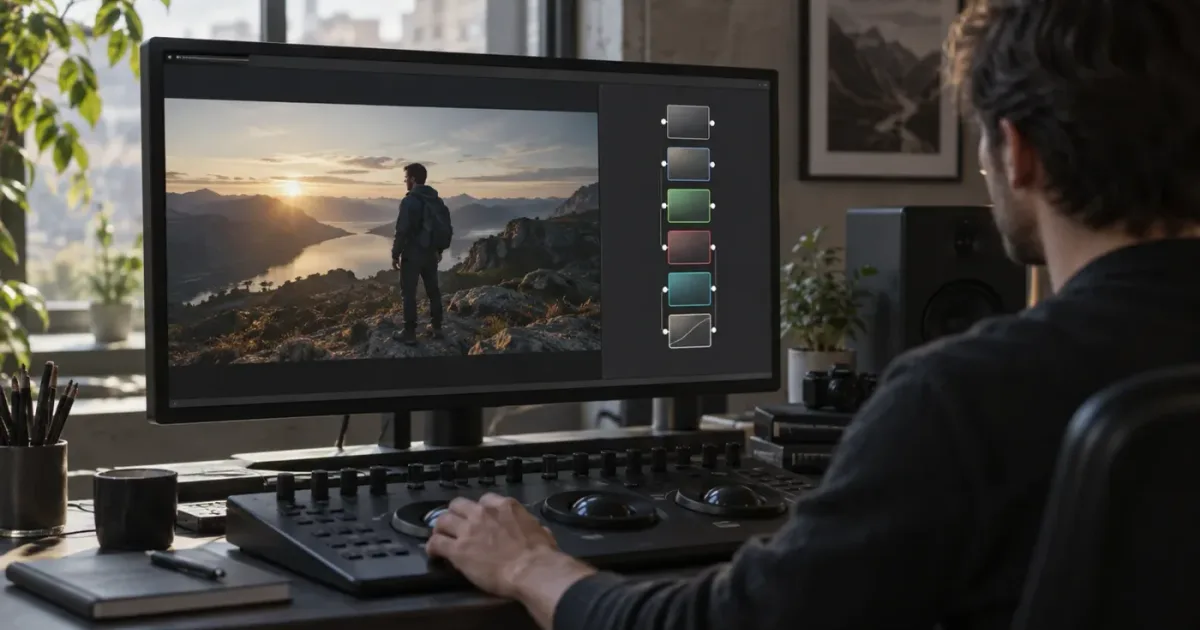
Layer List answers a simple problem: a long node graph can be hard to scan. Use it to audit a grade one correction at a time, then switch back to the graph when connections matter. As of September 2026, this guide targets DaVinci Resolve 21.1.
What is the Layer List in DaVinci Resolve 21?
The Layer List is an alternate view of the Color page Node Graph. It presents the nodes as a stacked list, with the display order following the node order, while keeping the same grade underneath. Blackmagic introduced it in DaVinci Resolve 21 as a way to manage a node tree with less visual clutter. (Blackmagic's DaVinci Resolve 21 New Features Guide, pp. 90-92)
That definition matters because the word “layer” can send you in the wrong direction. Layer List is not the Edit page's stack of video tracks. It is not a Fusion MultiMerge layer panel. It is a different way to look at the Color page's nodes.
Layer List is an alternate view of the same Color page node graph, not a second grade.
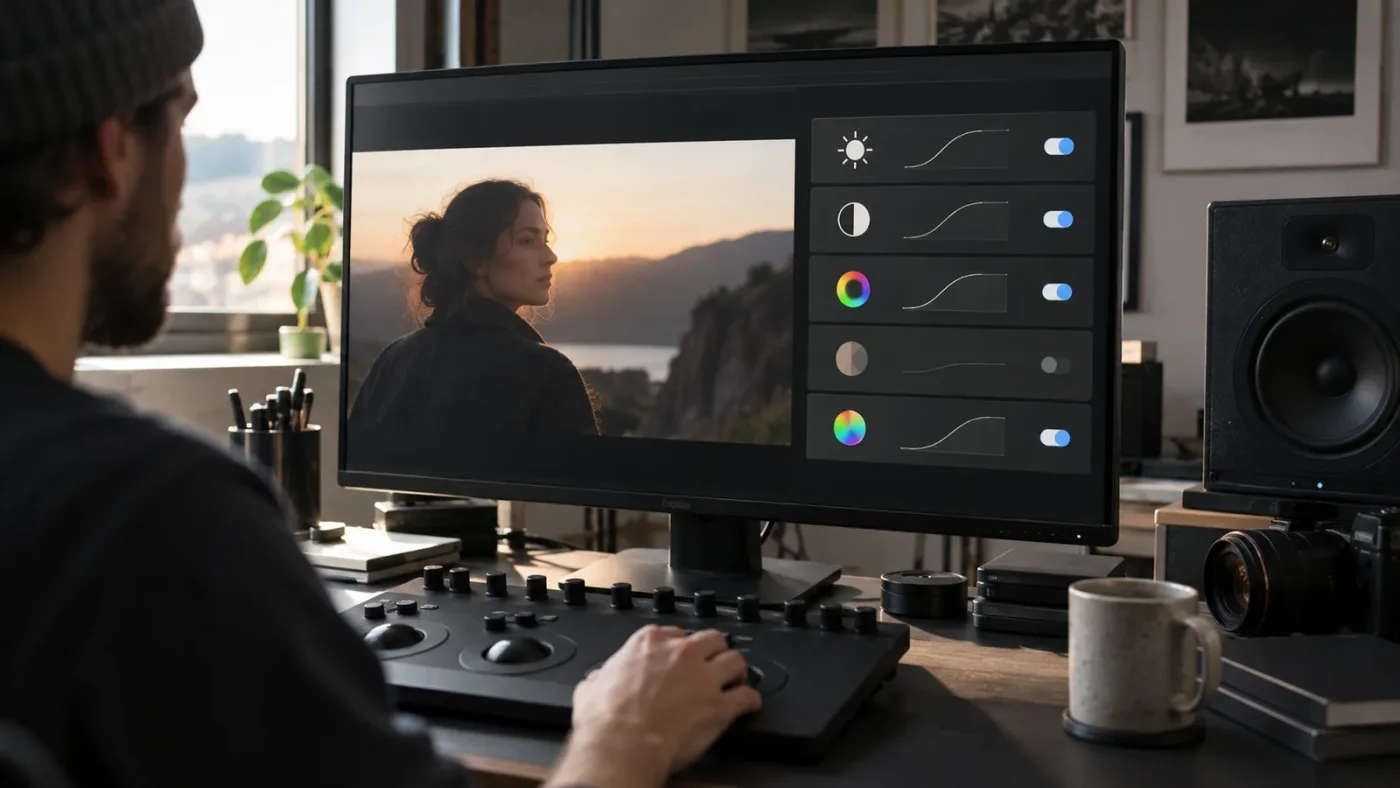
The feature is especially useful when a grade has grown beyond a few obvious serial corrections. You can see the order of the nodes, inspect the small preview for each one, and identify which tools were added to each node. The official guide also documents controls for enabling or disabling, locking, adding, and removing nodes from the list. (Blackmagic's feature guide)
The list won't explain every connection in a complicated grade. It gives you a clean inventory. That is the right mental model.
How do I open Layer List in DaVinci Resolve 21?
To open Layer List in DaVinci Resolve 21, go to the Color page, reveal the Node Graph, and click the Layer List view icon in the upper-left corner of the node editor. The icon switches the existing node graph into the stacked list view. (Blackmagic's DaVinci Resolve 21 New Features Guide, pp. 90-92)
Follow this sequence:
- Open a project in DaVinci Resolve 21.1 or another Resolve 21 build.
- Select the Color page.
- Select a clip in the Color page timeline so its grade is active.
- Find the Node Graph panel. If the panel is collapsed or hidden, restore it from the Color page workspace controls.
- Look at the upper-left corner of the Node Graph for the view controls.
- Click the icon for Layer List view.
- Click the alternate view icon when you want to return to the normal node graph.
The seventh step is not an undo. You aren't creating and deleting two grades. You're changing the presentation of the same graph. If you test the feature on a clip with three serial nodes, the list should make those nodes easier to scan without creating a duplicate correction.

How do I read the Layer List rows?
Each Layer List row represents a node from the active Color page node graph. Read the rows in node order, use the preview thumbnail to orient yourself, and use the tool icons as a quick reminder of what the node contains. The official documentation says Node 1 is the bottom-most layer and later nodes are stacked above it according to node order. (Blackmagic's DaVinci Resolve 21 New Features Guide, p. 91)
Here is the useful reading order:
| What you see | What it tells you | What to do with it |
|---|---|---|
| Node order | Where the node sits in the grade's sequence | Compare it with the intended correction order |
| Preview thumbnail | A small visual reference for the node | Use it to locate a correction quickly |
| Tool icons | Which tools have been added to the node | Check whether the row matches the job you gave that node |
| Enable or disable control | Whether that node is contributing to the current result | Bypass one correction to isolate its effect |
| Lock control | Whether the node is protected from casual edits | Lock a finished or approved correction |
| Add or remove controls | Basic node management | Add a node for a new idea or remove an unnecessary one |
Layer List is most useful when every node has a job. Cullen Kelly, a senior colorist and educator, puts the principle plainly: “a node is a visual idea of something we want to do to our image.” (Frame.io, “DaVinci Resolve's Most Useful Nodes”)
That quote is a good test for your own list. If you have a node for exposure, another for contrast, another for balance, and another for a targeted skin correction, the rows should tell a story. If five nodes do one vague job and none has a name you can explain, the list has exposed an organization problem. It hasn't caused one.
This is also where labels help. Use short names such as “Exposure,” “Contrast,” “Balance,” “Skin,” or “Output trim.” For a fuller naming and color-coding system, see our guide to DaVinci Resolve node labels and colors. The goal is not decoration. The goal is to answer “what does this node do?” before you touch a control.
DaVinci Resolve 21 orders Layer List from the bottom node upward according to node order.
How do I use Layer List to organize a color grade?
Use Layer List as an audit and management view: select a node, identify its purpose, bypass it, lock it, or add and remove nodes as the grade develops. Keep the creative correction in the node itself, and use the list to make the sequence legible.
How do I audit a grade from top to bottom?
Start with the first row and move through the list in order. Read the node label, thumbnail, and tool icons. Then disable the node briefly and look at the viewer. If the image changes in the way you expect, the node has a clear role. If nothing changes, the node may be empty, hidden, or affecting a part of the image you aren't currently watching.
That last sentence is a troubleshooting method, not a claim about how every node behaves. A qualifier, window, key, or blend operation may have a subtle result. The useful habit is to isolate one change at a time.
How do I bypass one node in Layer List?
Select the node row and use its enable or disable control. This lets you compare the grade with that correction active and bypassed without deleting the node. Blackmagic lists enable and disable as one of the Layer List's intended node actions. (Blackmagic's DaVinci Resolve 21 New Features Guide, p. 91)
Use bypassing for questions such as:
- Did this contrast node create the crushed blacks?
- Is the skin correction too strong?
- Is this look node adding the color shift I don't want?
- Does the image still need this temporary test correction?
You can then turn the node back on. Bypassing is reversible. Removing is not the same decision, especially when you are still testing a look.
How do I lock a node in Layer List?
Use the row's lock control after you are satisfied with a correction or want to protect it while changing other nodes. Locking is a guard against accidental edits, not a replacement for saving a version or keeping a backup.
A sensible time to lock a technical input transform is after checking it, a group correction is after approval, or a finished node is when another person should not casually change it. Leave an experimental look unlocked until the direction is clear. The official feature guide names locking as a Layer List action, but it does not promise that locking creates a version history or backup. (Blackmagic's DaVinci Resolve 21 New Features Guide)
How do I add or remove nodes in Layer List?
Use the list's add and remove controls for basic node management. Add a node when a new, explainable correction deserves its own place. Remove a node when it is genuinely unnecessary, empty, or replaced by a clearer structure. Blackmagic documents both actions in the Resolve 21 feature guide. (Blackmagic's DaVinci Resolve 21 New Features Guide, p. 91)
Don't turn every slider movement into a new node. The better rule is one meaningful idea per node, with the order showing how those ideas build on each other. If the order itself is confusing, switch to Graph view and inspect the connections before you make a structural change.
Why is Layer List different from a node graph?
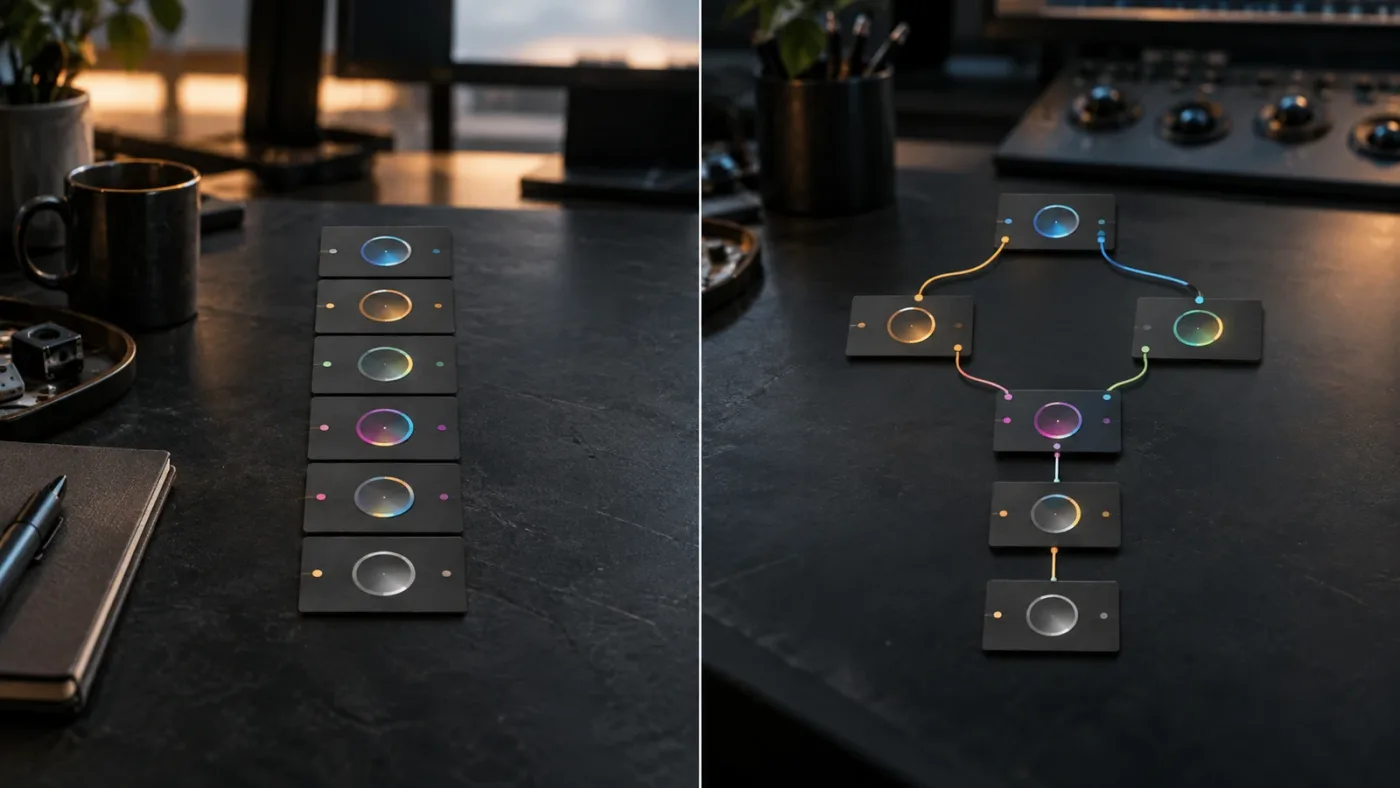
Layer List shows the node tree as an ordered stack, while Graph view shows the nodes and their connections. Layer List is better for scanning and simple node actions. Graph view is better for understanding signal flow, branching, mixers, keys, and outputs.
Layer List helps you manage nodes, but Graph view remains the right place to inspect routing.
Think of the two views as two questions:
| Question you need to answer | Better view | Reason |
|---|---|---|
| Which correction is in this grade? | Layer List | The rows make the node inventory easy to scan |
| Is this node enabled or locked? | Layer List | The row controls expose those states directly |
| What did I name this node? | Layer List | Labels are easier to compare in a list |
| What order are the corrections in? | Either view | Layer List gives a stack; Graph view gives spatial context |
| Where does a parallel branch go? | Graph view | The connection lines and mixers carry the meaning |
| Which key or alpha connection is active? | Graph view | Routing is the point of the graph |
| Why does a downstream correction look different? | Graph view first | You need to see what feeds it |
The list can simplify a graph, but it cannot make a parallel branch serial. It can help you find and bypass a node, but it cannot replace the reasoning needed to understand a complex signal path.
This is why I don't treat Layer List as a beginner-only feature. New colorists get a calmer inventory of nodes. Experienced colorists get a quick way to scan a long grade before moving into the connections that need closer attention.
How do I use Layer List for a real correction workflow?
Use a two-pass workflow: organize and audit in Layer List, then verify structure and routing in Graph view. This keeps the list doing what it is good at without asking it to explain information it doesn't display.
Pass one: make the grade readable
- Open the clip on the Color page.
- Switch to Layer List.
- Read each node from the first row to the last.
- Rename unclear nodes with short, functional labels.
- Disable one node at a time when you need to identify its contribution.
- Lock corrections that are finished or approved.
- Remove empty experiments only after you are sure they are not needed.
The right stopping point is not a magic node count. It is a list you can explain. A node named “Look” might be enough for a simple project, but “Warm highlight rolloff” may be more useful when you return to the job a week later.
Pass two: verify the structure
Switch back to Graph view. Check whether the visual connections match the story you just read in the list. Look for an unintended branch, a disconnected output, a node feeding a different mixer than you expected, or a key connection that explains why bypassing seemed to do nothing.
Then make one small change and return to Layer List. The feature works well as a loop: list for inventory, graph for routing, list for the next audit.
Why is Layer List missing in DaVinci Resolve 21?
If Layer List is missing in DaVinci Resolve 21, check the page, the Node Graph panel, and the installed version before assuming the feature is broken. Blackmagic documents Layer List specifically in the Color section of the Resolve 21 New Features Guide, not as an Edit page or Fusion page list. (Blackmagic's DaVinci Resolve 21 New Features Guide, pp. 90-92)
Why can't I see the Layer List icon?
The first thing to check is whether you are on the Color page with the Node Graph visible. The Layer List icon belongs to that node editor. If you are looking at the Edit timeline, Media Pool, Fusion node editor, or Fairlight mixer, you are in the wrong context for this feature.
The second check is the version. Layer List is a DaVinci Resolve 21 feature. Blackmagic's September 8, 2026 announcement identifies DaVinci Resolve 21.1 as the current 21.1 update, while the 21 feature guide documents the Layer List addition. (Blackmagic's Resolve 21.1 announcement)
Why does Layer List look empty?
An empty or unexpected list usually means the active clip has a different node state from the clip you intended to inspect. Select the clip in the Color page timeline, confirm that the viewer and node editor are following that clip, and then read the rows again.
If the list still looks wrong, switch to Graph view. A graph view can reveal whether the nodes are outside the level or version you expected, or whether you are working in a group, clip, timeline, or other node context. Don't delete anything while you are still figuring out which context is active.
Why can't I understand the order in Layer List?
Layer List follows node order, but node order alone doesn't explain every connection. If the grade uses parallel processing, a mixer, a key connection, or a more complex routing pattern, Graph view is the diagnostic view. The official guide describes Layer List as a stacked presentation of the nodes, not as a replacement for node routing. (Blackmagic's DaVinci Resolve 21 New Features Guide)

A missing Layer List icon usually means you're not looking at the Color page Node Graph.
Does Layer List work in Fusion?
No. The Resolve 21 documentation places this Layer List feature in the Color page Node Graph. Fusion has a separate node-based workspace with its own controls, so a Fusion workflow should stay in Fusion's graph editor. If a tutorial shows a list in Fusion, verify that it is describing a different Fusion tool or a custom macro rather than the Color page Layer List feature.
Should I use Layer List or Graph view?
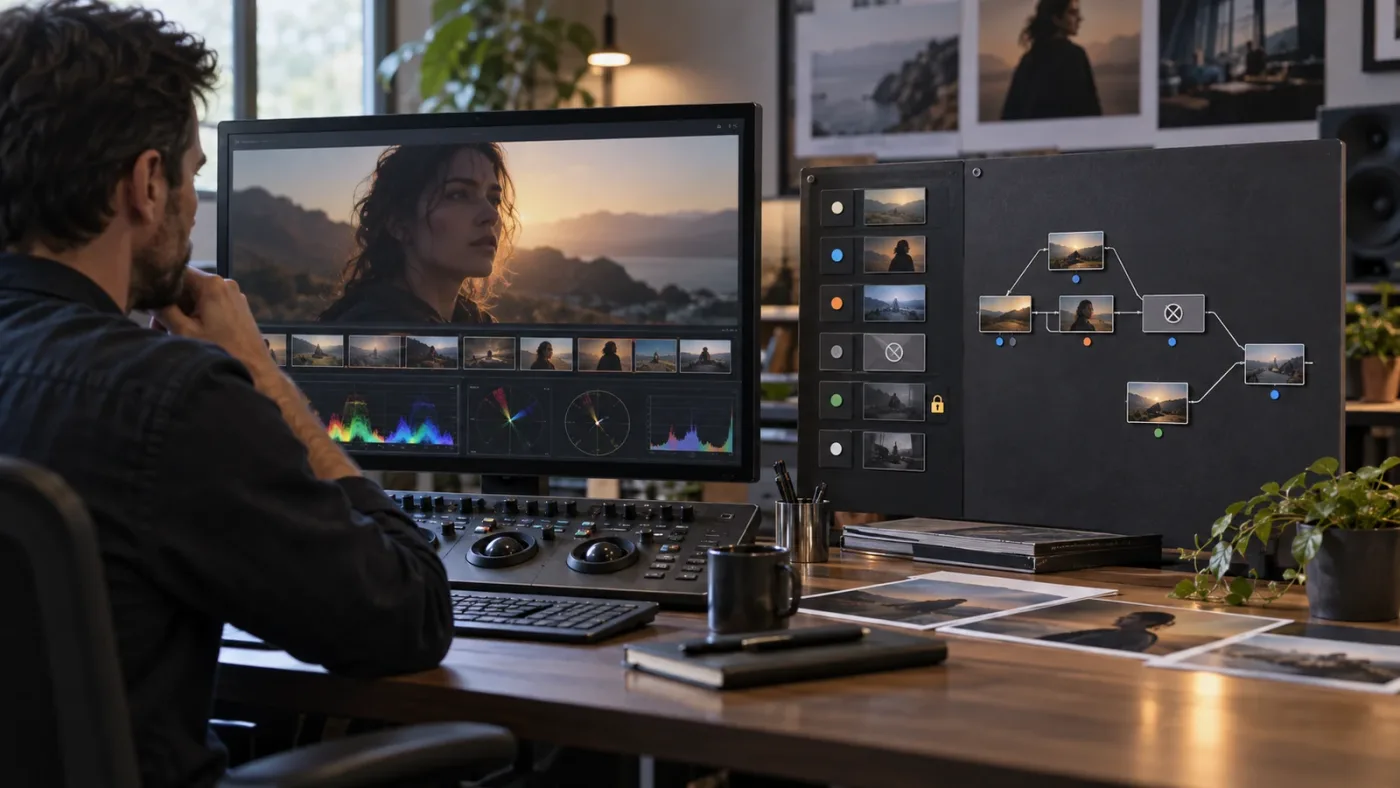
Use Layer List when your main decision is about node inventory and basic management. Use Graph view when your main decision is about connections and image flow. Most people who work with more than a simple serial chain should use both.
Here is the short verdict:
The safest Layer List workflow is to inspect, label, and bypass one node at a time.
Choose Layer List when:
- you inherited a grade and need to understand its parts;
- the graph is visually crowded;
- you want to identify a node by preview or tool icons;
- you need to bypass or lock a node quickly;
- you are cleaning up names before handing a project to someone else.
Choose Graph view when:
- you need to trace a serial connection;
- a parallel branch behaves unexpectedly;
- a mixer, key, or alpha output is involved;
- you need to rearrange or inspect the structure of the node tree;
- a correction looks wrong and the list does not tell you why.
Layer List is not a verdict on how a grade should be built. It is a view. The grade still depends on your correction choices, your color management, your footage, and your monitoring conditions.

What changed between DaVinci Resolve 20 and 21 Layer List behavior?
DaVinci Resolve 21 is the version that adds the Layer List view, so a Resolve 20 tutorial may not show the control at all. Resolve 21 also raises the maximum Node Stack Layers setting from four to eight, but that is a separate feature from viewing an individual node graph as a Layer List. (Blackmagic's DaVinci Resolve 21 New Features Guide, pp. 90-92)
That distinction prevents two common mix-ups:
- Layer List view changes how the active node graph is displayed.
- Node Stack Layers changes how many node graph stack layers the project can use.
Both use the word “layer,” but they solve different problems. The first is a view of nodes. The second is a stack of node graph levels. If a tutorial tells you to open a node stack setting when your goal is simply to see the Layer List, it is talking about a different Resolve feature.
Resolve 21.1 is still part of the Resolve 21 family. Blackmagic's September 2026 release announcement describes 21.1 as a free update and lists changes in AI assistant integration, photo support, multicam workflows, the trim editor, Fusion tools, scripting APIs, and other areas. It does not replace the Layer List workflow described in the 21 feature guide. (Blackmagic's DaVinci Resolve 21.1 announcement)

What is the best way to learn DaVinci Resolve fast when Layer List looks unfamiliar?
The best way to learn Layer List fast is to use a short, version-matched explanation while practicing on a small node tree. Official Blackmagic training gives you structured fundamentals, Casey Faris gives you a current Resolve 21 walkthrough, and longer paid courses can provide a broader curriculum but may mix versions or teach features outside this specific task. (Blackmagic's DaVinci Resolve training, Casey Faris's Resolve 21 course, Udemy's DaVinci Resolve course, Coursera's DaVinci Resolve Specialization)
Here is the honest comparison:
| Learning option | Best for | Watch for |
|---|---|---|
| Blackmagic official training | A structured foundation with official lessons and project files | The training page still includes Resolve 20 books, so check version-specific instructions |
| Casey Faris's Resolve 21 course | Seeing a current end-to-end workflow explained on screen | A long course covers much more than Layer List |
| Udemy | A broad, self-paced course with a defined curriculum | The listed course description includes older Resolve material even though it was updated in 2026 |
| Coursera | A multi-course structure for editing, color, audio, and effects | The specialization page describes Resolve 19 tools, so confirm menus against Resolve 21 |
| Practice on your own node tree | Remembering the actual controls you need | You must create the exercise and diagnose your own mistakes |
We built and run a 100,000+ member professional video-editing community, and we've spent more than seven years doing commercial editing in Resolve. One recurring question in that community is not “what is every button?” It is “which view answers the problem in front of me?” For Layer List, the answer is simple: use the list to see and manage the nodes, then use the graph to understand how those nodes connect.
TryUncle is the on-screen assistant for DaVinci Resolve on Mac and Windows. Ask in plain words, and Uncle points at the exact control on your screen.
What should you do next after opening Layer List?
Open a small project, select one clip, and build a readable test grade with a few purposeful nodes. Give each node one job. Open Layer List, bypass one row, lock one finished correction, and return to Graph view to inspect the connections. That exercise teaches the feature faster than memorizing a menu path.
If the Color page itself is still unfamiliar, start with our guide to how to color grade in DaVinci Resolve. If you want a broader learning plan after this feature, compare the best DaVinci Resolve courses and choose one that matches your version and the kind of work you want to make.
Layer List is the fastest way to audit a node tree when you need clarity, not a new way to grade.
Frequently asked questions
- Where is Layer List in DaVinci Resolve 21?
- Layer List is in the Color page Node Graph. Open the Color page, locate the node editor, and click the Layer List view icon in the upper-left corner of the Node Graph.
- Does Layer List change my grade in DaVinci Resolve 21?
- No. Layer List is an alternate view of the same node graph. It changes how the nodes are displayed, while the nodes and their processing remain the same.
- Why is Layer List missing in DaVinci Resolve 21?
- The most likely causes are that you are on a page other than Color, the Node Graph is hidden, or you are running an earlier Resolve version. Layer List is documented as a Resolve 21 Color page feature.
- Can I use Layer List in Fusion?
- No. Resolve 21 documents Layer List for the Color page Node Graph. Fusion has its own node editor, so use Fusion's graph controls there.
- Should I use Layer List or Graph view?
- Use Layer List for scanning and basic node management. Use Graph view when you need to understand serial, parallel, layer, key, or output connections.
Sources
- DaVinci Resolve 21 New Features Guide, Color page Layer List
- Blackmagic Design announces DaVinci Resolve 21.1
- DaVinci Resolve 21, Blackmagic Design
- DaVinci Resolve training, Blackmagic Design
- Cullen Kelly, DaVinci Resolve's Most Useful Nodes
- Casey Faris, Making Videos in Resolve 21
- DaVinci Resolve: Video Editing in DaVinci Resolve, Udemy
- DaVinci Resolve Specialization, Coursera
- TryUncle
Put this guide to work with TryUncle.
Ask about the step you’re on. TryUncle sees your screen and points at the control you need, so you can keep learning in your own project.
Get TryUncle for Mac or WindowsKeep reading

Guides · Jul 7, 2026 · 35 min
How to Color Grade in DaVinci Resolve: The Basics
Learn how to color grade in DaVinci Resolve: build a node chain, balance shadows and highlights with Lift, Gamma, and Gain, and read the scopes.
Guides · Jul 16, 2026 · 29 min
DaVinci Resolve Node Labels and Colors for Organized Grading
Rename and color-code DaVinci Resolve nodes so a six-node grade still makes sense months later. Labels, colors, badges, and a system that actually holds up.

Comparisons · Jul 13, 2026 · 34 min
Best DaVinci Resolve Courses in 2026: 6 Real Options Compared
We compared six real DaVinci Resolve courses for 2026, from Blackmagic's free certification to color grading and Udemy bootcamps, to find the best fit.