Articles / Reviewsupdated for DaVinci Resolve 21.0.2 (July 2026)
Is the M5 MacBook Pro Good for DaVinci Resolve?
Quick answer
Yes, for most editors. The base M5 MacBook Pro (16GB, $1,599) handles single-camera 4K editing and standard grading comfortably, thanks to Apple's hardware media engine. Push into multicam, RAW debayering, Magic Mask, or heavy Fusion work and the M5 Pro's extra GPU cores, or the M5 Max's dual encode engines, are the real upgrade. More memory alone won't get you there.
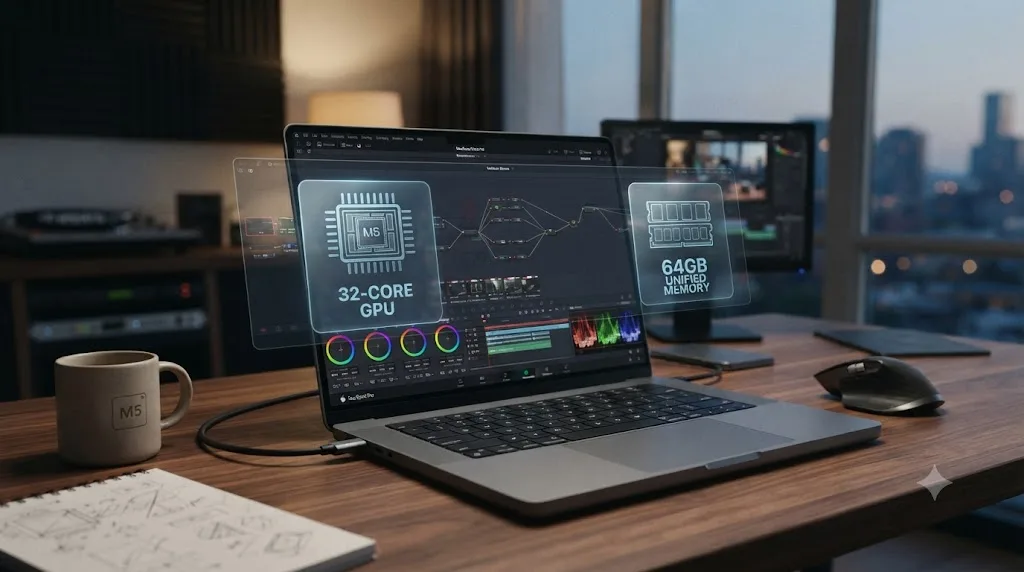
Every time Apple ships a new chip, the same question shows up in the same places: a comment under a launch-day review, a thread titled "worth upgrading for Resolve?", a DM to anyone who's already bought one. Right now, as of July 2026, that question is about the M5 MacBook Pro, and it doesn't have a one-word answer, because "M5 MacBook Pro" now covers three genuinely different machines.
We've spent 7+ years cutting professional, commercial video in Resolve and run a 100,000+ member video-editing community where a version of this exact question shows up every time Apple announces new silicon. This review walks through what's actually inside the base M5, the M5 Pro, and the M5 Max, what independent benchmarks say about each one running DaVinci Resolve, and where your money is actually going when you step up a tier.
What's actually inside the M5 MacBook Pro lineup?
"M5 MacBook Pro" isn't one machine, it's three, and the gap between the cheapest and the most expensive is bigger than the name suggests. Apple rolled the M5 generation out in two waves: the base M5 launched in the 14-inch MacBook Pro in October 2025, and M5 Pro and M5 Max followed five months later, in March 2026, moving the entire MacBook Pro line onto the new generation at once.
| Spec | M5 | M5 Pro | M5 Max |
|---|---|---|---|
| CPU cores | Up to 10 (4 performance + 6 efficiency) | Up to 18 (6 super cores + 12 performance cores) | 18 (6 super cores + 12 performance cores) |
| GPU cores | 10 | Up to 20 | Up to 40 |
| Neural Engine | 16-core | 16-core | 16-core |
| Unified memory | 16GB, 24GB, or 32GB | Up to 64GB | Up to 128GB |
| Memory bandwidth | ~153GB/s | Up to 307GB/s | Up to 614GB/s |
| Thunderbolt | Thunderbolt 4 | Thunderbolt 5 | Thunderbolt 5 |
| AV1 hardware encode | No (decode only) | Yes | Yes |
| Video encode / ProRes engines | 1 each | 1 each | 2 each (dual pipeline) |
| Starting price, 14-inch | $1,599 | $2,199 | $3,599 |
| Starting price, 16-inch | Not available | $2,699 | $3,899 |
Sources: Apple's M5 chip announcement, Apple's M5 Pro and M5 Max announcement, and MacRumors' coverage of the M5 Pro and M5 Max MacBook Pro launch.
One detail catches people out: the 16-inch MacBook Pro never ships with the base M5 chip. If you want the smaller, cheaper chip, you're buying the 14-inch model. The 16-inch line starts at M5 Pro and tops out at M5 Max, the same pattern Apple used with M4.
Every M5-generation GPU core carries its own dedicated Neural Accelerator, a change Apple didn't make on M4. That's the single biggest architectural shift in this generation, and it's the reason Apple's own AI-workload numbers jump so much higher than the general graphics numbers do. Apple's stated figures, its own vendor claims rather than an independent Resolve benchmark, put GPU AI compute at over 4x M4's peak and multithreaded CPU performance at up to 15% faster, with unified memory bandwidth up nearly 30% to roughly 153GB/s on the base chip. None of those numbers are DaVinci Resolve-specific; they're general chip benchmarks, and the sections below cover what independent testers actually measured running Resolve itself.
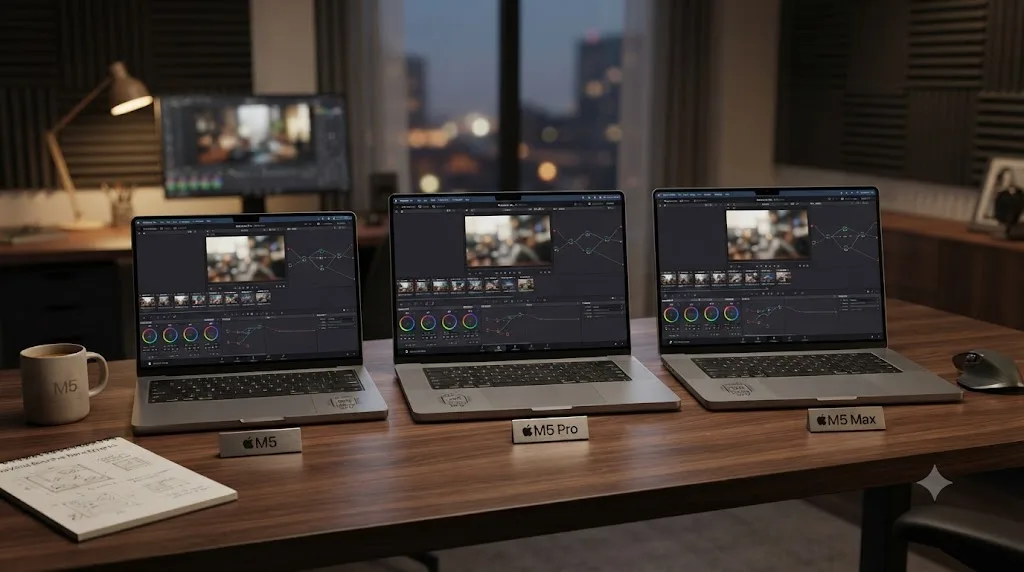
Is the base M5 MacBook Pro good enough for DaVinci Resolve?
For a specific, common project, yes, without much qualification. If you're cutting single-camera 4K footage from a mirrorless camera, applying a normal color grade, and exporting to H.264 or H.265 for the web, the base M5's hardware media engine handles all of it in real time, the same way the base M4's did before it.
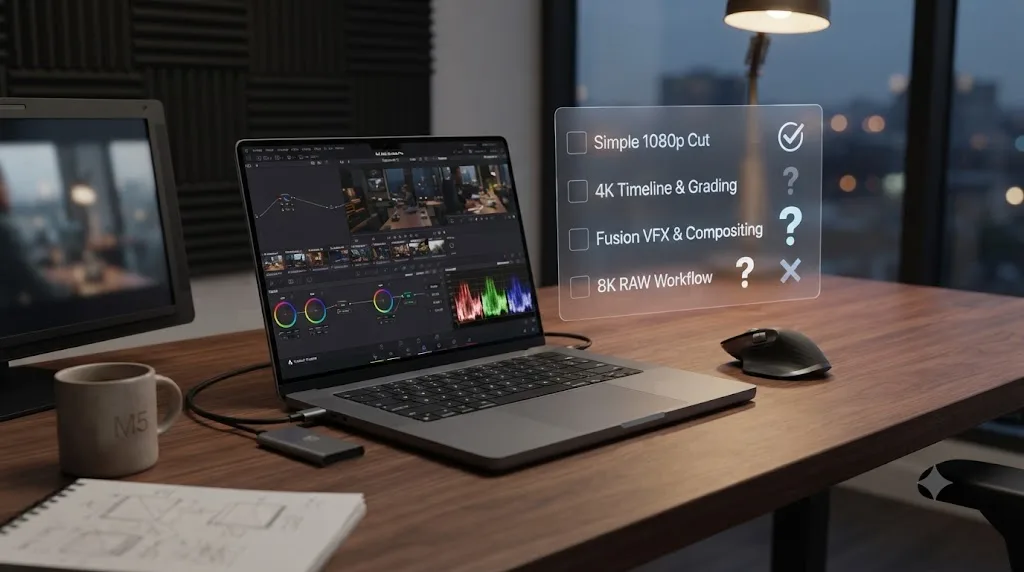
Where "good enough" starts depending on your footage is everything past that baseline: multiple camera angles cut together, RAW formats that need GPU-side debayering instead of hardware media-engine decode, Magic Mask tracking across a complex shot, or a Fusion comp with real depth to it. None of those workloads are impossible on the base M5. They're workloads where the base chip's 10 GPU cores start asking you for patience the M5 Pro's extra cores don't demand.
Iain Anderson, reviewing the M5 chip for ProVideo Coalition shortly after the base M5 MacBook Pro launched, before M5 Pro or M5 Max existed, was direct about where the ceiling sits: "If your workflow relies on the additional video acceleration or GPU power found in the Pro and Max variants found in Apple's higher-spec Macs, you'll have to wait a little longer to update." His conclusion for lighter workflows was the flip side of that same point: "For anyone with simpler needs, the M5 will be a good option."
| Your typical project | Base M5 verdict |
|---|---|
| Single-camera 4K H.264/H.265, standard grade | Comfortable, real-time playback |
| YouTube or social content, light effects | Comfortable |
| Two-camera 4K multicam | Workable, may benefit from Optimized Media |
| Heavy Blackmagic RAW or R3D at full resolution | Workable but slower; M5 Pro is a real upgrade here |
| Complex Fusion comps, many nodes | Frequently the point where the base chip asks for patience |
| Magic Mask on multiple subjects per shot | Usable, noticeably faster on M5 Pro or M5 Max |
| AV1 delivery | Software encode fallback, no hardware acceleration on base M5 |
Source: Iain Anderson's M5 chip review for video and Vision Pro users, ProVideo Coalition.
A base M5 MacBook Pro decodes H.264, HEVC, and ProRes in dedicated hardware regardless of what you paid for the chip, the same media engine that ships inside the M5 Max, just attached to fewer GPU cores. That's worth knowing before you assume the cheaper chip is a compromise on codec support. It isn't. The compromise, when there is one, shows up in compute-heavy work: RAW debayering, Fusion nodes, and Magic Mask tracking, all of which scale with GPU core count rather than which media engine you have.
How much unified memory does DaVinci Resolve need on an M5 Mac?
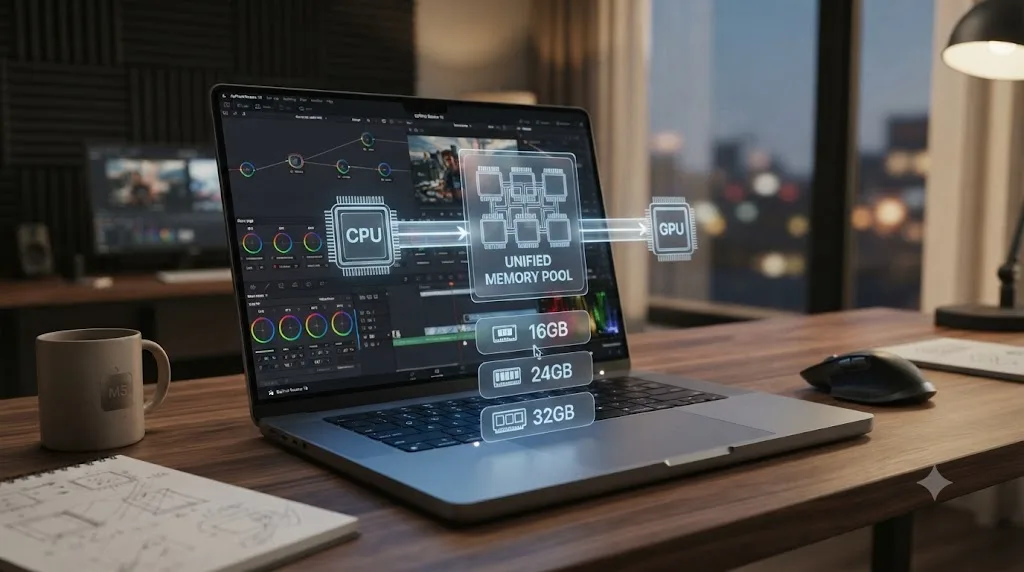
This is the setting that decides whether your M5 MacBook Pro feels smooth or feels like it's fighting you. Unified memory means the M5's CPU and GPU draw from one shared pool, so the memory number on the spec sheet is also your effective VRAM number. There's no separate graphics card with its own memory to fall back on, the same architecture that shaped every M-series Mac before it.
Blackmagic's stated minimum for DaVinci Resolve is 16GB of system RAM, per its own tech specs, which happens to match the base M5's entry configuration exactly. Treat that as the floor Blackmagic guarantees Resolve will launch and run on, not the number that produces a comfortable editing experience on a real project.
Larry Jordan, who benchmarks Apple silicon Macs specifically for video editing, draws a firmer line in his own configuration guide for the M4 generation, and the underlying principle carries forward unchanged to M5: "At a minimum, get 24 GB of RAM." That's the gap between "it will run" and "it won't fight you for memory while you work."
| Workload | Realistic unified memory |
|---|---|
| HD editing, light grade, no Fusion | 16GB (base M5's entry configuration) |
| Single-camera 4K editing, standard grade | 24GB |
| 4K multicam, noise reduction, moderate Fusion | 24GB to 48GB |
| 6K/8K RAW, heavy Fusion, HDR grading | 48GB or more (M5 Pro or M5 Max territory) |
| Multi-layer Fusion compositing, large node trees | 64GB or more (M5 Max) |
Since the base M5 MacBook Pro can be configured up to 32GB for a modest cost difference, and unified memory can never be upgraded after purchase on any Apple silicon Mac, that upgrade is worth paying for at time of order if your budget allows it at all. Skipping it to save a few hundred dollars on a machine you'll use for years is the kind of decision that looks fine on day one and annoying on month six, once a client sends you a multicam project.
Unified memory is soldered into the M5 the day it's manufactured, so it's the one spec on a new MacBook Pro you cannot fix later with an upgrade. Storage can move to an external drive. A GPU can't be added after the fact on any tier. Memory falls into neither category. It's fixed at checkout, and it's the single number most likely to determine whether this machine still feels adequate in a year.
Should you buy base M5, M5 Pro, or M5 Max for DaVinci Resolve?
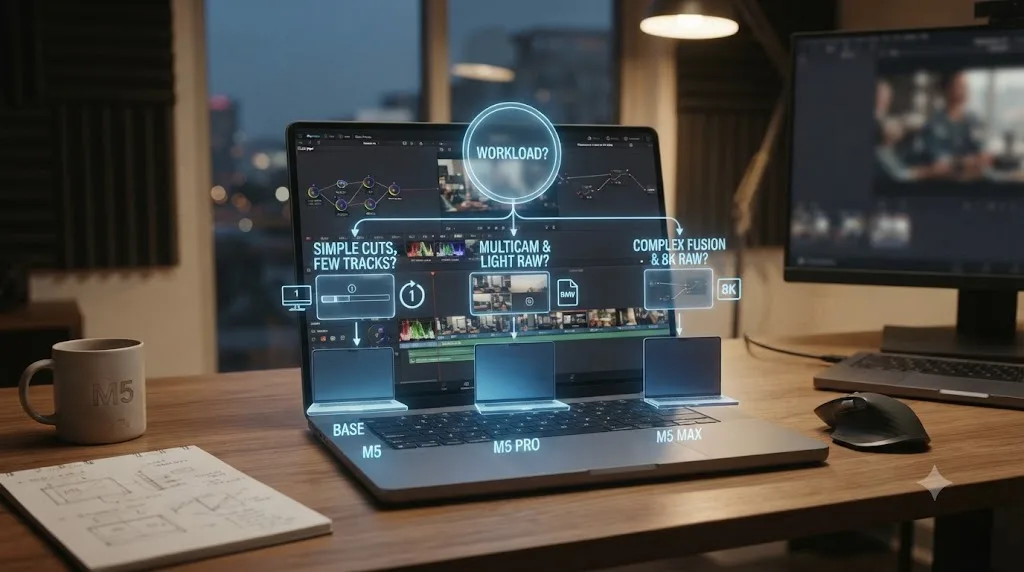
Once you've decided you actually want a MacBook Pro rather than a Mac mini or Mac Studio, this is the real decision, and it's not simply "spend more if you can afford it." The three chip tiers solve genuinely different problems, and the price gaps between them are real budget decisions, not rounding errors.
Larry Jordan's testing across Apple silicon configurations found something that still holds true generation over generation: "More RAM is nice, but more GPUs boost performance," and more pointedly, "systems with more RAM, but fewer GPU cores are not as fast as systems with relatively less RAM and more GPU cores." That's a specific, tested claim about how Apple silicon scales for Resolve's actual workload, not a general assumption.
Applied to the current M5 MacBook Pro lineup, here's what that means in practice:
| If you mostly do this | Choose | Because |
|---|---|---|
| Single-camera 4K, standard grade, web delivery | Base M5, 24GB configured | Hardware decode handles the heavy lifting; GPU cores rarely become the bottleneck |
| Two-camera 4K multicam, occasional noise reduction | Base M5 if budget-constrained, M5 Pro if it's a regular workload | Base handles it; M5 Pro handles it with less waiting |
| Regular Fusion compositing, Magic Mask on multiple subjects | M5 Pro | GPU core count scales these tools directly; the base chip's 10 cores show their ceiling here |
| Blackmagic RAW or R3D at full resolution, 3+ angles | M5 Pro, or step up to M5 Max | GPU-side debayering is compute-heavy work that scales with core count |
| AV1 delivery required by a platform | M5 Pro or M5 Max | Only these two chips add hardware AV1 encode; base M5 falls back to software |
| Multi-stream HDR delivery, dual simultaneous exports | M5 Max | Its dual video encode and dual ProRes engines run two jobs through dedicated silicon at once instead of queuing them |
| A tiebreak between similar prices | The configuration with more GPU cores | Consistently the better predictor of Resolve performance past the 24GB memory floor |
At current 2026 pricing, that's a $1,599 base M5 (16GB, upgradeable to 32GB) against a $2,199 M5 Pro (up to 64GB) or a $3,599 M5 Max (up to 128GB). A $600 gap between base and Pro, and a further $1,400 gap up to Max, are real budget decisions. The honest framing is that you're not paying for "more computer" in the abstract. You're paying specifically for GPU cores that speed up Fusion, Magic Mask, and RAW debayering, and, at the Max tier, for a second encode pipeline that most solo creators and short-form editors simply don't run often enough to justify the cost.
How much faster is DaVinci Resolve on M5 than M4?
Independent testing put real numbers on this question, not just Apple's vendor claims about AI compute. Brendan Frye, reviewing the 2026 14-inch MacBook Pro with M5 Pro for CGMagazine, ran a direct export comparison against the 2025 base M5 MacBook Pro using DaVinci Resolve Studio, and the result is the clearest timed evidence available for what actually changed between the two launches.
"The same performance increase was observed when we ran a similar export project in DaVinci Resolve Studio, with the 14-inch MacBook Pro with M5 Pro delivering a 15 to 20 per cent performance increase compared with the 2025 M5 MacBook Pro," Frye wrote, adding that the gain was "consistent across most of our testing, including the 10-minute video export test and the full 84-minute export."
On color-corrected footage specifically, the gap widened. Frye's team tested with "colour-corrected Six Invitational footage from Paris 2026" and measured "around a 24 per cent increase in export speeds" on that grading-heavy project compared with the same test on the base M5.
| Test | M5 Pro vs base M5 (2025) |
|---|---|
| 10-minute video export, DaVinci Resolve Studio | 15-20% faster |
| Full 84-minute export, DaVinci Resolve Studio | 15-20% faster |
| Color-corrected footage export | ~24% faster |
Source: Brendan Frye's MacBook Pro M5 Pro 2026 review, CGMagazine.
That's the M5 Pro against the base M5, not a raw M5-versus-M4 comparison, since M5 Pro didn't exist until March 2026 and the two launches happened five months apart. But it's the most directly comparable timed Resolve data available, and it tracks with everything the spec table above already showed: more GPU cores and a wider memory pipeline translate into measurable, real-world export gains on this exact software, not just synthetic benchmark points.
Frye's overall verdict on the machine, after finishing his tests, is worth repeating in full: it "remains the laptop to beat for anyone who treats their computer as a serious tool."
A CGMagazine test measured a 15 to 20 percent DaVinci Resolve Studio export speed gain on the M5 Pro MacBook Pro compared with the base M5, and a 24 percent gain specifically on color-corrected footage. That's an independently measured number on the exact software this review is about, not a synthetic benchmark score you have to translate into real editing time yourself.
Does the M5 MacBook Pro throttle during long DaVinci Resolve exports?
Sometimes, and which chip tier and which chassis size you buy changes the honest answer more than most buyers expect.
The base M5 MacBook Pro cools its chip with a single fan, the same design Apple used on the M4 model before it. Hardware reviewers running sustained stress tests found the base M5 hitting roughly 99°C under continuous full load, according to TweakTown's coverage of independent lab testing. That test used Cinebench 2024, a CPU stress benchmark, not DaVinci Resolve itself, so treat it as a proxy for sustained thermal ceiling rather than a Resolve-specific number. The base M5 ran about 1 to 2°C cooler than the outgoing M4 under the same conditions, a small improvement, not a fix. For a typical 10-minute Resolve export, that ceiling rarely matters, since the chip cools back down before it accumulates enough heat to throttle meaningfully. For an hours-long overnight render queue or a multi-hour color pass with heavy noise reduction, budget for a gradual slowdown as the single fan struggles to keep pace.
Buyers stepping up to M5 Max specifically to avoid that problem should know it doesn't automatically go away, because chassis size matters as much as chip tier. Notebookcheck's testing of the 14-inch MacBook Pro configured with M5 Max found inconsistent CPU and GPU performance and real thermal throttling, concluding that the compact chassis and its 96-watt power adapter can't keep up with a chip that can draw 96 watts on its own during the opening seconds of a stress test. The same M5 Max chip in the larger 16-inch chassis, with more room for airflow and a bigger power adapter, ran stable and quiet by comparison. Notebookcheck's own recommendation was direct: buy the 16-inch MacBook Pro if you're configuring M5 Max, not the 14-inch.
| Chip and chassis | Sustained render behavior |
|---|---|
| Base M5, 14-inch (only chassis it ships in) | Handles short exports fine; single fan lets heat build on multi-hour renders |
| M5 Pro, 14-inch or 16-inch | Dual-fan cooling in both chassis sizes; more stable under sustained load than base M5 |
| M5 Max, 14-inch | Documented throttling and inconsistent performance under sustained load, per Notebookcheck |
| M5 Max, 16-inch | Stable, quieter operation under the same sustained load, per Notebookcheck |
One setting is worth checking before you queue a long render on any M5 Pro or M5 Max: Apple's own guide to Power Modes lets you switch from Automatic to High Power Mode in System Settings, under Battery, which allows the fans to run faster for sustained workloads at the cost of more noise. Low Power Mode does the opposite on purpose, trading performance for quiet and battery life, exactly the setting you don't want active during a client deadline.
If you're specifically buying M5 Max for its GPU cores and dual encode engines, buy it in the 16-inch chassis, not the 14-inch. Notebookcheck's testing found the smaller chassis can't dissipate that much heat consistently, which undercuts the exact performance you paid the $3,599-and-up price for.
None of this is unique to Apple or to Resolve. Any laptop chip run at its ceiling for hours will eventually throttle somewhere, and the only real question is how much and how soon. What's specific to this generation is the size mismatch: M5 Max is powerful enough that the 14-inch chassis it's optionally sold in can't fully cool it, while the base M5 in that same chassis runs within its thermal budget for anything short of a marathon render session.
How does the M5 Max MacBook Pro compare to a Windows RTX 5090 laptop in DaVinci Resolve?
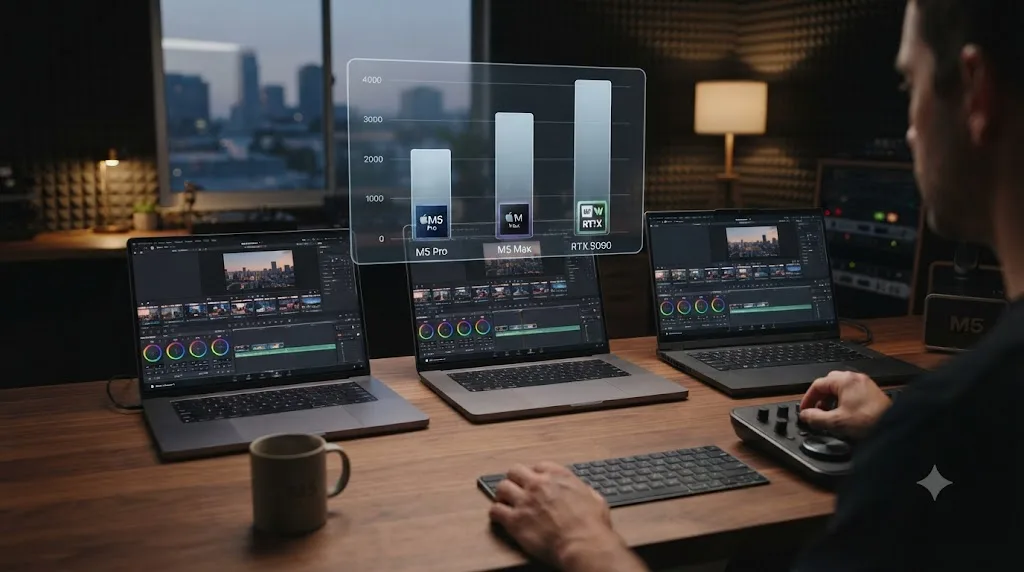
Better, according to PugetBench's own creator-app benchmark suite, and the margin isn't close on most tests. Puget Systems' PugetBench for DaVinci Resolve is the same standardized benchmark methodology reviewers have used for years to compare Windows and Mac editing hardware on identical Resolve workloads, and Notebookcheck's coverage of the M5 Pro and M5 Max results ran that exact comparison against an Asus ProArt P16 carrying a Ryzen 9 HX370 and a mobile GeForce RTX 5090, currently one of the fastest discrete laptop GPUs Windows offers.
| Machine | PugetBench Resolve Standard | PugetBench Resolve Extended |
|---|---|---|
| MacBook Pro 16, M5 Max (40-core GPU) | 127,090 | 88,696 |
| MacBook Pro 14, M5 Max (40-core GPU) | 115,172 | 82,713 |
| Asus ProArt P16, Ryzen 9 HX370 + RTX 5090 | 85,114 | 63,907 |
| MacBook Pro 16, M5 Pro (20-core GPU) | 83,560 | 58,878 |
Source: Notebookcheck's coverage of PugetBench creator benchmark results for M5 Pro and M5 Max.
The M5 Max models both clear the RTX 5090 laptop by a wide margin on the Standard benchmark, and note that the table already reflects the same 14-inch-versus-16-inch chassis gap covered above, since the 16-inch M5 Max scores higher than the 14-inch M5 Max on identical silicon. The M5 Pro, with half the GPU cores of the M5 Max, lands right around the RTX 5090's own score, essentially a dead heat rather than a clear win. Notebookcheck's own framing of the result: "the M5 Pro is already either much faster or just slightly slower than the mobile GeForce RTX 5090" depending on the specific test, while the M5 Max models pull ahead more decisively "especially when you need the GPU."
Jaron Schneider, reviewing the M5 Max MacBook Pro for PetaPixel, ran the same PugetBench suite against Apple's own desktop lineup rather than a Windows machine, and found a different, more nuanced result. "Its Intraframe, Fusion, and AI scores are all better than the M2 Ultra and come very close to the potency of the dual-chip M3 Ultra," Schneider wrote, while noting the M3 Ultra Mac Studio's overall Resolve score of 11,049 points still edges out the M5 Max MacBook Pro's total. Schneider's summary of that gap: the M5 Max "excels" in Resolve, but "the M3 Ultra is still the better machine in Resolve," even as the M5 Max makes a stronger overall case once you weigh Photoshop and Lightroom performance alongside it and the price difference between a laptop and a dual-chip desktop.
A MacBook Pro with M5 Max scored higher than a Windows laptop carrying a mobile RTX 5090 on PugetBench's DaVinci Resolve creator benchmark, on both the Standard and Extended test suites. That's a laptop-versus-laptop comparison against one of the fastest discrete GPUs currently shipping in a portable Windows machine, not a desktop-versus-laptop mismatch stacked in Apple's favor.
Should you buy an M5 MacBook Pro or a Mac Studio for DaVinci Resolve?
Depends entirely on whether you need to edit on the go, and this is worth being honest about rather than pretending a laptop always loses to a desktop on raw power. Apple's M4-generation Mac Studio and Mac mini haven't moved to M5 as of mid-2026, which means the comparison right now is genuinely cross-generation: an M5 MacBook Pro against M4-generation desktop hardware.
Our review of the Mac mini M4 found that a two-year-old M3 Max MacBook Pro outran a brand-new M4 Pro Mac mini on a Scene Edit Detection benchmark, purely because the M3 Max carried more GPU cores. That same pattern applies here in reverse: a base M5 MacBook Pro with only 10 GPU cores will lose to an M4 Pro or M4 Max desktop Mac with more cores, regardless of which one shipped more recently. Chip generation matters less than GPU core count, on every Apple silicon Resolve comparison this site has run.
| Situation | M5 MacBook Pro | M4-generation Mac Studio or Mac mini |
|---|---|---|
| Need to edit away from a desk | The only option here | Not portable |
| Single-camera or light multicam 4K | Base M5 handles it comfortably | Base M4 Mac mini handles it comfortably, for less money |
| Regular Fusion compositing, moderate node counts | M5 Pro handles most of it | M4 Pro handles it comparably |
| 6K/8K RAW, 4+ camera multicam | M5 Max, with real thermal limits under sustained load, especially in the 14-inch chassis | M4 Max Mac Studio, with no thermal ceiling to manage |
| Multi-stream HDR delivery, heavy simultaneous export jobs | M5 Max's dual encode engines handle it well, laptop battery permitting | M4 Max's dual encode engines handle it identically, plugged in indefinitely |
| Budget-conscious single-camera editing | A base M5 MacBook Pro costs more than a base M4 Mac mini for similar Resolve performance on this workload | The cheaper option if portability isn't a requirement |
A laptop chip and a desktop chip with the same GPU core count perform close to identically on Resolve's actual rendering and grading work, since the underlying media engine and unified memory architecture are the same silicon design either way. What a desktop buys you that a laptop structurally can't is sustained thermal headroom on long, hot exports, and, on the Mac mini specifically, a meaningfully lower price for the same core-count tier. What a laptop buys you that a desktop can't is the ability to grade on set, in a client's office, or on a plane, which is worth a real premium if that's genuinely how you work.
If your honest answer to "how often do I edit somewhere other than my desk" is rarely, a Mac Studio or Mac mini at the same GPU core-count tier is very likely the better dollar-for-dollar Resolve machine. If the honest answer is regularly, the M5 MacBook Pro's portability is the actual product you're buying, and it's reasonable to pay for it.
Do you need DaVinci Resolve Studio on an M5 MacBook Pro?
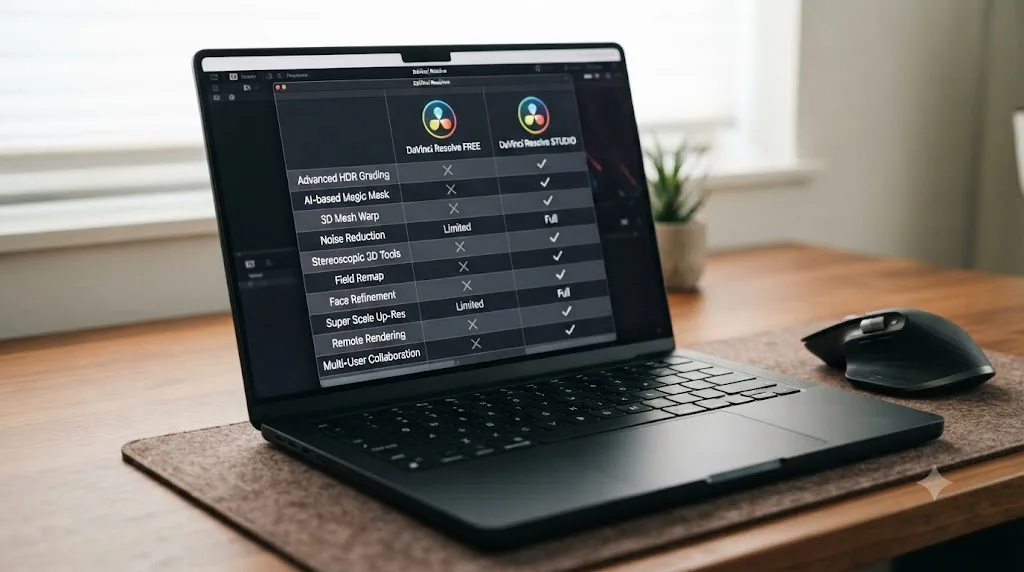
Not for export or playback speed, and the calculation here is genuinely different on any Mac than it is on a comparably priced Windows machine, the same split that's held true across every M-series generation so far.
On Windows and Linux, Studio's accelerated H.264/H.265 hardware decoding and encoding is a real, measurable speed upgrade, because the free version routes those codecs through the CPU by default on those platforms. On an M5 MacBook Pro, that entire argument for Studio disappears, since hardware decode and encode for H.264, HEVC, and ProRes are built into the chip itself and shipped in the free version too, at every tier from base M5 up to M5 Max.
| Feature | Free version on an M5 MacBook Pro | Studio on an M5 MacBook Pro |
|---|---|---|
| Hardware H.264/H.265 decode and encode | Yes | Yes, no speed difference |
| ProRes hardware decode and encode | Yes | Yes, no speed difference |
| Timeline resolution ceiling | Up to 4K | Unlimited, HD through 8K+ |
| AI noise reduction | No | Yes |
| Magic Mask | No | Yes |
| Voice Isolation | No | Yes |
| Advanced HDR grading tools | No | Yes |
Source: DaVinci Resolve Studio product page and our own free vs Studio pricing breakdown.
The honest framing, regardless of which M5 tier you own: buy Studio for the features you'll actually use, Magic Mask, noise reduction, resolutions past 4K, HDR tools, not because you expect it to make your MacBook Pro faster. On Apple silicon there usually isn't a speed problem for it to fix, since the hardware decode path is identical between free and paid at every chip tier.
Does the M5 MacBook Pro need an eGPU for DaVinci Resolve?
No, and buying one specifically to speed up Resolve on this machine would be a wasted purchase, the same architectural limit that's applied to every Apple silicon Mac since the Intel transition.
Apple's own support documentation on external graphics processors describes eGPU support as available on Intel-based Macs with Thunderbolt 3, with no equivalent path for Apple silicon. The unified memory architecture that makes the M5 good at Resolve in the first place is the same reason there's no clean handoff point for routing rendering work to an external card the way a traditional discrete-GPU PC does.
There's one narrow exception, and it's not the one eGPU shoppers are hoping for. As of April 2026, Apple authorized third-party drivers, built by Tiny Corp, that let AMD and Nvidia eGPUs function on Apple silicon Macs for general compute tasks, things like local AI model inference or developer testing against real GPU hardware, according to AppleInsider's coverage. That's compute access, not graphics acceleration, and none of it routes through Resolve's rendering pipeline.
If you need more GPU power on an M5 MacBook Pro for Resolve, the only real lever is the one this review has already covered: buy the M5 Pro or M5 Max configuration with more GPU cores built into the chip. There's no add-a-card upgrade path around that on Apple silicon.
Do you need more displays or faster storage on an M5 MacBook Pro for grading?
Possibly, and this is one of the quieter changes in the M5 generation that matters more to colorists than the headline GPU numbers suggest.
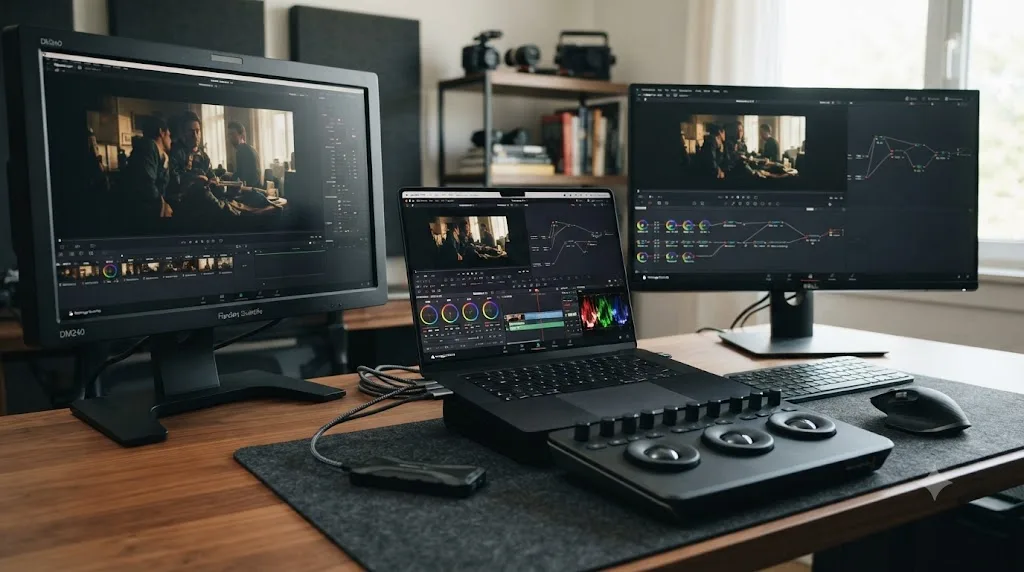
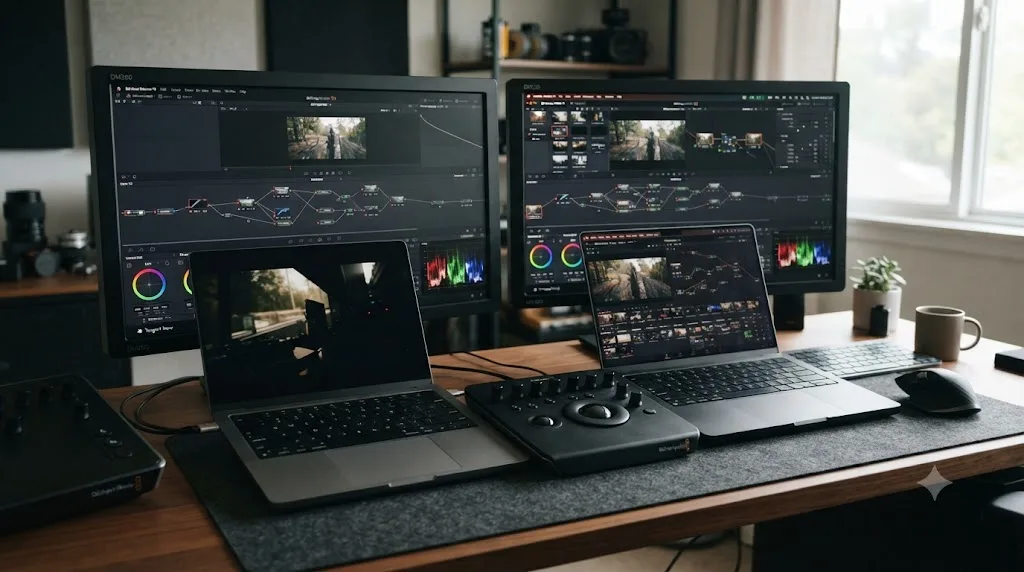
External display support finally moved past a limit that held for years. A base M5 MacBook Pro drives up to two external displays while the built-in screen stays active, an improvement over the M3 generation, which needed the lid closed to hit that same count. Step up to M5 Pro and you get three external displays over Thunderbolt 5; M5 Max stretches that to four, all from a single certified Thunderbolt 5 dock rather than a tangle of separate cables. For a colorist running a calibrated reference monitor alongside a client-facing display and a scopes panel, that jump from two displays to three or four is a real workflow change, not a spec-sheet curiosity.
| Chip tier | External displays supported | Practical use case |
|---|---|---|
| Base M5 | Up to 2, lid open | Laptop screen plus one client or reference monitor |
| M5 Pro | Up to 3, over Thunderbolt 5 | Reference monitor, scopes panel, and a client display |
| M5 Max | Up to 4, over Thunderbolt 5 | Full grading suite setup: reference monitor, scopes, client display, and a second timeline monitor |
Source: Macworld's coverage of M5 Pro and M5 Max multi-display support.
Storage speed jumped too, and it matters more for Resolve than it looks at first glance, since cache files, render files, and proxy media all live on that internal drive by default, and it can't be swapped out later the same way memory can't. Independent testing with the Blackmagic Disk Speed Test, the same free utility Blackmagic ships for exactly this kind of measurement, found the base M5's internal SSD reading at roughly 6,323MB/s and writing at roughly 6,068MB/s, against about 2,031MB/s read and 3,293MB/s write on the outgoing base M4. Tom's Hardware measured that gap at roughly 2.5x on average across both directions, beating Apple's own marketing claims. M5 Max pushes further still: The Verge's testing, as covered by MacDailyNews, measured a 16-inch M5 Max configuration with a 4TB drive sustaining 13.6GB/s read and 17.8GB/s write, an 86 and 123 percent increase respectively over the equivalent M4 Max configuration.
That storage jump matters beyond the internal drive too, if your media lives on an external SSD instead, which is common on a Mac whose internal storage can't be expanded later. Only M5 Pro and M5 Max get Thunderbolt 5, rated for up to 80Gbps of bidirectional bandwidth with a "Bandwidth Boost" mode that can push higher for display traffic specifically. Independent testing of Thunderbolt 5 external SSDs found real-world transfer speeds roughly 2 to 2.5 times faster than Thunderbolt 4, the interface the base M5 is limited to. If your project media sits on a fast external drive rather than the internal SSD, that's a second, separate reason M5 Pro or M5 Max can outrun a base M5 on the unglamorous parts of a Resolve session, hauling large ProRes or RAW files on and off the drive, that has nothing to do with GPU core count.
A faster internal SSD won't speed up GPU-bound work like Fusion rendering or color processing, but it measurably shortens the unglamorous parts of a Resolve session: generating Optimized Media, writing render cache, and exporting large ProRes masters all move data at that same disk speed. If your project lives entirely on the internal drive rather than an external one, this generation's SSD gains are a real, if quiet, upgrade over M4.
None of this changes which chip tier to buy for GPU-bound work like Fusion or Magic Mask, covered earlier in this review. It does mean that if your workflow depends on running several calibrated displays at once, or you push a lot of large media through a drive rather than relying on playback from RAM cache, M5 Pro or M5 Max carry a second, separate advantage over base M5 that has nothing to do with GPU core count.
What's battery life like editing in DaVinci Resolve on an M5 MacBook Pro?
Meaningfully shorter than Apple's headline number, and that's true across the entire M-series lineup, not something specific to M5. Apple rates the 14-inch M5 MacBook Pro at up to 24 hours of battery life, but that figure describes video playback, one of the lightest possible workloads a Mac can run, not real editing.
Video editing is GPU-intensive work, and GPU-intensive workloads drain a laptop battery meaningfully faster than CPU-bound tasks like writing or browsing. Realistic battery life while actively editing and grading in DaVinci Resolve on an M5 MacBook Pro lands closer to 6 to 8 hours of continuous use, not the 24-hour figure on Apple's spec sheet. That gap matters most if you're planning to grade on location without reliable access to power.
Alex Cooke, reviewing the base M5 MacBook Pro for Fstoppers, found smooth performance on 4K editing tasks and noted that "export times are notably faster than previous generations, and the machine maintains its performance throughout the export without thermal throttling," a meaningful detail for a fanless comparison point, since the MacBook Pro's active cooling is exactly what protects it from the kind of thermal throttling a fanless machine like the MacBook Air can hit under a long, hot export.
Apple's 24-hour battery figure for the M5 MacBook Pro describes video playback, not video editing, and real DaVinci Resolve work realistically drains that same battery in 6 to 8 hours. If your workflow includes grading sessions away from a wall outlet, that's the number worth planning around, not the one on the spec sheet, and it's worth double-checking against our battery drain troubleshooting guide if your own sessions are running shorter than that.
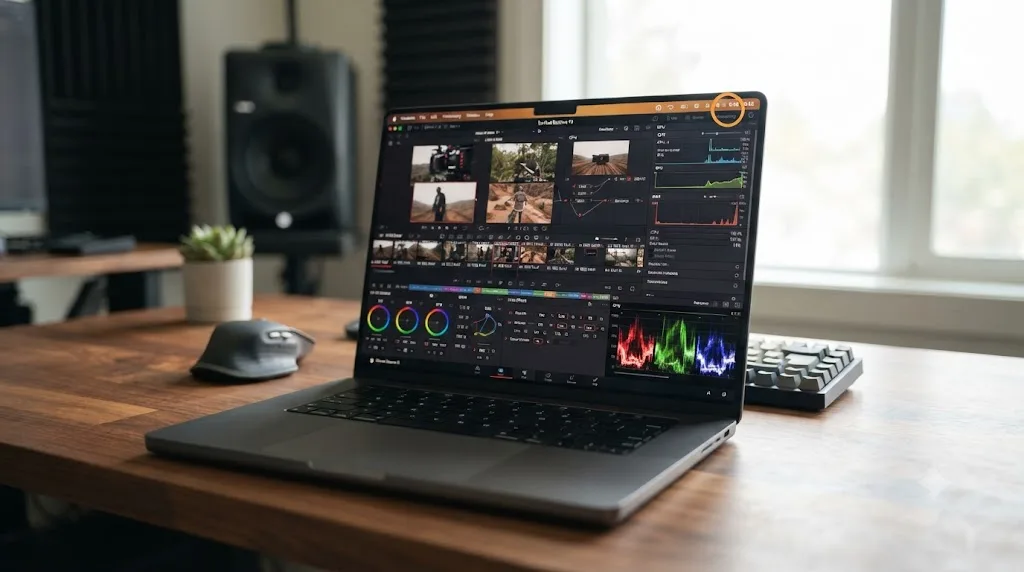
What export settings are fastest on an M5 MacBook Pro?
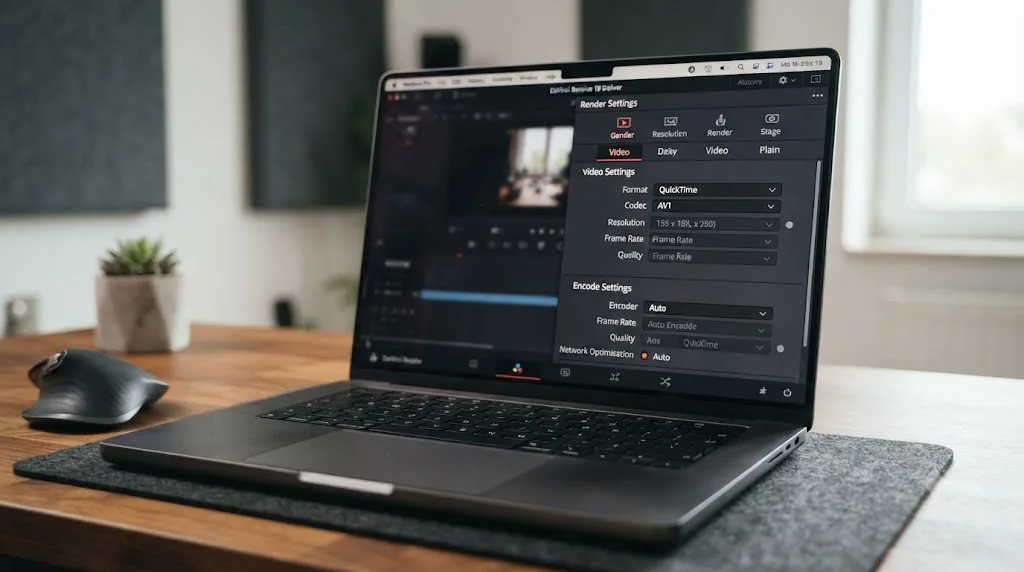
For standard web delivery, the fast path is short: QuickTime or MP4 container, H.264 or H.265 codec, Encoder set to Auto on the Deliver page. That last setting is the one people skip, and it's the one that matters most. Auto tells Resolve to route the encode to the M5's dedicated hardware encoder instead of falling back to software, and on Apple silicon that hardware path is fast enough that manually forcing software encoding almost never buys you better quality worth the time cost.
| Delivery target | Container | Codec | Encoder | Notes |
|---|---|---|---|---|
| YouTube, general web | MP4 | H.264 or H.265 | Auto | Both hardware-accelerated on every M5 tier |
| Client review, ProRes master | QuickTime | Apple ProRes 422 HQ | Auto | Hardware-accelerated on every M5 tier, including base M5 |
| Archival or further grading | QuickTime | Apple ProRes 4444 | Auto | Adds alpha support; still hardware-accelerated |
| Streaming platforms requesting AV1 | MP4 | AV1 | Auto on M5 Pro/M5 Max; software on base M5 | See note below |
One asymmetry is worth knowing before you pick a codec for delivery. Every M5-generation chip decodes AV1 in hardware, but only M5 Pro and M5 Max encode it in hardware. That hardware AV1 encoder is new to this generation; no M4-generation chip had it either. If a platform is specifically asking for AV1 delivery and you're on a base M5 MacBook Pro, budget real extra export time, since that encode falls back to a slower software path, or export H.265 instead if the platform accepts it.
Network Optimization, the checkbox on the Deliver page's advanced settings, is worth leaving off unless a specific streaming destination's spec sheet asks for it. It restructures the file for progressive download at the cost of some encode efficiency, and most delivery targets, YouTube included, re-encode on ingest anyway.
For anyone running color-heavy timelines specifically, revisit the CGMagazine numbers above: the biggest measured export gain going from base M5 to M5 Pro showed up on color-corrected footage, not plain cuts-only exports, which tracks with GPU cores mattering more the heavier your grade is.
Should you buy an M5 MacBook Pro now or wait for M6?
Buy now if you need to edit now, and that's not a dodge, it's the actual, tested pattern this review has traced across every chip generation covered on this site. Apple hasn't announced an M6 MacBook Pro, its release window is unannounced as of this review's last update, and the historical pattern gives you real information here: M5 followed M4's base chip by about a year in the 14-inch MacBook Pro, with M5 Pro and M5 Max following the base chip by roughly five more months.
Everything this review has covered about GPU core count mattering more than chip generation still applies once M6 arrives, the same way it applied when M5 launched against still-current M4-generation desktops. A well-configured M5 Pro with 20 GPU cores will very likely still outperform an entry-tier M6 MacBook Pro with fewer cores on Resolve's actual workload, the same way a two-year-old M3 Max MacBook Pro outran a brand-new M4 Pro Mac mini in benchmark data covered on this site's Mac mini M4 review.
Buying a current-generation M5 MacBook Pro today is not a bet against next year's hardware, since Resolve's performance characteristics on M5 don't change the day Apple announces an M6 refresh. If you need to edit now, waiting for a chip generation that hasn't shipped yet, on a machine whose configuration and pricing Apple hasn't announced, is a real cost measured in actual lost editing time, not a hypothetical one.
A worked example: a solo creator buying a base M5 MacBook Pro
Concrete beats abstract, so here's a realistic case: a solo YouTube creator shooting single-camera 4K H.265 footage on a mirrorless camera, cutting one video a week, applying a standard color grade, exporting to H.264 for upload, and running on a budget that's already stretched by camera and lighting gear.
- Buy the base M5 MacBook Pro, configured to 24GB of unified memory if the budget allows it at all. At $1,599 for the 16GB/512GB starting configuration, the memory upgrade is worth prioritizing over storage, since it can't be added later and this review's memory table puts 24GB as the real floor for standard 4K editing.
- Skip Optimized Media for the first project. The base M5's hardware media engine decodes 4K H.265 natively; test playback before assuming a transcode step is necessary.
- Leave Export Encoder set to Auto on the Deliver page, so Resolve routes the H.264 export to the M5's dedicated hardware encoder rather than a slower software path.
- Skip DaVinci Resolve Studio initially, since nothing in this workflow needs Magic Mask, AI noise reduction, or resolutions above 4K, and the free version's hardware decode and encode already match Studio's speed on this Mac.
- Budget for shorter real-world battery life on location shoots, treating 6 to 8 hours of active editing, not Apple's 24-hour playback figure, as the realistic number for any grading session away from a wall outlet.
On this hardware, for this workload, that's the entire setup. No M5 Pro, no eGPU consideration, no Studio purchase on day one. The base M5, configured with enough memory, is built for exactly this kind of weekly single-camera project, and the honest answer is that spending more wouldn't change how the edit feels day to day.
A worked example: a colorist choosing between M5 Pro and M5 Max
A different case, and one where the decision genuinely gets harder: a freelance colorist grading client-delivered 4K to 6K Blackmagic RAW footage, running Fusion titles on most jobs, delivering HDR masters, and occasionally needing to grade on location at a client's office rather than at a home workstation.
- Price out the M5 Pro at 48GB unified memory against the M5 Max's entry configuration, since this is exactly the workload profile where GPU core count and encode-engine count both start to matter simultaneously. Client-delivered RAW with a Fusion titles package sits right at the edge of what an M5 Pro comfortably absorbs.
- If a typical project is single-camera or two-camera RAW with a moderate Fusion package and one HDR deliverable, the M5 Pro is a defensible choice, provided Camera RAW Decode Quality is dropped to Half Resolution during the edit and full resolution is reserved for the final grading pass.
- If jobs regularly require simultaneous HDR and SDR delivery, or heavier RAW with three or more angles, the M5 Max's dual video encode and dual ProRes engines are the honest answer, since they let two exports run through dedicated silicon at once instead of queuing sequentially, a real, measurable time savings on a deadline-driven freelance schedule. Configure it in the 16-inch chassis specifically, given the thermal findings covered earlier in this review.
- Buy DaVinci Resolve Studio regardless of chip tier. HDR grading tools and resolutions above 4K are both Studio-gated features this workflow genuinely needs, unlike the solo creator example above where Studio was skippable.
- Plan power access around location sessions honestly. A colorist grading away from a desk needs to treat the 6-to-8-hour real editing battery figure as a hard planning constraint, not Apple's 24-hour marketing number, and should budget for a power source at any client site rather than assuming a full day's grading fits on one charge.
This is the case where "is the M5 MacBook Pro good enough" doesn't have a universal yes. It has a yes tied to a specific delivery format count and a specific RAW resolution ceiling, and a colorist who's honest about which side of that line their typical job sits on will make a better $2,199-to-$3,599 decision than one guessing from a spec sheet alone.
Why does DaVinci Resolve still feel slow on a new M5 MacBook Pro?
Sometimes a brand-new Mac still feels sluggish in Resolve, and the chip is rarely the actual cause. Before assuming a hardware problem, or worse, assuming you bought the wrong tier, work through the software-side reasons first.
- Check Activity Monitor before blaming the GPU. Apple's own guide to checking whether a Mac needs more RAM walks through reading memory pressure directly in Activity Monitor. On any unified memory Mac, a project that's swapping to disk will feel slow regardless of chip tier, and the fix is closing background apps or trimming cache settings, not returning the machine.
- Confirm you're on DaVinci Resolve 21.0.2 or later. Blackmagic's recent updates specifically improved image bypass switching and H.265 playback, the kind of fix that changes how smooth a timeline feels independent of the hardware underneath it.
- Generate Optimized Media for RAW or highly compressed footage before judging playback. Even the M5 Max's GPU cores debayer RAW faster than the base M5's, but no chip tier plays back full-resolution camera-original RAW as smoothly as a transcoded Optimized Media proxy, and skipping that step is the single most common reason a fast Mac still stutters on a timeline.
- Check your Energy Mode in System Settings, under Battery. The default is Automatic, but a Mac accidentally left in Low Power Mode after a flight or a low-battery moment will intentionally cap clock speeds. On M5 Pro or M5 Max, switching to High Power Mode for a sustained render lets the fans run faster and the chip run closer to its actual ceiling.
- Rule out a full or nearly full internal drive. DaVinci Resolve writes render cache and gallery stills to disk continuously, and a drive above roughly 90 percent full slows every macOS application, Resolve included, regardless of how fast that drive's rated sequential speed is.
- Double-check which display and dock combination you're running, especially on a new M5 MacBook Pro replacing an older Mac. A non-certified Thunderbolt hub can silently cap you below the display count or storage speed this review covered above, which shows up as general sluggishness rather than an obvious error.
If all six of those check out and a specific workload still crawls, that's the point where this review's earlier chip-tier guidance actually applies: multicam, RAW debayering, Magic Mask, and Fusion compositing are the workloads that scale with GPU core count, and no software fix substitutes for the M5 Pro or M5 Max GPU cores those tasks are actually asking for.
What are the honest limits of the M5 MacBook Pro for DaVinci Resolve?
Every review that only lists what a machine does well is selling something. Here's what actually goes wrong, or simply doesn't scale, on an M5 MacBook Pro running Resolve.
No base M5 option on the 16-inch model, at any price. If you want the larger screen, you're paying for M5 Pro at minimum, whether or not your workload needs the extra GPU cores that chip tier carries.
Unified memory can't be upgraded after purchase. Buy 16GB today and discover you need 24GB or more next year, and the fix is a new Mac, not a memory stick. This is the single decision on the configurator worth the most deliberation before you check out.
Real editing battery life runs well under Apple's headline figure. Six to eight hours of active DaVinci Resolve work against a marketed 24 hours is a meaningful gap if your workflow depends on grading away from power for a full day.
AV1 hardware encoding is missing entirely from the base M5. If your delivery pipeline specifically requires AV1, that's a real, measurable software-encode time cost on the cheapest chip tier, not a settings problem you can fix.
A laptop chassis has a lower sustained thermal ceiling than a desktop Mac at the same GPU core count. Even the M5 Max, with active cooling, is managing heat inside a laptop's chassis; a Mac Studio at the equivalent chip tier has more room to dissipate heat during a long, hot, multi-hour render.
M5 Max specifically struggles to cool itself in the 14-inch chassis. Notebookcheck's testing found real throttling and inconsistent performance when M5 Max ships in the smaller MacBook Pro, a problem that largely disappears in the 16-inch chassis with more room for airflow. If you're buying M5 Max, buy it in the 16-inch model.
Only M5 Pro and M5 Max get Thunderbolt 5. The base M5 is limited to Thunderbolt 4, which caps external SSD throughput at roughly half of what M5 Pro and M5 Max can sustain, worth knowing if your project media lives on an external drive rather than the internal one.
Three or more RAW camera angles at 6K push past comfortable, even on M5 Pro. This review has been specific about that ceiling rather than vague, because vague answers are exactly what leaves buyers disappointed on delivery day.
None of these are reasons to avoid the M5 MacBook Pro. They're reasons to be specific about which chip tier and which chassis size matches your actual project mix, rather than assuming any M5-generation chip solves any Resolve workload equally.
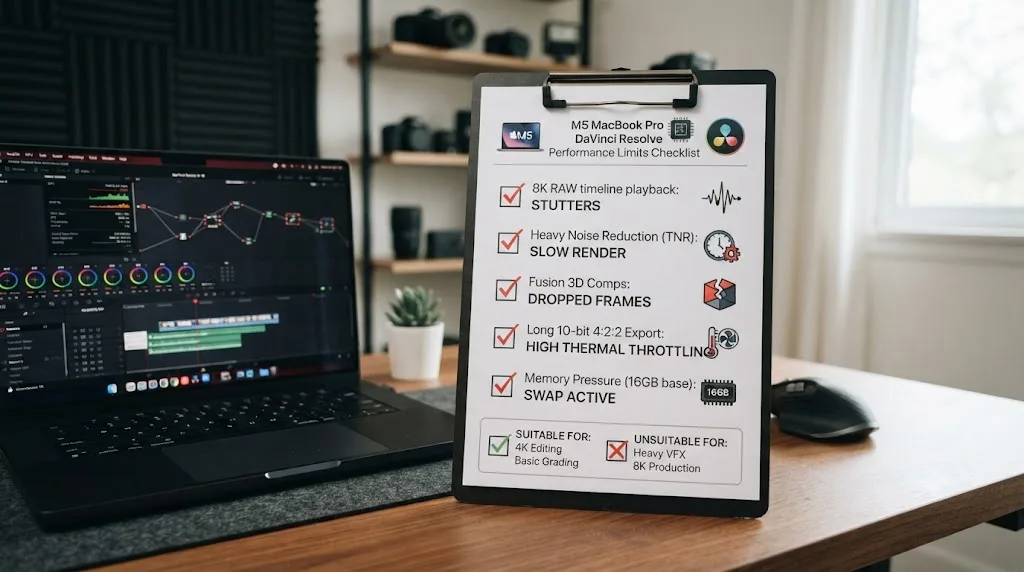
Getting the most out of a new M5 MacBook Pro once you own it
Buying the right configuration solves half the problem. The other half, especially for anyone new to Resolve or migrating from an older Mac, is knowing where Resolve's own settings live once the hardware is sitting in front of you. Our DaVinci Resolve settings guide for Apple Silicon M4 covers the exact Preferences, Project Settings, and export configuration worth checking on day one, and the underlying architecture and settings logic carry forward unchanged to M5, since Apple didn't restructure how Resolve talks to unified memory or the media engine between generations.
There's a different kind of friction worth naming here too, separate from hardware. A new machine often means relearning where Resolve keeps things, especially if you're coming from an older Mac or a different editor entirely. TryUncle is the on-screen assistant for DaVinci Resolve on macOS. Ask in plain words, and Uncle points at the exact control on your screen. That's useful specifically in the first few weeks on new hardware, when you know what you want to do in Resolve but can't remember which menu Blackmagic moved it to. It's a separate, paid purchase from the Mac or Resolve itself, currently in founder pricing for its first 100 seats, and TryUncle is worth checking for its current rate rather than treating any number here as fixed. It doesn't change anything covered in this review about which chip tier to buy. It's a separate answer to a separate problem, learning the software, not choosing the hardware.
Verdict: should you buy the M5 MacBook Pro for DaVinci Resolve?
Buy the base M5, configured to 24GB of memory if your budget allows, if you're cutting single-camera 4K footage with a standard grade and delivering to the web. That's a comfortable, real-time editing experience on the cheapest chip tier Apple currently sells, and every independent review and benchmark this review found agrees on that specific case.
Buy the M5 Pro if multicam, RAW debayering, Magic Mask, Fusion compositing, or AV1 delivery shows up in your typical project, since its extra GPU cores and hardware AV1 encoder speed up exactly those workloads more reliably than more memory on the base chip would. Step up to the M5 Max if you regularly need simultaneous multi-format delivery or heavy RAW at three or more camera angles, since its dual encode engines and 40 GPU cores are built for precisely that ceiling, and PugetBench's own numbers put it ahead of a Windows RTX 5090 laptop on Resolve's own benchmark suite. If M5 Max is the tier you land on, buy it in the 16-inch chassis, since the 14-inch version of that same chip runs hotter and less consistently under sustained load.
Don't buy an eGPU expecting it to help; it architecturally can't accelerate Resolve on this machine. Don't plan a full day of location grading around Apple's 24-hour battery figure; real Resolve work realistically halves that number. And don't wait for M6 if you need to edit now, since an unannounced chip with no configuration or pricing details doesn't change what a well-configured M5, M5 Pro, or M5 Max can do for your actual project today.
Frequently asked questions
- Is the M5 MacBook Pro good for DaVinci Resolve?
- Yes, with a real ceiling worth knowing before you buy. The base M5 MacBook Pro handles single-camera 4K editing and standard color grading comfortably, since its hardware media engine decodes H.264, HEVC, and ProRes natively. Multicam, RAW debayering, Magic Mask, and Fusion compositing are where the base chip starts asking for patience, and where M5 Pro or M5 Max become the honest answer instead.
- Should I buy the base M5 or wait for M5 Pro or M5 Max for DaVinci Resolve?
- Buy the base M5 if you cut single-camera 4K with a standard grade and want to spend $1,599. Buy M5 Pro or M5 Max if multicam, RAW footage, Magic Mask, or Fusion work shows up in your typical project, since their extra GPU cores speed up exactly those workloads. Reviewer Iain Anderson put it plainly for anyone leaning on Pro-tier video acceleration: with the base M5, 'you'll have to wait a little longer to update.'
- How much RAM do I need on an M5 MacBook Pro for DaVinci Resolve?
- Treat 24GB of unified memory as your practical floor for real 4K editing, even though the base M5 starts at 16GB. Unified memory is shared between the CPU, GPU, and macOS itself on Apple silicon, so it can't be upgraded after purchase. For multicam, RAW, or Fusion-heavy work, 48GB or more on M5 Pro or M5 Max is the safer number.
- Is DaVinci Resolve faster on M5 than M4?
- Yes, and independent testing puts a number on it. CGMagazine measured a 15 to 20 percent DaVinci Resolve Studio export speed increase on the 2026 M5 Pro MacBook Pro compared with the 2025 base M5 MacBook Pro, and up to 24 percent on color-corrected footage. Apple's own figures claim over 4x peak GPU compute for AI tasks compared with M4, though that's a vendor claim, not an independent Resolve benchmark.
- Do I need DaVinci Resolve Studio on an M5 MacBook Pro?
- Not for export speed. Every M5-generation Mac gets hardware-accelerated H.264, HEVC, and ProRes decode and encode in the free version already, the same way every M4 Mac does. Studio's real additions on an M5 MacBook Pro are Magic Mask, AI noise reduction, resolutions above 4K, and HDR grading tools, feature gates rather than speed fixes.
- Does the M5 MacBook Pro support AV1 hardware encoding in DaVinci Resolve?
- Only on M5 Pro and M5 Max, not the base M5. Apple added dedicated AV1 hardware encoders starting with the M5 Pro and M5 Max chips in March 2026. The base M5, like every M4-generation chip before it, decodes AV1 in hardware but still falls back to a slower software encode path for that specific codec.
- Is there an app that helps you while using DaVinci Resolve on a new M5 MacBook Pro?
- Yes. TryUncle watches your actual Resolve window on macOS and points at the exact control you're asking about, which helps specifically when you're relearning where Blackmagic moved a setting on new hardware. It's a paid app, currently in founder pricing for its first 100 seats, and it's a separate purchase from the Mac or Resolve itself.
- Should I buy an M5 MacBook Pro now or wait for M6?
- Buy now if you need to edit now. Apple hasn't announced an M6 MacBook Pro, its timing is unannounced, and everything this review found about GPU core count mattering more than chip generation still applies once M6 arrives. A well-configured M5 Pro or M5 Max won't become slower the day Apple announces the next chip.
Sources
- Apple unleashes M5, the next big leap in AI performance for Apple silicon (Apple Newsroom)
- Apple unveils new 14-inch MacBook Pro powered by the M5 chip (Apple Newsroom)
- Apple debuts M5 Pro and M5 Max to supercharge the most demanding pro workflows (Apple Newsroom)
- Apple Unveils MacBook Pro Featuring M5 Pro and M5 Max Chips With New Fusion Architecture (MacRumors)
- New M5 chip in updated Vision Pro, MacBook Pro and iPad Pro, by Iain Anderson (ProVideo Coalition)
- MacBook Pro with M5 Max Review: This Is Better Than Your Desktop, by Jaron Schneider (PetaPixel)
- Apple MacBook Pro (M5 Pro 2026) Review, by Brendan Frye (CGMagazine)
- Apple's M5 Pro, M5 Max easily beat the RTX 5090 in PugetBench creator benchmarks (Notebookcheck)
- Review: M5 MacBook Pro, Powerhouse Redefines Portable Performance, by Alex Cooke (Fstoppers)
- DaVinci Resolve - Tech Specs (Blackmagic Design)
- DaVinci Resolve - Studio (Blackmagic Design)
- Puget Bench for DaVinci Resolve (Puget Systems)
- Review: M4 Mac mini for video editors, by Scott Simmons (ProVideo Coalition)
- Configuring an M4 Mac for Video Editing, by Larry Jordan
- Use an External Graphics Processor with Your Mac (Apple Support)
- AMD or Nvidia eGPUs Can Work on Apple Silicon Macs, but Not for Graphic Acceleration (AppleInsider)
- Apple M5 (Wikipedia)
- MacBook Pro 14-inch Best Price M5, 16GB, 512GB (AppleInsider Price Guide)
- DaVinci Resolve Update 21.0.2 Adds Faster Image Bypass Switching, Improved H.265 Playback, and More (No Film School)
- Check if your Mac needs more RAM (Apple Support, Activity Monitor Guide)
- M5 MacBook Pro's SSD is 2.5x faster on average than last-gen M4 (Tom's Hardware)
- M5 Pro/Max chips finally enable 3-4 Mac displays over one cable (Macworld)
- Apple's new M5 Max MacBook Pro delivers a huge SSD read/write speed boost (MacDailyNews)
- Apple's new M5 MacBook Pro can't stay cool with single fan (TweakTown)
- M5 Max with inconsistent performance and throttling issues, Apple MacBook Pro 14 Review (Notebookcheck)
- About Power Modes on your Mac (Apple Support)
- MacBook Pro Thunderbolt 5 Hits 48GBps for External SSDs (WebProNews)
Put this guide to work with TryUncle.
Ask about the step you’re on. TryUncle sees your screen and points at the control you need, so you can keep learning in your own project.
Get TryUncle for Mac or WindowsKeep reading
Reviews · Jul 22, 2026 · 30 min
Is the Mac Mini M4 Enough for DaVinci Resolve?
A buyer's review of the Mac mini M4 for DaVinci Resolve in 2026: real benchmarks, unified memory needs, the May price hike, and when M4 Pro is worth it.
Guides · Jul 13, 2026 · 40 min
DaVinci Resolve Best Settings for Apple Silicon M4
The best DaVinci Resolve 21 settings for Apple Silicon M4 Macs: unified memory, storage, export, and Resolve preferences for M4, M4 Pro, and M4 Max.
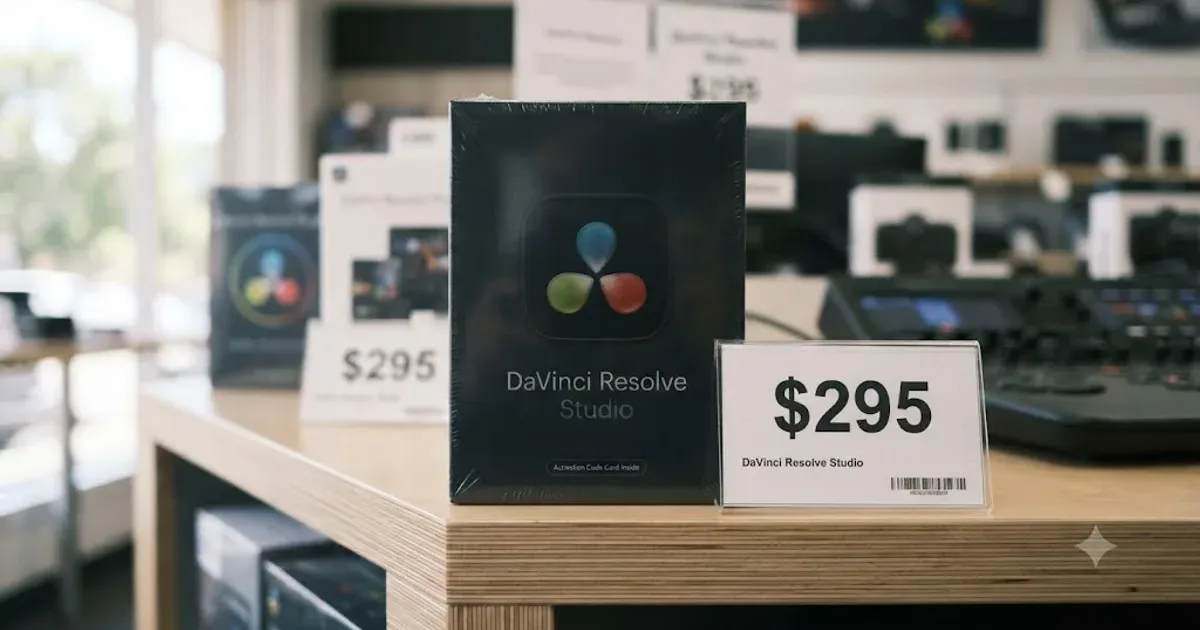
Comparisons · Jul 7, 2026 · 28 min
DaVinci Resolve Studio Price: Free vs. Studio Cost, Explained
DaVinci Resolve Studio costs $295, paid once, not monthly. Here's exactly what that buys, how it stacks up against Premiere Pro and Final Cut Pro, and who needs it.