Articles / Reviewsupdated for DaVinci Resolve 21.1 (September 2026)
TryUncle DaVinci Resolve 21.1 Compatibility: What Works
Quick answer
TryUncle is available for Mac and Windows and is designed to guide you from what is visible on screen, rather than through a Resolve plugin tied to one build. That makes recent Resolve releases such as 21.1 a reasonable fit, but it does not amount to a public 21.1 feature-by-feature certification. Test the controls you need before relying on them.
TryUncle is available for Mac and Windows, and its compatibility model is based on on-screen guidance rather than a Resolve plugin tied to one build. Blackmagic released Resolve 21.1 on September 8, 2026, but the sources reviewed do not show a public 21.1-specific certification. We have spent more than seven years editing commercial video, so we treat “it launches” and “every new control is verified” as two different claims.
As of October 2026, the practical answer is that Resolve 21.1 is a reasonable version to test on either supported desktop platform, with one clear limit: general screen-based compatibility is not an exhaustive compatibility matrix. No public report here lists every page, control, build, and operating-system combination that has been validated.
The compatibility question also hides several separate questions. Will the app open? Can it see the Resolve window? Can it guide a control introduced in 21.1? Does the answer change between Free and Studio? The useful answer depends on which one you mean.
Does TryUncle work with DaVinci Resolve 21.1?
TryUncle is available for Mac and Windows and describes a screen-based approach rather than integration as a plugin tied to one specific Resolve build. Resolve 21.1 was announced by Blackmagic Design on September 8, 2026, so the product's general statement points toward compatibility, while the absence of a 21.1-specific test record limits certainty.
That is the most precise public verdict. “Compatible” can mean the app installs, recognizes the visible Resolve interface, answers questions about controls, or has been tested against a named release. A single yes or no can blur those levels. In this case, the vendor publishes a version-flexible approach and a broad recent-release claim, but no build number, test date, or list of validated 21.1 features.
Blackmagic describes Resolve 21.1 as a major update with AI assistant integration, expanded Photo page camera support, multi-camera workflow changes, more than 25 new Krokodove tools, and more than 100 new tools and controls. Those changes matter because screen-aware software must interpret what is visible. If you ask about a control that moved, changed labels, or is newly available, an assistant's general Resolve knowledge may be more useful than a fixed menu path, but only direct, current validation can prove its accuracy.
The distinction matters most on first use after updating. A useful compatibility check is not whether the assistant can say “DaVinci Resolve 21.1.” It is whether it can identify the current page, understand the visible panel, point to the control you asked about, and explain what action you must take. Ask a narrow, reversible question first. If the pointer or explanation does not match your screen, stop and clarify instead of acting on a guess.
TryUncle is available for Mac and Windows, while Resolve 21.1-specific certification is not published.
The release date also creates a freshness boundary. Blackmagic announced version 21.1 on September 8, 2026; this article is dated October 7, 2026. Those dates establish which Resolve release the compatibility question concerns. They do not establish how often TryUncle updates its internal understanding or whether each 21.1 change has been exercised by its team.
If you need a definitive assurance for a regulated facility, a client delivery, a shared workstation image, or a purchase approval, ask TryUncle support for confirmation against your exact operating-system version and Resolve build. A broad FAQ is useful for choosing whether to try the app. It is not an enterprise compatibility certificate.
What does “screen-based compatibility” mean in Resolve 21.1?
Screen-based compatibility means TryUncle reads the visible DaVinci Resolve interface instead of loading as a plugin tied to a particular Resolve build. That can reduce dependence on plugin APIs and installer matching, but it cannot guarantee correct recognition of every new or changed 21.1 control.
The TryUncle FAQ explicitly explains the distinction: because TryUncle reads what is on screen rather than plugging in, it is “not locked to one specific build.” This is a useful architectural fact, not a proof that every screen element is understood. A screen reader can be independent of a host application's plugin interface and still need to interpret the interface correctly.
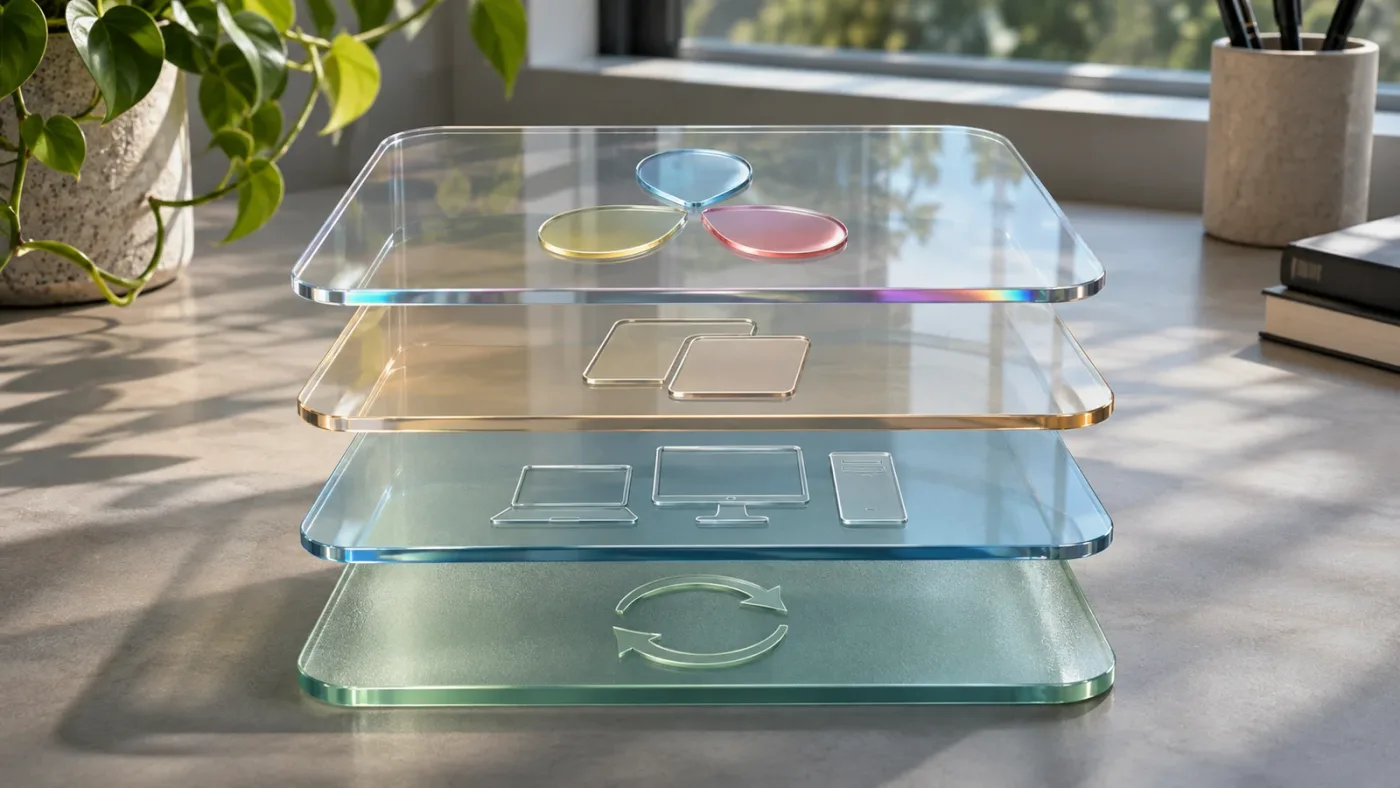
Think of compatibility as four layers:
| Layer | What you are checking | What the public documentation establishes | What still needs confirmation |
|---|---|---|---|
| Host application | Does the assistant depend on Resolve's plugin API? | TryUncle says it reads the screen rather than plugging into a specific build. | Whether a particular 21.1 screen is recognized accurately. |
| Resolve edition | Free or Studio? | TryUncle is available for Mac and Windows and can be used with both the free version and Studio. | Whether a specific Studio-only feature is visible and understood. |
| Operating system | Mac, Windows, or Linux? | TryUncle is available for Mac and Windows. | Linux support is not established by the sources reviewed. |
| Feature freshness | Does it understand a newly added or changed control? | Resolve 21.1 is a current release with new tools and workflows. | There is no public per-feature 21.1 validation list. |
This framing avoids two opposite mistakes. One is assuming that because an assistant is not a plugin, it must automatically understand every update. The other is assuming that any Resolve update will break it because the major version number changed. The available evidence supports neither extreme. The screen-based design makes build-specific plugin matching less central; new interface elements can still challenge screen interpretation.
You can test the visible layer with an ordinary question that has a clear visual answer. Ask where a known control appears on the page you are using. Then check whether the pointer lands on the correct region and whether its explanation matches the label you see. If it answers in general terms without identifying the control, treat that as an answer-quality problem, not as proof that Resolve 21.1 itself is unsupported.
If the control is new in 21.1, ask with its exact name and page. For example: “On the Photo page in Resolve 21.1, where is the control for this operation?” That gives the assistant a version cue and a screen context. It still cannot turn an undocumented feature claim into a guarantee; verify the action against Blackmagic's manual when the result matters.
A screen-based design reduces plugin-version dependence, but it does not certify every new Resolve control.
This matters because software compatibility is often stated as a binary. Plugin vendors commonly list host versions, operating systems, and supported editions. A screen-aware assistant has another dependency: the screen must be visible, permissions must work, and the assistant must interpret what it sees. That is a different compatibility model. It can be more flexible across application releases while still producing occasional uncertainty around interface changes.
TryUncle's FAQ says the assistant needs screen access to see the screen and accessibility-related permission to locate and point at controls. Microphone permission is optional if you want to speak rather than type. Those permissions belong to the operating-system layer. They are not Resolve 21.1 plugin permissions, and granting them does not mean every function in Resolve is supported.
For best results, keep the Resolve window visible when asking, describe the page and goal, and include the exact label if a new control is involved. Avoid asking a vague question such as “why doesn't the new thing work?” while multiple panels are open. A more testable prompt names the visible context, desired action, and what happened. That helps distinguish an app-visibility issue from a misunderstanding of the task.
Does TryUncle work with Resolve 21.1 Free and Studio?
TryUncle supports use with both the free version of DaVinci Resolve and Resolve Studio. The edition you use still determines which Resolve features are available for an assistant to discuss.
The distinction is simple but easy to miss. TryUncle is a separate assistant, while Resolve Free and Resolve Studio are two editions of the host editor. TryUncle's FAQ compatibility answer names both editions, so a Studio license is not listed as a prerequisite for using TryUncle. But Studio-only controls cannot appear in the free edition. No screen assistant can point to a feature that is absent from the version currently open.
Blackmagic presents DaVinci Resolve 21 as a free product and Resolve Studio 21 as a paid edition. The product page lists Studio at $295 in the source reviewed. Price and licensing can change, so check Blackmagic's current Resolve product page before buying. This is separate from the cost of TryUncle, which is also a paid product; do not treat its compatibility claim as a free trial or a substitute for a Resolve Studio license.
| Your Resolve setup | Compatibility expectation from the published FAQ | Practical limit |
|---|---|---|
| Resolve 21.1 Free on Mac or Windows | TryUncle is available for Mac and Windows and can guide only what exists in the running edition. | A public feature-by-feature 21.1 certification is not listed. |
| Resolve 21.1 Studio on Mac or Windows | The same screen-based model applies; Studio controls may be visible in the edition. | A visible Studio control is not automatically validated. |
| Resolve 21.1 on Linux | Linux support is not established by the sources reviewed. | Ask TryUncle before planning around Linux use. |
The correct decision is not “I own Studio, therefore every feature is understood.” It is “I run Resolve Free or Studio on a supported Mac or Windows system.” Then confirm your actual screen is recognized. The product's FAQ is the strongest public compatibility source available in this research; it does not provide a matrix by Resolve point release.
Studio users should also separate product feature access from assistant knowledge. Resolve Studio 21 includes additional tools and workflows. A tool may be visible in the Studio interface and still require a precise question to get helpful guidance. If you ask about a feature added in 21.1, verify its behavior with the 21.1 manual, especially if the action changes a project, media, or delivery setting.
The inverse is true for Free users. The assistant can help with available Edit, Color, or Fusion controls, but it cannot unlock a Studio feature. If a tutorial tells you to use a button that is missing, check whether the tutorial demonstrates Studio, a different version, or a different page. A missing control is not automatically a compatibility failure.
For an edition-specific check, open the About dialog in Resolve and note the edition and version. Keep that information with your question. If the feature belongs to Studio, say so. If your issue is a missing control, say whether you are using Free or Studio and name the page. Those details narrow the possibilities without claiming that TryUncle has an official feature-by-feature certification.
Does TryUncle work on Windows or Linux with Resolve 21.1?
TryUncle is available for Mac and Windows. Linux support is not established by the sources reviewed for this post. DaVinci Resolve itself runs on multiple operating systems, but that does not establish that a separate assistant does.
This is the platform qualification for anyone searching “TryUncle DaVinci Resolve 21.1 compatibility.” TryUncle is available for Mac and Windows, while Resolve is also available for Linux. Compatibility belongs to each product separately. Resolve's platform list cannot be transferred to TryUncle.
The same distinction applies to machines running Resolve in virtualized, remote, or unusual display environments. A locally running Resolve installation is the simplest scenario to test. Remote desktops, virtual machines, capture cards, unusual window managers, or screen-sharing overlays may affect what the assistant can see or where it can point. The sources reviewed do not establish support for those configurations, so they should be tested rather than assumed.
| Resolve is running on... | What Blackmagic supports for Resolve 21 | TryUncle availability | Decision |
|---|---|---|---|
| A Mac | Resolve has a Mac version. | TryUncle is available for Mac. | This is the documented platform scenario. |
| Windows PC | Resolve has a Windows version. | TryUncle is available for Windows. | Ask TryUncle before relying on it. |
| Linux workstation | Resolve has a Linux version. | Linux support is not established here. | Ask TryUncle before relying on it. |
| Remote or virtual desktop | Resolve platform support depends on the host setup. | No specific remote-desktop matrix is published in the FAQ. | Treat as an unverified configuration. |
If you are on Windows, TryUncle is available, but test the actual screen and 21.1 task before relying on it. If you are on Linux, ask TryUncle directly before planning around assistant support. A product page that says “works with Resolve” without naming your OS is not enough evidence for a platform-specific purchase decision.
Resolve 21.1 compatibility depends on the task and screen setup, even on a supported Mac or Windows PC.
For a team rollout, separate platform availability from release validation. TryUncle being available for Mac and Windows answers where you can use it; it does not prove that each Resolve 21.1 control has been checked. Ask about a specific workflow when the distinction affects a purchase or support plan.
What changed in DaVinci Resolve 21.1 that could affect compatibility?
Resolve 21.1 adds visible capabilities and controls, so compatibility questions should focus on changed interface areas rather than assuming a new major version automatically breaks a screen-aware tool. Blackmagic's 21.1 release announcement identifies AI assistant integration, expanded Photo page camera support, multi-camera workflow updates, more than 25 Krokodove tools, and more than 100 new tools and controls.
Blackmagic's 21.1 release announcement is the authoritative source for what changed in Resolve 21.1. It also quotes CEO Grant Petty: “With AI assistant support, our customers can now ask Claude or ChatGPT to handle repetitive tasks” That quote describes Blackmagic's own AI assistant integration, not TryUncle. Keeping those products distinct prevents an easy but misleading inference that TryUncle is one of the integrated agents Blackmagic named.
The Resolve 21.1 announcement says the release supports integration with assistants such as Claude, Claude Code, and ChatGPT Codex to analyze projects, organize media, adjust settings, and batch render using conversational language. TryUncle's public documentation describes a different interaction model: it reads the user's screen and points at a control. The announcement does not list TryUncle as a Resolve-integrated AI assistant, and this article does not claim it is.
That difference is worth spelling out because “AI assistant compatibility” can refer to two different things. Resolve's new integrations are announced by Blackmagic as assistant support inside Resolve workflows. TryUncle's published description is an on-screen helper that observes the interface. These are not interchangeable labels. If you want to issue a project-level or batch-render operation through a supported integration, consult Blackmagic's 21.1 instructions for the specific assistant. If you want help finding or understanding a visible control, the screen-based model is the relevant one to evaluate.
| Resolve 21.1 update named by Blackmagic | Why a compatibility check may matter | How to verify safely |
|---|---|---|
| AI assistant integration | It is easy to confuse a native integration with a screen-reading helper. | Confirm which product is actually connected to Resolve and what permissions it has. |
| Photo page camera support | A newer page or camera workflow may expose controls absent from older tutorials. | Ask about the Photo page by name and confirm the control in the 21.1 manual. |
| Multi-camera workflows | Updated controls can alter where a familiar operation appears. | Ask a narrow question with the page and task, then verify the visible result. |
| More than 25 new Krokodove tools | New Fusion tools increase the number of names an assistant may not have seen. | Use the exact tool name and inspect the node or control before committing. |
| More than 100 new tools and controls | A broad count signals many possible UI changes, not a guaranteed compatibility problem. | Test the specific control that matters to your project. |
Blackmagic's version guide and manual help answer what Resolve itself does. They cannot certify TryUncle's interpretation. For compatibility testing, make a copy of a project or use a throwaway timeline. Ask the assistant about one changed control, compare its answer with the manual, then decide whether the result is dependable enough for your workflow.
Do not use a valuable project to test a potentially destructive action. New controls can affect grading, media organization, or render settings. Ask for an explanation before requesting a change, and make the change yourself only after you understand it. The product's public FAQ says Uncle points to controls; it does not say it edits or grades for you.
Resolve 21.1's new tools make feature-level verification more useful than a blanket compatibility label.
If a question concerns a 21.1 feature specifically, mention “Resolve 21.1” in the prompt. A version cue reduces ambiguity when older tutorials or generic Resolve terminology could refer to another interface. Then compare the guidance with Blackmagic's 21.1 manual. That process is sensible whether or not you use TryUncle.
Why does TryUncle not see Resolve 21.1 on Mac or Windows?
If TryUncle cannot see Resolve 21.1, check visibility, operating-system access, and connectivity before blaming the Resolve point release. The TryUncle FAQ says screen access lets the assistant see the screen and accessibility-related access lets it locate and point at controls.
Start with the simplest check: bring Resolve to the front and make sure the relevant window is visible rather than minimized, hidden behind another app, or covered by a dialog. On a Mac, check the documented Screen Recording and Accessibility permissions in System Settings. On Windows, follow TryUncle's current setup instructions for the access it needs. If you change a permission, quit and reopen the affected apps so the operating system can apply it. Menu labels and permission flows can change by operating-system release.
The TryUncle FAQ also says the assistant needs an internet connection because its reasoning runs in the cloud. A computer without a working internet connection may show Resolve normally while the assistant cannot answer. That is a connectivity limitation, not evidence that Resolve 21.1 is unsupported. Check whether other online services work and whether a VPN, firewall, or corporate network policy is blocking the app.
Use this sequence to narrow the issue:
- Confirm the assistant app is open and signed in as required by its current setup flow.
- Put the Resolve 21.1 window on screen and bring it to the foreground.
- On Mac, check Screen Recording permission for TryUncle in System Settings; on Windows, confirm the required access in its setup instructions.
- Check the relevant accessibility-related permission if the assistant can see the screen but cannot point to a control.
- If you use voice, check microphone permission; TryUncle's FAQ says microphone access is only for speaking, not required for typed questions.
- Confirm the computer is online, then retry with a short question about a visible control.
- Restart the apps after changing permissions.
- If the problem persists, record your operating-system release, Resolve build, app version, and the exact symptom before contacting support.
This order separates four possible failures: app launch, screen capture, pointing, and cloud response. A black or stale screen suggests visibility or capture. A correct explanation without a pointer suggests Accessibility or targeting. No answer despite visible content suggests connectivity or an app issue. A confident but irrelevant answer may be a feature-understanding problem. Those symptoms should not all be reported as “21.1 incompatibility.”
Avoid disabling security protections globally to make a screen-aware tool work. Grant the specific permissions that the vendor documents, understand why they are needed, and revoke them if you stop using the app. TryUncle's FAQ identifies screen access and Accessibility as relevant capabilities, with microphone access optional for voice input. The exact operating-system prompts can differ.
For a new Resolve 21.1 feature that the assistant does not recognize, first verify that the feature is present in your Resolve edition and that the relevant panel is open. Then ask using the visible name and page. If the response remains inaccurate, the clean conclusion is that this feature is not reliably supported in your current setup, even if the broader app compatibility statement covers recent Resolve releases.
Is TryUncle a plugin for DaVinci Resolve 21.1?
No. TryUncle says it reads the screen rather than plugging into a particular Resolve build, so you should evaluate it as a separate on-screen assistant rather than a Resolve extension.
That distinction shapes both setup and troubleshooting. A plugin typically installs into or alongside a host application and may depend on a supported host version, a plugin folder, or an API. TryUncle uses screen access and accessibility-related controls for its on-screen guidance. The exact permission steps depend on whether you use Mac or Windows. If the assistant does not appear inside Resolve's menus, that alone is not a failure; the documented model is not a menu extension.
It also means that “Resolve 21.1 compatible” should not be interpreted as “Blackmagic certified.” No source reviewed for this post says that Blackmagic certifies TryUncle, includes it in Resolve 21.1, or guarantees its behavior. The release announcement names specific assistant integrations, and TryUncle is not among the examples in that announcement. Do not infer endorsement or native integration from the word “assistant.”
A screen-based tool may have fewer host-version dependencies, but it has its own requirements. The right screen must be captured. UI elements must be visible at a useful scale. Permission settings must allow the app to see and point. Network access must be available for cloud reasoning. New interface changes may still affect recognition. This is why a general compatibility statement and a point-release test are different evidence.
When evaluating a “plugin not showing” symptom, first ask whether you installed a plugin at all. If you are using TryUncle, look for its own app interface and documented on-screen behavior. If you expected a Resolve menu item or panel, that expectation does not match the product description. When you are troubleshooting an actual Resolve plugin from another vendor, its own compatibility matrix applies instead.
The distinction also affects privacy questions. TryUncle's FAQ says it uses screen capture to understand what is visible and says project media files themselves are not uploaded. That statement comes from the vendor, not an independent audit in this article. Screen access is still meaningful access: avoid exposing confidential information on the display when asking a question, and review the product's current privacy terms before using it in a sensitive environment.
Is TryUncle worth using after updating to Resolve 21.1?
TryUncle is worth considering after a Resolve 21.1 update if you use a Mac or Windows PC, want guidance about controls on your current screen, and accept that the public compatibility evidence is broad rather than a 21.1 certification. It is a poor fit if you require Linux support, offline operation, or guaranteed understanding of every new feature.
A version update is a good moment to check whether your learning materials match the interface. Blackmagic's 21.1 update includes new tools and controls, and tutorials may show a different release. TryUncle's screen-based approach could help orient you around visible controls, while the official manual remains the source to verify exact feature behavior. Those roles complement each other; a pointer is not a replacement for release documentation.
| Choose this route if... | Why it fits | Trade-off |
|---|---|---|
| TryUncle on Mac or Windows | You want screen-aware help while working in Resolve and can test your needed 21.1 controls. | No public, feature-by-feature 21.1 certification is listed. |
| Blackmagic's 21.1 manual | You need authoritative definitions and version-specific instructions. | It is reference documentation, not personalized to your current screen. |
| Blackmagic training | You want structured lessons using Resolve concepts and official materials. | A course cannot inspect your particular timeline or interface state. |
| Blackmagic community forum | You need help diagnosing an unusual setup or a specific error with other users. | Advice can depend on the details you provide and may not be immediate. |
| A general video tutorial | You want to see a workflow demonstrated from start to finish. | The demonstrated version, edition, and layout may differ from yours. |
Blackmagic's release page says technical support for the free version is available through the community forums. Its support center also lists Resolve 21 downloads and documentation. These are the right places to confirm editor behavior or report a Resolve bug. TryUncle is aimed at help with the visible task, not replacing Blackmagic support or providing a formal certificate.
When choosing, match the tool to the question. If you need to know what a new 21.1 feature does, read the manual or official training. If you are looking at a control and cannot find where to make a supported adjustment, an on-screen assistant may save the translation step from instructions to your own interface. If you have a crash, corrupted project, or licensing issue, start with Blackmagic support resources and protect a copy of your project before changing anything.
One relevant credential behind this site's advice is our seven-plus years of professional commercial video editing. We have also taught more than 100,000 students on Udemy and are an official Udemy Business Partner. Those credentials inform our recommendation to separate learning help from official product support; they do not mean we have independently tested every TryUncle and Resolve 21.1 combination.
Use the Resolve 21.1 manual for authoritative feature behavior and an on-screen helper for guidance about the interface in front of you.
If your goal is learning rather than checking a single feature, start with the DaVinci Resolve 21 tutorial controls do not match guide, which addresses version drift. The broader TryUncle review covers the product beyond this particular release. For an overview of support for screen-aware tools, see AI screen assistant options for DaVinci Resolve on Mac. These links are useful context, but none substitutes for the official 21.1 manual.
If you want live, screen-based guidance while you work, TryUncle describes an assistant for Mac and Windows that points to controls on your screen. That can shorten the step from seeing an unfamiliar Resolve control to locating it, while you make and verify the edit. Check the current product details and test the 21.1 tasks you depend on.

How can I test TryUncle with Resolve 21.1 before relying on it?
Test TryUncle with a low-risk question on the exact Mac or Windows PC and Resolve 21.1 build you plan to use. Confirm that it sees the right window, points to the named control, and gives an answer consistent with Blackmagic's manual.
Use a copy of a project or a blank test project. Begin with a visible control whose name and purpose you already know. Ask where it is, then check the target visually. Next, ask for an explanation of a control that changed in 21.1. Compare that explanation with the official manual. Do not begin by asking the assistant to perform or recommend a high-impact change to a live client project.
Write down the details that make the test reproducible: Mac model, macOS version, Resolve edition, complete Resolve version number, TryUncle version, display arrangement, and the page or panel involved. If the behavior differs across two screens, note the display scaling and which screen holds Resolve. The public compatibility materials do not give a certified hardware matrix, so these details are useful when reporting a problem.
Use this simple scorecard:
| Check | Pass condition | If it fails |
|---|---|---|
| App starts | TryUncle opens on the Mac or Windows PC. | Check installation and the vendor's current setup instructions. |
| Screen visibility | It responds to what is visibly open in Resolve. | Check the screen access permission for your operating system and window visibility. |
| Pointer placement | It identifies the intended on-screen control. | Check the relevant accessibility permission, then clarify the control and page. |
| Version-specific answer | Guidance matches the Resolve 21.1 manual. | Treat the feature as unverified and use official documentation. |
| Repeatability | A second clear question produces a useful result. | Record the prompt and symptoms; ask support about the exact build. |
This is a user-side acceptance check, not a formal benchmark. It cannot establish that every feature works, and one successful answer does not prove future compatibility after another update. It does tell you whether the specific workflow that matters to you is usable in your environment today.
For a work team, repeat the check on each supported workstation class instead of assuming one Mac or Windows PC represents every machine. A different operating-system release, display setup, permission profile, or Resolve edition can change what the assistant can see. If your organization manages permissions, confirm the policy with your administrator rather than trying to bypass it.
For a new Resolve 21.1 workflow, make one test question about orientation and one about the feature itself. The first checks basic screen handling. The second checks whether it can handle the change you care about. Keep the manual open as the reference and make the project change yourself. That gives you a practical yes or no for your task without overstating what has been certified publicly.
Which Resolve 21.1 compatibility check should I run first?
Start with the part of compatibility that is failing, not with a broad question about whether “Resolve 21.1 works.” A short sequence lets you tell an installation problem from a screen problem, a pointing problem, or a feature answer that needs correction.
| What you observe | First question to ask | Useful next check |
|---|---|---|
| TryUncle will not open | Does the assistant start by itself? | Confirm the current installation and sign-in steps for your operating system. |
| TryUncle opens but seems unaware of Resolve | Is the Resolve window visible on the display being used? | Bring Resolve forward and ask about a clearly visible element. |
| It describes the screen but does not point | Is the target named clearly and visible? | Check the operating-system access needed for pointing, then repeat with a simpler target. |
| It points to the wrong control | Could another similar control or open panel cause ambiguity? | Name the page, panel, and exact label, then compare the pointer to the UI. |
| It answers a 21.1 feature question vaguely | Is the feature available in this edition and open in the current page? | Ask a narrower question and verify the feature behavior in Blackmagic's manual. |
| It stops responding | Is the assistant online? | Check the connection and retry with a basic question before attributing the issue to Resolve. |
This order is useful because the symptoms have different causes. If the app cannot launch, there is no reason to evaluate a new Photo page control yet. If it can explain a visible element but cannot point to it, changing the Resolve version is unlikely to be the first productive step. If the assistant points correctly but gives a wrong account of a new feature, the remaining issue is answer quality or feature understanding. Keep those reports separate.
When describing a failure, write down what happened in plain terms. “It doesn't work” is difficult to reproduce. “The assistant opened on Windows, Resolve 21.1 was in the foreground on the Edit page, it described the Inspector but pointed at the wrong panel” tells support what to investigate. Include what you expected, what appeared instead, and whether the same problem happens on a known control.
A compatibility check should also have a stopping rule. If the assistant repeatedly points to the wrong part of the screen after you make the question specific and confirm visibility, stop using it for that task. Switch to the manual or an official training resource. You can still use the assistant for a lower-risk orientation question if that works, but don't let success on one control stand in for another workflow.
How should I test a new 21.1 control without risking a project?
Use a task that is easy to undo and whose correct result you can recognize. The point of a compatibility test is to learn whether on-screen guidance helps with your setup, not to hand over responsibility for a client decision.
A useful test has three parts. First, establish that the assistant can see the current page. Second, ask about a named control you can already verify. Third, ask about the new or changed feature that matters to you and compare the answer with Blackmagic's own explanation. If step one fails, fix the visibility path. If step two fails, do not treat step three as a fair test of feature knowledge.
For example, imagine you are exploring the new Photo page. Start with an orientation question about a visible panel, not an instruction to batch process a folder of source images. Check that the pointer lands in the expected area. Then ask a narrow question about one operation, such as which control opens the relevant adjustment. Compare the answer with the 21.1 manual, and use a disposable image or test project before changing anything you care about.
The same pattern works for Fusion. First ask about a visible node or panel whose role you know. Then ask how to locate the new tool you intend to try. If the answer confuses a node with a similar effect or suggests a control that is absent, stop and verify whether the tool is available in your edition and on that page. Do not assume that a screen assistant can make a node graph safe simply by pointing at a button.
For a multi-camera workflow, separate basic screen recognition from the editorial choice. An assistant may help you locate the timeline viewer mode, but the decision about which angle is on air still belongs to you. Use a duplicate timeline or test sequence when possible. Confirm that playback and the selected angle behave as expected before applying the approach to a live cut.
For export settings, use a short test render rather than changing a delivery preset immediately before a deadline. The assistant may help locate a control, but the result depends on the project, codec, destination, and delivery requirements. Check the manual and inspect the rendered file. A helpful pointer is evidence of interface guidance; it is not evidence that the output meets a broadcaster or client specification.
The cost of an incorrect answer varies by action. A wrong pointer to a non-destructive panel is an inconvenience. A misunderstood color-management choice, timeline operation, media relink, or deliver setting can affect many clips or change the output. Test high-impact actions in a copy, write down the original setting, and avoid applying a recommendation until you understand what it changes.
A safe Resolve 21.1 test checks screen recognition first, feature guidance second, and the final result in a reversible project.
What should I record when reporting a compatibility problem?
Record enough detail for another person to recreate the conditions. Resolve projects move between machines, displays can be arranged differently, and a question about a control is hard to judge without knowing which page and panel were open.
Use a compact report rather than a long narrative:
| Detail | Example of useful information | Why it helps |
|---|---|---|
| Operating system | Mac or Windows, plus the release shown in system settings | Separates platform behavior from Resolve behavior. |
| Resolve version | Full version number and Free or Studio edition | Distinguishes a point release and feature availability. |
| TryUncle version | Version shown in the app or its current About screen | Identifies the assistant build involved. |
| Display setup | Single display or multiple displays, and which one showed Resolve | Helps explain a blank, stale, or mismatched view. |
| Resolve context | Page, open panel, and whether a dialog covered the workspace | Makes the interface state clearer. |
| Exact question | The words you asked, without paraphrasing | Allows the response to be understood in context. |
| Observed result | What it described or where it pointed | Separates capture, targeting, and answer issues. |
| Expected result | The control or behavior you intended | Makes the mismatch concrete. |
| Repeatability | Whether a basic known-control question also fails | Shows whether the issue is general or feature-specific. |
Do not include confidential client material in a support report unless you are authorized to share it. You can describe the control, page, and symptom without attaching a project. If a screenshot is necessary, inspect it for client names, unreleased footage, email addresses, or other sensitive details first. The TryUncle FAQ describes the product's screen-based approach, but this post does not independently audit its data handling; consult its current privacy terms for the answer that applies to your work.
If you are on a managed workstation, include that fact. Your organization may restrict screen capture or accessibility-related permissions. A security policy can block a capability even when the operating system and Resolve are otherwise working. Ask the administrator how to request approved access; don't weaken a company-wide policy to troubleshoot one application.
The most useful report states both the failed feature and the control that still worked. For example, “the assistant can identify a known Edit page button but gives a conflicting explanation of one 21.1 Photo page control” is more informative than saying “Resolve is incompatible.” It points to feature-level understanding rather than a complete failure to see the application.
Should I use the same test after a Resolve update?
Repeat the test when an update changes the workflow you depend on, especially if the update moves a control, adds a feature, changes a panel, or changes the way your team shares a project. You do not need to retest every unrelated screen to make a useful decision. Test the part where a changed interface could affect your work.
Keep a small acceptance checklist for your own setup. It might contain one established control, one Resolve 21.1 control, and one higher-stakes workflow you use often. After an update, repeat those questions on the machine you edit on. If all three still work as expected and the manual agrees on the feature behavior, you have practical evidence for that task and setup. You still do not have a guarantee about every feature or future release.
An update can change Resolve without changing the assistant, or change the assistant without changing Resolve. If a result changes, record both version numbers. A report that says only “after the update” is ambiguous. Note whether Resolve updated, TryUncle updated, the operating system changed, or permissions were reset. If several things changed at once, test one variable at a time where practical.
A team can formalize this without turning it into a certification project. Assign one person to test on each common workstation type, save the questions and expected outcomes, and report only mismatches. A result on one Mac or Windows PC does not establish behavior on another machine, and a standard monitor does not necessarily establish behavior on a scaled or multi-display workstation. Keep the checklist narrow enough that someone will actually run it.
Do not treat a successful update check as a promise that every future 21.x release will behave the same way. The general screen-based approach gives a reason to expect less dependence on plugin version matching, but changed controls can still require fresh interpretation. For the one workflow that matters, a short repeatable check is more useful than a universal label.
What is the final compatibility verdict for TryUncle and DaVinci Resolve 21.1?
For Mac and Windows editors, TryUncle is available and its screen-based model makes Resolve 21.1 a reasonable version to test, in both Free and Studio. But the sources reviewed do not show public 21.1-specific certification, and they do not establish Linux support.
That verdict preserves the difference between a vendor's general claim and direct validation. TryUncle says screen-based operation avoids dependence on one specific build. Blackmagic says Resolve 21.1 introduced a substantial set of changes. Neither fact alone proves that every new control is recognized correctly. Test the task you care about and confirm consequential instructions with Blackmagic's manual.
If you use Windows, TryUncle is available, so troubleshoot the actual screen capture, permissions, visibility, and internet access on that PC before concluding that 21.1 broke compatibility. If you use Linux, do not infer TryUncle support from Resolve's own availability there. Get direct confirmation before relying on the app.
The next step is straightforward: record your exact Resolve version and platform, try a safe screen-based question, and compare any 21.1-specific guidance with Blackmagic's documentation. That gives you a usable answer for your setup while keeping the product's public compatibility claim in its proper scope.
There is one more useful distinction for editors who collaborate. A project file can move between Macs and Windows workstations even when an assistant does not. Resolve project compatibility and assistant compatibility are separate questions. A teammate may be able to open the same project in Resolve 21.1 while using a different operating system. TryUncle is available for Mac and Windows, but each teammate still needs to test their own system and screen setup. Do not assume a result transfers from one workstation to another.
The same holds for shared settings and databases. A project may be stored locally, on shared storage, or through a collaboration workflow. TryUncle's screen-based model is tied to the machine and screen where the question is asked, not simply to the project file. If another editor opens the project, they have their own interface state, edition, permissions, and assistant setup to consider. The public sources reviewed do not say that a compatibility result transfers from one workstation to another.
Version numbers also deserve care. Resolve 21.1 is the point release named in this question; a later 21.x update could alter controls again. Record the full version from Resolve's About dialog when reporting a problem. “Resolve 21” may be too broad to distinguish the original release from 21.1, especially if a support conversation is trying to reproduce a new UI behavior. If Blackmagic ships another update, repeat the narrow test for the workflow that matters rather than assuming the result is permanent.
An editor who rarely uses new tools may care less about point-release validation than someone building a workflow around the Photo page or a new Fusion tool. That is a decision principle, not a measured frequency claim. Test the feature with the highest cost of being wrong. If you only need help locating established Edit page controls, test those. If your purchase depends on 21.1's new assistant integrations, do not assume TryUncle can invoke them. Blackmagic's announcement refers to its own integrations, while TryUncle describes screen reading and pointing. Ask the vendor directly if you need that specific capability.
Finally, preserve the distinction between guidance and action. TryUncle describes itself as pointing to controls; the user makes the edit. That can be useful for learning and orientation, but you remain responsible for confirming a setting before applying it. For grading, retiming, media organization, or export changes, inspect the result and use a duplicate or reversible test when possible. A successful compatibility test means the assistant can help with your screen. It does not promise a correct creative decision or a safe project change.
Frequently asked questions
- Does TryUncle work with DaVinci Resolve 21.1?
- TryUncle is available for Mac and Windows and uses on-screen guidance rather than a Resolve plugin tied to one build. Its broad compatibility model supports trying it with Resolve 21.1, but no public 21.1-specific certification is listed in the sources reviewed.
- Does TryUncle work with the free version of Resolve 21.1?
- TryUncle can be used with Resolve Free and Studio. It can only guide you about controls and features present in the edition you run, and you should test any 21.1-specific workflow you rely on.
- Does TryUncle work on Windows with DaVinci Resolve 21.1?
- TryUncle is available for Windows as well as Mac. Availability does not certify every Resolve 21.1 feature, so test the screen guidance on the Windows system and workflow you plan to use.
- Is TryUncle a DaVinci Resolve 21.1 plugin?
- No. TryUncle says it reads the screen rather than plugging into a specific Resolve build. That avoids a plugin-version dependency, but it is not a guarantee that every new 21.1 control has been separately validated.
- What should I do if TryUncle cannot see DaVinci Resolve 21.1?
- On Mac, check Screen Recording and Accessibility permissions; on Windows, follow the current setup instructions for screen and pointer access. Keep Resolve visible, verify the app is online, and restart TryUncle after changing permissions.
Sources
Put this guide to work with TryUncle.
Ask about the step you’re on. TryUncle sees your screen and points at the control you need, so you can keep learning in your own project.
Get TryUncle for Mac or WindowsKeep reading
Reviews · Jul 19, 2026 · 39 min
TryUncle Review: An AI Tutor for DaVinci Resolve
An honest review of TryUncle: the macOS AI tutor that watches your DaVinci Resolve screen, its founder pricing, and where it actually falls short.

Fixes · Oct 3, 2026 · 16 min
DaVinci Resolve 21 Tutorial Controls Do Not Match? Fix It
DaVinci Resolve 21 tutorial controls do not match? Identify the version, page, layout, and edition difference, then find the right control.
Guides · Nov 11, 2026 · 34 min
What Does the Bitmap Node Do in DaVinci Resolve?
Learn what Fusion’s Bitmap node does, when to use it, how to choose a channel, and when you can skip it in DaVinci Resolve 21.