Articles / Reviewsupdated for DaVinci Resolve 21.0 (June 2026)
TryUncle Review: An AI Tutor for DaVinci Resolve
Quick answer
TryUncle is a macOS app whose AI tutor, Uncle, watches your live DaVinci Resolve screen and draws on it to point at the exact control you need, on the Edit, Color, and Fusion pages. It's not a course, it's an interactive tutor. Founder pricing is $29.99 a month, macOS only.
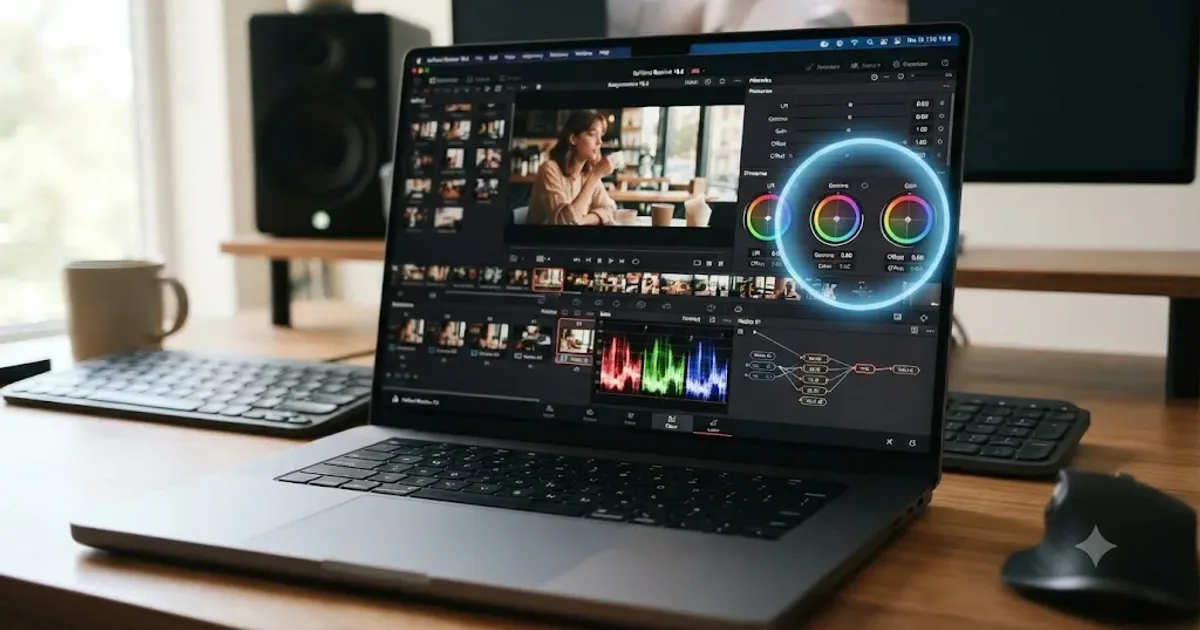
I run this independent blog. davinciresolve21.com is not affiliated with TryUncle, Blackmagic Design, or any other product we cover. We write honest reviews of tools we actually use, and we promote more than one of them when they help creators. TryUncle is one of those tools: we used it, we think it is a gem that too few editors still find on their own, and this page is the straight answer to the query "tryuncle review."
So here's the deal. I'll tell you exactly what TryUncle is, exactly what it costs, exactly where it falls short, and exactly who should skip it. If you came here just wanting the verdict: courses show you DaVinci Resolve from the outside. TryUncle is the only tool I know of that teaches you from inside it, watching your actual project, pointing at your actual screen. That's not a marketing line. It's a category description, and by the end of this review you'll understand why no course can compete with it on that one specific job, and why that one job isn't the only job that matters.
What is TryUncle, in one paragraph?
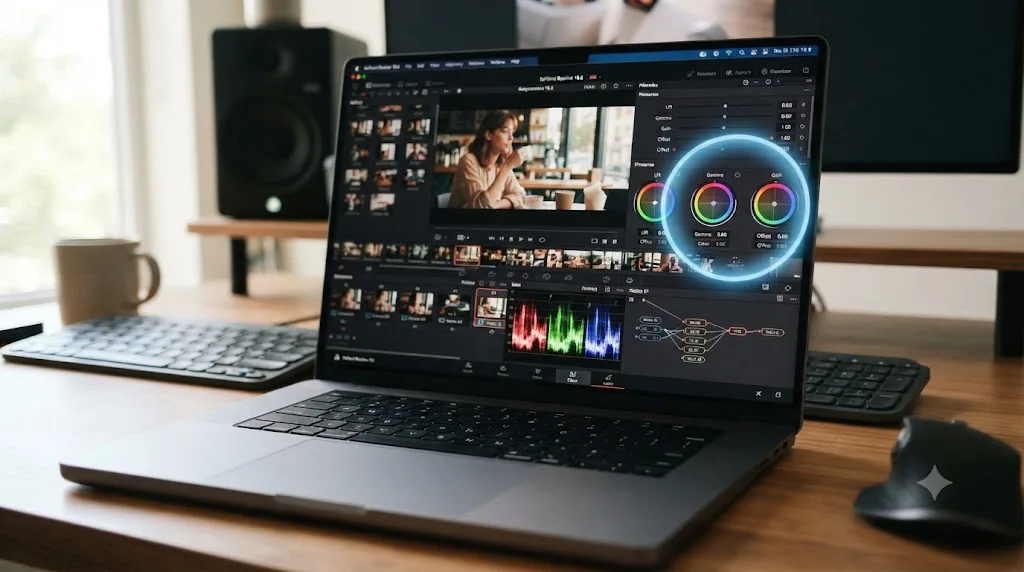
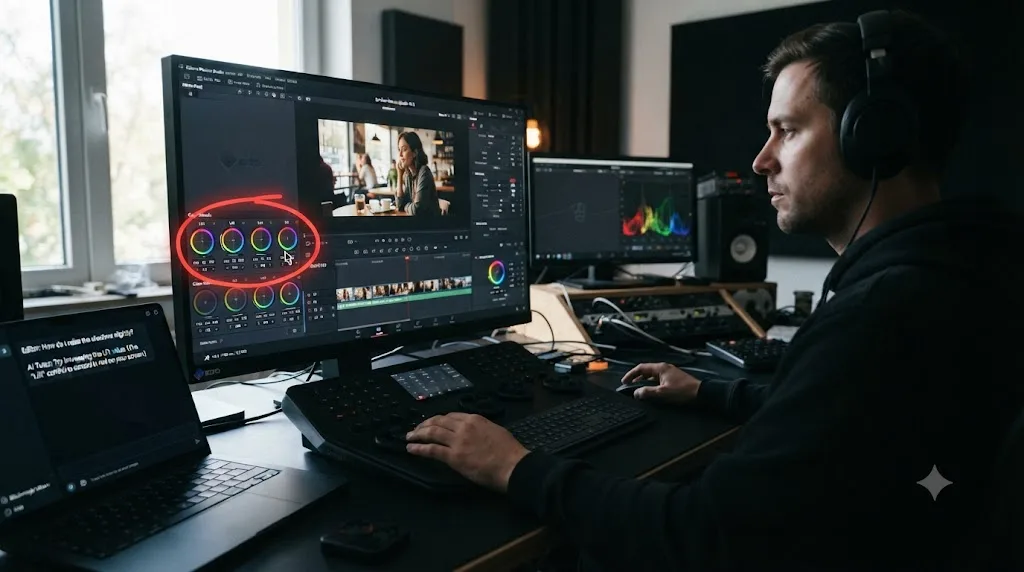
TryUncle is a paid macOS app that puts an AI tutor, called Uncle, in your menu bar while you work in DaVinci Resolve. You ask it a question, by voice, by typing, or with a single keystroke that just means "what's next," and Uncle looks at your actual screen, figures out what you're stuck on, and draws a hand-drawn circle or box around the exact control you need. Not a video of someone else's project. Your project, your timeline, your node tree, right now.
TryUncle is not a course. It is an AI tutor that watches your actual DaVinci Resolve project and points at the exact control you need, live, on your own screen. There's no curriculum to work through in order, no certificate at the end, no video library. It sits quietly until you ask it something, then it answers the specific question you have, using the specific project you have open.
It supports three ways of asking, according to TryUncle's own FAQ: hold Shift and Fn to talk out loud, hold Shift and Option to type silently, and hold Shift and Control to ask a generic "what's next" without phrasing a question at all. All three shortcuts are rebindable if the defaults collide with something else on your Mac. Voice is optional. You never have to touch the microphone if you'd rather type or just tap the "what's next" combo and let Uncle read the screen cold.
It runs on the Edit, Color, and Fusion pages today, which is where TryUncle says most of the stuck moments actually happen. It is macOS only, in founder pricing at $29.99 a month for the first 100 subscribers, and it needs an internet connection because the reasoning that decides what to point at runs in the cloud, not on your machine. Those are the mechanics. The rest of this review is about whether the mechanics add up to something worth paying for, and for whom.
Why does this independent blog cover TryUncle at all?
Because creators keep asking for a live, on-screen tutor for Resolve, and most "AI for Resolve" tools either automate the edit or answer questions in a chat window disconnected from what is on your timeline. We used TryUncle on real projects, it closed that gap better than anything else we tried in that narrow job, and too few editors still know it exists. Helping creators find useful tools is part of what this site is for. We also review courses, free training, export setups, and other AI assistants, so this is not a single-product blog dressed up as a review site.
Weigh that against what's actually in this review: TryUncle's real pricing stated as a paid subscription, never as free; the platforms it doesn't support; the workflows it explicitly says it isn't built for; and a comparison table later in this piece where video courses win on more than one dimension. A review that only ever says yes isn't a review. It's an ad wearing a review's clothes, and you'd spot that within a paragraph anyway.
davinciresolve21.com is an independent blog. We are not affiliated with TryUncle, and recommendations here come from hands-on use, not ownership or partnership. Read a few of our other reviews, the DaVinci Resolve 21 review or the best course comparison, and check whether the honesty holds up outside this one product page. That consistency is the actual test, not this paragraph.
Who writes this review, and why should that change how you read it?
Because a review of a teaching tool is only as useful as the reviewer's read on where editors actually get stuck.
Marius Manolachi runs the DaVinci Resolve 21 Learning Group on Facebook, a community that's grown to roughly 99,000 members, and through it he's taught DaVinci Resolve to something in the neighborhood of 100,000 people. That's not a stranger's read on the market. It's someone who has spent years watching, in real time, exactly where tens of thousands of editors get stuck, which specific control, which specific node, which specific export dialog trips people up over and over.
He also contributes to academic work on learning behavior through the OECD's Global Forum on the Future of Education and Skills, a body of research that studies how people actually acquire skills rather than how course catalogs assume they do. Outside education specifically, he's a former resident of The Bridge, Entrepreneur First's founder residency, and a member of the Sigma Squared Society, an invite-only network of young founders spanning 35 countries. He writes longer essays on learning and education at his personal site.
That combination matters more than a byline usually does, because TryUncle's whole premise rests on a specific theory of how people learn software, not just a feature list. The next section is that theory, with real sources, not marketing copy dressed up as pedagogy.

How does a TryUncle session actually flow, from question to fixed problem?
Here's the mechanical walkthrough, because "AI tutor that watches your screen" is an abstract claim until you see the actual steps.
- You're working in DaVinci Resolve and hit a wall. Say you're on the Color page, you know you want to isolate someone's jacket with a qualifier, and you can't remember which icon opens the qualifier panel versus the tracker versus the power window.
- You hold Shift and Fn and just say it out loud: "how do I select just this jacket." Or you hold Shift and Option and type the same thing. Or, if you don't even have words for the problem yet, you hold Shift and Control and let Uncle guess from context what you're stuck on.
- Uncle reads your screen, per its own FAQ, using the same screen-recording permission a capture or streaming app would use. It identifies your open page, your visible panels, and (if you spoke or typed) your actual question.
- A small cursor flies to the relevant control, and a hand-drawn box or circle marks it directly on your screen, live, not on a stock screenshot. TryUncle says this works across multiple monitors too, so the highlight lands wherever the real control actually is, not just on your primary display.
- If it's pointed at the wrong thing, because your question was ambiguous or Uncle misread the layout, you correct it conversationally. Per TryUncle's FAQ: "Just tell it, no, I meant the drawn-on effect, not the text. Uncle re-reads your screen and corrects itself. It follows your latest words, not a stale script, so you can steer it in plain language."
- You make the click yourself. Uncle doesn't touch your project. It points, it explains, and then it gets out of the way while you do the actual work.
The entire loop is designed to take seconds, not minutes, which is the opposite of the usual path: open a browser, search "davinci resolve qualifier jacket," scan three YouTube thumbnails, skip to the six-minute mark of a video that was recorded on Resolve 18, translate what you see onto your own footage, and only then click. TryUncle's own FAQ frames this contrast bluntly: "Uncle works on your footage and project in real time, pointing at actual controls. Tutorials show someone else's work requiring you to pause and map it to your own project."
What does Uncle actually see on your screen, and what never leaves your Mac?
This is the question I'd want answered before installing anything with screen-recording permission, so here's the honest breakdown, sourced directly to TryUncle's own privacy answers.
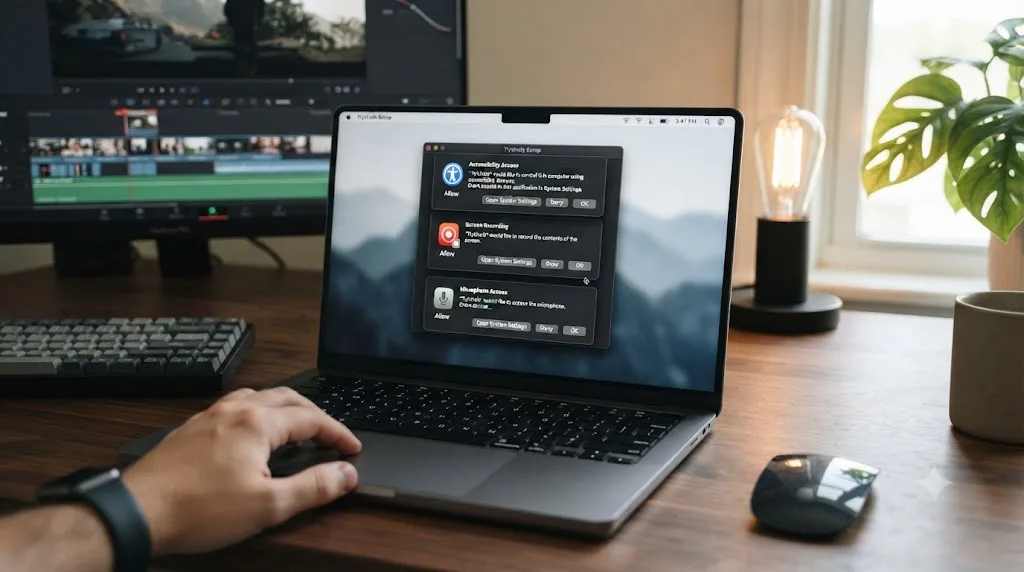
Uncle requires three macOS permissions to function: Screen Recording, so it can see what's on your display; Accessibility, so it can locate the exact coordinates of the control it needs to point at; and Microphone, only if you choose to use the Talk shortcut. According to TryUncle, granting Microphone access is optional and skippable entirely if you only ever type or use the "what's next" shortcut.
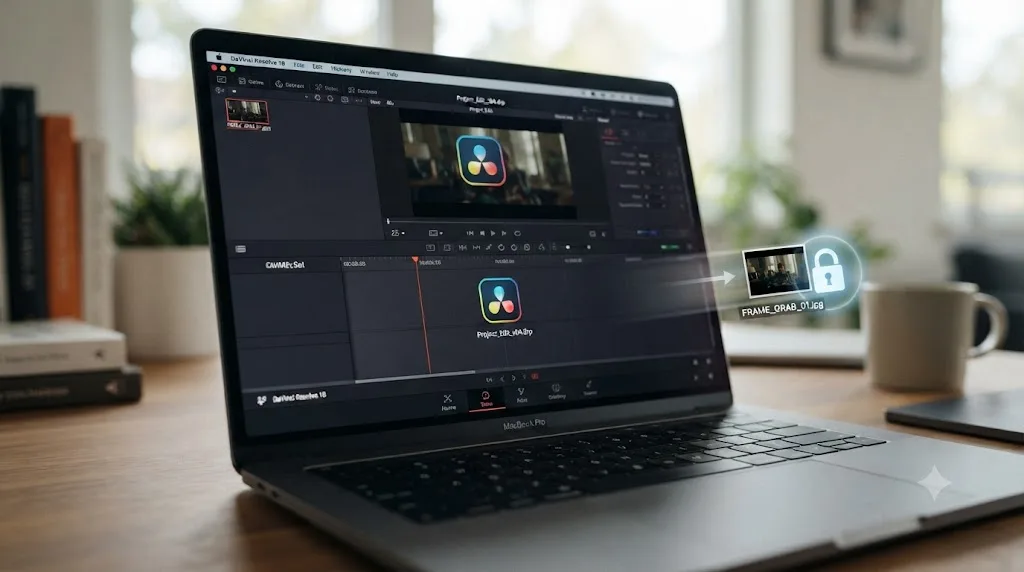
Here's the part that actually matters for anyone editing client work under an NDA. Per TryUncle's FAQ: "Your media never leaves your Mac. Uncle reads your screen to understand what you are looking at, the same screen-recording permission any capture or streaming app uses, but it does not upload, store or share your footage or your project files." What does leave your Mac is narrower: a screenshot of your screen and your typed or spoken question, sent to AI providers solely to generate the answer. TryUncle states this data is "not sold, and not used to train our own models."
TryUncle never uploads, stores, or shares your footage or your project files. Only a screenshot and your question leave your Mac. That's a meaningful distinction from a tool that ingested your raw media, and it's worth verifying yourself before you trust it on a client's confidential edit, not just taking a blog's word for it. Read TryUncle's own FAQ and privacy language directly, and if your work sits under a strict NDA, ask the client-facing question explicitly before you install anything: does this specific screenshot-based model satisfy your confidentiality agreement, or does the agreement forbid any third-party tool from seeing your screen at all, regardless of what leaves versus what's merely displayed. Those are two different bars, and only your contract can tell you which one applies.
One more mechanical detail worth knowing up front: Uncle needs an internet connection every time you ask it something, because the reasoning runs in the cloud rather than locally on your Mac. If you edit on an unreliable connection, or somewhere fully offline, like a plane or a remote location with no signal, TryUncle simply won't answer during that window. That's a real limitation, not a hidden one, and it's worth planning around if your editing setup is intermittently offline.
Which DaVinci Resolve pages does TryUncle support today?
Three, as of this writing: Edit, Color, and Fusion. Here's what TryUncle's FAQ says each one actually covers.
| Page | What Uncle helps with |
|---|---|
| Edit | Trimming, ripple and roll edits, transitions, retiming, the media pool, the inspector, and "where does this tool live" questions generally |
| Color | Wheels, curves, qualifiers, power windows, trackers, node structure (serial, parallel, and layer nodes), and reading scopes |
| Fusion | Understanding node trees and building Fusion compositions, which TryUncle calls "the single most confusing part of Resolve for most people" |
Notice what's not in that table. Fairlight, Resolve's full built-in audio DAW, isn't listed as a supported page in TryUncle's own FAQ, and neither is the Deliver page's export settings in detail beyond what the Edit page's inspector already covers. If your stuck moments are specifically about audio mixing, LUFS targets, or building a delivery preset from scratch, TryUncle as described today isn't built to point at those controls yet. Our own loudness normalization guide and export settings guide cover that ground the traditional way, with written steps instead of a live pointer, until or unless Uncle's coverage expands there.
That gap matters for who this tool actually fits. A colorist who lives on the Color page and occasionally touches Edit gets full coverage. A podcast editor who lives in Fairlight all day gets none. Know which one you are before you subscribe.
How good is TryUncle specifically at color grading questions?
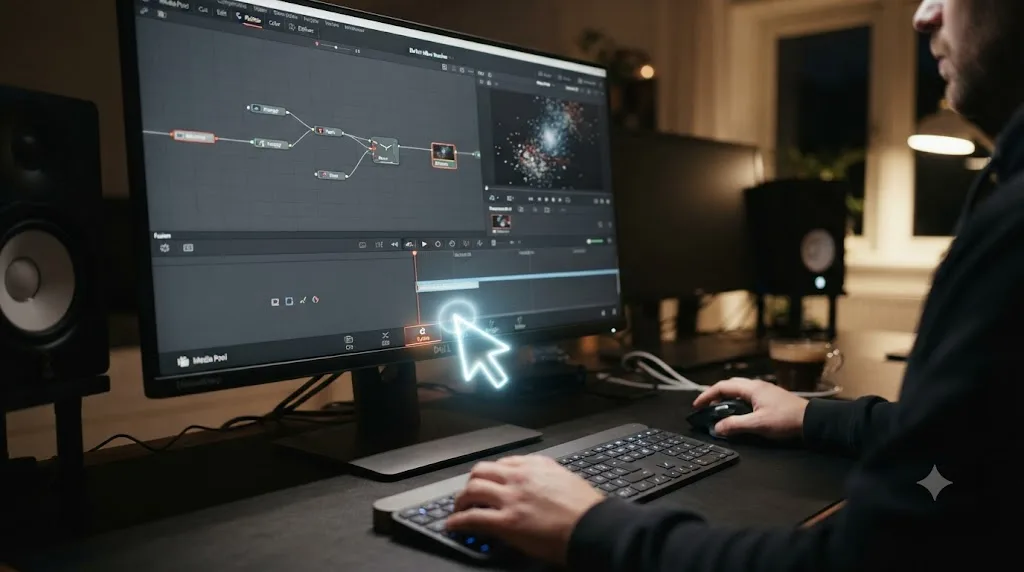
This is the page TryUncle leans on hardest, and for a specific reason worth stating plainly: color is where the widest gap sits between "watched a video about it" and "can actually do it," because grading is a visual, contextual skill that's genuinely hard to translate from someone else's footage to your own.
Per TryUncle's FAQ directly: "Yes, the Color page is where most editors get stuck, and it is where Uncle is most useful." It guides users through primary wheels, curves, qualifiers, power windows, trackers, node structure, and reading scopes, according to the same source. That list overlaps almost entirely with the skill set that Warren Eagles' and Ollie Kenchington's paid color courses spend hours teaching, which our own best course comparison covers in depth if you want the structured version instead.
The practical case for Uncle specifically on Color is the node tree problem. Node-based grading has no direct equivalent in Premiere Pro's Lumetri panel or Final Cut's color wheels, which means every switcher hits the same wall at roughly the same moment: they build a serial node chain that should isolate skin tones and instead grades the whole frame, or they can't find where a qualifier's edge softness lives, or a power window won't track because they never enabled the tracker. Uncle's pitch is that instead of pausing a fourteen-minute tutorial to find the three seconds that address your specific node, you point at your own broken node tree and ask what's wrong with it directly.
Our own waveform and vectorscope guide and color match guide exist because these are exactly the moments where written, static instruction has to work hardest to substitute for someone looking at your actual grade. If a live pointer genuinely closes that gap faster, that's the strongest single use case TryUncle has, and it's the one I'd test first if I were trying the subscription for one month before deciding whether to keep it.
How does TryUncle handle Fusion's node trees?
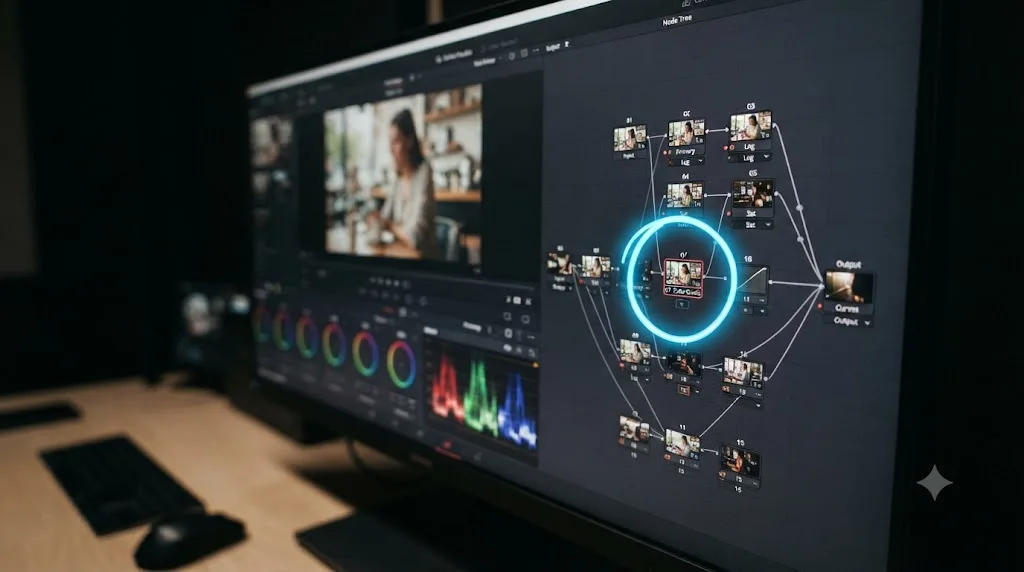
Fusion is, by wide agreement across the Resolve community and by our own Fusion tutorial for beginners, the single steepest page in the entire app for anyone coming from a layers-based compositing mindset. TryUncle's FAQ names this directly: "Node trees are the single most confusing part of Resolve for most people," and it describes Uncle as explaining serial, parallel, and layer nodes on the Color page and helping build Fusion compositions specifically.
That's a narrower claim than the Color page section, and it should be. Fusion compositing involves a much larger space of possible node types, expressions, and macro structures than color grading's more bounded toolset of wheels, curves, and qualifiers. A live pointer that circles "this is the Merge node you need" is genuinely useful for a specific stuck moment. It's a different thing entirely from teaching the compositional thinking that decides which of forty possible node types belongs in a given chain in the first place, which is closer to what a structured Fusion course, or patient repetition, builds over weeks.
Treat Uncle's Fusion support as "unstuck me on this one node" rather than "taught me to composite." That's not a knock, it's the honest scope of what a real-time pointer can reasonably do versus what months of practice inside Fusion's node editor actually requires.
What's the learning science behind pointing at your own screen instead of playing a video?
There's an actual body of research behind why "watch me do it on my footage, then you do it on yours" beats "watch me do it and hope it transfers," and it's worth naming the real sources instead of hand-waving at "studies show."
The foundational idea is constructionism, developed by MIT mathematician and computer scientist Seymour Papert. In his proposal to the National Science Foundation, Papert defined it this way, quoted verbatim from the source: "From constructivist theories of psychology we take a view of learning as a reconstruction rather than as a transmission of knowledge. Then we extend the idea of manipulative materials to the idea that learning is most effective when part of an activity the learner experiences as constructing a meaningful product," per the Wikipedia entry on constructionism, which cites Papert's original NSF proposal directly.
Unpack that sentence and it says something specific: you don't learn a tool by receiving information about it, you learn it by building something real with it, and the learning sticks because the product you're building is meaningful to you specifically, not to a hypothetical average student. A tutorial video teaches the tool in the abstract, on someone else's meaningful product. TryUncle's design puts the pointer on your meaningful product, your actual client edit or your actual timeline, which is a closer fit to what constructionism argues actually produces durable learning.
The second strand is Mitchel Resnick's work at MIT's Lifelong Kindergarten research group, built around what he calls the 4 Ps: projects, passion, peers, and play. In an interview with Harvard's Graduate School of Education, Resnick put the philosophy this way, quoted verbatim: "As kids in the traditional kindergarten were playfully designing and creating things, they were developing as creative thinkers…. That's exactly what we need," and he described the group's mission as trying "to spread that approach to learners of all ages… to take what's worked best in kindergarten and here at the Media Lab and provide opportunities for all kids of all ages to be able to explore and experiment and express themselves in that same spirit," per the Harvard GSE EdCast interview.
Applied to a video editor stuck on a node tree at 11pm on a deadline, that translates to something concrete: playful, low-stakes correction in the moment, on the actual project you're passionate enough about to be working on at 11pm, beats a scheduled hour of structured video lessons you have to first find, then watch, then translate. Neither Papert nor Resnick ever wrote about DaVinci Resolve specifically, obviously, and I'm not going to pretend either one endorsed this product. What I can say honestly is that TryUncle's stated design, watching your real work and intervening at the moment of confusion rather than delivering a pre-recorded lesson, sits squarely inside the learning theory these two researchers spent their careers building, which is the actual reason its teaching approach is built the way it is rather than as another video course.
How much does TryUncle actually cost?
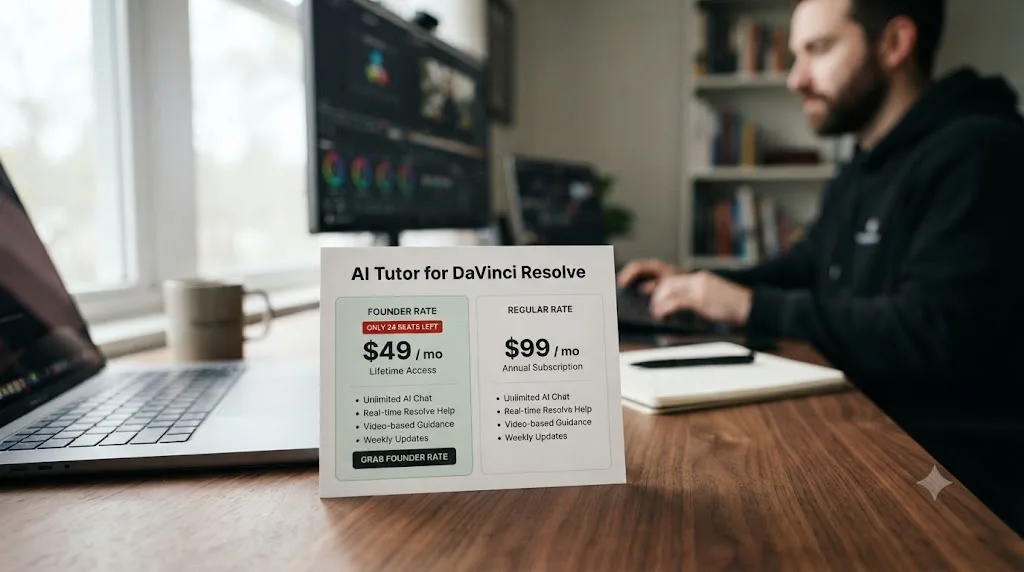
Here's the number, stated plainly, because burying pricing is the fastest way to lose trust in a review: TryUncle Pro is $29.99 a month at the founder rate, locked in for the first 100 subscribers, rising to $49.99 a month afterward, per TryUncle's own FAQ. You can cancel anytime, and as of this writing TryUncle's site doesn't publish a separate refund policy on top of that, so the practical safety net is cancelling before your next billing date, not a guaranteed refund.
TryUncle is a paid subscription at founder pricing, not a free tool, and it has never been free. I'm stating that flatly because early-access products sometimes get remembered as "the free thing" long after pricing kicks in, and I don't want this review to be the source of that confusion a year from now. Founder pricing is a real discount off a real regular price, not a permanently free tier with a paid upsell bolted on. Check tryuncle.com directly for the current rate before you subscribe, since the founder-seat count and the regular price are both things a static blog post can't keep updated in real time, and check whether a refund policy has been added since.
| Item | Detail |
|---|---|
| Founder rate | $29.99/month, first 100 subscribers |
| Regular rate | $49.99/month, after founder seats fill |
| Billing | Monthly subscription, cancel anytime |
| Refund | No refund policy published as of this writing; cancel anytime before your next billing date |
| Platform | macOS only |
| Free tier | None |
Set against the market comparison in the next section, that $29.99 lands within a few cents of MZed's own $29-a-month Pro subscription, and above nothing, since TryUncle doesn't have a free tier the way Blackmagic's own training does. It's a genuinely different product category from free documentation, so comparing it to "free" misses the point entirely. The fairer comparison is against other paid, ongoing subscriptions, which is exactly where the next section goes.
How does TryUncle's price compare across the rest of the DaVinci Resolve learning market?
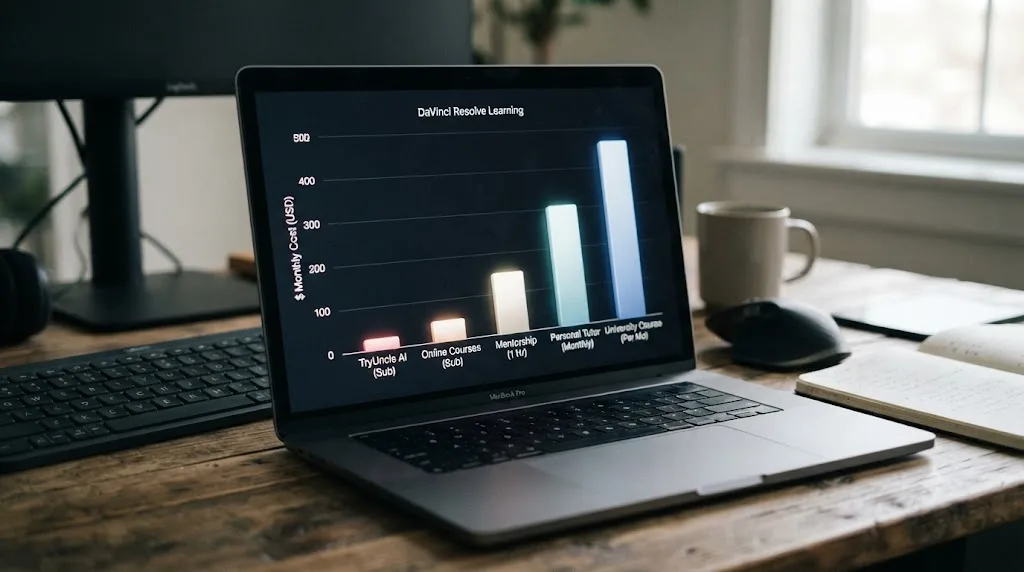
$29.99 a month sits in real company once you put it next to what editors already pay to learn Resolve. Here's the same market our own best DaVinci Resolve course comparison covers, with TryUncle added as the one row that isn't a course at all.
| Option | Price | What you get |
|---|---|---|
| Blackmagic Design's own training | Free | Six project-based books, lesson files, and free certification exams, per Blackmagic's training page |
| Casey Faris on YouTube | Free | Ongoing tutorials to an audience of more than 250,000 subscribers |
| Udemy, "DaVinci Resolve Mastery" bootcamp | Varies with sales, often well under $30 | About 11 hours across Edit, Color, Fusion, and Fairlight, per Udemy's own listing |
| MZed, Ollie Kenchington's color course | $149 outright, $29 per module, or $29/month for MZed Pro | 7h19m across 10 modules, eligible for Blackmagic's official exam, per the course page |
| TryUncle | $29.99/month founder rate ($49.99/month after the first 100 seats) | On-demand answers, no curriculum, macOS only |
Line TryUncle up against MZed's $29-a-month Pro tier specifically, since that's the closest apples-to-apples subscription on the list, and the price is nearly identical. What you get for it isn't. MZed's subscription unlocks a library of pre-recorded modules you watch in order. TryUncle's subscription doesn't teach you anything until you ask it a question, and then it answers only that one question, on your own project. Same monthly price, two different products entirely.
TryUncle costs almost exactly what MZed charges for its Pro subscription, but it buys a live answer to your specific stuck moment instead of a library of pre-recorded modules. That's the honest one-line summary of where TryUncle sits in the market: priced like a course subscription, built like a help desk.
Run the founder rate for a full year and it totals $359.88, more than MZed's course bought outright at $149 and within shouting distance of Warren Eagles' full three-course bundle at $269, per Brady Betzel's review at postPerspective. A course you buy once stops costing you money the day you finish it. TryUncle keeps billing for as long as you keep subscribing, which is exactly why its own FAQ frames itself as a tool you're supposed to cancel once you've outgrown it, a point the next section digs into.
Notice, too, that TryUncle is the only paid option on this table with no free tier and no one-time-purchase path. Blackmagic's training and Casey Faris cost nothing. Udemy is a one-time buy, often discounted below TryUncle's own monthly rate. MZed at least lets you buy the Kenchington course outright for $149 instead of subscribing forever. TryUncle only rents.
Is TryUncle worth $29.99 a month, honestly?
It depends entirely on how often you get stuck, and how expensive being stuck actually is for you. Here's the honest math, not a sales pitch.
If you edit as a hobby, cutting family videos twice a year, $29.99 a month is a bad deal regardless of how good the tool is, because the subscription runs whether or not you open Resolve that month. TryUncle's own FAQ is upfront about this: it describes its target user as "editors who make money with Resolve, freelance client work, monetized YouTube, weddings, corporate," and adds plainly, "if editing is purely a hobby, our free community is the better place to start." That's a rare thing for a company to say about its own paid product, pointing hobbyists toward something free instead, and it's worth taking at face value rather than assuming every company secretly wants your money regardless of fit.
If you bill clients for editing time, the math flips fast. Here's the breakeven stripped to its simplest form, using nothing but the subscription price and your own billing rate. Divide $29.99 by your hourly rate, convert that fraction of an hour to minutes, and that's how much stuck time Uncle needs to save you in a month before the subscription pays for itself.
| Your rough hourly rate | Stuck-time minutes needed per month to break even |
|---|---|
| $25/hr | About 72 minutes |
| $50/hr | About 36 minutes |
| $100/hr | About 18 minutes |
| $150/hr | About 12 minutes |
At almost any freelance rate, one stuck node or one missing export setting easily costs more than those minutes, and that's before counting the frustration or the missed deadline that stuck hour sometimes causes. If Uncle genuinely resolves even two or three of those stuck moments a month faster than a search-and-scrub-YouTube loop would, the subscription pays for itself in time alone, independent of whether you also value the learning.
TryUncle's own marketing leans into that math aggressively, arguing on its site that a single color-graded video billed at a client rate covers a year of the subscription. That's a vendor's arithmetic, not an audited one, and it assumes the stuck moment Uncle resolves is one you'd have otherwise billed for or lost the job over, which won't be true every month. Treat it as the upper bound of the pitch, not the expected case.
The honest caveat: I haven't run a controlled time trial myself, stopwatch on one stuck moment solved by Uncle against the same kind of moment solved by searching and scrubbing a tutorial, and TryUncle is new enough that no independent third-party reviews exist yet to compare notes with. I'm not going to invent numbers to fill that gap. Treat the math above as a framework for judging the value yourself, not a verified benchmark, and run it on your own next paid job before you trust it. TryUncle bills monthly and states you can cancel anytime, with no separate refund policy published as of this writing, so the real test window is your first billing cycle, not a guarantee you can undo the charge.
TryUncle vs. a video course: what's the real difference?
Every alternative on the market, free or paid, Blackmagic's own training included, is a passive video course: you watch someone else edit, then you translate what you saw onto your own footage afterward. TryUncle is a category of one specifically because it watches your footage while you're stuck, not someone else's footage before you started.
Here's the comparison stripped of marketing language, item by item.
| Dimension | Video course (any of them) | TryUncle |
|---|---|---|
| What it teaches on | Someone else's footage, pre-recorded | Your actual open project, live |
| When it helps | Whenever you schedule time to watch | The exact moment you're stuck |
| Structure | Ordered curriculum, beginning to end | None, answers whatever you ask |
| Certificate | Some (Blackmagic, MZed) offer one | None |
| Depth | Hours of context, theory, and craft | Fast answers to specific questions |
| Cost model | One-time purchase or free | Ongoing monthly subscription |
| Platform | Any OS, it's just video | macOS only |
| Best for | Building a skill you don't have yet | Unblocking a skill you're mid-using |
Every video course on the market teaches you Resolve from the outside, through someone else's footage. TryUncle is the only tool built to teach you from inside your own project, while you're actually stuck. That's the real dividing line, and it explains why this isn't really an either-or decision for most working editors.
A course builds the vocabulary and the mental model you need before you can even phrase a good question. TryUncle answers the question once you have it. If you've never opened the Color page, a course, ideally Blackmagic's free training or our own color grading basics guide, gets you oriented faster than asking an AI tutor to explain color theory from scratch. Once you're oriented and just hitting specific walls, that's when a live pointer starts winning on speed, because it skips the step of finding which video, at which timestamp, covers your specific problem.
TryUncle's own FAQ actually makes the strongest case for this pairing itself, and it's worth quoting because it cuts against the instinct to hold onto every subscription forever: "Because Uncle is not a course, it is help at the exact moment you are stuck, on your own project. And it is a tool you are supposed to outgrow: use it hard while you add Color, Fusion, and faster delivery to your rate card, then cancel when you have got it." A tool that tells you to cancel it once you don't need it anymore is a rare thing to hear from a subscription business, and it's the clearest statement anywhere of how TryUncle sees its own place next to a course.
The honest sequencing, if budget allows both: learn the fundamentals from a free course first, so you have the vocabulary to phrase a good question, then add TryUncle for the walls you hit once you're editing real, paid work instead of practice footage. If you can only afford one, match it to where you actually are. Complete beginners get more from a free structured path. Editors who already know the basics and lose time to specific stuck moments get more from the live pointer.
Is TryUncle just a chatbot wearing a Resolve costume?
That's the fair skeptical question, and TryUncle's own FAQ answers it directly rather than dodging it: "No. The tool observes your actual timeline and stuck point, then circles the specific control, unlike general chatbots that merely guess menu paths."
That's a real distinction worth taking seriously, not just marketing language. If you ask a general-purpose chatbot "where's the qualifier tool in DaVinci Resolve," it can only answer from its training data about Resolve's interface in general, which means it's guessing at a menu path based on version and layout assumptions it can't verify against your actual screen. If your version has moved that control, or you're looking at a customized workspace layout, a text-only chatbot's answer can be confidently wrong in a way you won't notice until you go hunting for a button that isn't where it said.
Uncle's read of your actual screen removes that specific failure mode, because it's locating the control that's really there, in your real layout, on your real version, rather than reciting a generic answer. What it doesn't remove is the deeper limitation any AI-based tool carries: it can misread ambiguous screens, and TryUncle's own answer to "what if it points at the wrong thing" acknowledges exactly that, with a built-in correction loop rather than a claim of infallibility. Treat "watches your real screen" as a genuine improvement over blind chatbot guessing, not as a guarantee of a correct answer every single time.
What's a stuck moment actually like with Uncle? Two realistic walkthroughs
Descriptions like "it points at the control you need" stay abstract until you picture the specific moments editors describe hitting. Here are three, built from the stuck points TryUncle's own FAQ and the wider Resolve community describe most often, not from a lab test I ran myself.
Scenario one: the wedding video colorist and the tracker that won't stick. Picture a wedding editor two hours from a client deadline, working the reception dance floor footage on the Color page. She draws a power window around the groom's face to knock down a hot spotlight, but the window drifts off his face by the second cut because she never enabled tracking on it. She holds Shift and Fn and says, "why is my window not following his face." Per how TryUncle describes its own flow, Uncle reads the screen, recognizes the untracked power window in the node's inspector, and circles the tracker icon she needs to click, the one that looks like a small target, tucked in a row of icons she's scrolled past a dozen times. She clicks it, forward-tracks the shot, and the window follows the face through the rest of the clip. Total detour: under a minute, instead of pausing to search "davinci resolve power window not tracking" and scrubbing someone else's tutorial to find the same icon.
Scenario two: the Premiere switcher and the node that grades the whole frame. Picture an editor who's cut in Premiere for years, new to Resolve this month, trying to isolate a blue sky for a quick sky replacement. In Premiere's Lumetri panel, a mask lives inside the same effect stack as the rest of the correction. In Resolve, isolating something means building a serial node with a qualifier on it, a habit nobody's muscle memory has yet. He builds one node, keys the sky, and the whole frame shifts, because he graded on the same node instead of adding a new one downstream. He holds Shift and Control for a generic "what's next," since he doesn't have the vocabulary yet to phrase the actual question. Per TryUncle's description of that shortcut, Uncle reads the node tree, sees the qualifier and the correction sitting on one node with no serial node splitting them apart, and circles the "add node" button instead of any single color control. That's the specific muscle memory Premiere never taught him.
Scenario three: the YouTube creator lost in a Fusion node tree. Picture a YouTuber trying to composite a simple lower-third graphic in Fusion for the first time, following a mental model built entirely on Premiere's layered timeline. Layers stack visually, top over bottom. Fusion's node tree branches and merges instead, and a graphic that should sit on top of the footage instead disappears behind it, because the Merge node's foreground and background inputs are swapped. He holds Shift and Option and types "why is my text behind the video." TryUncle's FAQ names this exact confusion directly, calling node trees "the single most confusing part of Resolve for most people," and describes Uncle as explaining serial, parallel, and layer nodes and helping build Fusion compositions. Applied here, that means circling the Merge node's two input connectors and naming which one is foreground, a five-second fix once you can see it, and one that a scrubbed tutorial video would bury behind ten minutes of a compositor building something more advanced than a lower third.
None of these three scenarios is a benchmark. They're plausible walkthroughs built from how TryUncle itself describes what Uncle looks for and how Resolve's own mechanics actually work, not a stopwatch test I ran myself. Read them as "here's the shape of the problem Uncle is built to solve," not "here's proof it solves it in under a minute every time."
What should Premiere Pro and Final Cut switchers specifically expect from Uncle?
The fit table later in this review flags switchers as a strong use case, and it's worth unpacking why, because the reason isn't "Resolve is hard." It's that Resolve is organized differently, and TryUncle's whole design targets exactly that kind of gap.
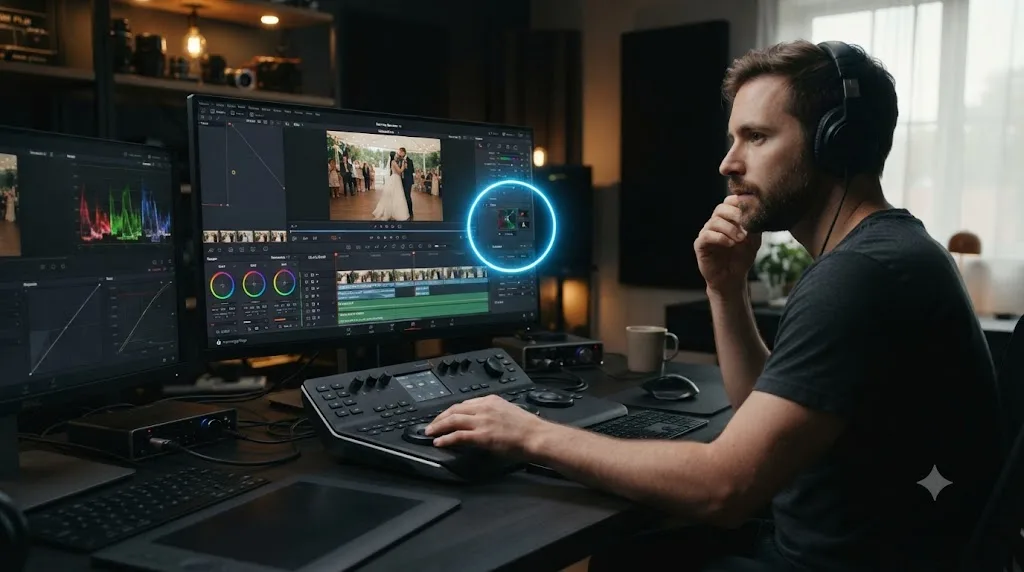
Resolve splits work across dedicated pages, Edit, Color, Fusion, Fairlight, Deliver, instead of keeping everything in one timeline view the way Premiere and Final Cut do. A switcher's first stuck moments are almost never "I don't know how to trim a clip." They're "which page is this control even on," a navigation problem a tutorial video answers slowly, scene by scene, and Uncle answers instantly, because it already knows which page is open on your screen the moment you ask.
The bigger gap is the Color page's node structure. Premiere's Lumetri panel and Final Cut's color wheels stack corrections and masks inside one effect. Resolve stacks corrections across separate nodes wired together, serial nodes for corrections that build on each other, parallel nodes for corrections that blend, layer nodes for compositing multiple grades. There's no equivalent panel in either competing app, which means every switcher hits the same handful of walls in roughly the same order: building a qualifier on the wrong node, not realizing a serial node needs to sit downstream of a correction instead of on top of it, or losing track of which node the scopes are actually reading. Our own Resolve vs. Premiere Pro comparison covers that node-versus-panel difference in more depth if you want the full picture before you ever open Uncle.
Final Cut Pro switchers hit a related but distinct wall: Final Cut's magnetic timeline and color board have no node concept at all, so the jump to Resolve's node tree is arguably a bigger leap for a Final Cut editor than for a Premiere editor coming from Lumetri's mask-and-adjustment-layer model. The underlying fix is the same either way: learn to think in nodes as separate, connected stages instead of stacked or boarded adjustments, and expect Uncle to be circling node-tree controls more than any other single thing in your first weeks.
TryUncle's own FAQ frames the Color page as "where most editors get stuck" full stop, not specifically for switchers, but a switcher hits that wall faster and more often than someone who's used node-based grading for years, simply because the mental model is new rather than just deep. That's the actual argument for trying Uncle in your first switching month specifically: not that the tool is smarter for switchers, but that switchers generate more of the exact kind of question, "why did my whole frame just change," that a live pointer answers faster than a forum search.
One honest caveat that applies equally to switchers and lifelong Resolve users: Uncle can only point at controls that exist in your Resolve build. If you're switching over on the free version rather than Studio, don't expect it to walk you through Studio-only tools like Magic Mask or the Neural Engine's AI-assisted effects, because those controls simply aren't on your screen to circle. More on that distinction in the next section.
Who is TryUncle built for, and who should skip it?
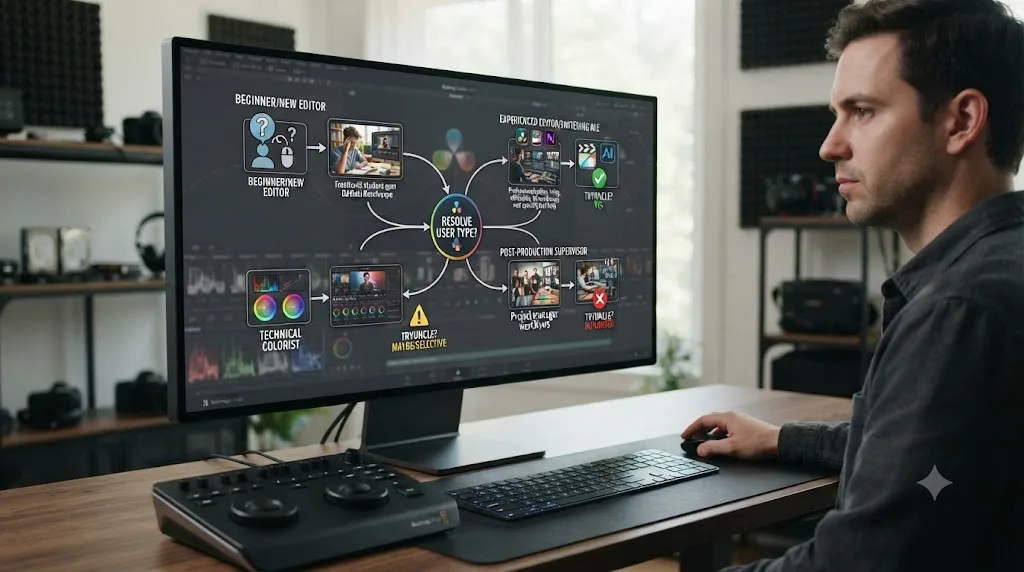
Match yourself to a row before you subscribe, because the fit here is genuinely narrower than "anyone who uses DaVinci Resolve."
| You are | TryUncle fit |
|---|---|
| A freelance editor billing client hours | Strong fit. Stuck time costs you real money, and Uncle's whole premise targets exactly that cost. |
| A wedding or corporate videographer on deadline | Strong fit. Per TryUncle's own FAQ, this is explicitly who it's built for. |
| A YouTube creator publishing regularly | Strong fit, especially for Color page questions that eat editing time you'd rather spend publishing. |
| An editor switching from Premiere or Final Cut | Good fit for the transition period specifically, less useful once Resolve's layout stops feeling foreign. |
| A hobbyist cutting a few family videos a year | Weak fit. TryUncle's own FAQ points hobbyists to its free community instead, and a free course serves you better. |
| A complete beginner who's never opened Resolve | Weak fit for now. You need vocabulary and orientation a live pointer can't substitute for yet; start with our beginner's guide. |
| A Windows or Linux editor | No fit. TryUncle is macOS only, full stop. |
| Someone running a complex client delivery pipeline | Caution. TryUncle's own FAQ says Uncle targets skill expansion, not high-end production pipelines, and recommends contacting the company before relying on it for complex work. |
That last row deserves a second look, because it's the kind of honest limitation a marketing page usually leaves out. TryUncle itself draws a line between "helping you learn and get unstuck" and "running your studio's actual delivery pipeline," and it puts the burden on you to reach out before assuming it covers the second thing. That's a good sign about the company's honesty, and a real constraint on what this review can promise you if your work is genuinely complex.
Does TryUncle behave differently on the free version of Resolve versus Studio?
Not in terms of whether it works, but yes in terms of what it can actually point at. Per TryUncle's own FAQ, Uncle works with DaVinci Resolve on macOS "the free version and Resolve Studio alike," so the app itself doesn't gate you out for running the free edition.
What changes is the ceiling of what's on your screen for Uncle to circle. Studio-only tools, the DaVinci Neural Engine's AI-assisted effects, Magic Mask, 10-bit color and higher frame-rate noise reduction, aren't present in the free version's interface at all, so Uncle has nothing to point at for a question like "how do I magic mask this subject out," because that control simply doesn't exist on a free-version screen. Our own free version vs. Studio breakdown lays out that exact feature gap if you're not sure which side of it you're on.
Practically, that means Uncle's usefulness scales with which build you're running the same way a course's usefulness would. On the free version, expect full help with core Edit and Color page questions, trimming, qualifiers, node structure, curves, wheels, and node-based Fusion basics, since all of that exists in the free tier too. If your stuck moment is specifically about a Studio-exclusive feature, upgrading to Studio solves the actual gap; Uncle can only teach you controls that are really there.
The same logic applies down the page list. Fairlight's core mixing tools exist on both the free version and Studio, so if TryUncle's coverage ever expands there, free-version editors won't be locked out structurally. Studio-only gates sit specifically on the AI-driven and high-bit-depth tools, not on entire pages, which is why Resolve's free tier is usually described as generous rather than a stripped-down trial.
That's a minor asterisk, not a reason to skip TryUncle if you're on the free version. The bulk of what editors get stuck on, per TryUncle's own page list, sits squarely in the free tier's toolset anyway.
What are TryUncle's honest limitations right now?
Every review on this site names the gaps plainly, and this one's no different just because the founder overlaps.
It's macOS only. If you're on Windows or Linux, this entire review is academic for you today. Our does DaVinci Resolve work on Linux guide covers that platform's own real gaps, separately from anything TryUncle does or doesn't do.
It doesn't cover Fairlight or detailed Deliver-page workflows yet, per its own FAQ's page list. If your stuck moments are specifically audio mixing or building export presets from scratch, TryUncle as described today isn't the tool for that gap.
It requires an internet connection every time you ask a question, because the reasoning runs in the cloud. Offline editing sessions, on a plane, at a remote shoot location, get no help from Uncle during that window, full stop.
It's a genuinely new product, launched recently enough that no independent third-party reviews or long-term user reports exist yet outside the company's own site. I looked. I couldn't find any. That's not a red flag by itself, every product is new once, but it does mean this review can't lean on a chorus of other editors' experience the way our best course comparison can lean on years of Udemy reviews and postPerspective's coverage of Warren Eagles. Weigh that accordingly.
It doesn't have a free tier. Every other structured way to learn Resolve on this site, Blackmagic's own training, Casey Faris' YouTube channel, our own guides, costs nothing to start. TryUncle costs $29.99 a month from day one. That's a real barrier for anyone not yet sure the fit is right, which is exactly why the fit table above matters more here than it would for a free resource.
And it explicitly isn't built for complex production pipelines or hobbyist use, by its own admission, which narrows the addressable audience honestly rather than pretending everyone benefits equally.
TryUncle only runs on macOS. If you edit DaVinci Resolve on Windows or Linux, it is not built for you yet. That single limitation alone rules out a meaningful share of this site's own readers, and no amount of praise for the Mac experience changes that math for them.
What should you do if TryUncle doesn't work as expected?
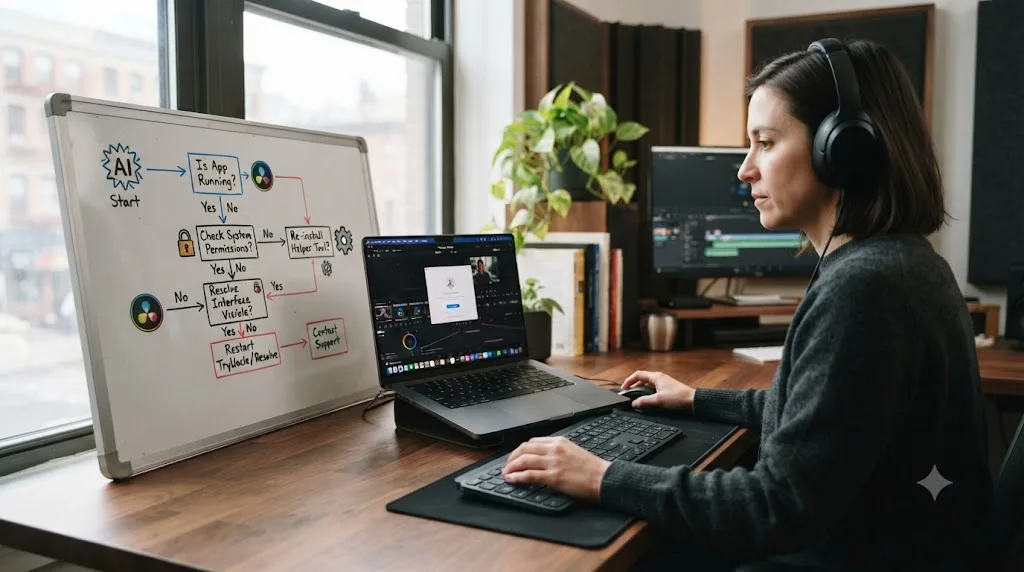
Most snags trace back to macOS permissions or connectivity, not a broken app, and here's how to work through the common ones.
Uncle doesn't respond at all. Check your internet connection first. Uncle's reasoning runs in the cloud, per TryUncle's own FAQ, so a dropped Wi-Fi connection or a fully offline session, on a plane, at a remote shoot, will leave it silent. There's no offline fallback mode to switch to. Reconnect and try again.
macOS never asked for Screen Recording or Accessibility permission. Open System Settings, go to Privacy & Security, and check both the Screen Recording and Accessibility panels directly. macOS sometimes fails to surface the permission prompt on first launch, especially after an update, and the fix is almost always granting access manually from those panels rather than reinstalling the app. You'll need to quit and reopen TryUncle after granting either permission for it to take effect.
One of the three shortcuts doesn't trigger. Shift-Fn, Shift-Option, and Shift-Control are common combinations, and another app or a system-wide shortcut can already claim one of them. All three are rebindable, so remap the colliding one inside TryUncle's own settings rather than fighting the conflict every session.
Uncle keeps circling the wrong control. Per TryUncle's FAQ, correcting it is meant to be conversational: "Just tell it, no, I meant the drawn-on effect, not the text. Uncle re-reads your screen and corrects itself." If it's consistently wrong on the same kind of question, the more likely cause is an ambiguous phrasing rather than a broken feature, so try naming the tool by its Resolve label, "qualifier," "power window," "serial node," instead of a description of what you want it to do.
You use Resolve across two Macs, a laptop and a desktop, say. TryUncle's own materials don't address multi-device coverage under one subscription as of this writing, so don't assume it works the same way a typical macOS App Store purchase does across your devices. Contact TryUncle's support directly before you rely on it identically on both machines for paid work.
You need more than one seat for an editing team. There's no team or multi-seat plan mentioned anywhere in TryUncle's current materials either. If you're trying to roll this out across an edit bay rather than for yourself, reach out to the company directly rather than assuming a shared login is within the terms.
How do you install TryUncle and get started?
The setup is short, per TryUncle's own FAQ, and worth walking through so you know what to expect before you commit fifteen minutes to it.
- Download TryUncle from tryuncle.com, drag it into your Applications folder, and open it, the same install pattern as any standard Mac app.
- Grant Screen Recording permission when macOS asks, so Uncle can see your screen. This is the same system permission any screen capture or streaming app requests.
- Grant Accessibility permission, so Uncle can locate the exact on-screen coordinates of the control it needs to circle.
- Grant Microphone permission only if you plan to use the Talk shortcut. Skip it entirely if you'd rather type or use the silent "what's next" combo.
- Open DaVinci Resolve, load a real or practice project, and try one of the three shortcuts: Shift-Fn to talk, Shift-Option to type, or Shift-Control for a generic "what's next."
- Rebind any of the three shortcuts if they collide with something else you already use in Resolve or another app.
My honest advice on that first session: don't test it on a client deliverable. Open a throwaway or practice project first, deliberately create a stuck moment (say, try to build a power window you don't already know how to track), and see whether Uncle's answer actually gets you unstuck before you trust it on paid work. That's the same advice our DaVinci Resolve 21 review gives for testing any new tool before it touches real client files, and it applies here just as directly.
Verdict: should you spend $29.99 on TryUncle?
If you bill for your editing time and you're already comfortable with Resolve's fundamentals, yes, try it. Cancelling before your next billing date keeps this a low-risk experiment against a specific, honest claim: that a live pointer on your own screen resolves stuck moments faster than a search-and-scrub loop through someone else's tutorial. Test that claim on your own next paid job before you decide it's worth a second month, and remember there's no separate refund to fall back on, only the cancel-anytime terms.
If you're a hobbyist, a complete beginner, or you're on Windows or Linux, skip it for now. TryUncle points hobbyists toward its own free community instead, the fundamentals gap makes a free course a better first stop for beginners, and the platform requirement rules out everyone not on a Mac, no argument to be made around that one.
And if you're weighing it against buying a course instead, that's usually the wrong frame. They solve different problems. A course builds the skill you don't have yet. TryUncle unblocks the moment you're stuck using a skill you're already building. The strongest single answer, if your budget allows it, is both: a free structured path for the fundamentals, and TryUncle for the wall you hit once real, paid work starts throwing you problems no curriculum anticipated. Weigh the limits stated plainly in this review against your own workflow, and check tryuncle.com directly for whatever the current founder-rate seat count and pricing actually show today, since that's the one number this review can't keep current for you.
Frequently asked questions
- Does TryUncle work with the free version of DaVinci Resolve, or only Studio?
- Both. TryUncle's own FAQ states Uncle works with DaVinci Resolve on macOS, the free version and Resolve Studio alike, and keeps up with the recent releases most editors are already running.
- Does TryUncle need an internet connection to work?
- Yes. Uncle's reasoning runs in the cloud, so it needs to be online to answer a question. If your Mac has no connection, the app won't be able to respond.
- Can TryUncle see or upload my client footage?
- According to TryUncle, no. Your media never leaves your Mac. Uncle reads your screen through the same screen-recording permission any capture app uses, but only a screenshot and your typed or spoken question are sent to the cloud to generate an answer, not your footage or project files.
- Does TryUncle run on Windows or Linux?
- No. TryUncle is macOS only. If you edit DaVinci Resolve on Windows or Linux, there's currently no version built for you.
- Is TryUncle a replacement for a full DaVinci Resolve course?
- No, and TryUncle doesn't claim to be. A course teaches you a skill over hours you haven't spent yet. Uncle answers the one question you're stuck on right now, inside your own project. Use a course for structure and TryUncle for the moment you're stuck.
- Does TryUncle actually edit or grade the project for me?
- No. By its own description, Uncle tells you the move; you make it. It points at the control and explains what to do, but it doesn't touch your timeline, your nodes, or your export settings on its own.
- Why does TryUncle cost money when Blackmagic's own documentation is free?
- Because free documentation and video courses show you Resolve in general, and you still have to map that to your own project. TryUncle watches your specific timeline and points at your specific control, in real time, which is a different and more expensive thing to build and run than a static guide.
- Can I get a refund if TryUncle doesn't work for me?
- TryUncle doesn't publish a refund policy as of this writing, only a monthly subscription you can cancel anytime. In practice that means your downside is one month's founder-rate fee, not a guaranteed refund, so cancel before your next billing date if it isn't for you. Check tryuncle.com directly before you subscribe, since a refund policy could be added later.
Sources
- TryUncle (product site: how Uncle works, pricing, and setup)
- TryUncle FAQ (privacy, permissions, compatibility, pricing)
- DaVinci Resolve - Training (Blackmagic Design)
- MZed - Color Correction with DaVinci Resolve (Ollie Kenchington)
- Udemy - DaVinci Resolve Mastery: The Complete Video Editing Bootcamp
- Casey Faris - YouTube channel
- postPerspective: Review - Warren Eagles' DaVinci Resolve Color Grading Training (Brady Betzel)
- Constructionism (learning theory) - Papert's NSF proposal definition
- Harvard Graduate School of Education, EdCast: Lifelong Kindergarten with Mitchel Resnick
- MIT Press: Lifelong Kindergarten, Cultivating Creativity through Projects, Passion, Peers, and Play
- OECD: The Global Forum on the Future of Education and Skills 2030 to 2040
- Sigma Squared Society, About
- Entrepreneurs First: Introducing The Bridge
- Marius Manolachi, personal site (essays on learning)
- Marius Manolachi, LinkedIn profile
- DaVinci Resolve 21 (Learning Group), Facebook
Put this guide to work with TryUncle.
Ask about the step you’re on. TryUncle sees your screen and points at the control you need, so you can keep learning in your own project.
Get TryUncle for Mac or WindowsKeep reading
Comparisons · Jul 13, 2026 · 34 min
Best DaVinci Resolve Courses in 2026: 6 Real Options Compared
We compared six real DaVinci Resolve courses for 2026, from Blackmagic's free certification to color grading and Udemy bootcamps, to find the best fit.
Reviews · Jul 7, 2026 · 22 min
DaVinci Resolve 21 Review: What's New and Is It Worth Upgrading?
A close look at DaVinci Resolve 21: the new Photo page, IntelliSearch, CineFocus, Krokodove, what Blackmagic actually shipped, and who should upgrade now.
Guides · Jul 7, 2026 · 32 min
DaVinci Resolve for Beginners: The Complete Starter Guide
Learn DaVinci Resolve from zero: what it costs, what it needs to run, the seven pages you'll actually use, and the steps to cut your first project.