Articles / Comparisonsupdated for DaVinci Resolve 21.0.2 (July 2026)
The Best Monitor for Color Grading in DaVinci Resolve (2026)
Quick answer
The best monitor for color grading in DaVinci Resolve is any 10-bit panel with wide DCI-P3 coverage and hardware calibration, like the BenQ SW321C or Eizo ColorEdge CG319X, run through a Blackmagic DeckLink or UltraStudio instead of a bare HDMI cable. Budget colorists can start with the BenQ SW272Q; broadcast facilities need a true reference monitor like the Sony BVM-HX310.
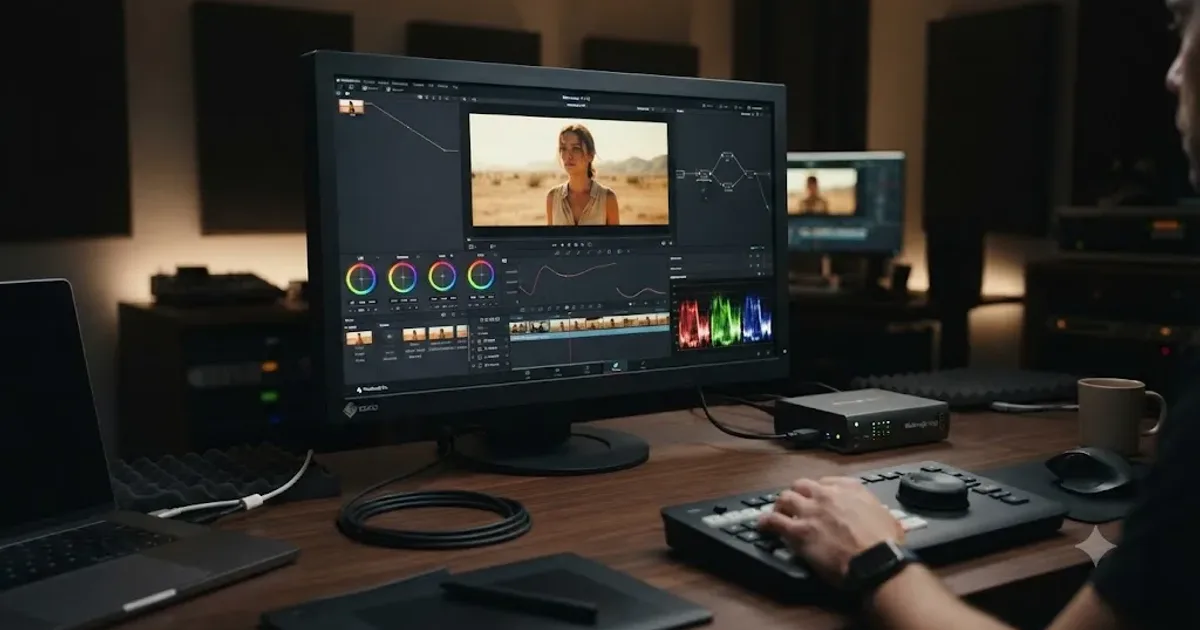
I have watched a colorist chase a color cast for forty minutes before someone thought to ask what monitor they were grading on. It wasn't the grade. It was a five-year-old office display with a blue-heavy factory preset, doing exactly what an uncalibrated screen always does: lying convincingly.
As of July 2026, running DaVinci Resolve 21.0.2, this guide covers what actually matters in a color grading monitor, real specs and prices for the panels colorists buy at every budget, when you genuinely need a Blackmagic DeckLink or UltraStudio instead of a plain HDMI cable, and where a $32,000 reference monitor stops being overkill and starts being the job. We've spent seven-plus years cutting and grading commercial work, and inside the 100,000-plus member editing community we run, "what monitor should I buy" is one of the most common questions that comes with no easy answer, because the honest answer always starts with what you're actually delivering.
What's the best monitor for color grading in DaVinci Resolve right now?
There isn't one best monitor for every colorist, only the best one for your budget, your delivery target, and whether you're grading solo or signing off work a client will hold you to. For most independent colorists delivering SDR work for web or broadcast, a 10-bit panel with hardware calibration and wide DCI-P3 coverage, like the BenQ SW321C or Eizo ColorEdge CG319X, is the right tier. For HDR mastering, you need real peak brightness and a wider gamut, which points toward the ASUS ProArt PA32UCG or a true broadcast reference monitor.
A monitor doesn't grade the shot. It just tells you the truth about what you already graded, or it doesn't. That's the entire value proposition, and it's worth sitting with before you spend a dollar. DaVinci Resolve's scopes, the waveform, the vectorscope, the RGB Parade, read the actual signal regardless of what monitor you're using, the same way they do on a $270,000 dual-screen color bay or a five-year-old laptop. Our guide to reading DaVinci Resolve's scopes covers exactly how to lean on those scopes when your eyes and your monitor disagree. But scopes tell you the numbers are right. Only a trustworthy monitor tells you the picture is right, and those are two different questions a working colorist has to answer every single day.
Do you need a calibrated monitor to color grade in DaVinci Resolve, or does any 4K screen work?
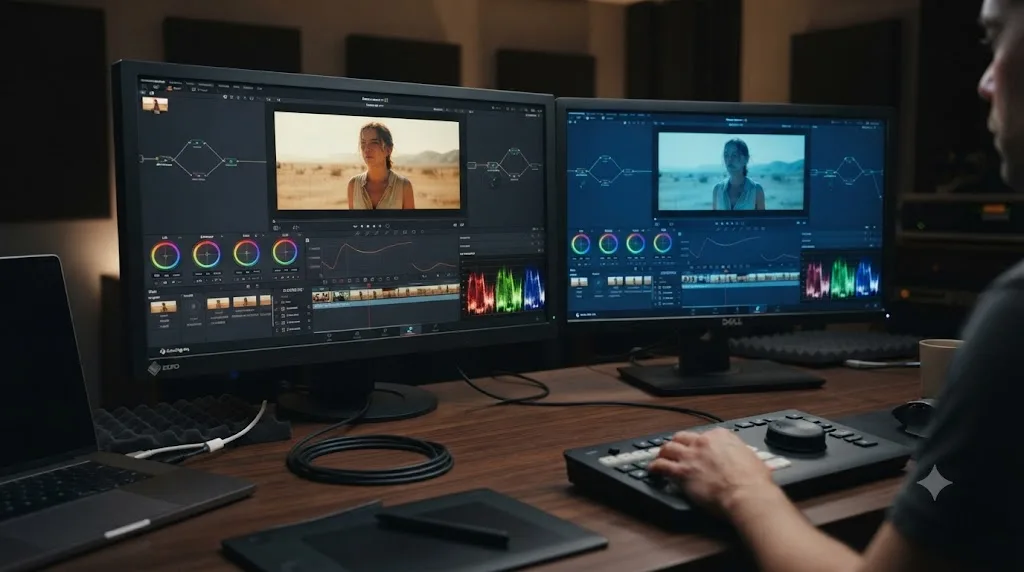
You don't need a calibrated monitor to learn DaVinci Resolve's tools, but you do need one before a grade leaves your machine as finished, client-facing work. Any 4K screen will display an image. Not every 4K screen will display the same image the same way twice, and that inconsistency is the actual problem a color-critical monitor solves.
Here's the honest breakdown of what changes at each stage of learning and working:
| Your situation | Does monitor accuracy matter yet? |
|---|---|
| Learning nodes, scopes, and the primary wheels | Not much. Trust the scopes over your eyes and build the habit early. |
| Grading personal or practice projects with no client | Nice to have, not required. |
| Delivering work a client, network, or platform will judge | Yes. An uncalibrated monitor risks a color mistake you can't see until someone else's screen shows it. |
| Grading HDR or wide-gamut deliverables | Critical. Standard monitors can't decode PQ or HLG signals correctly at all. |
| Working across a team where multiple people grade the same project | Critical. Every monitor needs to agree, or every colorist is chasing a slightly different target. |
A monitor with a color cast, a backlight that's drifted warm, or a gamma curve that's quietly off doesn't announce itself. It just makes every decision you make on top of it slightly wrong, and slightly wrong compounds. An uncalibrated monitor can make a correctly graded shot look broken, and a genuinely broken shot look fine. That's the specific danger, and it's why professional facilities treat monitor calibration as a maintenance task, not a one-time purchase decision, the same way they'd service a piece of camera gear on a schedule rather than assuming it stays accurate forever.
What monitor specs actually matter for color grading?
Four specs separate a color-critical monitor from a general-purpose one: bit depth, gamut coverage, hardware calibration, and peak brightness. Everything else, refresh rate, response time, adaptive sync, matters for gaming and general use, not for whether the colors on screen are trustworthy.
Bit depth determines how many discrete steps of color a panel can display without banding. An 8-bit panel shows roughly 16.7 million colors; a true 10-bit panel shows over a billion. Some monitors fake this with 8-bit-plus-FRC, a dithering trick that approximates 10-bit output on 8-bit hardware. It's not the same as native 10-bit, and manufacturers don't always make the distinction obvious on a spec sheet, so check whether a panel lists "10-bit (8-bit + FRC)" or genuine "10-bit" before assuming.
Gamut coverage tells you how much of the visible color spectrum a panel can actually reproduce, usually expressed as a percentage of a reference space like sRGB, DCI-P3, or Rec.2020. Our guide to Rec.709 vs Rec.2020 covers what those gamuts actually mean inside DaVinci Resolve's color management, and the same logic applies to your monitor: grading a wide-gamut HDR project on a monitor that can't display that gamut means judging colors you literally cannot see correctly represented.
Hardware calibration is the difference between a monitor that loads a correction profile into its own internal processor, keeping accuracy consistent across every input and every operating system, and a monitor that relies entirely on your graphics card's software calibration, which some apps and games can override or ignore. Panels like the BenQ SW321C and Eizo CG319X both carry a 16-bit or higher internal LUT specifically for this.
Peak brightness, measured in nits or candela per square meter (cd/m²), matters most once HDR enters the picture. SDR grading rarely needs more than 300 to 350 nits of sustained brightness. HDR grading needs real, sustained brightness well past 1,000 nits, which is exactly where budget monitors fall short even when their marketing mentions "HDR" support.
| Spec | Why it matters for grading | What to look for |
|---|---|---|
| Bit depth | Prevents banding in gradients and skies | True 10-bit, not just 8-bit + FRC |
| Gamut coverage | Determines which colors you can trust on screen | 98%+ DCI-P3 for most professional work |
| Hardware calibration | Keeps accuracy consistent, independent of your OS | A dedicated internal LUT, 14-bit or higher |
| Peak brightness | Determines whether HDR highlights display correctly | 300+ nits for SDR, 1,000+ sustained nits for HDR |
| Panel uniformity | Prevents corner-to-corner brightness drift on large panels | Factory uniformity compensation, common on 32-inch+ panels |
Best monitor for color grading in DaVinci Resolve: the full comparison table
Here's every monitor worth considering for DaVinci Resolve color grading, at every budget tier, with real specs pulled from manufacturer pages and verified retailer listings as of 2026. Where a price varies meaningfully between sources or wasn't published by the manufacturer, that's noted rather than guessed.
| Monitor | Size / resolution | Bit depth | Gamut coverage | Peak brightness | Hardware calibration | Price (2026) |
|---|---|---|---|---|---|---|
| BenQ SW272Q | 27" QHD (2560x1440) | 10-bit | 100% sRGB, 99% AdobeRGB, 98% DCI-P3 | 300 cd/m² | 16-bit 3D LUT | $799.99 |
| BenQ PD3225U | 32" 4K | 10-bit | 99% sRGB, 99% Rec.709, 98% P3 | 400 cd/m² (HDR10) | Factory calibrated | $899.99 |
| BenQ SW321C | 32" 4K | 10-bit | 100% sRGB/Rec.709, 99% AdobeRGB, 95% DCI-P3 | 250 cd/m² | 16-bit 3D LUT | Varies by retailer, check current price |
| LG UltraFine OLED Pro 32EP950-B | 31.5" 4K OLED | 10-bit | 99% DCI-P3, 99% AdobeRGB | DisplayHDR 400 True Black | Hardware calibration support | $3,999 |
| Apple Studio Display XDR (2026) | 27" 5K mini-LED | 10-bit | P3 + AdobeRGB | 1,000 nits sustained SDR, 2,000 nits peak HDR | Reference modes via macOS | $3,299 (+$300 nano-texture) |
| Dell UltraSharp UP3221Q | 31.5" 4K mini-LED | 10-bit | 93% AdobeRGB, 99.8% DCI-P3, 83% Rec.2020 | 1,000 cd/m² (DisplayHDR 1000) | PremierColor calibration | ~$4,399.99 list |
| Eizo ColorEdge CG319X | 31.1" DCI-4K | 10-bit (24-bit LUT) | 99% AdobeRGB, 98% DCI-P3 | 350 cd/m² | Built-in automatic calibration sensor | $4,500 to $5,882, varies by reseller |
| ASUS ProArt PA32UCG | 32" 4K mini-LED, 1,152 zones | 10-bit | 100% sRGB, 99.5% AdobeRGB, 98% DCI-P3, 85% Rec.2020 | 1,600 nits peak, 1,000 nits sustained | ProArt hardware calibration, Calman Ready | Not published, check current retailer price |
| Apple Pro Display XDR (discontinued March 2026) | 32" 6K | 10-bit | P3 | 1,000 nits sustained, 1,600 nits peak | Reference modes via macOS | Was $4,999 / $5,999 nano-texture |
A monitor's marketing percentage and its actual usefulness for grading are two different numbers, and only one of them is on the box. A panel claiming "98% DCI-P3" tells you almost nothing about its factory calibration accuracy, its uniformity across the panel, or whether that coverage holds up after 300 hours of use without recalibration. Treat gamut percentage as a floor to clear, not a purchase decision by itself.
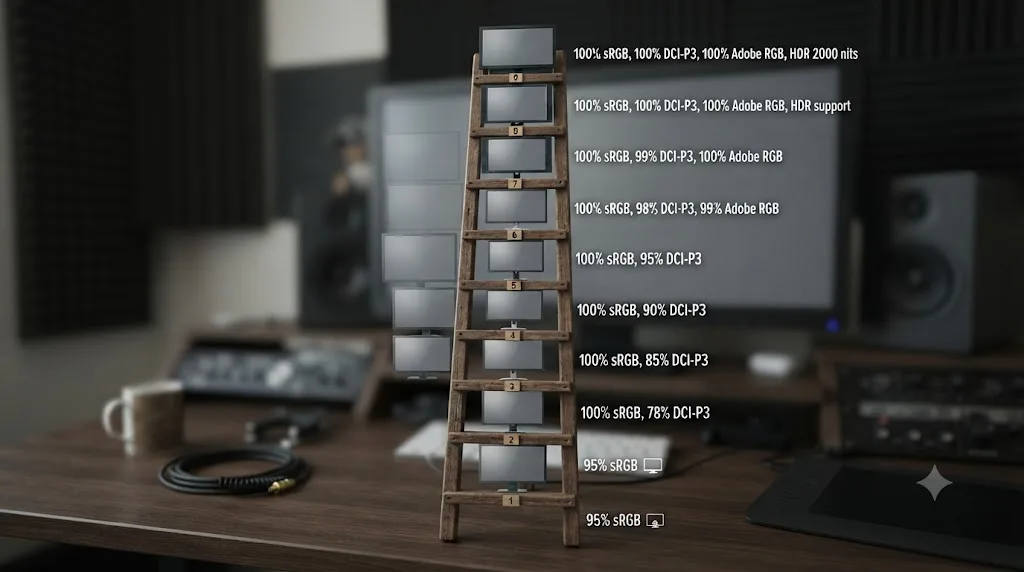
What's the best budget monitor for color grading in DaVinci Resolve?
The BenQ SW272Q, at $799.99 through Best Buy as of 2026, is the best budget monitor for DaVinci Resolve color grading, because it's the cheapest panel in this guide that still delivers genuine 10-bit color, a 16-bit 3D LUT for hardware calibration, and 98% DCI-P3 coverage rather than a diluted spec built for office use.
At 27 inches and 2560x1440 resolution, the SW272Q trades 4K sharpness for a lower price and a smaller desk footprint, which is a reasonable trade for a colorist working single-camera projects who isn't matching pixel-for-pixel against a 4K delivery master constantly. Its 300 cd/m² brightness is plenty for SDR grading, and its 99% AdobeRGB coverage means it also handles photo retouching work if that's part of your workflow.
If you want native 4K at a similar price, the BenQ PD3225U runs $899.99 through Best Buy and adds Thunderbolt 3 with 85W of power delivery, useful if you're grading on a MacBook Pro and want a single cable for video, data, and charging. Its gamut numbers are close to the SW272Q's, 99% sRGB, 99% Rec.709, 98% P3, and it adds HDR10 support at 400 cd/m², though that brightness level is nowhere near enough for real HDR mastering work. Treat the PD3225U's HDR badge as marketing shorthand for "handles an HDR signal without crashing," not as a claim that it's a real HDR grading reference.
One step up in dedicated color tooling, the BenQ SW321C brings the same 16-bit 3D LUT hardware calibration and a wider 100% sRGB/Rec.709 plus 99% AdobeRGB and 95% DCI-P3 spread, at 32 inches and full 4K resolution. Its brightness, at 250 cd/m², is actually lower than the cheaper SW272Q, which is a reminder that a higher model number doesn't automatically mean a strictly better spec sheet across every category. We couldn't confirm a single, current US retail price for the SW321C, since figures vary meaningfully by reseller and region. Check BenQ's own site or an authorized retailer directly before buying rather than trusting a number from an older review.
The cheapest monitor that still qualifies as color-critical costs about the same as a decent camera lens, not a decent camera body. That's worth remembering the next time a sales page tries to justify a $3,000 panel as the only "real" option. For SDR delivery on a budget, an $800 monitor with true 10-bit color and hardware calibration will not be the bottleneck in your workflow. Your skill with the node graph and the scopes will be.
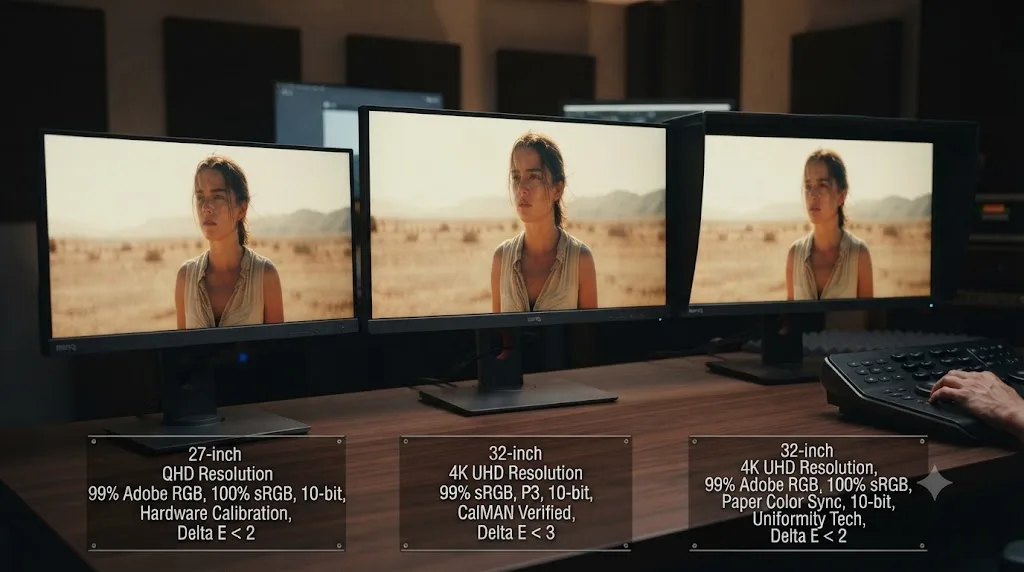
What's the best professional monitor for color grading in DaVinci Resolve?
The Eizo ColorEdge CG319X is the best professional monitor for DaVinci Resolve color grading among prosumer panels, because it's the only monitor in this guide with a built-in automatic calibration sensor that swings onto the screen and recalibrates itself without a separate colorimeter, at 31.1 inches and full DCI-4K resolution with 99% AdobeRGB and 98% DCI-P3 coverage.
That built-in sensor changes the maintenance story entirely. Instead of remembering to plug in a Datacolor SpyderX or Calibrite device every few weeks, the CG319X can run its own calibration routine on a schedule, unattended, which matters more than it sounds like it should the moment you're running a facility with multiple monitors and no dedicated person whose job is remembering to recalibrate them. Its price sits inconsistently between resellers, listed at $5,882 by one authorized reseller and closer to $4,500 by another, which is worth confirming directly before you commit, since a nearly $1,400 spread between two legitimate sources is a real gap, not a rounding error.
If you want more HDR headroom than the CG319X's 350 cd/m² SDR-focused brightness offers, the ASUS ProArt PA32UCG is the stronger pick. Its mini-LED backlight, spread across 1,152 individually controlled dimming zones, pushes peak brightness to 1,600 nits with 1,000 nits sustained, and its gamut stretches to 85% Rec.2020 coverage on top of 98% DCI-P3 and 99.5% AdobeRGB. That's real HDR grading capability in a panel still meant for a desk rather than a dedicated color bay, and it carries ASUS's own hardware calibration plus Calman Ready certification for third-party calibration software. Neither ASUS's own spec page nor major retailers had a clearly published current price at the time of writing, which is unusual for a flagship product and worth flagging as its own small red flag. Confirm street price directly with an authorized ASUS reseller before budgeting for one.
Colorist Kenny McMillan, reviewing DaVinci Resolve color grading hardware for ProVideo Coalition, put the underlying priority plainly, describing what actually matters once you've settled on a control panel:
"you need to get an accurate monitor and something like a DeckLink so that you're sending a proper, unadulterated signal to said monitor from your computer."
That's the frame worth holding onto through every purchase decision in this guide. A control panel makes your hands faster. A monitor determines whether your eyes can be trusted at all. McMillan's point, made in the context of choosing color grading panels, applies with even more force to the monitor itself, since a panel that's slightly imprecise costs you time, while a monitor that's lying costs you a shot you'll have to regrade after a client rejects it.
Is the Apple Studio Display XDR good for DaVinci Resolve color grading?
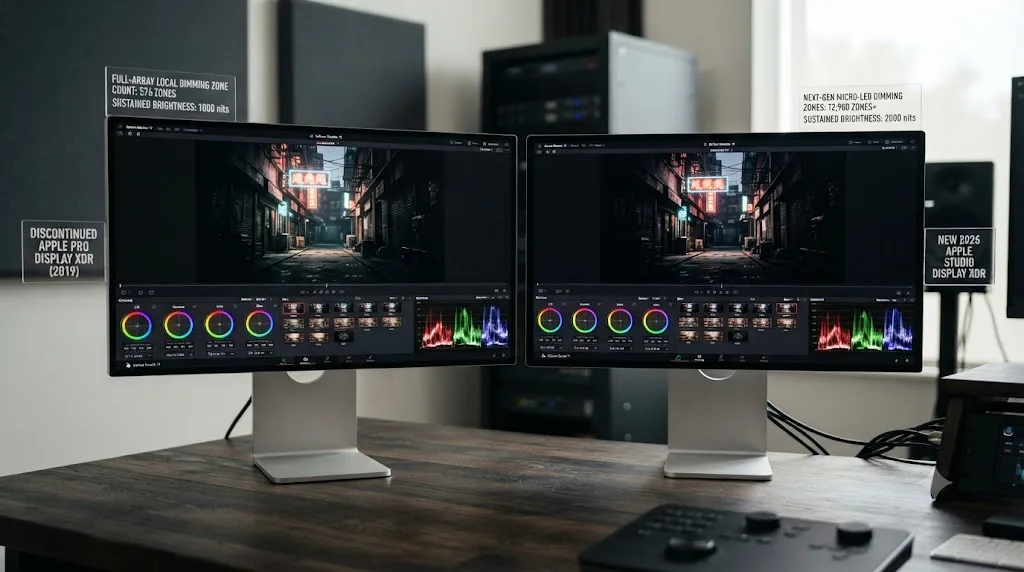
Yes, if you're already working inside the Mac ecosystem and don't need the absolute widest gamut coverage available. Apple discontinued the 32-inch Pro Display XDR on March 3, 2026, and replaced it with a new 27-inch Studio Display XDR starting at $3,299, which trades screen size and resolution for a meaningfully more advanced backlight and a much higher refresh rate.
The numbers tell a real story of trade-offs, not a straightforward upgrade. The old Pro Display XDR offered a larger 32-inch, 6016x3384 panel with 1,000 nits of sustained brightness and 1,600 nits peak, and it sold for $4,999 in standard glass or $5,999 with Apple's nano-texture anti-glare coating. The new Studio Display XDR is smaller, 27 inches at 5120x2880, but it adds a mini-LED backlight with 2,304 individually controlled dimming zones, a 120Hz ProMotion refresh rate the Pro Display XDR never had, and a higher peak HDR brightness of 2,000 nits against the same 1,000 nits sustained for SDR work. It's also nearly $1,700 cheaper than the model it replaced at launch pricing, before you add the $300 nano-texture upgrade.
| Spec | Apple Pro Display XDR (discontinued) | Apple Studio Display XDR (2026) |
|---|---|---|
| Screen size | 32 inch | 27 inch |
| Resolution | 6016x3384 (6K) | 5120x2880 (5K) |
| Backlight | LED, 576 zones | Mini-LED, 2,304 zones |
| Refresh rate | 60Hz | Up to 120Hz (ProMotion) |
| Sustained SDR brightness | 1,000 nits | 1,000 nits |
| Peak HDR brightness | 1,600 nits | 2,000 nits |
| Starting price | Was $4,999 | $3,299 |
A smaller, cheaper monitor with more than four times the local dimming zones of its predecessor is a genuinely different product, not just a size change. More dimming zones means finer control over which parts of the screen get brighter or darker independently, which matters directly for HDR grading, where a scene with both a bright window and a dark room needs the backlight to treat those two regions very differently without one bleeding light into the other.
The trade-off is real, though. If you specifically need the Pro Display XDR's larger canvas and higher native resolution for detailed framing work, or you already own one, Apple no longer sells it new, and secondhand units will be your only path to that spec going forward. For most colorists grading on a Mac, the Studio Display XDR's brighter, faster mini-LED panel is the better pick regardless of the size difference, and it costs less to boot.
Do you need a Blackmagic DeckLink or UltraStudio to use a reference monitor with DaVinci Resolve?
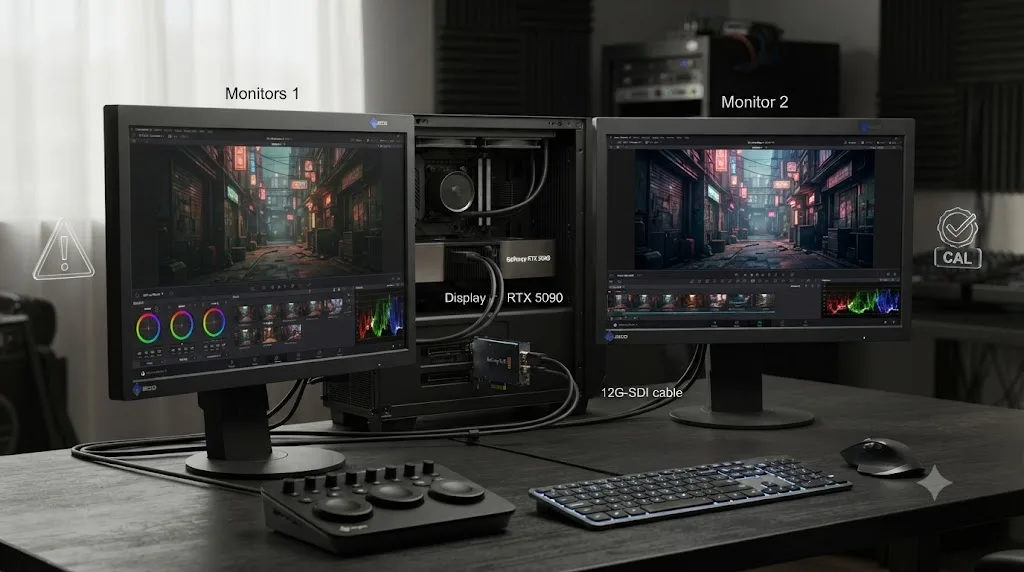
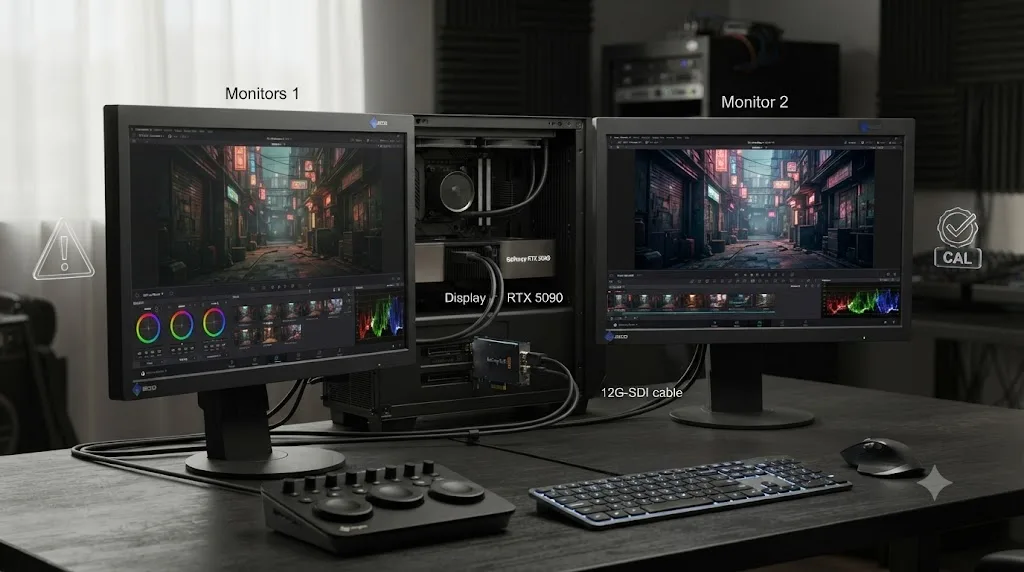
Yes, if your goal is to see exactly what DaVinci Resolve is actually rendering, rather than what your computer's operating system and graphics card decide to show you after their own processing. A DeckLink card or UltraStudio device sends a direct, color-managed signal from Resolve to an external monitor, bypassing your GPU's display pipeline entirely.
This distinction trips up a lot of people moving from editing to color grading for the first time, because on the surface, plugging a second monitor into your GPU's HDMI or DisplayPort output looks identical to plugging one into a DeckLink. It isn't. A discussion on Blackmagic's own support forum lays out the difference directly: a Blackmagic mini monitor device "is not designed to output the Resolve user interface. Instead, it's designed to accurately output a video signal to a broadcast monitor or television, at the frame rate and pixel dimensions of your project, with an accuracy that cannot be achieved with a traditional second computer monitor setup." The same thread is blunt about the practical takeaway: an UltraStudio "is not a second monitor for the GUI, only for seeing correct colours."
That's a meaningfully different job than a second display plugged into your graphics card. A GPU-driven monitor is running through your operating system's own color management, your graphics driver's own processing, and whatever scaling or color adjustments either of those layers decides to apply, none of which Resolve controls directly. A DeckLink or UltraStudio hands Resolve a dedicated hardware path that sends the signal exactly as the software computed it, at your project's actual frame rate and pixel dimensions, with nothing else in the chain touching it first.
Our guide to grading HDR video in DaVinci Resolve covers this requirement in more depth for HDR-specific work, where the gap between a GPU-driven display and a properly fed reference monitor becomes impossible to ignore: a standard display simply cannot decode a PQ signal correctly at all, since PQ code values map directly to nits your monitor was never built to reproduce without the right signal path feeding it.
No monitor connected through a standard HDMI or DisplayPort output from your GPU gives you a properly calibrated color signal, regardless of how accurate that monitor's own marketing claims it is. That's true for SDR work too, not just HDR, though the consequences are more forgiving on SDR since the gap between "close enough" and "actually correct" is smaller. If you're grading paid client work and want to eliminate every variable between what Resolve computed and what you're judging on screen, a DeckLink or UltraStudio feeding a genuine reference or color-critical monitor is the setup that removes the most uncertainty from your workflow, not an optional upgrade for people with money to spare.
Can you color grade in DaVinci Resolve on a laptop screen?
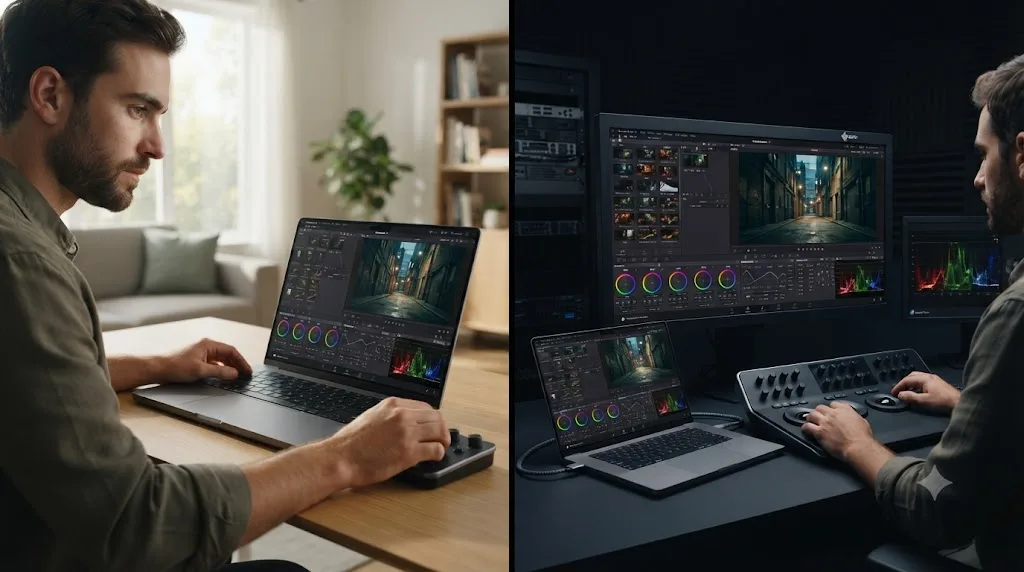
Yes, and current MacBook Pro models with the Liquid Retina XDR display are genuinely capable for learning and rough grading, though they're still not a full substitute for an external, calibrated monitor once real client-facing work is on the line. The specific limitation isn't image quality. It's viewing angle, ambient light sensitivity, and the simple fact that a laptop lid isn't positioned the way a proper reference display is.
Apple's own published specs for the Liquid Retina XDR display are genuinely strong on paper: a mini-LED panel across the 14.2-inch or 16.2-inch chassis options, P3 wide color gamut, over a billion colors, up to 1,000 nits of sustained full-screen brightness, and 1,600 nits peak brightness for HDR highlights, alongside a 1,000,000:1 contrast ratio and ProMotion refresh rates up to 120Hz. Apple also ships dedicated reference modes, accessible through the Displays preference pane, letting you switch the panel's calibration target to match specific delivery standards rather than relying on the default desktop preset. AppleInsider's coverage of that feature frames it specifically as relevant to color-critical work, not just a gimmick buried in a settings menu.
What Apple's spec sheet doesn't state is a specific gamut coverage percentage or DeltaE accuracy figure for that built-in panel the way BenQ, Eizo, or ASUS publish for their dedicated monitors. Apple's language is "wide color (P3)," without a coverage percentage attached, which makes an apples-to-apples comparison against the dedicated color monitors in this guide harder than it should be. Don't assume a specific number here; check an independent lab review with a colorimeter if you need that level of precision for a purchase decision.
A great laptop screen and a great external reference monitor solve different problems, even when both display the same colors accurately in a bright room. The laptop screen is fixed at your eye height and angle whenever you're typing, which is rarely the ideal viewing position for judging a shot. It's also exposed to whatever ambient light is bouncing around your workspace at that exact moment, with no hood or controlled viewing environment around it. Learning DaVinci Resolve, building your first grades, and rough-cutting color on a MacBook Pro's own screen is a completely reasonable way to work. Signing off a paid delivery on nothing but that screen, with no external reference to check against, is where the risk creeps in.
How do you calibrate a monitor for DaVinci Resolve color grading?
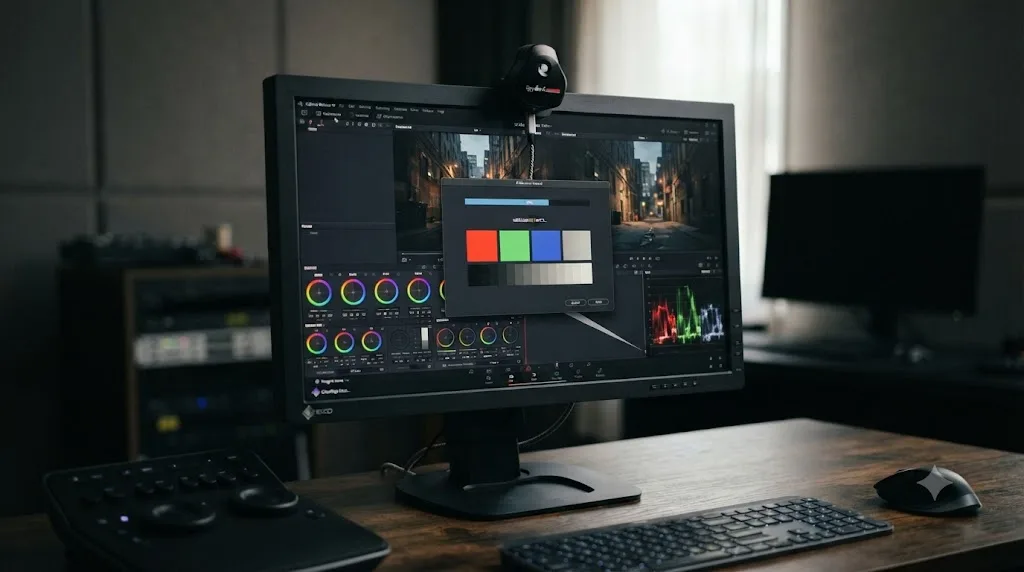
You calibrate a monitor for DaVinci Resolve the same way you'd calibrate it for any color-critical software: warm it up, set it to a plain uncalibrated picture mode, run a colorimeter against a defined target, and verify the result against Resolve's own scopes rather than trusting your eyes alone.
- Warm up the monitor for 20 to 30 minutes. Both LCD backlights and OLED panels shift slightly as they reach normal operating temperature, and calibrating a cold panel bakes that drift into your profile.
- Set the monitor's picture mode manually. Turn off any dynamic contrast, ambient light adaptation, or "vivid" preset before you start, since those modes actively fight a calibration profile trying to hold a fixed target.
- Connect a colorimeter and launch its software. The Datacolor SpyderX Elite, at $269.99 directly from Datacolor, and the Calibrite ColorChecker Display Pro, the current successor to the long-running X-Rite i1Display Pro, both handle this for a prosumer color monitor.
- Choose a video-appropriate calibration target. For Rec.709 SDR delivery, that typically means a D65 white point and Gamma 2.4, matching the same reference standard DaVinci Resolve's own default color management assumes.
- Run the calibration and apply the resulting profile. Software-only calibration builds an ICC profile your operating system applies at the OS level. A hardware-calibrated monitor, like the BenQ SW321C or Eizo CG319X, instead loads the correction directly into the panel's own internal LUT, which keeps the correction consistent across every input and every piece of software touching that monitor, not just the ones that respect an OS-level ICC profile.
- Verify against DaVinci Resolve's scopes, not just your eyes. Load a known test pattern or color bars into Resolve and confirm the waveform and vectorscope readings land where that pattern is supposed to measure. This step catches a calibration that looks fine but measures wrong, which happens more often than most people expect.
- Recalibrate on a schedule. Every 200 to 300 hours of active use, or roughly monthly for daily grading work, is a reasonable cadence, since every backlight technology drifts over time regardless of build quality.
If your monitor needs to handle HDR content up to genuinely bright peak values, step up from a base colorimeter to something like the Calibrite ColorChecker Display Plus, which measures up to 2,000 nits and includes a rotatable diffuser arm that doubles as an ambient light sensor, useful for automatically adjusting a profile as room lighting changes throughout the day.
| Calibration device | Price | Best for |
|---|---|---|
| Datacolor SpyderX Elite | $269.99 | SDR monitors, includes video-specific calibration targets |
| Calibrite ColorChecker Display | $169 | Entry-level SDR calibration |
| Calibrite ColorChecker Display Pro (CCDIS3) | Around $270, varies by retailer | Higher-precision successor to the X-Rite i1Display Pro |
| Calibrite ColorChecker Display Plus | $319 | HDR monitors up to 2,000 nits, ambient light monitoring |
A monitor with a built-in calibration sensor, like the Eizo CG319X, does this entire process automatically on a schedule, which is worth the price premium the moment you're maintaining more than one screen without a dedicated technician on staff. For a single-monitor home setup, a $270 colorimeter and thirty minutes once a month accomplishes almost the same result for a fraction of the cost.
Broadcast reference monitors vs prosumer monitors: do you need a $20,000 display?
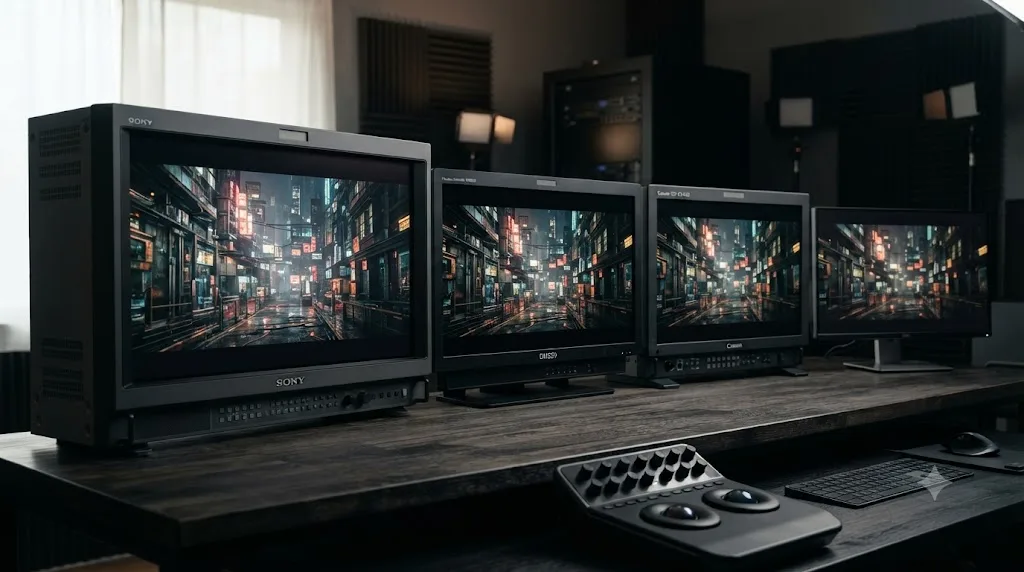
Almost certainly not, unless you're delivering to a broadcast network or a facility spec that names a specific reference monitor by model. Broadcast reference monitors like the Sony BVM-HX310, Flanders Scientific DM250, and Canon DP-V2420 cost roughly $20,000 to $32,900, an order of magnitude beyond even the priciest prosumer panel in this guide, and that price buys certification and precision most independent work never actually requires.
The Sony BVM-HX310, a 31.1-inch 4K HDR TRIMASTER HX professional master monitor, runs $19,999. The Flanders Scientific DM250, a 24.5-inch 10-bit OLED broadcast reference monitor with full 12-bit internal processing, jumped to a $25,000 list price with its 2018 model refresh, though used units turn up in the $4,195 to $4,750 range if a facility is liquidating older hardware. The Canon DP-V2420, a 24-inch 4K reference display, launched in 2016 at $32,900; we couldn't confirm a current 2026 price for it, so treat that figure as historical rather than a live quote.
| Monitor | Type | Size | Price |
|---|---|---|---|
| Sony BVM-HX310 | 4K HDR master monitor | 31.1 inch | $19,999 |
| Flanders Scientific DM250 | 10-bit OLED broadcast reference | 24.5 inch | $25,000 new, $4,195-$4,750 used |
| Canon DP-V2420 | 4K reference display | 24 inch | $32,900 at 2016 launch |
What that money actually buys, beyond raw specs that sometimes overlap with cheaper panels, is certification against exact broadcast standards, panel-to-panel consistency a facility can rely on across multiple identical units, and support contracts built for a post-production business rather than a home studio. A network delivery spec that requires sign-off on a specific certified reference monitor isn't being precious. It's protecting against the exact scenario a calibrated $800 panel can't fully rule out: a subtle, systemic difference between what one facility's monitors show and what another's do, multiplied across dozens of shows and hundreds of colorists over years of use.
A reference monitor's price tag mostly buys certification and consistency you need for broadcast delivery, not colors a good prosumer panel can't also show. If nobody's contract, spec sheet, or delivery requirement names a specific reference monitor model, you don't need one. If a broadcast network's technical delivery document does name one, that's not a suggestion, and no amount of prosumer hardware substitutes for the actual certified model they're asking for.
What monitor do professional colorists actually use?
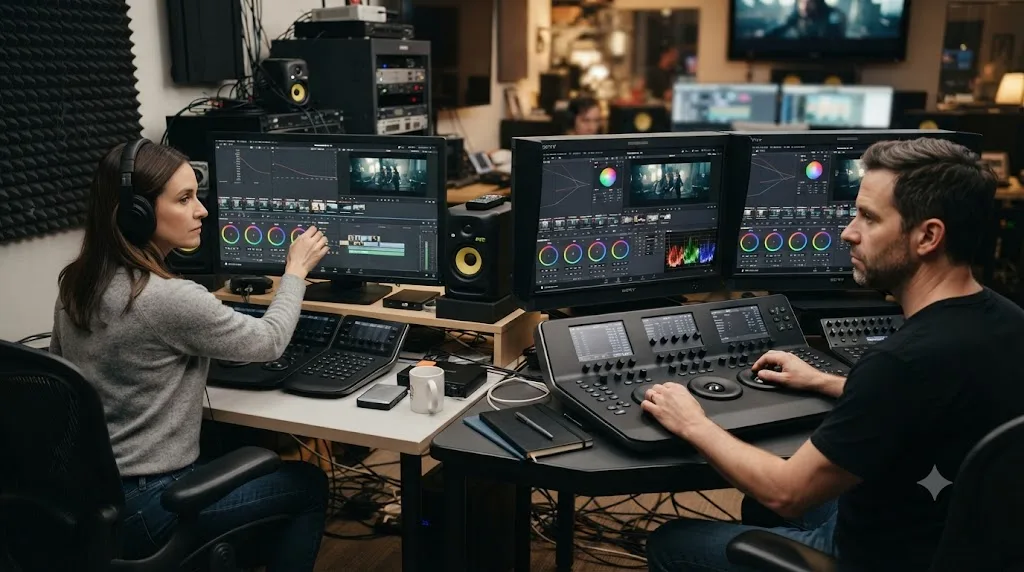
Working colorists split roughly into two camps depending on where they grade: a prosumer or professional wide-gamut LCD like an Eizo ColorEdge or BenQ for independent and small-studio work, or a certified broadcast reference monitor when a facility's contracts require one. Neither camp treats the monitor as separate from the signal path feeding it, which is the part independent colorists moving up from a laptop setup most often miss.
That signal path point is worth repeating because it's the actual expert consensus, not a marketing claim from any single monitor manufacturer. Kenny McMillan's framing, quoted earlier in this guide, ties the monitor and the delivery hardware together as one decision, not two separate purchases: an accurate monitor paired with a DeckLink so the signal reaching it is unadulterated. That's the same logic behind Blackmagic's own forum guidance distinguishing a GUI-facing second monitor from a dedicated, color-accurate reference output. Professional colorists don't treat "which monitor" and "how is it connected" as separate questions, because a great monitor fed a compromised signal is still a compromised setup.
Inside our own 100,000-plus member editing community, the question comes up constantly from people who've outgrown their laptop screen and want a single "right" answer. There isn't one, and that's not a dodge. A wedding and event colorist delivering H.264 files for social media genuinely doesn't need the same monitor as someone mastering a Dolby Vision feature. What both need, at minimum, is a panel wide enough to trust for their actual delivery target, calibrated on a real schedule, fed through a signal path that isn't quietly altering what Resolve computed before it reaches their eyes.
Do mini-LED and OLED monitors cause problems when grading in DaVinci Resolve?
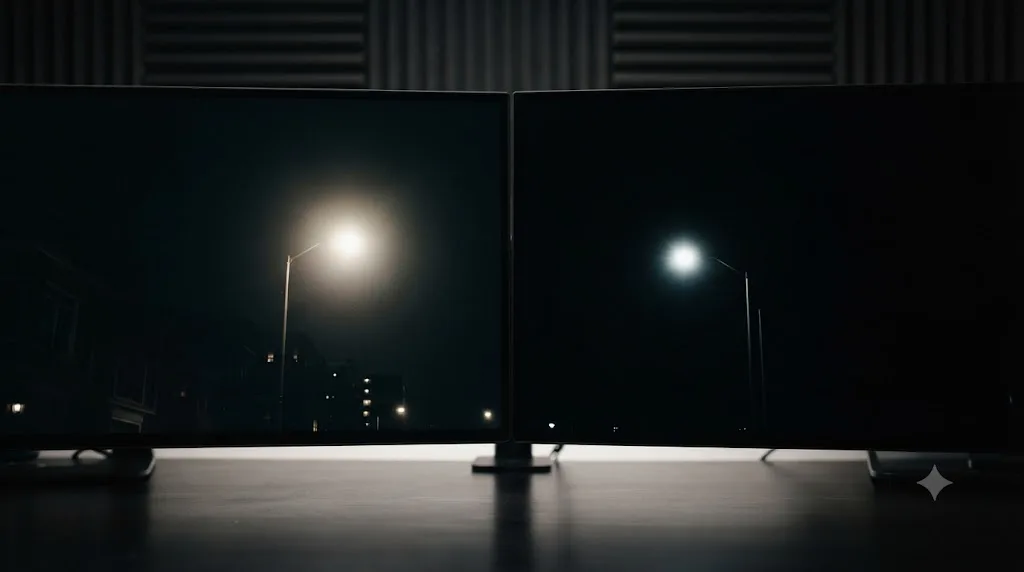
Sometimes, and the specific failure mode depends on the panel technology. Mini-LED backlights can produce visible "blooming," a faint halo of light bleeding around a bright object against a dark background, while OLED panels risk long-term burn-in from Resolve's own static interface elements if left on screen for extended, unattended periods.
Mini-LED monitors like the ASUS ProArt PA32UCG and Dell UltraSharp UP3221Q divide their backlight into hundreds or thousands of independently dimmable zones, 1,152 on the ASUS, over 2,000 on the Dell, which is a huge leap over older LED backlights but still nowhere near true per-pixel control. A single bright highlight against a dark background can cause the surrounding dimming zone to light up slightly, a visible halo colorists specifically watch for when judging shots with strong point-source lights, like a practical lamp in an otherwise dark frame. More dimming zones reduce this effect but don't eliminate it entirely, which matters when you're judging exactly how much a highlight should bloom or hold its edge.
OLED panels, like the LG UltraFine OLED Pro 32EP950-B, avoid blooming entirely since each pixel emits its own light and can go to true black independently. That's a genuine advantage for judging contrast and shadow detail. The trade-off is burn-in risk: OLED panels can develop a faint, permanent ghost image of static content left on screen too long, and DaVinci Resolve's own interface, with its fixed toolbars, scopes, and node graph borders, is exactly the kind of static content that risks this over months of daily use. Manufacturers have improved pixel-shifting and screen-saver mitigation significantly, but it's a real consideration for an OLED panel that's going to run Resolve's UI eight or more hours a day, not a solved problem.
Neither mini-LED blooming nor OLED burn-in disqualifies either technology for grading, but both are real trade-offs worth knowing before you buy, not surprises to discover after. If you're grading content with frequent bright point sources against dark backgrounds, an IPS panel with a simpler, more predictable backlight, like the Eizo CG319X, sidesteps both issues entirely, at the cost of a lower native contrast ratio than either mini-LED or OLED can achieve.
Why does my color grade look right in DaVinci Resolve but wrong on other screens?
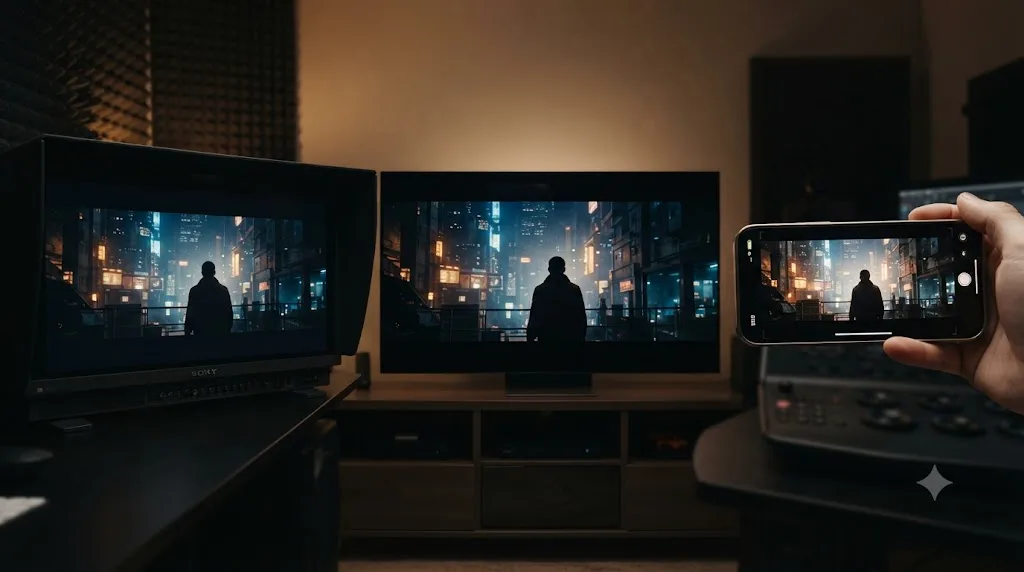
Almost always because the monitor you graded on doesn't represent what most viewers will actually see, not because your grading decisions were wrong. This is the single most common frustration colorists run into after buying their first wide-gamut monitor, and it's a monitoring problem, not a grading problem, nearly every time.
A wide-gamut, professionally calibrated monitor shows you more color and more accurate color than the device most of your audience is actually watching on. If you're delivering to YouTube, a phone screen, or an uncalibrated consumer television, that audience's display is rendering a narrower gamut, often uncalibrated Rec.709 with whatever factory preset shipped on the box, and skin tones or saturated colors that looked perfectly controlled on your reference monitor can read as oversaturated or slightly off on theirs. This isn't a flaw in your monitor. It's the gap between a professional viewing environment and an average living room, and it's a gap that exists regardless of how accurate your own setup is.
A few specific, common causes worth checking before you assume your grade itself is broken:
- You graded in a wider gamut than your delivery actually needs. If your monitor shows DCI-P3 but your delivery target is standard Rec.709, and your Output Color Space in Project Settings doesn't match, you can end up judging colors your actual audience's devices will never see the same way. Our Rec.709 vs Rec.2020 guide covers exactly how DaVinci Resolve's color management handles this mismatch.
- Your room lighting is fighting your monitor. Bright ambient light, a window behind your monitor, or a warm-toned room lamp all shift how your eyes perceive the screen's actual output, even on a perfectly calibrated panel. Professional grading suites use neutral gray walls and controlled, dim lighting specifically to remove this variable.
- Your monitor's calibration has drifted since the last check. Every panel technology drifts over weeks and months of use. A monitor that measured correctly three months ago isn't guaranteed to measure correctly today.
- You're comparing your monitor's output to a screenshot or export viewed on an entirely different device, which introduces its own display's calibration, viewing angle, and ambient light into the comparison, none of which has anything to do with whether your original grade was correct.
The gap between how a grade looks on your reference monitor and how it looks on an average viewer's screen is expected, not a sign that your setup failed. The goal of a good monitor isn't to guarantee every viewer sees an identical image; that's not physically achievable across the wildly inconsistent hardware most audiences actually own. The goal is to guarantee that you, the person making the creative decisions, are working from an honest, consistent baseline, so the decisions themselves are sound even when the final viewing conditions vary.
A worked example: building a color-accurate setup at three different budgets
Theory sticks better with real numbers attached to real scenarios, so here's how the same core decision, "which monitor and how do I connect it," plays out at three different points on the budget spectrum.
Budget tier, around $1,000 total. A BenQ SW272Q at $799.99 covers the monitor. Add a Datacolor SpyderX Elite at $269.99 for calibration, and you're grading on a real 10-bit, hardware-calibratable panel with 98% DCI-P3 coverage for right around $1,070. This setup is genuinely appropriate for solo colorists delivering SDR work for web, social, and small client projects, run straight off your computer's GPU output, since the stakes of a GPU-driven signal path matter less on non-broadcast delivery.
Mid-tier, around $6,000 to $7,000 total. An Eizo ColorEdge CG319X, at roughly $4,500 to $5,882 depending on reseller, anchors the setup with its built-in calibration sensor removing the need for a separate colorimeter entirely. Add a Blackmagic UltraStudio device, typically running a few hundred to over a thousand dollars depending on the specific model and I/O needs, and you've got a genuine facility-grade signal path feeding a monitor built for exactly this job. This tier suits colorists taking on broadcast-adjacent or higher-budget commercial work where a client might reasonably ask what you're grading on.
Facility tier, $20,000 and up. A Sony BVM-HX310 at $19,999, paired with a proper Blackmagic DeckLink card and a controlled viewing room with neutral gray walls, is the setup a network delivery spec is actually asking for when it names a certified reference monitor by requirement. Nobody arrives at this tier by accident. You arrive here because a contract specifically requires it, not because a bigger number felt like the safer purchase.
The right monitor budget is the one that matches your actual delivery contracts, not the biggest number you can justify to yourself. Jumping straight to a $20,000 reference monitor before you have a single client asking for one is money spent solving a problem you don't have yet, the same mistake colorists make buying a $33,000 control panel before they've learned to read a waveform.
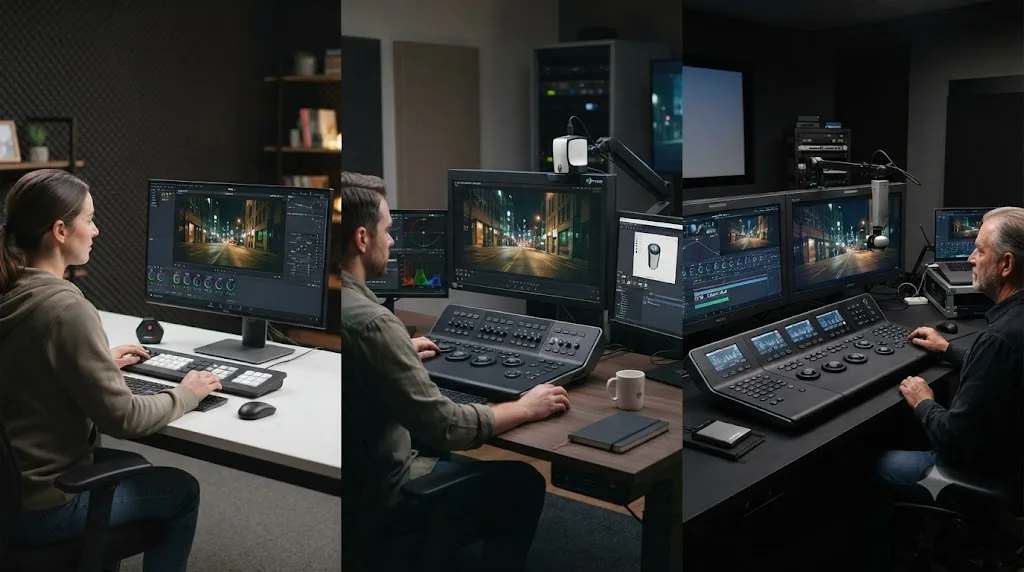
Best monitor for color grading in DaVinci Resolve, by budget and situation
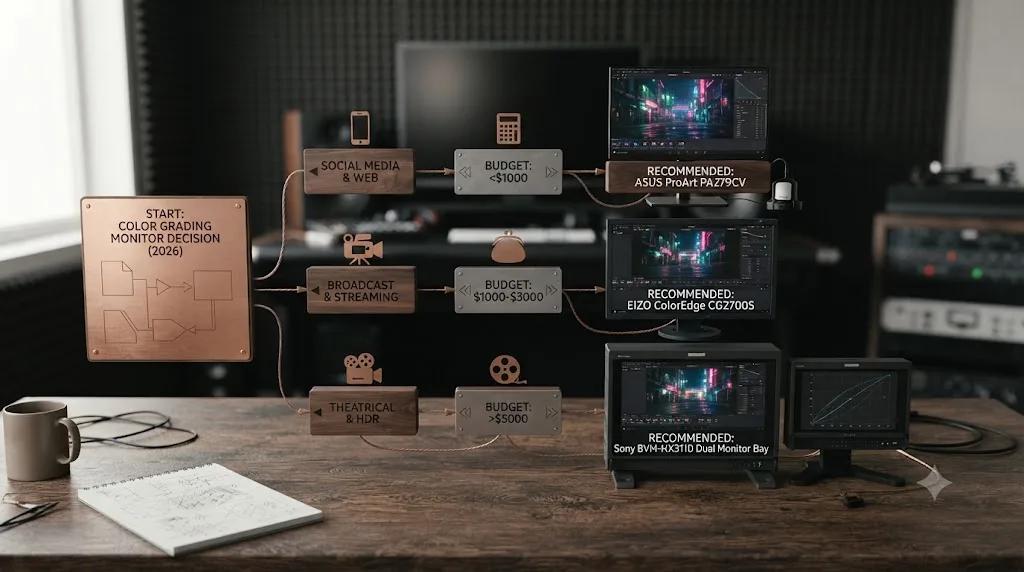
Here's the decision in table form, since after everything above, the actual choice usually comes down to which row describes your real situation right now.
| Your situation | What to buy |
|---|---|
| Still learning nodes, scopes, and the primary wheels | Nothing yet. Grade on the screen you already have and trust the scopes. |
| Solo colorist, SDR delivery for web and social | BenQ SW272Q ($799.99) or BenQ PD3225U ($899.99) |
| Want a dedicated color monitor with a bigger 4K canvas | BenQ SW321C, check current retailer price |
| Mac-based workflow, want a large, bright reference-capable display | Apple Studio Display XDR ($3,299) |
| Need real HDR headroom on a desk-sized monitor | ASUS ProArt PA32UCG, check current retailer price |
| Want automatic, hands-off calibration on a schedule | Eizo ColorEdge CG319X ($4,500-$5,882) |
| Want the deepest blacks for shadow-heavy work, accepting some burn-in risk | LG UltraFine OLED Pro 32EP950-B ($3,999) |
| Delivering to a broadcast network with a named reference monitor spec | Whatever monitor that spec names, no substitute accepted |
| Delivering paid client work through any monitor above | Add a Blackmagic DeckLink or UltraStudio, don't rely on your GPU's HDMI output alone |
| Building a full setup and need calibration hardware too | Datacolor SpyderX Elite ($269.99) or Calibrite ColorChecker Display Pro (~$270) |
Choose based on your actual delivery contracts and your actual budget this year, not the setup you're hoping to grow into. A properly calibrated $800 monitor beats a neglected $5,000 one every time, and a monitor sitting unused in a box because you overspent doesn't grade a single shot.
Does buying a better monitor make you a better colorist?
No, and this is worth saying plainly before you spend a dollar on any panel in this guide. A monitor makes your judgments trustworthy. It doesn't make the judgments themselves better, the same way a trackball panel makes fast hands faster without teaching you what to do with them, a pattern our trackball vs mouse guide covers in more depth for control surfaces specifically.
The actual bottleneck for most colorists early on isn't monitor accuracy. It's not knowing which menu holds the setting they need, or which node in the chain is causing a problem they can see but can't diagnose. Hardware doesn't fix that gap, and it never will, regardless of how many nits or how much DCI-P3 coverage you buy your way into. TryUncle is the on-screen assistant for DaVinci Resolve on macOS - ask in plain words and Uncle points at the exact control on your screen, which solves a completely different problem than any monitor on this page. A five-figure reference display won't help you find the Gamut Mapping toggle buried three menus deep. Uncle will, live, inside your own project, without pausing to search a forum thread. It's a paid app, currently in founder pricing for its first 100 seats, macOS only, and worth checking directly at TryUncle for the current rate.
Buy the monitor your delivery contracts actually require, not the one that would make you feel more like a professional colorist. That's the whole guide, compressed into one sentence. Everything else, gamut percentages, dimming zones, calibration sensors, is detail in service of that single decision.
Where do you go from here?
Match your monitor to your actual delivery target, not your aspirations. If you're grading SDR for web and social, an $800 BenQ SW272Q with a $270 colorimeter gets you a genuinely color-critical setup for right around $1,070. If you're stepping into HDR or broadcast-adjacent work, the ASUS ProArt PA32UCG or Eizo ColorEdge CG319X earn their higher price. And if a client's contract names a specific reference monitor, that's the one purchase decision on this entire page that isn't actually a decision at all.
Whatever monitor you land on, feed it a real signal path once the work stops being practice. A Blackmagic DeckLink or UltraStudio costs a fraction of the monitor it's paired with, and it's the piece that actually guarantees the colors you're judging match the file Resolve rendered, not a GPU's best guess at displaying it. Calibrate on a schedule, check your work against the scopes when your eyes and your screen disagree, and remember that every colorist quoted in this guide, from a $270 colorimeter to a $32,900 Canon reference display, agrees on the same underlying point: the monitor tells you the truth. Whether the shot is any good is still entirely up to you.
Frequently asked questions
- What is the best monitor for color grading in DaVinci Resolve?
- There's no single best monitor, only the best one for your budget and delivery target. For most colorists working toward web or broadcast SDR delivery, a 10-bit, hardware-calibrated panel like the BenQ SW321C or Eizo ColorEdge CG319X covers what you need. For HDR mastering, you want a monitor with real peak brightness and wide gamut, like the ASUS ProArt PA32UCG or a broadcast reference monitor such as the Sony BVM-HX310.
- Do I need a calibrated monitor to color grade in DaVinci Resolve?
- You don't need one to learn the software, but you do need one before a grade leaves your machine and is judged as finished work. DaVinci Resolve's scopes read the actual signal regardless of your monitor, but your eyes only make good creative decisions when the screen in front of you is telling the truth. An uncalibrated monitor can make a correctly graded shot look wrong, or a clipped shot look fine.
- What's the difference between a color-accurate monitor and a broadcast reference monitor?
- A color-accurate monitor, like the BenQ or Eizo panels covered here, is a well-built consumer or prosumer LCD with a wide gamut and hardware calibration, priced from roughly $800 to $6,000. A broadcast reference monitor, like the Sony BVM-HX310 or Flanders Scientific DM250, is built to a stricter industry spec with specialized panel technology and costs $20,000 to $30,000 or more. Most independent colorists never need the second category.
- Can I color grade on a laptop screen in DaVinci Resolve?
- You can learn and rough-grade on one, and Apple's own Liquid Retina XDR display on current MacBook Pro models is genuinely capable, with P3 wide color, up to 1,000 nits of sustained brightness, and dedicated reference modes. It's still not a substitute for an external, calibrated monitor on paid, client-facing work, since a laptop screen's viewing angle and ambient light sensitivity make it a rougher tool than a proper reference display.
- Do I need a Blackmagic DeckLink or UltraStudio to use a reference monitor with DaVinci Resolve?
- Yes, if you want DaVinci Resolve to send an unadulterated, color-managed signal to an external monitor instead of relying on your computer's own GPU output. A DeckLink card or UltraStudio device bypasses your operating system's display pipeline entirely, which is the setup professional facilities use specifically so that what a colorist sees on the reference monitor matches the file Resolve actually renders.
- What monitor calibration device should I buy for DaVinci Resolve?
- The Datacolor SpyderX Elite at $269.99 and the Calibrite ColorChecker Display Pro, the direct successor to the X-Rite i1Display Pro, both do the job for a prosumer monitor. If your monitor is HDR-capable and you need to profile brightness up to 2,000 nits, step up to the Calibrite ColorChecker Display Plus instead of the base model.
- Is the Apple Studio Display XDR good for DaVinci Resolve color grading?
- It's a strong option if you're already inside the Mac ecosystem. Apple discontinued the 32-inch Pro Display XDR in March 2026 and replaced it with a 27-inch Studio Display XDR starting at $3,299, which trades resolution for a mini-LED panel with 2,304 dimming zones, up to 2,000 nits of peak HDR brightness, and a 120Hz refresh rate the old Pro Display XDR never had.
- What's the cheapest real color-accurate monitor for DaVinci Resolve?
- The BenQ SW272Q, at $799.99 through Best Buy as of 2026, is the cheapest monitor in this guide that actually delivers 10-bit color, a 16-bit 3D LUT for hardware calibration, and 98% DCI-P3 coverage. Below that price point you're buying a monitor built for general use, not color-critical work, even if its marketing uses the same gamut percentages.
Sources
- BenQ SW321C - Tech Specs (BenQ)
- BenQ SW321C Review (The School of Photography)
- BenQ SW272Q - Tech Specs (BenQ)
- BenQ AQColor SW272Q, Best Buy listing
- BenQ PD3225U - Tech Specs (BenQ)
- BenQ AQColor PD3225U, Best Buy listing
- ASUS ProArt Display PA32UCG - Tech Specs (ASUS)
- ASUS ProArt PA32UCG Review (Tom's Hardware)
- DaVinci Resolve Color Panels Review, by Kenny McMillan (ProVideo Coalition)
- Eizo ColorEdge CG319X (Eizo)
- Eizo ColorEdge CG319X, SHI listing
- Eizo ColorEdge CG319X, B&H Photo Video listing
- Eizo ColorEdge CS2400S (Eizo)
- Apple discontinues the Pro Display XDR (9to5Mac, March 2026)
- Pro Display XDR overview (AppleInsider)
- Apple unveils new Studio Display and all-new Studio Display XDR (Apple Newsroom)
- Studio Display - Tech Specs (Apple Support)
- Apple introduces Studio Display XDR (MacRumors)
- Apple killed its 6K monitor and the new one is $1,700 less (The Gadgeteer)
- Dell UltraSharp UP3221Q, B&H Photo Video listing
- LG UltraFine OLED Pro 32EP950-B (LG)
- LG UltraFine OLED Pro 32EP950 Review (TFTCentral)
- Calibrite ColorChecker Display Pro CCDIS3, Amazon listing
- Calibrite ColorChecker Display Plus (Precision Camera)
- Datacolor SpyderX Elite (Datacolor)
- Blackmagic Forum: Reference Monitor... Dual Screen VS UltraStudio
- How to Calibrate Your Monitor for DaVinci Resolve (Hollyland)
- Flanders Scientific raises price of the DM250 (No Film School)
- Flanders Scientific DM250 (Adorama Rentals)
- Sony BVM-HX310, Adorama listing
- BVM-HX310 (Sony Professional)
- Canon announces the DP-V2420 and DP-V1710 4K displays (Newsshooter)
- MacBook Pro - Tech Specs (Apple)
- Use presets and reference modes with your Apple display (Apple Support)
- How to Grade HDR Video in DaVinci Resolve (davinciresolve21.com)
Keep reading
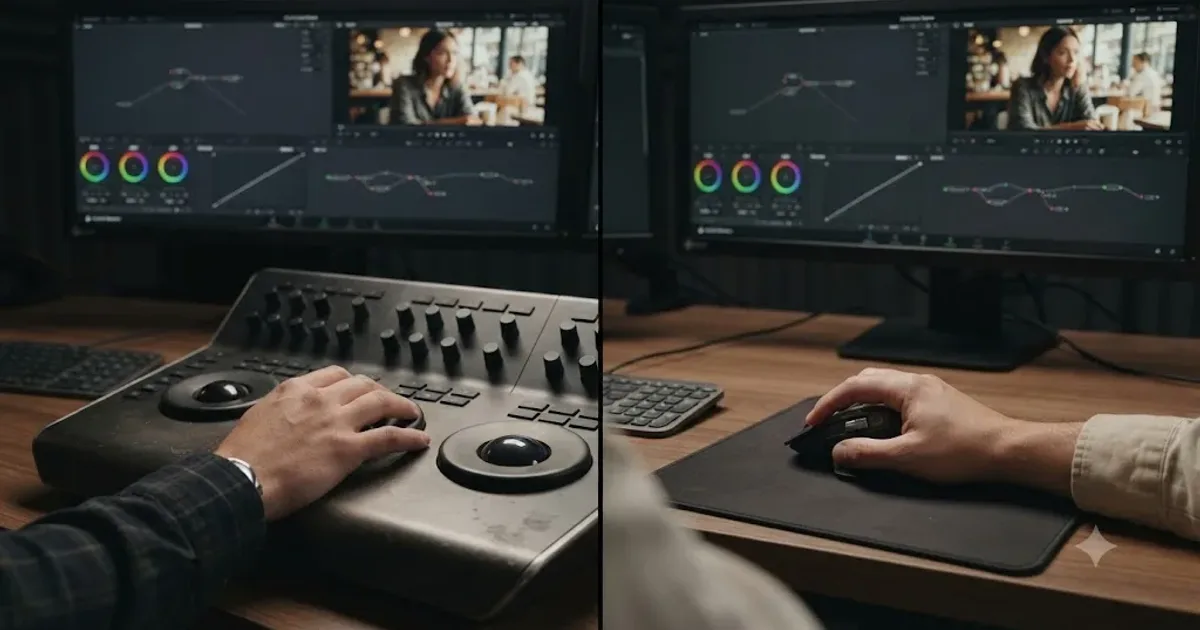
Comparisons · Jul 26, 2026 · 33 min
Trackball vs Mouse for Color Grading in DaVinci Resolve
Trackball panel or mouse for DaVinci Resolve color grading? Panel prices, the Lift/Gain math difference, ergonomics, and a buy-or-skip verdict.
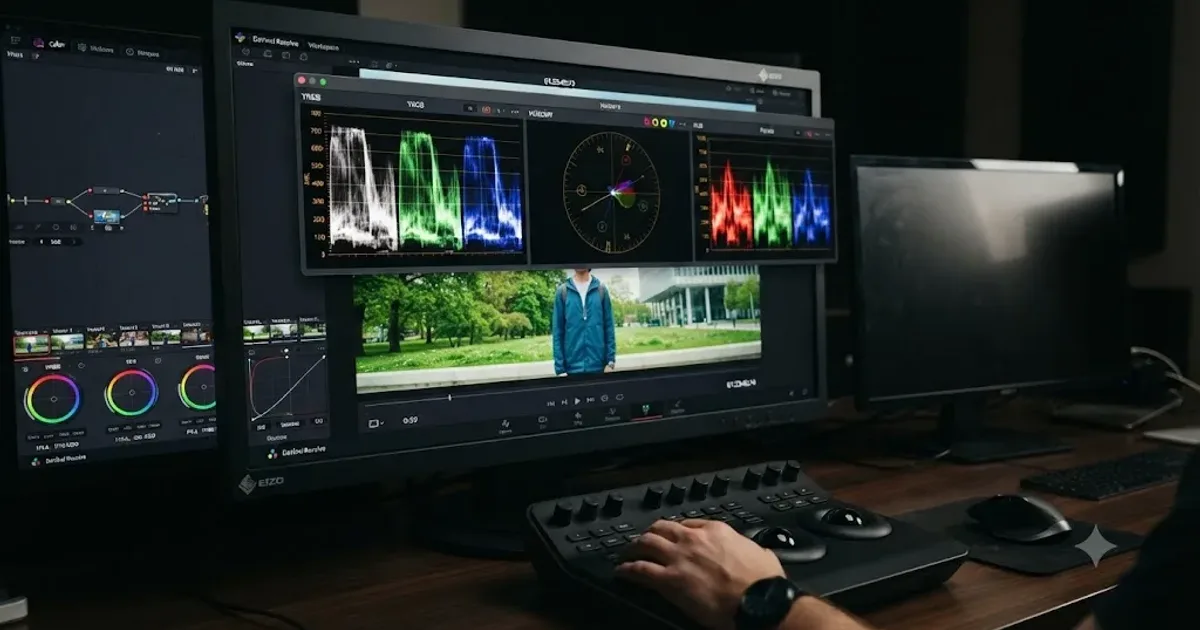
Guides · Jul 10, 2026 · 30 min
How to Read DaVinci Resolve Scopes: Waveform and Vectorscope
Learn to read DaVinci Resolve's waveform, RGB Parade, and vectorscope: what balanced exposure, white balance, and skin tone actually look like on each.
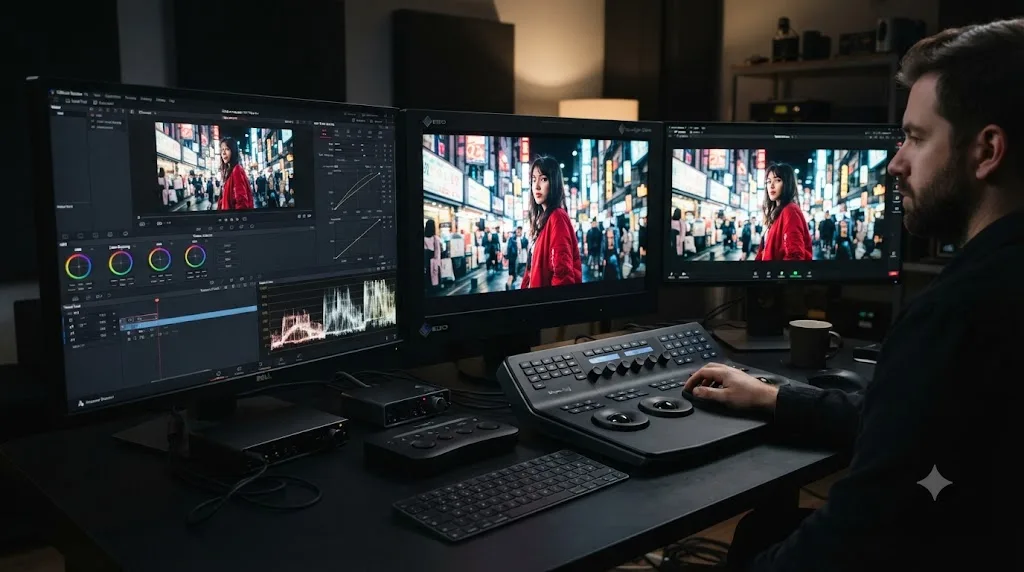
Guides · Jul 11, 2026 · 36 min
How to Grade HDR Video in DaVinci Resolve (PQ and HLG)
Set up Resolve Color Management for HDR, grade with the HDR palette, and export correct PQ or HLG settings for HDR10, Dolby Vision, and YouTube.