Articles / Guidesupdated for DaVinci Resolve 21.1 (October 2026)
DaVinci Resolve 21 MV-HEVC Export: Spatial Video Guide
Quick answer
For a DaVinci Resolve 21 MV-HEVC export, put correctly paired left- and right-eye media on a stereoscopic timeline, choose QuickTime and H.265 on Deliver, then set Both eyes as MV-HEVC. Render a short test and verify both views and any spatial metadata your target requires.
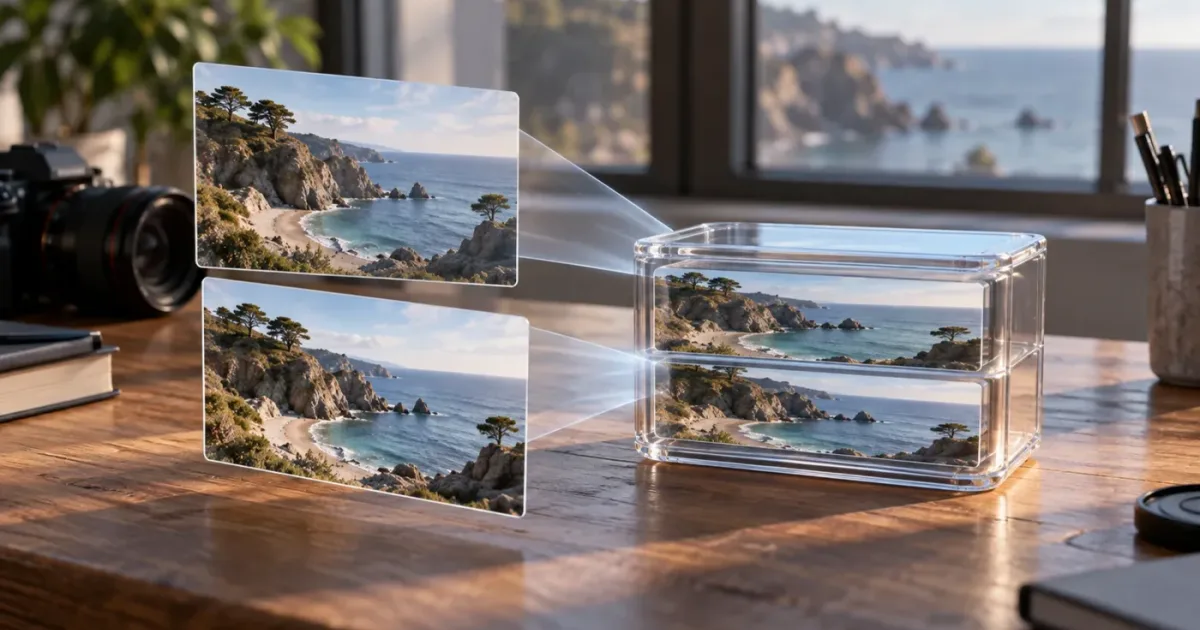
DaVinci Resolve 21 MV-HEVC Export: The Spatial Video Workflow
DaVinci Resolve 21 can export stereoscopic video as MV-HEVC, but the codec choice is only the last step. The timeline must carry a valid pair of eye views, the render must preserve both views, and the finished file must include the metadata your destination expects. We have spent more than seven years editing commercial video, so we treat delivery formats as a chain of decisions, not a dropdown hunt.
As of October 2026, the current Resolve line includes 21.1. Blackmagic's Resolve 21 feature guide lists MainConcept H.265 and MV-HEVC encoding in 4:2:0 and 4:2:2, and MV-HEVC decoding on Nvidia systems. That is a meaningful change in the codec landscape for this version, but it does not mean every machine, edition, timeline, or player will expose identical choices. The practical path below helps you tell the difference between a missing encoder, a stereo setup problem, and a file that simply lacks the spatial metadata your playback target needs.
Quick Answer: For a DaVinci Resolve 21 MV-HEVC export, put correctly paired left- and right-eye media on a stereoscopic timeline, choose QuickTime and H.265 on Deliver, then set Both eyes as MV-HEVC. Render a short test and verify both views and any spatial metadata your target requires.
What does MV-HEVC export mean in DaVinci Resolve 21?
MV-HEVC is a stereoscopic video format that carries separate views for the left and right eyes in one multiview HEVC stream. Apple describes the format as related to HEVC, with the two views stored in separate layers, while Blackmagic lists MV-HEVC encoding as a Resolve 21 codec capability. It is not the same thing as placing a side-by-side picture into an ordinary H.265 file.
The distinction matters because a normal H.265 export can look like one image to an ordinary player while throwing away the relationship between the two eyes. MV-HEVC signals that the track contains multiview imagery. A stereo-aware decoder can then render a separate view for each eye and create perceived depth. Apple calls the format Multiview High Efficiency Video Coding and documents it as a standard format for 3D video playback in visionOS.
Spatial video adds another layer of meaning. Apple describes a spatial video as a QuickTime movie with a stereoscopic MV-HEVC video track and spatial metadata. The track carries the eye images; spatial metadata can tell a platform how the content should be presented as spatial media. Therefore, an export can be valid MV-HEVC yet fail to appear in an immersive spatial-video interface if the metadata is missing or wrong.
MV-HEVC preserves two stereoscopic views in one multiview video stream, while spatial-video presentation also depends on spatial metadata.
This guide is for editors who already have two eye views or a stereoscopic source and need to deliver them from DaVinci Resolve 21. It is not a way to manufacture a missing second viewpoint from one ordinary camera angle. A 2D image encoded twice does not become genuine stereo just because the codec supports two views.
The software version matters. Resolve 21.1's New Features Guide specifically lists MainConcept H.265 and MV-HEVC encode support for 4:2:0 and 4:2:2, while the general Blackmagic Support Center offers version-specific manuals and codec documentation. If you are using Resolve 19 or 20, do not assume every Resolve 21 encoder or menu behaves the same way. The general stereoscopic workflow may look familiar, but the available encoder and profiles can differ.
Why does DaVinci Resolve 21 MV-HEVC export need a stereo timeline?
DaVinci Resolve needs stereo image data before it can export a meaningful two-eye MV-HEVC file. A codec can package views; it cannot infer a second camera perspective from a single flat clip. Your source, clip interpretation, and timeline must preserve the intended left-eye and right-eye relationship all the way to Deliver.
Start by asking what kind of media you have. A spatial-video clip from an iPhone or Vision Pro may already contain an MV-HEVC track. A dual-camera rig may provide two separate files. A stereo camera may provide a single file with both views packed side by side or top and bottom. Those are different inputs. Resolve must know how a clip represents stereo before a paired render can be correct.
Apple's support documentation says iPhone spatial video records the Wide camera view in the first MV-HEVC layer and a processed Ultra Wide view in the second. Apple calls the Wide camera image the hero eye in Final Cut Pro's workflow. That is useful source context, but the named control and interface are specific to Apple's application. In Resolve, inspect the stereoscopic clip attributes and timeline configuration rather than assuming that the words “hero eye” appear in the same place.
Before editing, write down these four things for each source:
- Whether the media contains one view or two.
- How two views are arranged: separate files, side by side, top and bottom, or existing MV-HEVC.
- Which source view belongs to the left eye and which belongs to the right eye.
- The source frame size, frame rate, and orientation.
That short inventory prevents an avoidable class of mistakes. Editors often recognize the dimensions but miss eye order. A 3840-by-1080 side-by-side clip might represent two 1920-by-1080 images, but that example is only valid if the source really uses that packing and intended output. Never split a source in half just because its width is double a familiar frame size. Confirm its layout first.
When sources arrive as separate left and right files, keep their names linked. A naming scheme such as scene01_L and scene01_R can make the intended pairing explicit, but the labels alone do not prove the camera alignment. If the files have different durations or start times, sync them before you create the final stereo timeline. A one-frame offset can be visible as discomfort or edge doubling even if the export completes successfully.
If the source is already MV-HEVC, first determine whether Resolve is reading the two views as stereoscopic media or treating the clip as ordinary monoscopic HEVC. Blackmagic's Resolve 21.1 guide calls out MV-HEVC decode support on Nvidia systems, but that line should not be generalized into universal decode support for every OS and GPU. Codec support tables are specific to the version and platform. If Resolve shows only one view, verify the current supported-codec documentation for your exact installation and consider an intermediate stereo format that Resolve can interpret.
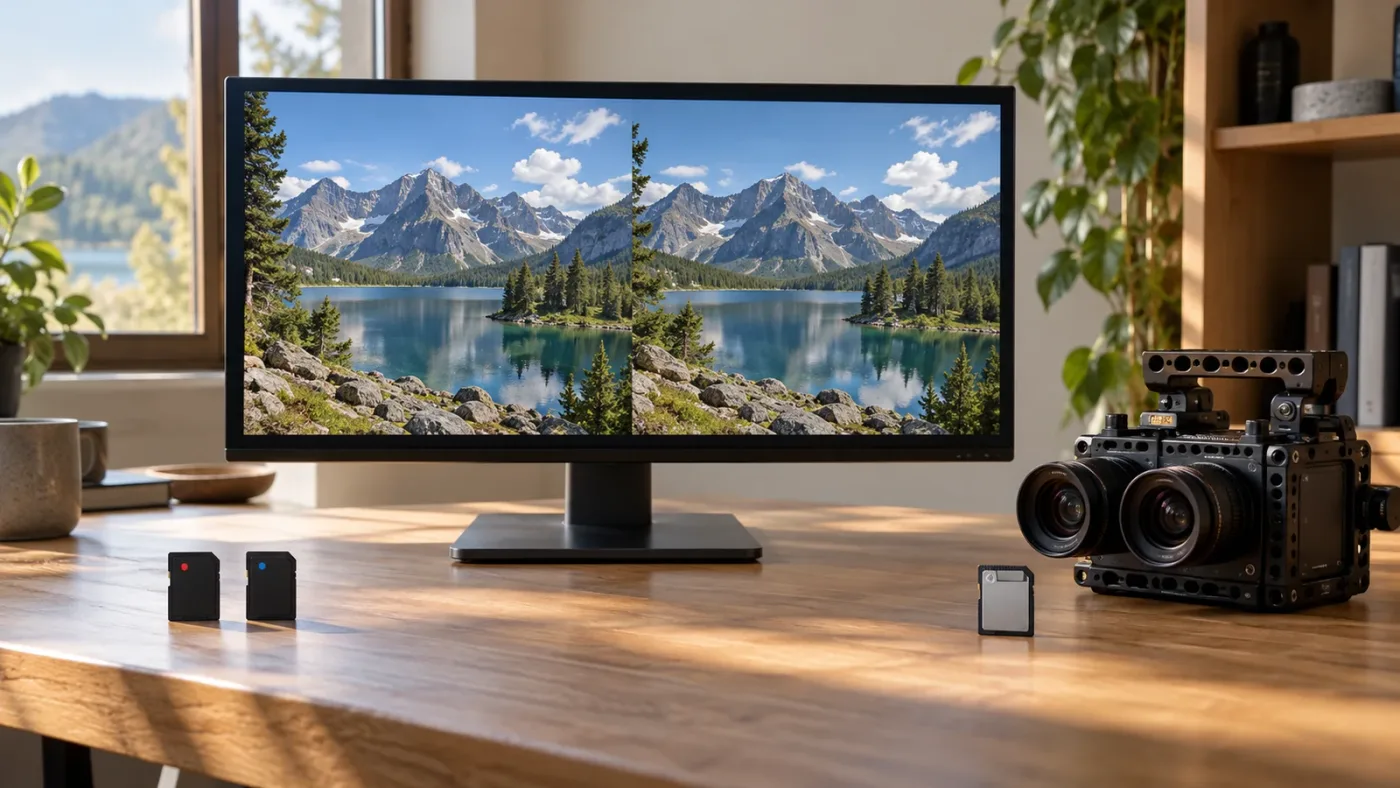
What should I check before exporting MV-HEVC from DaVinci Resolve 21?
Check the stereo pairing, timeline geometry, frame rate, eye orientation, and delivery target before opening Deliver. The export controls cannot correct an eye swap, vertical mismatch, or unsuitable timeline after the fact.
A short preflight is more reliable than guessing at bitrate or profile first. Determine whether your clips are true stereo. Confirm their display orientation. Check that the timeline preserves both views and that transitions, titles, effects, and reframing are applied in a way that makes sense to both eyes. Then decide whether your output is for headset playback, archive, review, or another pipeline. Each destination may impose different requirements.
| Check | What to confirm | Why it matters |
|---|---|---|
| Source structure | Two real views exist and the packing is known | A mono source cannot provide a second perspective |
| Eye order | Left and right are assigned consistently | Swapped eyes can invert depth cues |
| Sync | Corresponding views begin together and remain aligned | Misalignment can create uncomfortable or doubled edges |
| Geometry | Each eye has the intended active image area | Side-by-side pixels may need interpretation, not blind resizing |
| Timeline rate | The timeline matches the delivery plan | Unplanned frame conversion can alter motion cadence |
| Orientation | Both views share the intended rotation and horizon | A rotated or mismatched eye pair breaks stereo viewing |
| Metadata | Target playback requires and receives spatial metadata | MV-HEVC alone does not guarantee spatial presentation |
| Destination | The receiving app accepts MV-HEVC in the chosen container | Codec support varies by device and software |

Keep a clean source sequence or compound grouping before applying stereo-specific transformations. If a title or graphic is intended to sit at a particular depth, make that depth decision in a stereoscopic workflow. A flat overlay duplicated identically into both views appears at the screen plane. That can be an acceptable editorial choice, but it is not the same as a graphic placed at an intentional depth.
Be cautious with ordinary transitions. A dissolve between two stereo shots should transition corresponding views together. A transition that mixes the left view from one shot with the right view from another can create a brief image that has no coherent stereo pair. Test effects and transitions at their most complex point, not only on a static frame.
Also decide what you want to preserve. If the deliverable is intended to remain editable, export a mezzanine or project handoff in addition to the viewing copy. MV-HEVC is a delivery codec, not a substitute for keeping the original camera files, project database, and timeline decisions. The correct archive depends on the project and handoff specification, but the rendered spatial copy should not become the only surviving version of a valuable edit.
Our team has taught more than 100,000 students on Udemy and works with professional editing workflows, so our practical rule is simple: confirm what the receiving system expects before you optimize the render. “High quality” does not rescue the wrong eye order, and a very large file does not add spatial metadata.
How do I set up the DaVinci Resolve 21 MV-HEVC export?
Use Resolve's Deliver page with a stereoscopic output, then choose QuickTime, H.265, and the MV-HEVC eye-pair option. The exact labels can vary with platform, build, and detected timeline state, so confirm the values visible in your installed Resolve 21.1 interface.
Follow this sequence for a controlled first export:
- Open the finished stereo timeline and confirm the correct timeline is active.
- Move to the Deliver page.
- Choose a custom render preset or another preset that exposes the required video settings.
- Set the container format to QuickTime.
- Set the codec to H.265 or HEVC.
- Open the stereoscopic render controls.
- Enable stereoscopic rendering, then choose Both eyes as: MV-HEVC.
- Select a location with enough free space and give the render a clear filename.
- Add the job to the render queue and render a short test range first.
- Inspect the file before rendering the whole program.
Resolve's stereoscopic menu is the decisive setting. Choosing QuickTime plus H.265 alone creates an ordinary HEVC output unless you also tell Resolve to render both views as MV-HEVC. The ordinary codec labels answer “what compression?” The stereo option answers “how are the eyes represented?” Treat them as separate choices.
For a first pass, leave nonessential variables alone. Do not change timeline frame rate, add an unverified metadata workaround, alter color tags, and switch encoder profiles all at once. A clean export gives you a baseline. If that baseline fails, you can isolate the cause instead of trying to reason through five simultaneous changes.
Resolution should follow the delivery specification and the source geometry. Do not assume that the total packed raster is the final per-eye raster. With side-by-side source, the full width may include both eye images. With MV-HEVC, the representation uses multiview layers rather than a single image split into halves. Check how Resolve describes the timeline and output, and validate the resulting file in a stereo-aware reader.
Frame rate should usually remain consistent with the approved delivery frame rate. Resolve can conform or retime media, but those choices affect motion. If you need to convert a source rate, use a deliberate project decision and inspect motion after export. A render that plays smoothly in a conventional 2D player does not prove that both stereoscopic layers were encoded correctly.
For codec profile and chroma, distinguish documented capability from a promise about your precise machine. Blackmagic says Resolve 21.1 adds MainConcept H.265 and MV-HEVC encoding in 4:2:0 and 4:2:2. That statement identifies supported chroma modes for the new encoder. It does not specify a universally correct profile, bitrate, bit depth, or frame size for every spatial-video deliverable. Use the profile and bitrate requested by your downstream player or production specification. If no specification exists, render a short test and compare image detail, banding, file size, and decode reliability on the target device.
In Resolve 21, QuickTime and H.265 select the container and codec; Both eyes as MV-HEVC tells Resolve to encode stereoscopic views.
Blackmagic's Resolve 21.1 feature guide lists MainConcept H.265 and MV-HEVC encoding for 4:2:0 and 4:2:2, and Nvidia-system MV-HEVC decoding. Those are capabilities, not a ready-made delivery preset. Read Blackmagic's Resolve 21 New Features Guide when you need the exact release note.
Which H.265, chroma, resolution, and frame-rate settings should I use?
Use the exact values required by your delivery target, and treat Resolve 21.1's 4:2:0 and 4:2:2 support as available choices rather than universal recommendations. There is no responsible one-size-fits-all bitrate for every stereo source, duration, resolution, or headset workflow.
The first decision is the receiving specification. If a client, platform, festival, archive, or playback tool provides a technical sheet, follow it. If the receiving system only says “spatial video,” ask for its accepted container, frame dimensions, frame rate, chroma, bit depth, and metadata requirements. Those details define a deliverable. A codec name by itself does not.
Blackmagic's Resolve 21 guide identifies MainConcept H.265 and MV-HEVC encode support for 4:2:0 and 4:2:2. Chroma subsampling describes how color detail is sampled relative to luma detail. In general encoding decisions, 4:2:2 retains more horizontal chroma detail than 4:2:0, but produces different compatibility and data considerations. Do not assume the higher chroma mode is accepted by every consumer player. Confirm with the target.
Resolve 21's guide does not give a bitrate table that applies to every MV-HEVC job. Bitrate depends on frame dimensions, frame rate, scene movement, noise, texture, codec profile, and quality target. A quiet locked shot and a busy handheld scene can behave differently at the same nominal bitrate. For this reason, inventing a universal number would mislead you. Instead, make a short test from the most difficult scene in the edit, render it at the requested settings, and inspect fine detail, gradients, motion, and playback compatibility.
Apple's support page gives useful capture references, not mandatory export presets. It says Vision Pro records spatial video at 2200 by 2200 pixels at 30 fps in SDR, while iPhone spatial video is 1920 by 1080 pixels at 30 fps in SDR. Those are capture facts for those devices. They do not mean every Resolve project should be resized to those numbers. Preserve the approved output geometry for your own source and delivery.
Check frame rate in three places: the camera source, the timeline, and the output specification. A mismatch may be intentional, such as a conform for slow motion or a deliverable frame-rate conversion, but it should never be accidental. If the intended output is 30 fps and your stereo sources are 30 fps, an export at that rate avoids unnecessary conversion. If the brief asks for a different rate, test movement and stereo alignment after conversion.
For resolution, think in terms of per-eye detail and output raster separately. A side-by-side frame stores two pictures across one raster; each eye's useful horizontal resolution may be half the total width before processing. MV-HEVC stores views in multiview layers, which is structurally different. Do not compare the width of a side-by-side source directly with the dimensions of a multiview export as if each number represented the same thing.
For audio, choose the format and channel layout required by the destination. Spatial video can be paired with ordinary stereo audio, but a video codec does not define every audio requirement. Check whether the destination expects AAC, PCM, or another supported audio codec, and whether it needs stereo or multichannel sound. Render a short section that includes dialogue, music, and any channel layout that matters. Then listen to the export rather than assuming the timeline mix survived unchanged.
A good test includes the hardest material: a fast pan, fine texture, a high-contrast edge, a dark gradient, a title, and a transition between shots. This is not a substitute for a formal QC plan. It is a practical way to expose obvious compression and stereo problems before the longer render consumes time.
Why is MV-HEVC missing from the DaVinci Resolve 21 export menu?
MV-HEVC may be missing because Resolve does not see a stereoscopic output, because the selected container or codec path is wrong, or because the installed edition and platform do not support that encoder. Check the timeline and render context before concluding the project is broken.
Work through this order:
- Confirm the application says DaVinci Resolve 21.1 or the specific Resolve 21 build you intend to use.
- Confirm you are on a Resolve Studio installation if the codec availability table identifies the encoder as Studio-only.
- Confirm the active timeline is stereoscopic and actually contains paired eye information.
- On Deliver, choose QuickTime and H.265 before looking for the stereo output mode.
- Expand the relevant video or stereoscopic controls. A compact preset can hide settings.
- Check the official supported-codec documentation for your exact operating system and GPU.
- Restart Resolve after an update if the application was open during installation, then reopen the project and inspect the options again.
Blackmagic's official Resolve 20 codec list explicitly marks MV-HEVC encoding as “Studio and Nvidia graphics (GPU accelerated).” That source is useful evidence for Resolve 20, but it is not enough to define all Resolve 21.1 platform combinations. The Resolve 21.1 feature guide now lists MainConcept MV-HEVC encoding, which is the correct version-specific evidence for the newer release. Do not carry an older platform limitation into the newer version without checking the updated codec table.
The label may also be hidden because you selected a preset that fixes the output to a mono format. Switch to a custom preset and inspect the format and codec options. If the stereo controls remain unavailable, verify the timeline's stereo configuration, then reopen the Deliver page. A preset can constrain choices even when the project contains stereo media.
Do not mistake MV-HEVC decoding support for encoding support. A machine may open or preview an existing multiview clip while its Resolve build cannot write the format. The reverse is also possible across hardware and software configurations. Blackmagic lists these as separate encode and decode capabilities, so troubleshoot them separately.
If the option appears on one workstation but not another, compare the Resolve point version, Studio status, operating system, GPU, and project stereo configuration. Record those details before reinstalling anything. A menu comparison with the same project can quickly reveal whether the difference is the installation or the project state.
If you need to ask support or a community forum for help, include the full Resolve version, edition, operating system, GPU model, source layout, timeline stereo mode, and selected format and codec. A screenshot can help in a support request, but this article's illustrations are not screenshots and do not represent the actual interface.
Does MV-HEVC export work on Mac, Windows, and Linux?
Resolve 21.1 documents MainConcept MV-HEVC encoding, but actual availability depends on the installed build and platform support. Check the current Blackmagic codec table for your system rather than assuming the same option exists everywhere.
Blackmagic's support site offers Resolve 21.1 manuals for Mac OS, Windows, and Linux, but the presence of a manual for each platform does not guarantee that every codec feature is identical across them. The feature guide lists codec support without a per-OS matrix in that passage. A supported-codec list is the appropriate place to confirm platform-specific encode and decode behavior.
On Mac, test both the export and the playback path. Apple's own documentation says working with MV-HEVC video in Final Cut Pro requires Apple silicon and macOS 14 or later. That is a Final Cut Pro requirement, not a universal statement about Resolve. It does, however, illustrate why playback software and system requirements matter after the render has finished.
On Windows, do not infer availability from being able to import a file on a colleague's Mac. The Resolve edition, GPU path, and current codec implementation are relevant. Resolve 21.1's guide says it adds MV-HEVC decode support on Nvidia systems, a specific platform-related note that should prompt a compatibility check rather than a broad claim that every Windows PC decodes every MV-HEVC profile.
On Linux, verify the current support matrix before building a deadline around this format. Codec support can depend on system libraries, hardware acceleration, and the precise Resolve build. We have not independently tested every Resolve 21.1 operating-system and GPU combination, so we won't claim a machine-specific guarantee here. The reliable test is to open the actual project on the delivery workstation, render a short file, and inspect it in the intended playback environment.
If you are working across platforms, use a small portable test project. Include one stereoscopic clip, one title, one transition, and a short audio segment. Send the test output to the receiving machine and check both views. This catches cross-platform decode assumptions before you transfer a large project or schedule a full-length render.
The container extension is not a compatibility certificate. QuickTime MOV and MP4 are both media containers, but a target may accept one and reject the other or handle metadata differently. Use the container specified by the receiving workflow. Resolve's available choices and the player’s supported features are separate facts.
How do I preserve the correct left and right eye views?
Keep the left and right source views consistently assigned, synchronized, and oriented from edit through export. For iPhone spatial footage, Apple's documentation identifies the Wide camera as the first layer and the higher-quality hero eye; for other sources, follow the camera or media specification.
Eye order is not an aesthetic preference. Swapping left and right reverses the depth cue. Many viewers may still see a picture, but the perceived depth can feel wrong. Confirm assignments with a known stereo test frame or trusted metadata rather than relying on filenames alone.
For separate-camera sources, sync the two recordings before applying edits. The cameras may start at different times or run at slightly different rates. Align a clear shared visual event or production sync point, then inspect the start, middle, and end of a long clip for drift. This is a verification technique, not a claim that every dual-camera setup will drift. Different cameras and recording modes behave differently.
For side-by-side material, identify whether the packing is full side-by-side, half side-by-side, or another layout. A simple crop can split a packed frame, but it does not automatically establish eye assignment or preserve the intended pixel aspect. Check the source documentation. If the media came from a camera vendor, use its description of the stereo mode.
For an existing MV-HEVC source, avoid flattening it into a 2D intermediate unless that is intentional. A conventional export may preserve only a single view. Apple notes that systems without the required MV-HEVC support can treat such stereoscopic video as monoscopic HEVC, using only the hero eye. This explains why a file that looks normal on a desktop monitor may still have lost stereo structure in an intermediate.
When adding a 2D title, duplicate it into both eyes in the correct stereo workflow. If you place a title at screen depth, keep the two rendered title images appropriately aligned. If you intend the title to float in front of or behind the image plane, use a controlled horizontal offset and review it in the headset. Do not apply a casual offset without testing: too much disparity can be uncomfortable.
Color correction should also remain consistent between eyes unless you have a deliberate stereo grading reason. Unequal exposure, white balance, or contrast can make the pair harder to fuse. Apply shared corrections when appropriate and then review each eye independently for clipping, flicker, and mismatched color. Resolve's stereoscopic tools support working with paired footage, but the creative judgment remains yours.
Stabilization, reframing, lens correction, and distortion changes can alter geometry. If you apply them to one eye only, or if the two eye transforms differ unexpectedly, the final pair may misalign. Check effects on both eyes and inspect the subject edges at the nearest and farthest points in the scene.
A correct MV-HEVC export depends on the eye relationship surviving every edit, effect, and render decision.
Does an MV-HEVC file automatically become Apple spatial video?
No. MV-HEVC identifies a multiview stereoscopic video stream; Apple spatial video also includes spatial metadata. If your deliverable must appear as spatial media on Apple Vision Pro, validate both the two-eye video track and the metadata.
Apple AVFoundation engineer Chris explains the codec this way: “Because MV-HEVC is HEVC at its heart, Apple silicon supports it.” The quote comes from Apple's WWDC23 session on delivering video content for spatial experiences. Apple later summarized the spatial-video distinction in its WWDC24 session: “At a file format level, a spatial video is a stereo MV-HEVC video with extra spatial metadata.” Encoding the views in MV-HEVC addresses the stereo video representation. Spatial metadata contributes additional information used by Apple platforms to recognize and present the content as spatial.
The metadata can describe spatial properties such as projection, camera baseline, field of view, and horizontal disparity. Apple Developer documentation on converting side-by-side 3D video to MV-HEVC describes adding spatial metadata as an optional step to create spatial video. The right values depend on how the footage was captured or constructed. Do not invent baseline or field-of-view data to force a spatial label.
The Resolve 21 feature guide establishes that MV-HEVC encoding is available in the new codec support list. It does not, in the lines documenting codec support, promise that every Resolve export writes Apple's spatial metadata fields. Treat codec support and metadata authoring as separate checks. A user interface option called MV-HEVC is evidence about encoding, not complete proof of the spatial-video profile.
If the file plays as 3D but not as a spatial video, inspect it with an Apple-compatible tool or use Apple's sample workflows to confirm the stereo track and metadata. Apple's Developer sample for reading multiview 3D files can identify a stereo multiview track and expose its eye layers. Apple's conversion sample demonstrates generating MV-HEVC and optionally adding spatial metadata. These tools provide a verification route independent of how the file was rendered.
If Resolve does not write the metadata required by your destination, preserve the correctly rendered stereo master and use an appropriate metadata-authoring workflow that supports the target profile. Apple's Compressor documentation includes controls for stereoscopic and spatial properties, but requirements and controls vary by its version and source format. Verify that any second-stage process retains both eye layers, audio, timing, and image quality. Re-encoding can introduce a quality loss, so avoid it when a metadata-only operation is available and verified for your file.
Do not use “spatial video” and “MV-HEVC” as perfect synonyms in delivery notes. Better language is precise: “MV-HEVC stereoscopic master” when you know the two-eye stream is present, and “Apple spatial video” only after you have verified the metadata and target playback. Clear naming reduces ambiguity for whoever receives the file.
Why does my DaVinci Resolve MV-HEVC export look flat or show only one eye?
A flat or single-eye playback can mean the player is showing only the hero eye, the output was rendered as mono, the file lost its second view in an intermediate, or the player does not support multiview video. Check the file structure before changing the timeline grade.
First determine what “flat” means. Does a stereo-aware headset show no depth, or are you previewing the file in a regular desktop player? Ordinary video players may display only one view because their playback interface is not designed to show both eyes. That is not, by itself, proof that Resolve rendered only one eye.
Use a reader that can inspect multiview tracks or view each eye independently. Apple's sample for reading multiview 3D video explains how to request the stereo multiview track and load the layer IDs for the left and right views. If the output contains both, the render may be structurally sound while the player is limited. If the second layer is absent, revisit the Deliver stereoscopic setting and confirm Both eyes as MV-HEVC was selected.
If the render contains two layers but the headset view is flat, inspect the source pair. The two eye images may be identical, their disparity may be too small to perceive, or the playback app may be presenting the file as ordinary 2D. A duplicated single image in both views is technically two layers but has no useful stereo parallax.
If the image appears doubled or depth is reversed, verify eye order and synchronization. Then inspect convergence and disparity. A mismatch between cameras can cause edges to diverge. Excessive disparity can also make viewing unpleasant. Apple Developer's spatial-video materials explain that spatial metadata can guide platform presentation, but correct metadata cannot repair bad stereo geometry in the actual images.
Check orientation too. A portrait/landscape mismatch, flipped eye, or rotated source can lead to an apparently broken pair. Compare the two views at the same timestamp and make sure horizon, subject scale, and movement align as intended. Resolve's viewer may not present the stereo pair exactly as the target headset does, so rely on an actual stereo review path for final judgment.
A flat result can also come from an ordinary H.265 export created before the MV-HEVC selection was enabled. Review the render job settings or create a clearly named new test output. Do not reuse an older file name and then inspect a stale render by mistake. Keep the test export separate until you have verified its properties.
Why is the MV-HEVC render black, incomplete, or rejected by a player?
A black, truncated, or rejected file can result from an unsupported profile, a bad render, inadequate disk space, a codec mismatch, or a destination player that cannot read the output. Separate render failure from playback incompatibility before reworking the stereo edit.
If Resolve reports an error, note the exact message and where it occurs. An error before the render begins suggests a settings or encoder issue. A render that stops at the same timeline location can point toward a difficult clip, effect, or storage problem. A completed render that a player rejects points toward file structure or compatibility. These are different diagnostic paths.
Render a short in-point and out-point around the suspected region. If a small range fails consistently, temporarily bypass one effect or replace one problematic clip in a duplicate timeline. Change one variable at a time. If the render succeeds after bypassing a specific effect, you have a useful lead. This is a troubleshooting method, not a guaranteed fix.
Confirm available storage on the output drive and make sure the destination is writable. MV-HEVC file size is not fixed by a single universal number; duration, raster, frame rate, chroma, bitrate, and image complexity all matter. Leave room for the render and any temporary files required by your workflow.
Check whether the audio codec and video codec are supported together in your chosen container and target player. A player may support HEVC but not multiview HEVC, or it may support the video but fail on a particular audio format. Test the video track in a capable reader, and if necessary make a separate test with a conventional audio configuration requested by the receiving specification.
If the file opens on one machine but not another, compare the player version and operating-system support. Apple's Compressor documentation states that working with MV-HEVC encoded video requires Apple silicon and macOS 14 or later for that application. Other players have their own support boundaries. A file's extension alone does not tell you whether the system can decode its profile.
If you see black frames only at transitions or effects, check whether the effect is compatible with the stereo timeline and whether it processes both eyes. A 2D effect can work fine when applied consistently to the paired view, but some operations may need a stereo-aware setup. Render just the affected seconds, then inspect each eye.
If the export stops or the render queue appears stuck, distinguish a long encode from an actual hang. Monitor the remaining time, output file growth, system activity, and whether Resolve is still responsive. Avoid force quitting while the file is being written unless the application has clearly failed; an interrupted movie may be incomplete. For general Resolve render failures, see our DaVinci Resolve render-failed guide, which covers broader queue and output troubleshooting.
How do I verify the exported MV-HEVC file?
Verify the output in layers: confirm that the file opens, that the video track is multiview, that both eye views are readable, and that spatial metadata and playback work in the intended destination. A successful render bar is not a complete quality check.
Use this validation sequence:
- Confirm the output exists, has a plausible duration, and is not zero bytes.
- Open it in a player or inspection tool that supports MV-HEVC.
- Confirm the file contains a stereoscopic multiview video track.
- Inspect the left and right eye frames at matching timestamps.
- Check sync, eye order, rotation, crop, and visible disparity.
- Check audio start, end, channel count, and sync.
- Confirm the color and brightness on the target display path.
- Inspect spatial metadata if the file must be recognized as Apple spatial video.
- Play the final file on the actual intended device or application.

Apple's sample app for reading multiview 3D files exists specifically to load and inspect the two views. The sample documentation says an MV-HEVC track contains a left-eye and a right-eye view and presents them as separate images. Apple's conversion sample also describes verifying generated output with the reading sample. These are primary-source inspection paths, not guesses based on a filename.
A conventional QuickTime preview can be useful for checking basic motion and audio, but it may not show stereo presentation or metadata status. Similarly, seeing one normal-looking view does not prove that the file contains only one eye. Use a stereo-aware inspection method for structural checks and the target player for experiential checks.
Inspect the opening and closing frames. Confirm the file starts where you expect, that a final fade is intact, and that the last frame is not cut off. Check a middle section as well. If the output is long, you may test representative points throughout rather than watching every frame in real time, then perform the formal review required by your delivery workflow.
For iPhone-captured spatial source, consider Apple's hero-eye note. Apple says the primary Wide (1x) camera image is recorded in the first MV-HEVC layer and identifies it as the higher-quality view in its Final Cut Pro guidance. Confirm that your process does not reverse the intended hero view when rebuilding or transcoding the pair.
Do not accept a file because its name ends in .mov, because Finder shows a thumbnail, or because a desktop player opens it. Those checks establish little about its stereo structure. Ask the actual questions: are there two views, do the views correspond, is the metadata present, and does the destination recognize it?
Should I use DaVinci Resolve, Compressor, or another conversion step?
Use Resolve 21 when you need to edit and grade a stereo timeline, then use a separate tool only if the target's metadata or encoding requirement is not met by Resolve's verified output. Apple Compressor is a documented option for stereoscopic and spatial property workflows on supported Macs, but it adds another conversion step that must be checked.
| Workflow | Choose it when | Strength | Main caution |
|---|---|---|---|
| Resolve 21 MV-HEVC render | You need to edit, grade, mix, and render stereo media in one project | The timeline and render remain in the editing workflow | Confirm the exact encoder, platform support, and metadata result |
| Apple Compressor | You need Apple's documented stereoscopic or spatial transcode controls | Apple documents controls for stereoscopic and spatial properties | Check current OS and Apple silicon requirements; an encode can change quality |
| Apple AVFoundation workflow | You are building a custom application or technical conversion pipeline | Apple provides APIs and sample code for MV-HEVC and spatial metadata | Requires development work and a clear file-format specification |
| Conventional H.265 export | You need a mono viewing copy or a compatibility preview | Broadly useful for ordinary 2D review | It is not a substitute for a two-eye MV-HEVC master |
| Side-by-side review export | A reviewer needs a simple visual check on a system without stereo playback | Both views are visible in a single ordinary frame | It is a review representation, not necessarily the final multiview deliverable |
Apple Compressor's guide says MV-HEVC work in the application requires Apple silicon and macOS 14 or later. Apple also documents Compressor settings for stereoscopic formats and spatial metadata. Treat the current Compressor version and OS as part of the workflow specification; an older guide may not describe every current control.
The Apple AVFoundation route makes sense when you need repeatable programmatic conversion or custom spatial metadata. Apple's documentation includes an example converting side-by-side stereo video to MV-HEVC and optionally adding spatial metadata. That is useful for a custom pipeline, but it does not replace Resolve's timeline tools for an editor who needs to cut, color, and mix the video.
Do not transcode just because another application has a checkbox with the word “spatial.” Identify the missing requirement first. If Resolve already writes a compatible file and metadata, a second encode adds work without a clear gain. If the destination rejects the metadata, a specialized second-stage tool may solve that gap, but validate that the eye layers and timing survive.
For a simple mono preview, use a separate render job and label it clearly as a 2D review copy. Keep the stereo master intact. This prevents a reviewer from mistaking a compatibility proxy for the final MV-HEVC deliverable.
What does DaVinci Resolve 21.1 change for MV-HEVC export?
Resolve 21.1's relevant change is documented codec support: Blackmagic lists MainConcept H.265 and MV-HEVC encoding in 4:2:0 and 4:2:2, plus MV-HEVC decode support on Nvidia systems. These version notes are the reason to check 21.1-specific documentation instead of relying only on older tutorials.
Blackmagic's Resolve 21 New Features Guide is explicit about the encoder and chroma modes. It does not claim that all stereo workflows, spatial metadata fields, or operating-system combinations are identical. Nor does it publish one recommended bitrate or one universal export preset in that codec note. Keep the documented claim narrow.
If an older tutorial shows different controls, compare the version used in the tutorial with your version. A menu can change, a vendor can add a new encoder, and an older supported-codec table can remain online. In October 2026, cite the Resolve 21.1 manual and current support tables when deciding what your installed software should do.
If you are using the first Resolve 21 release rather than 21.1, check its manual and codec support notes. Point releases can change behavior. We should not imply a feature existed in every 21.x build merely because it is in the current 21.1 documentation.
The same discipline applies to Apple's tools. Apple updates Compressor and OS documentation independently of Resolve. A workflow that worked with one version may have new presets or changed requirements later. Treat version numbers as part of the recipe: Resolve build, operating system, encoder, metadata tool, and playback app.
Resolve 21.1 documents MV-HEVC encoding in 4:2:0 and 4:2:2, but your delivery still has to match the target device and metadata profile.
If you are comparing this format with more conventional delivery codecs, our guide to ProRes versus DNxHR in DaVinci Resolve explains where those intraframe mezzanine formats fit. For ordinary platform exports, use the relevant DaVinci Resolve export settings guide as a separate starting point; it does not replace the stereo and metadata checks here.
What should I send to a client or archive with an MV-HEVC deliverable?
Send the deliverable that the recipient requested, plus a concise note stating the container, codec, frame size, frame rate, eye order, audio format, and metadata verification status. Include a separate 2D review file only when it helps the recipient and label it as a review copy.
A useful handoff note can be factual without claiming more than you verified:
- Container: QuickTime MOV or the specified alternative.
- Video encoding: MV-HEVC, with the configured chroma mode if known.
- Frame dimensions and frame rate: values confirmed from the rendered file.
- Stereo assignment: which view is left and which is right.
- Audio: codec, channel layout, and sample rate as confirmed.
- Metadata: whether the required spatial metadata was checked.
- Review: player and device used for the final playback check.
These are not decorative details. They let the next person distinguish a proper stereoscopic master from a mono preview or an unverified intermediate. If you cannot confirm a field, say “not verified” rather than guessing.
Keep the Resolve project and original media according to the archive policy for your work. A flattened MV-HEVC output is not a project backup. If another editor needs to revise the sequence, include the project archive and media dependencies through the agreed handoff process. For storage discipline, retain the master and the project package needed to recreate it; remove only temporary test files once their use is finished and the approved final is backed up.
If the archive needs long-term interchange, ask whether MV-HEVC is the approved preservation format. A delivery codec optimized for playback is not automatically the best editable or archival master. Your facility's requirements, licensing, and ability to decode the format matter.
How can I learn the controls while exporting in Resolve?
The quickest route is to keep a small test timeline and use Resolve's own version-specific documentation alongside the actual interface. When a menu label is unclear, identify the page, selected timeline, format, and codec before changing settings.
Blackmagic's official manuals are the authority for Resolve's controls and version behavior. The company's support page lists the Resolve 21.1 Reference Manual and earlier Resolve 21 manual. The manual is useful when a setting name differs from an older tutorial or a video was recorded against another version. Community answers can help you spot a practical issue, but check a setting that affects delivery against the current manual and your receiving specification.
If you learn well by video, a tutorial can show the overall stereo-editing concept. Still, pause when the screen differs from yours. The Resolve build, operating system, Studio edition, and source media can change the available controls. Do not follow a click path blindly when the visible format or output mode is different.
TryUncle is the on-screen assistant for DaVinci Resolve on Mac and Windows — ask in plain words and Uncle points at the exact control on your screen.
That may help when you are stuck in Resolve and a tutorial does not match your current interface. The export verdict remains the same: confirm both eyes, the MV-HEVC output setting, and any required spatial metadata before you deliver.
What is the safest final decision for DaVinci Resolve 21 MV-HEVC export?
Choose MV-HEVC when the receiving workflow needs a stereoscopic stream with separate left and right views, and verify any extra spatial metadata independently. If the recipient needs only a conventional 2D video, export a standard mono delivery instead of adding stereo complexity.
For an actual spatial-video handoff, use this final go/no-go list:
- The source contains two intended views, not a duplicated mono image.
- Left and right assignments are correct and synchronized.
- The timeline geometry and frame rate match the approved delivery.
- Deliver is configured for QuickTime and H.265, with Both eyes as MV-HEVC selected.
- Resolve 21.1's current platform support applies to the workstation you used.
- The rendered file opens in an MV-HEVC-aware inspection tool.
- Both eyes are present and correspond at matching timestamps.
- Audio is present and correctly synchronized.
- Spatial metadata is checked if Apple spatial-video presentation is required.
- The file plays on the actual target device or application.
If every item passes, hand off the file with a short technical note and retain the project materials required by your archive policy. If it fails, isolate the failing layer: timeline, stereo render choice, encode capability, metadata, or playback. That method is faster than repeatedly changing unrelated settings.
Frequently asked questions
- How do I export MV-HEVC in DaVinci Resolve 21?
- Use a stereoscopic timeline with valid left and right eye inputs, choose QuickTime and H.265 on Deliver, enable Render Stereoscopic 3D, select Both eyes as MV-HEVC, then render a short test. Inspect the output to confirm that it has two eye views and any spatial metadata your target player requires.
- Why is MV-HEVC missing from DaVinci Resolve 21?
- Check that the timeline contains stereoscopic media and that you selected QuickTime with H.265. The stereoscopic render controls depend on a stereo output path, and Resolve 21's MainConcept MV-HEVC encoding is a Resolve Studio feature. Update to Resolve 21.1 if you need that release's codec support.
- Does MV-HEVC export work in the free version of DaVinci Resolve 21?
- Blackmagic's Resolve 21 codec guide identifies MV-HEVC encoding as a Studio capability. If the MV-HEVC option is unavailable in the free version, use a licensed Resolve Studio installation or a separate encoder whose current requirements fit your hardware and source.
- Does an MV-HEVC file automatically count as Apple spatial video?
- No. MV-HEVC stores stereoscopic views, while Apple describes spatial video as an MV-HEVC track plus spatial metadata. Validate both the two-eye video and the spatial metadata required by the intended Apple playback experience.
- Can I export MV-HEVC from DaVinci Resolve 21 on Windows?
- Resolve 21.1's new-features guide lists MainConcept MV-HEVC encoding, but hardware and operating-system support can still affect available options and playback. Confirm the current supported-codec table for your platform, then test the actual file in the intended player.
Sources
- DaVinci Resolve 21 New Features Guide
- DaVinci Resolve 21.1 Reference Manual and Support
- DaVinci Resolve 20 Supported Codec List
- Apple Support: Intro to stereo and spatial video in Final Cut Pro
- Apple Support: Record spatial video on Apple Vision Pro or iPhone
- Apple Developer: Reading multiview 3D video files
- Apple Developer: Converting side-by-side 3D video to MV-HEVC and spatial video
- Apple Developer: Processing spatial video with a custom video compositor
- Apple Developer WWDC23: Deliver video content for spatial experiences
- Apple Developer WWDC24: Build compelling spatial photo and video experiences
- Apple Support: Modify stereoscopic and spatial properties in Compressor
Put this guide to work with TryUncle.
Ask about the step you’re on. TryUncle sees your screen and points at the control you need, so you can keep learning in your own project.
Get TryUncle for Mac or WindowsKeep reading
Fixes · Jul 18, 2026 · 25 min
DaVinci Resolve H.265 Export Shows Black Frames: The Fix
Why H.265 exports in DaVinci Resolve show black or corrupted frames, and the exact fix order: frame reordering, decode acceleration, CPU fallback.
Comparisons · Jul 12, 2026 · 32 min
ProRes vs DNxHR in DaVinci Resolve: Which Should You Use?
ProRes vs DNxHR in DaVinci Resolve: real bitrates, the Windows export fix, HDR and alpha support, and a decisive pick for Mac, Windows, and mixed teams.
Comparisons · Oct 21, 2026 · 26 min
DaVinci Resolve Course for People Who Hate Tutorials: What Works?
A practical comparison of courses, official training, short lessons, project-first practice, and in-app help for learning DaVinci Resolve without tutorial marathons.