Articles / Fixesupdated for DaVinci Resolve 21.0.2 (July 2026)
DaVinci Resolve H.265 Export Shows Black Frames: The Fix
Quick answer
Black frames in an H.265 export usually mean a hardware encoder or decoder fault, not corrupt footage. Turn off Frame Reordering in the custom export settings first, then disable hardware decode acceleration in Preferences if that doesn't clear it. If it's still black, export ProRes or DNxHR instead and transcode to H.265 outside Resolve.
A black frame in an export isn't a mystery clip or a bad grade. It's almost always one specific part of the H.265 pipeline choking, either the hardware encoder writing the file or the hardware decoder reading your source footage, and once you know which one, the fix is usually two clicks away. Here's how to tell which is happening to you, in the order that actually clears it.
What causes black frames in a DaVinci Resolve H.265 export?
Almost always one of five things, and they split cleanly into two families: the encoder writing your export, and the decoder reading your source footage.
| Cause | What it looks like | Fastest fix |
|---|---|---|
| Frame reordering / B-frame corruption in the hardware encoder | Black or glitched frames scattered every few seconds | Uncheck Frame Reordering in custom export settings |
| Hardware decoder failing on 10-bit 4:2:2 source footage | Black frames, "media offline," or decode errors during render | Uncheck "Decode H.264/H.265 using hardware acceleration" in Preferences |
| GPU memory running out mid-render | Black frames alongside a GPU memory warning, worse on longer timelines | Lower Render Speed, close other GPU apps |
| A known point-release bug (Main10 + multi-pass + Optimize for Speed off) | Consistent corruption on a specific settings combination, mostly Apple Silicon | Update DaVinci Resolve |
| Broken GPU driver or an incompatible encoder combination | H.265 fails while ProRes or H.264 render clean | Switch Encoder to Native, update your GPU driver |
A black frame in an H.265 export is a symptom, not a diagnosis, and the fix depends entirely on which half of the pipeline is actually failing. That's the one idea this whole guide builds from. Read the pattern of your failure first, because it tells you whether you're fighting the encoder or the decoder, and those two problems have almost nothing in common except the codec name.
Is this a hardware encoder problem or a hardware decoder problem?
Ask one question first: does the black frame problem follow the source footage, or does it show up regardless of what you're editing?
If you swap in a different project, different cameras, different footage entirely, and the black frames still show up on export, you're looking at an encoder problem. The GPU's hardware H.265 encoder is choking on something about the encode itself, most often its frame-reordering logic, which uses B-frames to compress more efficiently by referencing frames both before and after the one it's encoding. When that reference chain gets corrupted mid-encode, you get a black or garbled frame where a real one should be.
If the black frames only happen with specific footage, especially 10-bit 4:2:2 media from a camera like a Sony or Lumix body, and other footage exports fine, you're looking at a decoder problem instead. Resolve's hardware decoder is failing to read that specific footage correctly before it ever reaches the encoder, and the black frame you see on export is really a read failure wearing an export failure's clothes.
This distinction matters because the fixes for each live in completely different menus. Encoder problems get fixed on the Deliver page, in the export settings themselves. Decoder problems get fixed in Preferences, in a completely different part of the application, and no amount of fiddling with export settings will touch a decode failure.
H.264 and H.265 don't share a hardware path the way people assume, so a driver or encoder bug can corrupt one codec while leaving the other completely untouched. H.264 has been the industry's default delivery codec for over a decade, and its hardware paths on every GPU vendor are the most heavily tested, most mature code in the stack. H.265 is newer, more efficient, and asks more of the same silicon, particularly around B-frames and frame reordering, which is exactly the corner where these bugs tend to live. If your H.264 exports are clean and only H.265 shows black frames, that asymmetry itself is a clue, not a coincidence.
How do you fix it by turning off Frame Reordering?
Frame Reordering is the single most reported fix for this exact problem, and it costs you nothing but a slightly larger file.
Go to the Deliver page, select your H.265 preset or a custom export, and open the advanced video settings. Look for a checkbox labeled Frame Reordering, usually sitting near the Key Frames setting, and uncheck it. That's the entire fix. Render again and watch whether the pattern changes.
Frame Reordering enables B-frames, frames that reference both the frame before and the frame after them in the sequence rather than only the frame before. That's what makes modern codecs like H.265 so efficient at compression, since a B-frame can borrow visual information from either direction instead of encoding everything from scratch. But it also means the encoder has to hold more frames in its reference buffer at once and manage a more complex dependency chain, and that complexity is exactly where a hardware encoder bug tends to surface. Break one link in that chain and the frame that depended on it renders black instead of failing loudly.
This isn't a DaVinci Resolve invention. Compressor and other professional encoding tools expose the identical setting for the identical reason. Larry Jordan, who has written export guidance for editors for years, explains it plainly: "For almost all cases, leave this box checked for H.264 encoding," and calls disabling it "a good idea when creating video for mobile devices," per his breakdown of frame reordering. His broader point is the one worth carrying into Resolve: whether to leave it on "all depends upon what format the broadcast station is using," and normally "the only thing this affects is file size, not image quality." That's true when the feature works correctly. It stops being true the moment your specific hardware encoder mishandles it, and that's precisely the bug you're troubleshooting.
On Blackmagic's own forum, a thread titled "Gross Digital Fragments on h.265 Resolve Exports" documented exactly this symptom: visible digital fragments appearing at random points in H.265 exports that never showed up in H.264 exports of the same timeline, per the original report. Deactivating Frame Reordering was the fix that got reported back in that thread as genuinely effective, cutting the glitch rate from roughly every 4 to 5 seconds down to about 3 occurrences across a two-minute video. Not a perfect fix in every case reported there, but a dramatic improvement for the cost of one unchecked box.
Turning off Frame Reordering trades a marginally larger file for an encoder path with fewer places to fail, and on a broken hardware encoder that trade is almost always worth making. If this alone clears your black frames, stop here. You don't need any of the deeper fixes below.
Does disabling hardware-accelerated decode fix it?
If Frame Reordering didn't clear it, or your black frames only show up with specific 10-bit 4:2:2 source footage, the problem almost certainly lives on the decode side, not the encode side, and it needs a completely different setting.
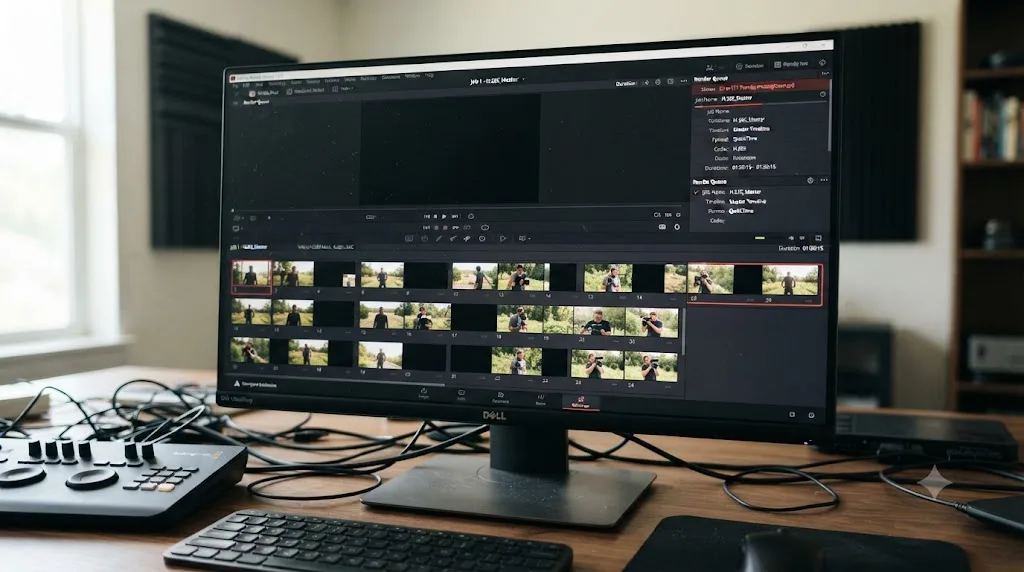
Open Preferences, find Decode Options (sometimes listed under System in older versions), and look for a checkbox that reads "Decode H.264/H.265 using hardware acceleration." Uncheck it, then close and reopen your project. This forces Resolve to decode your source footage in software instead of handing it to the GPU's hardware decoder, which is slower on playback but sidesteps a hardware decoder bug entirely.
This exact fix comes straight from a real user report, not a theory. On Apple's own community forums, a user posting as shestakovvideo described editing Lumix S1H footage on a MacBook Pro with an M3 Pro chip and hitting exactly this failure pattern: "Random media offline error in Media storage, Media Browser, Timeline," followed by "Decode errors during the render...The clip %name% could not be decoded correctly," in their account of the bug. Their exact footage was "Lumix S1H 4k 4:2:2 10 bit Vlog H.264," a 10-bit 4:2:2 format that stresses the hardware decoder harder than standard 8-bit 4:2:0 media. Their fix was the same checkbox: "If you disable the 'Decode H.264/H.265 using hardware acceleration' feature...everything is okay." They also reported that Apple had acknowledged it: "They said that this issue is under investigation and the Developers team is now aware of the problem."
That report describes H.264 specifically, but the mechanism is identical for H.265, and it's not confined to Apple Silicon. Puget Systems' own breakdown of hardware decoding support in DaVinci Resolve Studio shows that NVIDIA and Intel integrated graphics offer "no support" across the H.264/H.265 variants they tested, while discrete AMD Radeon 5000/6000/7000 cards, NVIDIA GTX 10-series and RTX 20/30/40/50-series cards, and Intel Arc cards carry broader support, per Puget's testing. If your GPU sits outside the range that's actually been validated for the specific bit depth and chroma format your footage uses, hardware decode is exactly where a black frame or media offline error starts.
Windows carries its own wrinkle on top of this. Standard H.265 playback on Windows needs the HEVC Video Extensions from the Microsoft Store installed separately, and 10-bit HEVC in 4:2:2 chroma is "often problematic in DaVinci Resolve, especially in the free version," according to Wondershare's overview of common H.265 problems in Resolve. If you haven't installed that extension, or you're pushing 10-bit 4:2:2 footage through the free version on Windows, you're stacking two known weak points on top of each other before you've even gotten to the export.
A decode failure dressed up as a black frame on export is one of the most misdiagnosed problems in DaVinci Resolve, because everyone assumes an export problem lives in the export settings. It doesn't, not this one. If your black frames are footage-specific rather than universal, the fix lives in Preferences, and no amount of tweaking the Deliver page will find it there.
Can running out of GPU memory cause black frames?
Yes, and it's a different failure entirely from a frame-reordering or decode bug, because this one is about capacity, not a broken code path.
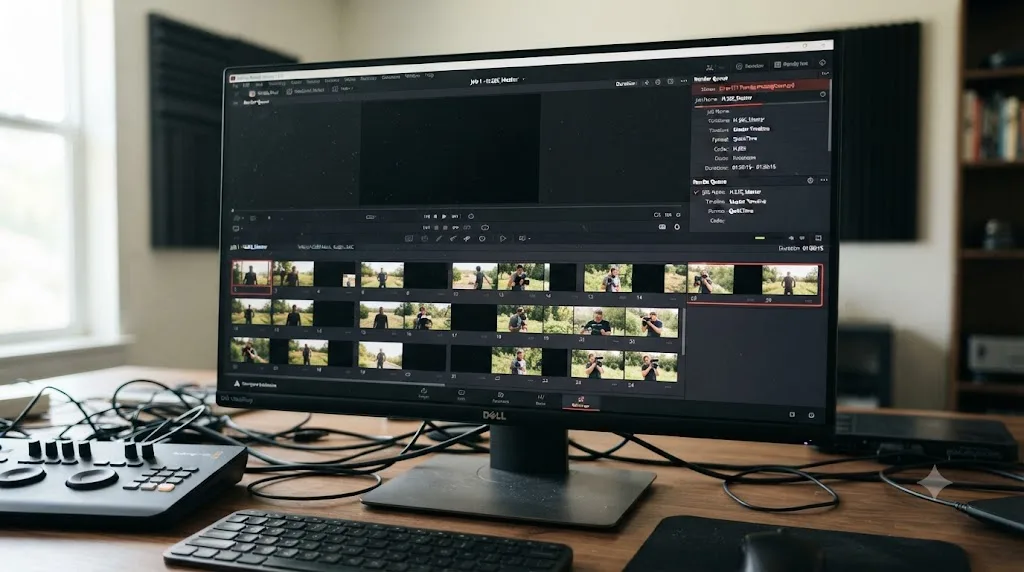
Your GPU has a fixed amount of VRAM, and every layer of your timeline draws from it: resolution, color nodes, noise reduction, Fusion effects, and the render pipeline itself as it feeds frames toward the encoder. When that pool runs dry mid-render, Resolve doesn't always throw a clean error. Sometimes it just drops a frame to black and keeps going, especially on a long export where the memory pressure builds gradually rather than spiking all at once.
On Creative COW's forums, a thread about dropped and black frames during render got a direct diagnosis from a user posting as Juan Salvo: "You are running out of GPU RAM, this is causing black frames," in his reply to the original poster. His practical advice was just as direct: "Make sure you quit all other apps, and do a fresh boot before you start Resolve." Another poster in the same thread, Pepijn Klijs, suggested converting the heaviest source footage to something lighter, specifically "pro res hq for example," and reapplying the grade rather than fighting the original heavy codec through the whole pipeline.
The fix here overlaps with general GPU memory troubleshooting, not anything H.265-specific. Lower Render Speed from Maximum to 50% or 25% in your export settings, which slows how fast Resolve feeds frames to the GPU and gives the memory buffer room to breathe. Close browsers and other GPU-hungry apps before a long render. And if this keeps happening on the same class of timeline, it's worth reading our full GPU memory full guide, which covers the timeline resolution and caching side of the same underlying problem in more depth than fits here.
A GPU running low on memory during a long H.265 render often fails silently as a black frame instead of loudly as an error, which is exactly why this cause gets missed so often. If your black frames cluster toward the end of longer exports rather than scattering evenly throughout, or you've noticed a GPU memory warning on the same project before, this is very likely your actual cause, and it has nothing to do with frame reordering or decode acceleration at all.
Is this a known bug Blackmagic already fixed?
Partly, yes, and checking your version number before you troubleshoot anything else can save you an entire evening.
A specific, well-documented H.265 corruption bug hit DaVinci Resolve Studio 19.1 on Apple Silicon Macs. The trigger was a precise combination of settings: the Main10 encoding profile, multi-pass encoding turned on, and Optimize for Speed turned off, according to a Blackmagic forum thread tracking the issue. Hit that exact combination and your export corrupted. Change any one of the three and it might not. Blackmagic fixed it in the 19.1.1 update, and the fix was significant enough that at least one video creator titled a video about it "Latest DaVinci Resolve Studio Update 19.1.1 Has FIXED The H.265 Encode Issue On Apple Silicon Macs," per that YouTube upload.
That's not the only relevant point release. DaVinci Resolve 21.0.2, released July 1, 2026, "Addressed H.264 and H.265 NVIDIA decode performance," according to Newsshooter's coverage of the update, with No Film School's report on the same release describing it as bringing "improved H.265 playback performance on NVIDIA GPUs." Decode performance and decode correctness aren't automatically the same fix, but Blackmagic doesn't touch this specific pipeline casually, and a release that's actively working on H.265 NVIDIA decode is a release worth being on before you go chasing a workaround the update might have already solved.
Here's the honest limit of this section: not every black frame report traces back to a bug with a named fix. Some of what's covered elsewhere in this guide, frame reordering sensitivity, GPU memory pressure, decode failures on unsupported footage formats, are ongoing characteristics of how hardware video encoding works rather than a single bug with a single patch. Checking your version and updating is always step one, but treat it as a filter, not a guarantee.
Every fix in this guide assumes you're already on the current point release, because troubleshooting a bug that's already been patched is the single most common way people waste hours on this exact problem. Check Resolve's About screen or the Help menu, compare it against Blackmagic's current release notes, and update before anything else on this page.
Should you switch the Encoder to Native instead of a hardware encoder?
If Frame Reordering and the decode setting haven't fully solved it, switching your Encoder setting from a GPU vendor's hardware option to Native is the next real lever, and it's the one that isolates the problem completely.
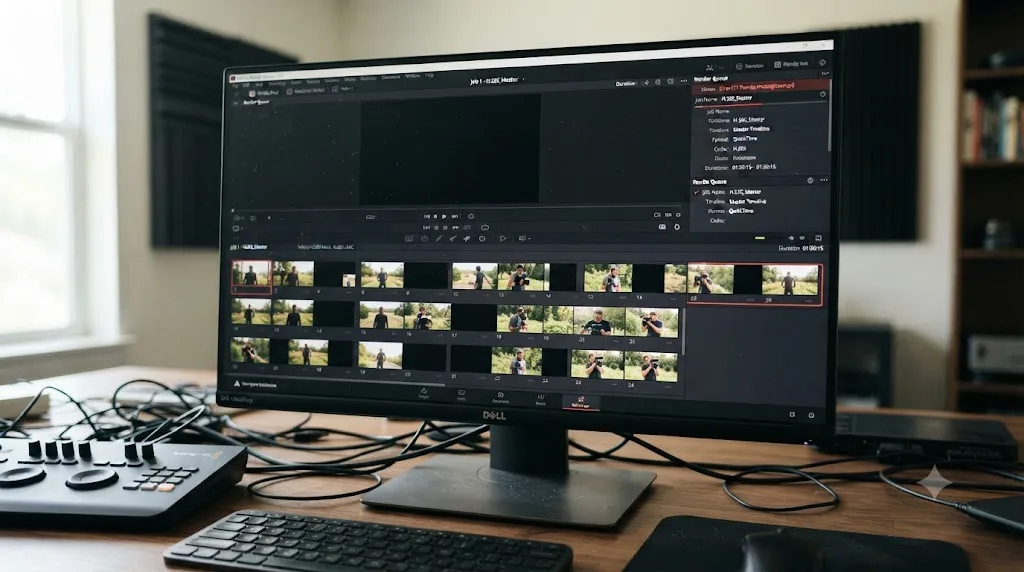
On the Deliver page, find the Encoder dropdown in your export settings. It normally shows your GPU's name, NVENC for NVIDIA, VCN or AMF for AMD, Quick Sync for Intel, or VideoToolbox on a Mac. Switch it to Native, which routes the entire H.265 encode through your CPU in software instead of the GPU's dedicated hardware encoder. Render again.
If the black frames disappear once you're on Native, you've confirmed the problem lives specifically in your hardware encoder, whether that's the frame-reordering logic covered earlier, a driver bug, or a genuine silicon limitation with your particular combination of bit depth, chroma format, and resolution. That's useful information even if Native isn't where you want to stay permanently, because it tells you exactly what to watch for in future driver updates and Resolve point releases.
Native is slower, sometimes dramatically so on longer 4K or higher timelines, since your CPU is doing work a dedicated hardware chip is normally built to handle far faster. But slow and correct beats fast and broken every time you're actually delivering a file, and Native completely sidesteps whatever bug is corrupting your hardware path. If you only need this for one export because a driver update or Resolve update is coming, that trade is an easy one to make.
Update your GPU driver at the same time, and if you're on NVIDIA, take the Studio Driver branch rather than Game Ready, since it's the one validated specifically against creative applications rather than games. A broken or mismatched driver is behind a large share of hardware encoder bugs that never show up in any Resolve-specific bug tracker, because the bug genuinely lives one layer below Resolve, in the driver talking to the silicon.
Native encoding turns a mystery into a controlled experiment: if the black frames vanish, your hardware encoder was guilty, and if they don't, you've just ruled out the entire GPU encode path in one render. That's worth knowing even before you decide what to actually ship.
Does the free version behave differently than Studio here?
Yes, in a way that changes both how likely you are to hit this bug and which fixes are even available to you.
On macOS, the free version of DaVinci Resolve encodes H.265 through Apple's VideoToolbox with no restriction, the same hardware path Studio uses. On Windows and Linux, hardware-accelerated H.264 and H.265 encoding is gated to DaVinci Resolve Studio, per Blackmagic's own Supported Formats and Codecs documentation and consistent with the platform gap covered in our export settings guide. Free version users on Windows and Linux fall back to software encoding automatically, which sounds like a downside and mostly is, slower renders, more CPU load, but it also means free users on those platforms are structurally less exposed to hardware-encoder-specific bugs like the frame-reordering corruption covered earlier. You're not hitting the buggy path because you never had access to it in the first place.
Hardware decode acceleration follows a similar but separate pattern. It's a Studio feature specifically, meaning free version users decode H.264 and H.265 in software by default on every platform. That's the same fix covered in the decode section above, just already applied for you rather than something you need to go find in Preferences.
| Question | Free version | Studio |
|---|---|---|
| H.265 hardware encode on macOS | Yes, via VideoToolbox | Yes, via VideoToolbox |
| H.265 hardware encode on Windows/Linux | No, software only | Yes, via GPU vendor's encoder |
| H.264/H.265 hardware decode | No, software only, all platforms | Yes, if enabled in Preferences |
| Exposed to frame-reordering hardware bugs | Lower on Windows/Linux, same as Studio on macOS | Full exposure wherever hardware encode is active |
| Exposed to hardware decode bugs | No, decodes in software by default | Yes, if hardware decode is enabled |
Ironically, the free version's biggest export limitation, no hardware acceleration on Windows and Linux, is also a quiet shield against the exact bug family covered in this guide. If you're on Studio and fighting black frames, you have more speed and more places for a hardware bug to hide. If you're on free and this exact problem doesn't apply to you, that's why, and it's worth knowing before you assume upgrading to Studio would have prevented it.
Do Windows, macOS, and Linux fail differently?
The underlying bug families are the same everywhere, but each operating system adds its own specific trigger.
| OS | Specific trigger | What to check first |
|---|---|---|
| Windows | Missing HEVC Video Extensions, hardware encoder gated to Studio, older GPU driver | Install the Microsoft Store HEVC extension, confirm your Resolve edition, update your GPU driver |
| macOS (Apple Silicon) | Hardware media engine bugs with Main10 profile, multi-pass, and 10-bit 4:2:2 media | Confirm you're on 19.1.1 or later, try the decode acceleration checkbox |
| Linux | Narrower codec support overall, proprietary GPU driver dependency | Confirm the codec is in your build's supported list at all before troubleshooting further |
Windows carries the most moving parts. Standard H.265 decode needs the HEVC Video Extensions installed from the Microsoft Store, a small paid add-on that's easy to have skipped if you set up your machine a while ago, as covered in Wondershare's H.265 troubleshooting guide. On top of that, hardware encode itself is a Studio feature there, so a free version user on Windows fighting this bug is fighting a problem that shouldn't exist for them at all, which is itself a useful diagnostic: if you're on free Windows and still seeing hardware-encoder-pattern black frames, double check that you haven't accidentally installed a third-party plugin or codec pack that's inserting its own hardware path underneath Resolve.
macOS carries the opposite risk profile. Apple Silicon's hardware media engine is fast and, on the whole, reliable, but it's also where the documented Main10-plus-multi-pass corruption bug lived before 19.1.1, and it's the platform behind the decode failure reported by shestakovvideo on an M3 Pro chip with 10-bit 4:2:2 footage. If you're on a Mac and hitting this, checking your Resolve version against 19.1.1 and testing the decode acceleration checkbox are your two highest-value moves, in that order.
Linux is the quiet outlier, mostly because its codec support has historically trailed the macOS and Windows builds. If a specific H.265 profile or bit depth simply isn't in your Linux build's supported list, you won't get black frames, you'll get an outright failure or a missing option, which is a different problem with a different fix: render the master in ProRes or DNxHR and transcode it on a different platform, covered in full detail in the next section.
What if the entire export is black, not just scattered frames?
Stop here and don't apply anything above, because a fully black file is almost always a different problem wearing the same name.
Scattered black frames, the subject of this whole guide so far, point at frame reordering, decode, or GPU memory issues touching individual frames while the rest of the encode succeeds. A file that's entirely black from the first frame to the last usually means the render pipeline itself never connected to real image data in the first place, which is a much simpler, much more mechanical problem.
Check these in order. First, whether you're looking at a preview problem rather than an export problem: play the actual exported file in VLC or another player, not Resolve's own viewer, since a UI glitch that disconnects Resolve's viewer from its own rendering pipeline can make everything look black on screen while the file itself renders correctly, per Cutsio's breakdown of black screen preview causes. Second, whether "Use render cached images" is checked in your render settings and pointing at a stale or corrupted cache; uncheck it and render fresh. Third, whether your GPU processing mode in Preferences > System > Memory and GPU actually matches your hardware, since an OpenCL setting on an NVIDIA card, or Resolve running on an integrated GPU on a laptop with a discrete card sitting idle, can produce a genuinely broken render rather than a partial one.
Fourth, and this is the check people skip most often: confirm your clips actually have image data on the timeline at the point you're rendering, rather than a title card, an adjustment layer, or a compound clip with nothing inside it. A completely black export from a section of timeline that's genuinely empty isn't a bug at all.
A file that's black from start to finish is a connection problem between Resolve and your actual footage, while scattered black frames are a corruption problem inside an otherwise-working encode, and mixing up which one you have wastes the most time of any mistake in this whole troubleshooting process. Confirm which one you're actually looking at before you touch a single setting from earlier in this guide.
How do you use a ProRes or DNxHR intermediate to guarantee a clean file?
When you've tried the settings above and you're still fighting black frames, or you simply need a deliverable today and can't afford more troubleshooting time, route around the whole H.265 hardware path instead of fixing it.
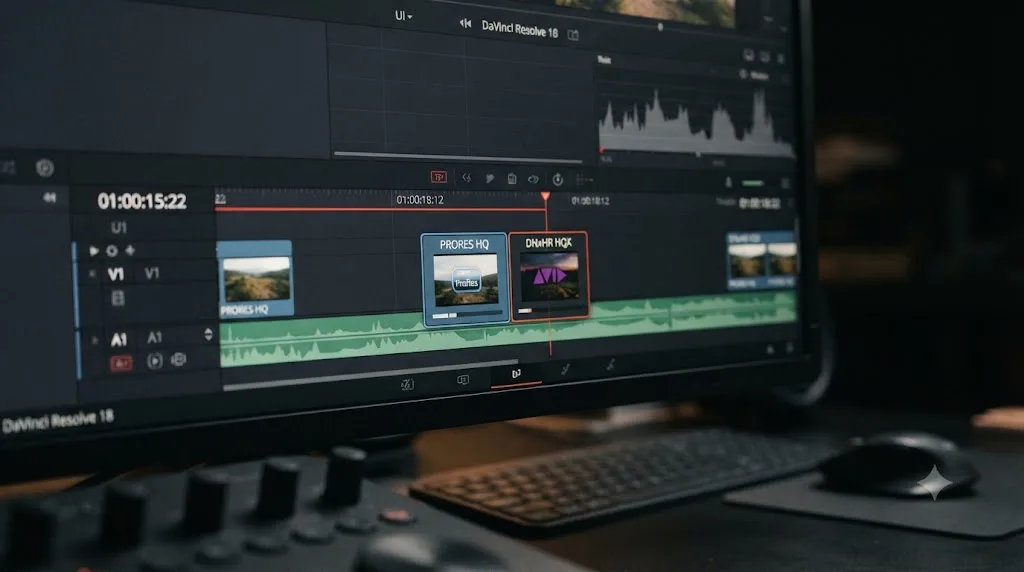
Export your timeline to ProRes 422 HQ or DNxHR HQX instead of H.265 directly. Both are intraframe codecs encoded in software, with no frame reordering, no B-frames, and no dependency on a hardware encoder chip that might be misbehaving. That master file will be considerably larger than an H.265 export, but it will render clean, because none of the bug families covered in this guide apply to how these codecs work.
Then take that finished master and transcode it to H.265 outside DaVinci Resolve entirely, using a dedicated tool like HandBrake or Shutter Encoder, both free. You're now asking two separate, specialized pipelines to each do the one job they're built for: Resolve handles the timeline, the grade, and the effects, and a purpose-built transcoder handles the delivery codec. If your GPU's H.265 encoder genuinely has a bug, this sidesteps it completely, because the transcoder is running its own encode logic on its own schedule, unconnected to whatever Resolve's export pipeline was doing.
This isn't a downgrade or a hack; it's a completely normal professional workflow, and it's the same approach covered in our ProRes vs DNxHR comparison for picking which intermediate codec fits your platform and delivery target. If your pipeline is Mac-only, ProRes 422 HQ gets a real hardware speed advantage from Apple Silicon's media engine. If any part of your workflow touches Windows, Linux, or a broadcast facility, DNxHR HQX is the safer default with no platform-specific caveats attached.
The two-step process costs you render time and drive space you wouldn't spend going straight to H.265. But it's the one fix in this entire guide with a 100% success rate against every cause covered above, because it doesn't try to fix the broken pipeline, it walks around it entirely. Our broader render troubleshooting guide covers this same intermediate-and-transcode approach for renders that are failing outright rather than just producing black frames, if your problem turns out to be bigger than this one codec.
When a hardware encoder has a genuine bug, no export setting inside the software using that hardware can reliably work around it, which is exactly why routing the encode to different hardware entirely is the fix that never fails. Keep this in your back pocket for any deadline where "eventually correct" beats "fast and broken."
What's the right order to try these fixes in?
Work through this list top to bottom. Each step takes less time than the one after it, and most people find their fix in the first three.
- Confirm you're on DaVinci Resolve's current point release. Check the About screen against Blackmagic's release notes; both 19.1.1 and 21.0.2 shipped fixes directly relevant to H.265.
- Note the exact pattern: scattered black frames, the same frame every render, or a fully black file. A fully black file means skip straight to the section above on that specific problem.
- On the Deliver page, uncheck Frame Reordering in the custom export settings and render again.
- If that doesn't clear it, or your black frames are specific to certain source footage, go to Preferences and uncheck "Decode H.264/H.265 using hardware acceleration."
- If black frames coincide with a GPU memory warning, lower Render Speed to 50% or below and close other GPU-heavy applications.
- Switch Encoder to Native on the Deliver page to confirm whether the hardware encoder itself is the cause.
- Update your GPU driver, taking the Studio branch if you're on NVIDIA.
- If nothing above fully resolves it, export a ProRes or DNxHR intermediate and transcode to H.265 with a separate tool afterward.
Each step here isolates a different layer of the pipeline, and that's deliberate. Frame Reordering and the decode checkbox are both single-click tests that take one render to confirm or rule out. Render Speed and Native encoding are one step deeper, still cheap to test. Updating your driver and Resolve itself takes longer but often turns out to be the actual answer, since both companies have shipped real fixes for real versions of this exact bug. The intermediate-file fallback is the guaranteed last resort precisely because it doesn't depend on any of the hardware paths that might be broken.
How do you stop this before your next export?
Every fix above has a version that happens before you ever click Render, and it's worth building into your workflow if H.265 delivery is a regular part of your job.
Test-render before you commit to a full export. Set In and Out points around the densest sixty seconds of your timeline, the section with the most cuts, effects, or motion, and export just that range with your real delivery settings. A frame-reordering bug or a decode failure on specific footage shows up in two minutes this way instead of forty.
Know your hardware's actual decode support before you shoot or ingest 10-bit 4:2:2 footage on a tight deadline. Puget Systems' testing shows real gaps between GPU vendors and generations on exactly this format, and confirming your specific card supports the bit depth and chroma format you're about to edit costs five minutes against a forum search and saves you from discovering the gap mid-render.
Keep your GPU driver updates deliberate rather than automatic, especially mid-project. If an export workflow is working, the driver it's working on is part of that workflow, and an unplanned auto-update the night before a deadline is how a working pipeline becomes a broken one with zero warning.
Stay current on Resolve point releases, but don't update mid-render-heavy week without a reason to. Both 19.1.1 and 21.0.2 fixed real problems in this exact space, and reading release notes before you update, not after something breaks, tells you whether an update is actually relevant to your workflow or just noise.
And if your delivery genuinely needs H.265's smaller file size, build the two-step ProRes-then-transcode habit into your normal process for anything client-facing, rather than treating it as an emergency-only fallback. It costs more render time up front and buys you a master file that isn't vulnerable to any of the bugs covered in this guide, which is a trade worth making before a deadline forces the decision on you.
The fastest path to a clean H.265 export
Start by checking your version number, because Blackmagic has already fixed real bugs in this exact space and you might be troubleshooting something that no longer exists in the current build. Then read the pattern: a fully black file is a connection problem, not a corruption problem, and needs a completely different section of this guide. For scattered or same-frame black frames, uncheck Frame Reordering first, since it's the single most reported fix and it costs nothing. If your black frames are tied to specific 10-bit 4:2:2 footage rather than the whole project, go to Preferences and disable hardware decode acceleration instead. Switch to Native encoding to isolate a stubborn hardware encoder bug, and if none of that clears it, stop fighting the H.265 pipeline directly and route around it with a ProRes or DNxHR master transcoded afterward. That last option has never failed, because it never depends on the hardware path that's actually broken.
If the part that's actually eating your time is finding these settings in the first place, not knowing what they do once you find them, that's a narrower problem than a codec bug. TryUncle is an AI tutor for DaVinci Resolve on macOS. Ask in plain words, and Uncle points at the exact control on your screen. It's a paid app at founder pricing, not a replacement for knowing your export pipeline, but it's built for exactly the moment you're staring at the Deliver page wondering which checkbox a forum thread was actually talking about. Other tools in this space, like Sottocut, PremiereCopilot, heyeddie.ai, and cutagent.ai, mostly automate edits or answer chat questions about your footage; TryUncle instead watches your actual screen and points at the live control, which is a different job than any of them are doing. Ask TryUncle for the current founder rate if that's the gap you're stuck on. For everything else, the order in this guide, checked top to bottom, is the fastest way back to a file that plays clean.
Frequently asked questions
- Why does my H.265 export in DaVinci Resolve have black or corrupted frames when H.264 doesn't?
- H.265 leans harder on B-frames and frame reordering than H.264 does, and it runs through a different, newer corner of your GPU's hardware encoder. A bug in that specific path, whether it's the encoder's frame-reordering logic or the decoder reading your 10-bit 4:2:2 source footage, shows up as black or corrupted frames in H.265 while H.264 sails through untouched, because H.264 doesn't stress the same silicon the same way.
- Does turning off Frame Reordering fix black frames in an H.265 export?
- Often, yes, or at least it reduces the problem a lot. Users on Blackmagic's own forum reported cutting a glitch that hit every 4 to 5 seconds down to about 3 occurrences in a two minute video just by unchecking Frame Reordering in the custom export settings. It's not a universal fix, but it's the fastest thing to try and it costs you nothing but a slightly bigger file.
- Why do I only get black frames on my Apple Silicon Mac?
- Apple Silicon runs H.265 decode and encode through a dedicated hardware media engine, and that engine has had real, documented bugs with 10-bit 4:2:2 footage. DaVinci Resolve Studio 19.1 corrupted H.265 exports specifically when the Main10 profile, multi-pass encoding, and Optimize for Speed being turned off were combined, and Blackmagic fixed that combination in 19.1.1. If you're still on an older build, that update alone may solve it.
- Has Blackmagic already fixed this bug?
- Partially, and it's still moving. DaVinci Resolve Studio 19.1.1 fixed a specific H.265 corruption bug tied to the Main10 profile and multi-pass encoding on Apple Silicon, and the July 2026 21.0.2 update addressed H.264 and H.265 decode performance on NVIDIA GPUs. Update to the current point release before you spend an evening on workarounds; the bug you're fighting might already be gone.
- Should I just export ProRes or DNxHR instead of H.265?
- For anything that matters, yes, at least as your master file. ProRes and DNxHR are software-encoded, intraframe codecs with none of H.265's frame-reordering or hardware-decode dependencies, so they don't fail this way. Export your master in one of those, then transcode to H.265 afterward with a dedicated tool if you need the smaller file size for delivery.
- Is hardware H.265 encoding available in the free version of DaVinci Resolve?
- It depends on your operating system. On macOS, the free version encodes H.265 through Apple's VideoToolbox with no restriction. On Windows and Linux, hardware-accelerated H.264 and H.265 encoding is a DaVinci Resolve Studio feature, so the free version there falls back to slower software encoding, which is actually less likely to hit this specific bug family.
Sources
- Blackmagic Design Forum: Gross Digital Fragments on h.265 Resolve Exports!
- Blackmagic Design Forum: H.265 export corruption fixed, DaVinci Resolve Studio 19.1.1
- YouTube: Latest DaVinci Resolve Studio Update 19.1.1 Has FIXED The H.265 Encode Issue On Apple Silicon Macs
- Apple Community: MacBook M3 Pro and DaVinci Resolve Decode issues
- Newsshooter: DaVinci Resolve 21.0.2 Update
- No Film School: DaVinci Resolve 21.0.2 Update Adds Faster Image Bypass Switching, Improved H.265 Playback, and More
- Cutsio: How to Fix Black Screen Preview in DaVinci Resolve
- Wondershare Repairit: How to Work with DaVinci Resolve H.265 Videos
- Larry Jordan: Compressor - What is Frame Reordering?
- Puget Systems: What H.264 and H.265 Hardware Decoding is Supported in DaVinci Resolve Studio?
- Creative COW Forum: Dropped Frames During Render
- DaVinci Resolve - Tech Specs (Blackmagic Design)
- DaVinci Resolve Supported Formats and Codecs, July 2025 (Blackmagic Design)
Put this guide to work with TryUncle.
Ask about the step you’re on. TryUncle sees your screen and points at the control you need, so you can keep learning in your own project.
Get TryUncle for Mac or WindowsKeep reading
Fixes · Jul 7, 2026 · 24 min
DaVinci Resolve Not Exporting? Fix a Stuck or Failed Render
Why DaVinci Resolve renders get stuck at 0% or 99%, or fail with no error, and the exact checks that get a stalled export moving again.
Comparisons · Jul 12, 2026 · 32 min
ProRes vs DNxHR in DaVinci Resolve: Which Should You Use?
ProRes vs DNxHR in DaVinci Resolve: real bitrates, the Windows export fix, HDR and alpha support, and a decisive pick for Mac, Windows, and mixed teams.
Fixes · Jul 7, 2026 · 25 min
DaVinci Resolve GPU Memory Is Full: Every Real Fix
Why DaVinci Resolve throws 'GPU memory is full,' and which fixes actually work: timeline resolution, drivers, effects, and how much VRAM you need.