Articles / Fixesupdated for DaVinci Resolve 21.0.3 (July 2026)
DaVinci Resolve Timeline Track Height Won't Change? The Fix
Quick answer
A DaVinci Resolve track that won't resize is almost always locked. Right-click the track header and check Lock Track Height To; if it's set to anything but None, that blocks Shift+scroll and the Timeline View Options slider. Set it back to None. If every track is affected, Reset UI Layout or an open keyframe editor is the more likely cause.
You drag the boundary between two tracks. The cursor even changes to the resize icon, so you know you're in the right spot. And nothing happens. You try Shift and the scroll wheel next, since that's supposed to work too, and the track sits there at exactly the height it was five minutes ago.
Here's the thing worth knowing before you touch another setting: this almost never means DaVinci Resolve is broken. It means one specific track, or one specific piece of your project, is in a state that blocks height changes on purpose, and once you know which state, the fix takes seconds. Let's go through every real cause, starting with the one that catches the most people.
What causes a DaVinci Resolve track height to get stuck?
There are seven real causes, and they split into three groups. The first group is a deliberate lock: something in the project is explicitly holding that track at a fixed size. The second is a temporary UI state that only looks like a stuck height. The third is a genuine bug or a scope misunderstanding about what a given control was ever supposed to do.
A track that won't resize is almost always locked, not broken. That's worth repeating before you go further, because it changes where you spend your first two minutes. You're not chasing a corrupted project. You're chasing a setting that's doing exactly what it was told to do.
| Cause | How common | Fix location |
|---|---|---|
| Lock Track Height To set on the track | Very common | Right-click track header |
| Open keyframe editor expanding one track | Common | Click the clip's keyframe icon again |
| Wrong resize method for what you're trying to do | Common | Drag border, Shift+scroll, or Timeline View Options |
| Dual-monitor drag cursor bug | Uncommon | Workspace, Reset UI Layout |
| Track height not carrying over between projects | Common (by design, not a bug) | Saved per project, not per Workspace |
| Audio track height maxed out but waveforms still small | Common misunderstanding | Fairlight page, not Edit page |
| Locked track (padlock) confused with height lock | Occasional | Two separate icons, two separate fixes |
Work down this table roughly in order. Most people who write in convinced their project has corrupted itself find the answer in the first row, inside a right-click menu they didn't know existed.
Is Lock Track Height To set on the track that won't resize?
This is the cause behind the largest share of "track height won't change" reports, and it's also the one people almost never think to check first, because the control lives in a submenu with a name that doesn't obviously connect to your symptom.
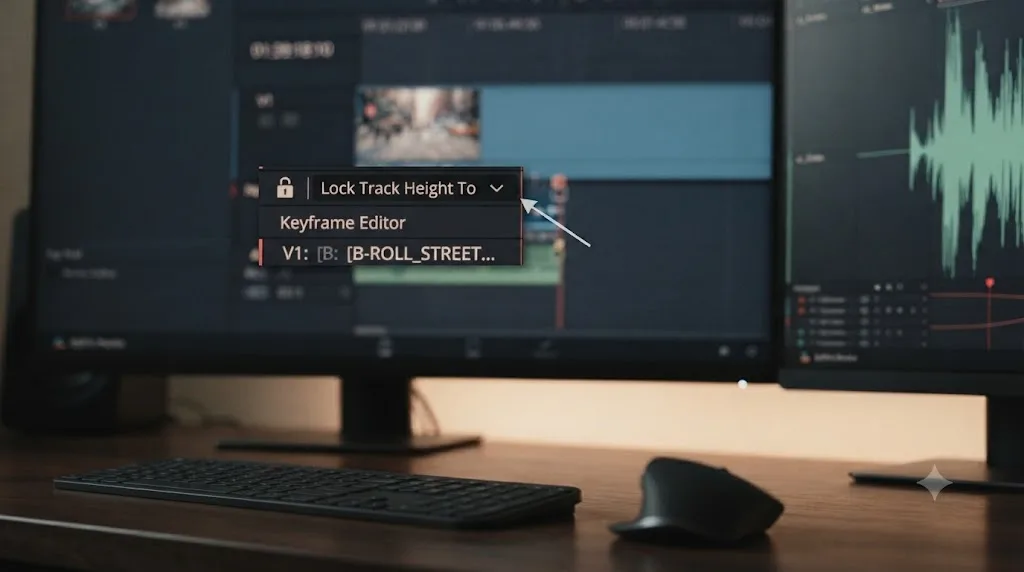
Right-click any track header, video or audio, and DaVinci Resolve's own reference manual describes a Lock Track Height To submenu with a specific set of fixed sizes: "Micro, Mini, Medium, Large, Extra Large, and Custom." Pick any one of those, and the track locks to that exact height. Set it to None, and the track goes back to responding normally to zoom.
Here's the sentence that explains almost every version of this complaint. Per the manual, once a track is locked to a fixed size, "vertical zooming no longer affects that track until you change that track's 'Lock Track Height to' option back to None." Read that again slowly, because it's the whole answer for most people reading this guide. Shift+scroll is vertical zooming. The Timeline View Options height slider is vertical zooming. Neither one can touch a track that's been locked, and neither one gives you an error message telling you why. The track just sits there, silent, at whatever size it was locked to.
A separate Blackmagic forum thread, titled simply "Lock Track Height to - Custom," confirms this same submenu and its Custom option are commonly used and commonly forgotten about afterward, since setting a custom height once and moving on to other work is an easy thing to do without registering that you've changed a lasting setting rather than made a one-time adjustment.
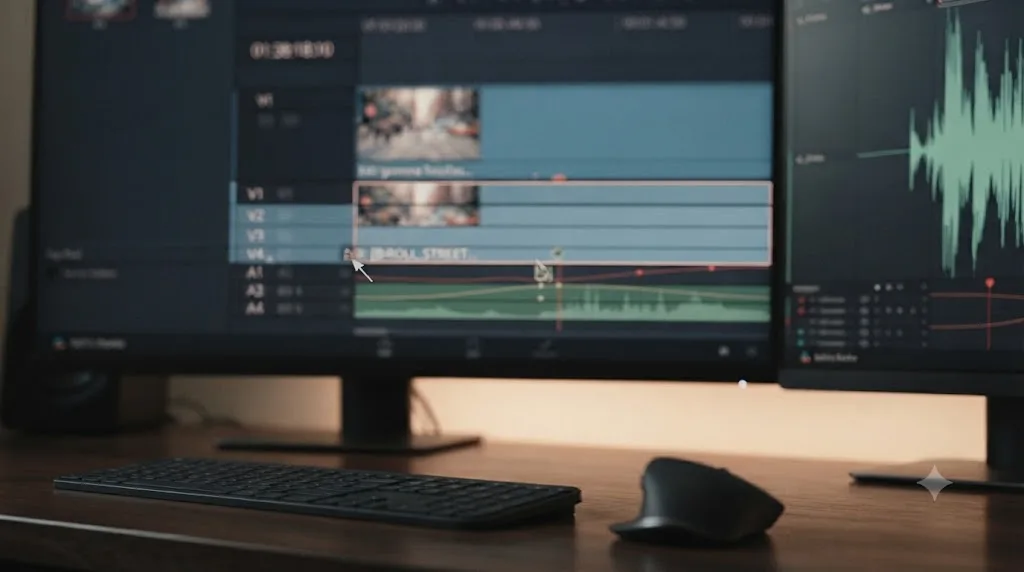
You can apply this to more than one track at a time too. Select several tracks together, right-click, and choose a size from the submenu, and per the manual, "All highlighted tracks will change to that particular size unless changed again, either globally or individually." That's convenient when you want three tracks locked at Micro so they stay out of the way while you work on a fourth. It's exactly the setting people forget about a week later, when they've moved to a different section of the same project and can't figure out why one specific track refuses to grow.
Lock Track Height To is a separate lock from the padlock icon, and it only affects one thing: whether Shift+scroll and the height slider can touch that track. The padlock, which is a different icon on the same track header, blocks edits like trimming and moving clips. It has no relationship to height at all. Confusing the two wastes real troubleshooting time, since unlocking a padlocked track does nothing for a height that's actually locked through the other menu.
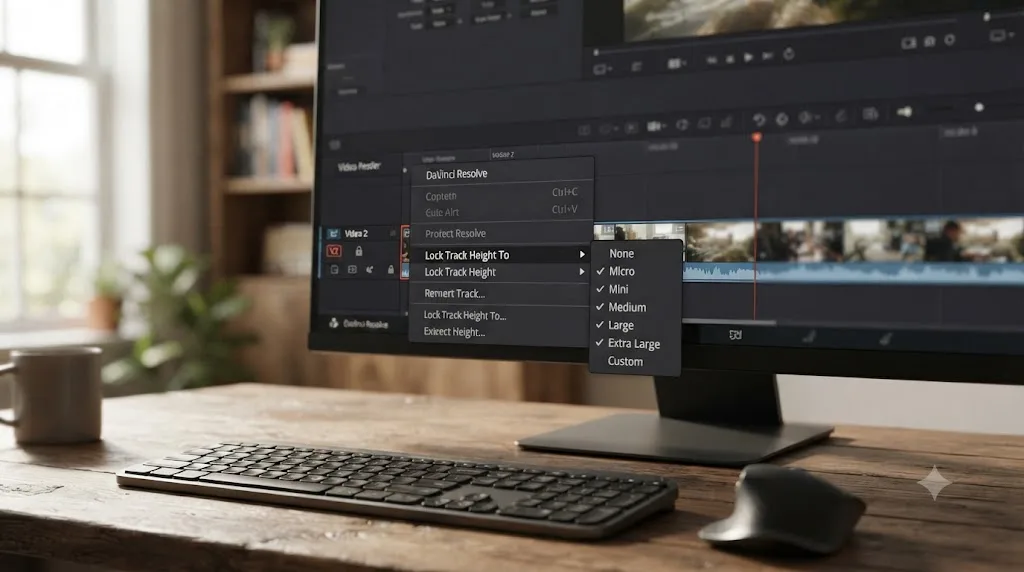
| Lock Track Height To setting | What it does |
|---|---|
| None (default) | Track resizes normally with Shift+scroll, drag, or Timeline View Options |
| Micro / Mini / Medium / Large / Extra Large | Track locks at that fixed size; zoom and the height slider can't change it |
| Custom | Track locks at whatever height it was when you chose Custom |
If your specific complaint is "this one track won't resize no matter what I do, but every other track works fine," check this submenu before anything else in this guide. It's the single highest-odds fix for that exact symptom.
Did an open keyframe editor expand the track without you asking?
This cause runs in the opposite direction from the one above. Instead of a track refusing to shrink or grow when you want it to, a track grows on its own, seemingly out of nowhere, and it can look exactly like a stuck resize if you don't know what triggered it.
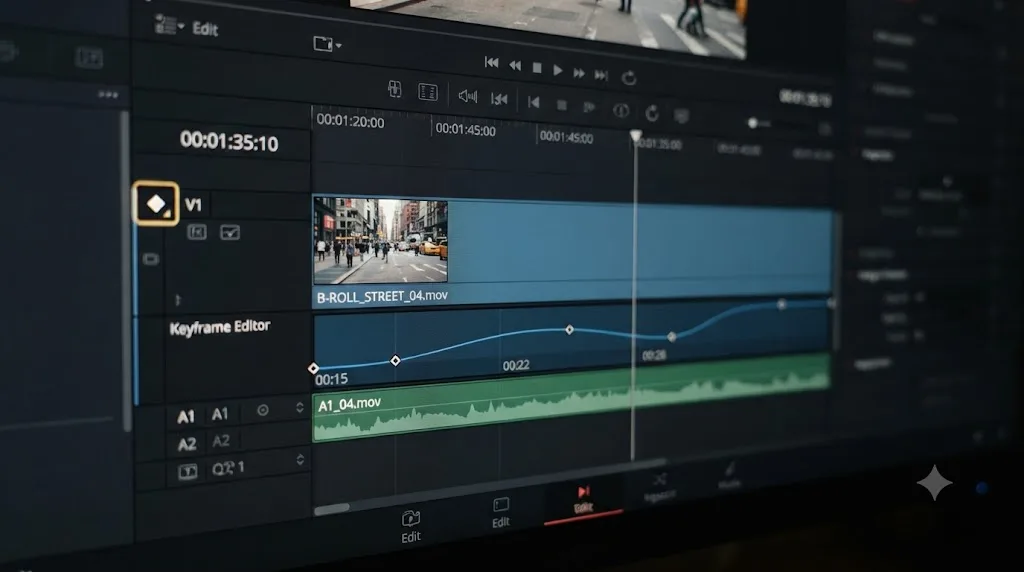
On a Creative COW forum thread titled "Reducing super annoying track height for text clips?", an editor named Ben Singer described exactly this experience: two of his text clip tracks had become, in his words, "ridiculously tall," with an expanded area beneath the clips that appeared to hold nothing useful. He tracked down the cause himself and reported back: "The darkened spots under two of the text clips reflected that I had clicked on the 'keyframe' icon that is on the bottom of each clip."
Michael Gissing, another contributor on that same thread, explained why the height change happens at all rather than treating it as a bug: "It is the keyframe editor so you need the scale to be able to manipulate keyframe values." The extra vertical space isn't wasted. It's the room DaVinci Resolve needs to draw the keyframe curve you're about to adjust, and the track has to physically grow to make space for it.
An open keyframe editor can make a track taller than every setting in Timeline View Options combined. That's worth internalizing, because no amount of adjusting the height slider or checking Lock Track Height To fixes this specific cause. The track isn't locked. It's doing exactly what a keyframe editor is supposed to do, and it stays that size for as long as the editor stays open.
Tom Watson, replying on the same thread, described the practical workflow for living with this rather than fighting it: "I make the key frame adjustment, then click the icon again and it shrinks back to normal size. Bring it up when you need it, then make it go away until you need it again." Click the same small keyframe icon at the bottom of the clip a second time, and the track collapses back to whatever height it was before, no menu required.
If you've been hunting through Lock Track Height To or the Timeline View Options sliders trying to shrink a single clip's track back down, and every other track on the timeline behaves normally, look at that clip specifically for an active keyframe icon before you touch anything global. It's a far more common explanation than a broken setting.
Are you using the right method for what you're actually trying to do?
DaVinci Resolve gives you three separate ways to change track height, and a decent share of "it won't change" reports turn out to be someone using the correct method in the wrong situation, or expecting one method to do a different method's job.
Per the manual's description of modifying timeline tracks, you can resize an individual track by "dragging its top border in the Track Header," which changes exactly that one track and nothing else. A separate Blackmagic forum thread on resizing timeline height in the Edit page confirms the same three-method structure editors have relied on since the option expanded: the Timeline View Options menu, Shift plus the mouse wheel anywhere over a track, or dragging directly on the track header border.
Each method has a different scope, and picking the wrong one for what you're trying to accomplish is the second most common reason people think a track is stuck when it isn't.
| Method | What it resizes | Best for |
|---|---|---|
| Drag the track header's top border | Just that one track | A quick, precise adjustment to a single track |
| Shift + scroll wheel over a track | Just the track under your cursor | Fast resizing without reaching for a menu |
| Timeline View Options video/audio height sliders | Every unlocked track of that type (all video, or all audio) | Resizing a whole category of tracks at once |
| Right-click, Lock Track Height To | One or more selected tracks, permanently, until reset | Pinning a track at a fixed size so zoom can't touch it |
The manual also confirms something worth knowing before you conclude a slider is broken: "Now you can freely change track height no matter what options you've chosen, and resizing one or more tracks below the minimum height for filmstrips or thumbnails automatically collapses those tracks into Simple view to avoid clutter." That's not a bug either. If you drag a track down small enough, it switches to a simplified, thumbnail-free view rather than continuing to shrink into an unusable sliver, and that automatic switch can look like the resize "stopped working" when it actually just changed display mode at the floor of its range.
A separate, older complaint on the Blackmagic forum, "large space between V1 and V2," describes a related confusion: deleting a clip left an unexpectedly large gap between two video tracks that looked like a height problem but wasn't one at all, it was leftover vertical space from the deletion. The fix there was the same drag-the-border method, or opening Timeline View Options and adjusting the video height sliders directly, since the visible gap responded to the same controls as an intentional resize would.
If you've been trying Shift+scroll expecting it to resize every track on the timeline at once, and it's only touching the single track your cursor happens to be over, that's expected behavior, not a partial failure. Reach for the Timeline View Options sliders instead when you want a category-wide change.
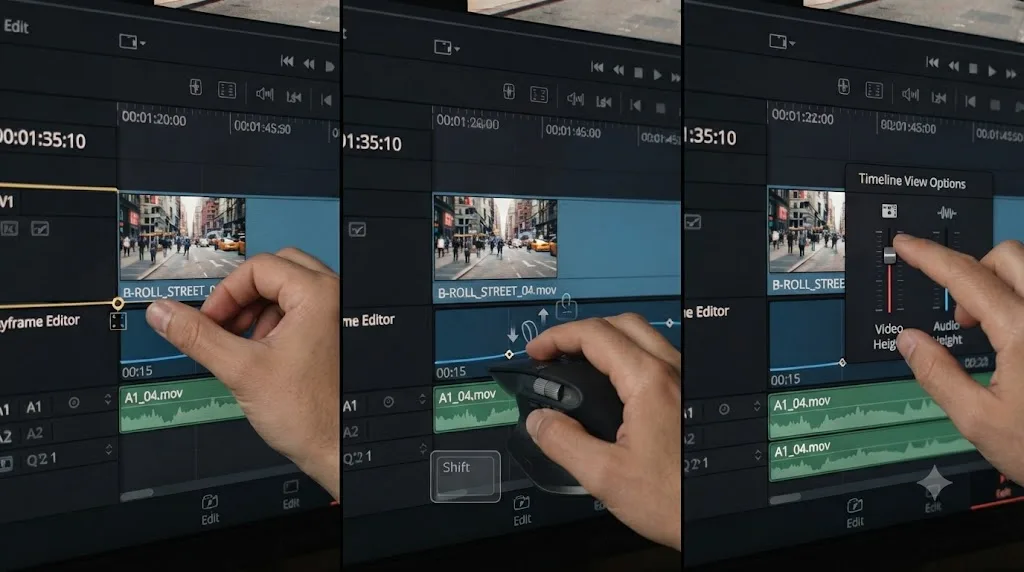
Is a dual-monitor bug blocking the drag cursor?
Rarer than the causes above, but real, and specific enough that it's worth naming directly if the previous sections didn't match your symptom.
A Blackmagic forum thread titled "Cant adjust timeline display height" describes exactly this: an editor working across dual monitors found that hovering over the resize boundary correctly changed the cursor to the adjustment icon, confirming Resolve recognized the mouse was in the right spot, but dragging from there did nothing. The height simply refused to move, even though every visual signal suggested the drag should work.
The fix that resolved it for that editor was going to Workspace, then Reset UI Layout, and reorganizing the displays afterward. Per the DaVinci Resolve reference manual's own description of that menu option, Reset UI Layout brings "all your windows back to the center" and rebuilds the current page's layout for your screen's actual resolution and arrangement. In a dual-monitor setup specifically, that rebuild appears to clear whatever internal state was preventing the drag from registering, even though the visible cursor had looked correct the whole time.
This is a narrow, specific fix, so it's worth confirming the symptom actually matches before you jump to it. If your cursor doesn't change to a resize icon at all when you hover the track boundary, that's a different problem, most likely Lock Track Height To, not this one. This fix is specifically for the case where the cursor looks right and the drag itself is the part that fails.
| Symptom | Likely cause |
|---|---|
| Cursor doesn't change to a resize icon at all | Lock Track Height To is set, or you're not exactly on the boundary |
| Cursor changes to a resize icon, drag does nothing | Dual-monitor UI state, fixed by Reset UI Layout |
| Cursor changes and drag works, but the height snaps back later | Track height saved per project, see the next section |
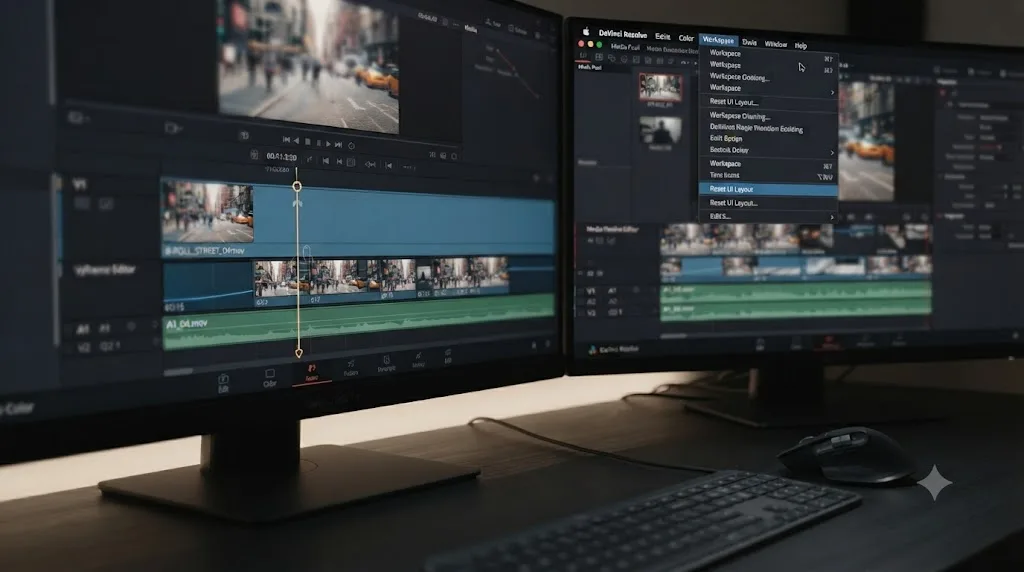
Why doesn't your track height carry over to a new project or session?
This isn't a bug at all, but it's one of the most common reasons people believe their setting "won't stick," so it belongs in this guide even though the fix is really an expectation reset rather than a technical one.
A Blackmagic forum thread titled "Timeline track height/orientation never seems to stick" captures the exact frustration: editors set a preferred track height, close the project or restart Resolve, and come back to find it reverted. Related threads, "How to save track heights?", "Track height keeps resetting," and "How reset track heights to where you had them?", all describe versions of the same complaint across different Resolve releases, which tells you this isn't a one-off glitch, it's a consistent piece of how the software is designed to work.
DaVinci Resolve saves track height per timeline, inside the project. It doesn't save it as part of a Workspace. That's the core fact worth understanding. A Workspace layout preset, saved through Workspace, Layout Presets, Save Layout as Preset, remembers your panel arrangement: where the Media Pool sits, whether the Inspector is open, how wide the Effects Library is. It does a much less reliable job of remembering individual track heights, since those are tied to the specific timeline you were viewing when you set them, not to the workspace shell around it.
Practically, this means:
- A track height you set on Timeline A in Project X has no guaranteed relationship to Timeline B in that same project, even though both live in the same file.
- Opening a brand-new project starts you back at whatever the default track height is for a fresh timeline, regardless of what you'd customized in a previous project.
- A "Reset ALL Audio or Video Tracks height at once?" style request, which shows up as its own forum thread, reflects how tedious it is to manually reset several tracks back to a shared height one at a time, since there isn't a single command that resets every track on a timeline in one click.
If your workflow depends on a specific track height every time you open a new project, the practical fix isn't a hidden setting, it's a habit: build a template project with your preferred track heights already set, and duplicate that template instead of starting from Resolve's default new-project state each time. It's not elegant, but it's the approach several editors on these threads describe settling on once they understood the height wasn't going to persist any other way.
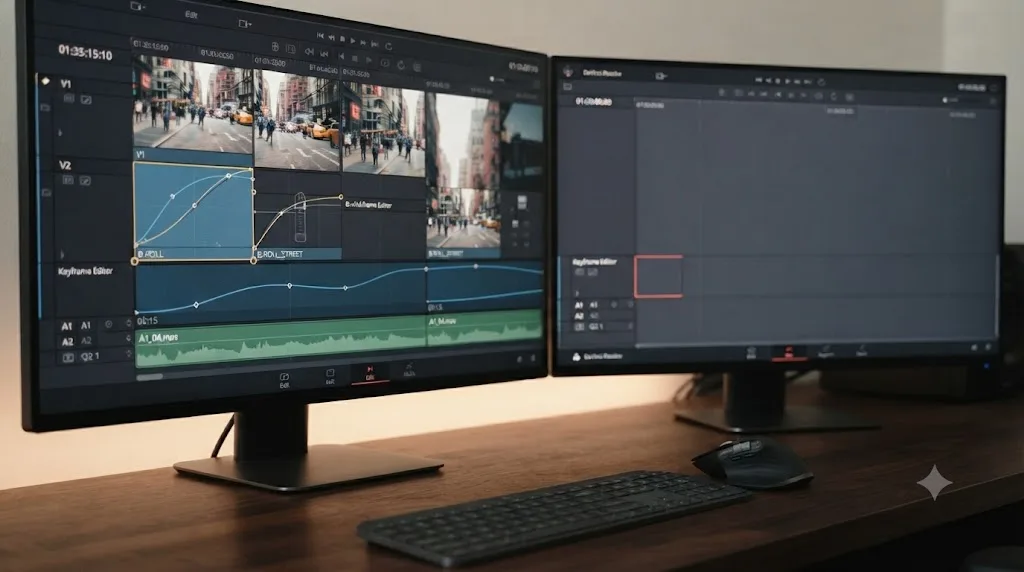
Is the audio track height limit actually a Fairlight problem in disguise?
Sometimes the track isn't stuck at all. It's exactly as tall as the Edit page timeline is ever going to let it get, and the real fix is switching pages, not fighting a slider.
On the Creative COW forum, an editor named Jason Jones asked a version of this question directly: "is there some hidden method of making audio clips higher in the Timeline?" He'd already pushed the Audio Track Height setting in Timeline View Options as far as it would go, and the waveforms were still too small to work with precisely.
Michael Gissing answered with the actual fix, and it wasn't a hidden setting inside the Edit page at all: "If you need to get into waveforms and serious audio editing use the Fairlight page and make the tracks as big as you need." Jones accepted this, noting he hadn't explored Fairlight yet but that the logic made sense for detailed audio work.
The fix for an audio track that stays short no matter how far you push the height slider isn't a bigger slider. It's the Fairlight page. The Edit page's timeline is built to give you a usable overview of picture and sound together, and its audio track height has a practical ceiling that reflects that job. Fairlight's own timeline exists specifically for detailed audio work, and its tracks scale far larger, since reading a waveform accurately for editing or mixing is the entire point of that page.
If you spend meaningful time doing dialogue cleanup, precise waveform trimming, or serious mixing, our guide to mixing audio in DaVinci Resolve using Fairlight covers building out that page properly, buses and all, rather than trying to force the Edit page timeline into a job it was never sized for.
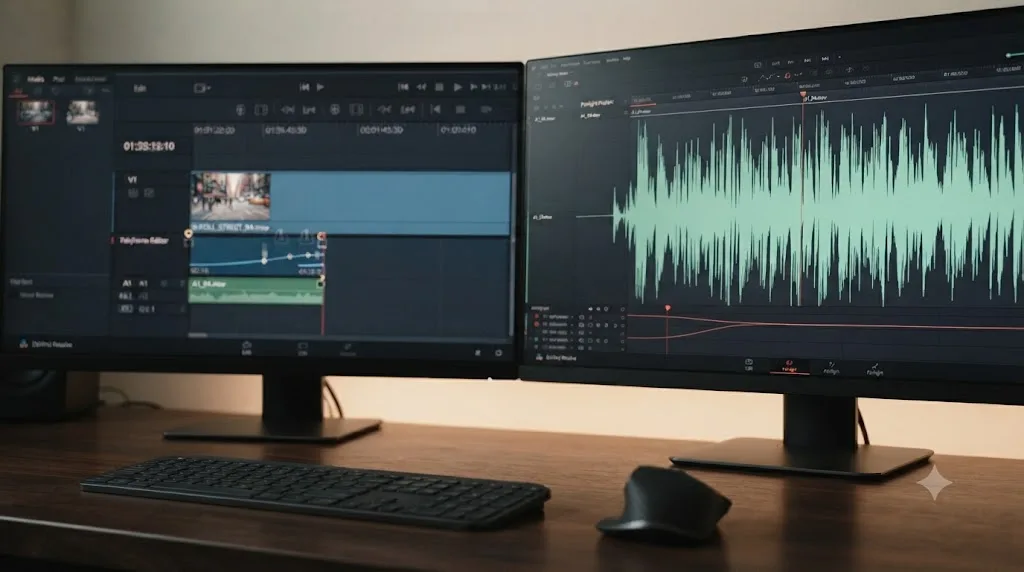
Does a locked track (the padlock icon) block height changes?
No, and this deserves its own section because it's a genuinely easy mistake, especially once you already know Lock Track Height To exists and the two names start to blur together in your head.
The padlock icon on a track header is a completely different feature from Lock Track Height To. It blocks edits: you can't trim, move, delete, or drop new clips onto a padlocked track. It says nothing whatsoever about that track's height. A fully padlocked timeline, every track locked against edits, still resizes exactly the same as an unlocked one, assuming Lock Track Height To isn't separately set on any of those tracks.
| Icon | What it locks | Does it affect track height? |
|---|---|---|
| Padlock (track header) | Trimming, moving, deleting clips on that track | No |
| Lock Track Height To (right-click menu) | The track's height specifically | Yes |
If you've been toggling the padlock on every track trying to fix a stuck height, that's wasted effort, and it's worth unlocking anything you locked during that troubleshooting pass before you keep editing, since a track you forgot was locked against edits causes its own separate confusion down the line. The setting you actually want, if a height genuinely won't budge, is the right-click Lock Track Height To submenu covered earlier in this guide, not the padlock.
Can you reset every track's height at once?
Not in a single dedicated command, and this is a real, acknowledged gap rather than something you're missing in a menu somewhere. A Blackmagic forum thread titled "Reset ALL Audio or Video Tracks height at once?" captures editors asking for exactly this and not finding a built-in one-click answer.
What does work, in order of how much of your timeline it affects:
- Select multiple tracks, then use Lock Track Height To. Selecting several tracks at once and choosing a size from that submenu applies it to all of them simultaneously, per the manual's own description, which is the closest thing to a batch reset available today. It sets a fixed size rather than "resetting to default," but it gets every selected track to a matching height in one action.
- Use the Timeline View Options video and audio height sliders. These move every unlocked track of that type together, so if only a few tracks are individually locked and the rest are fine, adjusting the slider handles the bulk of the work in one motion, and you only need to manually fix the locked exceptions afterward.
- Reset UI Layout, as a last resort for a genuinely broken display, not a batch height tool. This clears layout-level display bugs, including the dual-monitor drag issue covered earlier, but it doesn't reset every track's height to a specific value the way people asking this question usually want. Don't reach for it expecting a height reset; reach for it when the layout itself, not just one number, looks wrong.
If you're managing a project with a dozen or more tracks and you want them all at a consistent height going forward, doing the batch selection through Lock Track Height To once, at the start of your session, saves you from repeating this exercise every time a new track gets added at a mismatched size.
Does track height behave differently on Cut, Edit, Color, and Fairlight?
Yes, and worth testing separately if you're troubleshooting a symptom you only noticed on one page and assumed applied everywhere.
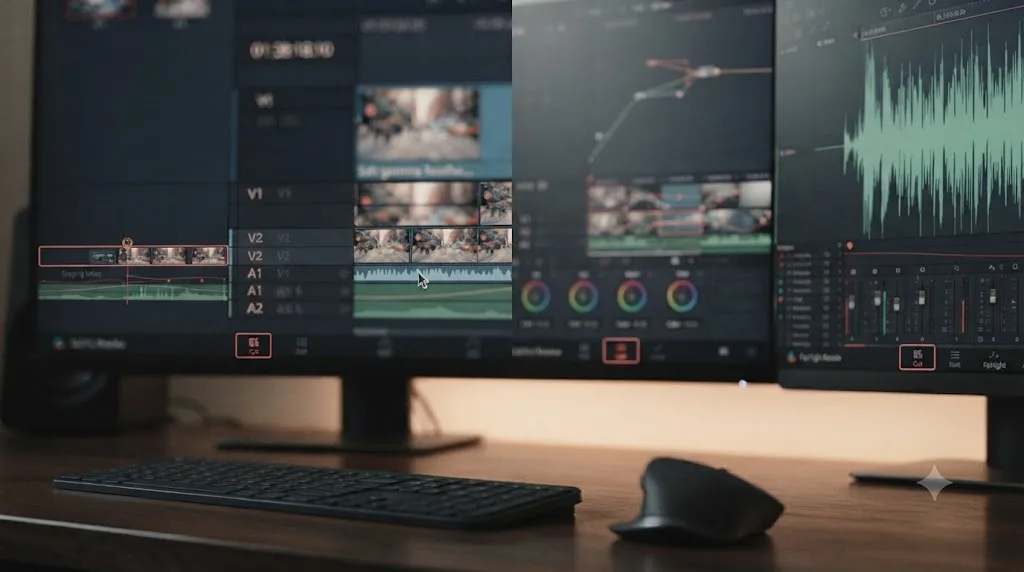
Our Cut page vs Edit page comparison covers the structural split between those two pages in depth, but the piece that matters here directly: the Cut page's dual timeline doesn't expose the same track height controls as the Edit page's full track stack, since the Cut page is built around a source tape and a simplified timeline rather than a detailed multi-track view. If you're looking for Lock Track Height To on the Cut page and can't find it, that's not a bug, it's a control that only exists in that form on Edit.
The Color page's timeline strip along the bottom of the screen inherits the same track data as the Edit page, but it's a thinner, purpose-built view for scrubbing through your grade, not for detailed track management, and it doesn't expose the same right-click height menu in the same way.
Fairlight, as covered above, goes the opposite direction: its tracks are built to grow far taller than anything the Edit page allows, because detailed audio work is the entire job of that page.
| Page | Track height controls | Notes |
|---|---|---|
| Edit | Full set: drag, Shift+scroll, Timeline View Options, Lock Track Height To | The primary place most height troubleshooting happens |
| Cut | Limited; no full track stack in the same form | Dual timeline and source tape replace detailed track management |
| Color | Thin timeline strip, view-focused | Shares underlying data, not built for height customization |
| Fairlight | Independent, much taller maximum height | The right tool for detailed waveform work |
Test the exact same track on each page you use before concluding your whole project has a height problem. A fix that works on Edit but doesn't carry over to how the track looks on Color is expected, not evidence of something broken.
Is there a keyboard shortcut for track height, and should you ask for one?
Not by default, and if you've gone looking for one and come up empty, you're not missing something that's actually there.
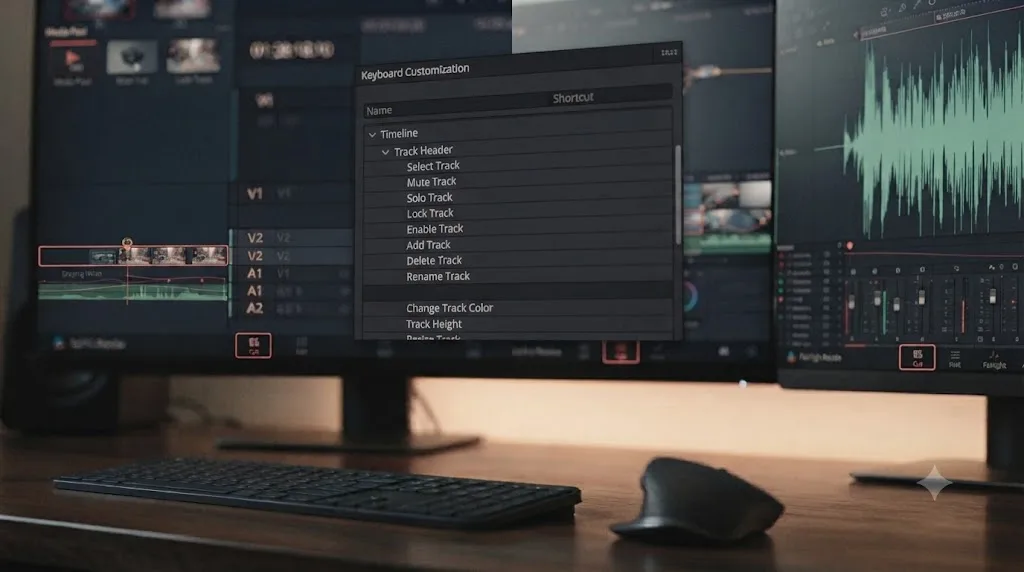
Per the manual's description of modifying timeline tracks, "Keyboard Shortcuts can be assigned for track header context menu actions to add, delete, move, change color, and link tracks." That's a real, documented list, and track height doesn't appear on it. A Blackmagic forum thread titled "Edit page > Track Height(s) assignable keyboard shortcuts" shows editors specifically requesting this as a missing feature, which is a reasonable ask given how often track height gets adjusted during a normal editing session, but it's not something the current keyboard customization system covers.
In practice, that leaves you with the same three built-in methods covered earlier in this guide: dragging a track header's border, Shift plus the scroll wheel, and the Timeline View Options sliders. None of them require you to leave the mouse for very long, which is likely part of why a dedicated keyboard shortcut hasn't been a high priority for Blackmagic to add, even though editors keep asking.
If a fast, muscle-memory way to jump between two or three preferred track heights would genuinely speed up your workflow, the honest move right now is filing that request with Blackmagic directly rather than hunting for a shortcut that doesn't currently exist, since forum requests like the one above are exactly how features like Lock Track Height To itself likely got prioritized in the first place.
What does the full diagnosis look like on a real setup?
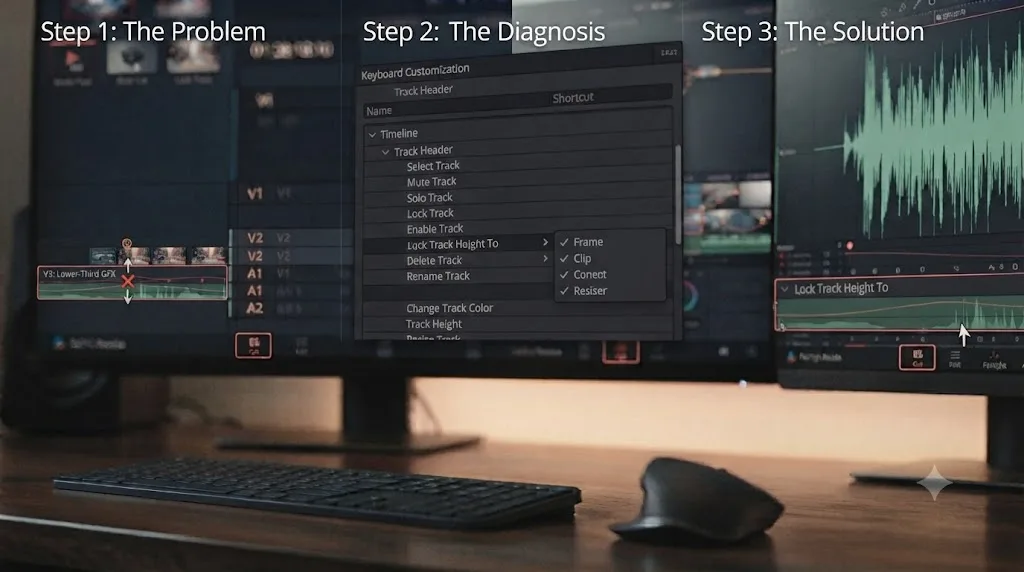
Put the pieces together on a common case: an editor working in DaVinci Resolve 21 on a multicam interview project with six video tracks, four of them holding different camera angles and two holding lower-third graphics, and a dozen audio tracks split across dialogue, room tone, and music.
The complaint: the two lower-third graphics tracks won't shrink no matter what's tried, while every camera angle track resizes normally with Shift+scroll.
Working the table from the top of this guide in order: first, right-click one of the stuck graphics tracks. Lock Track Height To shows Medium, not None. That single check explains everything. A previous session, working on the same project weeks earlier, had selected both graphics tracks together and locked them at Medium specifically so they'd stay visually consistent and out of the way while trimming was happening on the camera tracks below.
Setting Lock Track Height To back to None on both tracks immediately restores normal Shift+scroll behavior, no other change required. Total time from "these two tracks are broken" to "everything works exactly as documented": under two minutes, and the fix required editing exactly one setting, twice, in a menu the editor hadn't opened since the day they'd originally locked those tracks.
A second, smaller issue turns up during the same session: one dialogue track keeps looking taller than the rest whenever a specific clip is selected. That's the keyframe editor cause covered earlier, not a separate bug, confirmed by clicking that clip's keyframe icon and watching the track collapse back to normal the moment it's toggled off.
That's the pattern behind nearly every version of this complaint. The fix is almost never a corrupted project. It's almost always one setting, in one of a small number of specific places, that nobody had a reason to revisit until today.
Does the cause differ between Mac and Windows?
Mostly not, and that's worth stating plainly, since track height in DaVinci Resolve is almost entirely a project and UI-state issue rather than a platform-driven one.
Lock Track Height To, the keyframe editor's automatic expansion, and the per-project save behavior all work identically on Mac and Windows, since they're part of Resolve's own timeline logic rather than anything tied to the operating system underneath. The modifier key for the scroll-wheel resize method is the one small difference worth knowing: Shift+scroll is Shift on both platforms, unlike some of Resolve's other timeline shortcuts that swap Option for Alt or Command for Control between Mac and Windows. You don't need to relearn anything here switching platforms.
The dual-monitor drag cursor bug covered earlier was reported specifically in a Windows dual-display setup, and multi-monitor window and panel positioning bugs, generally, tend to show up more often on Windows, where laptop-plus-dock configurations that connect and disconnect throughout the day are more common in typical edit environments. That doesn't mean the bug can't happen on a Mac with two displays, only that it's been reported more frequently on Windows so far.
Is this a known bug tied to your DaVinci Resolve version?
Rarely, and not for this exact symptom as far as the current release notes show, though it's worth checking your version before you assume you're stuck with the problem indefinitely.
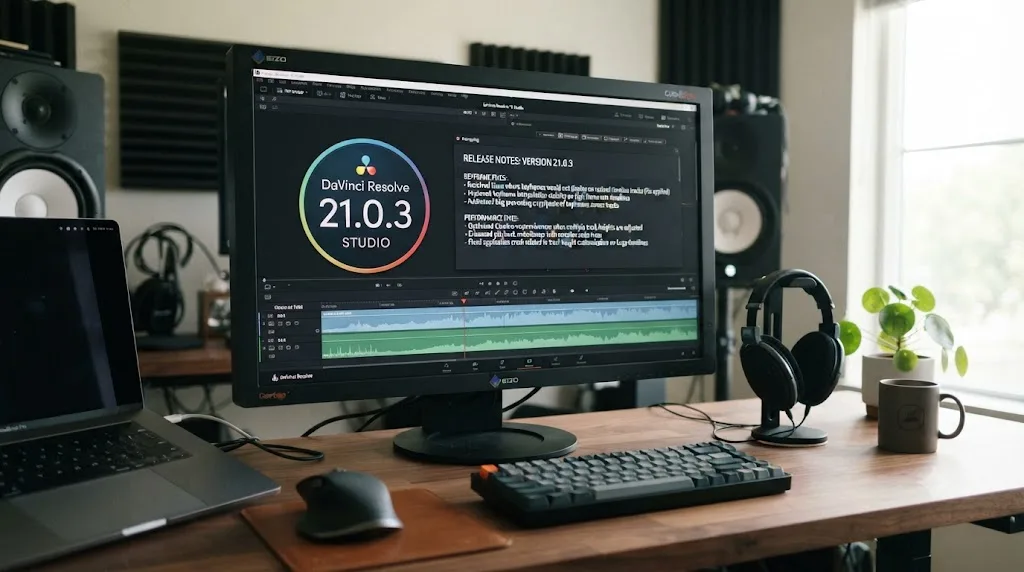
DaVinci Resolve 21.0.3, released on July 21, 2026, brought a batch of fixes according to coverage from Newsshooter covering the release, including a new legacy speed mode retime curve option, configurable keyframe ease actions, and a fix addressing an issue with pasting keyframes to linked audio clips, alongside general performance and stability improvements. None of those line items specifically mention track height or the Lock Track Height To submenu, so don't read this release as confirmation your exact problem has already been patched.
What a steady release cadence does tell you is practical: Blackmagic ships fixes to timeline and keyframe-adjacent behavior regularly, at roughly a monthly pace across 21.0.1, 21.0.2, and 21.0.3 so far. If your track height issue doesn't match any cause covered in this guide, updating to the newest point release is a reasonable next step before assuming you've found a genuine, unreported bug.
Reset UI Layout fixes a broken window arrangement. It does not reset a track's Lock Track Height To setting or clear an open keyframe editor. Keep that distinction in mind if you're debating whether your specific case is a version-level bug worth waiting out, or one of the causes covered earlier that you can fix yourself right now, in the menu it actually lives in.
What if nothing here fixes it?
Rare, but it happens, and at that point the remaining causes sit slightly outside the specific track-height mechanics covered so far.
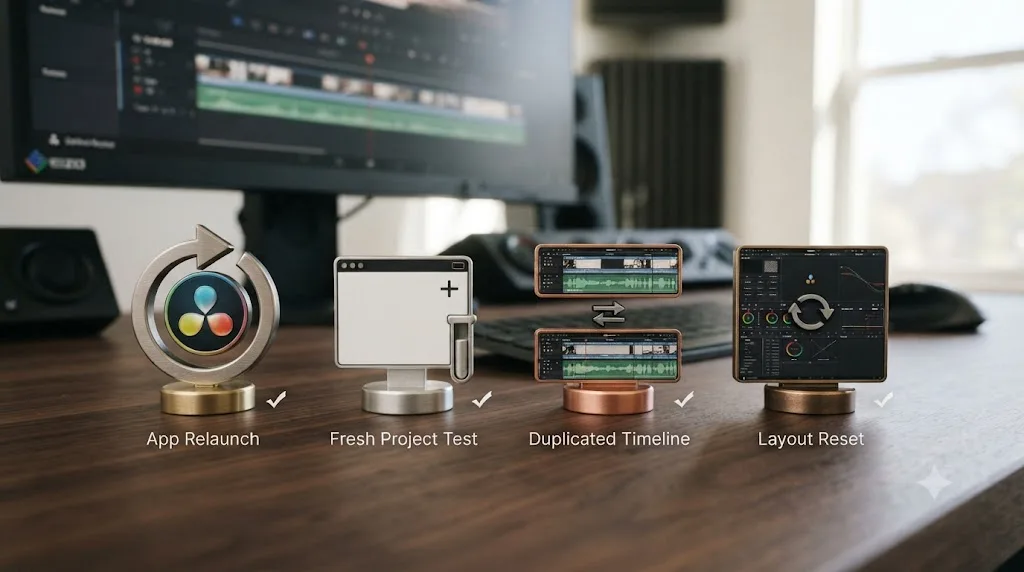
- Fully quit and relaunch DaVinci Resolve, not just close the project. A stuck internal state, though uncommon, doesn't always clear through UI navigation alone, and a full relaunch costs nothing before a deeper reset.
- Test in a brand-new, empty project. If a fresh project's tracks resize normally and only your original project's tracks are stuck, the cause is specific to that project's saved timeline state, not your Resolve installation.
- Duplicate the affected timeline. Right-click it in the Media Pool and choose Duplicate Timeline. Occasionally a stuck height clears on the duplicate even though it contains identical content, since the duplicate starts from a cleaner internal object.
- Reset UI Layout from the Workspace menu, understanding this addresses display-level bugs like the dual-monitor cursor issue, not a Lock Track Height To setting or an open keyframe editor.
- Update to the newest DaVinci Resolve 21 point release, especially if the problem started right after your last update.
- Contact Blackmagic Design support directly with your exact OS version, Resolve version, and a description of exactly which resize method you tried and what happened. If you've ruled out every cause on this page, you may have found a genuine edge-case worth reporting.
What's the fastest thing to try first?
Work through these in order before you assume anything about your project is actually broken:
- Right-click the stuck track's header and check Lock Track Height To. If it's set to anything but None, set it back to None.
- If only one clip's track looks tall, click that clip's keyframe icon again to collapse it.
- Confirm you're using the right method for the scope you want: drag the track header border for one track, Shift+scroll for a quick nudge, or the Timeline View Options sliders for every unlocked track of that type at once.
- Open a brand-new empty project and test the same resize, to isolate a project-specific cause from a global one.
- If the resize cursor appears correctly but dragging does nothing, try Workspace, Reset UI Layout, especially on a dual-monitor setup.
- If this is really about seeing audio waveforms clearly, stop pushing the Edit page's Audio Track Height slider and open the Fairlight page instead.
- Remember that track height saves per project, not per Workspace, so a fresh project starting at a default height isn't a bug.
- Update to the newest DaVinci Resolve 21 point release if the problem started right after an update.
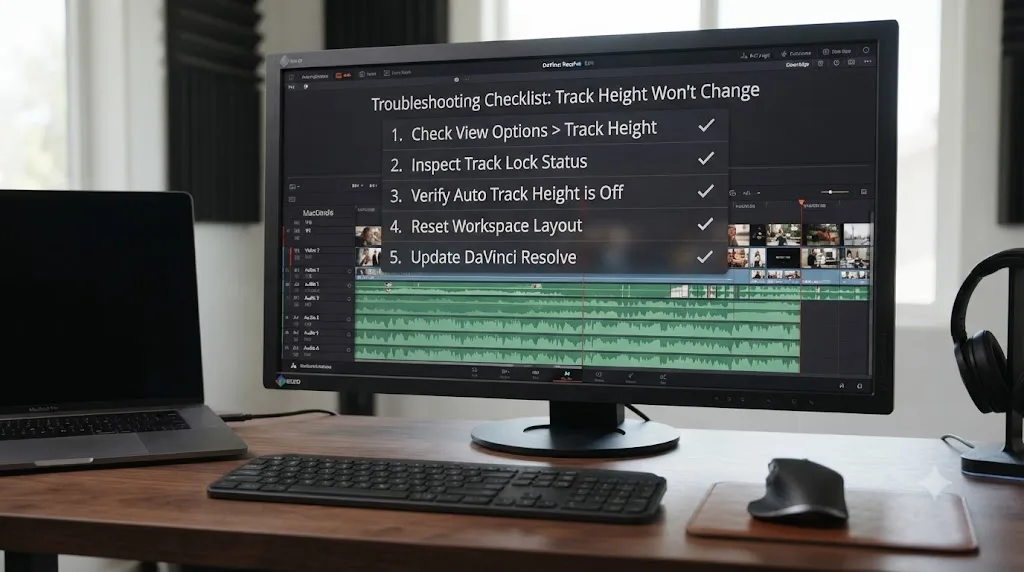
If digging through a right-click submenu you'd never opened before, just to find the one setting quietly blocking your track, ate more of your afternoon than it should have, that's exactly the kind of friction TryUncle is built for. TryUncle is the on-screen assistant for DaVinci Resolve on macOS. Ask in plain words and Uncle points at the exact control on your screen, instead of you cross-referencing a forum thread against a menu you've never needed before. It's a paid app, currently at founder pricing, and it's macOS only, so check TryUncle for the current rate if a live, on-screen pointer sounds more useful to you than another round of menu-hunting.
Most people land on step one or step two. The track isn't broken and the project isn't corrupted. Somewhere in a right-click menu, or on the bottom edge of a single clip, DaVinci Resolve is holding that track exactly where it was told to, on purpose, and it just never told you why. Find that one setting, and the track moves again like nothing was ever wrong.
Frequently asked questions
- Why won't Shift+scroll change my DaVinci Resolve track height?
- The most common reason is that the track has Lock Track Height To set to a fixed size, like Micro, Mini, Medium, Large, Extra Large, or Custom, instead of None. Per the DaVinci Resolve reference manual, once that's set, vertical zooming no longer affects that track until you change the option back to None. Right-click the track header, open Lock Track Height To, and check what it's currently set to before you assume Shift+scroll itself is broken.
- What does Lock Track Height To actually do?
- It pins one track, or several selected at once, to a fixed height so that zooming, whether through Shift+scroll or the Timeline View Options sliders, can't change it anymore. It's separate from the padlock icon that locks a track against edits. You can set multiple selected tracks to the same size in one action, and the manual notes that all highlighted tracks change to that size until you change it again, either globally or individually.
- Why did one clip's track suddenly get much taller than the others?
- Most likely you clicked a clip's keyframe icon, which opens the on-clip keyframe editor and expands that track to make room for the keyframe curve. It looks like a stuck resize, but it isn't. Clicking the same keyframe icon again collapses the track back to its normal height, and no setting in Timeline View Options or Lock Track Height To needs to change.
- Does the Timeline View Options height slider control every track?
- It controls the default video or audio track height for tracks that don't have their own Lock Track Height To override. A track locked to a specific size, even a track locked to Medium while the slider is set to Large, ignores the slider completely until you set that track's lock back to None. This is the single most common reason a global height slider seems to do nothing for one specific track while working fine on every other one.
- Why doesn't my track height setting carry over to a new project?
- Because DaVinci Resolve saves track height per timeline, inside that project, not as part of a Workspace or a global preference. Multiple Blackmagic forum threads describe editors expecting a preferred track height to persist across projects and finding it resets every time. Saving a Workspace layout preset preserves your panel arrangement, but it doesn't reliably preserve individual track heights, since those live with the timeline itself.
- Why can I see the resize cursor over the track boundary but dragging does nothing?
- This matches a known dual-monitor bug reported on the Blackmagic forum, where the cursor changes to the resize icon on hover but a drag doesn't actually move the boundary, particularly right after changing which display holds the Resolve window. Workspace > Reset UI Layout, followed by reconnecting your monitors in their usual arrangement, resolved it for the editor who reported it.
- Is there a keyboard shortcut for changing track height in DaVinci Resolve?
- Not a default one for cycling through preset sizes. DaVinci Resolve does let you assign keyboard shortcuts to track header context menu actions like adding, deleting, moving, coloring, and linking tracks, but a dedicated shortcut for track height isn't part of that default set, and it's a feature editors have requested on the Blackmagic forum more than once. Shift+scroll, dragging the track header border, and the Timeline View Options sliders remain the three built-in methods.
Sources
- DaVinci Resolve Reference Manual: Controls in the Audio Timeline (Lock Track Height To)
- DaVinci Resolve Reference Manual: Modifying Timeline Tracks
- DaVinci Resolve Reference Manual: Resetting to the Default Layout
- Creative COW: Reducing super annoying track height for text clips? (Ben Singer, Michael Gissing, Tom Watson)
- Creative COW: Expanding Audio Clip Track Height in the Timeline (Jason Jones, Michael Gissing)
- Blackmagic Forum: Resize Timeline Height In Edit Page
- Blackmagic Forum: Cant adjust timeline display height
- Blackmagic Forum: Timeline track height/orientation never seems to stick
- Blackmagic Forum: How to save track heights?
- Blackmagic Forum: Reset ALL Audio or Video Tracks height at once?
- Blackmagic Forum: Track height keeps resetting
- Blackmagic Forum: How reset track heights to where you had them?
- Blackmagic Forum: large space between V1 and V2
- Blackmagic Forum: Lock Track Height to - Custom
- Blackmagic Forum: Edit page > Track Height(s) assignable keyboard shortcuts
- Newsshooter: DaVinci Resolve 21.0.3 Update
Put this guide to work with TryUncle.
Ask about the step you’re on. TryUncle sees your screen and points at the control you need, so you can keep learning in your own project.
Get TryUncle for Mac or WindowsKeep reading
Fixes · Jul 17, 2026 · 25 min
DaVinci Resolve Timeline Won't Scroll or Zoom? Here's the Fix
Fix a DaVinci Resolve timeline that won't scroll or zoom: check 2D Timeline Scrolling, your modifier keys, trackpad gestures, and a stuck UI layout.
Fixes · Jul 20, 2026 · 23 min
DaVinci Resolve Edit Page Toolbar Missing? Here's the Fix
Your DaVinci Resolve Edit page toolbar disappeared? It's almost always a hidden panel or a UI layout glitch, not lost data. Every real cause and fix.
Guides · Jul 11, 2026 · 31 min
How to Mix Audio in DaVinci Resolve Using Fairlight
Mix audio in DaVinci Resolve's Fairlight page: build a dialogue/music/effects bus structure, gain-stage your clips, EQ and compress dialogue, then duck music under it.