Articles / Guidesupdated for DaVinci Resolve 21.1 (October 2026)
DaVinci Resolve Conform Lock From Media Pool: Fixes
Quick answer
To use DaVinci Resolve conform lock from media pool, select the replacement clip in the Media Pool, right-click the target clip in the timeline, and choose Conform Lock with Media Pool Clip. Resolve uses matching timecode when available, or aligns the selected source's first frame to the existing timeline duration.
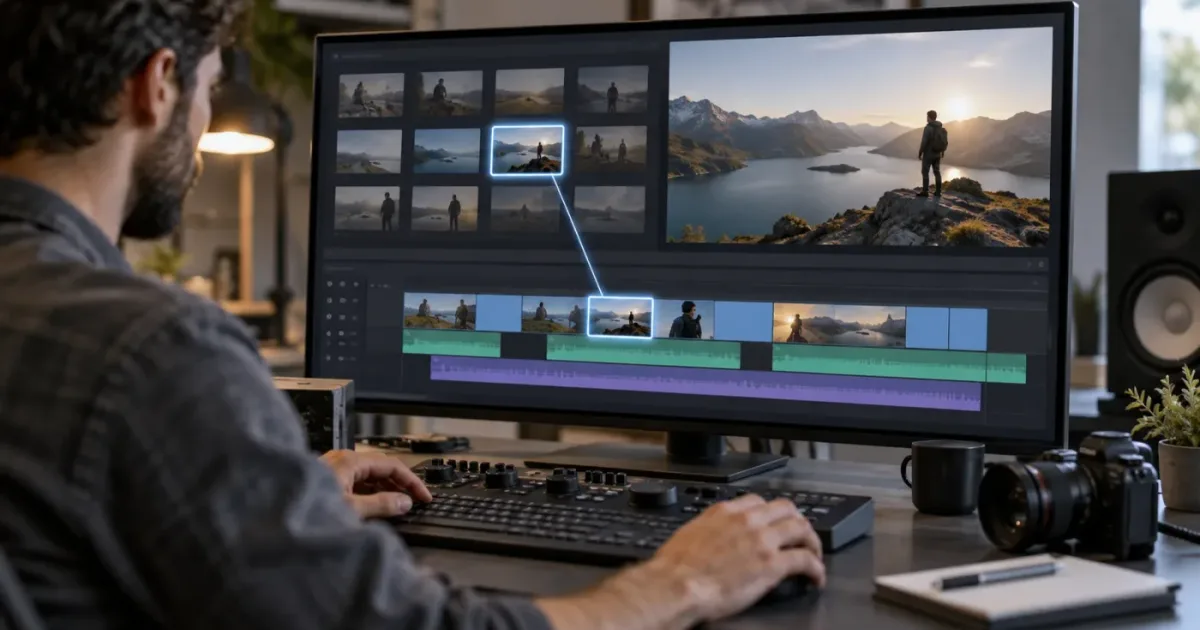
The clip you want is already in the Media Pool. The timeline still points to the wrong take, proxy, VFX version, or camera file. That is exactly what the conform-lock command is for.
As of October 2026, the current Blackmagic Design support listing includes the DaVinci Resolve 21.1 Reference Manual. In Resolve 21.1, the reliable one-clip workflow is simple: select the replacement in the Media Pool, right-click the target in the timeline, and choose Conform Lock with Media Pool Clip. The command uses timecode when it can, but it can still place the chosen media when the timecode does not match.
We built and run a 100,000+ member professional video-editing community, and this is one of the recurring questions editors bring to it. After 7+ years of professional, commercial video editing, we’ve learned to treat conforming as a source-control problem first and a button problem second.
How do I use DaVinci Resolve conform lock from media pool?
To use DaVinci Resolve conform lock from media pool, select the replacement clip in the Media Pool, right-click the target clip in the timeline, and choose Conform Lock with Media Pool Clip. The command is for a deliberate one-clip replacement, not a general relink of every offline file.
The five-step workflow
- Open the bin that contains the media you want to use.
- Click the replacement clip in the Media Pool. Do not merely highlight the bin. Resolve needs a specific source clip.
- Right-click the clip in the timeline that should change.
- Choose Conform Lock with Media Pool Clip.
- Play across the cut and compare the image, duration, source timecode, and audio relationship before moving on.
The Resolve 21 manual’s conforming chapter says the selected Media Pool clip must be equal in length or longer than the timeline clip for the force conform to succeed. That is a practical check worth making before you troubleshoot menus. A 12-second source cannot safely supply a 20-second timeline instance.
If the source has matching timecode, Resolve conforms the new media to the original timeline position. If the timecode does not match, Resolve aligns the first frame of the Media Pool clip with the first frame of the reconformed timeline clip and keeps the timeline duration. That second behavior is useful for a deliberate replacement, but it is also why you must watch the result rather than trust the command blindly.
Conform Lock with Media Pool Clip is a manual source choice for one timeline clip, not a project-wide relink command.
Why is Conform Lock with Media Pool Clip greyed out?
Conform Lock with Media Pool Clip is usually unavailable because Resolve does not have the required source and target selection, or because the target is already conform locked. Select one Media Pool clip first, then right-click an eligible timeline clip.
Check these conditions in order:
| Check | What should be true | Why it matters |
|---|---|---|
| Media Pool source | One replacement clip is selected | The command needs an explicit source |
| Timeline target | One target clip is selected or right-clicked | Resolve needs to know what will change |
| Target state | The clip is unconformed or its lock can be suspended | A locked clip rejects ordinary alternate matches |
| Source duration | Source is equal to or longer than the timeline selection | Force conform needs enough source material |
| Active timeline | The target is a clip in the open timeline | A bin clip and a timeline instance are different objects |
If the target is locked, first choose Conform Lock Enabled in the timeline clip’s context menu to turn that protection off. Then select the Media Pool source and run the force conform command again. The Resolve manual describes the command as automatically suspending the target’s conform lock while it performs the manual match.
Do not confuse this with Relink Media. Relinking repairs the connection between a Media Pool clip and its file on disk. Conforming changes which Media Pool clip a timeline instance references. If the correct Media Pool clip is already online, conforming is usually the more precise operation.
What does Conform Lock Enabled do in DaVinci Resolve?
Conform Lock Enabled tells DaVinci Resolve to keep a timeline clip tied to its current Media Pool source and ignore other clips with matching file names or overlapping timecode. It is a guardrail against an unwanted replacement after new media enters the project.
The setting matters because a timeline clip and a Media Pool clip are related, but they are managed as separate objects. Resolve 21’s manual says that imported or new timeline clips normally have Conform Lock Enabled turned on, unless the source media is missing. With the lock on, the current source is the accepted match. Other candidates are ignored.
When you disable the setting, Resolve can consider alternate clips. If more than one candidate matches, a red <!> conflict badge can appear beside the timeline clip. Double-clicking that badge opens the conflict choices so you can decide which source is correct.
Use the lock in three moments:
- After a manual replacement that you have checked.
- After a reconform from a controlled bin where the new matches are intentional.
- Before importing another batch of media that shares file names, reel names, or timecode with the current edit.
Leave the lock off only while you are actively reconforming. If you forget, later imports can make the timeline eligible for automatic changes. That is the opposite of what you want after picture lock.
Conform Lock Enabled protects a confirmed source match; it does not protect the pixels of a timeline clip from editing.
Why did Resolve replace the wrong media after I imported a clip?
Resolve can replace the wrong media when Conform Lock Enabled is disabled and multiple Media Pool clips satisfy the matching criteria. The fix is to narrow the candidate set, choose the intended source manually, then re-enable the lock.
The common pattern looks like this:
- You edit with low-resolution or proxy media.
- You import camera originals, new VFX renders, or another transcode.
- The incoming files share a name, reel name, timecode range, or other metadata with existing clips.
- The target timeline clips are unlocked.
- Resolve finds more than one possible match.
Resolve 21 has an Automatically conform missing clips added to Media Pool setting in Project Settings under General Options. The manual says that automatic conforming can update missing clips and clips whose Conform Lock Enabled setting is disabled. It also warns that the setting must be disabled for collaborative workflows.
That option is not automatically bad. It is useful when you deliberately add the next approved version of missing media. It is risky when a shared project contains multiple versions of the same source, especially if assistants import media while another editor is working.
Use this decision rule:
| Situation | Best first move | Lock state after the move |
|---|---|---|
| One timeline clip needs a known replacement | Conform Lock with Media Pool Clip | Enable Conform Lock Enabled after checking |
| Many clips need high-resolution versions from one bin | Reconform From Bins | Enable the post-conform lock option |
| Media moved but the same Media Pool clips remain | Relink Media or Change Source Folder | Existing source relationship remains |
| Missing media is not yet in the Media Pool | Import the source, then use automatic or manual conform | Check the imported matches |
| Several candidates share timecode | Disable the lock temporarily and resolve conflicts | Lock each confirmed result |
The key distinction is scope. A manual conform is narrow. A bin reconform is broad. A relink fixes a file path. Choosing the broadest command for a one-clip problem creates unnecessary risk.
Should I use Conform Lock with Media Pool Clip or Relink Media?
Use Conform Lock with Media Pool Clip when the correct Media Pool clip is already present and you want a timeline instance to point to it. Use Relink Media when the Media Pool clip is correct but its underlying file has moved or gone offline.
Here are the practical differences:
| Question | Conform Lock with Media Pool Clip | Relink Media |
|---|---|---|
| What changes? | The timeline instance’s source relationship | The file path behind a Media Pool clip |
| Where do you start? | A source clip in the Media Pool and a target in the timeline | An offline or unlinked Media Pool clip |
| Is the command selective? | Yes, normally one timeline target at a time | Yes, it can work on selected clips or bins |
| Does timecode align the replacement? | Yes, when matching timecode is available | Relinking searches for the corresponding file |
| Best use | Wrong take, proxy, VFX version, or camera source | Moved, renamed, or disconnected media |
| Main risk | Wrong source or wrong starting frame if metadata differs | Matching the wrong file in a broad folder search |
The official Resolve documentation says Relink works for unlinked clips, not missing clips, because a missing clip has no corresponding Media Pool entry. That sentence is more useful than the vague advice to “just relink.” First identify whether the problem is the source relationship or the disk path.
If you’re seeing a Media Offline badge, the DaVinci Resolve Media Offline guide covers the broader diagnosis. If the file is online but the timeline is using a different version, stay in the conform workflow.
How do I replace a proxy with camera original media from the Media Pool?
For a single proxy-to-camera-original replacement, select the camera original in the Media Pool and use Conform Lock with Media Pool Clip on the proxy instance in the timeline. For a whole timeline, use a dedicated source bin and Reconform From Bins instead of repeating a one-clip command.
The one-clip method is safest when you are correcting a visible mistake or testing a single replacement:
- Put the camera original in the Media Pool and confirm its reel, timecode, and duration.
- Open the bin that contains the camera original.
- Select the camera-original clip.
- Right-click the proxy instance in the timeline.
- Choose Conform Lock with Media Pool Clip.
- Check the first frame, last frame, speed changes, and any linked audio.
- Enable Conform Lock Enabled once the match is approved.
For a batch, place only the intended camera originals in a separate bin. Select the clips to change in the timeline, disable their conform locks, right-click the timeline in the Media Pool, and choose Timelines > Reconform From Bins. Resolve lets you choose the bins and matching criteria. The manual lists criteria that can include timecode, reel name, file name, total duration, resolution, bit depth, frame rate, file format, codec, and Media UMID or UID.
The dedicated-bin step is not decoration. It limits the candidates. If the source bin contains both proxies and originals, you have made the matching problem harder before Resolve has even started.
If your current workflow is specifically about mixed proxy formats, the sibling guide on DaVinci Resolve 21 relinking proxies with different formats is the better next read. It covers a format-specific case. This page handles the deliberate source selection that happens inside the Media Pool.
Why is the replacement starting at the wrong frame?
The replacement starts at the wrong frame when the selected Media Pool clip does not share the timeline clip’s timecode or when its usable duration and source start differ from the original. Conform Lock does not invent a matching editorial frame; it follows the available metadata and alignment rules.
There are two different outcomes to separate:
Matching timecode
When the selected Media Pool source has timecode matching the selected timeline clip, Resolve can align the new media to the original timeline position. This is the expected result for properly logged camera originals, matching transcodes, and many VFX version workflows.
Non-matching timecode
When the timecode does not match, the Resolve 21 manual says the first frame of the selected Media Pool clip is aligned with the first frame of the reconformed timeline clip, while the timeline duration is preserved. The image may therefore show a different moment from the old source even though the cut remains the same length.
Before you decide the command failed, check four things:
- The source clip’s start timecode.
- The timeline clip’s source timecode.
- The source duration compared with the timeline duration.
- Whether the source is a full clip, a trimmed export, or a new VFX render.
If the shot begins at the wrong moment, undo the conform, select the correct longer source, and repeat. If the correct source is shorter than the timeline instance, Conform Lock is not the right way to extend it. You may need to revise the edit, use a longer source, or trim the timeline first.
Also inspect linked audio. A video replacement can be visually correct while the original audio remains attached to a different source relationship. Do not approve a conform by looking at one frame. Play through the cut.
A successful conform preserves the timeline edit, but it cannot repair incorrect source timecode or a source clip that is too short.
How do I conform several timeline clips without replacing the wrong ones?
To conform several clips safely, unlock only the intended timeline clips, isolate the approved replacement media in one or more dedicated bins, use Reconform From Bins, and enable the lock again after the operation. This gives Resolve a controlled candidate list.
A safer batch workflow
- Duplicate the timeline before the batch operation. Name the duplicate with the date and purpose.
- Put the replacement media in a separate Media Pool bin. Keep unrelated clips out.
- Select only the timeline clips that should change.
- Right-click and disable Conform Lock Enabled for those clips.
- Right-click the timeline in the Media Pool and choose Timelines > Reconform From Bins.
- Choose Selected Clips if the dialog offers that scope. Do not choose all clips unless that is genuinely the job.
- Select only the replacement bin or bins.
- Start with the narrowest useful criteria, usually timecode plus the file or reel metadata you trust.
- Enable Set clips to Conform Lock Enabled after conform when the dialog provides it.
- Review every conflict badge and every changed shot.
The manual says Reconform From Bins only updates timeline clips that can be matched to source clips in the chosen bins. Clips without a match remain unchanged. That makes the command useful for a controlled batch, but it does not remove the need for review.
If multiple clips share the same file name and overlapping timecode, Resolve can still expose a conflict. Narrowing the bin is usually cleaner than adding more matching criteria until the dialog becomes opaque. Metadata can disambiguate a conform, but a smaller candidate set is easier to audit.
When Reconform From Media Storage is better
Use Reconform From Media Storage when the media exists on disk but has not been imported into the Media Pool. That is a different operation. It can search a selected directory and its subdirectories for matching media without first adding every file to the project.
For collaborative work, follow the manual’s warning about automatic conforming. A setting that feels convenient in a personal project can produce surprising changes when several people import material into the same project.

What does the red <!> conflict badge mean?
The red <!> badge means Resolve has found multiple possible Media Pool matches for a timeline clip whose conform lock is not protecting one confirmed source. Double-click the badge to inspect the candidates, then choose the source that matches your reference.
A conflict is not the same as missing media. A missing clip has no corresponding Media Pool source. An unlinked clip exists in the Media Pool but has lost its connection to the file on disk. A conflict means Resolve can see more than one plausible source.
The Resolve 21 manual distinguishes these states because the fix differs:
- Missing clip: import the corresponding source or manually conform it.
- Unlinked clip: relink the Media Pool clip or manually conform it.
- Conflict: inspect candidate metadata and choose the correct source.
- Wrong source by decision: use Conform Lock with Media Pool Clip to make the intended choice.
Marc Wielage, a long-time Resolve forum contributor who identifies as a director and editor, gives the short operational answer for the warning state: “If you don't want to see the conform warning flag on that clip instance then you need to set its 'Conform Lock Enabled' flag or adjust your Conform Options accordingly.” The quote is from his reply in the Blackmagic Forum.
That advice is about the warning flag, not about hiding a real mistake. Lock the clip after you have verified the source. Do not enable the setting just to make the badge disappear.
How do I use a keyboard shortcut for conform lock?
DaVinci Resolve lets you assign a custom shortcut to the conform command through Keyboard Customization, but the exact shortcut is a user preference rather than a universal Resolve 21 key. Assign one only after you understand which direction of conform it triggers.
The context menu wording matters. Resolve has commands for conforming a timeline clip with a selected Media Pool clip and for conforming in other selection contexts. Community posts often mention function keys or custom bindings, but those bindings can differ between systems and custom keyboard presets.
Use this safe setup:
- Open the Resolve menu and choose Keyboard Customization.
- Search for
Conform Lock. - Read the full command name, not only the first matching result.
- Assign an unused shortcut in your current preset.
- Test it on a duplicate timeline with one known replacement.
- Keep the context-menu method available when the source and target selection is ambiguous.
The shortcut can reduce repetitive work, but it cannot choose the right source for you. A fast wrong conform is still wrong. If the command is not behaving as expected, return to the visible Media Pool and timeline selections before changing your keyboard preset.
For broader shortcut work, use the DaVinci Resolve keyboard shortcuts reference. This page’s recommendation is narrower: map the command only after you can explain what it will replace.
Is Conform Lock the same as replacing a clip?
Conform Lock is a source-conforming operation, not the same as dragging a new file over a timeline edit or replacing a Media Pool clip on disk. It aims to preserve the timeline instance while changing the Media Pool source relationship.
That distinction matters for editorial properties. A conform can keep the existing edit duration and position while changing which source supplies the frames. A conventional replacement workflow may change more, depending on the command, selection, and clip attributes involved.
Use Conform Lock when the editorial cut is correct but the source association is wrong. Examples include:
- A proxy is still connected after the online source is imported.
- A VFX shot needs to point to the approved render version.
- An XML or AAF import chose the wrong candidate.
- A multicam or nested timeline instance needs a deliberate source choice.
- A clip was imported with metadata that makes automatic matching unreliable.
Use a different method when the timeline itself needs new timing, new handles, different speed, or a creative replacement. Conform Lock is not a general-purpose editorial replacement tool.
What should I verify after conforming from the Media Pool?
After conforming, verify the source identity, first and last frames, duration, audio relationship, color treatment, and lock state. A conform is approved only when the new source is correct in context, not merely when the file name changes.
Use this short review pass:
| Review item | Question to answer |
|---|---|
| Source identity | Is this the intended take, camera original, proxy, or VFX version? |
| First frame | Does the shot begin on the same action or word as the reference? |
| Last frame | Does the outgoing cut still land at the right moment? |
| Duration | Did the timeline duration remain appropriate? |
| Audio | Is linked or separately recorded audio still in sync? |
| Speed | Do retimes, freezes, or reverse effects still make sense? |
| Grade | Does the source carry the expected clip or remote grade relationship? |
| Lock state | Is Conform Lock Enabled on when the source is approved? |
| Conflict badge | Is any remaining warning understood rather than merely hidden? |
If the project came from another NLE, compare against the reference movie or offline export. Resolve’s conform chapter recommends using the available reference and metadata rather than judging only from filenames. File names are clues. They are not proof.
For a source-selection problem, this guide is the relevant one. Keep those two cases separate and the repair stays small.
What is the safest conform-lock workflow at picture lock?
The safest picture-lock workflow is to duplicate the timeline, isolate approved finishing media, unlock only the clips that must change, conform from a controlled source, review against a reference, and then enable Conform Lock on the approved results.
Use this order:
- Save the current project and duplicate the timeline.
- Label the duplicate as the conform or online version.
- Create a dedicated bin for the media that should replace the current sources.
- Confirm the intended source versions before changing any timeline clips.
- For one or two exceptions, use Conform Lock with Media Pool Clip.
- For a batch, use Reconform From Bins with Selected Clips and the dedicated bin.
- Review changed clips against the offline or reference movie.
- Check audio sync, speed changes, handles, and color relationships.
- Enable Conform Lock Enabled on approved clips.
- Keep the original timeline untouched until the conform review is complete.
This workflow separates a reversible decision from a broad automatic operation. It also leaves an audit trail in the project: an original timeline, a conform timeline, a named source bin, and confirmed lock states.
At picture lock, the safest Resolve conform is the smallest operation that changes only the approved source relationships.
TryUncle is the on-screen assistant for DaVinci Resolve on Mac and Windows — ask in plain words and Uncle points at the exact control on your screen.
Which DaVinci Resolve learning path helps with conforming?
The best way to learn DaVinci Resolve conforming is to practice one controlled source replacement, then a dedicated-bin batch reconform, while comparing each result against a reference. A course can explain the terminology, but the decision happens inside the Media Pool and timeline you are actually using.
Blackmagic’s free official training remains the authority for the application’s own workflow and terminology. YouTube educators such as Casey Faris can help you see the interface in motion. Community answers are useful for edge cases, especially when an imported XML, proxy, or VFX version behaves differently from the textbook example. Paid courses on Udemy or Coursera can add structure, but they vary by instructor and version.
We’ve taught 100,000+ students on Udemy and are an official Udemy Business Partner, and we’ve taught and worked with Fortune 500 companies. The practical lesson is consistent: learn the difference between a file path problem, a Media Pool source problem, and a timeline conform problem before memorizing commands.
That is also why a screen-aware app that helps you while using DaVinci Resolve can be useful for this topic. The help is most valuable when the tutorial’s menu names do not match your version or when you need to identify whether you are in the Media Pool, timeline, or project settings.

What is the final answer for DaVinci Resolve conform lock from media pool?
Use Conform Lock with Media Pool Clip when one timeline clip needs to point to a specific source that is already in the Media Pool. Select the source first, choose the timeline target second, check duration and timecode, review the replacement, and turn Conform Lock Enabled back on when the match is approved.
Use Relink Media for a moved file. Use Reconform From Bins for a controlled batch. Use Reconform From Media Storage when the source is on disk but not yet in the Media Pool. Those choices keep the scope of the fix aligned with the problem.
The command is small. The judgment is not. Make the source choice deliberately, verify the cut, and lock the result.
Frequently asked questions
- How do I use DaVinci Resolve conform lock from media pool?
- Select the replacement clip in the Media Pool, right-click the target clip in the timeline, and choose Conform Lock with Media Pool Clip. The replacement must be at least as long as the timeline selection for the command to work.
- Why is Conform Lock with Media Pool Clip greyed out?
- The command needs a clip selected in the Media Pool and an unconformed target clip in the timeline. Select the source first, then select the timeline clip, and check that the source is long enough.
- What does Conform Lock Enabled do in DaVinci Resolve?
- Conform Lock Enabled tells Resolve to keep a timeline clip tied to its current Media Pool source and ignore other clips with matching names or overlapping timecode. Disable it only when you want Resolve to consider other possible matches.
- Why did Resolve replace the wrong media after I imported a clip?
- Resolve can choose another match when Conform Lock Enabled is disabled and multiple Media Pool clips share matching metadata. Use a dedicated bin, narrow the conform criteria, or manually choose the source with Conform Lock with Media Pool Clip.
Sources
- Blackmagic Design Support Center, DaVinci Resolve 21.1 Reference Manual listing
- DaVinci Resolve 21 manual, Chapter 22: Importing and Conforming Timelines
- Blackmagic Design DaVinci Resolve 21 Reference Manual, official download area
- Marc Wielage on Conform Lock warning flags, Blackmagic Forum
- FTV Technical Training: DaVinci Resolve conforming media
Put this guide to work with TryUncle.
Ask about the step you’re on. TryUncle sees your screen and points at the control you need, so you can keep learning in your own project.
Get TryUncle for Mac or WindowsKeep reading
Fixes · Jul 7, 2026 · 26 min
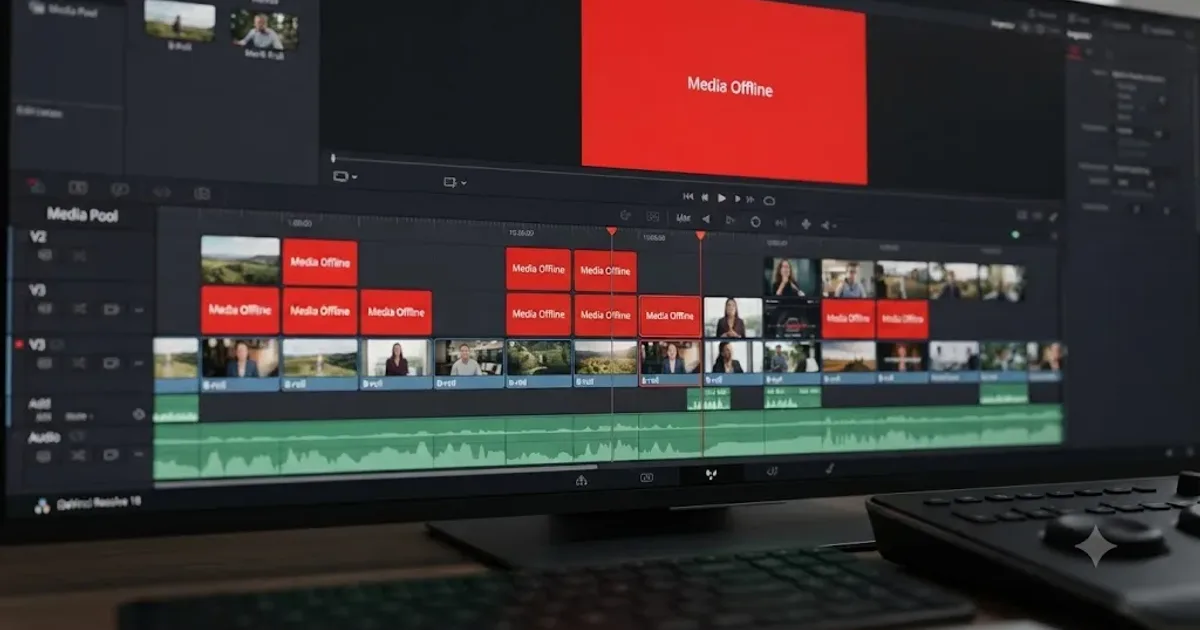
DaVinci Resolve Media Offline: Every Cause and the Fix
Every reason DaVinci Resolve marks a clip media offline, and the exact relink, cache, and codec fixes for each cause, in order of how often they happen.
Fixes · Sep 27, 2026 · 18 min
DaVinci Resolve 21 Relink Proxies With Different Formats
Fix DaVinci Resolve 21 proxy relinking when originals and proxies use different extensions, containers, or codecs.
Fixes · Sep 29, 2026 · 37 min
DaVinci Resolve Source Auto Select Not Working? Fix It
Fix DaVinci Resolve source auto select not working by separating blue source patching, red track destinations, Auto Track Selector, and Sync Lock.