Articles / Fixesupdated for DaVinci Resolve 21.0.2 (July 2026)
DaVinci Resolve DJI Osmo Pocket 3 Log Footage Import: Every Fix
Quick answer
DaVinci Resolve almost always imports Osmo Pocket 3 D-Log M footage fine; what looks broken is usually color, not the file. D-Log M looks flat until you apply DJI's official Rec.709 LUT or a matching Color Space Transform, Resolve's built-in DJI D-Log preset is for a different DJI profile and will oversaturate D-Log M, and free Resolve on Windows may need Microsoft's HEVC extension just to play the H.265 files.
You picked up an Osmo Pocket 3 because it shoots real 10-bit color in something small enough to fit in a jacket pocket. You set it to D-Log M for maximum flexibility, brought the files into DaVinci Resolve, and now you're staring at a clip that's either flat and lifeless, wildly oversaturated, sideways, or not playing at all.
None of those four things means your footage is broken. A flat, grey D-Log M clip in your Media Pool isn't a failed import. It's an unfinished conversion. The Pocket 3 is a genuinely capable little camera, and Resolve handles its footage well once you know which of a small handful of causes you're actually looking at.
What's actually going wrong when Osmo Pocket 3 footage misbehaves in Resolve?
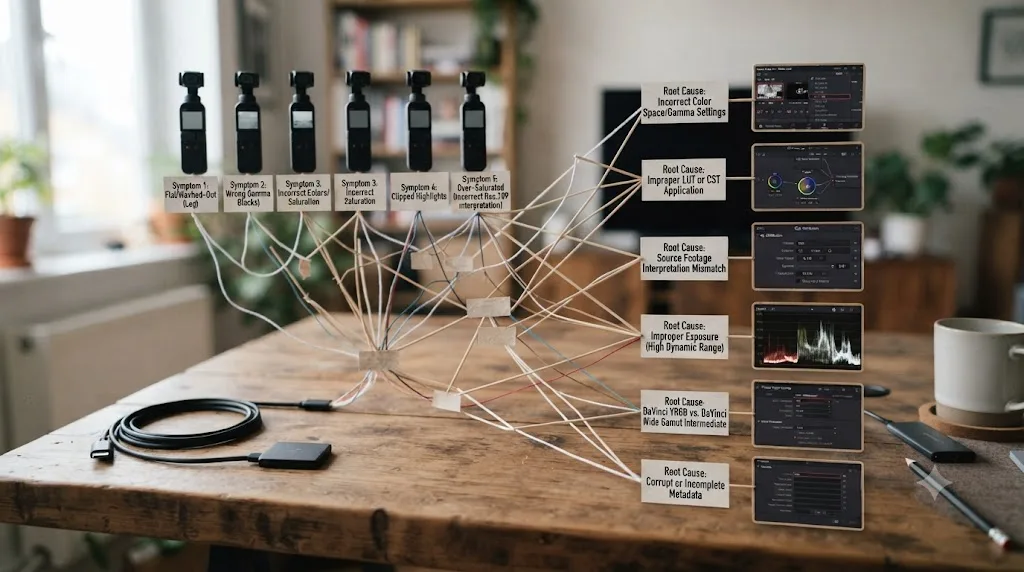
Before you touch a single setting, match what you're seeing against this list. Each row has a different root cause, and treating them as the same problem wastes an editing session.
| What you see | What's actually happening |
|---|---|
| Clip imports and plays, but looks grey, flat, and desaturated | Normal. D-Log M is meant to look like this before grading |
| Clip imports and plays, but color looks wrong even after grading, oversaturated blues especially | You applied Resolve's built-in DJI D-Log preset to D-Log M footage, or a mismatched LUT |
| Clip won't play at all, stutters heavily, or Resolve reports it can't decode the file | H.265 decode limitation, mostly on the free version of Resolve on Windows |
| Vertical clip looks lower resolution than your horizontal footage | Osmo Pocket 3's genuine 3K portrait ceiling, not an error |
| Vertical or horizontal clip plays rotated 90 degrees | Rotation metadata Resolve is misreading, unrelated to color or codec |
| Playback stutters or your CPU maxes out even after color is correct | Decode load from 10-bit H.265 at up to 130 Mbps, not a project setting problem |
Notice one thing missing from that table: a file DaVinci Resolve simply refuses to recognize as a video at all. That does happen occasionally with phone and action-cam footage from other brands, and our guide to DaVinci Resolve's Unsupported File Format error covers those general codec causes. With the Osmo Pocket 3 specifically, the far more common story is a file that imports cleanly and then looks wrong, plays poorly, or shows an unexpected resolution, all for reasons that have nothing to do with a corrupted transfer.
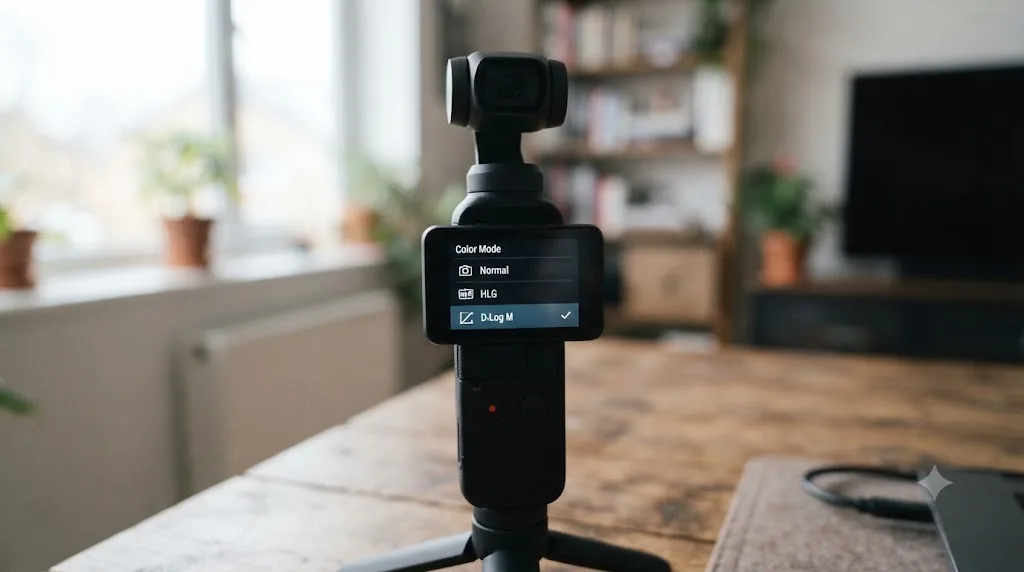
Is D-Log M actually turned on, and should you be shooting it at all?
This is worth confirming before you assume Resolve did anything wrong, since the Pocket 3 offers three separate color modes and it's easy to grab the wrong one without noticing.
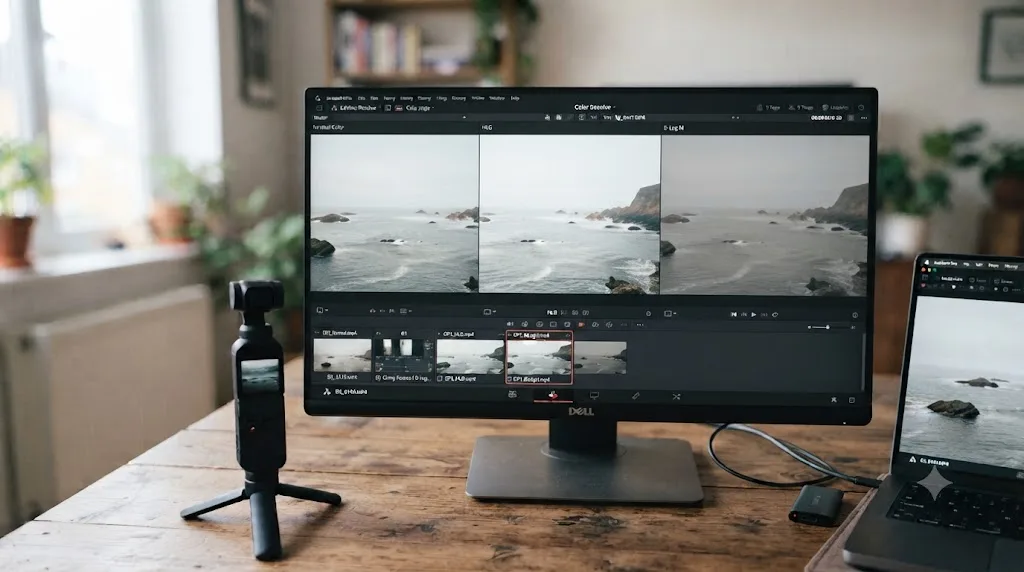
The Osmo Pocket 3 ships with a 1-inch CMOS sensor and can record three distinct color profiles: standard Normal color, HLG for HDR delivery, and D-Log M, DJI's flat log-style profile built for grading. According to DJI's own FAQ page for the Osmo Pocket 3, D-Log M "is designed to capture a wide dynamic range from the sensor, and colors are distributed evenly so the bright and dark parts of the video have greater fidelity and clarity," and DJI is explicit that "it is not a LUT but a lower-contrast video with a flat color profile, which is great for expanding post-processing options." That distinction matters. A LUT is a fixed lookup table baked for one specific conversion. D-Log M is a capture characteristic, a way the camera writes color information to the file, and it needs its own conversion applied afterward, not the other way around.
You select the color mode in the camera's own settings menu before you start recording, and it's locked to whatever you chose once a clip begins. If every clip in your project looks correctly exposed and reasonably contrasty straight off the card, you're most likely shooting Normal color, not D-Log M, regardless of what you meant to select. Check a clip's format details in Resolve's Media Pool or right-click and look at Clip Attributes if you're not sure which mode actually recorded.
Standard Osmo Pocket 3 footage is meant to look acceptable straight out of the camera, while D-Log M is meant to look wrong until you fix it. Confusing the two in either direction wastes the reason you picked D-Log M in the first place, or produces a grade that crushes an image that never needed correcting.
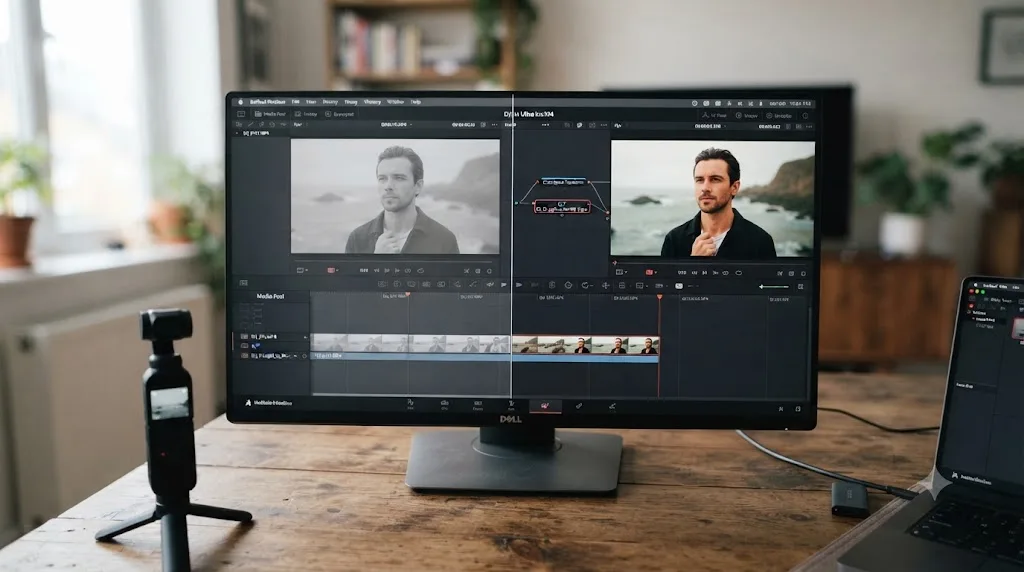
Why does D-Log M footage look flat and grey the moment it lands in the Media Pool?
If this is your exact symptom, the good news is that nothing is broken and there's nothing to troubleshoot in the transfer itself.
D-Log M deliberately compresses contrast and desaturates color at capture, the same underlying strategy Apple Log, Sony S-Log, and every other flat log-style profile uses, so that highlight and shadow detail survive to be shaped later instead of getting clipped in-camera. That flat, low-contrast look is the correct, expected result of importing an ungraded D-Log M file. It isn't a preview bug, and it isn't evidence the transfer damaged the footage.
DJI's own D-Log M to Rec.709 LUT exists specifically to reverse this. DJI's Download Center hosts the official conversion, built and tuned specifically for the Osmo Pocket 3's D-Log M output, alongside a separate set of Rec.709-to-creative LUTs if you want a stylized starting point rather than a neutral one. Apply that conversion, and the flat grey clip turns into a normal-looking image you can push further with color wheels, curves, or a creative LUT layered on top, the same as you would with footage from any other log-capable camera.
Why does D-Log M grade with weird, oversaturated blues even after you fix it?
This is the symptom that actually causes hours of lost troubleshooting, because Resolve's own interface offers a setting that looks like exactly what you need and isn't.
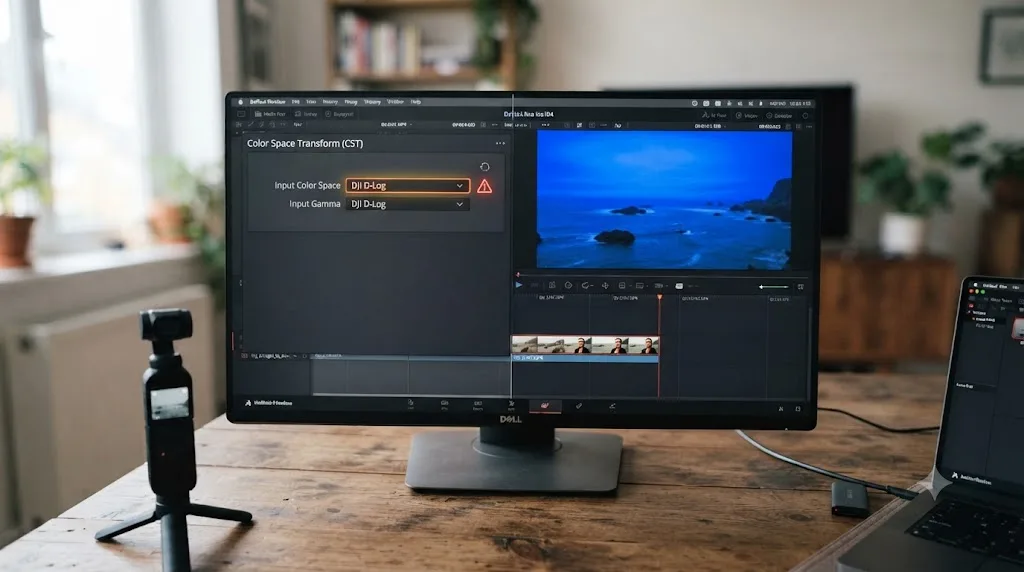
DaVinci Resolve's Color Space Transform effect ships with a built-in Input Gamma option literally labeled D-Log, paired with a DJI D-Gamut color space, sitting right there in the dropdown alongside options for other manufacturers. It's tempting to select it for any DJI footage on the assumption that DJI-branded log footage is DJI-branded log footage. It isn't. That preset was built for the original D-Log profile used on older DJI drones like the Mavic line, a genuinely different color characteristic from D-Log M, even though the names look almost identical sitting in the same menu.
Editors working through this exact confusion on DJI's own drone forums and community sites have converged on the same description: applying the wrong D-Log preset to D-Log M footage, or vice versa, produces an image with correct-looking overall exposure but visibly wrong hue, blues especially, that no amount of secondary color correction fully untangles because the fundamental color math underneath is wrong. A grading guide covering this exact confusion puts the underlying risk plainly: "If you apply a creative LUT directly to unconverted D-Log, you'll often get crushed shadows, weird sky hues, and 'plastic' saturation," according to a color grading series covering DJI's D-Log and D-Log M footage, and the same mismatch risk applies just as directly when the wrong DJI Color Space Transform preset gets applied instead of the wrong creative LUT.
Resolve's built-in DJI D-Log preset was built for a different DJI color space than D-Log M, and applying it anyway is exactly what turns clean footage into oversaturated blues. This is the same category of mistake covered in our iPhone Log footage import guide, where Apple Log and the newer Apple Log 2 look almost identical in a dropdown menu but need different conversions entirely. Manufacturer naming conventions are not a reliable guide to which transform actually matches your footage; the manufacturer's own documentation for that specific camera and profile is.
How do you correctly set up D-Log M color in DaVinci Resolve?
There are two workable paths here, and picking the one that matches your actual footage source matters more than either individual step.
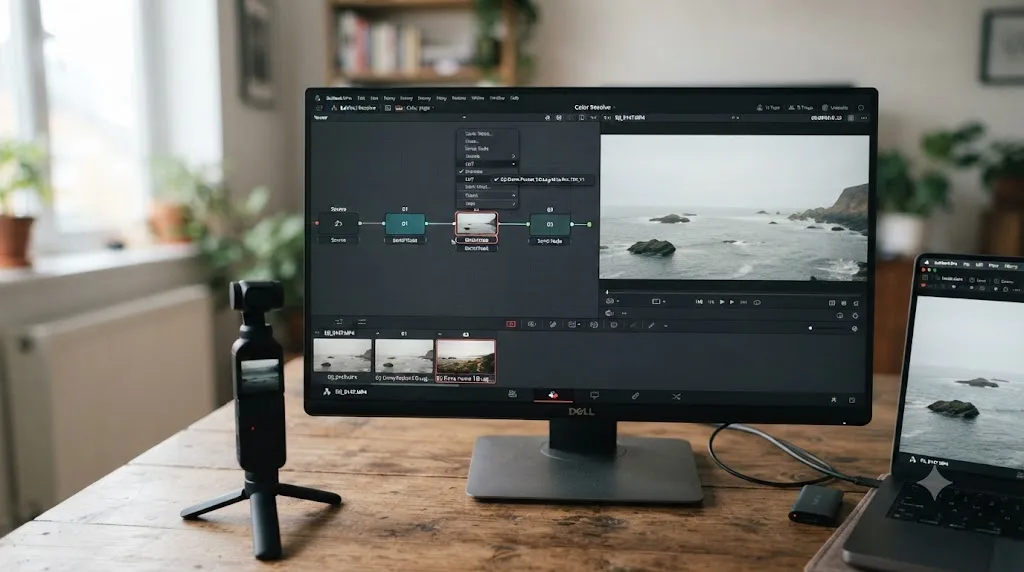
Option one, and the one to reach for first: DJI's official D-Log M to Rec.709 LUT. DJI publishes this LUT specifically for the Osmo Pocket 3's D-Log M output, free to download, and a matching user guide explains how it works across Resolve, Premiere Pro, and Final Cut Pro X. Download the .cube file, drop it into Resolve's LUT folder, and refresh the LUT list so Resolve picks it up, the same process our full guide to installing LUTs in DaVinci Resolve covers in more depth if you've never added a custom LUT before. Apply it to a node on your D-Log M clips rather than trying to force it through Resolve's built-in DJI D-Log Color Space Transform preset, since that preset is the wrong tool for this exact profile, as covered above.
Option two: a manual Color Space Transform, if you want node-based control instead of a fixed LUT. This is the better choice when you're mixing Osmo Pocket 3 footage with other cameras in the same timeline and want everything normalized into a shared working space before you grade. Because D-Log M doesn't have a dedicated, clearly labeled preset of its own in every Resolve build the way Apple Log does, treat DJI's official LUT as your ground-truth reference: build your manual CST, then compare the result against the same clip run through the official LUT side by side on the scopes. If your manual settings drift noticeably from what the official LUT produces, trust the LUT over a guessed CST configuration.
- Apply DJI's D-Log M to Rec.709 LUT to a node right after your source clip, or
- If building a manual CST, set your Output Color Space and Output Gamma to Rec.709 and compare the result against the official LUT on a shared reference clip before committing to that setup across a whole project
The official DJI LUT is free, it's built for this exact profile, and it beats guessing at manual Color Space Transform settings almost every time. Once the base conversion is in place, whichever method you used, the clip stops looking flat or oversaturated and becomes a normal starting point you can push further with wheels, curves, and any creative LUT you layer on top.
Why won't DaVinci Resolve import or play Osmo Pocket 3 footage at all on Windows?
If your problem isn't color at all, and clips genuinely stutter, refuse to decode, or crash Resolve outright, this is almost always a Windows-specific codec gap that has nothing to do with D-Log M or the Pocket 3 being defective.
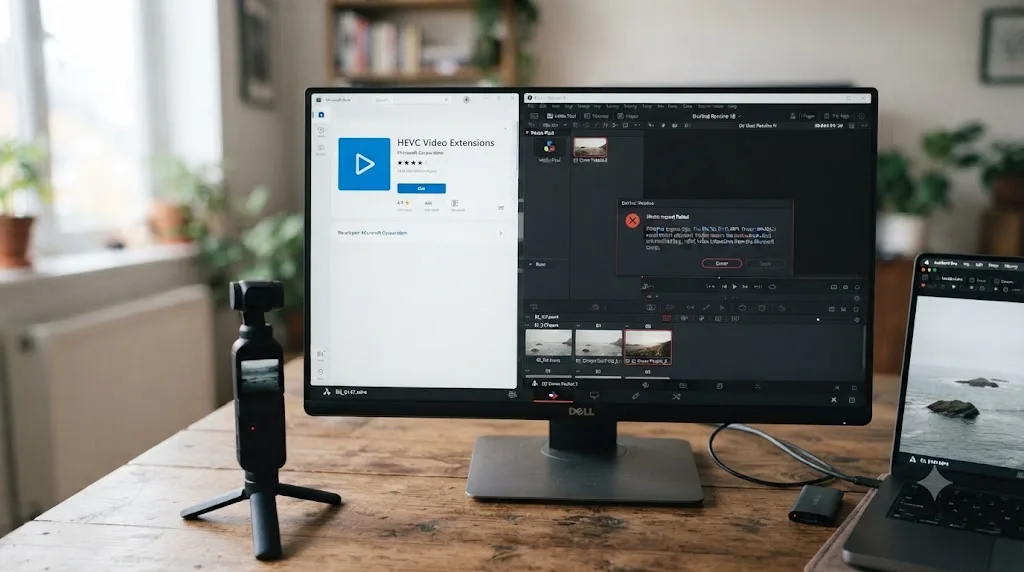
Every color mode on the Osmo Pocket 3, Normal, HLG, and D-Log M alike, records in H.265 (HEVC) inside an MP4 container, according to DJI's own specs page, at up to 130 Mbps. Microsoft Windows doesn't ship a native HEVC decoder the way macOS does, and the free version of DaVinci Resolve doesn't implement one internally on Windows either. That combination means a Windows machine running free Resolve can genuinely fail to play, or fail to import at all, footage that a Mac running the exact same free version of Resolve opens without complaint, because macOS provides HEVC decoding at the operating system level that free Resolve can lean on, while Windows simply doesn't include that support by default.
Richard Lackey, writing a detailed technical breakdown of AVC and HEVC handling in Resolve, put the underlying risk plainly: "Just because Resolve will read your AVC or HEVC encoded camera files, doesn't mean it will play them back at full resolution in real-time," he wrote, and his broader recommendation for exactly this kind of footage is to transcode AVC and HEVC media to an intermediate codec, ProRes on Mac or DNxHD/DNxHR on Windows, before editing, rather than fighting the original camera codec through an entire project.
The practical fix on Windows is straightforward. Install the "HEVC Video Extensions" from the Microsoft Store, a small paid add-on typically under a dollar, and restart DaVinci Resolve before you try importing again. A detailed breakdown of Resolve's codec limitations confirms this directly, noting the fix in plain terms: "Go to the Microsoft store and purchase the 'HEVC Video Extensions'... Install this extension and reboot." That single extension is frequently the entire difference between Osmo Pocket 3 footage that won't open at all and footage that imports and plays normally.
A Windows PC running the free version of DaVinci Resolve can refuse to even play an Osmo Pocket 3 clip until you install a codec Microsoft charges about a dollar for. It's an easy fix once you know to look for it, and an infuriating one to stumble into blind, since nothing in Resolve's own error messaging points you toward a Microsoft Store purchase as the actual solution.
Why do Osmo Pocket 3 vertical clips import at a different resolution or rotated sideways?
The Pocket 3's rotating gimbal and screen make it genuinely good at switching between horizontal and vertical shooting on the fly, which is exactly why this symptom shows up so often. Two separate things can go wrong here, and they need different fixes.
First, resolution. According to DJI's own support documentation on Portrait Mode, portrait mode on the Osmo Pocket 3 "supports a maximum resolution of 3K after landscape cropping," meaning vertical clips top out at 3072x3072 in a 1:1 aspect ratio or 1728x3072 in 9:16, well short of the 3840x2160 4K available when shooting horizontally. That's not a smaller, lower-quality crop of the horizontal frame either; portrait mode reads more of the sensor's vertical extent than horizontal shooting uses, which is why a 3K vertical clip can still look detailed and sharp next to a 4K horizontal one from the same camera. If you need full 4K resolution in a vertical delivery format, DJI's own guidance is direct about the workaround: shoot horizontally at 4K and crop to vertical afterward in your edit, rather than relying on the camera's native portrait mode, which caps out lower by design.
3K vertical footage from the Pocket 3 isn't a downgraded 4K crop. It's the camera reading more of its own sensor top to bottom than horizontal mode ever uses. That's a genuine resolution ceiling worth knowing about before a shoot where you'll need 4K vertical delivery, not an import bug to chase down after the fact.
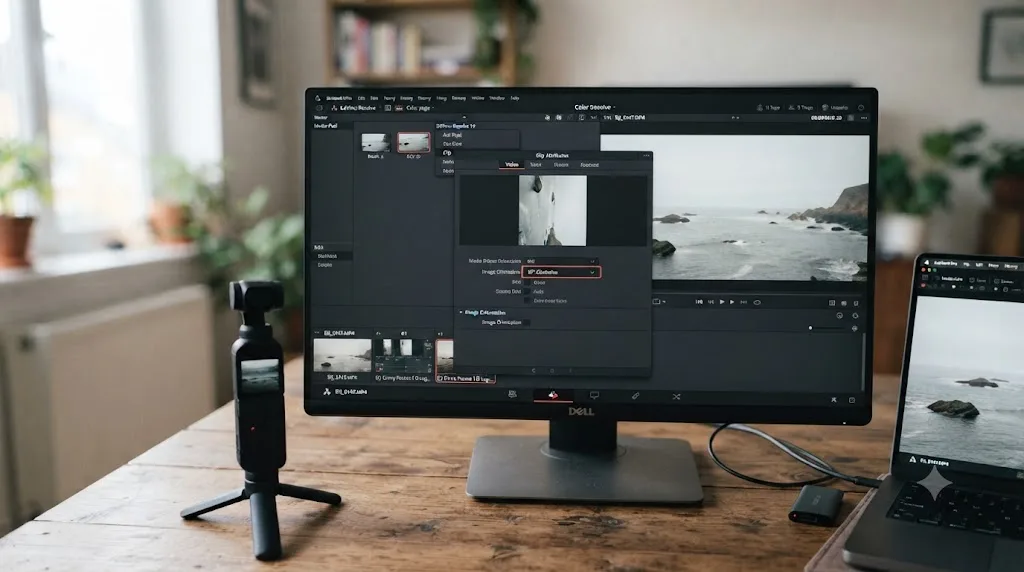
Second, rotation. If a clip plays back genuinely sideways rather than simply lower-resolution, that's a different mechanism: rotation metadata the file is carrying that Resolve is either honoring incorrectly or ignoring. This isn't unique to DJI cameras; it shows up across phones and gimbal cameras generally, and it's a long-documented category of issue on Blackmagic's own user forum. The fix inside Resolve is to select the affected clip, right-click, open Clip Attributes, and set Image Orientation to the correct rotation manually, rather than assuming the source file itself needs to be re-exported or re-transferred.
Should you shoot Normal, HLG, or D-Log M for editing in Resolve?
This decision happens before you ever open Resolve, and it quietly determines how much correction work waits for you afterward.
| Mode | Best for | Tradeoff |
|---|---|---|
| Normal color | Quick turnaround content, zero grading time available | Least dynamic range and correction latitude if exposure or white balance is off |
| HLG | HDR delivery to platforms and displays that support it, without a heavy manual grade | Needs an HDR-aware delivery pipeline to look right; looks flat on SDR displays without conversion |
| D-Log M | Anything you plan to color grade, matches with other log or RAW sources, maximum correction latitude | Requires the color conversion step covered above before it looks like a finished image |
Brian Hallett, reviewing the Osmo Pocket 3 for ProVideo Coalition, framed the case for shooting in the 10-bit modes directly from a working colorist's perspective: "As a pro, I need the 10-bit color as nearly everything I shoot goes through a professional color session," he wrote, which is exactly the audience D-Log M and HLG are built for. If your footage is headed straight to a social upload with no grading pass planned at all, Normal color removes an entire step from your workflow at the cost of the correction headroom D-Log M provides.
D-Log M isn't the "better" mode in every situation. It's the mode that trades a mandatory color-correction step for the most latitude to fix problems you haven't shot into the frame yet. Pick based on how much post-production time you actually have, not on the assumption that the flattest-looking option is automatically the most professional one for every project.
Why does D-Log M footage stutter, drop frames, or max out your CPU during playback?
If your color is set up correctly and the file plays without erroring, but the timeline still hitches or your fans spin up like a jet engine, that's a decode performance issue, separate from everything above.
D-Log M records at up to 130 Mbps in 10-bit H.265, a codec designed to compress efficiently for storage, not to decode cheaply for real-time playback. Without hardware-accelerated decode, your CPU has to do that decompression work in software, frame by frame, which strains even a fairly capable laptop once you're scrubbing 4K60 or 4K120 D-Log M footage in a full timeline rather than previewing a single clip in isolation. Puget Systems' breakdown of hardware HEVC decoding in DaVinci Resolve documents this specifically for Resolve Studio on Windows, where compatible AMD and Nvidia GPUs can offload H.265 decode work that the free version, lacking that hardware acceleration path on Windows, otherwise leaves entirely to the CPU.
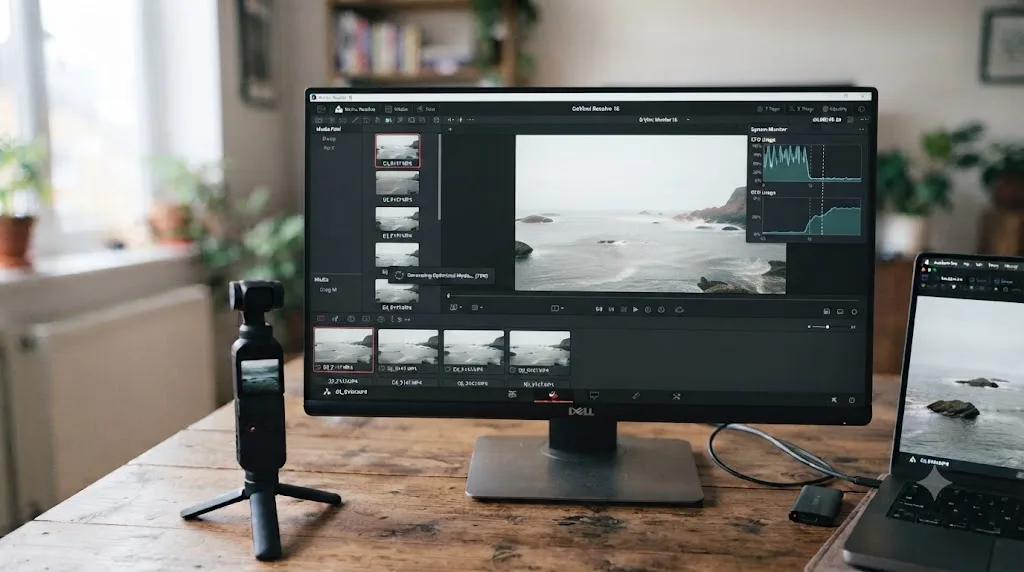
The fix isn't a color setting at all. Generate Optimized Media inside Resolve, or transcode your Osmo Pocket 3 footage to ProRes or DNxHR proxies before you start a heavy multi-clip edit, the same approach our guide to setting up proxy media on a slow laptop walks through in detail. Editing against a lighter proxy codec, then relinking to the original D-Log M files only for your final render, sidesteps the decode bottleneck entirely instead of asking your machine to brute-force real-time 10-bit H.265 decode on every scrub and playback.
Do you need DaVinci Resolve Studio for Osmo Pocket 3 footage?
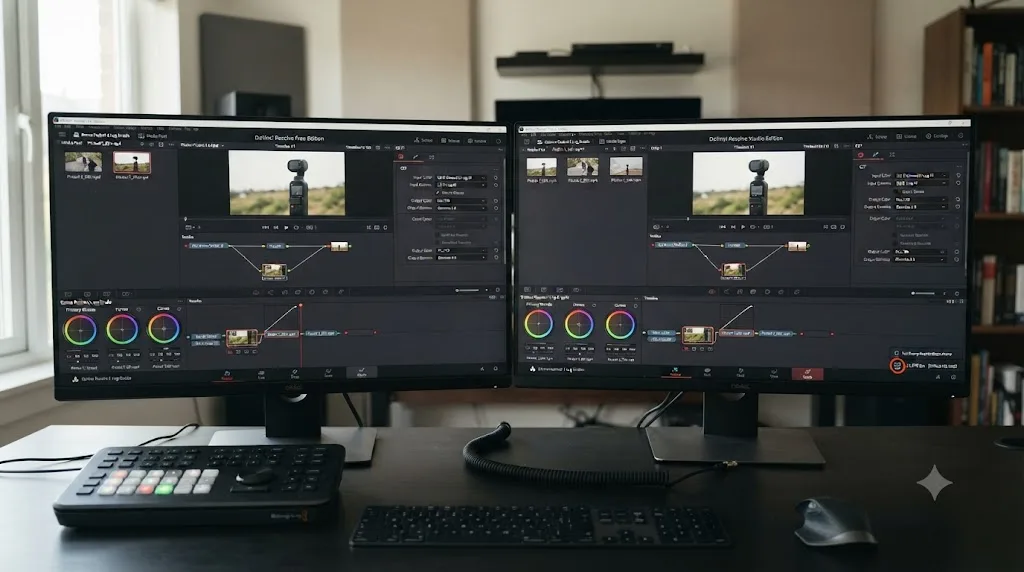
Not for the color correction workflow this page covers. Color Space Transform, LUT application on a node, and Resolve Color Management all work identically in the free version, with no functional restriction on the color math for D-Log M or HLG footage.
Where Studio genuinely earns its keep with Osmo Pocket 3 footage specifically is Windows playback performance. Resolve Studio can hardware-decode H.264 and H.265 on compatible Nvidia and AMD GPUs on Windows, while the free version, per Puget Systems' testing, has no equivalent hardware acceleration path on that platform and falls back to CPU-only decoding of the same files. That gap widens noticeably on longer 4K60 or 4K120 D-Log M clips, and narrows to almost nothing on a Mac, since macOS's own native HEVC decoding is already available to the free version there.
The D-Log M color problem this whole page is mostly about is a color management problem, and color management is not a Studio-gated feature. Don't let a real, separate Windows performance gap talk you into thinking you need Resolve Studio just to make Osmo Pocket 3 footage look correct. You don't, unless your specific bottleneck is Windows playback stutter on heavy 4K H.265 clips, in which case Studio's hardware decode path, or a proxy workflow in the free version, are the two ways forward.
What if you're mixing Osmo Pocket 3 footage with other cameras in the same timeline?
This comes up constantly: an Osmo Pocket 3 for B-roll or a run-and-gun angle, paired with a mirrorless or cinema camera for the main coverage in the same project.
Normalize every camera into the same working color space before you apply any creative grade. Convert the Osmo Pocket 3's D-Log M footage with DJI's official LUT or a matching Color Space Transform, and convert your other camera's own log or RAW profile with its own correct transform, whatever that camera actually calls for, before comparing the two side by side. Our full guide to color matching different cameras in DaVinci Resolve covers Color Match and Shot Match for the fine-tuning pass once both sources are sitting in a shared, correctly converted space. Trying to eyeball a match between two ungraded log sources, one from a Pocket 3 and one from an entirely different sensor, is how editors end up chasing a color mismatch that isn't really about either camera. It's about comparing two different flat starting points as though they were already equivalent.
Once both cameras are normalized, the Pocket 3 stops being a special case in the timeline. Ordinary matching tools work the same way they would on any two cameras shot on the same job.
What does the full fix look like on a real clip, start to finish?
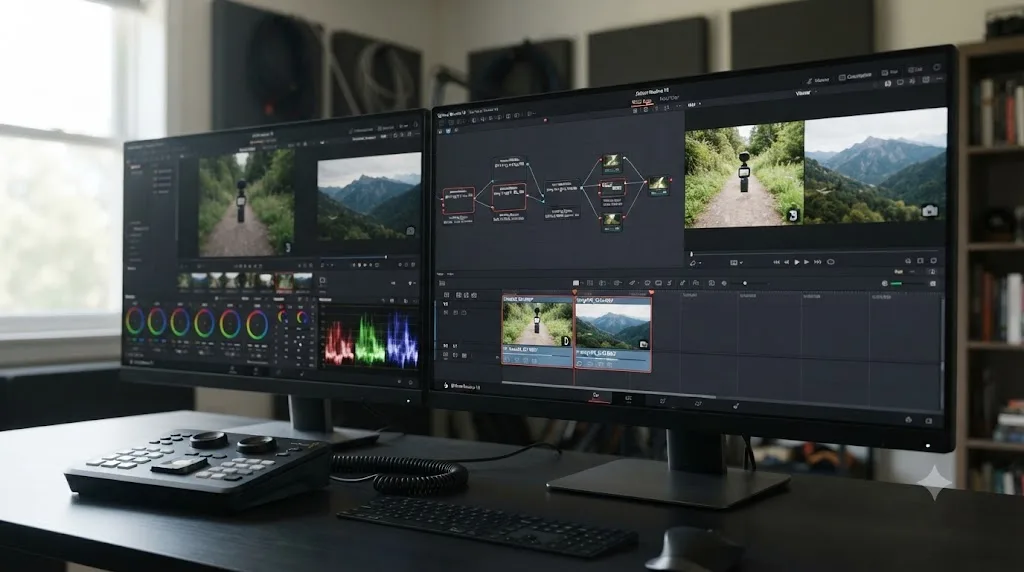
Here's the whole diagnosis applied to a scenario that comes up often: a travel vlogger shoots a day's footage on an Osmo Pocket 3 in D-Log M, mixing horizontal establishing shots with vertical clips for social cuts, then imports everything into DaVinci Resolve on a Windows laptop that evening.
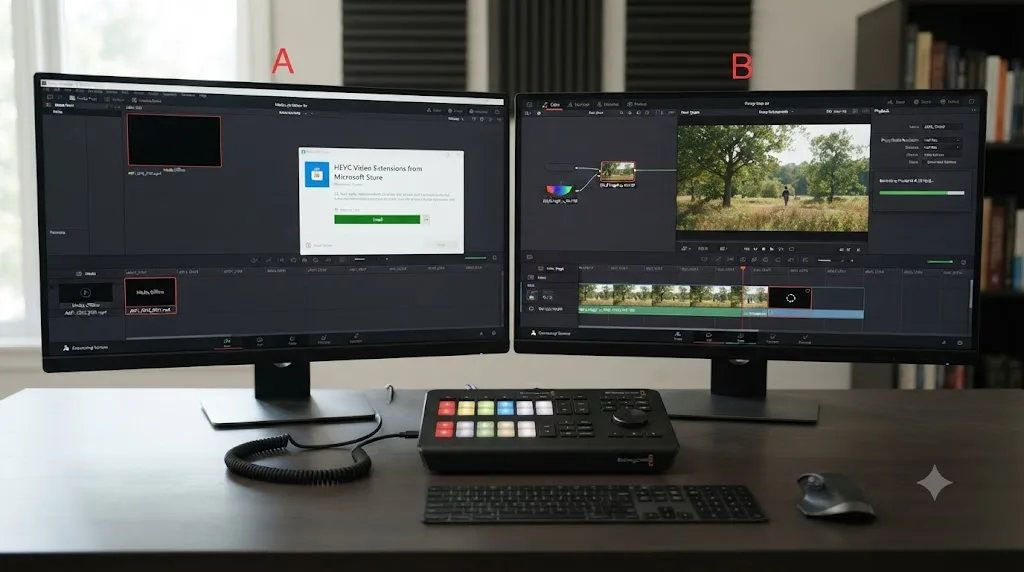
First, the import itself half-fails. Several clips won't even preview, sitting as a black thumbnail with a spinning indicator. That's the free-Resolve-on-Windows HEVC gap, not corrupted files. Installing the HEVC Video Extensions from the Microsoft Store and restarting Resolve clears it completely; every clip now plays.
Second, the Media Pool shows every D-Log M clip looking correctly flat and grey. That's expected, not a fault, so no time gets wasted assuming the transfer went wrong.
Third, the color fix goes on. DJI's official D-Log M to Rec.709 LUT, already downloaded and dropped into Resolve's LUT folder earlier, gets applied to a node on every D-Log M clip. The footage stops looking flat and starts looking like a normal, gradeable image, ready for a creative pass afterward.
Fourth, one vertical clip looks noticeably softer and lower-resolution than the horizontal footage sitting right next to it in the same bin. That's the Pocket 3's genuine 3K portrait ceiling, confirmed by checking the clip's actual resolution in its Clip Attributes, not a fault worth chasing further.
Fifth, and last, playback still stutters on the longest 4K60 clips even with color sorted and Windows able to decode the files. Optimized Media gets generated for those specific clips, and playback smooths out immediately, with the full-resolution originals swapped back in only for the final render.
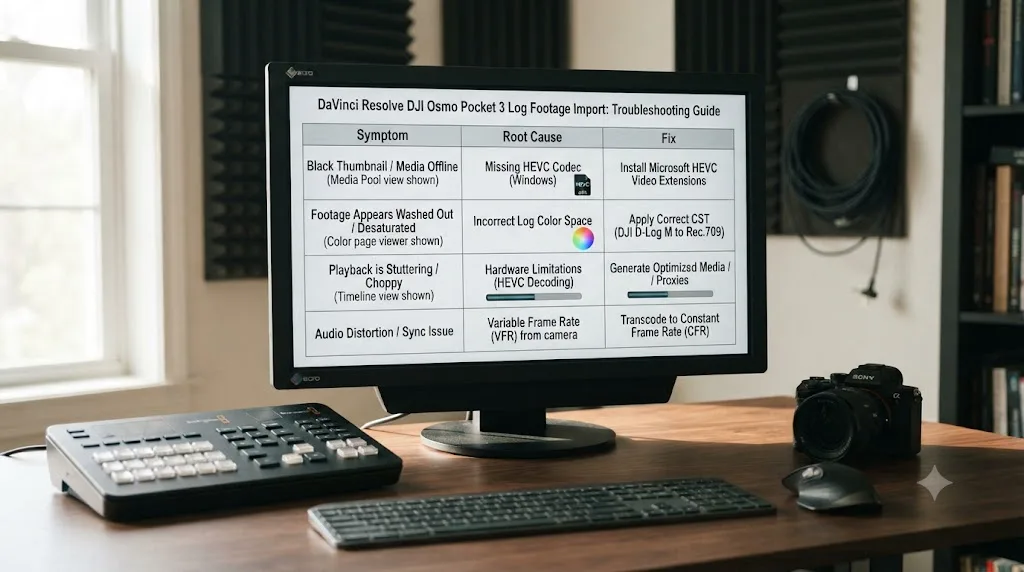
The full decision table: match your exact symptom to the fix
Work through this top to bottom and stop at the first row that matches what you're actually seeing.
| Your exact situation | Root cause | Fix |
|---|---|---|
| Clip imports and plays, looks grey and flat | Normal, uncorrected D-Log M | Apply DJI's official D-Log M to Rec.709 LUT, or a matching manual Color Space Transform |
| Clip grades with wrong, oversaturated color, blues especially | You applied Resolve's built-in DJI D-Log preset to D-Log M footage, a mismatched profile | Use DJI's official D-Log M LUT instead of the D-Log Color Space Transform preset |
| Clip won't play or import at all on Windows | Free Resolve lacks native HEVC decode on Windows | Install Microsoft's HEVC Video Extensions from the Microsoft Store, then restart Resolve |
| Vertical clip looks lower resolution than horizontal footage | Osmo Pocket 3's genuine 3K portrait mode ceiling | Not an error; shoot horizontal 4K and crop to vertical if you need full 4K in a vertical delivery |
| Clip plays back visibly rotated 90 degrees | Rotation metadata Resolve is misreading | Fix manually via Clip Attributes, Image Orientation |
| Playback stutters or CPU maxes out with color already correct | Decode load from 10-bit H.265 at up to 130 Mbps | Generate Optimized Media, or transcode to ProRes/DNxHR proxies |
How do you avoid losing an afternoon to this on your next shoot?
A short list of habits catches nearly everything on this page before it becomes an editing-day problem.
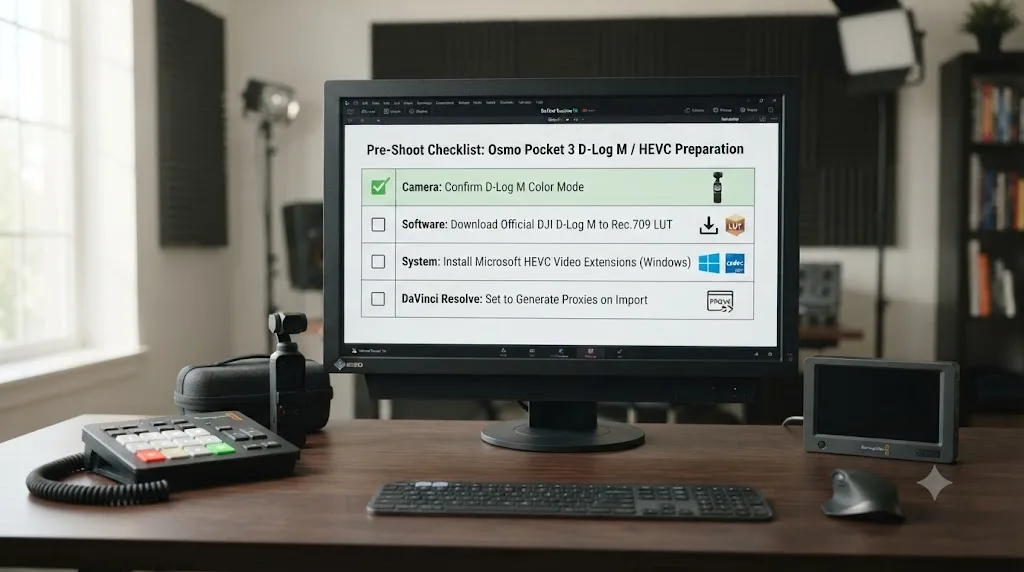
- Confirm which color mode actually recorded, not which one you meant to select. Normal, HLG, and D-Log M all need different treatment, and the camera locks whatever mode you chose for the length of that clip.
- Download DJI's official D-Log M to Rec.709 LUT before your shoot, not during your first edit session. It's free, built specifically for this camera and profile, and a safer default than Resolve's built-in DJI D-Log preset, which is tuned for a different DJI color space entirely.
- If you edit on Windows with the free version of Resolve, install the Microsoft HEVC Video Extensions once, ahead of time. It's a small purchase that resolves a wall that otherwise looks like a corrupted card or a broken app.
- Know the Pocket 3's real portrait mode resolution ceiling before you plan a vertical-heavy shoot. 3K, not 4K, is the native cap, and shooting horizontal and cropping later is the workaround if you need more.
- Generate proxies before a long editing session on 4K60 or 4K120 D-Log M footage, especially on an older machine. Decode load, not your project settings, is almost always the real cause of stutter once color is already sorted.
What if you're new to Resolve and this is your first hardware-specific wall?
If juggling color modes, LUT installation, Windows codec extensions, and proxy generation feels like a lot on top of just learning where things live in DaVinci Resolve, that's a completely normal place to land. Camera-specific log workflows are one of the more technical corners of the app, and there's no faster way through them than knowing exactly which setting your specific footage needs.
TryUncle is the on-screen assistant for DaVinci Resolve on macOS. Ask in plain words and Uncle points at the exact control on your screen, rather than sending you back to a forum thread shot on a different DJI camera with different settings than yours. It's a paid app, currently in founder pricing at $29.99 a month for the first 100 seats, and it's macOS only, so Windows editors dealing with the HEVC decode issue above won't find it useful for that specific wall. It sits in a growing category alongside tools like Sottocut, PremiereCopilot, heyeddie.ai, and cutagent.ai, though most of those automate edits or answer chat questions rather than watching your actual screen; Uncle points at the exact node or dropdown live, on the Color page, while you're the one making the decision. Guided help inside Resolve beats pausing a tutorial video to compare your settings against someone else's camera twice. Check TryUncle for current founder pricing if that sounds like the faster path through your next Log-heavy edit.
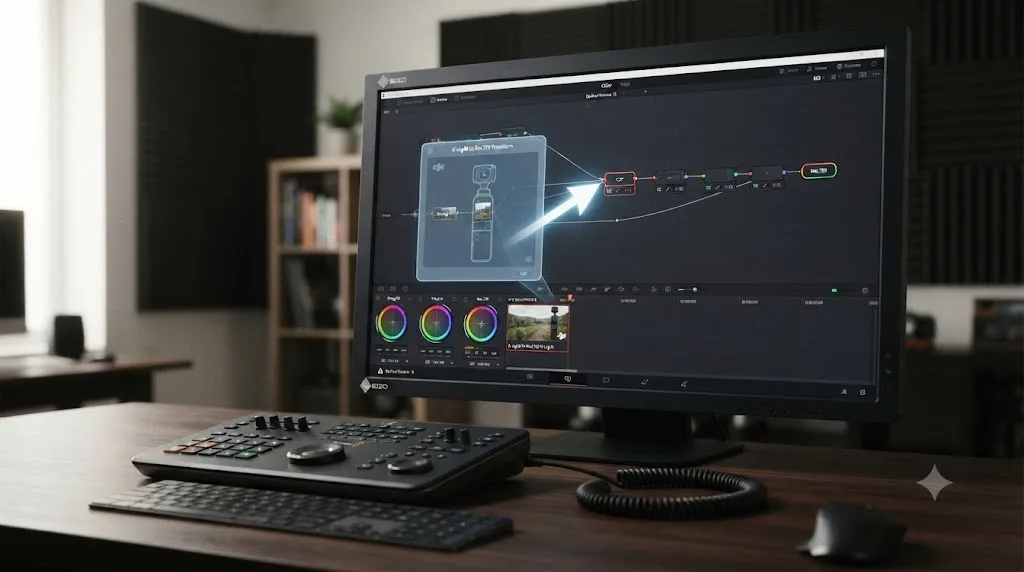
What's the fastest path to a fix?
Confirm which color mode actually recorded first: Normal, HLG, or D-Log M. If it's flat and grey, that's expected; apply DJI's official D-Log M to Rec.709 LUT rather than Resolve's built-in DJI D-Log preset, which is built for a different DJI camera generation. If it won't play at all on Windows, install the Microsoft HEVC Video Extensions before you suspect the file itself. If a vertical clip looks lower resolution, check whether that's the Pocket 3's genuine 3K portrait ceiling before assuming an error. If it plays sideways, fix rotation through Clip Attributes. If playback stutters with color already sorted, generate proxies before you blame your project settings.
Nine times out of ten, your Osmo Pocket 3 footage isn't damaged and DaVinci Resolve isn't malfunctioning. Either the color conversion hasn't been applied yet, the wrong DJI preset got used instead of the right one, a codec extension is missing on Windows, or your machine needs a lighter proxy to decode smoothly. Match the symptom to the cause, and the fix is usually one LUT, one small purchase, or one proxy pass, not another afternoon of guessing.
Frequently asked questions
- Why does my DJI Osmo Pocket 3 D-Log M footage look grey and flat in DaVinci Resolve?
- That's exactly what D-Log M is supposed to look like before you grade it. DJI's own FAQ describes it as a lower-contrast video with a flat color profile designed to hold more dynamic range for post-processing, not a LUT. The clip imported correctly. What's missing is a color conversion, either DJI's official D-Log M to Rec.709 LUT or a matching Color Space Transform, to turn the flat data into a normal-looking image.
- Why does my D-Log M footage look oversaturated or wrong after I grade it in Resolve?
- You're most likely using Resolve's built-in DJI D-Log preset on D-Log M footage. Resolve ships an Input Gamma option literally called D-Log, built for older DJI drones shooting the original D-Log profile over D-Gamut, and it does not match D-Log M's own color characteristics. Pointing it at D-Log M footage produces oversaturated, hue-shifted color, especially in blues. Use DJI's official D-Log M to Rec.709 LUT instead, since it's built specifically for this exact profile.
- Why won't DaVinci Resolve import or play my Osmo Pocket 3 clips at all?
- On Windows, the free version of DaVinci Resolve doesn't include native HEVC decoding, and Osmo Pocket 3 footage is H.265 by default in every color mode. Install the HEVC Video Extensions from the Microsoft Store, a small paid add-on, then restart Resolve. On Mac, the free version can already decode H.265 through macOS's own built-in codec support, so this specific wall mostly affects Windows editors.
- Why does my vertical Osmo Pocket 3 footage import at the wrong resolution or sideways?
- Portrait mode on the Osmo Pocket 3 caps out at 3K, either 3072x3072 in a 1:1 aspect or 1728x3072 in 9:16, according to DJI's own support documentation, which is a genuine resolution ceiling, not an import error. If a clip instead looks rotated 90 degrees rather than simply lower resolution, that's rotation metadata, fixed in Resolve through Clip Attributes rather than a resolution setting.
- Should I shoot Normal, HLG, or D-Log M on the Osmo Pocket 3 for editing in DaVinci Resolve?
- D-Log M for anything you plan to color grade, since it captures the most usable dynamic range and it's what DJI's official LUT and most third-party LUTs are built for. HLG if you're delivering HDR without a heavy grading pass. Normal color if you need a file that looks acceptable straight out of the camera with zero post-production time, at the cost of the least room to correct exposure or white balance later.
- Do I need DaVinci Resolve Studio to grade Osmo Pocket 3 D-Log M footage?
- No, not for the color correction itself. Color Space Transform, LUT application, and Resolve Color Management all work identically in the free version. Where Studio genuinely helps is Windows playback performance, since Resolve Studio can hardware-decode H.265 on compatible Nvidia and AMD GPUs while the free version on Windows decodes on the CPU alone, which matters more on longer 4K60 or 4K120 D-Log M clips than on short ones.
- Why does my D-Log M footage stutter or lag during playback in Resolve?
- Almost always CPU decode load from 10-bit H.265, not a bug. Osmo Pocket 3 records D-Log M at up to 130 Mbps in H.265, a codec that's efficient to store but expensive to decode without hardware acceleration. Generate Optimized Media or transcode to ProRes or DNxHR proxies before you start a heavy edit, especially on an older laptop or a Windows machine running the free version.
Sources
- DJI: Osmo Pocket 3 Specs
- DJI: Osmo Pocket 3 FAQ
- DJI Download Center: OSMO Pocket 3 D-Log M to Rec.709 LUT
- DJI Support: What models support D-Log mode? What models have the official LUT files?
- DJI Support: Introduction to Portrait Mode of Handheld Product Series
- CineD: DJI Osmo Pocket 3 Released, Rotatable OLED Touchscreen, 1-inch Type Sensor, 4K 120fps, 10-Bit, D-Log M, and More
- Newsshooter: DJI Osmo Pocket 3, larger sensor, 4K 120p & 10bit D-Log M
- ProVideo Coalition: DJI OSMO Pocket 3 Review (Brian Hallett)
- Heliguy: How do I switch between horizontal vertical shooting on Osmo Pocket 3?
- Puget Systems: What H.264 and H.265 Hardware Decoding is Supported in DaVinci Resolve Studio?
- theatre of noise: Codec limitations of DaVinci Resolve: HEVC, 10-bit, and RAW
- Richard Lackey: AVC / H.264 / HEVC and DaVinci Resolve, Why You Need to Transcode
- XDCAM-USER.COM: New FREE LUTS for DJI D-Log M, DJI Pocket 3 and others (Alister Chapman)
- AAA Presets: Unlock Cinematic Magic, The Ultimate Guide to Grading DJI D-Log & D-Log M Footage
- Blackmagic Forum: Imported video is rotated by 90 degrees
Put this guide to work with TryUncle.
Ask about the step you’re on. TryUncle sees your screen and points at the control you need, so you can keep learning in your own project.
Get TryUncle for Mac or WindowsKeep reading
Fixes · Jul 18, 2026 · 30 min
DaVinci Resolve iPhone Log Footage Import Problem: Every Fix
iPhone Log footage imports into DaVinci Resolve but looks grey, flat, or offline. Match your exact symptom to the real cause, from Apple Log to Apple Log 2.
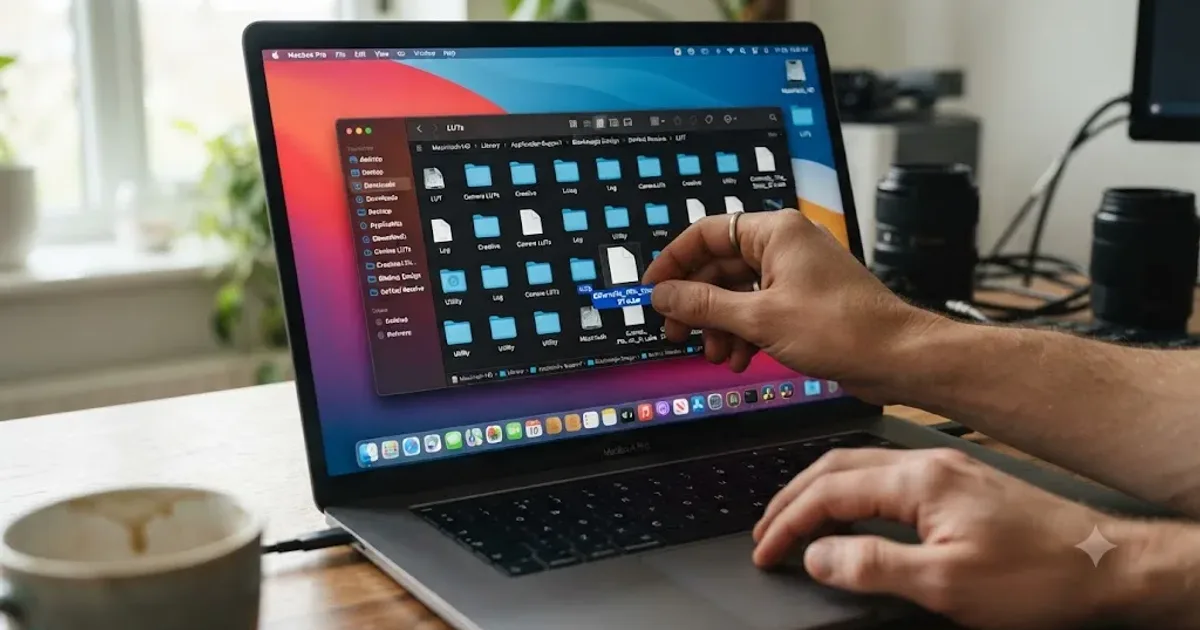
Guides · Jul 10, 2026 · 26 min
How to Install LUTs in DaVinci Resolve: Folders and Fixes
Install LUTs in DaVinci Resolve: find the real LUT folder, apply them to a node instead of a clip, and fix the LUT-not-showing-up refresh bug for good.
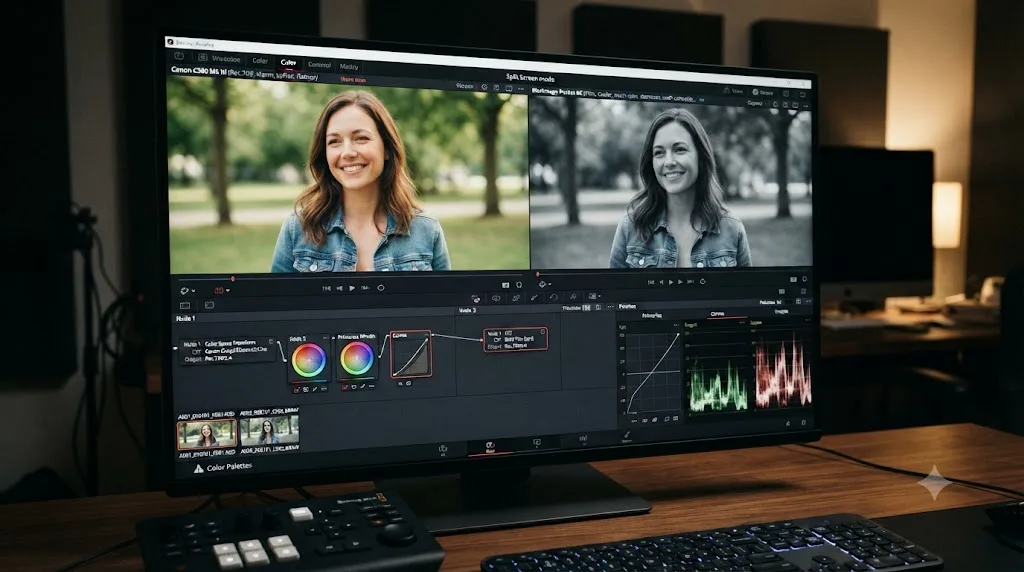
Guides · Jul 12, 2026 · 39 min
How to Color Match Different Cameras in DaVinci Resolve
Match footage shot on different cameras in DaVinci Resolve with Color Space Transform, Color Match, and Shot Match, plus settings by camera brand.