Articles / Fixesupdated for DaVinci Resolve 21.0.2 (July 2026)
DaVinci Resolve "Invalid Render Settings, Check Codec" Error, Fixed
Quick answer
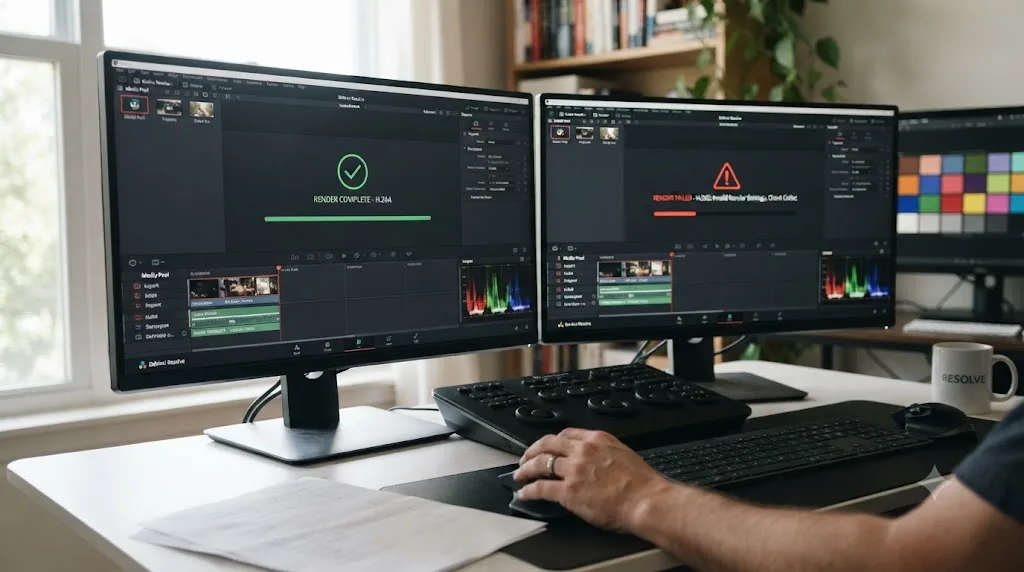
DaVinci Resolve's "invalid render settings, check codec" error means the render engine can't match your codec to the Format, Encoder, or GPU in use, not that your footage is broken. The actual dialog usually reads "cannot find appropriate codec for encoding the video frame." Match Format to a supported Codec and switch Encoder to Native to fix it.
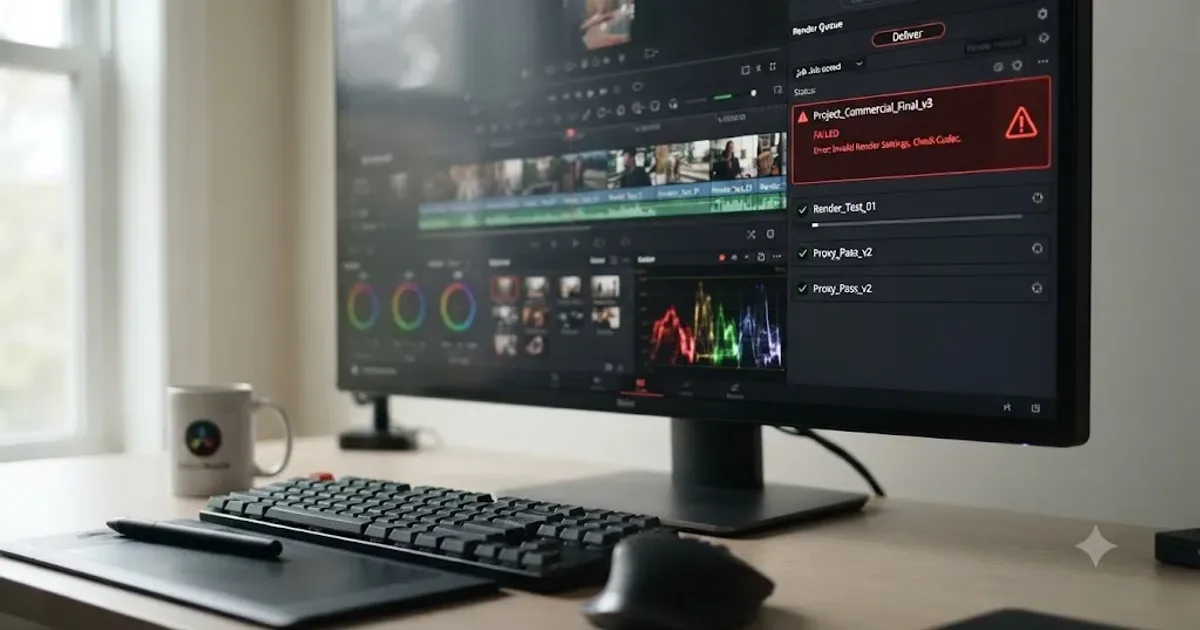
I've watched this error stall a render an hour before a deadline more than once, and it's rarely what it sounds like. It isn't your footage, and it usually isn't even the codec itself. It's a mismatch between the Format, the Codec, and the hardware Resolve is trying to encode through, and once you know which piece is broken, the fix is fast.
What does "invalid render settings, please check codec" actually mean?
Nobody typing that phrase into a search bar is quoting DaVinci Resolve's dialog word for word, and that's worth clearing up first. The message most people actually see in the render queue reads something closer to "Render Job Failed, cannot find appropriate codec for encoding the video frame," or in some builds, "Cannot locate appropriate codec." A related version shows up as "unsupported codec or format on render." All three describe the same underlying failure: the render engine reached the point where it needed to hand a frame to an encoder, and no working encoder existed for the combination of Format, Codec, and hardware you'd selected.
That's a very different problem than a corrupted clip or a bad grade. Your timeline, your color work, your edit, none of it is what's failing. The failure lives entirely in the last step, where Resolve tries to compress your finished frames into a file, and it discovers that the specific codec it needs either doesn't exist on your machine, isn't licensed for your Resolve edition, or was configured for GPU hardware you're no longer running.
| What you might search | What Resolve actually shows | Where the fix lives |
|---|---|---|
| "Invalid render settings, check codec" | "Cannot find appropriate codec for encoding the video frame" | Deliver page, Format/Codec/Encoder |
| "Render settings error" | "Cannot locate appropriate codec" | Deliver page or a leftover plugin |
| "Codec not supported on render" | "Unsupported codec or format on render" | A preset built on different GPU hardware |
| "Codec dropdown blank" | No error text, just an empty field | Format needs reselecting after a hardware change |
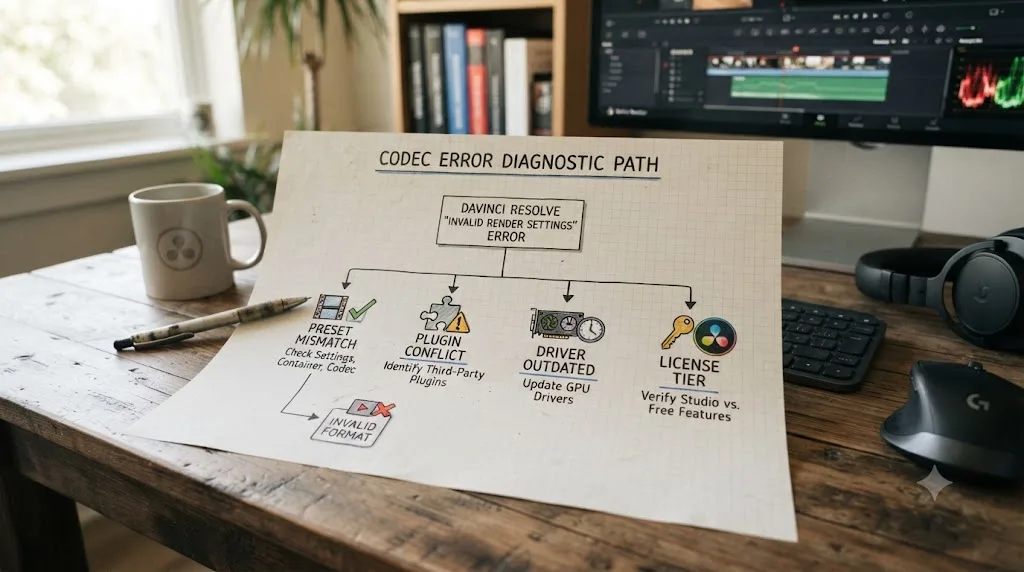
A codec error on export is a pipeline failure, not a footage failure, and treating it like a corrupted file wastes the one piece of information that actually points at the fix. Once you know that, the rest of this guide is about isolating which link in that pipeline broke: the preset, the plugin, the driver, the GPU vendor, or the license tier.
Why does the codec dropdown go blank after moving a preset to a different computer?
This is one of the most specific and most fixable versions of this error, and it catches people who did nothing wrong except open a project on a second machine.
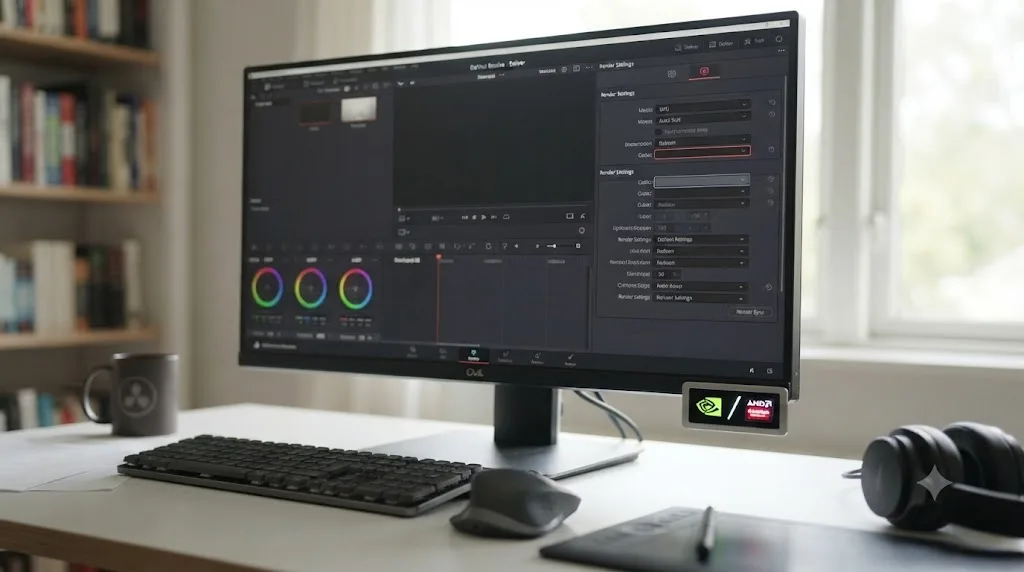
On Blackmagic's own forum, a user described exactly this scenario in a thread titled "unsupported codec or format on render": a project edited on an older system running an NVIDIA GPU under CUDA, then reopened on a newer machine running an AMD GPU under OpenCL, per the original report. The Format still showed QuickTime, but the Codec dropdown sat blank. The rendered files that did complete came out as MP4 instead of the MOV container the user expected. The likely explanation offered in that thread was that the original encoder selection had been tied to the NVIDIA hardware encoder specifically, and once the GPU changed, Resolve could no longer locate that exact encoder reference, so the field that depended on it simply emptied out instead of falling back to something else automatically.
This is a narrower, more mechanical failure than a driver bug or a missing license. The preset file itself is storing a pointer to hardware-specific encoding options, and that pointer breaks the moment the hardware underneath it changes. It doesn't matter whether you're going from NVIDIA to AMD, AMD to Apple Silicon, or any other combination. The direction of the swap isn't the point. The point is that a Format/Codec/Encoder combination saved on one GPU vendor's hardware doesn't automatically translate to a different vendor's hardware, because each vendor exposes its own hardware encoder under the hood, and Resolve's preset system references that encoder by name.
The fix is almost embarrassingly simple once you know this is what's happening: click into the Format dropdown again, even though it looks correct, and reselect it. That forces Resolve to repopulate the Codec dropdown fresh, against the hardware actually present on the machine you're using right now, instead of trusting a stale value carried over in the saved preset.
A blank codec dropdown after switching machines isn't a bug report, it's Resolve telling you the truth: the encoder your old preset pointed at doesn't exist on this hardware anymore. If you edit across more than one machine, or you've ever handed a project file to a collaborator on different hardware, this is worth checking before anything more complicated.
Is a leftover MainConcept plugin causing this?
For a specific and well-documented slice of these errors, yes, and it's worth ruling out early if you've ever installed a third-party codec add-on.
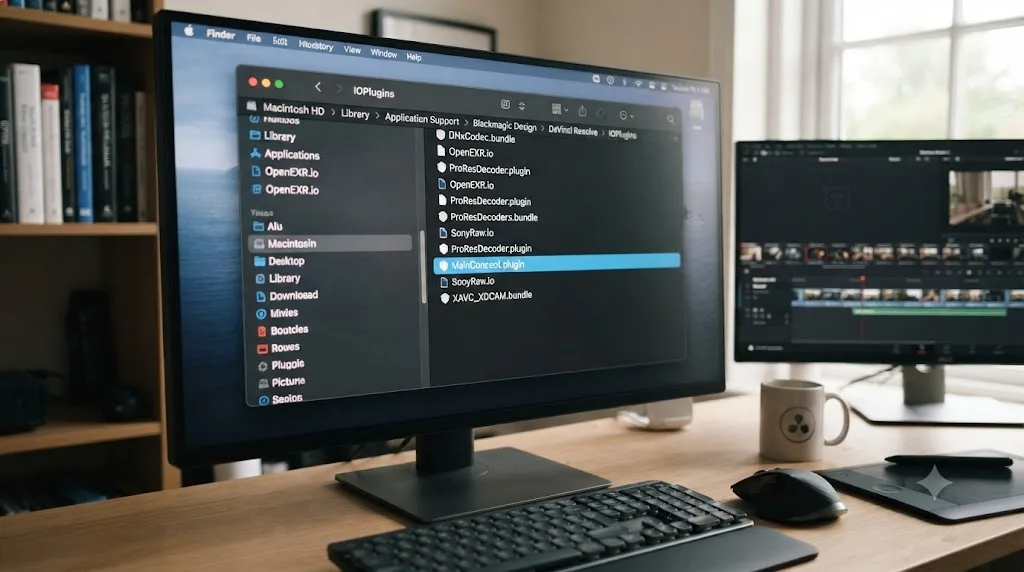
MainConcept sells a paid plugin that adds extra encoding options to DaVinci Resolve, and it installs as a separate component alongside Resolve's own IOPlugins folder. On Blackmagic's forum, in a thread simply titled "Cannot Find Appropriate Codec Message," multiple users traced their error back to this exact plugin surviving a Resolve version upgrade in a broken or half-updated state, according to the discussion thread. After the upgrade, Resolve got confused between its own native encoder options and the leftover MainConcept plugin still registered in the background, and the result was the same "cannot find appropriate codec for encoding the video frame" error covered earlier, even on export combinations that had worked fine before the update.
The fix reported in that thread was direct: locate and delete the MainConcept plugin files from Resolve's IOPlugins folder, specifically files named along the lines of davinci_mc_ultra_plugin.dvcp and mcplugcore.dll on Windows installs, then restart Resolve. One user who uninstalled MainConcept entirely and restarted reported their QuickTime plus H.264 plus NVIDIA encoder export started working cleanly again immediately afterward.
This isn't the majority cause of this error. Most people hitting a codec error never installed MainConcept's plugin in the first place. But it's a fast, free thing to check, because the symptom looks identical to every other cause covered in this guide until you actually go looking for the plugin files. If your error started right after a Resolve update, and you know you have MainConcept's add-on installed, this is worth checking before you touch driver updates or bitrate settings.
A third-party codec plugin that isn't fully compatible with your current Resolve version can quietly break Resolve's own native encoder selection, and the error it produces gives you zero indication that a plugin is even involved. Check your installed plugins before you assume the problem is deeper than it is.
Does this happen more with H.265 exports than H.264, and why?
Yes, noticeably, and it comes down to how much more each codec asks of the exact same piece of hardware.
H.264 has been the default delivery codec across the entire video industry for well over a decade. Every GPU vendor's hardware encoder support for it is mature, heavily tested, and about as bulletproof as encoder code gets. H.265 is newer, more efficient at compressing the same footage into a smaller file, and it leans much harder on advanced features like B-frames and frame reordering to get that efficiency. That extra complexity is exactly where hardware encoder and decoder bugs tend to surface, and it's also where licensing and support gaps between GPU vendors, operating systems, and Resolve editions show up most often.
Puget Systems ran dedicated testing specifically because Blackmagic's own documentation didn't fully spell out which H.264 and H.265 variants get hardware decode support on which hardware. Matt Bach, writing for Puget Systems, put the core problem plainly: "not all types of H.264 and H.265 media are supported. On top of the codec itself, both the bit depth (8-bit, 10-bit, etc.) and chroma subsampling (4:2:0, 4:2:2, 4:4:4), as well as the hardware capabilities of your system, impacts whether you will be able to utilize hardware decoding," per his full breakdown. Bach's team ran that testing precisely because "we were unable to find complete documentation on which H.264/5 variants have hardware decoding support in DaVinci Resolve Studio."
That's the mechanism behind a large share of codec errors specifically on H.265 exports. It isn't one bug. It's a genuinely wide compatibility surface, codec variant, bit depth, chroma subsampling, GPU generation, and operating system all interacting, and any single mismatch among those variables can be the difference between a clean render and a codec error.
| Variable | Why it matters |
|---|---|
| Codec variant (H.264 vs H.265) | H.265 is newer and leans harder on features that stress hardware encoders more |
| Bit depth (8-bit vs 10-bit) | Higher bit depth needs broader hardware support than many older GPUs offer |
| Chroma subsampling (4:2:0, 4:2:2, 4:4:4) | 4:2:2 and 4:4:4 support is narrower and less consistent across GPU vendors |
| GPU generation and vendor | Older cards and integrated graphics carry the narrowest codec support overall |
| Resolve edition (Free vs Studio) | Hardware acceleration for these codecs is gated by edition on Windows and Linux |
H.264 and H.265 are not interchangeable inside the same hardware path, so a codec error that only appears on H.265 exports is telling you something real about your specific GPU, not just bad luck. If switching a test export from H.265 down to H.264 clears the error entirely, that difference alone has told you where the actual limitation lives.
Can an old GPU driver or the wrong Encoder setting cause it?
Yes, and this is one of the fastest things on this whole list to test, because it takes exactly one dropdown change and one render.
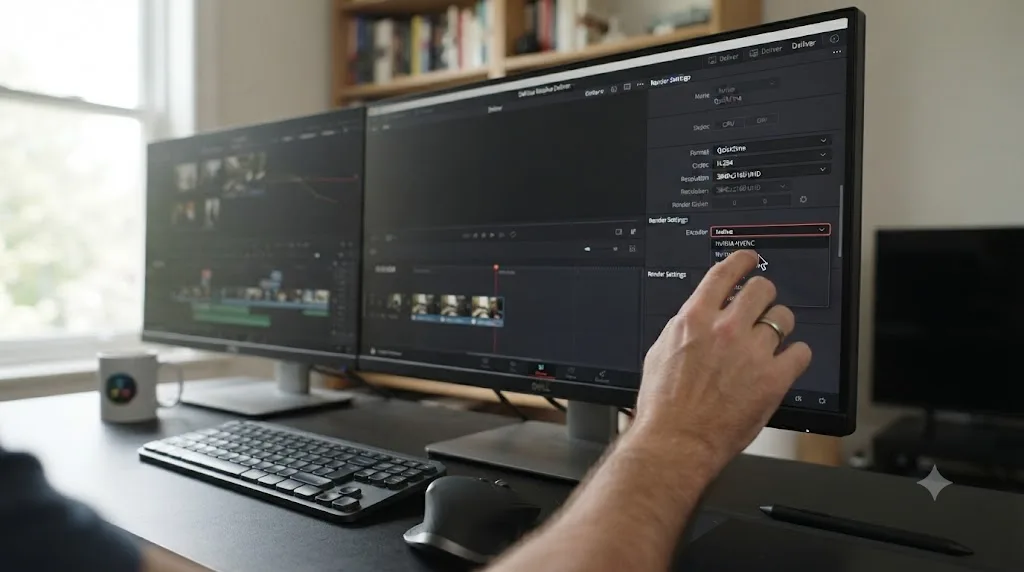
On the Deliver page, find the Encoder setting in your export options. Normally it shows your GPU vendor's name directly, NVENC for NVIDIA, VCN or AMF for AMD, Quick Sync for Intel, or VideoToolbox on a Mac. Every one of those is a hardware path that depends on your GPU driver being current, correctly matched to your Resolve version, and free of vendor-specific bugs. Switch Encoder to Native instead, and render again. Native routes the entire encode through your CPU in software, completely bypassing whatever hardware path might be broken.
If the codec error disappears on Native, you've confirmed the problem lives in your hardware encoder or its driver, not in your project settings or your footage. That's genuinely useful information even if you don't want to stay on Native permanently, since software encoding is meaningfully slower on longer or higher-resolution timelines. It tells you exactly what to watch for the next time a driver or Resolve update rolls out.
This overlaps directly with a documented bug. A thread on Blackmagic's forum titled "Error: Cannot locate appropriate codec" points to DaVinci Resolve Studio 19.1.1 shipping a fix for an H.264 rendering bug specifically tied to older NVIDIA graphics cards, per that discussion. If you're on an older NVIDIA card and an older Resolve build, that specific, already-fixed bug might be your exact error, and updating solves it faster than any workaround. Our guide to black frames in H.265 exports covers this same hardware-encoder-versus-decoder distinction in more depth if your export is completing but visually broken rather than failing outright.
Update your GPU driver at the same time you test Native encoding. If you're on NVIDIA, take the Studio Driver branch specifically, since it's validated against creative applications rather than games, and a mismatched Game Ready driver is behind a real share of encoder bugs that never make it into any Resolve-specific bug list because the fault genuinely sits one layer below Resolve, in the driver talking to the chip.
Switching Encoder to Native turns a vague codec error into a controlled test: if the render succeeds, your GPU's hardware encoder or driver was the actual problem, and you now know exactly what to fix or wait on. That's worth doing before any deeper troubleshooting, because it costs one render and rules out an entire category of causes.
Is a bitrate or "Restrict To" setting the real culprit?
Sometimes, particularly on longer timelines or higher resolutions where a custom bitrate value quietly asks for more than the codec profile can actually deliver.
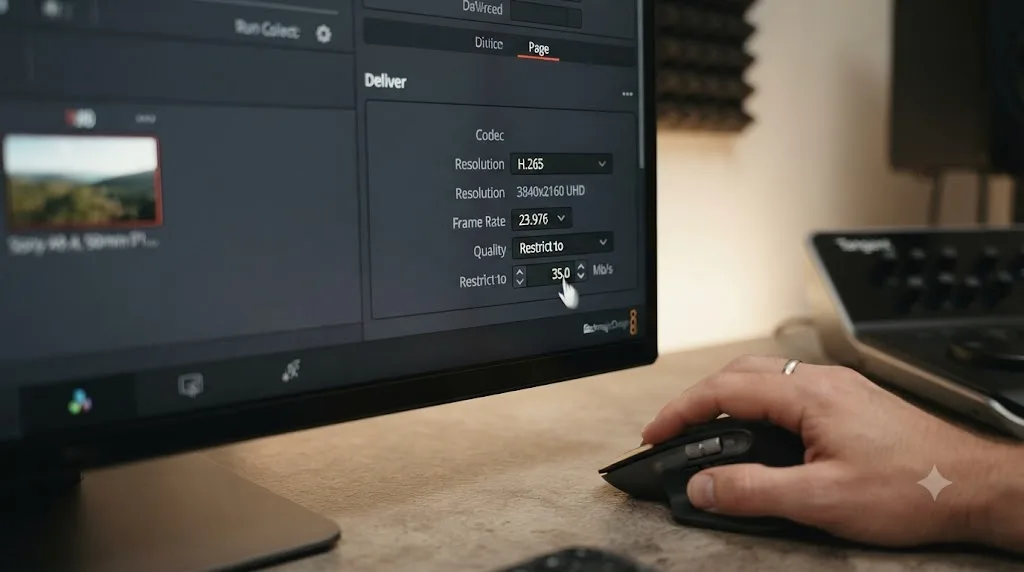
A tutorial from Tutkit walking through this exact "Render Job Failed, cannot find appropriate codec" error lists adjusting your quality settings as a real fix, specifically recommending you check the "Restrict To" bitrate field and, if it's set high, "starting with a value like 70,000 and progressively decreasing it to 60,000 or 50,000" until the render succeeds, per that walkthrough. That's a trial-and-error approach, but it works because it's isolating the same underlying issue as everything else in this guide: the encoder can't find a valid path between your settings and a completed file, and an unreasonable bitrate ceiling is one more way to create that dead end.
Position Is Everything's export troubleshooting guide backs this up with concrete numbers for a more common case. For standard 1080p web delivery, "a max bitrate above 30 Mbps is rarely justified," and for testing purposes generally, the guide recommends "12,000-20,000 Kb/s for 1080p" as a sane working range, according to that breakdown. If you inherited a custom preset with a bitrate value far outside that range, especially one built for a different resolution or codec than what you're currently exporting, that mismatch alone can be enough to trigger a codec error, because the encoder is being asked to do something the codec profile at that resolution genuinely can't do.
This same guide also flags a second, related setting mismatch worth checking at the same time: confirm your export frame rate and resolution actually match your Project Settings and your timeline. A frame rate mismatch between your timeline and your Deliver page settings doesn't always throw its own distinct error message. Sometimes it surfaces as the same generic codec or render failure covered throughout this guide, because the encoder is being asked to reconcile numbers that don't line up.
A custom bitrate or resolution value copied from an old preset without checking whether it still fits your current codec and resolution is one of the quietest, most avoidable causes of a codec error on this whole list. If you're using a custom export rather than one of Resolve's built-in presets, this is worth checking before you touch anything hardware-related.
Should you match Format and Codec manually instead of trusting a preset?
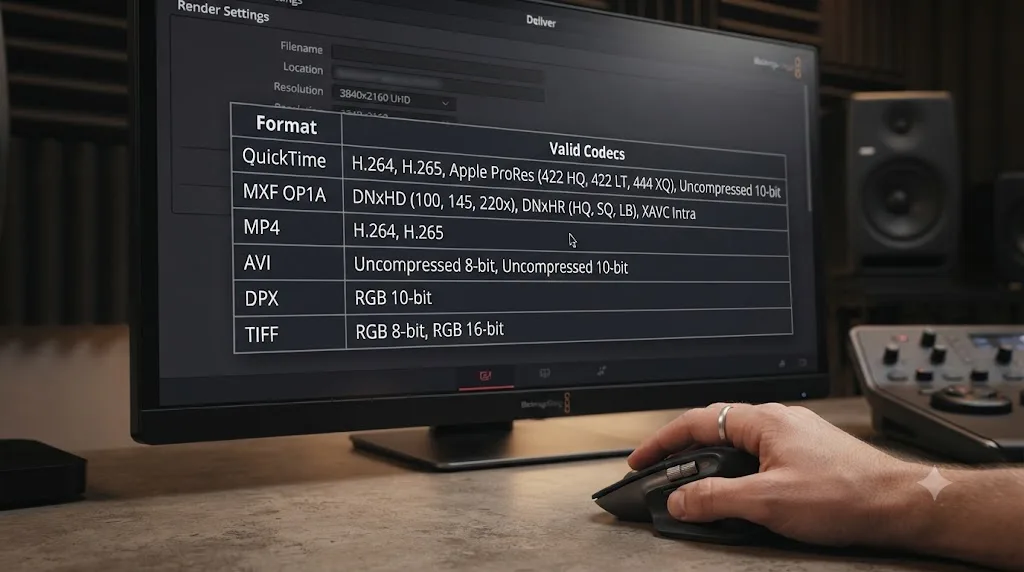
Yes, especially after any of the events covered above: a Resolve update, a machine change, or a plugin install. Format and Codec aren't independent settings, they're a pairing, and not every combination is valid.
Format selects the container, the outer wrapper that holds your video and audio streams. Codec selects what's actually encoded inside that container. A QuickTime container, for example, can legitimately hold ProRes, DNxHR, H.264, H.265, or an uncompressed stream, but that doesn't mean every one of those codecs is available to you specifically, on your specific operating system, GPU, and Resolve edition, at this specific moment.
| Format | Common valid codecs | Typical use case |
|---|---|---|
| QuickTime (.mov) | ProRes, DNxHR, H.264, H.265 | Editorial masters, client review, cross-platform delivery |
| MP4 | H.264, H.265 | Web delivery, social platforms, smaller final files |
| MXF OP1a | DNxHR, XDCAM | Broadcast and facility delivery |
| MXF OP-Atom | DNxHR | Avid Media Composer interchange |
| DPX / image sequence | Uncompressed frames, no audio | VFX handoff, archival masters |
This table is a starting point, not an exhaustive spec. The exact codecs available inside each Format on your machine depend on your operating system, your Resolve edition, and your GPU, which is exactly why a preset that worked perfectly on one setup can throw a codec error on another. DaVinci Resolve 19.1.4 added native Apple ProRes encoding on Windows and Linux for the first time, in both the free and Studio editions, closing a gap that used to force Windows editors through a workaround just to get a ProRes file, as covered in our ProRes vs DNxHR comparison. If you're on an older Resolve build than that, a ProRes export on Windows that a newer colleague sends you as a "just export this" instruction may not even be possible on your install yet.
The practical habit worth building: after any Resolve update, GPU change, or plugin install, open the Deliver page, click Format fresh even if it looks right, and confirm Codec actually shows the option you expect rather than trusting a saved preset blindly. It takes ten seconds and it catches this entire category of error before you've wasted a render cycle finding out the hard way.
A Format and Codec pairing that worked last month isn't guaranteed to work today, because the set of valid pairings depends on your exact software version, operating system, and GPU, all of which can change without you touching your export settings at all. Treat every preset as a claim to verify, not a fact to trust.
Does the free version of DaVinci Resolve hit this error differently than Studio?
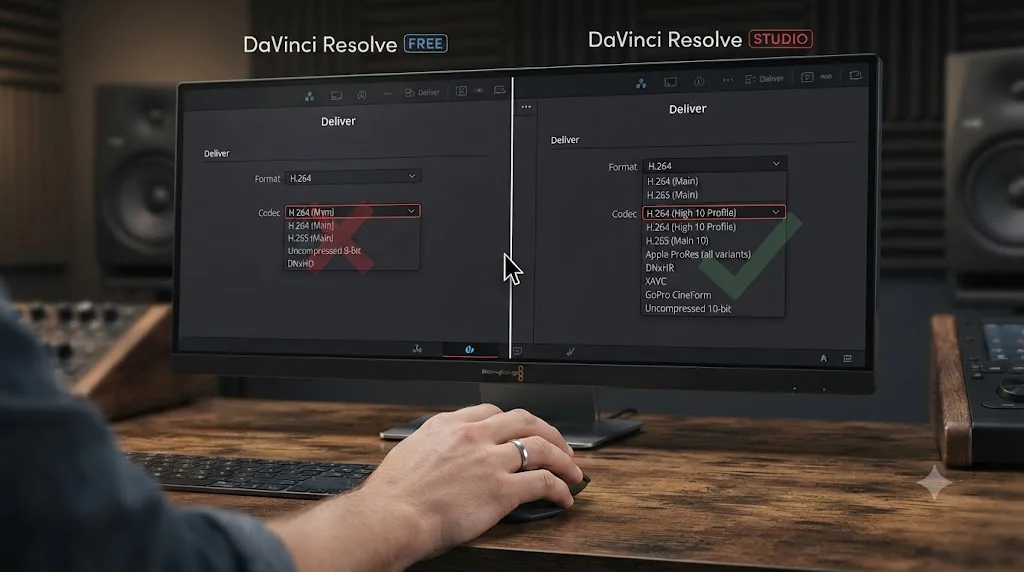
Yes, in a way that changes both how often you'll see it and which fixes are even available to you, because the two editions genuinely have different codecs available before you ever open the Deliver page.
On Windows and Linux, hardware-accelerated H.264 and H.265 encoding is a DaVinci Resolve Studio feature specifically, per Blackmagic's own Supported Formats and Codecs documentation. Free version users on those platforms fall back to software encoding automatically for those codecs, which is slower but also means they're structurally protected from the hardware-encoder-specific bugs covered earlier in this guide. On macOS, the picture is different again: the free version encodes H.265 through Apple's VideoToolbox with no restriction, the same hardware path Studio uses on the same Mac.
| Question | Free version | Studio |
|---|---|---|
| H.264/H.265 hardware encode on macOS | Yes, via VideoToolbox | Yes, via VideoToolbox |
| H.264/H.265 hardware encode on Windows/Linux | No, software only | Yes, via GPU vendor's encoder |
| Exposed to GPU-vendor preset mismatches | Lower, since software encoding doesn't reference a specific hardware encoder | Higher, since hardware encoder settings are what break across GPU changes |
| Exposed to MainConcept-style plugin conflicts | Same risk if the plugin is installed | Same risk if the plugin is installed |
| Can hit a hard codec-not-available error | Yes, if attempting a Studio-gated codec pairing | Rarely, for the same pairing |
The practical upshot: if you're on the free version and hitting a codec error, check first whether you're trying to use a codec or hardware acceleration option that's simply not part of the free edition on your platform, rather than assuming it's a bug. That's not a workaround-able error, it's a licensing boundary, and the fix is either switching to a codec the free version does support, like software H.264 or DNxHR, or upgrading to Studio if you specifically need hardware-accelerated H.265 on Windows or Linux.
The free version's narrower codec access on Windows and Linux means fewer valid combinations exist in the first place, which paradoxically makes some codec errors there completely unfixable through settings tweaks, because the codec pairing was never available to begin with. Confirm your edition supports what you're trying to export before you spend time on driver updates or preset resets.
Does updating DaVinci Resolve fix "cannot find appropriate codec"?
Partly, and checking your version number costs nothing compared to an evening spent testing settings for a bug that's already been patched.
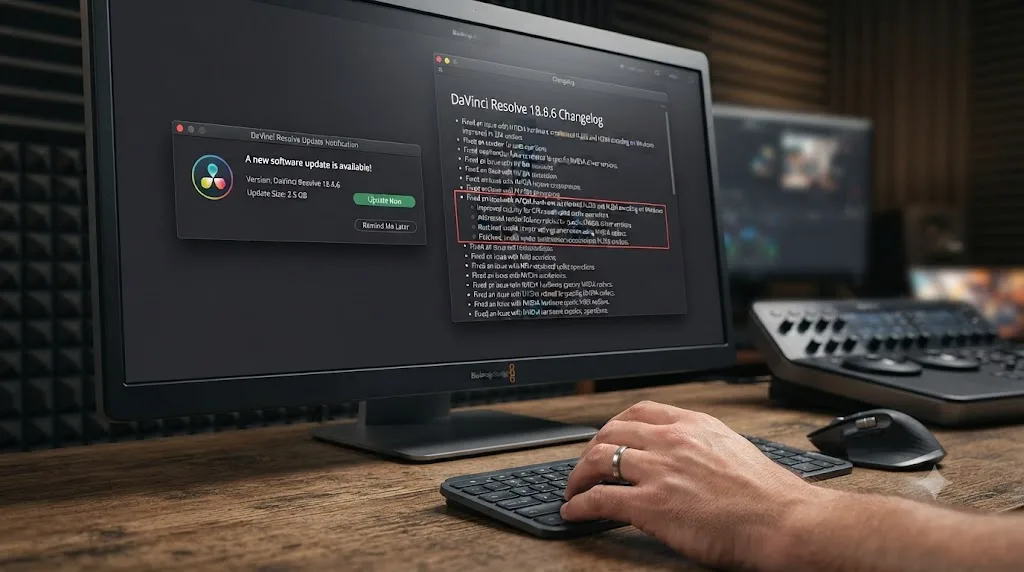
DaVinci Resolve Studio 19.1.1 shipped a fix for an H.264 rendering bug specifically affecting older NVIDIA graphics cards, directly relevant to the "cannot locate appropriate codec" reports tracked on Blackmagic's forum, per that thread. More recently, DaVinci Resolve 21.0.2, released July 1, 2026, "Addressed H.264 and H.265 NVIDIA decode performance," according to Newsshooter's coverage of that update, with No Film School's report on the same release describing "improved H.265 playback performance on NVIDIA GPUs" as part of the same point release.
Neither of those updates guarantees your specific error is fixed. Decode performance and codec-path correctness aren't automatically the same thing, and not every codec error traces back to a named, patched bug. But Blackmagic doesn't touch this specific corner of the pipeline casually, and a release actively working on NVIDIA-specific H.264 and H.265 decode is a release worth being on before you spend real time chasing a workaround the update may have already solved.
Check your version from Resolve's About screen, or from the Help menu, and compare it against Blackmagic's current release notes before you assume the fix has to come from your own settings. If you're several point releases behind and your GPU and codec combination match either of the fixes above, updating is genuinely the fastest path to a working render, faster than reinstalling drivers, deleting plugins, or rebuilding your export preset from scratch.
Troubleshooting a codec error that a Blackmagic point release already fixed is one of the most common ways to lose an entire evening to a problem that no longer exists in the current build. Check your version before anything else on this page, not after you've exhausted every other option.
What's the right order to try these fixes in?
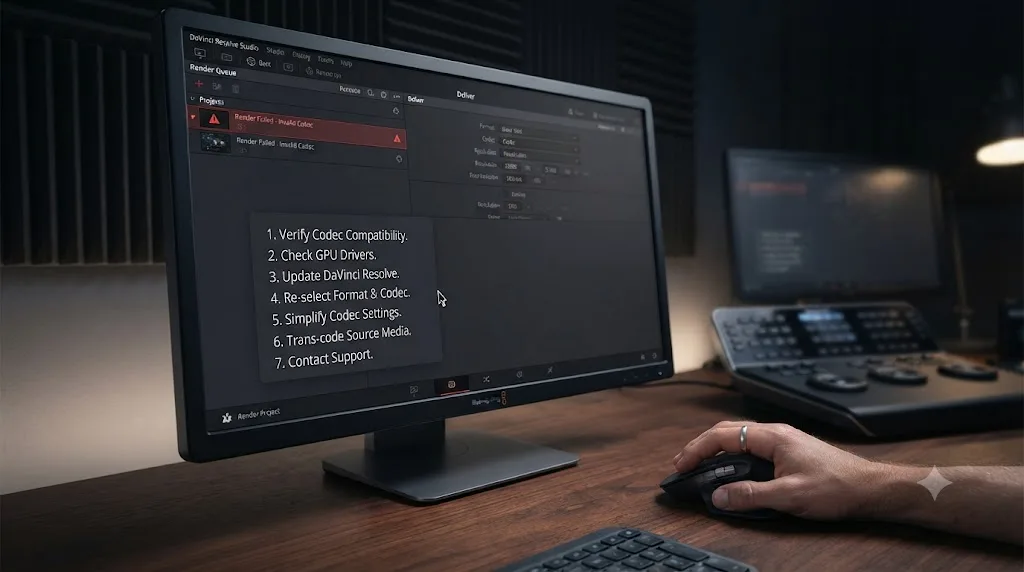
Work through this list top to bottom. Each step takes less time than the one after it, and most people find their fix inside the first four.
- Read the exact error text in the render queue. "Cannot find appropriate codec," "unsupported codec or format," and a blank Codec dropdown with no error text at all point at different causes covered above.
- Reselect Format on the Deliver page, then choose Codec fresh from the dropdown that repopulates. This alone clears the GPU-vendor preset mismatch covered earlier.
- Switch Encoder to Native and render again. If the error disappears, your GPU's hardware encoder or driver is the actual cause.
- If you have MainConcept's plugin installed and the error started right after a Resolve update, check Resolve's IOPlugins folder for leftover plugin files and remove them.
- If you're using a custom bitrate or "Restrict To" value, step it down toward your codec's typical range instead of an inherited high number.
- Confirm your Resolve edition and operating system actually support the Format and Codec pairing you're attempting, especially on Windows or Linux with H.264/H.265 hardware encoding.
- Update DaVinci Resolve and your GPU driver, taking the NVIDIA Studio Driver branch if that applies to you.
- If nothing above resolves it, export a ProRes or DNxHR master and transcode to your target codec with a separate tool afterward.
Each step isolates a different layer of the pipeline on purpose. Reselecting Format and switching to Native are both single-render tests that take seconds to try and immediately rule an entire cause in or out. The plugin check and bitrate adjustment go one layer deeper but are still quick. Confirming edition support and updating Resolve take longer but frequently turn out to be the actual answer, since Blackmagic has shipped real, documented fixes for real versions of this exact family of bugs. The ProRes or DNxHR fallback is the guaranteed last resort precisely because it doesn't depend on any of the hardware or licensing paths that might be broken.
How do you stop this before your next render?
Every fix above has a version you can apply before you ever click Render, and it's worth building into your workflow if you export regularly or across more than one machine.
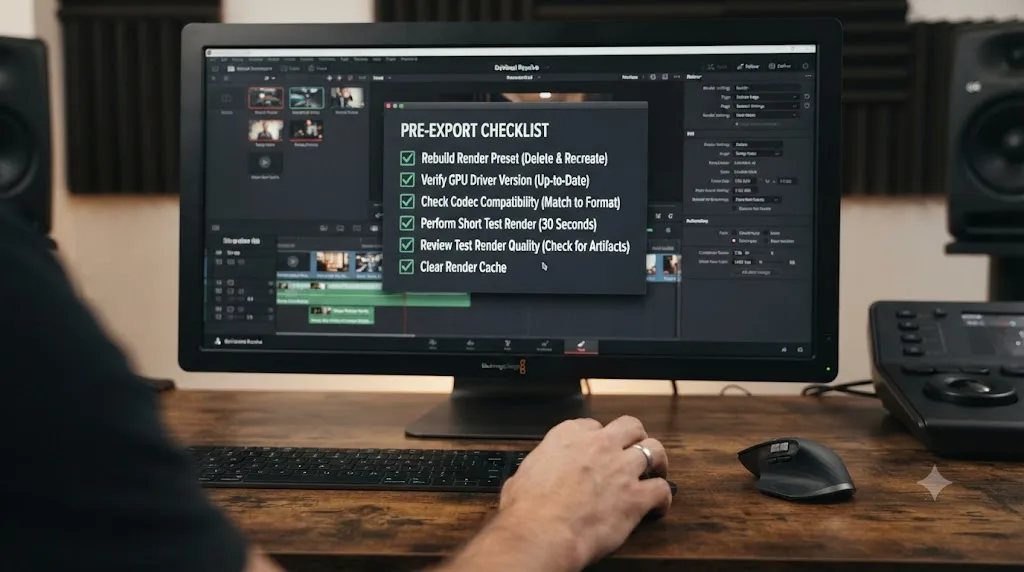
Test-render before committing to a full export, especially after any Resolve update, GPU driver update, or move to a different machine. Set In and Out points around a short section of your timeline and export just that range with your real delivery settings. A codec pairing that's actually broken shows up in under a minute this way instead of at the end of a forty-minute render.
Rebuild your custom export presets from scratch after a major Resolve update rather than trusting an old preset to carry forward cleanly. Presets are convenient exactly because they save you from reconfiguring settings every time, but that same convenience is what lets a stale, hardware-specific reference sit invisible inside a preset for months until a driver update or machine change finally exposes it.
If your work regularly moves between machines with different GPU vendors, whether that's your own desktop and laptop or a shared project with a collaborator, standardize on Native encoding for anything that has to render correctly on any machine, and reserve hardware encoders for situations where you control the exact hardware end to end. It's slower, but it removes the single biggest source of the GPU-vendor mismatch covered earlier in this guide.
Keep GPU driver updates deliberate rather than automatic, particularly mid-project. If an export pipeline is working, the driver it's working on is part of that pipeline, and an unplanned automatic update the night before a deadline is exactly how a working setup turns into a broken one with zero warning.
And build the ProRes-or-DNxHR-first habit into any workflow where the final delivery codec genuinely matters, rather than treating it as an emergency-only fallback. Render your master in one of those intermediate codecs, confirm it's correct, then transcode to your delivery codec afterward. It costs render time and drive space up front, and it buys you a master file that isn't vulnerable to a single one of the causes covered in this guide.
What if you still need a guaranteed clean render right now?
When you've worked through the list above and you're still fighting a codec error, or you simply need a deliverable today and can't spend more time isolating the exact cause, stop fighting the codec path directly and route around it.
Export your timeline to ProRes 422 HQ or DNxHR HQX instead of your intended delivery codec. Both are software-encoded, intraframe formats with no dependency on a specific GPU vendor's hardware encoder, no frame reordering, and none of the licensing gates that separate the free and Studio editions on Windows and Linux. That render will be considerably larger than your target codec, but it will complete, because none of the failure modes covered in this guide apply to how these codecs work.
Then take that finished master and transcode it to your actual delivery codec outside DaVinci Resolve entirely, using a dedicated free tool like HandBrake or Shutter Encoder. You're splitting the job into two specialized pipelines instead of asking one to do everything: Resolve handles your timeline, your grade, and your effects, and a purpose-built transcoder handles the delivery codec on its own schedule, completely unconnected to whatever was broken in Resolve's own export path. If a codec error is coming from a driver bug, a broken plugin, or a GPU-vendor mismatch, this sidesteps every one of those causes at once, because the transcoder never touches any of them.
This is a completely normal professional workflow, not a workaround you should feel bad about reaching for. Our full render troubleshooting guide covers this same intermediate-and-transcode approach for renders failing outright rather than just erroring on codec selection, and our guide to Unsupported File Format errors covers the mirror-image problem on the import side, when Resolve can't decode footage coming in rather than encode a file going out.
When a codec error traces back to something genuinely broken in your hardware path, driver, or license tier, no amount of clicking through export settings inside Resolve will reliably fix it, which is exactly why routing the encode to a different tool entirely is the fix that never fails. Keep this in your back pocket for any deadline where a guaranteed file beats a perfectly explained failure.
The fastest path past this error
Start by reading the exact dialog text instead of assuming you know what it says, because "cannot find appropriate codec" and a blank Codec dropdown point at genuinely different causes. Reselect Format and Codec manually first, since that single ten-second check clears the most common cause: a preset carrying a stale reference to different GPU hardware. Switch Encoder to Native to rule out a driver or hardware encoder fault in one render. Check for a leftover MainConcept plugin if you've ever installed one, confirm your bitrate settings are reasonable for your resolution and codec, and verify your Resolve edition actually supports the pairing you're attempting on your operating system. Update Resolve and your GPU driver, since Blackmagic has shipped real fixes for real versions of this exact bug family. And if none of that clears it, stop fighting the codec path directly and render a ProRes or DNxHR master instead, then transcode it afterward. That last option has never failed, because it never depends on the broken hardware path in the first place.
If the part that's actually costing you time is finding these settings at all, not knowing what they do once you've found them, that's a narrower problem than a codec bug. TryUncle is the on-screen assistant for DaVinci Resolve on macOS. Ask in plain words and Uncle points at the exact control on your screen. It's a paid app at founder pricing, not a replacement for understanding your export pipeline, but it's built for exactly the moment you're staring at the Deliver page trying to match a forum thread's instructions to the actual dropdown in front of you. Other tools in this space, like Sottocut, PremiereCopilot, heyeddie.ai, and cutagent.ai, mostly automate edits or answer chat questions about your footage; TryUncle instead watches your actual screen as an app that helps you while using DaVinci Resolve, pointing at the live control rather than generating an answer in a chat window. Ask TryUncle for the current founder rate if that gap is what's actually slowing you down. For everything else, the order in this guide, checked top to bottom, is the fastest way back to a render that finishes clean.
Frequently asked questions
- What does DaVinci Resolve's "invalid render settings, please check codec" error actually mean?
- It means the render engine tried to encode your timeline with a Format, Codec, and Encoder combination it can't complete, usually because the codec doesn't exist on your system, isn't licensed for your Resolve edition, or was tied to different GPU hardware. The dialog most users actually see reads "Render Job Failed, cannot find appropriate codec for encoding the video frame." Your footage is not corrupted. The export pipeline just can't find a working path from your timeline to the file you asked for.
- Why does the Codec dropdown on the Deliver page suddenly show blank or grayed out?
- This happens most often when a render preset or project was created on one machine and opened on another with a different GPU vendor, say a project built on an NVIDIA card and reopened on a machine with AMD or Apple Silicon. The preset stored a reference to an encoder that no longer exists on the new hardware, so the Codec field goes blank instead of falling back automatically. Reselect Format, then manually pick a Codec from the dropdown that now populates.
- Does deleting the MainConcept plugin fix the codec error?
- For a specific, well-documented case, yes. Users on Blackmagic's own forum traced a recurring "cannot find appropriate codec" error to a leftover MainConcept encoding plugin that survived a version upgrade and left Resolve confused about which encoder to use. Deleting the plugin files from Resolve's IOPlugins folder and restarting resolved it. This isn't the majority cause, but it's worth checking if you installed MainConcept's paid codec add-on at any point.
- Is this error more common with H.265 exports than H.264?
- Yes. H.265 hardware encoding is newer, more efficient, and asks more of your GPU's dedicated media engine than H.264 does, and it's more sensitive to bit depth and chroma subsampling mismatches. Puget Systems' own hardware decoding testing found that codec variant, bit depth, and chroma subsampling all separately affect whether your system can actually process a given H.264 or H.265 file, which is exactly the kind of mismatch that produces a codec error on export.
- Does updating DaVinci Resolve fix "cannot find appropriate codec"?
- Sometimes, and it costs nothing to check first. Blackmagic shipped a fix for an H.264 rendering bug tied to older NVIDIA graphics cards in DaVinci Resolve Studio 19.1.1, and the July 2026 21.0.2 update specifically addressed H.264 and H.265 NVIDIA decode performance. If your GPU and codec combination match either of those, updating may resolve your exact error before you touch a single export setting.
- Can a bitrate or "Restrict To" setting cause this error?
- Yes, on longer or higher-resolution timelines. An unreasonably high bitrate value, or a "Restrict To" ceiling set far beyond what your codec profile and resolution combination can actually deliver, can make the render engine fail to find a valid encode path. Lowering a custom bitrate value in steps, from a high number down toward your codec's typical range, is a standard fix reported across DaVinci Resolve troubleshooting guides.
- Does the free version of DaVinci Resolve hit this error differently than Studio?
- Yes, because the two editions don't have access to the same codecs in the first place. On Windows and Linux, hardware-accelerated H.264 and H.265 encoding is a Studio-only feature, so free version users there are restricted to a narrower set of working Format and Codec pairs before they even open the Deliver page. That narrower set means fewer invalid combinations are possible, but it also means a free-version user trying to replicate a Studio-only codec pairing will hit this error immediately, every time, with no workaround except upgrading or changing the codec.
- What if none of the standard fixes clear the error?
- Route around the problem instead of continuing to fight it. Export your timeline to ProRes 422 HQ or DNxHR HQX, both software-encoded, intraframe formats with no dependency on a hardware encoder or a specific GPU vendor's driver. That render will complete cleanly in almost every case where a hardware codec path is broken. Then transcode that finished master to your actual delivery codec with a separate, dedicated tool outside DaVinci Resolve.
Sources
- Blackmagic Design Forum: Cannot Find Appropriate Codec Message
- Blackmagic Design Forum: Error: Cannot locate appropriate codec
- Blackmagic Design Forum: unsupported codec or format on render
- Puget Systems: What H.264 and H.265 Hardware Decoding is Supported in DaVinci Resolve Studio? (Matt Bach)
- Tutkit: Troubleshooting in DaVinci Resolve: Render Job 1 Failed
- Position Is Everything: How to Fix Export Errors in DaVinci Resolve
- DaVinci Resolve Supported Formats and Codecs, July 2025 (Blackmagic Design)
- DaVinci Resolve - Tech Specs (Blackmagic Design)
- Newsshooter: DaVinci Resolve 21.0.2 Update
- No Film School: DaVinci Resolve 21.0.2 Update Adds Faster Image Bypass Switching, Improved H.265 Playback, and More
Put this guide to work with TryUncle.
Ask about the step you’re on. TryUncle sees your screen and points at the control you need, so you can keep learning in your own project.
Get TryUncle for Mac or WindowsKeep reading
Fixes · Jul 18, 2026 · 25 min
DaVinci Resolve H.265 Export Shows Black Frames: The Fix
Why H.265 exports in DaVinci Resolve show black or corrupted frames, and the exact fix order: frame reordering, decode acceleration, CPU fallback.
Fixes · Jul 7, 2026 · 24 min
DaVinci Resolve Not Exporting? Fix a Stuck or Failed Render
Why DaVinci Resolve renders get stuck at 0% or 99%, or fail with no error, and the exact checks that get a stalled export moving again.
Fixes · Jul 12, 2026 · 23 min
DaVinci Resolve Says Unsupported File Format: The Real Fix
DaVinci Resolve's Unsupported File Format error almost always means a codec problem, not a broken file. Match your exact symptom to the cause and fix it.