Articles / Fixesupdated for DaVinci Resolve 21.0.2 (July 2026)
DaVinci Resolve Renders Slower After a macOS Update? Fix It
Quick answer
A macOS update forces one-time background work (Metal shader recompilation, Spotlight and Photos reindexing, security scans) that competes with DaVinci Resolve for CPU and GPU cycles. Exports usually speed back up within a few hours to a day. If they don't, check GPU Selection, confirm your Resolve build supports the new macOS version, and update Resolve itself.
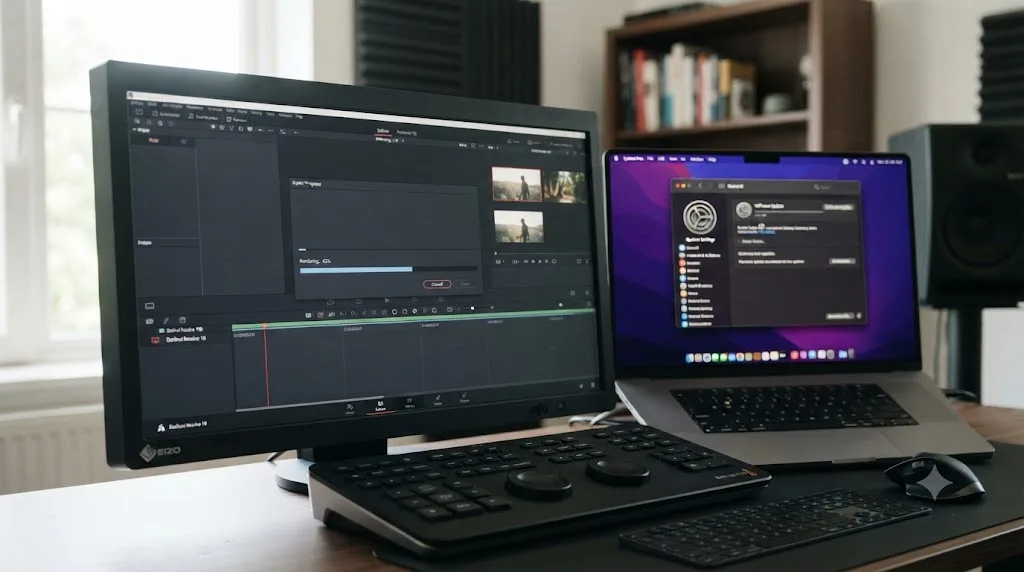
Your export used to take four minutes. Now it's crawling past twenty, and the only thing that changed is a macOS update you installed yesterday. You didn't touch a single Resolve setting. It doesn't feel like it should be this slow.
It probably isn't broken. Most of the time, this is your Mac finishing homework it assigned itself the moment the update installed, and DaVinci Resolve is stuck competing for the same CPU and GPU cycles that homework is using. The fix, most of the time, is knowing what to check and in what order, not reinstalling anything.
What actually causes DaVinci Resolve exports to slow down right after a macOS update?
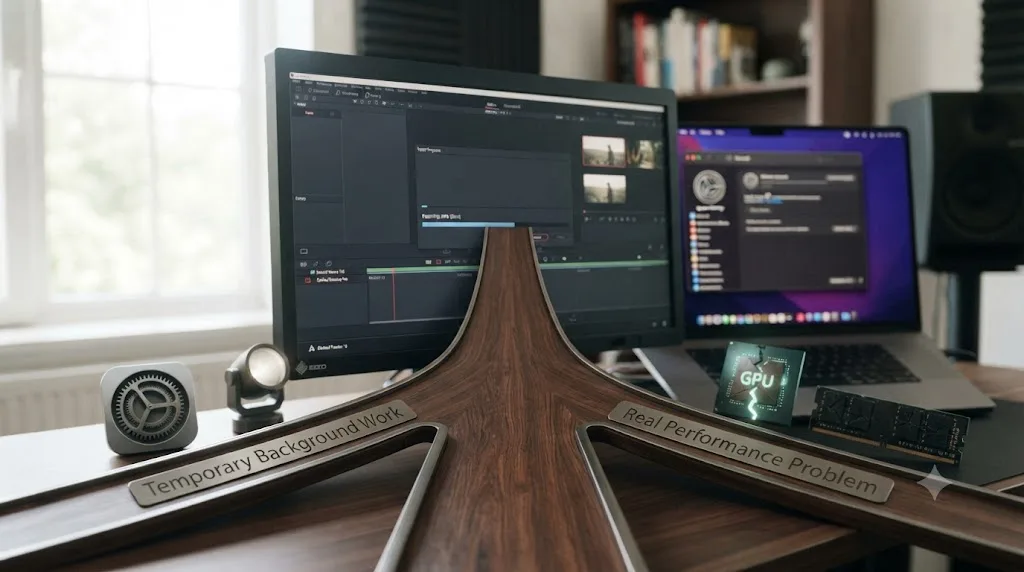
Two very different things, and they need two very different responses.
The first is temporary. macOS runs a batch of one-time maintenance jobs after almost any update, rebuilding search indexes, re-scanning your photo library, revalidating security signatures, and recompiling graphics shader caches for apps that use Metal, which includes DaVinci Resolve. None of that is Resolve's fault, and none of it lasts. It just happens to land at the worst possible moment, right when you sit down to export something.
The second is real. A macOS update can put you on the wrong side of Blackmagic's supported version pairing, reset a permission Resolve needs, or occasionally expose an actual regression in how Metal or a GPU driver behaves under the new OS. That kind of slowdown doesn't fix itself by waiting.
A slower export the day after a macOS update is usually your Mac still working, not your GPU failing. Telling the two apart is the entire job of this guide, and it starts with patience before it starts with troubleshooting.
Why does a macOS update force so much background work in the first place?
Because an update isn't just new code landing on your drive. It's an event that invalidates a pile of caches and indexes the rest of the system depends on, and macOS has to rebuild every one of them before things settle down.
Mac systems writer Howard Oakley, who documents macOS internals in detail at The Eclectic Light Company, describes just how much runs in the background on any given day: Macs juggle "several hundred" background activities at once, covering "software updates, backups and malware scans" along with maintenance for Photos, Spotlight, and other system services, per Oakley's breakdown of background activity scheduling. That's the baseline, before an update adds a fresh batch of one-time jobs on top.
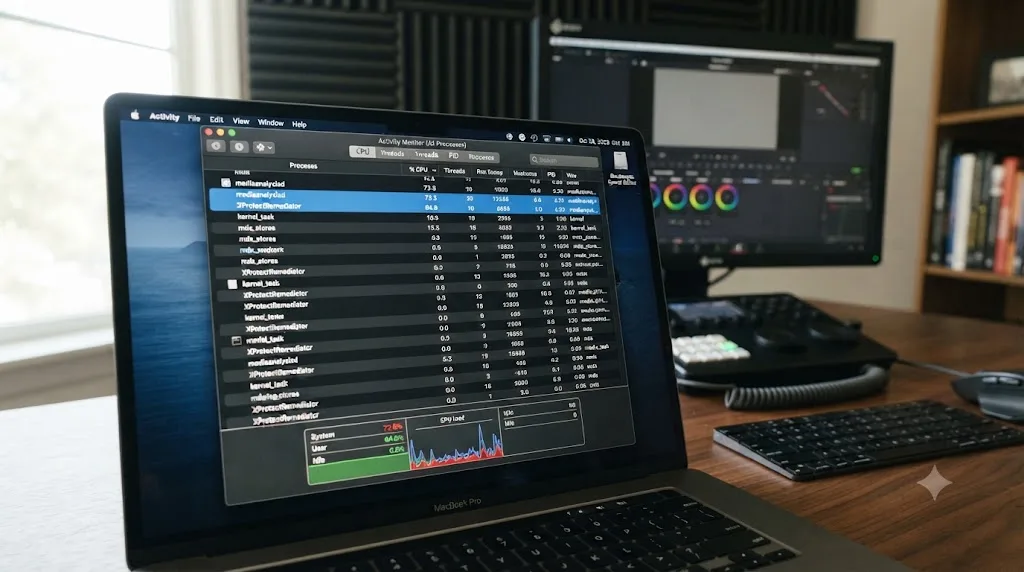
Two of those jobs are specifically heavy after an update. Photo analysis, driven by a process called mediaanalysisd, can "flood the E cores in a laptop Apple silicon Mac," according to Oakley's writeup, while Apple's malware-scanning tool, XProtect Remediator, runs scans that can "busy a whole E core for well over half an hour" doing intensive disk reads. Neither of those processes touches your GPU directly, but they do compete for the same shared CPU cores and the same disk bandwidth your export needs to read source media and write the finished file.
9to5Mac reported the same pattern from the user side after a recent point release: "some users are experiencing beachballs or lagging performance on their Macs on macOS 26.5, and it seems the culprit may be Apple Intelligence photo scanning in the background," tracing it to mediaanalysisd doing "analysis of the photo library" while macOS "carries out an AI analysis of photo content in the background," per 9to5Mac's report on post-update photo scanning slowdowns. The article's own recommendation was blunt: "the only solution appears to be to connect to power overnight and let the machine get on with it."
That's not a Resolve-specific fix. It's a whole-system one, and it applies just as much to why your export is slow as it does to why the rest of your Mac feels sluggish this week.
Does macOS really rebuild GPU shader caches after an update, and does that slow Resolve down specifically?
Yes, and this one hits Resolve harder than most apps, because Resolve leans on GPU-accelerated Metal rendering for nearly everything it does past a basic cut.
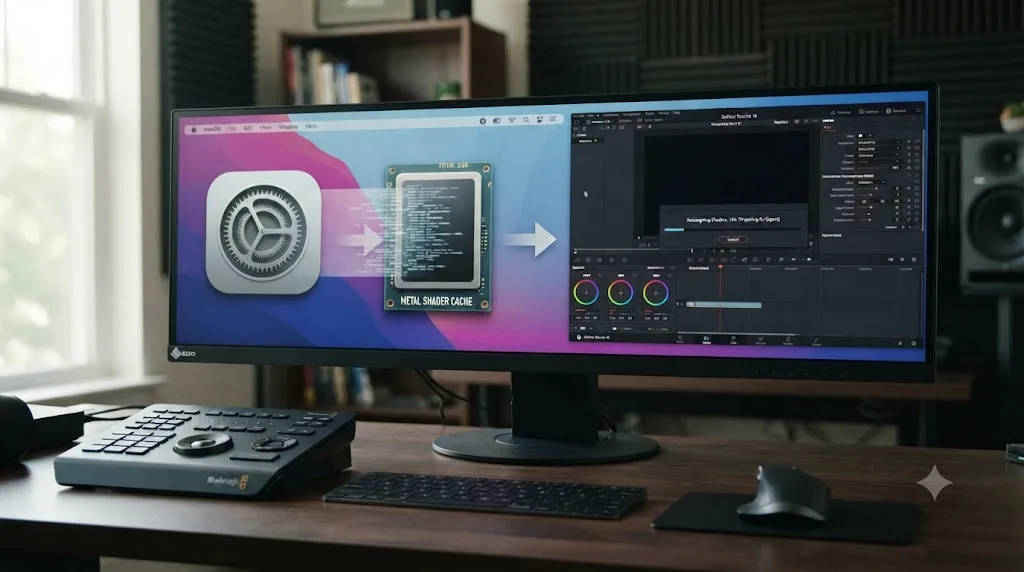
Metal, Apple's graphics API, compiles shader code into a format your specific GPU can run, and it caches the result so it doesn't have to recompile the same shader every time an app launches. A system or app update invalidates that cache. According to a technical explainer on the process responsible for this work, "after a system or app update, GPU resources often need to be rebuilt. That includes shaders and other assets that Metal uses," and "MTLCompilerService is the helper that does the rebuilding, so it is normal to see higher CPU use for a while," per MacSecurity's breakdown of MTLCompilerService behavior. The same explainer lists "a recent macOS or app update that invalidated existing GPU caches" as a direct trigger for the CPU spike.
For most apps, that rebuild is invisible, a few seconds of extra launch time nobody notices. DaVinci Resolve is a different case. It uses an unusually large number of distinct Metal shaders across color, Fusion, and delivery, and the first render or export after an update can trigger recompilation of shaders that a normal editing session never touches, because export-specific effects and codecs get exercised for the first time since the cache was wiped. That first export after an update paying a one-time compilation tax, on top of everything else macOS is doing, is a large part of why the very first render feels dramatically slower than every render after it.
Metal shader caches get thrown out on almost every macOS update, and DaVinci Resolve has to rebuild its own before it can render at full speed again. This is the single most common technical reason a first export after an update crawls while a second export of the same timeline, run twenty minutes later, is back to normal.
Is Spotlight reindexing part of this too?
Often, yes, especially if the update was a major version jump rather than a small point release.
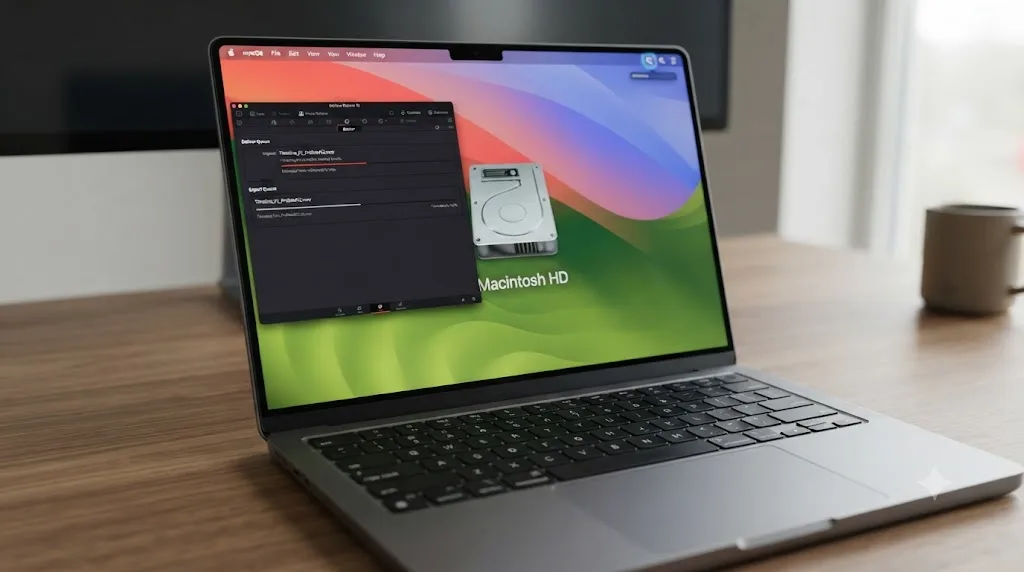
Spotlight, macOS's system-wide search index, gets rebuilt in the background after significant system changes. Apple's own support documentation describes the rebuild process directly, walking through how to trigger it manually by excluding then re-including a volume from Spotlight's privacy list, per Apple's support article on rebuilding the Spotlight index. That same mechanism runs automatically, without you asking for it, whenever macOS decides the existing index can't be trusted, which a major update reliably triggers across your entire startup disk.
On a Mac with a large media library, terabytes of footage, proxies, and cache files all sitting on the same drive Resolve is reading from and writing to, that reindex isn't a quiet background hum. It's sustained disk I/O competing directly with the disk I/O your export needs, on the exact same physical drive, for potentially hours.
This matters more on a system with a single internal SSD holding your OS, your Resolve cache, and your project media all at once, and less on a setup where media and cache live on a separate external or network drive Spotlight isn't actively reindexing. If you've ever wondered whether your drive layout affects performance beyond simple capacity, this is one of the concrete reasons it does, alongside the reasons covered in our cache files filling up your hard drive guide.
How long should you actually wait before you start troubleshooting?
Long enough to let the update's own homework finish, and that's a bigger window than most people expect.
There's no single official number from Apple for how long every post-update background job takes, because it depends on your drive size, your Photos library size, and how much changed in the update. But the pattern across the sources above points the same direction: hours, not minutes, and sometimes closer to a full day on a heavily loaded Mac. Oakley's writeup frames the fix for a stuck or unusually long background job as a restart, which forces macOS to "construct fresh lists of activities for DAS to dispatch" and clears out anything that got stuck mid-process, per The Eclectic Light Company's guide to background activity scheduling. 9to5Mac's advice for the photo-scanning case was even more direct: plug in overnight and let it finish.
Here's a practical way to tell where you stand without guessing:
| Time since the macOS update | What it usually means |
|---|---|
| Under 1 hour | Background tasks are almost certainly still running. Don't troubleshoot yet, especially on a large drive. |
| 1 to 6 hours, Mac used actively but not left idle | Background tasks may still be queued behind foreground work. Check Activity Monitor before assuming it's fixed. |
| Overnight, plugged into power | Most one-time jobs should be done. If exports are still slow now, move to the checklist below. |
| Several days later, still slow | Not background work anymore. Treat it as a real, ongoing problem. |
Waiting a day costs you nothing. Reinstalling Resolve or rolling back macOS before ruling out background tasks costs you an afternoon you didn't need to lose. Check the calendar before you check anything else.
How do you check whether background tasks are still the cause?
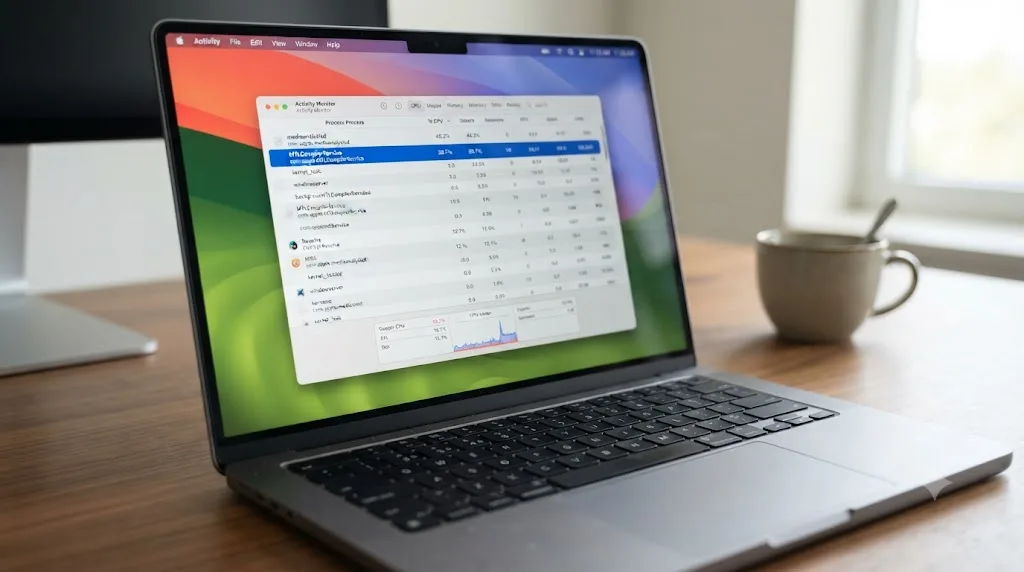
Open Activity Monitor before you touch a single Resolve preference. It's the fastest way to separate "macOS is still busy" from "something is actually wrong."
- Open Activity Monitor from Applications > Utilities, or Spotlight search.
- Click the CPU tab and sort by % CPU, highest first.
- Start a short test export in DaVinci Resolve on any timeline.
- Watch the top of the list. If
mediaanalysisd,mdworker,mds_stores,XProtect Remediator, orMTLCompilerServiceshow up consuming meaningful CPU while your export runs, that's background work, not Resolve, eating your machine's headroom. - Let those processes finish, or plug in and wait, then re-run the same export and compare the time.
If none of those processes appear and CPU usage is dominated by Resolve's own process instead, the slowdown isn't a leftover background task, and it's time to move to the settings and version checks below.
Can you speed up the background tasks instead of just waiting them out?
Sometimes, and it's worth knowing the levers exist even though patience is still the safer default for most people.
If Activity Monitor confirmed background tasks are the actual cause and you're on a deadline right now, not tomorrow, two things can shrink the window instead of just eliminating it over time.
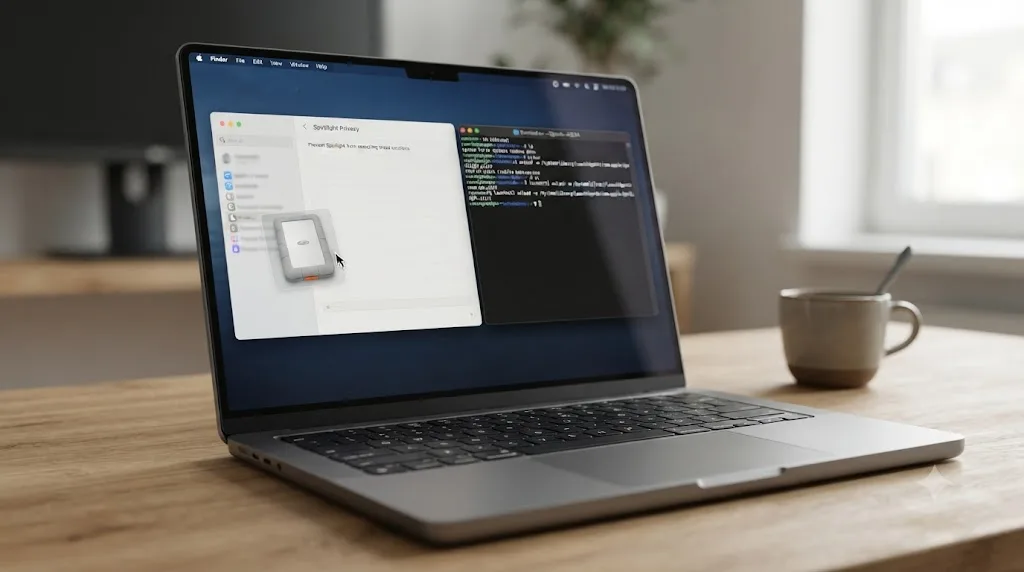
The first is excluding your active project drive from Spotlight while you finish the delivery. Apple's own instructions for rebuilding the Spotlight index describe the mechanism directly: open System Settings > Siri & Spotlight > Spotlight Privacy, then drag the drive holding your Resolve cache and media into that list, and Spotlight stops actively indexing it, per Apple's support article on rebuilding the Spotlight index. Drag the drive back out once your export finishes. Leaving it excluded means Spotlight search on that drive stays broken until you remove it, so this is a during-the-export move, not a permanent setting.
The second lever is more aggressive, and it's not something to reach for casually: disabling mediaanalysisd, the process behind Photos' background face and object analysis, with a Terminal command. According to AppleInsider's walkthrough of the process, running sudo launchctl disable system/com.apple.mediaanalysisd stops the analysis outright, per AppleInsider's guide to stopping mediaanalysisd from hogging CPU. The tradeoff is real: face recognition, object detection, and some Photos search features stop working until you re-enable it by running the same command with enable in place of disable. That's a fair trade for finishing a client delivery in the next hour. It's a bad habit to leave in place permanently, since Photos quietly loses the metadata that makes years of photos searchable while it's off.
Neither shortcut touches Metal shader recompilation, which has no user-facing off switch and simply has to run once per update no matter what else you disable. Use this table to decide whether either lever is actually worth it for you right now:
| Situation | Worth the shortcut? |
|---|---|
| Export needed within the hour, and Activity Monitor confirmed background tasks are running | Yes. Exclude the active project drive from Spotlight until the export finishes. |
| No deadline today | No. Let the one-time jobs finish naturally, ideally overnight and plugged into power. |
| You rely on Photos face detection or smart search day to day | Skip disabling mediaanalysisd, or remember to re-enable it the moment your export is done. |
| Slowdown persists after trying both steps | Not a background-task problem after all. Move to the version and settings checks below. |
Excluding a drive from Spotlight or disabling mediaanalysisd only shortens the background-task window on the machine you're using right now. Neither one stops the next macOS update from repeating the exact same cycle. Treat both as a deadline-day lever, not a permanent fix, and put them back the way they were once you've delivered.
Does your DaVinci Resolve version even support the new macOS version?
Check this before anything else that involves changing a setting, because it's the most common cause of a slowdown that never goes away on its own.
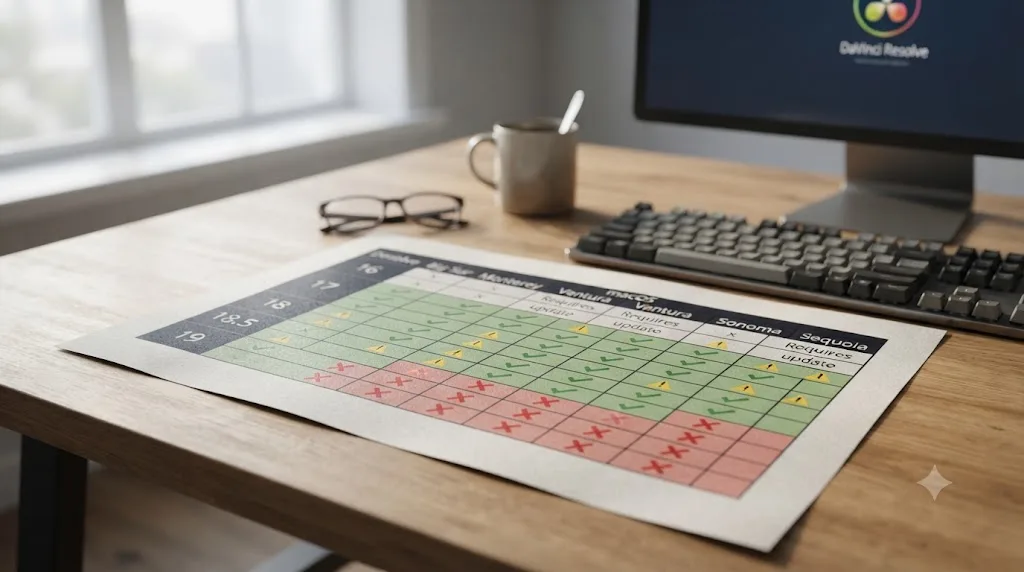
Blackmagic publishes an explicit supported macOS version for every Resolve release, and it isn't "anything recent." DaVinci Resolve 21 requires an Apple Silicon Mac running macOS 15 Sequoia or later, full stop, according to Blackmagic's own tech specs page for DaVinci Resolve. Resolve 21.0.2 specifically lists the same macOS 15 Sequoia floor, alongside 8 GB of system memory as a minimum and 16 GB when Fusion is in use, per CineD's coverage of the 21.0.2 release.
That pairing matters in both directions. Updating macOS ahead of what your installed Resolve version officially supports can expose real compatibility gaps, not just temporary slowness, since Blackmagic tests each Resolve release against a specific macOS baseline, not against whatever Apple ships next. Running an old Resolve version on a brand-new macOS release is effectively running Resolve outside its tested envelope.
| Your situation | What to check |
|---|---|
| DaVinci Resolve 21.x on Apple Silicon, macOS 15 Sequoia or later | Supported pairing. A slowdown here is almost certainly background tasks or a settings issue, not a version mismatch. |
| DaVinci Resolve 20.x or earlier on Apple Silicon | Still supported, but check whether the specific macOS version you just installed is one Blackmagic tested that Resolve release against. |
| DaVinci Resolve 20.x or earlier on an Intel Mac | Resolve 21 never arrives here, since Intel support ended at that version. A macOS update on an aging Intel Mac is the riskiest scenario in this whole table. |
| Any Resolve version on a macOS beta | Not a supported pairing by definition. Betas ship ahead of Blackmagic's own testing cycle, and performance regressions here are expected, not a bug to report. |
If you're running the pairing Blackmagic doesn't officially support, updating Resolve itself, not rolling back macOS, is usually the faster fix, since Blackmagic tends to ship a compatibility-focused point release within days or weeks of a major Apple update landing.
Could the macOS update have reset a Resolve setting without telling you?
Not usually the export settings themselves, but permissions are a real and often overlooked exception.
macOS uses a privacy system, commonly called TCC, to gate which apps can access your files, camera, microphone, and full-disk contents, and a major version upgrade can reset those grants for reasons Apple doesn't always surface clearly to the user. General macOS support guidance is direct about the habit worth building: "after any significant change to your macOS system," including a version upgrade, "it is recommended that you verify that the necessary permissions are still correctly granted," per Caldera's guide to granting Full Disk Access and other required macOS permissions.
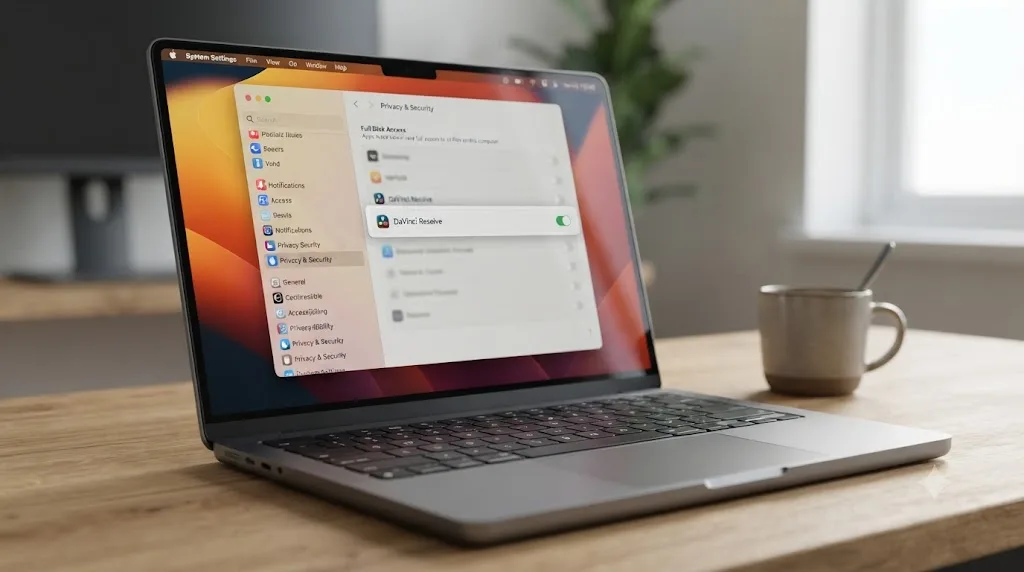
For DaVinci Resolve, the permission most worth checking is Full Disk Access, especially if your project media, render cache, or Optimized Media folders live on an external drive rather than your internal SSD. If Resolve's access to that drive got revoked or needs re-confirming after the update, reads and writes to it can silently fall back to slower paths, or trigger repeated permission prompts that stall a render without a clear error message explaining why.
Two settings inside Resolve are worth a quick glance too, not because updates typically touch them, but because confirming they're untouched takes thirty seconds and rules out an entire category of cause:
- Preferences > System > Memory and GPU, under GPU Selection, to confirm your dedicated or preferred GPU is still the one selected.
- The Deliver page's Encoder dropdown, next to your codec, to confirm it still reads your GPU's name rather than Native, the same setting covered in depth in our GPU utilization 0% during export guide.
Neither of these commonly changes on its own during a macOS update. But "commonly" isn't "never," and checking both costs a minute against an afternoon of guessing.
Do macOS updates ever cause a genuine, lasting GPU or Metal performance regression?
Occasionally, yes, and it's worth naming honestly rather than pretending every slowdown is background noise.
Apple's own developer forums carry ongoing threads about Metal Performance Shaders behavior changing between macOS point releases, the kind of low-level shift that can affect any app leaning on GPU compute, Resolve included. These aren't common, and Apple typically addresses confirmed regressions in a subsequent point release once enough developers report them. But the honest answer to "can this actually be a real, lasting bug and not just background tasks" is yes, it can be, particularly in the weeks right after a brand-new macOS version ships, before its rough edges get sanded down.
Editors on Blackmagic's own forum have reported exactly this pattern in the real world. One thread, titled plainly "DaVinci Resolve completely messed up after Mac OS Sequoia 15," documents users running into broken behavior specifically traced to that macOS upgrade, per the Blackmagic Design forum thread on Resolve issues following the Sequoia 15 update. Another, "Resolve 19.01 & OSX Sequoia Render Issues M1 Ultra," covers render-specific slowdowns reported on Apple Silicon Macs shortly after that same OS update, per the Blackmagic forum thread on Sequoia render issues on M1 Ultra. Neither thread is proof that every slow export after every macOS update is a real bug, but both confirm this isn't a hypothetical risk invented for this article. It happens, on real machines, after real updates.
A genuine macOS-driven performance regression is rare, but it's real often enough that "just wait it out" isn't the correct answer for everyone. If you've given it a full day, confirmed your Resolve and macOS pairing is supported, and checked Activity Monitor with nothing unusual left running, you've earned the right to treat this as a real bug rather than impatience.

What's the full troubleshooting order, start to finish?
Work through it in this order and stop the moment you find your answer.
- Check the clock. Under a few hours since the update, on a Mac with a large drive or Photos library, background tasks are the most likely cause. Wait before doing anything else.
- Check Activity Monitor during a test export. Look for
mediaanalysisd,mdworker,mds_stores,XProtect Remediator, orMTLCompilerServicerunning heavily. If they're active, this is background work finishing, not Resolve failing. - On a real deadline, use the Spotlight or mediaanalysisd shortcuts above, then put them back once you've delivered.
- Confirm your Resolve version and macOS version are a pairing Blackmagic actually supports, using the current tech specs page, not memory of an older requirement.
- Re-check GPU Selection in Preferences > System > Memory and GPU, and the Encoder dropdown on the Deliver page, to confirm neither silently changed.
- Re-confirm Full Disk Access for DaVinci Resolve in System Settings > Privacy & Security, especially if cache or media lives on an external or network drive.
- Update DaVinci Resolve itself to the latest point release. Blackmagic frequently patches macOS-compatibility issues within days or weeks of a major Apple update.
- Clear and rebuild your render cache via Playback > Delete Render Cache > All on a project you've already delivered, letting fresh cache build under the new macOS version.
- Roll back to a pre-update Time Machine backup only if every step above has been exhausted and you have one available. This is the most disruptive option on the list, and it should be the last one you reach for, not the first.
If none of this resolves it and the slowdown is specific to one effect, one clip, or one codec rather than every export uniformly, the cause has likely moved outside the macOS-update question entirely. Our guides on GPU utilization reading 0% during export, high CPU with low GPU usage, and a stuck or failed render cover those narrower cases in depth.
What does this look like on a real machine, start to finish?
Take a common report and walk it end to end. A MacBook Pro with an M3 Pro chip, DaVinci Resolve Studio 21.0.2, macOS 15 Sequoia freshly updated from an earlier point release two hours before sitting down to export a 20-minute H.265 delivery file. A render that used to take six minutes is now estimating close to forty.
Start with the clock. Two hours since the update on a Mac with a sizable Photos library and a few hundred gigabytes of footage on the internal drive puts this squarely in the window where background tasks are still plausible.
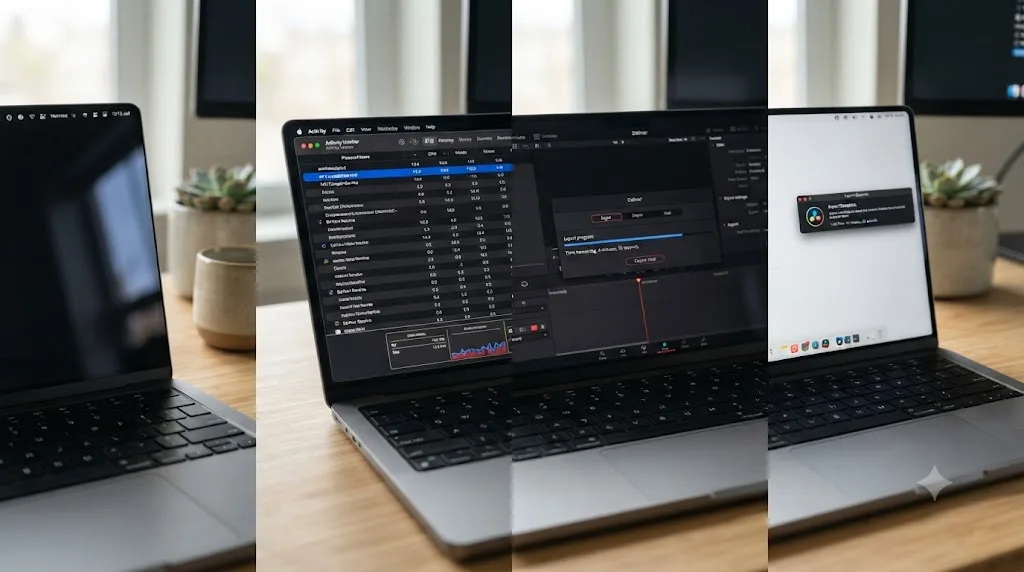
Open Activity Monitor, sort by CPU, and start a short test export. mediaanalysisd and mds_stores both show up near the top of the list, consuming a meaningful share of CPU throughout the export. That's the tell. macOS is still working through photo analysis and Spotlight reindexing from the update, competing directly with Resolve for the same CPU cores.
Rather than fighting it, plug the machine into power and let it sit untouched for the rest of the afternoon. Re-run the identical export that evening. It finishes in just under seven minutes, close enough to the original six to call it fully recovered. Activity Monitor confirms it: mediaanalysisd and mds_stores no longer appear anywhere near the top of the CPU list.
Nothing in Resolve changed. No preference got touched, no reinstall happened, no macOS update got rolled back. The entire fix was recognizing that the slowdown belonged to macOS finishing its own work, not to Resolve breaking, and giving it the hours it needed instead of the minutes it was given.
Now change one variable. Same laptop, same update, but the export is still crawling three full days later, well past any reasonable background-task window. Activity Monitor shows nothing unusual running. This is where the investigation shifts: check the Resolve and macOS version pairing against Blackmagic's tech specs, confirm GPU Selection and the Encoder dropdown haven't changed, and update Resolve to the latest point release before considering anything more drastic. Two nearly identical symptoms, two completely different causes, and the calendar is what tells you which one you're actually facing.
Change one more variable. Same scenario, but this time the client needed the file in forty minutes, not that evening. Waiting overnight wasn't an option. This is exactly the case the Spotlight-exclusion and mediaanalysisd shortcuts exist for: drag the internal drive into Spotlight Privacy, disable mediaanalysisd from Terminal, and run the export again. It finishes in eleven minutes instead of forty, still slower than the usual six because Metal's shader rebuild has no equivalent shortcut, but fast enough to hit the deadline. Both settings get reverted the moment the file uploads.
Does this affect every Apple Silicon chip the same way?
Roughly, yes, but the margin for how much you notice it changes with how much headroom your Mac has to begin with.
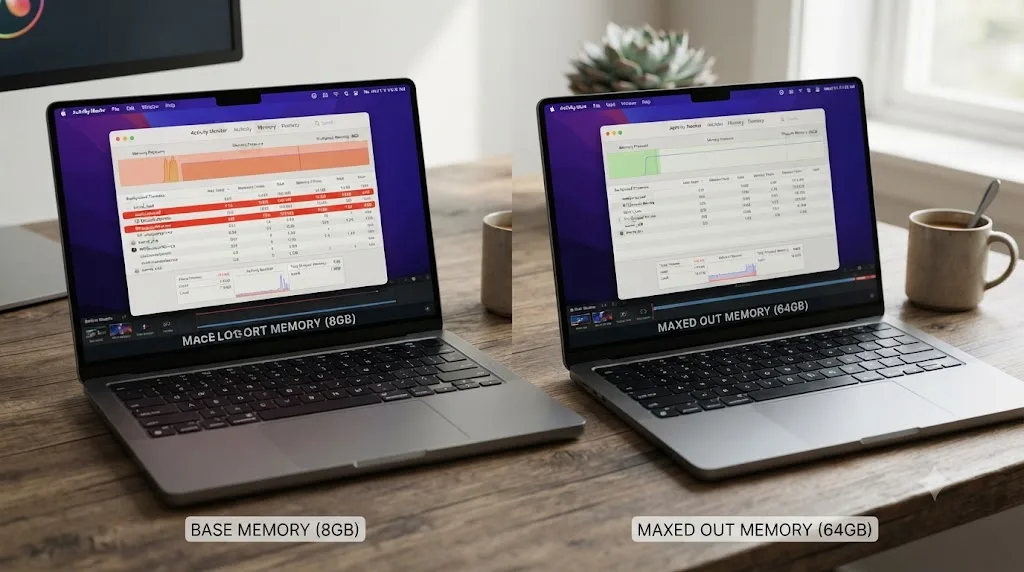
An M1 or M2 base-model Mac with 8 or 16 GB of unified memory has far less slack to absorb a few background processes competing for CPU and GPU time. The same reindexing job that costs an M4 Pro or M4 Max a barely noticeable dip in export speed can visibly stall a base M1 Mac, simply because there's less spare capacity on the smaller chip to begin with. If you're running an entry-level Apple Silicon Mac and want the fuller picture of what memory and GPU configuration actually matters for export performance day to day, our Apple Silicon M4 settings guide covers it beyond just the macOS-update scenario.
Unified memory adds a second wrinkle specific to Apple Silicon. Because CPU and GPU share the same memory pool rather than using separate dedicated pools the way a discrete Windows GPU does, a memory-hungry background process, Photos analysis included, can squeeze the memory available to Resolve's GPU-side work too, not just its CPU-side work. That's a different kind of contention than the pure CPU-cycle competition described earlier in this guide, and it's part of why a base-memory Apple Silicon Mac can feel the post-update slowdown more sharply than a maxed-out one running the identical macOS update.
What if you're still on an Intel Mac or an older Resolve version?
Then a macOS update carries more risk than it does for anyone on current Apple Silicon hardware, and it's worth knowing that going in rather than discovering it after the fact.
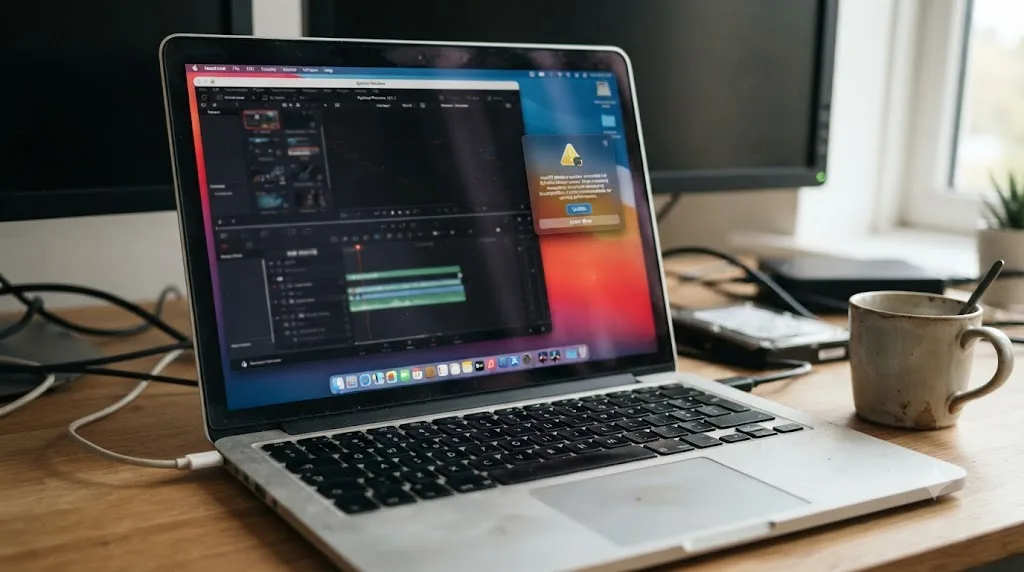
DaVinci Resolve 21 requires Apple Silicon outright. If you're on an Intel Mac, you're capped at Resolve 20 or earlier no matter what macOS version you're running, and Blackmagic's testing focus has visibly shifted toward Apple Silicon and current macOS releases. A macOS update on an aging Intel Mac doesn't just risk a temporary slowdown from background tasks. It risks landing on a macOS version Blackmagic never tested that older Resolve release against at all, since ongoing compatibility testing naturally concentrates on the currently shipping Resolve version and its supported hardware.
Practically, if you're on an Intel Mac and depend on it for paid work, treat macOS updates far more cautiously than an Apple Silicon user would. Read Blackmagic's forum and tech specs page before updating, not after, and consider waiting for community reports to settle before installing a macOS update on a machine you can't afford to have misbehave mid-project. This is the one scenario in this entire guide where "wait a few hours for background tasks to finish" genuinely might not be the right first move, because the underlying problem might be a version mismatch macOS's own housekeeping was never going to resolve.
Should you delay macOS updates on a machine you use for paid delivery work?
Generally, yes, and this is less about fear of the update itself and more about protecting your ability to hit a deadline.
The pattern across every source in this guide points the same direction: new macOS releases carry a window, often weeks, where background maintenance is heavier than usual, where Blackmagic hasn't yet shipped a compatibility-focused Resolve point release, and where the community hasn't yet surfaced whether a given update is safe for editing work. None of that means never update. It means sequencing the update away from your deadlines rather than the night before a client delivery.
A reasonable habit, borrowed from how a lot of working editors already handle this: update macOS on a personal or secondary machine first, watch Blackmagic's forum and tech specs page for a week or two, and only then update your primary delivery machine once Resolve's compatibility with that macOS version is a known quantity rather than a guess. It's a small amount of caution that avoids the exact scenario this article opened with, an export that used to take four minutes suddenly crawling past twenty with a deadline attached.
The safest time to update macOS on a machine you deliver client work from is never the week of a deadline. That's not a rule specific to Resolve. It's just where Resolve's export pipeline happens to sit squarely in the blast radius of everything macOS does to itself after an update.
Where does this fit next to other DaVinci Resolve performance problems?
Nowhere near all of them, and that's worth saying plainly, because it's easy to chase this guide's checklist for a symptom that actually belongs somewhere else.
If your slowdown affects every export uniformly, started right after a macOS update, and improves or stays flat over the following day, everything above applies directly. If it's narrower than that, tied to one specific codec, one specific effect, or a GPU reading that looks wrong regardless of when your last macOS update happened, the real cause is probably one of the more specific patterns covered elsewhere on this site. A GPU graph reading 0% during export is frequently a monitoring artifact rather than a real problem, covered in full in our GPU utilization 0% during export guide. A maxed-out CPU next to an idle GPU, regardless of any recent update, usually traces back to software decoding of long-GOP footage, covered in our high CPU usage but low GPU usage guide. And Resolve's own cache files, not anything macOS did, are the more common explanation when a drive fills up and performance degrades gradually over weeks rather than sharply overnight, the subject of our cache files filling up your hard drive guide.
Puget Systems, which builds and benchmarks workstations specifically for creative applications, frames the broader point well: DaVinci Resolve's performance depends on a genuine balance between CPU and GPU rather than either one alone, per Puget Systems' hardware recommendations for DaVinci Resolve. A macOS update disturbs that balance temporarily by adding CPU load from background tasks. It's one specific, time-boxed cause among several possible ones, not a catch-all explanation for every slow export you'll ever see.

Working out whether a slow export is macOS still finishing its own update, a settings change nobody noticed, or a genuine version mismatch is exactly the kind of "which setting is actually the problem" confusion that eats an afternoon before you even open Resolve. TryUncle is the on-screen assistant for DaVinci Resolve on macOS - ask in plain words and Uncle points at the exact control on your screen. It watches your actual Preferences window and Deliver page and can confirm whether GPU Selection or your Encoder setting is really what changed, instead of you cross-referencing a screenshot against a menu that's moved since your last update. It's a paid app in founder pricing, not a free tool, and it won't tell you whether Spotlight is still reindexing in the background, but if the same "is this setting actually doing what I think it's doing" question is slowing you down anywhere else in Resolve, on the Edit, Color, or Fusion page, TryUncle is built for exactly that gap. Check TryUncle for the current rate before assuming it fits your setup.
Here's the short version worth keeping in your head next time an update lands the night before a delivery. A slower export right after a macOS update is usually your Mac finishing its own one-time cleanup, not your hardware failing or Resolve breaking. Give it a few hours, check Activity Monitor before you touch a single preference, confirm your Resolve and macOS versions are a pairing Blackmagic actually supports, and update Resolve itself before you consider anything more drastic. Most of the time, nothing was ever wrong. Your Mac was just busy with something else first.
Frequently asked questions
- Why did my DaVinci Resolve export get so much slower right after updating macOS?
- Almost always because the update itself, not Resolve, is still busy. macOS runs a batch of one-time background jobs after any install, Spotlight reindexing, Photos analysis, security scans, Metal shader cache rebuilds, and every one of those competes with Resolve for the same CPU and GPU your export needs. Give it a few hours before assuming something broke.
- How long does it take for Mac performance to return to normal after a macOS update?
- Commonly a few hours, sometimes closer to a full day on a large drive with a big Photos library, according to Mac systems writer Howard Oakley, who has documented these background maintenance jobs running for extended periods after macOS updates. Plugging in overnight and leaving the Mac alone is the fastest way to let them finish.
- Does updating macOS reset DaVinci Resolve's GPU or export settings?
- Not typically, but a major macOS version upgrade can reset system-level permissions, including Full Disk Access for Resolve and any external drives holding your cache or media, and it's worth checking Preferences > System > Memory and GPU and the Deliver page's Encoder dropdown after any update just to confirm nothing silently changed.
- Should I wait before updating macOS on a machine I use for paid delivery work?
- Yes, that's the safest habit. Blackmagic publishes a specific supported macOS version for every DaVinci Resolve release, and running ahead of that pairing is the single most common cause of a real, lasting slowdown, not a temporary one. On a deadline machine, hold off on a new macOS release until Blackmagic's tech specs list it as supported.
- Can I roll back a macOS update if my exports stay slow?
- Only from a Time Machine backup made before the update, and only if you made one, since Apple doesn't offer a supported way to downgrade macOS in place. It's a real option but a disruptive one, so work through the background-task and settings checks first. Most cases resolve without it.
- Does reinstalling DaVinci Resolve actually help after a macOS update?
- Sometimes, mainly because a fresh install forces Resolve to rebuild its own GPU shader cache and re-request system permissions cleanly, rather than because the reinstall itself contains a fix. Updating to the latest Resolve point release is usually a better first move, since Blackmagic ships macOS-compatibility patches quickly after major Apple releases.
- Is this worse on an older Mac or an older DaVinci Resolve version?
- Yes. DaVinci Resolve 21 dropped Intel Mac support entirely and requires macOS 15 Sequoia or later on Apple Silicon, so an Intel Mac or a pre-Sequoia macOS install can't even run it. If you're still on Resolve 20 or earlier on an Intel Mac, a macOS update can push you further from a supported pairing rather than closer to one.
Sources
- DaVinci Resolve - Tech Specs (Blackmagic Design)
- CineD: DaVinci Resolve 21.0.2 Released - Keyframe Fixes, Retime Curve Improvements, and Better Fusion Vertical Transitions
- The Eclectic Light Company (Howard Oakley): Fix background activities that don't run
- 9to5Mac: Mac beachballs or lagging performance? AI photo scanning may be the reason
- MacSecurity: MTLCompilerService High CPU After Updates
- Apple Support: Rebuild the Spotlight index on your Mac
- AppleInsider: How to stop mediaanalysisd from hogging your CPU in macOS
- Puget Systems: Hardware Recommendations for DaVinci Resolve
- Blackmagic Forum: DaVinci Resolve completely messed up after Mac OS Sequoia 15
- Blackmagic Forum: Resolve 19.01 & OSX Sequoia Render Issues M1 Ultra
- Caldera HelpDesk: How to grant Full Disk Access and other required permissions in macOS
Put this guide to work with TryUncle.
Ask about the step you’re on. TryUncle sees your screen and points at the control you need, so you can keep learning in your own project.
Get TryUncle for Mac or WindowsKeep reading
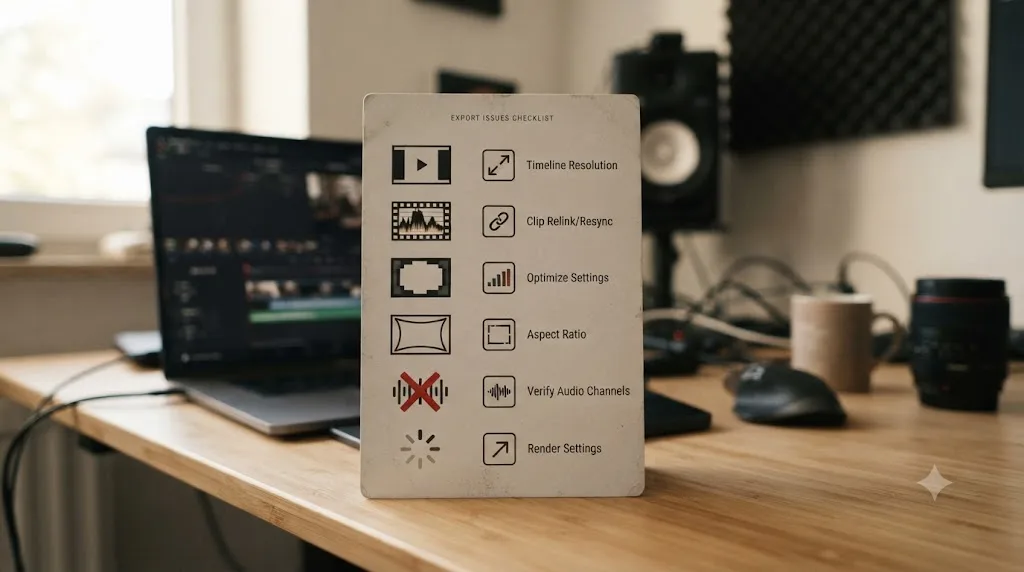
Fixes · Jul 19, 2026 · 20 min
DaVinci Resolve GPU Utilization 0% During Export, Explained
Why DaVinci Resolve shows 0% GPU during export even when hardware encoding is running, and how to check the real Video Encode engine number.
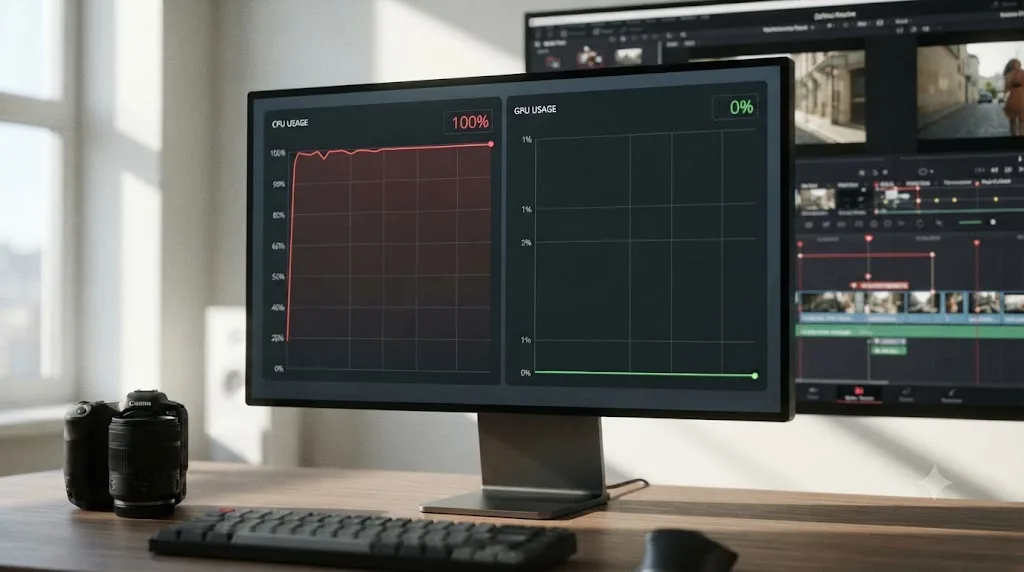
Fixes · Jul 20, 2026 · 26 min
DaVinci Resolve High CPU Usage but Low GPU Usage, Explained
Why DaVinci Resolve pegs your CPU while GPU usage stays near zero, and the real fixes: hardware decoding, transcoding, GPU Selection, and OFX limits.
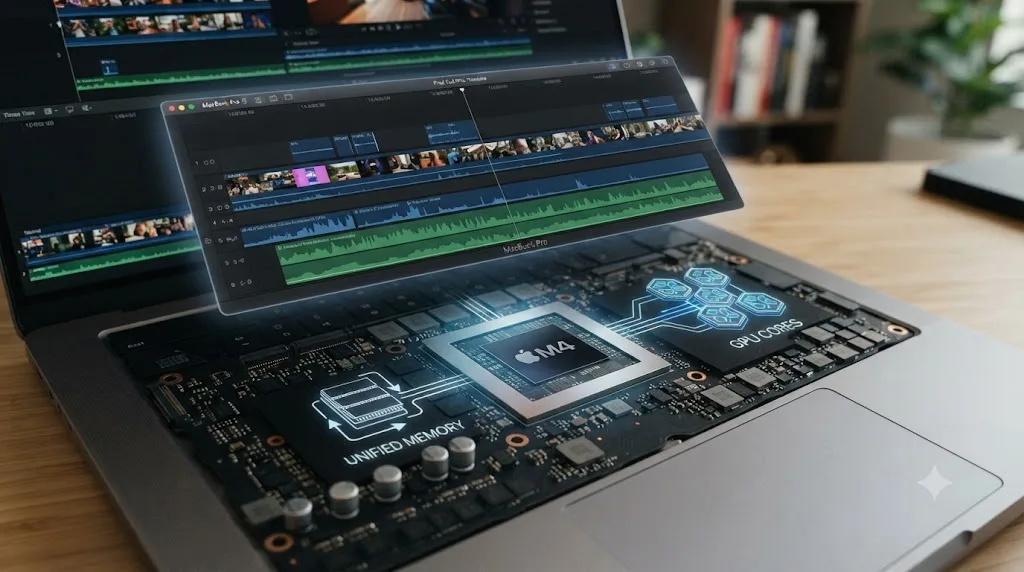
Guides · Jul 13, 2026 · 40 min
DaVinci Resolve Best Settings for Apple Silicon M4
The best DaVinci Resolve 21 settings for Apple Silicon M4 Macs: unified memory, storage, export, and Resolve preferences for M4, M4 Pro, and M4 Max.