Articles / Fixesupdated for DaVinci Resolve 21.0.3 (July 2026)
DaVinci Resolve External Monitor Not Working: Every Fix
Quick answer
Most 'external monitor not working' problems trace to one of three things: Monitor Device is set to None in Resolve's System preferences, the Blackmagic Desktop Video driver is missing or outdated, or you're expecting a plain HDMI display to act like a DeckLink or UltraStudio monitor. Fix the setting, then the driver, then the hardware mismatch.
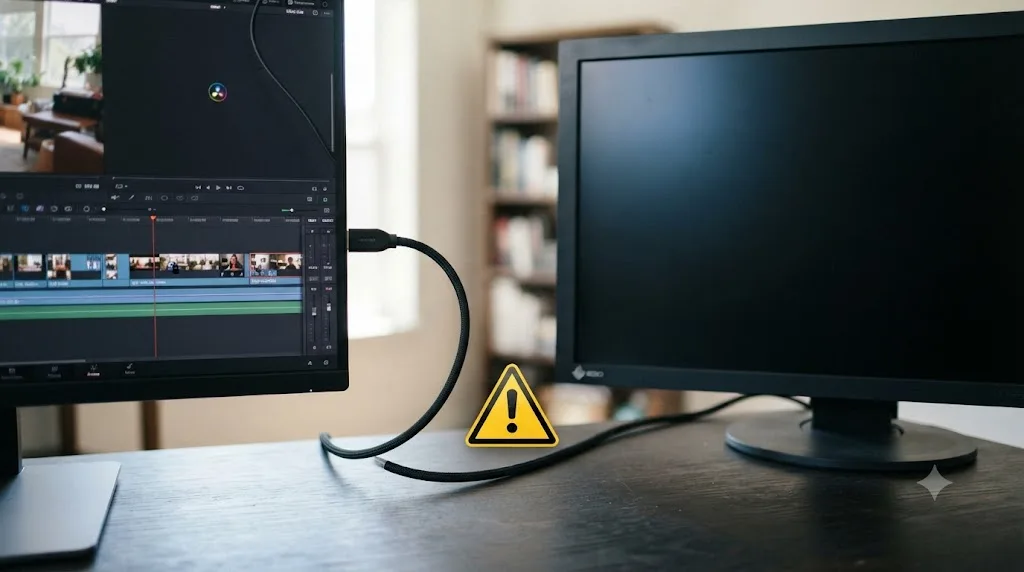
Your timeline plays fine in Resolve's own viewer, and the monitor sitting right next to it stays black, or shows a picture that doesn't match. That's not a mystery hardware failure. It's almost always one of three things, and none of them require a new cable.
We've spent 7+ years cutting and grading commercial work, and we run a 100,000+ member video editing community where "why isn't my external monitor working" comes up on a near-weekly basis, almost always because two genuinely different features share one confusing name. This guide splits the fix by which one you actually have.
What does "external monitor not working" actually mean in DaVinci Resolve?
It means one of two unrelated things, and confusing them wastes more troubleshooting time than any single bad setting does.
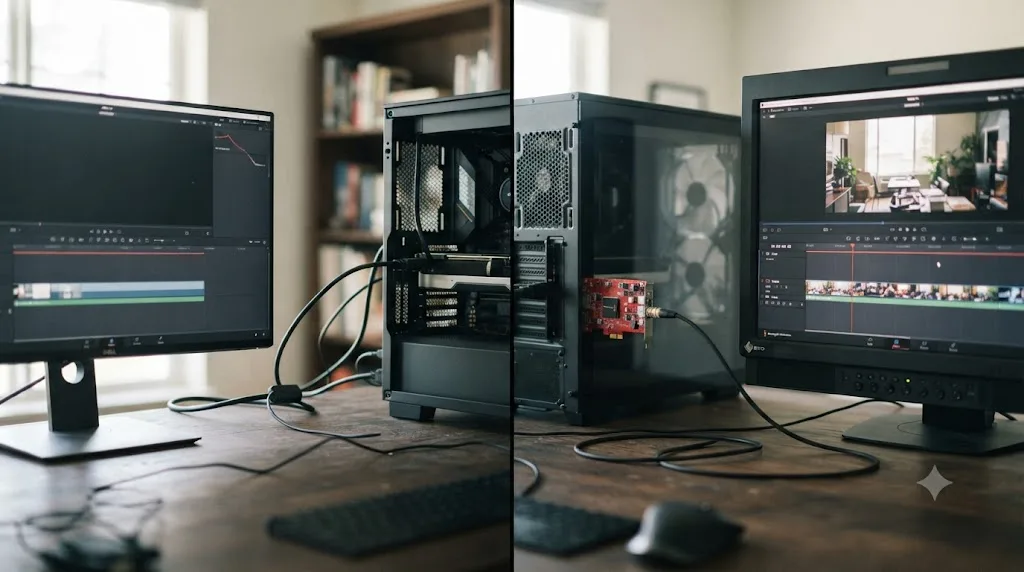
The first is a plain second computer display: a monitor or TV plugged into your graphics card's own HDMI or DisplayPort output, the same way it would connect to any other app on your machine. DaVinci Resolve treats this as an extra place to put its own interface, through Workspace > Dual Screen or Workspace > Primary Display. No Blackmagic hardware, no driver, no signal-path settings.
The second is a broadcast or reference monitor connected through a Blackmagic DeckLink or UltraStudio device. This path exists specifically to bypass your operating system's own color management and send an unaltered SDI or HDMI signal straight from Resolve's rendering pipeline to a calibrated display. It's configured in Preferences, not Workspace, and it needs its own driver installed separately from Resolve itself.
A second monitor plugged into your graphics card and a reference monitor plugged into a DeckLink card are two different products solving two different problems, and DaVinci Resolve treats them nowhere near the same way. Every fix below sits under one of these two paths. Find yours first, then skip straight to the section that applies, since working through the wrong path's checklist just burns time.
How do I use a plain second monitor with DaVinci Resolve, no Blackmagic hardware?
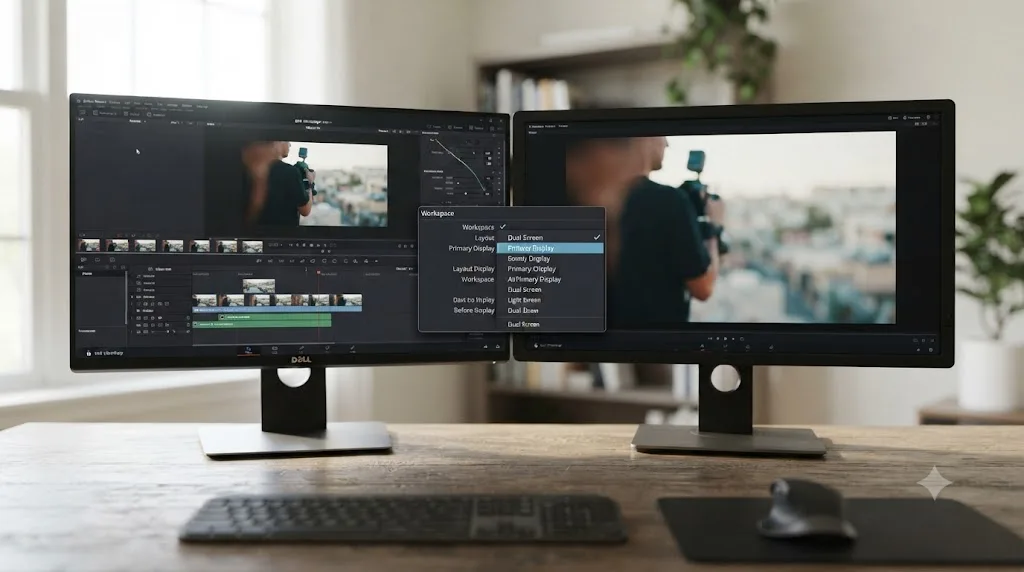
Connect the display before you launch DaVinci Resolve, then turn on Dual Screen from the Workspace menu. No capture card, driver, or preference panel is involved in this path at all.
DaVinci Resolve's reference manual describes dual-screen layout as a way to "see many more controls at once, often in a larger workspace that lets you manage more clips, more Gallery stills, etc.," available on the Media, Edit, Color, and Fairlight pages through Workspace > Dual Screen > On. If that option is greyed out, the most common cause is timing: Resolve reads your monitor arrangement at launch, so a display connected after the app already opened often doesn't register until you quit and relaunch.
Once Dual Screen is active, Workspace > Primary Display lets you choose which physical monitor shows the main interface, and in dual-screen mode that same menu flips which monitor shows which half of the layout. Workspace > Dual Screen > Full Screen Timeline pushes an enlarged timeline onto one screen while the rest of the panels stay on the other, a layout a lot of editors run permanently once they have the second display anyway.
There's a real ceiling here worth knowing before you assume something's broken. Blackmagic's own comparison page states plainly that "the free DaVinci Resolve version supports full screen playback on a single screen" while "DaVinci Resolve Studio adds support for full screen playback on a second attached computer display." If you're on the free version and trying to get Resolve's fullscreen viewer, not just extra panels, to fill a second monitor, that specific capability is a Studio feature, not a bug in your setup.
| What you want | What you need | Where it lives |
|---|---|---|
| More panels and controls visible at once | Any second display, free or Studio | Workspace > Dual Screen > On |
| Enlarged timeline on one screen, panels on the other | Any second display, free or Studio | Workspace > Dual Screen > Full Screen Timeline |
| Fullscreen viewer filling a second computer display | DaVinci Resolve Studio | Workspace > Viewer Mode, after enabling Dual Screen |
| Broadcast-accurate SDI or HDMI reference picture | DeckLink or UltraStudio hardware | Preferences > System > Video and Audio I/O |
A second monitor existing in your setup and DaVinci Resolve actually using it for what you want are two separate facts, and which row of that table you're in decides which fix applies.
Why doesn't DaVinci Resolve see my DeckLink or UltraStudio monitor at all?
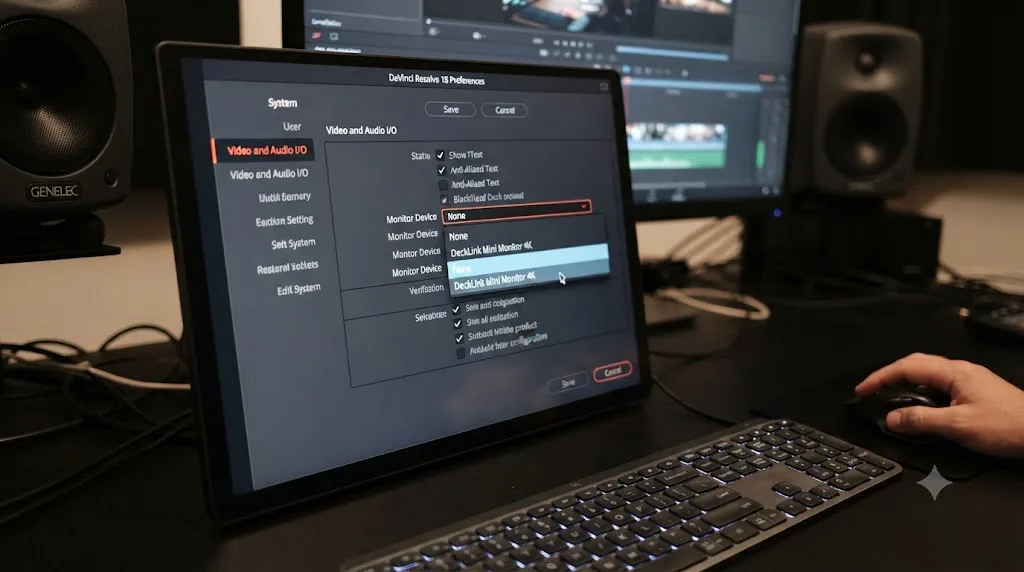
Check Preferences > System > Video and Audio I/O before anything else, because this single setting explains a large share of "not working" reports on its own.
Inside that panel sits a field called Monitor Device. According to Blackmagic's own reference manual, this setting "chooses video output cards from available options, or None to disable external output," and setting it to None specifically "can improve real time performance when external monitoring and output is not a priority." That's a deliberate feature, not a bug report. If a previous project, a previous editor on a shared machine, or a fresh install left this on None, your DeckLink or UltraStudio card sits there doing nothing while Resolve behaves exactly as configured.
Open the dropdown, select your actual device, save, and quit DaVinci Resolve completely. The manual notes this setting requires a program restart, so a setting that looks like it didn't work is frequently a setting that hasn't taken effect yet.
If your device isn't in that dropdown list at all, rather than just sitting there unselected, the problem has moved one layer down, to whether the operating system and the Desktop Video driver even recognize the hardware. That's the next section.
Monitor Device set to None does not mean your monitor is broken. It means Resolve was told, explicitly, to send nothing there. Confirm this setting before you touch a cable, reinstall a driver, or start suspecting the hardware itself.
Why does DaVinci Resolve say "no signal" on my DeckLink or UltraStudio output?
"No signal" almost always points at the Desktop Video driver, not at Resolve, the cable, or the monitor itself.
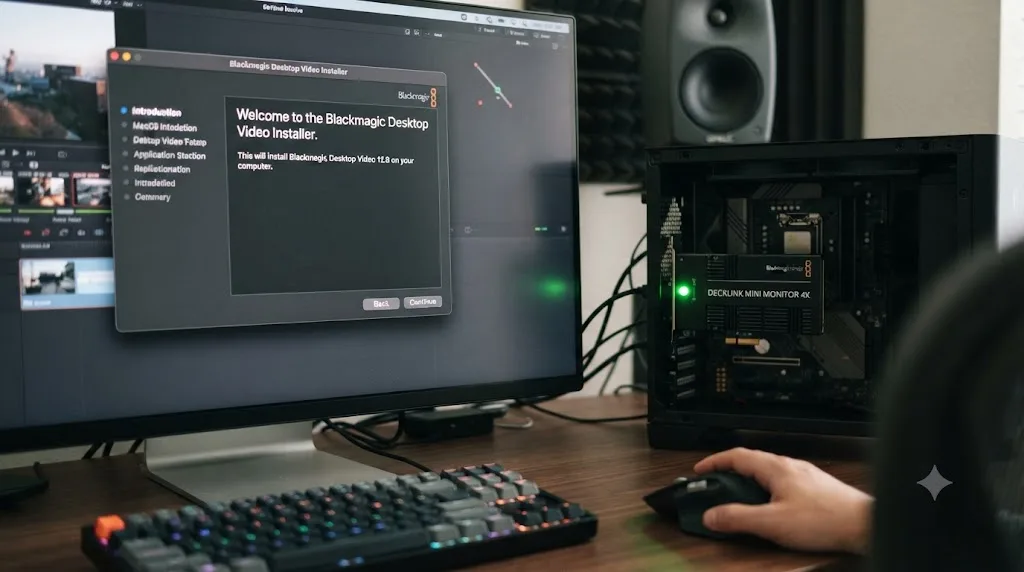
Desktop Video is Blackmagic's own driver package, separate from DaVinci Resolve, and it's the layer that actually talks to a DeckLink or UltraStudio card at the operating system level. Resolve's Video and Audio I/O preferences can only list and use a device the driver has already exposed to the OS. If Desktop Video is missing, corrupted, or badly out of date, the card can show up in Windows Device Manager or a Mac's System Report and still produce nothing when Resolve tries to output to it, because the two checks measure different things: one confirms the hardware is physically present, the other confirms Resolve can open a working connection to it right now.
Version matters here in a way that's easy to miss. Blackmagic's release notes for DaVinci Resolve 21.0.3, the update that shipped July 22, 2026, list "Desktop Video 12.9 for monitoring with Blackmagic hardware" as the required driver floor, according to CineD's coverage of the update. That's a minimum, not a target. Renewed Vision, which maintains its own integration with the same Blackmagic driver for ProPresenter, currently recommends staying on "Blackmagic Desktop Video 14.3 or higher" for stability, per its own macOS support article. If your installed Desktop Video predates 12.9, Resolve 21 can refuse to output to the card at all rather than degrading gracefully.
The fix is a clean reinstall, not a patch on top of what's already there:
- Download the current Desktop Video installer directly from Blackmagic's own support site, not through a bundled installer that shipped with the card years ago.
- Uninstall the existing driver using Desktop Video's own uninstall utility rather than deleting files by hand, since leftover driver fragments are a documented cause of intermittent detection.
- Reboot before installing the new version. Renewed Vision's own troubleshooting steps for Blackmagic hardware include rebooting after a driver change as a required step, not an optional one.
- Install the new Desktop Video package, reboot again, then open DaVinci Resolve and confirm your device now appears and stays selected under Monitor Device.
Desktop Video is not part of DaVinci Resolve. It is a separate driver Blackmagic ships on its own schedule, and Resolve cannot patch around a version that is missing or stale. Treat a "no signal" error as a driver problem first, and only look elsewhere once a clean Desktop Video reinstall has been ruled out.
Why does DaVinci Resolve show "no signal" on only some timelines, not others?
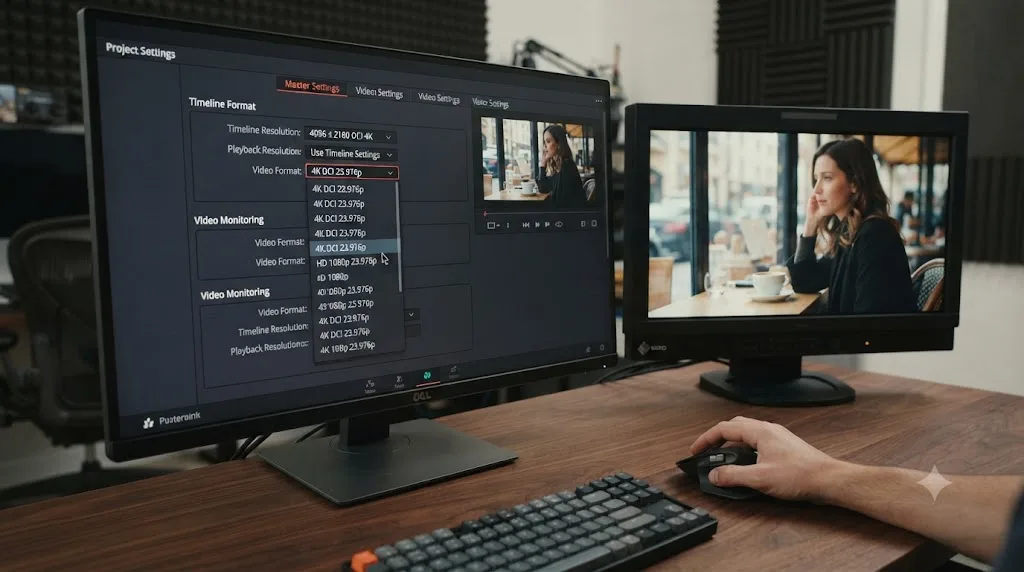
Because the exact same DeckLink or UltraStudio setup that outputs fine on one project can go to no signal on the next, and the difference usually isn't the hardware. It's Video Format, a setting most editors never touch because it usually doesn't need touching.
Blackmagic's own reference manual explains that Video Monitoring settings "by default the frame size and frame rate match those in the Timeline resolution and Playback frame rate options," which is exactly why this failure hides so well. The setting rides along with your timeline silently until a project's resolution or frame rate outgrows what the connected display can actually decode. A reference monitor built around 2K, for instance, might only accept 2048x1080 at 30, 29.97, and 23.98 fps, with no 59.94 support at all. Switch to a 4K, 59.94 fps timeline that worked fine on a different monitor, and this one goes straight to no signal, not because anything broke but because the display was never built to take that combination.
The fix lives in the same Video Monitoring panel as Data Levels. Change the Video Format dropdown to a frame size and frame rate your specific external display supports, independent of what the timeline itself is set to. The manual's own example is grading 2K files while monitoring on an HD 1080 display, by picking the matching HD standard instead of forcing the display to accept a resolution it can't decode.
One more setting has to agree with that choice. Project Settings > Image Scaling includes an Output Scaling section, and its Match Timeline Resolution checkbox needs to stay enabled for the monitoring path to scale correctly down to whatever Video Format you've selected. Leave it unchecked while running a mismatched Video Format, and the picture can come out cropped or letterboxed on top of whatever the resolution mismatch already caused.
A DeckLink or UltraStudio card that works on one project and shows no signal on the next is almost always a Video Format mismatch, not a card failing intermittently. Check what frame size and frame rate combinations your specific external display actually accepts before you start suspecting the hardware.
Why did my external monitor stop working after a macOS update?
Because macOS started blocking the Blackmagic driver as a system extension, and it did that silently, without Resolve or Desktop Video telling you directly.
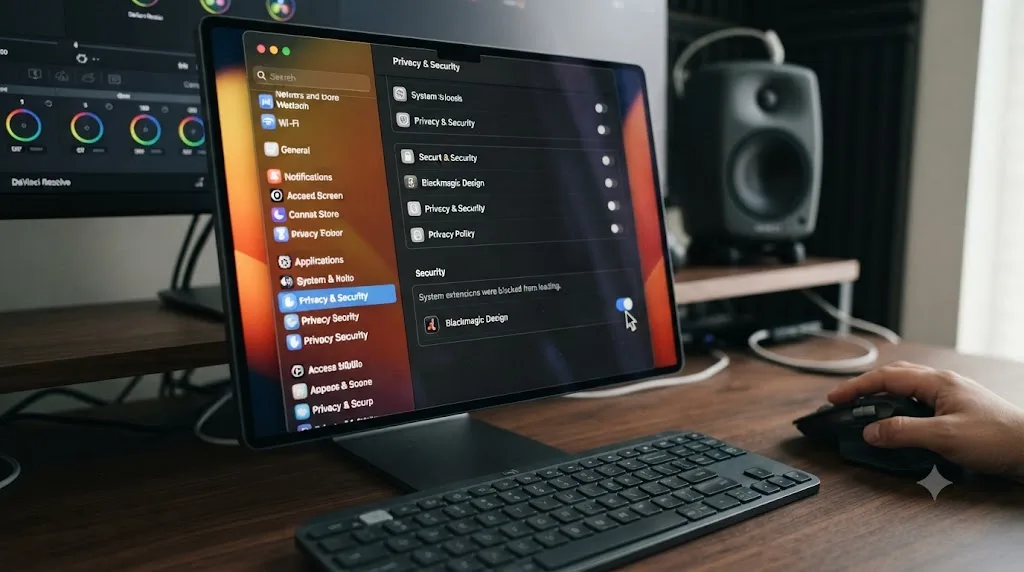
Starting with recent macOS releases, Apple requires explicit user approval before a third-party driver extension, including Blackmagic's own, can load and stay loaded. According to Livestream's own support documentation for the same driver, the fix is to "go to System Settings then Privacy & Security and click Allow next to the Blackmagic message, then restart if requested," and separately, "on the Privacy & Security page, scroll to Driver Extensions, click the information icon and enable Blackmagic Design." A system update, a fresh install, or even a routine security patch can silently flip this back to disabled, especially the first time a Blackmagic device connects after the update lands.
The symptom this produces looks exactly like a dead card: no device in the Monitor Device dropdown, or a device that's listed but never actually outputs anything. It has nothing to do with cables, Resolve's own preferences, or the DeckLink hardware itself. It's macOS refusing to let the driver run until you tell it otherwise.
Windows doesn't have the identical mechanism, but it has its own version of the same problem. A driver update pushed through Windows Update can silently replace a manually installed Desktop Video driver with an older or generic one, which is the same root cause with a different delivery method: something outside Resolve quietly changed which driver is actually loaded.
Check this before reinstalling anything on a Mac where a monitor worked yesterday and doesn't today:
- Open System Settings > Privacy & Security.
- Scroll to Driver Extensions and confirm Blackmagic Design is enabled, not just installed.
- If you see a banner about system software requiring attention, click through it and approve Blackmagic explicitly.
- Restart the Mac, not just DaVinci Resolve, since a driver extension change needs a full reboot to take effect.
Why does the picture look wrong on my external monitor even though it's showing up?
This is a different failure than "no signal," and it points somewhere completely different: Data Levels, not the driver or the cable.
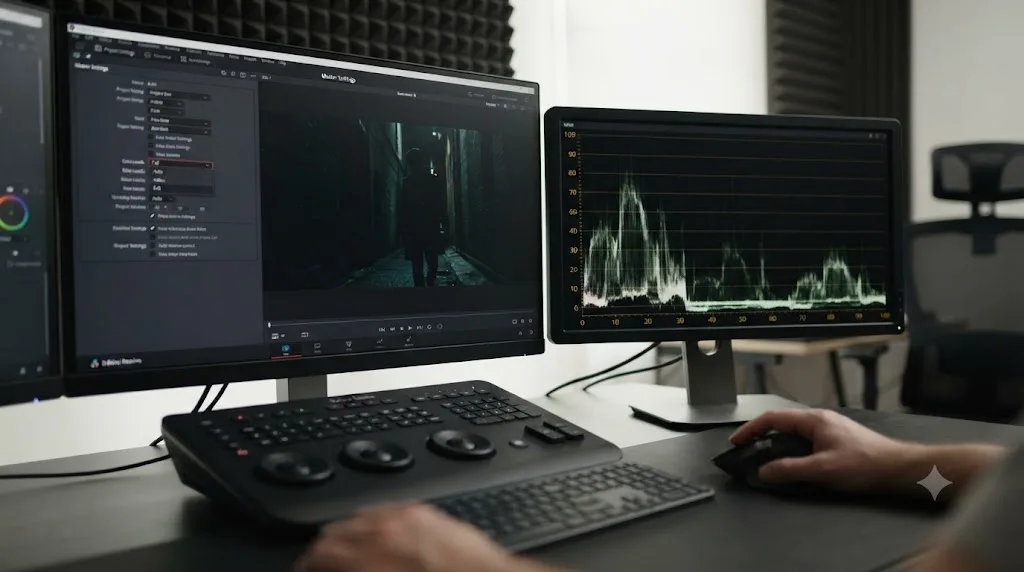
DaVinci Resolve's Video Monitoring settings, inside Project Settings, include a Data Levels option that can be set to Video range or Full range, controlling the output signal sent to your external display. The reference manual is direct about why this matters: "it is imperative that the option you choose in DaVinci Resolve matches the data range to which your external display is set." A mismatch here doesn't produce an error message. It produces a picture that looks subtly or badly wrong, milky blacks, crushed shadows, or clipped highlights, while the underlying grade and the file you eventually export stay completely correct.
This is genuinely one of the more common color complaints editors bring to forums without realizing it's a monitoring setting rather than a grading mistake, a distinction covered in more depth from the export side in our guide to LUT previews not matching exports, since Data Levels causes both problems through the same underlying mechanism: a range tag disagreement between two devices in the chain.
A picture that looks right in Resolve's own viewer and wrong on the external monitor is a data levels problem almost every time, not a grading problem. Before you touch a single node, open Project Settings > Video Monitoring, confirm Data Levels matches your display's own configuration, and if you're unsure what your monitor expects, check its own on-screen menu or manual rather than guessing.
Two related checkboxes in the same panel matter for specific hardware setups. Use 4:4:4 SDI enables a signal path for monitors that support full 4:4:4 chroma sampling over SDI, useful on higher-end reference monitors but wrong to enable on a display that doesn't support it. Use Level A for 3Gb SDI output changes how a single 3 Gb/s SDI connection carries the signal, and getting it backward from what your monitor expects produces the same kind of visibly wrong, not missing, picture.
Why does my HDR grade look wrong on my external monitor specifically?
Because most external monitors, including plenty marketed as "HDR-capable" TVs, cannot correctly decode the raw PQ signal DaVinci Resolve sends by default, and Resolve doesn't quietly compensate for that the way some other editors do.
PQ, the transfer function behind HDR10 and Dolby Vision, maps exact code values to exact brightness levels in nits rather than a relative percentage scale. A display that can't hit the peak brightness the signal describes shows that image looking flat, oddly contrasted, or with highlights slammed to white, not because the grade is wrong but because the monitor is trying to show something outside its own physical range. Our guide to grading HDR video in DaVinci Resolve covers the Resolve Color Management side of this in full, including HDR palette settings and export-side PQ and HLG differences, but the monitoring half of that same problem lives entirely in hardware: no preference in Resolve fixes a display that physically cannot render what the signal is telling it to show.
An HDR reference monitor is not optional for judging a PQ grade. No monitor preference in Resolve fixes a picture your display physically cannot show. If your external monitor is a standard SDR display, or an inexpensive consumer TV without real HDR decoding, judge your PQ grade on Resolve's own scopes set to the HDR scale instead of trusting what the panel shows you, and reserve final HDR approval for a monitor built to display it.
Do you actually need a DeckLink or UltraStudio for accurate color work?
Yes, if the work leaves your desk and needs to hold up on someone else's screen, and the honest answer comes straight from working colorists, not from Blackmagic's own marketing.
Answering a DaVinci Resolve forum thread from an editor deciding between a computer monitor and dedicated hardware, colorist Shane Ross put it plainly: a typical computer display is "not really good for VIDEO signals" and recommended "an HDTV that you can calibrate" instead, in a Creative COW forum thread on external monitor setup. In the same thread, colorist Marc Wielage gave the shorter version of the same advice: "Get a monitor that can be calibrated, get it calibrated, then attach it to your computer with a Blackmagic display adapter (like a Mini Monitor or 4K Ultra). Problem solved."
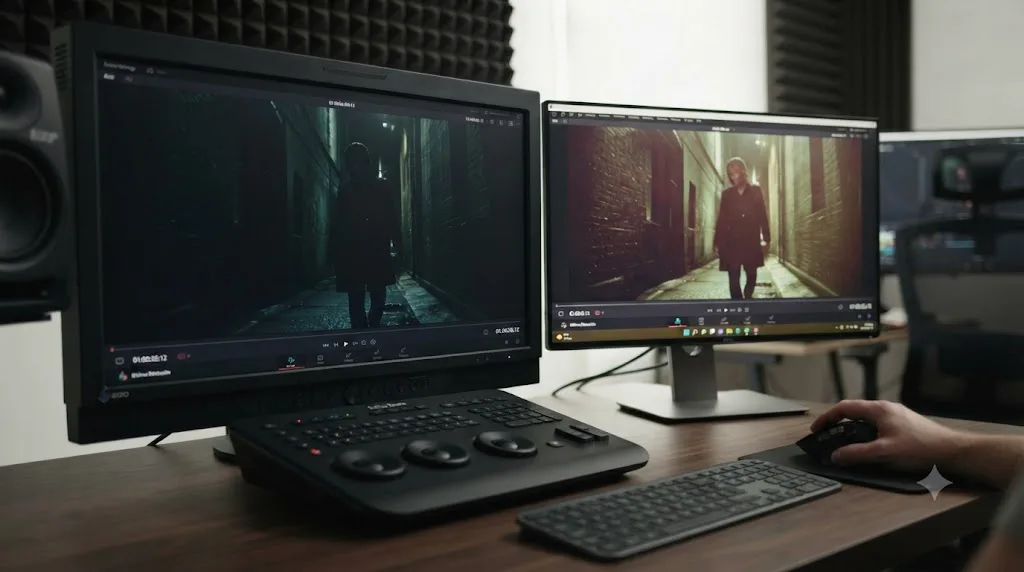
That advice traces back to a specific, well-documented limitation. A graphics card's HDMI or DisplayPort output routes through your operating system's own color management, ICC profiles, automatic scaling, and whatever "vivid mode" processing a consumer display applies on top. A DeckLink or UltraStudio device creates a separate signal path that bypasses all of that, sending exactly what Resolve's pipeline produces straight to the display. Puget Systems, which builds Resolve workstations professionally, frames the broader hardware picture the same way in its own recommendations: dedicated I/O hardware exists specifically because consumer display pipelines were never built for the kind of frame-accurate, untouched signal a colorist needs to trust, per Puget's hardware guide for DaVinci Resolve.
None of that means a plain second monitor is useless. It's genuinely fine for extra panels, a bigger timeline, client review in a casual setting, or checking a rough cut. It stops being fine the moment a client, a broadcaster, or a delivery spec expects the color you approved to be the color that survives contact with a different screen.
Which DeckLink or UltraStudio model do you actually need?
It depends on your connection type, your resolution, and whether you're mounting a card inside a desktop or connecting over Thunderbolt to a laptop.
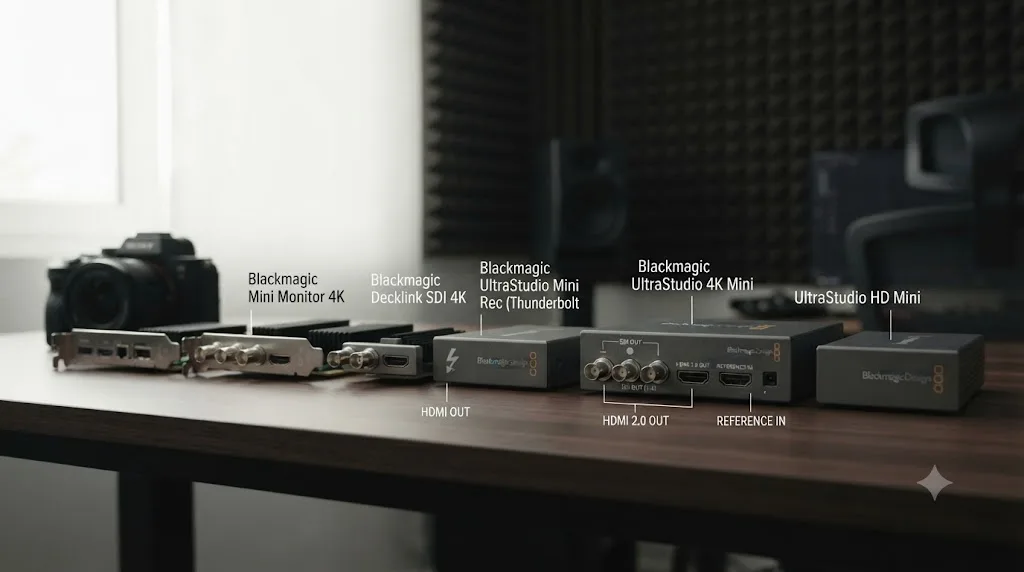
Blackmagic sells both product lines directly, and the prices differ enough to matter for a decision, not just a preference. DeckLink cards are internal PCIe cards for desktops. UltraStudio devices connect externally over Thunderbolt, which is the only option for a laptop or a Mac without an open PCIe slot.
| Model | Connection | Format ceiling | Price |
|---|---|---|---|
| DeckLink Mini Monitor HD | Internal PCIe | HD, SD | $155 |
| DeckLink Mini Monitor 4K | Internal PCIe | 2160p30, 6G-SDI, HDMI 2.0a | $229 |
| UltraStudio HD Mini | Thunderbolt 3 | HD | $625 |
| UltraStudio 4K Mini | Thunderbolt 3 | 4K | $1,199 |
| UltraStudio 4K Extreme 3 | Thunderbolt 3 | 4K, extended I/O | $3,549 |
Prices are Blackmagic's own listed figures as of its DeckLink product page and UltraStudio product page. For a single desktop editing bay outputting to one reference monitor, the DeckLink Mini Monitor 4K covers 6G-SDI and HDMI 2.0a up to 2160p30 for under $250, which is the setup most of the "not working" reports we see actually involve, not the higher-end quad-link cards built for multi-camera or 8K finishing.
If you're choosing between HDMI and SDI on the same card, match the choice to your monitor, not the other way around. Consumer TVs and prosumer reference monitors typically expect HDMI. Broadcast-grade reference monitors, the kind used in finishing suites, typically expect SDI, and entry-level cards like the Mini Monitor 4K carry both outputs so you're not locked into one before you know your monitor's actual input.
Why does my UltraStudio work connected directly but not through a Thunderbolt dock?
Because a lot of Thunderbolt adapters and older docks don't carry bus power through in both directions, and a partially powered device can look exactly like a dead one.
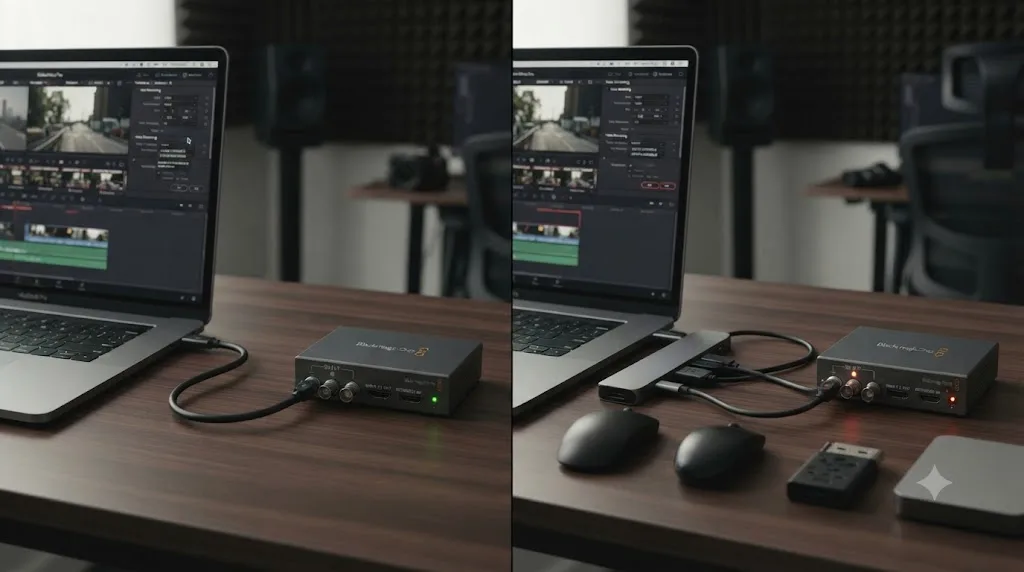
UltraStudio devices draw their power from the Thunderbolt connection itself, no separate power supply required, which is exactly what makes them useful for a laptop-based mobile suite. That same bus-powered design is also where the failures hide. Blackmagic's own user forum has walked through this exact scenario: an Apple Thunderbolt 3-to-2 adapter passes a Thunderbolt 1 or 2 device through to a Thunderbolt 3 port without issue, but running the same kind of adapter the other direction, an older Thunderbolt 2 computer trying to power a bus-powered Thunderbolt 3 device, doesn't reliably deliver bus power at all, according to a Blackmagic Design forum discussion of an UltraStudio Mini Monitor connected this way. The device can appear connected, even show up in Resolve's Monitor Device list, and still never output a picture, because it's only receiving part of what it needs.
If your UltraStudio behaves normally connected directly but drops out, flickers, or never appears once it's behind a dock, hub, or an older adapter, don't start with the driver or Resolve's preferences. Connect the device straight into a native Thunderbolt or USB4 port with nothing else in the chain and confirm it works there first. If it does, the adapter or dock is the actual problem, and the fix is hardware that matches your computer's Thunderbolt generation to the device's, not a Desktop Video reinstall.
A bus-powered UltraStudio that works on a direct port and fails behind a dock is a power delivery problem, not a driver or software fault. Rule out the connection path first, since it's the cheapest thing to test and the easiest to overlook.
Why does my monitor go blank when I switch to another app?
Check one specific checkbox before you assume anything is actually broken: Release video device when not in focus, inside Preferences > System > Video and Audio I/O.
When this option is enabled, DaVinci Resolve deliberately hands control of the output device back the instant another application becomes the active window, according to Blackmagic's own reference manual description of the setting. That's meant to let a different app use the same DeckLink or UltraStudio hardware without a conflict, useful if you're switching between Resolve and something like Blackmagic Media Express on the same machine. It's much less useful if you didn't know the setting existed and just watched your reference monitor go dark every time you tabbed to a web browser or Slack.
Turn it off if you want the picture to stay live regardless of which app has focus, which is what almost everyone editing solo actually wants. Leave it on only if you're intentionally sharing the same I/O hardware between two applications and need Resolve to step aside automatically.
Does this work differently on Windows, Mac, and Linux?
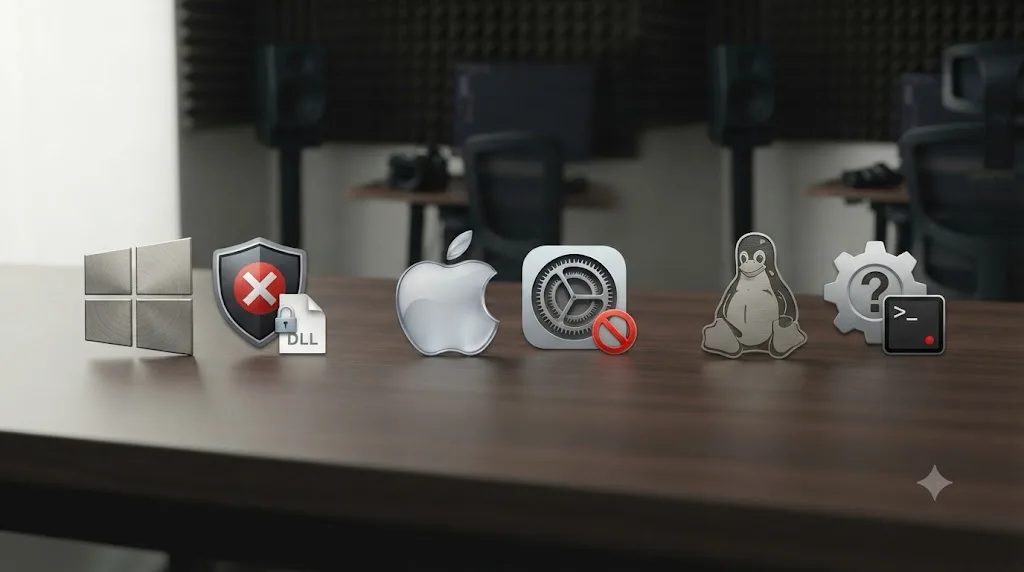
Yes, mainly in where the driver-level failure shows up, not in how Resolve's own preferences work.
On Windows, Desktop Video installs as a standard driver, and the main risk is Windows Update silently swapping it for an older or generic version without asking. Confirm the driver version inside Blackmagic's Desktop Video Setup utility after any Windows update, not just after a Resolve update, since either one can be the actual trigger. GPU driver problems can compound this too, as covered in our guide to fixing an AMD GPU not detected in DaVinci Resolve, since a machine already fighting its GPU driver is more likely to also be fighting its Desktop Video driver.
On macOS, the system extension approval step covered earlier is the platform-specific gotcha, and DaVinci Resolve 21 itself only runs on Apple Silicon with macOS 15 Sequoia or later, a requirement that already rules out plenty of older Intel Macs regardless of what monitor is attached, per DaVinci Resolve Club's breakdown of the version 21 requirements.
Linux is the roughest of the three. Blackmagic officially tests and supports exactly one distribution, Rocky Linux 8.6, paired with a discrete Nvidia GPU, a narrower target than either Windows or macOS gets, covered in full in our guide to whether DaVinci Resolve works on Linux. Desktop Video on Linux installs through its own package rather than a Windows-style installer or a macOS system extension, and community distributions outside Rocky Linux carry the same kind of driver-version mismatch risk as everything else on this page, just with far less documentation to lean on when it goes wrong.
| Platform | Where this usually breaks | Fix path |
|---|---|---|
| Windows | Windows Update silently replaces the Desktop Video driver | Reinstall Desktop Video manually from Blackmagic, avoid Windows Update for this driver |
| macOS | System extension blocked after an OS or driver update | System Settings > Privacy & Security > Driver Extensions, then restart |
| Linux | Distribution mismatch, unsupported outside Rocky Linux 8.6 | Match Desktop Video version to a combination others have confirmed for your exact distro |
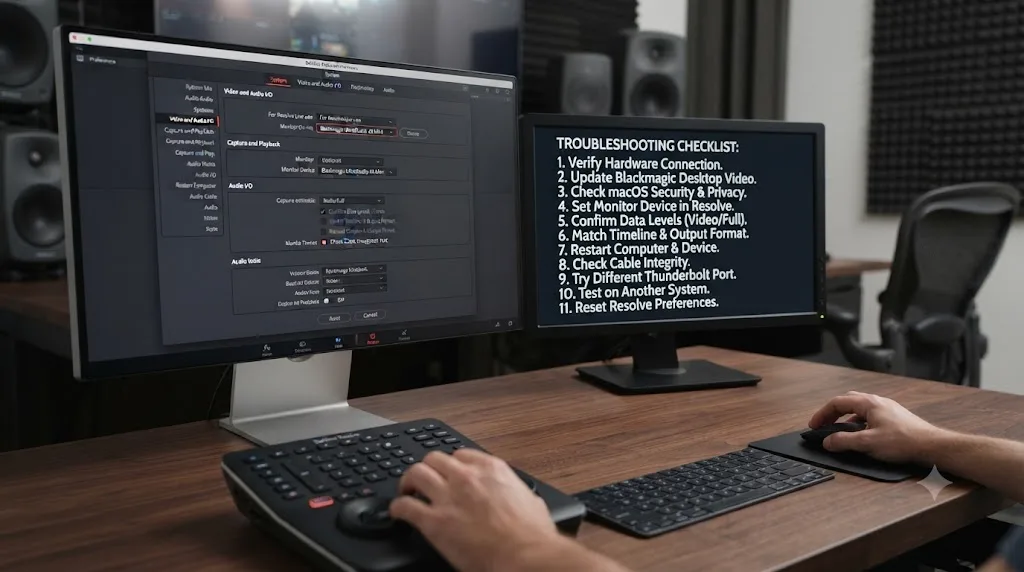
What's the right order to troubleshoot this from scratch?
Work through these in order and stop the moment the picture comes back correctly.
- Decide which path you're actually on: a plain second display through your graphics card, or a DeckLink/UltraStudio reference monitor. Everything below branches from this one answer.
- For a plain display, connect it before launching Resolve, then check Workspace > Dual Screen and Workspace > Primary Display.
- For a DeckLink or UltraStudio monitor, open Preferences > System > Video and Audio I/O and confirm Monitor Device isn't set to None.
- If you're using an UltraStudio, confirm it's connected directly to a native Thunderbolt or USB4 port, not behind a dock, hub, or older adapter that might not deliver full bus power.
- If the device isn't listed at all, reinstall Desktop Video cleanly from Blackmagic's own site, confirming you're at or above 12.9 for Resolve 21.0.3, ideally the newer 14.x line for stability.
- On a Mac, check System Settings > Privacy & Security > Driver Extensions and approve Blackmagic Design if it's blocked.
- Restart DaVinci Resolve completely, since none of the settings above apply live.
- If the device is recognized and outputs fine on some projects but shows no signal on others, check Video Format under Video Monitoring and Output Scaling's Match Timeline setting against what your specific display supports.
- If the device shows a signal but the picture looks wrong, not missing, check Data Levels and the SDI checkboxes in Project Settings > Video Monitoring against what your display actually expects.
- If the monitor works but goes dark when you switch apps, check Release video device when not in focus.
- If you're grading HDR and the picture looks flat or overly contrasty specifically on this display, confirm it's a genuine HDR reference monitor rather than an SDR panel trying to decode a PQ signal it can't show.
If you've worked through all eleven and it's still not resolved on the same machine, that's either a genuine hardware fault worth testing with Blackmagic's own Media Express app outside Resolve entirely, or a version mismatch between Resolve, Desktop Video, and your operating system that needs matching more precisely than "install the newest of everything."
What does a full diagnosis look like on a real setup?
Walk through an actual case end to end rather than the abstract checklist alone.
A freelance colorist on a Mac Studio has been grading with a DeckLink Mini Monitor 4K feeding a calibrated reference display for months without issue. After installing a macOS point update over the weekend, Monday morning brings a blank reference monitor and no error in Resolve itself, just silence where a picture used to be.
Start with what changed, since nothing about the DeckLink card or the reference monitor did. The macOS update is the obvious suspect. Open System Settings > Privacy & Security and scroll to Driver Extensions. Blackmagic Design shows up, but it's toggled off, exactly the pattern Livestream's own support documentation describes as common after a macOS update reintroduces the approval prompt. Enable it, restart the Mac fully, not just Resolve, and reopen the project.
The monitor comes back showing a picture, which confirms the extension theory, but the picture looks slightly crushed in the shadows compared to what shipped for approval last week. That's a second, separate problem stacked on top of the first: check Project Settings > Video Monitoring and confirm Data Levels still matches the reference monitor's own range setting, since some macOS updates have been reported to reset third-party driver-adjacent preferences in specific edge cases. In this instance, Data Levels was untouched and still correct, so the culprit turned out to be the reference monitor itself, which had reset to a factory picture mode during a firmware auto-update triggered by the same weekend's network activity. A quick check of the monitor's own on-screen menu, not Resolve's preferences, confirmed the display had silently switched away from its calibrated preset.
The lesson generalizes past this one story: when an external monitor problem shows up right after something unrelated changed, treat the change as the first suspect, not the last one you check. A macOS update, a Windows Update cycle, a monitor's own firmware update, or a Resolve version bump are all more likely explanations than a card or cable that worked yesterday spontaneously failing today.
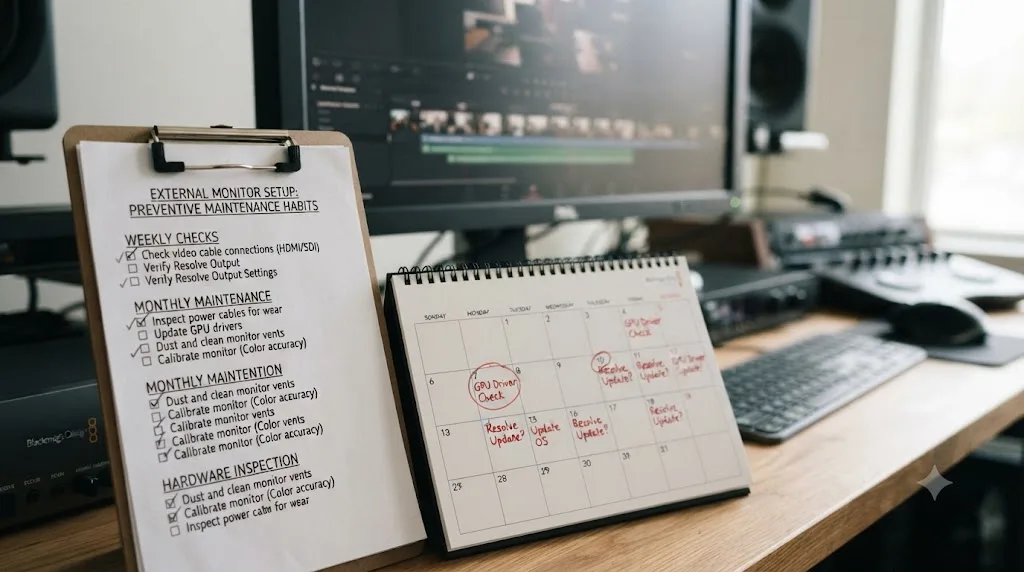
How do you stop this from happening again?
A few habits keep this from becoming a recurring fire drill on client day.
Install Desktop Video manually, from Blackmagic's own support site, every time, and don't let Windows Update or a system prompt silently swap it on its own schedule. If a machine's monitoring setup is working reliably mid-project, that's not the week to accept an automatic driver update from any source.
On a Mac, check Driver Extensions under Privacy & Security immediately after any macOS update, before you assume your DeckLink or UltraStudio setup survived unchanged. It's a thirty-second check against a problem that otherwise shows up unannounced on the day you least want to troubleshoot it.
Keep your reference monitor's own calibration and picture-mode settings locked, or at minimum, know where to check them, since a display resetting itself during a firmware update looks exactly like a Resolve problem until you rule the monitor out specifically. And whichever path you're on, plain second display or DeckLink reference monitor, restart DaVinci Resolve completely after any change to Video and Audio I/O preferences. Half of the "I already tried that and it didn't work" reports we see trace back to a setting that was correct but never actually took effect because Resolve stayed open through the change.
None of this makes a Blackmagic driver update or a macOS security prompt predictable months in advance. It makes the failure a known, thirty-minute fix instead of a fresh investigation every time it happens. If working through preference panels while a client waits isn't how you want to spend a session, that's a real gap: TryUncle is a paid macOS app whose on-screen tutor, Uncle, watches your Resolve session and points at the exact control you need. It won't reinstall a Blackmagic driver for you, but if you're staring at Preferences > System > Video and Audio I/O trying to remember which checkbox is which, it can point at the exact setting instead of sending you back through another search. It's founder pricing right now, not a free tool, so check TryUncle's site for the current rate before assuming it fits your workflow.
The honest verdict: a black or wrong-looking external monitor is rarely the hardware talking. It's a device selection left on None, a driver that fell behind Resolve's own version, a macOS security prompt nobody clicked through, or a computer display being asked to do a broadcast monitor's job. Work through those four in order before you touch a cable or spend money on new hardware, and if the fix does turn out to require a DeckLink or UltraStudio card, buy one sized to the connection and resolution you actually need, not the biggest one on the page.
Frequently asked questions
- Why is my external monitor not working in DaVinci Resolve?
- Three causes cover almost every case. Preferences > System > Video and Audio I/O has Monitor Device set to None, which tells Resolve to send nothing anywhere. The Blackmagic Desktop Video driver is missing, outdated, or blocked by macOS as a system extension. Or you plugged a plain display into your graphics card and expected it to behave like a DeckLink or UltraStudio reference monitor, which is a completely different signal path with its own settings.
- How do I set up an external monitor in DaVinci Resolve?
- For a plain second computer display, connect it before launching Resolve, then use Workspace > Dual Screen > On or Workspace > Primary Display to choose which monitor shows what, no Blackmagic hardware required. For a broadcast or reference monitor over SDI or HDMI, you need a DeckLink or UltraStudio device, its Desktop Video driver installed and current, and Preferences > System > Video and Audio I/O set to that device instead of None. Restart Resolve completely after changing either setting.
- Why does DaVinci Resolve say 'no signal' on my external monitor?
- Almost always the Desktop Video driver, not the cable or the display. A driver that's missing, outdated, or blocked from loading by macOS's system extension approval produces a dead output even though the DeckLink or UltraStudio card shows up in Device Manager or System Report. Reinstall Desktop Video cleanly, approve the extension under Privacy & Security on a Mac, then restart Resolve.
- Do I need a Blackmagic DeckLink or UltraStudio to use an external monitor with DaVinci Resolve?
- Only for broadcast-accurate, calibrated monitoring that bypasses your operating system's own color management. A plain HDMI or DisplayPort monitor plugged into your graphics card works fine as a second computer display through Workspace > Dual Screen, for extra panels or a fullscreen viewer, but Blackmagic's own comparison page states the free version supports fullscreen playback on a single screen while DaVinci Resolve Studio adds fullscreen playback on a second attached computer display. Neither path is true SDI or HDMI reference monitoring without a DeckLink or UltraStudio card.
- Why do colors look wrong on my external monitor but correct in DaVinci Resolve's viewer?
- A Data Levels mismatch is the single most common cause. Resolve's Video Monitoring setting can send Video range or Full range, and if that doesn't match what your external display or capture device expects, blacks look milky or crushed and whites look clipped, even though the grade itself is untouched. Confirm Data Levels in Project Settings matches your monitor's own range setting.
- Why did my external monitor stop working after updating macOS or DaVinci Resolve?
- A macOS update, especially a jump to a new Sequoia or later point release, can silently block the Blackmagic Desktop Video system extension until you approve it manually under System Settings > Privacy & Security > Driver Extensions. A DaVinci Resolve update can also outrun your installed Desktop Video version. Resolve 21.0.3 requires Desktop Video 12.9 or later for Blackmagic hardware monitoring, so check your installed driver version against that floor before assuming the update broke something.
- Why does my external monitor go blank when I switch to another app?
- Check Preferences > System > Video and Audio I/O for a checkbox called Release video device when not in focus. When it's enabled, Resolve hands the output back the moment another application becomes active, which reads as the monitor randomly going dark rather than a setting doing exactly what it was told to do. Turn it off if you want the picture to stay live while you tab away.
Sources
- Blackmagic Design: DeckLink product line and pricing
- Blackmagic Design: UltraStudio product line and pricing
- Blackmagic Design: DaVinci Resolve Edit page, free vs Studio second-monitor playback
- DaVinci Resolve Reference Manual (mirror): Video & Audio I/O preferences
- DaVinci Resolve Reference Manual (mirror): Video Monitoring settings
- DaVinci Resolve Reference Manual (mirror): Using Single vs Dual Monitor Layouts
- CineD: DaVinci Resolve 21.0.3 Released, Keyframe Ease Actions, Interlaced Fixes, and Sony BURANO X-OCN Decode Fix
- Renewed Vision Support: Updating Blackmagic Desktop Video on macOS
- Renewed Vision Support: Updating Blackmagic Desktop Video on Windows 11
- Livestream Help Center: Allow Blackmagic Devices to be Recognized on Mac Computers
- Creative COW forum: External Monitor Setup (Shane Ross, Marc Wielage, Paul Draper)
- The Post Process: Full Levels and Video Levels Explained
- DaVinci Resolve Club: DaVinci Resolve 21 System Requirements
- Puget Systems: Hardware Recommendations for DaVinci Resolve (Matt Bach)
- Blackmagic Design Forum: Output to external monitor from laptop, UltraStudio Mini bus power discussion
Put this guide to work with TryUncle.
Ask about the step you’re on. TryUncle sees your screen and points at the control you need, so you can keep learning in your own project.
Get TryUncle for Mac or WindowsKeep reading
Fixes · Jul 17, 2026 · 23 min
DaVinci Resolve AMD GPU Not Detected: Every Real Fix
DaVinci Resolve not seeing your AMD GPU? Here's why it happens on Windows, Mac, and Linux, and the exact driver, preference, and Windows fixes that work.
Fixes · Jul 18, 2026 · 32 min
DaVinci Resolve LUT Preview Not Matching Export: The Real Fix
Why your DaVinci Resolve viewer and your exported file show different colors from the same LUT, and the exact settings to check before you touch the grade.
Guides · Jul 11, 2026 · 36 min
How to Grade HDR Video in DaVinci Resolve (PQ and HLG)
Set up Resolve Color Management for HDR, grade with the HDR palette, and export correct PQ or HLG settings for HDR10, Dolby Vision, and YouTube.