Articles / Fixesupdated for DaVinci Resolve 21.1 (October 2026)
DaVinci Resolve Fairlight Audio Panning Not Working? Fix It
Quick answer
If DaVinci Resolve Fairlight audio panning is not working, first confirm the source is on a mono or stereo track suited to the pan you want, then check that the track panner is enabled and routed to a stereo output bus. Test playback with a clearly audible mono clip, reset pan automation, and verify left and right monitoring.
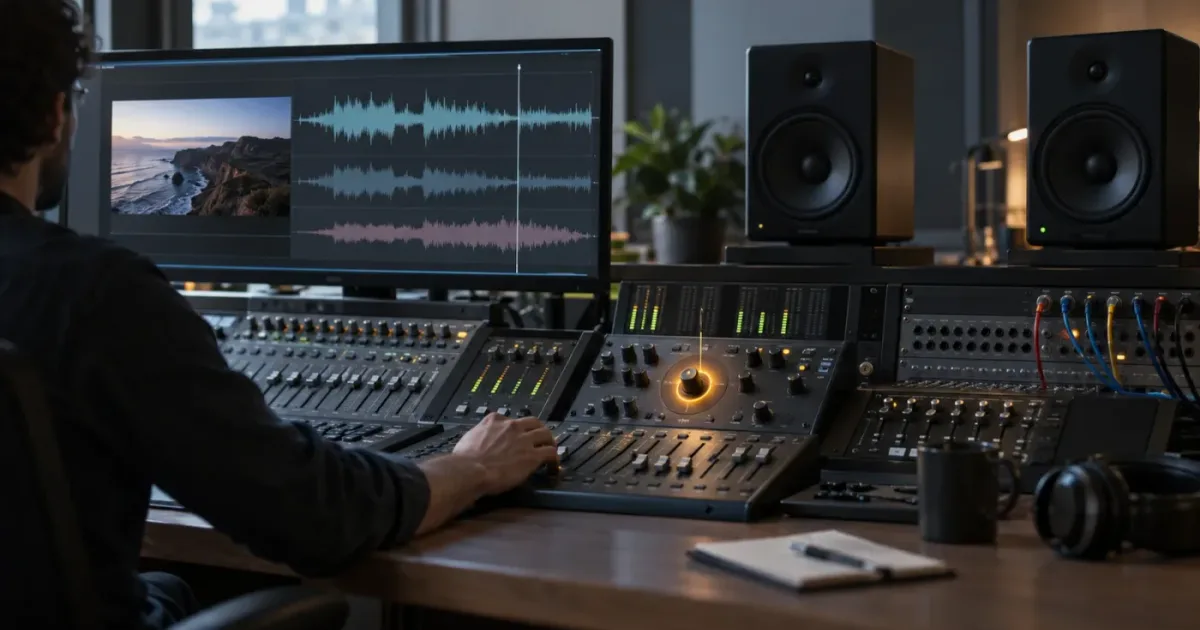
I know the feeling: the pan control moves, the meters dance, and the sound still sits dead center. Or the change sounds right in the Fairlight mixer, then disappears in the export.
As of October 2026, DaVinci Resolve 21.1 is the current version shown on Blackmagic Design’s support page. The checks below focus on the signal path, not a claimed universal bug. I haven’t tested every operating system, interface, headphone setup, or project configuration, so treat each diagnosis as a way to isolate what your timeline is doing.
Why is DaVinci Resolve Fairlight audio panning not working?
When Fairlight panning seems broken, the cause is often a mismatch between the source’s channel format, the track’s pan control, its destination bus, or the signal you’re listening to. Test each part of that path separately before changing project-wide settings.
A useful way to think about the problem is:
Clip source → timeline track → track panner → bus → monitoring or render
The panner only affects the sound passing through it. A working control can seem ineffective if the source is already stereo, the signal reaches a mono destination, automation overrides the position, or the output is being heard in mono. So start by describing the symptom precisely.
| What you notice | First place to look | What the symptom may mean |
|---|---|---|
| The panner won’t move | Track selection and panner state | You may be controlling a bus, clip, or different track, or the control may be bypassed. |
| The panner moves but playback stays centered | Source format and routing | A stereo source, routing choice, or mono monitoring path may mask the expected movement. |
| Panning works until playback starts | Automation | Recorded Pan keyframes may be changing the value during playback. |
| The mixer sounds panned but the export is centered | Render routing and channel layout | The export may use a different bus or an output that collapses stereo. |
| Left and right seem reversed | Monitoring connections | The output channels may be swapped after leaving Resolve. |
| Only one channel changes | Source-channel mapping | A clip or track may carry different content in its left and right channels. |
This table is a triage map, not proof of a particular defect. A pan control’s appearance and options can vary with channel format. Blackmagic’s Fairlight guide describes pan controls for channel-based formats ranging from mono and stereo to surround layouts, while the current Blackmagic support page lists the DaVinci Resolve 21.1 manual. For version-specific interface detail, consult that manual first; the earlier Fairlight guide is useful for explaining the concepts and should not be treated as a guarantee that every menu looks identical in Resolve 21.1.
A moving pan control does not prove that the full signal path is delivering left and right audio.
To avoid chasing unrelated symptoms, make one controlled test: choose a clip whose audio is clearly audible, play a short section, and move its pan hard to one side, then the other. Listen at low volume. If the signal does not move, follow the sections below in order. If it does move but only in one listening device or final render, skip to monitoring and export checks.
How do I test whether the panner itself is working?
A basic test separates a panner problem from a routing or source-format problem. Use one audible clip, one known track, a stereo destination, and no pan automation while you listen to both output channels.
- Switch to the Fairlight page and locate the timeline track that contains the clip.
- Open the Fairlight mixer if it is hidden.
- Find that same track’s channel strip. Don’t start with the main bus or an adjacent track.
- Play the clip. Confirm that its track meter responds.
- Move the track’s pan control clearly left, then right.
- Listen on a known stereo output, such as headphones connected to the device you’re using for Resolve.
- If the sound stays centered, temporarily test another known mono source on a stereo-routed track.
The visible confirmation is the pan control’s position changing. The audible confirmation is the source moving toward the selected side in a stereo listening path. A meter responding only confirms that audio is reaching that meter’s point in the path. It does not prove that both output channels are connected correctly or that the bus is stereo.
If the meters do not move, first solve the audio playback problem. Panning cannot reposition a signal that is absent or inaudible. The separate guide to DaVinci Resolve with no audio covers playback and output checks. This article focuses on cases where audio exists but the pan result is wrong or missing.
If your test source does pan, the panner is doing something. The original clip may have a different channel layout, automation, or route. Don’t change global project settings just because one stereo clip doesn’t behave like one mono voice. Compare the two sources on the same track only if you understand that changing the track type may affect the other clips using it.
What makes a good test clip?
Pick audio with a stable, clearly identifiable sound. A short spoken phrase works well for hearing whether the sound moves. A file with silence, faint ambience, wide stereo content, or different sounds in left and right can confuse the test.
For a controlled comparison, play the same short section three times:
- First, leave the pan at its current position.
- Next, move it toward the left.
- Then, move it toward the right.
Keep the playback device and volume unchanged. If possible, use headphones or speakers you already know play left and right separately. You’re not measuring a technical specification here. You’re checking whether the expected channel movement is audible.
If the source contains a stereo recording, listen for changes in the whole image rather than expecting every component to behave like a single point. The left and right source channels may contain distinct information. A panner’s job is not necessarily to erase those differences.
Is the clip mono, stereo, or mapped to the wrong channels?
The source format determines what the pan control receives. A mono signal is one channel that can be placed across a stereo output; a stereo signal already has left and right channels, which may stay spread across the stereo field when you pan.
A common trap is to look at a waveform that appears to contain audio and assume the source is mono. A clip can be stereo even when the two sides sound similar. It can also contain two different microphones or recordings, one on each channel. Those cases need different treatment.
Check the clip’s channel mapping and the track’s channel type before changing the pan. Blackmagic’s Fairlight training guide demonstrates adjusting track format and channel mapping; its examples show why “mono source,” “stereo clip,” and “mono track” are not interchangeable labels. In the Resolve 21.1 manual, confirm the exact menu names for the version you have installed.
How do I check the audio clip’s channel mapping?
If a clip behaves oddly, inspect its source-channel assignment before editing the track. A multichannel recording can place the wanted sound in an unexpected embedded channel, or different audio may occupy left and right.
- Select the source clip in the Media Pool.
- Open the clip’s attributes or channel-mapping controls.
- Note the current audio format and which embedded source channels feed the clip.
- Compare that mapping with the recording you expect to hear.
- If the source has multiple channels, audition them one at a time when the available controls allow it.
- Make a test copy or use a duplicate timeline clip before committing a destructive remap.
The exact labels depend on file type and Resolve version, so use the version 21.1 manual rather than guessing from a tutorial made for an older version. Don’t remap channels based on waveform appearance alone. A visible waveform doesn’t tell you whether it is the left source, right source, a summed signal, or one of several microphone feeds.
If you want a more focused explanation of channel mapping, see DaVinci Resolve audio track channels wrong. That issue is related, but it is not the same as a panner that moves normally while monitoring fails to reflect the change.
Why does a stereo clip resist a hard pan?
A stereo recording carries two channels. Depending on its track and pan settings, moving the pan may reposition the stereo image without collapsing the two channels into one point. If you expect a stereo recording to behave like a single mono microphone, the result can feel like the pan is broken.
Blackmagic’s Fairlight guide explains the panner’s Spread control as a way to adjust the placement or width of linked stereo sources. A point-like spread may be useful when you intentionally want the stereo source to behave more like one location, but this changes how its stereo image is represented. Listen for changes to the source, and preserve the original mapping if you need both channels for the work.
A forum response from Blackmagic Design’s community also distinguishes mono and stereo track behavior in a discussion of panning. It is useful as a real-world example, not an official rule for every configuration. The safest approach is to use the official manual and verify the result in your own signal path.
Don’t convert a stereo source to mono merely to make the pan control look intuitive. If its left and right channels contain different microphones, downmixing them can alter the recording. A voice captured on a single microphone but duplicated across channels is a different case from two separately recorded sources. Confirm which one you have first.
A stereo source can preserve its width while its position changes, so it may not pan like a mono voice.
If the actual task is positioning a mono voice so that it comes through both left and right speakers, the related guide DaVinci Resolve audio pan mono track both speakers addresses that narrower setup. Keep this page’s diagnosis focused on why Fairlight panning appears not to work.
Is the track’s Pan control bypassed or is the wrong control selected?
Fairlight’s pan controls can be easy to confuse because the mixer includes track and bus channel strips, and a clip can also have its own pan setting. First confirm which object you’re changing and whether that control is active.
Use this order:
- Select the clip in the timeline and note which track it occupies.
- Locate the matching track name in the mixer.
- Look for the track’s pan indicator or panner control.
- Open the full pan window if you need to inspect its settings.
- Confirm the panner is enabled rather than bypassed.
- Make a temporary, obvious left-right move and listen again.
- Restore the intended position after the test.
The mixer strip and the clip are different places to make changes. A clip-level pan adjustment affects that clip, while the track-level panner affects the signal passing through the track. If you change a clip control and then inspect the track strip, the second control may remain centered. The reverse can happen too: a clip’s own pan may make its behavior differ from a track-wide change.
Blackmagic’s official Fairlight product page describes the mixer as having channel strips for timeline tracks and buses, with stereo and 3D panners. It also describes clip adjustments as having their own pan controls. The distinctions matter: make sure the control you’re testing is upstream of the output you’re listening to and belongs to the intended clip, track, or bus.
How can I tell whether the panner is enabled?
Look at the control’s state, not only its position. A centered pan can mean “enabled, centered,” or it can be a bypassed control that no longer affects the signal. A bypassed control can also be mistaken for a fixed center setting if you focus only on its marker.
The Fairlight documentation describes a panner enable or bypass control as distinct from the left-right position. In older Fairlight training material, Blackmagic notes that clicking the mixer pan control can open or bypass its processing depending on the interface and version. Because that behavior may differ across versions and panel layouts, check the button’s tooltip or the Resolve 21.1 manual before relying on an old click habit.
If clicking the pan display seems to make no change, avoid repeated toggling while you’re unsure of the state. Open the larger panner window and inspect the enable control directly. Then play the same section and compare. A clear change in the control state helps separate “bypassed” from “positioned at center.”
What if I’m adjusting the bus instead of the track?
A bus panner controls the bus signal, which may already combine several tracks. If you move the bus pan, you can shift dialogue, music, and effects together rather than the one clip you meant to move. If you select a mono bus, the usual left-right panning destination may not exist there in the same way as it does for a stereo destination.
Check the name at the top of the mixer strip before making changes. Track names and bus names can look similar, especially in a busy project. Follow the routing arrows or output assignments from the desired track to its destination. Then test the track pan while leaving the bus centered.
A Blackmagic forum discussion about Fairlight bus sends notes that panning depends on the destination’s channel format. Treat it as community guidance rather than a version-specific guarantee. The general diagnostic point is sound: a mono destination cannot present a left-right stereo image in the same way a stereo bus can.
Is Pan automation overriding the position during playback?
Recorded Pan automation can change the panner while the timeline plays, making a manual adjustment appear to snap back, move by itself, or have no effect. Inspect the automation lane at the playhead before concluding that the panner is faulty.
A static pan value is only one part of the story when automation is present. A track can have keyframes or recorded control moves that change the pan over time. You may move the control while stopped, press play, and hear the old move return. Or the sound may move correctly, but not stay at the position you selected.
How do I check for Pan automation?
- Select the intended track in the Fairlight timeline.
- Display the track’s automation controls or automation lane.
- Choose the relevant Pan parameter if the interface offers a parameter menu.
- Look for keyframes or a changing curve near the playback range.
- Put the playhead at a point with no visible pan change and compare.
- If you need a static position, revise or remove the automation deliberately, or disable it using the appropriate automation control.
The official Fairlight guide documents multiple pan automation parameters for its illustrated channel formats, including left-right pan and other spatial controls. It also explains that automation can be displayed as curves in the timeline. That reference is useful for understanding what to look for, but exact lane names and available parameters can depend on your track and project format.
Do not delete every automation point just to test the idea. Save a copy of the project or duplicate the timeline first if the automation matters. You can compare a section with automation intact against a temporary test version. If disabling or isolating the relevant pan automation restores the intended static position, you’ve found a cause. If nothing changes, restore the original data and continue checking the route.
What if automation records my pan move by accident?
If you touch the control while an automation mode is active, Resolve may record that move during playback. The control can then behave as if it has a mind of its own on later passes. Inspect the automation mode and the track’s enabled parameters before recording another test.
Blackmagic’s Fairlight product page describes setting an automation mode and choosing which parameter to record. That means changing the mode or parameter can alter whether your test move becomes recorded data. If you only want to hear a static left-right move, avoid recording automation during the test. Confirm your current mode in the Resolve 21.1 interface before playback.
If you do intend to animate pan, record only the parameter you mean to change. Play the section and look for the automation display to indicate that data is being written. Stop playback, review the curve, and replay the passage. A move that appears on the curve but sounds unchanged points toward routing, monitoring, or source format rather than a missing automation record.
When pan changes only during playback, check automation before rebuilding the track or project.
Does the bus format or routing prevent stereo panning?
A track can pan correctly yet feed a destination that cannot reproduce the intended stereo movement. Trace the track’s output to its bus, check the bus channel format, and confirm that the bus reaches your monitoring or render output.
Routing is a frequent blind spot because it sits downstream from the control you’re adjusting. A track can show activity, and its pan indicator can move, but the sound may be routed to a bus that combines or redirects the channels. The test is not “does the track meter move?” It is “does the intended left-right difference survive to the output I’m actually hearing?”
| Signal-path point | What to confirm | What to try |
|---|---|---|
| Track output | The selected track routes to the expected bus | Temporarily route a test track to the main stereo bus if your project permits it. |
| Bus channel format | The destination supports the stereo layout you need | Inspect the bus format; don’t assume a bus is stereo from its name. |
| Bus panner | The bus is not repositioning or collapsing the track signal unexpectedly | Keep the bus at its neutral position during a track-pan test. |
| Monitor output | Left and right channels reach different physical outputs | Check the interface, headphones, operating-system output, and any adapter. |
| Render output | The render uses the expected bus and channel layout | Make a short test export and listen outside Resolve. |
Blackmagic describes Fairlight’s routing and buses as part of its mixing workflow, and its product documentation notes that track and bus channel strips have their own controls. The exact routing options available can depend on the project and version. Use the Resolve 21.1 manual for the menu path rather than relying on a path from an earlier release.
Why is the pan control disabled on a bus send?
A pan control can be unavailable when the send’s destination or channel layout does not support the kind of pan you’re trying to make. For example, sending a signal to a single-channel destination does not provide the same left-right placement as sending it to a stereo destination.
First identify the send source and destination. Are you trying to move the whole track, pan an auxiliary send, or route one source channel to a different bus? Those are separate tasks. A send’s pan control isn’t necessarily the same control as the track’s main output pan.
A Blackmagic Design forum thread on Fairlight bus sends describes how the destination format affects panning. Use it as an example of a routing distinction, then verify your own setup in the current manual. If the pan option appears unavailable, don’t assume it’s a software fault. Check whether the destination has the channels required for the placement you want.
Should I change the bus to stereo?
Change a bus format only when the delivery or monitoring goal requires that layout and the project’s routing supports it. A stereo bus is a sensible destination for a standard left-right mix, but changing a bus can affect other tracks and downstream routes.
Before changing a bus format:
- Save the project or create a version you can return to.
- Note which tracks and buses currently feed it.
- Check whether other outputs depend on its current channel count.
- Decide whether the final delivery should be stereo, mono, surround, or another supported layout.
- Test one track before changing the full mix.
Don’t switch a project to stereo as a reflex. If the final delivery is intentionally mono, panning left and right may not survive in the intended way. Likewise, a surround project uses a different spatial field from ordinary stereo. Match the bus and monitoring layout to the actual delivery requirement.
Why does a stereo track sound centered even when its pan value changes?
A stereo track may keep much of its sound near the center because it preserves left and right source information, because the selected setting changes width rather than the expected source position, or because your monitoring collapses the output. Determine which part is happening before replacing the source or track.
Try a mono test clip on the same route. If the mono clip pans but the stereo clip does not seem to, the difference may be source-channel behavior rather than a broken panner. Return to the channel mapping and Spread checks above. If neither clip pans, investigate bypass, bus format, automation, and monitoring.
A stereo image can also be asymmetric. One channel may be louder, contain a different microphone, or carry phase differences. In that case, moving the stereo source may not produce the simple “voice moves from left ear to right ear” result you expected. Listen separately to the two sides if your monitoring setup allows it, and inspect the source before processing.
Avoid using a mono conversion as a quick fix when the two channels contain different useful sounds. Summing them can change tone, level, or phase relationships. If your task is to pick one microphone channel, choose or map that channel intentionally rather than summing blindly. If your task is to preserve the stereo recording but shift its image, adjust the appropriate stereo panning or spread control and audition the result.
Why does Fairlight panning work in the mixer but not in headphones?
The monitoring path may be summing, swapping, or rerouting left and right after the signal leaves Fairlight. Check the physical output, system audio settings, interface routing, and headphone connection before changing the project mix.
A good diagnostic is to play a known stereo reference outside Resolve through the same headphones. If that reference also sounds centered or reversed, the issue likely lies after the application. If the reference sounds correctly separated, test a short, known stereo export from Resolve and compare it.
Check these items in order:
- Are the headphones connected to the output you selected in Resolve?
- Does the audio interface expose a stereo output rather than a mono monitor feed?
- Are any operating-system accessibility or audio enhancements summing channels?
- Are the left and right connections plugged into the expected outputs?
- Is an adapter, monitor controller, mixer, or docking station changing the signal?
- Does the same file sound correct on another known stereo playback device?
Don’t compensate for reversed monitoring by reversing your mix. That can make the project wrong everywhere else. Fix the monitoring path or document a known connection issue, then verify the mix on a separate playback system.
What if I’m monitoring a mono speaker?
A single mono speaker cannot reproduce a conventional left-right stereo image as two separate directions. It combines the channels into one listening point. You may hear a level or tone change when panning, but not the familiar movement from one side to the other.
That’s a limitation of the listening setup, not proof that the pan control has failed. Use two speakers or stereo headphones for the test. If your target delivery is mono, check how the mix sums to mono instead of judging it by left-right movement. A sound that disappears or changes in a mono fold-down may point to phase or channel-content issues that deserve separate attention.
What if the left and right channels are swapped?
Swapped channels make a pan move seem to go the wrong way. Confirm the speaker or headphone orientation, interface outputs, cable labels, and the selected monitor device. Then compare with a stereo reference that you know is oriented correctly.
Use a clear spoken cue or a test signal that announces the side, if available. Keep volume conservative. Once you identify a swap, correct the physical connection or output assignment rather than moving clips in the opposite direction. A mix should communicate the intended left-right image on a correctly connected stereo system.
Why does a Fairlight pan move disappear in the export?
An export can use a different output bus or channel layout from your monitor path, so check the render’s audio source and format, then audition a short test file in another player.
Before rendering, play the timeline through the intended main bus and verify its meters and stereo output. Then inspect the Deliver page’s audio settings. Confirm which bus or output is selected, whether audio is enabled, and what channel layout the render uses. A pan in the timeline cannot survive as a left-right distinction if the exported file is deliberately mono.
Make a short test render that includes the section where you moved the sound. Listen to it outside Resolve using headphones or speakers you trust. If the rendered file sounds centered, import that file into a fresh timeline and inspect its channels. This helps distinguish a render setting issue from a player or monitoring problem.
Don’t alter your entire mix because one playback app sounds different. Some players, phone speakers, Bluetooth devices, and platform previews may process audio differently. Compare the file in a second player and on a second output before deciding that Resolve discarded the pan.
For a useful export diagnosis, record the facts rather than relying on memory:
- Which bus feeds the render?
- What channel layout did you select?
- Does the timeline monitor pan during playback?
- Does the exported file pan in an external player?
- Does the same file pan after it is reimported?
That small checklist narrows the point at which the signal changes. If it pans in the timeline and in the exported file, but not on one speaker or one player, the panner is probably not the issue.
Does the Edit page pan differently from the Fairlight page?
The Edit page, Fairlight page, clip controls, and mixer controls may expose different ways to adjust audio. They can still affect the same underlying timeline sound, but the visible control you change may belong to a clip, track, or bus.
If a pan move made on one page appears to be missing on another, select the same clip and inspect the same point in time. Check whether the control is clip-level, track-level, or bus-level. Then inspect automation. A track value and a clip value can both be present, and the displayed control may not summarize the whole signal path.
The Fairlight mixing guide covers the broader mixer workflow. For this troubleshooting task, keep the test narrow: one clip, one track, one pan control, one bus, and one listening path. Once you know which control changes the output, return to the mix and use the control that best fits the job.
Avoid changing the same pan at several levels at once. If both a clip and a track are panned, it may be hard to know which setting produced the audible result. Clear or bypass only the test adjustments you made, and preserve existing automation that belongs to the edit.
What should I check before changing track format or project settings?
Before changing track format, source mapping, or bus layout, save a reversible version and make sure the change solves the specific symptom you observed. A global setting can affect clips and routes beyond the one sound you’re trying to move.
Use this decision table:
| Your actual goal | First control to inspect | Avoid doing this first |
|---|---|---|
| Move one mono voice left or right | Track pan and track output | Converting every track to mono |
| Shift a stereo recording as a stereo image | Stereo panner and Spread | Summing channels without auditioning |
| Use only one mic from a multichannel file | Source-channel mapping | Guessing from waveform shape |
| Pan one track into a bus | Track route and destination format | Changing the master bus blindly |
| Animate a sound’s position | Pan automation parameter | Recording moves with the wrong automation mode |
| Deliver a mono mix | Mono fold-down and render output | Judging success by left-right movement |
| Deliver a stereo mix | Stereo bus, monitor path, and render layout | Trusting only one device or player |
This is a practical decision aid, not a list of settings that every project should use. Resolve projects can contain several track and bus configurations. The best choice depends on the source, intended mix, and delivery.
For a project with existing automation, multiple buses, or surround routing, duplicate the timeline or project before experimenting. Then make a single change at a time. If the symptom changes, record which change did it. If not, revert before trying another branch. That’s more reliable than stacking unknown changes until something sounds different.
When should I suspect a project or version problem?
Suspect a version-specific issue when the same controlled setup behaves differently after a Resolve update, or when the behavior is repeatable in a new test project but not in an older one. First confirm the exact version and read its current manual or release notes.
As of October 2026, Blackmagic Design’s support page lists the DaVinci Resolve 21.1 manual. Resolve’s interface and features can change between versions, so compare your installed build against current documentation rather than assuming an older tutorial shows the same control. If you’re using a version before 21.1, note that when asking for help.
A clean test project can help separate project-specific routing from application-wide behavior. Create one short timeline, add one known audio file, use one track, route it to a suitable output, and test a static pan without automation. Don’t import your full project settings or copy over all its buses for this test. The goal is isolation, not recreation.
If the pan works in the clean project, return to the original and inspect its track type, automation, routing, and monitoring. If the same issue persists in the clean project, record the version, operating system, audio device, file format, track type, bus type, and exact steps. Those details help Blackmagic Support or community contributors reproduce the behavior.
Avoid using “bug” as the first diagnosis. An interface can look stuck because the control is bypassed, a stereo source maintains width, or the monitoring path sums channels. A reproducible problem that remains after those checks is a better candidate for official support.
When should I ask Blackmagic Design for help?
Contact Blackmagic Design support when a simple, documented test still fails and you can describe the route from source to output. Share the Resolve version, operating system, audio device, source layout, track and bus formats, and the exact result.
The current Blackmagic support center provides downloads and access to support resources. Its Fairlight materials include a manual, training resources, and community forum access. For a focused support request, include:
- The exact DaVinci Resolve version and build number.
- Whether you use Resolve or Resolve Studio.
- Your operating system and audio interface or output device.
- The source file’s channel count and relevant mapping.
- The timeline track format and destination bus format.
- Whether the pan control is clip-level, track-level, bus-level, or automated.
- Whether a mono test clip pans in a new test project.
- Whether the same result appears in a short export.
Don’t include private media if you don’t have permission to share it. A short, self-created test file or a redacted screenshot can be safer. Be precise about whether the control won’t move, moves but sounds centered, moves in the wrong direction, or works in the timeline but not the export. Those are different failures and need different evidence.
Blackmagic’s official training page also lists a Fairlight Audio Guide and lessons. They’re useful if the issue turns out to be channel format, bus routing, or automation rather than a fault. Training won’t replace a reproducible support report, but it can help you confirm what the controls are designed to do.
What is the quickest fix for the common cases?
The quickest fix depends on the symptom. For most cases, check the source format, enabled pan control, track route, bus layout, and automation before changing project-wide settings.
Use this compact sequence:
- Confirm the correct track. Select the track carrying the clip, not the bus or a neighboring channel.
- Confirm audio is present. Play the section and watch the correct track meter.
- Check the source format. Determine whether it is mono, stereo, or multichannel.
- Check panner state. Open the full pan controls and verify the panner is enabled.
- Check the route. Trace the signal to a stereo destination if you expect left-right movement.
- Check automation. Look for pan keyframes or recorded moves at the playhead.
- Check monitoring. Verify separate left and right playback channels.
- Check the render. Confirm the selected bus and output layout in a short test export.
- Compare a clean project. If the same test works there, inspect the original project’s routing and automation.
- Escalate with evidence. If the isolated test still fails, report exact version and signal-path details.
This sequence is deliberately conservative. It avoids deleting automation, remapping source channels, or changing the main bus before you know what’s wrong. If you already know the issue is specific to stereo width, go directly to the source-format section. If the change vanishes at playback, start with automation. If it vanishes only in the file, start with render routing.
Try one branch at a time. If you change five settings at once, you may make the symptom disappear without knowing what fixed it. That makes the next session harder, not easier.
The fastest reliable fix is the smallest change that restores the intended signal path.
Can on-screen guidance help when the Fairlight controls don’t match a tutorial?
On-screen guidance can help you identify a control when the tutorial’s layout differs from your Resolve window, but it should not replace the checks that confirm your audio is actually panning. Use it after you know which clip, track, and output you want to inspect.
That may help if you’re stuck locating a control in the current interface. You still make the changes, listen to the result, and verify the rendered file yourself.
What should I do next if Fairlight panning still does not work?
If Fairlight panning still appears broken after checking source format, control state, automation, routing, monitoring, and export layout, run the same mono test in a clean project and compare it with your original timeline. That comparison tells you whether to focus on a project-specific signal path or request version-specific support.
Keep your next step simple: identify the exact point where the sound stops moving. If the track meter is silent, solve playback first. If the pan marker changes but the output remains centered, inspect the bus and monitor route. If the sound moves in the timeline but not the exported file, test the render configuration. If only a stereo clip behaves differently from a mono one, examine its channel mapping and stereo spread.
Don’t rebuild the whole mix until you have isolated the failure. Save a reversible copy, make one change, and test the same short passage again. When you know whether the issue sits at the clip, track, bus, monitor, or render stage, the fix becomes much less mysterious.
Frequently asked questions
- Why is Fairlight audio panning not working in DaVinci Resolve?
- The most common reason is a mismatch between the source or track format, the pan control you changed, and the output route. Check the track type and source channels, enable its panner, confirm routing to a stereo bus, and test with automation disabled.
- Why does a stereo clip not pan fully left or right in Fairlight?
- A stereo clip contains separate left and right channels, so its pan control may preserve their width instead of moving the entire clip like a mono source. Try a mono track or adjust the stereo Spread control if your intended result is to move the sound as one point.
- How do I reset Fairlight pan automation?
- Show the track’s Pan automation lane, inspect the playhead position for existing keyframes, and use the Fairlight automation controls to disable or revise the recorded pan data. A static pan setting can be overridden during playback by automation.
- Why does panning sound different in my headphones and exported file?
- Check that the headphones and speakers are connected to the same intended stereo output, the left and right channels are not swapped or summed to mono, and the render uses the expected audio bus and channel layout. Compare the render with a short test export.
Sources
Put this guide to work with TryUncle.
Ask about the step you’re on. TryUncle sees your screen and points at the control you need, so you can keep learning in your own project.
Get TryUncle for Mac or WindowsKeep reading
Fixes · Oct 3, 2026 · 18 min
DaVinci Resolve Audio Track Channels Wrong? Fix the Mapping
Fix wrong audio track channels in DaVinci Resolve 21 by checking clip mapping, track type, pan, bus routing, and export channel settings.
Fixes · Oct 5, 2026 · 33 min
DaVinci Resolve Audio Pan Mono Track Both Speakers: Fix
Fix a mono track that only plays from one speaker in DaVinci Resolve 21. Change the track to mono, verify mapping, then set the pan safely.
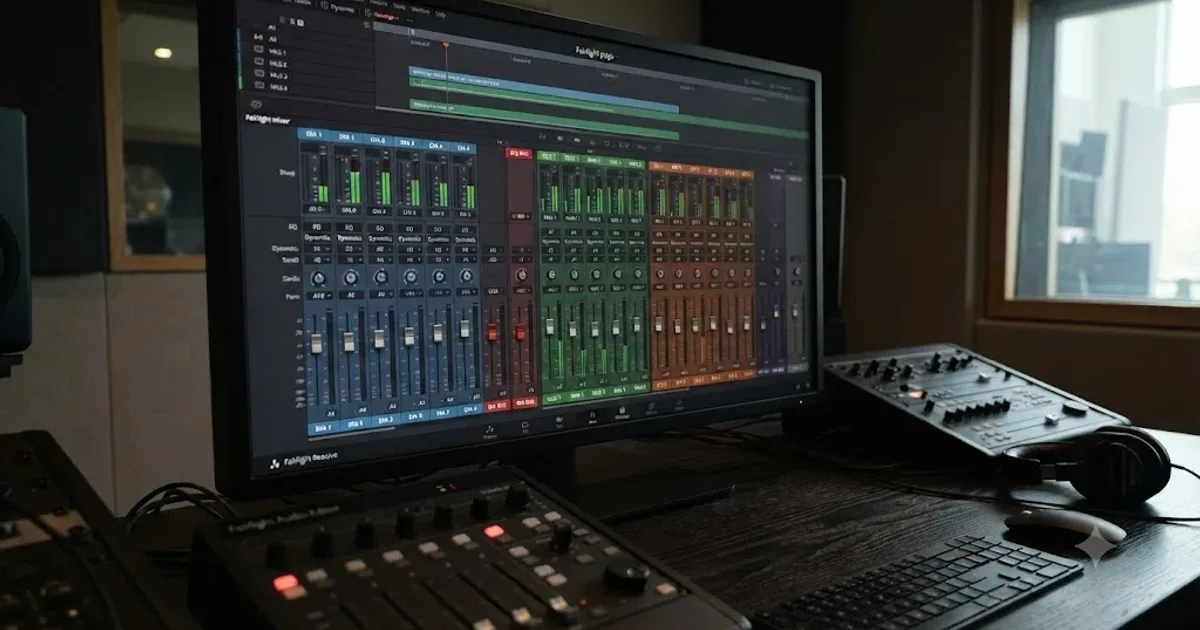
Guides · Jul 11, 2026 · 31 min
How to Mix Audio in DaVinci Resolve Using Fairlight
Mix audio in DaVinci Resolve's Fairlight page: build a dialogue/music/effects bus structure, gain-stage your clips, EQ and compress dialogue, then duck music under it.