Articles / Fixesupdated for DaVinci Resolve 21.1 (September 2026)
DaVinci Resolve Photo Page Raw Photos Not Importing? Fix It
Quick answer
If raw photos are not importing into the DaVinci Resolve Photo page, first confirm that Resolve 21.1 is installed, then test one original file in a new project. If it still will not appear or open, the camera’s RAW variant may not be supported by your installed version. Check Blackmagic’s current support notes, copy the file to local storage, and convert a duplicate to a standard image format only as a workaround.
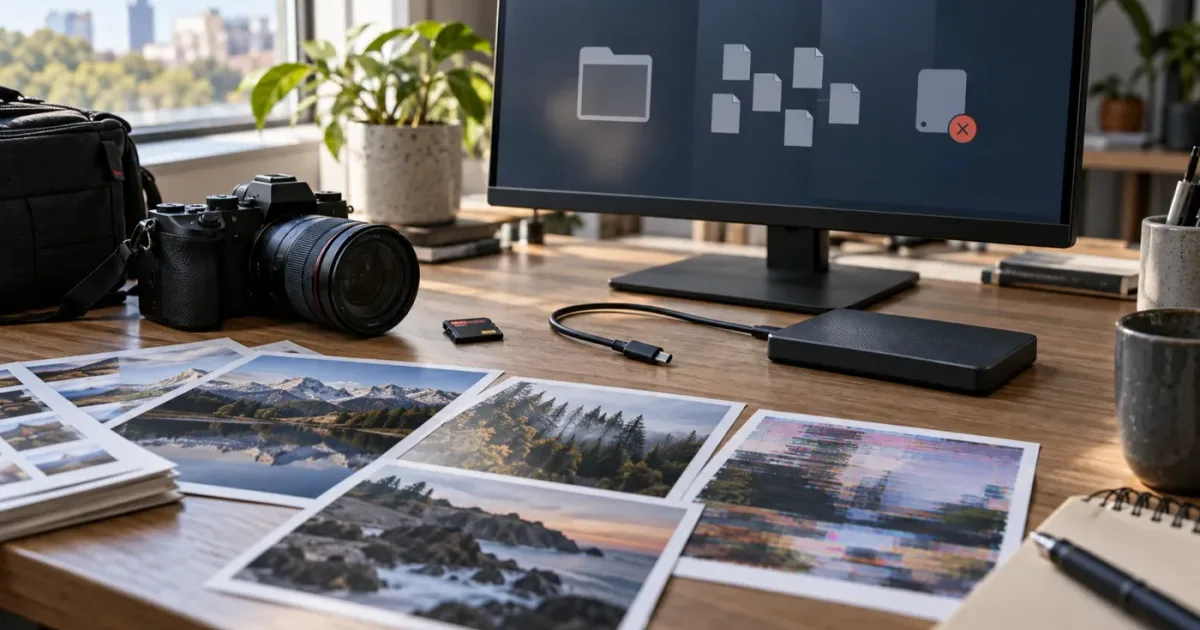
I’d check the exact file and Resolve version before changing a project setting. A RAW photo that doesn’t appear, a thumbnail that stays offline, and a photo that imports but looks wrong can have different causes. As of October 2026, the current point release to check is DaVinci Resolve 21.1, which Blackmagic says expands still-photography and camera-format support on the Photo page.
Why are raw photos not importing into the DaVinci Resolve Photo page?
When RAW photos will not import into DaVinci Resolve’s Photo page, first test one original file in a new project with Resolve 21.1 installed. If the file still does not appear or opens as offline, check whether its exact camera RAW format is supported before changing the project or converting your originals.
The Photo page is Resolve 21’s workspace for managing and editing still images. Blackmagic’s own description says it can import and manage photographs, and the Resolve 21 guide describes its media pool as containing still-image media imported into the current project. That matters because a photo not appearing in the Photo page’s media pool is a different problem from a photo appearing there but failing to decode. (Blackmagic Design’s Photo page; DaVinci Resolve 21 New Features Guide)
Start with one file, not a whole card or library. Use a copy you can afford to test. Record the camera model, the precise extension, and your DaVinci Resolve version. Then observe what happens:
| What you see | What it suggests | First check |
|---|---|---|
| The file is absent from the import view | The file may not be in the selected folder, the folder may not be reachable, or Resolve may not list that format there | Confirm the file’s location outside Resolve, then test a local copy |
| The file is selectable but does not enter the project | The import path, file access, or decoder may be failing | Test one file in a new project and note any message |
| A thumbnail appears but says Media Offline | Resolve has a project reference but cannot currently read or decode the source | Check the source path and test the original outside Resolve |
| The photo opens, but its appearance differs from another app | The file did import; the remaining issue may be RAW decoding, color management, or preview behavior | Compare a rendered duplicate and the original in separate viewers |
| A converted image imports but the RAW original does not | The storage path may be fine; support for that particular RAW file or variant is a stronger lead | Check version-specific support notes for the camera and format |
That table is a troubleshooting map, not a diagnosis. A filename ending in .CR3, .NEF, .ARW, or .RAF identifies a file family, but it does not by itself prove that every model, firmware generation, or file variant in that family is supported by your installed Resolve build. Blackmagic announced expanded camera-format support for the Photo page in Resolve 21.1, while its earlier 21.0.1 notes separately mentioned improvements to DNG and Apple ProRAW decoding and support for Sony α7R VI ARW stills. Point releases can change the answer. (Blackmagic Resolve support notes; Resolve 21.1 announcement)
An unsupported RAW file and a missing file path are two different problems.
Don’t make a large change based on a guess. Updating Resolve, changing project color management, renaming an extension, or batch-converting a card can create new uncertainty without identifying the cause. A controlled test gives you a useful first split: does this one original file work from a local folder in a fresh project?
How do I check whether my DaVinci Resolve version supports this RAW photo?
Check the installed point release, then compare it with Blackmagic’s current Resolve support notes for your camera’s RAW format. Resolve 21 introduced the Photo page, 21.0.1 documented specific RAW decoding changes, and 21.1 announced expanded still-photo and camera-format support; a “Resolve 21” label alone doesn’t tell you which changes you have.
In Resolve, open the About dialog and note the complete version number. Don’t rely on the installer filename, a download date, or the project file’s creation date. Write down the version as displayed, including its point-release number. This is a diagnostic step: it lets you compare your installation with an official support update instead of treating all versions beginning with “21” as identical.
Blackmagic’s Support Center lists DaVinci Resolve updates and release notes. The entries relevant to this problem include:
| Resolve version or release | What Blackmagic’s published information says | What that means for troubleshooting |
|---|---|---|
| DaVinci Resolve 21 | Introduced the Photo page for still images | The feature’s presence doesn’t establish support for every camera RAW file |
| DaVinci Resolve 21.0.1 | Improved DNG and Apple ProRAW decoding and added support for Sony α7R VI ARW RAW stills | A point release may matter for decoding or camera-specific coverage |
| DaVinci Resolve 21.1 | Expanded still-photography support on the Photo page, including camera formats | If you are on 21.0, updating may be relevant, but check the specific format rather than assuming universal support |
These descriptions come from Blackmagic’s published update information, not from a test of your particular file. The 21.1 announcement says support expanded; it doesn’t serve as a complete compatibility list for every camera and firmware combination. Use the current support notes and the manual supplied for your installed version. Blackmagic lists the DaVinci Resolve 21.1 manual in its welcome page and maintains its download and update information in the Support Center. (Blackmagic Design Support Center; DaVinci Resolve 21.1 announcement; DaVinci Resolve 21.1 Manual)
If you’re using an older 21.x build, update only after protecting the project and confirming that the new release is appropriate for your system. Save a project backup first. Resolve projects can be affected by version changes, and a version update is not a substitute for backing up your work. Keep the original photos separate from the Resolve project database or library: importing media does not mean your camera originals have become disposable.
If you’re already on 21.1, don’t assume the update alone guarantees support. Identify the camera and format exactly. For example, “Sony RAW” is not a sufficiently precise report when the release notes name a specific model and an ARW format. The more precise your version and format details are, the more useful a support search becomes.
The Blackmagic Resolve 21 guide lists several camera RAW families in its section on native RAW support, including Canon CR3, Fujifilm RAF, Apple ProRAW, Nikon NEF, and Sony ARW. That list is useful orientation, not a promise that every file created by every camera in those families will open in every Resolve version. The guide also identifies itself as a new-features document; the 21.1 manual and current release notes are the better places to check what changed after the initial release. (DaVinci Resolve 21 New Features Guide; Blackmagic Design Support Center)
Be careful with advice that recommends renaming a RAW extension. Changing .ARW to .NEF, for example, does not convert the image data into a Nikon file. It can make file identification less reliable and is not a safe format-conversion method. If Resolve doesn’t support your exact RAW file, use a conversion workflow that actually decodes and exports the image, and keep the original untouched.
How do I import one RAW photo into the Photo page?
Import one source file into the current project and confirm that it appears in the Photo page’s media pool before adding it to an album or importing a large batch. Resolve’s 21 guide describes that media pool as showing still images imported for the project, with video, audio, and other media hidden from this Photo-page view.
Use this small test:
- Open a new test project. Give it a plain name so you can distinguish it from the project where the problem first appeared. You don’t need to change your existing project settings to perform this check.
- Copy one original photo to a local folder. Use a file you can compare against the camera card or existing backup. Don’t rename the extension.
- Open the Photo page. Make sure you’re in the still-image workspace rather than looking only at a video timeline or a filtered media view.
- Use the project’s import workflow to add the photo. Blackmagic describes the Photo page as supporting direct photo imports. Follow the import options visible in your installed version; interface wording can change between point releases.
- Check the Photo-page media pool. Look for a thumbnail or a visible import error. Don’t decide that the file imported just because it was selectable in a file browser.
- Open the photo in the viewer. Note whether it renders, remains offline, or produces an error. Each outcome narrows the problem differently.
- Repeat with one ordinary image file you already know is readable. If the ordinary image works and the RAW file does not, prioritize RAW-format support and decoding over general project damage.
- Test the original again outside Resolve. If the photo also fails to open in the camera maker’s software or another trusted image application, investigate the file copy or card before blaming the Photo page.
Blackmagic’s guide explains that the Photo-page media pool contains still-image media imported into the project and can organize photos through bins and albums. It also describes albums as a way to collect images for photo work. The key diagnostic is to confirm that the source is in the project’s still-image media pool first. Creating an album is an organizational action, not a way to make an unsupported source file decode. (DaVinci Resolve 21 New Features Guide)
If the file shows as a thumbnail but cannot open, record that separately from “not importing.” If it never enters the project, record that too. The distinction matters when you search the Photo page workflow guide or ask for help. A clear report might say: “Resolve 21.1 on Windows; one Nikon NEF from a local folder appears in the import dialog, but the Photo-page media pool shows Media Offline.” That’s more actionable than “RAW is broken.”
If you want to learn where the Photo page’s import and album controls are in your build, use the official manual for that release. A walkthrough made for an earlier beta may show different labels or controls. Blackmagic’s Resolve 21.1 manual listing is the current starting point for the 21.1 interface.
A thumbnail in the project is not proof that Resolve decoded the RAW photo successfully.
Why does my RAW photo show as Media Offline in Resolve?
“Media Offline” means Resolve cannot currently display the source media at the project’s referenced location or decode it successfully; it doesn’t, by itself, identify which of those causes applies. Check the file path and file readability before treating the message as proof that your RAW format is unsupported.
A project can remember a path to a file without containing the file itself. If you imported a photo from a card, removable drive, temporary folder, or cloud-synced location, Resolve may have a project reference that stops working when the source moves or becomes unavailable. A project is not a backup of its source photos.
Try this sequence:
- Check that the original file still exists. Open its folder outside Resolve. Confirm the filename and extension, and make sure the file isn’t only a thumbnail, preview, or cloud placeholder.
- Open the file with another application. Prefer the camera maker’s software or a photo application known to support that camera format. If it fails there too, test a fresh copy from the card or backup.
- Copy one file to local storage. Choose a folder on a drive that is mounted and writable. Avoid starting with a network share, removable card, cloud-only folder, or an external drive that may disconnect.
- Import the local copy into a new project. This separates the test from older project paths and folder references.
- If the file is already in a project, use the appropriate relink workflow. Point Resolve to the actual folder containing the source, not to a preview or a similarly named exported image.
- Check whether the offline state follows the file. Try a different known-readable still from the same local folder. If that still appears, storage access may be working while the RAW decoder or format remains the issue.
- Preserve the original while testing. Don’t overwrite it with a converted file under the same name. Distinct filenames make it clear which image Resolve is reading.
Changing the file’s folder or drive can break the project’s path reference even when the image itself is healthy. Conversely, a working path cannot fix a RAW variant that the installed decoder does not support. That’s why a local-copy test and a known-readable image are useful together: one checks the source location, the other gives you a comparison.
For a moved or reorganized project, Resolve’s relinking workflow is a separate task from importing a new image. The guide to relinking media when it moves drives covers that issue. If the image is already in the project but its reference fails, use that route rather than repeatedly adding duplicate records.
A common mistake is to copy a project file to another computer but not copy its referenced photos. Another is to move the camera card files into a new folder after importing them. In both cases, the project may open normally while the photo source is unavailable. Reimporting a known-good local copy into a test project tells you whether the existing project’s references are the obstacle.
Don’t delete offline media records until you know what they point to. First identify the existing source path, confirm that you have a backup, and test the repaired or relinked file. If the project contains edits you need to preserve, treat it as the valuable part of the workflow, not as a disposable test case.
Does DaVinci Resolve 21.1 support every camera RAW photo?
No. Resolve 21.1’s expanded Photo-page support is not the same as a guarantee that every camera RAW variant works. Check the exact camera model, file extension, firmware context if relevant, and Resolve point release against Blackmagic’s current documentation.
The word “RAW” covers multiple camera-specific formats and implementations. The extension is one clue, but format support can depend on more than the letters at the end of a filename. A camera manufacturer may use an established extension for multiple generations of files, while a software update adds or improves support for a particular model or decoding behavior. Blackmagic’s 21.0.1 notes, for example, specifically mention Sony α7R VI ARW stills and improvements to DNG and Apple ProRAW decoding. Its 21.1 announcement says that support for still photography and camera formats has expanded. Those are concrete changes, but they do not publish an exhaustive list of every working camera-file combination in the announcement itself. (Blackmagic Design Support Center; Resolve 21.1 announcement)
A useful support check includes:
| Detail to record | Example of useful specificity |
|---|---|
| Resolve version | The complete version shown in the About dialog, such as 21.1 |
| Operating system | macOS, Windows, or Linux, plus its version |
| Camera make and model | The exact model name, not just “Canon” or “Sony” |
| Filename extension | The extension exactly as it appears, such as .NEF or .ARW |
| Import result | Not listed, import silently fails, thumbnail appears, offline, or decode error |
| Source location | Local internal drive, external drive, card, network share, or synced folder |
| Comparison test | Whether a standard image or a converted copy imports from the same location |
That record helps you avoid an unhelpful loop: reinstall Resolve, reinstall the camera software, reset preferences, and then try the same unsupported file again. If a point-release note explicitly adds your camera format, updating becomes a reasoned next step. If the release notes don’t name it, ask Blackmagic support or consult its official forum with the exact details rather than concluding that the Photo page supports all RAW files.
A specific file can also be damaged or incomplete. If only one image fails while other images from the same camera and folder import, test that file from the card or backup again. If every image from a camera model fails while ordinary stills import, the format-support question rises in priority. Neither pattern proves the cause, but each points the next test in a better direction.
The .RAW label is not a compatibility guarantee.
Avoid changing an extension to trick the importer. Renaming can’t make the underlying data conform to another camera’s format. It also makes a support request harder to understand because the filename no longer reports the original file type. Keep the original name in your records, and if you create a converted version, give it a separate filename.
Why is my iPhone RAW or Apple ProRAW photo not opening?
Check whether the file is an Apple ProRAW image, another iPhone photo format, or an exported image, then verify that your installed Resolve version includes the relevant decoding updates. Blackmagic’s 21.0.1 update notes mention improved DNG and Apple ProRAW decoding; that is a reason to verify the point release, not a promise that every iPhone file will behave identically.
“Shot on an iPhone” doesn’t tell you the file format. An iPhone library can contain different kinds of still images, and a transfer or export may produce a different file from the original camera capture. Record the file’s actual extension and where it came from: Photos library, a cable transfer, a shared copy, a cloud download, or an export from another app.
Blackmagic’s official support information is the first place to check for updates relevant to DNG and Apple ProRAW. Its 21.0.1 notes state that DNG and Apple ProRAW decoding were improved. Resolve 21.1 then announced expanded still-photography and camera-format support. Neither update note says every possible file, export, or transfer path has been tested, so treat these as version clues rather than a blanket guarantee. (Blackmagic Design Support Center; Resolve 21.1 announcement)
Test a single original:
- Find the original file, not just its thumbnail in the Photos library.
- Confirm its extension and file size in the operating system.
- Open that same file outside Resolve.
- Copy it into a local folder and import it into a new test project.
- If it fails, export a separate copy from a trusted application to a standard still-image format and test that copy.
- Compare whether the original fails while the exported duplicate works.
A converted duplicate is a diagnostic and a possible workaround, not an equivalent substitute for the original RAW file. A rendered image has already been decoded and may no longer provide the same RAW-specific controls. Keep both files and label them clearly.
If the photo fails before it reaches Resolve, investigate the transfer. A cloud library can display an image preview before the full-resolution original is available locally. A shared or exported copy may have been changed by the app that created it. Confirm that the file has finished downloading and that it opens outside Resolve before troubleshooting project settings.
If a converted file works, that tells you the project can handle that exported image format from that location. It does not prove the original was corrupted; the issue may instead be format support or decoding. Keep your test narrow. Don’t export an entire phone library into another format until you know whether the problem affects one file, one format family, or the transfer process.
The Resolve Photo page can be part of a broader image workflow, but importing the photo and managing its edits are separate from the way your phone stores or syncs originals. Blackmagic describes importing photos directly, as well as importing from Apple Photos or Lightroom. Check the exact behavior documented for the version you have rather than assuming every library item is stored as a local, full-resolution original. (Blackmagic Design Photo page)
Why do some RAW photos appear while others from the same camera do not?
When some RAW photos import and others don’t, compare the files rather than changing settings that affect the whole project. Differences in camera model, capture mode, file variant, file integrity, and storage location can explain why two images with similar extensions behave differently.
Start with two samples: one file that works and one that doesn’t. Make a simple comparison sheet:
| Question | Working file | Failing file |
|---|---|---|
| Same camera body? | Record exact model | Record exact model |
| Same extension? | Copy it exactly | Copy it exactly |
| Same capture mode or processing path? | Note what you know | Note what you know |
| Same folder and drive? | Note the location | Note the location |
| Opens in another image application? | Yes or no | Yes or no |
| Same Resolve point release? | One project, same version | One project, same version |
If the files share a camera but differ in extension, investigate the format family first. If they share an extension but one file came from a different camera model, confirm support for that exact camera. If the failing file alone also fails outside Resolve, check the source copy. If the same file opens outside Resolve and from a local path but not in Resolve, focus on Resolve version and file decoding.
A burst, unusual capture mode, or newer camera generation may produce a file that differs from the older sample you used to test. Don’t infer full compatibility from one successful image. The useful fact is narrower: one file worked. You still need to learn whether the failing one differs in format, source integrity, or location.
Sidecar files can be relevant to some camera and photo workflows, but don’t treat their absence as the default explanation for an import failure. First establish that Resolve can see and decode the main image. A sidecar or neighboring metadata file cannot turn an unsupported RAW file into a supported one. Keep related files together while you test, and avoid moving or renaming them until you know what the camera workflow expects.
Do not copy the file from a messaging app or social platform and assume it’s still the same original. A share workflow may create a rendered image instead of preserving the camera RAW source. Compare the filename, extension, and file size with the original on the camera card or its verified backup. Those checks don’t certify a RAW file, but they can reveal that you’re testing different copies.
If only files from one new camera fail, include the camera model and Resolve build when searching Blackmagic’s published notes. If only a few files from that camera fail, test those exact files from an independent copy. If the problem follows the file across storage locations and applications, treat file integrity as a serious possibility and restore from a backup before attempting repairs.
This two-file comparison is often faster than trying multiple global preferences. It preserves a clean question: what does the failing image have that the working image doesn’t?
Could my drive, folder permissions, or cloud sync be blocking the import?
Yes. A removable, disconnected, unwritable, or cloud-only source can stop Resolve from reading a photo even when the file is a supported format. Copy one original to a local folder that is fully available, then import that copy into a new project to separate storage access from RAW decoding.
First, check that the drive is mounted and that the operating system can open the original. If the file lives on an external drive, confirm that it remains connected throughout the test. If it is on a network volume, test a local copy before troubleshooting network permissions or connection stability. If the photo is in a synced folder, confirm that the full-resolution source has downloaded rather than relying on a preview.
Next, inspect permissions without changing them blindly. Confirm that your user account can read the folder and the file. If your operating system asks whether Resolve may access a location, use its normal privacy controls and grant only the access needed for your workflow. Don’t disable system security protections or change broad permissions across a whole drive just to test one photo.
Use these comparisons:
- Original on card versus local copy: If the local copy imports, the card reader or source location deserves attention.
- One ordinary still versus the RAW original: If the ordinary image imports from the same folder, the path is likely available, so investigate the RAW file and point release.
- Same RAW file in another application: If it opens there but not in Resolve, note that for support; it narrows, but doesn’t settle, the issue.
- A different folder on the same local drive: If one folder fails and another works, check folder access and path references.
- A fresh project versus the existing project: If the file imports in a new project, investigate the old project’s media references or organization.
Resolve’s project records point to source media. Moving, renaming, or disconnecting the source can make those references unusable. The imported image is not necessarily copied into the project database as a self-contained source. Keep an organized source folder and a backup, and don’t discard the camera originals after seeing a thumbnail in Resolve.
Avoid testing a file while it’s still transferring. A partial copy may have the expected filename but not the complete image data. Wait for the copy or download to finish, then verify the file opens outside Resolve. For a large batch, test a handful of representative files first: one known-good standard still and one RAW image from the camera that’s failing.
If moving media has made an existing project show offline content, use the relink workflow rather than repeatedly importing copies. The media relinking guide is the closer match for that situation. If Resolve cannot import a new file at all, continue with the version and format checks above.
Should I convert RAW photos to JPEG or TIFF to get them into Resolve?
Convert only a duplicate, and only after testing version, format, file integrity, and storage access. A standard exported image can help you continue or diagnose the problem, but converting changes the source from camera RAW data into a rendered image and may remove access to RAW-specific adjustments.
Blackmagic’s Resolve 21 guide lists HEIF, JPEG, PNG, and TIFF among the formats available in its photo export settings. That is evidence about export choices, not an exhaustive input-compatibility list. The Photo page product information says it supports standard RAW files and image types, but it doesn’t promise every camera file or every version. If you need a durable workaround, confirm that the specific standard format you choose imports correctly in your own project. (DaVinci Resolve 21 New Features Guide; Blackmagic Design Photo page)
A careful conversion test looks like this:
- Keep the camera original in its existing backup location.
- Create a separate copy or export from a trusted photo application.
- Save the converted image under a new name in a local test folder.
- Import that new file into a fresh Resolve project.
- Compare it with the original outside Resolve and with any color-managed preview you trust.
- Label the converted copy so it cannot be mistaken for the untouched RAW original.
Choose an output format based on the work you need to do and the options the exporting application actually provides. Don’t assume a JPEG preserves the same data as RAW. Don’t assume TIFF is automatically lossless in every application and export configuration; settings matter. If you need an alpha channel or a particular bit depth, verify that the chosen format and export settings preserve those properties.
The conversion result is useful in two ways. If the duplicate imports while the original does not, you have a workable way to continue with a rendered image, and a clue that the original format or decoder is involved. If both fail from the same location, investigate storage, permissions, project state, or general still-image import before committing to a full conversion workflow.
If color is critical, keep the conversion settings and the app that produced the file in your notes. A render may apply a look, transform, or display rendering that changes what Resolve receives. That doesn’t mean the conversion is unusable; it means it is now a rendered source, and your later adjustments operate on that source.
Don’t convert the only copy and delete the original. That destroys the best evidence for determining whether Resolve 21.1 supports the camera’s RAW variant and limits your ability to use another decoder later.
Why does the RAW photo import but look wrong?
If a RAW photo appears in the Photo page but looks different from another application, the import has succeeded; now investigate decoding, color management, preview, and the comparison image. Don’t keep repeating import steps when the remaining problem is how the photo is being rendered.
RAW files need to be interpreted before you see a rendered image. Different applications can use different decoding and rendering choices, so two previews are not automatically expected to match pixel for pixel. That difference doesn’t prove Resolve imported the wrong file, and it doesn’t prove that another application is the reference truth. First confirm both applications are showing the same original file rather than a RAW in one and an exported JPEG in the other.
For a fair comparison:
- Check that both views point to the same image and not to an embedded preview or exported copy.
- Make sure the comparison applications aren’t showing different edits, profiles, or color-management states.
- Compare at a similar display size and zoom.
- Note whether the difference is exposure, color, contrast, white balance, sharpness, or a missing image.
- Export a test copy from Resolve, then inspect that export in a separate application.
- Keep the original RAW and the exported test separate.
The Resolve 21 guide describes the Photo page as using the application’s color management and grading tools. It also distinguishes RAW and debayered photo parameters in the Photo-page Inspector. That distinction is useful: some controls relate to the RAW decode, while others affect the image after decoding or apply effects. If you are troubleshooting appearance, use the manual for your point release to identify the control you are changing rather than treating every slider as a camera RAW setting. (DaVinci Resolve 21 New Features Guide)
Resolve 21.0.1’s notes specifically mention improved DNG and Apple ProRAW decoding. That means image interpretation changed in a point release, which is one reason to record your exact build when reporting a mismatch. It doesn’t establish that every image will match Lightroom, a camera preview, or another RAW developer. (Blackmagic Design Support Center)
Don’t change the entire project’s color management just to make one photo resemble another viewer. First identify the source and the comparison: original RAW versus original RAW, or RAW versus rendered export. Then check whether the discrepancy is present in the export. If it appears only in the viewer, the monitoring or display path may be part of the comparison; if it is baked into the export, review the decode and grade.
An imported RAW image that looks different is a rendering question, not an import failure.
What should I avoid when RAW photos won’t import?
Avoid changing the original files, resetting global preferences, or batch-converting everything before you know whether the failure is caused by version, support, storage, or decoding. Those actions can destroy useful evidence and make it harder to return to the original state.
Don’t rename an extension to imitate another camera format. A suffix is not a conversion. It can mislead the operating system and anyone helping diagnose the problem, while leaving the underlying image data unchanged.
Don’t delete the project’s offline or failed media entries until you know whether they contain edits or useful references. A safer approach is to test in a new project and keep the original project untouched. If the file works in the test project, you can then investigate the existing project’s source path and organization without sacrificing the original work.
Don’t reset the entire Resolve configuration as the first step. If one camera RAW file fails, a global reset can remove unrelated preferences while leaving the format issue unresolved. Consider preference troubleshooting only when the evidence points to a broader application problem, such as multiple supported stills failing across projects and locations.
Don’t reinstall repeatedly without checking the installed version and release notes. A reinstall of the same build generally doesn’t answer whether a newer point release added support for the camera format. Check Blackmagic’s current update notes, back up the project, and then decide whether an update is the appropriate next test. (Blackmagic Design Support Center)
Don’t upload private camera originals to a public forum just to demonstrate the issue. If support needs a sample, follow the channel’s instructions and consider whether the image contains personal, client, or location-sensitive content. You can still provide useful diagnostic details without sharing the photo: version, operating system, camera model, extension, import behavior, and whether a local copy opens elsewhere.
Don’t conclude that the free edition is the cause without checking the specific feature. Blackmagic’s product page presents the Photo page as a Resolve 21 feature, while Studio adds other capabilities. A still-photo import problem should first be tested as a file-support, path, or decode issue. If a specific tool is missing or disabled, check its requirements separately. The product version and paid edition are related but not interchangeable questions.
Finally, don’t use a converted copy as your only archive. Keep the original RAW, any sidecar or companion files supplied by the camera workflow, and the converted test under distinct names. This preserves the option to retry after a software update or use another RAW developer.
What exact details should I include when asking for help?
Include enough information for someone to distinguish a version issue from a file, path, or decode issue. The most useful report names the Resolve point release, operating system, camera model, original extension, source location, and exact import result.
Use this template:
DaVinci Resolve version: Operating system and version: Camera model: Original filename extension: Source location: Does the file open outside Resolve? What happens when importing it? Does a standard still from the same folder import? Does a converted duplicate import? Did the issue start after a Resolve or camera update?
Describe what you saw, not just what you think caused it. “The file doesn’t show up in the import view” is more helpful than “Resolve rejects RAW.” “A thumbnail appears and then says Media Offline” points to a different branch. If an error message appears, copy its exact text rather than paraphrasing it.
If you have a known-good RAW image from the same camera, say whether that file works. If you don’t, use a standard still as a location and project comparison, not as proof that RAW support exists. If you tested the same original from local storage and a removable card, list both results.
Blackmagic provides a support center and community forum for product questions. Its published support notes are also a useful first check when a newer point release may have changed camera support. For the Photo-page interface itself, consult the manual associated with your installed version. (Blackmagic Design Support Center; DaVinci Resolve 21.1 Manual)
An expert who worked on the product has also described why the Photo page’s full-resolution workflow matters. In an interview with TechRadar, Simon Hall of Blackmagic Design said of the earlier photo workflow, “They were limited by timeline resolutions, so they never saw their photos in the full-scale image.” That quote explains the design motivation; it is not a promise that every RAW variant will import. (TechRadar interview with Simon Hall)
If the cause still isn’t clear, don’t send a long list of attempted fixes without results. Send the comparison: “This NEF fails from a local folder in a new project on Resolve 21.1, but a JPEG in the same folder imports.” That tells support which branch you’ve already ruled out.
What is the fastest safe fix for DaVinci Resolve Photo page RAW imports?
The fastest safe path is to test one original locally in a new project, verify your point release, and check the exact camera format in current Blackmagic documentation. If the original still fails but a converted duplicate works, keep the RAW original and use the duplicate only when its rendered-image limitations suit the job.
Use this short decision path:
- The file is missing from the import view: Confirm the file exists in the selected folder, copy it to local storage, and try again.
- The file appears but is offline: Confirm Resolve can reach the original path and test a local copy.
- Only RAW files fail: Check the camera model, exact extension, and point-release notes.
- The RAW file opens elsewhere but fails in Resolve: Record the build and file details; check Blackmagic’s support notes and ask for version-specific guidance.
- The file fails in other applications too: Recheck the card, transfer, and backup copy before changing Resolve.
- A converted copy works: Use it only if a rendered source is acceptable, and preserve the original.
- The photo imports but looks different: Stop troubleshooting import and compare RAW decoding, color management, and the actual files being viewed.
TryUncle is the on-screen assistant for DaVinci Resolve on Mac and Windows — ask in plain words and Uncle points at the exact control on your screen. If you’re stuck locating a Photo-page control while following these checks, TryUncle can offer on-screen guidance while you remain in control of the steps.
Before returning to the full photo batch, confirm that the test file opens from the storage location you plan to use and that you can still reach the original RAW. Then import the next small group. If the same exact file fails after a version and local-storage check, report the observed behavior and camera details to Blackmagic rather than renaming or replacing the original.
Frequently asked questions
- Why are my raw photos not importing into the DaVinci Resolve Photo page?
- The most common things to check are whether you are running Resolve 21.1, whether your camera’s exact RAW format is supported, and whether the file is fully copied to a drive Resolve can read. Test one original file in a new project and check Blackmagic Design’s current support notes before converting anything.
- Does DaVinci Resolve 21.1 support every camera RAW photo?
- No. Blackmagic describes the Photo page as supporting standard RAW files, but that does not guarantee every camera model, RAW variant, or newer firmware format works in every point release. Check the support notes for your exact Resolve version and camera format.
- Can I import RAW photos into the DaVinci Resolve free version?
- Blackmagic’s public product information presents the Photo page as part of DaVinci Resolve 21, but individual Studio-only effects or other tools may differ. If a file fails to import, first check its format and your version rather than assuming the free edition is the cause.
- Why does my RAW photo show as Media Offline in Resolve?
- Media Offline can indicate that Resolve cannot read the file, cannot reach its location, or cannot decode that particular RAW variant. Confirm that the file opens outside Resolve, copy it to local storage, relink or reimport it, and test a converted duplicate to separate a decode problem from a path problem.
- Should I convert a RAW photo before importing it into Resolve?
- Keep the original RAW file. Convert a duplicate to a supported standard image format only when the original remains unreadable after you check Resolve’s version, camera support, file integrity, and storage access. Conversion may change what RAW-specific adjustments remain available.
Sources
Put this guide to work with TryUncle.
Ask about the step you’re on. TryUncle sees your screen and points at the control you need, so you can keep learning in your own project.
Get TryUncle for Mac or WindowsKeep reading
Guides · Sep 29, 2026 · 24 min
How to Use DaVinci Resolve 21 Photo Page
Learn how to use DaVinci Resolve 21 Photo page to import, organize, grade, compare, and export still photos in Resolve 21.1.
Fixes · Jul 28, 2026 · 23 min
DaVinci Resolve Error: Invalid Image Size or Format (Fix)
DaVinci Resolve's Invalid Image Size or Format error explained: the real resolution and color-mode limits, and the exact fix for every cause.
Fixes · Jul 7, 2026 · 26 min
DaVinci Resolve Media Offline: Every Cause and the Fix
Every reason DaVinci Resolve marks a clip media offline, and the exact relink, cache, and codec fixes for each cause, in order of how often they happen.