Articles / Guidesupdated for DaVinci Resolve 21.0.3 (July 2026)
Second Monitor for Scopes Only in DaVinci Resolve: Full Setup
Quick answer
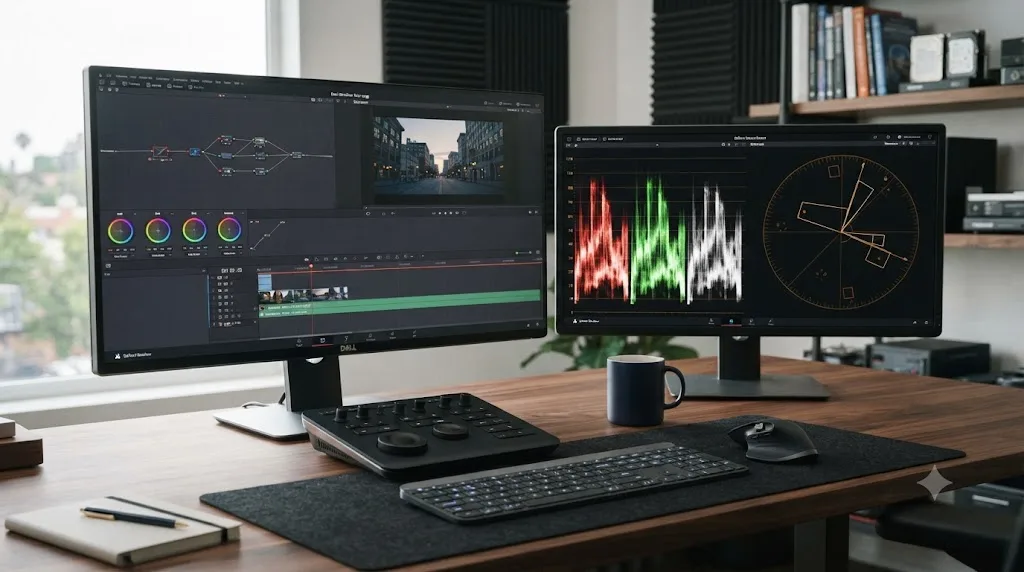
Open Workspace > Video Scopes (Command-Shift-W on Mac, Ctrl-Shift-W on Windows) to float the scopes panel, drag it onto your second display, resize it to fill the screen, then set it to multi-scope view. No DeckLink card or Studio license is required. Save the arrangement under Workspace > Layout Presets so it comes back automatically every session.
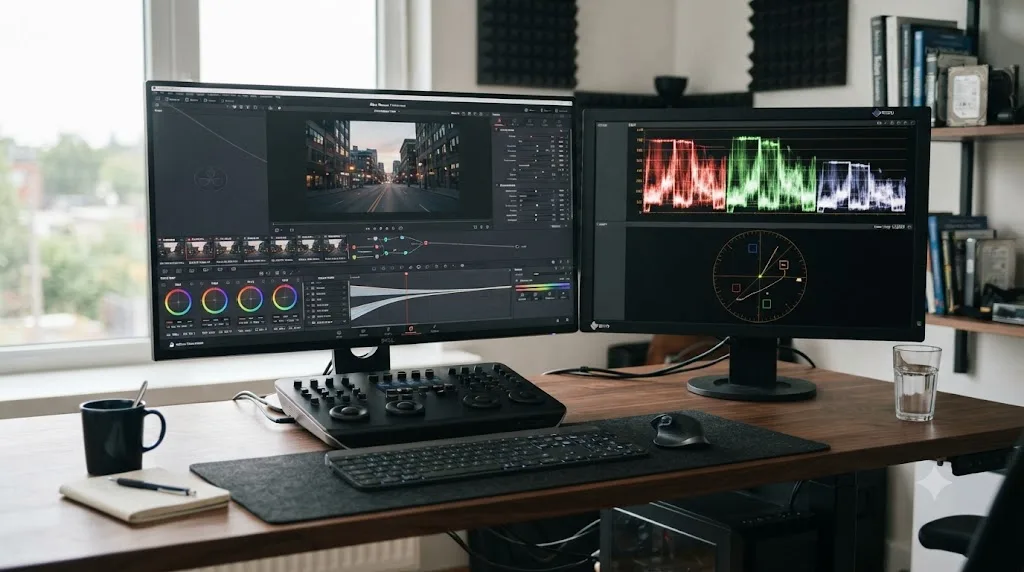
You want one monitor showing your timeline and your color page, full stop, and a second monitor showing nothing but the waveform and vectorscope, permanently, without a floating window fighting for space on top of your node graph. That setup exists in DaVinci Resolve today, it doesn't need a DeckLink card, and it doesn't need Studio. It needs about four minutes with the Workspace menu and one habit that keeps it from resetting itself.
We've spent 7+ years cutting and grading commercial work, and we run a 100,000+ member video editing community where this exact question shows up on a regular basis, usually from someone who assumed a scopes-only display required broadcast hardware they don't own. It doesn't. This guide covers the setup itself, the free-window quirks that trip people up on Mac and Windows, how to make the arrangement stick, and when you'd actually want to spend money on something more than a spare monitor.
What does "second monitor, scopes only" actually mean in DaVinci Resolve?
It means dedicating an entire physical display to Resolve's floating Video Scopes window, resized to fill that screen, with nothing else on it: no timeline, no node graph, no clip browser sharing the space.
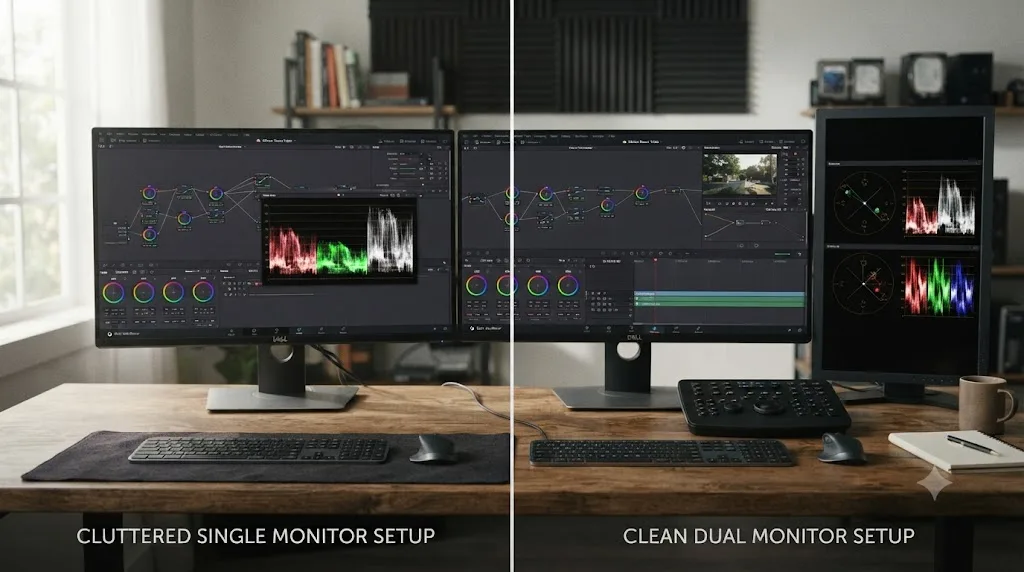
That's a narrower goal than "dual screen" as Resolve's own menu uses the term. Workspace > Dual Screen spreads the whole interface, timeline, panels, viewer, across two monitors so you see more controls at once. A scopes-only second monitor is a different, more specific arrangement: one screen stays entirely dedicated to reading the signal, and everything you'd normally see on a Dual Screen layout, including the scopes themselves in a smaller form, stays on your primary display too, minus the scopes panel taking up room there.
A scopes-only monitor is a floating window resized to fill a screen, not a special mode Resolve ships with a dedicated name for. That distinction matters because it explains both why the setup is so easy and why it occasionally misbehaves: you're relying on ordinary window management, dragging, resizing, positioning, the same way you'd manage any other floating panel, rather than a purpose-built "scopes display" toggle. Resolve doesn't have one of those. It has a window you can put anywhere, including filling a second monitor, and that's exactly enough.
Colorists working in professional bays have run some version of this for years, mostly because a floating scopes window sitting on top of a busy Color page node tree is a genuine annoyance once you're grading eight hours a day. Free the scopes onto their own screen and the node graph gets its space back.
How do you set up a second monitor for scopes only in DaVinci Resolve?
Connect the display, open the floating scopes window, drag it over, resize it to fill the screen, and pick a multi-scope layout. That's the entire procedure, and it takes longer to read than to do once you've done it once.
Start with the physical connection. Plug the second monitor into your graphics card's own HDMI or DisplayPort output, confirm your operating system sees it as an extended desktop (not a mirrored one, which would just duplicate your primary screen instead of giving you extra room), and only then launch DaVinci Resolve. Per the DaVinci Resolve reference manual's dual monitor documentation, Resolve reads your monitor arrangement at launch, so a display connected after the app is already open frequently doesn't register correctly until you quit and relaunch.
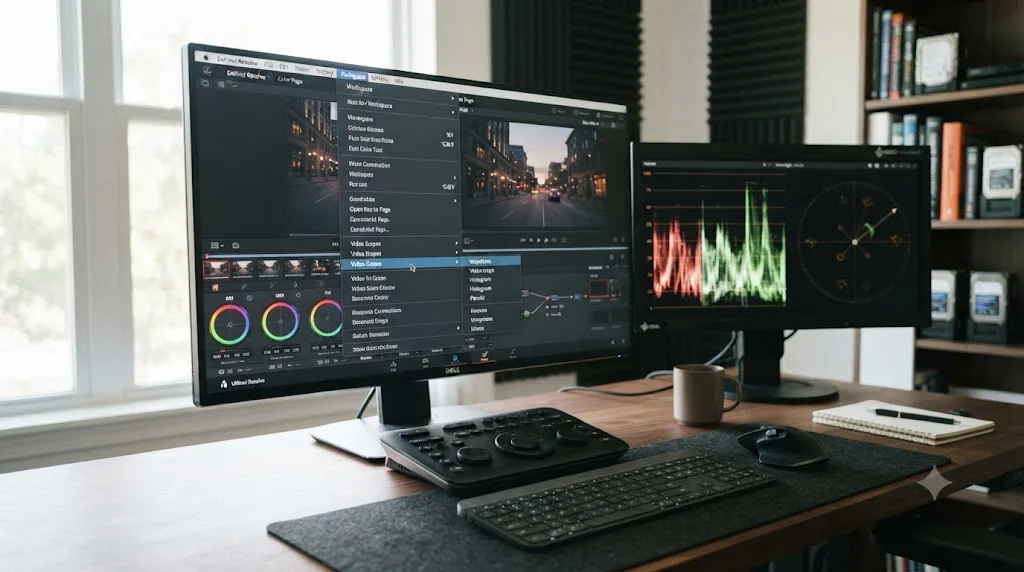
With both monitors live and Resolve open, press Command-Shift-W on a Mac or Ctrl-Shift-W on Windows. That's the shortcut for Workspace > Video Scopes, and per the same manual's scope measurement documentation, it opens the same floating scopes window on the Media, Color, and Deliver pages, not just the Color page where most people first find it.
The window opens somewhere on your primary display by default, usually the center of the screen or wherever it was last closed. Click its title bar, drag it across onto your second monitor, and let go. Then grab the bottom-right corner handle and resize the window until it fills that entire display. There's no "maximize to fullscreen" button on this particular window in every Resolve version, so a drag-resize by the corner handle is the reliable method, and it's also the method that avoids the resolution-mismatch bug covered later in this guide.
Once the window fills the screen, right-click inside it or use the small layout icon in its corner to switch from single-scope view to a multi-scope layout, two-up or four-up. Most working colorists run Waveform and Vectorscope side by side as the permanent pair, with RGB Parade one click away for the moments a white balance question comes up. Our guide to reading DaVinci Resolve's scopes covers what each scope actually measures and how to read a balanced shot on it, if you haven't built that mental map yet; this guide is entirely about getting the window itself onto the right screen and keeping it there.
A scopes-only monitor is one drag, one resize, and one layout choice away from working, and nothing about that procedure touches Preferences. No system-level video output setting, no driver, no restart required. If you've read troubleshooting guides for broadcast reference monitors and expected something more involved, this is genuinely simpler than that.
Do you need a DeckLink or UltraStudio card for this, or is a plain monitor enough?
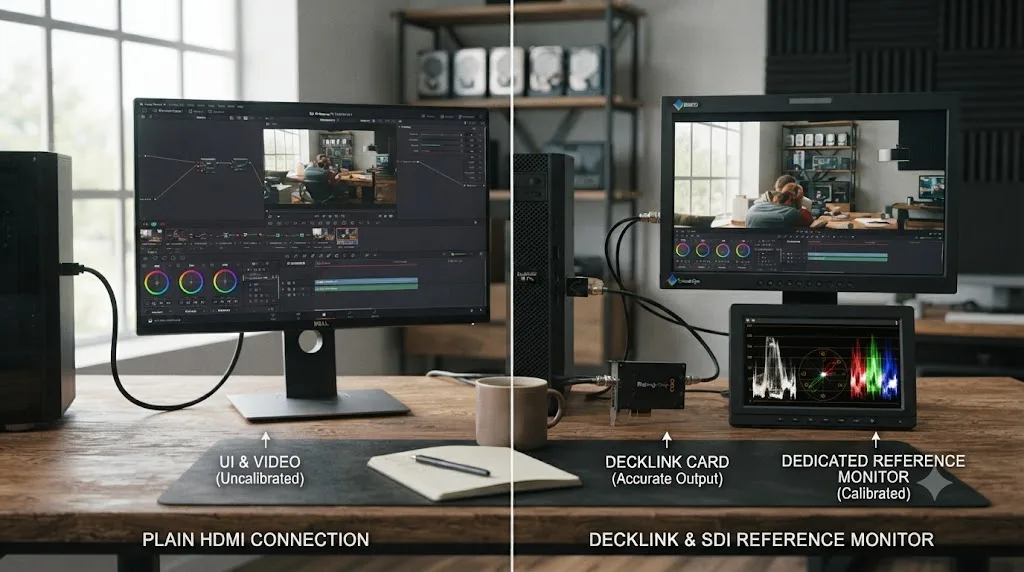
A plain monitor is enough. DeckLink and UltraStudio hardware solves a completely different problem than a scopes-only display does.
Those cards exist to send a broadcast-accurate signal, over real SDI or HDMI from a dedicated output, straight from Resolve's rendering pipeline to a calibrated reference monitor, bypassing your operating system's own color management, ICC profiles, and any "vivid mode" processing a consumer display applies. That matters enormously when the thing on the second screen is the actual picture, because your graphics card's ordinary display output can shift color in ways a client-facing grade can't afford. Our external monitor troubleshooting guide covers that whole hardware path in depth, including which DeckLink or UltraStudio model fits which budget.
None of that applies to scopes. A waveform trace is a graph. A vectorscope trace is a graph. Neither one is a picture your operating system needs to render color-accurately, because neither one is trying to represent color the way a graded shot is. Scopes are data, not a picture, and data doesn't need a calibrated reference monitor to be read correctly. A ten-year-old secondhand 1080p monitor plugged into your graphics card's spare HDMI port shows you exactly the same waveform trace as a $3,500 broadcast reference display would, because Resolve draws that trace identically regardless of what's showing it.
| Setup | What it's for | Hardware required |
|---|---|---|
| Scopes-only second monitor | Reading waveform, vectorscope, Parade, histogram, CIE at a glance without a floating window in the way | Any monitor, any graphics card output |
| Reference monitor via DeckLink or UltraStudio | Judging the actual graded picture with broadcast-accurate, calibrated color | DeckLink or UltraStudio card, Desktop Video driver, a calibrated display |
| Video Clean Feed | Fullscreen playback of the picture on a second computer display, panel-free | DaVinci Resolve Studio |
| Dual Screen full interface | Spreading the whole UI, panels included, across two monitors | Any monitor, any graphics card output |
That table is the whole decision. If what you want is scopes with nothing else on screen, you're in row one, and row one is free in every sense: no license upgrade, no capture card purchase, no driver install.
How do you configure the scopes window itself once it's on the second screen?
Right-click inside any individual scope to reach its own settings, since scale, graticule style, and display mode all live in that per-scope menu rather than one global scopes preference.
Once the window is filling your second monitor and split into multi-scope view, each quadrant is its own scope with its own right-click menu. The waveform's menu isn't the vectorscope's menu, and dialing in one doesn't touch the other. This is where you'd switch scale from the 10-bit default to percentage if you think in IRE, turn on the Colorize toggle so red, green, and blue traces render in false color instead of monochrome, useful on a busy multi-scope layout where telling channels apart at a glance saves time, or enable the vectorscope's skin tone indicator line if faces are a regular part of your work.
A Low Pass Filter option, available across Waveform, Parade, and Vectorscope, smooths grain and high-frequency noise out of the displayed trace without touching your actual image, which is worth turning on if you're grading noisy, underexposed, or heavily compressed footage where the trace itself can look jittery even though the underlying exposure is fine. None of these settings change what fills your second monitor's physical space; they change how readable what's already there is.
Decide your default multi-scope split before you save a layout preset, since changing it later means re-saving anyway. A two-up Waveform-and-Vectorscope split covers the majority of ordinary grading decisions: exposure on one side, hue and saturation on the other. Reach for a four-up split, adding Parade and Histogram, on projects where white balance corrections or tonal-range checks come up constantly enough that clicking into a single-scope view to check them would slow you down. Our scopes reading guide walks through what each individual scope actually measures if you're still deciding which ones earn permanent screen space; this section is only about the container, not the content.
The scopes window's per-scope settings are identical whether the window is sitting in a corner of your primary display or filling an entire second monitor. Moving it to its own screen doesn't unlock anything new and doesn't hide anything you had before. It just gives every setting you already had more room to be read at a glance instead of squinted at.
Why does the scopes window open full screen instead of floating on my second monitor?
Because of a documented quirk, more common on macOS, where the scopes window's behavior depends on whether DaVinci Resolve itself is currently running in full screen mode.
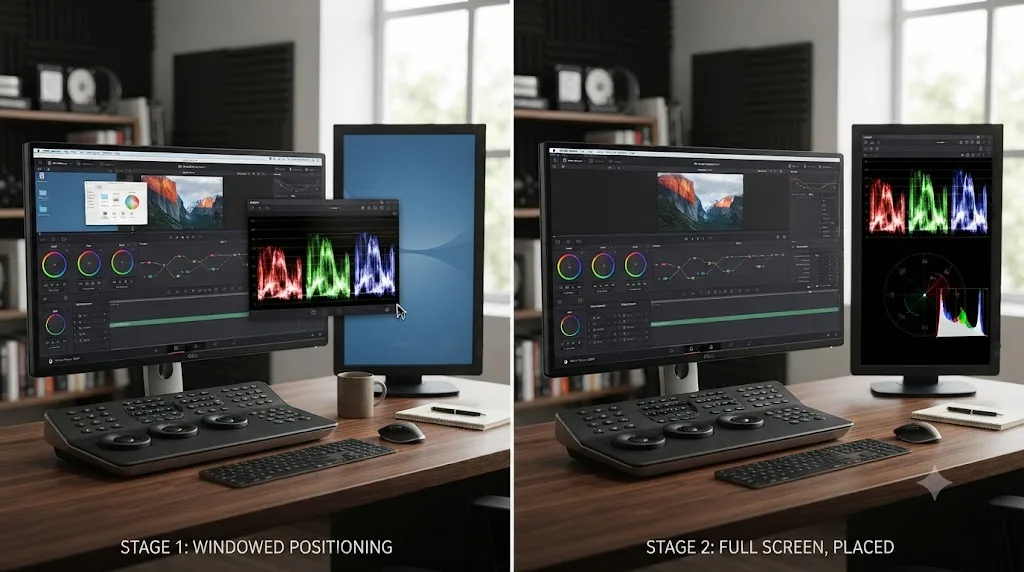
Editors troubleshooting this on Blackmagic's own support forum have found that dropping Resolve out of full screen mode first, floating and positioning the scopes window while Resolve runs in a regular window, and only then returning Resolve to full screen keeps the scopes window floating in its assigned spot rather than snapping back into an unexpected state. The order matters more than any individual setting: position the scopes window while Resolve is windowed, then go full screen, not the other way around.
This isn't unique to scopes among Resolve's floating panels, but scopes are the one most people notice, since they're usually the panel doing the most work sitting on a dedicated second screen. If the window keeps refusing to behave the way you expect after a fresh install or a Resolve update, run through this order once, deliberately, rather than repeatedly dragging the same window and hoping a different drag angle fixes it.
A scopes window that snaps to full screen instead of staying a resizable floating panel is a window-state quirk, not a sign your second monitor setup is broken. The fix is sequencing, not a preference toggle: leave full screen mode, arrange the window, then re-enter full screen.
If that sequence doesn't resolve it, or the window is outright stuck, immovable, or won't respond to a drag at all, the next tool is a full reset, covered next.
Why did my scopes window get stuck or oversized after moving it to a second monitor?
Almost always a resolution mismatch between your primary and secondary displays, most commonly a 4K primary paired with a 1080p or 1440p second monitor.
Editors have reported this exact scenario on Creative COW's DaVinci Resolve forum: a scopes window that popped out fine, got dragged to a lower-resolution secondary display, and then became too large for that screen and refused to resize or move from there. Colorist Ole Kristiansen described the workaround that avoids the problem entirely in a reply to that thread:
"I just resize the Scopes Window, with the arrow in the bottom right corner, before I move it to my 1080 monitor."
That's the order that matters: resize first, while the window still lives on your primary, higher-resolution display, and only then drag it across to the second monitor. Resizing after the move is what triggers the mismatch, since the window can inherit a size calculated against the wrong screen's pixel density and then refuse to recalculate correctly once it's already landed on the lower-resolution display.
If a scopes window is already stuck when you're reading this, past the point of a clean resize-then-move fix, the reliable recovery is a full layout reset. Per the reference manual's own guidance, "if you don't like the current layout and you want to go back to the default, choose Workspace > Reset UI Layout." That returns every panel, scopes included, to its default floating position and size, giving you a clean slate to redo the drag-resize-move sequence correctly the second time. Editor Tero Ahlfors recommended exactly this reset as the first troubleshooting step in the same Creative COW thread, and it's worth trying before assuming anything is permanently broken.
A separate, related complaint on the same forum came from an editor named Duke Sweden, who found that switching from a 4K monitor down to 1080p and back caused the popped-out scopes panel to become oversized on the secondary 1080p display specifically, unable to be moved or resized at all until a layout reset cleared it. A scopes window that behaves normally on matched-resolution monitors and misbehaves the moment resolutions differ is a known, documented pattern, not a sign of a broken installation. Resize before you move, and keep Reset UI Layout in your back pocket for the times that order gets skipped by accident.
| Symptom | Likely cause | Fix |
|---|---|---|
| Scopes window snaps to full screen | Resolve itself was already in full screen when the window opened | Drop out of full screen, position the scopes window, re-enter full screen |
| Scopes window too large for the second monitor, won't resize | Mismatched resolution between primary and secondary display | Resize the window while it's still on the primary display, then drag it over |
| Scopes window frozen in place, won't drag or resize at all | Layout state corrupted after repeated resolution or dock changes | Workspace > Reset UI Layout, then redo the drag and resize |
| Scopes window reappears on the wrong monitor after relaunch | Display detected after Resolve was already open, or a saved layout preset conflicting with current arrangement | Connect the monitor before launching Resolve, then reload your saved preset |
How do you make the scopes-only layout come back automatically every session?
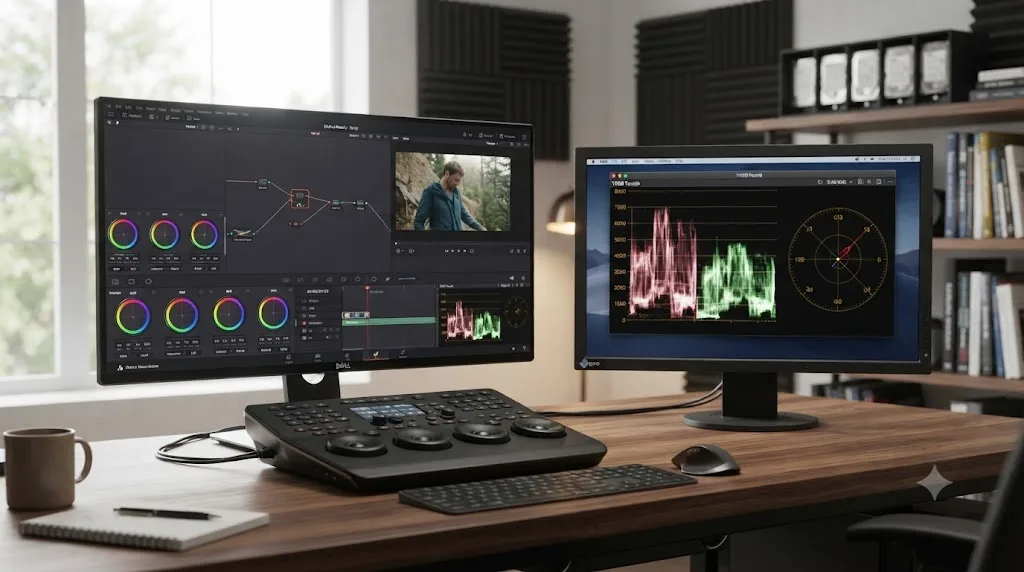
Save it as a named layout preset, because DaVinci Resolve doesn't remember a floating window's position across every scenario on its own, and rebuilding this arrangement by hand every session is exactly the kind of friction that makes people abandon a scopes-only monitor after a week.
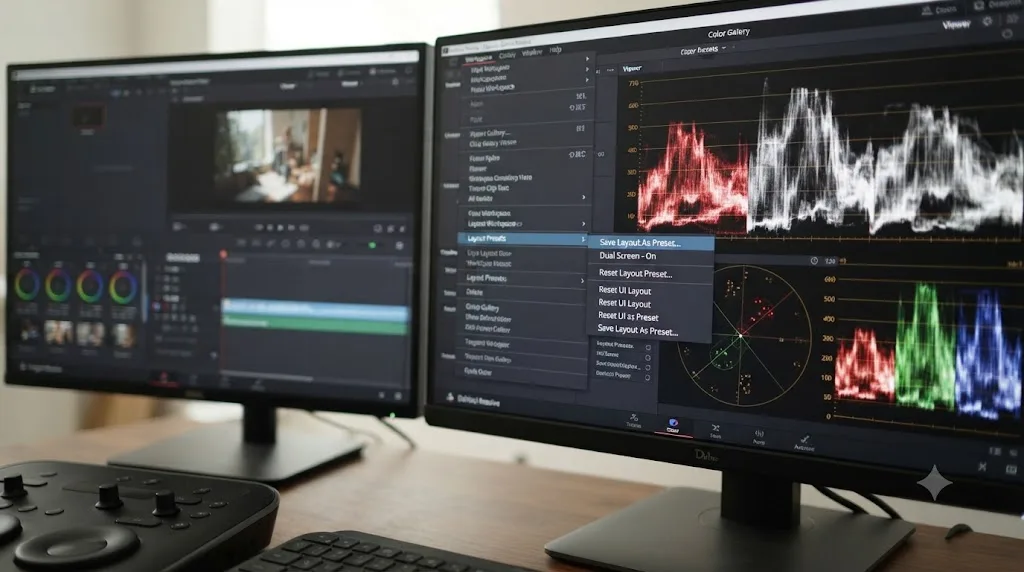
Once your scopes window is sized, positioned, and set to whatever multi-scope split you use, the reference manual's layout preset documentation describes the save path plainly: choose "Workspace > Layout Presets > Save Layout As Preset," enter a name in the dialog, and click OK. Name it something you'll recognize at a glance, "Scopes Only Second Monitor" or "Color Bay Layout" both work better than the default suggestion.
Loading it back is the mirror image: "Workspace > Layout Presets > LAYOUT NAME > Load" restores the entire saved arrangement, scopes window included, in one click. If you ever tweak the layout further and want to update the saved version rather than create a new one, the same submenu offers "Update Preset" against the existing name. And if you work across more than one machine, a laptop for on-location color and a desktop for the finishing bay, "Export Preset" and "Import Layout as Preset" carry the exact same arrangement between installations, so you're not rebuilding it twice.
A layout preset turns a four-minute manual setup into a one-click load, and it's the single habit that separates a scopes-only monitor people actually keep using from one that quietly drifts back into a floating window nobody bothered to reposition. Save it the first time you get the arrangement right, not after the fifth time you've rebuilt it from scratch.
One caveat worth knowing before you rely on this daily: a saved layout preset captures window positions relative to your monitor arrangement at save time. If you save the preset with two monitors connected and later load it on a laptop with only one screen attached, expect the scopes window to land somewhere on your single display rather than vanishing, since Resolve won't send a panel to a monitor that isn't there. Reconnect your usual second display before loading a scopes-only preset for the most reliable result.
What's the difference between a scopes-only monitor and Dual Screen mode?
Dual Screen spreads the entire interface, panels and all, across two monitors. A scopes-only monitor dedicates one screen to a single floating window and leaves your primary display's layout otherwise untouched.
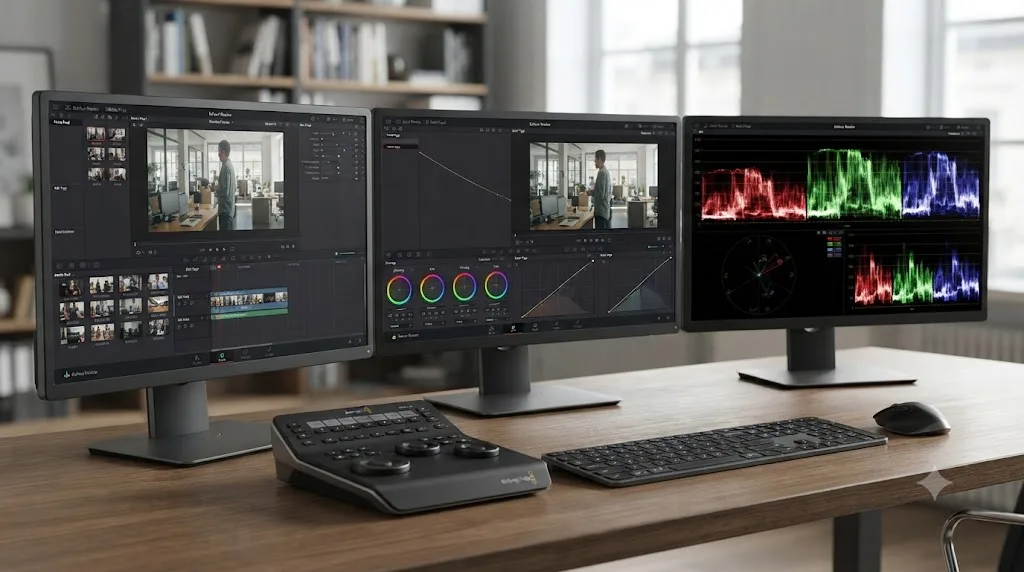
Workspace > Dual Screen > On is Resolve's own built-in feature for using two monitors, and per the reference manual, it's supported on the Media, Edit, Color, and Fairlight pages, expanding your workspace so you can "see many more controls at once, often in a larger workspace that lets you manage more clips, more Gallery stills, etc." That's a genuinely different goal than a scopes-only display. Dual Screen wants to give every panel more room. A scopes-only setup wants exactly one panel isolated on its own screen, with the rest of your layout staying compact on the primary display the way it already was.
You don't have to choose one or the other exclusively, and in practice most working setups blend them depending on how many monitors are actually available. On a two-monitor system, most people run one of two configurations: either Dual Screen spreading the full interface across both, with scopes as one panel among several on the second screen, or a single-monitor Resolve layout with the scopes window specifically pulled out and maximized onto the second display while everything else stays on monitor one. The second option is what most people mean when they search for "scopes only," and it's the setup this guide has walked through.
On a three-monitor system, the choice gets easier, because you're not choosing between the two anymore. Run Dual Screen across monitors one and two for the full interface, and drag the scopes window specifically onto monitor three, filling it entirely. That's the configuration a lot of dedicated color bays actually run: primary for the viewer and node graph, secondary for extra panels and the Gallery, tertiary for scopes and nothing else.
| Monitor count | Common configuration |
|---|---|
| One | Scopes float in their default window position, or single-scope view toggled in and out as needed |
| Two | Either Dual Screen for the full interface, or single-monitor layout plus a scopes-only second display |
| Three | Dual Screen across monitors one and two, scopes-only on monitor three |
Dual Screen and a scopes-only monitor solve overlapping but not identical problems, and knowing which one you actually want before you start dragging windows saves a lot of back-and-forth. If your goal is "everything has more breathing room," you want Dual Screen. If your goal is specifically "scopes are always visible and nothing else competes with the timeline for space," you want the scopes-only pattern, whether or not Dual Screen is also running.
Is a scopes-only monitor the same thing as Video Clean Feed?
No. Video Clean Feed sends the actual picture, full screen and panel-free, to a second display. A scopes-only monitor sends graphs about that picture, not the picture itself.
Clean Feed exists for a completely different audience than scopes do: a client, a director, or anyone else in the room who needs to watch playback without seeing Resolve's interface at all. Blackmagic's own comparison of the free and paid tiers, on its Edit page product listing, states plainly that "the free DaVinci Resolve version supports full screen playback on a single screen" while "DaVinci Resolve Studio adds support for full screen playback on a second attached computer display." Fullscreen Clean Feed on a second monitor specifically is a Studio feature, gated behind the $295 one-time license, per Blackmagic's Studio product page.
The scopes-only setup this guide covers isn't gated at all, in either version. That's a meaningful practical difference if you're on the free version and assumed a second-monitor feature automatically meant a Studio purchase. It doesn't, not for scopes specifically.
The two aren't mutually exclusive on a three-monitor rig. A common professional arrangement runs the graded picture full screen on one dedicated display for client review, via Clean Feed on Studio, while scopes fill a separate, third display purely for the colorist's own technical reference, invisible to the client entirely. On a two-monitor system, you're choosing one or the other for that second screen, since only one floating element can realistically fill it at a time.
Clean Feed answers "what does the picture look like," and scopes answer "what does the signal actually measure," and conflating the two second-monitor features is the single most common mix-up in this whole setup. If what you're picturing is a client watching a full-screen video on the other display, that's Clean Feed, and it needs Studio. If what you're picturing is a graph, this guide's setup already covers it, free version included.
Do you need a second GPU or extra VRAM to run a scopes-only second monitor?
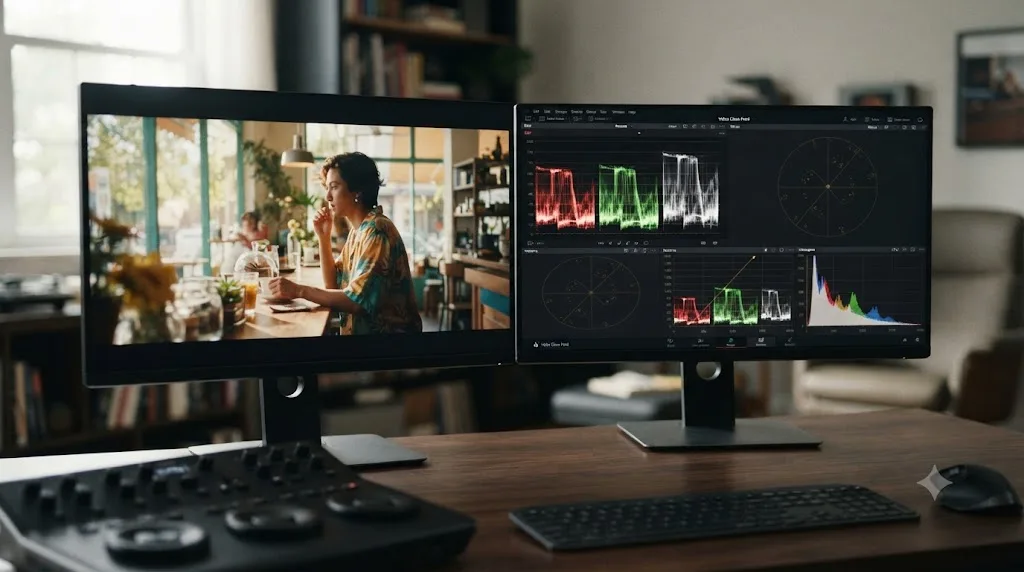
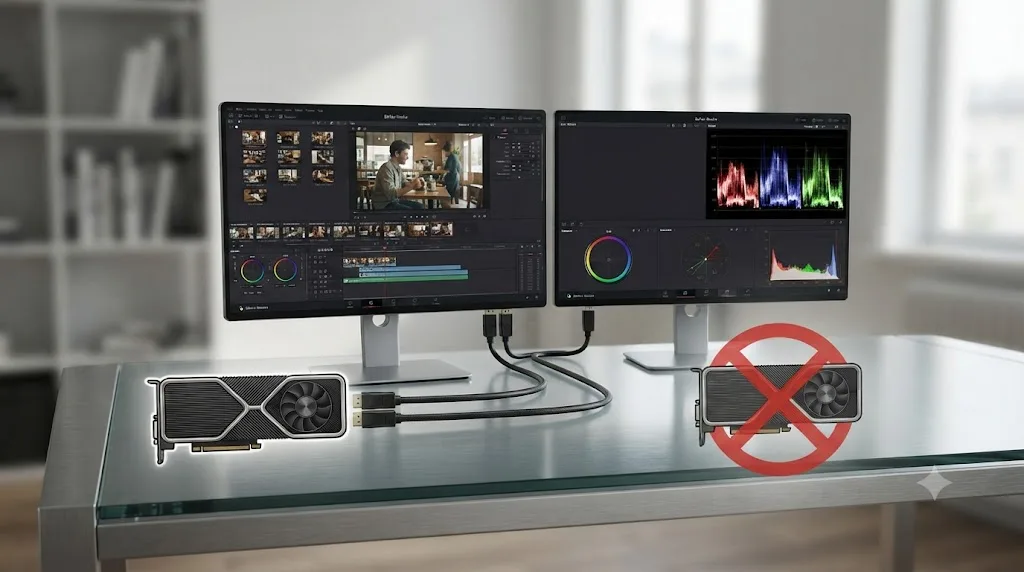
No, for the ordinary case of one extra computer display. A second GPU is a separate feature for rendering performance, not something a scopes-only monitor requires.
It's an easy mix-up because both "multiple monitors" and "multiple GPUs" show up near each other in system requirement discussions, but they answer different questions. Multi-GPU support in DaVinci Resolve describes desktop workstations with more than one graphics card working together to speed up rendering and playback of demanding timelines, and per DaVinci Resolve Club's breakdown of the version 21 requirements, "the free version of Resolve is capped at a single GPU," with multi-GPU configurations reserved for Studio license holders. None of that has anything to do with how many monitors are physically plugged into your machine. A single graphics card, integrated or discrete, drives multiple display outputs on essentially every modern computer, and a scopes-only second monitor just uses one of those existing outputs.
Where hardware genuinely matters is overall system headroom, not display count specifically. Puget Systems, which builds Resolve workstations professionally, recommends 12 GB or more of dedicated VRAM as a baseline for smooth performance, scaling up to 16 GB, 24 GB, or higher for 4K and 6K footage, heavy noise reduction, or large Fusion compositions, per its own hardware recommendations for DaVinci Resolve. Per DaVinci Resolve Club's requirements breakdown, Windows machines need a minimum of 4 GB VRAM to run Resolve at all, with 12 to 16 GB discrete recommended for 4K work, while macOS on Apple Silicon runs 8 GB minimum RAM, 16 GB if Fusion is part of the workflow. An extra monitor's own display buffer is a rounding error against those figures, negligible next to what a 4K timeline with color management and noise reduction already demands.
Where a scopes-only monitor can matter indirectly is GPU output ports, not GPU processing power. If your graphics card physically has only one display output in use for your primary monitor plus one spare, you're fine. If you're already running two monitors off a laptop's limited outputs and want a third for scopes, check your dock or adapter's actual output count and bandwidth before assuming it'll just work, a topic covered in more depth in the laptop section below.
A scopes-only second monitor is a display-output question, not a GPU-processing question, and confusing the two leads people to assume they need a Studio license or a second graphics card for something that requires neither. Budget your GPU and VRAM for your actual timeline resolution and effects load, exactly as you would with one monitor, and treat the second display as free overhead on top of that.
What monitor should you actually buy for a dedicated scopes display?
Almost anything with a working HDMI or DisplayPort input and a screen big enough to read a waveform trace from your normal seating distance. Color accuracy, the thing that matters enormously for a picture monitor, is close to irrelevant here.
Colorist Marc Wielage made exactly this point on a Creative COW forum thread about re-docking a scopes window, describing his own practice of running an inexpensive third monitor, he specifically mentioned a $50 Dell, dedicated solely to scopes. That's not a compromise pick for someone who couldn't afford better. It's a deliberate choice, because a scopes display's job is rendering a graph clearly, not reproducing color faithfully, and a budget panel does that job identically to an expensive one.
That's a genuinely different calculus than picking a reference monitor for judging the actual grade, where color accuracy is the entire point and cutting corners costs you client trust. Charles Haine, writing for Frame.io Insider on what equipment a color grading setup actually needs, put a related limitation plainly:
"Internal software scopes are okay so you can certainly start with these, but they take up valuable screen real estate and occasionally miss image quality issues."
His point was about software scopes competing for space on a monitor that's also trying to show the picture, exactly the crowding problem a dedicated scopes-only monitor solves directly. Giving scopes their own screen doesn't fix the "occasionally miss image quality issues" half of that observation, since that's a statement about the limits of any software scope compared to dedicated external scope hardware or a calibrated reference monitor. What it does fix is the real estate problem, completely and for free.
Practical buying guidance, if you're shopping specifically for this role:
| Priority | Why it matters for a scopes monitor | Why it doesn't |
|---|---|---|
| Screen size, 21 inches or larger | Bigger physical space means a bigger waveform and vectorscope trace, easier to read at a glance across a room | Not a factor for color accuracy at all |
| Resolution matching your primary display | Avoids the resize-before-move resolution mismatch bug covered earlier | Not a factor for reading the trace itself, which scales fine at almost any resolution |
| Color calibration, wide gamut, high nit brightness | Irrelevant, since you're reading numbers on a graph, not judging a picture's actual color | This is exactly where the money in a reference monitor budget should go instead |
| Refresh rate, response time, gaming-panel specs | Irrelevant, scopes update fine on any standard refresh rate | Money better spent on the picture monitor if you have a hardware output for one |
| A spare HDMI or DisplayPort cable and an available port | The only genuine hard requirement | N/A |
A dedicated scopes monitor is one of the few displays in an entire post-production setup where the specs that matter for a picture monitor simply don't apply. Spend the money you'd have put toward a better scopes display on your actual reference monitor instead, where accurate color is the whole point, and let the scopes screen be whatever's sitting in a closet or on a clearance shelf.
How is this different on a laptop with limited ports?
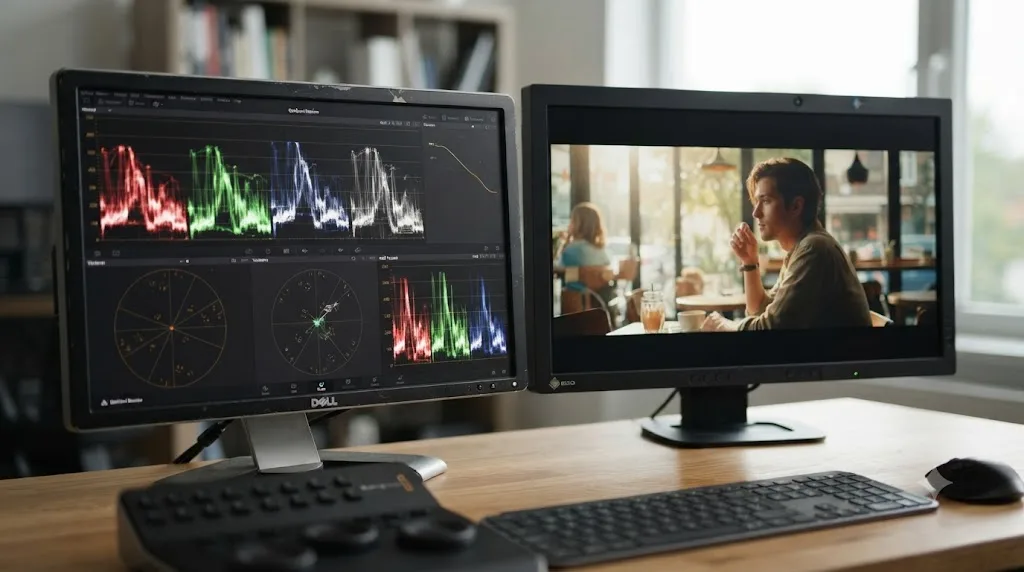
The same setup works, but the bottleneck moves from Resolve's own settings to your dock or adapter's actual output count and bandwidth, which is worth checking before you buy a second monitor expecting it to just work.
A modern laptop running DaVinci Resolve 21 on Apple Silicon, per DaVinci Resolve Club's requirements breakdown, which notes DaVinci Resolve 21 requires macOS 15 Sequoia or later and runs on Apple Silicon only, typically has one or two native video outputs plus whatever a Thunderbolt or USB-C dock adds. The scopes-only setup itself doesn't care whether that second display arrives through a native port or a dock, since Resolve just sees an extended desktop either way. What it does care about is whether that display actually shows up reliably and at a usable resolution, and that's entirely a function of your dock's capability, not Resolve's.
A cheap USB-C hub sold primarily for charging and a single HDMI pass-through can struggle to drive a second display at a stable resolution and refresh rate simultaneously with your laptop's own built-in screen, especially at 4K. The symptom looks exactly like a Resolve problem, a scopes window that flickers, drops, or refuses to display at full resolution, when the actual cause is a dock that's oversubscribed on bandwidth. Before troubleshooting inside Resolve, confirm the second monitor displays cleanly at your desktop level, outside Resolve entirely, showing a normal desktop wallpaper at full resolution without artifacts. If that fails, the dock or cable is the problem, not your scopes setup.
Windows laptops face the same category of issue with a different specific failure mode: a driver conflict between the laptop's discrete GPU and the dock's own display controller can cause Windows to route the second monitor through the wrong graphics processor, producing choppy or laggy scope updates that have nothing to do with Resolve's own performance. Our guide to fixing an undetected AMD GPU in DaVinci Resolve covers a related category of GPU-routing problem, worth checking if a scopes-only second monitor feels sluggish specifically on a laptop with a discrete GPU and an external dock in the mix.
On a laptop, the question isn't whether DaVinci Resolve supports a second monitor for scopes, it does, identically to a desktop, it's whether your specific dock or adapter can reliably drive that monitor at all. Test the second display at the operating system level first, before assuming anything inside Resolve needs fixing.
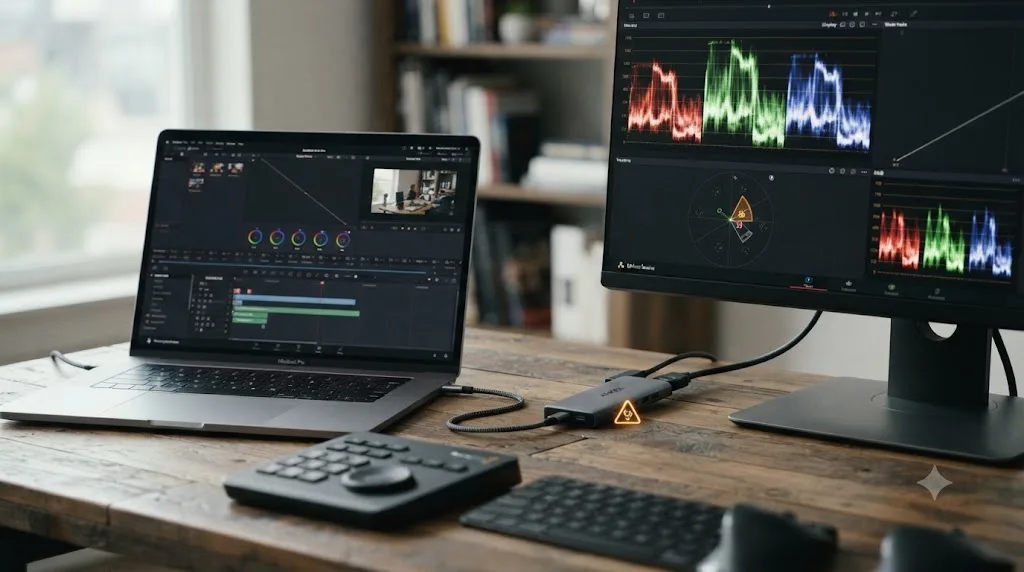
What does a full setup look like from scratch, start to finish?
A worked example ties the pieces together better than a list of isolated steps, so here's one, start to finish, on a common two-monitor desktop setup.
The machine: a Windows desktop with a single discrete GPU, a 27-inch 4K primary monitor already running DaVinci Resolve, and a spare 24-inch 1080p monitor sitting unused in a closet, connected via the GPU's second HDMI output.
- Connect the second monitor before launching Resolve. Plug the 1080p display into the GPU's spare HDMI port, confirm Windows Display Settings shows it as an extended desktop, not duplicated, positioned to the right of the primary display, then launch DaVinci Resolve.
- Open the project and press Ctrl-Shift-W. The floating Video Scopes window appears near the center of the 4K primary monitor, in its default single-scope view.
- Resize the window before moving it. Grab the bottom-right corner handle while the window still sits on the 4K display, and shrink it down toward roughly the pixel dimensions of the 1080p monitor, avoiding the oversized-window bug that shows up when resizing happens after the move instead of before it.
- Drag the window onto the second monitor. Click the title bar and drag the resized window across onto the 1080p display, then fine-tune its size from that screen until it fills the display edge to edge.
- Switch to a two-up multi-scope layout. Right-click or use the layout icon inside the scopes window to split it into Waveform on the left and Vectorscope on the right, the pairing that covers exposure and color balance for most ordinary grading decisions.
- Confirm it holds across pages. Switch from Color to Media, then to Deliver, confirming the scopes window stays anchored to the 1080p monitor rather than snapping back to the primary display on every page change.
- Save it as a layout preset. Choose Workspace > Layout Presets > Save Layout As Preset, name it "Scopes 1080p Monitor," and click OK.
- Confirm the preset reloads correctly. Close DaVinci Resolve completely, relaunch it, load the saved preset from Workspace > Layout Presets, and confirm the scopes window returns to the exact same position and size on the second monitor without a manual redo.
Eight steps, one resolution-mismatch trap avoided by resizing in the right order, and a saved preset that means this exact sequence never has to run again on this machine. The entire cost of this setup is one spare monitor and roughly four minutes of dragging and clicking, and the entire ongoing cost after that is a single click on a saved layout preset. Compare that to the hardware and driver work covered in troubleshooting a DeckLink reference monitor setup, and the gap in complexity is the whole reason a scopes-only display is worth building even on a modest budget.
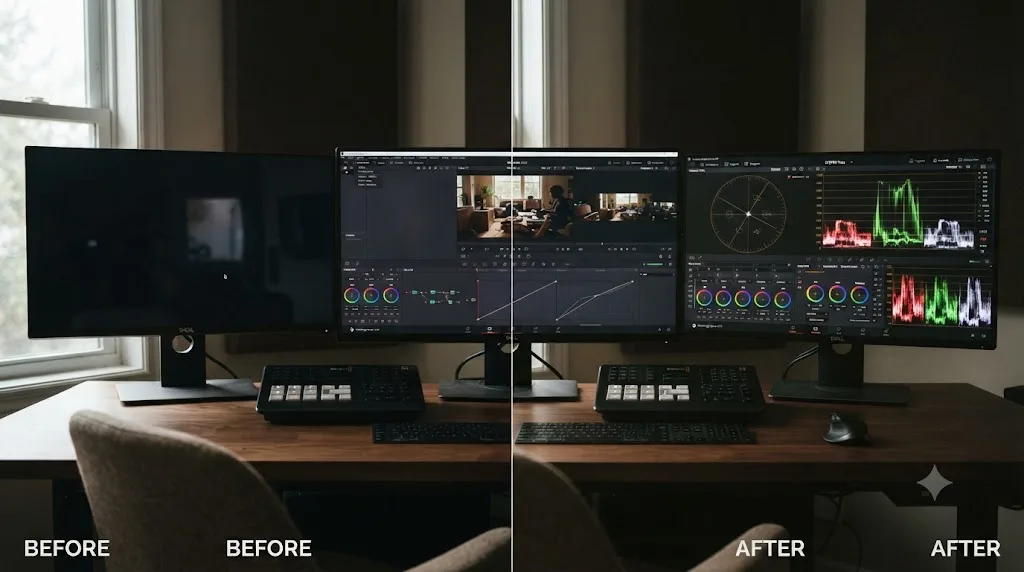
Does the free version of DaVinci Resolve support this, or do you need Studio?
The free version supports this completely. Every scope this guide covers, and the floating window itself, works identically in the free version and Studio.
Per Blackmagic's own Studio product page, the $295 one-time Studio license unlocks the DaVinci Neural Engine's AI tools, resolutions and frame rates beyond 4K/60fps, multi-GPU rendering, advanced HDR grading, and a long list of additional effects. A second monitor showing scopes isn't on that list, because it isn't a feature Blackmagic gates behind a purchase at all. The Waveform, RGB Parade, Vectorscope, Histogram, and CIE Chromaticity scopes ship identically in both tiers, and the floating window that contains them is standard Resolve interface, not a Studio-exclusive panel.
The one place free-versus-Studio genuinely intersects with a multi-monitor setup is Video Clean Feed's fullscreen playback on a second display, gated to Studio as covered earlier, and multi-GPU rendering, which has nothing to do with monitor count. If your actual goal is scopes on a dedicated screen, run the whole setup on the free version and don't spend $295 chasing a limitation that doesn't exist for this specific feature.
Blackmagic didn't put a price tag on scopes-only displays, because there was never a wall there to put one behind. If you're on the free version and were holding off building this setup because you assumed it needed a paid license, that assumption was the only thing standing between you and a working second monitor this whole time.
What's the honest verdict on building this setup?
Build it if a floating scopes window has ever covered up part of your node graph mid-session, or if you've ever squinted at a small vectorscope trace tucked in a corner of your primary monitor and wished it were three times the size. That's the entire case for a scopes-only second monitor, and it costs whatever a spare or secondhand display costs, plus about four minutes.
Guided practice inside Resolve beats reading about it once, and the fastest way to know this setup fits your workflow is to build it on your own machine and grade one real shot against it. Connect a second monitor, press Command-Shift-W or Ctrl-Shift-W, drag the window over, resize it, and save the layout preset before you close the project tonight. If Resolve's Workspace menu ever leaves you hunting for where a specific submenu lives, TryUncle is the on-screen assistant for DaVinci Resolve on macOS: ask in plain words and Uncle points at the exact control on your screen instead of sending you back through a menu tree.
Once the second monitor is running, the rest of a real grading workflow builds on exactly the reading habits this display was built to support. Our guide to reading DaVinci Resolve's scopes covers what a balanced exposure, a neutral white balance, and correct skin tone actually look like on the waveform, Parade, and vectorscope you've just given a permanent home. Our color grading basics guide covers where those scope readings fit into a full node-based grade if you're still building that foundation. And if the goal eventually grows past a spare monitor into a genuine broadcast-accurate reference display, our external monitor troubleshooting guide covers the DeckLink and UltraStudio path in full, including which model fits which budget. That's a different purchase for a different job. This one, the scopes-only second monitor sitting a few feet from your keyboard right now, is already within reach with hardware you might already own.
Frequently asked questions
- How do I set up a second monitor for scopes only in DaVinci Resolve?
- Connect the second display before launching Resolve, then press Command-Shift-W on Mac or Ctrl-Shift-W on Windows to open the floating Video Scopes window. Drag that window onto the second monitor, resize it by its corner handle until it fills the screen, and use the layout icon inside the scopes panel to switch to a two-up or four-up multi-scope view. No DeckLink card, UltraStudio device, or Studio license is required for this.
- Do I need a DeckLink or UltraStudio card to put scopes on a second monitor?
- No. A DeckLink or UltraStudio card exists to send a broadcast-accurate SDI or HDMI signal to a calibrated reference monitor, bypassing your operating system's own color management. A scopes-only display doesn't need that, since scopes are graphs, not a picture your OS needs to render faithfully. Any monitor plugged into your graphics card's own HDMI or DisplayPort output works, including a cheap secondhand one.
- Why does my DaVinci Resolve scopes window open full screen instead of floating on my second monitor?
- This is a known quirk, more common on macOS, where the scopes window can behave differently depending on whether DaVinci Resolve itself is running in full screen. Drop Resolve out of full screen mode first, float the scopes window and position it, then return Resolve to full screen. If the scopes window still misbehaves, Workspace > Reset UI Layout returns every panel, including scopes, to its default floating state so you can reposition it from a clean slate.
- Why did my scopes window get stuck or oversized after I moved it to a second monitor?
- This usually happens after switching between displays with different resolutions, most often a 4K primary monitor paired with a 1080p secondary one. The scopes window can inherit sizing meant for the higher-resolution screen and refuse to resize once it lands on the lower-resolution one. Resize the scopes window with its bottom-right corner handle while it's still on your primary display, before you drag it over, which avoids the mismatch entirely.
- Can I save my scopes-only second monitor layout so I don't rebuild it every session?
- Yes. Once the scopes window is sized, positioned, and set to whatever multi-scope arrangement you use, choose Workspace > Layout Presets > Save Layout As Preset and name it. Load it any time from the same submenu, and it restores your exact second-monitor scopes arrangement along with the rest of your panel layout on the primary display.
- Do I need DaVinci Resolve Studio or a second GPU to run a second monitor with scopes?
- No. Every scope covered in this setup, Waveform, RGB Parade, Vectorscope, Histogram, and CIE Chromaticity, is identical in the free version and Studio. Running two or three ordinary computer displays doesn't require a second GPU either; that's a separate feature for rendering performance on desktop workstations with multiple graphics cards, and the free version is capped at one GPU regardless of how many monitors you have plugged into it.
- What's the difference between a scopes-only monitor and DaVinci Resolve's Video Clean Feed?
- A scopes-only monitor shows graphs, the waveform and vectorscope, so you or a client can watch the technical signal. Video Clean Feed sends a full-screen, panel-free copy of the actual picture to a second display, the way a director's monitor works on set. They solve different problems and can run on two different monitors at once if you have three displays total; Clean Feed for full screen playback on a second display is a DaVinci Resolve Studio feature, while the scopes window itself is not gated at all.
Sources
- DaVinci Resolve Reference Manual (mirror): Using Single vs Dual Monitor Layouts
- DaVinci Resolve Reference Manual (mirror): Saving Custom Screen Layouts
- DaVinci Resolve Reference Manual (mirror): Resetting to the Default Layout
- DaVinci Resolve Reference Manual (mirror): Video Scope Measurement Using Scales
- Blackmagic Design: DaVinci Resolve Edit page, free vs Studio second-monitor playback
- Blackmagic Design: DaVinci Resolve Studio product page
- Blackmagic Design: DeckLink product line and pricing
- Blackmagic Design: UltraStudio product line and pricing
- CineD: DaVinci Resolve 21.0.3 Released, Keyframe Ease Actions, Interlaced Fixes, and Sony BURANO X-OCN Decode Fix
- DaVinci Resolve Club: DaVinci Resolve 21 System Requirements
- Puget Systems: Hardware Recommendations for DaVinci Resolve (Matt Bach)
- What Do You Need to Start Color Grading Professionally?, by Charles Haine (Frame.io Insider)
- Creative COW forum: New to Resolve, how to re-dock Scopes Window (Joseph Owens, Bob Kimberly, Marc Wielage, George Ross)
- Creative COW forum: Pop out scopes window problem (Duke Sweden, Tero Ahlfors, Ole Kristiansen)
Put this guide to work with TryUncle.
Ask about the step you’re on. TryUncle sees your screen and points at the control you need, so you can keep learning in your own project.
Get TryUncle for Mac or WindowsKeep reading
Guides · Jul 10, 2026 · 30 min
How to Read DaVinci Resolve Scopes: Waveform and Vectorscope
Learn to read DaVinci Resolve's waveform, RGB Parade, and vectorscope: what balanced exposure, white balance, and skin tone actually look like on each.
Fixes · Jul 24, 2026 · 26 min
DaVinci Resolve External Monitor Not Working: Every Fix
DaVinci Resolve not showing picture on an external monitor? Here's why, split by plain display, DeckLink, and UltraStudio, plus the fix for each.

Guides · Jul 7, 2026 · 35 min
How to Color Grade in DaVinci Resolve: The Basics
Learn how to color grade in DaVinci Resolve: build a node chain, balance shadows and highlights with Lift, Gamma, and Gain, and read the scopes.