Articles / Guidesupdated for DaVinci Resolve 21.1 (November 2026)
DaVinci Resolve: Select Transitions in the Timeline
Quick answer
To select a transition in DaVinci Resolve 21, open the Edit page and click the transition block at the cut between two clips. When it is selected, open the Inspector to view its transition controls. For a long timeline, use the Edit Index to locate transition events, then jump to the relevant point and select the transition in the timeline.
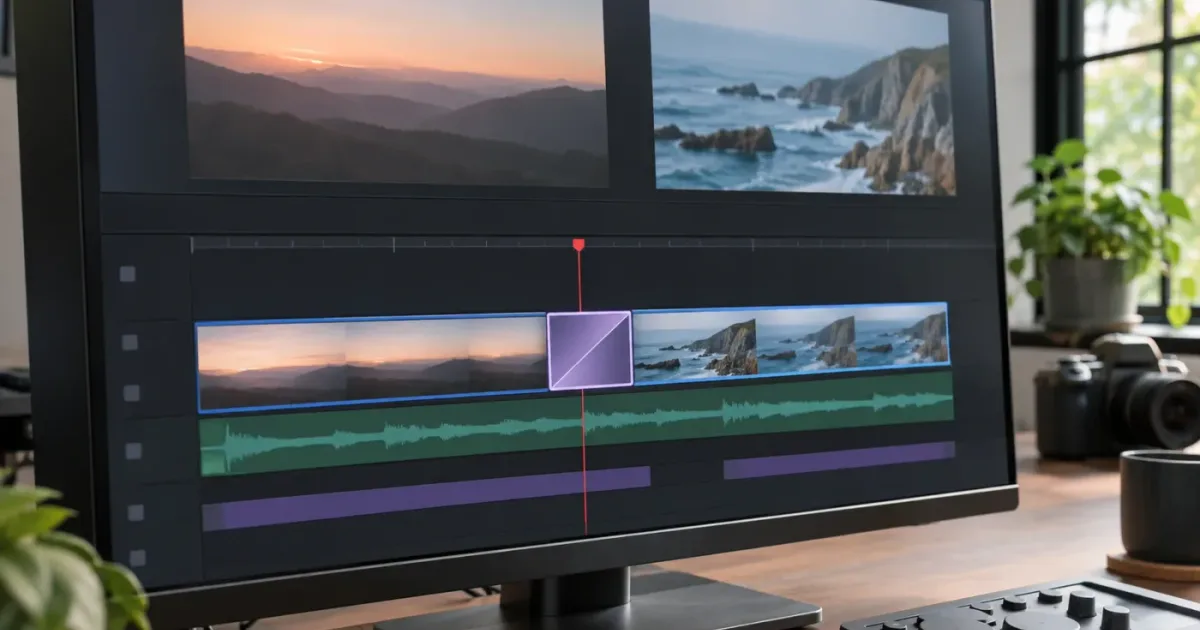
As of November 2026, the current Blackmagic Design reference manual available for this guide is for DaVinci Resolve 21.1. Selecting a transition should be simple: click the small block at the cut. But a thin timeline, a crowded track, or a misread selection highlight can make that click land on a clip instead.
This guide shows how to select a video or audio transition, confirm what you selected, and find transition events when a timeline gets long. The instructions focus on the Edit page. The exact visible controls may differ with layout, track height, and the transition you chose.
How do I select a transition in the DaVinci Resolve timeline?
To select a transition in DaVinci Resolve 21, click the transition block in the Edit page timeline, at the join between the two clips. A selected transition is a timeline item, so open the Inspector to check for transition-specific controls before making changes.
- Open the project and go to the Edit page.
- Click the timeline you want to inspect so it is active.
- Find the edit point between the two clips.
- Click the visible transition block centered on that edit point.
- Open the Inspector if it is not already visible.
- Check whether the Inspector shows controls for the transition.
The important part is the target. A transition occupies the area around the cut; the cut itself is only the boundary between the clips. If you click the image area of a clip just before or after the transition, Resolve selects that clip instead. If you click the cut boundary, you may activate an edit-point or trim action rather than select the transition.
A transition block can be small when the timeline is zoomed out. If you cannot tell which item is under the pointer, zoom in before clicking. You can also increase the track height to make the item easier to target. The timeline controls and their behavior can vary with the workspace and input device, so make the selection in the track that actually contains the transition.
The best confirmation is not a guess based on a color change alone. Open the Inspector and look for transition controls. The Resolve 21.1 reference manual describes the Inspector as a place to edit parameters of transitions used in the timeline. The same manual notes that the selected timeline item determines what appears in the Viewer in Single Viewer mode. Those details make the Inspector a useful check that you selected the effect, rather than one of the adjacent clips. Blackmagic Design's Resolve 21.1 Reference Manual
A transition is a separate timeline item, not just the line where two clips meet.
What the selection should look like
Resolve's interface can show selection in more than one way depending on the active page, layout, and what panel is open. Don't rely on a particular outline color as your only test. Instead, ask three questions:
- Did the selection land on the transition block, rather than a clip body?
- Does the Inspector show controls associated with a transition?
- Does a harmless parameter change affect the transition preview rather than the neighboring clip?
You don't need to change anything just to verify selection. First inspect the Inspector tab and controls. If you are still uncertain, make a reversible test only after confirming that Undo is available. Avoid changing a duration, alignment, or effect parameter in a project where you are not permitted to alter the edit.
The effect name and controls depend on which transition is present. A dissolve, a wipe, an audio crossfade, and a third-party transition don't necessarily expose the same options. A transition may also have a different set of controls depending on its construction. The reliable rule is to select the timeline item and inspect the controls Resolve actually presents, rather than expecting every transition to show the same panel.
Where the block appears
For a standard video transition, look on a video track at the edit point between adjoining clips. A transition placed on a higher video track may sit over the clips rather than appearing on the main video track. For an audio transition, look at the join between audio clips on the audio track. Tracks can overlap vertically in the interface, so check the track label before clicking.
The transition's visible width is not a dependable measure of its exact duration when the timeline is zoomed far out. The display is compressed, and a short item can become hard to target. Zooming into the edit point gives you more room to distinguish the transition block from its edges and neighboring clips.
Why can't I select a transition in DaVinci Resolve?
If you can't select a transition in DaVinci Resolve, the most common explanation is that the click is landing on the cut line or an adjacent clip, not the transition block. Zoom into the edit point, confirm the active timeline and track, and click near the center of the transition.
Try the checks in this order:
- Confirm the active timeline. If several timelines are open as tabs, make sure the one you intend to edit is active. Resolve's manual describes tabbed timelines as a way to switch between timelines; a click in another open timeline will select an item there instead.
- Confirm the page. Go to the Edit page for the direct timeline-selection workflow described here. The Cut page has a different interface and timeline presentation.
- Zoom in. Make the transition block wider on screen. If zooming and scrolling are themselves the problem, see the timeline scrolling and zooming guide.
- Check the track. Identify whether the transition is on a video or audio track. A video effect and an audio crossfade are separate items on separate tracks.
- Click the transition body. Don't click the neighboring clip, an edge handle, or the narrow cut boundary.
- Check the Inspector. If it still shows clip controls, click the transition again and check whether the visible Inspector tabs or parameters change.
- Check for a layout issue. If the Inspector or timeline is hidden or cramped, restore a workable Edit page layout before diagnosing the selection itself.
A visual overlap can mislead you. For example, a transition on an upper video track might cover part of a clip on a lower track. If the pointer is over the upper track, selecting the lower clip may not be possible without first identifying the intended track. Increase track height or temporarily adjust the visible track arrangement if needed, then click the transition on its own track.
A common near-miss is selecting a clip and assuming the transition is selected because the transition sits at that clip's edge. The Inspector helps separate those two states. Resolve's manual says it can display and edit parameters for transitions, titles, and generators used in the timeline. If the panel still displays the selected clip's ordinary parameters, the transition likely isn't the active item. Blackmagic Design's Resolve 21.1 Reference Manual
If clicking selects the edit point instead
The edit point is the boundary between two clips. A transition is the item that spans the edit point. If clicking precisely at the boundary behaves like a trim or edit-point operation, move the pointer slightly into the transition block and click there.
This distinction matters when the transition is short. At a distance, the transition, its edge, and the cut can appear to occupy almost the same few screen pixels. Zoom in until you can see a clear region inside the block, then click there rather than on the border.
If you still can't isolate the transition, use the Inspector to confirm each selection. Click one of the neighboring clips and note the displayed controls, then click the transition body and check for a change. This isn't a measured test or a special diagnostic command; it is a deliberate way to distinguish what the interface has selected. Avoid altering a parameter just to force a visible change.
If the transition is on a different track
The visible transition may not belong to the track you first expected. A video transition generally affects the video clips at its edit point, while an audio transition is on an audio track. In a layered edit, the track above may contain a title or overlay and the track below may contain the main picture. Use the track headers to identify the row before clicking.
If multiple tracks carry media at the same time, don't assume the transition belongs to the topmost visible clip. Select the transition on the track where it was applied. A click over a neighboring track can select that track's clip or other timeline item instead.
If you are in a different page or viewer layout
The Edit page is the simplest place to select a transition from the timeline. Resolve can also change its layout, including Single Viewer mode. In that mode, the selected timeline or Media Pool item determines what appears in the Viewer. Opening the Inspector on a smaller display may also change the page to a single-viewer layout. These workspace changes affect where you see the item and its controls, not the basic distinction between the transition and the clips around it. Blackmagic Design's Resolve 21.1 Reference Manual
How do I find transitions in a long timeline?
To find transitions in a long DaVinci Resolve timeline, open the Edit Index and use its event list to locate transition entries. Blackmagic's Resolve 21.1 manual says the Edit Index shows each clip and transition as an individual event and reflects timeline edits as they happen.
Open the Edit Index from the Edit page, then review the list of events for the timeline that is selected in the index's Timeline list. The manual describes the Index as an EDL-style list view and shows columns for event number, track, duration, source in and out, and record in and out. Those fields can help you identify where an event sits, particularly in a long sequence with many cuts. Blackmagic Design's Resolve 21.1 Reference Manual
A practical way to work through a long edit is:
- Open the Edit Index.
- Make sure the intended timeline is selected in the Index.
- Look through the event list for the transition you need to inspect.
- Use the event's timing information to locate that region in the timeline.
- Zoom in at the edit point.
- Click the transition block itself and confirm it in the Inspector.
The Index is a navigation aid, not a substitute for selecting the visual item. Its value is that it can expose transition events in a structured list when the timeline is visually dense. You can then use the timeline to inspect the transition in context, including the clips around it.
This is useful when you are reviewing an assembly, a montage, a music edit with many joins, or a sequence that has several tracks. It is also useful when the timeline is zoomed out so far that transition blocks are hard to distinguish from cuts. Instead of scanning every screen width at the same zoom level, use the Index to narrow the search and then inspect the relevant edit point.
There is one important limitation to keep in mind: the manual documents the event list and its fields, but it doesn't turn the Index into a searchable transition report with every filter or workflow editors might want. If the list is long, use its event data to home in on likely edit points, then verify the actual item on the timeline. Don't assume every item that appears near a cut is a transition. A cut itself and the transition effect are different things.
The Edit Index is the better starting point when you need to locate transition events across a long sequence.
How to use the timeline context after locating an event
Once you've found a likely event, inspect its position relative to the adjoining clips. Is the transition at the end of a clip, between two clips, or on another track layered over the sequence? Does the timeline contain both video and audio at that time? The visible context can answer questions the event list alone can't.
For example, a music montage may have a series of audio crossfades underneath video cuts. If your goal is to adjust the music, selecting a video transition at the same time position won't help. Locate the audio event and click its block on the audio track. If your goal is a visual dissolve, do the opposite and select the transition on the video track.
If you're checking multiple points in a sequence, work one edit point at a time. Select the transition, inspect its controls, then move on. This avoids mistaking the parameters of one transition for another, especially when transitions have different types or settings. You can make a small checklist of timecodes or event positions outside Resolve if you need a review trail, but don't treat an improvised list as a feature of the Edit Index.
How do I select a video transition instead of an audio transition?
To select a video transition, click its block on the video track at the relevant edit point. To select an audio transition, click the crossfade or other audio transition on the audio track; the track determines which item you're targeting.
Resolve distinguishes Video Transitions and Audio Transitions in the Effects Library. Its reference manual lists those as separate Effect Library categories, and Blackmagic's Edit page description explains that a transition can be dragged to a clip or to the cut between clips. A transition on the timeline remains a distinct item that you can select and inspect. Blackmagic Design's Resolve 21.1 Reference Manual and Blackmagic Design's Edit page overview
| What you want to select | Where to click | What to check |
|---|---|---|
| Video transition | The transition block on the video track | Inspector shows controls for the selected visual transition |
| Audio transition | The transition block on the audio track | Inspector or audio controls correspond to the audio transition |
| Clip beside a transition | The body of the clip, away from the transition block | Clip-specific controls appear |
| Edit point without a transition | The boundary between clips | There may be no transition item to select |
| Transition on an upper track | The transition block on that specific upper track | Confirm the track header before changing anything |
This distinction is easy to miss when audio and video edits are aligned. A timeline can have a video transition at a cut while music continues uninterrupted, or an audio crossfade while the picture cuts directly. They may occupy the same time but they aren't the same item.
If the transition you want is hard to see, widen the track and zoom in. For an audio transition, make the audio track tall enough that the block is visible. For a video transition, check that you haven't clicked a clip on an overlapping track. Then use the Inspector to confirm the selection before modifying the effect.
A related case is a J-cut or L-cut. Those edits intentionally let audio and video start or end at different times, so a picture cut and its audio transition may not line up. If you're working on dialogue and need to understand those offset cuts, use the guide to making J-cuts and L-cuts in DaVinci Resolve. The selection principle stays the same: click the item on the track you mean to change, not whichever edit point looks closest.
How do I change a transition after selecting it?
After you select a transition, open the Inspector to edit its available parameters. To change its duration, Blackmagic documents dragging the transition's edges in the timeline or changing the duration in the Inspector.
The Inspector controls depend on the selected transition. A basic dissolve and a more complex effect won't necessarily show identical controls. First select the transition block, then review the Inspector instead of assuming that a parameter belongs to the transition simply because it appears near the timeline.
For a duration adjustment, choose the method that gives you the control you need:
| Goal | Method | Best when |
|---|---|---|
| Make a small visual duration change | Drag a transition edge in the timeline | You can clearly see the edge and judge the change in context |
| Enter or inspect a duration precisely | Use the Inspector's transition controls | The Inspector exposes the needed duration field |
| Review the transition before changing it | Select the block and play across the edit | You need to understand how it reads in sequence |
| Change the transition type | Choose or apply a different transition from the Effects Library | You intend to replace the effect, not just adjust its parameters |
Blackmagic's Edit page overview says transition duration can be changed by dragging its edges or changing it in the Inspector. That gives you two official routes, but the available parameters and exact presentation depend on the selected item and Resolve version. In Resolve 21.1, consult the manual's transitions chapter for detailed behavior and the controls of specific effects. Blackmagic Design's Edit page overview and Resolve 21.1 Reference Manual, Chapter 55: Using Transitions
A transition can also be too short or too long for the surrounding footage. Before you drag an edge, consider the handles available in the source clips. If you extend a transition, Resolve may need additional frames from one or both clips. If enough source material isn't available, the change may not behave as you expect. The safest approach is to adjust, play across the edit, and check whether the transition still looks and sounds right.
When the parameter panel is open, make one change at a time and review the result. This is especially useful when the timeline contains many transitions of the same type. A duration adjustment affects the selected transition, not every visually similar transition in the project. Don't infer that other transitions changed just because they share the same effect name.
If the goal is to replace a transition rather than edit its current settings, first decide what you want to happen at the edit point. Blackmagic describes the Effects Library as containing video transitions, audio transitions, titles, generators, and filters. The Edit page overview says you can drag an effect onto a clip or the cut between clips. That is the relevant operation for applying a different transition; simply selecting the existing one doesn't replace it. Blackmagic Design's Resolve 21.1 Reference Manual and Blackmagic Design's Edit page overview
Selecting a transition lets you inspect it; changing its Inspector controls is a separate action.
When should you change the duration in the timeline?
Drag an edge when you can see the transition clearly and want to shape it directly in context. This can be a natural choice for a small adjustment, such as lengthening a dissolve so the visual change feels less abrupt.
Use the Inspector when you want to inspect a duration value or when a specific parameter is easier to enter there. The Inspector is also the first place to check for controls that depend on the selected transition. If the value you need isn't shown, confirm that the transition itself is selected and consult the manual's section for that effect.
Don't use the transition's visual width as a precise duration measurement when zoomed out. The timeline's horizontal scale determines how much screen space a second or a frame occupies. For a careful adjustment, zoom in enough to see the transition clearly, or use the Inspector where it provides a duration control.
What if a transition edge won't move?
First make sure you're dragging the transition edge rather than the clip edge. Then check that you're on the right track and that the transition is selected. If the timeline is too compressed to target the edge, zoom in and make the track taller.
If the edge still won't move as expected, don't repeatedly drag at random. The transition may be limited by the neighboring clips or their available source frames, or the particular effect may behave differently from a standard transition. Check the transition's Inspector controls and the Resolve reference manual before changing the edit around it.
How do I select multiple transitions or review them as a group?
For a reliable selection of a single transition, select its block and verify it in the Inspector. If you need to review many transitions, use the Edit Index to locate each event and inspect them one at a time rather than assuming that a broad selection has captured only transitions.
Resolve's manual confirms that the Edit Index lists clips and transitions as individual events and updates when the timeline is edited. That makes it useful for reviewing a sequence's events. It does not mean every multi-selection gesture will select only transitions or that every operation applies exclusively to transitions. If you're considering a batch action, test it on a duplicate timeline or a small, reversible selection first.
The need for a group review often comes from a concrete task:
- Check whether a sequence contains transitions at particular edits.
- Compare durations at several cuts.
- Find a transition that looks out of place.
- Review audio crossfades separately from video dissolves.
- Confirm that a chosen transition doesn't interrupt the rhythm of a montage.
For those jobs, separate discovery from editing. First locate candidates with the Edit Index. Then select and inspect each transition in the timeline. Record the event's position and what you observed if you need to revisit it. That keeps the review focused, and it avoids accidentally altering clips or effects that happen to be nearby.
If you do need to select multiple items for a workflow, read the relevant Resolve manual section for the exact operation and check how Resolve indicates the active selection in your version. Modifier keys and selection behavior can be context-sensitive. The Resolve keyboard customization interface also allows you to search application and panel commands and change assigned shortcuts. Blackmagic's keyboard documentation describes the customization menu, while the reference manual documents application and panel categories in the keyboard customization window. Blackmagic Design keyboard information and Resolve 21.1 Reference Manual
A safe group-review method is simple:
- Duplicate the timeline if you plan to make risky changes.
- Use the Edit Index to locate the transition events.
- Select one transition in the timeline.
- Verify the Inspector controls.
- Make the intended edit, if any.
- Play across that cut.
- Move to the next transition and repeat.
This approach is less flashy than selecting a large region and hoping the right items are included. It's also easier to troubleshoot because each action has one clear target.
Why is the transition missing or too small to click?
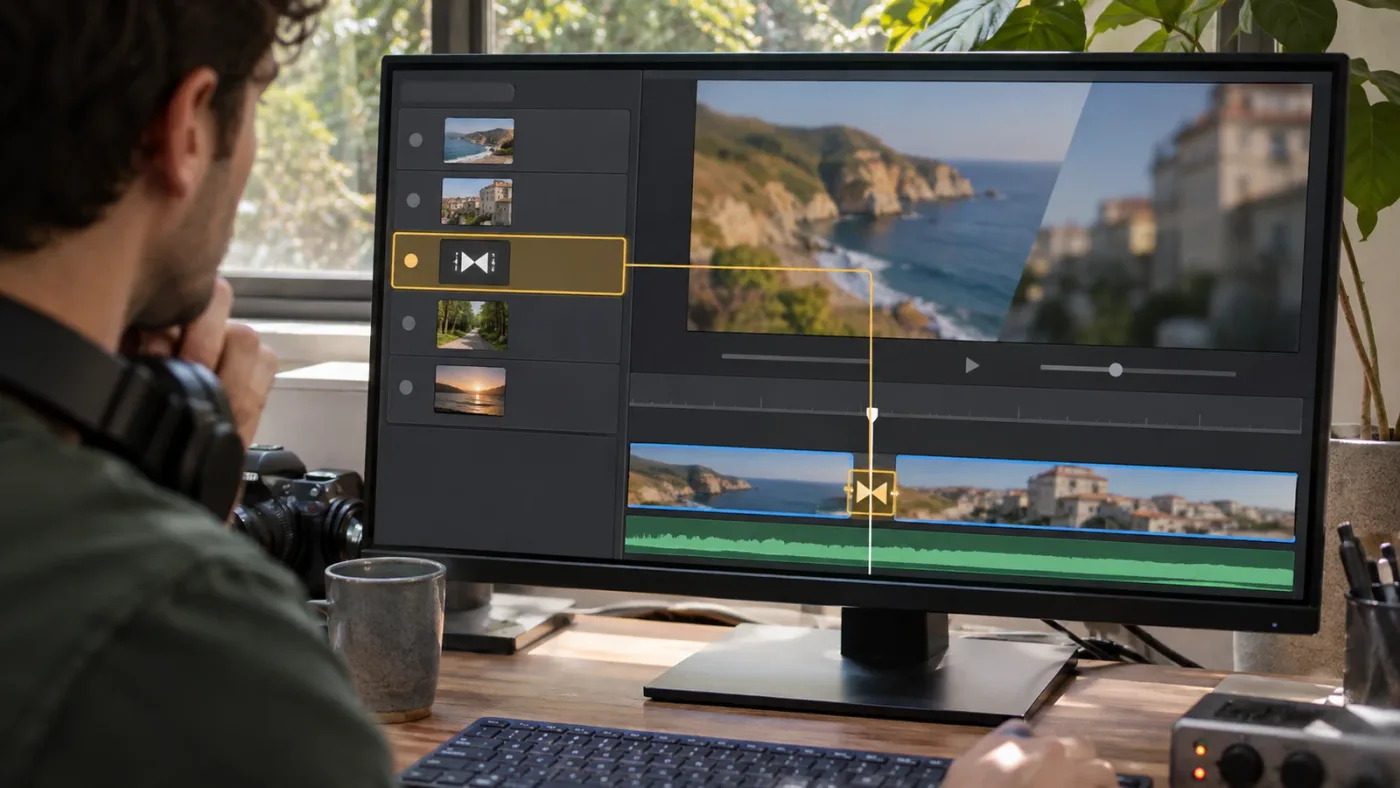
A transition may be difficult to select because the timeline is zoomed too far out, the track is too short, the effect is on another track, or no transition was actually applied at that edit point. Check those conditions before treating the problem as a software fault.
The timeline is zoomed out
At a wide zoom level, a short transition can appear only a few pixels across. Zoom in around the edit point, then click the middle of the transition block. If navigating the timeline is awkward, the guide to timeline scrolling and zooming covers that separate navigation problem.
Don't judge the transition's true duration by how wide it looks on a compressed timeline. The display width is relative to the timeline scale. Zooming in makes it easier to target the item and distinguish it from an edit point or clip boundary.
The track is too short
If a track is compressed vertically, its transition may be hard to see. Increase the track height enough to make the block easier to identify. Then confirm the track name and click the transition on that row.
This can be particularly helpful on audio tracks, where a crossfade may be visually subtle beside the waveform. A larger track makes the target easier to see, but you should still confirm the selection in the Inspector.
The transition is on another track
A transition may be on an upper video track, an audio track, or a track containing an overlay. Inspect the track headers and identify which row contains the transition. Don't click a nearby clip on a different track just because it occupies the same horizontal time.
A complex timeline can have multiple events at the same time. The visible playhead position doesn't establish which track is active. Select the intended track item directly and verify its controls.
There is only a cut, not a transition
Two clips meeting at an edit point do not automatically mean a transition effect exists. A cut is simply where one clip ends and another begins; a transition is an additional effect applied at that edit. If there is no transition block, there may be nothing to select as a transition.
To confirm, zoom in and inspect the edit point. If you see only the adjoining clip edges, the sequence may contain a straight cut. If you want to add a transition, open the Effects Library and choose an appropriate transition. Blackmagic's Edit page overview describes dragging a transition onto the cut between clips. Blackmagic Design's Edit page overview
The timeline may be using a different view
Resolve offers different page layouts and timeline modes. A selected timeline in the Edit Index matters, and the active timeline tab matters. Confirm both before deciding that an event is missing. The manual describes the Edit Index as showing events for whichever timeline is selected in its Timeline list, and it notes that edits are reflected in the list. Resolve 21.1 Reference Manual
How do I tell a transition from a clip, title, or effect?
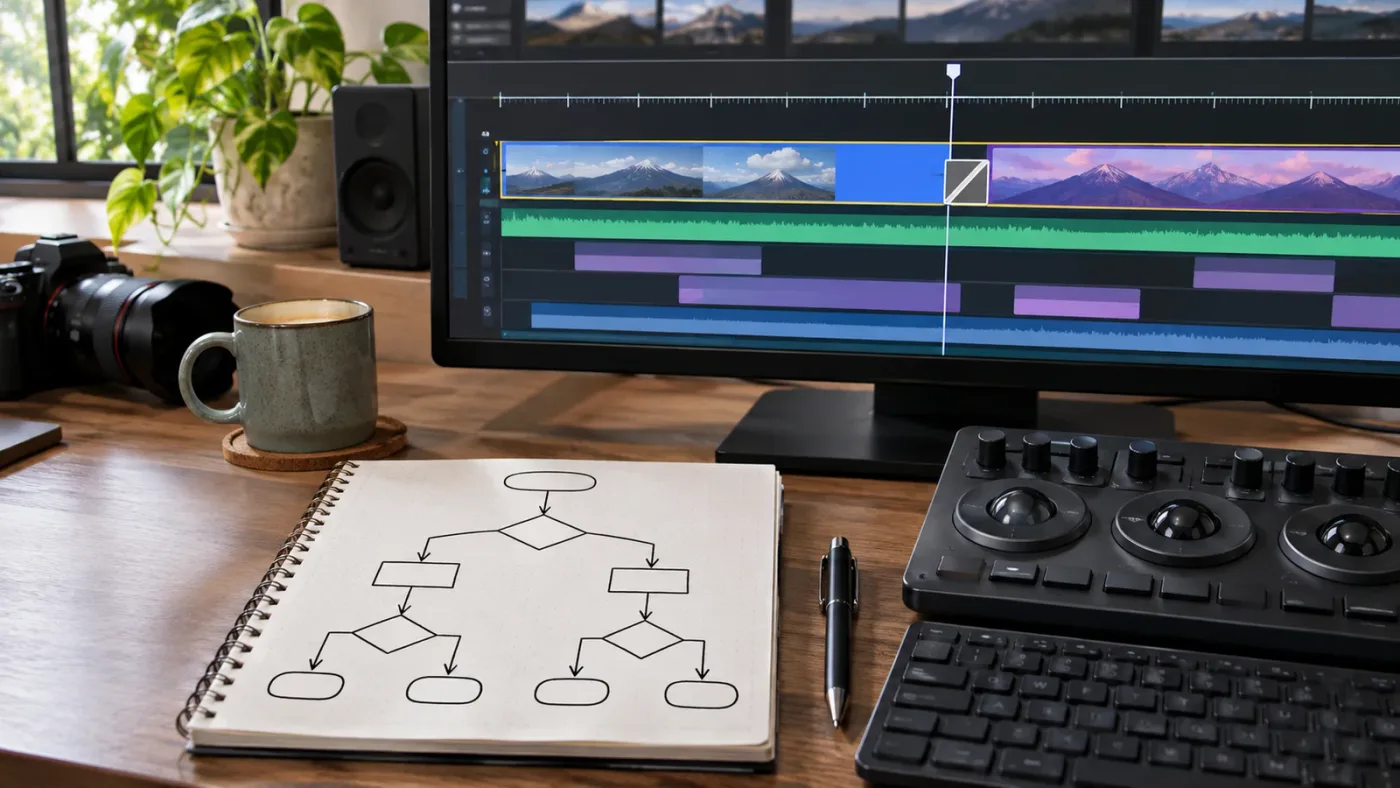
A transition is applied at an edit point or to a transition area, while a clip occupies a duration on a track and a title or generator is another timeline item. Select the item itself and use the Inspector to confirm what type of controls Resolve shows.
The Effects Library can make this distinction confusing because it stores several kinds of tools in one place. In the Resolve 21.1 manual, the library includes Video Transitions, Audio Transitions, Titles, Generators, Effects, Open FX filters, and Fairlight FX. That means an item visible in the library is not necessarily a transition. Some are generators or effects that you can apply elsewhere in the timeline. Resolve 21.1 Reference Manual
Use these cues:
| Timeline item | Typical location | How to confirm |
|---|---|---|
| Clip | A span of time on a video or audio track | Clicking its body selects that clip |
| Video transition | At a video edit point or in a video transition region | Inspector presents transition controls |
| Audio transition | At an audio edit point | Select it on the audio track and inspect its controls |
| Title or generator | A separate clip on a track | Inspector or Viewer reflects the selected title or generator |
| OpenFX effect | Applied to a clip or other supported item | Check the selected item and relevant effect controls |
The exact visual appearance depends on the item and the timeline view. Use the row and the Inspector, not just the name you remember seeing in the Effects Library. A title can sit above video near a transition. An effect can be attached to a clip. A dissolve can occupy the cut itself. Those objects may overlap in time, but each has a different selection target.
If the wrong controls appear, click in the center of the intended item and check again. If the selection keeps landing on a neighboring item, adjust the track height or zoom level. If a title or effect is stacked over the transition, identify its track first and click the transition block in the right row.
How do I use keyboard shortcuts without selecting the wrong item?
Keyboard shortcuts can speed up editing, but they don't remove the need to target the right timeline item. Select the transition with the pointer first, then use an appropriate command only after confirming that Resolve has the intended item selected.
Resolve includes keyboard customization, where you can search commands and assign shortcuts. Blackmagic's keyboard page describes choosing Keyboard Customization from the DaVinci Resolve menu, and the reference manual shows a Search field and command categories for application and panel commands. That is useful if you want to find a command related to the selected transition or create a shortcut that suits your workflow. Blackmagic Design keyboard information and Resolve 21.1 Reference Manual
Don't assume that a shortcut for adding a default transition will select an existing transition. Adding a transition and selecting one already in the timeline are different tasks. Blackmagic's speed editor documentation, for example, describes a transition button that adds a chosen transition. That is a hardware control for adding, not a general-purpose command for finding an existing transition in a long edit. Blackmagic Design keyboard information
If you want to customize a shortcut:
- Open Keyboard Customization from the DaVinci Resolve menu.
- Search for the command by name or browse its category.
- Check whether the command is application-wide or specific to a panel.
- Review any existing assignment before changing it.
- Test the shortcut in a safe timeline context.
- Keep the pointer selection step separate from the shortcut action.
The manual notes that a key remapping can trigger a warning if the key is already assigned to another command. That is a useful reminder to inspect the assignment before saving a new layout. If Resolve shows a conflict, decide whether the old shortcut should remain, move, or be replaced. Don't assume a custom keyboard mapping will behave the same in every panel.
A keyboard is helpful once you know the command and context. It is not a substitute for confirming selection. If the Inspector shows clip controls, a shortcut intended to change a transition may apply to the wrong item or do nothing useful. Select first. Confirm second. Use the shortcut third.
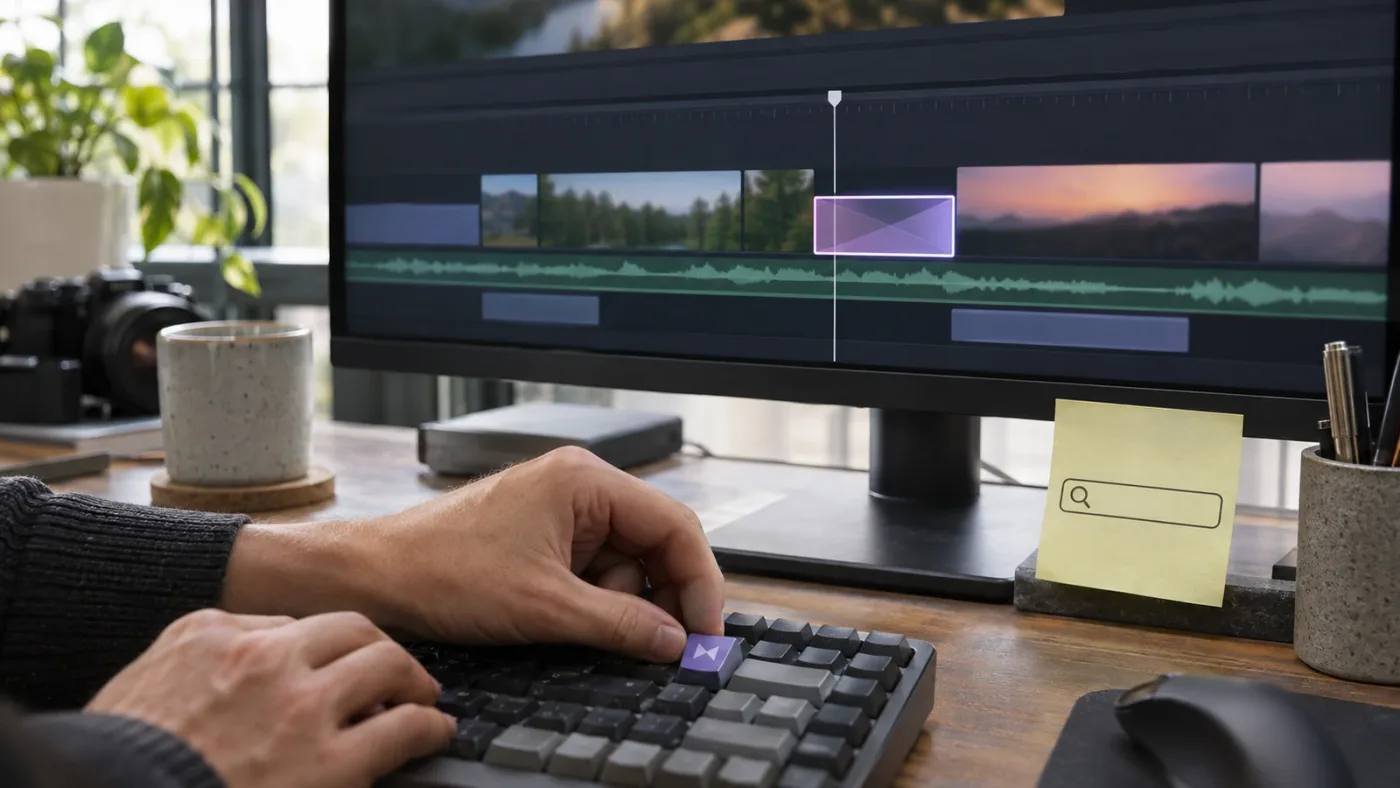
Should I select the transition or change it from the Effects Library?
Select the transition already in the timeline when you want to inspect or adjust it. Use the Effects Library when you want to add a new transition or replace the current one with a different effect.
The Effects Library is where Resolve groups available transition tools. The timeline is where an applied transition sits in relation to the clips. Opening the library doesn't select an existing timeline transition; it gives you tools to choose from. Blackmagic says you can drag a transition from the Effects Library onto a clip or the cut point between clips. Blackmagic Design's Edit page overview
Use this decision table:
| Your goal | Start here | Next action |
|---|---|---|
| Inspect the current transition | Timeline | Click the transition block and open the Inspector |
| Change current transition settings | Timeline | Select it, then adjust available Inspector controls |
| Change its duration | Timeline or Inspector | Drag its edge or use a duration control if available |
| Add a transition to a straight cut | Effects Library | Drag a suitable transition to the edit point |
| Try a different transition | Effects Library and timeline | Apply the desired effect and review the result |
| Find an existing transition in a long sequence | Edit Index | Locate its event, then select it in the timeline |
The distinction is useful when editing from a template or opening someone else's project. The library might show an effect with a familiar name, but the timeline item may have different parameters or be a different transition altogether. Selecting the timeline item gives you the controls for the transition that is actually applied. Choosing another item in the library is a separate decision.
If you're evaluating a pack of transition templates, first determine whether you need a built-in transition or a third-party template. The guide to choosing DaVinci Resolve transition templates can help with that broader decision. For a basic timeline task, however, don't add a template just to select an existing transition.
How do I check a transition without changing the edit?
Select the transition, inspect its controls, and play across the edit without adjusting any values. If you only need to identify or review it, you don't need to modify the project.
A careful review has three parts:
- Identify the item. Click the transition block on the correct track.
- Confirm the parameters. Open the Inspector and read the controls shown for that item.
- Review playback. Play from before the edit through the transition and into the following clip.
If you are reviewing an audio transition, listen to the audio as well as looking at the timeline. An audio crossfade can sit beneath an unrelated video cut. If you are reviewing a video transition, watch the image through the entire effect and notice whether the transition begins or ends where you expect.
Use playback to answer a specific question: Does the transition last long enough? Does it feel abrupt? Does it obscure a key moment? Is the audio continuous? Avoid changing values while you are still trying to identify what is selected.
For collaborative review, you can record the timeline location or add a note through your team's established process. Don't assume that a comment in a separate tool automatically maps to the transition event. The goal is simply to make the review reproducible: note the timeline, approximate location, track, and concern, then return to the exact block before editing.
What should I do if the transition changes the wrong thing?
Undo the change immediately if the wrong item or parameter changed, then reselect the intended transition and confirm it in the Inspector before trying again. Resolve's Edit menu includes undo and redo commands, and its manual documents the History window for reviewing and returning to earlier states. Resolve 21.1 Reference Manual
A transition selection error often happens because several items overlap. For example, you might intend to change a video dissolve but select a title on an upper track, or adjust an audio fade while a nearby music clip is selected. The result can look like the transition changed when the actual edit was made to another object.
Use this recovery path:
- Stop and inspect the current selection.
- If a change was applied to the wrong item, use Undo rather than trying to counteract it with another edit.
- Zoom in and identify the relevant track.
- Click the transition block itself.
- Confirm the Inspector shows transition controls.
- Make one intended change.
- Play the edit and confirm the result.
If the change already altered other parts of the timeline, open the History window and review what Resolve recorded. Blackmagic's manual describes choosing Edit > History > Open History Window and selecting an earlier point in the list. This is a recovery aid, not a reason to skip careful selection. If the project is important, use a duplicate timeline before a broad or uncertain change. The Resolve manual also documents creating timeline backups and notes that restoring a backup brings it into the Media Pool as a new timeline rather than overwriting the current one. Resolve 21.1 Reference Manual
Undo the wrong edit before trying to repair it by eye.
Don't continue editing while you're unsure which item changed. Confirm the current state, use History or Undo as appropriate, and then start again with a clear target. That is safer than stacking another change on top of a selection mistake.
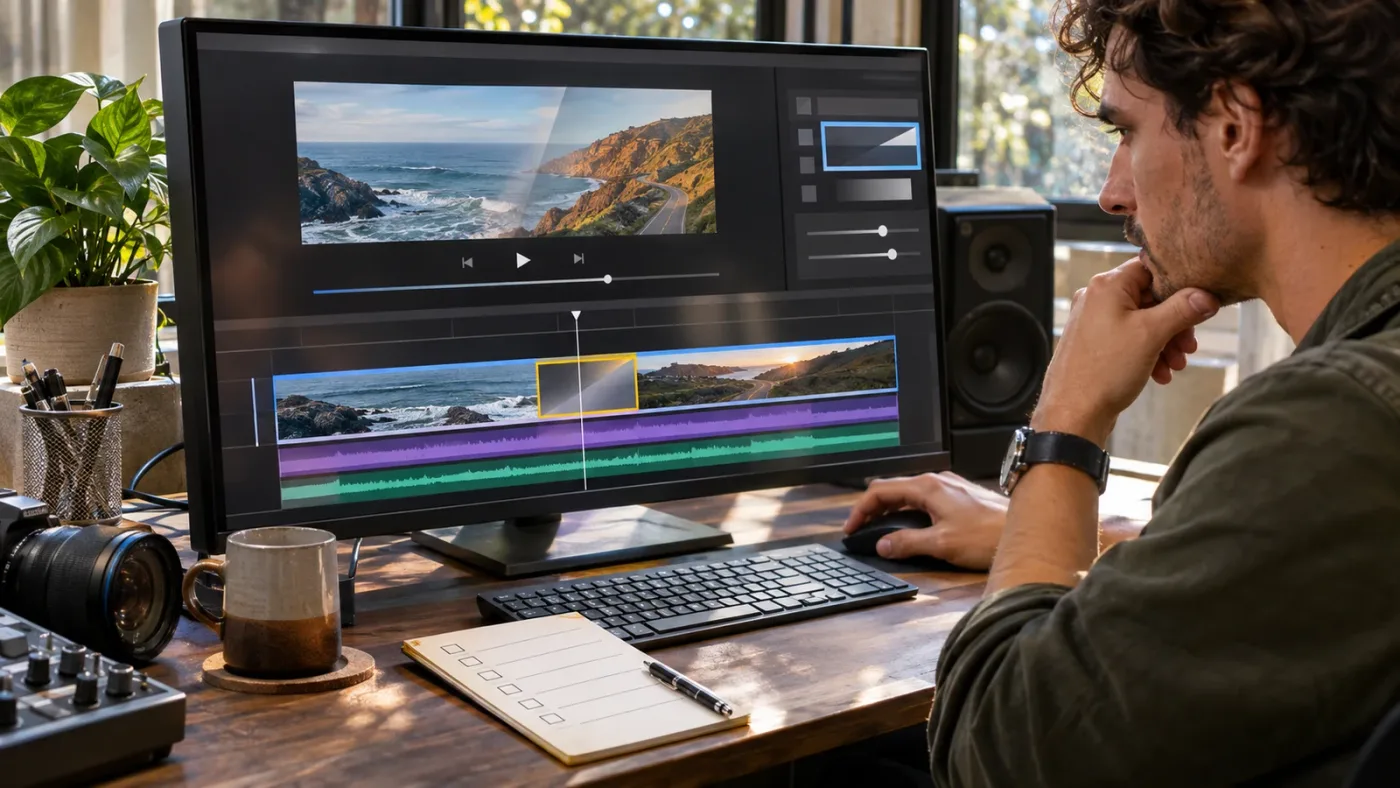
Can on-screen guidance help when the controls are hard to find?
On-screen guidance can help when you know what you want to do but can't locate the right Resolve control. First identify the transition in the timeline and try the Inspector; use guidance only if you remain stuck on the interface or a step differs on your screen.
TryUncle is the on-screen assistant for DaVinci Resolve on Mac and Windows, ask in plain words and Uncle points at the exact control on your screen. It offers guidance while you work, but you remain in control and carry out the editing actions. TryUncle
This is optional. You can select transitions with Resolve's timeline and Inspector, and the official manual remains the reference for exact behavior. If your immediate problem is just finding one transition, use the Edit Index, zoom in, click the block, and confirm the Inspector. If the interface differs from a tutorial or you can't find a control, on-screen help can make it easier to orient yourself without replacing the selection steps.
What is the fastest reliable transition-selection checklist?
The fastest reliable method is to open the correct Edit page timeline, zoom into the edit point, click the transition block on the correct track, and verify the Inspector. For a long sequence, use the Edit Index to find the transition event first.
Keep this short checklist nearby:
- Right page: Go to the Edit page for the timeline workflow.
- Right timeline: Confirm the active timeline tab.
- Right track: Decide whether the transition is on video or audio.
- Right target: Click the transition block, not its border, the cut line, or a neighboring clip.
- Right confirmation: Check the Inspector for transition controls.
- Right action: Adjust only the parameter you intend to change.
- Right review: Play across the edit before moving on.
Resolve 21.1's manual identifies the Edit Index as an event list that includes transitions and updates after timeline edits. It also explains that the Inspector can edit transition parameters. Those two tools cover the most common needs: finding an event in a long sequence and confirming or changing a selected transition. Resolve 21.1 Reference Manual
If the first click selects the wrong thing, don't fight the interface. Zoom in, check the track, and click the center of the transition block. Then confirm the Inspector before editing.
Frequently asked questions
- How do I select a transition in the DaVinci Resolve timeline?
- On the Edit page, click the transition block centered over the cut between two clips. Then open the Inspector to see controls for the selected transition.
- Why can't I select a transition in DaVinci Resolve?
- You may be clicking the cut line or a neighboring clip rather than the transition block. Zoom in, make sure the correct timeline is active, and click near the middle of the visible transition.
- How do I find all transitions in a long DaVinci Resolve timeline?
- Open the Edit Index and inspect its event list. Blackmagic's Resolve 21.1 manual says the index lists each clip and transition as an individual event; use it to locate an event, then inspect the corresponding area of the timeline.
- How do I change a transition after selecting it?
- Select the transition block in the timeline, open the Inspector, and adjust the available transition parameters. Blackmagic also documents changing a transition's duration by dragging its edge in the timeline.
- Can I select an audio transition the same way as a video transition?
- Select the audio transition block on its audio track, not the video transition above it. Resolve separates audio and video transitions in the Effects Library, and the selected timeline item determines which controls appear in the Inspector.
Sources
Put this guide to work with TryUncle.
Ask about the step you’re on. TryUncle sees your screen and points at the control you need, so you can keep learning in your own project.
Get TryUncle for Mac or WindowsKeep reading

Fixes · Jul 17, 2026 · 25 min
DaVinci Resolve Timeline Won't Scroll or Zoom? Here's the Fix
Fix a DaVinci Resolve timeline that won't scroll or zoom: check 2D Timeline Scrolling, your modifier keys, trackpad gestures, and a stuck UI layout.
Guides · Aug 27, 2026 · 8 min
DaVinci Resolve Transition Between Music Tracks: 21 Guide
Learn how to transition between music tracks in DaVinci Resolve 21 with phrase matching, overlap, crossfades, Fairlight fades, and clean volume changes.
Guides · Sep 6, 2026 · 8 min
How to Choose DaVinci Resolve Transition Templates
Choose DaVinci Resolve transition templates by edit style, compatibility, performance, controls, and licensing with this Resolve 21 buying guide.