Articles / Fixesupdated for DaVinci Resolve 21.0.2 (July 2026)
Sony A7S III XAVC S Footage Won't Play Smoothly? The Fix
Quick answer
Sony A7S III XAVC S footage stutters in DaVinci Resolve because its 10-bit 4:2:2 long-GOP encoding is expensive to decode, and the free version can't hardware-decode it on Windows at all. Generate Optimized or Proxy Media in DNxHR or ProRes, turn on in-camera Proxy Recording for future shoots, and confirm your Resolve edition actually supports 10-bit import.
Your A7S III shoots gorgeous 10-bit 4:2:2 footage, and DaVinci Resolve turns it into a slideshow the moment you drop it on a timeline. That gap isn't a defect in your camera or your computer. It's a mismatch between what the A7S III records and what your specific hardware and Resolve edition can decode in real time.
Here's exactly which codec is causing it, why the same file can stutter on one machine and play fine on another, and the fixes that actually remove the problem instead of just hiding it for one session.
Why does A7S III XAVC S footage stutter in DaVinci Resolve?
Because XAVC S is a long-GOP codec, and long-GOP is a decoding tax that gets paid every single frame, forever, until you transcode your way out of it. Long-GOP stands for "long group of pictures." Instead of storing a complete image for every frame, the camera stores one full frame and then a run of frames that only record what changed since the last one. Your computer has to rebuild every frame from that chain before it can show it to you.
That math is cheap to do once, during export, where Resolve can take its time. It's expensive to do live, twenty-four to sixty times a second, on a 4K timeline, while you're also scrubbing, previewing a grade, or stacking a second video track.
A7S III footage stuttering in DaVinci Resolve is a decoding cost problem, not a sign that your computer is broken. The GPU or CPU you own isn't failing. It's being asked to reconstruct a heavily compressed 10-bit 4:2:2 image in real time, on top of everything else Resolve does to that same frame.
Which Sony codec are you actually shooting?
This is where most troubleshooting goes sideways, because "XAVC S" gets used as a catch-all name for three genuinely different formats on the A7S III, and each one carries a different decode cost. Per CineD's coverage of the A7S III's announcement, the camera offers three internal codec choices, and all of them can record 10-bit color with 4:2:2 chroma subsampling:
| Codec | Compression | Bitrate (4K) | Max frame rate |
|---|---|---|---|
| XAVC S | H.264, long-GOP | 50 to 280 Mbps | 120fps (100fps PAL) |
| XAVC S-I | H.264, All-Intra | 240 to 600 Mbps | 60fps (50fps PAL) |
| XAVC HS | H.265, long-GOP | Same tiers as XAVC S | 120fps (100fps PAL) |
Before you touch a single Resolve setting, open the clip's properties in the Media Pool or right-click and choose Clip Attributes, and confirm which one you're actually looking at. The fix for a long-GOP decode bottleneck and the fix for a bitrate-and-storage bottleneck aren't the same fix, and applying the wrong one wastes an evening chasing a problem you don't have.
XAVC S is not one format, it's three, and DaVinci Resolve treats each one differently. People shoot XAVC S-I because a tutorial recommended it for color grading headroom, then troubleshoot playback as if they'd shot standard XAVC S, and never find the fix because they're solving for the wrong bottleneck.
Does your DaVinci Resolve edition even support this footage?
Here's the question nobody asks before spending an evening on proxies: is the free version of Resolve actually built to decode what your A7S III just recorded? Per Blackmagic's own free version page, the free tier is built around "virtually all 8-bit video formats." Every internal codec option on the A7S III, XAVC S, XAVC S-I, and XAVC HS, records 10-bit 4:2:2 by default. You are, by design, editing outside the free version's stated comfort zone the moment you shoot on this camera.
In practice, results vary more than the marketing copy suggests, and it's worth being honest about that instead of pretending there's one clean rule. Some editors report 10-bit XAVC footage importing and playing without complaint on the free version, especially on Apple silicon Macs where the operating system handles a lot of the decode work underneath Resolve. Others hit stutter, or worse, a flat "Media Offline" message instead of a picture at all, particularly on Windows, where HEVC support isn't built into the OS by default. Writer Robin Parmar, documenting exactly this kind of codec gap, found that on Windows the free version can't handle certain HEVC files at all, showing "Media off-line" while the audio still plays, which is a specific and reproducible failure mode, not general slowness.
The free version of DaVinci Resolve was built around 8-bit footage, and every A7S III recording mode lives entirely outside that boundary. That doesn't mean the free version can never touch your files. It means you're troubleshooting on borrowed ground, and the first thing worth ruling out isn't a setting, it's whether your specific edition, OS, and driver combination can decode this footage at all before you worry about decoding it smoothly.
| Your setup | What to expect |
|---|---|
| Free Resolve, Windows | Highest risk of outright import failure or Media Offline on 10-bit XAVC S/HS, on top of any stutter |
| Free Resolve, Mac | Often plays, since macOS handles H.264/HEVC decode at the OS level, but not guaranteed smooth on every chip |
| Studio, Windows or Mac | Full 10-bit support and hardware-accelerated H.264/H.265 decode where your GPU supports the specific flavor |
| Studio, Linux | Video decode is included; audio decode for some formats has separate gaps worth checking case by case |
If your footage won't even open, the fix isn't in this guide, it's in our DaVinci Resolve says unsupported file format guide, which covers HEVC extensions, Linux codec gaps, and 10-bit import failures specifically. This guide assumes your footage opens and plays, just badly.
Why does the exact same clip stutter on one computer and play fine on another?
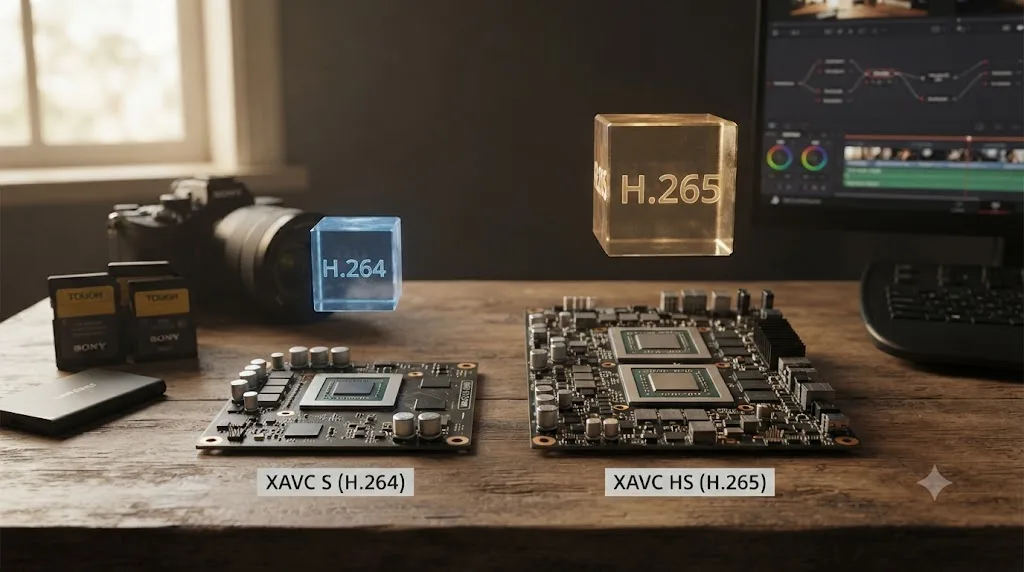
Because the part of your computer that actually decodes video isn't the GPU as a whole, it's a small, dedicated hardware block inside it, and that block only understands specific codec flavors. NVIDIA calls its block NVDEC, Intel has Quick Sync, Apple builds a media engine into every M-series chip. When your footage matches what that block was built to handle, decoding is nearly free. When it doesn't, the entire job falls back to your CPU, and that's the moment stutter starts.
The catch for A7S III owners specifically is chroma subsampling. Most hardware from the last decade decodes 8-bit 4:2:0 H.264 and H.265 without breaking a sweat. The 10-bit 4:2:2 flavor the A7S III records by default is a narrower target. Puget Systems' Matt Bach, who leads Puget Labs' performance testing, put it plainly in his breakdown of DaVinci Resolve Studio's decode support: "not all types of H.264 and H.265 media are supported. On top of the codec itself, both the bit depth (8-bit, 10-bit, etc.) and chroma subsampling (4:2:0, 4:2:2, 4:4:4), as well as the hardware capabilities of your system, impacts whether you will be able to utilize hardware decoding," as documented in his article on DaVinci Resolve Studio's hardware decode support.
A camera that can shoot 10-bit 4:2:2 does not guarantee a computer that can play it back. Per NVIDIA's own decode support matrix, RTX 30 and RTX 40 series cards have no hardware decode support at all for 10-bit 4:2:2 H.265, the capability only landed with the RTX 50 series. That gap doesn't fully mirror onto H.264, since older GPU generations vary clip by clip in what their decode block supports, which is exactly why one editor's A7S III footage stutters on a desktop with an expensive card while the same file plays cleanly on a thin laptop with a newer integrated chip.
| Hardware | 10-bit 4:2:2 H.264 (XAVC S/S-I) | 10-bit 4:2:2 H.265 (XAVC HS) |
|---|---|---|
| NVIDIA RTX 30 / 40 series | Varies by exact card and driver | No hardware decode, falls to CPU |
| NVIDIA RTX 50 series | Supported | Supported |
| Intel Quick Sync (recent iGPUs) | Generally supported | Generally supported |
| Apple M-series media engine | Supported | Supported |
If the CPU is pinned near 100 percent while the GPU's decode engine sits idle, DaVinci Resolve is software-decoding your A7S III footage instead of accelerating it. On Windows, open Task Manager, click Performance, select your GPU, and watch the Video Decode graph while you play the timeline. A flat decode graph with a maxed-out CPU tells you exactly what's happening, before you spend a dollar or an evening guessing.

How do you fix it with Optimized Media or Proxy Media?
This is the fix that removes the decoding bottleneck instead of working around it for one session. Both features swap your A7S III's original camera files for an easier-to-decode format while you edit, then swap back automatically for the final render.
Per DaVinci Resolve's reference manual, Proxy Media "is independent, portable, and can be created by applications outside of DaVinci Resolve, if desired," which is what separates it from Optimized Media, a Resolve-managed cache that lives inside your project. Either one solves the same underlying problem for A7S III footage.
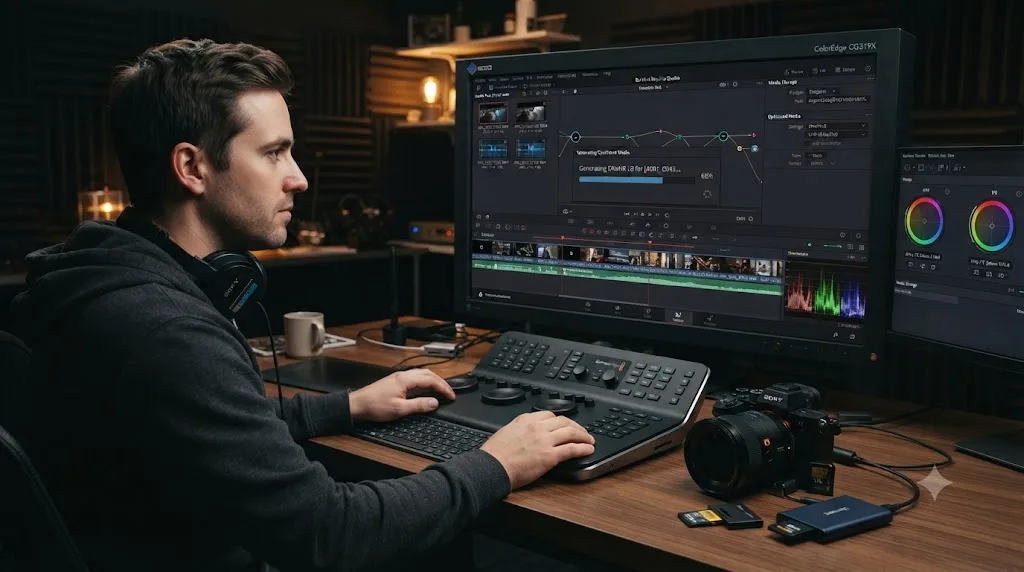
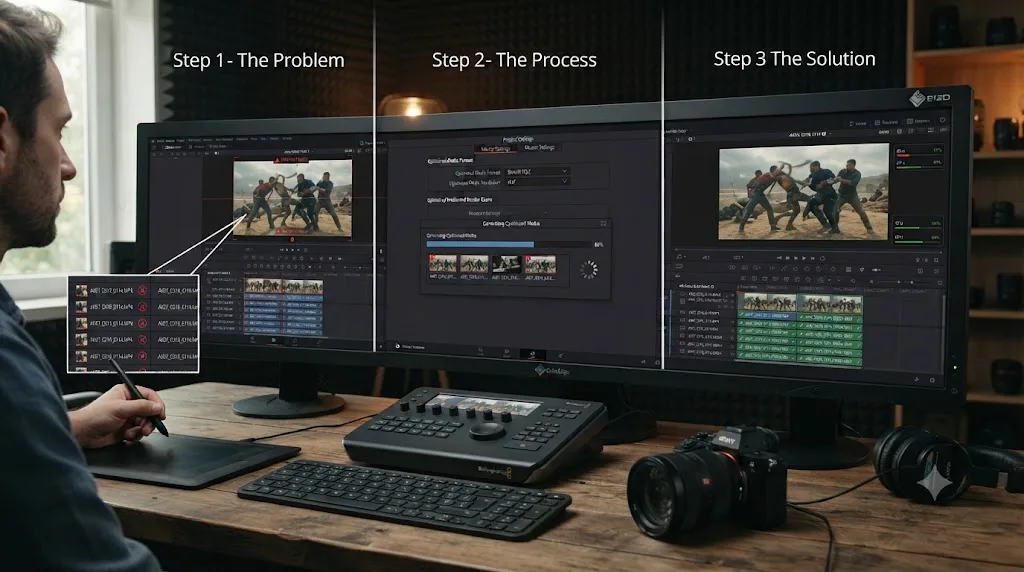
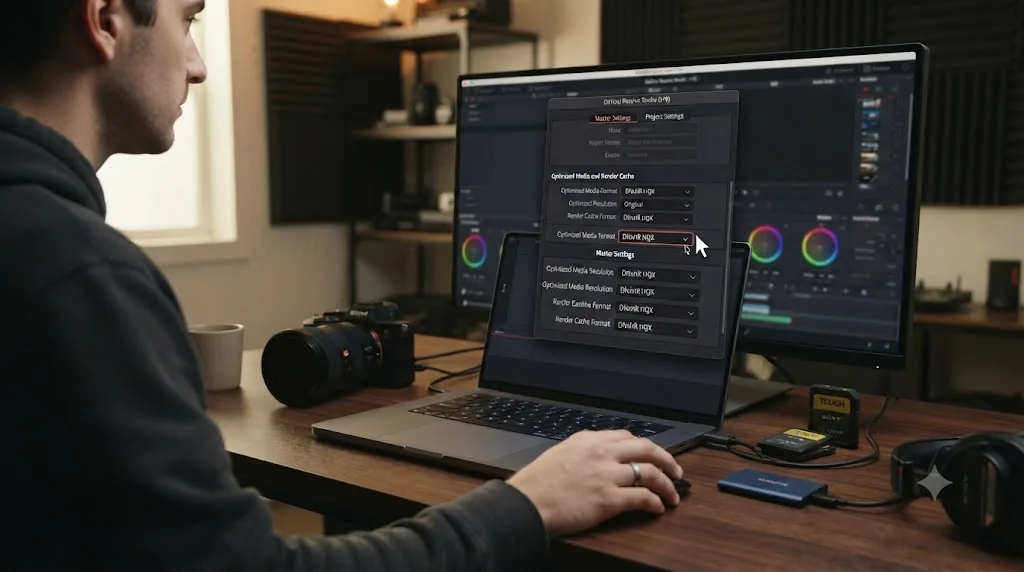
The howto panel above walks through the exact steps. Set Optimized Media Format to DNxHR SQ on Windows or Apple ProRes 422 on Mac, generate it for your XAVC S clips, and check Use Optimized Media if Available under the Playback menu. Both formats are intraframe, meaning every frame is a complete picture with nothing to reconstruct, which is precisely the property XAVC S's long-GOP compression lacks.
This is also standard advice from Blackmagic's own certified trainers when high-bitrate camera footage won't play smoothly. Marc Wielage, a Certified DaVinci Resolve Color Trainer, answered a forum thread about exactly this kind of stutter by telling the poster to "consider editing half-res 1080p proxies in DNxHR SQ, and then switching back to 4K camera files for your final render". Edit light, render heavy, every time.
One A7S III-specific wrinkle worth flagging: DNxHR and ProRes files are considerably larger than the H.264 or H.265 originals they replace, even at a fraction of the resolution. A card full of 10-bit XAVC S footage that looked modest on your SD card can produce optimized media several times its original size. Point your Optimized Media cache at a drive with real headroom before you generate a full shoot's worth.
Should you use Sony's in-camera Proxy Recording instead?
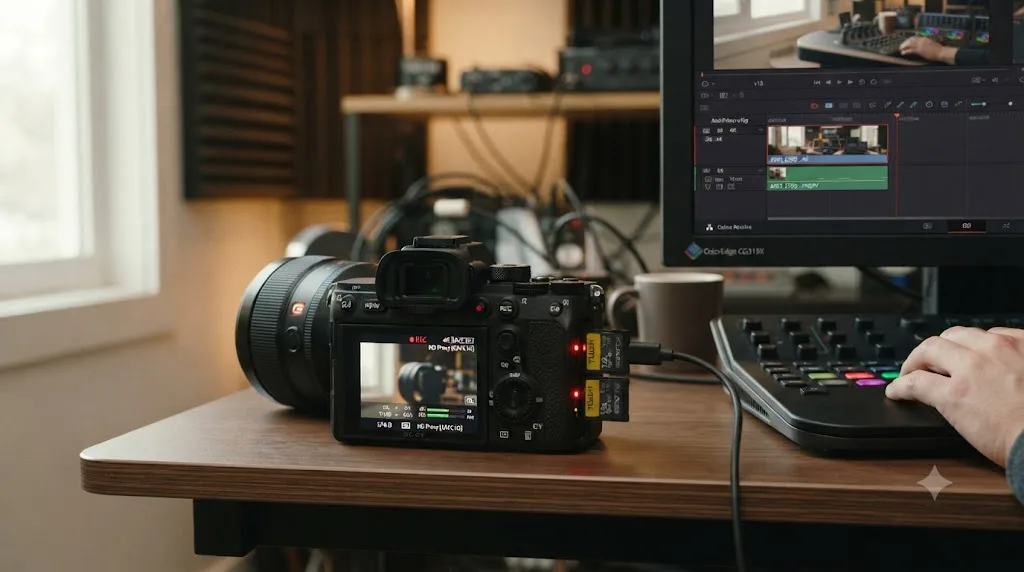
For footage you haven't shot yet, this is the fix that solves the problem before Resolve ever sees the file. The A7S III can record a small proxy movie at the same time as your main recording, and per Sony's own help guide for the camera, you get two options: XAVC HS HD at 1920x1080, in either 16 Mbps or 9 Mbps 10-bit or 6 Mbps 8-bit, or XAVC S HD at 1280x720, 6 Mbps 8-bit. Both sit at a small fraction of your main file's bitrate, which is exactly what makes them decode cheaply.
A camera's in-camera proxy exists to solve exactly the problem this post is about, before you ever open Resolve. Turn it on in the Image Quality tab under video settings, and every clip you shoot from that point forward arrives with a lightweight stand-in already paired to it. There's one hard limitation worth knowing before you rely on it: Sony's help guide is explicit that proxy recording isn't available at 120p or 100p, so your slow-motion clips won't get this benefit and will need Resolve's own Optimized or Proxy Media instead.
Sony's proxy and Resolve's Proxy Media aren't the same system, and Resolve doesn't automatically recognize the pairing between an A7S III original and its in-camera proxy the way it manages its own generated proxies. In practice this means editing the small proxy files as their own media first, doing your rough cut and pacing decisions against them, then relinking to the full-resolution originals before you grade or export. It's a manual step, not a checkbox, but for footage you're about to shoot rather than footage already sitting on a card, it moves the entire fix upstream of the editing bay.
Deleting or protecting footage on the camera also protects both files together. Per the same Sony documentation, "deleting/protecting movies that have proxy movies removes/protects both the original and proxy movies," so you can't accidentally strand a proxy without its original, or the other way around, while the pair is still on the card.
What if DaVinci Resolve shows "Media Offline" instead of stutter?
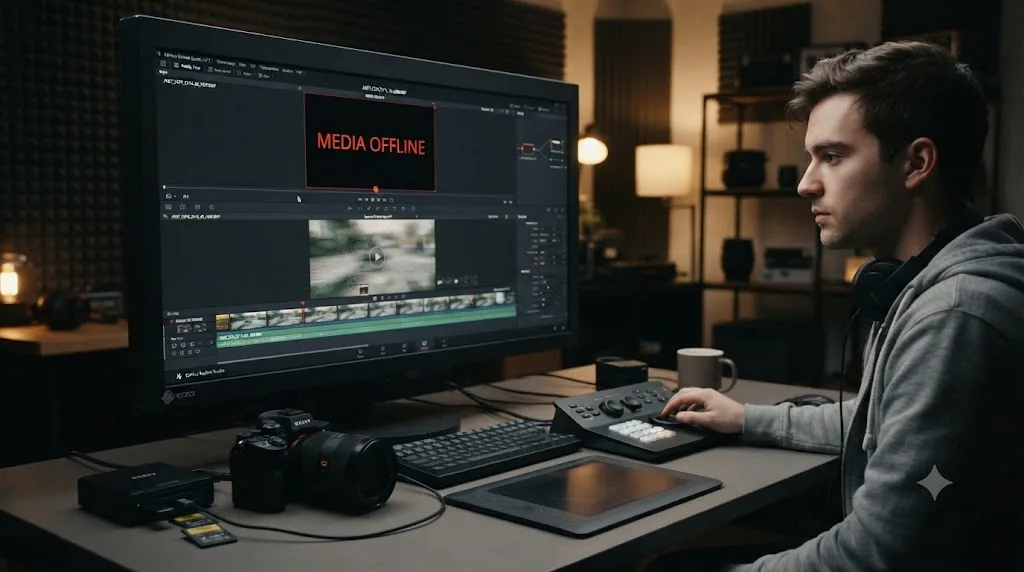
That's a different failure with a different fix, and it's worth separating clearly before you spend time on the wrong problem. Stutter means Resolve can decode your A7S III file, just not fast enough to keep pace with real-time playback. Media Offline means Resolve couldn't decode it at all, and it's refusing to guess at what the missing frames should look like.
The most common cause on Windows is a missing HEVC decoder. Windows doesn't ship one by default, and the free version of Resolve doesn't bundle its own, so XAVC HS footage specifically, the H.265 variant, can register as offline entirely, with audio still playing underneath a black frame. Installing the HEVC Video Extensions from the Microsoft Store and restarting the PC clears this in most cases. XAVC S, the H.264 variant, doesn't hit this specific wall since H.264 decode is more broadly available, but 10-bit color depth on either codec can still trip a free-version import limit depending on your Resolve build and driver combination.
If bypassing your grade, dropping Timeline Proxy Mode, and generating Optimized Media haven't touched the problem at all, you're very likely not looking at a decode-speed issue in the first place. Our Unsupported File Format guide walks through the full decision tree for that failure mode, including the specific extension and Studio-license fixes that apply to it.
Does switching to XAVC S-I actually fix the stutter?
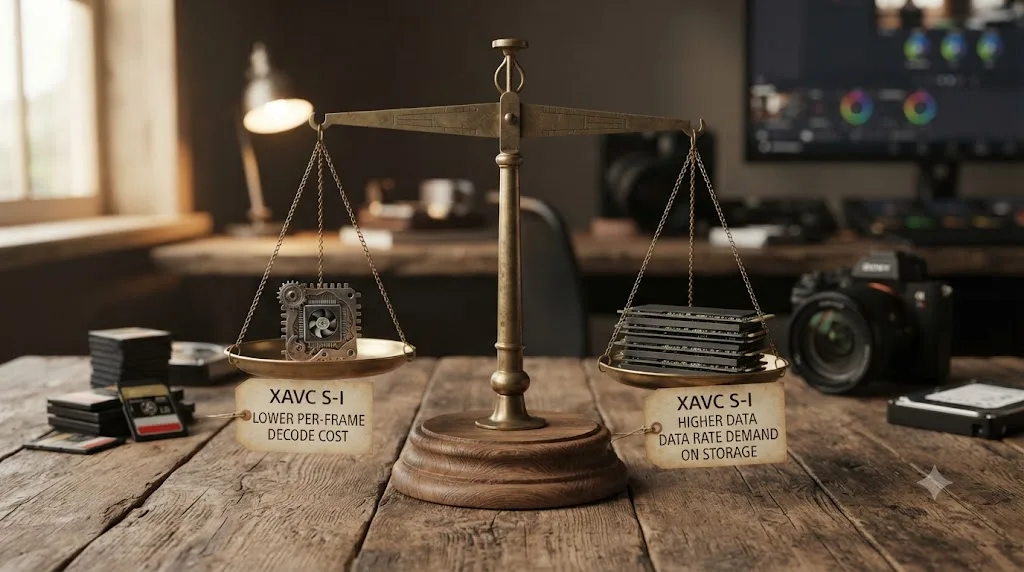
Sometimes, and it's worth understanding exactly why before you re-shoot anything. XAVC S-I is All-Intra, meaning every frame is a complete standalone picture, with no chain of dependent frames to reconstruct. That property alone makes it genuinely cheaper to decode per frame than long-GOP XAVC S, on hardware that can hit the format's much higher bitrate.
File size is not decode cost: XAVC S-I files are the largest thing on your drive and are often the easiest thing to play back. That's the same counterintuitive relationship that makes RAW formats like Blackmagic RAW play more smoothly than their file size suggests. The compression trade runs in the opposite direction from what most people assume.
But "cheaper to decode per frame" only helps if your drive and card can actually deliver that many bits per second in the first place, and this is where XAVC S-I creates a new problem instead of solving the old one. At up to roughly 600 Mbps, a single 4K XAVC S-I stream is more than double the top end of standard XAVC S. Per Sony's own transfer speed documentation for its CFexpress Type A cards, original CEA-G series cards from the A7S III's era read at up to 800 MB/s, comfortably fast for editing directly off the card. A UHS-II SD card, the other option the A7S III supports, tops out closer to 300 MB/s in real-world use, which is still fine for a single S-I stream but leaves little headroom for multicam or a second effects-heavy track.
| Situation | XAVC S-I helps | XAVC S-I hurts |
|---|---|---|
| CPU decode is your bottleneck, drive is fast (NVMe, or a fast CFexpress Type A card) | Yes, All-Intra decodes cheaper per frame | No |
| Drive or card throughput is your bottleneck (SD card, USB drive, network share) | No | Yes, doubles the data your storage has to sustain |
| You need grading headroom over long-GOP artifacting | Yes, that's the format's actual design purpose | Storage cost, not a playback fix |
Run the same three-way diagnosis from earlier in this guide before switching codecs on your next shoot: bypass effects, drop Timeline Proxy Mode, and if neither helps, copy one stuttering clip to your fastest internal drive and test it there. If the drive test fixes it, XAVC S-I will make your storage problem worse, not better. If dropping Timeline Proxy Mode fixes it, decode is genuinely your bottleneck, and XAVC S-I paired with fast storage is a legitimate upgrade for your next shoot.
Is XAVC HS (H.265) better or worse than XAVC S for editing performance?
Worse, on most systems editing today, and that's a real cost most A7S III owners don't discover until they've already filled a card with it. XAVC HS trades some file size for extra CPU or GPU decode work versus its H.264 counterpart, and per Cinema Tools' comparison of Sony's 10-bit codec options, "the main advantage of using [XAVC S] over XAVC HS would be the editing performance, although it depends on the system." The same source notes plainly that XAVC HS "requires proxy files for smooth playback" in most editing setups, which lines up exactly with what the decode support matrix above shows: H.265 4:2:2 10-bit has a narrower band of GPU hardware support than H.264 4:2:2 10-bit.
If your goal is smaller files for archiving or delivery, XAVC HS earns its place. If your goal is smooth playback while you're actively cutting, standard XAVC S is the lighter lift on more computers, and it's worth checking your camera's codec setting before you assume the stutter is a Resolve problem rather than a format choice.
One footnote for anyone also shooting H.265: DaVinci Resolve 21.0.2, released the first week of July 2026, specifically addressed H.264 and H.265 NVIDIA decode performance, independently confirmed by Newsshooter, which quoted the release as delivering "improved H.265 playback performance on NVIDIA GPUs." If you're on an NVIDIA card editing XAVC HS specifically, updating Resolve is worth doing before you touch a single project setting. That update targeted H.265 decode performance, not the H.264 codec underneath standard XAVC S, so it won't move the needle if XAVC S is what's stuttering for you.
Is your card or drive the actual bottleneck, not the codec?
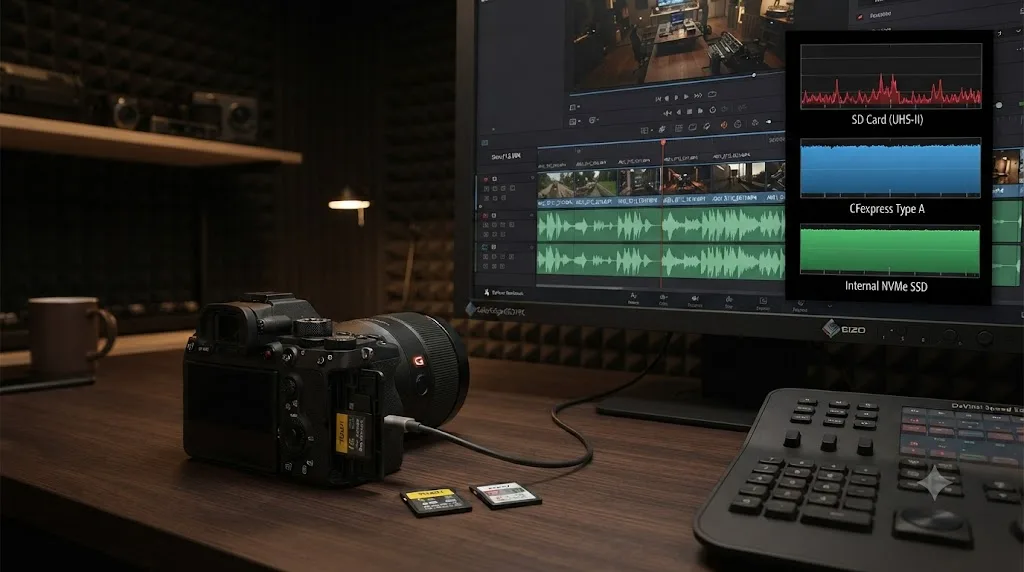
Codec math doesn't matter if the bytes can't physically arrive fast enough, and A7S III shooters run into this more than most, because a single high-bitrate 4K stream from this camera already asks a lot of ordinary storage.
At the low end of XAVC S's range, 50 Mbps, almost any drive or card keeps up without effort. At the top end, 280 Mbps, and especially on XAVC S-I's 240 to 600 Mbps range, the numbers start to matter. For comparison, Apple's ProRes white paper puts ProRes 422 at roughly 471 Mbps for UHD at 29.97 fps, in the same neighborhood as XAVC S-I's upper tier, which gives you a sense of how much throughput a full-quality S-I stream actually demands.
| Storage | Typical sustained read | Realistic for A7S III footage |
|---|---|---|
| UHS-II SD card | Up to roughly 300 MB/s in real-world use | Comfortable for XAVC S, tight for sustained XAVC S-I |
| CFexpress Type A (original CEA-G series) | Up to 800 MB/s, per Sony's own spec | Handles any single A7S III stream with headroom to spare |
| External USB hard drive | 100 to 200 MB/s | Fine for one moderate-bitrate XAVC S stream, struggles with S-I or multicam |
| Internal SATA SSD | Up to about 550 MB/s | Comfortable for single-stream editing, including XAVC S-I |
| Internal NVMe SSD | Several thousand MB/s | No realistic A7S III workload saturates this |
The tell is timing, not intensity. If stutter starts smooth and degrades, or if it lands specifically on cuts and clip boundaries where the drive has to seek to a new file, that's a storage signature, not a decode one, and no amount of transcoding to a lighter codec fixes it. Copying one clip to your fastest internal drive and testing it there, the same diagnostic covered in our playback stuttering guide, settles the question in under a minute.
If you're editing directly off the SD card or CFexpress card the A7S III recorded to, rather than a copy on an internal drive, move to internal storage first. It's the single fastest fix on this whole list, it costs nothing, and it rules out an entire category of problems before you transcode a single frame.
What does the fix look like on a Windows PC versus a Mac?
The diagnosis is identical on both platforms. The fix diverges because of how each OS handles hardware decode underneath Resolve.
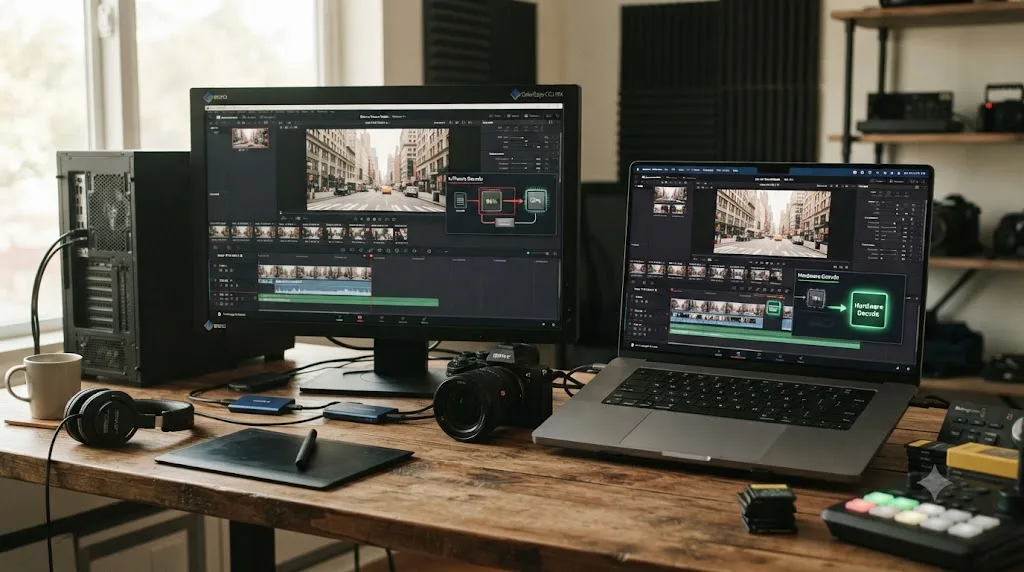
On Windows, free Resolve decodes H.264 and H.265 on the CPU regardless of your GPU, since hardware-accelerated decode for those codecs is a Studio feature there. That means a free-version Windows editor with 10-bit A7S III footage is fighting the hardest version of this problem: no OS-level assist, no app-level hardware acceleration, and a codec flavor plenty of GPUs don't support anyway even when Studio is installed. If that's your setup, transcoding to Optimized Media isn't optional, it's the difference between editing and waiting.
On a Mac, the operating system's VideoToolbox framework handles H.264 and HEVC decode at the system level, and every Apple silicon chip includes a dedicated media engine, available to the free version of Resolve too. This closes much of the gap, but it doesn't close all of it. One editor on a MacBook Pro with an M1 chip reported stutter on the free version editing A7S III H.264 8-bit 4:2:2 footage at 50fps, a reminder that Apple silicon narrows this problem, it doesn't eliminate it, especially on the base-tier chips or at higher frame rates.
| Platform | Free version reality | What actually helps |
|---|---|---|
| Windows, free Resolve | CPU-only decode for H.264/H.265, no exceptions | Optimized/Proxy Media in DNxHR, or Studio's hardware decode |
| Windows, Studio | Hardware decode where your GPU supports the specific flavor | Confirm your GPU generation supports 10-bit 4:2:2 first |
| Mac, free Resolve | OS-level hardware decode via VideoToolbox | Usually smoother by default, still benefits from proxies at higher frame rates or on base chips |
| Mac, Studio | Same OS-level decode, plus 10-bit and multi-GPU features | Studio's value here is features, not decode speed |
Our DaVinci Resolve Studio price guide breaks down exactly what the $295 license changes and doesn't, if you're deciding whether to buy Studio specifically to solve this, and our proxy media setup guide for slow laptops covers the resolution and format choices in more depth if your editing machine is a laptop rather than a desktop.
What does the whole fix look like on a real A7S III project?
Put the pieces together on a common setup: a Windows editor running the free version of DaVinci Resolve, an RTX 3060, and a card full of 4K 10-bit 4:2:2 XAVC S footage from a recent shoot.
The diagnosis ladder points at decode. Stutter shows up on plain clips with no grade applied, and dropping Timeline Proxy Mode to Quarter Resolution smooths it out immediately. That confirms the bottleneck before a single setting changes. Task Manager backs it up: the Video Decode graph for the GPU stays flat while the CPU pins near its ceiling, exactly the software-decode signature covered earlier in this guide.
Two things are working against this editor at once. The GPU generation has no confirmed hardware decode path for this specific 10-bit 4:2:2 flavor, and the free version wouldn't get hardware-accelerated decode on Windows regardless. Neither problem is fixable by buying a slightly better GPU or waiting for a driver update; both point to the same fix.
The move: Project Settings, Optimized Media Format set to DNxHR SQ, Optimized Media Resolution set to Half rather than Original. From 4K sources that produces 1080p files any modern CPU decodes without strain, generated overnight and ready by morning. Use Optimized Media if Available goes on under the Playback menu, and the timeline that was dropping frames on every clip now plays clean.
Before exporting, the checkbox comes back off, and the Deliver page renders from the untouched 4K XAVC S originals, not the half-resolution stand-ins. Total cost: some disk space and one unattended transcode. If this editor later buys a Studio license or an RTX 50-series card, native playback becomes realistic and the proxy step becomes optional rather than mandatory. Until then, it's the entire difference between an editing session and a slideshow.
When settings alone don't fix it
Most of what's in this guide is a settings problem with a settings answer. Sometimes the actual friction isn't a checkbox you haven't found, it's not knowing which of Resolve's menus hides the checkbox in the first place, especially when you're bouncing between Project Settings, the Playback menu, and Clip Attributes trying to identify which codec you're even looking at.
TryUncle is the on-screen assistant for DaVinci Resolve on macOS — ask in plain words and Uncle points at the exact control on your screen. If you're on a Mac asking "why is my A7S III footage stuttering" out loud at your screen, that's a more direct route to the Optimized Media panel than a forum search. It's a paid app, currently in founder pricing, and macOS only, so it won't help a Windows editor working through the free-version decode gaps covered above. Check TryUncle for current pricing before deciding if it fits your workflow.
It's also worth knowing the category has other options built around a different premise. Tools like Sottocut, PremiereCopilot, heyeddie.ai, and cutagent.ai automate parts of the edit itself or answer chat questions about your footage, rather than watching your live screen and pointing at controls. If what you want is automated cutting, those solve a different problem than a stuttering timeline. If what you want is to actually find the setting faster, on-screen guidance is the more direct tool for that specific job.
What's the fastest thing to try first?
Work through these in order before you assume your A7S III footage is unfixable on your machine:
- Confirm exactly which codec you shot: XAVC S, XAVC S-I, or XAVC HS, and whether it's 8-bit or 10-bit. Right-click the clip in the Media Pool and check Clip Attributes.
- Drop Timeline Proxy Mode to Half or Quarter Resolution. Free, instant, fully reversible. If the stutter vanishes, decode is confirmed as the cause.
- Check Task Manager's Video Decode graph (Windows) while playing the timeline to confirm whether you're hardware- or software-decoding.
- Copy one stuttering clip to your fastest internal drive and test it there, ruling storage in or out.
- Generate Optimized Media in DNxHR SQ (Windows) or ProRes 422 (Mac), and enable it under Playback.
- Update DaVinci Resolve to 21.0.2 or later if you're on an NVIDIA GPU editing XAVC HS (H.265) footage specifically.
- Confirm your DaVinci Resolve edition and OS combination actually supports 10-bit import before troubleshooting further, especially on free Resolve for Windows.
- For your next shoot, turn on Sony's in-camera Proxy Recording, and consider whether XAVC S-I is worth its storage cost on your specific setup.
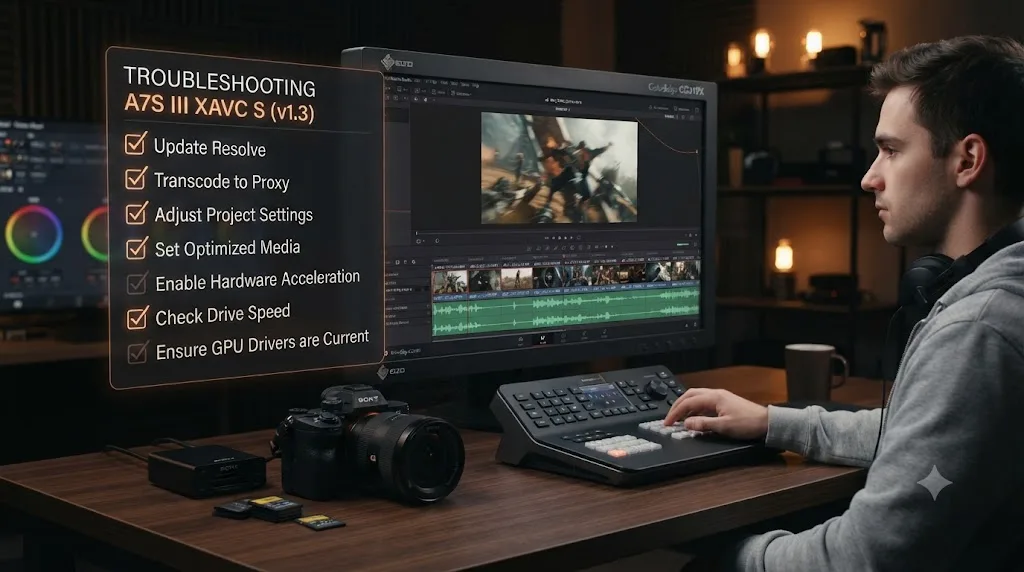
Most A7S III stutter complaints resolve at step two or step five, not the whole list. Identify your exact codec before you troubleshoot anything else, confirm decode is really the bottleneck instead of guessing, and remember that the fix isn't a faster computer. It's usually one setting, or one in-camera habit for your next shoot, that turns a 10-bit slideshow back into an editable timeline.
Frequently asked questions
- Why does Sony A7S III footage stutter in DaVinci Resolve but play fine in QuickTime or VLC?
- Because those players use whatever decoder is easiest to find, often a software one, without caring how many frames per second it manages. DaVinci Resolve has to decode, process, and display frames in real time to keep up with your timeline's frame rate. A file that plays fine at its own pace in a media player can still be too expensive to decode fast enough for live editing.
- Is XAVC S the same thing as XAVC HS on the A7S III?
- No. XAVC S is Sony's H.264 long-GOP format on the A7S III. XAVC HS is the H.265 version of the same idea, and XAVC S-I is an All-Intra H.264 variant. All three can record 10-bit 4:2:2 on this camera, and people use the name XAVC S loosely to mean any of them, which is exactly what makes the troubleshooting confusing.
- Do I need DaVinci Resolve Studio to edit A7S III footage smoothly?
- Not strictly, but it removes one major variable. Studio adds hardware-accelerated H.264/H.265 decoding on Windows and Linux and full 10-bit support, both of which apply directly to A7S III files. The free version can still work with Optimized Media and Proxy Media, which is the same fix Studio owners use anyway.
- Why does my A7S III footage stutter on a powerful desktop but play fine on my laptop?
- Because raw GPU power isn't what decodes video, a small dedicated hardware block is, and not every GPU generation supports 10-bit 4:2:2 in that block. A laptop with a recent integrated GPU or Apple silicon chip can have better codec support than a desktop with an older discrete card, even if the desktop wins every other benchmark.
- Should I switch my A7S III to XAVC S-I instead of XAVC S to fix playback?
- Only if your computer's actual bottleneck is CPU decode, not storage. XAVC S-I is an intraframe codec, which is cheaper to decode per frame, but it also runs at up to roughly 600 Mbps versus roughly 280 Mbps for XAVC S, so it demands far more from your card and your drive. It trades one bottleneck for another.
- Can I use Sony's in-camera Proxy Recording to fix DaVinci Resolve stutter?
- Yes, for future shoots. The A7S III can record a small XAVC S HD or XAVC HS HD proxy file alongside your main recording, and cutting against that proxy first sidesteps the decode problem at the source. It won't help footage you've already shot without a proxy, which is what Resolve's own Optimized Media and Proxy Media are for.
- Why does DaVinci Resolve say Media Offline instead of just playing my A7S III footage slowly?
- That's a different failure than stutter. Media Offline usually means Resolve can't decode the file at all, often because it's 10-bit H.264 or H.265 on a Resolve edition, OS, or driver combination that doesn't support it, rather than decoding it slowly. Stutter means Resolve can decode the file but not fast enough for real time.
Sources
- CineD: Sony a7S III Announced - 4K120 10-Bit 422 & 16-Bit RAW Output (Jakub Han)
- Cinema Tools: Choosing the Best 10-Bit Codec for Sony Cameras (Evgeniy Yavtushenko)
- Puget Systems: What H.264 and H.265 Hardware Decoding Is Supported in DaVinci Resolve Studio? (Matt Bach)
- NVIDIA Video Encode and Decode GPU Support Matrix
- DaVinci Resolve - Tech Specs (Blackmagic Design)
- DaVinci Resolve product page (free version specs, Blackmagic Design)
- DaVinci Resolve Studio product page (Blackmagic Design)
- Apple ProRes White Paper (data rates)
- No Film School: DaVinci Resolve Update 21.0.2 Adds Faster Image Bypass Switching, Improved H.265 Playback, and More
- Newsshooter: DaVinci Resolve 21.0.2 Update
- Sony Help Guide (ILCE-7SM3): Proxy Settings
- Theatre of Noise: Codec Limitations of DaVinci Resolve, HEVC, 10-bit, and RAW (Robin Parmar)
- Sony Support: About CEA-G Series and CEA-M Series CFexpress Type A Memory Card Transfer Speed
- DaVinci Resolve Reference Manual: Proxy Media vs. Render Cache (VFXPedia mirror)
- Blackmagic Forum: Sudden and inexplicable playback lag (Marc Wielage, Certified DaVinci Resolve Color Trainer)
Put this guide to work with TryUncle.
Ask about the step you’re on. TryUncle sees your screen and points at the control you need, so you can keep learning in your own project.
Get TryUncle for Mac or WindowsKeep reading
Fixes · Jul 7, 2026 · 25 min
DaVinci Resolve Playback Choppy or Stuttering? The Real Fix
Fix choppy DaVinci Resolve playback with Optimized Media, Proxy Media, Render Cache, Timeline Proxy Mode, and the Resolve 21.0.2 NVIDIA decode fix.

Fixes · Jul 15, 2026 · 25 min
DaVinci Resolve Proxy Media Setup for a Slow Laptop
Set up proxy media in DaVinci Resolve on a slow laptop: resolution, codec, the Blackmagic Proxy Generator, and the exact settings that stop the stutter.
Comparisons · Jul 7, 2026 · 28 min
DaVinci Resolve Studio Price: Free vs. Studio Cost, Explained
DaVinci Resolve Studio costs $295, paid once, not monthly. Here's exactly what that buys, how it stacks up against Premiere Pro and Final Cut Pro, and who needs it.