Articles / Fixesupdated for DaVinci Resolve 21.0.2 (July 2026)
DaVinci Resolve Says Project Created With a Newer Version: Fix
Quick answer
DaVinci Resolve shows this error because project databases only upgrade forward: once a project opens in a newer build, its data format changes and an older version can't parse it. There's no built-in downgrade. Your fixes are exporting AAF or XML to rebuild the timeline, or using Media Management to carry media and bins into the older version.
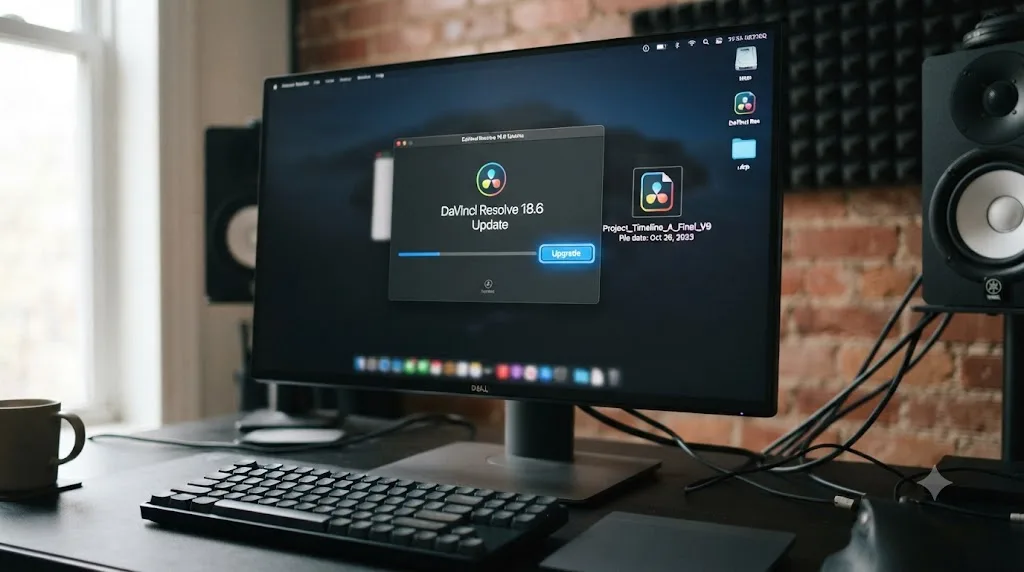
You updated DaVinci Resolve, opened your project once, and now an older machine, or an older install you kept around on purpose, won't touch it. The message reads something like "This project was created with a newer version of DaVinci Resolve" and then it just stops you there. No options, no override, no "open anyway."
That's not a bug. It's the database doing exactly what it's built to do, and it's not going to change its mind no matter how many times you click the project. What changes the outcome is which fix you reach for next, and three of them work while two of them waste your afternoon.
What does "This project was created with a newer version" actually mean?
Read the message literally, because it's telling you exactly what happened. Someone, possibly you on a different machine, opened this project in a Resolve build newer than the one you're running right now. The instant that happened, the newer build rewrote parts of the project's saved data into its own current format, the one your older version has never seen and can't parse.
Resolve isn't guessing here. It checks a version tag stored inside the project's data before it even tries to load the rest, and if that tag is higher than what your installed build understands, it stops cold rather than attempting a partial read that could corrupt what's left. A DaVinci Resolve project only ever upgrades forward, never back. That's the entire mechanism behind this error, and understanding it is what separates a five-minute fix from an afternoon of reinstalling things that were never broken.
This is different from a project that's corrupted, one that's locked by a stuck session, or one that's missing its database entirely. Those all get their own separate error text and their own separate fixes, covered in full in our guide to a DaVinci Resolve project that won't open for symptoms that don't match this specific version message.
Why can't DaVinci Resolve just open it anyway?
Every DaVinci Resolve project lives inside a database, whether that's a local Disk Database folder or a PostgreSQL server running quietly in the background. Both formats carry a schema, a defined structure for how edits, grades, node trees, and metadata get stored. When Blackmagic ships a new major version, that schema often changes to support new features, and the first time a project opens in the new build, Resolve migrates its data to the new schema on the spot.
That migration is a one-way door. Michael Gissing, a longtime moderator on the Creative COW forums, put it as plainly as it can be put when a user asked about opening an 18.5 project in Resolve 16: "The database and project files are not backwards compatible," and when pressed further, "As far as I know you cant open 18 projects in 16," in that forum thread. That was true in 2023 for the 18-to-16 jump, and it's still true in 2026 for 21 to 20.3.2. The version numbers change every year. The rule underneath them doesn't.
Blackmagic's own support staff confirm this isn't accidental data loss, it's the intended behavior. Dwaine Maggart, identified in a separate Creative COW thread as Blackmagic Design Support, answered a user whose database appeared to vanish after an update with this: "At no time do we delete a database. But, if you Upgrade it without backing it up, there is no way back to the previous version with the existing projects," in that thread. Nothing was deleted. The data simply moved forward into a format the older version was never built to read.
Nobody deletes your project when this happens. The newer version just speaks a format your older one has never learned. That distinction matters because it tells you where not to look for a fix. Your data isn't gone. It's just written in a dialect your current build can't parse, and no amount of reinstalling, repairing, or resetting preferences teaches an old binary a schema that didn't exist when it was compiled.
Which version pairs actually trigger this error?
This isn't a one-time quirk from a single release. It's a pattern that repeats at nearly every major and point-release boundary, and knowing the shape of the pattern tells you whether you're looking at a quick upgrade or a real workaround job.
| Newer version | Older version it breaks | Confirmed pattern |
|---|---|---|
| DaVinci Resolve 21.0.2 | 20.3.2 | Project libraries stay readable, but any project opened in 21.0.2 will no longer open in 20.3.2, per CineD's release coverage |
| DaVinci Resolve 20.3.2 | 19.1.4 | Project libraries remain compatible at the database level, but a project touched in 20.3.2 can't reopen in 19.1.4, per DIGITAL PRODUCTION |
| DaVinci Resolve 20.0 | 19.1.4 | Individual projects opened in 20.0 are no longer accessible in 19.1.4, even though the library structure stays reachable, discussed on the Blackmagic Forum |
| DaVinci Resolve 19.0 | 18.6.6 | Project libraries stay compatible with 18.6.6, but projects created or opened in 19.0 will not reopen in 18.6.6, per this Blackmagic Forum thread |
| DaVinci Resolve 18.5 | 16.x, 17.4.6, 18.1 | Confirmed unopenable directly across multiple point releases, requiring XML export or Media Management as the only paths across, per Creative COW |
Notice the shape repeating in every row: the project library, the container holding your list of projects, tends to stay reachable across one version jump. The individual project inside it does not, the moment it's opened. The pattern has held across every major DaVinci Resolve release for years, which means it will almost certainly hold for whatever version ships after 21 too. Plan around it as a permanent feature of how Resolve works, not a bug some future update will quietly fix.
Point releases matter here too, not just major version numbers. Going from 21.0 to 21.0.2 is far less likely to touch the project schema than jumping from 20.3.2 to 21.0, but Blackmagic doesn't publish a guarantee either way for point releases, so treat any version difference as a potential trigger until you've confirmed otherwise on a copy of the project you can afford to lose.
Should you upgrade instead of downgrading?
Before you touch AAF exports or Media Management, ask the obvious question: can you just match the newer version instead of fighting it? This is the fix that costs you the least and preserves the most, and it's worth ruling out first every single time.
If the project was opened in DaVinci Resolve 21.0.2 and you're currently on 20.3.2, installing 21.0.2 on your machine solves the problem completely. Every grade, every Fusion comp, every Fairlight mix comes across intact, because you're no longer asking an old build to read a new format. This is free either way, since both the free and Studio editions of Resolve ship the same version numbers and the same download is available from Blackmagic's support and downloads page.
The two situations where upgrading isn't the answer:
- You're locked to an older version for a specific reason. Maybe a third-party plugin you depend on hasn't been updated for the new build, maybe you're on hardware Blackmagic dropped support for, or maybe a facility-wide standard keeps every machine pinned to one version for the length of a production. In any of these cases, upgrading solves this one project and breaks something else.
- You genuinely need to send the project backward, to a colleague, a client, or an older workstation that isn't yours to update. This is the real use case for everything covered in the rest of this page.
If neither applies to you, stop reading the workarounds and just install the current version. Upgrading your own Resolve build is the only fix on this page that doesn't cost you any data. Everything past this point is a workaround, not a repair, and workarounds always leave something behind.
How do you check what version created a project before you open it?
The single most avoidable version of this error is the one where you open a project blind, watch it fail, and only then realize you've now got to figure out the workaround under time pressure. Checking first costs you thirty seconds.
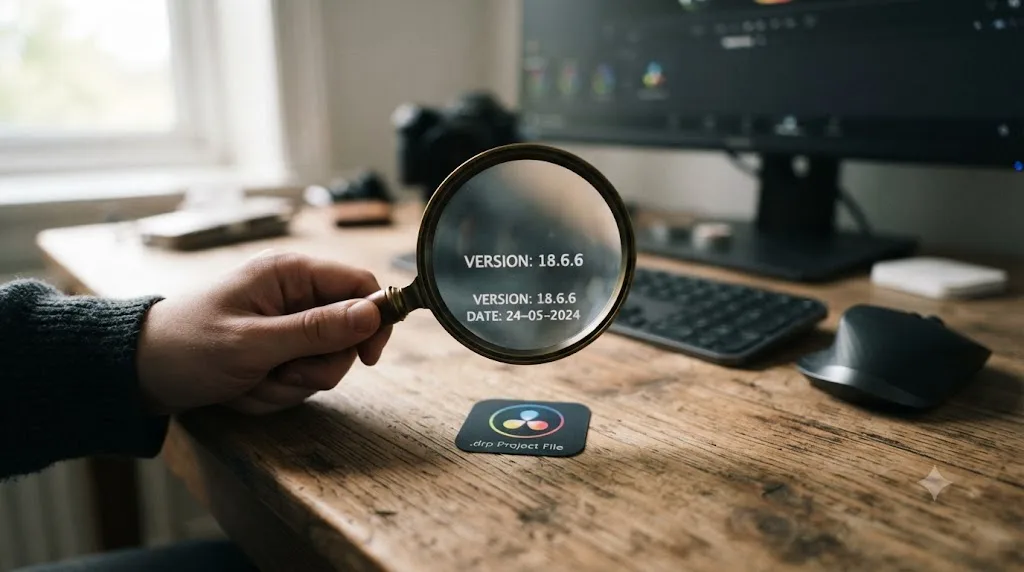
A .drp file, DaVinci Resolve's project export format, is actually a zip archive under the hood, and its version tag lives readable inside one of the internal XML files. A dedicated freeware utility exists specifically to read that tag without you having to unzip anything manually. Built for Windows and shared on the Blackmagic Forum, it lets you drop a .drp, .drt, or .dra file onto its icon and prints the exact Resolve version that exported it, as documented in that forum thread.
If you're on macOS, or you'd rather not run a third-party console tool at all, you can do the equivalent check by hand:
- Make a copy of the
.drpfile, since you're about to rename and poke at it. - Rename the copy's extension from
.drpto.zip. - Extract it with your OS's built-in archive tool.
- Open the extracted
Gallery.xmlorproject.xmlfile in a plain text editor and look for a version string near the top of the file.
This works because a .drp is fundamentally a structured zip, not a proprietary binary format, so any tool that opens zip archives can get you inside it.
Checking a project's version tag before you try to open it takes thirty seconds and can save you an afternoon of guessing. Do this any time a project arrives from someone else, from a different machine of your own, or from a backup you're not sure predates your last update. It's the cheapest diagnostic step on this entire page, and it's the one people skip most often, right before they end up here searching for this exact error.
How do you use Media Management to bring media and bins across?
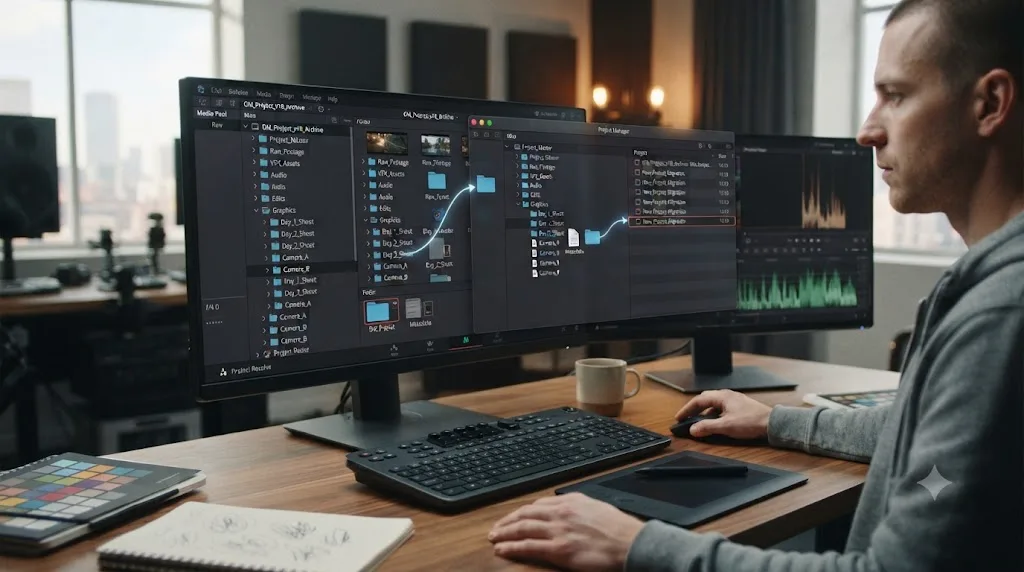
If upgrading isn't an option and you need the folder structure your Media Pool had, not the grade, not the timeline edit itself, Media Management is the tool built for exactly this handoff. It doesn't move the project. It moves the media the project references, along with the organizational structure you built around it.
Run this from the newer version, the one that can still open the project:
- Open the project in the newer build of Resolve, where it opens normally.
- Go to File, then Media Management.
- Point the operation at a destination folder with enough free space for your source media, since Media Management copies or transcodes files rather than just referencing them in place.
- Let it run. This preserves the folder structure you built in the Media Pool, per Blackmagic's own documentation of the feature.
- On the older machine, open a new, empty project.
- Navigate to the folder Media Management created, select the top-level folders, right-click, and choose "Add to Mediapool (create bins)."
Riccardo Luppi walked through exactly this sequence on Creative COW when a user needed to move a Resolve 18 project's organization into Resolve 16 without the effects that wouldn't have survived the jump anyway: use Media Management to preserve the folder structure, then add those folders back on the older side, in that same forum thread.
What you get: your bin hierarchy, your source media, organized the way you left it. What you don't get: your timeline, your cuts, your grades, or your Fusion work. Media Management solves the "I don't want to re-import three hundred clips and rebuild my folder tree" problem specifically. It was never meant to solve the "I need my edit back" problem, which is what AAF and XML export are for.
How do you export AAF to move the edit itself?
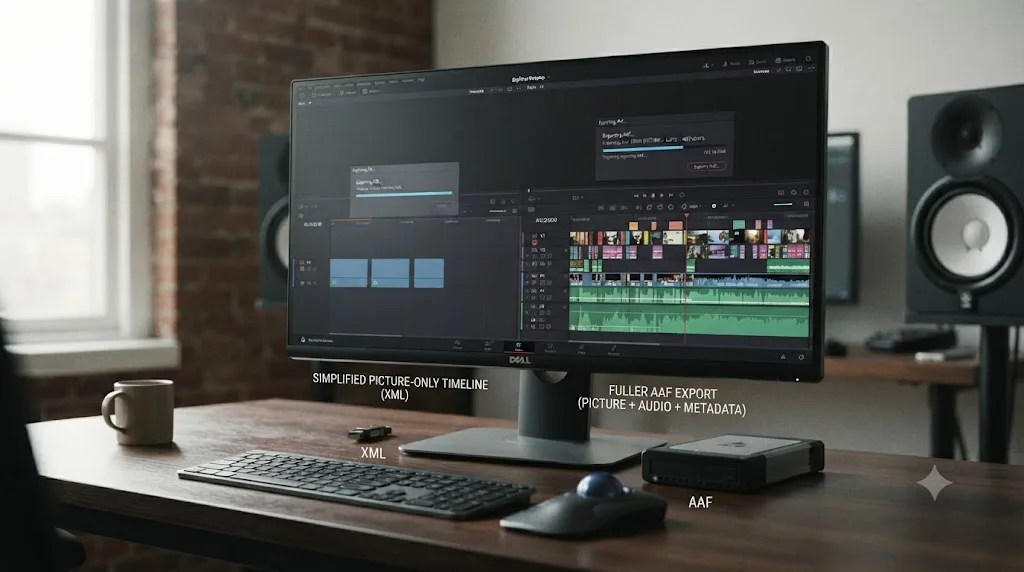
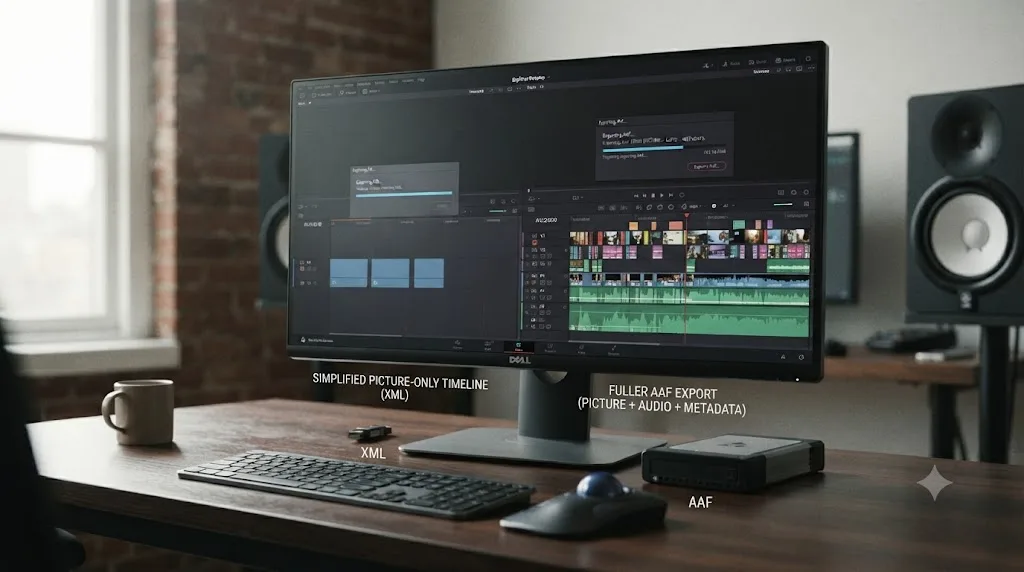
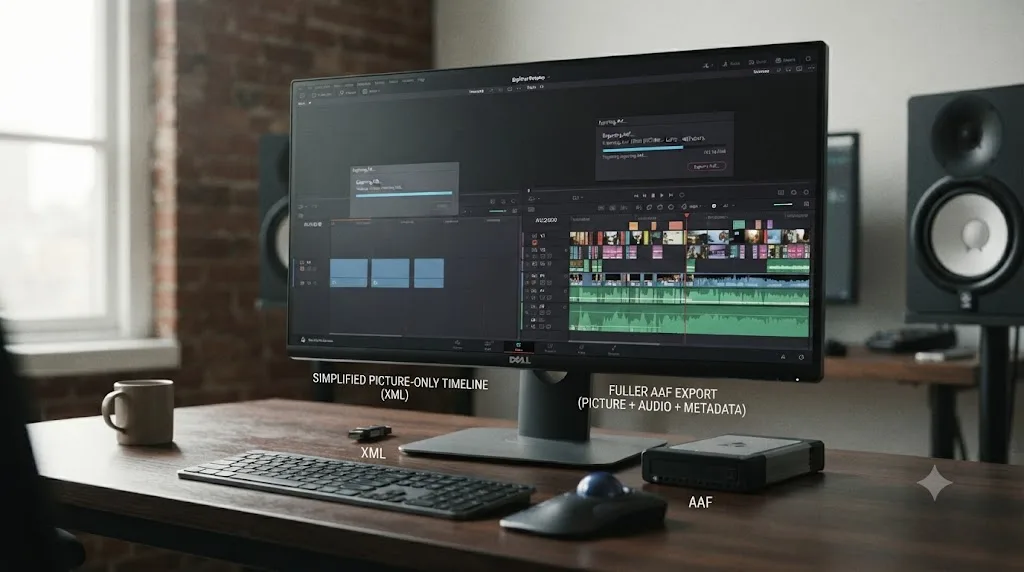
AAF is the format built specifically for carrying an edit between different NLEs and different versions of the same one, and it's the more reliable of your two export options when audio matters, since Advanced Authoring Format was designed from the start to hold multi-track audio references alongside picture.
From the newer version of Resolve, the one that can currently open your project:
- Select the timeline you need to move, either in the Edit page or from the Media Pool.
- Go to File, then Export AAF, XML, or use the shortcut Shift-Command-O on Mac.
- From the Format dropdown, choose AAF Files.
- Name the export and pick a save location, then click Save.
What survives the trip depends heavily on which export path you take, and this is the detail most people miss. If your timeline was originally imported from an AAF and hasn't had major editorial changes since, Resolve can export "all audio and effects using data from the original AAF file that was exported" from wherever it originated, provided that original file is still sitting where Resolve expects it, per Blackmagic's manual on AAF export. If you right-click and choose Generate New AAF instead, which is what you'll do for a timeline built natively in Resolve, "audio and effects that are not supported in DaVinci Resolve in an AAF import are discarded" during that generation, per the same manual.
| What you're exporting | Which method | What survives |
|---|---|---|
| An AAF-originated timeline, unedited since import | Standard AAF export, original file untouched in its original location | Audio and effects data from the source AAF, close to complete |
| A timeline built or heavily edited in Resolve | Right-click, Generate New AAF | Basic cuts and audio clips; unsupported effects and plugins dropped |
| Any AAF export, either method | Both | Color grades, node trees, and Fusion comps never travel in AAF at all |
AAF was built to carry audio and cuts between editing systems, not to carry a color grade. That last row in the table is the one that trips people up, since it's easy to assume an export format that handles this much complexity handles everything. It doesn't, by design. Grades live in Resolve's node system, a structure specific to Resolve itself, and no interchange format, AAF included, was built to represent it.
How do you export XML instead, and when should you pick it over AAF?
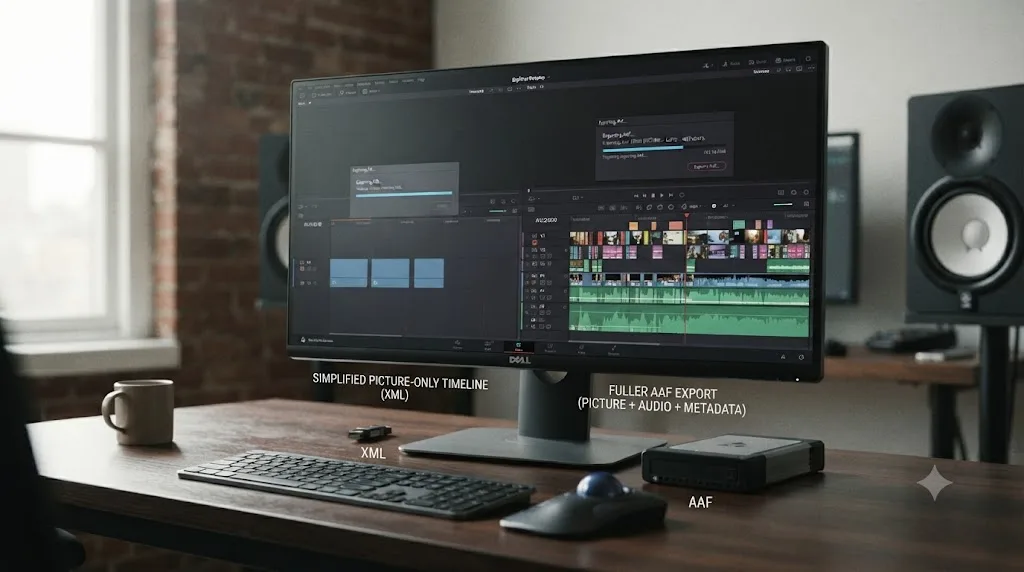
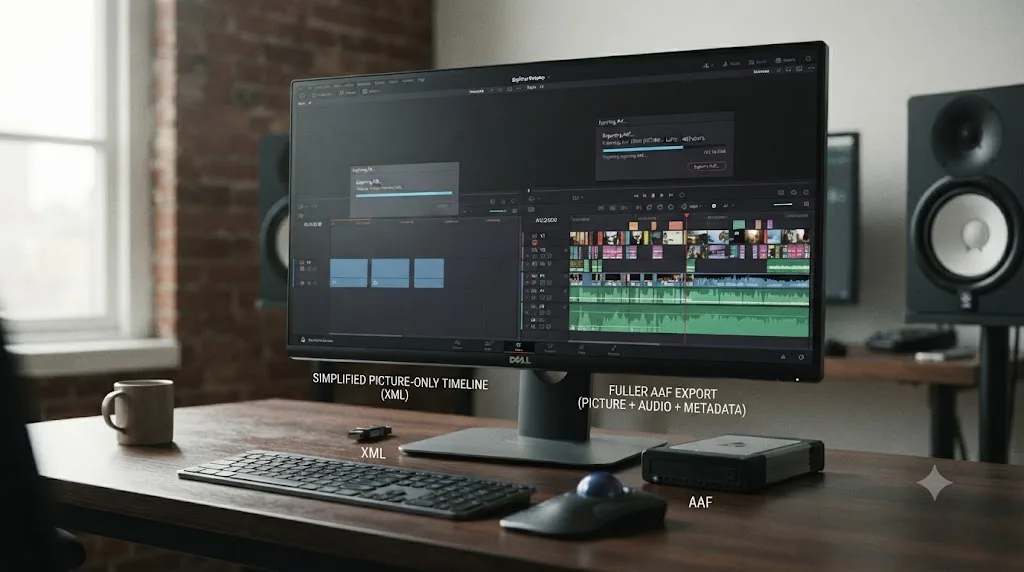
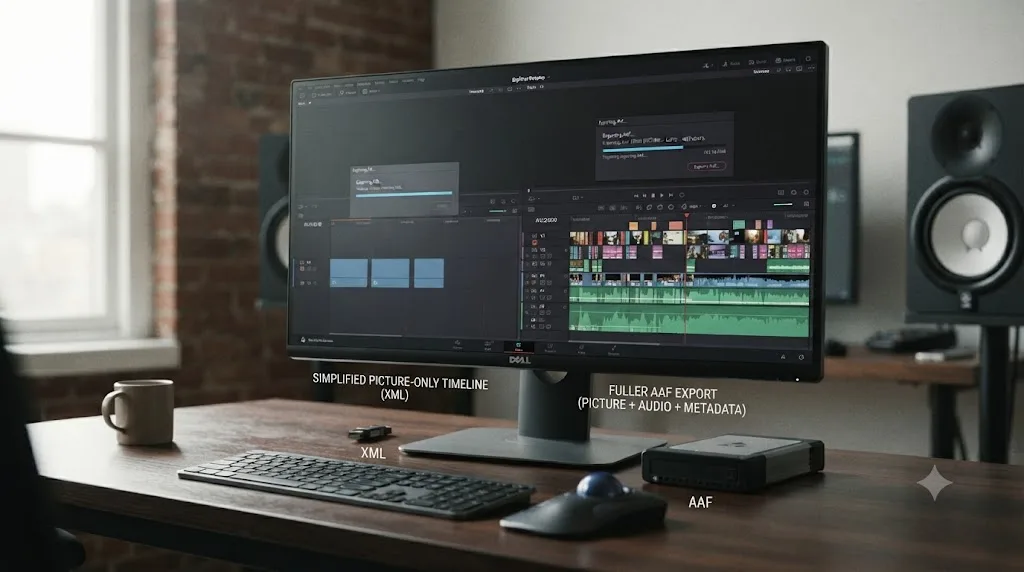
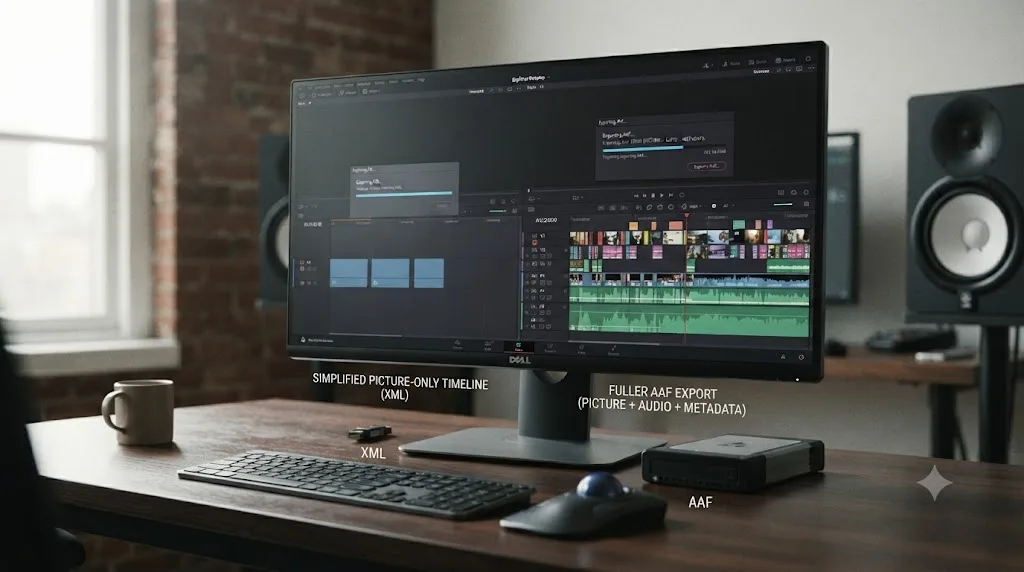
XML is the lighter, simpler alternative, and it's the better choice specifically when your timeline is a picture-only cut with straightforward transitions and you don't need Resolve to reconstruct complex audio routing on the other end.
The export steps are nearly identical to AAF, since both live behind the same menu:
- Select your timeline.
- Go to File, then Export AAF, XML.
- This time, choose XML instead of AAF Files from the Format dropdown.
- Save it somewhere both the newer and older machine can reach, or somewhere you can transfer it easily.
- On the older Resolve, create a new project and import the XML through File, then Import Timeline, then Import AAF, XML.
Pick between the two formats based on what your timeline actually needs to carry:
- Choose XML for a straightforward picture cut, simple cross-dissolves, and situations where audio can be re-conformed or isn't the priority.
- Choose AAF when audio has to survive intact, since it was purpose-built for that handoff in a way XML's original design never fully matched.
- Use both if you're not sure. Export each, import each into a test project on the older version, and compare which one reconstructed more of what you actually need before committing to a full rebuild.
Whichever you choose, expect the same limitation as AAF: the edit structure travels, the grade does not. XML and AAF are both edit-decision formats at heart, lists of in and out points, source references, and basic transform data, not a serialization of Resolve's color pipeline.
If your workflow runs the other direction too, moving edits between Resolve and Premiere Pro rather than between two Resolve versions, the failure modes are different enough to need their own page. Our guide to DaVinci Resolve XML import from Premiere Pro not working covers the conform, timecode, and nested-sequence problems specific to that cross-application handoff.
How do you get your color grade back after an AAF or XML export?
This is the part nobody wants to hear, but it's better to hear it clearly than to discover it after you've already sent a client the wrong file. Neither AAF nor XML carries your grade. If the look of the project matters as much as the cut, you have two real options, and they trade off speed against fidelity.
Option one: render before you export. In the newer version of Resolve, the one that still has your grade intact, render the graded timeline out to a high-quality intermediate codec, ProRes or DNxHR at a mezzanine bitrate. This bakes the grade into pixels permanently. The older version then works from graded footage directly, with no node tree to reconstruct, at the cost of losing the ability to make further grade adjustments on the older machine.
Option two: export Gallery stills as a manual reference. If you need the project to stay editable and graded-from-scratch on the older version, export still frames from your Gallery at key points in the timeline before you do anything else. Those images become your visual target. On the older Resolve, you rebuild the grade by eye, matching your new nodes against the reference stills rather than trying to import grade data that was never going to cross the version boundary anyway.
- In the newer version, open the Color page and select representative frames across your timeline, ideally one per distinct lighting setup or scene.
- Grab a still for each using the Gallery panel's grab-still function.
- Export the entire Gallery album as image files, keeping them organized by timeline position or scene name.
- Move those images alongside your AAF or XML export to the older machine.
- Rebuild the grade in the older version's node tree, using the still images as your visual reference rather than a data source Resolve can import directly.
Neither option is fast. A color grade never survives an AAF or XML export, no matter which format you pick or how carefully you configure it. That's not a settings problem you can fix with a checkbox. It's a structural gap between what these interchange formats were designed to carry and what Resolve's node-based grading actually is, and the only paths across it are baking the grade into rendered pixels or rebuilding it by eye against a reference.
Does this depend on Free versus Studio, or just the version number?
It's worth ruling this out explicitly, because it's a natural question and the answer isn't obvious from the error message alone. This compatibility rule is tied entirely to the version number stamped on the build, not to which license tier you're running.
DaVinci Resolve Free and DaVinci Resolve Studio share the same core application and the same project database format at any given release. A project opened in Resolve Studio 21.0.2 hits the exact same wall in Resolve Free 20.3.2 that it would hit in Resolve Studio 20.3.2, because the schema that changed lives in the underlying database engine, not in whatever features your license unlocks. Switching between Free and Studio, or upgrading your license, has zero effect on whether this error appears.
Where license tier does matter is what you're able to do once you've worked around the error. AAF and XML export are available in both Free and Studio, so the workarounds in this guide work regardless of which license you're on. If you're deciding whether Studio's price is worth it for other reasons entirely, unrelated to this specific problem, that's a separate question our DaVinci Resolve Studio price guide covers on its own terms.
What if your whole team is on different Resolve versions?
Everything above assumes one project moving between two machines you control. Add a shared PostgreSQL database and a team of editors, and the same underlying rule turns into a much bigger problem, because one person's update can silently lock out everyone else.
Here's how it actually plays out. Your team shares a project library on a PostgreSQL server. One editor updates their local Resolve install, opens a shared project to check something, and closes it again without changing a single frame. That's enough. The project's data just upgraded to the newer schema, and every other editor on the team, still running the older version, now hits this exact error the next time they try to open that same project, through no action of their own.
This is why facilities that run shared databases enforce version discipline as a hard rule, not a suggestion. The fix once it's already happened is the same as everything covered above: export AAF or XML from whoever's machine has the newer version, rebuild on the older side, or get every machine upgraded to match. But the real fix is preventing it in the first place:
- Pin every machine touching the shared database to the identical point release, not just the same major version number, since even a jump from 21.0 to 21.0.2 carries some risk.
- Agree as a team on a single person, or a single scheduled window, who's allowed to trigger an upgrade, and don't let anyone update independently on a whim.
- Before any planned upgrade, back up the shared database in full, and confirm every team member has exported a
.drpcopy of whatever they're actively working on. - Test the upgrade on one machine against a copy of the database first, never against the live shared library everyone depends on.
One editor updating their own machine can lock an entire shared project database for the rest of the team without anyone touching a setting. That's the version of this error that costs the most, because it isn't one person's afternoon, it's everyone's, and it happens fastest on teams that never wrote down a version policy in the first place.
Is this a Mac problem, a Windows problem, or both?
The underlying rule, forward-only schema migration, is identical on both platforms, since it lives in Resolve's application code and database engine rather than the operating system. What differs is the tooling and paths you'll use while working around it.
On Windows, the version-identifier utility covered earlier runs natively, and your Resolve Disk Database or PostgreSQL install lives under AppData\Roaming\Blackmagic Design\DaVinci Resolve. If you're maintaining two Resolve versions side by side on the same Windows machine for exactly this reason, keeping an older build around specifically to handle downgrade requests, be careful about install order and database paths, since a newer installer can affect the shared PostgreSQL service that both versions rely on.
On macOS, there's no native build of that Windows identifier tool, so the manual zip-inspection method covered earlier is your equivalent. Your database and preferences live under ~/Library/Application Support/Blackmagic Design/DaVinci Resolve. Apple Silicon Macs add one more wrinkle worth knowing about if you're troubleshooting a launch failure that looks similar to this error but isn't: Resolve 21 requires macOS 15 Sequoia or later and dropped Intel Mac support entirely, a platform incompatibility that can masquerade as a version problem even though no project database is actually involved, as covered in our project-won't-open guide.
| Task | Windows | macOS |
|---|---|---|
| Check a project's version before opening | Dedicated freeware identifier tool | Manual zip-rename and XML inspection |
| Database and preferences location | AppData\Roaming\Blackmagic Design\DaVinci Resolve | ~/Library/Application Support/Blackmagic Design/DaVinci Resolve |
| Running two Resolve versions side by side | Possible, watch shared PostgreSQL service conflicts | Possible, same PostgreSQL caveat applies |
| Platform-specific false alarm | Old background process holding a launch lock | Intel Mac hardware incompatibility with Resolve 21 |
What's the full decision path, from fastest to most involved?
If you'd rather work through this in order than jump to the section matching your exact situation, here's the sequence that costs you the least at each step, worked from fastest to most involved.
- Check the project's version tag first, using the identifier tool on Windows or the manual zip inspection on Mac, so you know exactly what you're dealing with before you try anything.
- Try upgrading your own Resolve to match, if nothing else is stopping you. This is the only option that preserves everything, and it costs nothing but download time.
- If you must stay on the older version, decide what you actually need back: the edit structure, the media organization, or the grade, since each needs a different tool.
- Run Media Management if the folder structure and source media are what matters most.
- Export AAF if audio needs to survive the trip intact, using the original-file method if the timeline came from AAF originally, or Generate New AAF otherwise.
- Export XML if it's a simple picture cut and AAF feels like overkill.
- Render the graded output, or export Gallery stills for manual rebuilding, if the color grade itself has to make the trip in some form.
- If you're on a shared team database, treat this as a policy problem, not just a technical one, and get everyone pinned to the same point release going forward.
Each step down this list costs more time than the one before it. Checking a version tag takes thirty seconds. Rebuilding a grade by eye against Gallery stills can take hours, depending on how complex the original work was. Work from the top and stop the moment you've got what you actually need.
How do you stop this from happening again?
Every fix on this page exists because a backup didn't. The version mismatch itself is unavoidable, Blackmagic isn't going to add backward compatibility to its database engine, but getting caught by it without a safety net is entirely optional.
- Export a
.drpcopy of any project before you or anyone on your team updates Resolve. This takes seconds and gives you an untouched fallback that opens fine in your current version no matter what happens to the live copy afterward. - Back up your project database on a real schedule, using the Backup button next to your library in Project Manager, not just before upgrades but as routine practice.
- If you're on a shared database, write down a version policy and actually enforce it, since the workgroup scenario covered above is entirely preventable with five minutes of team agreement.
- Hold your Resolve version steady during an active deadline project. A mid-project upgrade converts your working files into a format your backup machine, your freelancer's laptop, or your client's review station can no longer open, right when you have the least time to deal with it.
- Keep the old installer around, not just the new one. If you ever need to downgrade a machine to match an untouched older project, having last year's installer saved somewhere beats hunting for it in Blackmagic's download archive under time pressure.
A project you exported as .drp before upgrading is the fastest fix for this entire error, and it costs you nothing until the day you need it. That's the whole point of a backup: it's invisible right up until it's the only thing standing between you and a rebuilt grade from memory.
Verdict: match the version, or budget for a rebuild
"This project was created with a newer version" isn't a corrupted file, a stuck lock, or a database you need to repair. It's DaVinci Resolve refusing to guess at a format it's never seen, which is the correct, safe behavior even though it feels like the app is blocking you for no reason.
Your fastest fix is always checking whether you can simply match the version that touched the project. When you can't, AAF and XML export get your edit across the gap, Media Management gets your media and bin structure across separately, and rendering the graded output or rebuilding from Gallery stills is your only real path for the color work itself. None of that is instant, and none of it is a bug you can patch around. It's the cost of two Resolve versions no longer speaking the same database language.
If you're spending more time reading forum threads trying to figure out which of these five paths applies to your exact situation than you are actually fixing it, that's the gap TryUncle is built to close. TryUncle is an AI tutor for DaVinci Resolve on macOS - ask in plain words and Uncle points at the exact control on your screen, live, inside your own project rather than a screenshot from someone else's version. TryUncle is currently in founder pricing, and it runs on macOS only.
Check your project's version tag before you touch anything else. Then pick the one fix from this page that actually matches what you need back, and skip the four you don't.
Frequently asked questions
- What does 'This project was created with a newer version of DaVinci Resolve' actually mean?
- It means the project's saved data was written or last touched by a Resolve build newer than the one you're currently running, and that newer build upgraded the project's internal format the moment it opened it. Your older version's parser doesn't recognize that format, so it refuses to open the file rather than risk corrupting it.
- Can I downgrade DaVinci Resolve itself to match an older project?
- Yes, if the project was never opened in a newer build. Uninstall the current version, install the older one from Blackmagic's download archive, and the untouched project opens normally. This only works before the newer version touches the project. Once it has, downgrading Resolve doesn't downgrade the project's data.
- Will exporting AAF or XML lose my color grade?
- Yes, in the direct sense. AAF and XML carry edit structure, in and out points, and basic transitions, not DaVinci's node-based grade data. Rendering the graded output as new media before export is the only way to carry the look itself across the version gap, since the render bakes the grade into pixels instead of leaving it as editable node data.
- Does Media Management preserve my bin structure when moving to an older version?
- Yes, that's specifically what it's good at. Media Management in the newer version consolidates and copies your source media while preserving your Media Pool's folder structure. In the older version, you add those folders back with 'Add to Mediapool (create bins)', which rebuilds your organization even though it doesn't carry timelines or grades.
- Does this happen between DaVinci Resolve Free and Studio, or only between version numbers?
- It's tied to the version number, not the license tier. Free and Studio share the same underlying project database format at any given release, so a Studio 21 project and a Free 21 project follow identical compatibility rules. Switching license tiers doesn't cause this error and doesn't fix it either.
- How do I check which Resolve version created a project file before opening it?
- A .drp file is a zip archive, and its version tag lives inside an internal XML file. Third-party tools built specifically to read that tag exist for Windows, or on any platform you can rename a copy of the .drp to .zip and inspect the contents directly rather than guessing and risking a failed open.
- What if my whole team is on different Resolve versions?
- Pin every machine touching a shared project database to the exact same point release, not just the same major version, and agree as a team on when anyone is allowed to upgrade. One editor opening the shared project in a newer build silently locks everyone else out, and the fix afterward is a rebuild from AAF or XML, not a quick setting change.
Sources
- Creative COW forum: Open Resolve 18 project with Resolve 16 (Michael Gissing, Riccardo Luppi)
- Creative COW forum: Project Database gone after update (Dwaine Maggart, Blackmagic Design Support)
- downloadsource.net: How to Fix Davinci Resolve Unable to Import Project Files
- DIGITAL PRODUCTION: Resolve 20.3.2 tidies up the edges
- CineD: DaVinci Resolve 21.0.2 Released - Keyframe Fixes, Retime Curve Improvements, and Better Fusion Vertical Transitions
- Blackmagic Design DaVinci Resolve Manual: More About Exporting to AAF
- Blackmagic Design DaVinci Resolve Manual: What Is Media Management in DaVinci Resolve?
- Blackmagic Forum: DRP DRT DRA Version Identifier
- Blackmagic Forum: Downgrading version 20 project to 19?
- Blackmagic Forum: Revert Project Opened in 19 back to 18.6.6
- Blackmagic Design: DaVinci Resolve support and downloads
- Blackmagic Design: DaVinci Resolve - What's New
Put this guide to work with TryUncle.
Ask about the step you’re on. TryUncle sees your screen and points at the control you need, so you can keep learning in your own project.
Get TryUncle for Mac or WindowsKeep reading
Fixes · Jul 10, 2026 · 23 min
DaVinci Resolve Project Won't Open: Match Symptom to Fix
Whether DaVinci Resolve hangs at 100%, crashes on launch, or shows a database error, here's the exact cause behind each symptom and how to fix it.
Fixes · Jul 12, 2026 · 29 min
DaVinci Resolve XML Import from Premiere Pro Not Working
Every reason DaVinci Resolve rejects, empties, or offlines an XML timeline exported from Premiere Pro, and the exact fix for each failure mode.
News · Jul 8, 2026 · 21 min
DaVinci Resolve 21 New Features: The Complete List
Every new feature in DaVinci Resolve 21, page by page: Photo page, nine AI tools, Krokodove, MultiMaster, and Fairlight updates, all sourced.