Articles / Guidesupdated for DaVinci Resolve 21.0.2 (July 2026)
DaVinci Resolve: XAVC vs XAVC S Explained
Quick answer
XAVC is Sony's professional format: H.264 wrapped in a broadcast-standard MXF container, scaling up to 4:4:4 12-bit. XAVC S is the consumer version of the same codec, wrapped in a simpler MP4 container, originally 8-bit only though recent cameras add 10-bit modes. DaVinci Resolve imports both natively; the real gate is bit depth, not the container.
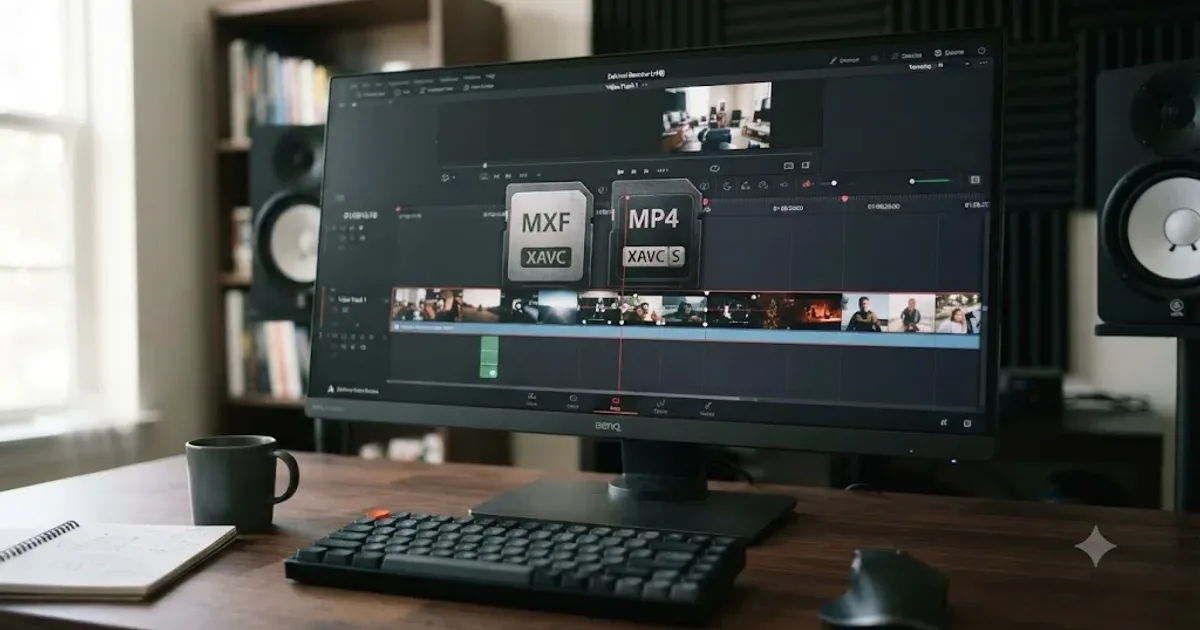
XAVC and XAVC S share three letters and almost nothing else once you look past the name. One is Sony's professional broadcast format. The other is the consumer format most Sony mirrorless shooters actually record. Mix them up and you'll troubleshoot the wrong problem, chasing an MXF workflow issue when your file is an MP4, or assuming a routine import when your footage is quietly asking DaVinci Resolve's free version to decode something it wasn't built for.
We've spent seven years cutting commercial video professionally, plenty of it on Sony bodies, and this exact mix-up is one of the recurring questions in our 100,000+ member editing community. As of July 2026, on DaVinci Resolve 21.0.2, here's what XAVC and XAVC S actually are, where XAVC S-I and XAVC HS fit between them, how the two formats organize files differently on the card, what each one actually costs you in drive space, and what changes on your timeline depending on which one you shot.
What is XAVC, and what is XAVC S?
XAVC is Sony's professional video format, built around H.264/MPEG-4 AVC compression and wrapped in a Material Exchange Format (MXF) container designed for broadcast ingest. XAVC S is the consumer version of the same underlying codec, wrapped in an MP4 container instead, aimed at cameras and workflows that never touch a broadcast facility.
Sony introduced XAVC on October 30, 2012, and followed it five months later, on April 7, 2013, with XAVC S, extending the same compression approach down to consumer cameras like its early NEX and Alpha bodies, per Wikipedia's history of the format. Both formats can scale from HD up to 4K, and both were designed to replace the older AVCHD format, which topped out at a fraction of XAVC's bitrate ceiling and never handled 4K cleanly.
Technology journalist David Shapton, writing for RedShark News shortly after the format's early expansion, drew the split in one sentence:
"XAVC is the professional format, and it's wrapped in an MXF OP1a container - which is standard across broadcast platforms. XAVC-S is the consumer format, and it's wrapped in an MPEG-4 container."
That's from Shapton's piece on Sony's XAVC format, and it's held up as the cleanest one-line explanation of the split over a decade later. XAVC and XAVC S run the same H.264 compression engine. What actually separates them is the container, the bit depth ceiling, and the workflow each one was built to survive.
What's the real technical difference between XAVC and XAVC S?
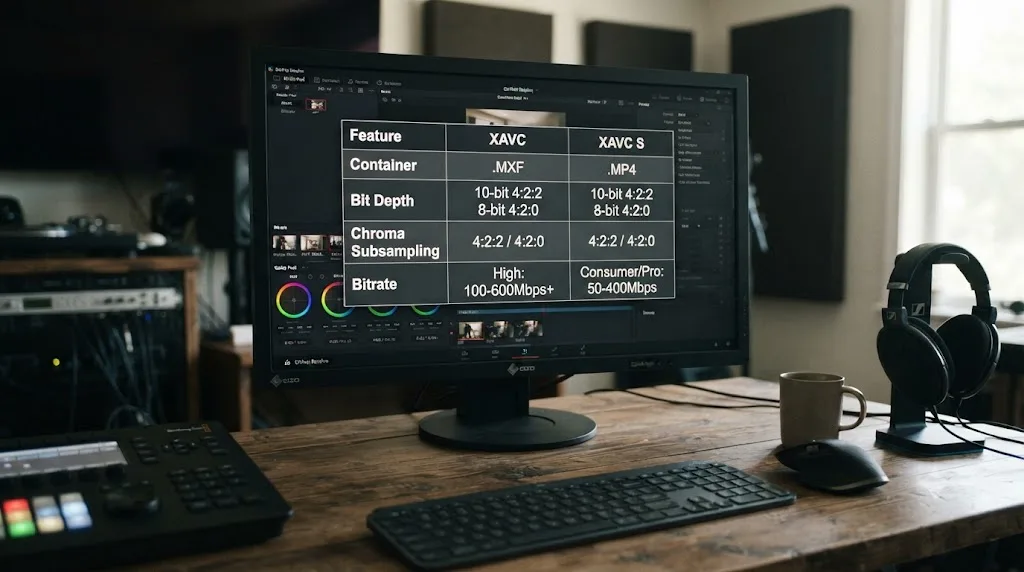
The gap is wider than the shared name suggests, and it shows up in six places: container, bit depth, chroma subsampling, audio, bitrate ceiling, and the cameras each one actually ships on.
| Property | XAVC (professional) | XAVC S (consumer) |
|---|---|---|
| Introduced | October 30, 2012 | April 7, 2013 |
| Codec | H.264/MPEG-4 AVC | H.264/MPEG-4 AVC, same codec family |
| Container | MXF (OP1a) | MP4 |
| Bit depth | 8, 10, or 12-bit | 8-bit originally; 8-bit or 10-bit on recent cameras |
| Chroma subsampling | 4:2:0, 4:2:2, or 4:4:4 | 4:2:0 typical, 4:2:2 on 10-bit modes |
| Audio | Uncompressed LPCM in MXF | AAC or LPCM in MP4, camera-dependent |
| Bitrate ceiling | Up to 600 Mbps at 4K 60fps on the PMW-F55 | 60 to 280 Mbps on current cameras |
| Typical cameras | PMW-F55, PMW-F5, professional camcorders | Alpha and Cinema Line bodies, FDR camcorders |
Those figures come from Wikipedia's XAVC entry and Sony's own current file format documentation. Shapton's article adds one more number worth knowing: XAVC as a family was engineered to scale from 15 Mbps all the way to 960 Mbps, covering everything from lightweight HD proxies to the most demanding 4K slow-motion capture, a range XAVC S was never asked to cover.
The audio row is easy to overlook and it still trips up editors on delivery day. Professional XAVC in its MXF wrapper carries uncompressed LPCM audio as standard, the same broadcast-grade audio essence a mixer expects to pull straight into a DAW without a lossy decode step first. XAVC S in its MP4 wrapper can carry either AAC, a compressed lossy codec, or uncompressed LPCM, and which one you actually get depends on the camera and the audio settings you picked in-camera, not a fixed rule tied to the format name. We cover exactly what that looks like in practice further down.
A camera shooting XAVC S is running the exact same compression math as a professional broadcast camera shooting XAVC. It's the wrapper, the bit-depth ceiling, and the metadata structure that separate a consumer clip from a broadcast one, not the underlying pixels. That's genuinely good news for image quality and genuinely confusing for anyone trying to troubleshoot an import problem by codec name alone.
How much of a leap was XAVC over AVCHD, the format it replaced?
Sony and Panasonic developed AVCHD together and introduced it in 2006, six years before XAVC existed, and knowing what XAVC actually replaced explains why its bitrate ceilings look so generous by comparison. AVCHD also compresses with H.264/MPEG-4 AVC, the same codec family XAVC and XAVC S both use, but per Wikipedia's AVCHD entry, its data rate specification tops out around 24 Mbps for most consumer recording and 28 Mbps in its highest progressive-scan mode. Its lowest tier, built specifically for DVD media, caps at just 18 Mbps.
Sony's own help documentation states the gap plainly rather than leaving it implied. On the a6300, XAVC S HD runs at up to 100 Mbps, and Sony's own help guide for that camera describes the result in one line: XAVC S "records a more vivid movie compared to AVCHD." Put the two side by side and the jump is roughly fourfold at HD resolution alone, before you even count XAVC S's 4K modes, something AVCHD was never built to record natively at all.
| Format | Max bitrate | Resolution ceiling | Source |
|---|---|---|---|
| AVCHD | ~28 Mbps (17 Mbps average) | 1080i/1080p, no native 4K | Wikipedia / Sony a6300 help guide |
| XAVC S HD | ~100 Mbps | 1080p | Sony a6300 help guide |
| XAVC S 4K | ~100 Mbps (up to 200 Mbps on later 10-bit cameras) | 3840x2160 | Sony a6300 / A7S III documentation |
AVCHD was engineered for an era of DVDs, Blu-ray discs, and spinning hard drives, while XAVC was built from day one around flash memory that could sustain far higher write speeds. That's the real reason the bitrate ceiling jumped so dramatically between the two formats rather than a simple marketing refresh. If you're still holding onto AVCHD footage from an older camcorder, or an early Sony NEX or Alpha body that predates XAVC S entirely, this is the concrete number behind the format gap you'll feel the moment you try to grade it: shadows and skies band faster in AVCHD's tighter bit budget than they do in even a base XAVC S file. There's nothing wrong with the AVCHD footage itself, and DaVinci Resolve reads its .MTS files without complaint, but don't expect the same grading latitude a modern XAVC S or XAVC HS clip gives you.
Why does XAVC use MXF while XAVC S uses MP4?
Because the two formats were built for opposite ends of a production pipeline, and the container each one carries reflects exactly that. MXF OP1a is the wrapper broadcast facilities, playout servers, and professional post houses expect by default, carrying metadata like timecode and reel names that a consumer MP4 file was never designed to hold. MP4 is the general-purpose wrapper your phone, your action cam, and most consumer software already know how to open without a plugin.
Sony's own workflow reflects that split. Catalyst Browse, Sony's free cross-platform tool for previewing and managing footage, is built to handle both ends: professional MXF clips from cinema cameras and consumer XAVC S or XAVC HS clips from Alpha bodies, per Sony's own help documentation for cameras like the FX3. That's Sony acknowledging directly that the two formats live in different worlds even while sharing compression math.
The practical upshot for a Resolve editor: if you're handed an XAVC MXF file from a broadcast shoot, it's carrying professional handoff metadata your project may actually need to preserve, reel names and timecode among them. An XAVC S MP4 file from a mirrorless camera almost never carries that metadata, because nothing downstream in a typical consumer pipeline was built to expect it.
Does XAVC S organize files differently from professional XAVC on the card?
Yes, and this is the part almost nobody warns you about until you've already broken something. The container difference isn't just about what's inside one file. It changes how many files, folders, and sidecar documents make up a single "clip," and moving those pieces around carelessly is one of the fastest ways to turn a routine card dump into a relinking headache.
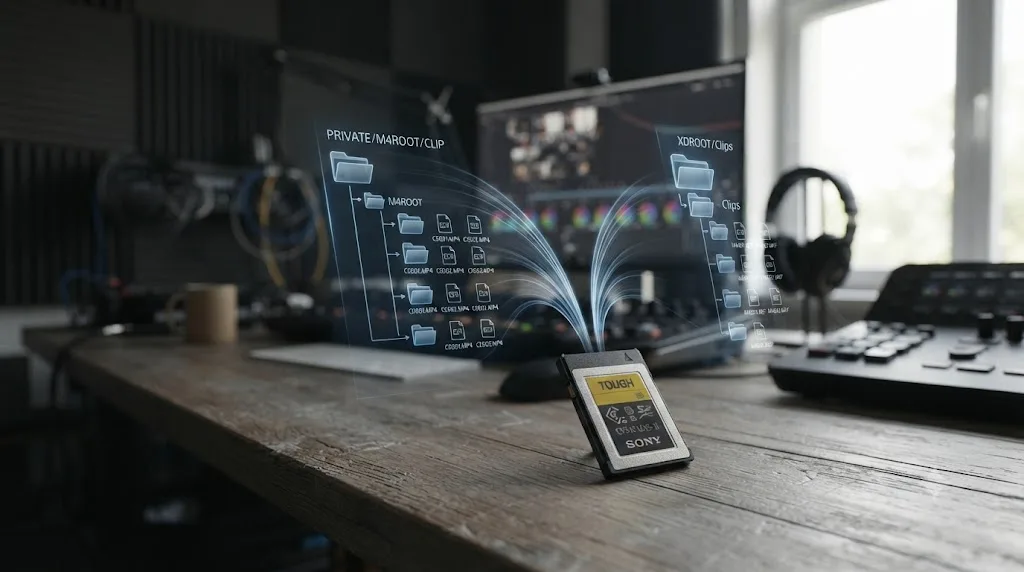
XAVC S stores its clips inside a simple, shallow structure: PRIVATE > M4ROOT > CLIP, with each clip sitting there as one self-contained MP4 file, according to a breakdown of Sony's consumer file organization. That same source notes a genuine limitation worth knowing before a shoot: on cameras like the a7S, you can only record stills and MP4 files into custom in-camera folders, not XAVC S clips themselves, which means any real organization has to happen after the fact, during your ingest to a hard drive. Because each XAVC S clip is just one MP4 file with no dependent sidecar, you can copy, rename, and reorganize those files individually without breaking anything Resolve needs to read them.
Professional XAVC on SxS-card camcorders like the PMW-F5 and PMW-F55 works differently. Clips live inside an XDROOT folder, specifically under XDROOT > Clips, and editors are instructed to point their NLE at that XDROOT folder directly rather than hunting for individual files inside it, per AbelCine's guide to importing F5/F55 footage. Depending on the specific Sony professional system, that folder can also carry sidecar XML files alongside the MXF essence, metadata that some workflows depend on and that a plain file copy can silently leave behind if you're not careful. Sony's older XDCAM optical-disc format used a related but distinct BPAV folder structure, and post facilities that have handled file-based Sony media for years treat one rule as close to gospel: never rename, reorganize, or partially copy a professional clip's folder with anything other than Sony's own transfer software, since a post house's most common file-based ingest problems trace directly back to someone doing exactly that.
The consumer MP4 file you get from XAVC S survives casual handling. The folder-based clip you get from professional XAVC does not. If you're the person responsible for copying footage off a card at the end of a shoot day, that single fact should decide whether you drag-and-drop individual files or copy an entire folder structure wholesale, verbatim, without touching what's inside it.
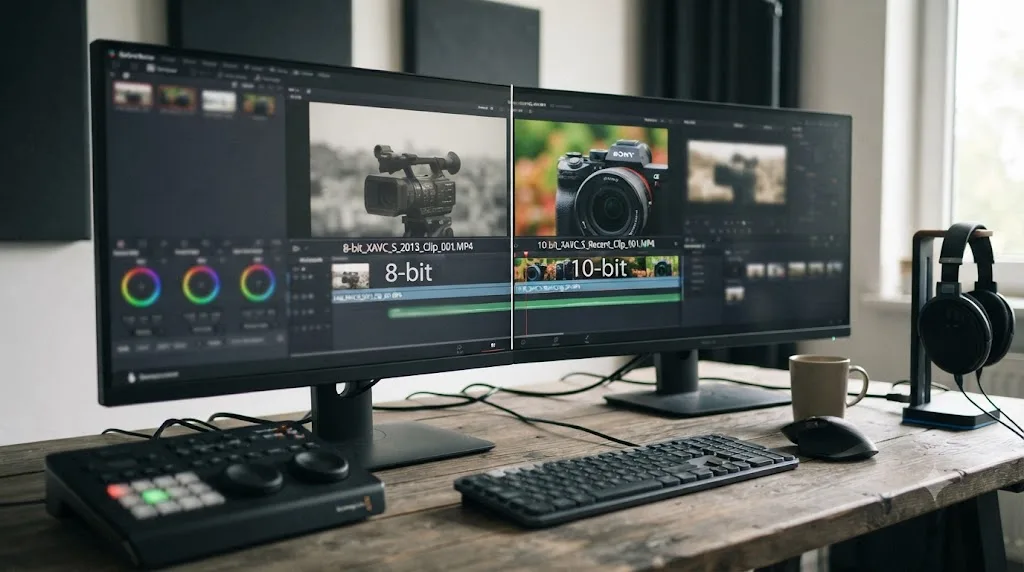
Is XAVC S always 8-bit?
Not anymore, and this is the single most out-of-date piece of advice still circulating about this comparison. XAVC S launched in 2013 as an 8-bit-only consumer format, and older comparison articles, written when that was still true, get quoted and requoted long after the format moved on.
Sony's own current file format documentation lists two XAVC S 4K tiers side by side: a 150 Mbps 4:2:0 8-bit mode and a 200 Mbps 4:2:2 10-bit mode, per Sony's own support page. Recent Alpha and Cinema Line bodies, including the A7S III and A7 IV, can record 10-bit XAVC S directly, no S-I or HS suffix required. That's a genuine version delta worth pinning to your camera's specific firmware and generation, since earlier XAVC S-only bodies really were locked to 8-bit and nothing you do in-camera changes that.
The web still repeats a rule that stopped being true years ago: XAVC S is not always 8-bit anymore. Sony's own current documentation lists a 10-bit, 4:2:2 XAVC S mode right alongside the original 8-bit option, and that single fact changes what your DaVinci Resolve edition needs to be able to decode before you assume a "consumer format" means "safe for the free version."
What is XAVC S-I, and how is it different from XAVC S?
XAVC S-I is the consumer Intra-frame version of XAVC S, meaning every frame is stored as a complete, self-contained image instead of a chain of frames that reference each other. That property makes XAVC S-I genuinely cheaper to decode per frame, at the cost of a much higher bitrate and far larger files.
Real numbers make the trade concrete. On cameras like the A7S III and A7 IV, XAVC S runs roughly 140 to 280 Mbps depending on frame rate, while XAVC S-I runs roughly 240 to 600 Mbps for the same resolution, according to interceptor121's testing across Sony's a1 and A7S III codec options. That same testing frames the difference in a way that's easy to remember: Sony's engineering approach across both codecs works out to roughly 10 Mbps of budget per frame of video, and XAVC S-I simply spends that budget on every single frame instead of on one reference frame per group of pictures. The testing describes standard XAVC S's frame structure as "a combination of 1 reference intraframe for each group of pictures and multiple P and B frames," meaning Predicted and Bi-directional predicted frames that each lean on their neighbors to reconstruct the image, which is exactly why decoding one is cheaper to shoot but more expensive to scrub in an edit.
The same testing found XAVC S "the hardest one to edit" of the three consumer options, while XAVC S-I was "the easiest one to edit and play despite the higher bit rate," a direct real-world confirmation that All-Intra compression trades storage for smoother scrubbing. It also found XAVC S-I carrying slightly less visible noise than standard XAVC S at matched settings, likely a side effect of having fewer prediction errors to compound frame over frame, based on Neat Video noise analysis run on S-Log3 footage at ISO 4000.
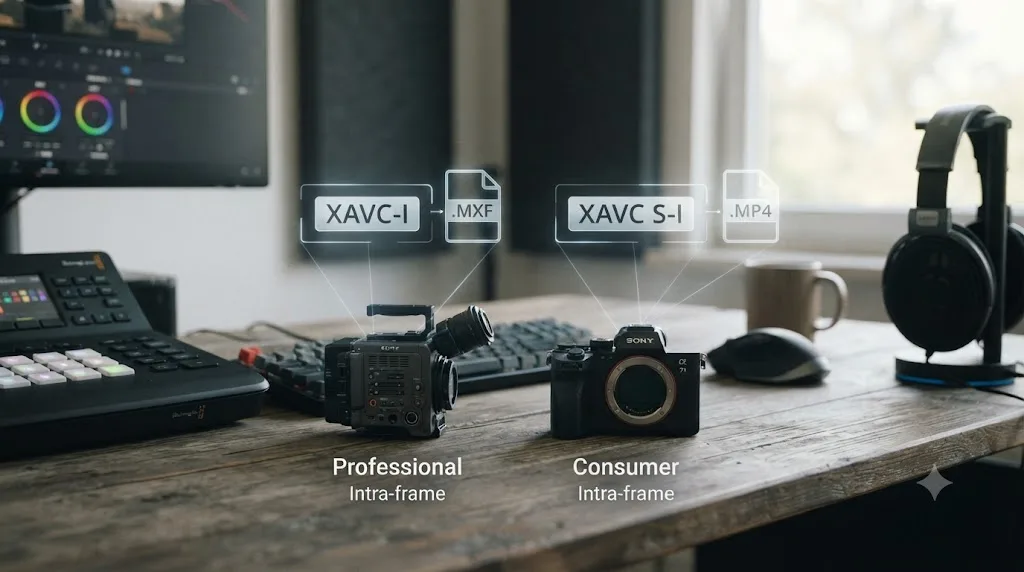
Here's the naming trap worth knowing before you buy a card based on a spec sheet. XAVC S-I is not the same format as professional XAVC-I, sometimes just called XAVC Intra, even though the names look nearly identical. Video trainer Doug Jensen, replying on a DVXuser forum thread comparing the two, laid out the actual split:
"XAVC-I comes in an .MXF wrapper and XAVC-S comes in a consumer-friendly .MP4 wrapper."
That's from a DVXuser thread specifically comparing XAVC-I and XAVC S-I, where Jensen also noted the compression quality between the two is "the same," meaning the container and the camera line, not the image, is what differs. Professional XAVC-I shows up on cameras like the FX6, wrapped in MXF. XAVC S-I shows up on cameras like the A7 IV, wrapped in the same MP4 container as regular XAVC S. Same Intra-frame idea, two genuinely different formats, and a name similar enough to cause real confusion on a camera store spec sheet.
What do the real recording modes look like on a current Sony camera?
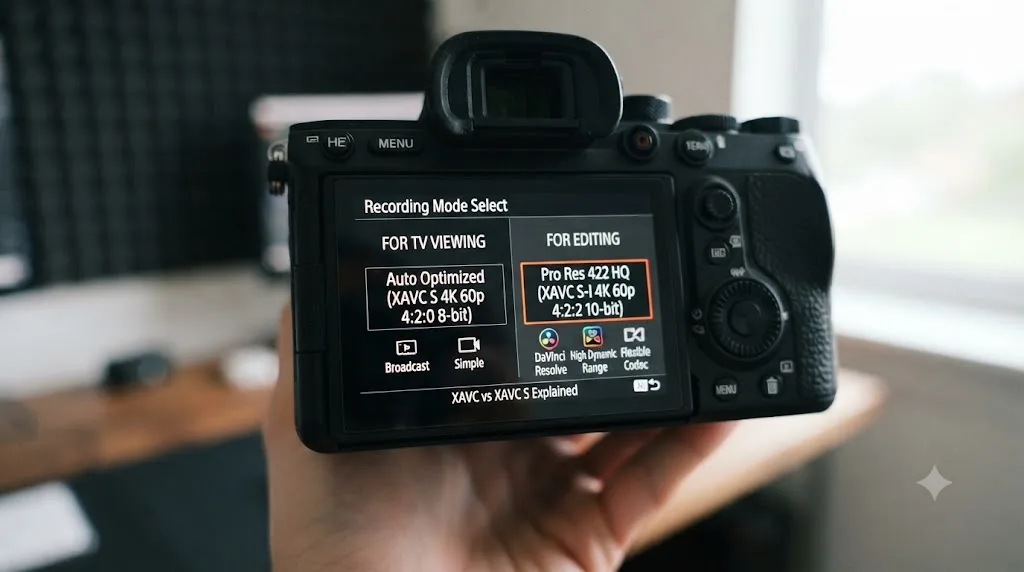
Ranges are useful for planning a shoot, but they hide a detail that actually matters when you're standing in a camera menu: Sony doesn't offer one bitrate per format, it offers several modes within each format, and it labels some of them by intended use rather than by number.
Sony's own current documentation for the A7S III, on firmware 3.00 or later, breaks XAVC S, XAVC S-I, and XAVC HS into named tiers rather than a single spec each, per Sony's file format support page:
| Format | Mode | Frame rate | Bitrate | Chroma | Bit depth |
|---|---|---|---|---|---|
| XAVC S 4K | For TV viewing | 60p/50p | 150 Mbps | 4:2:0 | 8-bit |
| XAVC S 4K | For editing | 24p | 100 Mbps | 4:2:2 | 10-bit |
| XAVC S 4K | For editing | 60p/50p | 200 Mbps | 4:2:2 | 10-bit |
| XAVC HS 4K | For TV viewing | 60p/50p | 150 Mbps | 4:2:0 | 10-bit, HLG |
| XAVC HS 4K | For editing | 24p | 100 Mbps | 4:2:2 | 10-bit |
| XAVC HS 4K | Extended recording | 60p/50p | 45 Mbps | 4:2:0 | 10-bit |
| XAVC S-I 4K | Standard | 60p (NTSC) | 600 Mbps | 4:2:2 | 10-bit |
| XAVC S-I 4K | Standard | 50p (PAL) | 500 Mbps | 4:2:2 | 10-bit |
| XAVC S-I 4K | Standard | 24p (NTSC) | 240 Mbps | 4:2:2 | 10-bit |
A few things jump out once the ranges become named modes instead of vague numbers. First, Sony's own "for TV viewing" and "for editing" labels are a real, documented distinction, not marketing copy. The TV viewing tier is the lighter, 8-bit-friendly option meant for a quick turnaround where nobody's grading the footage hard, and the editing tier is the one that actually gives you 10-bit 4:2:2 headroom, at roughly double the bitrate for the privilege. If you set your camera to the "for TV viewing" preset by default and wonder later why your XAVC S footage won't take a heavy grade, this table is the reason: you picked the mode built for the opposite job.
Second, even XAVC HS's casual "for TV viewing" tier stays at 10-bit with HLG support, unlike XAVC S's equivalent tier, which drops to 8-bit. That's a genuine advantage for anyone shooting HDR who wants to stay in the smaller-file HEVC codec without hunting for a dedicated editing preset first.
Third, XAVC S-I doesn't bother with a "for TV viewing" tier at all. Every frame rate option sits at 10-bit, 4:2:2, because the format's entire reason to exist is editing performance, not casual playback. If a Sony camera offers a "for TV viewing" and "for editing" version of the same format, the names tell you exactly which one belongs on your timeline and which one belongs on your phone. Other current Sony bodies vary these exact numbers by generation and sensor, so treat this table as representative of a modern Alpha camera's structure rather than a universal spec, and check your own model's help guide before you commit to a setting for a whole shoot day.
How much drive space does each XAVC flavor actually cost you?
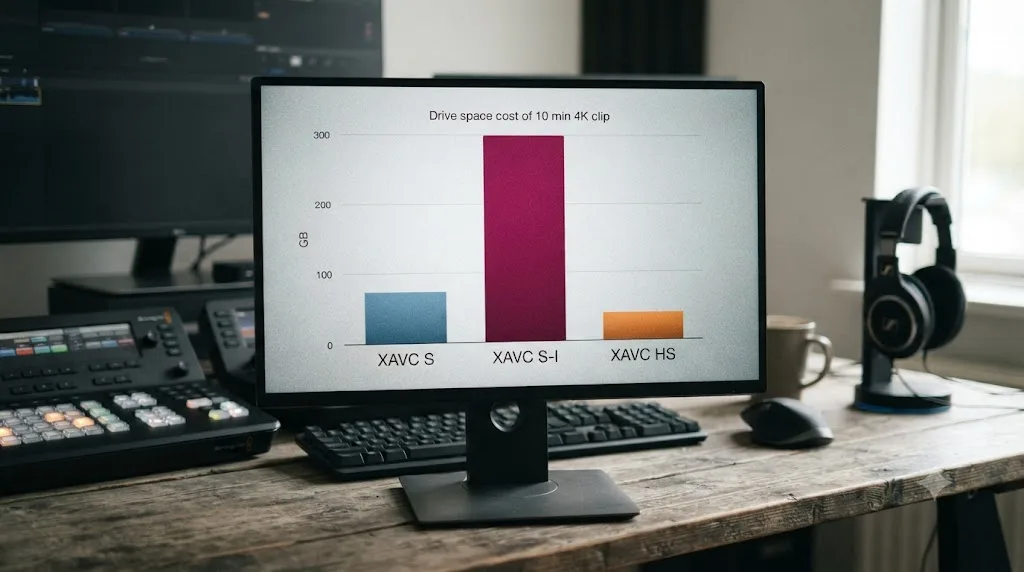
Bitrate numbers on a spec sheet don't mean much until you translate them into gigabytes you actually have to buy. Take a single 10-minute 4K clip, the length of a typical interview setup or B-roll pass, and run the math on Sony's own published bitrate ranges for each format.
| Codec | Published bitrate range | Size of a 10-minute 4K clip |
|---|---|---|
| XAVC S | 140 to 280 Mbps | 10.5 GB to 21 GB |
| XAVC S-I | 240 to 600 Mbps | 18 GB to 45 GB |
| XAVC HS | 45 to 150 Mbps | 3.4 GB to 11.25 GB |
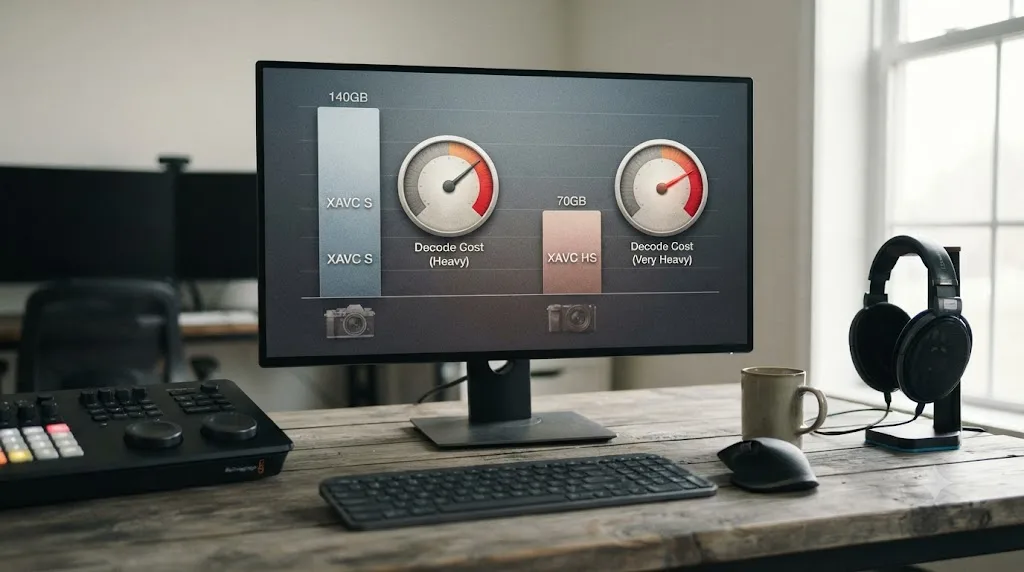
Those ranges come from the same sources already cited above, interceptor121's XAVC S and XAVC S-I bitrate testing and Sony's own XAVC HS bitrate documentation; the gigabyte figures are simple arithmetic (bitrate in megabits per second, times 600 seconds, divided by 8), not a new measurement. The pattern that falls out of the math is the one that actually matters for a shoot: XAVC S-I can cost you more than double the card space of standard XAVC S for the same 10 minutes, and XAVC HS can save you two-thirds of that space back at the cost of the heavier decode we cover below.
Scale that up to a full day. A run-and-gun shoot that fills four hours of card time in XAVC S-I, at the high end of its range, is asking for roughly 1.08 terabytes before you've backed up a single frame. The same four hours in standard XAVC S tops out closer to 500 gigabytes. A 256GB card that comfortably holds a half-day of standard XAVC S runs out of room in under an hour and a half of XAVC S-I at its top bitrate. That's not a hypothetical. It's the kind of math worth doing before a client hands you a full day of interviews and expects XAVC S-I's smoother scrub without budgeting for the cards and backup drives that come with it.
What is XAVC HS, and should you shoot it instead of XAVC S?
XAVC HS is the H.265/HEVC version of the same consumer format family, still wrapped in MP4, trading some editing convenience for meaningfully smaller files at the same visual quality. Where XAVC S and XAVC S-I both use H.264, XAVC HS switches the compression standard underneath entirely, which is the actual source of its file-size advantage and its extra decode cost. Unlike XAVC S, which still ships in an 8-bit mode on most cameras, Sony's own current documentation lists XAVC HS as a 10-bit-only format, per Sony's file format support page, meaning there's no lightweight 8-bit fallback if your machine can't keep up with the decode.
Sony's own file format documentation puts XAVC HS 4K bitrate between roughly 45 and 150 Mbps depending on recording mode, noticeably lower than XAVC S's 150 to 200 Mbps range for comparable quality, per Sony's support page. That page also flags XAVC HS's real-world limitations directly: it needs editing software compatible with the H.265/HEVC codec specifically, and it's incompatible with Android smartphones, a constraint that doesn't apply to XAVC S's more universally supported H.264 stream. The same documentation notes XAVC HS carries support for HLG, Hybrid Log-Gamma, Sony's HDR gamma curve, directly alongside its standard modes, giving HDR shooters a smaller-file path that standard 8-bit XAVC S was never built to carry.
interceptor121's testing adds a decode-side detail worth knowing before you switch formats for a specific shoot: XAVC HS "does not completely stall your machine in the editing" the way XAVC S can, but the same testing flagged that XAVC HS's HEVC compression "has a single reference frame each second," meaning most frames are predicted from that single anchor, which makes it "really for static scenes" rather than fast motion or heavy handheld work, per interceptor121's codec comparison.
| Situation | Better choice | Why |
|---|---|---|
| Long-form static interview or B-roll, storage is tight | XAVC HS | Smaller files at similar quality, static content plays to H.265's strength |
| Fast handheld action, gimbal, wildlife, sports | XAVC S or XAVC S-I | H.265's single-reference-frame structure struggles with heavy motion |
| Older GPU, need to hit a fast turnaround | XAVC S | Broader hardware decode support than 10-bit H.265 |
| Archiving finished footage for the long term | XAVC HS | File size wins matter more once the edit is locked |
Smaller files and smoother editing aren't the same promise, and XAVC HS only delivers on the first one. If your goal is a lighter drive, XAVC HS earns its place. If your goal is a timeline that scrubs without a fight while you're actively cutting, standard XAVC S or All-Intra XAVC S-I is the safer default on most editing machines today.
Does XAVC S carry the same audio quality as professional XAVC?
Not always, and the format spec is looser here than most editors assume. XAVC S's own specification allows either AAC, a compressed lossy codec, or uncompressed LPCM inside its MP4 wrapper, per Sony's current file format documentation. Which one actually lands on your card depends on the camera and the audio setting you picked, not a fixed rule tied to the "S" in the format name.
A detailed teardown of real Sony a7 III output settles what that looks like in practice. Testing every recording mode on the camera found XAVC S audio consistently encoded as "LPCM 2ch," uncompressed stereo rather than the compressed AAC some editors assume by default, running at 16-bit, 48 kHz, per mslinn.com's breakdown of the a7 III's media encodings. That's DVD-quality audio depth, not broadcast-grade 24-bit, and it's a genuine step down from the uncompressed LPCM that professional XAVC in MXF is built to carry as its baseline. If a client complains your delivered audio sounds thinner than the video looks, checking whether the source ran LPCM at 16-bit or a lossy AAC pass is a five-second diagnosis before you blame the mix.
Timecode is the other audio-adjacent detail worth knowing before a multicam or dialogue-heavy shoot. XAVC S files do carry embedded timecode metadata, per the SMPTE RDD-18 specification the format follows, but not every editing application reads it the same way. A user report on the Lightworks user forum documented a real-world case: an XAVC-S clip with valid, non-zero timecode showed up in Lightworks as "start-TC zero," even though the same file's timecode was correctly readable in FFprobe, and, notably, in DaVinci Resolve and Vegas Pro, according to the reporting user's cross-check in that thread. The thread's explanation for the mismatch was blunt: "XAVC-S is a proprietary format, which doesn't care much about the standard." That's one documented forum report rather than a guarantee every XAVC S file behaves identically everywhere, but it's a useful data point if you're multicam-syncing XAVC S footage by timecode and something looks off: the problem may sit with the specific software reading the file, not the file itself, and it's the kind of thing worth confirming in Resolve's Clip Attributes before you assume your camera failed to record timecode at all.
Does your Sony camera already give you a proxy file?
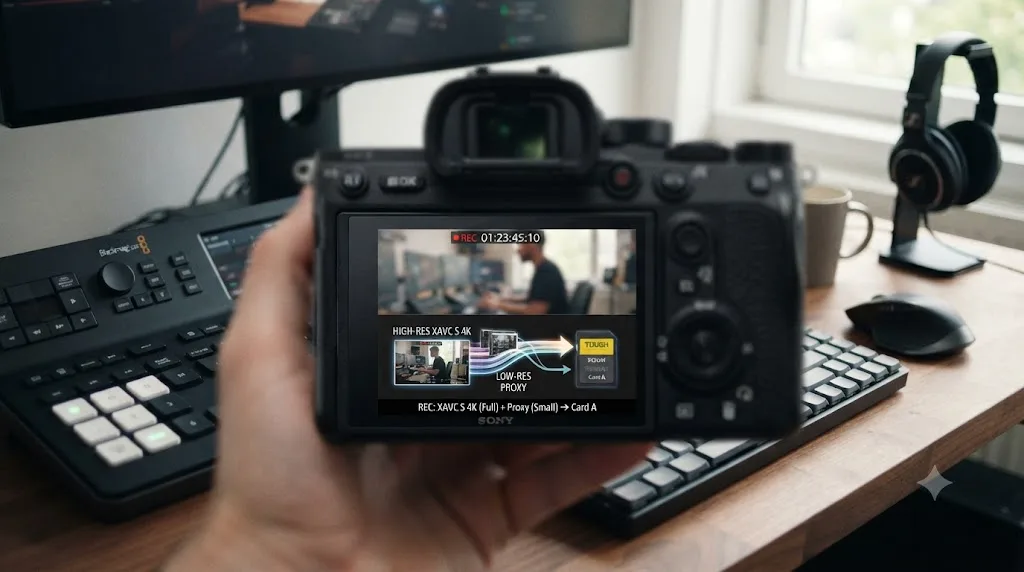
On some Sony bodies, yes, and knowing it exists can save you a step in Resolve. Cameras like the A7S III can generate a small proxy movie automatically alongside your main XAVC S recording, no extra setting to remember once proxy recording is turned on.
That proxy is genuinely lightweight: 1280x720 resolution at up to 60p or 50p, encoded at 6 Mbps in 4:2:0 8-bit H.264, per Sony's help guide for the ILCE-7SM3. The same guide notes proxy movies are "small in file size" and specifically "suitable for transferring to smartphones or uploading to websites," which tells you exactly what job Sony designed them for: a quick review copy, not a serious offline edit. That proxy only shows up if your main recording stays at 60p/50p or below. Push into a slow-motion or quick-motion mode above that frame rate and the camera stops generating one, so a 120p S&Q clip won't have a matching proxy waiting for you on the card.
Here's where that matters for a Resolve workflow. If you're cutting on a laptop that chokes on 10-bit XAVC S but you need to start editing before the full-resolution footage finishes transcoding, that camera-generated proxy is already sitting on the card, ready to relink once you're ready for full quality. It's not a replacement for Resolve's own Optimized Media or Proxy Media, which typically render to a much higher-quality intermediate like ProRes Proxy at full resolution. A 6 Mbps, 720p H.264 file is fine for a rough assembly and painful for anything involving fine detail, but it costs you nothing extra to generate, since the camera already did the work the moment you hit record.
Does DaVinci Resolve treat XAVC and XAVC S differently on import?
Less than the format names suggest, and the real dividing line isn't the container, it's bit depth. DaVinci Resolve's decoder pipeline reads the H.264 or H.265 stream inside either an MXF or MP4 wrapper without treating one container as a second-class citizen. What actually changes your experience is whether the specific file is 8-bit or 10-bit, and whether your specific GPU can hardware-decode that combination at all.
Blackmagic describes its free version's supported formats plainly on its own product page: the free tier is built around "virtually all 8-bit video formats," per Blackmagic's DaVinci Resolve product page. Every 10-bit XAVC S, XAVC S-I, or XAVC HS file, and every professional 10-bit or 12-bit XAVC file, asks the free version to work outside that stated boundary. DaVinci Resolve Studio is built around full 10-bit support instead, which is the license gate that actually matters here, not whether your file happens to say XAVC or XAVC S on the label.
Where hardware genuinely diverges is decode speed for the 10-bit, 4:2:2 flavors specifically, and it's more uneven across GPU vendors than most editors expect. Puget Systems' Matt Bach, who leads Puget Labs' performance testing, put the underlying mechanics plainly in his breakdown of Resolve's decode support: "not all types of H.264 and H.265 media are supported. On top of the codec itself, both the bit depth (8-bit, 10-bit, etc.) and chroma subsampling (4:2:0, 4:2:2, 4:4:4), as well as the hardware capabilities of your system, impacts whether you will be able to utilize hardware decoding," as documented in his article on hardware decode support. His published test tables show AMD's Radeon 5000, 6000, and 7000 series discrete GPUs as the standout in his test set for hardware-decoding 10-bit, 4:2:2 H.264 and H.265, a capability Bach's tables mark as added in Resolve Studio 20. The Intel Quick Sync integrated graphics and Nvidia GeForce RTX cards in the same test set showed no equivalent hardware decode support for that specific bit depth and chroma combination at the time of his testing, which means the same 10-bit XAVC S file can play back smoothly on one editor's machine and stutter on a colleague's, even with comparably powerful GPUs from a different vendor.
Apple Silicon complicates the picture further, and not always in the direction you'd expect from a chip built around dedicated media engines. A 2024 thread on Apple's own support community documented a MacBook M3 Pro throwing random "Media Offline" errors and failed renders in Resolve Studio 19 while decoding 4K, 10-bit, 4:2:2 H.264 footage, the identical codec profile 10-bit XAVC S uses, from a different camera brand, as recorded in the original poster's thread. The poster noted that other Apple Silicon chip generations weren't reporting the same symptom, and that disabling hardware acceleration resolved the crashes at a real cost to render speed. By the poster's own July 2024 update, Blackmagic support had confirmed the developers were investigating a decode issue specific to M3 Pro chips. That's one forum thread, not a blanket verdict on every Apple Silicon Mac, but it's a real, documented case of a 10-bit 4:2:2 decode bug tied to one specific chip generation, worth remembering the next time "it plays fine on my Mac" doesn't match what you're seeing.
| Question | What actually decides the answer |
|---|---|
| Will the free version open this file? | Bit depth, mostly, not the container or the S suffix |
| Will playback be smooth? | Whether your specific GPU's decode block supports this bit depth and chroma flavor, and it varies by vendor |
| Do I need a specific plugin for the container? | No, Resolve reads MXF and MP4 natively either way |
| Does the S suffix itself gate anything in Resolve? | No, it's a naming convention on Sony's side, not a Resolve license check |
If you're bouncing between Project Settings, Clip Attributes, and the Playback menu trying to confirm exactly which flavor of XAVC S you're looking at before you decide whether to transcode, that's a real point where an on-screen guide saves real time. TryUncle is the on-screen assistant for DaVinci Resolve on macOS, ask in plain words and Uncle points at the exact control on your screen. It's a paid app, currently in founder pricing, and macOS only, so it's one option among several rather than a fix for the underlying decode limits covered above. Check TryUncle for current pricing if that fits your workflow.
How do you check exactly which XAVC flavor a clip is before you troubleshoot it?
Every section above points at the same habit: check the file before you assume anything about it. Here's what that actually looks like inside DaVinci Resolve, step by step, since the format name your camera wrote to the filename tells you nothing reliable about what's actually inside.
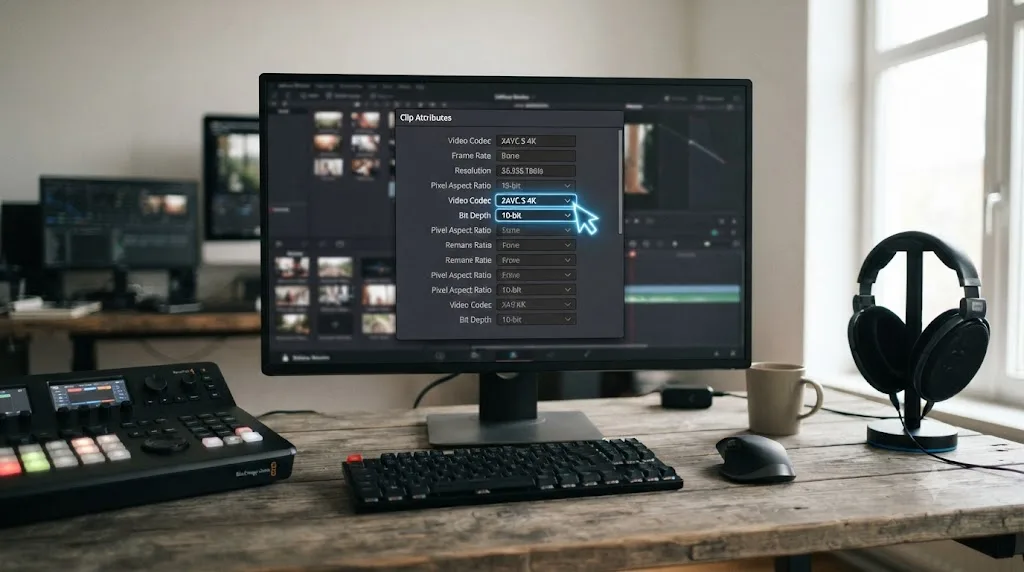
- Right-click the clip in the Media Pool and choose Clip Attributes. This opens the panel that reads the file's actual header data rather than its filename or folder location.
- Check the Video tab first. The Format field shows the container, MXF or MP4, and the Video Codec field names the actual codec, H.264 or H.265/HEVC, which immediately tells you whether you're looking at XAVC/XAVC S/XAVC S-I versus XAVC HS.
- Look for bit depth and color space fields in the same tab. Not every camera writes this cleanly into metadata, so if the field is blank or ambiguous, that itself is a clue worth cross-checking against the file size math from earlier in this guide.
- Open the Metadata panel on the Media page for camera-embedded details. Camera model, lens data, and recording settings sometimes ride along in the file and can confirm which mode you shot in in the a table you don't have to guess against.
- When metadata is incomplete, use file size as a tiebreaker. A 10-minute 4K clip under 12 GB is almost certainly standard XAVC S. One over 35 GB for the same duration is almost certainly XAVC S-I. One under 8 GB is likely XAVC HS. None of these ranges overlap enough to leave real doubt once you know the runtime.
A file extension of .mp4 tells you nothing about which codec, bit depth, or bitrate tier is actually inside it, since XAVC S, XAVC S-I, and XAVC HS all share that same container. Two clips your camera named almost identically, one shot in an 8-bit "for TV viewing" mode and one shot in a 10-bit "for editing" mode, can behave completely differently the moment you drop them on a timeline in the free version of Resolve. Running through this check before you start troubleshooting playback or import problems saves you from solving the wrong issue.
Can DaVinci Resolve export or render directly to XAVC or XAVC S?
No, and this trips up editors who assume anything Resolve can import, it can also export. XAVC and XAVC S exist to get footage off a camera's sensor and onto a card as efficiently as possible. They were never designed as delivery formats, and Resolve's Deliver page doesn't offer either one by name in its render settings.
What you'll actually find there is the same set of general-purpose delivery codecs this site covers elsewhere: H.264 or H.265 inside an MP4 or QuickTime container for web and client delivery, and ProRes or DNxHR inside a MOV or MXF wrapper for a broadcast or color-critical handoff. If a facility specifically asks for "XAVC" on a spec sheet, they almost always mean an MXF container carrying a codec Resolve does support natively, most often XDCAM-style formats or plain H.264, not a literal XAVC-branded render preset, because that preset doesn't exist in the software.
Think of XAVC and XAVC S as acquisition formats, not delivery formats, the same way RAW is something a camera writes but rarely something you ship to a client. If a delivery spec genuinely calls out XAVC by name, that's the moment to get the receiving facility to confirm the exact codec and container they actually need, since "XAVC" on a spec document is often shorthand for something more specific underneath.
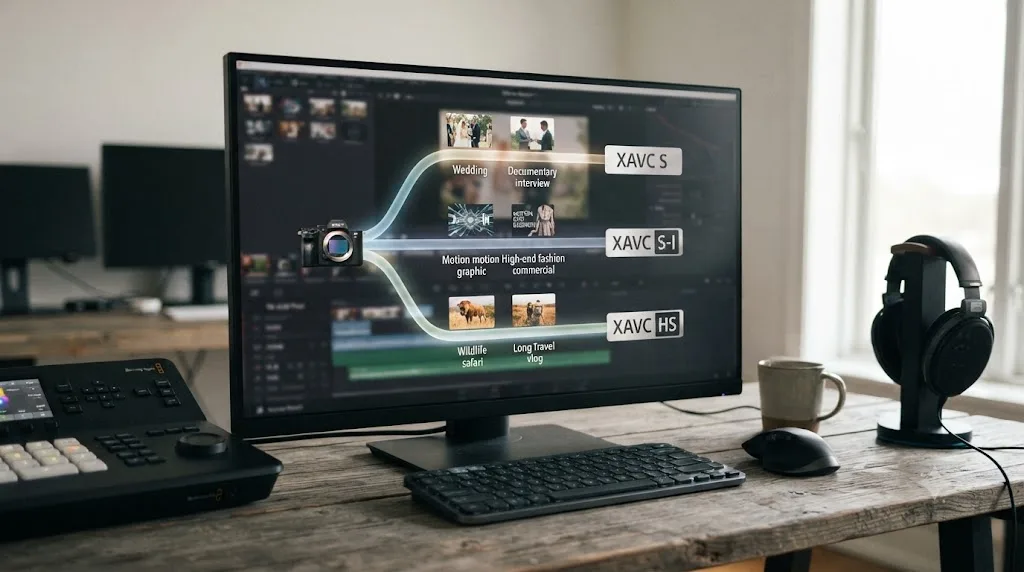
Which codec should you actually shoot on your Sony camera?
The honest answer depends on what happens to the footage after you shoot it, not on which format sounds more "professional" on a spec sheet.
| Your situation | Shoot this | Why |
|---|---|---|
| Fast turnaround, need the lightest edit on modest hardware | XAVC S, 8-bit | Smallest files of the group, broadest hardware decode support |
| Heavy color grading planned, GPU can keep up | XAVC S, 10-bit 4:2:2 | More color latitude than 8-bit, still H.264's wider decode support versus HS |
| Shooting S-Log2 on an older, 8-bit-only body | XAVC S, 8-bit | S-Log2 was engineered around 8-bit's narrower latitude; it's the profile that flavor was designed for |
| Shooting S-Log3 for maximum grading latitude | XAVC S, 10-bit, or XAVC S-I | S-Log3 assumes 10-bit headroom, per this breakdown of Sony's log profiles; pairing it with an 8-bit-only body reintroduces the banding S-Log3 exists to avoid |
| Fast motion, gimbal, wildlife, sports, want the smoothest scrub | XAVC S-I | All-Intra decodes cheaper per frame, best editing performance per interceptor121's testing |
| Long static interviews, B-roll, storage genuinely tight | XAVC HS | Smallest files at matched quality, static footage plays to H.265's strength |
| Delivering directly to a broadcast facility or Avid workflow | Professional XAVC, MXF | Native container and metadata those systems already expect |
| Undecided, want the safest general default | XAVC S, 10-bit if your card and Resolve edition support it | Balances file size, decode cost, and color latitude without a specialized card |
None of these choices are permanent, and none of them are wrong, they're trade-offs against a specific bottleneck. A camera bag full of fast CFexpress cards and a Studio license paired with a recent GPU can absorb XAVC S-I's storage cost for the editing smoothness it buys. A laptop editor with a modest GPU and the free version of Resolve gets more mileage sticking with standard XAVC S and transcoding to DNxHR or ProRes for anything that actually stutters.
Why does XAVC S footage stutter or fail to import in DaVinci Resolve?
That's a separate, practical question from the format comparison above, and it's worth answering here because it's the moment most editors actually go looking for this exact terminology. Stutter means Resolve can decode your file, just not fast enough for real-time playback. A hard import failure, often shown as "Unsupported File Format" or "Media Offline," means Resolve couldn't decode it at all.
If your XAVC S, XAVC S-I, or XAVC HS footage plays back choppy on a modern timeline, the fix that removes the bottleneck instead of hiding it is generating Optimized Media or Proxy Media in DNxHR or ProRes, exactly the process our Sony A7S III XAVC S playback guide walks through step by step, including the specific Task Manager and Activity Monitor checks that confirm decode is really your bottleneck before you transcode a single frame. If the file won't open at all instead of just playing badly, that's a different failure with a different fix, covered in full in our Unsupported File Format guide, including the HEVC extension fix for Windows and the specific Studio-license gate that applies to 10-bit color depth.
One XAVC-specific wrinkle worth flagging here: because XAVC S, XAVC S-I, and XAVC HS all share the MP4 container, a file's extension alone tells you nothing about which codec or bit depth is actually inside it. Two files named identically by your camera, one from an 8-bit XAVC S session and one from a 10-bit XAVC HS session, can behave completely differently in the free version of Resolve despite looking the same in a folder listing. Always check Clip Attributes in the Media Pool before you assume you know what you're troubleshooting, using the same checklist covered earlier in this guide.
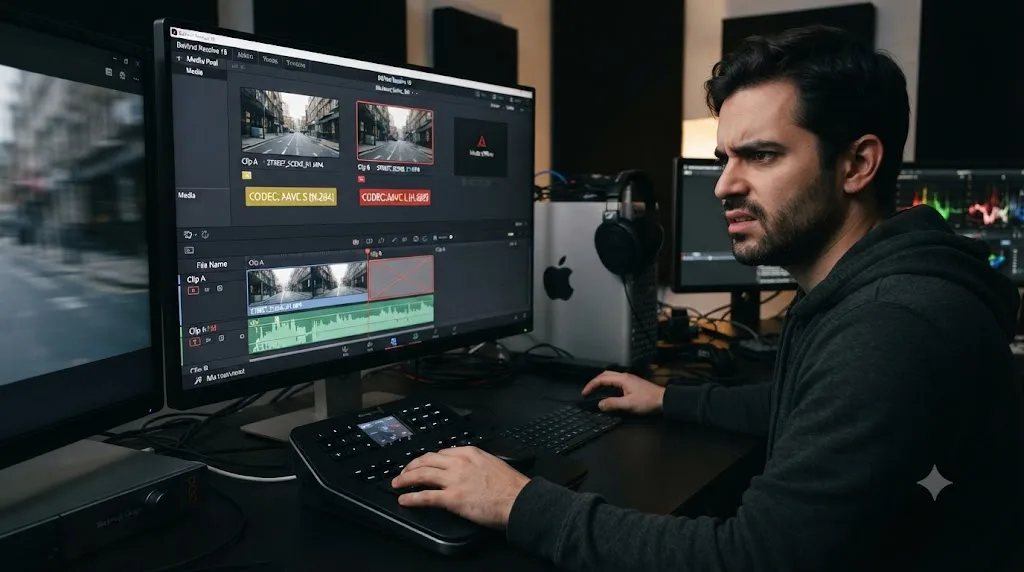
Two more failure modes are specific enough to XAVC that they're worth naming directly instead of leaving you to guess. First, if you copied a professional XAVC clip off an SxS card by grabbing individual MXF files instead of the whole XDROOT folder, Resolve may show the clip as offline or missing associated metadata, because you left sidecar information behind on the card without realizing a "clip" was ever more than one file. If footage that played fine on set suddenly can't relink after a card dump, check whether the person copying it grabbed the full folder structure or just the files that looked like video. Our guide to relinking media after a drive move covers the Change Source Folder and Relink Selected Clips workflow for exactly this situation. Second, if you're on an Apple Silicon Mac and a 10-bit, 4:2:2 clip specifically is the one throwing "Media Offline" or failing mid-render while everything else on the timeline behaves normally, that matches the documented M3 Pro decode issue covered above rather than a generic media problem, and disabling hardware acceleration for playback, at a real cost to speed, is the known workaround until Blackmagic ships a fix.
What about XAVC H, Sony's newest format?
XAVC H is Sony's most recent addition to the family, and it belongs to the professional side, not the consumer one, despite the superficial naming similarity to XAVC HS. It uses H.265/HEVC compression wrapped in an MXF container, supporting Intra-frame coding up to 1200 Mbps for 8K30p image quality alongside a long-GOP mode for smaller file sizes, per Sony's own XAVC H white paper, published in 2024. It ships three recording modes, Intra HQ, Intra SQ, and Long, aimed at broadcast and high-end cinema production rather than everyday mirrorless shooting, with Sony's Burano cinema camera among its early adopters.
For nearly every reader of this guide, XAVC H isn't a format you'll shoot directly. It's worth knowing it exists mainly so that "XAVC H" and "XAVC HS" don't blur together the next time a spec sheet or forum thread mentions either one. One is professional 8K cinema infrastructure in an MXF wrapper, following the same MXF-for-professional, MP4-for-consumer split that runs through every format in this guide. The other is a consumer H.265 mode in an MP4 wrapper on your Alpha camera. Same three letters at the front, genuinely different jobs.
So which one should you actually use?
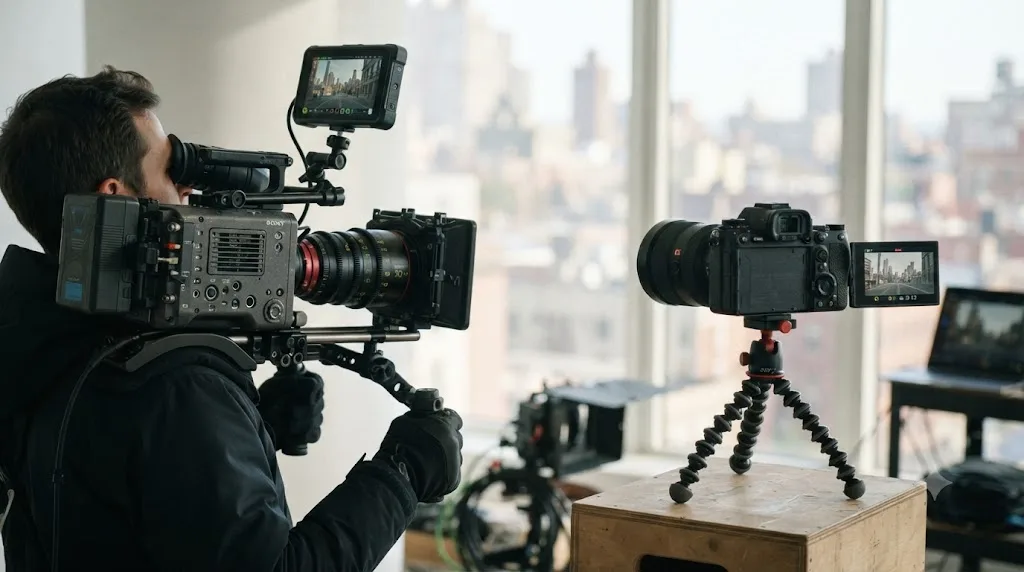
If you're staring at a camera menu right now, here's the tiebreaker: ask what happens to this footage after you shoot it, not which name sounds more professional.
Shooting for yourself, on your own machine, with a fast card and either Studio or a GPU that handles 10-bit decode comfortably? XAVC S in 10-bit gives you real grading latitude without XAVC S-I's storage tax. Fighting a slow timeline on modest hardware, or running the free version and unsure your GPU handles 10-bit at all? Standard 8-bit XAVC S is the lightest, most broadly compatible option in the consumer lineup, and transcoding to DNxHR or ProRes fixes the rest. Shooting fast motion where a stutter-free scrub matters more than card space? XAVC S-I earns its bitrate, as long as you've budgeted the cards and backup drives its file sizes actually demand. And if a broadcast facility or an Avid editor is waiting on the other end of this file, none of the consumer formats apply at all, professional XAVC in MXF, with its folder structure kept fully intact, is the format that conversation actually expects.
Whatever you shoot, the moment that file lands in your Media Pool, check Clip Attributes before you assume anything about it. The format name on your camera's menu was never the whole story. Container, bit depth, folder structure, and your specific Resolve edition and GPU decide what actually happens the moment that file hits your timeline, and now you know which one to check first.
Frequently asked questions
- What is the difference between XAVC and XAVC S?
- XAVC is Sony's professional format: H.264 video wrapped in an MXF OP1a container built for broadcast ingest, scaling from 8-bit up to 4:4:4 12-bit. XAVC S is the consumer version of the same H.264 codec, wrapped in an MP4 container instead, originally 8-bit only. They share the same compression engine. The container, the bit depth ceiling, and the intended workflow are what actually separate them.
- Is XAVC S always 8-bit?
- Not anymore. XAVC S launched as an 8-bit-only format in 2013, and plenty of web pages still repeat that as a hard rule. Sony's own current file format documentation lists a 10-bit, 4:2:2 XAVC S mode at up to 200 Mbps right alongside the original 8-bit option, so recent Alpha and FX-series cameras can record 10-bit XAVC S directly.
- What is XAVC S-I, and is it the same as professional XAVC-I?
- No, and this is where naming genuinely misleads people. XAVC S-I is the consumer Intra-frame codec, wrapped in the same MP4 container as regular XAVC S, found on cameras like the A7 IV and A7S III. Professional XAVC-I (also called XAVC Intra) is a different format entirely, wrapped in MXF, found on cameras like the FX6. Video trainer Doug Jensen summed up the split on a DVXuser forum thread: XAVC-I comes in an MXF wrapper and XAVC-S comes in a consumer-friendly MP4 wrapper.
- Is XAVC HS better than XAVC S for editing in DaVinci Resolve?
- Not for raw editing performance. XAVC HS uses H.265 instead of H.264, which shrinks file size at a given quality but costs more to decode in real time, especially on older GPUs. If you're cutting a fast-turnaround project, XAVC S is usually the lighter load on your timeline. If you're archiving or delivering, XAVC HS's smaller files are the actual advantage.
- Does DaVinci Resolve's free version import XAVC S 10-bit footage?
- It's not guaranteed. Blackmagic's own free version page describes the free tier as built around virtually all 8-bit video formats. Every 10-bit XAVC S, XAVC S-I, or XAVC HS file asks the free version to do something outside that stated boundary, and results vary by OS, GPU, and driver rather than following one clean rule.
- What container format does XAVC S use compared to professional XAVC?
- XAVC S uses MP4, the same wrapper your phone uses. Professional XAVC uses MXF, specifically the OP1a variant, which is the container broadcast ingest systems, playout servers, and Avid workflows are built to expect by default. Same H.264 video data can sit inside either wrapper. The wrapper decides who is willing to open the file without a conversion step.
- Should I shoot XAVC S or XAVC S-I on my Sony camera?
- XAVC S-I if your card and drive can sustain its higher bitrate and you want the lightest possible edit, since All-Intra frames decode cheaper per frame than XAVC S's long-GOP compression. XAVC S if storage or card speed is a real constraint, or you're shooting long-form content where XAVC S-I's much larger files become a genuine backup and archive problem.
- Does DaVinci Resolve let you export or render directly to XAVC or XAVC S?
- No. XAVC and XAVC S are capture formats built into Sony cameras, not render targets in Resolve's Deliver page. Resolve exports H.264 or H.265 inside MP4 or QuickTime for web delivery, and ProRes or DNxHR inside MOV or MXF for a broadcast or post handoff. There's no format option labeled XAVC or XAVC S in the render queue.
Sources
- XAVC (Wikipedia)
- Ten Reasons to Like Sony's Pro Video Format, XAVC (David Shapton, RedShark News)
- (Movie) Characteristics of Each File Format (Sony Support)
- Sony Help Guide (ILCE-7SM3): Proxy Settings
- DaVinci Resolve product page (free version specs, Blackmagic Design)
- DaVinci Resolve Studio product page (Blackmagic Design)
- Sony XAVC H White Paper (Sony Corporation, 2024)
- Sony A1 / A7S III Video Codecs (interceptor121)
- Puget Systems: What H.264 and H.265 Hardware Decoding Is Supported in DaVinci Resolve Studio? (Matt Bach)
- XAVC-I vs XAVC S-I forum thread with Doug Jensen's reply (DVXuser)
- Sony Help Guide (ILME-FX3): Introduction to computer software (Imaging Edge Desktop/Catalyst)
- File Organization and Metadata (wolfcrow)
- How to Import F5/F55 Footage in FCP, Avid and Premiere (AbelCine)
- MacBook M3 Pro and DaVinci Resolve Decode issue thread (Apple Support Communities)
- Sony S-Log Settings Explained: How to Use S-Log2 and S-Log3 for Better Video (Discovercameras)
- AVCHD (Wikipedia)
- Movie Recording Formats - Help Guide (Sony ILCE-6300)
- Sony a7 III Camera Media Encodings (mslinn.com)
- XAVC-S no timecode? issue thread (Lightworks Forum)
Put this guide to work with TryUncle.
Ask about the step you’re on. TryUncle sees your screen and points at the control you need, so you can keep learning in your own project.
Get TryUncle for Mac or WindowsKeep reading
Comparisons · Jul 12, 2026 · 32 min
ProRes vs DNxHR in DaVinci Resolve: Which Should You Use?
ProRes vs DNxHR in DaVinci Resolve: real bitrates, the Windows export fix, HDR and alpha support, and a decisive pick for Mac, Windows, and mixed teams.
Fixes · Jul 20, 2026 · 22 min
Sony A7S III XAVC S Footage Won't Play Smoothly? The Fix
Sony A7S III XAVC S footage stuttering in DaVinci Resolve? It's a 10-bit decode problem, not a broken file. Here's the codec-specific fix that works.
Fixes · Jul 12, 2026 · 23 min
DaVinci Resolve Says Unsupported File Format: The Real Fix
DaVinci Resolve's Unsupported File Format error almost always means a codec problem, not a broken file. Match your exact symptom to the cause and fix it.