Articles / Guidesupdated for DaVinci Resolve 21.0.3 (July 2026)
Fujifilm X-H2S F-Log2 Color Grading Settings for DaVinci Resolve
Quick answer
Set DaVinci Resolve's Color Space Transform to Input Color Space Rec.2020, Input Gamma F-Log2, output DaVinci Wide Gamut then Rec.709. Shoot F-Log2 at the X-H2S's base ISO of 1250. DaVinci Resolve 19 added native F-Log2 support, and 20.3.2 added F-Log2 C with F-Gamut C, both carried into Resolve 21.
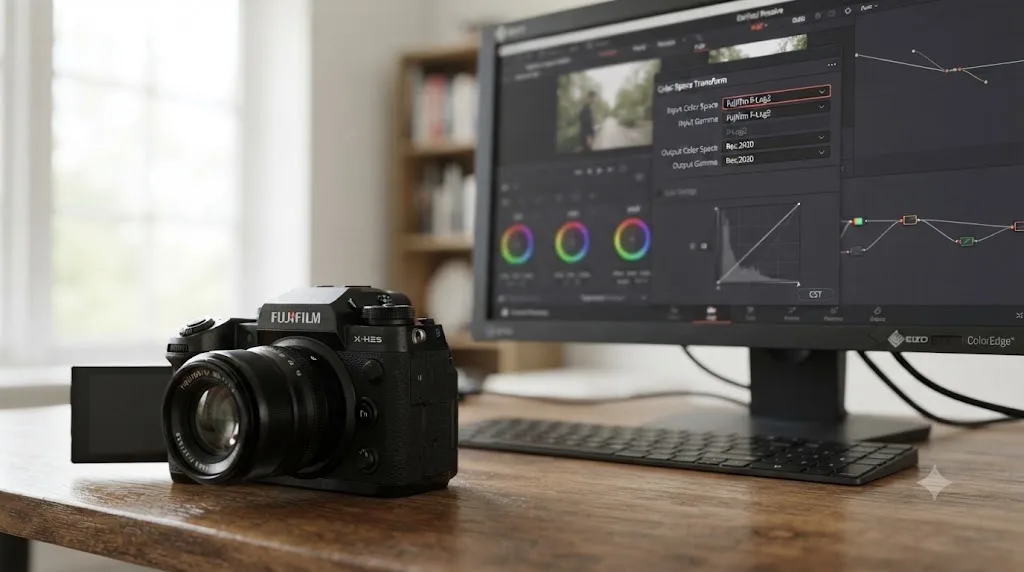
Your Fujifilm X-H2S shoots F-Log2, you drop the clip into DaVinci Resolve, and it sits there grey and lifeless while the Color Space Transform dropdown shows you three separate Fujifilm entries with no obvious hint about which one your footage actually needs. That's not a broken import. It's a conversion Resolve hasn't run yet, and Fujifilm documents the exact numbers across a data sheet, a support article, and a camera manual most editors never think to check.
We've spent seven-plus years cutting commercial video in DaVinci Resolve, including projects for Fortune 500 clients, and camera-specific Color Space Transform questions, F-Log2 among them, are some of the most recurring color threads in our 100,000+ member editing community. As of July 2026, the X-H2S remains what Fujifilm North America itself calls "an active and popular X Series product," per a statement given to PetaPixel, more than four years after its July 2022 launch. Here's the exact Color Space Transform setup Fujifilm's own documentation is built around, the base ISO F-Log2's curve actually expects, the newer F-Log2 C variant and when Resolve and the camera's firmware started supporting it, the exposure tools the X-H2S actually gives you in the field, the ACES and HDR delivery questions most guides skip, the external RAW workflow that behaves differently from standard log footage, and the Studio question most guides get vague about, updated for DaVinci Resolve 21.0.3 as of July 2026.
What does the X-H2S actually record when you shoot F-Log2?
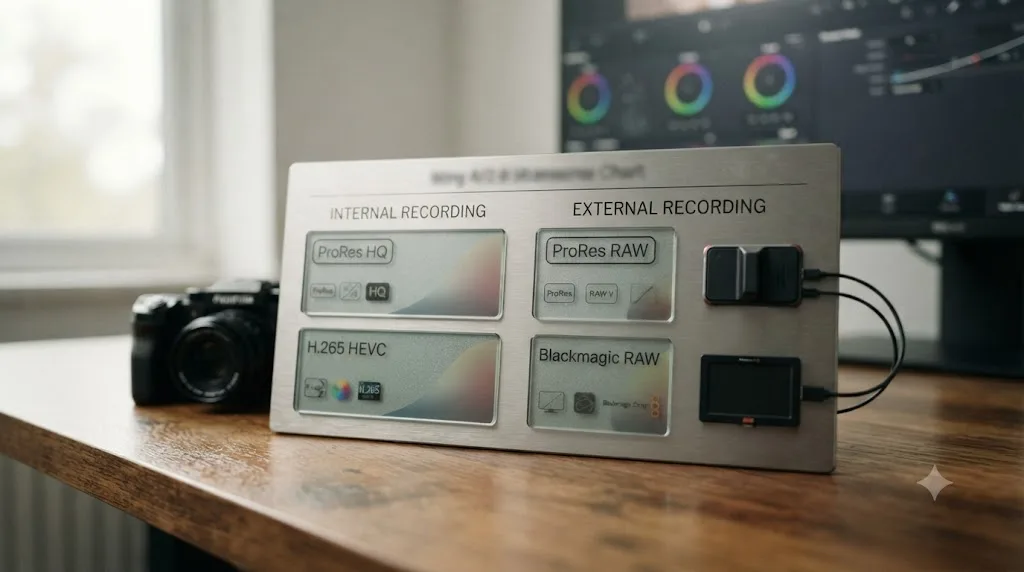
"F-Log2 footage" from an X-H2S can mean four different file types depending on whether you're recording internally or feeding an external recorder, and which one you have decides whether you're reaching for a Color Space Transform node or Resolve's Camera RAW panel.
Fujifilm built the X-H2S around a 26.16-megapixel APS-C X-Trans CMOS 5 HS sensor, a stacked, back-illuminated design paired with the X-Processor 5 engine, announced in May 2022 and shipping from July 7, 2022 at $2,499 body-only, per CineD's launch coverage. Internally, it records 4:2:2 10-bit Apple ProRes HQ, LT, or Proxy at up to 6.2K/30p open gate (6240x4160), and 4:2:2 10-bit H.265 at up to 4K/120p or FHD/240p. Feed it into an external recorder over full-size HDMI and it outputs 12-bit ProRes RAW or Blackmagic RAW at up to 6.2K, using the same open-gate sensor readout as the internal ProRes modes.
| Format | Bit depth | Resolution ceiling | Type |
|---|---|---|---|
| ProRes HQ/LT/Proxy | 10-bit | 6.2K open gate at 30p | Internal, not RAW |
| H.265 (MOV) | 10-bit | 4K at 120p, FHD at 240p | Internal, not RAW |
| ProRes RAW | 12-bit | 6.2K (6240x4160) | External RAW, via Atomos |
| Blackmagic RAW | 12-bit | 6.2K (6240x4160) | External RAW, via Blackmagic recorder |
F-Log2 on the X-H2S isn't tied to one file type, it's a gamma curve that shows up in a standard compressed file just as often as in a genuine external RAW stream, and those two cases route through entirely different tools in DaVinci Resolve. Confirm which one you actually have in Clip Attributes before touching a node, since a Color Space Transform meant for a compressed F-Log2 MOV produces a visibly wrong result when applied on top of already-decoded RAW.
What Color Space Transform settings does F-Log2 footage need in DaVinci Resolve?
This is the core mechanism for standard F-Log2 files, whether internal ProRes or H.265, and it's a two-node pattern.
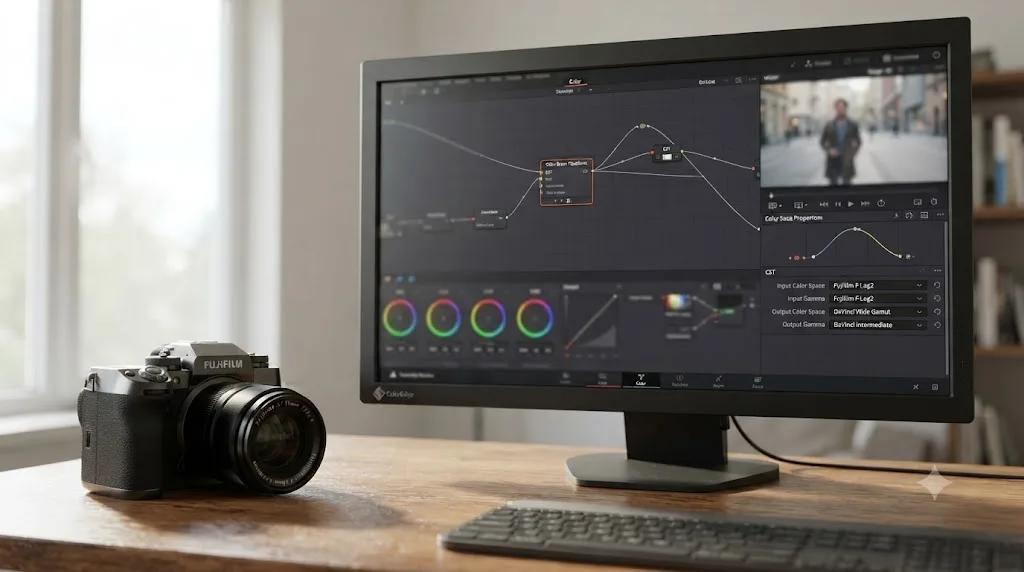
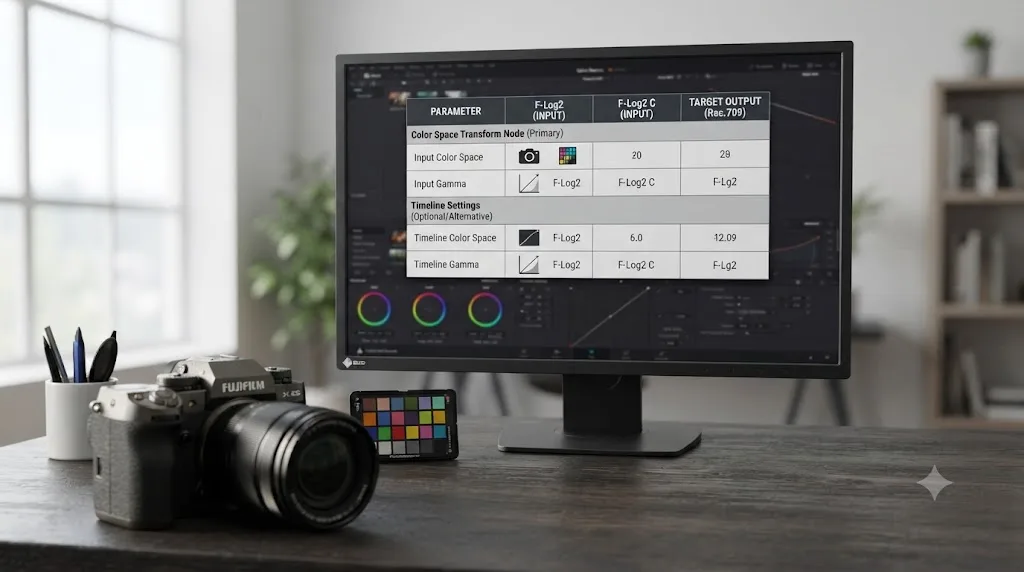
Add a Color Space Transform to your first node. Set Input Color Space to Rec.2020. Set Input Gamma to Fujifilm F-Log2. Set Output Color Space to DaVinci Wide Gamut and Output Gamma to DaVinci Intermediate. That moves the flat F-Log2 source into Resolve's own working space, where your actual grading happens. Fujifilm's own support article on grading F-Log footage with CSTs and LUTs confirms this exact parameter set directly: "you can specify: Input Color Space (F-Log/F-Log2), Input Gamma (F-Log Gamma/F-Log2 Gamma), Output Color Space (Rec.709, Rec.2020, DaVinci Wide Gamut, ACES, etc), Output Gamma (Gamma 2.4, ST.2084, HLG, LogC, etc)."
On your last node, before final output, reverse it: Input Color Space DaVinci Wide Gamut, Input Gamma DaVinci Intermediate, Output Color Space Rec.709, Output Gamma Rec.709 for a standard SDR delivery.
| Node | Input Color Space | Input Gamma | Output Color Space | Output Gamma |
|---|---|---|---|---|
| First (in) | Rec.2020 | Fujifilm F-Log2 | DaVinci Wide Gamut | DaVinci Intermediate |
| Last (out) | DaVinci Wide Gamut | DaVinci Intermediate | Rec.709 | Rec.709 |
One Color Space Transform converting a flat F-Log2 source into DaVinci Wide Gamut, and a second one converting your finished grade back out to Rec.709, is the entire mechanism this workflow needs for standard F-Log2 footage. Everything else in this guide, F-Log2 C, external RAW, ISO, the Studio question, sits around that two-node core rather than replacing it.
Is F-Log2's color gamut really Rec.2020, and does that change with F-Log2 C?
Yes for standard F-Log2, and no, F-Log2 C changes the answer with a wider, Fujifilm-proprietary gamut of its own.
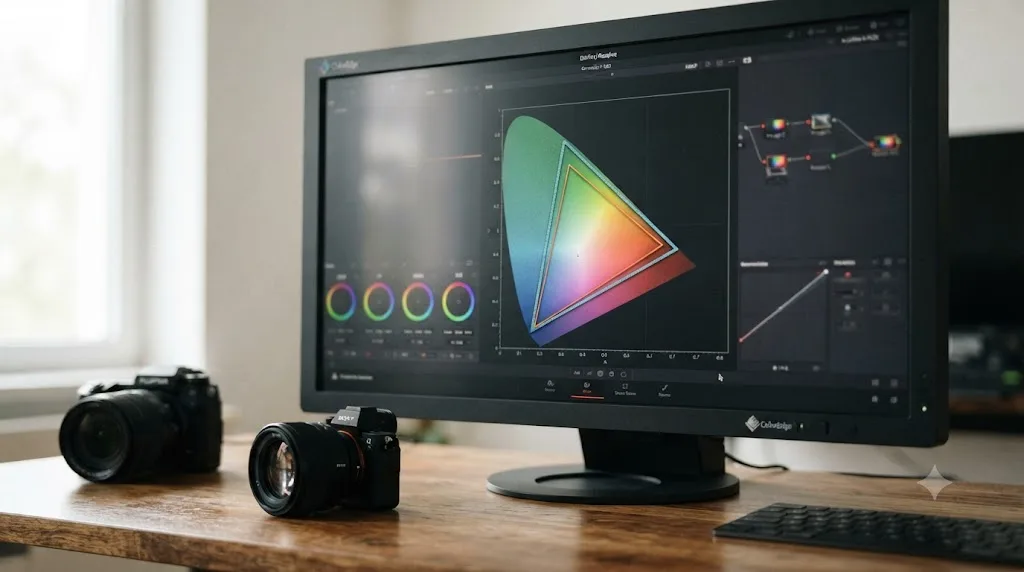
Fujifilm's own F-Log2 data sheet documents the gamut as complying with ITU-R BT.2020, the same standard behind the "Rec.2020" preset in Resolve's Color Space Transform dropdown, with primaries at roughly R (0.708, 0.292), G (0.170, 0.797), B (0.131, 0.046), and a D65 white point, per a color-science reference built from Fujifilm's own published data sheet. On the encoding side, 18% gray lands at roughly 38.4 IRE on the camera and 39.1 IRE once mapped into a post-production system, with black sitting near 3.5 IRE on the camera. That's a directly documented spec, not an inference carried over from a different Fujifilm gamma curve.
F-Log2 C is different. It uses F-Gamut C, a proprietary Fujifilm color space wider than Rec.2020, built to hold high-chroma colors the standard Rec.2020-based F-Log2 gamut couldn't reproduce cleanly. Fujifilm's own firmware notes for the X-H2S describe it plainly: "You can get more wider color gamut using F-Log2 C mode than using F-Log2," per the X-H2S firmware download page.
| Gamma | Gamut | Base ISO | Added to X-H2S |
|---|---|---|---|
| F-Log | Rec.2020 | 640 | Original firmware |
| F-Log2 | Rec.2020 | 1250 | Original firmware |
| F-Log2 C | F-Gamut C (proprietary, wider) | 1250 | Firmware v7.10, November 21, 2024 |
F-Log2 shares Rec.2020 with F-Log, so the same Color Space Transform gamut preset works for either curve, but F-Log2 C is a genuinely different, wider proprietary gamut that needs its own dedicated preset rather than a Rec.2020 substitute. Mixing up the three inside the same Color Space Transform node produces a subtly wrong result even when the footage looks superficially similar on a waveform.
Does DaVinci Resolve support Fujifilm F-Log2 C?
Yes, but only since a specific, fairly recent point release, which is easy to miss if you're working from an older guide or an out-of-date Resolve install.
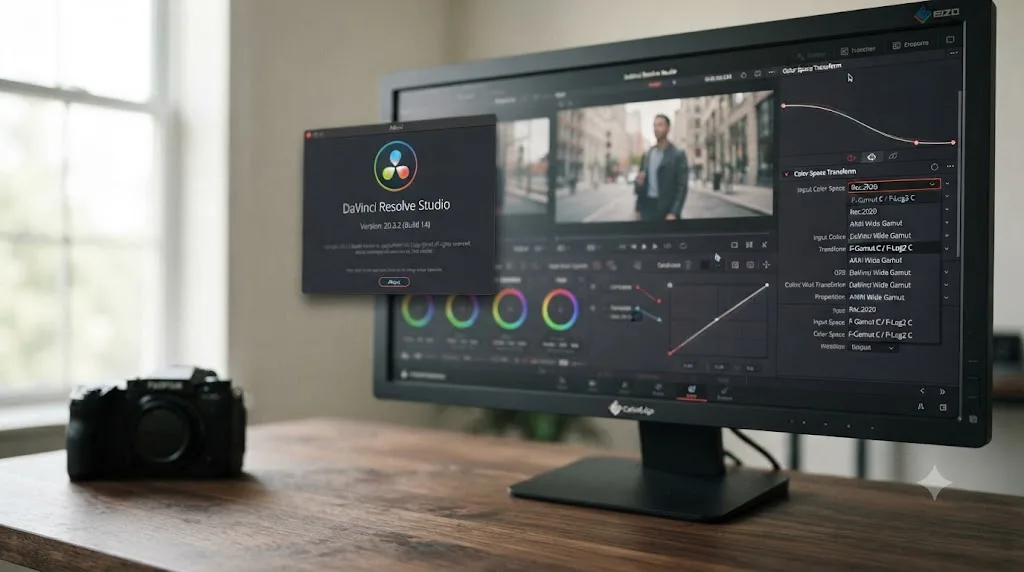
DaVinci Resolve 20.3.2, released February 12, 2026, added native support for Fujifilm's F-Gamut C color space and F-Log2 C gamma curve directly in the Color Space Transform dropdown, alongside a batch of other changes including up to 2.5x faster SuperScale processing with Apple's Neural Engine, per RedSharkNews' coverage of the update. That support carries forward into DaVinci Resolve 21, the version current as of this writing.
Standard F-Log2, by contrast, has been natively supported for color-managed workflows since DaVinci Resolve 19's final release in August 2024, well before F-Log2 C existed as a camera feature at all. If you're running anything older than 20.3.2 and shooting F-Log2 C, you have two options: update Resolve, or fall back to a third-party DCTL script or LUT built specifically for F-Log2 C's F-Gamut C primaries, since no Rec.2020-based preset will correctly decode the wider gamut.
| Fujifilm gamma | Resolve version with native support | Released |
|---|---|---|
| F-Log | Resolve 19 and earlier (general log support) | Ongoing |
| F-Log2 | Resolve 19 | August 2024 |
| F-Log2 C | Resolve 20.3.2 | February 12, 2026 |
A DaVinci Resolve install more than a year or two old is the single most common reason F-Log2 C footage specifically won't grade correctly, since the F-Gamut C preset simply didn't exist in Resolve until February 2026. Check Resolve's version number in About DaVinci Resolve before assuming a settings mistake if F-Log2 C footage looks wrong after an otherwise correct Color Space Transform.
Do you need a firmware update to shoot F-Log2 C on the X-H2S?
Yes, and this is a camera-side requirement Resolve's Color Space Transform can't work around. The X-H2S didn't ship with F-Log2 C. Fujifilm added it later, in a free firmware update, and everything this guide says about the F-Gamut C preset is moot if the camera itself never recorded that curve.
Fujifilm rolled F-Log2 C into X-H2S firmware Ver.7.10, released November 21, 2024, alongside autofocus improvements and a new time code sync feature over USB, per the X-H2S firmware download page. The update notes describe exactly what changed: F-Log2 C "expands the captured color gamut, thus improving the reproduction of high chroma colors that were difficult to reproduce with F-Log2. It also expands the color editable range in ACES space and BT.709," per CineD's coverage of the firmware release. Standard F-Log2 needs no update at all. It's been in the X-H2S's firmware since the camera's original 2022 launch.
Check your version before you go looking for F-Log2 C in the Movie Setting menu and can't find it. Open the camera's setup menu, find the firmware version screen, and compare it against 7.10. If you're behind, update through the Fujifilm X App over Wi-Fi, or by copying the firmware file to an SD card and following Fujifilm's own installation steps on the download page. A body running firmware from before November 2024 simply won't list F-Log2 C as an option, and no setting inside DaVinci Resolve fixes a gamma curve the camera itself never recorded.
| Firmware milestone | Date | What it added |
|---|---|---|
| X-H2S original firmware | July 2022 launch | F-Log, F-Log2, base video features |
| X-H2S Ver.7.10 | November 21, 2024 | F-Log2 C, Time Code Sync over USB, AF improvements |
A Fujifilm X-H2S running firmware older than Ver.7.10 cannot record F-Log2 C at all, since the option doesn't exist in its menu until that specific update installs. Confirm the camera's firmware version before troubleshooting a missing F-Log2 C menu entry as if it were a Resolve problem.
Should you shoot F-Log2 or F-Log2 C on the X-H2S?
Now that both curves exist on the same body, assuming your firmware supports it, the real question is when F-Log2 C's wider gamut is actually worth reaching for over the original, more widely supported F-Log2.
F-Log2 C's whole reason for existing is chroma. Fujifilm's own firmware notes state it plainly: the new curve "expands the captured color gamut, thus improving the reproduction of high chroma colors that were difficult to reproduce with F-Log2," per CineD's report on the firmware update. That matters most on saturated, hard-to-hold colors: neon signage, stage lighting, branded product colors, certain skin tones under mixed lighting. Standard F-Log2, by contrast, has years more real-world use behind it, works with every version of Resolve back to 19, and needs no F-Gamut C preset that an older grading suite or a collaborator's older Resolve install might not recognize.
There's a workflow cost to F-Log2 C too. It's a comparatively new, camera-specific proprietary gamut. Third-party LUTs, plugins, and DCTLs built for the broader F-Log2/Rec.2020 ecosystem don't automatically understand F-Gamut C, so a look you like on F-Log2 footage might need rebuilding for F-Log2 C source. If you're delivering fast, cutting with collaborators on mixed Resolve versions, or shooting footage without genuinely hard-to-reproduce colors, standard F-Log2 stays the simpler, more compatible default.
| Situation | Better fit |
|---|---|
| Shooting neon, stage lighting, or other high-chroma subjects | F-Log2 C |
| Working with collaborators on Resolve versions older than 20.3.2 | F-Log2 |
| Reusing existing F-Log2 LUTs, DCTLs, or PowerGrades | F-Log2 |
| Maximum color fidelity on saturated product or brand colors | F-Log2 C |
| Uncertain, or shooting a mix of subjects on the same day | F-Log2, the safer default |
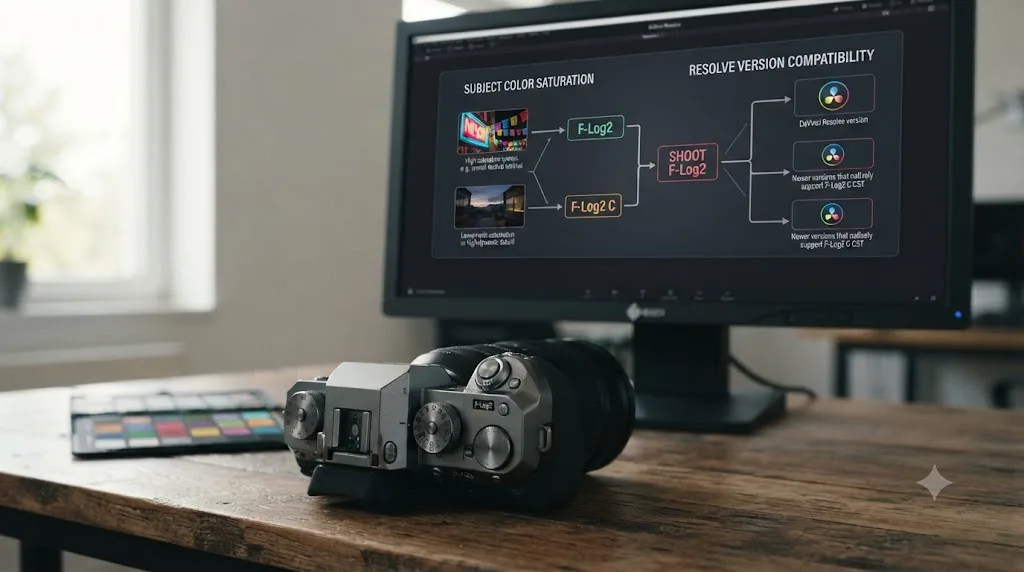
F-Log2 C exists specifically to hold onto high-chroma color that standard F-Log2's Rec.2020 gamut couldn't reproduce cleanly, and that narrow advantage is the entire case for choosing it over the more compatible, more established F-Log2. When a shot doesn't involve genuinely saturated color, the extra compatibility risk of F-Log2 C usually isn't worth taking on.
Resolve Color Management or a manual Color Space Transform, which one?
Both reach the same finished image for standard F-Log2 footage, and the choice mostly comes down to how consistent your project's camera mix actually is.
Resolve Color Management (RCM) tags each clip's Input Color Space and Input Gamma through Clip Attributes, then applies the conversion to your project's chosen Timeline color space automatically, letting you skip building CST nodes by hand on every clip. It works cleanly when a project is entirely X-H2S F-Log2 footage shot consistently. A manual Color Space Transform node gives you more control per clip, which matters the moment you're mixing F-Log2 with F-Log2 C footage from the same body, with a standard Film Simulation, or with a different camera brand entirely. Our guide to color matching different cameras in DaVinci Resolve covers that cross-camera normalization step once each source sits correctly in DaVinci Wide Gamut.
| Situation | Better fit |
|---|---|
| Project is entirely F-Log2 footage, shot consistently | Resolve Color Management, Timeline set to DaVinci Wide Gamut/Intermediate |
| Project mixes F-Log2 with F-Log2 C | Manual Color Space Transform per clip, matching the exact gamma each one recorded |
| Mixing F-Log2 with a standard Film Simulation, or a different camera brand | Manual Color Space Transform |
| You want per-clip override flexibility | Manual Color Space Transform |
Resolve Color Management removes the need to build a CST node on every clip when a project's camera mix is genuinely uniform, but the moment F-Log2, F-Log2 C, or a different manufacturer's log curve shares a timeline, a manual Color Space Transform node per clip type is the safer default. Confirm which situation you're actually in before committing a whole project to one approach.
Does F-Log2 work with ACES workflows in DaVinci Resolve?
Not with a Blackmagic-built preset the way F-Log2 works inside a standard Color Space Transform, and that gap is worth knowing about before you commit a whole project to an ACES pipeline.
As of the Resolve versions covered in this guide, the built-in ACES Input Transform list doesn't include a dedicated Fujifilm F-Log2 entry the way it covers several other manufacturers' log curves natively. Colorists working an ACES pipeline with F-Log2 footage generally reach for a third-party Input Device Transform instead, such as the open-source F-Log2 IDT in thatcherfreeman's aces-transforms collection on GitHub, installed into Resolve's ACES Transforms folder before it shows up as a project-level option.
Fujifilm itself has started building F-Log2 C with ACES in mind, even without a matching Resolve preset yet. The same firmware release notes covered above state that F-Log2 C "expands the color editable range in ACES space and BT.709," per CineD's coverage, a direct acknowledgment from the manufacturer that ACES compatibility was part of the design brief for the wider gamut.
For most X-H2S projects, none of this matters. The two-node Color Space Transform pattern earlier in this guide, Rec.2020/F-Log2 into DaVinci Wide Gamut, reaches a clean, gradable image without touching ACES at all, and that's the right default unless a client, a VFX pipeline, or a multi-camera-brand production specifically requires ACES color management.
| Situation | Approach |
|---|---|
| Standard project, single camera brand | Skip ACES, use the CST-to-DaVinci-Wide-Gamut pattern in this guide |
| Client or pipeline mandates ACES | Install a third-party F-Log2 IDT, or add a manual Input Transform under RCM |
| Multi-brand production already standardized on ACES | Third-party IDT keeps F-Log2 consistent with ACEScct-based grading from other cameras |
DaVinci Resolve has no native, Blackmagic-built ACES Input Transform for Fujifilm F-Log2, so a project that requires ACES color management needs a third-party IDT installed first, while a standard single-camera project can skip ACES entirely and use the Color Space Transform pattern this guide already covers. Don't add ACES complexity to a project that doesn't actually need it.
What ISO should you shoot F-Log2 at on the X-H2S?
The Color Space Transform math assumes you exposed the footage the way F-Log2's curve was actually designed for, and the X-H2S restricts you to a specific sensitivity band while recording in it.
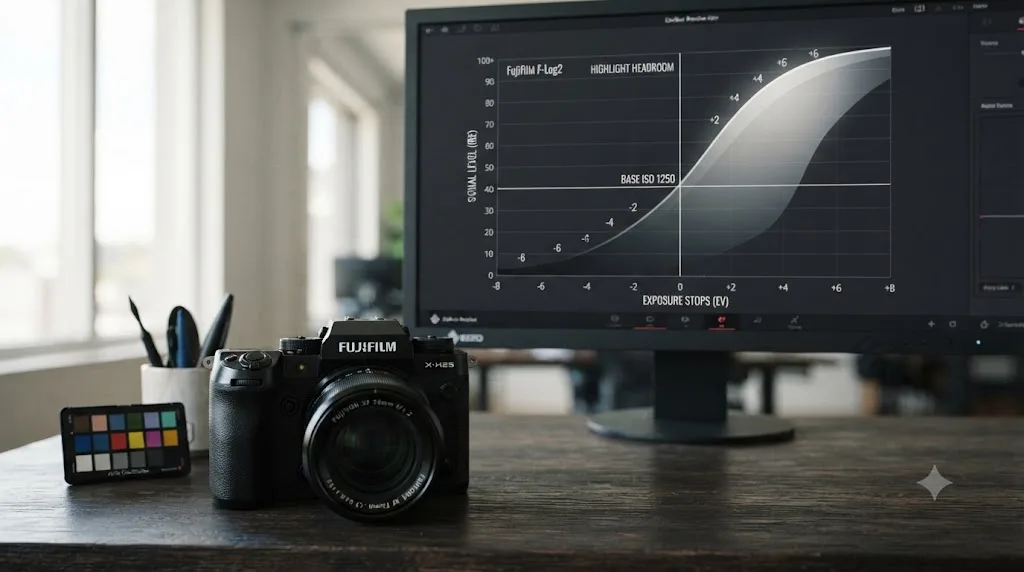
Fujifilm's own camera manual states the restriction directly: "Sensitivity is restricted to values between ISO 1250 and ISO 12800 (F-Log2 and F-Log2 C)," per the X-H2S Movie Setting manual page. ISO 1250 is the floor, and it's also the base sensitivity the curve was built around, where the sensor delivers its best signal-to-noise performance in F-Log2. Standard F-Log, by comparison, has a lower base of ISO 640 and a narrower claimed dynamic range.
The reason F-Log2's floor sits well above a typical stills base ISO is the same highlight-protection logic found across other manufacturers' dual-purpose log curves: a controlled, higher-gain exposure point that reserves extra headroom for the highlight detail the curve is built to hold, rather than a limitation on the sensor's native sensitivity.
| Setting | Value |
|---|---|
| F-Log2 / F-Log2 C base ISO | 1250 |
| F-Log2 / F-Log2 C usable ISO range | 1250 to 12800 |
| F-Log base ISO (for comparison) | 640 |
| Fujifilm's marketed dynamic range, F-Log2 | 14+ stops |
| Fujifilm's marketed dynamic range, F-Log | 12+ stops |
Exposing F-Log2 below ISO 1250 on the X-H2S isn't possible in the camera's own menu, and that floor exists specifically because the curve's highlight headroom was built around it. If footage that came from a different Fujifilm body, or an older firmware version, looks like it's grading with less headroom than this guide describes, check whether it was actually shot in F-Log2 at all before assuming a Color Space Transform mistake.
How do you nail exposure for F-Log2 using the X-H2S's zebra tools?
The X-H2S doesn't give you a false color overlay or a built-in waveform in the viewfinder the way some cinema-focused cameras do. Zebra patterns are the tool Fujifilm actually gives you, and they work fine once you know roughly where F-Log2's midpoint sits.
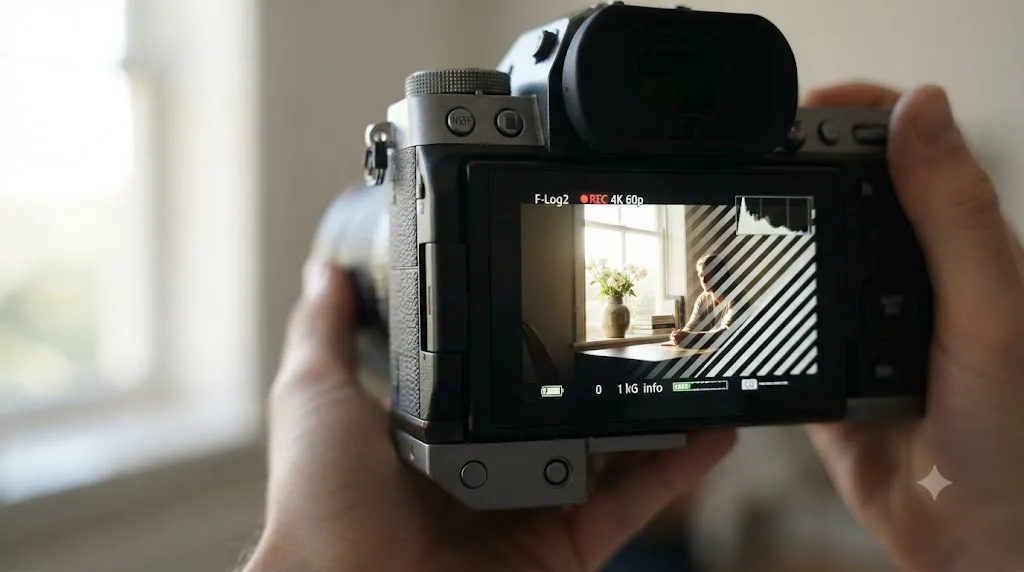
The X-H2S's Zebra Setting and Zebra Level controls turn on diagonal stripes over any part of the frame at or above a brightness threshold you choose, per Fujifilm's own X-H2S movie setting manual. That's the extent of the built-in tool set. There's no dedicated false color mode and no in-camera waveform monitor on this body, so zebras are the primary exposure aid you have without adding an external monitor.
Fujifilm's own F-Log2 data sheet documents 18% gray landing at roughly 38.4 IRE on the camera side, per a color-science reference built from that data sheet. That number is useful context even without an in-camera waveform: it tells you F-Log2's midtones sit well below the 90-plus IRE range zebras are typically set to flag, so a zebra threshold in the low-to-mid 90s will catch genuine highlight clipping risk without falsely flagging a properly exposed midtone or a skin tone. Treat that as a rough field guide, not a substitute for real scopes. Confirm the exact clipping point once the footage is in Resolve, since the data sheet's published reference is for 18% gray, not the sensor's white clip point.
If you're shooting handheld with no time to chase a menu-based zebra threshold, an external monitor with real scopes, whether the Atomos or Blackmagic recorder covered later in this guide, gives you a genuine waveform and vectorscope Fujifilm doesn't build into the X-H2S body itself. That's a second reason external RAW recording appeals to some X-H2S shooters beyond the format upgrade: it's also a monitoring upgrade.
The X-H2S has zebra patterns for exposure, not a built-in false color mode or waveform, so setting the zebra threshold in the low-to-mid 90s IRE gives you a reasonable highlight-clipping warning against F-Log2's documented midtone reference of roughly 38 IRE. Treat it as a rough guide in the field and confirm real levels once the footage reaches Resolve's scopes.
Do you need a Fujifilm LUT, and where do you get it?
Not for the core Color Space Transform workflow covered above, but Fujifilm does provide free official LUTs if you want a faster route to a finished, stylized look instead of a bare Rec.709 conversion.
Fujifilm released a set of official F-Log2 and F-Log2 C Film Simulation LUTs in mid-November 2025, without a formal press release, first reported by CineD, per PetaPixel's coverage. The pack includes ten Film Simulations, Eterna, Provia, Velvia, Astia, Classic Chrome, Reala Ace, Pro Neg.Std, Classic Neg., Eterna Bleach Bypass, and Acros, plus separate neutral and natural rendering options, and it's free to download directly from Fujifilm's own LUT download page. It covers any recent Fujifilm body shooting F-Log2 or F-Log2 C, from the entry-level X-M5 up through the X-H2S and the cinema-focused GFX Eterna 55.
Fujifilm's own CST guide is explicit about where a LUT fits in the grading order: build the Color Space Transform first, correct white balance and exposure, then apply a Film Simulation LUT as the creative layer on top, per the company's support article. To install a downloaded .cube file, drop it into Resolve's LUT folder, C:\ProgramData\Blackmagic Design\DaVinci Resolve\Support\LUT on Windows or Library/Application Support/Blackmagic Design/DaVinci Resolve/LUT/ on Mac, inside a Fujifilm subfolder, then click Update Lists in Resolve's LUT panel.
| LUT pack | Released | What it's for |
|---|---|---|
| Fujifilm Film Simulation LUTs for F-Log2/F-Log2 C | Mid-November 2025 | Ten Film Simulation looks plus neutral/natural, free |
Fujifilm's own Film Simulation LUTs are a free, optional creative layer, not a requirement, since the two-node Color Space Transform pattern earlier in this guide already reaches a clean Rec.709 image on its own. Apply the LUT on a separate node after your primary correction, and adjust the node's key or opacity to taste rather than accepting the look at full strength by default.
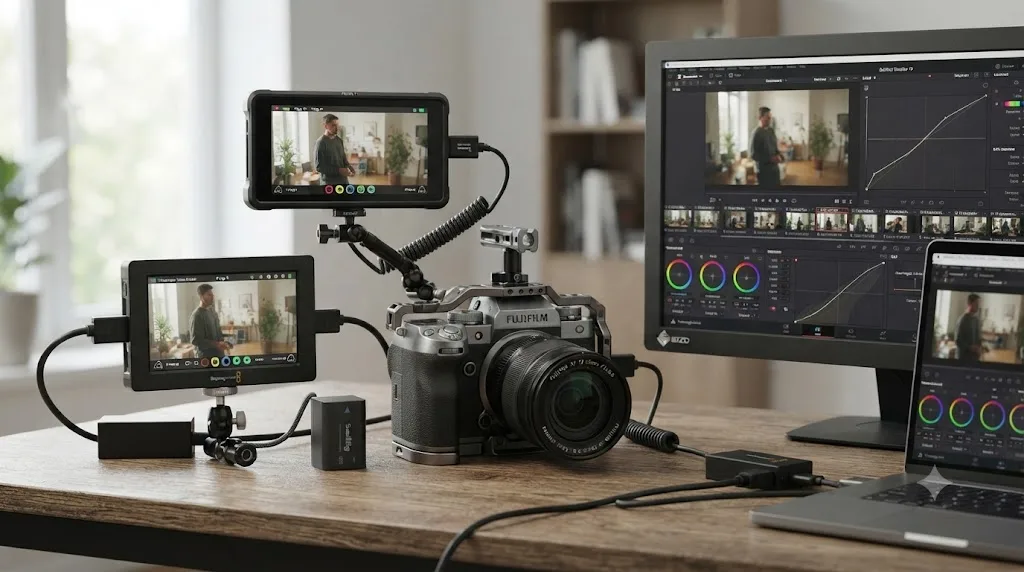
How do you set up ProRes RAW or Blackmagic RAW footage from the X-H2S?
External RAW recording takes a genuinely different path through Resolve than internal F-Log2, because a RAW stream doesn't carry a fixed Input Color Space and Input Gamma the way a compressed clip does.
The X-H2S outputs 12-bit RAW over full-size HDMI to two documented recorder options, per Fujifilm's own RAW recording workflow guide: an Atomos Ninja V, Ninja V+, or the newer Ninja TX GO for ProRes RAW, or a Blackmagic Video Assist 12G HDR for Blackmagic RAW, which the guide describes as "optimized for DaVinci Resolve workflows." To enable it, go to the X-H2S's Movie Setting menu, HDMI Output Setting, RAW Output Setting, and choose Atomos or Blackmagic, then confirm both camera and recorder are running current firmware before you shoot.
Blackmagic RAW decodes natively in Resolve with no plugin required, since it's Blackmagic's own codec, and it works fully in the free version. ProRes RAW decoding used to be Mac-only, dependent on Apple's own system codec, but DaVinci Resolve 20.2, released September 9, 2025, added native cross-platform ProRes RAW decoding, in both the free and Studio versions, on Mac, Windows, and Linux alike.
| Recorder | Codec | Native Resolve decode since |
|---|---|---|
| Blackmagic Video Assist 12G HDR | Blackmagic RAW | Always (Blackmagic's own codec) |
| Atomos Ninja V / V+ / TX GO | ProRes RAW | Mac-only for years; cross-platform since Resolve 20.2, September 2025 |
Once a RAW clip is in your Media Pool, it opens its own Camera RAW tab in Clip Attributes or the Color page inspector, not the standard Input Color Space and Input Gamma fields a compressed F-Log2 clip exposes. Decode toward Rec.709 directly through that panel, or apply the same Fujifilm F-Log2 LUT covered in the previous section on a node afterward, rather than stacking a second manual Color Space Transform on top of an already-decoded RAW clip.
A RAW clip's color space gets set at the point of decode, through the Camera RAW panel, not through a second Color Space Transform node stacked on top of it the way a standard F-Log2 file needs. Treating an external RAW clip like a compressed log file that still needs a manual CST-in node is the most common way this specific part of the workflow goes wrong.
Do you need DaVinci Resolve Studio for this workflow?
No, not for the color mechanics this guide covers, which is a genuinely different answer from some other camera-and-log pairings that gate RAW rendering behind the paid tier.
The Color Space Transform node, Resolve Color Management, native Blackmagic RAW decoding, and native ProRes RAW decoding since Resolve 20.2 all work fully in the free version, per Blackmagic's own free product page. Fujifilm doesn't publish an equivalent Studio requirement for F-Log2 or F-Log2 C the way some other manufacturers do for their proprietary RAW formats, so a standard X-H2S F-Log2 project, whether internal or external RAW, can go from import to final export entirely in the free version.
Where Studio genuinely enters the picture: Temporal or Spatial Noise Reduction on footage shot near the top of F-Log2's ISO range, Dolby Vision metadata authoring or HDR10+ delivery if you're targeting HDR rather than the SDR pipeline this guide mostly walks through, and the DaVinci Neural Engine's broader AI feature set, all listed on Blackmagic's Studio product page. Our full DaVinci Resolve Studio price breakdown covers what the $295 one-time license changes across the rest of the app if you're weighing it for reasons beyond this workflow.
| Task | Studio required |
|---|---|
| Color Space Transform, F-Log2 or F-Log2 C | No |
| Resolve Color Management | No |
| Blackmagic RAW decode | No |
| ProRes RAW decode (any platform, since Resolve 20.2) | No |
| Plain HDR export, Rec.2100 PQ or HLG, no dynamic metadata | No |
| Temporal/Spatial Noise Reduction | Yes |
| Dolby Vision authoring / HDR10+ delivery | Yes |
Getting X-H2S F-Log2 footage, internal or external RAW, to grade correctly is entirely a free-version workflow, since Blackmagic doesn't gate any of the color management or decoding steps this guide covers behind Studio. Noise reduction and dynamic-metadata HDR delivery are the actual reasons to reach for the paid license on this camera, not the core grading pipeline.
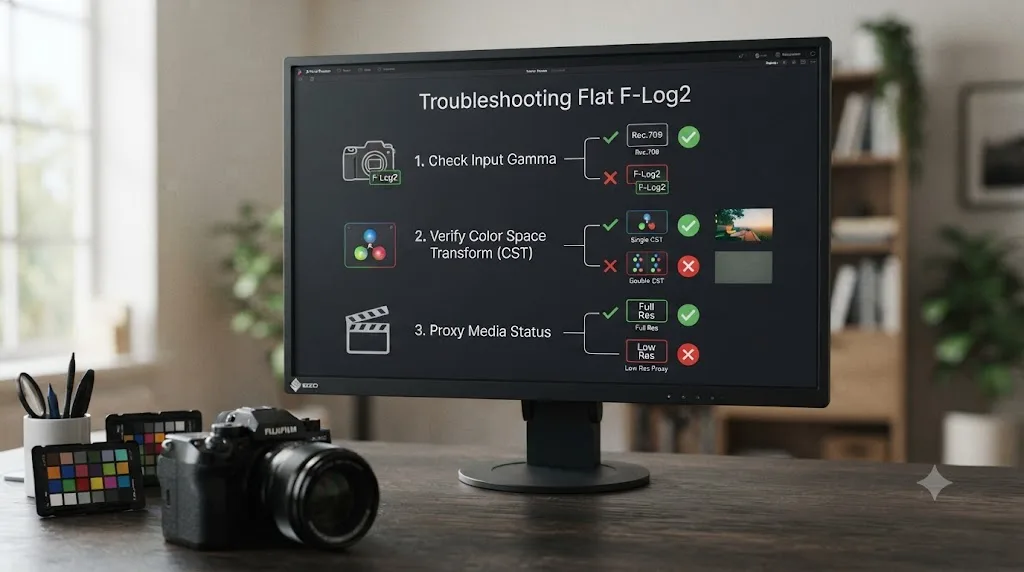
Why does F-Log2 footage still look flat or wrong after the Color Space Transform?
Almost always a mismatched preset somewhere in the chain, not a flaw in the Color Space Transform tool itself, and the fix is a short checklist rather than a rebuild.
Start with Input Gamma. Resolve's dropdown lists F-Log, F-Log2, and, since version 20.3.2, F-Log2 C as three separate entries, and picking the neighbor of the one your camera actually recorded produces a result that's close enough to look plausible while still being measurably off, especially in skin tones and highlight rolloff. Our guide to why a Color Space Transform can leave an image looking desaturated covers the Tone Mapping and Gamut Mapping settings that commonly get blamed for a problem that's actually a mismatched preset instead.
Next, check for double conversion. If Resolve Color Management is active on the project and a manual Color Space Transform node also sits on the clip, the footage gets converted twice, producing a flattened, over-desaturated result. Confirm the clip is genuinely F-Log2 and not a standard Film Simulation or HLG accidentally recorded in the wrong menu position, since a non-log clip run through a log-expecting CST looks crushed and oversaturated rather than flat. And rule out a proxy problem: a low-resolution optimized media file that never relinked to the full-resolution original before export can carry visible banding or softness that has nothing to do with color management at all.
One more failure mode is specific to F-Log2 C: if the Movie Setting menu doesn't show F-Log2 C as an option at all, the camera's firmware is older than Ver.7.10 and never received the update covered earlier in this guide, not a Resolve or grading problem. Updating the firmware fixes that in minutes; no amount of Color Space Transform tweaking substitutes for a gamma curve the camera never recorded.
| Symptom | Likely cause | Fix |
|---|---|---|
| Still looks flat and grey | Wrong Input Gamma, or CST missing entirely | Confirm F-Log2 specifically, not F-Log or F-Log2 C |
| Colors look muted or desaturated | Double conversion (RCM + manual CST both active) | Pick one method, not both |
| Image looks crushed or oversaturated | Clip wasn't actually F-Log2 | Check Clip Attributes and the original menu setting |
| Banding or softness after grading | Proxy media never relinked | Confirm full-resolution media before final export |
| F-Log2 C missing from the camera's menu entirely | Firmware older than Ver.7.10 | Update the X-H2S's firmware |
A Fujifilm F-Log2 clip that still looks wrong after a Color Space Transform is almost always carrying the wrong Input Gamma preset, a double conversion, or a proxy that never relinked, and all three show up in Clip Attributes and Project Settings before you need to touch a single grading tool. Work the checklist in that order before assuming the math itself is broken.
What does independent lab testing show about X-H2S dynamic range and rolling shutter?
Solidly close to Fujifilm's own marketing figures, with the useful nuance that independent measurement methods define "usable" dynamic range more conservatively than a manufacturer's headline number.
CineD's Gunther Machu ran the X-H2S through IMATEST at ISO 1250 in 6.2K open gate, and his lab test found dynamic range of 11.9 stops at a signal-to-noise ratio of 2, and 13.4 stops at SNR of 1, scaling to 12.2 and 13.6 stops respectively when measured at UHD resolution, per CineD's lab test. Machu's own summary states directly: "13 stops can be identified above the noise floor." He also documented a specific advantage of the flatter F-Log2 curve for exposure decisions: "There is a solid code value difference between the 11th and 12th stop, as well as from the 12th to the 13th stop in F-Log2." On noise at the camera's native highs, Machu wrote: "The noise is very fine, very organic looking. No need for noise reduction, in my opinion."
Rolling shutter measured well across every frame rate CineD tested: 9.7ms at UHD 25fps in 14-bit, 11.5ms at 6.2K open gate in 14-bit, dropping to 5.3ms at UHD 60fps and 3.9ms at UHD 120fps with a 1.29x crop.
| Measurement | Result | Source |
|---|---|---|
| Rolling shutter, UHD 25fps (14-bit) | 9.7 ms | CineD lab test |
| Rolling shutter, 6.2K open gate (14-bit) | 11.5 ms | CineD lab test |
| Rolling shutter, UHD 60fps (12-bit) | 5.3 ms | CineD lab test |
| Rolling shutter, UHD 120fps (12-bit, cropped) | 3.9 ms | CineD lab test |
| Dynamic range, F-Log2, ISO 1250 (SNR 2 / SNR 1) | 11.9 / 13.4 stops | CineD lab test |
| Dynamic range, scaled to UHD (SNR 2 / SNR 1) | 12.2 / 13.6 stops | CineD lab test |
| Fujifilm's own marketed figure, F-Log2 | 14+ stops | Fujifilm |
Rolling shutter and dynamic range are physical properties of the sensor and codec, not settings a Color Space Transform can change, and CineD's own IMATEST testing lands close enough to Fujifilm's 14+ stop marketing figure that the gap is a measurement-methodology difference, not a discrepancy worth chasing in the color page. Watch your own scopes on your own footage rather than treating either number as a guarantee for a specific shot.
Should you shoot F-Log2 or HLG on the X-H2S?
F-Log2 isn't the only flat-leaning profile the X-H2S offers, and picking the wrong one for your delivery target costs you a full extra grading pass rather than just a slightly different look.
F-Log2 is built for an SDR intermediate workflow, a flat curve you correct into Rec.709 through the Color Space Transform this guide covers, with full creative control over the final look. HLG (Hybrid Log-Gamma) is built for HDR delivery instead, targeting Rec.2100 directly rather than needing a full creative grade to look acceptable, since HLG is designed to degrade gracefully on an SDR display that doesn't support it. Our guide to Rec.709 versus Rec.2020 in DaVinci Resolve covers how Resolve treats Rec.2020 and Rec.2100 as delivery targets in their own right, separate from Rec.2020's role as F-Log2's carrier gamut here.
| Profile | Built for | Needs a Color Space Transform | Best fit |
|---|---|---|---|
| F-Log2 | SDR intermediate, full grading control | Yes, Rec.2020 to DaVinci Wide Gamut | Any project getting a real color grade |
| HLG | HDR delivery, minimal grading | Different transform, toward Rec.2100 | HDR delivery targets, broadcast HDR workflows |
F-Log2 is built to look flat until you apply the Color Space Transform this guide covers, and HLG is built for HDR delivery with a different target gamma entirely, so picking between them on a shoot day is a delivery-format decision, not a matter of which one is "more professional." If a project's actual delivery spec never mentions HDR, F-Log2 through the Rec.709 pipeline is almost always the more direct route to a finished grade. For the exact Color Space Transform settings an HDR delivery needs, see the next section.
How do you deliver F-Log2 footage in HDR instead of Rec.709?
Everything up to this point in the guide assumes an SDR, Rec.709 delivery. If the actual delivery spec calls for HDR, the Color Space Transform's output side changes, and so does the color space your whole timeline works in.
Start in Project Settings, under Color Management. Set Timeline Color Space to Rec.2100 ST2084 for a PQ-based HDR deliverable, which is Resolve's label for Rec.2020 primaries paired with the ST.2084 transfer function, the same standard behind Dolby Vision and HDR10, or to Rec.2100 HLG if your target is a broadcast-style Hybrid Log-Gamma delivery instead, per Blackmagic's own DaVinci Resolve color page. The Color Space Transform's input side stays identical to the SDR workflow covered earlier: Rec.2020 in, Fujifilm F-Log2 gamma in, DaVinci Wide Gamut and DaVinci Intermediate out. Only the final output node changes, from Rec.709/Rec.709 to Rec.2020/ST.2084 or Rec.2020/HLG.
Grading itself gets harder in HDR, not because the math changes but because your eye is judging a much wider brightness range than a Rec.709 monitor shows. Our full guide to grading HDR video in DaVinci Resolve covers the scopes, reference white level, and monitoring setup that HDR grading needs beyond what fits in a camera-specific guide like this one.
Dolby Vision metadata authoring and HDR10+ delivery both require DaVinci Resolve Studio, covered earlier in this guide. A straight Rec.2100 PQ or HLG export with no dynamic metadata works fully in the free version.
| Delivery target | Timeline Color Space | Output Color Space | Output Gamma |
|---|---|---|---|
| SDR (standard) | DaVinci Wide Gamut/Intermediate | Rec.709 | Rec.709 |
| HDR10 (static metadata) | Rec.2100 ST2084 | Rec.2020 | ST.2084 |
| HDR broadcast (HLG) | Rec.2100 HLG | Rec.2020 | HLG |
| Dolby Vision (dynamic metadata) | Rec.2100 ST2084 | Rec.2020 | ST.2084, plus Studio-only Dolby Vision authoring |
Delivering F-Log2 footage in HDR keeps the same Rec.2020/F-Log2 input side of the Color Space Transform this guide covers throughout, and only swaps the final output node to Rec.2020 paired with ST.2084 or HLG instead of Rec.709. Dolby Vision and HDR10+ specifically need the Studio license; a plain PQ or HLG export doesn't.
Do you need noise reduction for high-ISO F-Log2 footage?
Less than you might expect near base ISO, and more as you push toward the top of F-Log2's usable range, and the Color Space Transform itself does nothing to reduce it either way.
CineD's own lab test at base ISO 1250 found the noise "very fine, very organic looking," with the reviewer stating outright there's "no need for noise reduction" at that point in the ISO range. Further up, toward ISO 12800, the top of F-Log2's documented sensitivity ceiling, noise becomes more visible once the flat curve gets stretched into a normal-contrast grade. DaVinci Resolve's Temporal and Spatial Noise Reduction tools are Studio-exclusive, listed among the Neural Engine features on Blackmagic's Studio product page. Temporal Noise Reduction compares several adjacent frames and is generally the stronger tool for motion-heavy footage, while Spatial Noise Reduction works within a single frame and holds up better on footage with fast, unpredictable movement where frame-to-frame comparison struggles. Our full guide to DaVinci Resolve's noise reduction settings covers the specific Temporal frame counts and threshold values in more depth than fits here.
Node placement matters as much as which mode you choose. Apply Noise Reduction on a node before your Color Space Transform pushes the clip out of log, while the image is still flat and closer to what the sensor actually captured, rather than after contrast and saturation have already amplified the noise pattern.
Base-ISO F-Log2 on the X-H2S is clean enough that CineD's own lab reviewer called noise reduction unnecessary at ISO 1250, and reaching for it becomes more relevant only as exposure climbs toward the ISO 12800 ceiling. When conditions genuinely call for a higher ISO within that range, place Noise Reduction before the Color Space Transform node, not after.
Is the X-H2S still worth building a workflow around in 2026?
Yes for most hybrid and action-focused shooters, and Fujifilm itself has gone on record confirming the camera isn't going anywhere yet, despite persistent speculation to the contrary.
Asked directly about the X-H2S's status heading into 2026, Fujifilm North America told PetaPixel's Jeremy Gray: "the X-H2S remains an active and popular X Series product," per PetaPixel's report from January 2026. Some retailers had pulled listings and B&H showed the camera temporarily out of stock, but Adorama and Amazon carried stock, and Gray's own reporting confirmed active production continues, even as the camera approaches four years old. Separately, unconfirmed reports point to an eventual X-H3 combining the X-H2 and X-H2S lines with a partially stacked sensor, expected as far out as 2027, though that's sourced to anonymous industry chatter rather than an official Fujifilm announcement, so treat it as a rumor rather than a reason to hold off on a working camera today.
For video specifically, nothing about F-Log2's Color Space Transform settings, its base ISO, or its dynamic range changes based on how much longer Fujifilm keeps building the body. A camera already in your kit, or one available at current street pricing, grades exactly the way this guide describes regardless of what a hypothetical successor eventually ships with.
Fujifilm's own on-record statement that the X-H2S "remains an active and popular X Series product," made in January 2026, is a more reliable signal than discontinuation rumors built on pulled retailer listings. If you already own one, or you're weighing a purchase against speculation about a future X-H3, the color workflow in this guide holds regardless of which way that decision goes.
A step-by-step example: taking one F-Log2 clip from flat to Rec.709
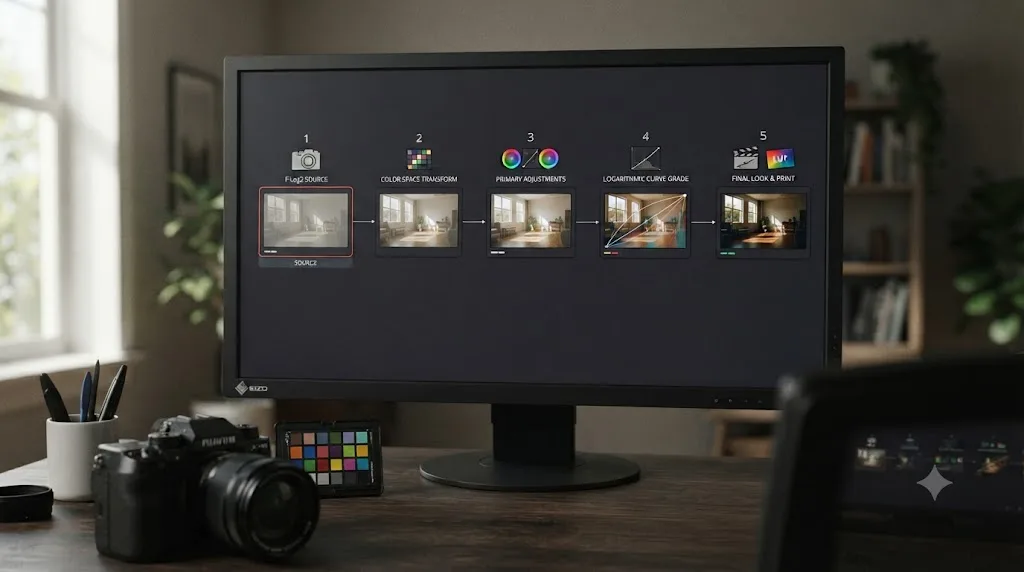
Here's the full sequence in order, from a fresh X-H2S clip in the Media Pool to a delivered Rec.709 grade, for standard internal F-Log2 footage shot in ProRes or H.265.
- Confirm the source. Check Clip Attributes to confirm the clip is F-Log2 specifically, not F-Log, F-Log2 C, or a standard Film Simulation, and note whether it's internal footage or external ProRes RAW/Blackmagic RAW, since RAW takes a different path covered earlier in this guide.
- Build optimized media if playback is stuttering. For high-bitrate 6.2K open-gate footage, generate proxy media at Quarter or Automatic resolution before touching color.
- Node 1, Color Space Transform in. Set Input Color Space to Rec.2020, Input Gamma to Fujifilm F-Log2, Output Color Space to DaVinci Wide Gamut, Output Gamma to DaVinci Intermediate.
- Node 2, Noise Reduction, if the shot needs it. For footage shot toward the top of F-Log2's ISO range, add Temporal or Spatial Noise Reduction here, right after the Color Space Transform, before any contrast moves.
- Node 3, primary correction. With the clip in DaVinci Wide Gamut, set white balance from a neutral reference if available, then bring black point and white point in using the Lift and Gain wheels, watching the scopes for clipping.
- Node 4, creative grade. Apply a Fujifilm Film Simulation LUT here if you want one, on its own node with adjustable intensity, followed by any additional contrast shaping, color balance, secondary qualifiers, and power windows the shot needs.
- Node 5, Color Space Transform out. Input Color Space DaVinci Wide Gamut, Input Gamma DaVinci Intermediate, Output Color Space Rec.709, Output Gamma Rec.709.
- Check against a second X-H2S clip, or footage shot in F-Log2 C on the same body, before calling the grade final.
Five nodes handle the mechanism end to end, with Noise Reduction and a Film Simulation LUT as the two optional insertions depending on ISO and creative intent.
A second worked example: an F-Log2 C clip needing the wider gamut. The sequence above assumes standard F-Log2. Swap in F-Log2 C, whether because the shot has saturated color that needs the extra gamut or because that's simply what the camera was set to, and only two fields change.
- Confirm the source. Check Clip Attributes and confirm Fujifilm F-Log2 C specifically, not F-Log2, since Resolve treats them as separate presets even though they share the X-H2S's ISO 1250 base.
- Node 1, Color Space Transform in. Set Input Color Space to F-Gamut C, not Rec.2020, and Input Gamma to Fujifilm F-Log2 C. Output Color Space and Output Gamma stay the same: DaVinci Wide Gamut and DaVinci Intermediate.
- Nodes 2 through 4 stay identical to the standard F-Log2 sequence: optional Noise Reduction, primary correction, and creative grade, all happening inside DaVinci Wide Gamut regardless of which Fujifilm gamma curve fed the first node.
- Node 5, Color Space Transform out, is unchanged too: DaVinci Wide Gamut and DaVinci Intermediate in, Rec.709 and Rec.709 out for an SDR deliverable, or the HDR output settings covered earlier in this guide for an HDR one.
The only real difference between grading F-Log2 and F-Log2 C is the Input Color Space and Input Gamma fields on that first node. Everything downstream, noise reduction, primary correction, creative grading, and final output, works exactly the same regardless of which curve fed it in.
When the menus alone don't get you there fast enough
Everything in this guide is a settings problem with a settings answer, but finding the right menu on a deadline is its own kind of friction, especially when you're bouncing between Project Settings, the node graph, and Clip Attributes trying to confirm exactly which of three Fujifilm gamma presets a clip actually needs.
TryUncle is the on-screen assistant for DaVinci Resolve on macOS. Ask in plain words, and Uncle points at the exact control on your screen. If you're on a Mac asking out loud "why does my F-Log2 footage still look grey," that's a faster route to the Color Space Transform panel than searching back through this page mid-session. It's a paid app, currently in founder pricing at $29.99 a month for the first 100 seats, and it's macOS only, so it won't help a Windows editor working through Resolve's menus. Check TryUncle for current pricing before deciding if it fits your workflow.
It's worth knowing the category has other tools built on a different premise. Sottocut, PremiereCopilot, heyeddie.ai, and cutagent.ai automate parts of an edit or answer chat questions about your footage, rather than watching your live screen and pointing at controls. If your goal is automating a cut, those solve a different problem. If your goal is finding the right Color Space Transform setting faster while you're the one making the decisions, on-screen guidance is the more direct tool for that specific job. Guided help inside Resolve beats pausing a tutorial video shot on a different camera's menu to compare against your own.
What's the full settings cheat sheet at a glance?
Before the table, the one-line version. Input Color Space is Rec.2020, Input Gamma is Fujifilm F-Log2, for internal ProRes or H.265 footage. Stay within ISO 1250 to 12800, the X-H2S's documented sensitivity range for F-Log2 and F-Log2 C, with 1250 as base. F-Log2 C needs firmware Ver.7.10 or later on the camera and uses a different, wider F-Gamut C input color space in Resolve, natively supported since DaVinci Resolve 20.3.2 in February 2026. External ProRes RAW and Blackmagic RAW take a different path entirely, through Resolve's Camera RAW panel rather than a manual Color Space Transform, and none of it needs the paid Studio version. HDR delivery keeps the same input side and only swaps the output node to Rec.2020/ST.2084 or Rec.2020/HLG. And when a clip still looks wrong after a correct-looking CST, check for a mismatched gamma preset, an old camera firmware version, or a double conversion before assuming the math is broken.
| Setting | Value |
|---|---|
| Shooting ISO for F-Log2/F-Log2 C | 1250 to 12800 (base 1250) |
| Input Color Space (standard F-Log2) | Rec.2020 |
| Input Color Space (F-Log2 C) | F-Gamut C |
| Input Gamma | Fujifilm F-Log2 (or F-Log2 C) |
| Intermediate Output Color Space | DaVinci Wide Gamut |
| Intermediate Output Gamma | DaVinci Intermediate |
| Final Output Color Space (SDR delivery) | Rec.709 |
| Final Output Gamma (SDR delivery) | Rec.709 |
| Final Output Color Space / Gamma (HDR delivery) | Rec.2020 / ST.2084 (PQ) or HLG |
| Native F-Log2 support added in Resolve | DaVinci Resolve 19, August 2024 |
| Native F-Log2 C support added in Resolve | DaVinci Resolve 20.3.2, February 12, 2026 |
| X-H2S firmware needed for F-Log2 C | Ver.7.10 or later, November 21, 2024 |
| Native Fujifilm F-Log2 ACES IDT in Resolve | None; use a third-party IDT for ACES pipelines |
| Internal formats | ProRes HQ/LT/Proxy 6.2K/30p, H.265 4K/120p |
| External RAW formats | ProRes RAW or Blackmagic RAW, up to 6.2K |
| Cross-platform ProRes RAW decode added | DaVinci Resolve 20.2, September 9, 2025 |
| Fujifilm's marketed dynamic range, F-Log2 | 14+ stops |
| Lab-measured dynamic range (CineD, ISO 1250, SNR 2/1) | 11.9 / 13.4 stops |
| Studio required for core grading workflow | No |
| Studio required for Noise Reduction | Yes |
| Studio required for Dolby Vision/HDR10+ delivery | Yes |
| Launch price (body only) | $2,499 |
Frequently asked questions
- What Color Space Transform settings does Fujifilm X-H2S F-Log2 footage need in DaVinci Resolve?
- On your first node, set Input Color Space to Rec.2020 and Input Gamma to Fujifilm F-Log2, then Output Color Space to DaVinci Wide Gamut and Output Gamma to DaVinci Intermediate. On your last node before delivery, reverse it: Input DaVinci Wide Gamut and DaVinci Intermediate, Output Rec.709. Fujifilm's own support article confirms this exact parameter set: Input Color Space (F-Log/F-Log2), Input Gamma (F-Log Gamma/F-Log2 Gamma), Output Color Space, Output Gamma.
- What ISO should I shoot F-Log2 at on the Fujifilm X-H2S?
- ISO 1250. That's the X-H2S's documented base sensitivity for F-Log2 and F-Log2 C, and Fujifilm's own camera manual restricts video sensitivity to a range of ISO 1250 to ISO 12800 in those two gammas. Standard F-Log, by comparison, has a lower base of ISO 640.
- Does DaVinci Resolve support Fujifilm F-Log2 C?
- Yes, as of DaVinci Resolve 20.3.2, released February 12, 2026, which added native support for the F-Gamut C color space and F-Log2 C gamma curve directly in the Color Space Transform dropdown. That support carries forward into DaVinci Resolve 21. Before 20.3.2, F-Log2 C footage needed a third-party DCTL or LUT to grade correctly, since Resolve had no matching built-in preset.
- Does the Fujifilm X-H2S need a firmware update to shoot F-Log2 C?
- Yes. F-Log2 C only exists on the X-H2S starting with firmware Ver.7.10, released November 21, 2024. A body running older firmware won't show F-Log2 C in the Movie Setting menu at all, and no DaVinci Resolve setting can substitute for a gamma curve the camera never recorded. Standard F-Log2 needs no update, since it shipped in the X-H2S's original 2022 firmware.
- Do I need DaVinci Resolve Studio to grade Fujifilm X-H2S F-Log2 footage?
- No, not for the core workflow. The Color Space Transform node, Resolve Color Management, and native BRAW and ProRes RAW decoding all work in the free version. Studio becomes relevant only if you need Temporal or Spatial Noise Reduction on high-ISO footage, Dolby Vision or HDR10+ delivery, or the DaVinci Neural Engine's AI features, all listed on Blackmagic's own Studio product page.
- Why does my X-H2S F-Log2 footage still look flat or wrong after the Color Space Transform?
- Work through it in order: confirm Input Gamma is specifically F-Log2, not F-Log or F-Log2 C, since the three are separate presets and Resolve won't warn you for picking the wrong one; check whether Resolve Color Management and a manual Color Space Transform are both converting the same clip; confirm the footage wasn't shot in HLG or a standard Film Simulation instead; and rule out a low-resolution proxy that never relinked to the original before export.
- Is F-Log2 the same as F-Log on the Fujifilm X-H2S?
- No. F-Log is Fujifilm's older flat gamma curve, base ISO 640, with roughly 12+ stops of claimed dynamic range. F-Log2 is a newer, flatter curve built to hold more highlight detail, base ISO 1250, with Fujifilm marketing 14+ stops. Both share the same Rec.2020 gamut, so the Color Space Transform's Input Color Space stays Rec.2020 for either one; only the Input Gamma preset changes.
- Can I record ProRes RAW or Blackmagic RAW from the Fujifilm X-H2S into DaVinci Resolve?
- Yes, both externally over full-size HDMI. Pair the X-H2S with an Atomos Ninja V, Ninja V+, or the newer Ninja TX GO for 12-bit ProRes RAW up to 6.2K, or a Blackmagic Video Assist 12G HDR for Blackmagic RAW, which Fujifilm's own workflow guide describes as optimized for DaVinci Resolve. BRAW decodes natively in Resolve with no plugin. ProRes RAW decodes natively too, cross-platform, since DaVinci Resolve 20.2 added that support in September 2025.
Sources
- Fujifilm: F-Log2 Data Sheet (Ver.1.1)
- Fujifilm: F-Log2 C Data Sheet (Ver.1.0)
- Fujifilm USA: F-Log Color Correction Using CSTs and LUTs
- Fujifilm USA: Record RAW Like a Pro, FUJIFILM GFX100 II and X-H2S Workflow
- Fujifilm X Series: X-H2S Product Page
- Fujifilm X Series: X-H2S Firmware Downloads
- Fujifilm Online Manual: X-H2S Movie Setting (ISO range for F-Log2/F-Log2 C)
- Fujifilm X Series: Film Simulation LUT Downloads
- Antler Post: FUJI F-Log2 Colour Space Reference
- CineD: FUJIFILM X-H2S Lab Test, Rolling Shutter, Dynamic Range, and Exposure Latitude (Gunther Machu)
- CineD: FUJIFILM X-H2S Released, 26.16MP X-Trans Sensor and 10-bit 4:2:2 in up to 6.2K/30p
- CineD: FUJIFILM X-H2S, We Ask, FUJIFILM Answers
- RedSharkNews: DaVinci Resolve 20.3.2 Update Adds Fujifilm F-Log2 C Support and Faster SuperScale
- Newsshooter: DaVinci Resolve 20.2 Adds ProRes RAW Support
- Newsshooter: Fujifilm X-H2S Has ProRes Internal, ProRes RAW, and BRAW External Recording
- PetaPixel: No, the Fujifilm X-H2S Has Not Been Discontinued (Jeremy Gray)
- PetaPixel: Fujifilm's New F-Log2 and F-Log2C Film Simulation LUTs Look Fantastic (Jeremy Gray)
- Blackmagic Design: DaVinci Resolve product page (free version)
- Blackmagic Design: DaVinci Resolve Studio product page
- Blackmagic Design: DaVinci Resolve Color page (HDR grading, Rec.2100 PQ/HLG)
- CineD: FUJIFILM Firmware Update for Flagship Cameras Announced, F-Log2 C, Improved AF, and More
- GitHub: thatcherfreeman/aces-transforms (open-source ACES IDTs including Fujifilm F-Log2)
Keep reading
Fixes · Jul 30, 2026 · 23 min
DaVinci Resolve Color Space Transform: Image Looks Desaturated
Why a DaVinci Resolve Color Space Transform makes your image look desaturated, and the exact Tone Mapping, Gamut Mapping, and node fixes that restore it.
Comparisons · Jul 29, 2026 · 37 min
Rec.709 vs Rec.2020 in DaVinci Resolve, Explained
Rec.709 vs Rec.2020 explained for DaVinci Resolve: what each color space is, when Resolve uses which, and how to pick the right preset for delivery.
Guides · Jul 8, 2026 · 29 min
DaVinci Resolve Noise Reduction Settings: Temporal and Spatial
The exact Temporal and Spatial Noise Reduction settings in DaVinci Resolve: frame count, threshold values, motion range, and when to use each.