Articles / Guidesupdated for DaVinci Resolve 21.0.2 (July 2026)
GoPro HERO11 Footage Import in DaVinci Resolve: The Full Setup Guide
Quick answer
DaVinci Resolve imports GoPro HERO11 Black footage natively: it's H.265 (HEVC) in an MP4 container, which Mac decodes out of the box while Windows needs Microsoft's HEVC Video Extensions to preview 10-bit clips. Match your project's timeline resolution and frame rate to the clip, expect flat Protune Flat footage before grading, and generate proxies for 5.3K60 clips that stutter.
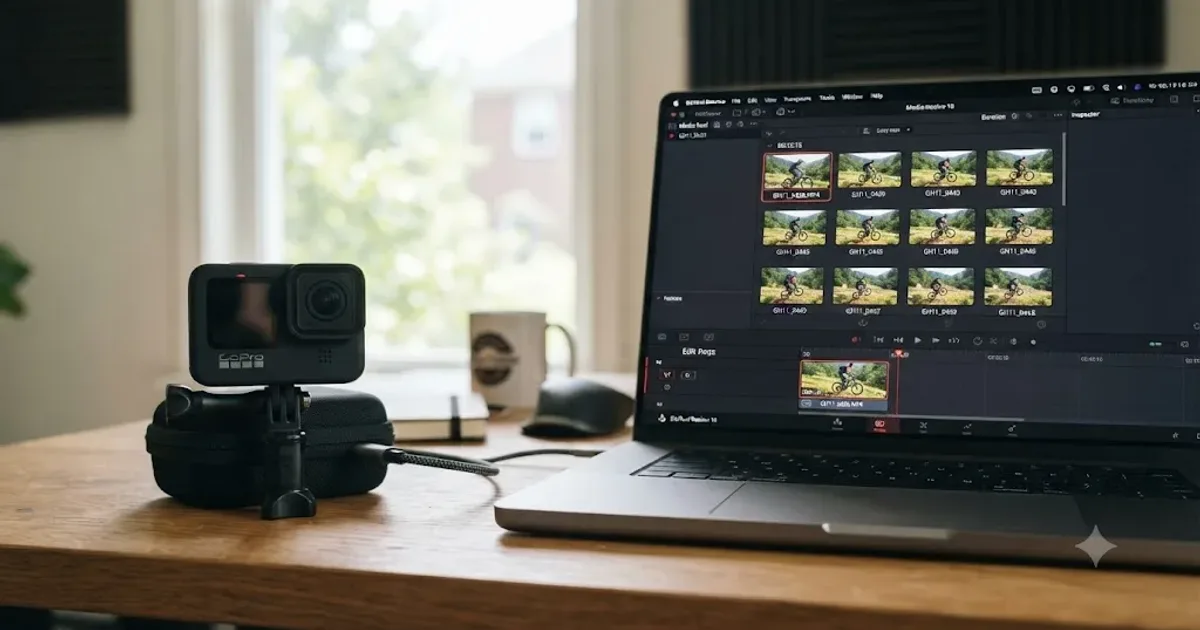
I've spent seven years cutting commercial video, and every one of those years has included at least one afternoon lost to an action camera file that looked broken and wasn't. GoPro's HERO11 Black is still one of the most common cameras showing up in footage from our 100,000+ member editing community, years after its 2022 launch, because it's the last GoPro generation before GP-Log branding changed the workflow again on the HERO12. If you're here because a HERO11 clip looks wrong, won't play, or split into two files for no obvious reason, none of that means your footage or your Resolve install is broken.
DaVinci Resolve reads GoPro HERO11 footage natively. Most of what looks like a failed import is actually expected behavior you haven't matched to the right explanation yet. This guide walks through the camera's real codec, the project settings that avoid downstream problems, the color workflow HERO11 actually uses (it's not GP-Log, and that matters), and every failure mode specific to this exact camera generation.
What's actually going wrong when HERO11 footage misbehaves in Resolve?
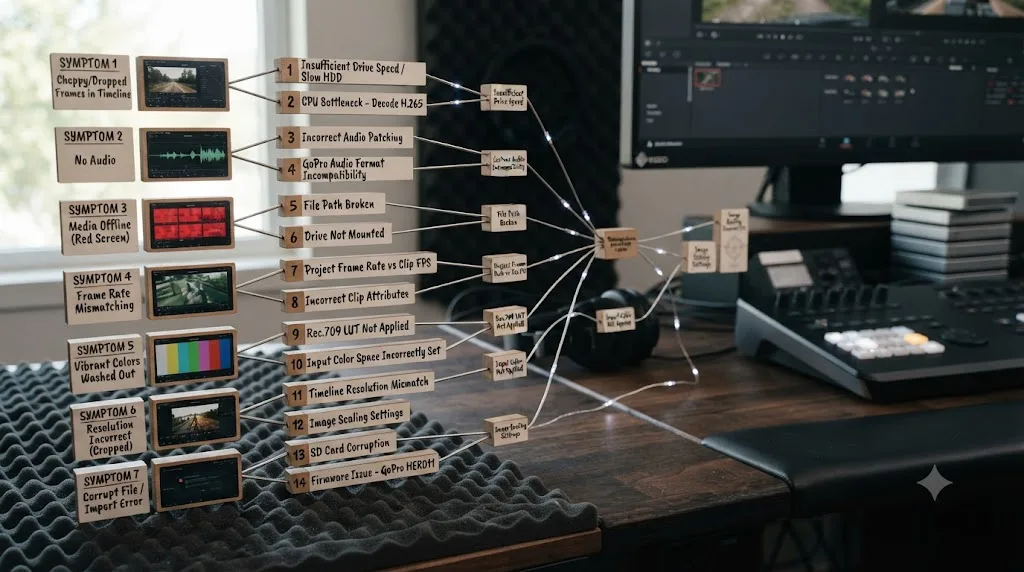
Work through this table before you touch a single setting. Each row is a different root cause, and treating two of them as the same problem burns an editing session you don't have to lose.
| What you see | What's actually happening |
|---|---|
| Clip imports and plays, but looks grey, flat, and desaturated | Normal. Protune Flat is meant to look like this before grading |
| Clip won't play at all, stutters heavily, or Resolve reports it can't decode the file | H.265 decode limitation, mostly on the free version of Resolve on Windows, worse on 10-bit clips |
| 5.3K60 or 10-bit clips choke playback even with color and codec sorted | Decode load from a high-bitrate H.265 stream, not a project setting problem |
| Two clips share a number but different chapter prefix, like GX010045 and GX020045 | File Chaptering, tied to your memory card's size and format, not a bug |
| A small proxy file or a tiny thumbnail sits next to your real clip | Those are GoPro's own .LRV and .THM sidecar files, not a second video |
| Clip imports and plays but looks glitchy, freezes, or won't open at all | Likely a truncated write from a dead battery or a card pulled mid-recording |
| 8:7 vertical-ready footage behaves oddly in a 16:9 project | Expected. The 8:7 mode is a genuinely different resolution and aspect ratio, not a crop |
Notice what's missing: a file Resolve simply refuses to acknowledge as video at all. That does happen occasionally with action-cam footage from other brands, and our guide to DaVinci Resolve's Unsupported File Format error covers those general codec causes. With the HERO11 specifically, the far more common story is a file that imports cleanly and then looks wrong, plays poorly, or behaves unexpectedly for reasons that have nothing to do with a damaged transfer.
What format does the GoPro HERO11 actually record, and does Resolve support it?
Start here, because nearly every downstream problem on this page traces back to two facts about the file itself: its codec and its bit depth. This is also where today's top search results for HERO11 import help go wrong. Most of the pages ranking for this exact question are converter-software sites like Acrok and EaseFab, built to sell you a transcoding tool before they've told you whether you even need one. You usually don't.
According to GoPro's own specs page for the HERO11 Black, the camera records exclusively in H.265 (HEVC), wrapped in an MP4 container, at up to a maximum video bitrate of 120Mbps. There's no H.264 fallback hiding in a menu at full resolution the way older GoPros offered. Have Camera Will Travel's dedicated breakdown of GoPro's HEVC-versus-H.264 shift, covering HERO13, 12, 11, and 10 specifically, confirms the HERO11 generation moved to HEVC as the default codec across nearly every mode, with H.264 surviving only at reduced resolutions rather than a free choice everywhere in the menu.
Resolution and frame rate scale together, and GoPro's specs page lists a genuinely wide range for a camera this size:
| Mode | Resolution | Max frame rate |
|---|---|---|
| 5.3K (8:7) | 5312x4648 | 30fps |
| 5.3K (16:9) | 5312x2988 | 60fps |
| 4K (16:9) | 3840x2160 | 120fps |
| 2.7K (16:9) | 2704x1520 | 240fps |
| 1080p (16:9) | 1920x1080 | 240fps |
The HERO11's sensor, per GoPro's specs, is a 1/1.9-inch CMOS chip with 27.6 megapixels of active resolution, 5599x4927 pixels, large enough to support both the 8:7 vertical-ready mode and standard 16:9 shooting from the same physical sensor area without a hardware crop between them. Bit depth is the other half of the equation: GoPro's investor press release announcing the camera describes "over 1 billion colors in 10-bit color video, 64X more colors than previous 8-bit models," a specific, verifiable jump from 8-bit's roughly 16.7 million colors.
A camera that records exclusively in H.265 hands DaVinci Resolve a file it can read everywhere, but not necessarily a file it can play back smoothly everywhere. That distinction between "Resolve recognizes this container and codec" and "your specific machine can decode it in real time" is the single most useful thing to understand before you troubleshoot anything else on this page.
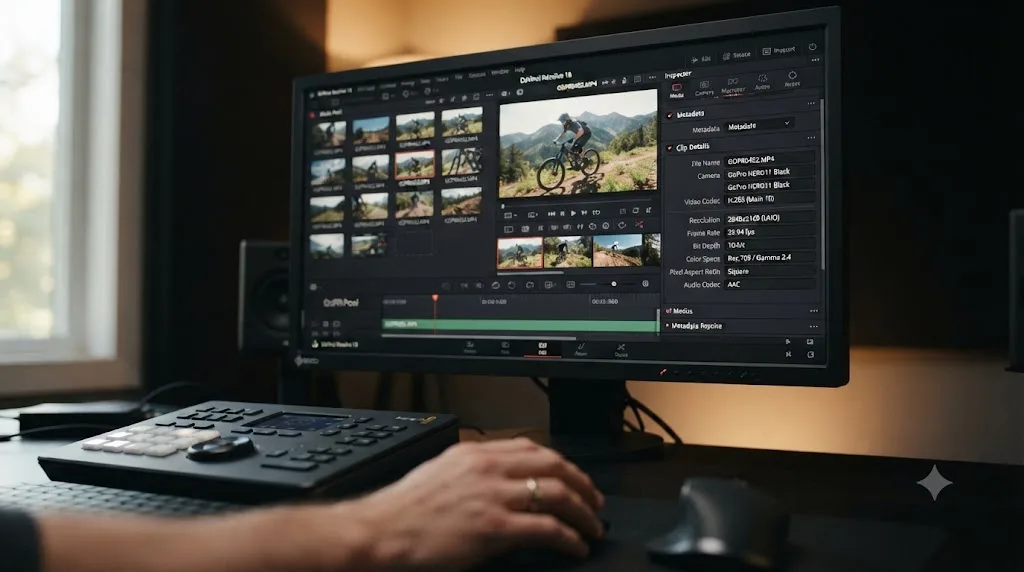
What DaVinci Resolve project settings should you use for HERO11 footage?
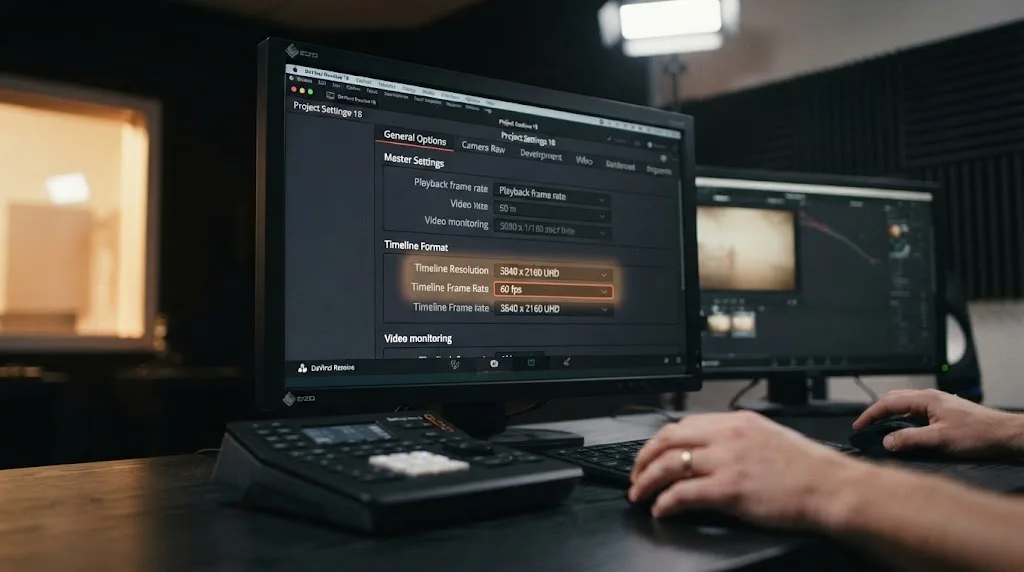
Get this right before you import anything, since Resolve reads your first clip's properties to suggest project settings automatically, and accepting the wrong suggestion quietly creates problems you won't notice until later in the edit.
| Setting | Recommended value | Why |
|---|---|---|
| Timeline Resolution | 3840x2160 for standard 4K; 5312x2988 for 5.3K16:9; 5312x4648 if you shot the 8:7 mode | Matching resolution avoids unwanted scaling on your dominant footage |
| Timeline Frame Rate | Match your most common clip's native frame rate, commonly 24, 25, or 30fps | Slow-motion clips should conform down to this rate, not the other way around |
| Video Format | Match your project delivery target (NTSC 23.976/29.97 vs PAL 25/50) | The HERO11 offers both NTSC- and PAL-family frame rates; mixing them in one project without matching creates the exact frame-rate mismatch covered in our clip plays too fast guide |
| Color Science | DaVinci YRGB, with a manual Color Space Transform applied per clip | Resolve Color Management doesn't currently ship a labeled preset for Protune Flat |
| Optimized/Proxy Media Format | DNxHR (Windows) or ProRes (Mac) | Both decode far more cheaply than H.265 during scrubbing and playback |
The one setting worth double-checking manually, every time, is Timeline Frame Rate. Because the HERO11 shoots 4K120, 2.7K240, and standard rates like 24, 25, and 30fps all from the same camera, and often within the same folder of footage from one shoot, it's easy to let Resolve auto-set your project to whatever your first imported clip happens to be, even if that clip is a slow-motion outlier rather than your main footage. Set your timeline frame rate to match your dominant clips before you import anything, not to whatever clip happened to land in the Media Pool first. Getting this backward is exactly how a genuinely well-shot 120fps clip ends up looking like it's simply playing back too fast instead of dropping into slow motion, a mismatch our dedicated guide to wrong frame rate playback covers in full if you've already hit it.
Does the HERO11 shoot GP-Log? What color profile should you actually use?
No, not out of the box, and getting this wrong is the single most common mistake editors bring with them from newer GoPro guides. GoPro's officially branded GP-Log profile launched with the HERO12 Black, not the HERO11. If you've read a HERO12 or HERO13 import guide and assumed the same GP-Log workflow applies to your HERO11 footage, it doesn't, at least not natively.
What the HERO11 actually ships with is Protune Flat, a low-contrast recording mode paired with the camera's 10-bit HEVC capability, plus a Standard color mode for footage that needs no grading pass at all. GoProDB's breakdown of GP-Log across GoPro's lineup confirms the HERO12 is the first camera in the HERO series to carry GoPro's upgraded, standardized flat profile branded GP-Log, while the HERO11 relies on the earlier Protune Flat curve instead. A Blackmagic Design forum discussion comparing the two even gets specific about the technical gap: middle-gray sits at roughly 68% IRE for Protune Flat versus 76% IRE for GP-Log at 0EV on HERO12 firmware 1.20 and later, a real, measurable difference in how the two curves place mid-tones, not just a naming change.
| Mode | Best for | Tradeoff |
|---|---|---|
| Standard color | Quick turnaround, social clips, zero grading time available | Least dynamic range and correction latitude if exposure is off |
| Protune Flat (10-bit) | Anything you plan to color grade | Requires a manual color conversion step before it looks like a finished image; no labeled Resolve preset |
Simon Wyndham, reviewing the HERO11 for RedShark News shortly after launch, tested this exact combination and found the added bit depth genuinely changed what the flat mode could deliver: "10-bit colour is one of those options you will get most use of if you are a power user who requires the ultimate flexibility for grading or matching to other cameras," he wrote, noting separately that 8-bit footage pushed to a hard grade shows visible "banding/posterisation between the shades of colour," while the HERO11's 10-bit recording reduces that banding substantially in the same test.
There is one workaround worth knowing about, and it comes with a real caveat. GoPro Labs, the company's experimental, community-driven firmware branch, later enabled a genuine 10-bit log-style workflow on the HERO11 through custom firmware rather than the camera's stock menu. Mixing Light's tutorial on the subject describes it as "a complete breakthrough in the space: an action camera that can record 10 bit log," built specifically around GoPro Labs firmware paired with Resolve color space transforms. That's a real capability, but it requires flashing experimental firmware outside GoPro's official release channel, a step most editors shooting run-and-gun footage won't take and don't need to. If your HERO11 is running stock firmware, you're working with 10-bit Protune Flat, not branded GP-Log, and every color step on this page assumes that starting point.
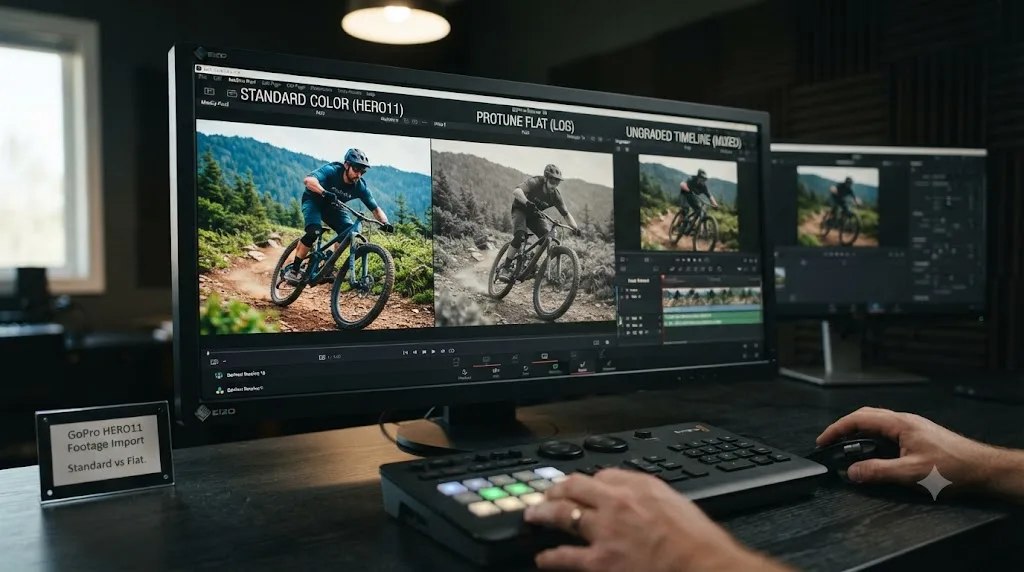
Why does Protune Flat footage look flat and grey the moment it lands in the Media Pool?
If this is your exact symptom, the good news is that nothing failed in the transfer and there's nothing to troubleshoot at the import stage itself.
Protune Flat deliberately compresses contrast and desaturates color at capture, the same underlying strategy Apple Log, Sony S-Log, GP-Log, and every other flat log-style profile uses, so that highlight and shadow detail survive to be shaped later instead of clipping in-camera. That flat, low-contrast image is the correct, expected result of importing an ungraded Protune Flat clip. It isn't a preview bug, and it isn't evidence the footage arrived damaged.
A flat, grey Protune Flat clip in your Media Pool isn't a failed import. It's an unfinished conversion. Confusing the two costs editors real time, either chasing an import problem that doesn't exist or, worse, grading directly on top of unconverted log data and producing a crushed, muddy result that never needed to happen. The fix is the same category of step as any other log footage: apply a Color Space Transform, or a third-party GoPro-tuned LUT, before you touch a single color wheel.
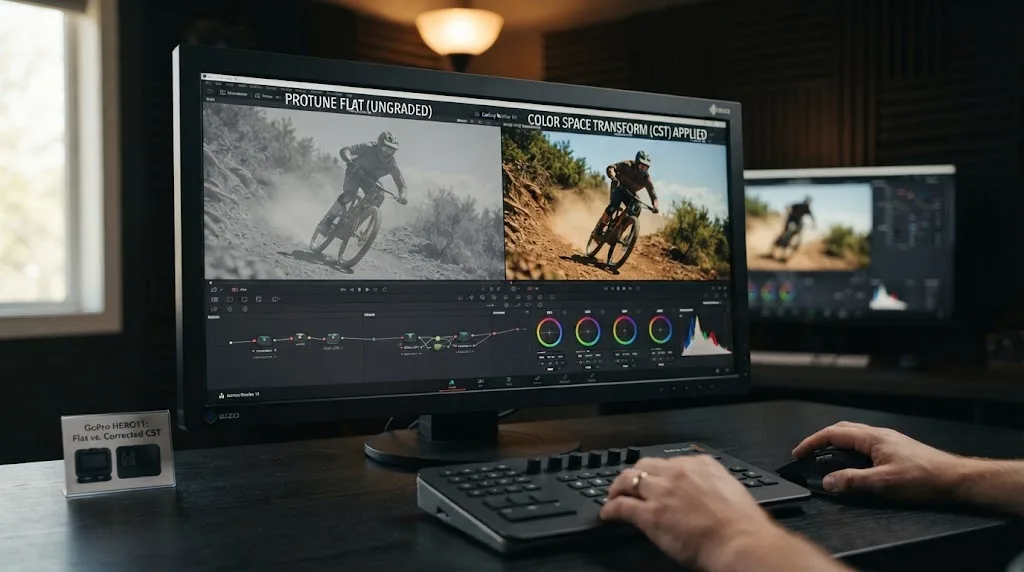
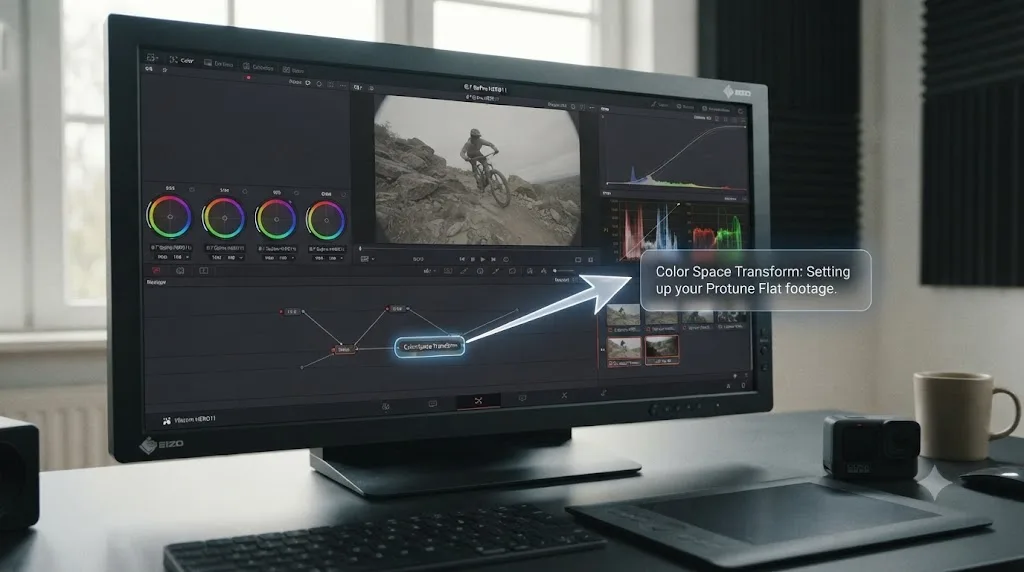
How do you correctly set up Protune Flat color in DaVinci Resolve?
There are two workable paths here, and picking the one that matches how you're actually working matters more than either individual step in isolation.
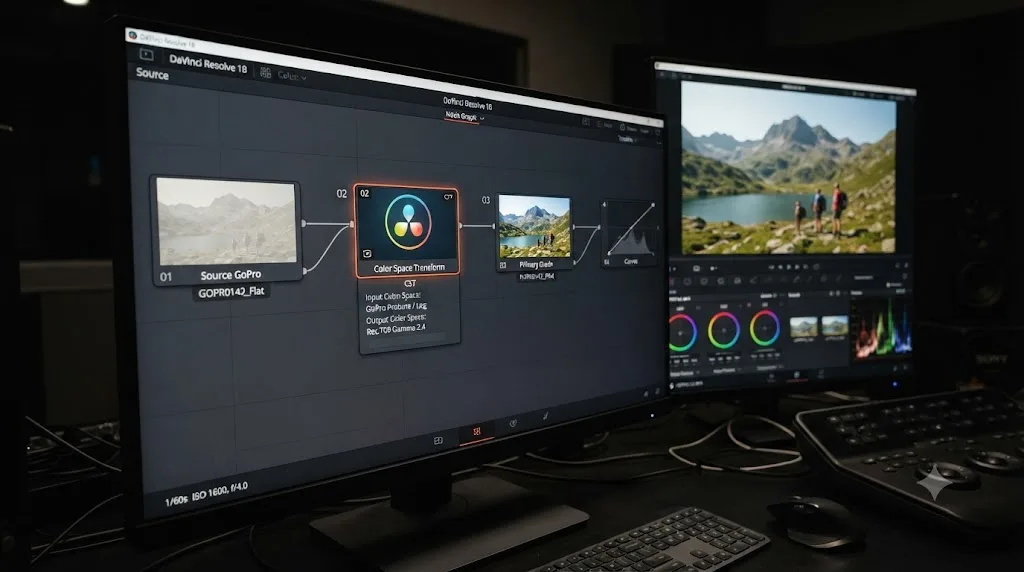
Option one: a manual Color Space Transform. Because Resolve doesn't ship a labeled, built-in preset for HERO11's Protune Flat the way it does for several other manufacturers, build a CST node with your Output Color Space and Output Gamma set to Rec.709 (or your delivery target), then judge the result against your scopes rather than a fixed preset. This is the better choice when you're mixing HERO11 footage with other cameras in the same timeline and want everything normalized into a shared working space before you grade.
Option two: a third-party GoPro-specific transform. Tools like the GP-Tune DCTL are built specifically to convert GoPro's flat and log-style output, including older Protune Flat and newer GP-Log variants, into Resolve's working color space with math tuned to GoPro's actual sensor response rather than a generic log curve. Drop the DCTL into Resolve's LUT folder the same way our full guide to installing LUTs in DaVinci Resolve walks through for any custom LUT, and apply it to a node right after your source clip.
- Apply a manual Color Space Transform with Output set to Rec.709, or
- Apply a third-party GoPro-tuned DCTL or LUT to a node right after your source clip
Neither option is automatic, and that's the real difference between HERO11 and a HERO12 shooting branded GP-Log with a matching official LUT already available. Once the base conversion is in place, whichever method you used, the clip stops looking flat and becomes a normal starting point you can push further with wheels, curves, and any creative LUT layered on top.
Why won't Resolve import or play HERO11 footage at all on Windows?
If color isn't the issue at all, and clips genuinely stutter, refuse to decode, or won't preview, this is almost always a Windows-specific codec gap that has nothing to do with a defective camera.
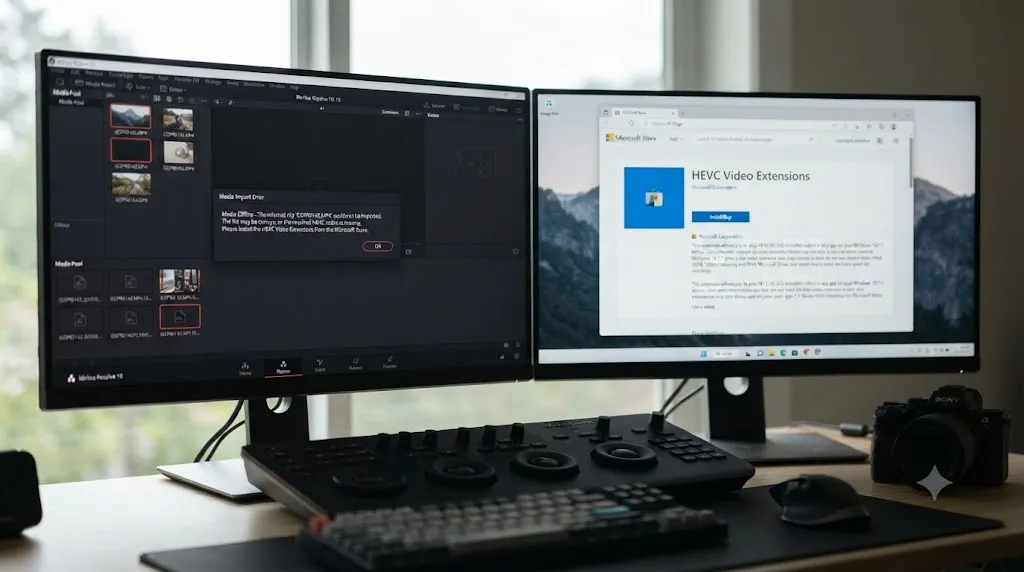
Every recording mode on the HERO11, Standard and Protune Flat alike, records in H.265 inside an MP4 container. Windows doesn't ship a native HEVC decoder by default the way macOS does, and the free version of DaVinci Resolve doesn't implement one internally on Windows either. That combination means a Windows machine running free Resolve can genuinely fail to preview, or fail to import at all, footage that a Mac running the exact same free version opens without complaint.
Richard Lackey, writing a detailed technical breakdown of AVC and HEVC handling in Resolve, put the underlying risk plainly: "Just because Resolve will read your AVC or HEVC encoded camera files, doesn't mean it will play them back at full resolution in real-time," he wrote, and his broader recommendation for exactly this kind of footage is to transcode AVC and HEVC media to an intermediate codec, ProRes on Mac or DNxHD/DNxHR on Windows, before editing.
The practical fix on Windows is straightforward. Install the "HEVC Video Extensions" from the Microsoft Store, a small paid add-on typically under a dollar, and restart your PC completely, not just Resolve, before you try importing again. A Windows PC running the free version of DaVinci Resolve can refuse to even preview a HERO11 clip until you install a codec Microsoft charges about a dollar for. It's an easy fix once you know to look for it, and an infuriating one to stumble into blind, since nothing in Resolve's own error messaging points toward a Microsoft Store purchase as the actual solution.
Why does a clip still stutter after you've already installed the HEVC extension?
Here's the part that trips up editors who did everything right and are still stuck. Installing the Windows HEVC extension isn't the end of the road for 10-bit footage, it's the halfway point.
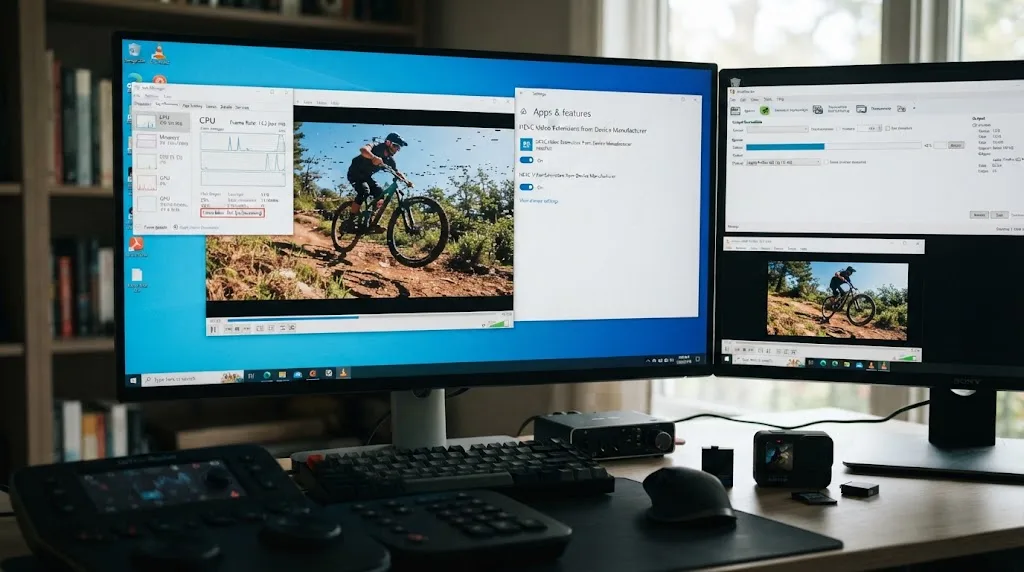
The extension buys you standard, 8-bit HEVC decoding. Whether 10-bit HEVC, the exact depth Protune Flat records in, decodes cleanly on top of that depends on your specific GPU generation and driver version, which is exactly the kind of variable that makes this inconsistent between two editors running what looks like an identical setup on paper. Robin Parmar, covering exactly this limitation in a breakdown of Resolve's codec restrictions, put it plainly: "Resolve (free) restricts you to 8-bit colour," he wrote, even when a 10-bit source file sits directly in the timeline.
Puget Systems' breakdown of hardware HEVC decoding in DaVinci Resolve, written by performance analyst Matt Bach, documents which GPUs Resolve Studio can hardware-decode H.264 and H.265 on, spanning several generations of AMD, Nvidia, and Intel graphics. Critically, that hardware decode path belongs to Resolve Studio, not the free version, and Bach's article notes directly that "not all 'flavors' of these codecs are supported depending on the bit depth and chroma subsampling used," meaning even a compatible GPU on Studio doesn't guarantee every 10-bit variant decodes in hardware.
Installing the HEVC extension and still getting rejected on the exact same codec isn't a sign the extension failed. It's a sign you've hit a second wall stacked directly behind the first one. Standard HEVC decoding and 10-bit HEVC decoding are not the same capability, and having one doesn't guarantee the other on a given Windows machine, free version or Studio.
| Layer | What it controls | Typical fix |
|---|---|---|
| Container | .mp4 wrapper | Rarely the actual problem |
| Codec | H.265, the only option on this camera | HEVC Video Extensions (Windows) |
| Color depth | 8-bit Standard vs 10-bit Protune Flat | Transcode to ProRes/DNxHR, edit on Mac, or upgrade to Studio with a compatible GPU |
| Bitrate | Up to 120Mbps in the heaviest 5.3K mode | Not an import blocker on its own, but slows scrubbing on weaker hardware |
If you'd rather avoid this fight entirely and you're editing on a Windows machine without a recent GPU or a Studio license, three real paths exist once 10-bit is confirmed as the cause: edit on a Mac instead, upgrade to Resolve Studio on supported hardware, or transcode before you import, converting to DNxHR or ProRes with a free tool like Shutter Encoder, sidestepping the GPU-dependent decode path entirely.
Why did your HERO11 recording split into two files with GX01 and GX02 in the name?
If your clip imported fine, decoded fine, and plays fine, but a long recording shows up as two or three separate files instead of one continuous clip, you haven't hit a Resolve problem at all. This one happened entirely on the camera, before Resolve ever saw the footage.
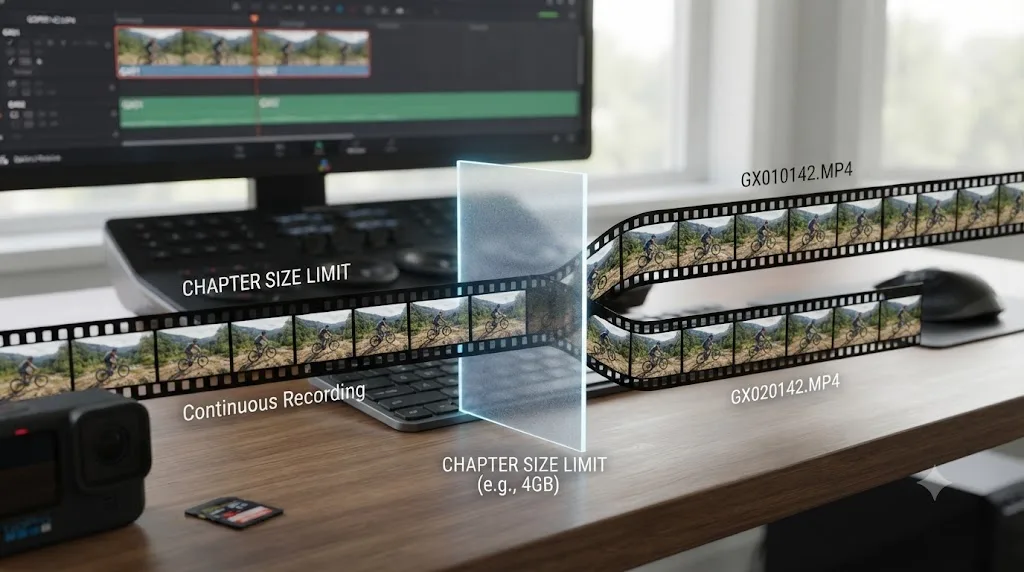
GoPro calls this File Chaptering, and GoPro's own file naming documentation describes the pattern: files follow a GXzzxxxx.MP4 structure, where xxxx is the file number shared across chapters and zz is the chapter number that increments first. A recording that splits twice produces GX010045.MP4 followed by GX020045.MP4, both belonging to the same underlying clip.
This is where the HERO11 genuinely matters as a generational marker. Have Camera Will Travel's breakdown of GoPro's chaptering behavior explains that starting with the HERO11 Black, GoPro natively supports 12GB chapters instead of the old 4GB ceiling, but only under one specific condition: your memory card has to be 64GB or larger. A 64GB-or-bigger card gets formatted as exFAT by the camera, and exFAT is what unlocks the larger chapter size. Drop in a 32GB or smaller card instead, and the camera formats it as FAT32, a filesystem with a hard-coded 4GB single-file limit, and your HERO11 chapters right back down to the old ceiling regardless of what the camera's marketing promised.
A HERO11 with a 12GB chapter ceiling and a HERO11 with a 4GB chapter ceiling can be the exact same camera. The only thing that changed is which memory card you slid into the slot. That's a genuinely useful fact to know before a long recording, since it means the "12GB chapters" spec you read about isn't a fixed camera capability, it's conditional on your card.
To handle a chaptered recording in Resolve:
- Import every chapter from that recording into the same bin. Resolve will not detect or rejoin them for you.
- Place the chapters in sequence on the timeline, lowest chapter number first. They should cut together with no visible gap if the split happened cleanly.
- If you need one continuous file for a client delivery or an external tool, join them at the file level first with a lossless tool like FFmpeg's concat demuxer before you import, rather than trying to force Resolve to treat two files as one clip.
A chaptered recording isn't two clips. It's one clip that hit an internal size ceiling the camera can't see past, then kept recording into a new file without missing a frame. The footage itself isn't damaged and nothing was lost between chapters.
What are the .LRV and .THM files sitting next to every HERO11 clip?
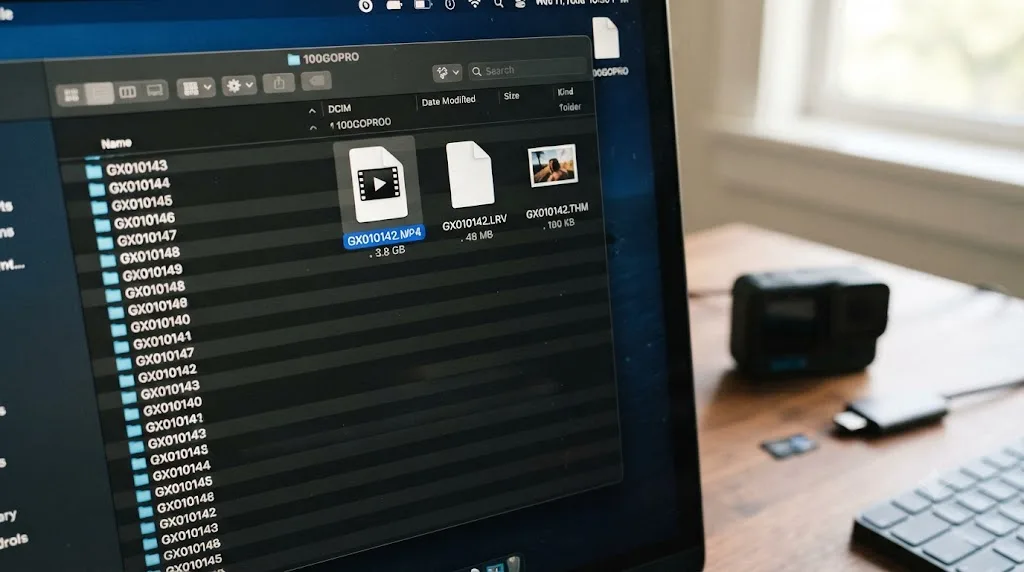
If you've browsed your HERO11's DCIM folder directly instead of importing through the Quik app, you've probably noticed a much smaller file sitting next to each real clip, sharing the same file number with a different extension. Neither of these is a second angle or a backup copy.
Author Max Hayman, explaining exactly what these files do, writes that LRV stands for "low-resolution video," a reduced-quality copy the camera builds automatically alongside every recording. In his breakdown of the format, he explains why the camera bothers creating it at all: "streaming a video this large from your GoPro onto your phone will is limited by the WiFi connection between the two devices, and it'll also burden the phone's CPU," so GoPro's Quik app previews the small LRV file over Wi-Fi instead of pulling the full original. THM is simpler still, a single low-resolution thumbnail JPEG used for gallery previews and loaded instantly instead of decoding a frame from the real video every time you scroll past a clip.
An LRV file next to your GoPro clip is a phone-app preview copy, not a video Resolve needs, and a THM file is a thumbnail image, not a second recording. Neither belongs on your timeline. Hayman is direct about this for anyone editing rather than just browsing on a phone: "if you are going to view your footage only on your PC, or edit your GoPro footage with a video editing software like Premiere Pro or DaVinci Resolve, you may not require the .LRV and .THM files."
You can't disable the camera from writing them in the first place, and they take up minimal card space, so there's no real reason to delete them either. Just import the .MP4 files into your Media Pool and ignore the rest of the folder.
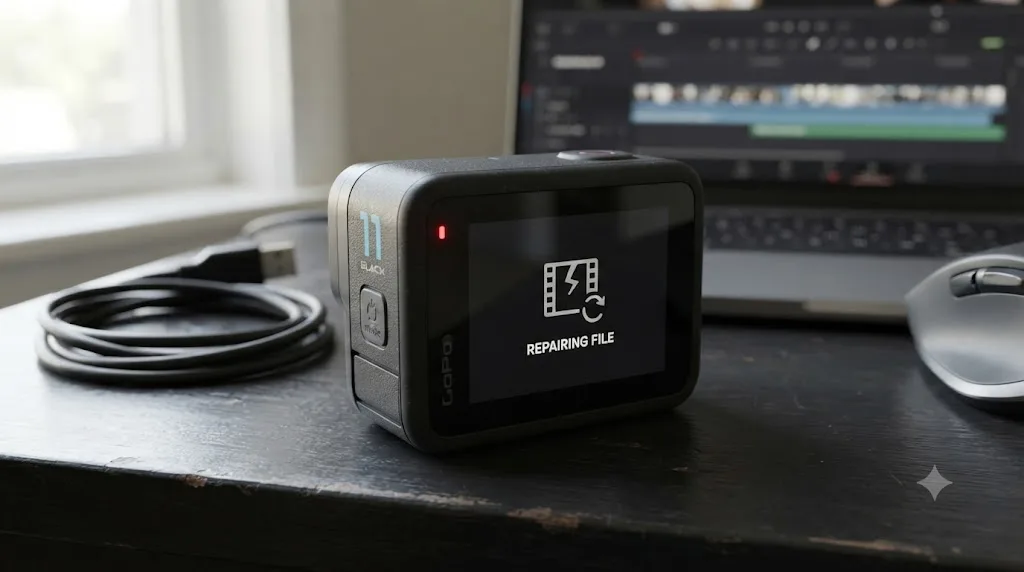
What if a clip won't open, or looks glitchy and corrupted?
If a clip imports but looks glitchy, freezes partway through, or won't play past a certain point anywhere, you're not looking at a codec gap. You're looking at genuine file damage, usually from the recording getting cut off before the camera finished writing it.
The HERO11, like other GoPros, watches for this on its own. When the camera boots up and detects a file with damaged or incomplete metadata, most commonly caused by a battery dying mid-recording or a card pulled before the file finished writing its index, it shows a recovery icon on the LCD screen. Pressing any button on the camera triggers an automatic attempt to rebuild the file's structure. EaseUS's guide to repairing corrupted GoPro files confirms this on-camera process handles common, moderate corruption reasonably well, rebuilding the file header, technically the MP4's moov atom, that players and editors need to read the file at all.
GoPro's on-camera recovery fixes a broken index, not missing footage. If the actual video data got overwritten or never finished writing, no recovery tool brings back frames that were never recorded. That's the honest limitation worth knowing before you spend an hour on a file that was never going to come back.
If a clip is still glitchy after on-camera recovery, or you've already copied the file to your computer and can't run the camera's recovery process on it directly:
- Try opening the file in VLC first. VLC's decoder is more forgiving of minor structural damage than Resolve's, and it will often at least partially play a file Resolve refuses entirely.
- If VLC plays it, even partially, that confirms real video data survived, and a targeted MP4 repair tool is worth trying before you give up on the clip.
- If VLC also refuses or plays only a black frame the whole way through, the footage is very likely unrecoverable, and no amount of transcoding or re-encoding brings back data that isn't there.
How do you handle 5.3K 8:7 vertical-ready footage in Resolve?
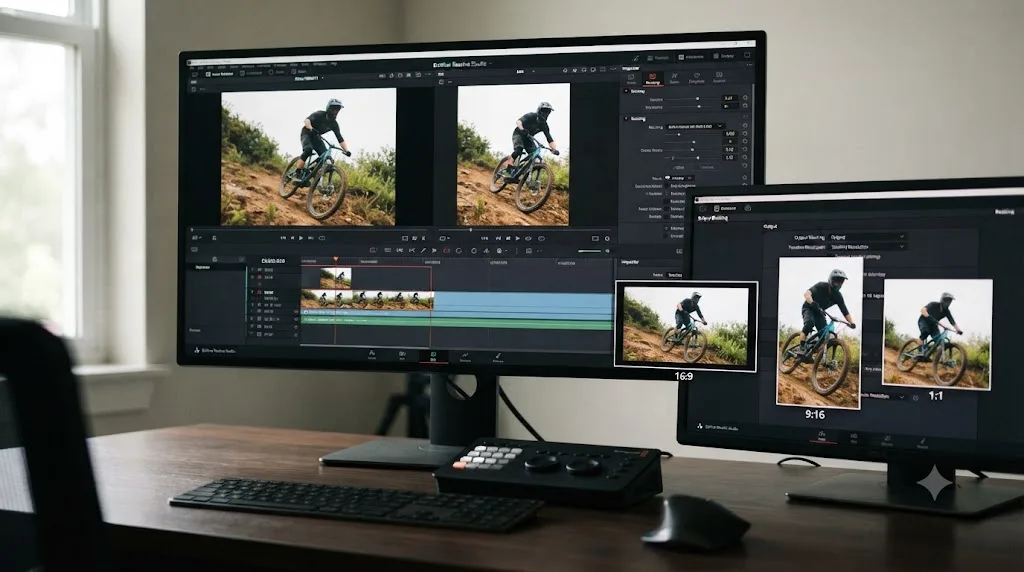
This comes up constantly for creators shooting directly for TikTok, Reels, or Shorts, since the HERO11 introduced a genuinely different sensor crop for exactly this purpose rather than only cropping horizontal footage after the fact.
Per DPReview's coverage of the HERO11's launch, the camera's 8:7 mode records at 5312x4648, an "extra-tall" aspect ratio built specifically so editors can crop a full-height 16:9, 9:16, or 1:1 frame out of a single recording without losing resolution in any of the three deliverables. That's a materially different workflow from cropping a standard 16:9 clip down to vertical, where you're always throwing away horizontal pixels to gain height.
Inside Resolve, the practical handling is straightforward once you know the resolution ceiling going in. Drop 8:7 clips into a project set to 5312x4648, then use Resolve's standard reframing and Dynamic Zoom tools to punch out your specific 16:9, 9:16, or 1:1 deliverable per shot, rather than committing to one aspect ratio at the project level. 8:7 footage from a HERO11 isn't a lower-quality afterthought crop. It's the camera genuinely capturing a taller frame than either the 16:9 or 9:16 delivery formats need on their own, which is exactly the point: shoot once in 8:7, deliver in three aspect ratios from the same take.
Does in-camera HyperSmooth stabilization change the file Resolve receives?
This matters because it changes what you can and can't undo later.
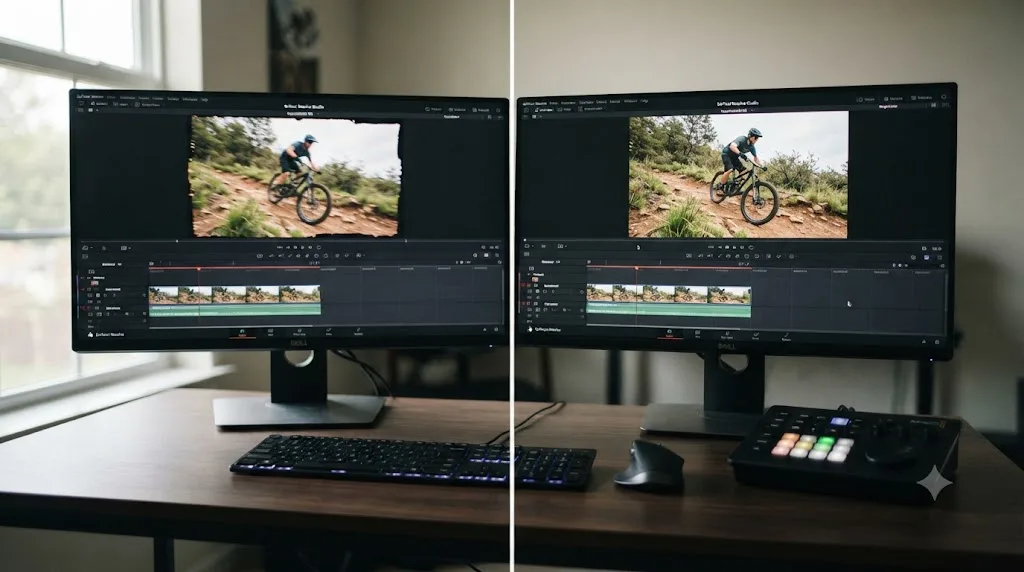
The HERO11's stabilization, HyperSmooth 5.0, is electronic image stabilization applied to the frame during recording rather than a mechanical gimbal correcting the sensor's physical position. GoPro's investor press release describes it as "Emmy® Award-winning HyperSmooth 5.0" with an added 360-degree Horizon Lock feature that keeps the frame level even through full camera rotation. Once you've recorded a clip with HyperSmooth active, the correction is already baked into the pixels you receive in Resolve. There's no separate raw, unstabilized version sitting underneath that you can pull back out later, and there's no gyroscopic metadata sidecar file the way some drone footage carries for post-stabilization in dedicated software.
Electronic stabilization on an action camera is a decision made at the moment of capture, not a layer you can peel back or intensify afterward in Resolve. If you need to reframe a heavily stabilized clip, Resolve's own Stabilizer effect can still smooth out residual motion on top of what the camera already applied, but it's working with an already-processed frame, not raw sensor data.
Should you use GoPro Quik wireless transfer or pull the microSD card directly?
If a clip imports cleanly and plays fine but looks noticeably softer or more compressed than what you remember shooting, the problem likely happened before Resolve ever saw the file, during transfer rather than during recording.
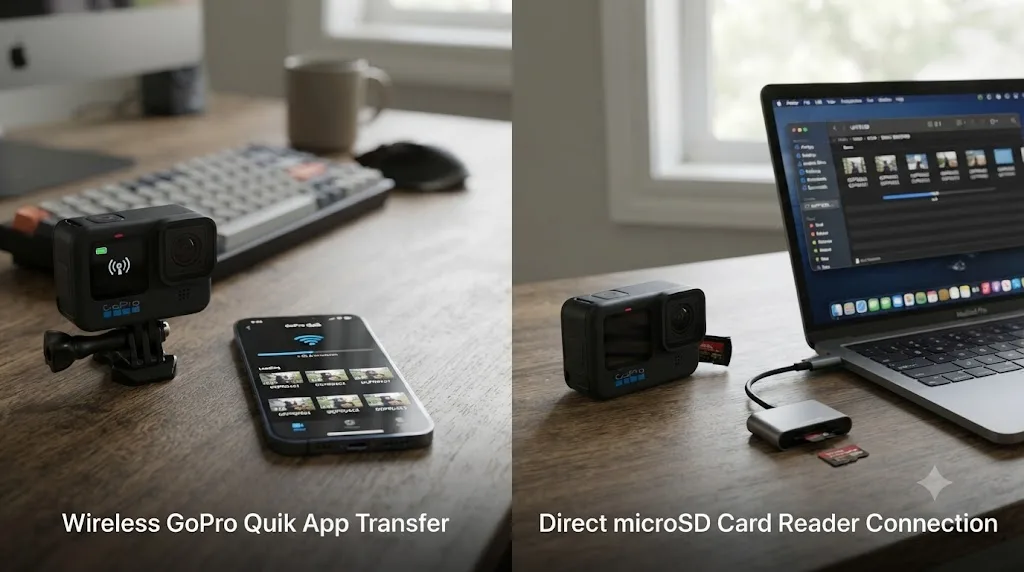
The Quik app can download footage wirelessly from the camera to a phone, a genuinely convenient option for a quick social post shot and shared from the field without ever touching a computer. That's exactly the workflow the LRV proxy file exists to support, streaming a compressed preview over Wi-Fi rather than the full original. Wireless transfer speed and reliability depend heavily on your specific phone's background app policies, which vary by manufacturer, and a slow or interrupted wireless session is a plausible source of an incomplete or degraded copy landing on your phone before it ever makes its way to your editing machine.
For any footage you're actually planning to grade and deliver rather than just share quickly, skip the wireless step entirely. Pull the microSD card directly, using a dedicated card reader connected to your editing machine. That path pulls the original recorded file at full bitrate and resolution with nothing in between to introduce compression, connection drops, or a background transfer app quietly working against a phone manufacturer's power-saving policy. Wireless convenience has a real cost on footage headed for a proper edit, and that cost is a transfer path with more points where quality or completeness can quietly degrade. For anything more demanding than a same-day social clip, the card reader is the safer default.
Do you need DaVinci Resolve Studio for HERO11 footage?
Not for the color correction workflow this page mostly covers. Color Space Transform, LUT and DCTL application on a node, and Resolve Color Management all work identically in the free version, with no functional restriction on the color math for Protune Flat footage.
Where Studio genuinely earns its keep with HERO11 footage specifically is Windows playback performance on heavier clips. Resolve Studio can hardware-decode H.264 and H.265 on compatible GPUs on Windows, per Puget Systems' testing, while the free version has no equivalent hardware acceleration path on that platform and falls back to CPU-only decoding of the same files. Blackmagic Design's own Supported Codec List document and its tech specs page draw a clear line between free and Studio decode capability that carries directly into how reliably each version handles 10-bit HEVC.
On Mac, this specific wall mostly doesn't exist. macOS ships system-level HEVC decoding that Windows doesn't, so the free version handles Protune Flat footage far more reliably out of the box, without needing an extension install or a Studio upgrade at all.
The Protune Flat color problem covered through most of this page is a color management problem, and color management is not a Studio-gated feature. Don't let a real, separate Windows performance gap talk you into thinking you need Resolve Studio just to make HERO11 footage look correct. You don't, unless your specific bottleneck is Windows playback stutter on heavy 10-bit or 5.3K60 clips.
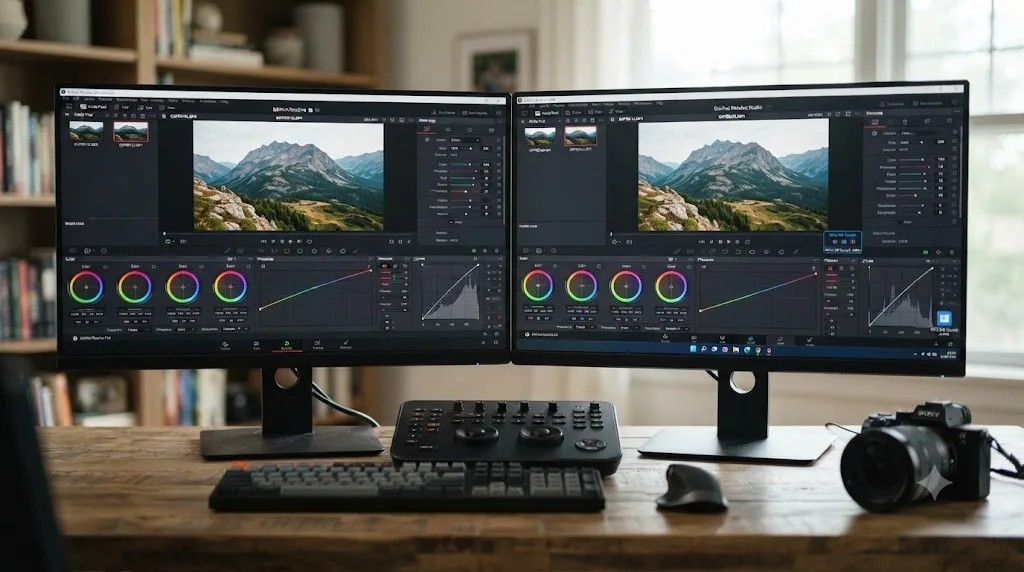
How does HERO11 compare to HERO10, HERO12, and HERO13 for this exact import workflow?
Knowing where the HERO11 sits in GoPro's own lineup tells you whether a fix or a feature you found in a newer camera's guide even applies to yours.
| Model | Codec options | Bit depth / color profile | Native chapter ceiling |
|---|---|---|---|
| HERO10 | H.264 or HEVC, selectable | 8-bit only | 4GB |
| HERO11 | HEVC by default; H.264 only at reduced resolution | 10-bit via Protune Flat; no branded GP-Log | 12GB, but only on a 64GB+ exFAT-formatted card |
| HERO12 | HEVC by default; H.264 only at 1080p60 or below | 10-bit via HDR and branded GP-Log | ~12GB |
| HERO13 | HEVC by default; H.264 only at reduced resolution | 10-bit via HDR and branded GP-Log | ~12GB |
If you're editing HERO11 footage specifically, you're one generation behind GoPro's official GP-Log branding and one generation ahead of the old 4GB chapter ceiling, a genuinely awkward middle spot that most import guides don't address directly. Guides written for HERO12 or HERO13 will point you toward a GP-Log LUT that doesn't exist for your camera. Guides written for HERO10 or earlier won't warn you about the 10-bit decode wall your HERO11 can actually hit. If you're troubleshooting a similar import problem on a HERO12 instead, our dedicated HERO12 footage import fix covers that camera's GP-Log workflow and its own specific failure modes directly.
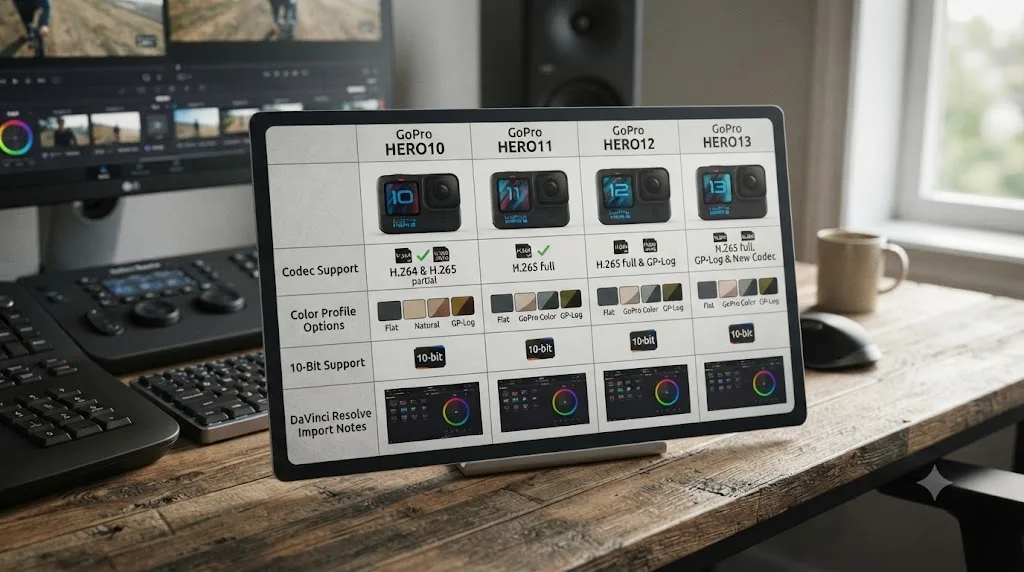
What if you're mixing HERO11 footage with a main camera in the same timeline?
This is the normal way an action camera actually gets used: a mirrorless or cinema camera for primary coverage, and the HERO11 strapped somewhere a bigger camera can't go, for a POV angle, a mount shot, or a B-roll insert.
Normalize every camera into the same working color space before you apply any creative grade. Convert the HERO11's Protune Flat footage with a manual Color Space Transform or a GoPro-tuned DCTL, and convert your other camera's own log or RAW profile with whatever transform that camera actually calls for, before comparing the two side by side. Our full guide to color matching different cameras in DaVinci Resolve covers Color Match and Shot Match for the fine-tuning pass once both sources are sitting in a shared, correctly converted space. Trying to eyeball a match between two ungraded log sources from entirely different sensors is how editors end up chasing a color mismatch that isn't really about either camera. It's about comparing two different flat starting points as though they were already equivalent.
Once both cameras are normalized, the HERO11 stops being a special case in the timeline. Ordinary matching tools work the same way they would on any two cameras shot on the same job, whether the second camera is a mirrorless body, a cinema camera shooting RAW, or a newer GoPro shooting branded GP-Log.
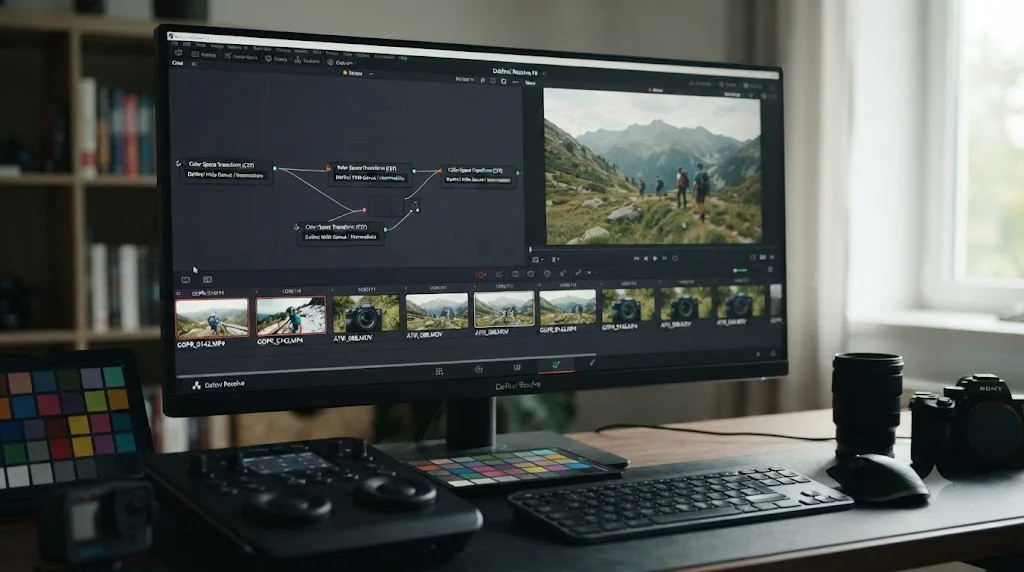
What does the full fix look like on a real clip, start to finish?
Here's the full diagnosis applied to a scenario that comes up often: a surfer shoots a morning session on a HERO11 in Protune Flat, mixing 4K60 chest-mount footage with a few 5.3K60 wide shots from a tripod on the beach, then imports everything into a Resolve project on a Windows laptop that evening.
First, the import half-fails. The 5.3K60 clips won't even preview, sitting with a spinning indicator instead of a thumbnail. That's the free-Resolve-on-Windows HEVC gap, not corrupted files. Installing the HEVC Video Extensions from the Microsoft Store and restarting the PC clears the standard decode issue, but the 10-bit Protune Flat clips still stutter.
Second, since a full transcode of every clip would eat the evening, only the 5.3K60 clips get sent through a proxy pass, generating Optimized Media at Half resolution. Playback smooths out immediately, with the full-resolution originals swapped back in only for the final render.
Third, the Media Pool shows every Protune Flat clip looking correctly flat and grey. That's expected, not a fault, so no time gets wasted assuming the transfer went wrong. A manual Color Space Transform, built once and saved as a Compound Node, gets applied to every Protune Flat clip in the project.
Fourth, one long tripod recording shows up as two files, GX010012.MP4 and GX020012.MP4. Both import fine individually and cut together seamlessly once placed in sequence on the timeline, no different from a single unbroken take.
Fifth, and last, one clip from earlier in the session opens with a noticeably shorter duration than the surfer remembers recording. Checking it in VLC shows the same short duration, confirming the camera's battery genuinely died mid-clip rather than a Resolve-specific problem, so the missing footage simply isn't there to recover, and the edit moves on without it.
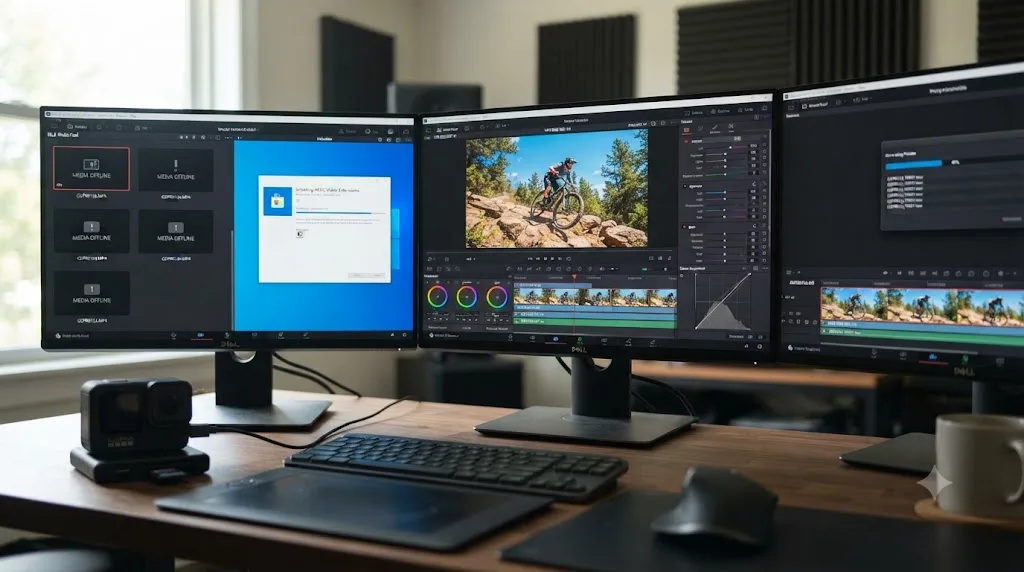
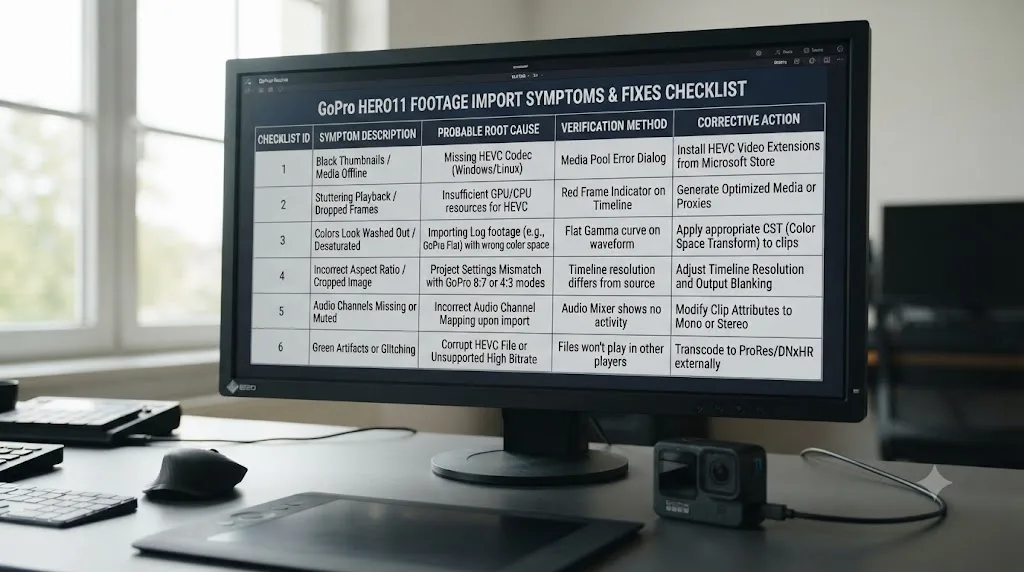
The full decision table: match your exact symptom to the fix
Work through this top to bottom and stop at the first row that matches what you're actually seeing.
| Your exact situation | Root cause | Fix |
|---|---|---|
| Clip imports and plays, looks grey and flat | Normal, uncorrected Protune Flat | Apply a manual Color Space Transform, or a third-party GoPro-tuned DCTL/LUT |
| Clip won't preview or import at all on Windows | Free Resolve lacks native HEVC decode on Windows | Install Microsoft's HEVC Video Extensions from the Microsoft Store, then restart your PC |
| Clip still stutters after the HEVC extension is installed | 10-bit HEVC decode depends on your specific GPU and driver | Transcode to ProRes/DNxHR, edit on a Mac, or upgrade to Studio with a compatible GPU |
| 5.3K60 or 10-bit clips choke playback with color already correct | Decode load from a high-bitrate H.265 stream | Generate Optimized Media, or transcode to ProRes/DNxHR proxies |
| Two files share a number but different chapter prefix | File Chaptering, tied to whether your card is 64GB+ exFAT or 32GB FAT32 | Import every chapter in sequence; join at the file level first only if you need one delivered file |
| A small preview file or thumbnail sits next to your real clip | GoPro's own .LRV proxy and .THM thumbnail sidecar files | Ignore them; import only the .MP4 |
| Clip won't open, or opens with a much shorter duration than expected | Truncated write from a dead battery or an abrupt card pull | Check in VLC for recoverable frames; accept the cutoff point if VLC also can't open it |
| 8:7 vertical clip behaves oddly in a standard 16:9 project | Genuinely different resolution and aspect ratio, not a crop | Set your project or a reframe to match 5312x4648, then punch out your target deliverable |
How do you avoid losing an afternoon to this on your next shoot?
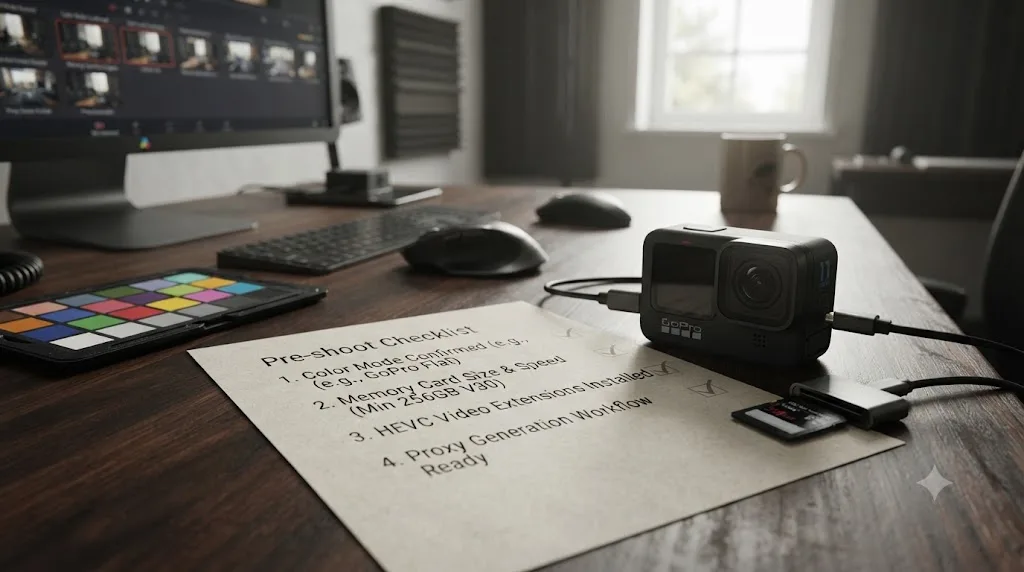
A short list of habits catches nearly everything on this page before it becomes an editing-day problem.
- Confirm which color mode actually recorded, not which one you meant to select. Standard and Protune Flat need different treatment, and the camera locks whatever mode you chose for the length of that clip.
- Use a 64GB or larger memory card if you're recording anything long. It's what unlocks the HERO11's native 12GB chapter ceiling in the first place. A 32GB card quietly keeps you on the old 4GB limit no matter what the camera's spec sheet promises.
- If you edit on Windows with the free version of Resolve, install the Microsoft HEVC Video Extensions once, ahead of time. It's a small purchase that resolves a wall that otherwise looks like a corrupted card or a broken app.
- Set your project's Timeline Frame Rate to match your dominant footage, not whatever clip Resolve auto-detects first. A 4K120 or 2.7K240 outlier setting your whole project's frame rate is the single most common cause of clips playing back at the wrong speed.
- Generate proxies before a long editing session on 5.3K60 or 10-bit footage, especially on an older machine. Decode load, not your project settings, is almost always the real cause of stutter once color is already sorted.
- Pull the microSD card with a reader for anything you're actually grading and delivering. Save wireless Quik transfer for quick, disposable social shares.
What's the best way to learn this instead of guessing through it live?
Blackmagic Design's own free training and certification cover Resolve's core tools well, and they're worth working through if camera-specific import problems are only part of a bigger gap in how you use the app. Casey Faris and other YouTube channels cover general color and edit workflows thoroughly too, and Reddit's editing communities are often faster than a forum search for a fresh, camera-specific problem someone else hit yesterday. None of them, though, are built to watch your specific project and tell you which exact setting your specific footage needs, right when you're stuck on it.
That gap between "watched a tutorial about Resolve" and "know what to do with the footage sitting in front of me right now" is one of the recurring questions in our 100,000+ member editing community, and it's part of why we've also taught over 100,000 students through Udemy as an official Udemy Business Partner. Camera-specific import workflows are one of the more technical corners of the app, and there's no faster way through them than knowing exactly which setting your specific footage needs, right when you need it.
TryUncle is the on-screen assistant for DaVinci Resolve on macOS, ask in plain words and Uncle points at the exact control on your screen. Instead of pausing your edit to search a forum thread written by someone flying a different GoPro generation on a different operating system, Uncle watches your actual Resolve window and points at the specific node, dropdown, or setting your footage actually needs. It sits in a growing category alongside tools like Sottocut, PremiereCopilot, heyeddie.ai, and cutagent.ai, though most of those automate edits or answer chat questions in a separate window rather than watching your live screen; Uncle points at the exact control while you're the one making the decision, on the Edit, Color, and Fusion pages. It's a paid app, currently in founder pricing at $29.99 a month for the first 100 seats, and it's macOS only, so Windows editors working through the HEVC decode issue above won't find it useful for that specific wall. Guided help inside Resolve beats pausing a tutorial video to compare your settings against someone else's camera. If a HERO11 import wall is the thing standing between you and finishing a cut tonight, check TryUncle for current founder pricing.
What's the fastest path to a fix?
Confirm which color mode actually recorded first: Standard or Protune Flat, and check the bit depth. If it's flat and grey, that's expected; apply a manual Color Space Transform or a third-party GoPro-tuned LUT rather than hunting for a GP-Log preset that doesn't exist on this camera. If it won't preview at all on Windows, install the Microsoft HEVC Video Extensions before you suspect the file itself. If it still stutters afterward on a 10-bit clip, that's a GPU-dependent second wall, and a transcode, a Mac, or Studio on compatible hardware clears it. If 5.3K60 clips choke playback with everything else sorted, generate proxies before you blame your project settings. If two files share a number with different chapter prefixes, that's your memory card's size and format at work, not a bug, and both chapters need importing. If a clip won't open or ends early, check it in VLC before assuming a total loss.
Nine times out of ten, your HERO11 footage isn't damaged and DaVinci Resolve isn't malfunctioning. Either the color conversion hasn't been applied yet, a codec extension is missing on Windows, your machine needs a lighter proxy to decode a high-bitrate clip smoothly, your memory card size explains a chaptering pattern that looked like a bug, or a shutdown mid-record genuinely ended the recording where it ended. Match the symptom to the cause, and the fix is usually one node, one small purchase, or one proxy pass, not another afternoon of guessing.
Frequently asked questions
- Does DaVinci Resolve support GoPro HERO11 footage natively?
- Yes, in terms of container and codec. The HERO11 Black records exclusively as H.265 (HEVC) inside an MP4 container, a format Resolve reads on every platform. Whether it plays smoothly depends on your operating system: macOS decodes HEVC at the system level even in the free version, while free Resolve on Windows often needs Microsoft's HEVC Video Extensions installed before 10-bit clips will even preview.
- Why does my HERO11 footage look flat and grey in DaVinci Resolve?
- That's Protune Flat working as designed, not a broken import. It's a low-contrast, desaturated recording mode built to preserve highlight and shadow detail for grading, the same underlying strategy every flat log-style profile uses. Apply a Color Space Transform or a GoPro-specific LUT, and the flat clip turns into a normal starting image.
- Does the GoPro HERO11 shoot GP-Log?
- No, not natively out of the box. GoPro's officially branded GP-Log profile debuted with the HERO12 Black. The HERO11 ships with 10-bit HEVC and a Protune Flat mode instead, which behaves similarly but isn't the same branded curve, and GoPro's own documentation treats the two as distinct profiles tied to different camera generations.
- Why won't my HERO11 clips import or play on Windows?
- Almost always a missing HEVC decoder on the free version of Resolve on Windows, made worse if the clip is 10-bit. Install the HEVC Video Extensions from the Microsoft Store, restart your PC, and reopen Resolve. If clips still stutter or refuse to decode after that, you've hit a separate 10-bit decode wall tied to your specific GPU and driver combination.
- Why did my HERO11 recording split into two files with the same number?
- That's File Chaptering, and it isn't a bug. Starting with the HERO11 Black, GoPro natively supports 12GB chapters, but only on a 64GB or larger memory card formatted as exFAT. Use a 32GB or smaller card, which the camera formats as FAT32, and the chapter ceiling drops back to the old 4GB limit, splitting long recordings sooner.
- What are the .LRV and .THM files next to my HERO11 clips, and do I need them?
- LRV is a small, low-resolution proxy copy built for smooth scrubbing inside the GoPro Quik phone app over Wi-Fi. THM is a single thumbnail JPEG used for gallery previews. Neither is your actual footage. Import only the .MP4 files into Resolve's Media Pool and leave the rest of the folder alone.
- Do I need DaVinci Resolve Studio to edit HERO11 footage?
- Not for the color workflow itself. Color Space Transform, LUT application, and Resolve Color Management all work identically in the free version. Studio's real advantage is Windows playback performance, since Resolve Studio can hardware-decode H.265 on compatible GPUs while free Resolve on Windows falls back to CPU-only decoding of the same footage.
- What DaVinci Resolve project settings should I use for HERO11 footage?
- Match timeline resolution to your dominant clips: 3840x2160 for standard 16:9 4K, 5312x2988 for 5.3K16:9, or 5312x4648 if you shot the extra-tall 8:7 mode for reframing flexibility. Match timeline frame rate to your main footage, not a slow-motion outlier, and apply a manual Color Space Transform rather than relying on Resolve Color Management to guess the profile automatically.
Sources
- GoPro: HERO11 Black - Specs
- GoPro Inc. (Investor Relations): GoPro Launches Three New HERO11 Black Cameras That Send Highlight Videos to Your Phone
- GoPro: HERO11 Black Firmware Update Brings 10-Bit to 4K120 + More
- RedShark News: GoPro HERO11 reviewed: Why 10-bit colour is a very significant addition (Simon Wyndham)
- DPReview: GoPro's new Hero 11 Black models offer 5.3K 10-bit video at 60fps in extra-tall 8:7 format
- Have Camera Will Travel: Why GoPro Splits Video Files (And How to Join Them)
- Have Camera Will Travel: GoPro HEVC vs. H.264: Why Your Videos Won't Play (HERO13, 12, 11 & 10)
- GoPro Support Hub: GoPro Camera File Naming Convention
- Capture Guide: What are the mysterious LRV and THM files on my GoPro? (Max Hayman)
- EaseUS: Fix GoPro Video Won't Play, Repair Corrupted GoPro Video Files
- GoProDB: GoPro Log (GP-Log) Explained: 10-bit, Models, When to Use
- Mixing Light: How To Upgrade Your GoPro Hero11 To A 10-bit Log Workflow
- Blackmagic Forum: New GoPro HERO 12 firmware and Wide Gamut
- xtremestuff: GP-Tune Transform Manual
- Richard Lackey: AVC / H.264 / HEVC and DaVinci Resolve, Why You Need to Transcode
- Robin Parmar, Theatre of Noise: Codec limitations of DaVinci Resolve: HEVC, 10-bit, and RAW
- Puget Systems: What H.264 and H.265 Hardware Decoding is Supported in DaVinci Resolve Studio? (Matt Bach)
- Microsoft Store: HEVC Video Extensions
- Blackmagic Design: DaVinci Resolve - Tech Specs
- Blackmagic Design: DaVinci Resolve Supported Codec List
Put this guide to work with TryUncle.
Ask about the step you’re on. TryUncle sees your screen and points at the control you need, so you can keep learning in your own project.
Get TryUncle for Mac or WindowsKeep reading
Fixes · Jul 22, 2026 · 26 min
DaVinci Resolve GoPro Hero 12 Footage Won't Import: The Fix
GoPro HERO12 footage rejected by DaVinci Resolve is usually 10-bit HEVC, a corrupted SOS file, or a bad card reader. Match the cause, then fix it.
Fixes · Jul 15, 2026 · 25 min
DaVinci Resolve Proxy Media Setup for a Slow Laptop
Set up proxy media in DaVinci Resolve on a slow laptop: resolution, codec, the Blackmagic Proxy Generator, and the exact settings that stop the stutter.
Guides · Jul 10, 2026 · 26 min
How to Install LUTs in DaVinci Resolve: Folders and Fixes
Install LUTs in DaVinci Resolve: find the real LUT folder, apply them to a node instead of a clip, and fix the LUT-not-showing-up refresh bug for good.