Articles / Guidesupdated for DaVinci Resolve 21.1 (September 2026)
How to Compare Resolve Templates Before Downloading
Quick answer
To compare Resolve templates before downloading, check the template type, exposed controls, Resolve 21 Free or Studio requirement, version support, media and font dependencies, performance risk, and license. Shortlist only templates with a clear demo and documentation, then test the archive in a disposable project before using it on paid work.
Most template disappointments happen before the first keyframe. The thumbnail looks right, the preview moves nicely, and the download button feels like the final decision. It isn't.
We run a professional video-editing community of more than 100,000 members. After 7+ years of commercial editing, the useful question has become simple: can this template survive your project, your computer, your Resolve edition, and your license? This guide gives you a repeatable answer.
As of September 2026, the current reference point is DaVinci Resolve 21.1. Blackmagic's Resolve 21 material describes templates across the Edit and Cut workflows, while the New Features Guide documents saving macros as Title, Generator, Effect, or Transition templates. That distinction matters because a polished preview tells you almost nothing about how the file will behave once it is inside your project.
How do I compare Resolve templates before downloading?
Compare a Resolve template in seven passes: define the job, identify the template type, inspect the controls, verify compatibility, audit dependencies and performance, read the license, and test it before production. A template that fails one of the first five passes is not a bargain. It is an unpriced troubleshooting task.
Start with the job, not the marketplace. Write down the exact thing you need to make. “An opener” is vague. “A 12-second horizontal opener with two logo slots, three text fields, a replaceable background, a 24 fps timeline, and a version for a client campaign” is testable. Your description becomes the filter that every candidate must pass.
Then keep a short scorecard. A five-star rating from a marketplace does not answer the questions that can break your edit. A scorecard does.
| Pass | Question to ask | Evidence you want before download | Reject when |
|---|---|---|---|
| Job | What must the template produce? | A written shot, duration, aspect ratio, and delivery use | The preview is attractive but the use case is unclear |
| Type | Is it a title, generator, effect, transition, or archive? | A stated Resolve format and installation method | The seller uses “template” as a catch-all |
| Controls | What can you change? | A control list or readable demonstration | The edit depends on hidden Fusion nodes |
| Version | Which Resolve release is supported? | An explicit version statement | The page only says “compatible with Resolve” |
| Edition | Does it work in Free, Studio, or both? | A Free or Studio requirement | The page avoids the question |
| Dependencies | What must be installed or relinked? | Font list, media list, plugins, help file | Required files are missing from the description |
| Performance | What might make it heavy? | Notes about Fusion, media, effects, or hardware | The demo is short and no performance detail exists |
| License | Where may the finished work appear? | Current terms covering your use | The marketing copy says “commercial” without scope |
| Test | Can you verify it safely? | A sample, preview, support path, or refund rule | You must put it straight into a paid deadline |
The scorecard is deliberately boring. Boring is good here. It makes a pretty preview compete against the less glamorous facts that determine whether you can finish the edit.
The best Resolve template is the one that removes work without adding a hidden dependency.
Do not turn every row into a numerical ranking. Some rows are gates. If your client needs a commercial license and the provider does not cover that use, a beautiful animation with excellent controls still scores zero for the project. If you use Resolve Free and the file requires Studio, the preview quality cannot compensate for the incompatibility.
The rest of this guide explains how to complete each row before downloading.
What kind of Resolve template am I actually comparing?
A Resolve template is a reusable project element or composition that packages an effect, animation, graphic, transition, generator, or larger project for repeated use. Resolve 21's official guide separates Edit templates into Title, Generator, Effect, and Transition types, so compare candidates within the same type before comparing their visual style.
The label tells you where the template belongs in your workflow. It also hints at what “customizable” might mean.
Title templates
A title template is built around text. It may be a simple lower third, a title card, a name strap, a kinetic headline, or a multi-line opener. The useful controls might include wording, font, size, color, alignment, tracking, background color, logo visibility, and animation timing.
The trap is assuming that every visible word is editable. Some templates expose one text field. Others expose several. Some bake a logo into a background or provide a placeholder that only works at one aspect ratio. Look for a list of text fields and a demonstration that replaces each one.
Ask five questions:
- Can I edit every text element that the preview uses?
- Can I change the font without breaking the layout?
- Does the title fit the aspect ratio I deliver?
- Can I control the in and out timing?
- Can I use it more than once without changing the original instance?
The last question is about repeatability. A template that works once but requires opening a dense Fusion composition for every small change may be the wrong purchase for a series. A template with a clean Inspector surface may be a better fit even if its animation is less elaborate.
Generator templates
A generator creates a visual element that can sit in a timeline without being tied to a single source clip. Examples include animated backgrounds, patterns, light effects, textures, and graphic panels. Compare generators by their exposed parameters, their ability to change duration, and whether they rely on media files.
A generator can look like a self-contained graphic and still use external assets. Check for placeholder images, linked textures, audio-reactive inputs, or fonts. Ask whether the downloaded package includes those resources or expects you to supply them.
Effect templates
An effect template is applied to a clip or a selected image. The preview might show a color treatment, distortion, glow, blur, stylized texture, or a complex Fusion effect. The important comparison is not how dramatic the sample looks. It is how much control you get over intensity, timing, masking, blend behavior, and source framing.
Blackmagic describes Fusion templates as compositions that can be saved and used on the Edit or Cut pages. Blackmagic also says that the template creator chooses which controls appear on the Edit page. That means two templates with the same thumbnail category can offer completely different editing experiences. One may expose a useful handful of controls. Another may expose almost nothing and require a trip into Fusion for each adjustment. Blackmagic's Fusion documentation is the right baseline for understanding that difference.
Transition templates
A transition template changes the visual relationship between adjacent clips. Compare the required handles, the direction of the movement, the duration range, the ability to reverse or retime the motion, and how the transition behaves when the two clips have different framing.
A transition may need extra frames on one or both sides of a cut. If your source clips are already trimmed tightly, the transition can shorten, freeze, reveal a blank frame, or refuse to behave as expected. A preview made with generous handles does not prove that it will work on your edit.
Before choosing a transition, check whether it is a normal Edit-page transition, a Fusion composition, or a larger project element that contains a transition inside a timeline. Those are different operations. If you want a deeper decision tree for this category, see our guide to how to choose DaVinci Resolve transition templates.
Full project archives
A full archive is not a drop-on effect. It may contain timelines, Fusion compositions, placeholder media, titles, render settings, and supporting folders. Artlist's public instructions, for example, describe Resolve templates delivered as .dra project archives that you restore through the Project Manager. That is a fundamentally different onboarding path from dragging an effect from the Effects Library.
Full archives can be powerful for openers, slideshows, presentations, and title sequences because the creator can design a complete structure. They can also hide more work. You may need to learn the folder layout, locate placeholder timelines, replace media in a specific location, and preserve the references that feed a final timeline.
Treat the project structure as part of the product. If the seller does not show it, ask why. You do not need every folder explained in the sales page, but you should know whether you are buying one reusable item or a project that you must restore and maintain.
Which controls should a Resolve template expose?
Choose the template with the controls that match your repeated changes, not the template with the longest feature list. Blackmagic's Fusion model lets a creator decide which parameters appear on the Edit page, so “customizable” is incomplete unless you can see the actual controls.
Start by separating essential controls from nice-to-have controls. Essential controls change the identity or timing of the shot. Nice-to-have controls add decoration. For a lower third, essential controls might be name, role, logo, position, color, and duration. For a transition, essential controls might be duration, direction, softness, and whether the effect applies symmetrically to both clips.
Use this control audit before you download:
| Need | What a useful control looks like | What a weak implementation looks like |
|---|---|---|
| Text | Clearly named fields for each visible text element | One field controls several words or the labels are generic |
| Font | Font choice or a documented font dependency | Font is baked in and no replacement guidance exists |
| Color | Named color controls for brand or accent colors | The color is buried in a node tree |
| Media | A visible placeholder or a clear replacement location | A media path is hidden inside a nested composition |
| Layout | Position, scale, crop, or alignment controls | The design only works for the preview framing |
| Timing | Duration, speed, loop, or retime guidance | The animation breaks when the clip length changes |
| Direction | Direction or orientation controls where relevant | The preview shows one direction only |
| Intensity | A named amount, mix, or opacity control | The only option is to edit internal nodes |
| Branding | Logo slot, safe area, and color controls | Your logo must be manually rebuilt for every use |
| Reuse | Instructions for making a copy or new instance | The template has one fixed placeholder for the whole project |
The control names matter. “Control 1,” “Slider 2,” and “Color 3” may still work, but they shift interpretation onto you. A well-documented template should tell you what the control affects and, ideally, show a simple customization path.
How many controls is too many?
There is no universal ideal number. A three-second transition can need only a few controls. A reusable branded opener may need more. The warning sign is not a high count by itself. The warning sign is a control surface that mirrors a technical build rather than an editor's decisions.
If you want a softer glow, the useful control is “Glow amount.” The less useful control is a collection of unrelated threshold, gain, blur, and blend settings that you must tune by trial and error. If you need to repeat the template twenty times, every hidden technical choice becomes production friction.
What does “easy to customize” need to prove?
It needs to prove a complete loop. You should be able to identify the input, change it, preview the result, and return to the same control later. A video that only shows the creator dragging a template into a timeline proves installation, not customization.
Look for a before-and-after demonstration. Does the creator replace the actual text? Does a new image keep the intended crop? Does the duration change? Does the logo remain sharp? Does the effect behave when the source clip has a different aspect ratio? Those are the demonstrations that tell you whether you are looking at an editor-friendly tool or a finished animation with a thin edit layer.
What if I need a series?
For a series, prioritize consistency and repeatability over maximum spectacle. A template should let you keep brand colors, replace text, swap media, and adjust timing without rebuilding the visual every episode. For the planning questions that are specific to a recurring show, our related guide covers how to choose a DaVinci Resolve template for a video series.
Make a series test before buying. Write three imaginary episodes with different title lengths, one portrait image, one horizontal image, and one unusually short clip. If the template cannot plausibly handle those cases, do not assume you will always have perfect inputs.
A reusable template should expose editorial decisions, not the entire engineering behind the animation.
Will this template work in DaVinci Resolve 21 Free or Studio?
Compatibility has four separate parts: Resolve version, Free or Studio edition, operating system, and delivery format. A listing that says “for DaVinci Resolve” answers only one small part of the question.
Blackmagic's official Resolve 21 page presents free DaVinci Resolve 21 and DaVinci Resolve Studio 21 as separate products. The download page also separates the software's editing, color, audio, and VFX capabilities. A template can therefore be aimed at Resolve users without working in every edition. Do not infer Free compatibility from the product name alone.
Version support
Read the version line exactly. “Resolve 18 or newer” is a useful baseline, but it is not a guarantee that every feature behaves identically in Resolve 21. Artlist's public template guidance uses Resolve 18 or newer for its Resolve templates and separately warns that templates can be version-specific. The same guidance tells users to avoid Studio templates when using the Free version.
Resolve 21 also changes the value of version information because the release adds and updates tools across Edit, Cut, Fusion, Color, Fairlight, and the new Photo page. A template made around one set of Fusion tools may open in a later release and still need a small repair. A template made for a later release may not open in an earlier one.
Use a strict rule: if the listing does not state the supported version range, treat compatibility as unknown. Unknown is not the same as compatible.
Free versus Studio
Ask the seller to state one of three things: Free supported, Studio required, or not specified. “Studio recommended” is a fourth and less precise phrase. It may mean the creator used Studio during production, or it may mean the template actually depends on a Studio-only tool.
For a Free user, look for signs of a Studio dependency. The description may mention Studio-only effects, advanced noise reduction, object masks, special tools, or a watermark. The file may still load, but loading is not the same as working correctly. A template that opens with a missing effect or visible watermark has failed the compatibility test.
For a Studio user, do not skip the check. Studio compatibility can still be affected by version-specific Fusion behavior, fonts, media paths, plugins, and operating-system differences.
Operating system and architecture
Confirm whether the template is intended for macOS, Windows, Linux, or more than one. Resolve runs on Mac, Windows, and Linux according to Blackmagic's current product material, but a template can include a font installer, path instruction, plugin, script, or helper tool that is not cross-platform.
The safe question is not “Does Resolve run on my computer?” It is “Can this package be restored, linked, and edited on my computer?” If the download includes only project files and common media, the risk may be low. If it includes a script, third-party plugin, or a custom installation path, the risk is higher.
Project format and installation path
Find out whether the template is:
- an installed template package for the Effects Library,
- a Fusion macro or settings file,
- a
.draproject archive that must be restored, - a project folder with timelines and media,
- or a collection of files that the seller expects you to place manually.
Do not assume these formats are interchangeable. Blackmagic's Resolve 21 New Features Guide shows the Macro Editor's “Save to Edit Template” path and the four Edit template types. Artlist's public instructions describe restoring a .dra archive in Project Manager. Those are two different operations with different failure points.
Before downloading, find a sentence that tells you what the file is and where it goes. If you cannot find it, search the help documentation or ask support. A marketplace thumbnail is not an installation manual.
If you have already installed a title package and it does not appear, our guide to DaVinci Resolve Fusion title templates not working covers the next diagnostic branch. This page's job is earlier: decide whether the package is a sensible candidate before it reaches your Downloads folder.
The version matrix to save with the purchase
Write these values down before you choose:
| Your setup | Candidate requirement | Decision |
|---|---|---|
| Resolve 21.1 Free | Resolve 18 or newer, Free supported | Candidate can move to testing |
| Resolve 21.1 Free | Studio required | Reject |
| Resolve 21.1 Studio | Resolve 21 or newer | Candidate can move to testing |
| Resolve 21.1 Studio | Resolve 22 only | Reject unless you plan an upgrade and the project path is safe |
| Resolve 21.1 on macOS | Windows-only helper or plugin | Reject or find a native alternative |
| Resolve 21.1 on Linux | Package has only Windows and macOS instructions | Treat as unsupported until the provider confirms it |
| Any setup | Version or edition not stated | Do not pay before clarification |
The row for Resolve 22 is intentionally conservative. A later version may be a future release, a typo, or an asset page updated after your environment. Compatibility must be confirmed at the time you buy. This guide is anchored to Resolve 21.1, not a promise about an unknown later release.
Why is a Resolve template missing fonts or media?
A Resolve template can show missing text, a black frame, or “Media Offline” because its dependencies were not included, extracted, installed, or linked. The safest pre-download test is to read the package contents and help instructions before opening the project in your main library.
Artlist's template documentation says its downloaded folders typically include a Fonts folder, a Help folder, and a project folder in the selected software format. Its troubleshooting guidance identifies missing fonts and media as common causes of broken or unexpected results. That is useful even if you buy elsewhere because it gives you the right questions to ask every provider.
Font dependencies
Fonts are part of the design, not a cosmetic afterthought. A title can shift line breaks, change its width, or lose its intended alignment when the required font is unavailable. A substitute can make the project open, but it can still change the visual result.
Before downloading, check:
- Is the font included, linked, or merely named?
- Is the font license separate from the template license?
- Does the package include installation instructions for your operating system?
- Can you substitute a font without breaking the layout?
- Does the design use one family or several weights and styles?
Do not install an unknown font blindly on a production machine. Read the source and license information. If a package points to a public font service, verify the font there. If it points to a separate commercial font, include that purchase in the true cost.
Media dependencies
A template may use placeholder images, logos, textures, video, or audio. Find out whether those files are included, licensed for your use, or intended to be replaced immediately. A preview can contain media that you cannot publish.
For an archive, look for a folder map. Can you identify the placeholder timeline? Are the placeholders normal clips or Fusion MediaIn nodes? Does the final timeline reference the placeholder timeline? If the answer is unclear, you should expect more setup time.
Artlist's public instructions describe .dra templates with placeholder content that must be replaced after restoration. Its additional guidance says some Resolve templates use Fusion compositions for image or video placeholders and that a fixed number of placeholders may be built into the design. That produces a critical buying question: can you add another slot, or are you limited to the number the creator built?
Plugins and third-party tools
Ask whether the template needs a plugin, an OpenFX effect, a font engine, an external script, or a separate application. “No plugin required” is valuable when it is stated clearly. If a plugin is required, identify its name, version, price, trial status, and Free or Studio compatibility before you buy the template.
One missing plugin can turn a ready-made animation into a placeholder or a warning. It can also make a project difficult to hand to a client or another editor. If your delivery workflow uses another machine, write down every dependency that machine must match.
Codecs and media formats
A template may include preview media in a codec your system can read, while your own footage uses another codec. That is not always a template problem, but it can make the test misleading. Replace at least one placeholder with media close to your real work.
Use a representative clip, not the smallest file you can find. A portrait phone clip, a screen recording, a log camera clip, and a high-resolution still can expose different framing and performance problems. This is a recommendation, not a benchmark claim. It is simply a better test of the job you actually bought the template to do.
Relinking and paths
A package can be intact and still open with missing media if the internal paths point to a location that does not exist on your computer. Relinking the files may fix the immediate problem, but repeated relinking is a cost if every new project needs it.
Before buying a full archive, look for instructions that explain where replacement media belongs. If the project expects you to preserve a folder name or timeline name, note that. Good documentation turns a fragile path dependency into a manageable process.
Will the template slow down playback or rendering?
A template can slow playback when it adds expensive animation, effects, high-resolution media, or complex Fusion work. Artlist's troubleshooting documentation explicitly warns that templates may cause slow playback, especially on lower-powered machines, with high-resolution footage, or when multiple effects are applied.
That warning does not give you a universal frame-rate number. No honest seller can predict your exact result without your footage, timeline, GPU, memory, cache location, display resolution, and project settings. The correct comparison is risk-based.
Read the preview as a technical clue
Look at what the preview contains:
- multiple layers of animated text,
- blur, glow, particles, or distortion,
- 3D objects or camera movement,
- several video placeholders,
- long trails or motion blur,
- audio-reactive animation,
- high-resolution stills,
- repeated effects across a full timeline.
None of these automatically makes a template bad. They tell you where to ask a harder question. A two-second transition with a few controls may be cheap to preview. A 30-second title sequence with many Fusion branches may need more patience, caching, or a different workflow.
Compare editability and render cost together
The most customizable template is not automatically the fastest. More controls can mean more nodes, more calculations, or more branches. A template that exposes every color and timing choice may be worth it for a brand package, while a simpler title may be the better choice for daily social posts.
Ask the seller for the information that matters:
- Is the template built in Fusion?
- Does it use 3D, particles, blur, glow, or heavy tracking?
- Does it include high-resolution media?
- Is it intended for a short clip or a full timeline?
- Can sections be rendered, cached, or converted to a compound clip after customization?
- Are there performance notes for lower-powered computers?
If the seller cannot answer, assume the template needs a test. Do not assume that a low file size means low processing cost. Project files can be compact while asking Resolve to calculate a complicated composition at playback time.
What should I test on my machine?
Restore the candidate in a disposable project. Use a timeline with the resolution, frame rate, and type of media you actually use. Replace every visible placeholder that matters. Change the longest text field. Extend or shorten the template if that is part of your intended job. Then preview the section repeatedly and render a short sample.
The goal is not to publish a benchmark. The goal is to discover whether the file creates a problem you can live with. If playback is slow but the final render is acceptable, the template may still fit a deadline with caching. If the template needs constant repair, choose a simpler one.
Resolve's official download material separates editing, color, audio, and VFX capabilities, and its Fusion material describes a node-based environment with complex compositions. That is why a template's apparent simplicity does not tell you its actual cost. The cost lives in the operations it asks Resolve to perform.
Hardware is part of the purchase decision
A template is not evaluated in a vacuum. Compare it against your machine, not the creator's demonstration system. The same project can feel different on a desktop, a laptop, and a remote workstation. The operating system matters too, especially when fonts, plugins, or scripts are involved.
We have not measured this template on your hardware, and we will not invent a playback figure. Use the provider's warning as a prompt to run your own short test. If your project deadline cannot absorb that test, the template is not ready for that deadline.
A template's preview is a visual promise, not a performance guarantee.
How do I audit a Resolve template's file structure?
Audit the package before restoring it by checking whether it contains the project file, help material, fonts, media, and any extra installation requirements. A clear package tells you how the creator expects you to work; a scattered package makes support and reuse harder.
For downloadable products, file structure is a feature. The package does not need to look identical across providers, but it should be understandable.
The five-folder audit
Look for these categories:
| Category | What it may contain | What you need to know |
|---|---|---|
| Project | .dra, macro, .drfx, or project folder | How to install or restore it |
| Help | PDF, text file, or tutorial video | Where the controls and placeholders live |
| Fonts | Names, links, or font files | Which fonts are required and how they are licensed |
| Media | Logos, textures, previews, or placeholders | What is included and what must be replaced |
| Extras | Plugins, scripts, presets, or license notes | Which parts are optional and which are required |
Artlist's public template guidance uses the same broad pattern of Font, Help, and Project folders. Envato's author requirements also tell template creators to include project files, help documentation, and asset or footage subfolders in an organized root structure. These are provider instructions, not a guarantee that every item in a marketplace follows them perfectly, which is exactly why you should inspect the listing and documentation.
What does the help file need to explain?
At minimum, it should explain how to install or restore the package, where to replace text, where to replace media, how to change colors, how to change duration, and what to do if a font or effect is missing. A help file that only repeats the product title does not reduce uncertainty.
Look for screenshots or a video that shows the actual package. Our site's own internal rule is different from a seller's documentation: the illustrations in this publication are not app screenshots. When you evaluate a marketplace product, however, you want the provider's documentation to show the real steps or clearly describe them. That is evidence about the product's usability, not a promise that every computer will behave the same way.
What if the template contains a fixed number of placeholders?
Treat the placeholder count as a design limit until the provider says otherwise. Artlist's public guidance says some Resolve templates, especially restored archives, use Fusion compositions with a fixed number of placeholders. It also explains that adding a new placeholder may not update the final render because the original design references specific, prebuilt elements.
This is one of the most important questions for slideshows, event openers, product reels, and photo videos. If you need ten images and the demo shows five, do not assume duplication will work. Ask whether the package supports additional slots, or choose a template whose description promises the number you need.
Keep the original archive unchanged, work from a copy, and record the fonts, plugins, media, and restoration steps. That small record matters when the same template returns months later or another editor has to open it.
Does the preview show the controls I need for my aspect ratio?
Choose a template only after checking its intended frame shape, safe area, and replacement media. A template can be technically compatible with Resolve 21 and still be a poor fit for a vertical, square, ultrawide, or client-specific layout.
Frame shape
Record the intended aspect ratio and timeline resolution for the project. Then inspect whether the preview uses the same shape. If the product page shows only a horizontal demonstration but you need vertical output, ask how the layout adapts.
Do not confuse scaling with redesign. Scaling a horizontal title down to a vertical frame may make text too small, and cropping a wide animation may remove the logo. Repositioning can fix it only if the template exposes the needed controls.
Safe areas and text length
Use the longest realistic text you will publish. A short demo name can hide clipping. Test a long name, a subtitle, a non-Latin word if your audience needs one, and a line with punctuation. If the provider shows only one short word, treat the text layout as unproven.
Check whether the template keeps important elements away from edges and platform overlays. The exact safe area depends on your delivery platform and current publishing format, so record your own delivery specification instead of borrowing an arbitrary number from a template listing.
Media framing
The same placeholder can behave differently with a close-up, a wide shot, a portrait image, and a graphic with transparent space. Ask whether the template crops, fits, fills, or preserves the source. If the control is hidden inside Fusion, the template may be less forgiving than the preview suggests.
Use your own sample media in the test. A template that handles one centered product shot may fail with a subject near the edge. A slideshow that looks fine with horizontal photos may need manual reframing for portrait images.
Color and brand controls
For recurring work, find the full set of brand controls. Can you change the primary and accent colors? Can you change the background? Does the logo slot preserve its aspect ratio? Can you save a consistent version for your team?
A few named controls can make the difference between a usable template and a one-off visual.
How do I compare template documentation before I compare thumbnails?
Compare documentation quality before visual polish because documentation reveals how the seller expects you to install, customize, and recover the asset. A strong page answers version, edition, format, dependencies, controls, and licensing questions in plain language.
Use this documentation scorecard:
| Documentation signal | What it tells you | Buying implication |
|---|---|---|
| Software filter | The seller distinguishes editor versions or apps | Good starting evidence, not final proof |
| Version line | The supported Resolve range is stated | You can compare against 21.1 |
| Free or Studio note | Edition requirements are visible | You can avoid an unusable download |
| File-format note | The installation or restore method is known | You can estimate setup time |
| Help preview | The seller shows real steps | Fewer unknowns after purchase |
| Font list | Dependencies are named | You can check licensing and availability |
| Media note | Placeholder behavior is explained | You can plan relinking or replacement |
| Support route | You know where to ask questions | A failure has a recovery path |
| License page | Use cases and cancellation are defined | You can buy for the actual project |
| Update date | The page signals maintenance | You can ask whether Resolve 21.1 is included |
Do not award points for word count. A short page with exact compatibility information beats a long page full of adjectives. “Professional,” “cinematic,” and “easy” describe intent. They do not tell you whether the file opens.
Use the preview as evidence, not as a license. Note the page, Inspector, Fusion, or Project Manager location, count the visible placeholders, and look for font, plugin, or media disclaimers. A finished animation proves style, not installation or reuse.
Write the support boundary down. “Support available” is too vague. Ask whether the provider addresses a Resolve 21.1 archive, a missing font, a missing media path, or a Free versus Studio conflict.
Which template catalog is best for my Resolve workflow?
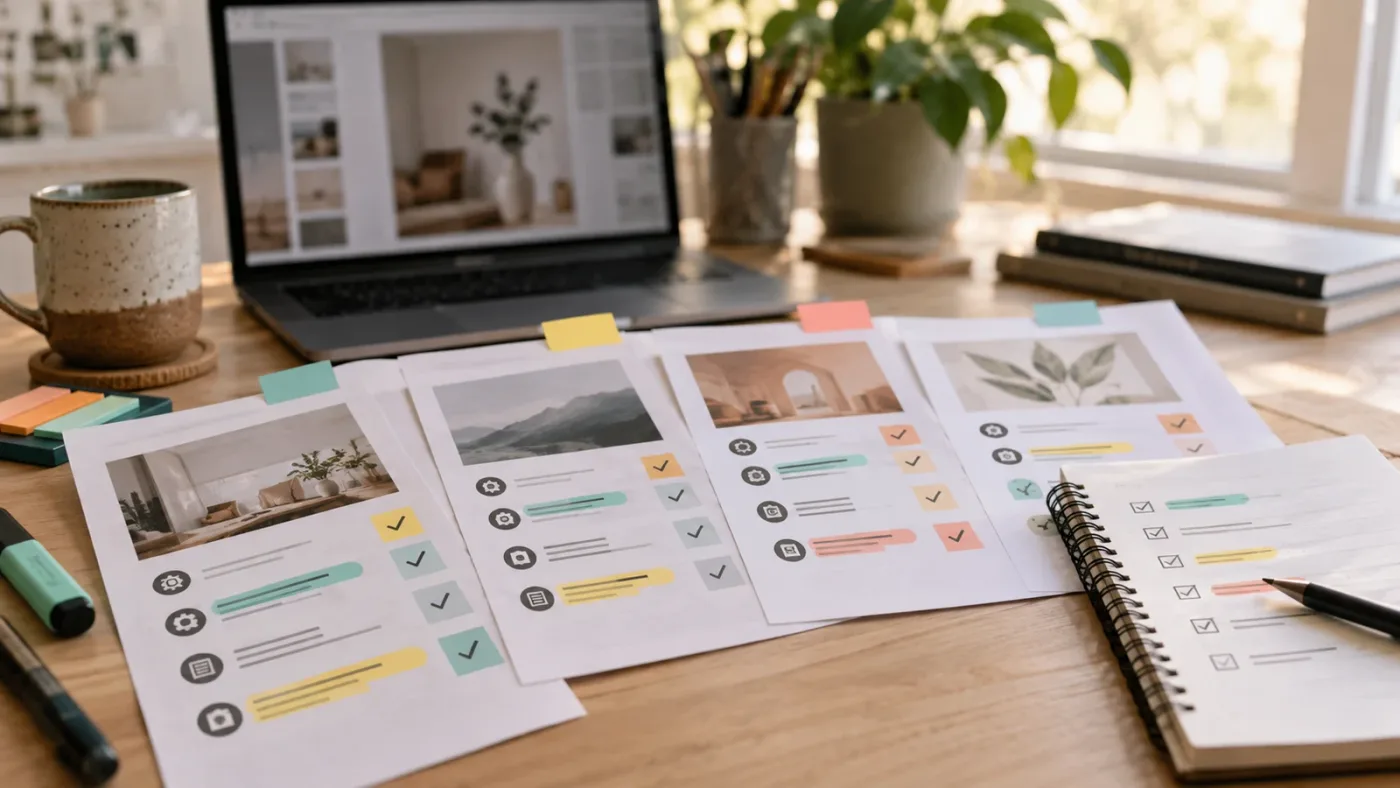
No catalog wins every workflow. Artlist is a sensible candidate when you want Resolve templates alongside other production assets, Envato Elements is strong when you want a broad creative subscription with one-project licensing, and Storyblocks fits buyers who prioritize a large stock library, templates, and unlimited downloads under the selected plan.
The table below compares the buying model, not artistic quality. We have not run a controlled benchmark of every catalog's search, template quality, or playback performance, so this matrix stays with what the providers publish and with decisions you can verify.
| Catalog | What the provider publicly emphasizes | Where it can fit | What you still must verify |
|---|---|---|---|
| Artlist | Video templates for titles, lower thirds, transitions, slideshows, and more; Resolve templates can be delivered as .dra archives; templates are included in Footage and Templates and Max plans | Editors who want templates in a wider music, SFX, footage, LUT, plugin, and AI asset bundle | Resolve version, Free or Studio need, placeholder count, fonts, performance, and the exact Social, Pro, team, or business license |
| Envato Elements | A broad creative-asset subscription; its license covers one specific project per downloaded item, and completed licensed end products can continue after cancellation | Freelancers and creators who want many asset types and can track an item against a specific project | The individual template's Resolve version, documentation, dependencies, and license fit for the intended client or commercial use |
| Storyblocks | Video templates, footage, photos, vectors, illustrations, and plan-dependent music, SFX, and AI tools; current plan pages show DaVinci Resolve templates in selected individual plans | Footage-led workflows that value a wide stock library and an unlimited-download plan | The selected plan, individual versus business rights, template-specific requirements, and continued coverage rules |
Artlist: when does it make sense?
Artlist makes the most sense when the template is part of a repeated production-asset need. Its public catalog description covers titles, lower thirds, transitions, slideshows, and other video templates, while its Resolve instructions describe software filtering, a zipped download, a Help folder, a Fonts folder, and a Project folder. That is useful for an editor who wants to source a graphic and the surrounding music, SFX, footage, or LUTs from one subscription.
The trade-off is that the bundle can obscure the decision. Do not choose a plan because it includes more categories than you need. Choose it only if the template works with your Resolve version and edition, the package structure is clear, and the license fits the finished project.
A larger asset catalog is useful only when its license and workflow match the project you are making.
Artlist's public licensing guidance distinguishes Social from Pro and broader tiers. It also says that stock projects must be completed and published while the subscription is active for the continued coverage described by its terms, and that downloaded assets are not simply perpetual building blocks for new projects after cancellation. For a personal channel, client campaign, paid media job, or team workflow, read the plan's exact terms.
This is a buying decision, so we are disclosing that the Artlist link in this section is an affiliate link. It does not change the checklist or the verdict. If Artlist passes your version, control, performance, and license tests, you can check Artlist's current template catalog. The current plan names, prices, credits, and terms can change, so verify them on the destination before subscribing.
Envato Elements: when does it make sense?
Envato Elements is a good candidate when you want a wide creative library and can manage project-specific licensing carefully. Envato's March 2026 licensing guidance says each downloaded subscription item is licensed for one specific project, must be customized or incorporated into a larger project, and can remain commercially licensed after cancellation when the end product was completed during an active subscription.
That model is different from a provider whose stock plan depends on publishing during an active subscription. Neither rule is automatically better. A freelancer producing separate client videos may value a clear one-project record. A creator producing recurring content may prefer a different model. Put your actual publishing pattern into the comparison.
Envato's DaVinci Resolve template requirements call for project files, help documentation, and asset or footage folders. Treat that as a signal, not a substitute for the individual listing's version, type, and Free or Studio notes.
Storyblocks: when does it make sense?
Storyblocks is a stronger candidate when footage is as important as templates. Its current pricing page lists video templates, including DaVinci Resolve templates, alongside footage, photos, vectors, illustrations, and plan-dependent audio and AI tools. Selected plans advertise unlimited downloads.
Storyblocks' plan levels have different included media and rights, so check the selected plan, allowed uses, and post-cancellation terms. An individual license is not the same as a business license.
Storyblocks can win over Artlist or Envato when your workflow starts with stock footage and needs templates as part of the same production library. It may be the wrong answer if the exact Resolve template style, control surface, or licensing scope you need is not in the selected plan.
What license questions should I answer before downloading a Resolve template?
The license must cover the finished use, not just the download. Ask whether you can use the template in personal work, monetized YouTube content, paid social, client work, brand work, broadcast, team projects, and future versions of the same project.
“Commercial use” needs a noun. Commercial for whom? Commercial where? Commercial under which tier? Write your use case in one sentence and match it to the provider's terms.
Personal channel versus client work
A personal-channel plan may not cover a client project, a third-party channel, paid media, or an agency workflow. Artlist's cached licensing guidance specifically distinguishes Social from Pro and broader coverage. If you edit for a client, do not assume that your personal subscription transfers all rights to the client's future use.
Envato's official guidance says completed end products can be transferred to a client under the stated conditions, but the downloaded item remains a project-specific, non-exclusive licensed asset rather than something the client can extract and reuse as a standalone file. That distinction matters for a client handoff.
Storyblocks' public plan page also separates individual and business offerings. Read the selected plan's license, indemnification language, permitted media, and restrictions. A plan that fits your own channel may not fit an organization or a production company.
Cancellation and future projects
Ask two different questions:
- Can I keep publishing a finished project after cancellation?
- Can I start a new project with the downloaded template after cancellation?
Those answers can differ. Artlist's guidance says stock projects need to be completed and published during an active subscription for the continued coverage described in its terms, and that assets cannot simply be used in new projects after expiry. Envato's current license guidance says a specific completed end product made during an active subscription can retain its commercial license, while new projects require an active subscription for a new license. Check Storyblocks' terms for its own rule.
Do not interpret “downloaded” as “owned.” Subscription assets are licensed, not transferred to you as standalone property. You usually cannot redistribute the source files, sell the template unchanged, or make it available for extraction by another user.
YouTube and Content ID
The template itself may not trigger a music claim, but a preview or bundled music asset can have separate licensing requirements. If your package includes music, verify the music terms and any channel-registration process. Do not treat a template subscription as a universal clearance for every asset in a project.
Team use and shared accounts
If more than one editor will use the template, check team seats, account permissions, client access, and whether source files can be shared. A team member opening a project is not necessarily the same as a client receiving the source asset.
Keep a license record with the project. Save the item name, provider, plan, download date, project name, and any registration or channel information the provider requires. This takes little space and gives you an answer when a client asks where the asset came from.
What if the terms are unclear?
Ask the provider in writing whether the template covers your monetized or client project, the client's channel, and publishing after cancellation. Keep the answer with the project record. If it remains vague, choose a clearer license.
How do I test a Resolve template before using it in a client project?
Test the template in a disposable project with representative media, not in the client master. Restore or install the package, replace a real placeholder, edit the longest text, change the colors, adjust the timing, preview the result, render a short section, reopen the project, and confirm that the result still works.
This is the final gate in the checklist. It is also where you discover whether the template's beautiful demo translates into your actual workflow.
The seven-pass test
Follow these steps in order.
-
Define the job. Create a small test brief with the intended frame shape, frame rate, duration, media type, text length, brand colors, and delivery destination. Add whether the project is personal, monetized, client-owned, or team-produced.
-
Identify the template type. Record whether the file is a Title, Generator, Effect, Transition, Fusion macro, or full project archive. Note whether the installation uses the Effects Library or Project Manager.
-
Check the controls. Replace every visible text and media input that matters. Change color, position, scale, timing, direction, and intensity where those controls are advertised. Write down any change that requires opening Fusion.
-
Verify compatibility. Confirm that the file opens in DaVinci Resolve 21.1 on your operating system and in your Free or Studio edition. Do not test only the preview thumbnail. Test the real package.
-
Audit dependencies and performance. Install or identify fonts, relink media, note plugins, and use your real type of footage. Preview a representative section and render a short clip. Record the workaround if you need caching or a lower preview resolution.
-
Read the license. Attach the license note to the test project. Confirm that the intended client, channel, platform, and cancellation scenario are covered. If you cannot answer those questions, stop before production.
-
Test before production. Save a clean working copy, reopen it, make one more text or media replacement, and confirm that the template remains reusable. Only then move it into the client project or recurring template library.
Blackmagic's Resolve 21 guide documents the template types and the Macro Editor's save paths. Artlist's documentation describes restoring .dra files through Project Manager and replacing placeholder content. Envato's documentation explains its one-project licensing model. These sources support the mechanics and licensing distinctions, while the seven-pass order is our editorial workflow recommendation.
What should I put in the test project?
Use a short timeline with the real project settings, one clip, one image, one transparent logo, the longest likely title, and a representative brand color. If you edit vertical content, use a vertical test. The goal is coverage, not a fake benchmark.
What is a deal-breaker?
Reject the template when it requires a version you cannot run, needs Studio when you use Free, omits a required plugin, loses media after reopening, clips the text you need, cannot handle your aspect ratio, performs badly on your machine, or lacks a license for the intended use.
Some deal-breakers are fixable. A missing font may have a documented solution. A missing version requirement is not a problem you should volunteer to solve before purchase. Keep that distinction clear.
A five-minute compatibility check can save an entire edit from becoming a template repair job.
What should I do when a Resolve template fails after download?
First separate installation, dependency, compatibility, and performance failures. Do not try random fixes in a client project because each category has a different cause.
| Symptom | First question | Safe next action |
|---|---|---|
| Template does not appear | Was it installed in the right way? | Re-read the package instructions and identify the file type |
| Archive will not open | Is it a .dra project archive? | Restore it through Project Manager instead of treating it like an effect |
| Text looks wrong | Is the required font installed? | Read the font document, install the correct font, and reopen the test |
| Media is offline | Are paths or placeholders missing? | Extract the package and relink or replace the media |
| Nodes are disconnected | Is the template version-specific? | Compare the listed version and inspect the Fusion composition in a copy |
| Playback is slow | Is the template effect-heavy? | Test with caching or lower preview resolution, then reassess the workflow |
| Black frame or missing effect | Does the template need Studio or a plugin? | Check the edition, plugin list, and license before trying workarounds |
| Text or media cannot be added | Are placeholders fixed? | Ask the provider whether the design supports more slots |
Artlist's troubleshooting guidance lists slow playback, missing assets, display errors, missing fonts, and version incompatibility among common template problems. It also describes extracting the package before opening it, installing fonts, relinking media, and checking the Free versus Studio requirement. Those steps are useful diagnostic categories for any Resolve template, but the exact fix remains provider and file dependent.
Should I contact support or abandon the template?
Contact support when the package claims compatibility and the documented steps fail. Include your Resolve version, Free or Studio edition, operating system, template name, error message, and the smallest reproducible test. Do not send a client project if the provider did not ask for it.
Abandon the template when the provider cannot confirm a requirement that blocks your job. A replacement with fewer features and clear documentation is often the safer production choice.
What if the template works only after a complicated repair?
Decide whether the repair is reusable. If you can fix one font path once and save a clean master, the work may be reasonable. If every new project requires reconnecting nodes, rebuilding placeholders, or manually correcting the same error, price that maintenance into the template.
The right question is not “Can I make it work?” Skilled editors can make many files work. The right question is “Will this remain predictable when I need it again?”
Which Resolve template should I choose for common projects?
Choose by the repeatable job and the amount of change, not by the most impressive preview. Titles, transitions, lower thirds, slideshows, and full openers each have different failure points.
YouTube titles and lower thirds
Choose a title template with named text fields, readable font guidance, safe positioning, a logo slot if needed, and enough timing control for your edit. A title that is easy to repeat beats an elaborate opener you must rebuild every episode.
If your content has recurring guests, test names with different lengths. If your channel mixes horizontal and vertical formats, confirm whether you need separate templates. Do not assume one horizontal title will adapt cleanly to every platform.
Social transitions
Choose a transition with a documented duration range and a clear statement about handles. Test it on clips with different motion directions and different framing. If you publish short clips, also test it near the start and end of a timeline where handles may be limited.
Avoid buying a transition pack because it has many variations you will not use. One reliable transition with the right controls can be more valuable than a large pack of identical effects.
Slideshows and photo videos
Choose a slideshow by placeholder count, media replacement method, image framing, text control, and duration flexibility. Full archives can give you more structure, but they can also require more careful restoration and replacement.
Use portrait, horizontal, and transparent images in the test. Ask whether the design supports extra slides or only the built-in number. For a longer photo project, check whether all the placeholders feed the final timeline as expected.
Client explainers and product videos
Choose a template with strong brand controls and a license that covers client work and the client's distribution. Check whether the client can receive the final exported video without receiving the source asset. If the client needs to edit the template themselves, verify that the license and team plan permit that handoff.
Test the logo slot, brand colors, text hierarchy, and the longest product name. A template that looks cinematic but cannot fit the client's language is not ready for the brief.
Event openers and title sequences
Choose a full archive only when you are comfortable restoring a project and working inside its folder structure. Check the placeholder count, duration, render settings, fonts, and media. Confirm how to create a clean copy for the next event.
For an event deadline, test the complete sequence earlier than you think you need to. An opener can look fine in a short preview and still fail when every placeholder is replaced with high-resolution images and the final timeline is rendered.
What does an expert say about learning Resolve well enough to use templates?
A template is a shortcut inside a larger application, not a replacement for understanding where the work lives. Grant Petty, CEO of Blackmagic Design, writes in the official DaVinci Resolve 21 New Features Guide: “DaVinci Resolve is easy to learn, especially if you’re switching from another editor, and has all of the tools you need to create breathtaking, high end work!”
That sentence comes from the signed welcome material in Blackmagic's guide, not from our own experience and not from a marketplace seller. You do not need to master every page before evaluating one template, but you do need enough knowledge to identify its page, type, controls, version, and dependencies. Our community includes more than 100,000 professional video editors and learners. We have taught more than 100,000 students on Udemy as an official Udemy Business Partner, and we have taught and worked with Fortune 500 companies. Repeatable decisions matter more than impressive promises.
What is the best way to learn DaVinci Resolve if templates confuse me?
The best way to learn DaVinci Resolve for template work is to learn one small workflow end to end: import media, place a title or effect, change its controls, render a short result, and save a reusable copy. Blackmagic's official free training is a strong starting point for the application's terminology; Casey Faris and other YouTube educators can add demonstrations; Udemy and Coursera can add structured paths and exercises. A template's help file is useful for that template, but it is rarely a complete Resolve course.
How can I learn DaVinci Resolve fast enough to use a purchased template?
Learn DaVinci Resolve fast by narrowing the target to the controls and pages the template uses. Start with Edit and Inspector, add Fusion only when required, and learn Project Manager restoration for a .dra archive. Then practice the seven-pass test on a free or self-made template.
Is a template subscription worth it for a DaVinci Resolve editor?
A template subscription is worth considering when you produce often enough to value access, need several asset categories, and can track the license and compatibility of each download. It is not worth it when you need one small title, cannot verify the license, or will spend more time repairing the template than building the visual yourself.
Use a simple break-even thought experiment without inventing an hourly rate. List the tasks the template would replace: design, animation, setup, revisions, and future reuse. Then list the tasks it adds: searching, learning, installing fonts, relinking media, testing, licensing, and maintenance. The subscription earns its place when the repeated savings and flexibility are real for your workflow.
When does a subscription make more sense?
A subscription can make sense for recurring production with several asset needs. Artlist, Envato Elements, and Storyblocks all position their services as broader asset libraries, but their licensing models and plan scopes differ. Compare the project records you will need to maintain, not only the number of categories advertised.
If you create many client projects, ask whether the license lets you register or cover each project appropriately. If you create one channel, ask whether the plan supports that channel and your monetization. If you work with a team, ask whether the account structure permits the people who need access.
The hidden cost is not always money. It can be setup time, slow playback, font management, version upgrades, license records, support requests, or a project structure that only one editor understands. Add those costs before you compare prices.
How do I make a final decision without overthinking the download?
Choose the first candidate that passes every gate and fits the job. You do not need the template with the most controls, the most dramatic preview, or the largest marketplace. You need a package that opens in Resolve 21.1, works in your edition, exposes your required changes, survives your media, and carries the right license.
Use this final decision card:
| If your top priority is... | Choose the candidate with... | Avoid... |
|---|---|---|
| Fast repeat use | Named controls and a short customization path | Dense node work for ordinary text changes |
| Brand consistency | Color, logo, text, and timing controls | A fixed design with hidden branding |
| Client delivery | A license that names client and distribution use | Vague “commercial” wording |
| Free Resolve | An explicit Free-compatible listing | “Resolve compatible” without an edition |
| Lower-powered hardware | Documented complexity and a short test result | Heavy animation with no performance guidance |
| Photo or slideshow work | Clear placeholder count and media replacement steps | Fixed slots that cannot be expanded |
| Cross-platform work | Native instructions and dependency list | Unstated plugins, scripts, or paths |
| Long-term reuse | Clear cancellation and project terms | Assumptions that downloaded means owned |
If two candidates pass, choose the one with better documentation and fewer dependencies. If they still tie, choose the one that gives you a cleaner reusable control surface. Visual style comes last because style is the easiest thing to compare from a thumbnail and the least reliable predictor of production friction.
What should I do before I click download?
Save the listing URL, version note, Free or Studio requirement, license page, and support page. Capture the exact product name and any item ID. If the provider's terms or plan page is volatile, save a copy of the relevant wording with the project record according to your normal documentation policy.
Then create the test brief. Decide what would make you return or abandon the item before the asset is mixed into a deadline project.
What should I do after the download?
Keep the original archive untouched. Extract it to a clear folder. Read the help file before opening the project. Install or verify fonts. Restore or install the correct file type. Work in a disposable Resolve project. Replace representative media. Make the longest text change. Test timing, color, aspect ratio, playback, a short render, and a reopen.
If it passes, move a clean copy into your reusable library and keep the license record with it. If it fails a gate, stop. Do not let the fact that you already downloaded it pressure you into using it.
What is the final verdict?
The reliable way to compare Resolve templates before downloading is to treat each one as a small production system. Its thumbnail is only the visual layer. The real product is the combination of template type, control surface, version support, Free or Studio requirement, dependencies, performance behavior, documentation, and license.
For a broad asset workflow, compare Artlist, Envato Elements, and Storyblocks using the same checklist. Artlist can be a good fit when Resolve templates belong beside music, SFX, footage, LUTs, or other assets, but verify the exact template and license. Envato Elements can fit project-specific licensing and a broad asset library. Storyblocks can fit footage-led work and selected plans with DaVinci Resolve templates. No catalog gets a pass on compatibility or licensing.
For one template, buy the candidate that answers your questions before the download button. For a recurring workflow, test the candidate in a disposable project before you let it touch paid work.
Buy the template that survives your real project, not the one that wins the thumbnail comparison.
Frequently asked questions
- How do I compare Resolve templates before downloading?
- Compare the template type, Resolve version, Free or Studio requirement, editable controls, included media and fonts, project format, performance notes, support documentation, and license. Reject any template whose seller does not state those basics clearly.
- Do Resolve templates work in the free version of DaVinci Resolve 21?
- Some do, but a template page must say so. A template can be made for Resolve while still requiring Studio features, so match the download's Free or Studio requirement to your installed edition before paying.
- Why is my Resolve template missing fonts or media?
- Missing fonts or media usually mean the template's dependencies were not installed, extracted, or relinked. Unzip the package, read its help and font files, install required fonts, and relink placeholder media in a test project.
- Will a Resolve template slow down playback?
- It can. Animated transitions, heavy Fusion compositions, high-resolution media, and multiple effects can make playback sluggish, especially on lower-powered hardware. Check performance notes and test a representative section before committing to the template.
- Can I use a downloaded Resolve template in client projects after cancelling?
- The answer depends on the provider and license tier. Read the exact license before downloading. Artlist says stock projects must be completed and published during an active subscription for continued coverage, while Envato licenses items for a specific project and lets completed licensed end products continue after cancellation.
Sources
- Blackmagic Design: DaVinci Resolve 21 What's New
- Blackmagic Design: DaVinci Resolve 21 New Features Guide
- Blackmagic Design: Fusion
- Blackmagic Design: DaVinci Resolve download page
- Blackmagic Design: DaVinci Resolve training
- Artlist: template and licensing documentation, tracked destination
- Envato Elements: Correct Usage of Items
- Envato Author Support: DaVinci Resolve Template Requirements
- Storyblocks: plans and pricing
Keep reading
Guides · Aug 27, 2026 · 8 min
Artlist DaVinci Resolve Templates Free Version Guide
Can Artlist DaVinci Resolve templates work in the free version? Check Resolve 21 compatibility, Studio requirements, .dra installs, and fixes.
Fixes · Jul 17, 2026 · 22 min
DaVinci Resolve Fusion Title Templates Not Working: The Fix
DaVinci Resolve Fusion title templates fail for five distinct reasons, from missing files to locked macros to bad fonts. Here's the fix for each one.
Comparisons · Sep 26, 2026 · 15 min
Artlist vs Storyblocks for Stock Footage: 2026 Verdict
Artlist vs Storyblocks for stock footage in DaVinci Resolve 21, compared on catalog depth, downloads, licensing, templates, and recurring cost.