Articles / Guidesupdated for DaVinci Resolve 21 (August 2026)
How to Organize Sound Effects in DaVinci Resolve
Quick answer
To answer how to organize sound effects in DaVinci Resolve, use a stable folder and bin taxonomy, consistent filenames, metadata, Smart Bins, and dedicated Fairlight tracks. Keep project clips in Media Pool bins, reusable assets in an external library, and related timeline tracks in Resolve 21 Folder Tracks.

One of the recurring questions in our 100,000+ member editing community is how to stop sound effects from disappearing into a pile of files. After 7+ years of professional, commercial video editing, we’ve found that the answer is a small system, not a giant folder tree.
This workflow is written for DaVinci Resolve 21 as of August 2026. It separates reusable audio from one project’s selects, makes search useful, and keeps Fairlight readable when the timeline gets busy.
What is the best way to organize sound effects in DaVinci Resolve?
The best way to organize sound effects in DaVinci Resolve is to use three layers: a reusable disk library, project-specific Media Pool bins, and clearly named Fairlight tracks. DaVinci Resolve 21 documents ordinary bins as manually populated and Smart Bins as metadata-driven filters, so each layer has a different job. Blackmagic’s Resolve 21 guide explains the bin and Smart Bin distinction.
| Layer | Put here | Example | Job |
|---|---|---|---|
| Disk library | Every reusable sound | SFX_FOLEY_FOOTSTEP_WOOD_NEAR_01.wav | Long-term storage and backup |
| Media Pool bin | Sounds selected for this project | 02_SFX_Foley | Project browsing and editing |
| Smart Bin | A saved metadata filter | SFX - Foley | Fast retrieval by tags |
| Fairlight track | Sounds already placed in the timeline | SFX_FOLEY | Mixing, editing, and mute or solo control |
One structure can’t do all four jobs. A disk folder won’t tell you which effects belong in the current cut, and unnamed Audio 1 and Audio 2 tracks won’t tell you what to mute during a review.
The best DaVinci Resolve sound-effects system separates reusable audio from project-specific selects.
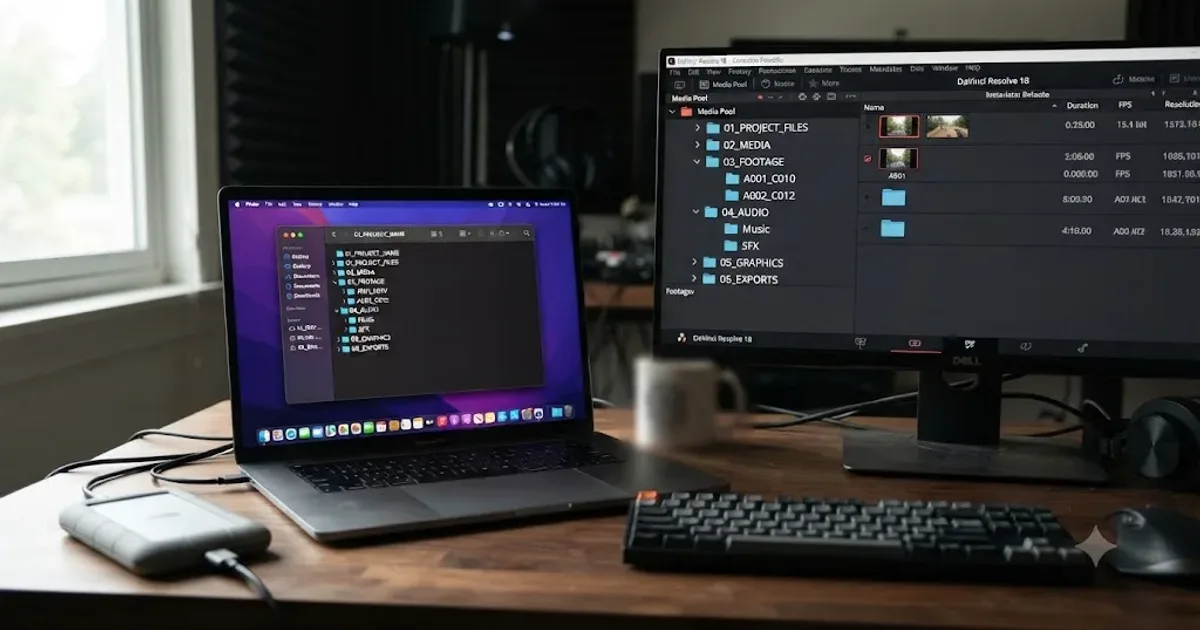
Start with a small top-level library: 00_INBOX, 01_FOLEY, 02_HARD_EFFECTS, 03_AMBIENCE, 04_DESIGN, 05_WHOOSH_IMPACTS, and 90_SELECTS. Add categories only when you repeatedly need them.
Manual bins answer where a sound lives, while Smart Bins answer which sounds match.
How should you name sound effects before importing them?
Name sound effects with the words you would actually search for: category, action, variant, perspective, and source. A practical pattern is CATEGORY_ACTION_VARIANT_DISTANCE_SOURCE_NUMBER, such as HARD_DOOR_CLOSE_METAL_NEAR_RECORDING_01.wav.
This is a recommendation, not a Resolve requirement. Put the most useful search word near the beginning, use one spelling for each concept, and avoid final_new2.wav or SFX_104.wav.
Keep technical detail that helps you choose the file. NEAR, FAR, INTERIOR, EXTERIOR, WOOD, and METAL are useful. A long production note probably belongs in a comment or description field instead of the filename.
For broader Resolve organization, see our bin-naming guide.
How do I build bins and metadata for sound effects?
Build bins for broad, stable groups, then use metadata and Smart Bins for flexible questions. In Resolve 21, custom metadata fields can be used as criteria for Smart Bins, Clip Filters, Data Burn-ins, and Naming Tags, according to the Resolve 21 New Features Guide.
Create the manual structure first:
- Open the Media page and show the Media Pool.
- Create top-level bins for
FOLEY,HARD FX,AMBIENCE,DESIGN, andSELECTS. - Add project media to the relevant bin instead of leaving every file in Master.
- Open the Metadata Editor and fill only the fields you’ll use consistently.
- Add a Smart Bin for each recurring search, such as Foley, exterior ambience, or approved selects.
The useful metadata is descriptive, not ornamental. Here’s a compact starting set:
| Field | Example value | Smart Bin question |
|---|---|---|
| Category | Foley | Which clips are Foley? |
| Action | Door close | Which clips match a door close? |
| Perspective | Near | Which close sounds should I audition? |
| Material | Metal | Which version fits the prop? |
| Status | Approved | Which sounds survived review? |
Smart Bins are saved rules, not magic folders. If you don’t add useful metadata, they have little to filter. Resolve’s documentation describes Smart Bins as procedural bins that dynamically filter Media Pool contents using metadata, and it gives Add Smart Bin as the creation command.
Use manual bins for physical ownership and Smart Bins for questions.
How do I use the Fairlight Sound Library across projects?
Use the Fairlight Sound Library as the reusable source layer, and use Media Pool bins for the clips you have chosen for one edit. Blackmagic says the Fairlight page can access external sound libraries, search for a sound, mark a range, audition it on the timeline, and confirm or cancel the result. The official Fairlight overview describes that workflow.
The working sequence is simple:
- Go to the Fairlight page and open the Sound Library panel.
- Install the Fairlight Sound Library if you need a built-in starting collection.
- Search for a clear term such as
footstep,door, orroom tone. - Mark the useful section of a source clip and audition it against picture.
- Confirm the choice, then organize the selected project media in a Media Pool bin.
Keep the reusable library stable across projects and let the Media Pool describe what this project actually uses. Treating every library file as project media creates clutter.
Sound designer and mixer Randy Bobo described the practical benefit plainly: “Fairlight’s strength has always been in its editing.” His quoted comment in the Hollywood Professional Association report came from a production that used Fairlight for sound design and mixing.
Fairlight Sound Library is the reusable source layer, while Media Pool bins are the project layer.

Why is my DaVinci Resolve sound library not showing up?
When the DaVinci Resolve sound library is not showing up, check the selected library or database, run a search, and register the installed folder if necessary. A Blackmagic Design forum support thread specifically points users toward the database selection when an installed Fairlight library is missing, and the same thread documents the need to search before expecting results. See the Blackmagic support discussion.
Use this diagnostic order:
- Open the Sound Library panel on the Fairlight page.
- Confirm that the intended library or database is selected.
- Search for a normal term rather than judging an empty initial panel.
- If the library is installed elsewhere, use the panel’s Add Library control and point Resolve to that library folder.
- Close and reopen the project after changing the library registration.
Don’t rebuild your folder structure first. Prove that Resolve can see one known sound, then test the search vocabulary.
If you’re troubleshooting the panel rather than designing a library, keep our DaVinci Resolve sound library not showing up fix nearby.
How do I keep the Fairlight timeline organized in Resolve 21?
Keep Fairlight tracks organized by role, then use Resolve 21 Folder Tracks to collapse related tracks without flattening them. Blackmagic’s Resolve 21 guide says to select two or more tracks, choose Add Tracks to New Folder, and use the folder’s disclosure control to collapse or reopen the group.
I’d start with these track names:
| Track or folder | Use it for |
|---|---|
DX | Dialogue and production speech |
SFX_FOLEY | Footsteps, cloth, and handling |
SFX_HARD | Doors, props, vehicles, and impacts |
SFX_AMB | Room tone and environmental beds |
SFX_DESIGN | Risers, hits, transitions, and processed layers |
MUSIC | Score and licensed music |
Select related tracks in Fairlight, right-click, and choose Add Tracks to New Folder. Resolve 21 supports up to three levels of Folder Track nesting. Folder-level Solo and Mute controls are useful when you need to hear only Foley or only design effects, and deleting the Folder Track restores the original track view. Those version 21 behaviors are documented by Blackmagic.
Resolve 21 also adds a useful navigation shortcut: pressing C snaps the playhead to the pointer in the Fairlight timeline. That is a documented Resolve 21 change, not a shortcut I’d assume in older versions.
Use separate tracks when sounds need different level, processing, or review decisions. Use a Folder Track when related tracks share a role and the timeline has become hard to read. Don’t put every effect into one “SFX” track just to make the interface look tidy.
For the creative side, read our guide to layering sound effects in DaVinci Resolve when the organization is in place and you’re ready to build the sound bed.
Resolve 21 Folder Tracks organize the timeline without flattening the original sound-effects tracks.
Should you use Epidemic Sound, Soundly, or one-time sound-effects packs?
Choose the source that matches how you publish. The built-in Fairlight library or one-time packs suit a local collection. Soundly suits searchable local and cloud libraries. Epidemic Sound suits recurring licensed music and effects.
| Source | Choose it if | Trade-off |
|---|---|---|
| Fairlight Sound Library | You want a built-in Resolve workflow | The collection may not cover every specialized brief |
| One-time packs | You prefer a fixed local catalog | License terms and search quality vary by vendor |
| Soundly | You need search across local and cloud libraries | Cloud features and collaboration depend on the plan |
| Epidemic Sound | You publish regularly and need licensed music plus effects | Subscription licensing and Resolve Studio requirements need checking |
Soundly says it can index local files on a computer, external device, or local network, and supports cloud libraries. Soundly documents local indexing and library access.
Disclosure: We may earn a commission if you choose Epidemic Sound through the following link. The relationship doesn’t change the workflow recommendation, and you should check the current plan and license for your use case.
If you choose Epidemic Sound, check the current terms before using it for client work. Its DaVinci integration is aimed at DaVinci Resolve Studio, while a local Fairlight library, Soundly, or a one-time pack may be better when you want local ownership and no recurring subscription.
What should you do on your next DaVinci Resolve project?
Start with the smallest repeatable setup: create the top-level folders, choose one filename pattern, make five project bins, add five useful metadata fields, and name the Fairlight tracks before placing effects.
Then do this in order:
- Create the top-level folders for reusable source audio and project selects.
- Apply one filename pattern using category, action, variant, perspective, and source.
- Build broad Media Pool bins for Foley, hard effects, ambience, design, and selects.
- Add metadata and use Smart Bins for recurring retrieval questions.
- Connect the Fairlight Sound Library and audition sounds against picture.
- Name Fairlight tracks by role, then collapse related tracks with Resolve 21 Folder Tracks.
The payoff isn’t a prettier Media Pool. It’s a sound system you can search, explain, hand off, and reopen without guessing what final_sfx_new2.wav means. Build it once, then spend your time choosing sounds that serve the cut.
Track names are part of a mix workflow, not decoration for the timeline.
Frequently asked questions
- How do I organize sound effects in DaVinci Resolve?
- Create a repeatable library taxonomy, name files with searchable fields, add metadata, use Smart Bins for retrieval, and separate Foley, hard effects, ambience, design, and music on Fairlight tracks.
- How should I name sound effects for DaVinci Resolve?
- Use a consistent pattern such as CATEGORY_ACTION_VARIANT_DISTANCE_SOURCE, then keep names short enough to scan in the Media Pool and Sound Library.
- How do I use the Fairlight Sound Library across projects?
- Keep reusable effects in the Fairlight Sound Library or another external library, and put only the sounds selected for a particular edit into that project's Media Pool bins.
- Why is my DaVinci Resolve sound library not showing up?
- Open the Fairlight Sound Library panel, confirm that the correct library or database is selected, search for a term, and use Add Library if the installed folder is not registered.
- Should I use Epidemic Sound, Soundly, or one-time sound-effects packs?
- Choose the built-in Fairlight library or one-time packs for a local collection, Soundly for searchable local and cloud libraries, and Epidemic Sound when recurring licensed music and effects matter more than owning a fixed local catalog.
Sources
- DaVinci Resolve 21 New Features Guide
- DaVinci Resolve Fairlight
- Blackmagic Design forum: Fairlight Sound Library isn't showing up
- HPA: DaVinci Resolve Studio and Fairlight used for audio post
- Soundly: The Complete Sound Effects Platform
- Soundly Support: local and cloud libraries
- Epidemic Sound plugin and licensing details
Put this guide to work with TryUncle.
Ask about the step you’re on. TryUncle sees your screen and points at the control you need, so you can keep learning in your own project.
Get TryUncle for Mac or WindowsKeep reading
Guides · Jul 16, 2026 · 36 min
Folder and Bin Naming Conventions for DaVinci Resolve Projects
A practical naming system for DaVinci Resolve folders and bins: project structure, camera bins, Power Bins, Smart Bins, and what breaks relinking.
Guides · Aug 24, 2026 · 8 min
How to Layer Sound Effects in DaVinci Resolve 21
Learn how to layer sound effects in DaVinci Resolve 21 with a clean Fairlight track layout, precise sync, volume shaping, and practical mix checks.
Guides · Jul 11, 2026 · 31 min
How to Mix Audio in DaVinci Resolve Using Fairlight
Mix audio in DaVinci Resolve's Fairlight page: build a dialogue/music/effects bus structure, gain-stage your clips, EQ and compress dialogue, then duck music under it.