Articles / Comparisonsupdated for DaVinci Resolve 21.0.2 (July 2026)
RAID 5 vs RAID 6 for DaVinci Resolve Video Editing
Quick answer
For DaVinci Resolve video editing, use RAID 6 on any shared NAS with 8TB+ drives, since its second parity drive survives a failure mid-rebuild, when large-drive rebuilds run 24 or more hours. RAID 5 still suits a solo editor's local array under about 8TB, where faster writes and one fewer drive matter more than surviving two failures.
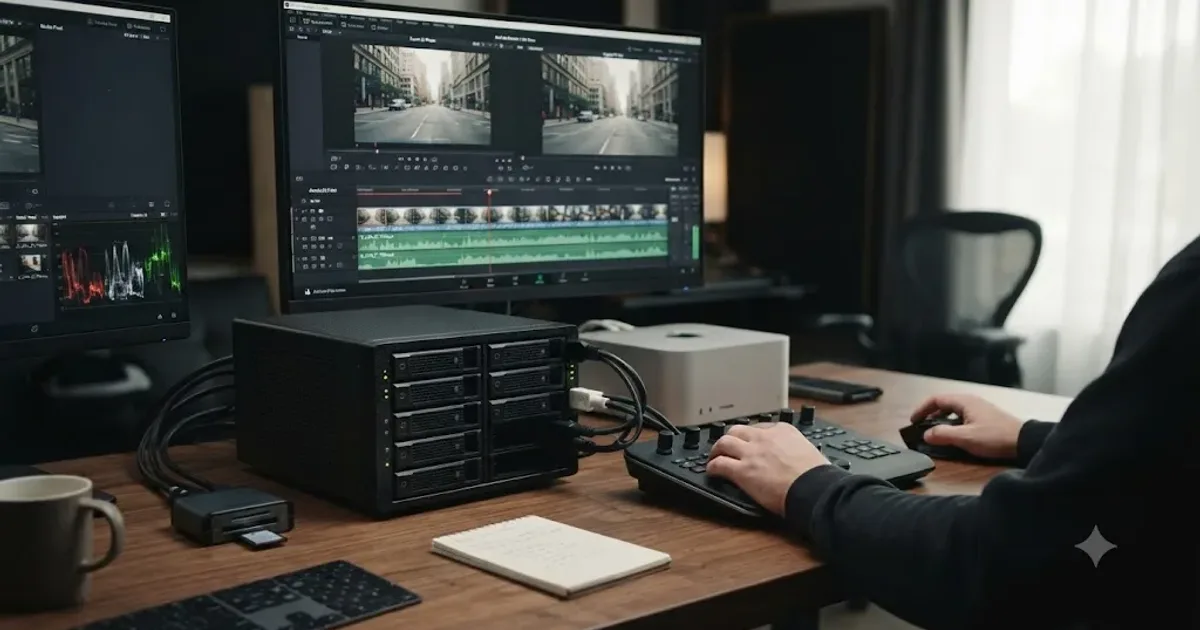
A drive in your media array is going to fail. Not might, will, eventually, the only real variable is when. The question RAID 5 vs RAID 6 for DaVinci Resolve video editing actually answers isn't whether that happens. It's whether your project survives it.
In seven-plus years of professional editing work and running a video-editing community that's grown past 100,000 members, we hear some version of this question constantly: someone built a NAS or a local array for their Resolve media, picked a RAID level because a forum thread told them to, and now they're mid-project wondering if they picked wrong. Most of the time the honest answer is that either level would have worked fine for what they're actually doing. Sometimes the honest answer is that they picked the one that was going to fail them the day they needed it most.
This guide gives you the real difference, the actual numbers behind it, and a decision you can make in the next five minutes instead of another afternoon of forum reading.
What's the quick verdict on RAID 5 vs RAID 6 for DaVinci Resolve?
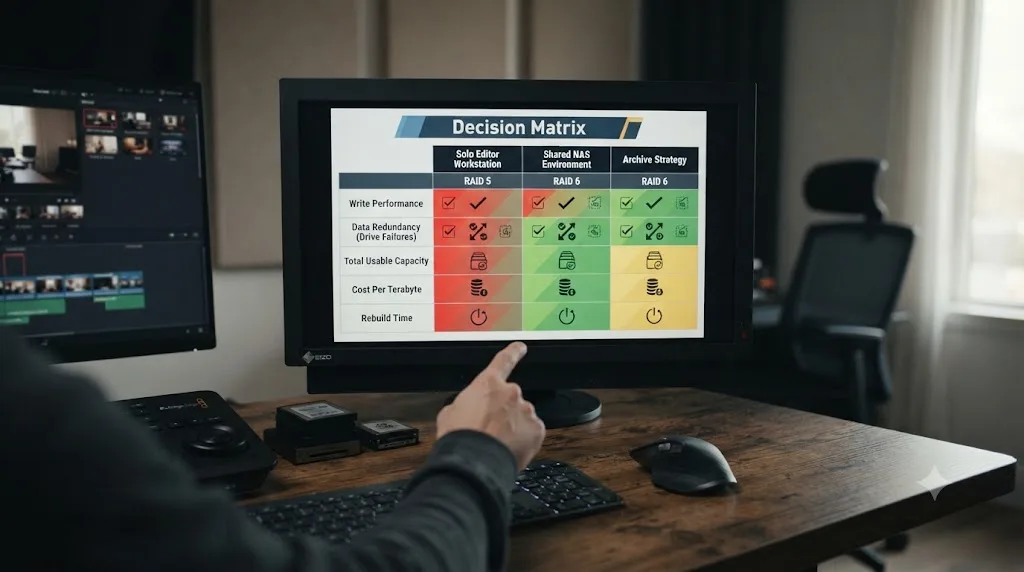
Pick RAID 6 for any array that holds drives 8TB or larger, or that more than one person depends on. Pick RAID 5 for a solo editor's local array on smaller drives, where speed and cost matter more than surviving two failures at once.
| Your situation | Use this | Why |
|---|---|---|
| Solo editor, local array, drives under 8TB | RAID 5 | Faster writes, one fewer drive needed, rebuild window is short enough to be a reasonable risk |
| Solo editor, local array, drives 8TB or larger | RAID 6 | Rebuild risk on a single large drive is real enough to matter even with no one else depending on the array |
| Shared NAS, 2 or more editors | RAID 6 | A failure that takes down shared storage stops every connected workstation, not just one |
| DaVinci Resolve Project Server media volume | RAID 6 | Same logic as shared NAS, plus the database itself usually lives on a separate small mirror anyway |
| Archive or cold storage, backed up elsewhere | RAID 5 | If a real backup exists off that array, RAID 5's lower cost is a fair trade for redundant coverage |
| Any array you can't watch closely or replace a failed drive in quickly | RAID 6 | The second parity drive buys you time you don't otherwise have |
Neither RAID level is a backup, and the drive count matters more than the brand of NAS box it's running in. Everything below explains the mechanics behind that table: what each level actually does, why bigger drives change the math, how much speed RAID 6 really costs you, and where the DaVinci Resolve-specific parts of this decision, render cache, database volumes, shared project libraries, change the answer from the generic IT advice you'll find everywhere else.
What is RAID 5, and how does it protect your DaVinci Resolve media?
RAID 5 spreads your data across every drive in the array and adds one parity block, also spread across every drive, that can reconstruct any single drive's contents if it fails. It needs a minimum of three drives and survives exactly one drive failing at a time.
Per QNAP's own RAID type comparison, RAID 5 provides "fault tolerance" for one disk failure, and its striping means read speeds increase with each additional disk you add to the array. That striping is the performance half of RAID 5's appeal: your footage isn't sitting on one drive, it's spread across all of them, so DaVinci Resolve can pull pieces of a file from multiple disks simultaneously instead of waiting on one drive to deliver everything.
The parity is the protection half. It isn't a full copy of your data the way RAID 1 mirroring is; it's a mathematical checksum, calculated from the data blocks across the other drives, that lets the array reconstruct whatever a failed drive was holding. Lose one drive, and the remaining drives plus that parity data are enough to rebuild it from scratch onto a replacement.
The cost is capacity. In a RAID 5 array, you always lose exactly one drive's worth of usable space to parity, regardless of how many drives are in the array.
| Drives in RAID 5 | Usable capacity |
|---|---|
| 3 | 67% (2 of 3 drives) |
| 4 | 75% (3 of 4 drives) |
| 6 | 83% (5 of 6 drives) |
| 8 | 88% (7 of 8 drives) |
| 12 | 92% (11 of 12 drives) |
RAID 5 gives you back a bigger share of your raw storage the more drives you add, but it never gives you back more than one drive's worth of protection, no matter how many drives you're running. An 8-drive RAID 5 array survives losing exactly one drive, the same as a 3-drive one. That ceiling, not the capacity math, is the entire reason RAID 6 exists.
What is RAID 6, and how is it different from RAID 5?
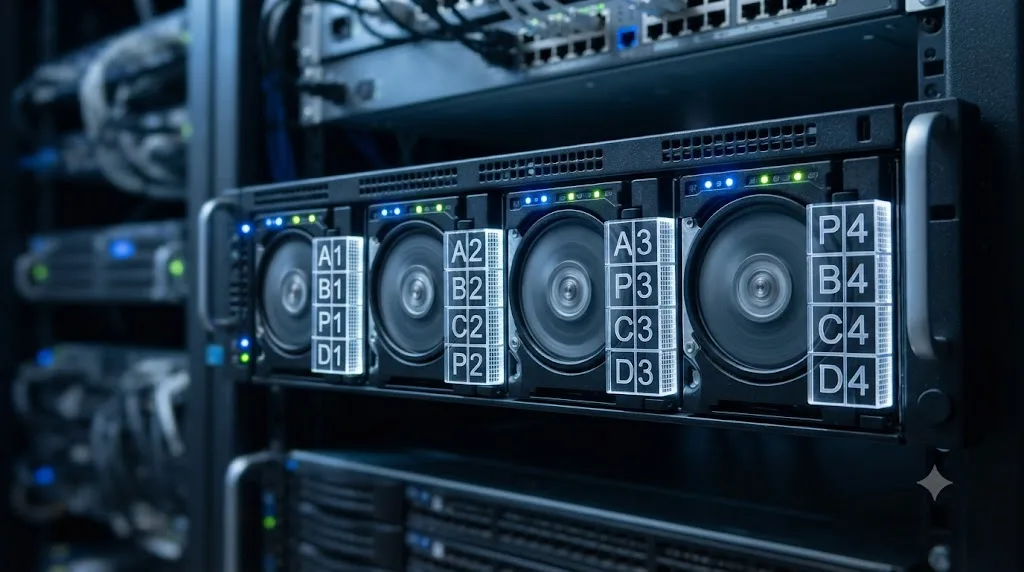
RAID 6 does everything RAID 5 does, striping and parity-based reconstruction, but calculates two independent parity blocks instead of one. It needs a minimum of four drives and survives two drives failing at the same time, including a second failure that happens while the array is still rebuilding from the first.
That second detail is the entire point. QNAP's own comparison lists RAID 6's fault tolerance as two disk failures and its minimum drive count as four, exactly one more than RAID 5's floor, and describes it as suited for "critical data protection, business and general storage use." Backblaze's breakdown of NAS RAID levels puts the same distinction more plainly: RAID 5 "protects against one simultaneous drive failure, while RAID 6 protects against two."
The capacity cost is steeper than RAID 5's, because RAID 6 always sacrifices two drives' worth of space to parity instead of one.
| Drives in RAID 6 | Usable capacity |
|---|---|
| 4 | 50% (2 of 4 drives) |
| 5 | 60% (3 of 5 drives) |
| 6 | 67% (4 of 6 drives) |
| 8 | 75% (6 of 8 drives) |
| 12 | 83% (10 of 12 drives) |
Compare that to the RAID 5 table above at the same drive counts and the pattern holds everywhere: RAID 6 costs you roughly one extra drive's worth of capacity at any given array size, in exchange for surviving one more simultaneous failure. At 4 drives that trade is steep, 50% usable versus 75%. At 12 drives it's a much smaller bite, 83% versus 92%, which is part of why RAID 6 gets recommended more readily on larger arrays.
RAID 6 is not RAID 5 with better parts. It's RAID 5 plus a second, completely independent parity calculation, built specifically to survive the exact moment RAID 5 is at its most fragile: the hours after the first drive has already failed. That's the scenario the rest of this guide keeps coming back to, because it's the one that actually decides which level belongs under your DaVinci Resolve media.
Why does RAID even matter for DaVinci Resolve specifically?
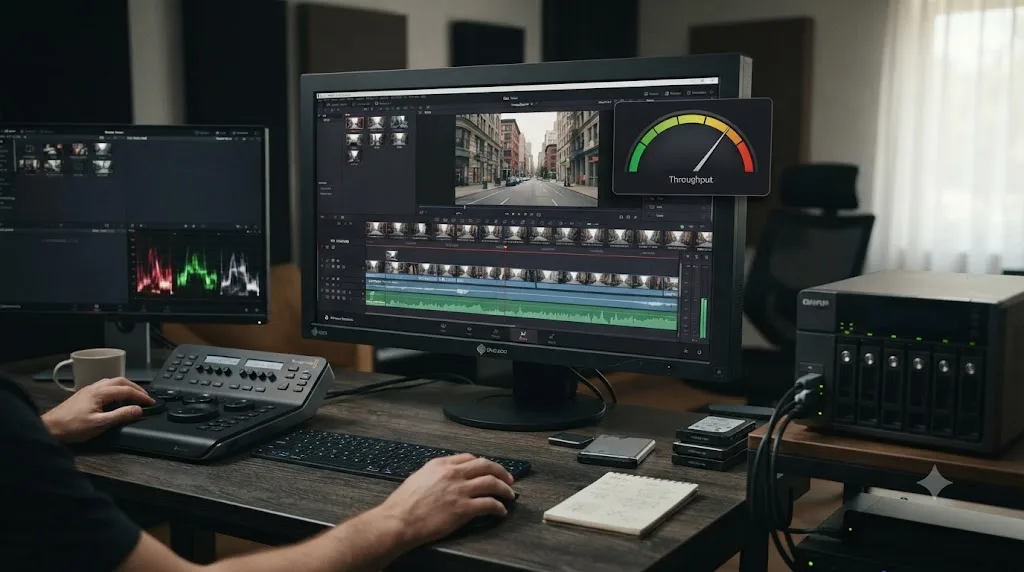
RAID matters for DaVinci Resolve because the app reads sustained, continuous data at rates ordinary office storage was never built for, and because a storage failure mid-project doesn't just cost you a file, it can cost you a client deadline that a spreadsheet or a document never would.
Playback is the most visible demand. Every frame Resolve draws on the timeline, whether it's a straight cut or a heavily graded multi-layer composite, has to come off disk fast enough to keep up with your frame rate, and a single dropped read stalls playback for everyone watching, not just you. Render Cache adds a second, less visible demand: Fusion compositions and heavy grades write intermediate cache files back to disk continuously while you work, which means your storage is handling read and write traffic at the same time, not one or the other.
A single internal drive can choke on that combination even before you touch a RAID decision at all. RAID exists to solve two separate problems that both show up in a Resolve workflow: not enough sustained throughput from one drive, and not enough protection if that one drive dies mid-project. Striping across multiple drives, the mechanism both RAID 5 and RAID 6 share, addresses the first problem directly, since Resolve can pull data from several disks working in parallel instead of waiting on one. The parity layer addresses the second.
A storage failure in the middle of a DaVinci Resolve project doesn't just cost you a file the way it might on a laptop full of documents, it can cost you the render, the deadline, and every hour of grading work sitting uncommitted on that array. That's the specific reason this decision deserves more attention from a video editor than from someone storing spreadsheets, and it's why RAID 5's single-failure ceiling matters so much more here than the generic "RAID 5 is probably fine" advice you'll find on a general IT forum.
How much sustained throughput does DaVinci Resolve actually need?
It depends entirely on your codec, resolution, and how many streams you're pulling at once, and the range is wide enough that a single "you need X MB/s" number is close to useless without knowing which footage you're actually cutting.
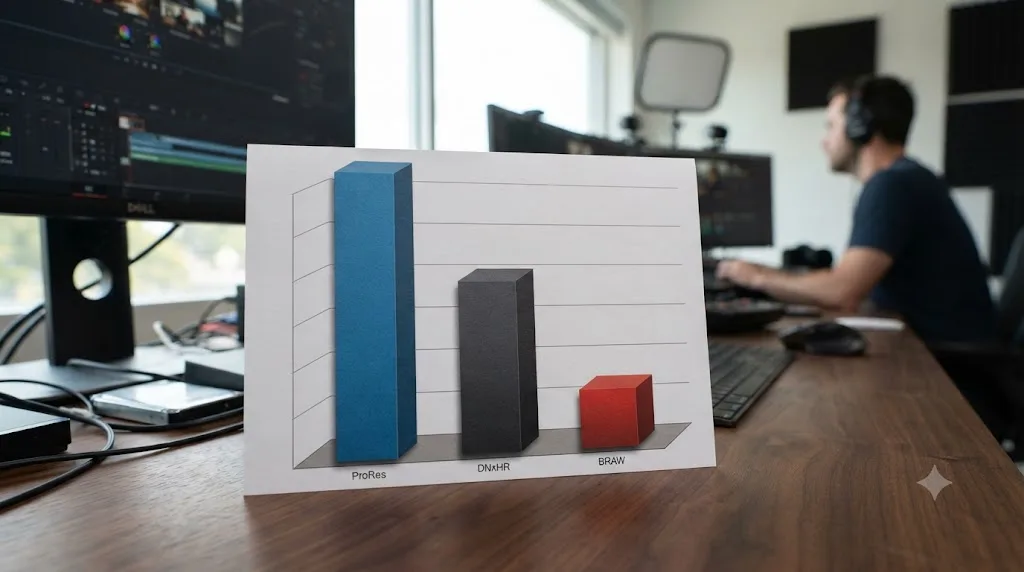
Intermediate codecs at editorial resolutions ask for comparatively little. Per Apple's own ProRes documentation, ProRes 422 HQ runs at roughly 220 Mbps, about 27.5 MB/s, at 1080p 29.97fps. Per Avid's DNxHR bandwidth whitepaper, DNxHR HQX sits close behind at roughly 208 Mbps, about 26 MB/s, at the same resolution and frame rate. A single stream of either format, even from a modest three-drive RAID 5 array, is well within reach for almost any spinning-disk setup built in the last decade.
RAW camera formats at higher resolutions and lower compression ratios ask for dramatically more. Blackmagic RAW ships in multiple compression ratios specifically so editors can trade file size against image data, and at the high end that trade runs steep: per Suite Studios' guide to camera bitrates, the Blackmagic URSA Mini Pro 12K can push up to 578 MB/s in its heaviest BRAW 12K setting, and the Blackmagic Pocket Cinema Camera 6K can push up to 483 MB/s in BRAW 6K. That's roughly twenty times the throughput a 1080p ProRes 422 HQ stream needs, from a single camera's worth of footage.
| Format and resolution | Approximate throughput | Source |
|---|---|---|
| ProRes 422 HQ, 1080p 29.97fps | ~27.5 MB/s | Apple ProRes documentation |
| DNxHR HQX, 1080p 29.97fps | ~26 MB/s | Avid DNxHR bandwidth whitepaper |
| Blackmagic RAW 6K (peak) | up to 483 MB/s | Suite Studios camera bitrate guide |
| Blackmagic RAW 12K (peak) | up to 578 MB/s | Suite Studios camera bitrate guide |
Multiply any of these by the number of simultaneous streams a real timeline demands, an A camera and a B camera in a multicam edit, or two or three RAW angles stacked for a comparison grade, and the throughput math climbs fast. This is exactly where RAID's striping earns its keep over a single drive: spreading reads across four, six, or eight physical disks working in parallel is often the only realistic way to sustain multi-stream RAW playback without stutter, well before RAID 5 versus RAID 6 even enters the conversation.
The gap between a 1080p ProRes proxy and a native 6K BRAW multicam timeline isn't a small difference in throughput, it's closer to a twenty-fold one, and that gap is exactly why "how many drives do I need" has no single correct answer independent of what you actually shoot. Know your footage's real data rate before you size an array, not after it stutters.
Why is RAID 5 riskier as hard drives get bigger?
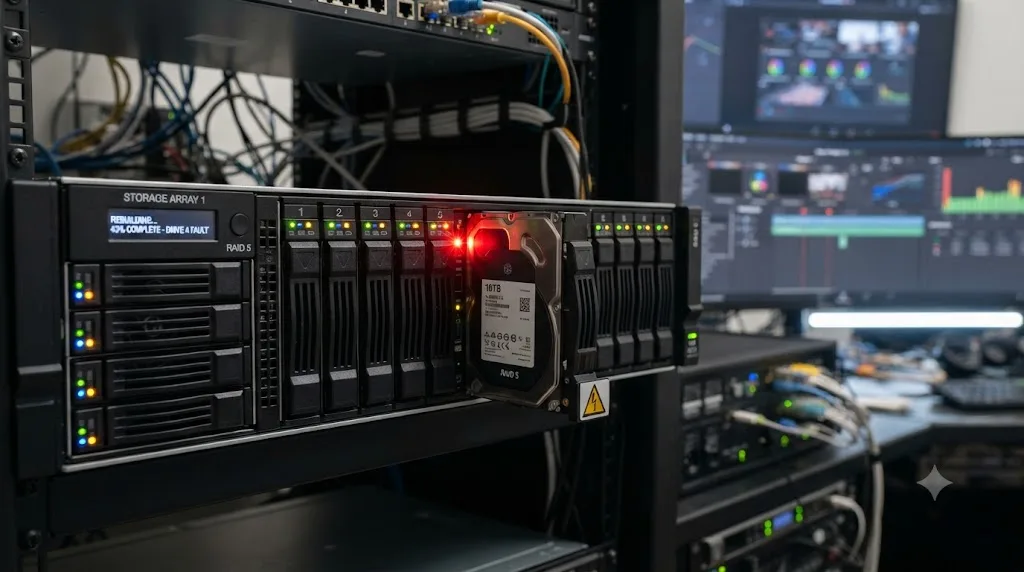
RAID 5's risk grows with drive size because rebuilding a failed drive forces every surviving disk to be read in full, and larger drives take longer to read completely, which gives a second, unrelated error more time to surface during the one window when the array has zero spare protection left.
Every hard drive carries a manufacturer-rated bit error rate, the statistical chance of hitting an unrecoverable read error somewhere in its data. Per Need to Know IT's 2026 assessment of RAID 5 with large drives, consumer and prosumer NAS drives are commonly rated at roughly one unrecoverable read error for every 10^14 bits read, which works out to about one error every 12.5TB of sequential reads. Enterprise-tier drives are typically rated an order of magnitude better, around one error per 10^15 bits, roughly 125TB between errors.
That rate sounds small until you put it next to a rebuild. Rebuilding a failed drive in a RAID 5 array means reading every remaining drive in full, cover to cover, to reconstruct the missing data. On a small, older drive that read finishes fast enough that the odds of hitting a second error along the way stay low. On a modern large-capacity drive, that same full read takes long enough, and covers enough data, that the odds climb into genuinely uncomfortable territory. The same Need to Know IT analysis estimates the following for a three-drive consumer-grade RAID 5 array:
| Drive size | Estimated URE probability during rebuild | Estimated rebuild window |
|---|---|---|
| 4TB | ~47% | 18-24 hours |
| 12TB | ~85% | 55-72 hours |
| 20TB | ~96% | 90-120 hours |
If that second, unrelated error hits during a RAID 5 rebuild, there's no spare parity left to compensate, since the array already spent its one allowance of protection on the drive it's actively replacing. The rebuild stalls, and depending on where the error lands, you can lose the file it touched or, in a worse case, the rebuild fails outright. In RAID 6, that same second error during the same rebuild simply gets absorbed by the untouched second parity layer, and the rebuild continues as if nothing happened.
A 12TB drive isn't just three times bigger than a 4TB one, it's three times more data the array has to read flawlessly during the single window it can least afford a second mistake, which is exactly why the same RAID 5 that felt perfectly safe on smaller drives starts to feel like a real gamble on today's capacities. This is the single biggest reason drive size, not editor headcount or budget, should be the first question you ask when picking between the two levels.
Does RAID 6 slow down DaVinci Resolve exports and renders?
A little, but only on writes, and only by a moderate margin, not the kind of hit that changes whether your timeline plays back smoothly.
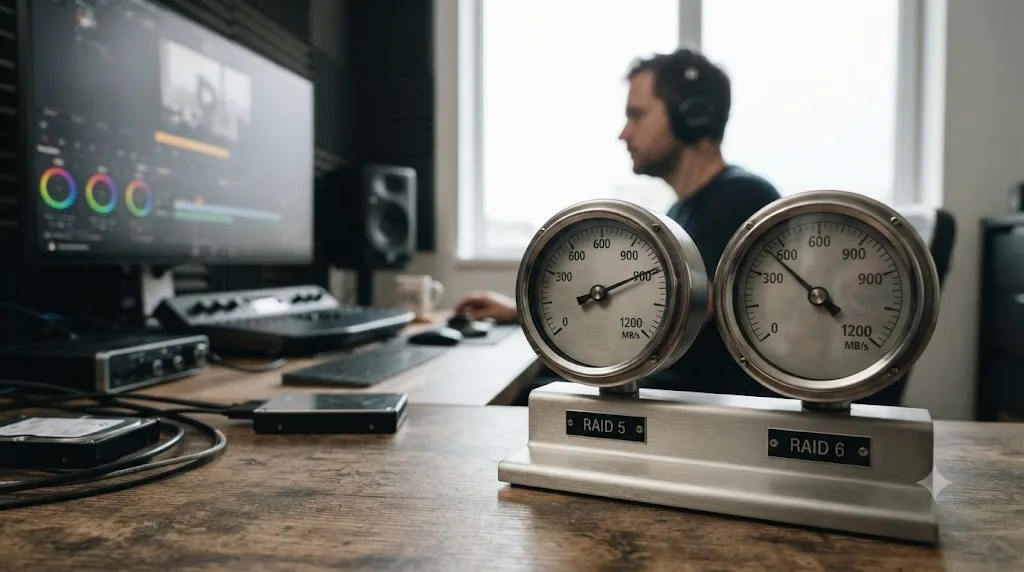
Read performance, the thing that governs playback, scrubbing, and how fast Resolve can pull footage onto the timeline, is essentially the same between RAID 5 and RAID 6 on identical drives. Per The Post Flow's breakdown of RAID for post-production servers, a representative RAID 5 array reads at roughly 320 MB/s average and a RAID 6 array built from the same drives reads at essentially the identical 320 MB/s, since reading striped data doesn't require touching the extra parity calculation RAID 6 carries.
Write performance is where the two levels genuinely diverge, because calculating and storing two independent parity blocks per write, instead of one, is real additional controller work. The same Post Flow figures put RAID 5 writes at roughly 210 MB/s average against RAID 6's roughly 180 MB/s on the same hardware, a real but moderate gap. Need to Know IT's broader estimate for random write workloads puts the penalty at 15 to 30 percent slower for RAID 6 versus RAID 5, a wider range that depends heavily on your specific controller and whether it offloads parity math to dedicated hardware.
| Operation | RAID 5 | RAID 6 | Practical impact for DaVinci Resolve |
|---|---|---|---|
| Reading footage during playback | Fast | Same as RAID 5 | No meaningful difference for scrubbing or timeline playback |
| Writing render cache during grading | Fast | 15-30% slower | Minor, usually invisible unless you're pushing an already-marginal array |
| Exporting a render to the array | Fast | 15-30% slower | Longer render-to-disk time on long exports to a busy array |
| Rebuilding after a drive failure | Faster rebuild, no spare protection during it | Slower rebuild, protected the whole time | RAID 6's slower rebuild is the trade you're explicitly making for safety |
RAID 6 does not cost you anything DaVinci Resolve reads, only what it writes, and even that penalty tops out around 30 percent on the exact operations, render cache writes and final exports, that were rarely the bottleneck in the first place. If your array's read speed already comfortably clears your footage's throughput requirement, the write penalty from choosing RAID 6 over RAID 5 is a cost worth paying for most editing setups, not a reason to avoid it.
How many drives and how much usable capacity do RAID 5 and RAID 6 actually cost you?
RAID 5 always costs one drive's worth of capacity to parity. RAID 6 always costs two drives' worth, regardless of how many drives total are in the array, which means the percentage difference between the two levels shrinks as the array gets bigger, even though the raw capacity difference stays constant.
Take a concrete example: eight 16TB drives, a common configuration for a mid-size shared media server. Raw capacity across all eight drives is 128TB. Built as RAID 5, that array loses one 16TB drive to parity and delivers 112TB usable. Built as RAID 6, it loses two drives, 32TB, and delivers 96TB usable, a 16TB difference between the two configurations on identical hardware.
| Array configuration | Raw capacity | RAID 5 usable | RAID 6 usable | Capacity difference |
|---|---|---|---|---|
| 4 x 16TB | 64TB | 48TB | 32TB | 16TB |
| 6 x 16TB | 96TB | 80TB | 64TB | 16TB |
| 8 x 16TB | 128TB | 112TB | 96TB | 16TB |
| 12 x 16TB | 192TB | 176TB | 160TB | 16TB |
Notice the pattern: the raw difference between RAID 5 and RAID 6 stays fixed at exactly one drive's capacity, 16TB in this example, no matter how large the array grows, since that difference is always exactly "one extra parity drive." What changes is the percentage cost. At four drives, that 16TB is a full quarter of the raw array. At twelve drives, the same 16TB is under a tenth of it. That's the practical reason RAID 6 gets recommended more comfortably on larger arrays: the safety margin costs proportionally less capacity the more drives you're already running.
ProMAX's comparison of RAID options for video editing frames the two levels as the two most common configurations built for editing environments specifically, noting RAID 6 asks for one additional drive over RAID 5's minimum in exchange for surviving a second simultaneous failure, which lines up exactly with the capacity math above.
Buying one extra drive to go from RAID 5 to RAID 6 is a fixed, one-time cost in dollars, but the capacity you give up for it shrinks as a percentage the bigger your array already is, which is exactly why RAID 6 gets easier to justify the larger a shared media server grows, not harder. Run the numbers for your specific drive count and size before deciding the extra drive is too expensive; on a large shared array, it usually isn't.
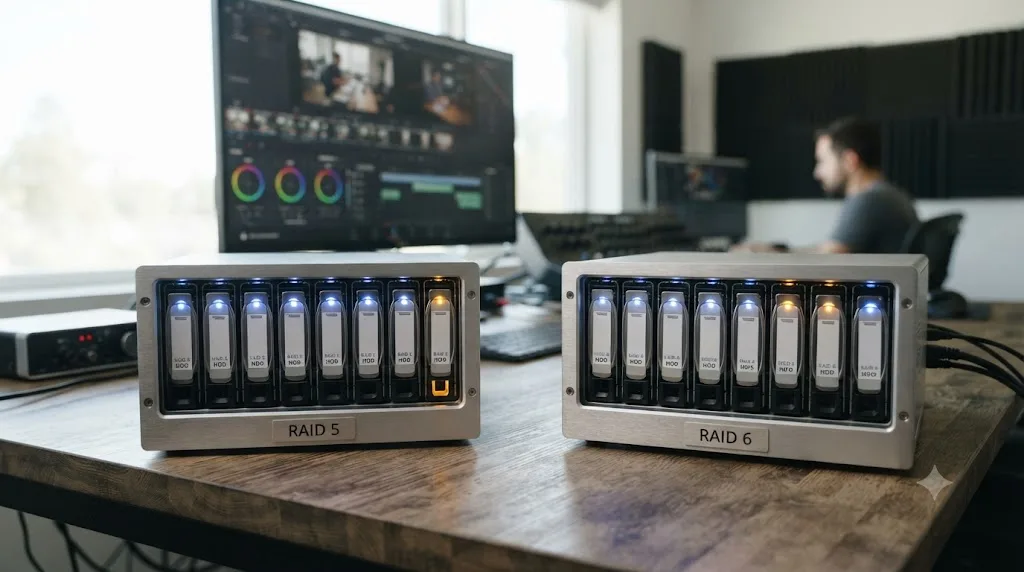
Should you consider RAID 10 instead of RAID 5 or RAID 6?
RAID 10 keeps coming up in the same forum threads that recommend RAID 5 or RAID 6, and it deserves a straight answer instead of a footnote. Short version: it's rarely the right pick for bulk DaVinci Resolve media, and it's worth understanding exactly why before you rule it out for good.
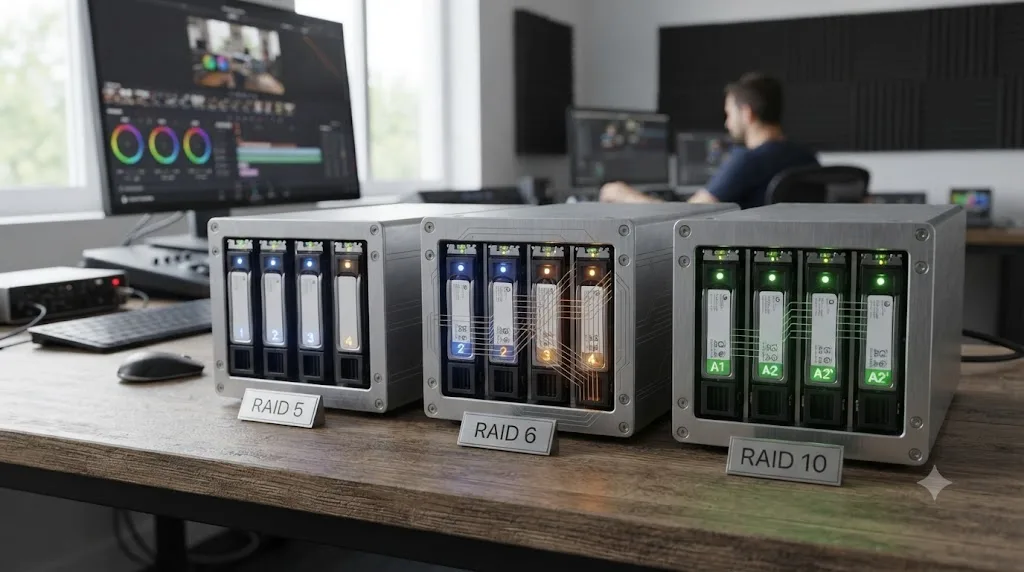
RAID 10 mirrors pairs of drives, then stripes data across those mirrored pairs. It needs a minimum of four drives, and that count has to be even. Per QNAP's RAID type comparison, RAID 10's fault tolerance is "1 per pair of disks," meaning the array survives one failure in each mirrored pair, and its usable capacity is "half of the total combined disk capacity," a much steeper cost than either RAID 5 or RAID 6 pays at the same drive count.
That capacity cost buys you two things RAID 5 and RAID 6 don't offer as cleanly: no parity calculation on writes at all, and a rebuild that copies one mirrored partner instead of reading every drive in the array. QNAP describes RAID 10 as suited to "applications that require high random access performance and fault tolerance, such as databases," and that description matters here, because it's close to the same profile as a DaVinci Resolve Project Server database volume, covered a few sections down. A rebuild after a single drive failure in RAID 10 only has to copy the surviving half of that one mirrored pair, not read across every other drive the way RAID 5 or RAID 6 does. On a large-drive array, that difference can mean a rebuild finishing in hours instead of days.
| RAID level | Minimum drives | Fault tolerance | Usable capacity (8 x 16TB) | What a rebuild reads |
|---|---|---|---|---|
| RAID 5 | 3 | 1 drive | 112TB | Every surviving drive |
| RAID 6 | 4 | 2 drives | 96TB | Every surviving drive |
| RAID 10 | 4 (even number) | 1 per mirrored pair | 64TB | One mirrored partner |
RAID 10 trades nearly half your raw capacity for a rebuild that copies one drive instead of reading every drive in the array, which is exactly why it shows up under project databases far more often than under a season's worth of 4K media. Losing 64TB of usable space out of a 128TB raw array is a real cost most media archives can't absorb, especially when RAID 6 gets you nearly the same protection profile at 96TB usable.
There's one place RAID 10 genuinely competes for a DaVinci Resolve workflow: a render cache or scratch disk volume that takes constant small random writes rather than the large sequential reads a media array handles. If your studio runs that cache volume on spinning disk rather than local NVMe, RAID 10's lack of parity math and its faster random-write performance are worth the capacity trade. For the bulk footage library that's the actual subject of this guide, stick with RAID 5 or RAID 6 and let the earlier sections decide which.
Is RAID 5 fine for a solo editor's local storage?
Yes, in the right circumstances: drives under roughly 8TB each, a real backup that exists somewhere else, and an editor who can react quickly if a drive fails, since RAID 5's whole risk profile hinges on how long the array sits exposed with zero spare protection.
Picture a common setup: a freelance editor running a four-bay local RAID enclosure with 4TB drives, connected directly to their workstation, cutting corporate and social content in ProRes and H.265. At that drive size, per the rebuild figures covered earlier, the estimated chance of hitting a second unrelated read error during a rebuild sits closer to 47 percent than to the 85-96 percent range that shows up on 12TB-plus drives. That's still a real risk worth taking seriously, but it's a materially different bet than the same math run on today's largest consumer drives.
The case for RAID 5 here comes down to what you're optimizing for. A solo editor gets the full benefit of RAID 5's faster writes and lower capacity overhead, without RAID 6's main advantage, surviving a second failure, mattering as much, because there's no team depending on that specific array staying online through a rebuild. If a drive fails on a Tuesday, a solo editor can often order a replacement, run the rebuild overnight, and be back to normal within a day or two, exactly the kind of short exposure window RAID 5 was built to tolerate.
The condition that makes this actually safe, not just cheaper, is a real backup. Our guide to consolidating media before archiving covers building a clean, complete archive of a finished project, and that same discipline, a second copy that doesn't live on the same array, is what turns RAID 5's single-failure ceiling from a genuine risk into an acceptable one. RAID 5 without a backup is a single point of failure wearing a costume that makes it look protected.
RAID 5 is a reasonable choice for a solo editor specifically because a solo editor is usually the one person best positioned to notice a failed drive fast and react to it immediately, which is the exact condition RAID 5's risk profile depends on. The moment that assumption stops being true, whether because you're traveling, sharing the array, or running drives large enough that the rebuild window stretches past what you can watch closely, the case for RAID 5 gets a lot weaker.
Does a solo editor's Thunderbolt RAID enclosure change any of this?
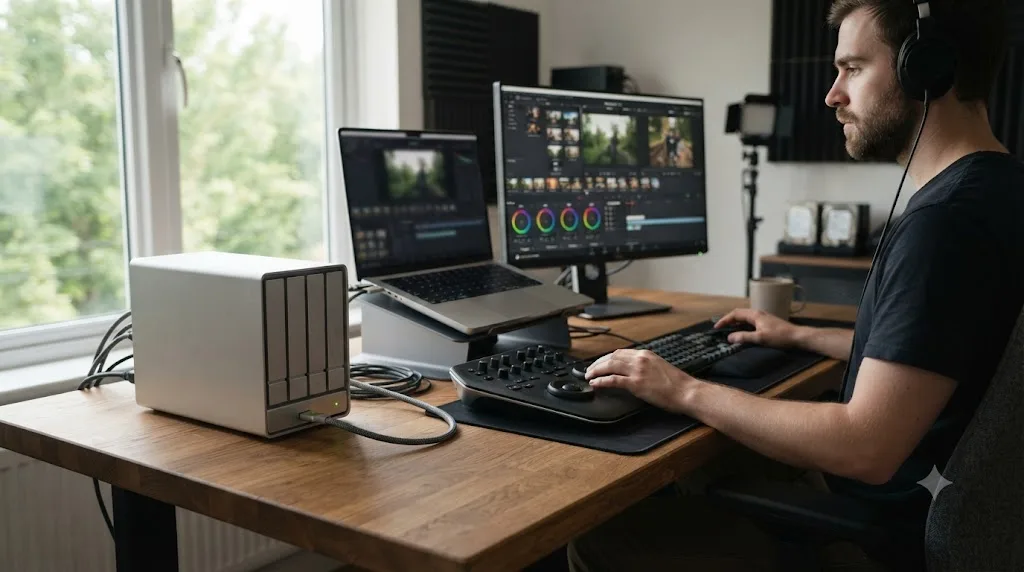
Not fundamentally, but the hardware doing the RAID math is worth naming, because it's not always obvious on a compact desktop enclosure the way it is on a rackmounted NAS. A solo editor's local array is often a Thunderbolt enclosure sitting next to the workstation rather than a networked NAS box, and that changes how the RAID gets managed even though the RAID 5 versus RAID 6 tradeoffs stay identical.
Enclosures built for editing, like OWC's ThunderBay line or Promise's Pegasus32 series, run hardware RAID controllers built into the box itself, not software RAID managed by the host computer's operating system. Per OWC's ThunderBay 4 product page, the enclosure delivers sustained performance up to 1527 MB/s over Thunderbolt 3, comfortably ahead of even a heavy Blackmagic RAW stream, and the larger ThunderBay 8 pushes up to 2586 MB/s across its eight bays. Promise's Pegasus32 product line supports RAID 0, 1, 1E, 5, 6, 10, 50, and 60 directly on its hardware controller, with drives commonly pre-configured for RAID 5 out of the box.
| Setup | RAID controller | Typical failure notice | Battery-backed write cache |
|---|---|---|---|
| Rackmounted NAS in a server room | Hardware or software, vendor-managed | Depends on monitoring or alerts | Common on business-grade controllers |
| Desktop Thunderbolt enclosure | Hardware, built into the box | Immediate, editor sits next to it | Varies by model, check before assuming |
| Software RAID on the host OS (mdadm, Storage Spaces) | Software, managed by the operating system | Depends on OS-level alerts | Rare without a UPS and journaling |
That hardware controller matters for one specific reason tied to the write hole problem covered a little further down: hardware controllers with battery-backed or capacitor-backed cache close the exact gap that makes an unexpected power loss dangerous mid-write. A desktop enclosure sitting on a desk, within reach of a foot that can catch a power cable, benefits from that protection more than a NAS living in a server closet on a UPS, since the box itself is more likely to lose power unexpectedly than the building is. If your enclosure's controller doesn't advertise battery-backed or capacitor-backed cache, treat "don't yank the power cable mid-render" as an actual rule, not just tidiness.
A Thunderbolt enclosure on your desk and a rackmounted NAS in a server closet run the exact same RAID 5 versus RAID 6 math, the only real difference is how fast a human notices the fault light. An 8-bay ThunderBay running 16TB drives faces identical rebuild-risk numbers to an 8-bay NAS running the same drives, because a hard drive's unrecoverable read error rate doesn't know or care what chassis it's mounted in. What changes is who's around to notice the failure, and a solo editor working next to their own enclosure typically spots a blinking fault light within hours, which is exactly the fast-reaction condition that makes RAID 5 a reasonable bet for a solo setup in the first place.
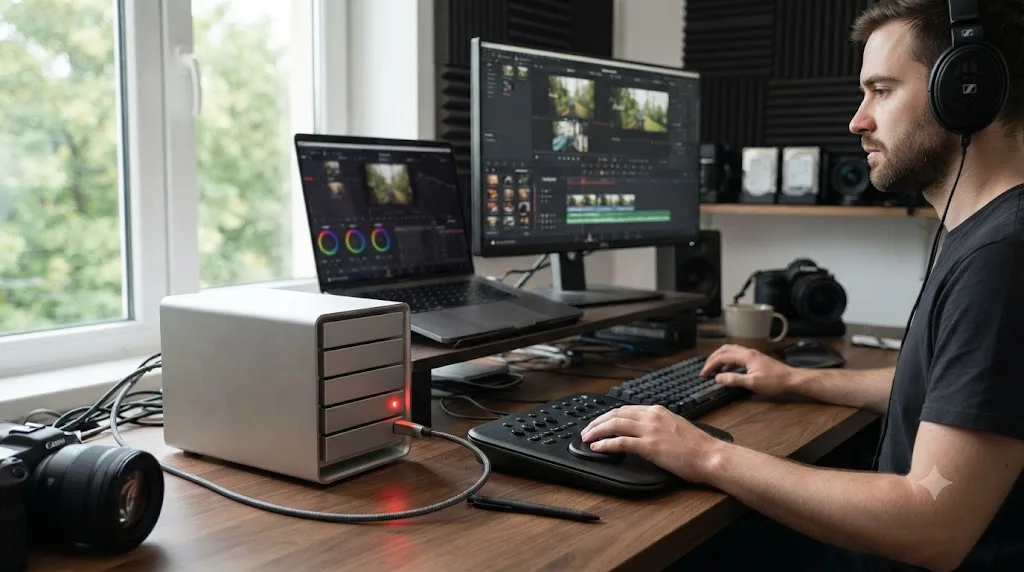
Is RAID 6 necessary for a shared NAS with multiple editors?
Yes, in almost every case where two or more editors depend on the same array for active project media, because a rebuild that goes wrong doesn't just cost one person their work, it takes down everyone connected at once.
Shared storage changes the stakes in a way that's easy to underestimate until it happens. On a solo editor's local array, a rebuild failure is a bad day. On a shared NAS feeding an entire team through DaVinci Resolve's collaborative project features, the same failure stops every workstation touching that project simultaneously, mid-scene, mid-grade, mid-render, with no way to keep working until the array is back. Per Need to Know IT's DaVinci Resolve NAS setup guide, 1GbE network infrastructure isn't sufficient for genuinely collaborative 4K editing at all, and a 10GbE connection is realistically needed to support 2 to 4 editors working with native 4K formats simultaneously, climbing to 25GbE or better for 5 or more editors or heavier formats like BRAW 3:1 or ProRes 4444. That's the network side of shared storage; the RAID level underneath it is the piece that decides whether the whole setup survives a drive failure without an outage.
Larger shared arrays also tend to run larger, higher-capacity drives, precisely the condition where RAID 5's rebuild risk climbs steepest, per the URE math covered earlier in this guide. A studio running an 8-bay or 12-bay NAS with 16TB or 20TB drives to hold a season's worth of 4K and 6K footage is exactly the profile where a RAID 5 rebuild sits in the 85-96 percent URE-probability range, not the more forgiving numbers a smaller solo array sees.
| Shared storage factor | Why it pushes toward RAID 6 |
|---|---|
| Multiple editors depend on the same array | A rebuild failure stops everyone at once, not one person |
| Larger arrays tend to run bigger drives | Bigger drives mean longer, riskier rebuilds, per the URE math above |
| Slower response time to a failed drive | A shared IT process or ticket system reacts slower than a solo editor watching their own gear |
| Higher cost of downtime | Studio deadlines and client delivery dates don't pause for a rebuild |
A shared NAS multiplies the cost of getting this decision wrong by however many editors depend on it, which is exactly why the extra drive and the write-speed penalty that come with RAID 6 stop being an optional upgrade and start being the baseline any shared DaVinci Resolve storage should ship with. If your studio's array holds more than one editor's active work, treat RAID 6 as the default and require a specific, documented reason to choose RAID 5 instead, not the other way around.
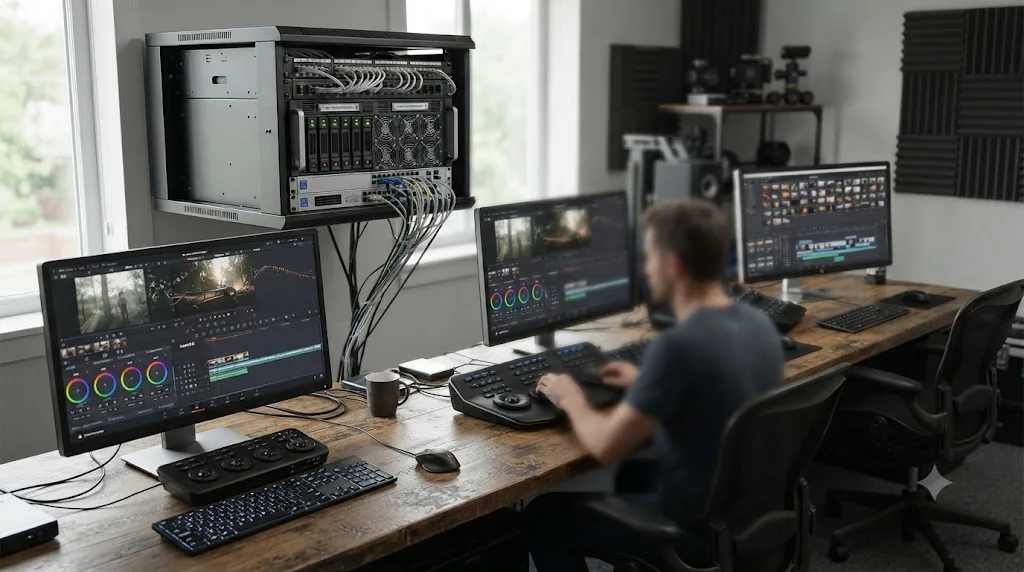
What RAID level does DaVinci Resolve's Project Server database actually need?
The Project Server's PostgreSQL database benefits more from low latency and reliability than from raw capacity, which is why it's common practice to keep it on a small, fast mirrored volume separate from the large-capacity RAID 5 or RAID 6 array holding your actual footage.
A shared DaVinci Resolve setup, whether it's the built-in Project Server or a Postgres instance running on a NAS, stores project metadata, not media, in that database: edit decisions, timeline structure, color grades, bin organization. It's a relatively small dataset compared to terabytes of footage, but every connected editor is hitting it constantly, every click, every cut, every grade change. That access pattern rewards low, consistent latency far more than it rewards the raw sequential throughput a media array is built for, which is exactly why keeping the database on its own SSD or NVMe mirror, separate from the spinning-disk RAID 5 or RAID 6 array, is standard practice rather than an unnecessary complication.
The two volumes fail differently, and it's worth understanding both. If the media array becomes unreachable, whichever RAID level it's running, your team can usually still open the project and see the timeline, just with offline media until the array comes back. If the database volume becomes unreachable, every connected workstation loses access to the project itself, and that's precisely the failure mode covered in our guide to DaVinci Resolve's "unable to mount database volume" error: the database's storage location, whether that's a local drive, a NAS share, or a network path, has to be reachable and correctly named for the Project Server to function at all, and when it isn't, every editor connected to that library sees the identical error at the identical moment.
That's the practical argument for treating the database volume's protection level as at least as serious as the media array's, sometimes more so, since a database outage is a total, immediate stop for the whole team rather than a gradual degradation. A small SSD or NVMe mirror, RAID 1 rather than RAID 5 or 6, is common here precisely because the dataset is small enough that mirroring's 50 percent capacity cost barely registers, while its rebuild is nearly instantaneous compared to a multi-terabyte media array's rebuild window. A larger studio outgrowing a simple RAID 1 mirror for its database volume, one with several concurrent Project Servers or a database that's grown past what a two-drive mirror comfortably handles, is exactly the case where RAID 10, covered above, becomes the right scaled-up answer instead of RAID 5 or RAID 6.
Your media array and your project database are two different storage problems wearing the same "RAID" label, and treating them identically, whether that means putting both on the same array or ignoring the database volume's own failure risk, is how a studio ends up with a fast, well-protected media pool sitting uselessly behind a database volume nobody thought to protect the same way. Size and protect each one for the job it's actually doing, not for a single blanket RAID policy applied to everything at once.
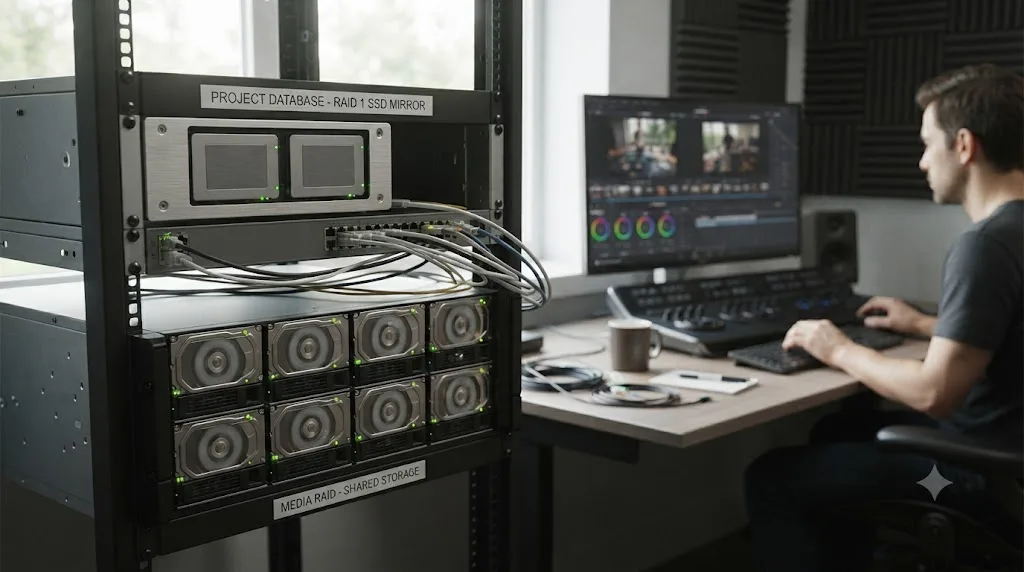
Should you skip RAID 5 and RAID 6 entirely and use NVMe SSDs instead?
Not entirely, but the honest answer has shifted enough by 2026 that it's worth asking directly instead of assuming spinning disk in RAID is still the only realistic option for a DaVinci Resolve media server.
All-flash NVMe storage sidesteps the specific mechanical failure mode that makes large-drive RAID 5 dangerous in the first place. Spinning hard drives fail from mechanical wear, and rebuilding one means a long, continuous sequential read across every surviving disk, exactly the process that exposes RAID 5 to a second unrecoverable read error at the worst possible moment. NVMe drives fail differently, through flash wear rather than mechanical breakdown, and flash storage in general delivers dramatically higher throughput per drive, which shrinks rebuild windows considerably even in RAID or RAID-like configurations built on top of it.
That doesn't make the underlying redundancy question disappear, it just moves it. All-flash pools still get built with redundancy, whether that's a RAID controller managing NVMe drives directly, a software-defined storage layer, or erasure coding schemes that generalize the same parity math RAID 5 and RAID 6 use to more drives and more tolerable failure counts at once. The core lesson from this entire guide, that surviving one failure is meaningfully weaker protection than surviving two once your array reaches a certain size, applies just as much to an all-flash pool as it does to spinning disk.
Cost is the real reason most editing teams still run a hybrid setup rather than going all-flash for bulk media. NVMe storage costs meaningfully more per terabyte than spinning disk, and a media archive holding years of 4K and 6K footage adds up to a lot of terabytes fast. The practical pattern that's emerged: local NVMe for render cache and active project scratch space, exactly the workload Need to Know IT's DaVinci Resolve NAS guidance recommends keeping off the shared array entirely, and a RAID 5 or RAID 6 spinning-disk pool for the bulk media that doesn't need flash-level speed on every single read.
Going all-flash removes RAID 5's specific rebuild-risk problem, but it doesn't remove the need to think about redundancy, it just changes which technology is doing the parity math underneath you, and the price difference is still steep enough that most teams reach for it selectively rather than across an entire media archive. If budget allows an all-NVMe media pool for your specific workload, it's a genuinely stronger option than either RAID level covered in this guide. If it doesn't, RAID 6 on spinning disk remains the pragmatic, well-understood choice for the bulk of a DaVinci Resolve team's storage.
What does a real RAID 5 vs RAID 6 rebuild look like on an 8-bay NAS?
Put the numbers together on a realistic case: a small studio running an 8-bay NAS with 16TB consumer NAS drives, holding a season's worth of 4K ProRes and native BRAW footage, feeding three DaVinci Resolve edit bays over a 10GbE network.
Built as RAID 5, that array delivers 112TB usable out of 128TB raw, per the capacity math covered earlier, and writes noticeably faster than the RAID 6 equivalent, useful during heavy render cache activity across three simultaneous editors. But a single 16TB drive failure means a rebuild pulling a full sequential read across the remaining seven 16TB drives, a process that, per the rebuild-time estimates covered earlier scaled to this drive size, realistically runs somewhere in the range of two to three full days depending on how busy the array stays during the rebuild. Every hour of that window, the array has zero spare protection: a second drive failure, or a single unrecoverable read error surfacing anywhere across those seven drives being read in full, stalls or breaks the rebuild outright, and all three edit bays lose access to shared media at the same moment.
Built as RAID 6 instead, the same eight drives deliver 96TB usable, 16TB less than the RAID 5 configuration, and writes run somewhat slower under sustained load, the 15-30 percent penalty covered earlier. But the same single drive failure triggers a rebuild that keeps the array fully protected the entire time it runs. If a second, unrelated read error turns up on any of the other seven drives during that multi-day rebuild window, and per the URE math on 16TB drives, that's a real possibility rather than a remote one, the second parity layer absorbs it and the rebuild continues without interruption. The three edit bays keep working against the array the whole time, degraded slightly in write performance, but online.
| Scenario | RAID 5 outcome | RAID 6 outcome |
|---|---|---|
| Single drive fails | Rebuild proceeds, no spare protection during it | Rebuild proceeds, full protection maintained |
| Second error surfaces mid-rebuild | Rebuild stalls or fails, potential data loss | Absorbed by second parity, rebuild continues |
| Usable capacity | 112TB of 128TB raw | 96TB of 128TB raw |
| Team access during rebuild | At risk the entire window | Unaffected by a second, otherwise-fatal error |
On an 8-bay studio NAS built from today's large consumer drives, the 16TB of capacity RAID 6 costs you is a real number, but it's a fixed, known, one-time trade, while the risk RAID 5 asks you to accept during a multi-day rebuild on the same drives is neither fixed nor fully in your control. That asymmetry, a known cost against an unknown risk, is exactly why most shared studio storage built on today's drive sizes lands on RAID 6 by default rather than by exception.
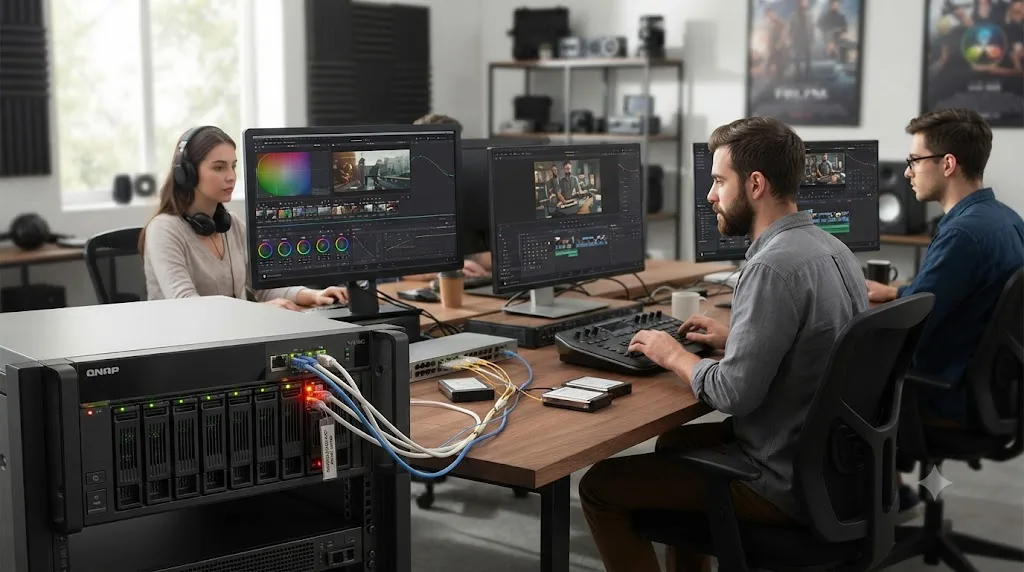
What should you actually do the moment a drive in your array fails?
Every calculation in this guide about rebuild windows and second-failure risk assumes somebody notices the failure and starts a rebuild promptly. In practice, the gap between a drive failing at 2am on a Saturday and a human noticing on Monday morning is where a lot of real-world risk lives, and a hot spare is the cheapest fix for that specific gap.
A hot spare is an extra drive sitting idle in the array, doing nothing, until a member drive fails. The moment that happens, the controller, or mdadm on a software RAID Linux box, takes the failed drive offline and starts rebuilding straight onto the spare, no human required. That collapses the exposure window from however long it takes someone to notice an alert, order a replacement, and physically swap a drive, down to just the rebuild time itself. On a shared NAS where nobody's watching the dashboard every hour, that difference is the whole point.
But a hot spare doesn't change which RAID level you should run, it changes how quickly you start using the protection you already bought. A RAID 5 array with a hot spare still has zero spare protection once the rebuild starts, it just starts that rebuild sooner. A RAID 6 array with a hot spare gets the same head start, plus the same protected rebuild it always had. Think of a hot spare as canceling out the "nobody noticed for three days" scenario, not the "second drive failed during the rebuild" scenario.
| Situation | Without a hot spare | With a hot spare |
|---|---|---|
| RAID 5, drive fails, no one notices for a day | Exposure window includes the notice delay plus the full rebuild | Exposure window is just the rebuild itself |
| RAID 5, second error during rebuild | Rebuild stalls or fails either way | Rebuild stalls or fails either way |
| RAID 6, drive fails, no one notices for a day | Array stays protected, rebuild just starts later | Array stays protected, rebuild starts immediately |
| RAID 6, second error during rebuild | Absorbed by second parity either way | Absorbed by second parity either way |
So what do you actually do when the alert comes in? Per QNAP's own documented replacement procedure, the steps differ slightly depending on whether a spare is already in the bay:
- Confirm which drive actually failed. Both Synology and QNAP flag the failed bay directly in the storage dashboard. Don't guess from a noise, a beep code, or which slot looks warm.
- If a hot spare is present, let the automatic rebuild run. QNAP's own guidance has the system initiate rebuilding as soon as you select "Replace & Detach" on the faulty drive, and in most single-drive-failure cases that's the correct move, not something to second-guess.
- Without a spare, physically swap the failed drive for a same-size or larger replacement, then confirm the array actually recognizes it and starts a rebuild rather than sitting idle waiting for you to manually flag it as a spare disk.
- Ease off heavy renders and exports while the rebuild runs, if you can. The array is already working harder than normal, reading every surviving drive at once, and stacking heavy simultaneous read and write traffic on top just extends the window everyone's exposed.
- Watch closely for a second error during the rebuild itself. This is the one moment where Rossmann Group's guidance on degraded RAID recovery becomes directly relevant: if a RAID 5 rebuild throws a fresh read error partway through, stop, don't run repair commands blindly, and get someone who does data recovery for a living involved rather than retrying the rebuild yourself. That caution is aimed at exactly the scenario the URE math earlier in this guide describes, a genuinely different situation from a clean, uneventful single-drive rebuild.
A hot spare buys you back the hours or days it takes a human to notice a failed drive, but it can't buy back the spare protection a RAID 5 array gives up the second that rebuild starts, which is the part only RAID 6 actually covers. Run a hot spare regardless of which level you choose. Just don't mistake it for a substitute for the level itself.
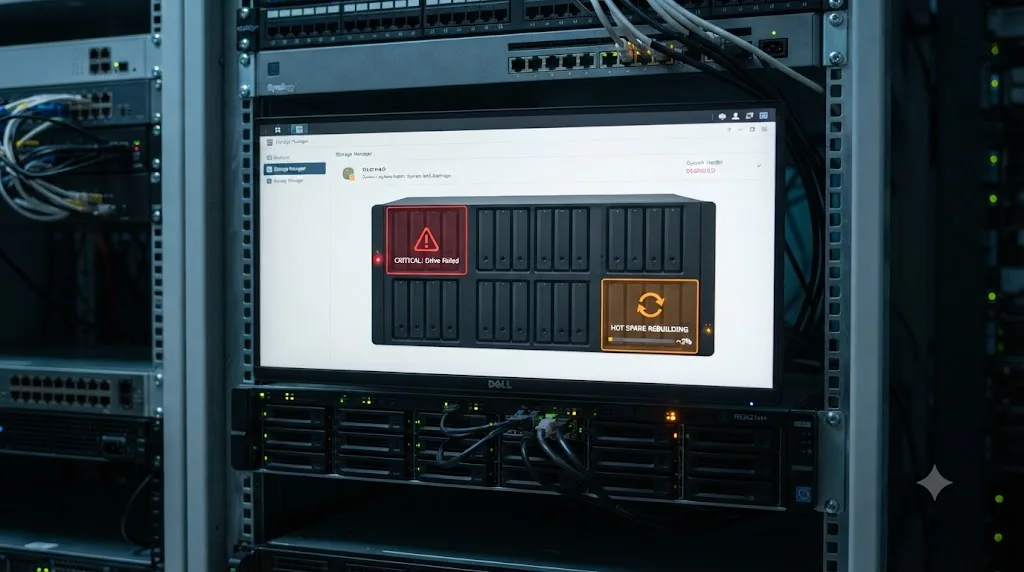
Is RAID a substitute for backing up your DaVinci Resolve projects?
No, and this is the single most important thing in this entire guide to get right, regardless of which RAID level you pick. RAID protects you from a drive failing. It does nothing against deletion, corruption, theft, fire, flooding, or any event that takes out the array as a whole, since every drive in a RAID 5 or RAID 6 array typically sits in the same physical box, on the same network, in the same building.
David Roth Weiss, a director, editor, and colorist who hosts the Apple Final Cut Pro forum at Creative COW, put the practical RAID 5 recommendation plainly in a forum discussion about setting up storage for an iMac 5K editing rig, but he tied it directly to backups first:
"RAID 5 is the industry standard for most until you get into 16-drive arrays and beyond."
That endorsement of RAID 5 as a workable default for most editing setups comes with an explicit condition attached in the same discussion: RAID protection only holds up as a strategy when a real, independent backup exists alongside it, not instead of it. Neither RAID 5 nor RAID 6 replaces that second copy, because both levels are solving a narrower problem, surviving a drive dying, than what a real backup strategy covers.
Run through the failure modes RAID genuinely can't touch: accidentally deleting the wrong project folder, a ransomware infection encrypting every file the array can see, a NAS stolen from an unlocked edit bay, a fire or a burst pipe in the room the array sits in. In every one of those cases, RAID 5 and RAID 6 perform identically, which is to say, not at all, because the protection they offer is scoped specifically to a mechanical drive failure, nothing broader. Our guide to what happens when a DaVinci Resolve project won't open covers one version of this: if the volume holding your project database goes offline for any reason, RAID level included, having a genuine backup elsewhere is what turns a scary error message into a minor inconvenience instead of a lost weekend.
Whichever RAID level you land on after reading this guide, treat it as insurance against one specific, mechanical failure mode, not as your data protection strategy in full, because the moment you start relying on RAID as your only copy is the moment a fire, a theft, or a fat-fingered delete costs you everything the array was supposedly protecting. A real backup, on a separate drive, in a separate location, ideally off-site, is the piece RAID was never built to replace.
What are the most common mistakes people make choosing RAID for DaVinci Resolve storage?
A handful of avoidable errors account for most of the RAID-related regret editors report after a real drive failure, and nearly all of them trace back to treating this as a purely technical decision instead of one grounded in how the array actually gets used.
Picking RAID 5 for a shared array because it was cheaper, without accounting for how many people that decision affects. The extra drive RAID 6 costs is a one-time expense. A rebuild failure that stops an entire team mid-project is not, and the math in this guide shows exactly why that risk climbs with the drive sizes most shared arrays run today.
Assuming RAID protects against everything, not just drive failure. RAID 5 and RAID 6 both do exactly one job well: surviving a certain number of drives dying. Neither does anything for accidental deletion, theft, fire, or ransomware, which is why the backup discussion above isn't optional context, it's the other half of a complete storage strategy.
Putting the project database on the same large-capacity spinning-disk array as your media. As covered in the Project Server section above, the database rewards low latency far more than raw capacity, and mixing it into a multi-terabyte media pool means a slow media-array rebuild takes the whole team's access to the project itself down with it, not just their access to footage.
Ignoring drive size when the RAID level was chosen for a previous, smaller generation of drives. An array built as RAID 5 five years ago on 4TB drives carried a genuinely different risk profile than the same array upgraded to 16TB or 20TB drives without ever revisiting the RAID level itself. Bigger drives change the math covered earlier in this guide even when nothing else about the array changes.
Never testing what a rebuild actually looks like before you need one for real. A studio that's never watched a drive fail and rebuild on their specific array, with their specific drives and controller, is making decisions from a spec sheet instead of from experience. Simulating a failure on a test array, or at minimum reading your NAS vendor's documented rebuild time for your exact drive size, turns an abstract risk into a concrete number you can actually plan around.
Not knowing whether your controller protects against the RAID 5 write hole. Per Rossmann Group's explanation of how RAID parity actually works, a partial-stripe write happens in stages: read old data, read old parity, compute new parity, write new data, write new parity. If power drops between the data write and the parity write, the parity block on disk no longer matches the data it's supposed to protect, and a subsequent drive failure reconstructs garbage from that stale parity instead of catching the mismatch. Hardware RAID controllers with battery-backed cache and Linux software RAID with write-ahead journaling both close this gap. An enclosure or NAS with neither is quietly exposed to it on every single write, RAID 5 or RAID 6 alike, and it's worth checking your controller's spec sheet for this before you assume the parity math alone has you covered.
Forgetting that render cache and proxy folders shouldn't necessarily live on the same array as your source media. Our guide to setting up proxy media on slower hardware and our guide to disk space errors during rendering both cover why cache traffic competing with source media reads on the same array can create bottlenecks that have nothing to do with which RAID level you picked, and everything to do with asking one array to do two different jobs at once.
So which one should you actually use?
If you've made it this far without a clear pull toward one level, ask yourself two questions: how big are the drives, and how many people depend on this array staying online.
If your drives are under roughly 8TB and you're the only one relying on the array, with a real backup living somewhere else, RAID 5 remains a sound, well-tested choice, exactly the kind David Roth Weiss described as the industry standard for most setups short of very large arrays. If your drives are 8TB or larger, or more than one editor depends on that storage for active work, RAID 6's second parity drive is buying you protection during precisely the multi-day rebuild window where RAID 5's math turns genuinely uncomfortable on today's drive capacities.
Neither decision is permanent. An array built as RAID 5 today can be rebuilt as RAID 6 later, at the cost of backing everything up first and reconfiguring from scratch, the same kind of migration many studios run when their drive sizes outgrow the RAID level they originally chose. What matters is making the choice deliberately, based on your actual drive sizes and who actually depends on the array, rather than copying whatever configuration a forum thread or a NAS vendor's default template happened to suggest.
One of the recurring questions in our 100,000+ member editing community is some version of "why did I lose my project when a drive failed," and the honest answer is almost never "bad luck." It's a RAID level chosen for the wrong drive size, or a backup that didn't exist, or both. Get those two things right and the specific brand of NAS box or drive underneath your DaVinci Resolve media stops mattering nearly as much as people assume it does.
TryUncle is the on-screen assistant for DaVinci Resolve on macOS. Ask in plain words and Uncle points at the exact control on your screen. If a storage setup like the ones in this guide has you buried in Preferences trying to find where DaVinci Resolve's cache and database paths actually live, TryUncle can point at the specific setting instead of leaving you to hunt for it alone.
Whichever level you land on, the drive that fails is not the emergency. The array that was never protected for the drive sizes it's actually running is.
Frequently asked questions
- Which is better for DaVinci Resolve, RAID 5 or RAID 6?
- RAID 6 is the safer default for any array holding drives 8TB or larger, or any storage more than one editor depends on, because its second parity drive keeps working if a drive fails during the long rebuild large drives require. RAID 5 is still reasonable for a solo editor's local array under roughly 8TB, where the faster writes and one fewer drive outweigh the risk of a single additional failure during a shorter rebuild.
- How many drives do I need to build RAID 5 or RAID 6 for DaVinci Resolve?
- RAID 5 needs a minimum of three drives and survives one drive failing. RAID 6 needs a minimum of four drives and survives two drives failing at once, at the cost of one more drive's worth of capacity going to parity instead of usable storage. Neither number changes based on which NLE you're running; it's the same math whether the array feeds DaVinci Resolve, Premiere Pro, or a file server.
- Does RAID 6 slow down DaVinci Resolve exports and renders?
- Read speed, the thing that matters most while you're editing and scrubbing, is essentially identical between RAID 5 and RAID 6 on the same drives. Write speed is where RAID 6 costs you something, typically 15 to 30 percent slower than RAID 5 on the same hardware, because calculating two parity blocks instead of one takes more controller work on every write. That mostly affects render and export speed to that array, not playback.
- Is RAID 5 still safe with large drives like 12TB, 16TB, or 20TB?
- Not really, and this is the specific reason RAID 6 exists as a separate recommendation rather than a paranoid upgrade. Consumer and prosumer drives are rated for roughly one unrecoverable read error every 12.5TB read, so rebuilding a RAID 5 array built from a 12TB or larger drive forces the surviving disks through enough data that hitting a second, unrelated error mid-rebuild becomes a real possibility, not an edge case.
- Is RAID a substitute for backing up my DaVinci Resolve projects?
- No, and treating it as one is the single most common mistake editors make with either RAID level. RAID protects you from a drive failing. It does nothing if you delete a project by accident, a virus corrupts your media, your NAS is stolen, or fire or flooding takes out the whole box at once, since every drive in the array usually sits in the same physical location.
- What RAID level does a DaVinci Resolve Project Server or shared database need?
- The PostgreSQL database behind a DaVinci Resolve Project Server benefits more from low latency than from raw capacity, so it's common to put it on a small SSD or NVMe mirror separate from the large-capacity RAID 5 or RAID 6 array holding your actual media. If that database volume becomes unreachable, whether from a RAID failure or a network hiccup, every connected workstation sees the same 'unable to mount database volume' error at once.
- Should I skip RAID 5 and RAID 6 entirely and use NVMe SSDs instead?
- Not entirely, but the calculus shifts. All-flash NVMe pools remove the mechanical rebuild risk that makes RAID 5 dangerous on big drives in the first place, since SSDs don't have the same spinning-platter failure modes or rebuild-read patterns. They're still built in RAID or RAID-like configurations for redundancy, just faster ones, and they cost meaningfully more per terabyte than spinning disk, which is why most editing teams still mix flash for cache and spinning RAID for bulk media.
- Is RAID 10 better than RAID 5 or RAID 6 for DaVinci Resolve?
- Not for bulk media storage. RAID 10 uses half your raw capacity no matter how many drives you add, versus one or two drives lost to RAID 5 or RAID 6. It earns its keep on small, high-transaction volumes like a Project Server database, where fast random access and a quick single-drive rebuild matter more than raw terabytes.
- Does a hot spare drive make RAID 5 safe on large drives?
- It helps, but it doesn't remove the core risk. A hot spare starts the rebuild the moment a drive fails instead of waiting for a human to notice, which shrinks how long the array sits exposed. It doesn't change the fact that a RAID 5 rebuild on a large drive still has zero spare protection while it runs, or that a second unrecoverable read error during that rebuild can still stall or break it.
Sources
- Backblaze: NAS RAID Levels Explained, Choosing the Right Level to Protect Your NAS Data
- QNAP: QTS RAID Type Comparison
- Need to Know IT: Is RAID 5 Still Safe With Large Drives? (2026 Honest Assessment)
- Need to Know IT: DaVinci Resolve NAS Setup That Actually Works (2026)
- Creative COW Forum: Needed - Setting Up RAID For iMac 5K For Video Editing (David Roth Weiss)
- The Post Flow: RAID, What Is It, How Does It Work, and What Do I Choose For My Server?
- ProMAX: What RAID Is Best For Video Editing?
- Suite Studios: Suite's Guide to Camera Bitrates & Codecs
- Apple Support: About Apple ProRes
- Avid Knowledge Base: DNxHR Codec Bandwidth Specifications
- DaVinci Resolve Studio product page (Blackmagic Design)
- QNAP: How Do I Replace a Faulty Disk in a RAID Group?
- Rossmann Group: Degraded RAID Array, Safe Troubleshooting Before You Rebuild
- Rossmann Group: How RAID Parity Actually Works
- OWC: ThunderBay 4, Thunderbolt 4-Bay External RAID Storage
- OWC: ThunderBay 8, The Ultimate 8-Bay Thunderbolt RAID Storage
- Promise Technology: Pegasus32 Product Page
Put this guide to work with TryUncle.
Ask about the step you’re on. TryUncle sees your screen and points at the control you need, so you can keep learning in your own project.
Get TryUncle for Mac or WindowsKeep reading
Fixes · Jul 25, 2026 · 24 min
DaVinci Resolve Error: Unable to Mount Database Volume (Fix)
DaVinci Resolve's 'unable to mount database volume' error means your drive or NAS isn't mounted, renamed, or reachable. Here's the real fix.

Fixes · Jul 15, 2026 · 25 min
DaVinci Resolve Proxy Media Setup for a Slow Laptop
Set up proxy media in DaVinci Resolve on a slow laptop: resolution, codec, the Blackmagic Proxy Generator, and the exact settings that stop the stutter.
Guides · Jul 25, 2026 · 40 min
How to Consolidate Media in DaVinci Resolve Before Archiving
How to consolidate media in DaVinci Resolve before archiving: Media Management steps, frame handles, unused clips, and where to store the finished archive.