Articles / Guidesupdated for DaVinci Resolve 21.0.2 (July 2026)
Best Budget Laptop for DaVinci Resolve Beginners in 2026
Quick answer
For DaVinci Resolve, prioritize GPU VRAM and RAM over CPU speed: get a laptop with a discrete GPU that has at least 6GB VRAM and 16GB RAM, upgradable to 24GB. A $650-900 Windows laptop like the Lenovo LOQ or Acer Nitro V, in a 16GB configuration, beats a MacBook Air, which no longer qualifies as budget after Apple's 2026 price hikes.
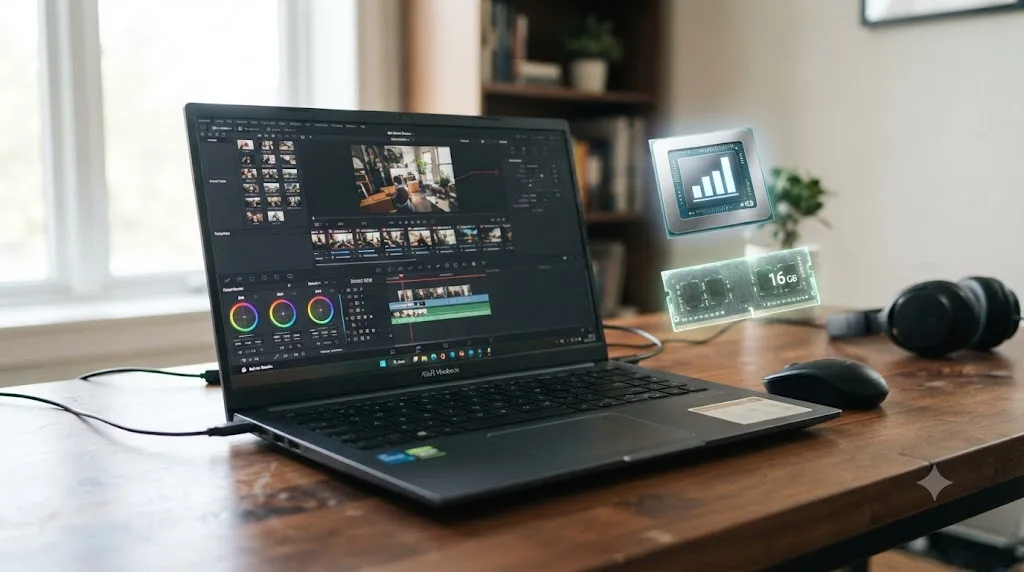
I get asked some version of this every week by someone who hasn't touched DaVinci Resolve yet: what's the cheapest laptop that won't make me regret starting. It's a fair question, and most of the answers online are wrong in a specific way. They either push a $2,000 "creator laptop" at someone who just wants to cut their first vlog, or they hand-wave "any laptop with 16GB RAM will do" and skip the one spec that actually breaks a budget edit.
This guide is the specific answer. What DaVinci Resolve genuinely needs from cheap hardware, which real laptops meet that bar right now, and which ones look fine on a spec sheet and fall apart the first time you drop a color node on a 4K timeline.
What does DaVinci Resolve actually need from a laptop?
Start with Blackmagic's own numbers, because everything else in this guide builds on them. Per DaVinci Resolve's tech specs, the software wants at least 16GB of system RAM and a GPU, discrete or integrated, with a minimum of 4GB of VRAM. Those specs are identical for the free version and Studio; Blackmagic doesn't gate the floor behind a purchase.
Here's the part most budget guides skip: a minimum means the app opens and plays a simple cut. It doesn't mean the app feels good to use. Blackmagic's own number is the point where Resolve stops crashing on launch, not the point where scrubbing a 4K timeline with a color grade stops stuttering.
| Spec | Blackmagic's stated minimum | Realistic floor for a beginner buying new |
|---|---|---|
| System RAM | 16GB | 16GB, with an upgrade path to 24GB |
| GPU VRAM | 4GB | 6GB |
| Storage | Not specified | 512GB SSD, no exceptions |
| CPU | Not specified in detail | Any recent quad-core or better; rarely the bottleneck |
Source: DaVinci Resolve tech specs, Blackmagic Design.
A laptop that clears DaVinci Resolve's stated minimum specs is not the same thing as a laptop that's actually good enough to learn on. That gap between "will launch" and "will feel fine" is where most of the wasted budget-laptop money in this category goes. The rest of this guide is about closing that gap without spending more than you have to.
Why does GPU VRAM matter more than anything else on a budget laptop?
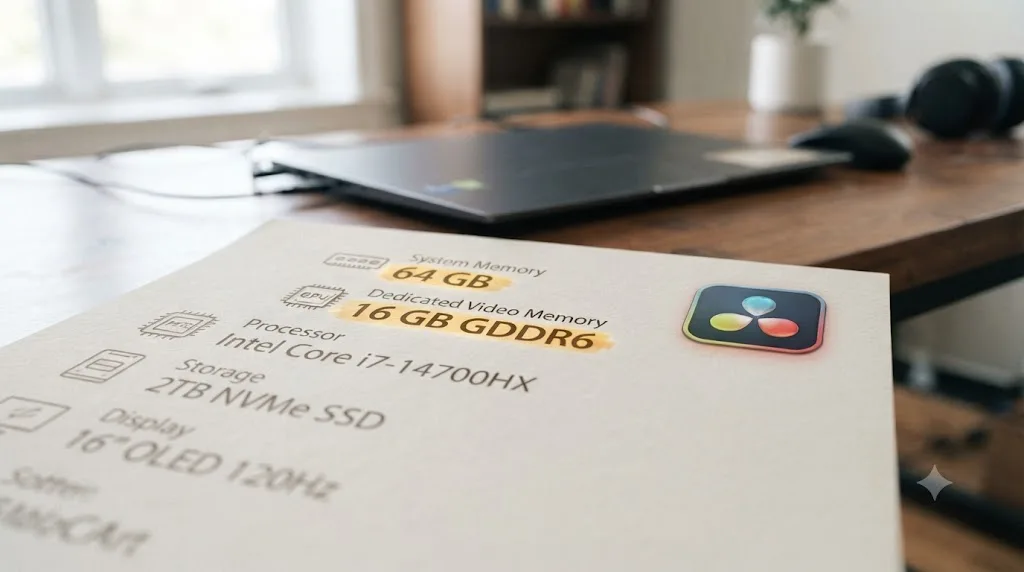
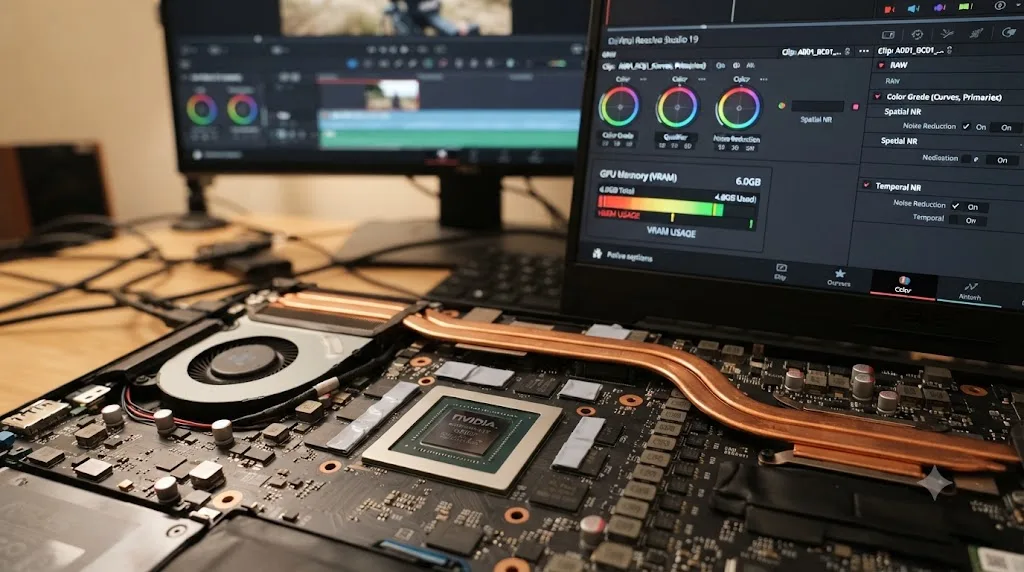
Because it's the one spec a budget shopper consistently underspends on, and it's the spec that determines whether Resolve merely runs or actually stays usable once you add a grade. CPU speed barely matters here; Resolve leans on the GPU for playback, color, and most effects. RAM matters, but a RAM shortfall usually shows up as sluggishness you can work around. A VRAM shortfall shows up as outright failure: dropped frames, a frozen viewer, or an "out of GPU memory" error mid-export.
A real example makes this concrete. On the Blackmagic forum, a beginner asked whether an RTX 3050 with 4GB of VRAM, paired with 16GB of system RAM, would handle editing home videos. Experienced posters in that thread were direct: with only 4GB of VRAM, editing 3840x2160 UHD footage would be slow, and the project could crash outright once a render pushed VRAM past its limit. More than one reply pointed toward a GPU with meaningfully more headroom, since laptops don't offer the same wide range of VRAM tiers desktops do.
That's not a reason to panic about every 4GB laptop GPU. It's a reason to treat 4GB as Blackmagic's stated floor rather than a comfortable number, exactly the distinction the spec table above is trying to make. A 4GB card can absolutely cut a straightforward HD or light 4K project. It starts to strain the moment you stack Resolve's AI tools, Magic Mask, noise reduction, or a multi-node grade on top, because every one of those features claims a slice of that same small VRAM pool your footage is already using.
| VRAM | Realistic ceiling for a beginner |
|---|---|
| 4GB (RTX 3050 4GB, older GTX-class cards) | HD editing comfortably, light 4K with proxies, gets tight fast under color work or AI tools |
| 6GB (RTX 4050, RTX 3050 Ti in some configs) | 4K editing with moderate grading, the realistic budget-laptop comfort floor |
| 8GB (RTX 4060 and up) | 4K with heavier grading and noise reduction, past what most budget laptops offer |
Source: Blackmagic Forum, "Is this laptop ok?".
On a budget laptop, GPU VRAM decides whether DaVinci Resolve stays usable under load, while RAM mostly decides how much you can multitask around it. If you only have room in your budget to upgrade one number on a spec sheet, this is the one, not the CPU generation and not the RAM you can often add later on a desktop, though rarely on a laptop.
How much RAM does a beginner actually need, honestly?
Sixteen gigabytes is the number you'll see everywhere, and it's the correct minimum, not the correct comfortable number. Richard Lackey, who benchmarks Resolve configurations regularly, puts it plainly in his own requirements breakdown: Resolve needs "a minimum of 16GB RAM to run DaVinci Resolve well." Notice the phrasing. Not "to run," to run well, and even that's describing a floor, not a target.
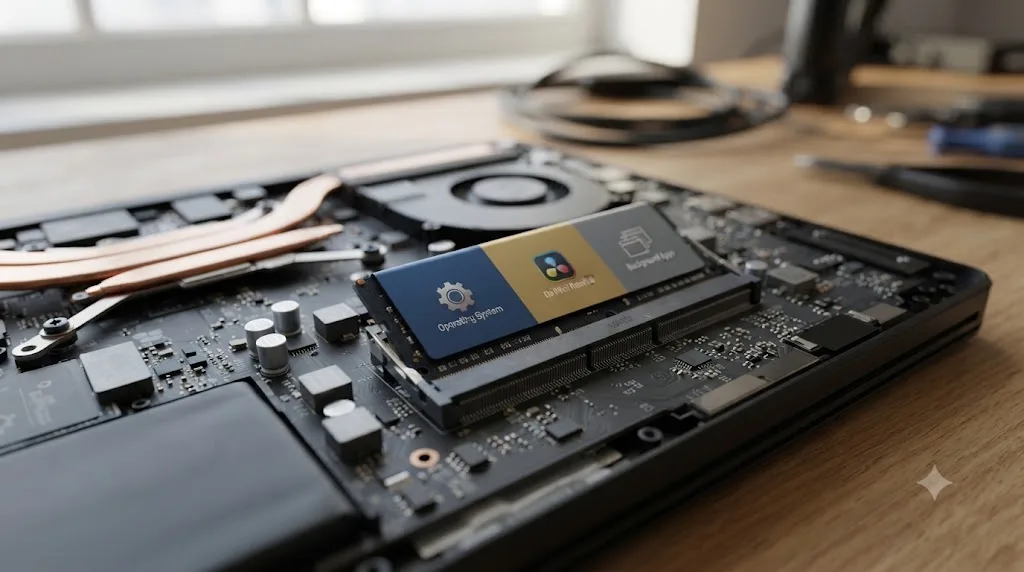
Here's what actually eats RAM on a beginner's project, in rough order of how much it matters: the operating system itself, which on Windows 11 with background apps can idle north of 4GB before Resolve even opens; DaVinci Resolve's own working memory, which scales with timeline resolution and the number of open nodes; your browser or Discord or whatever else you're running alongside it, because a laptop is a shared machine, not a dedicated edit bay; and, if your GPU is integrated rather than discrete, the VRAM itself, since integrated graphics carve their memory pool out of the same system RAM.
| RAM | What it actually feels like |
|---|---|
| 8GB | Below Blackmagic's stated minimum. Resolve may open, but expect stuttering UI and swapping the moment you import footage |
| 16GB | At the floor. Workable for HD and light 4K, tight once you're multitasking or running a heavier grade |
| 24GB | The real comfort number for 4K editing with normal color work, per multiple Apple silicon-focused benchmarking guides this site has covered elsewhere |
| 32GB | Headroom for multicam, heavier effects, or simply not thinking about it |
On a laptop specifically, there's one more wrinkle worth knowing before you buy: unlike a desktop tower, plenty of budget laptops solder their RAM directly to the board, meaning what you buy is what you're stuck with for the machine's life. Others still use SO-DIMM slots you can upgrade later. That single detail is worth confirming in a listing before you check out, because it changes whether "buy 16GB now, upgrade to 32GB in a year" is even a real option on the specific model you're looking at.
Sixteen gigabytes of RAM gets DaVinci Resolve running on a budget laptop; twenty-four gets it running without you noticing the machine at all. If a listing lets you choose between 16GB and 24GB or 32GB for a reasonable price step, and the RAM isn't soldered, that upgrade is usually worth more than chasing a slightly newer CPU generation at the same price point.
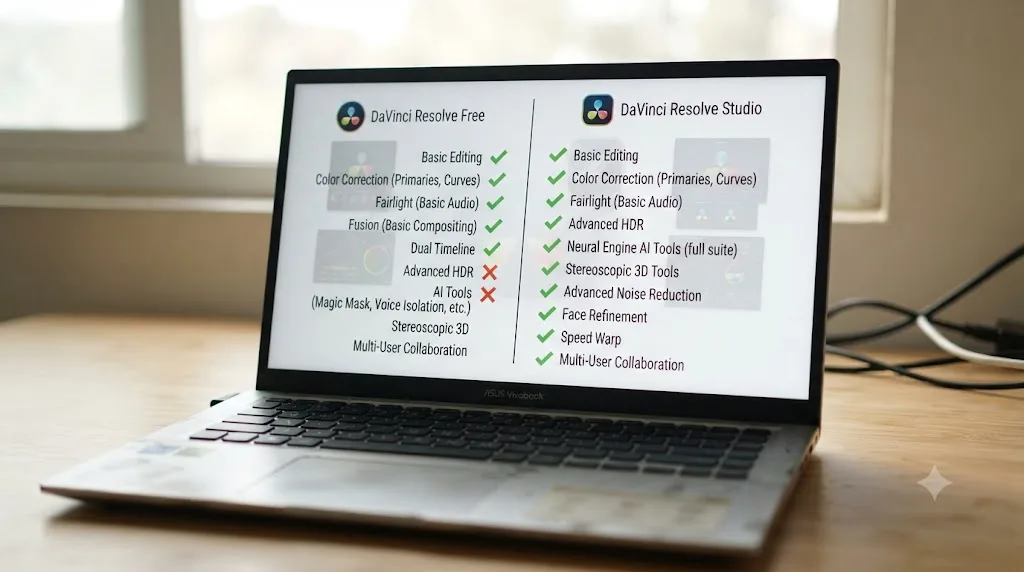
Do you need DaVinci Resolve Studio too, or is the free version enough on a budget machine?
Not on day one, and this matters more on a budget laptop than it does on a desktop, because Studio's $295 could otherwise go straight toward better hardware. The free version isn't a trial. Per Blackmagic's own product page, it has no watermark, no time limit, and handles "virtually all 8-bit video formats at up to 60fps in resolutions as high as Ultra HD 3840 x 2160." That covers the footage from a phone, a webcam, or an entry mirrorless camera without any asterisk.
There's one Windows-specific catch worth knowing before you buy, because it directly affects how much your GPU choice matters. Per Puget Systems' testing of DaVinci Resolve's hardware decoding support, hardware-accelerated H.264 and H.265 decoding, the codecs almost every phone and budget camera actually shoots, is a Studio-only feature on Windows. The free version decodes those files on the CPU instead, regardless of how capable your laptop's GPU is.
| Feature | Free version | Studio ($295) |
|---|---|---|
| Editing, color, audio, Fusion VFX | Full access | Full access |
| Max resolution | Up to 4K UHD | Beyond 4K |
| Hardware H.264/H.265 decode (Windows) | No, CPU-decoded | Yes |
| Magic Mask, AI noise reduction | Not included | Included |
| HDR grading tools | Not included | Included |
Sources: DaVinci Resolve Studio product page and Puget Systems' H.264/H.265 hardware decoding breakdown.
What that means for a beginner shopping on a budget: if your laptop's CPU is reasonably modern, a recent Intel Core or AMD Ryzen chip, it can usually decode 1080p and moderate 4K H.264/H.265 in software without falling over, especially with proxies turned on. Our proxy media setup guide for slow laptops covers exactly how to lean on that workaround if playback stutters before you're ready to spend on Studio.
Buy the laptop first and DaVinci Resolve Studio later, once a specific project actually asks for Magic Mask, noise reduction, or faster H.265 decode, not before. Spending that $295 on 8GB more RAM or one GPU tier up almost always improves your day-to-day editing more than Studio does for a beginner's first few projects. Our full free versus Studio breakdown covers the complete feature gap once you're ready to weigh that purchase on its own.
Windows or Mac: which is the smarter budget platform in 2026?
This used to be a closer call than it is now, and the reason is a genuinely new story worth knowing before you shop. For years, an entry MacBook Air was a legitimate budget pick for Resolve, thanks to Apple silicon's efficient hardware decode and unified memory. That's no longer true in the same way, because the MacBook Air's price moved.
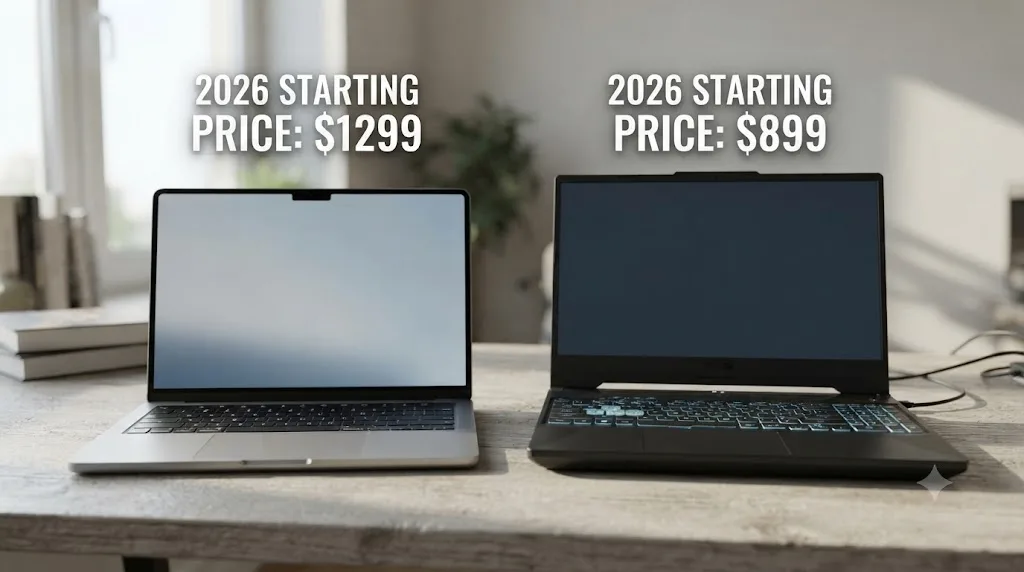
On June 25, 2026, Apple raised prices across its Mac and iPad lineup, including the MacBook Air, which now starts at $1,299 for the 13-inch model, up from $1,099. Per Forbes' coverage of the price hike, Tim Cook attributed the increase directly to component costs, telling press that Apple had "never seen a component price increase this much, this quickly," pointing to memory chip prices driven up by AI data center demand for the same DRAM that goes into consumer laptops.
A MacBook Air no longer qualifies as a budget laptop for DaVinci Resolve, since Apple's June 2026 price hike pushed its 13-inch starting price to $1,299, roughly double what a genuinely budget Windows laptop costs for comparable RAM. That's not a knock on the hardware itself. The M-series chip's efficiency and native hardware decode for H.264, HEVC, and ProRes are real advantages this guide isn't disputing. It's a statement about what "budget" means in 2026 specifically, and at $1,299, the MacBook Air is competing with mid-range Windows creator laptops, not the $650-900 machines the rest of this guide focuses on.
There's a second, independent reason to be cautious about the Air specifically, separate from price. Jeremy Gray, reviewing the previous-generation MacBook Air M4 for PetaPixel, found it ranked lowest among tested Macs in both DaVinci Resolve and Adobe Premiere Pro benchmarks, writing plainly that "the MacBook Air with M4 is undeniably not Apple's best option for video editing." His explanation traces to the chassis, not the chip: the Air has no fan, so "once that chip gets hot, which it did during every single one of these benchmarks, performance takes a hit," with consecutive tests running progressively slower until the machine had time to cool. Apple's current MacBook Air still ships fanless, so that thermal pattern is architectural, not specific to one chip generation, even though independent Resolve benchmarks on the newer chip generation weren't available at the time this guide was written.
| Budget Windows laptop | MacBook Air (2026 pricing) | |
|---|---|---|
| Starting price | $650-900 | $1,299 |
| Discrete GPU | Yes, typically RTX 3050 or 4050 | No, integrated GPU only |
| Hardware H.264/H.265 decode | Studio only | Included in free version |
| Sustained load / thermal design | Fan-cooled | Fanless, throttles under sustained load |
| Realistic for a first Resolve laptop on a tight budget | Yes | No, priced above this guide's budget range |
Sources: Forbes on Apple's June 2026 price increase and Jeremy Gray's MacBook Air M4 review, PetaPixel.
If a Mac genuinely matters to you, for iOS development, for a specific creative app, for the ecosystem, the honest recommendation isn't the Air anymore. Our review of whether the Mac mini M4 is enough for DaVinci Resolve covers a desktop alternative that still lands closer to budget territory, if portability isn't the requirement. For a genuinely portable budget machine specifically for learning DaVinci Resolve, this guide's answer is Windows.
What's a realistic price range for a laptop that will actually run DaVinci Resolve?
Somewhere between $650 and $900 for a new laptop that meets the "realistic floor" spec table from earlier in this guide: 16GB RAM, a discrete GPU with 6GB VRAM, and an SSD. Below that range, you're usually trading away RAM or VRAM to hit the price, which is exactly the trap the rest of this guide spends time on. Above it, you're paying for a nicer display, a lighter chassis, or a GPU tier past what a beginner's first several projects will actually stress.
| Price band | What you're realistically getting | Verdict for a Resolve beginner |
|---|---|---|
| Under $500 | Integrated graphics only, or a discrete GPU paired with 8GB RAM | Avoid; below Blackmagic's stated minimum in practice |
| $500-650 | Entry discrete GPU (RTX 3050 4GB), 8-16GB RAM depending on SKU | Workable if RAM hits 16GB; check the exact configuration carefully |
| $650-900 | RTX 4050 6GB or RTX 3050 Ti, 16GB RAM standard | The realistic sweet spot this guide recommends |
| $900-1,200 | RTX 4060 8GB, 16-32GB RAM, better displays | Comfortable headroom, worth it if the budget stretches |
| $1,200+ | Creator-marketed laptops, higher-tier GPUs, color-accurate panels | Past what a first Resolve laptop needs to prove itself |
This is where the market genuinely helps a budget buyer in 2026: gaming laptops, not laptops marketed as "for creators," are where this spec combination shows up cheapest, because GPU-heavy gaming hardware and GPU-heavy editing hardware overlap almost completely. The next section names specific models in this range with real, current specs.

Which specific budget laptops fit these specs right now?
Model numbers churn fast in this category, so treat these as examples of the right spec combination at the right price, not a permanent list. Check the exact SKU before buying; the same model name often ships in several very different configurations.
Acer Nitro V, one widely available configuration pairs an AMD Ryzen 5 7535HS with an RTX 4050 (6GB GDDR6 VRAM), a 15.6-inch 144Hz display, and a 512GB SSD, priced at $678.08 per Technobezz's coverage of a recent price drop. That GPU clears the 6GB comfort floor from earlier in this guide at a genuinely budget price. The catch, covered in detail in the next section, is that this specific configuration ships with only 8GB of RAM, below Blackmagic's stated minimum, so treat this exact SKU as a warning as much as a recommendation until you confirm the RAM.
Lenovo LOQ, a configuration with an AMD Ryzen 5 7235HS, an RTX 4050, 16GB of RAM, and a 512GB SSD lists at $649.99, per a Best Buy listing for this exact SKU. This is the cleanest match to this guide's realistic-floor spec table at the lowest price found in this research: 16GB RAM and a 6GB-VRAM GPU together, under $650.
HP Victus 15, the lineup spans a wide range of configurations. Tom's Guide highlighted one Victus 15 build at $799 as "surprisingly good specs" for the price. A separate, more heavily specced configuration pairs an Intel Core i5-12450H with an RTX 3050 (4GB), 32GB of DDR4 RAM, and a 1TB SSD, per a current Newegg listing. That's an unusual pairing worth understanding: generous RAM riding alongside a GPU sitting right at Blackmagic's VRAM minimum rather than this guide's 6GB comfort floor. Good for multitasking, tighter once a grade or AI tool leans on VRAM specifically. Check the GPU line on any Victus listing before assuming the model name alone tells you what you're getting.
| Laptop | GPU / VRAM | RAM | Storage | Price found |
|---|---|---|---|---|
| Lenovo LOQ (Ryzen 5 7235HS config) | RTX 4050, 6GB | 16GB | 512GB SSD | $649.99 |
| Acer Nitro V (Ryzen 5 7535HS config) | RTX 4050, 6GB | 8GB (below minimum) | 512GB SSD | $678.08 |
| HP Victus 15 (i5-12450H, 32GB config) | RTX 3050, 4GB | 32GB | 1TB SSD | Not confirmed; Victus line starts near $799 |
Sources: Best Buy Lenovo LOQ listing, Technobezz on the Acer Nitro V, Newegg HP Victus 15 listing, and Tom's Guide on the $799 Victus 15.
A budget gaming laptop's model name tells you almost nothing on its own; the exact RAM and GPU line in the specific SKU you're buying tells you everything. The same three model names above span both this guide's recommended sweet spot and its explicit warning example, sometimes within $30 of each other. Read the actual configuration line, every time, before you check out.
What's the RAM trap that ruins an otherwise good budget gaming laptop?
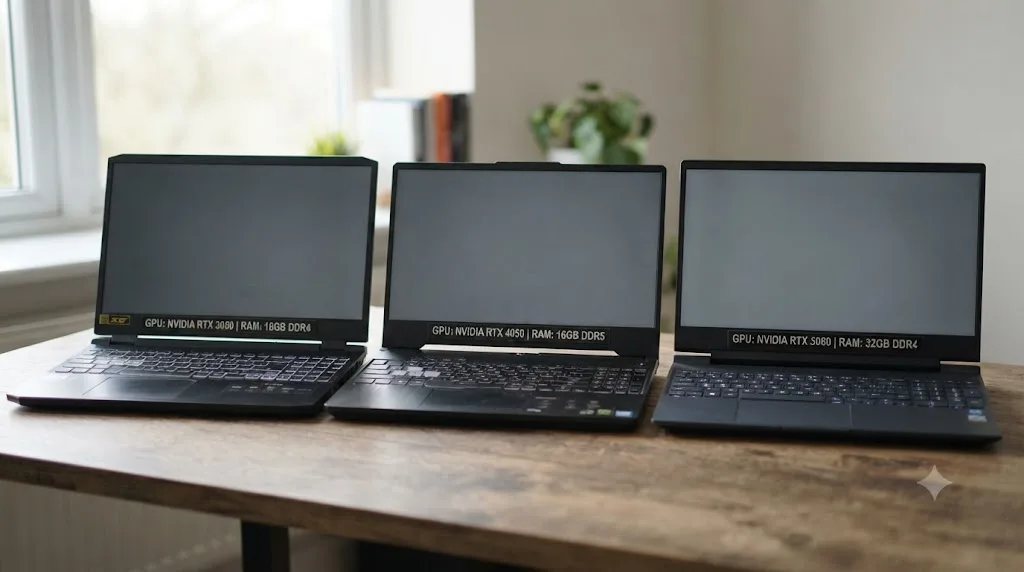
It's the exact pattern the Acer Nitro V example above just walked through: a genuinely good GPU for the price, paired with a base RAM configuration that undercuts Blackmagic's own stated minimum. This isn't rare. It's the single most common way a budget gaming laptop looks perfect on the GPU line and turns out to be a bad DaVinci Resolve purchase.
Here's why manufacturers do it. Gaming benchmarks, the numbers these laptops are actually built and marketed to win, care far more about GPU tier than system RAM past about 8GB, since most games don't touch anywhere near 16GB. A laptop maker chasing a low headline price will cut RAM before cutting the GPU, because RAM is the spec fewer gaming shoppers notice and the GPU is the spec every review headline leads with. That's a completely reasonable decision for a gaming laptop. It's a bad default for a DaVinci Resolve laptop, where 16GB is Blackmagic's explicit floor, not a nice-to-have.
The fix is simple and worth repeating as a standalone rule: never buy a laptop for DaVinci Resolve based on the GPU alone; check the RAM line in the exact same breath, every single time. A $678 laptop with an excellent GPU and 8GB of RAM is, for Resolve specifically, a worse purchase than a $650 laptop with a slightly smaller GPU and 16GB of RAM, because the 8GB configuration sits below the point where Resolve is guaranteed to even launch cleanly per Blackmagic's own stated numbers.
Practically, when you're comparing listings:
- Find the RAM number before the GPU number, since RAM below 16GB disqualifies a laptop for this use case regardless of how good the GPU looks.
- Check whether that RAM is upgradable. Some budget gaming laptops use soldered RAM to hit a lower price; others use accessible SO-DIMM slots. A listing or the manufacturer's own support page usually states this directly.
- If the base configuration is 8GB but a 16GB variant of the same model exists at a modest price step up, buy the 16GB variant. The price difference is almost always smaller than what you'd spend on an aftermarket RAM upgrade later, assuming the model even allows one.
- If RAM is soldered and only available at 8GB, walk away from that specific SKU, no matter how good the GPU looks on paper, since you cannot fix that ceiling after purchase.
Is integrated graphics ever enough for a DaVinci Resolve beginner?
Sometimes, and it's worth being honest about exactly when, rather than issuing a blanket no that scares off someone whose project genuinely doesn't need a discrete GPU. Recent integrated graphics, Intel's Core Ultra Arc-based iGPUs and AMD's Ryzen 7000/8000-series Radeon integrated chips, are real generations ahead of the integrated graphics that gave this category its bad reputation five years ago.
Per Puget Systems' hardware recommendations for DaVinci Resolve, Intel's Core line is "particularly well-suited for working with H.264 and H.265 (HEVC) footage, thanks to Intel Quick Sync technology," a hardware decode block built into the chip regardless of whether you also have a discrete GPU. That's genuinely useful on a budget laptop with no separate graphics card, since it means codec decode isn't purely a software-CPU burden the way it can be on older or lower-end hardware.
Where integrated graphics runs out of room is the same place every spec in this guide runs out of room: real color grading and effects work, not simple playback. Integrated GPUs share system RAM as their VRAM pool, so a 16GB laptop with integrated graphics isn't really offering 16GB to Resolve and a separate VRAM allowance on top; it's splitting one pool between the OS, Resolve's working memory, and whatever the GPU needs for the frame buffer and effects. That's a fundamentally tighter squeeze than a laptop with a genuinely separate 6GB VRAM pool sitting alongside 16GB of system RAM.
| Your project | Integrated graphics only | Discrete GPU (6GB+) |
|---|---|---|
| HD editing, simple cuts, light color | Workable | Comfortable |
| 4K editing, standard color correction | Workable with proxies, may stutter | Comfortable |
| 4K with Magic Mask, noise reduction, multi-node grades | Struggles regardless of RAM | The realistic requirement |
| Multicam, heavier Fusion work | Not recommended | Where a discrete GPU earns its cost |
Integrated graphics can genuinely handle a beginner's first simple HD cut, but the moment a project asks for real 4K color work, a discrete GPU with its own separate VRAM stops being optional. If your very first plan is short, simple, HD-resolution videos and your budget is tighter than $650, an integrated-graphics laptop with 16GB of RAM is a defensible starting point. If 4K footage and any real grading are part of the plan from day one, that same money is better spent stepping up to a discrete GPU, even a modest one.
Should a beginner buy a gaming laptop for DaVinci Resolve?
Yes, and this is worth saying plainly, because it surprises people who assume "gaming laptop" and "editing laptop" are different product categories with different silicon inside them. They're not. The GPU inside an Acer Nitro V or a Lenovo LOQ doesn't know or care whether the frames it's rendering belong to a game or a DaVinci Resolve timeline; CUDA cores and VRAM do the same job either way. What changes between a "gaming" laptop and a "creator" laptop marketed at the same GPU tier is usually the chassis, the display, the RGB lighting, and the price, and that last one almost always favors the gaming laptop.
There are real tradeoffs worth naming honestly rather than glossing over. Gaming laptops tend to run louder fans under sustained load, since they're tuned for short, intense bursts rather than the sustained hour-plus render sessions a real editing project eventually demands. Battery life is typically shorter, both because gaming-tuned GPUs draw more power and because manufacturers prioritize thermal headroom over battery capacity in this category. Displays are frequently tuned for high refresh rate and fast response time rather than color accuracy, which matters if you're doing serious client color grading but matters much less for a beginner still learning where the wheels and nodes live.
None of those tradeoffs change the core math for a beginner on a tight budget: the same $650-900 that buys a genuinely capable GPU and 16GB of RAM in a gaming laptop buys a noticeably weaker GPU, or less RAM, in most laptops marketed specifically as "for creators" or "for editing." That marketing label is not a technical spec, and it usually comes with a price premium that a beginner's first laptop doesn't need to pay.
A gaming laptop's GPU renders a DaVinci Resolve timeline exactly as fast as it renders a game, which is why gaming laptops are consistently the best-value hardware category for a beginner's first Resolve machine. Plug it into power when you're editing for real work sessions, since sustained performance under wall power beats battery-saving throttling every time, and don't let the RGB keyboard or the marketing copy talk you out of a genuinely good spec-per-dollar deal.
Should you buy new, refurbished, or used for your first Resolve laptop?
Refurbished can be a genuinely smart budget move, and used can be a real risk, and the difference between them mostly comes down to GPU generation, not condition.
A refurbished laptop from a manufacturer's own outlet or a reputable retailer, carrying a recent GPU generation, RTX 30-series or newer, and meeting the 16GB RAM floor, is frequently the cheapest way to hit this guide's recommended spec range. Refurbished units typically carry at least a short warranty, and the hardware inside is identical to a new unit of the same model; the only real difference is that someone returned it or it came from a display floor, not that it's inherently worse.
Buying used directly from an individual seller is a different risk profile entirely. The specific danger for DaVinci Resolve isn't the laptop's cosmetic condition, it's buying into an outdated GPU generation that clears Blackmagic's bare 4GB VRAM minimum on a spec sheet while offering none of the actual efficiency and feature improvements two or three GPU generations bring. A used laptop built around a GTX 10-series card, for instance, might technically show 4GB or more of VRAM, matching Blackmagic's stated minimum on paper, while lacking hardware decode support and driver-level optimizations that genuinely matter for smooth Resolve playback today.
| Source | Real risk for a DaVinci Resolve laptop | When it's a good move |
|---|---|---|
| New, current-generation | Higher price for the same spec tier | Best default if the budget stretches to it |
| Refurbished, recent GPU generation | Cosmetic wear, shorter or no warranty depending on seller | Often the best price-per-spec on this exact list of laptops |
| Used, individual seller, recent GPU | No warranty at all, unknown usage history | Acceptable if you can verify the exact GPU generation and RAM |
| Used, older GPU generation (GTX 10-series or older) | Meets the letter of Blackmagic's minimum, fails the spirit of it | Avoid for this use case regardless of price |
A GPU generation matters more than a laptop's age or cosmetic condition when you're buying used or refurbished for DaVinci Resolve. Check the exact GPU model number, not just the VRAM figure, before trusting a secondhand listing. RTX 30-series or newer is the realistic cutoff worth holding to, even on a tight budget.
What mistakes do beginners make buying a budget laptop for DaVinci Resolve?
Beyond the RAM trap already covered in detail above, a handful of other mistakes show up repeatedly in forum threads and comment sections from people who bought first and researched second.
Trusting the model name instead of the exact configuration line. Already covered above with the Nitro V and Victus examples, worth repeating here because it's genuinely the single most common mistake in this category. The same model name can ship with wildly different RAM and GPU pairings depending on the retailer and the specific SKU code.
Buying a laptop with an eMMC drive instead of a real SSD. Some of the cheapest laptops on the market, especially ones marketed for general productivity rather than gaming or creative work, use eMMC storage instead of an NVMe or SATA SSD. eMMC is dramatically slower for sustained read and write, exactly the kind of load DaVinci Resolve's cache files and media playback generate constantly. Every laptop this guide has named uses a real SSD; treat that as non-negotiable, not a nice-to-have.
Ignoring the power adapter's wattage on a GPU laptop. A discrete GPU under real render load draws meaningfully more power than a laptop's battery alone, or an underpowered charger, can sustain. If a laptop ships with a small USB-C charger rather than a dedicated barrel-connector power brick rated for the GPU's actual draw, check the manufacturer's specs before assuming full performance is available on battery power at all.
Assuming a higher-refresh-rate gaming display means a better editing display. A 144Hz panel is genuinely nice for smooth scrubbing, but refresh rate says nothing about color accuracy or coverage, and budget gaming laptop panels are frequently tuned for contrast and speed over accurate color. For a beginner's first several projects, that's a real but survivable tradeoff, not a dealbreaker, since you'll likely be exporting and checking color on a phone or a separate monitor before anything client-facing goes out anyway.
Skipping the thermal design entirely. A thin, quiet budget laptop with a powerful GPU crammed inside is a warning sign, not a feature. Sustained exports and renders generate real heat, and a chassis too thin to dissipate it will throttle the exact GPU you paid for. This is one more reason gaming laptops, built with thermal headroom for sustained load in mind, tend to outperform slimmer "creator" laptops at the same price and spec tier.
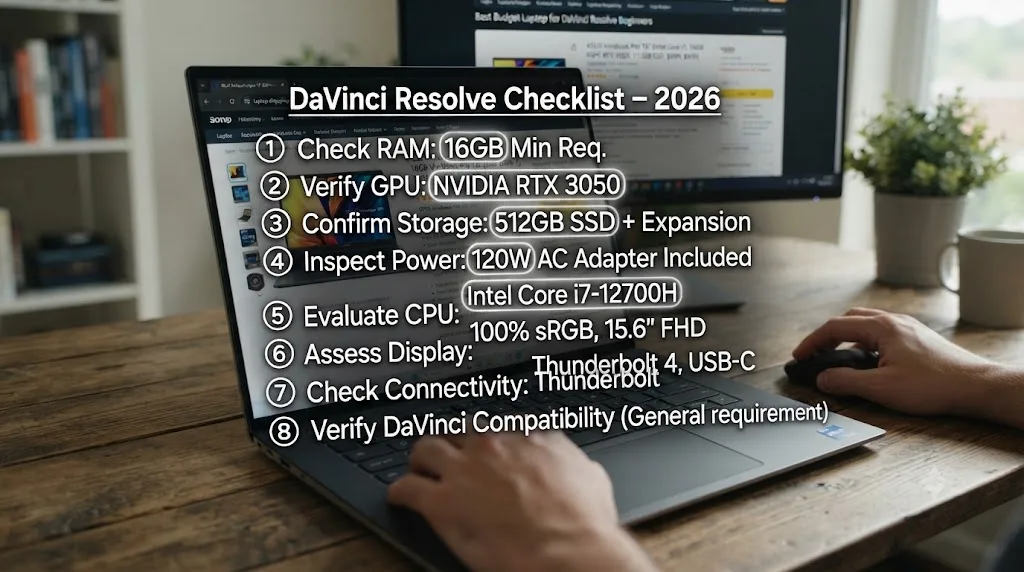
A checklist worth running through before you check out on any budget laptop listing:
- RAM: 16GB minimum, confirmed in the actual configuration, not just the model name
- GPU: discrete, 6GB VRAM if the budget allows, 4GB as an absolute floor
- Storage: a real SSD, never eMMC
- Power adapter: rated for sustained GPU load, not just a small USB-C charger
- Thermal design: a chassis built for sustained load, which gaming laptops generally handle better than ultra-thin designs at the same price
A worked example: two real budget builds
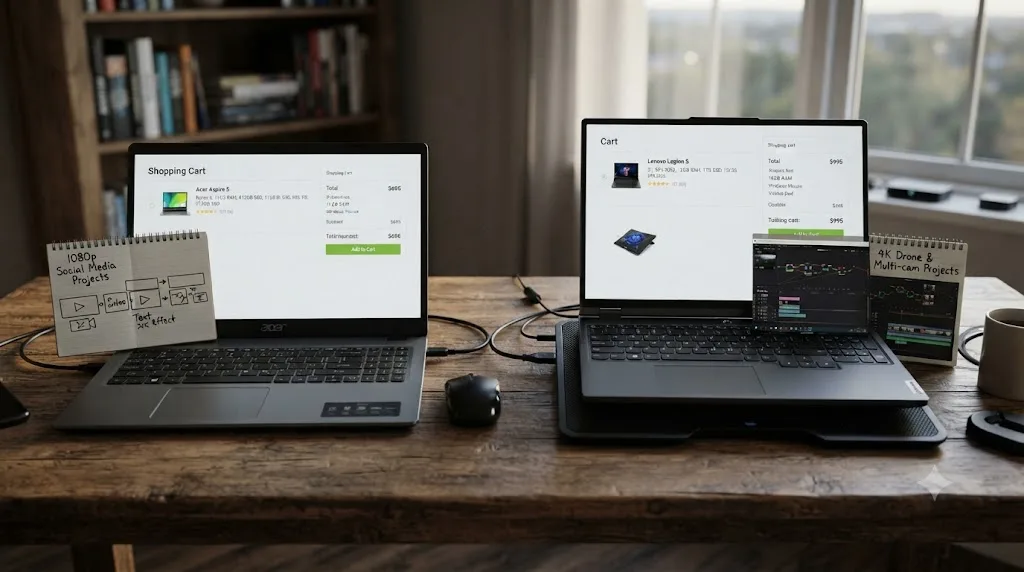
Concrete beats abstract, so here are two specific, honest scenarios built from the laptops and specs already covered in this guide.
Under $700: a total beginner cutting phone and webcam footage. Someone starting from zero, shooting a mix of smartphone 4K clips and webcam HD footage, planning simple cuts, titles, and a basic color pass, with a budget that's genuinely capped near $650-700.
- Buy the Lenovo LOQ configuration with 16GB RAM and an RTX 4050, at roughly $649.99 per the Best Buy listing referenced earlier in this guide. That single laptop clears both the RAM floor and the 6GB VRAM comfort tier from this guide's spec tables, together, at the lowest verified price found in this research.
- Start on DaVinci Resolve's free version. Nothing in this workflow needs Studio's AI tools or hardware H.265 decode badly enough to justify the $295 before the hardware budget is even spent.
- Turn on Proxy Media immediately for the 4K phone footage, per our proxy setup guide, since even a good budget GPU benefits from lighter files while scrubbing, and it costs nothing but disk space.
- Keep the grade to one node with Lift, Gamma, and Gain, the same beginner-level approach covered in our full beginner's guide, rather than stacking heavy effects the 6GB VRAM budget wasn't sized for.
Total spend: roughly $650, no software cost, a machine that clears every floor this guide has set out.
Under $1,000: a beginner planning to grow into heavier 4K work. Someone who knows they'll eventually shoot mirrorless 4K footage, want Magic Mask or noise reduction within the first year, and doesn't want to replace the laptop that soon.
- Buy a laptop in the $900-1,000 range with an RTX 4060 (8GB VRAM) and 16GB of RAM, stepping one full tier past the recommendations above, since this budget has room for genuine headroom rather than just clearing the comfort floor.
- Prioritize a 32GB RAM configuration over a marginally faster CPU if the listing offers that choice at a similar price, since this guide's RAM section already established that more memory does more for a smooth Resolve experience than a CPU generation bump.
- Budget for DaVinci Resolve Studio within the first year, not on day one, once Magic Mask or noise reduction actually becomes something a real project needs, rather than buying it speculatively before you know which Studio feature you'll actually use.
- Buy an external SSD early rather than filling the internal drive, since a nearly full drive slows down regardless of how fast it was when empty, a problem this guide's storage advice applies to every price tier, not just the cheapest one.
Total spend: roughly $900-1,000 for hardware, with Studio's $295 budgeted separately for later once a specific feature earns it.
What do real editors say about starting on a budget laptop?
The honest consensus across forums and independent writeups is more encouraging than the spec obsession earlier in this guide might suggest, as long as you buy the right configuration. On the Blackmagic forum's "Best budget laptop for editing in a real world" thread, one poster summed up the tension plainly: "budget" and "video editing" don't really mix well as concepts, in their experience, even while acknowledging that DaVinci Resolve itself, as software, is reasonably priced. That's a fair, honest framing. The software isn't the expensive part. The hardware headroom is.
Richard Lackey, writing about budget laptop configurations for Resolve, frames the GPU requirement in terms that match this guide's own advice closely: "a decent GPU" is the non-negotiable, and he specifically calls out that even mid-tier discrete GPUs, not just the most expensive laptop GPU tier available, are enough to get real work done. That's consistent with the RTX 4050 recommendations throughout this guide; you don't need the top of NVIDIA's laptop lineup to clear DaVinci Resolve's real comfort floor, just past the bare minimum with real margin.
It's also worth naming where the wider internet's advice comes from honestly, since this guide isn't the only source a beginner will find. Blackmagic Design publishes genuinely free, official training materials, including downloadable lesson books, worth a look regardless of which laptop you land on. Reddit threads and forum posts like the ones cited throughout this guide are a real, useful signal, messy and inconsistent in places, but grounded in actual owners describing actual problems, which is exactly why this guide leaned on them instead of only citing spec sheets.
Every credible source this guide checked agrees on the same two numbers, GPU VRAM and system RAM, even when they disagree on which specific laptop model to buy. That convergence is worth trusting more than any single laptop recommendation, including the ones in this guide, since specific SKUs go out of stock and get replaced constantly, but the underlying spec requirements Blackmagic itself publishes don't change nearly as often.
How do you make a budget laptop feel smooth once you own it?
Buying the right spec is half the job. The other half is configuring DaVinci Resolve so it doesn't waste the hardware you bought, and this matters more on a budget laptop than on an expensive workstation, since there's less raw headroom to burn carelessly.
Proxy Media is the single biggest lever, and it's free in both the free version and Studio. Generating DNxHR LB or ProRes Proxy files at Quarter resolution for 4K sources cuts the decode cost your CPU or GPU has to handle on every scrub, often dramatically, at zero cost beyond some extra disk space. Our full proxy media setup guide for slow laptops walks through the exact settings, including the specific codec and resolution choices that matter most on hardware sitting right at this guide's recommended floor rather than well above it.
A few settings worth checking on day one, specific to a budget GPU with limited VRAM:
- Drop Timeline Proxy Resolution to Half, under the Playback menu, a zero-cost setting that lowers preview quality without touching your actual files, useful the moment scrubbing feels sluggish even before you've generated real proxies.
- Keep your grade to fewer nodes when you're still learning, since every additional node claims a slice of the same VRAM pool your footage decode is already using, directly relevant on a 4-6GB card in a way it isn't on a workstation GPU with VRAM to spare.
- Point Resolve's cache files at your fastest available drive, under Preferences, System, Media Storage, since a laptop's single internal SSD is already doing more jobs at once than a desktop's separated drives would be.
- Plug in the charger for real editing sessions. Windows and macOS both throttle performance on battery power by default, and a budget laptop's GPU has less margin to give up than a higher-tier machine does.
A well-configured budget laptop running proxies and a light grade will consistently out-edit a poorly configured expensive one running full-resolution footage and a heavy node stack. Settings cost nothing. Hardware costs money. Learn the settings first, especially on a machine bought specifically to stretch a limited budget as far as it goes.
What about AI tools when you're learning on a budget laptop?
Worth addressing honestly, since this category is genuinely crowded and a beginner searching for help while stuck in Resolve will run into a lot of noise. A few different kinds of tools show up under similar-sounding names, and they solve different problems.
Some AI tools automate the edit itself: Sottocut and CutAgent, for instance, work as extensions inside DaVinci Resolve that propose cuts, captions, or rough assemblies for you to approve, and other tools like PremiereCopilot or cutagent.ai and heyeddie.ai occupy similar ground, either inside Resolve directly or as a separate app that hands a rough cut back. Our full comparison of AI editing assistants for DaVinci Resolve covers that category in depth if automated editing is what you're actually looking for.
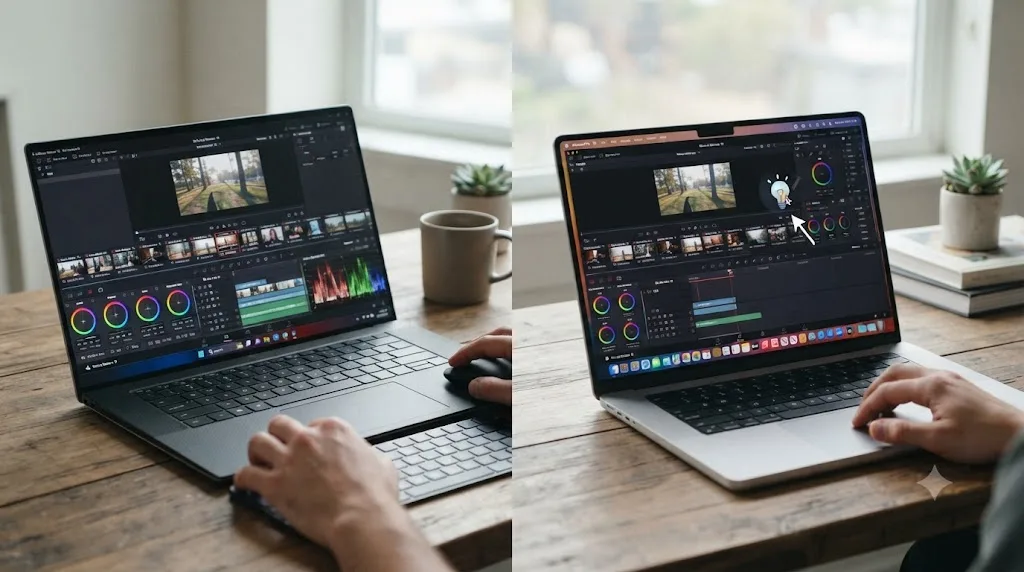
That's a different job from what someone genuinely new to Resolve usually needs first, which is simply knowing where a specific control lives while they're staring at seven unfamiliar pages. TryUncle is the on-screen assistant for DaVinci Resolve on macOS, ask in plain words and Uncle points at the exact control on your screen. That's specifically useful on a first machine, budget or otherwise, when you know roughly what you want to do but can't remember which menu Blackmagic tucked it into.
Worth being direct about the platform mismatch here, since honesty matters more than a tidy pitch: this guide's own recommendations point toward budget Windows laptops, and TryUncle is macOS only, currently in founder pricing at $29.99 a month, a separate paid purchase from Resolve or the laptop itself. If you land on one of the Windows laptops recommended earlier in this guide, that specific tool isn't an option for you today, and the honest fallback is Blackmagic's own free training materials plus the kind of community forum threads and troubleshooting guides this article has leaned on throughout. If a Mac does end up in your future, whether now or after your first budget Windows laptop, it's worth knowing about for exactly the moment this section describes.
Verdict: what should you actually buy?
If your budget caps out near $650-700 and you're editing phone or webcam footage with simple cuts and light color work, buy a 16GB RAM configuration of a laptop like the Lenovo LOQ with an RTX 4050. That single combination, confirmed by the exact SKU rather than the model name alone, clears both Blackmagic's RAM floor and this guide's 6GB VRAM comfort tier at one of the lowest verified prices available right now.
If your budget stretches to $900-1,000 and you know 4K footage, Magic Mask, or noise reduction are coming within the first year, step up to an RTX 4060 with 8GB VRAM and consider 32GB of RAM if the price step is reasonable, then budget DaVinci Resolve Studio's $295 separately for whenever a specific feature actually earns it.
Skip the MacBook Air unless the Mac ecosystem itself matters to you for reasons beyond DaVinci Resolve; at $1,299 after Apple's June 2026 price increase, it's no longer competing in the budget category this guide is answering. Skip any laptop, regardless of GPU, that ships with 8GB of RAM, an eMMC drive, or a GPU generation older than RTX 30-series. And regardless of which laptop you land on, check the exact configuration line before you check out, not the model name, not the marketing photo, and not the headline price. That one habit, more than any single spec in this guide, is what separates a beginner who starts editing this week from one who's still returning laptops next month.
Frequently asked questions
- What's the minimum laptop spec for DaVinci Resolve?
- Blackmagic's own tech specs list 16GB of system RAM and a GPU with at least 4GB of VRAM as the floor. Those are minimums Resolve will launch and run on, not numbers that make editing feel smooth. For a beginner buying new, treat 16GB RAM and 6GB VRAM as the realistic starting point instead.
- Is a MacBook Air good enough for DaVinci Resolve as a beginner?
- It can edit standard HD or light 4K projects fine, but it no longer counts as a budget laptop. Apple raised the 13-inch MacBook Air's starting price to $1,299 in June 2026, citing memory costs, which puts it well above the $650-900 Windows laptops this guide recommends for a first Resolve machine.
- How much VRAM do I need for DaVinci Resolve on a budget laptop?
- 6GB is the realistic comfortable floor for 4K editing with some color work. 4GB, Blackmagic's stated minimum, works for HD and light 4K but runs out of headroom fast once you add noise reduction, Magic Mask, or a multi-node grade, all of which eat VRAM on top of your footage.
- Can I use DaVinci Resolve on a laptop with integrated graphics only?
- For very light HD editing, yes, especially on a recent Intel Core Ultra or Ryzen chip with a capable integrated GPU. For 4K footage with any real color grading, no. Integrated graphics share system RAM as VRAM, so you're fighting for the same memory pool Resolve, Windows, and everything else need at once.
- Do I need DaVinci Resolve Studio on a budget laptop?
- Not on day one. The free version has no watermark, no time limit, and covers editing, color, and audio at up to 4K 60fps. Studio's $295 adds AI tools like Magic Mask and noise reduction, plus hardware-accelerated H.264/H.265 decode on Windows, worth buying once a project actually needs one of those.
- Is a gaming laptop good for DaVinci Resolve?
- Yes, and it's usually the best value path for a beginner on a budget. Gaming laptops pair a discrete GPU with 16GB or more of RAM at prices well below laptops marketed specifically for creators, since the GPU itself doesn't know or care whether you're rendering game frames or a DaVinci Resolve timeline.
- Should I buy a used or refurbished laptop for DaVinci Resolve?
- Refurbished can be a good budget move if the GPU generation is recent, RTX 30-series or newer, and the RAM meets 16GB. Avoid used laptops built around GTX 10-series or older GPUs; they'll clear Blackmagic's bare minimum on paper but struggle the moment you add a real grade.
- What's the cheapest laptop that can actually run DaVinci Resolve well?
- As of mid-2026, a 16GB RAM configuration of the Lenovo LOQ with an RTX 4050, priced around $650, is one of the cheapest laptops that clears both Blackmagic's RAM floor and a comfortable VRAM tier at once, without needing an immediate memory upgrade.
Sources
- DaVinci Resolve - Tech Specs (Blackmagic Design)
- DaVinci Resolve - Studio (Blackmagic Design)
- DaVinci Resolve product page (Blackmagic Design)
- DaVinci Resolve - Training (Blackmagic Design)
- Puget Systems: What H.264 and H.265 Hardware Decoding is Supported in DaVinci Resolve Studio
- Puget Systems: Hardware Recommendations for DaVinci Resolve
- Richard Lackey: DaVinci Resolve Minimum System Requirements, A Reality Check
- Richard Lackey: The Best Budget Laptops for DaVinci Resolve In 2021 with Thunderbolt 3
- Eduardo Oroz: MacBook Air M4 and DaVinci Resolve
- PetaPixel: Apple MacBook Air with M4 Review, by Jeremy Gray
- Blackmagic Forum: Is this laptop ok?
- Blackmagic Forum: Best budget laptop for editing in a real world.
- Technobezz: Acer Nitro V Gaming laptop with RTX 4050 drops to $678.08
- Best Buy: Lenovo LOQ 15.6-inch, Ryzen 5 7235HS, 16GB, RTX 4050, 512GB SSD
- Newegg: HP Victus 15 Gaming Laptop, RTX 3050 4GB, i5-12450H, 32GB DDR4, 1TB SSD
- Tom's Guide: The HP Victus 15 is a $799 gaming laptop with surprisingly good specs
- Forbes: Apple Price Hike Hits MacBook Air, iPad, Mac Mini And More, by Prakhar Khanna
- NVIDIA Blog: New NVIDIA Studio Laptops Powered by GeForce RTX 4070, 4060, 4050 Laptop GPUs
- Walmart: Acer Nitro V 15.6-inch, RTX 4050 6GB GDDR6, 16GB RAM, 512GB SSD
- No Film School: DaVinci Resolve Update 21.0.2 Adds Faster Image Bypass Switching, Improved H.265 Playback, and More
Put this guide to work with TryUncle.
Ask about the step you’re on. TryUncle sees your screen and points at the control you need, so you can keep learning in your own project.
Get TryUncle for Mac or WindowsKeep reading
Guides · Jul 7, 2026 · 32 min
DaVinci Resolve for Beginners: The Complete Starter Guide
Learn DaVinci Resolve from zero: what it costs, what it needs to run, the seven pages you'll actually use, and the steps to cut your first project.
Fixes · Jul 15, 2026 · 25 min
DaVinci Resolve Proxy Media Setup for a Slow Laptop
Set up proxy media in DaVinci Resolve on a slow laptop: resolution, codec, the Blackmagic Proxy Generator, and the exact settings that stop the stutter.
Comparisons · Jul 7, 2026 · 28 min
DaVinci Resolve Studio Price: Free vs. Studio Cost, Explained
DaVinci Resolve Studio costs $295, paid once, not monthly. Here's exactly what that buys, how it stacks up against Premiere Pro and Final Cut Pro, and who needs it.