Articles / Guidesupdated for DaVinci Resolve 21.0.2 (July 2026)
DaVinci Resolve Export Settings for Email Video Attachments
Quick answer
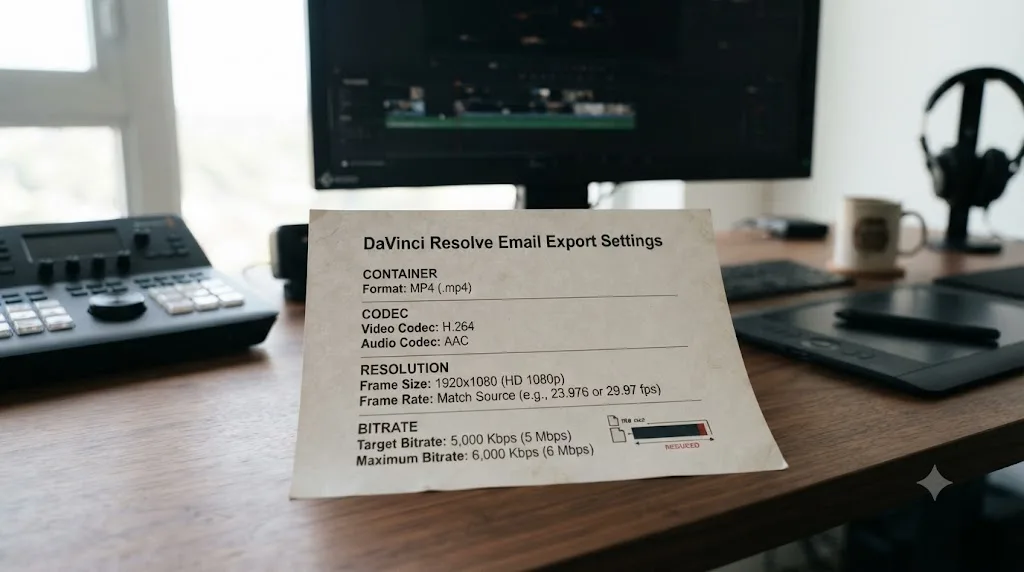
The right DaVinci Resolve export settings for an email marketing video attachment are H.264 in an MP4 at 1280x720, matching your timeline's frame rate, with the bitrate calculated from clip length so the file lands under 20MB, safely below Gmail and Yahoo's 25MB cap. Use AAC audio at 128kbps.
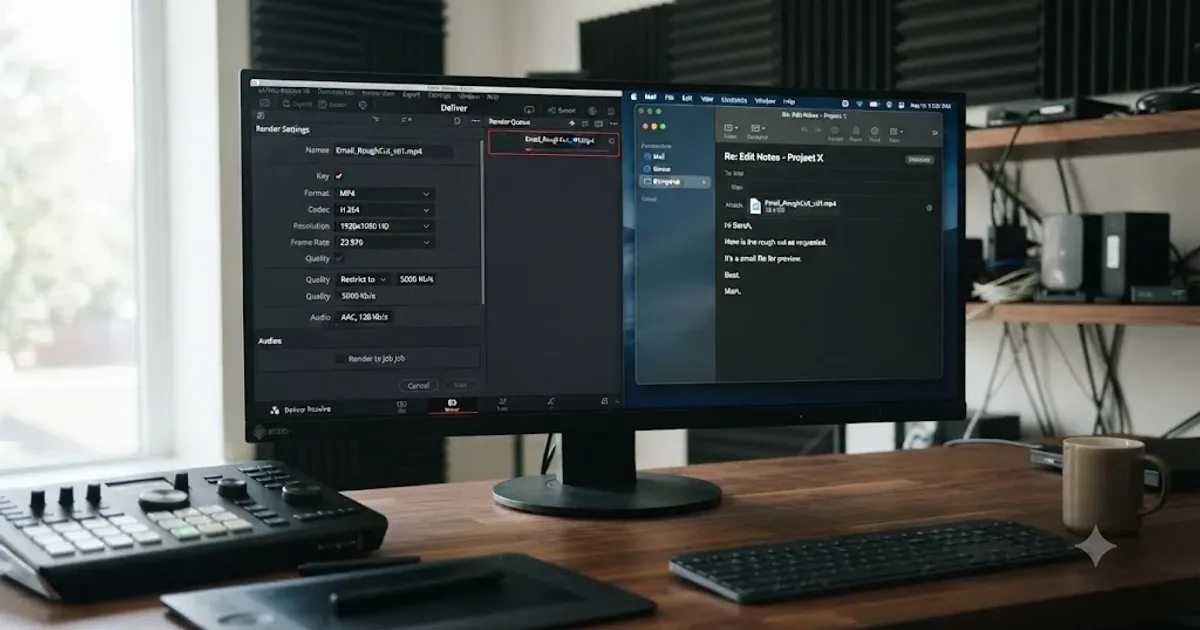
Someone asks this every few weeks in the video-editing spaces we spend time in: a real estate agent with a walkthrough for one client, a wedding videographer sending a highlight preview, a sales rep with a personalized pitch, all wanting to skip the upload-and-link dance and just attach the finished file. We've spent seven-plus years cutting commercial video for paying clients, and in the 100,000+ member editing community we run, "can I just attach the video" comes up constantly, almost always for a single recipient, never for a real bulk campaign.
That distinction matters more than the export settings do, so this guide covers both: what actually caps your file size across Gmail, Outlook, Yahoo, and iCloud, and the DaVinci Resolve numbers that hit a target under any of them.
What are the best DaVinci Resolve export settings for an email marketing video attachment?
MP4 container, H.264 codec, 1280x720 resolution, your timeline's native frame rate, and a bitrate calculated from your clip's exact length so the finished file lands under 20MB. That single spec sheet clears every major inbox's default limit with room to spare.
| Setting | Value | Why |
|---|---|---|
| Container | MP4 | Opens on every device and email client without a plugin |
| Codec | H.264 | Universal compatibility, including older phones and Windows Photos |
| Resolution | 1280x720 (960x540 for clips over 60s) | Lower pixel count needs fewer bits for the same visible quality |
| Frame rate | Match your timeline | Avoids stutter from interpolated or dropped frames |
| Video bitrate | Calculated from clip length (see table below) | The only variable that actually controls file size |
| Audio codec | AAC | Standard for MP4, plays everywhere |
| Audio bitrate | 128 kbps | Clean for dialogue and voiceover without wasting the size budget |
| Target file size | Under 20MB | Clears Gmail, Yahoo, Outlook.com, and iCloud Mail's limits without checking which one your recipient uses |
The rest of this guide is the reasoning behind that table: what actually caps the file at the recipient's end, the math that turns "under 20MB" into an actual bitrate number, and what to do when the clip is long enough that no bitrate gets you there without the video looking rough.
Should you attach a video to a marketing email at all?
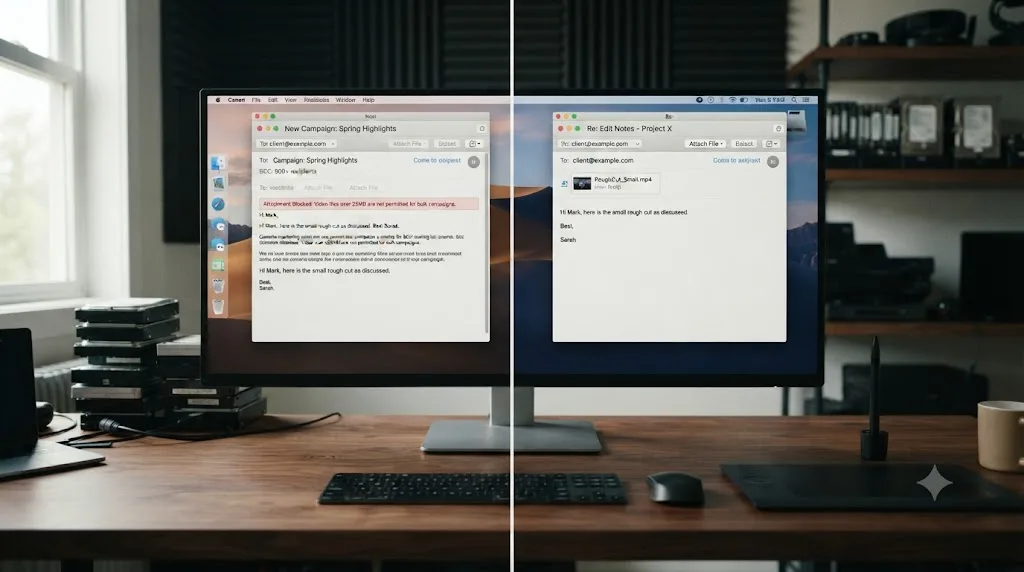
For a bulk campaign, no, and not because of a size limit. The major email marketing platforms simply don't let you.
Mailchimp doesn't support direct file attachments in campaign emails, offering hosted file links instead, per Mailchimp's own help documentation, which states plainly: "We offer file hosting instead of traditional email attachments because attachments can slow or stop bulk email delivery, or cause security software to block your email." HubSpot draws the same line but in a more specific place: "To improve deliverability and email load times, attachments are not supported in marketing emails," according to HubSpot's knowledge base, while the same article confirms attachments work fine on one-to-one sales emails sent from a CRM contact record.
That last distinction is the one worth sitting with. Every major email marketing platform, Mailchimp and HubSpot included, blocks video attachments outright and asks for a hosted link instead. If your video is going out through a real marketing automation tool to a list, this guide's export settings have no email to attach themselves to; you need a hosted link and a thumbnail, not a compressed file. If instead you're one person sending one video to one client, one prospect, or one small group by hand through Gmail, Outlook, or Apple Mail, the platform restriction doesn't apply, and everything below is exactly the workflow you want.
There's a deliverability argument too, separate from the platform restriction. Ben Wright, CEO of Sendspark, puts it directly: "Large file sizes can get you caught in the spam folder. Instead of sending the .MP4 or full video file, use either embedded HTML code or a GIF preview of your video that links to a video landing page," he writes in Sendspark's guide to keeping video emails out of spam. That advice is built for cold outreach at volume, where a spam filter is actively scoring every send. A single warm email to a client who's expecting your video doesn't carry the same risk, but the underlying physics don't change: a heavier attachment is still slower to send, slower to receive, and more likely to bounce off a size cap somewhere in the chain.
So the honest answer splits in two. Sending one video to one known recipient by hand: attach it, sized correctly, and the rest of this guide gets you there. Sending video as part of a marketing campaign to a list: don't attach anything, host the file, and link to it, because the platform won't let you attach it regardless of size.
How big can an email attachment actually be?
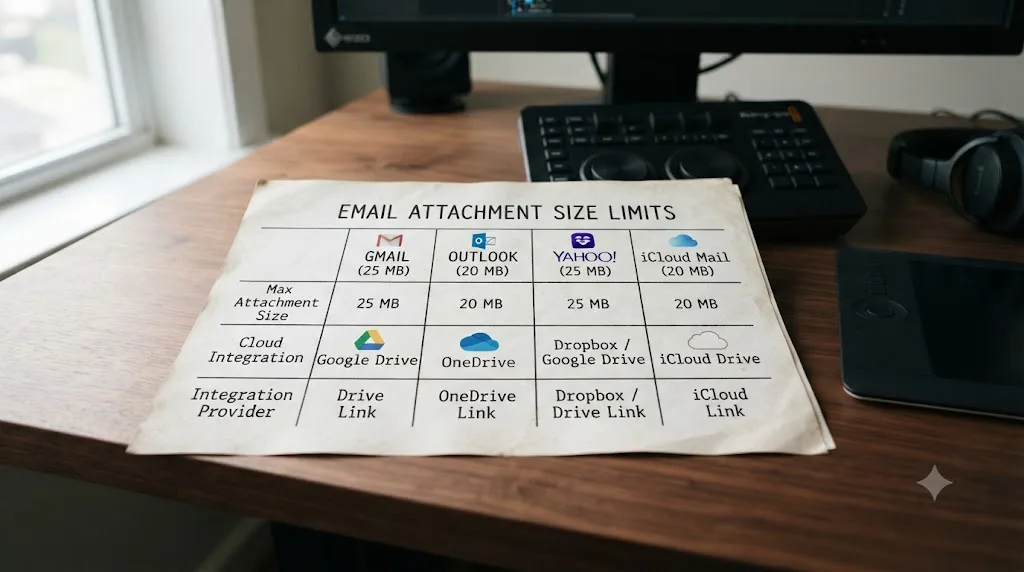
It depends entirely on which mail provider is sending it, and separately on which one is receiving it, since both ends apply their own cap and the smaller one wins.
| Provider | Outbound limit | Inbound limit | Source |
|---|---|---|---|
| Gmail (personal account) | 25MB | 50MB | Gmail Help |
| Outlook.com | 25MB | 25MB | Microsoft Support |
| Outlook desktop, internet account (e.g. Gmail, Yahoo added via POP/IMAP) | 20MB | 20MB | Microsoft Support |
| Outlook desktop, Exchange account (corporate) | 10MB default | 10MB default | Microsoft Support |
| Yahoo Mail | 25MB total | 25MB total | Yahoo Help |
| iCloud Mail (Apple Mail on Mac, iPhone, iPad) | 20MB, or 5GB with Mail Drop | 20MB, or 5GB with Mail Drop | Apple Support |
Read that table as two separate ceilings, not one. Gmail's own 25MB cap only matters if your recipient is also on Gmail; send from Gmail to someone reading mail through a corporate Exchange account with the 10MB default, and their inbox is the real limit, not yours. The safest number to design around isn't your provider's stated cap. It's 20MB, because that's the ceiling every major inbox clears without exception, corporate Exchange defaults being the one outlier worth a specific mention below.
Corporate Exchange accounts deserve that mention because the 10MB figure above is a default an administrator sets, not a hard platform ceiling the way Gmail's 25MB is. Some companies raise it to 25MB, 35MB, or higher; others leave it at the conservative default. If you're sending to a business email address and don't know their IT policy, 10MB is the safer design target, and it's tight enough that a 30 to 45 second clip is usually the practical ceiling before the math in the next two sections stops producing a video that still looks acceptable.
One more branch worth naming: Mac-to-Mac sends. If both you and your recipient use Apple Mail with iCloud Mail, or you're sending from Mail on macOS or iOS with Mail Drop enabled, the ceiling jumps to 5GB, per Apple's own Mail Drop documentation, and Apple states the feature works the same way a normal attachment does from the sender's side, uploading transparently rather than requiring a separate app. That's the one scenario in this guide where the export settings below become almost unnecessary, since a full-quality ProRes or a high-bitrate H.264 master both fit comfortably. Mail Drop attachments expire after 30 days and don't count against iCloud storage, so it's built for exactly this kind of one-off send, not permanent hosting.
Does using the Gmail or Outlook mobile app change the limit?
No. The size cap lives on the mail server, not in the app you happen to be using to compose the message, so it's identical whether you're sending from a laptop browser, the Gmail app on an iPhone, or the Outlook app on Android. Google's own support documentation for the Gmail iOS and Android apps states the same 25MB sending limit and 50MB receiving limit that applies to Gmail on the web, per Gmail Help.
Switching to a phone to send your video doesn't buy you a bigger attachment limit, because the cap is enforced by the mail server, not the app. What does change on mobile is how forgiving the interface is about telling you why a send failed. Gmail's desktop site will usually show a clear warning before you finish composing if a file is too large; some mobile mail apps just spin on "Sending..." for longer than feels normal, then fail quietly or swap the attachment for a Drive link without much explanation.
There's a second mobile-specific wrinkle worth knowing if you're a real estate agent or videographer who edits on a laptop but sends from a phone. Apple's Mail app on iPhone and iPad prompts you to compress photos and videos before sending whenever a message is running heavy, offering a smaller size option that re-encodes the file on the spot. That prompt is convenient for a snapshot from your camera roll. It's a problem for a file you already carefully sized in DaVinci Resolve, because a second automatic re-encode on top of your export can push the video below your target quality without you choosing it, or push the file to an unpredictable size that no longer matches the math you ran. If the Mail app offers to compress your export on the way out, decline it and send the original file, since you already did the compression work correctly on the Deliver page.
If a video you exported at your 20MB target won't send from your phone, don't assume the mobile limit is different or that a second compression pass will help. Assume the same math from earlier in this guide still applies, and check the actual file size in your phone's Files or Photos app before troubleshooting anything else.
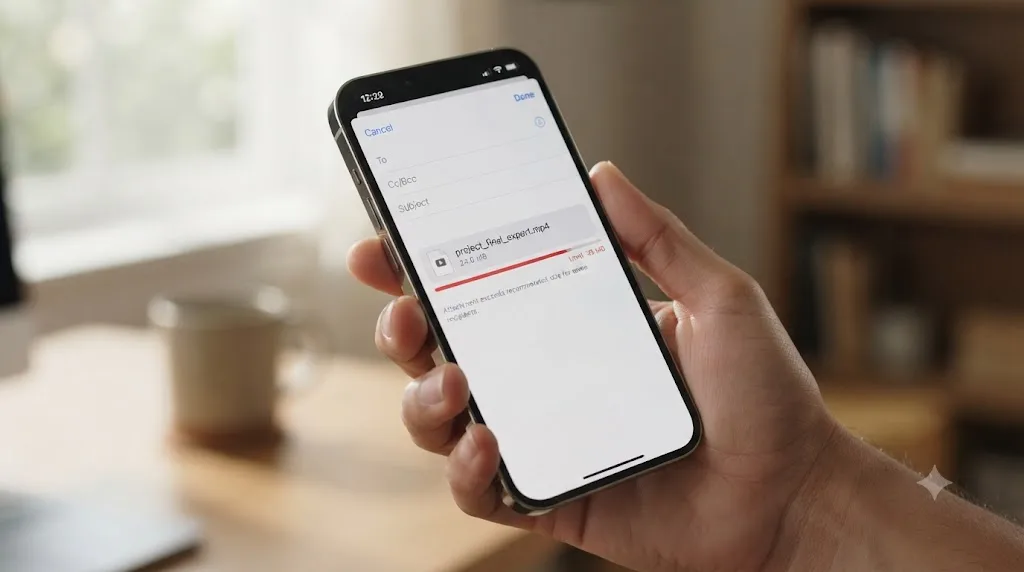
Why does my exported video end up bigger than the limit even when the number on disk looked fine?
Because email doesn't transmit your file as-is. Every attachment gets base64 encoded for the trip through mail servers, and that encoding inflates the size by roughly a third, per Yahoo's own attachment guidance, which notes that "when attachments are encoded for email transmission... they can increase in size by approximately 33%." A file that reads 24MB in Finder or File Explorer can arrive at the server as something closer to 32MB in transit, which is exactly why a video that looks like it should clear a 25MB cap sometimes bounces anyway.
Base64 encoding inflates a file by roughly a third on its way through an email server, so a 24MB video can bounce off a 25MB cap that looks like it should hold it. The practical fix isn't complicated: don't design to the edge of the stated limit. If Gmail's outbound cap is 25MB, treat 20MB as your real ceiling and the encoding overhead stops being a problem you have to think about on every export.
The other quiet size inflater is your own habit of re-exporting. If you've rendered a version, decided it's slightly too big, and exported again from that already-compressed file rather than the original timeline, you've handed a lossy codec a second lossy pass to compress. H.264 is an interframe codec, meaning most frames are stored as differences from their neighbors rather than complete images, and compressing an already-compressed file compounds artifacts that a fresh export from the source timeline wouldn't have. Always re-export from the original DaVinci Resolve project when you need to hit a smaller number, never from the MP4 you just rendered.
How do you calculate the exact bitrate to hit a target file size in DaVinci Resolve?
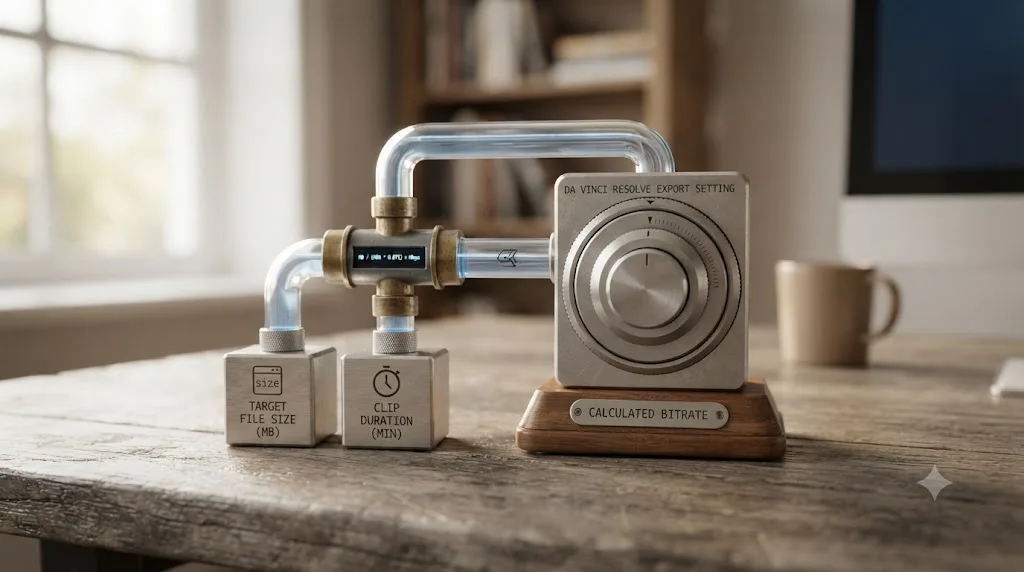
One formula, and it's the same one broadcast engineers and streaming platforms both use: total data equals bitrate multiplied by duration. Rearranged for a target file size, it looks like this:
Total bitrate (kbps) = target file size (MB) × 8,192 ÷ clip duration (seconds)
That 8,192 figure converts megabytes into kilobits, since 1MB equals 1,024 kilobytes and each byte holds 8 bits. Once you have your total bitrate, subtract your audio bitrate (128 kbps in this guide's recommendation) to get the video bitrate you type into Resolve's Restrict To field.
A DaVinci Resolve export sized for email is a duration problem before it's a codec problem, because bitrate times length decides the file size, not the settings menu you picked. A ten-second clip and a two-minute clip need wildly different bitrates to land at the same file size, and no amount of codec tweaking changes that relationship. Here's the math worked out for common email clip lengths against three practical size targets:
| Clip length | Video bitrate for ~8MB | Video bitrate for ~15MB | Video bitrate for ~20MB |
|---|---|---|---|
| 15 seconds | 4.2 Mbps | 8.1 Mbps | 10.8 Mbps |
| 30 seconds | 2.1 Mbps | 4.0 Mbps | 5.3 Mbps |
| 45 seconds | 1.3 Mbps | 2.6 Mbps | 3.5 Mbps |
| 60 seconds | 1.0 Mbps | 1.9 Mbps | 2.6 Mbps |
| 90 seconds | 0.6 Mbps | 1.2 Mbps | 1.7 Mbps |
| 120 seconds | 0.4 Mbps | 0.9 Mbps | 1.2 Mbps |
Look at the ends of that table and the pattern that matters jumps out. A ten-second product teaser at 1080p fits comfortably under any inbox's limit; a two-minute walkthrough at the same resolution almost never will. At 15 seconds, even the tightest 8MB target still leaves 4.2 Mbps of headroom, more bitrate than most 720p web video ever uses, so short clips barely need this math at all. At 120 seconds, the 8MB column drops to 0.4 Mbps, a bitrate that will band and blur even a fairly static shot at 720p. That's not a settings failure. It's the arithmetic telling you a two-minute clip and an 8MB target are incompatible, and the fix is either a longer size budget, a shorter clip, or a lower resolution, covered next.
The 20MB column is the one to build your habits around, matching the safe target established earlier in this guide. Anything from 15 to 60 seconds sits at a bitrate that still looks clean at 720p; past 90 seconds, pair the 20MB column with the reduced resolution covered in the next section rather than accepting the visible compression that comes from stretching 1.2 Mbps across a full 1280x720 frame.
Does the type of footage change how much bitrate you actually need?
Yes. The bitrate table above is calibrated for typical talking-head and light b-roll content, and your actual footage might need more headroom or can get away with less.
DaVinci Resolve's Restrict To bitrate mode is a single-pass encode. It doesn't scan the whole clip first to work out which sections are busy and which are simple, then divide the bitrate budget accordingly, the way a two-pass encode would. It spends roughly the same bitrate everywhere, whether the current frame is a locked-off shot of someone talking or a whip pan across a construction site. That's fine for calm footage, and it's exactly why busy footage looks worse than the math above predicts.
A talking-head clip at a given bitrate looks noticeably cleaner than handheld b-roll at that same bitrate, because there's less changing between frames for the encoder to describe. Use the adjustment table below as a starting multiplier on the bitrate table from the previous section, not a replacement for it.
| Footage type | Bitrate adjustment | Why |
|---|---|---|
| Static talking head, plain background | Table value as-is, or 10-15% lower | Almost nothing changes frame to frame |
| Talking head with slide overlays or lower thirds | Table value as-is | Text and graphics need clean edges, don't push bitrate down further |
| Light b-roll, tripod shots, slow pans | Table value as-is | This is what the table is calibrated for |
| Handheld walkthrough (real estate, behind-the-scenes) | 20-30% higher | Constant motion and shifting detail across the whole frame |
| Drone or vehicle footage | 30-50% higher | High-frequency detail like foliage or water, plus constant motion |
| Screen recording with mouse movement or scrolling | Table value as-is, sometimes lower | Mostly flat color and sharp edges, which compresses efficiently despite the motion |
Real estate walkthroughs and wedding highlight reels are two of the most common email-attachment use cases this guide opened with, and they sit close to opposite ends of that table. A walkthrough is close to worst case: constant camera motion through rooms with different lighting and detail in every shot. A single wide shot of a ceremony, by contrast, compresses closer to the table's baseline numbers, since the camera barely moves and the background stays consistent for long stretches. A software demo recorded for a client or coworker sits at the friendly end too. Screen recordings are mostly flat color fields and sharp text edges, the exact content H.264 handles well even with a cursor moving constantly, so don't over-budget bitrate for a screen capture just because something is always in motion on screen.
If your clip mixes footage types, say a talking-head intro followed by a few seconds of handheld b-roll, budget toward the busier sections. A bitrate cap in Resolve's Restrict To field applies to the entire file, not per shot, so the walkthrough seconds will look rougher than the talking-head seconds at the exact same setting. When in doubt, scrub to the busiest-looking three or four seconds of your timeline before you render, and judge your bitrate choice against that section rather than the calm opening.
What resolution and frame rate should you export at?
1280x720 for most clips under a minute, and 960x540 once a clip runs past 60 to 90 seconds and the bitrate math above starts pushing below 1.5 Mbps. Frame rate should always match your timeline exactly, never a number you picked because it sounded standard.
The resolution call matters more here than it does for a normal web export, because you're deliberately working with a constrained bitrate budget rather than a generous platform allowance. Dropping the export resolution from 1080p to 720p buys more headroom against a size limit than any bitrate slider does on its own. An H.264 encoder spends its bit budget describing pixels, and a 1280x720 frame has roughly 55% as many pixels as a 1920x1080 frame. Handing the encoder fewer pixels to describe at the same bitrate produces a visibly cleaner result than forcing a full 1080p frame through a bitrate that was really only ever generous enough for 720p.
There's a practical reason this tradeoff costs you almost nothing for an email attachment specifically: nobody's watching this file on a cinema screen. It plays in an email client's inline preview pane, a phone screen after tapping to download, or a small QuickTime or VLC window, all contexts where 720p reads as sharp and 1080p's extra detail goes entirely unused. Save the resolution budget for where a viewer will actually see it.
| Clip length | Recommended resolution | Reasoning |
|---|---|---|
| Under 30 seconds | 1280x720 | Bitrate math stays generous even at a tight file size target |
| 30 to 90 seconds | 1280x720 | Still workable; watch the bitrate table above against your target |
| Over 90 seconds | 960x540 | Bitrate per pixel drops fast past this length; lower resolution keeps the image clean |
Frame rate is the setting people mismatch without noticing, and it costs nothing to get right. If your project timeline runs at 24fps, render at 24fps. Export a 24fps timeline at 30fps and Resolve has to invent frames to fill the gap, a subtle stutter that reads as "something's off" even to a viewer who can't name what changed. Our full export settings guide covers this mismatch in more depth if you're seeing it on other exports too, not just email-sized ones.
Should you use H.264 or H.265 for an email video attachment?
H.264, without much of a debate here, and that answer is different from the general export advice you'll find elsewhere on this site. Our broader export settings guide recommends reaching for H.265 when file size is tight and render time isn't, since H.265 compresses more efficiently at a matched quality. That logic doesn't hold for an email attachment.
The reason is compatibility, not efficiency. H.265 isn't universally supported the way H.264 is: older Windows machines need a codec pack installed before Windows Photos or Media Player will open an HEVC file, some older Android phones can't play it natively, and you have no way of knowing which of those situations your recipient is in before you hit send. An email attachment is, almost by definition, going to someone whose device and software you don't control and can't troubleshoot after the fact. Trading a smaller file for a real chance the recipient can't open it at all is a bad trade for a one-off send, even though the same tradeoff makes sense on a platform where you can specify H.265 as a requirement upfront.
H.264 in an MP4 container solves that problem completely. It's the encoding every major operating system, browser, and phone has decoded natively for well over a decade, which is precisely why it remains the default recommendation across every export scenario on this site where the audience is unknown or mixed. The file will be somewhat larger than an equivalent H.265 export at the same visual quality, but the bitrate math from the previous section already accounts for that; you're not fighting for every last percent of compression efficiency here, you're fighting to stay under a size cap with a codec guaranteed to open on the other end.
| Codec | File size at matched quality | Compatibility |
|---|---|---|
| H.264 | Larger | Opens on every device and OS without extra software |
| H.265 (HEVC) | 25-50% smaller | May need a codec pack on older Windows, some older Android devices |
If you already know your recipient is on a recent Mac, iPhone, or a current Android flagship, H.265 will get you a smaller file at the same quality and the compatibility risk mostly disappears. For anyone you can't confirm that about, and for anything approaching a business or client send, H.264 is the setting that removes an entire category of "why won't your video open" follow-up emails. AV1 is worth naming and dismissing in the same breath: it compresses even more efficiently than H.265, but hardware decoding support is patchier still, and no camera or editing workflow this guide covers exports to it as a delivery codec anyway. It solves a streaming-platform problem, not an email-attachment one.
What audio settings keep the file small without ruining dialogue?
AAC at 128 kbps, stereo, 48kHz for most email video attachments, and that number is doing more work in this guide's math than it might look like. Audio is a fixed cost sitting on top of every video bitrate calculation in the table above; every kilobit spent on audio is a kilobit not available to the picture.
128 kbps AAC is comfortably clean for dialogue, voiceover, and light background music, the content that dominates most short client previews, sales pitches, and personal videos sent as email attachments. Dropping lower, to 96 kbps, frees up a small amount of extra video bitrate but starts to introduce audible compression artifacts on anything beyond straight spoken word, so it's a marginal trade not worth making unless you're right on the edge of a size target.
Mono is worth considering specifically when your clip is a single person talking to camera with no music bed, the exact situation our podcast video export guide covers in more depth for spoken-word content generally. A mono track at 128 kbps carries the same audible information as a stereo track at the same bitrate for pure dialogue, since two identical channels add no information a listener's ears can use, they just double the data. If your clip has any music, ambient room tone with real stereo width, or multiple speakers positioned differently in the frame, keep stereo; the file size difference at these short durations is small enough that it's not worth losing spatial information over.
One setting worth double-checking regardless of codec or bitrate: the Export Audio checkbox at the top of the Video tab in Render Settings. It's the single most commonly missed setting on the entire Deliver page across every export type this site covers, and a silent video attached to a client email is a worse first impression than almost any other export mistake you could make.
How do you actually set this up on the Deliver page, step by step?
Six fields, and once you've done it once, it's a two-minute process for every future email-sized export.
- Open the Deliver page. Click Deliver at the bottom of the interface. Skip the platform presets at the top of Render Settings, since none of them are built for a target file size; start from Custom instead.
- Set Format to MP4 and Codec to H.264. These live in the Video tab, and this combination is the one this entire guide is built around for compatibility.
- Set resolution. 1280x720 for clips under 90 seconds, 960x540 for anything longer, following the table from earlier in this guide.
- Match the frame rate to your timeline. Check this against your project settings, not against habit or what a previous export used.
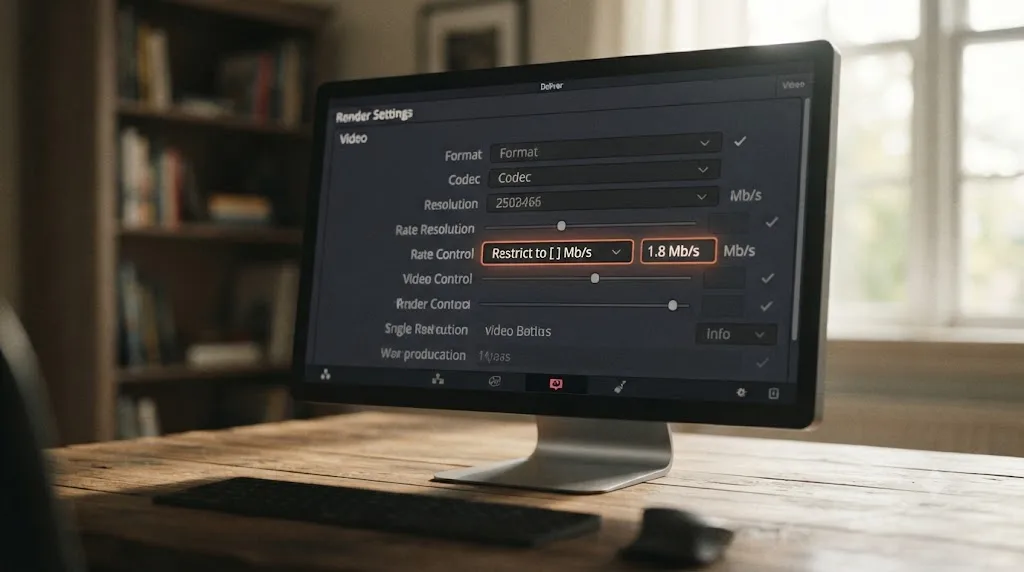
- Switch Quality from Automatic to Restrict To, and enter your calculated bitrate. This is the field the math from earlier feeds directly into. Restrict To caps the encoder at a predictable ceiling; Automatic quality mode floats and will blow past your size target on anything with real motion in it.
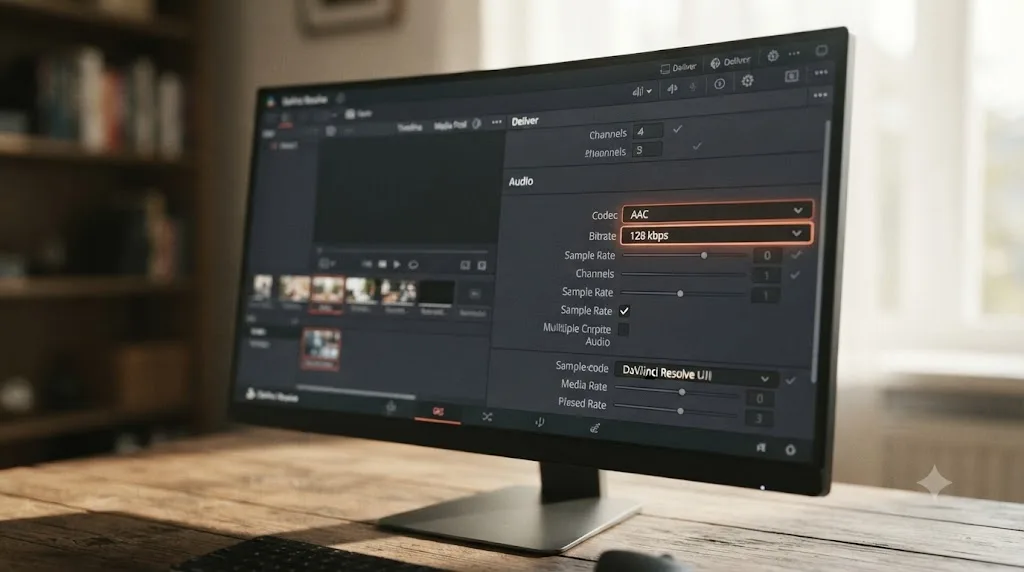
- Open the Audio tab, confirm Export Audio is checked, set Codec to AAC and Bitrate to 128 kbps.
- Add to Render Queue, start the render, then check the actual file size on disk before you attach it. A restricted bitrate is a ceiling, not a guarantee; complex footage with a lot of motion can push slightly over what the math predicted, so this final check is what catches that before you're the one explaining to a client why the attachment bounced.
That queue of steps is also worth saving as a preset once you've run it. The same three-dot options menu covered in our general export settings guide lets you save any combination of these settings and recall it with one click, worth doing the moment you've sent your second or third email-sized export, since the bitrate is the only field that changes between one clip and the next.
Worked example: exporting a 45-second client preview under 20MB
Here's the full pass applied to a realistic case: a freelance videographer needs to send a 45-second highlight preview to one client by email before the full delivery goes out through a proper hosting link. The client's email address is a Gmail account, so the practical target is well under Gmail's 25MB cap.
Step one, pick the target. 15MB, not 20MB, leaving extra margin below Gmail's 25MB limit to absorb base64 encoding overhead and any variance in how the encoder handles motion-heavy sections of the clip.
Step two, run the math. At 45 seconds and a 15MB target, the formula from earlier in this guide gives a total bitrate of 15 × 8,192 ÷ 45, which works out to roughly 2,731 kbps. Subtract 128 kbps for audio, and the video bitrate to enter is approximately 2.6 Mbps.
Step three, set the Deliver page. Format MP4, Codec H.264, Resolution 1280x720 matched against the client's 1080p24 timeline (frame rate stays 24fps regardless of the resolution drop), Quality set to Restrict To at 2,600 kbps, Audio tab set to AAC at 128 kbps.
Step four, render and check. The finished file lands at 14.2MB, under the 15MB target and comfortably clear of Gmail's 25MB cap even after accounting for the roughly one-third size increase from base64 encoding in transit.
Step five, send. The video attaches cleanly in Gmail's compose window with no warning, and the client receives a file that opens directly from their inbox on any device, no download link, no third-party video host account required, no "having trouble viewing this" follow-up email.
| Step | Value |
|---|---|
| Clip length | 45 seconds |
| Target file size | 15MB |
| Calculated total bitrate | ~2,731 kbps |
| Video bitrate (after subtracting audio) | ~2,600 kbps |
| Resolution | 1280x720 |
| Actual output size | 14.2MB |
| Recipient's provider | Gmail (25MB cap) |
That same worked process scales to any clip length and any target by swapping the two numbers at the top: change 45 to your clip's actual duration, change 15MB to whichever cap your recipient's provider imposes, and the rest of the steps don't change.

Second worked example: a 90-second real estate walkthrough that needs more than bitrate math
Here's a case where the bitrate formula alone isn't enough, and the footage-type adjustment from earlier in this guide has to factor in too. A real estate agent has a 90-second walkthrough video, handheld, moving through five rooms, and wants to email it directly to one prospective buyer rather than sending a link.
Step one, pick the target. The buyer's email is a Yahoo Mail address, so the target is 18MB, comfortably under Yahoo's 25MB cap with margin for base64 encoding overhead.
Step two, run the base math. At 90 seconds and an 18MB target, the formula from earlier gives a total bitrate of 18 × 8,192 ÷ 90, which comes out to roughly 1,638 kbps. Subtract 128 kbps for audio, and the baseline video bitrate is about 1.5 Mbps.
Step three, apply the footage-type adjustment. A handheld walkthrough sits in the "20-30% higher" row of the adjustment table earlier in this guide, but there's no extra bitrate budget to add since the target size is fixed. That's the real constraint on a long handheld clip: the math produces a bitrate a locked-off interview would look fine at, but a walkthrough needs more bitrate than that same number to look equally clean, and the file size target won't move to give it any.
Step four, resolve the conflict by dropping resolution instead of accepting the artifacts. At 1.5 Mbps, 1280x720 handheld footage will show visible blockiness in dim hallways and busy textures like tile or carpet. Dropping to 960x540 gives the encoder roughly 44% fewer pixels to describe at that same 1.5 Mbps, which is enough to bring the visible quality back in line with what a locked-off shot would look like at 720p.
Step five, set the Deliver page. Format MP4, Codec H.264, Resolution 960x540, frame rate matched to the source (24fps for this clip), Quality set to Restrict To at 1,500 kbps, Audio tab set to AAC at 128 kbps.
Step six, render and check. The finished file lands at 17.6MB, under target, and the 540p resolution reads clean on the small preview pane most email clients show, even in the dimmer rooms that would have banded at 720p.
| Step | Value |
|---|---|
| Clip length | 90 seconds |
| Footage type | Handheld walkthrough |
| Target file size | 18MB |
| Calculated total bitrate | ~1,638 kbps |
| Video bitrate (after subtracting audio) | ~1,500 kbps |
| Resolution (adjusted for footage type) | 960x540 |
| Actual output size | 17.6MB |
| Recipient's provider | Yahoo Mail (25MB cap) |
The lesson generalizes past real estate. Any time a clip's footage type calls for more bitrate than a fixed file size target can afford, resolution is the lever to pull, not a hope that the encoder will handle it. The first worked example's 45-second client preview never hit this conflict because the clip was shorter and the footage was closer to a static shot. Longer, busier footage runs into it fast, and knowing the fix is a resolution drop rather than a losing fight with the bitrate slider saves a lot of re-exports. And if the agent in this example is exporting straight from an iPhone edit or sending from their phone afterward, the mobile compression prompt covered earlier in this guide is worth declining, since it would undo the resolution work done here.
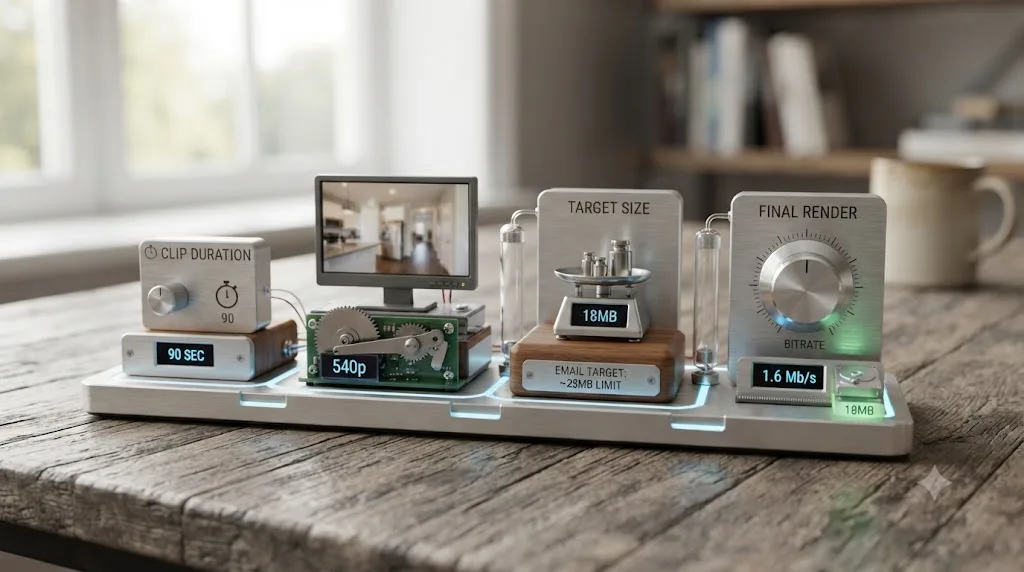
What if your video still won't fit under the limit?
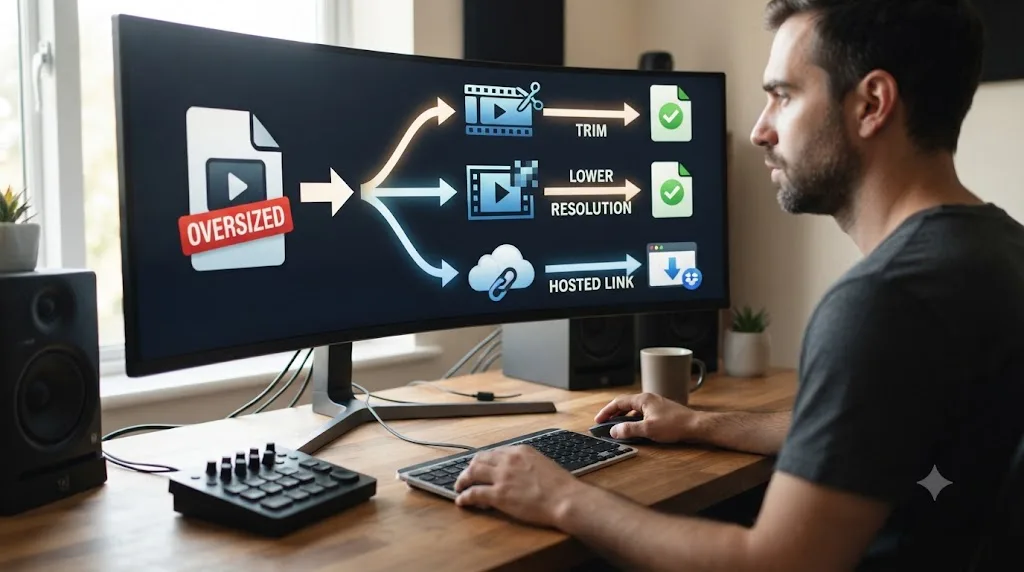
Three real options, in the order worth trying them, before you accept a video that looks worse than it should.
Trim the clip. Every second you cut is bitrate you get to spend on the seconds that remain, per the formula from earlier in this guide. A 90-second video trimmed to the strongest 45 seconds doubles the bitrate available at the same file size target, and for most email use cases, a tighter clip is a better video anyway, not just a smaller one.
Drop the resolution further. 960x540 already covers longer clips in this guide's recommendations, but 854x480 is a legitimate fallback for a clip that's genuinely too long to compress cleanly any other way. It looks noticeably softer than 720p on a large screen, but on the small preview pane most email clients render an attachment in, the difference is far less obvious than a blocky, banded 720p export fighting a bitrate that's too low for it.
Stop attaching it, and host it instead. This is the honest answer once trimming and resolution drops still leave you with a file that looks bad or a duration that won't compress reasonably. Mac users get the simplest version of this: Apple's Mail Drop handles files up to 5GB the same way a normal attachment does, per Apple's own documentation, with no separate app or account needed. Everyone else gets a comparable result from uploading to Google Drive, Dropbox, or a proper video host like Vimeo or YouTube set to unlisted, then dropping a thumbnail image linked to that URL into the email body, which is exactly the approach Mailchimp and HubSpot force on marketing sends anyway, and for good reason: a linked video never bounces off a size cap, never triggers a spam filter's attachment scoring, and lets the recipient start watching without a download.
If keeping track of which bitrate belongs to which clip length, or which checkbox turns Restrict To on instead of Automatic, is the part that eats the ten minutes before you hit send, that's the specific gap TryUncle is built for on the Mac. TryUncle is the on-screen assistant for DaVinci Resolve on macOS. Ask in plain words, and Uncle points at the exact control on your screen.
Will a corporate spam filter or security scanner block the attachment?
Not because it's a video file specifically, but it might get held up for a few minutes while a scanner checks it. Microsoft's Exchange Online blocks about 120 file extensions by default, mostly executables, scripts, and installer formats like .exe, .js, and .iso, according to Microsoft's own documentation. MP4 isn't on that list, so a video attachment won't get bounced purely for being a video.
What can add a delay is a separate layer many companies run on top of that: Microsoft Defender for Office 365's Safe Attachments feature, which opens every attachment in an isolated environment to check for hidden malware before it reaches the recipient's inbox. Corporate security scanning can hold a video attachment for several minutes before delivery, which looks identical to a failed send unless you know to expect it. Microsoft's own documentation notes that this detonation process typically completes within about 15 minutes, though it can take longer, per Microsoft's Safe Attachments documentation. Some organizations configure Dynamic Delivery, which delivers the email body immediately with a placeholder for the attachment, so the recipient sees the message land right away and the video becomes downloadable once scanning clears.
If you're sending to a business email address and the recipient says the message never arrived, wait before you re-send or assume the attachment was blocked. A short scanning delay is normal on a well-secured corporate mailbox and isn't something your export settings can work around, since it happens after the email leaves your outbox entirely.
One habit worth avoiding specifically because of this layer: don't zip the video file before attaching it. H.264 inside an MP4 is already compressed, so wrapping it in a zip archive saves close to nothing on size, typically a percent or two at best, while adding an extra file type for a security scanner to unpack and inspect. That can add scanning time rather than save it, and some corporate policies flag zipped attachments for closer review specifically because malware has historically hidden inside them. Send the MP4 directly, and if you're sending a genuinely important attachment to a business contact, a quick follow-up message through a different channel, like a text or a Slack ping, saves both of you from wondering whether the email actually failed.

Does the free version of DaVinci Resolve limit this workflow at all?
No. Everything in this guide runs identically on the free version, per Blackmagic's own tech specs.
| Free | Studio | |
|---|---|---|
| Max export resolution | Ultra HD 3840x2160 | Beyond 4K |
| Max export frame rate | 60fps (8-bit) | 120fps (10-bit) |
| H.264 export | Full access | Full access |
| Restrict To bitrate control | Full access | Full access |
| Hardware-accelerated H.264 encoding (Windows, Linux) | CPU-based, slower renders | GPU-accelerated |
An email-sized export tops out around 1280x720 at a few megabits per second, nowhere near either license tier's ceiling, so the resolution and frame rate gates that matter for high-end delivery work don't touch this workflow at all. The one place license tier shows up is render speed on Windows and Linux specifically, where hardware-accelerated encoding is a Studio feature and free-version renders lean on the CPU instead. For a 45-second clip, that difference is a matter of seconds either way, not something worth factoring into your decision if you're only exporting short clips for email. On macOS, Apple's VideoToolbox handles hardware encoding regardless of license tier, so this gap doesn't apply there at all.
If you're still deciding whether the free version covers your broader editing needs beyond exports, our beginner's guide to DaVinci Resolve breaks down where the rest of the feature gap between Free and Studio actually sits.
What's the fastest way to fix a video attachment that won't send or play?
Work through these in order before you assume the export itself is broken.
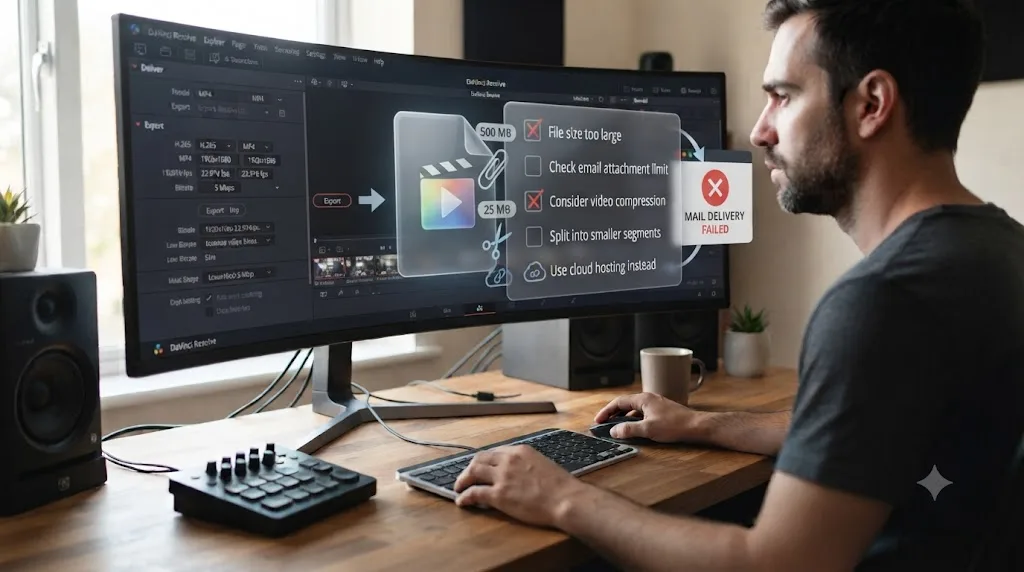
- Gmail won't attach the file, or silently swaps it for a Drive link. The file is over 25MB after base64 encoding inflates it by roughly a third. Re-export at a lower bitrate targeting 15-18MB on disk, not 24MB.
- The recipient says the attachment won't open. Almost always a codec mismatch. Confirm you exported H.264 in MP4, not H.265 or a MOV wrapper, since those are the formats most likely to fail silently on an older Windows machine or a non-Apple device.
- The email bounces back with a size error even though the file looked under the limit in Finder or File Explorer. That's the base64 overhead from earlier in this guide catching you at the edge. Build in more margin next time; treat the provider's stated cap as roughly 25% above your real target.
- The video plays but looks blocky or banded, especially in skies, shadows, or fast motion. Your bitrate is too low for the resolution, footage type, and clip length combination. Check it against the tables earlier in this guide, and if the math produces an uncomfortably low number, trim the clip rather than accepting the artifacts.
- There's no audio in the attachment. Open the Audio tab in Render Settings and confirm Export Audio is checked; it's the single most commonly missed setting on the Deliver page. Our no audio troubleshooting guide covers the deeper checklist if it's checked and the file is still silent.
- The render itself stalls or errors before you even get to attaching anything. That's a resources problem, not a settings problem, most often GPU memory on a longer or effects-heavy timeline. Our render failed guide walks the full diagnosis.
- You're sending through a corporate email address and it bounces well under 20MB. Your company's Exchange administrator may have set a lower default than the 10MB baseline covered earlier in this guide, or lower still. When in doubt on a business send, ask IT what the actual cap is rather than guessing from the provider's public defaults.
- The recipient says the video downloaded but plays out of sync or stutters oddly. That's rarely an email problem. Check the source footage's frame rate before you even open Resolve. Variable frame rate footage, common on phone slow-motion clips, can play back oddly once compressed to a constant frame rate export, and it's worth trimming around or re-conforming those sections rather than troubleshooting the export settings themselves.
- A business recipient says the email arrived but the video is still "pending" or hasn't shown up minutes later. See the corporate scanning section above. This is normal behavior on a Defender-protected mailbox and isn't something a different export setting fixes.
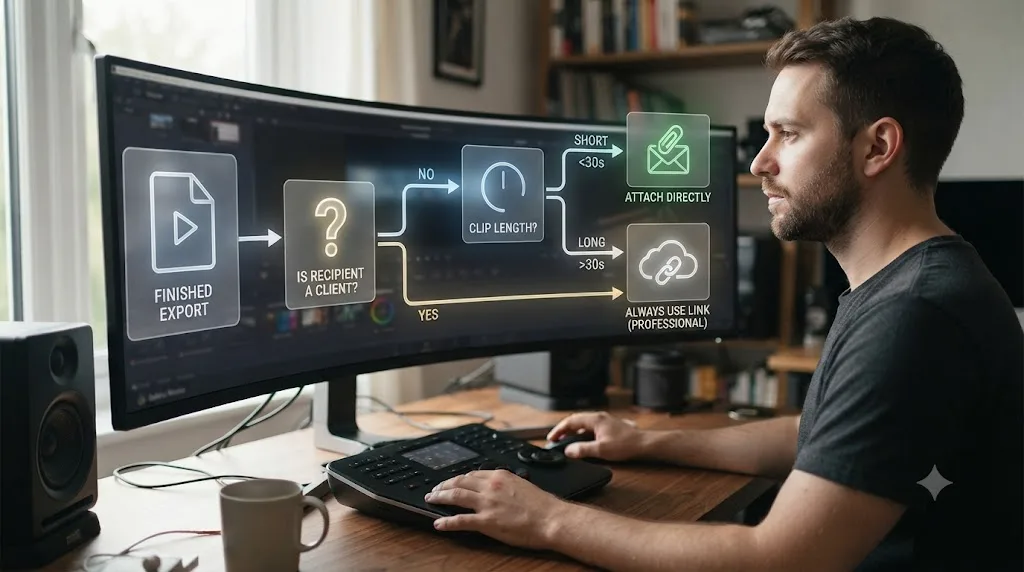
Quick decision table: attach it or host it, by sender scenario
Everything in this guide collapses into one choice per situation: compress and attach, or upload and link. Here's how the common scenarios covered above shake out.
| Scenario | Recipient | Recommended path |
|---|---|---|
| Real estate agent, single client preview, under 60 seconds | Personal Gmail, Yahoo, or iCloud | Attach, using this guide's bitrate math and a 20MB target |
| Wedding videographer, highlight preview before full delivery | Personal email, any provider | Attach if under 90 seconds; host a link for the full-length film |
| Sales rep, personalized pitch from a CRM contact record | Business email (Outlook.com, corporate Exchange) | Attach at a 10MB target if the domain looks corporate and you don't know their IT policy |
| Marketing campaign to a list | Any, through Mailchimp, HubSpot, or similar | Host a link. The platform blocks attachments outright, per the earlier section on marketing platforms |
| Mac user sending to another Mac Mail or iCloud user | iCloud Mail | Attach a full-quality export using Mail Drop, up to 5GB, skip the compression math entirely |
| Clip runs past 2 minutes, or is handheld or drone footage that needs high bitrate | Any | Host a link. The bitrate math stops producing an acceptable result at this length and footage type combination |
| Recipient is on a locked-down corporate account and you're not sure it'll arrive | Corporate email | Attach, but tell the recipient through a separate channel to expect a short delay while it clears security scanning |
That table is the whole guide compressed into one lookup. Compression and hosting solve the same problem, a video that's too big for an inbox, and the right one depends on who's receiving it and how long the clip runs, not on which method feels more direct. Most of the scenarios that opened this guide, the single-client real estate preview, the sales pitch, the short wedding teaser, land on the attach side of that table, which is exactly why the bitrate math and Deliver page settings above are worth having memorized. Nothing stops you from doing both at once either: attach a short, compressed preview so the recipient sees something the moment they open the email, and include a hosted link underneath for the full-quality version. That combination costs nothing and covers the recipient who can't or won't click a link as well as the one who wants the best possible copy.
Which settings should you actually memorize?
MP4, H.264, 1280x720 (960x540 past 90 seconds), matched frame rate, AAC at 128 kbps, and a video bitrate calculated from your clip's exact length so the finished file lands under 20MB. That's the whole spec sheet, and the only number that actually changes between one export and the next is the bitrate, driven entirely by how long your clip runs and how much motion is in it.
Remember the split this guide opened with, because it matters more than any codec choice: attaching a video works for one person sending one file to one known recipient, and it doesn't work at all for a real marketing campaign, since Mailchimp and HubSpot both block the attempt before file size ever becomes the question. If you're the person sending one video by hand, save this guide's Deliver page setup as a preset, keep the bitrate and footage-type math handy for whatever length and style of clip you're cutting next, and check the actual rendered file size before you hit send. If you're building a real campaign, skip the attachment entirely and host the file instead. Either way, the video arrives the way you meant it to, on the first try.
Frequently asked questions
- What's the maximum file size I can attach to an email?
- It depends on the provider, not one universal number. Gmail and Yahoo Mail cap outbound attachments at 25MB, Outlook.com allows 25MB, and standard iCloud Mail tops out at 20MB. Design your DaVinci Resolve export around 20MB and it clears every major provider's default limit without you needing to know which one your recipient uses.
- How do I make a DaVinci Resolve export smaller without losing much quality?
- Drop the resolution before you drop the bitrate. A 720p export at a given bitrate holds up better than a 1080p export forced down to that same bitrate, because there are fewer pixels for the encoder to describe per frame. Pair a lower resolution with the exact bitrate math for your clip's length, covered in this guide, instead of guessing at a number and re-rendering repeatedly.
- Can I attach a video to a Mailchimp or HubSpot marketing email?
- Not to a bulk marketing campaign. Mailchimp and HubSpot both block direct attachments on marketing emails and require you to host the file and link to it instead, mainly to protect deliverability. HubSpot does allow attachments on one-to-one sales emails sent from a CRM contact record, which is the exact scenario this guide's export settings serve.
- Why won't Gmail let me attach my exported video?
- Either the file is over Gmail's 25MB outbound limit, in which case Gmail automatically swaps it for a Google Drive link instead of blocking the email, or the file looked fine on disk but base64 encoding pushed the transmitted size past the cap. Re-export closer to 20MB, not 24MB, to leave room for that encoding overhead.
- What resolution should I export for an email attachment?
- 1280x720 for most short clips, dropping to 960x540 if your clip runs past 60 seconds and still needs to clear a 20MB target. Both hold up fine on the small preview pane most email clients show, and neither wastes bitrate rendering detail nobody will see at that display size.
- Should I send the video as MP4 or MOV for an email attachment?
- MP4 with H.264. It's the container every major email client, phone, and desktop OS opens without a plugin, which is what you want for a recipient you can't troubleshoot playback for. Save MOV and ProRes for client handoffs where the recipient is another editor, not an inbox.
- What's the best way to send a video that's too big to email as an attachment?
- Host it and send a link instead of fighting the compression further. Mac users can use Apple's Mail Drop for files up to 5GB, sent the same way as a normal attachment. Everyone else gets a cleaner result from a quick upload to Google Drive, Dropbox, or a video host like Vimeo or YouTube set to unlisted, with a thumbnail link in the email body.
Sources
- File size limits in Gmail (Gmail Help, Google)
- Sending limits in Outlook.com (Microsoft Support)
- Reduce attachment size to send large files with Outlook (Microsoft Support)
- Mailbox size and message sending limits in iCloud (Apple Support)
- Mail Drop limits (Apple Support)
- Message size limits in Yahoo Mail (Yahoo Help)
- How do I add a document attachment to a HubSpot email? (HubSpot Knowledge Base)
- Share files with contacts (Mailchimp Help)
- How to Keep Video Emails Out of Spam (Sendspark, Ben Wright)
- DaVinci Resolve - Tech Specs (Blackmagic Design)
- Block attachments by file name extension in Outlook (Microsoft Learn)
- Safe Attachments in Microsoft Defender for Office 365 (Microsoft Learn)
Put this guide to work with TryUncle.
Ask about the step you’re on. TryUncle sees your screen and points at the control you need, so you can keep learning in your own project.
Get TryUncle for Mac or WindowsKeep reading
Guides · Jul 7, 2026 · 23 min
DaVinci Resolve Export Settings: Numbers That Actually Work
The exact DaVinci Resolve export settings for YouTube, client handoffs, and ProRes archives, plus what changed with Resolve 21's H.265 encoder.
Guides · Jul 7, 2026 · 25 min
DaVinci Resolve Export Settings for YouTube: The Right Numbers
The exact DaVinci Resolve export settings for YouTube: resolution, bitrate, codec, and audio numbers pulled straight from YouTube's own encoding guide.
Guides · Jul 12, 2026 · 26 min
DaVinci Resolve Export Settings for Instagram Reels
Exact DaVinci Resolve export settings for Instagram Reels: 1080x1920 vs 1440x2560, H.264 only, bitrate, safe zones, and duration, sourced from Meta's own specs.