Articles / Guidesupdated for DaVinci Resolve 21.0.2 (July 2026)
How to Queue Renders Overnight and Unattended in DaVinci Resolve
Quick answer
Add each timeline to the Deliver page's Render Queue, select every job, and click Render All. Then disable sleep on macOS (Displays > Advanced > Prevent automatic sleeping) and Windows (Power & Sleep > Never), since Resolve won't stop your computer from sleeping itself, and a render mid-frame when the system sleeps typically fails rather than resumes.
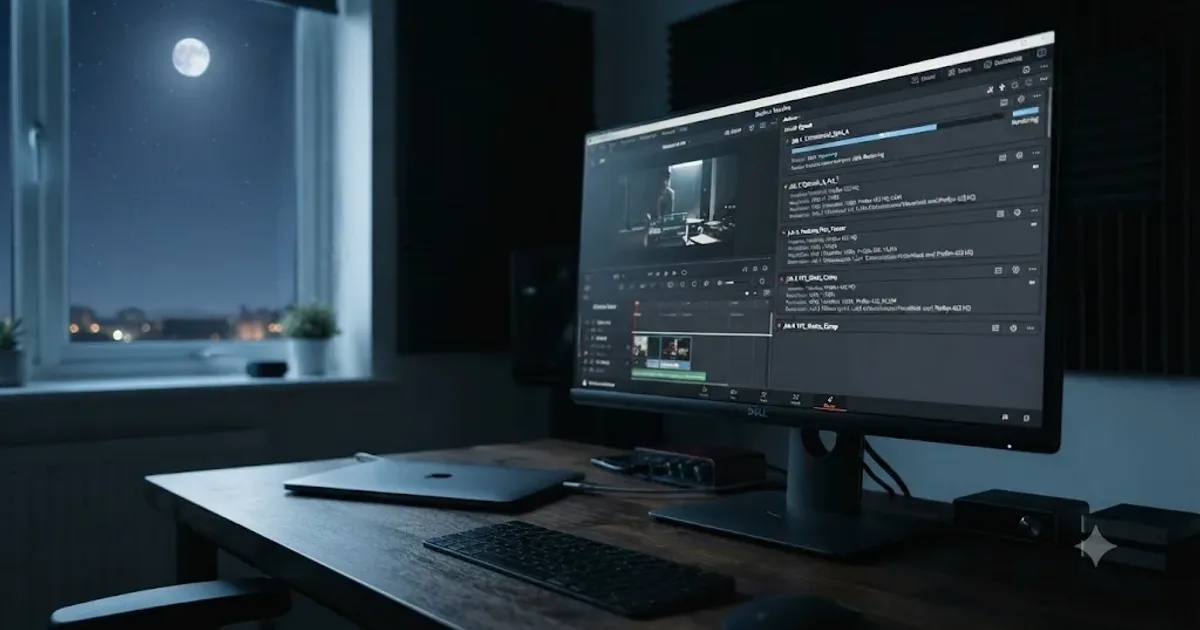
I've queued a render before bed, gone to sleep certain it would be done by morning, and woken up to find DaVinci Resolve sitting exactly where I left it, because my laptop decided eight hours of idle time meant it was time to sleep too. Resolve didn't crash. It just stopped, silently, somewhere around job four of nine. The queue looked fine. The output folder told the real story.
That gap between "I queued it" and "it actually finished" is the entire subject of this guide. Queuing multiple renders in DaVinci Resolve is the easy part, a few clicks on the Deliver page. Getting your operating system to leave the machine alone for the next eight hours is the part that actually decides whether you wake up to finished files or a stalled job list. We've spent seven years cutting commercial video in Resolve, including the kind of deadline crunch where a render has to run overnight because there's no other window left in the schedule, and the mistakes that cost people a morning are almost never inside Resolve itself. They're in the operating system underneath it.
What is DaVinci Resolve's Render Queue, and how do you use it for an overnight batch?
The Render Queue is the list on the right side of the Deliver page where every job you've set up waits until you tell Resolve to start rendering it. It's the single feature this whole guide is built around: queue several jobs into that list, click one button, and Resolve works through them in order without you touching the app again.
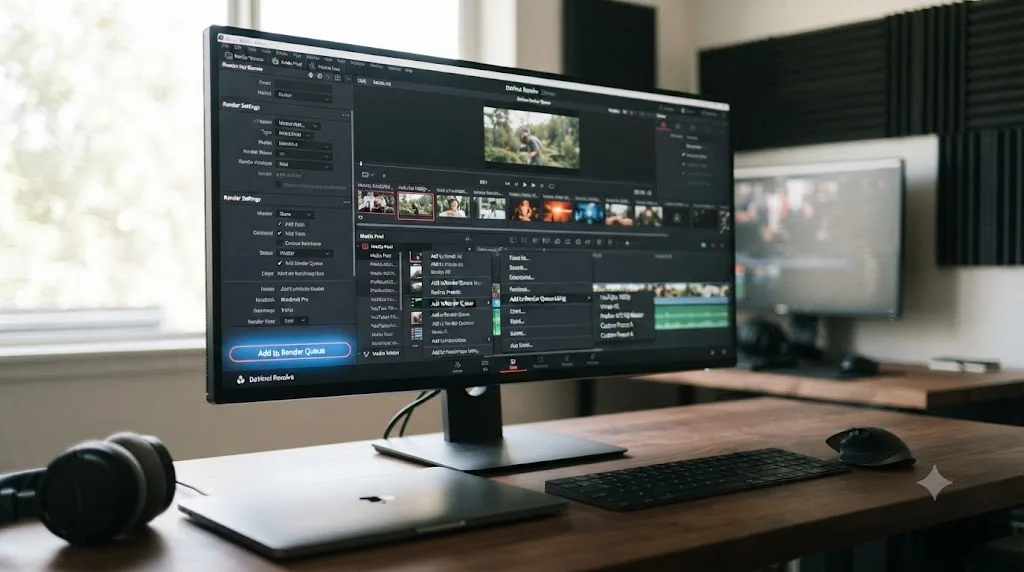
Getting a job into the queue takes one of two paths. The direct route is opening a timeline, setting your format, codec, resolution, and output location in Render Settings on the Deliver page, and clicking Add to Render Queue. The faster route, useful once you've got five or ten timelines to queue back to back, skips opening each one individually: right-click a timeline directly in the Media Pool and choose Add to Render Queue Using, then pick a saved preset. Per DaVinci Resolve's reference manual, "you can add a timeline directly to the Deliver page's Render Queue by right-clicking on the timeline and hovering over the Add to Render Queue Using" option, and you can also "add your own presets to this list by saving a new custom preset in the Deliver page" first, so a whole batch of same-format jobs takes seconds each instead of a full trip through Render Settings for every one.
Whichever path you use, nothing renders yet. The manual is explicit about that part: "the timeline will be added to the Render Queue in the Deliver page but will not start rendering until the Render All button is pressed." That's the deliberate two-step design the rest of this guide leans on. Queue everything first, review the whole list, then commit to Render All once, right before you walk away for the night.
Queuing a render and starting a render are two separate actions in DaVinci Resolve, and the gap between them is exactly where you review your whole overnight batch before committing to it. Get comfortable with that two-step rhythm, because every workflow in this guide, from a single project to a dozen, builds on it.
How do you add multiple timelines to the Render Queue at once?
Set up each timeline's render job individually, then start every job together with a single Render All click, since Resolve doesn't have a true bulk-select-and-configure option that applies one setting across many timelines at once.
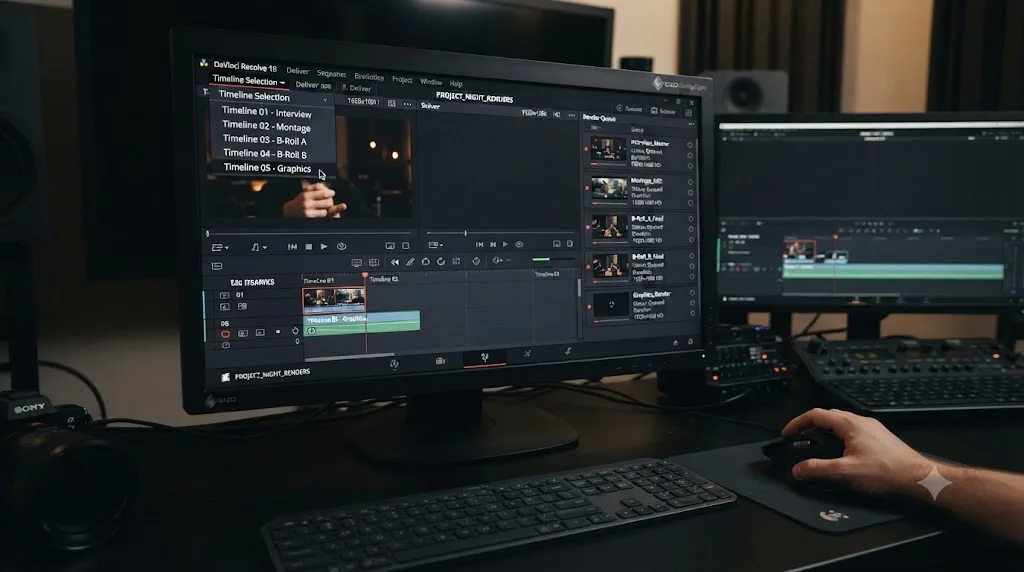
For a project with several finished timelines, the fastest sequence looks like this: switch to the first timeline using the dropdown at the top of the Deliver page, confirm Render Settings, click Add to Render Queue, then switch to the next timeline in that same dropdown and repeat. Doing this for twenty timelines only takes a few minutes once you're not reopening the whole page each time, since the dropdown keeps you inside the Deliver page the entire way through, per a Creative COW forum discussion on batch rendering multiple timelines. Once every timeline you want is sitting in the queue, select the whole list (Command-click each entry on Mac, Ctrl-click on Windows, or drag-select the block) and click Render All.
That last click matters more than it looks. A thread on Blackmagic's own forum asking exactly how to send multiple timelines to queue for rendering surfaces a detail worth flagging before you walk away for the night: Render All should be the button you use to start a multi-job batch, since starting jobs individually or with a partial selection can leave Resolve rendering only a couple of clips instead of the whole list you built. If you're queuing nine timelines for an overnight run, select all nine, confirm the count in the queue matches what you expect, and only then click Render All.
| Method | Best for | Steps |
|---|---|---|
| Deliver page dropdown, one timeline at a time | A handful of timelines in one project | Switch timeline in dropdown, confirm Render Settings, Add to Render Queue, repeat |
| Media Pool right-click, Add to Render Queue Using | Many timelines that share the same output preset | Right-click each timeline in Media Pool, pick a saved preset, confirm output location |
| Render All on the full selection | Starting the whole overnight batch at once | Select every job in the queue, click Render All, verify the count before you leave |
Add to Render Queue only stages a job. Render All is the button that actually commits your whole overnight batch to running, and selecting the full list before you click it is the step people skip when they're in a hurry to get to bed. Get in the habit of counting the jobs in your queue against what you meant to add, every single time, before that final click.
How do you queue renders across multiple different projects overnight?
Open each project, add its render job to that project's queue, save, then use the render queue's fly-out menu to view and start jobs from every project in your current database without switching between them again.
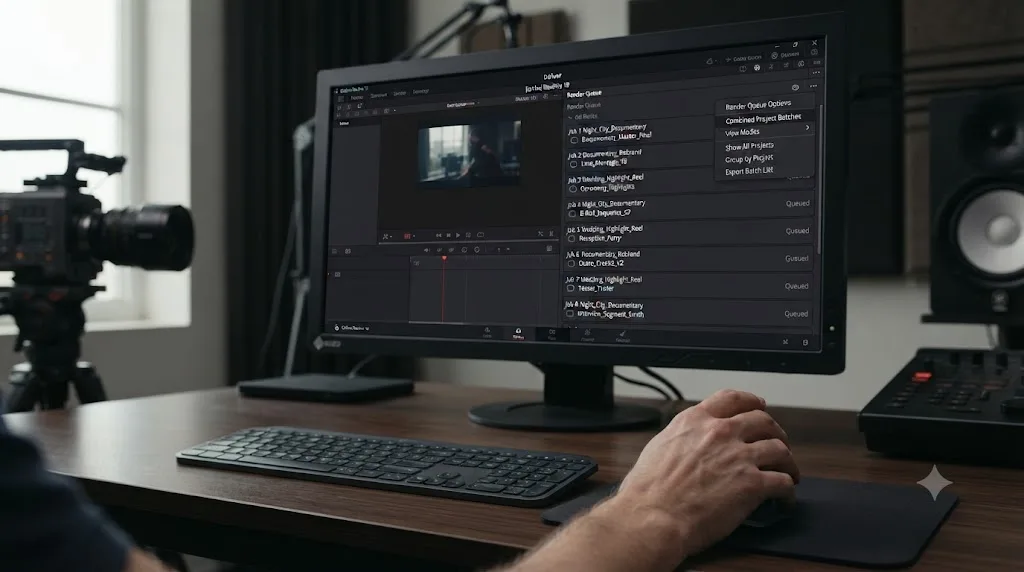
Robbie Carman, a working colorist and author who covers DaVinci Resolve workflows for the color grading site Mixing Light, walked through exactly this setup in a piece on rendering multiple projects and timelines at once. The process he describes: open a project, configure render settings for its timeline or timelines, add those jobs to that project's render queue, and save. Then open the next project and repeat. Once every project you need has jobs queued and saved, a fly-out menu on the Deliver page lets you "view the render queues for all projects" in your current database from a single place, and start every job across every project without reopening each one to press a button.
Carman's own summary of that fly-out menu is worth quoting directly, because it's the honest version rather than a marketing one: "While this functionality lacks the ability to choose a sequence to render from a project in a database while within another project, it's still a nice workflow enhancement." That's the real limitation to plan around. You still have to open each project once to set up and save its render jobs, a step Carman is direct about too: "The only bummer about the workflow is that you still have to switch between projects to 'setup' the renders." Once that setup is done, though, the whole cross-project batch renders from a single queue view, unattended, without any further project switching.
This is a genuinely old feature, not something new in Resolve 21. Carman notes it's existed since at least Resolve 11, possibly Resolve 10, which means it's been the standard way to queue an overnight batch across separate client projects for well over a decade. If your studio has three different client jobs finishing the same week, each living in its own project, this cross-project queue is the tool that lets you set all three up during the day and let every one of them render through the night from one machine.
DaVinci Resolve's cross-project render queue still requires you to open and configure each project individually, but once every job is queued and saved, it renders every project in your database from a single unattended session. That setup cost pays off exactly once, on the batch you're about to leave running overnight, not on any single job by itself.
Does DaVinci Resolve re-render the same content if you batch export several versions of one timeline?
Yes, and this is the single most important gotcha in this whole guide if your overnight batch includes multiple versions of the same timeline rather than several different ones. Every queued export of that timeline renders whatever state the timeline is in right now, not the state it was in when you queued each job.
Larry Jordan, a longtime editing trainer who's written about DaVinci Resolve workflows for years, ran into this directly while testing DaVinci Resolve 20's batch export behavior and documented it plainly: "Though you exported three movies, they all have the content of the current version of the timeline!" He'd queued three exports meant to capture three different edits of the same timeline, toggling tracks or layers between each queue action, expecting Resolve to remember each state the way it remembers a queued job's format and codec. It doesn't. Jordan explains exactly why: "Because Resolve is not aware that the timeline changed. It always looks to the current version, even if the project was queued a while ago, and exports that."
That distinction matters enormously for an unattended overnight run specifically, because you won't be there to catch the mistake in real time. Queue a job, come back an hour later, hide a graphics layer to make a client's "no-lower-thirds" cut, and queue a second job expecting that change to be captured, and Resolve renders both jobs from whatever the timeline looks like the moment each one actually starts, not the moment you clicked Add to Render Queue. By the time you check the results in the morning, you could have three identical files with three different filenames.
The fix is structural, not a setting to toggle. Jordan's own guidance is to build a separate timeline for each version you need, duplicate the master and make your changes on the duplicate, rather than toggling layers or tracks within one shared timeline between queue actions. Batch export works exactly as expected across multiple genuinely different timelines, queued the normal way described earlier in this guide. It only breaks down when you're trying to capture multiple states of a single timeline through the queue instead.
A DaVinci Resolve render queue captures the export settings you chose when you added a job, but not the state of the timeline itself, so an overnight batch of "versions" only works if each version is its own timeline. Check this before you queue anything you're planning to walk away from for eight hours, since it's exactly the kind of mistake nobody catches until the sun's already up.
Does DaVinci Resolve stop rendering if your computer goes to sleep?
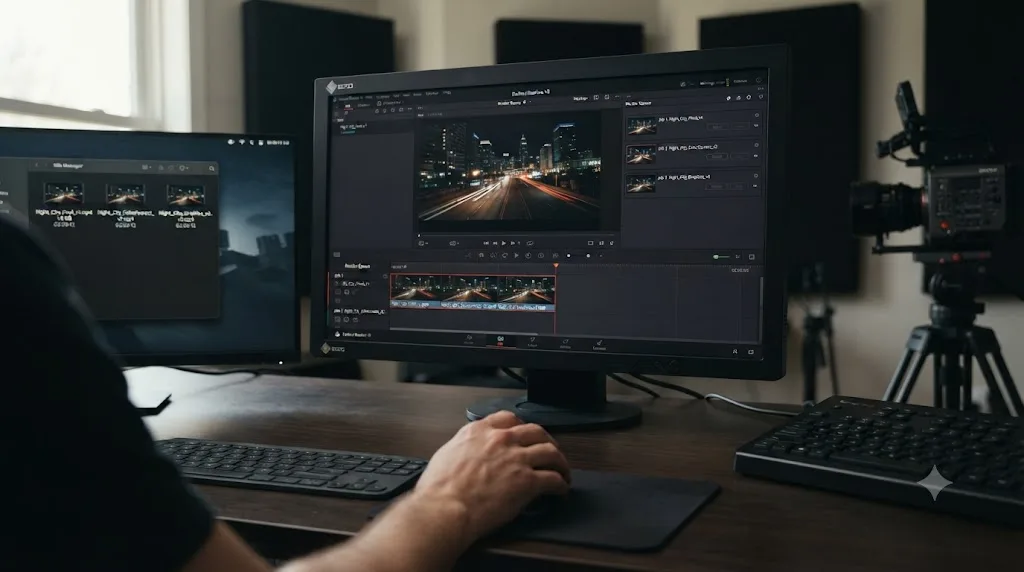
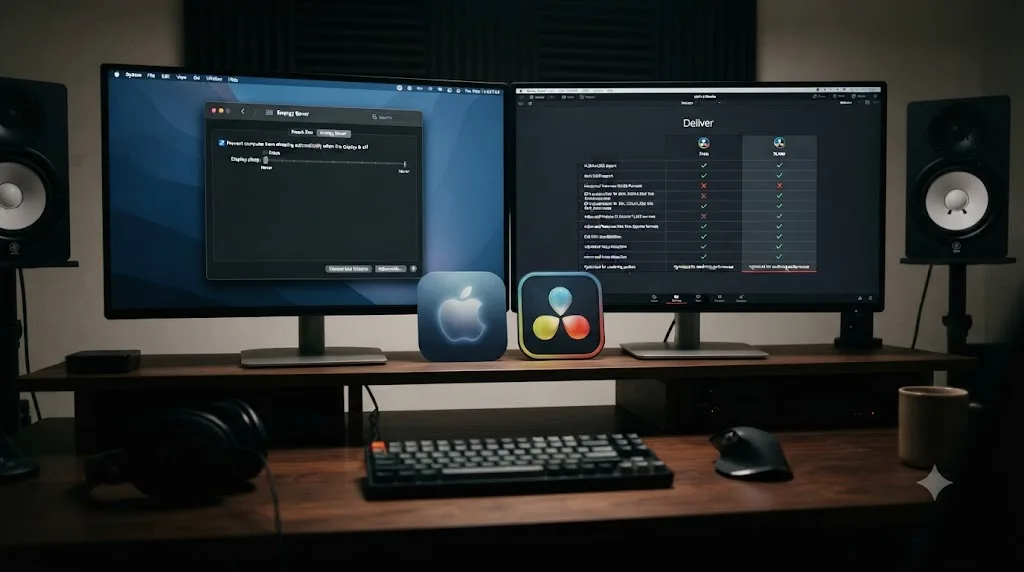
Yes, and this is the failure mode behind more stalled overnight queues than anything inside Resolve's own render engine. When your operating system puts the machine to sleep, whatever Resolve was doing at that moment stops, and it generally doesn't pick back up on its own once the machine wakes.
Sleep mode, by design, halts a program's execution and its reads from disk, which is precisely what a render is doing continuously for the entire length of your batch. Reports on Blackmagic's own user forum describe this pattern consistently across versions: putting the computer to sleep with Resolve open and a render running tends to end with Resolve closed or the render stopped by the time the machine wakes back up, a pattern reported on both Mac and Windows across Resolve 16 and later, in threads like "critical, don't let your DR fall asleep (power saving)" and "When computer is going in sleeping mode, Resolve stops rendering". The community consensus on those threads is blunt: disable every low power mode, sleep and hibernate both, on any machine that's actively editing or rendering, and only let the system power down fully once you're genuinely finished for the day.
There's no setting inside Resolve itself that fixes this, and it's worth being direct about that rather than sending you hunting through Preferences for something that isn't there. The only sleep-related option documented in Resolve's own preferences is scoped narrowly to collaborative Blackmagic Cloud projects, preventing sleep specifically while a cloud-synced project is open, not a general render-time protection. For a standard overnight render queue, preventing sleep is entirely an operating system responsibility, which is exactly why the next two sections exist.
DaVinci Resolve has no built-in setting that stops your computer from sleeping during a render, so an overnight batch depends entirely on operating system power settings you configure separately, before you queue anything. Skip this step and the most carefully built nine-job overnight queue can still stop cold at job two, the moment your Mac or PC decides it's been idle long enough.
How do you prevent your Mac from sleeping during an overnight render?
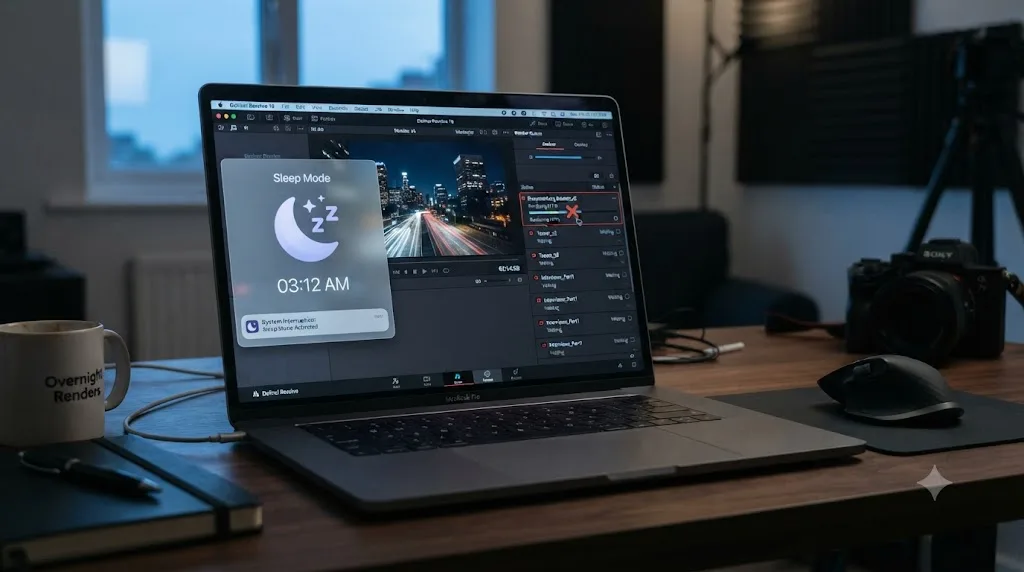
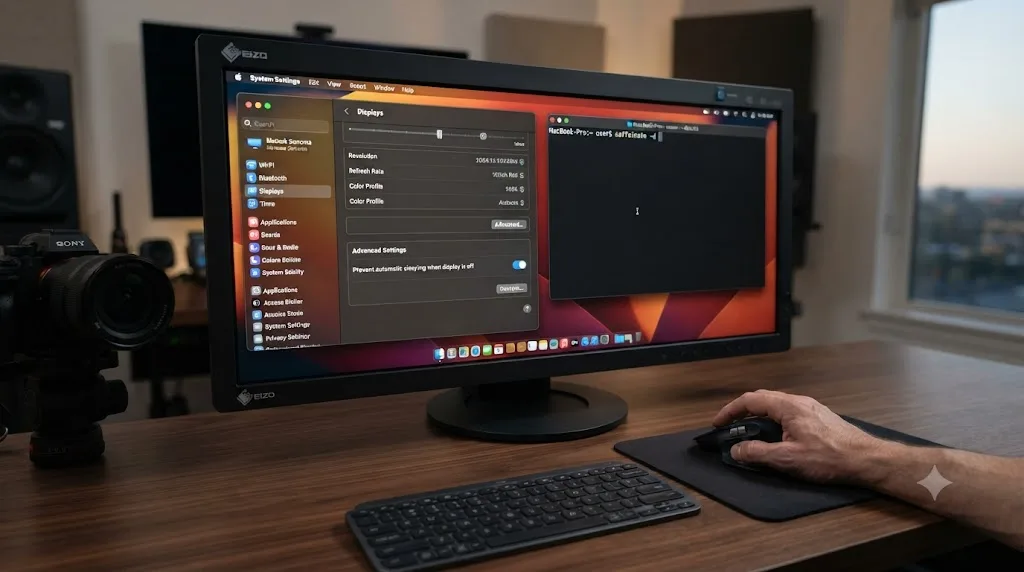
Turn on the "prevent automatic sleeping" option in System Settings before you start the queue, since it's a setting Apple ships specifically for exactly this kind of long unattended task.
The exact path depends on whether you're on a MacBook or a Mac desktop, and Apple's own support documentation on setting sleep and wake behavior lays out both. On a MacBook, open the Apple menu, System Settings, Battery, then click Options, and turn on "Prevent automatic sleeping on power adapter when the display is off." That wording matters: it's specifically tied to being on AC power, which is exactly the state your MacBook needs to be in for an overnight render regardless of this setting, since a battery-powered overnight render is its own separate risk covered in the next section. On a Mac desktop, the path is Apple menu, System Settings, Energy, and the toggle is simply labeled "Prevent automatic sleeping when the display is off," without the power adapter qualifier, since a desktop doesn't have a battery to draw down in the first place. Apple's own guidance notes some of these options may not appear depending on your specific Mac model, so if you don't see the exact toggle described here, check both the Battery and Displays panels, since Apple has moved this setting between panes across recent macOS versions.
There's a second, more surgical option for anyone comfortable with Terminal: caffeinate, a built-in macOS command-line tool that's Apple's own documented interface to the system's power management layer. Per ss64's caffeinate reference, running caffeinate -d prevents the display from sleeping for as long as that Terminal window stays open, -i prevents idle sleep specifically, -m keeps the disk from idle sleeping, and -s prevents system sleep outright. Combine flags for a stronger hold, caffeinate -dims, or pin it to a specific duration with -t, followed by a number of seconds, so a ten-hour overnight render gets caffeinate -dims -t 36000 running in a minimized Terminal window rather than a setting you have to remember to turn back off in System Settings the next day.
Which approach you pick comes down to how often you render overnight. If it's a rare event, the System Settings toggle is the simpler one-time flip, and you can turn it back off once you're done to restore normal battery-saving behavior on a laptop you also use unplugged. If overnight renders are a regular part of your week, caffeinate scoped to just the render window with a -t duration is the cleaner habit, since it doesn't touch your global sleep settings at all and expires on its own once the timer runs out.
On macOS, preventing sleep for an overnight DaVinci Resolve render is either a System Settings toggle you remember to flip back or a scoped caffeinate command that expires on its own, and neither one is optional if the render needs to survive the whole night. Pick one before you queue the batch, not after you've already gone to bed.
How do you prevent Windows from sleeping during an overnight render?
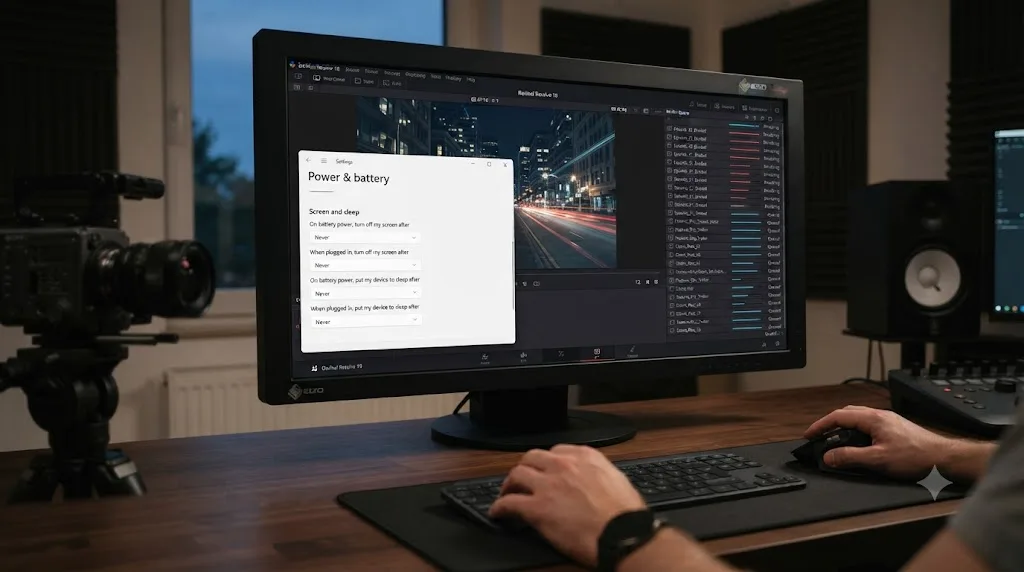
Set both the screen and sleep timeouts to their longest available value, or Never if your build offers it, in Windows' Power and Sleep settings before you queue anything you plan to leave running overnight.
Per Microsoft's own support documentation on power settings in Windows 11, the path is Settings, System, Power and Battery, then Screen, Sleep, and Hibernate Timeouts. That panel gives you two separate dropdowns to adjust: "Turn my screen off after" and "Make my device sleep after," each with its own timeout value. Set both dropdowns to their maximum offered duration, and confirm this on both the "On battery power" and "When plugged in" columns if your specific build shows both, since a laptop rendering overnight while charging still needs the plugged-in column set correctly.
Windows adds a wrinkle here that macOS handles a little differently: sleep timers on Windows are based on input activity, keyboard and mouse movement, not on whether a background process is actively using the CPU or GPU. A DaVinci Resolve render running quietly in the background, with nobody touching the keyboard for hours, looks identical to genuine idle time from the operating system's point of view unless the application itself sends what's called a power availability request, a signal some apps use to tell Windows "don't sleep, I'm working." Not every render job reliably triggers that signal for the entire duration of a long batch, which is exactly why relying only on "Resolve is busy, surely Windows knows that" is the wrong assumption to build an overnight queue around. Change the Power and Sleep settings explicitly rather than trusting the system to infer it from render activity alone.
If changing those settings through Settings doesn't hold, a small number of users report BIOS or UEFI-level power management options overriding the operating system's own sleep settings, according to community troubleshooting on Microsoft's own Q&A forum. That's a rare enough edge case that it's worth mentioning rather than troubleshooting in depth here, but if you've set Sleep to Never in Windows Settings and the machine still sleeps on an overnight render, checking your BIOS or UEFI power management settings is the next place to look, not Resolve itself.
| Setting | Windows path | What to set it to |
|---|---|---|
| Screen timeout | Settings, System, Power & Battery, Screen, Sleep, & Hibernate Timeouts | Never, or the longest available value |
| Sleep timeout | Same panel, "Make my device sleep after" | Never, or the longest available value |
| Plugged-in vs. battery columns | Same panel, if both are shown | Set both, since a charging laptop still uses the plugged-in column |
Windows decides when to sleep based on keyboard and mouse activity, not whether DaVinci Resolve is actively rendering in the background, so explicit Power and Sleep settings are the only reliable way to keep an overnight batch running to completion. Confirm the change took effect by checking the panel again a few minutes later, since a misconfigured group policy on a managed work machine can silently revert a sleep setting you just changed.
What about a laptop running an overnight render on battery?
Don't. Plug in before you queue anything you're planning to leave running for hours, since a battery that dies mid-render doesn't pause and resume gracefully, it just stops the render exactly like a sleep interruption does, except now you've also lost whatever charge you had left.
Our MacBook battery drain guide covers why Resolve is unusually hard on battery life in detail: sustained GPU and CPU load from grading, debayering, and effects processing is inherently power-hungry, and a render pins that load for the entire duration of the job rather than the intermittent bursts you get while editing. The same guide notes that Apple's own documentation confirms a Mac can draw more power under full load than a connected charger provides, pulling the difference straight from the battery even while plugged in, which means an undersized or third-party charger can leave a MacBook slowly draining overnight even though it's technically connected to power the whole time. Check your charger's actual wattage against what your specific MacBook model needs under sustained load before you trust "it's plugged in" as a guarantee against running out of charge by morning.
Closing the laptop lid deserves its own callout here, because it's the single most common way people accidentally kill their own overnight render without meaning to. On both macOS and Windows, closing the lid triggers sleep by default, regardless of whatever Power and Sleep or Energy settings you configured, unless you've separately changed clamshell mode behavior, which typically also requires an external display and keyboard connected. If you're leaving a laptop running a render overnight, leave the lid open. It's a small, easy-to-forget detail, and it undoes every setting from the previous two sections in one motion if you get it wrong.
A laptop running an overnight DaVinci Resolve render needs to be plugged into a charger rated for its actual sustained load, with the lid open, and with sleep disabled through the operating system settings covered above, and skipping any one of those three undoes the other two. A desktop workstation sidesteps this entire section, which is one real, practical reason a lot of studios keep at least one desktop machine around specifically for long unattended jobs.

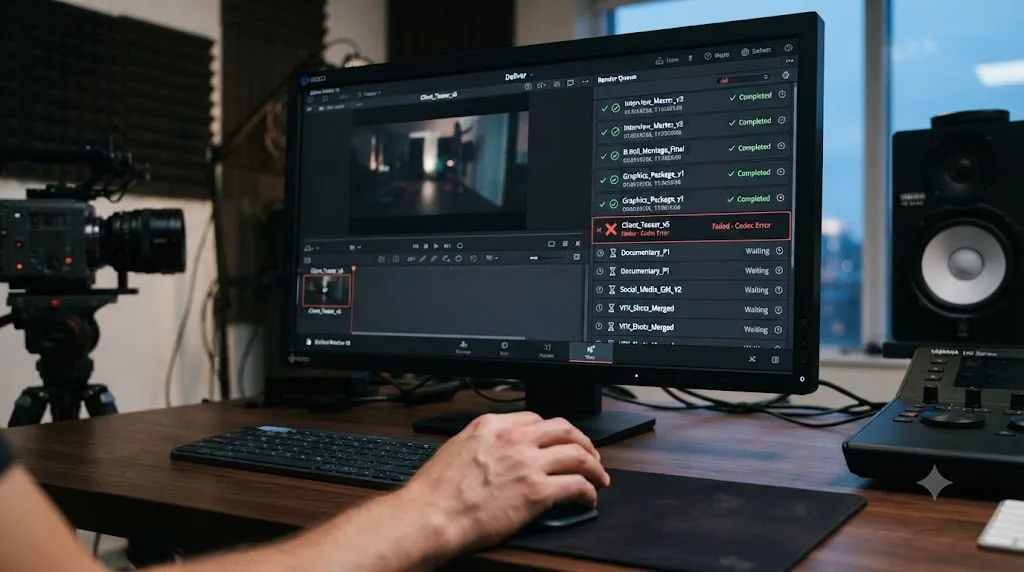
Will DaVinci Resolve's render queue continue if one job fails?
It depends on what kind of failure it is, and that distinction decides whether your overnight batch limps to the finish line missing one file or stops dead at job three out of nine.
A single bad frame inside one job, a corrupted source clip or an effect Resolve can't decode at one specific point in the timeline, is governed by a checkbox in Preferences, User, UI Settings, called "Stop renders when a frame or clip cannot be processed." With it checked, which is Resolve's default behavior, that one job aborts the moment it hits the unprocessable frame. What happens to the rest of the queue after that single job aborts isn't something we've verified ourselves across every version and configuration, and it's worth treating as a check-yourself detail on your own system before you commit a full unattended batch to Resolve's default behavior. Our stuck and failed render guide covers this checkbox and the audio-device and GPU-memory causes behind most single-job failures in full, including how unchecking it trades a clean abort for a render that pushes through a bad frame instead.
A different kind of failure, the destination drive running out of space partway through the batch, behaves differently and is covered in depth in our disk space error guide. That guide's central finding matters directly here: Resolve's own space estimate is a conservative worst-case number, not a live reading of your actual footage's likely output size, so a queue that looked fine when you checked free space before bed can still hit a real shortage hours later if your render cache or Gallery stills were quietly growing on the same drive in the background the whole time.
A Blackmagic forum thread specifically about interrupts in the render queue is a useful pointer to the fact that mid-queue interruptions are a common enough report to have their own dedicated discussion, beyond just the sleep-related causes covered earlier in this guide. If your queue stopped and you're trying to figure out why, the honest first move is checking exactly which job it stopped on, not assuming the whole batch failed uniformly.
A single corrupted frame, a full disk, and a system that went to sleep all stop an overnight render queue in different ways, and diagnosing which one happened starts with checking exactly which job in the list actually finished versus which one didn't. Don't re-render the whole batch from scratch the next morning until you've confirmed how far it actually got.
How much disk space do you need before queuing a big overnight batch?
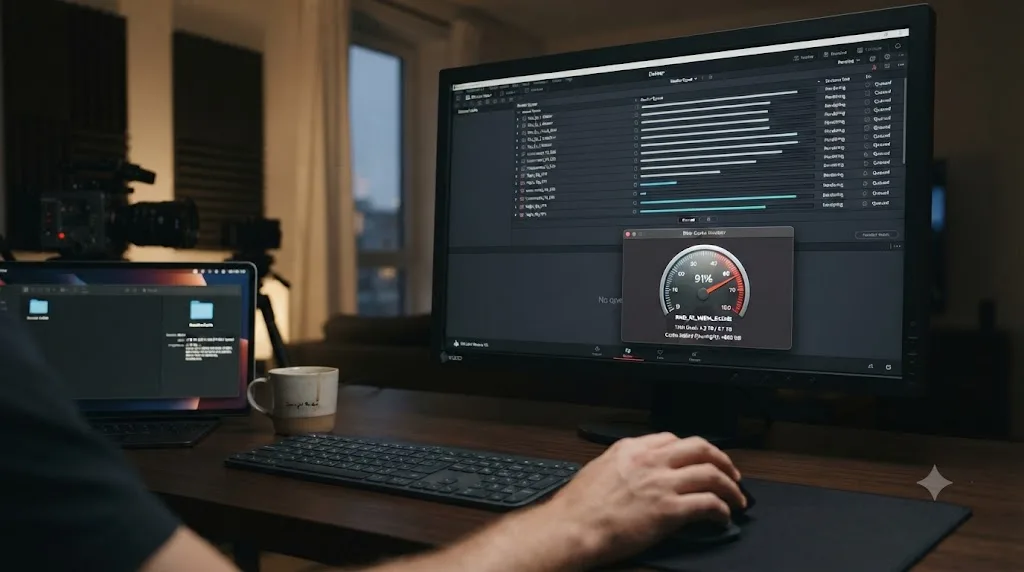
More than the sum of your finished files, because DaVinci Resolve's render cache and Gallery stills keep writing to a drive in the background for the entire length of a long queue, on top of whatever the final exports themselves need.
The general rule, per Position Is Everything's guide to fixing export errors cited in our disk space guide, is at least twice your estimated total output size free on the destination drive, plus separate headroom on whatever drive holds cache. That "separate" part matters specifically for an overnight batch of several jobs, since render cache accumulates across every job in the queue, not just the one currently rendering. A single 4K project with Smart Cache active for a few hours of timeline work can build 20 to 40 gigabytes in the CacheClip folder, and if your overnight batch spans several projects the way the cross-project workflow earlier in this guide describes, that cache adds up per project, on whichever drive is listed first under Media Storage Locations, which defaults to your system drive on most installs.
Matt Bach, writing hardware guidance for Puget Systems, is direct about where that cache belongs physically: "Cache files are best to have on at least a SATA SSD, but ideally should be located on a faster NVMe drive if possible," and on sizing it, "even a 500GB drive is enough for their cache files" for most users, per Puget Systems' guide to understanding storage for video editing. For an overnight batch specifically, that dedicated cache drive matters more than it does for a single daytime export, because you won't be there to notice a system drive creeping toward full at 2 a.m. the way you might catch it mid-session during the day.
Clear render cache before you start the batch, not after it fails. Open Playback, Delete Render Cache, All, and confirm real free space on both your destination drive and your system drive separately, using Finder or File Explorer rather than trusting Resolve's own space warning, which our disk space guide covers as a worst-case estimate that can be wrong in either direction. Ten minutes of housekeeping before you queue nine jobs beats discovering at job six that cache from the first five ate the headroom you thought you had.
An overnight render batch needs disk space budgeted for the render cache that accumulates across every job in the queue, not just the finished output files, and checking that budget before you start costs a fraction of the time a failed job at 2 a.m. does. Our cache files filling up hard drive guide covers exactly which folders to check and clear if this has caught you before.
Should you clear render cache before a long unattended batch, and will it hurt your export quality?
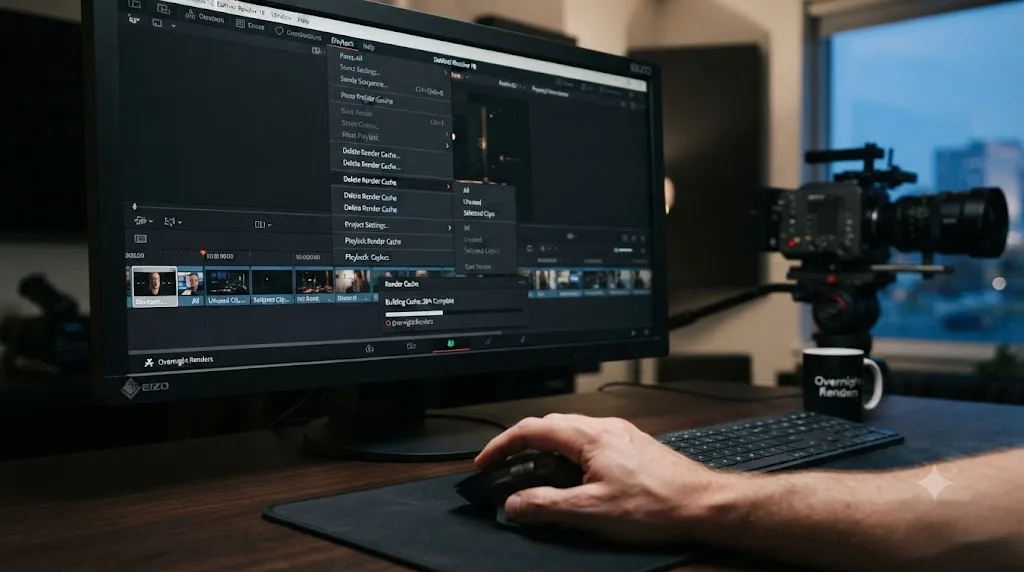
Clear it, and no, it won't hurt quality as long as your cache format was set correctly in the first place, since clearing cache only costs you rebuild time, not anything permanent.
Render cache pre-renders processor-heavy clips and effects into playable temporary files so playback and export don't have to recompute expensive work every time, and it's tied to the specific timeline and project it was built for, not portable the way Proxy Media is. Our render cache guide covers Smart mode versus User mode in full, but the piece that matters for an overnight batch specifically is this: if you've got Use Render Cached Images checked on the Deliver page, Resolve pulls directly from whatever cache already exists instead of recomputing effects from scratch during the render, which speeds up the batch, but only if that cache is still valid and built in a high enough quality format to survive being the actual source of your final delivery.
That's the tradeoff worth thinking through before you queue a big batch specifically for overnight. Fresh cache built right before you start, in a high-quality format like DNxHR HQX or ProRes 4444, genuinely speeds up a long queue and carries quality through cleanly. Stale cache left over from a previous session, or cache built in a lightweight 8-bit format because that's what Smart Cache defaulted to weeks ago, can either slow the batch down as Resolve rebuilds parts of it mid-render, or, worse, quietly degrade your output if Use Render Cached Images is checked and Resolve trusts cache it shouldn't.
The safe default for an overnight batch is clearing render cache the same day you queue the jobs, through Playback, Delete Render Cache, All, then letting Resolve build fresh cache as part of the render itself if Smart Cache is active. That costs you nothing but a few extra minutes at the start of the first job, in exchange for knowing exactly what's backing every export in the queue rather than trusting cache you built for a different reason on a different day.
Clearing render cache before an overnight batch trades a few minutes of rebuild time for certainty about what's actually feeding your export, and that trade is almost always worth making on a job you won't be present to babysit. Skip this step only if you built the cache specifically for this batch, in the correct format, within the same session.
Can you automate DaVinci Resolve renders with scripting instead of babysitting the queue?
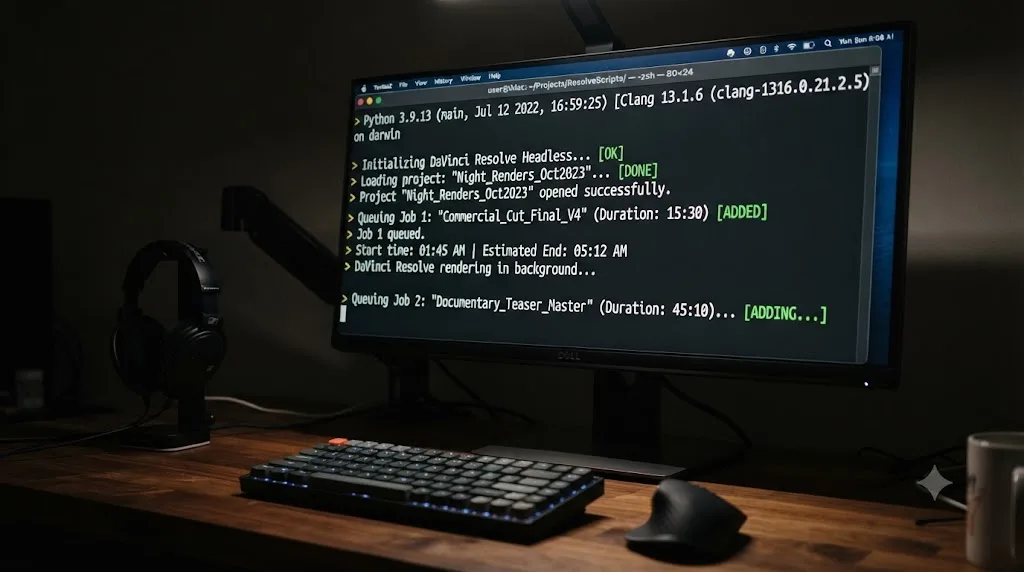
Yes, if you're comfortable with Python or Lua and you're on DaVinci Resolve Studio. Blackmagic ships an official scripting API that can queue render jobs, start them, and check their status without you touching the Deliver page interface at all, and it can run with no user interface open whatsoever.
Per Blackmagic's own scripting documentation, DaVinci Resolve "can be launched in a headless mode without the user interface using the -nogui command line option," and critically, "the various scripting APIs will continue to work as expected" even with the UI disabled, according to ResolveDevDoc's API introduction. That's the mechanism behind fully hands-off overnight automation: a script launches Resolve headless, opens a project, sets up render jobs across whatever timelines you specify, starts the render, and can be triggered by your operating system's own task scheduler, cron on macOS and Linux, Task Scheduler on Windows, without a human anywhere in the loop.
There's a real edition question worth being direct about, though. Blackmagic's documentation frames this package as "a brief introduction to the Scripting API for DaVinci Resolve Studio" specifically, and while it doesn't explicitly rule out the free version working at all, the official framing centers on Studio, so we'd treat full scripting support as something to confirm on your own installation before building an automation pipeline around it, rather than assuming free-version parity we haven't verified ourselves. If console or API automation genuinely matters to your workflow, that's one more reason Studio's $295 one-time license, covered in our free vs. Studio guide, pays for itself.
External scripting access, meaning a script running outside Resolve's own console, needs to be explicitly enabled first. Per the same documentation, "this permission can be changed in Resolve Preferences, to be only from Console, or to be invoked from the local network," and Blackmagic's own docs flag the obvious security implication directly: opening that access up means anything with network reach to that setting can trigger a render on your machine, so scope it narrowly, ideally to local-only access, unless you specifically need a remote trigger.
This is genuinely the deep end of unattended rendering, not the default path most editors need. If your overnight batch is five or ten timelines, the manual Render Queue and Render All workflow covered earlier in this guide is faster to set up than writing and debugging a Python script, even accounting for the time it saves on click-through. Scripting earns its complexity once you're running the same batch structure repeatedly, night after night, across a template that doesn't change, where the setup cost amortizes across dozens of runs instead of one.
DaVinci Resolve's scripting API can queue, start, and monitor renders with zero user interface open at all, triggered entirely by your operating system's own scheduler, but it's built around Studio and a real security tradeoff, not a casual toggle to flip for a one-off overnight batch. Reach for it once manual queuing becomes a repeated chore, not before.
Can you distribute an overnight render queue across multiple machines?
Yes, through DaVinci Resolve Studio's remote rendering feature, though it's worth understanding exactly what it does and doesn't do before you plan an overnight batch around it. Remote rendering offloads a job to a specific other machine on your network. It doesn't split a single render job across several machines at once to finish it faster.
Setup requires DaVinci Resolve Studio on every machine involved, network access between them or a shared Blackmagic Cloud workspace, and shared media storage with synchronized fonts and plugins so a render machine has everything the original project needs, per a walkthrough of DaVinci Resolve remote rendering. To configure a machine as a dedicated overnight render node, open its Workspace menu and select "remote render, always waiting for a job," which leaves that machine listening for work indefinitely rather than requiring someone to manually assign each job. For a genuinely headless render machine with no monitor attached, the same setup can be launched over SSH using a terminal command that starts Resolve's remote render service without any graphical interface at all.
The practical limitation worth planning around, confirmed in that same walkthrough: "Resolve Studio doesn't have the ability to use multiple render nodes at the same time to distribute the load for the same render job, it's just a way of offloading a render job to a specific remote machine." That means if you've got three machines free overnight and nine timelines queued, the win isn't splitting one heavy timeline three ways to finish faster. It's sending three separate jobs to three separate machines simultaneously, so nine jobs that would take one machine all night finish in roughly a third of the time across three, each machine working its own subset of the batch independently.
One more practical note from that same source, worth flagging before you build a permanent render node setup: a render queue that accumulates jobs from many projects over a long period can slow down how quickly the Deliver page itself opens, since Resolve saves the full job history rather than clearing it automatically. Periodically deleting old, already-completed jobs from the queue keeps that panel responsive on a machine that's handling a lot of overnight batches over time.
DaVinci Resolve's remote rendering spreads separate jobs across separate machines running simultaneously overnight, which shortens a big batch dramatically, but it won't make any single heavy timeline itself render faster by throwing more computers at it. Plan your overnight batch's total time savings around job count divided across machines, not around any one job getting a speed boost.
How does Live Save protect an overnight render if something crashes?
It doesn't protect the render itself, but it protects the project the render depends on, and that distinction is worth understanding before you assume Live Save is a bigger safety net than it actually is for this specific scenario.
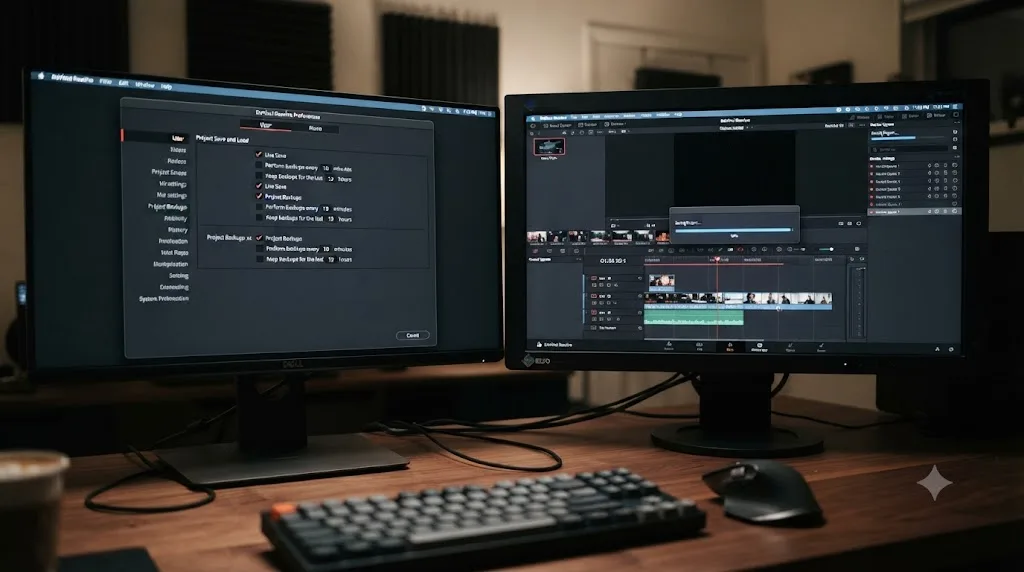
Live Save continually saves incremental changes across Resolve's Cut, Edit, and Fairlight pages as you work, and per a walkthrough of DaVinci Resolve's autosave and Live Save features, it "even works for previously unsaved projects that you've forgotten to save if anything goes wrong." That's genuinely useful protection for the editing session leading up to your overnight render, in case something crashes while you're still setting up the queue. It's a separate concern from the render itself, though: once a job is actually rendering, you're not making edits to the project, so Live Save has nothing new to capture during the render window specifically.
Where Live Save's real limitation shows up is recovery depth. It only increments forward from your current changes; it can't restore an older version of the project the way a full backup can. The same guide is direct about the right supplement: enable Project Backups alongside Live Save, which create timestamped snapshots on a schedule, commonly at 15 minutes, 4 hours, and 2 days, so a corrupted database or a bad crash has a real fallback point beyond just the most recent incremental state. And despite Live Save running continuously in the background, the guide's own advice doesn't treat it as a replacement for the habit of a manual save before anything important: "experts always recommend doing a manual save, that is, pressing Ctrl+S," specifically before you commit to something you can't easily redo, which an overnight batch absolutely qualifies as.
Practically, for an overnight render, this means doing a manual save immediately before you click Render All, confirming Project Backups are enabled in Preferences, User, Project Save and Load, and treating Live Save as protection for the hours you spent building the queue, not as protection for the render itself once it's running. If the render fails from a sleep interruption or a full disk, covered earlier in this guide, Live Save didn't cause that and it won't fix it, but it does mean the project you built the queue in is safe regardless of what happens to the render.
Live Save protects the project and the render settings you spent time building, not the render process itself, so a manual save right before Render All is still the step that actually matters for an overnight batch. Enable Project Backups as the deeper fallback, and treat both as insurance for your setup work, not as something that revives a render that stopped partway through.
What should you check before you leave a render queue running overnight?
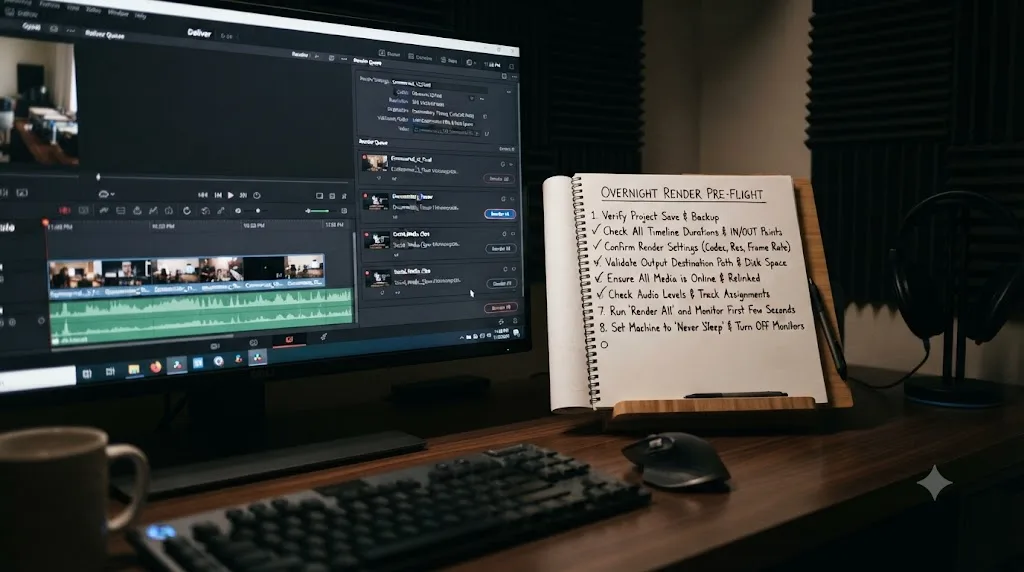
Work through a short list every single time, not just the first time you try this, since the failures covered throughout this guide are exactly the ones a five-minute pre-flight check catches before they cost you a whole night.
- Confirm every job in the queue is a distinct timeline, or that you've built separate timelines for each version if you're batch exporting variations, per the batch export gotcha covered earlier in this guide.
- Select the full job list and confirm the count matches what you meant to queue, then click Render All rather than starting jobs individually or from a partial selection.
- Check real free space on your destination drive and your system drive separately, in Finder or File Explorer, not from Resolve's own space warning.
- Clear render cache through Playback, Delete Render Cache, All, unless you built fresh cache specifically for this batch in the correct format.
- Disable automatic sleep: on Mac, System Settings, Displays or Battery, Prevent automatic sleeping; on Windows, Settings, System, Power and Sleep, both timeouts set to Never or their maximum.
- If you're on a laptop, plug it into a charger rated for sustained full load and leave the lid open for the entire batch.
- Do a manual save (Ctrl+S or Cmd+S) immediately before clicking Render All, and confirm Project Backups are enabled in Preferences.
- If the batch spans multiple projects, confirm every project's jobs are saved and queued before you leave, since the cross-project fly-out menu only shows jobs that were actually saved.
None of these individually takes more than a minute, and together they cover every failure mode this guide walks through: the same-timeline batch export trap, disk space running out mid-batch, sleep interrupting the queue, a laptop dying on battery, and a project crash losing your setup work. Skipping any single one of them is exactly how a nine-job overnight queue turns into "two jobs finished and the rest is a mystery" by morning.
A five-minute pre-flight checklist before Render All catches nearly every way an overnight DaVinci Resolve batch actually fails, and every item on it maps directly to a real, documented failure mode rather than a hypothetical one. Run through it the same way every time, and the exceptions become rare enough to actually investigate individually when they happen.
A worked example: queuing five client deliverables to finish by morning
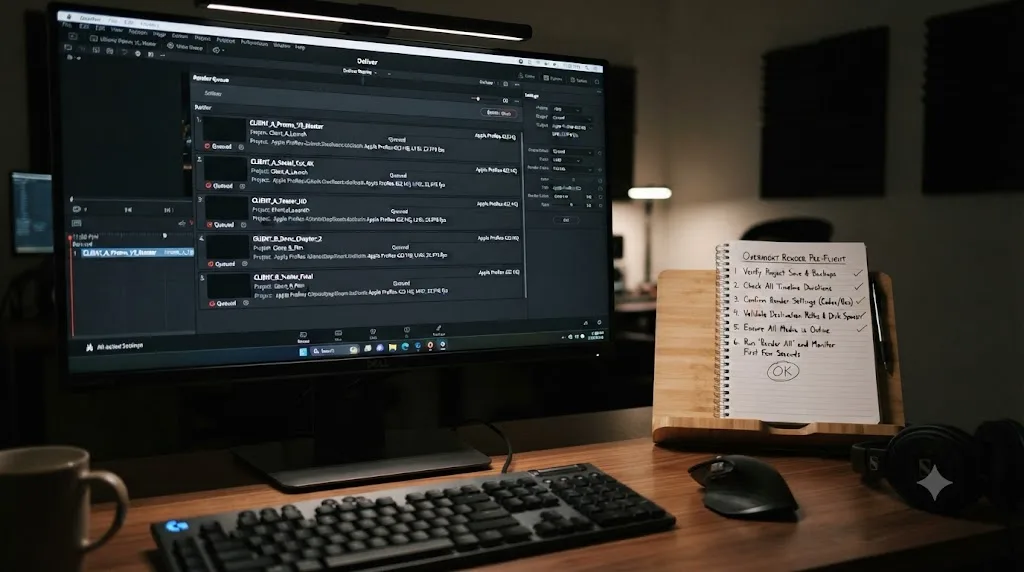
Say you're finishing a Thursday night with five separate client timelines due Friday morning: three different YouTube video edits living in one project, and two separate podcast episode exports living in a second project. All five need to render overnight so you can review and deliver first thing.
Start with the project holding the three YouTube edits. Switch to the first timeline using the Deliver page dropdown, confirm Render Settings match what that client needs, format, codec, resolution, and output filename pattern, and click Add to Render Queue. Switch to the second timeline, repeat. Switch to the third, repeat. All three now sit in this project's queue, unstarted.
Save the project. Open the second project holding your two podcast episodes, and repeat the same process: confirm Render Settings for each episode's timeline, matching whatever export spec that client requires, per our podcast video export settings guide if you need a refresher on the right format for that kind of deliverable, and add each one to that project's queue. Save this project too.
Open the Deliver page's fly-out menu and confirm you can see render queues from both projects, five jobs total across the two. Select all five, and before you click Render All, run through the pre-flight checklist from the previous section: confirm five distinct timelines with no repeated-timeline batch export trap, check real free space on your destination and system drives, clear render cache since it's been a long editing day and you haven't cleared it recently, and do a manual save on both projects.
Now handle the machine itself. If this is a desktop, disable sleep in Energy or Power and Sleep settings and you're most of the way there. If it's a laptop, plug it into your actual charger, not a lower-wattage travel adapter, leave the lid open, and apply the same sleep settings. Click Render All. Five jobs, two projects, one queue view, running through the night in the order you added them.
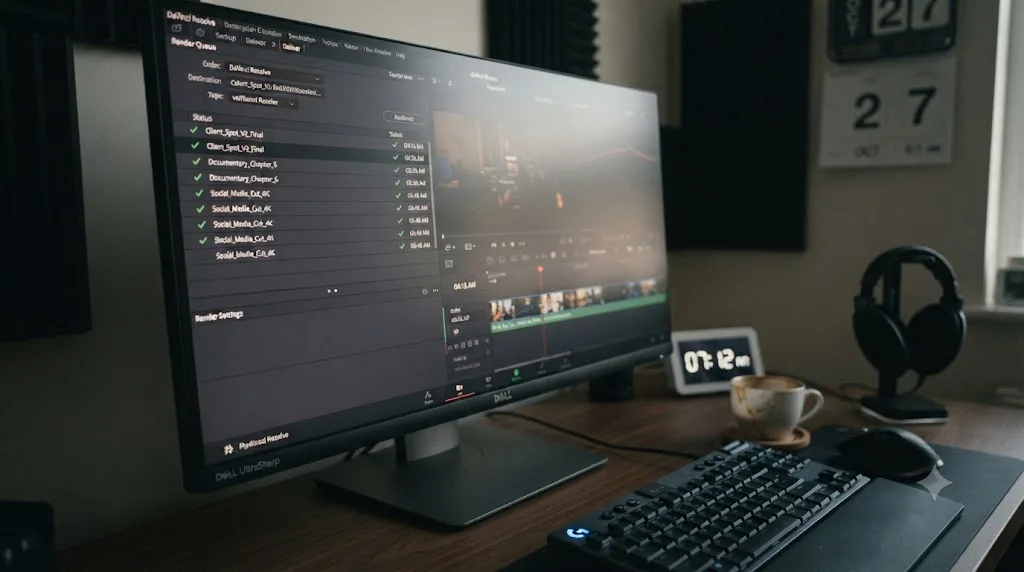
Walk away. In the morning, check the queue from the top: did all five jobs show as complete, or did the batch stop somewhere in the middle. If everything finished, spot-check at least one file per client before you send anything, since a completed render status confirms Resolve finished writing the file, not that the file's content is what you expected, especially if you're relying on multiple timelines built from a shared template. If it stopped partway, work back through the pre-flight checklist to figure out which item actually failed: a full drive, a sleep interruption despite your settings, or a single bad frame in one specific job, rather than assuming the whole night was wasted and starting the batch over from job one.
Five jobs across two projects, queued and saved individually, then started together from a single cross-project view, is the exact pattern that turns "I need this by Friday morning" into a render that ran while you slept instead of a render you had to babysit until midnight. The setup cost is real, maybe fifteen minutes across both projects, but it only happens once per batch, not once per job.
Quick reference: overnight render queue settings by platform and edition
| Question | macOS | Windows | Free edition | Studio |
|---|---|---|---|---|
| Render Queue and Render All | Identical | Identical | Fully available | Fully available |
| Prevent sleep during render | System Settings, Displays or Battery, Prevent automatic sleeping; or caffeinate in Terminal | Settings, System, Power & Sleep, both timeouts set to Never | Same OS-level fix either way | Same OS-level fix either way |
| Remote rendering to a second machine | Supported | Supported | Not available | Required |
Headless scripting automation (-nogui) | Supported | Supported | Documented around Studio; confirm on your own install | Officially documented |
| Cross-project render queue fly-out | Identical | Identical | Fully available | Fully available |
| Live Save and Project Backups | Identical | Identical | Fully available | Fully available |
| Laptop-specific risk | Lid-close sleep, charger wattage under sustained load | Lid-close sleep, same charger wattage concern | Same risk regardless of edition | Same risk regardless of edition |
This table is the whole guide compressed into one place. Everything in the left column is a genuine platform or edition difference we found real, sourced answers for. Where a row says "confirm on your own install," that's deliberate honesty rather than a guess dressed up as a fact, since Blackmagic's own scripting documentation centers its framing on Studio without explicitly ruling the free version out.
The Render Queue itself doesn't care about your operating system or your Resolve edition, but everything that keeps that queue alive for eight unattended hours, sleep settings, remote rendering, and scripting, splits cleanly along exactly those two lines. Match your setup to whichever row actually describes your machine before you queue a batch you're planning to walk away from.
What if you come back and the queue stopped partway through?
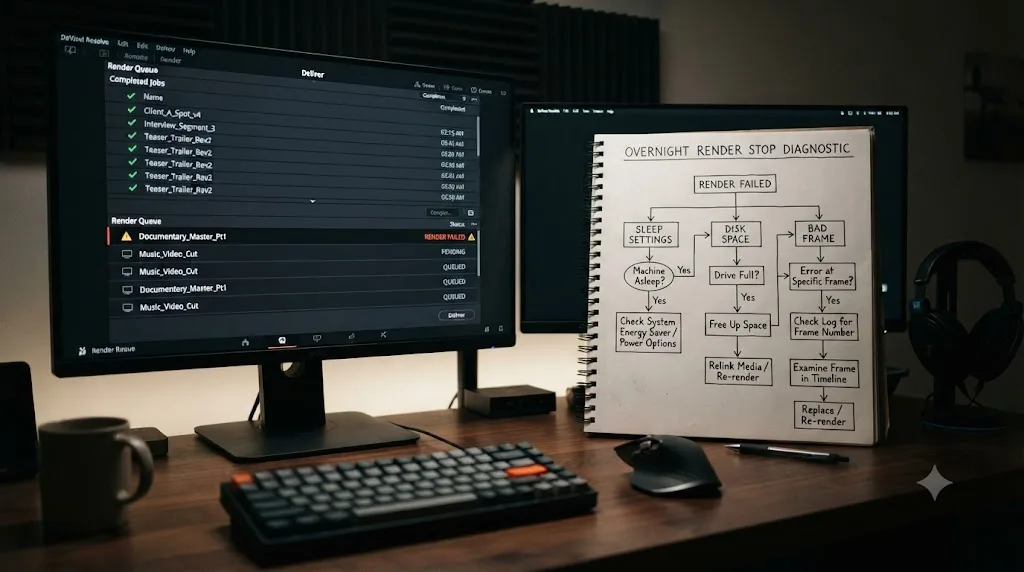
Work through this in order, since each check rules out a specific cause before you spend real time on the next, and re-rendering the entire batch from scratch should be the last resort, not the first move.
First, check exactly which job the queue stopped on, not just whether the batch "finished" or "didn't." Resolve processes queued jobs in order, so if job four of nine shows as stopped or failed, jobs one through three are very likely already complete and sitting in your output folder. Confirm that before you consider anything a total loss.
Second, check whether your sleep-prevention settings actually held. Open System Settings on Mac or the Power and Sleep panel on Windows and confirm the toggle you set the night before is still on, since a system update, a group policy on a managed machine, or simply forgetting to apply the setting to both the plugged-in and battery columns on Windows can silently undo it. If the setting reverted or was never fully applied, that's your answer, and the fix is finishing the remaining jobs with the setting genuinely locked in this time.
Third, check real free space on both your destination and system drives. If either is at or near zero, that's very likely why the batch stopped, and the fix is freeing space (or moving Cache Files Location to a drive with more room, per our disk space error guide) before resuming the remaining jobs.
Fourth, if the queue stopped on one specific job but the machine clearly stayed awake and disk space is fine, that's most likely the "Stop renders when a frame or clip cannot be processed" behavior from a single bad frame in that one job, not a batch-wide failure. Our stuck and failed render guide covers isolating that specific clip so you're not blindly re-rendering a nine-job batch to fix a problem in job four.
Once you've identified the actual cause, you generally don't need to restart the whole batch. Select just the jobs that didn't complete, confirm your fix addressed the real cause, and click Render All on that smaller remaining list. The completed jobs from earlier in the night don't need to run again just because something interrupted the batch partway through.
A stopped overnight render queue almost always has one specific, identifiable cause among a short list, sleep, disk space, or a single bad frame, and the fix is re-running only the jobs that didn't finish, not the entire batch from the beginning. Diagnosing before you re-render saves you a second night waiting on jobs that already succeeded the first time.
Does DaVinci Resolve notify you when an overnight render finishes?
Not on its own, and it's worth saying that plainly rather than sending you looking for a setting that doesn't exist as of DaVinci Resolve 21.0.2. There's no email alert, push notification, or sound cue built into the Deliver page that fires when a render queue completes.
That gap is exactly the kind of thing the scripting automation covered earlier in this guide can close, if you're already down that path. A script with access to the API can poll job status and trigger an external notification, a webhook, a text message through a third-party service, or simply a sound file played by the operating system once every job in the queue reports complete. That's meaningfully more setup than most editors need for an occasional overnight batch, though, and it's really only worth building if unattended rendering is a routine, repeated part of your week rather than a once-in-a-while deadline crunch.
For most people, the practical answer is simpler and less satisfying: check the queue in the morning. If checking is genuinely inconvenient, a basic hardware option some editors use is leaving a phone or tablet running a simple screen-recording or a scheduled photo of the monitor at a set time, crude but effective for confirming a batch finished without walking to the machine. We're not aware of a polished, native solution to this specific gap, and we'd rather say so directly than describe a workaround as more elegant than it actually is.
DaVinci Resolve has no native way to tell you a render queue finished, so unless you've built scripting automation around it, checking the queue yourself the next morning remains the standard, if unglamorous, way to find out. That's a real limitation worth planning your night around, not a hidden setting you simply haven't found yet.
The short version, if you're queuing a render right now
Add every timeline to the Render Queue, select the whole list, and click Render All, only after confirming each queued job is a genuinely distinct timeline rather than a repeated version of the same one. Disable sleep through System Settings on Mac or Power and Sleep on Windows, since Resolve has no setting of its own that does this for you. If you're on a laptop, plug it in, leave the lid open, and treat battery power as a reason not to trust an overnight batch at all. Check real free space on both your destination and system drives, clear render cache if it's been a while, and do a manual save right before you click Render All.
If any of these settings are buried somewhere you can't quite find on your first pass through Resolve's menus, that's a narrower, more solvable problem than a genuinely broken render. TryUncle is the on-screen assistant for DaVinci Resolve on macOS. Ask in plain words and Uncle points at the exact control on your screen, whether that's the Render Queue's Render All button or the specific checkbox in Preferences this guide keeps referencing. TryUncle is a paid macOS app at founder pricing, not a substitute for the operating system settings covered in this guide, but useful exactly when you're staring at a menu at 11 p.m. wondering which of three similarly named checkboxes is the one you actually need.
Queue the batch, lock down sleep, walk away, and check it in the morning. That's the whole workflow. The failures that turn this into a wasted night are almost never inside DaVinci Resolve itself. They're one operating system setting away from never happening again.
Frequently asked questions
- How do I queue multiple renders in DaVinci Resolve?
- Set up each timeline's render settings on the Deliver page, click Add to Render Queue for each one (or right-click a timeline in the Media Pool and choose Add to Render Queue Using), then select every job in the queue and click Render All. Resolve processes them one after another, not simultaneously, unless you're using Studio's remote render nodes.
- Will DaVinci Resolve keep rendering if I close my laptop lid or my computer goes to sleep?
- No. Community reports on Blackmagic's own forum describe Resolve crashing or the render stopping outright when the system sleeps, on both Mac and Windows, across multiple versions. Closing a laptop lid triggers sleep by default, so leave it open and plugged in, and disable automatic sleep before you start an overnight queue.
- Does DaVinci Resolve have a way to email or notify me when a render finishes?
- Not natively, as of DaVinci Resolve 21.0.2. There's no built-in notification setting on the Deliver page. Studio users with scripting access can build a Python or Lua script that checks job status and triggers a notification externally, but out of the box, checking the render queue in the morning is the only method.
- Can I queue renders from multiple different DaVinci Resolve projects to run overnight?
- Yes. Open each project, add its timeline's render job to the queue, and save. DaVinci Resolve keeps a render queue per project, but a fly-out menu lets you view and start render queues across every project in your current database from one place, so you don't have to keep switching projects once everything's queued.
- Does the free version of DaVinci Resolve support overnight batch rendering?
- The Render Queue and Render All button work identically in the free version and Studio. What's Studio-only is remote rendering to a second machine and, per Blackmagic's own scripting documentation, the officially supported Python and Lua scripting API, so unattended automation beyond a manually queued batch leans on Studio.
- Why did my overnight render queue stop partway through instead of finishing every job?
- The most common causes are the system going to sleep, the destination drive running out of space partway through the batch, or a single corrupted clip triggering Resolve's default stop-on-error behavior in Preferences > User > UI Settings. Check which job the queue actually stopped on before assuming the whole batch failed.
- Is there an app that helps me find these settings without hunting through Resolve's menus?
- Yes. TryUncle is the on-screen assistant for DaVinci Resolve on macOS. Ask in plain words and Uncle points at the exact control on your screen, whether that's the Render Queue's three-dot menu or the Deliver page's Add to Render Queue button. It's a paid app at founder pricing, worth it if you'd rather be shown the setting than hunt for it at midnight.
Sources
- Blackmagic Design Forum: How to send multiple timelines to queue for rendering?
- Mixing Light: Rendering Multiple Projects (And Timelines) At Once, by Robbie Carman
- Larry Jordan: Caution, Batch Export in DaVinci Resolve 20 May Cause Problems
- DaVinci Resolve Reference Manual: Adding Media Pool Timelines Directly to the Render Queue (VFXPedia mirror)
- Apple Support: Set Sleep and Wake Settings for Your Mac
- ss64: caffeinate command reference
- Microsoft Support: Power Settings in Windows 11
- ResolveDevDoc: DaVinci Resolve Scripting API Introduction
- Creative Video Tips: DaVinci Resolve Remote Rendering
- Beginners Approach: How to AutoSave in DaVinci Resolve (Live Save and Backups)
- Blackmagic Design Forum: critical, don't let your DR fall asleep (power saving)
- Blackmagic Design Forum: When computer is going in sleeping mode, Resolve stops rendering
- Blackmagic Design Forum: Interrupts in the render queue
- Puget Systems: Understanding Storage for Video Editing, by Matt Bach
- CineD: DaVinci Resolve, An In-Depth Comparison Between the Free and Studio Version
- Newsshooter: DaVinci Resolve 21.0.2 Update
- Newsshooter: Blackmagic Design Announces DaVinci Resolve 21 Major Update, Adds New Photo Page
- Blackmagic Design: DaVinci Resolve Tech Specs
Put this guide to work with TryUncle.
Ask about the step you’re on. TryUncle sees your screen and points at the control you need, so you can keep learning in your own project.
Get TryUncle for Mac or WindowsKeep reading
Fixes · Jul 7, 2026 · 24 min
DaVinci Resolve Not Exporting? Fix a Stuck or Failed Render
Why DaVinci Resolve renders get stuck at 0% or 99%, or fail with no error, and the exact checks that get a stalled export moving again.
Guides · Jul 13, 2026 · 18 min
DaVinci Resolve Render Cache Explained: Smart vs. User Mode
How DaVinci Resolve's render cache works, and how Smart mode differs from User mode: cache formats, disk space, per-clip flags, and when to use each.
Fixes · Jul 19, 2026 · 25 min
DaVinci Resolve Out of Disk Space Error While Rendering
Why DaVinci Resolve throws a disk space error mid-render even when your drive looks fine, and the exact checks that find and fix the real cause.