Articles / Fixesupdated for DaVinci Resolve 21.0.3 (July 2026)
DaVinci Resolve Laggy UI on a 4K Monitor: The Real Fix
Quick answer
DaVinci Resolve's UI gets laggy on a high resolution 4K monitor because the same GPU that renders every menu, icon, and cursor also handles color processing, and more pixels means more GPU work before Resolve even opens a project. Fix it by matching UI Display Scale to your OS, picking the right GPU, and turning on Hide UI Overlays.
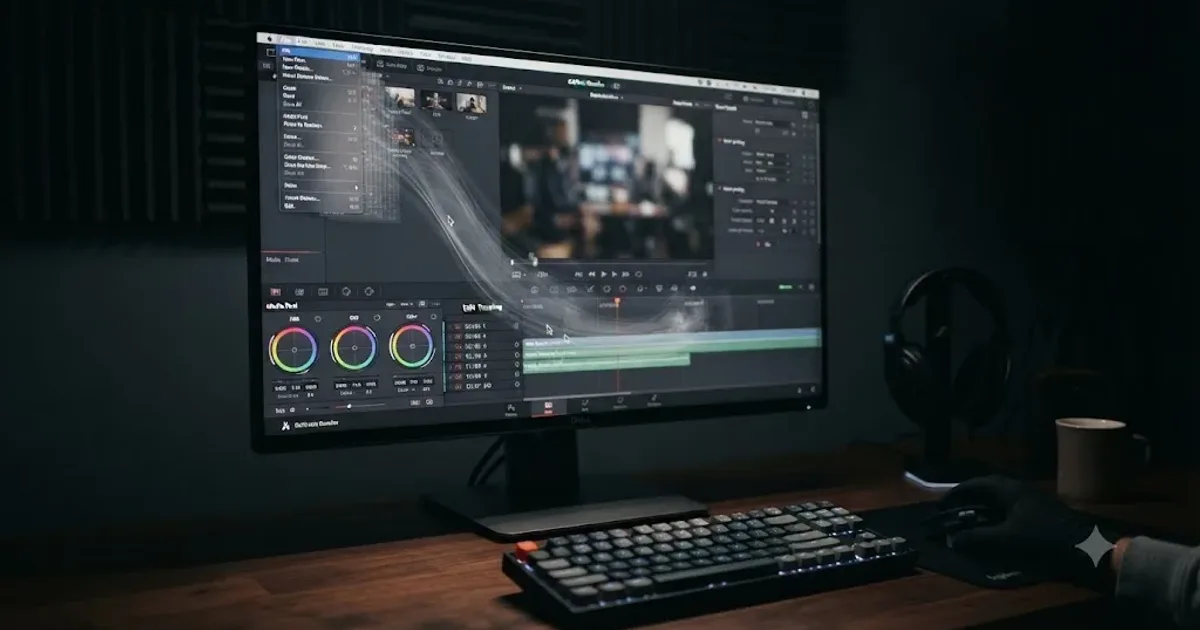
Your timeline plays back fine. Your export finishes on time. But the menus drag, the cursor stutters when you drop a panel, and scrolling through the Effects Library feels like wading through mud. If that's you on a 4K monitor, you're not imagining it, and it's not the same problem as choppy playback.
DaVinci Resolve draws its own interface with a GPU, the same GPU doing your color work, and a 4K screen asks that GPU to composite four times as many pixels as a 1080p one does, every single frame, before your project even enters the picture. We've spent seven years cutting and grading commercial work in Resolve, and we run a video editing community with more than 100,000 members where "why does my UI feel slow when playback is fine" is one of the recurring threads. It's almost always fixable without new hardware.
This is a fix post, not a hardware review. We'll walk through exactly why a high resolution monitor taxes Resolve's interface separately from your footage, the settings that actually move the needle on Windows and on Mac, and the point where the honest answer is "your GPU is genuinely too weak and no setting changes that."
Why is DaVinci Resolve's UI laggy on a 4K monitor?
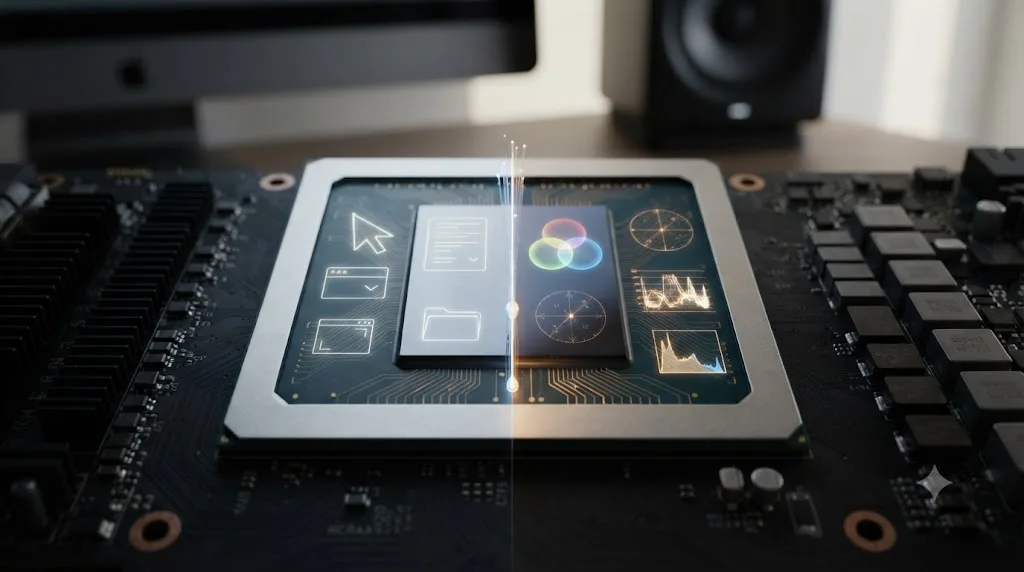
DaVinci Resolve's interface, every menu, icon, panel border, and the cursor itself, is drawn by the same GPU that decodes footage and processes color. A 4K monitor at 3840 by 2160 has 8,294,400 pixels on screen, roughly four times the 2,073,600 pixels of a 1080p display, and every one of those extra pixels is interface the GPU has to composite before it renders a single frame of your timeline.
That's a structural fact about how Resolve works, not a bug report. DaVinci Resolve renders its own interface with the same GPU that grades your footage, so a slow GPU shows up first as a laggy menu, not a dropped frame. Playback performance and interface responsiveness are two separate jobs competing for the same chip, and on a weak or shared GPU, the interface often loses first because Resolve prioritizes real time playback over how snappy your mouse feels.
This is why the same laptop that felt perfectly fine on its built-in 1440p or 1080p panel can feel sluggish the moment you plug it into a 4K external monitor. Nothing about your project changed. The GPU's workload just went up, and it went up specifically on the part of the job you never think about: drawing the software itself.
It also explains a pattern a lot of editors notice and then dismiss as unrelated: the lag gets worse the moment you open a second monitor, a color panel, or a docked Fusion window, none of which touch your footage at all. More interface elements to composite means more GPU cycles spent on UI, independent of your timeline's resolution or codec.
Does DaVinci Resolve use the GPU for the interface, not just processing?
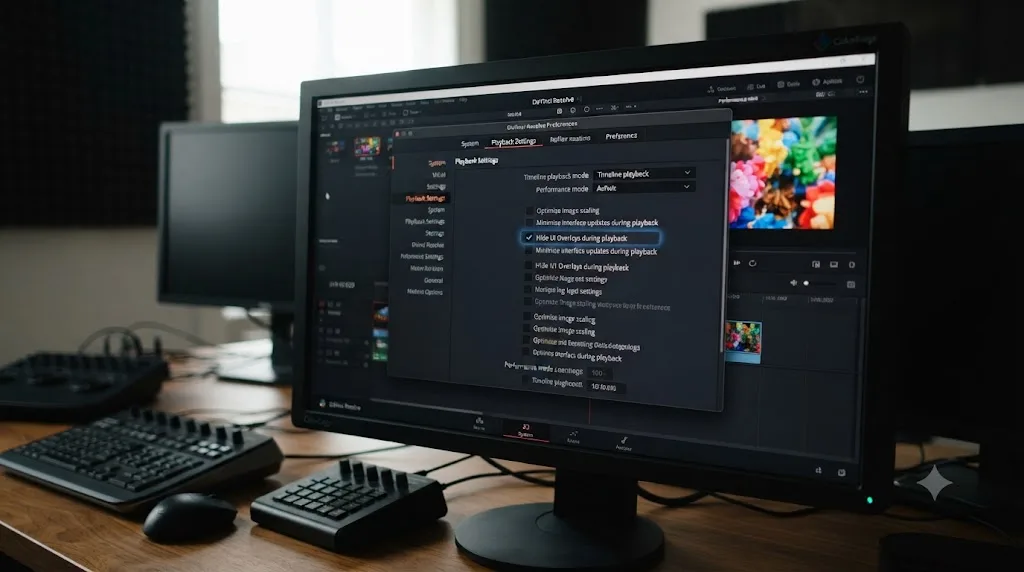
Yes, and Blackmagic Design says so directly in its own reference manual, in the description of a setting built specifically for this problem. The Playback Settings panel includes an option called Hide UI Overlays, and its official description reads: "When using a single GPU for both display and CUDA, OpenCL, or Metal processing, or if your display GPU is underpowered, or if you lack the PCIe bandwidth required for the currently specified resolution or frame rate, you may be able to improve real time performance by turning this option on."
Read that sentence carefully and it confirms exactly what's happening on a laggy 4K setup: your GPU handles display and processing at the same time, on the same chip, competing for the same cycles. When Hide UI Overlays is on, Resolve conceals onscreen controls, the cursor, Power Window outlines, split-screen guides, during playback, and brings them back the instant playback stops. It's a direct trade of visual feedback for GPU headroom.
A second, related setting sits right next to it. Minimize Interface Updates During Playback "gives priority to real time performance during playback by reducing user-interface updates," and Blackmagic specifically recommends it "when you're creating complex grades on systems with low processing power, or when working on projects at high resolutions." High resolutions. That's Blackmagic's own manual naming this exact scenario as a known trigger, not an edge case you stumbled into.
Neither setting fixes interface lag when you're just sitting on a paused timeline scrolling through bins, though, since both only apply during playback. For the idle-lag case, menus dragging, panels stuttering, scrolling feeling gritty with nothing playing, the fix lives somewhere else: matching your display scaling and making sure Resolve is actually using the GPU you think it is. We'll get to both.
How do I fix laggy DaVinci Resolve UI on Windows?
On Windows, the fix has three layers: Resolve's own UI Display Scale setting, which GPU Resolve is actually using, and which GPU Windows itself hands to Resolve at the driver level. Work through them in this order.
1. Set UI Display Scale to match, not fight, your Windows scaling. Open Preferences, go to User, then UI Settings, and find UI Display Scale. If your Windows display scaling is set to 125% or 150% under Settings, System, Display, and you've left Resolve's own scale at its default, the two settings can compound or conflict, producing an interface that's either oversized or rendering some icons as blank or blurry boxes. According to filmmakingelements.com's walkthrough of this setting, if your Windows scaling is 125%, setting Resolve's UI Display Scale to 100% often resolves the mismatch, and if that overshoots, dropping to a lower value in the advanced scaling field usually takes a couple of tries to land right. Change it, click Save, then fully quit and relaunch Resolve, because the new scale doesn't apply to an already-running session.
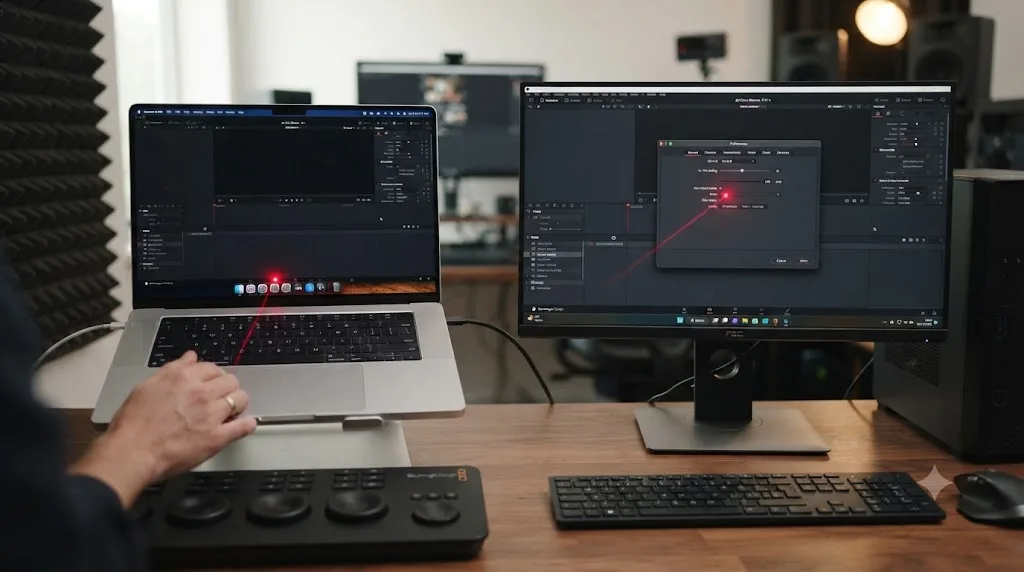
2. Set GPU Selection Mode to Manual. In Preferences, System, Memory and GPU, GPU Selection Mode defaults to Auto, letting Resolve pick which installed GPU to use. On a system with more than one GPU, an integrated chip and a discrete card, or two discrete cards, switch this to Manual and explicitly enable the strongest one. GPU Processing Mode, the separate setting just above it, should be CUDA for an Nvidia card or OpenCL for AMD, matched to whichever GPU you just selected.
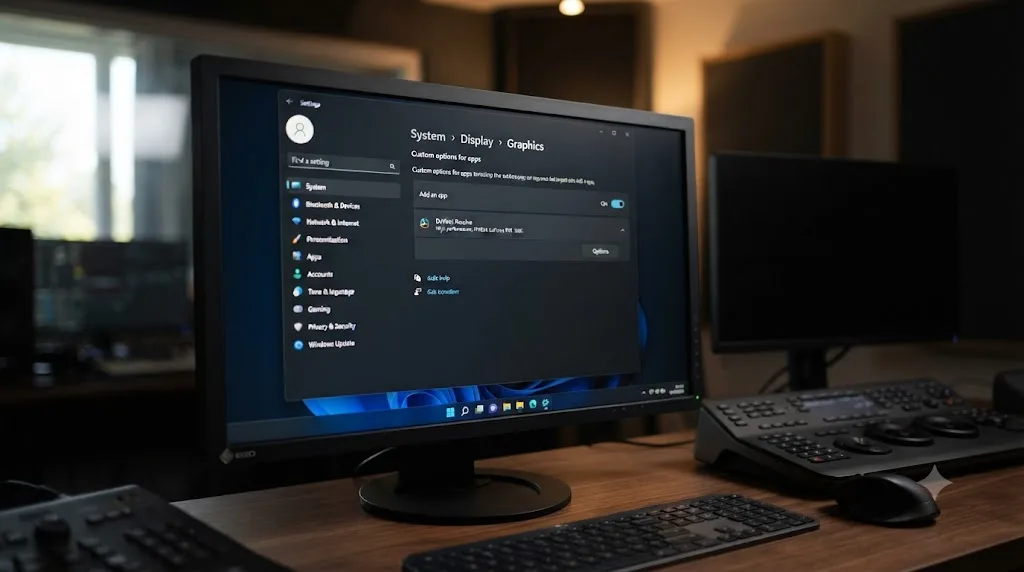
3. On a laptop, tell Windows itself which GPU to use. Even with Resolve's own GPU settings correct, Windows can still hand the app to integrated graphics at the driver level on a laptop with switchable graphics. Go to Settings, System, Display, Graphics, add DaVinci Resolve to the list if it isn't already there, click Options, choose High performance, which should list your dedicated GPU, and save. This is separate from Resolve's internal GPU Selection and worth checking even if step 2 already looked correct, since the two settings operate at different levels of the system.
4. Check your Windows power plan. A laptop set to Balanced or Power Saving mode can throttle both CPU and GPU to save battery, silently capping performance you'd otherwise have. Switch to High performance or Ultimate performance under Control Panel, Power Options, especially while you're actively editing on external power.
If you've matched scaling, confirmed GPU Selection, and forced the dedicated GPU in Windows Graphics settings and the interface still drags, move to the GPU headroom settings covered later in this post, or treat it as a genuine hardware ceiling, covered in the upgrade decision section near the end.
For a related Windows-specific interface problem, one where the timeline itself stops responding to scroll or zoom input entirely rather than just feeling slow, see our guide to DaVinci Resolve timeline won't scroll or zoom, which covers input routing issues that can look like performance lag but are actually a different category of bug.
How do I fix laggy DaVinci Resolve UI on Mac?
Mac users hit a wall the Windows fix above doesn't warn you about: DaVinci Resolve has no UI Display Scale setting at all on macOS. Blackmagic Design's own forum confirms it plainly, the setting under Preferences, User, UI Settings, exists in the Windows and Linux builds only. If you've been hunting through Resolve's preferences on a Mac looking for a scale slider that other tutorials mention, stop. It isn't there, and it was never removed, because it was never added to that platform.
Mac has no UI Display Scale option in Resolve at all; the fix lives in macOS's own Display settings, not inside the app. That's not a workaround, it's the actual, correct place to solve this on a Mac.
Here's how to work it from the macOS side instead.
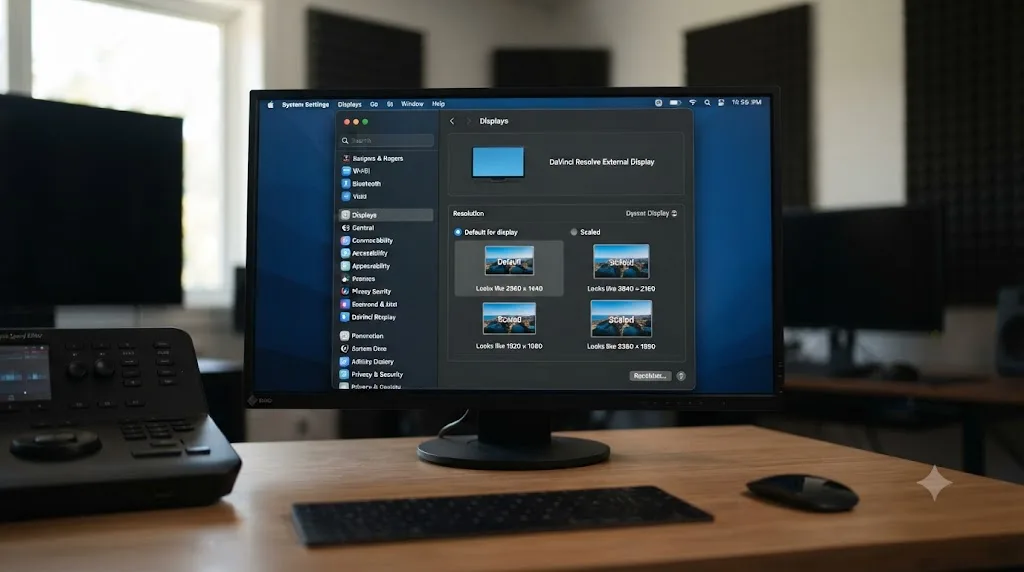
1. Open System Settings, then Displays, and check your resolution choice. Apple's own support documentation for changing your Mac's display resolution notes that a scaled resolution can affect performance compared to the display's native, default setting. If you're running a scaled "more space" option on an external 4K, 5K, or 6K display, try switching to Default for Display first and see if the interface tightens up. Apple's own explanation of how scaling works describes it as rendering at a larger virtual canvas and then scaling the result down to fit your physical panel, which is real, measurable GPU overhead on top of whatever Resolve itself is doing.
2. If you need more screen space than native gives you, choose a scaled resolution closer to native rather than a far larger one. Every step further from native increases the render-and-downscale overhead Apple's documentation describes. "Looks like 2560x1440" on a 4K panel costs less than "Looks like 1920x1080" on that same panel, because the second option is asking macOS to render a much larger virtual canvas before scaling it back down.
3. Confirm GPU Processing Mode is set to Metal. In Preferences, System, Memory and GPU, macOS builds of Resolve use Metal as their GPU API. This is normally set automatically and rarely needs changing, but it's worth a glance if you've recently reinstalled Resolve or restored preferences from an older backup.
4. Rule out Activity Monitor before blaming the monitor. Open Activity Monitor's GPU tab while Resolve is open and idle on the laggy interface, and watch what's actually pegged. On Apple silicon Macs, this also matters because the media engine that handles hardware decode is separate from the GPU cores Activity Monitor graphs by default, so a lag that looks GPU-bound can sometimes be something else entirely, like a background Fusion cache build or Live Save.
5. If a hidden panel or a broken layout is part of what feels slow, rule that out separately. A squeezed or misplaced panel doesn't cause GPU lag by itself, but a corrupted UI layout after a crash or update can produce rendering glitches that look identical to scaling problems. Our guide to a missing DaVinci Resolve Edit page toolbar covers Reset UI Layout and the same 100%/200% icon-rendering distinction that applies here: Resolve's built-in icon assets render crisply at 100% and 200%, and anything between those two, on either platform, can render slightly soft even when performance itself is fine.
What is DaVinci Resolve's UI Display Scale setting and how do I use it?
UI Display Scale is Resolve's own, in-app override for how large its interface renders, independent of whatever your operating system's display scaling is doing. It lives in Preferences, User, UI Settings, on Windows and Linux only, and Blackmagic added it in DaVinci Resolve 18.1, released in November 2022.
According to Newsshooter's coverage of that release, Blackmagic's own release notes described it this way: customers could now "scale the DaVinci Resolve user interface incrementally to optimize the resolution for their specific Window or Linux display," with support for fractional display scaling on both platforms. Before 18.1, Windows and Linux users were stuck entirely with whatever the OS-level scale forced onto Resolve, which is exactly the setup that produced years of forum complaints about oversized or blurry interfaces on 4K displays.
On Windows and Linux, DaVinci Resolve's own UI Display Scale setting overrides your operating system's scaling instead of fighting it. That's the entire point of the feature. Rather than Resolve inheriting a Windows scale factor of, say, 150% and rendering everything through that lens, you tell Resolve directly what scale to use, and it applies that scale on top of, or independent from, whatever Windows itself is doing.
A change here requires a full restart of Resolve before it takes effect, not just a Preferences window close. If you change UI Display Scale and nothing looks different, that's the most common reason, not a broken setting.
There's a config file path too, for cases where the Preferences UI itself is rendering too broken to click through reliably. filmmakingelements.com notes that Resolve's config.user.xml file contains a field named DisplayScale near the bottom, defaulting to 0, which corresponds to Auto. Editing this directly is a last resort, not a first step, and always close Resolve fully before touching a config file by hand.
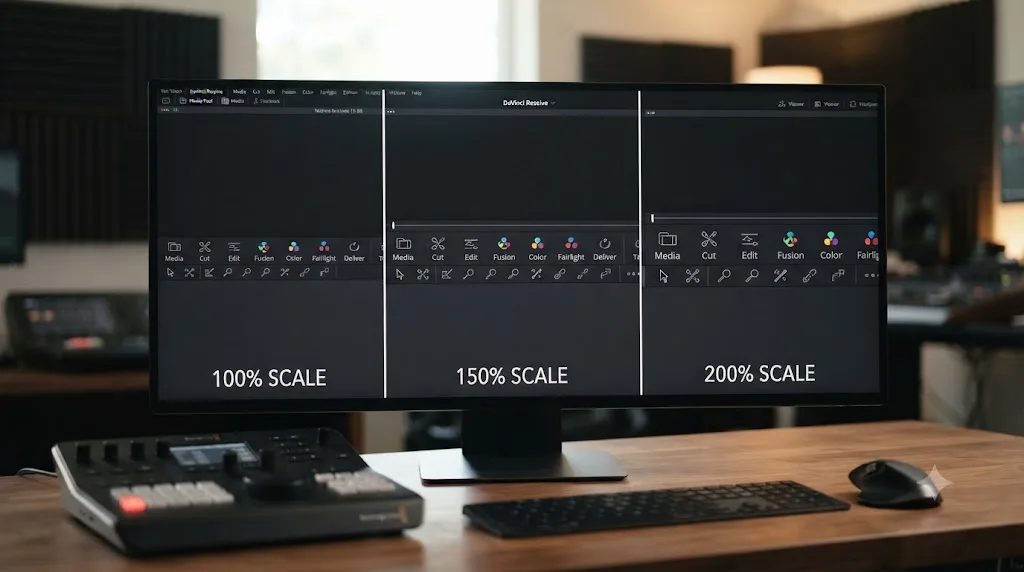
One caution worth stating plainly, since it trips people up on forums repeatedly: setting UI Display Scale to an intermediate value like 150% changes the interface's overall size, but Resolve's actual icon graphics are built at native resolutions for 100% and 200%. Anything between those two can look slightly softer even though the setting itself is working exactly as designed. That's a visual quality tradeoff, not a performance one, and it's separate from the lag this post is mainly about.
Why doesn't Mac have a UI Display Scale option?
Because Apple already solved this problem at the operating system level, years before Blackmagic added a similar control to Windows and Linux, and Resolve's Mac build simply defers to it instead of duplicating it. Every Mac app inherits its interface scale from macOS's own Displays settings, using Apple's Retina and scaled-resolution system, rather than each individual application shipping its own scale slider.
Mac has no UI Display Scale option in Resolve at all; the fix lives in macOS's own Display settings, not inside the app. That's worth repeating here because it's the single most common source of wasted troubleshooting time we see from Mac editors on this exact problem: hunting through Resolve's own Preferences for a setting that Windows users have and Mac users never will, because macOS already handles the job one layer up.
This isn't Blackmagic neglecting the Mac platform. Windows and Linux needed an in-app scale control precisely because those operating systems historically handled per-monitor and fractional scaling less consistently across different apps, which is the root cause of the "blurry or oversized" complaints that flooded Blackmagic's forum for years before 18.1 shipped. macOS's Retina scaling architecture, present since 2012, sidesteps a lot of that inconsistency by design, so Resolve doesn't need its own separate control on top of it.
The practical upshot: if you're on a Mac and the interface itself is oversized or too small, that's a macOS Displays setting, not a Resolve bug. If the interface is the correct size but sluggish, that's the GPU compositing problem this whole post is about, and it responds to the same GPU-focused fixes regardless of platform: confirm Metal is selected, rule out a scaled resolution eating extra GPU cycles per Apple's own documentation, and check whether the monitor's pixel count alone is simply more than your Mac's GPU can comfortably composite, which we cover next.
Is your GPU too weak for a 4K, 5K, or 6K monitor?
Sometimes, yes, and it's worth ruling this in or out with real numbers before you spend more time on settings. Blackmagic's own published requirements set a real floor, not a suggestion.
| Platform | Minimum spec (Blackmagic, DaVinci Resolve Studio 21) | What it actually gets you |
|---|---|---|
| Windows | Integrated GPU acceptable at minimum; discrete GPU with at least 4 GB VRAM recommended | Basic operation; 4K UI and timelines will feel tight on the low end |
| macOS | Apple Silicon Mac required; GPU supporting Metal | Resolve 21 dropped Intel Mac support entirely |
| Any platform, comfortable 4K work | At least 4 GB VRAM | Colorist and DaVinci Resolve systems consultant Richard Lackey puts it directly: "4GB - Minimum for comfortable 4K work" |
| Fusion or background rendering | 32 GB system RAM recommended | Below this, Resolve competes with the OS for memory during heavy compositing |
Source for the platform minimums: Blackmagic's own forum announcement of DaVinci Resolve Studio 21's release. Source for the VRAM comfort line: Richard Lackey's system requirements breakdown, drawn from years of consulting on Resolve hardware setups.
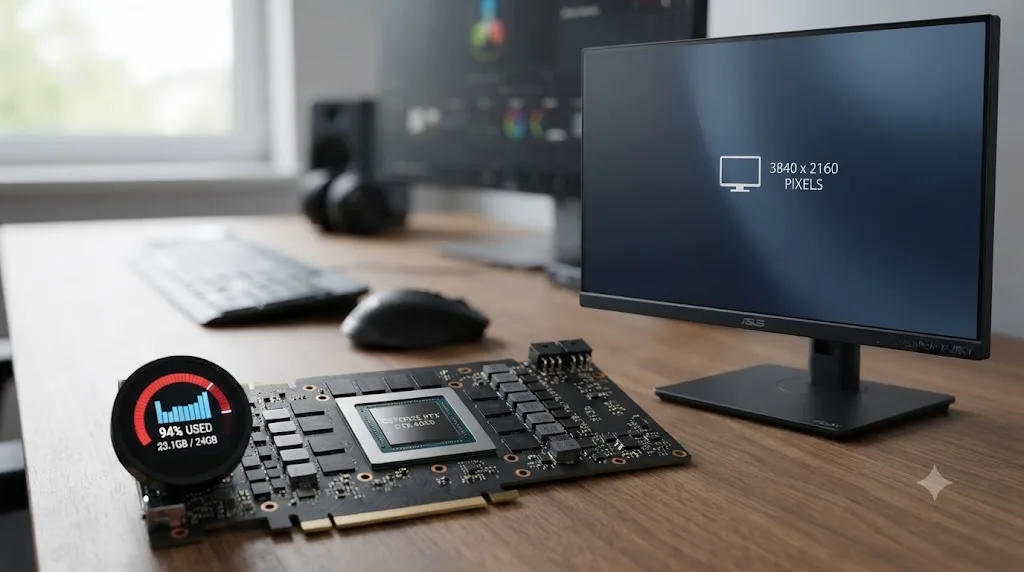
A weak GPU rendering a 4K desktop for Windows or macOS itself has less power left over for Resolve's interface, before you've even opened a project. Your operating system is already compositing a 4K desktop, taskbar, dock, and any other open windows, on the same GPU Resolve will then ask to draw its own interface on top of. An integrated GPU handling both jobs at once, on a laptop with no discrete card at all, is the single most common hardware profile behind "everything feels laggy on my 4K monitor" complaints. Lackey's framing applies here directly: "In any entry level Resolve system, your GPU is everything," and that holds just as much for interface responsiveness as it does for playback or render speed.
If you're running a genuinely entry-level or several-generations-old GPU, integrated graphics with no dedicated VRAM, or a card below that 4 GB VRAM floor, and you've already worked through the scaling and GPU-selection fixes above with no improvement, you've likely found the actual ceiling. That's not a failure on your part to configure something correctly. It's the hardware telling you what it can and can't comfortably do.
Should I turn on Hide UI Overlays or Minimize Interface Updates During Playback?
Turn both on if you've confirmed a GPU or scaling constraint and you need real time playback more than you need onscreen polish while clips are moving. Both live in Preferences, under Playback Settings, and both exist specifically for the underpowered or shared-GPU scenario this post covers.
Hide UI Overlays conceals onscreen controls, your cursor, Power Window outlines, split-screen comparison guides, the moment playback starts, and restores them the instant you pause. Blackmagic's manual is explicit that this is meant for cases where "a single GPU" handles "both display and CUDA, OpenCL, or Metal processing," which describes nearly every laptop and most single-GPU desktop editing setups, not some rare edge case.
Minimize Interface Updates During Playback works differently: it doesn't hide anything, it just reduces how often Resolve redraws interface elements while a clip is playing, prioritizing smooth video over a smoothly updating playhead indicator or scrubber. Blackmagic's documentation specifically calls out high resolution projects as a use case where this setting earns its keep.
Neither setting touches the idle-lag problem, the one where menus and scrolling feel sluggish with nothing playing. That's the setting most people reach for first because it's the most visible symptom, but it's the wrong tool for a paused timeline. For idle lag, the scaling and GPU-selection fixes covered earlier in this post are what actually move the needle, since Hide UI Overlays and Minimize Interface Updates only ever apply during active playback.
A practical way to think about it: these two settings buy you real time playback headroom on hardware that's close to, but not quite, powerful enough. They don't fix a fundamentally mismatched GPU and monitor pairing, and they won't do anything for the laggy-menus-while-paused symptom that's usually what people mean when they say the "UI" specifically feels laggy on a 4K screen.
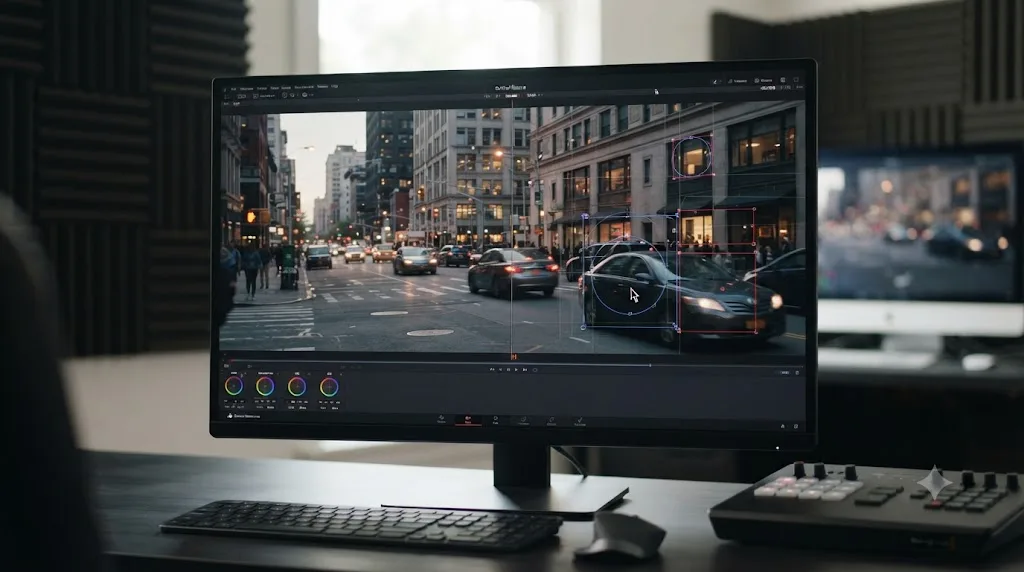
Is a 5K or 6K monitor worse than a 4K monitor for UI lag?
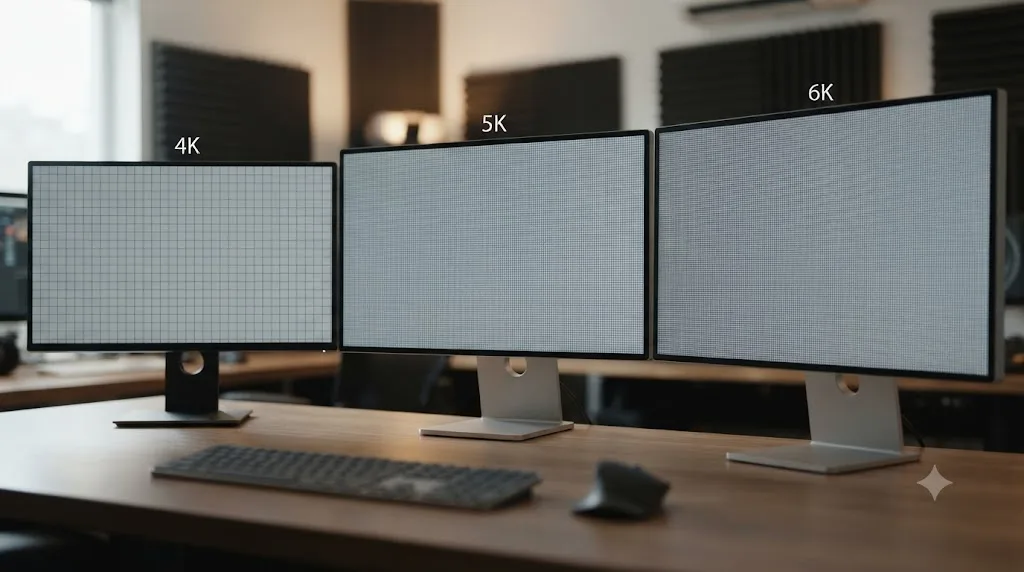
Yes, and the math is straightforward, not a guess. Every step up in monitor resolution is a proportional step up in how much interface your GPU composites on every frame, independent of your project's timeline resolution or codec.
| Monitor | Native resolution | Total pixels | Multiple of 1080p |
|---|---|---|---|
| Full HD | 1920 x 1080 | 2,073,600 | 1x |
| 4K UHD | 3840 x 2160 | 8,294,400 | 4x |
| 5K (iMac, Studio Display class) | 5120 x 2880 | 14,745,600 | ~7.1x |
| 6K (Apple Pro Display XDR) | 6016 x 3384 | approximately 20.4 million, per Apple's own spec sheet | ~9.8x |
That last figure comes straight from Apple's published Pro Display XDR technical specifications, which list the panel at 6016 by 3384 pixels, roughly 20.4 million pixels total. Compare that to the 2 million pixels of a 1080p screen and you're asking the GPU to composite close to ten times as much interface, every frame, purely because of the monitor you chose.
A 4K monitor pushes four times the pixels of 1080p, and every one of those pixels is UI the GPU has to draw before it renders a single frame of your timeline. That's the core fact this whole post is built around, and it scales linearly as you move up to 5K and 6K displays. A GPU that handled a 4K monitor comfortably can start to struggle at 6K, not because anything about your project changed, but because the compositing workload nearly doubled again.
This matters most for editors weighing a monitor upgrade purely for more screen real estate. More pixels is genuinely useful for seeing more of your timeline, more panels, more of your Effects Library at once, but it's not a free upgrade from a GPU-load standpoint. If your current setup already feels tight on a 4K display, jumping straight to a 6K panel without also addressing GPU headroom is likely to make interface lag noticeably worse, not just marginally so.
Is this a laptop-specific problem, integrated versus dedicated GPU?
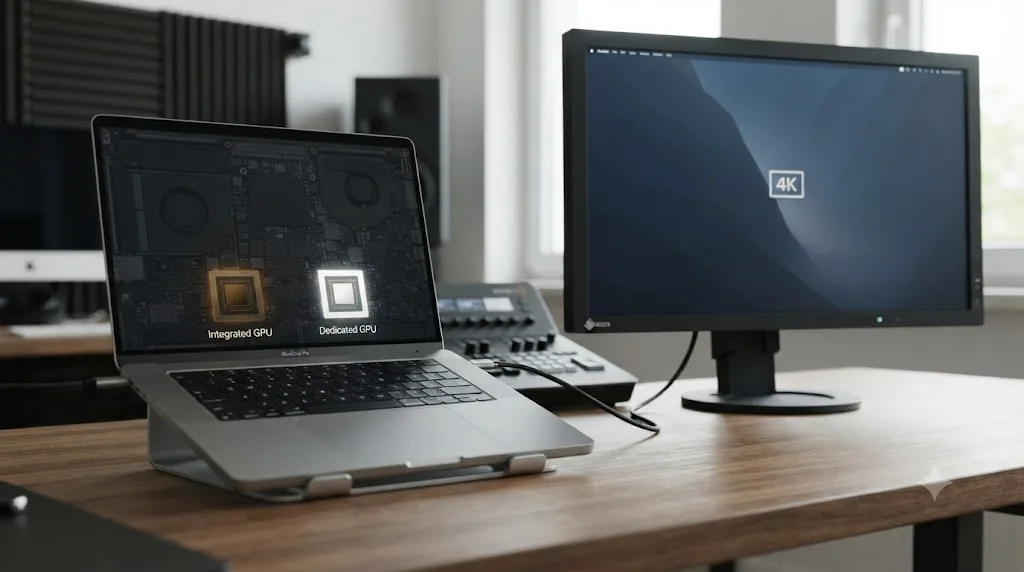
It's more common on laptops, yes, but not exclusively a laptop problem. The specific failure mode that's laptop-heavy is a system defaulting to integrated graphics for an application that should be using its discrete GPU instead, which is a Windows driver and settings issue as much as it is a hardware limitation.
Most Windows laptops with both an integrated GPU, built into the CPU, and a separate discrete GPU, ship with software that decides per-application which chip handles which task. Left on automatic, that software can and does route DaVinci Resolve to the weaker integrated GPU, especially right after a fresh install or a Windows update that reset app-specific graphics preferences. The fix, covered in the Windows section above, is forcing the assignment manually in Settings, System, Display, Graphics, setting DaVinci Resolve to High performance so it points explicitly at the discrete card.
This is separate from, and in addition to, Resolve's own internal GPU Selection Mode setting in Preferences, System, Memory and GPU. Nolen Jonker's rundown of DaVinci Resolve performance settings for xda-developers walks through both layers: disabling Auto under GPU selection inside Resolve itself, and separately confirming Windows' own Graphics settings point the app at the right chip. Checking one without the other leaves half the problem unaddressed, since either layer defaulting to integrated graphics produces the same laggy result.
Desktop systems with a single GPU don't have this specific failure mode, since there's no integrated-versus-discrete choice for Windows to get wrong. But a desktop can absolutely still hit the underlying limit this whole post describes: not enough GPU for the pixel count on screen, regardless of whether that GPU is the only one in the box or one of several.
For the related, but distinct, symptom of Resolve pegging your CPU while your GPU sits nearly idle during actual playback or export, rather than during idle interface use, our guide to DaVinci Resolve running high CPU but low GPU usage covers hardware decode settings that address a different bottleneck entirely, one that shows up in your footage's playback, not your menus.
Does DaVinci Resolve 21 fix the HiDPI lag that older versions had?
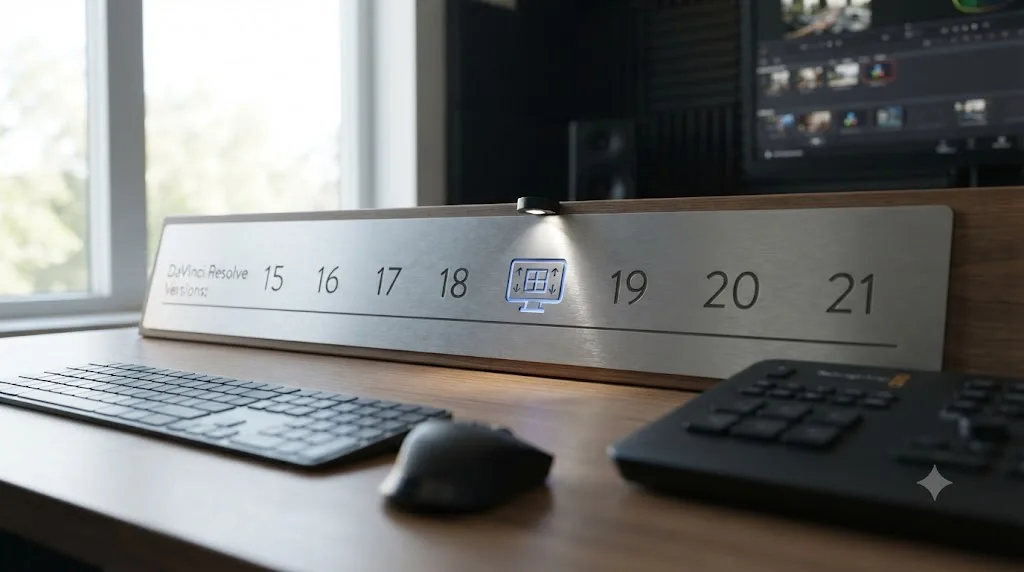
Partially, and the timeline of fixes matters here because a lot of the forum complaints still circulating online are years old and describe problems Blackmagic has since addressed, at least on Windows and Linux.
| Version | What changed for HiDPI/4K UI scaling |
|---|---|
| Resolve 12 through roughly 15.2 | No in-app scale control on any platform; interface either oversized or blurry on high-DPI Windows displays, a pattern documented in Creative COW forum complaints spanning that entire version range |
| Resolve 18.1 (November 2022) | Added UI Display Scale, with fractional display scaling support, for Windows and Linux only, per Blackmagic's own release notes as reported by Newsshooter |
| Resolve 18.1.1 | Refined the override to specific scale targets, including 100%, 150%, and 200%, according to subsequent Blackmagic forum discussion of the feature |
| Resolve 21 (current, as of July 2026) | UI Display Scale remains Windows and Linux only; Apple Silicon required on Mac, dropping Intel support and the older, weaker integrated GPUs that shipped in Intel-era MacBooks |
The practical takeaway: if you're troubleshooting laggy UI on a version older than 18.1, the actual fix might just be updating Resolve, since the scaling control you're missing didn't exist yet in your build. If you're already on Resolve 21 and still fighting this, the version itself isn't the problem, and you're squarely in settings-and-hardware territory, everything covered earlier in this post.
Mac users don't get a version-based fix for the scaling control gap, since it was never added to that platform at all, at any version. What did improve for Mac indirectly is the hardware floor: requiring Apple Silicon for Resolve 21 means every currently-supported Mac has a GPU meaningfully more capable per watt than the Intel-era integrated graphics that used to struggle hardest with this exact complaint.
What about a multi-monitor setup with mixed resolutions?
This is where the problem compounds, and it's worth planning for deliberately rather than discovering it mid-project. Running a 4K primary monitor alongside a 1080p or 1440p secondary display, a common setup for a main timeline screen plus a dedicated scopes or color panel display, asks your GPU to composite two different interfaces at two different pixel densities simultaneously, on top of whatever Resolve is doing with your footage.
On Windows, each monitor in a mixed-DPI setup can carry its own OS-level scaling percentage, which is exactly the scenario Resolve's UI Display Scale setting was built to smooth over, since the OS itself may already be applying different scale factors per screen before Resolve's own setting even enters the picture. If windows or panels look correctly sized on one monitor but oversized or undersized when dragged to the other, that's Windows' own per-monitor scaling behavior, not a Resolve bug, and it's a known source of confusion separate from the raw compositing-load lag this post is mainly about.
On Mac, dragging a Resolve panel between a 4K external display and a Retina laptop screen with a different native pixel density triggers the same kind of per-display scaling recalculation, handled entirely by macOS. It's usually smooth on Apple Silicon, but it's still additional GPU work happening in the background every time a window crosses from one display to the other.
The practical fix for a mixed-resolution setup isn't different from a single high-res monitor, it's just applied with more attention to which display is actually causing the slowdown. Test with only your highest-resolution monitor connected first. If the lag disappears, your secondary display, or the act of spanning windows across two different pixel densities, is contributing meaningfully, and you may get real benefit from matching both displays to closer resolutions, or from confirming GPU Selection points at hardware strong enough to handle compositing two screens at once, not just one.
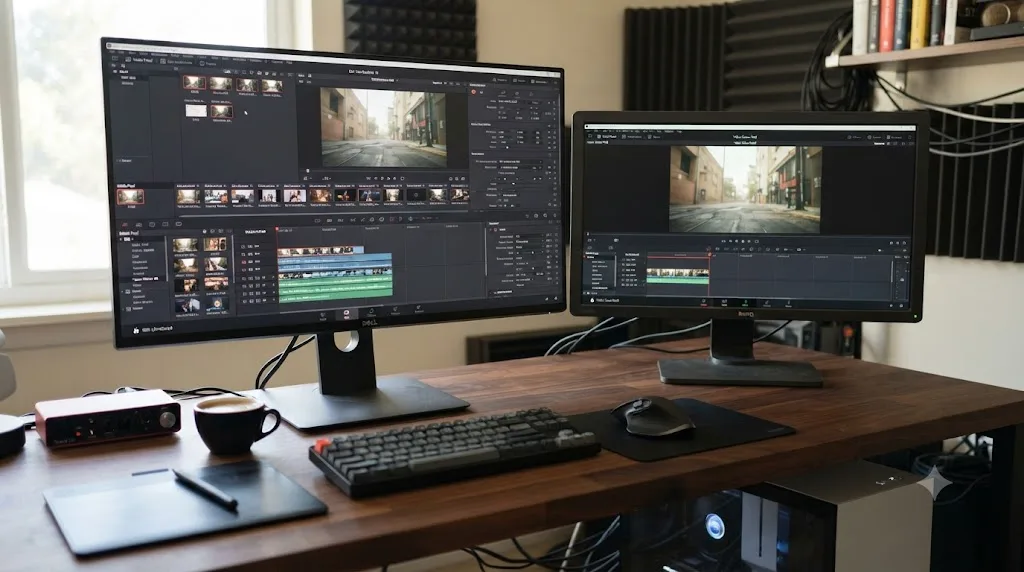
When should you upgrade your GPU instead of tweaking settings?
Once you've genuinely ruled out the settings side, matched OS and Resolve scaling, set GPU Selection to Manual with the right card enabled, forced the dedicated GPU at the Windows driver level if you're on a laptop, and tried Hide UI Overlays for playback specifically, an upgrade is the honest next step, not another round of preference-window archaeology.
| Situation | Recommended move |
|---|---|
| Integrated GPU only, no discrete card, laggy at 4K | Upgrade to a discrete GPU with at least 4 GB VRAM, Blackmagic's own recommended floor for comfortable 4K work |
| Discrete GPU below 4 GB VRAM, laggy even after settings fixes | GPU upgrade, since you're below Blackmagic's documented comfort floor already |
| Modern GPU (4 GB+ VRAM), still laggy | Recheck GPU Selection Mode, driver version, and Windows Graphics settings before assuming hardware is the ceiling; something is likely misconfigured |
| 5K or 6K monitor on a GPU that was fine at 4K | Expect this; nearly double the compositing load moving from 4K to 6K, per the pixel math covered earlier, and plan the GPU budget accordingly before buying the monitor, not after |
| Everything checks out, still laggy, old GPU (multiple generations back) | Age itself matters beyond raw specs; driver support and compositing efficiency both improve generation over generation, independent of VRAM alone |
Interface lag and playback lag are different problems with different fixes, and treating both as "DaVinci Resolve is slow" wastes troubleshooting time. Before spending money, separate the two symptoms cleanly: pause the timeline and test menus, scrolling, and panel dragging in isolation from anything related to clip playback. If the lag only shows up during playback, that's a different diagnostic path, and our guide to DaVinci Resolve playback that's choppy or stuttering covers render cache, proxy resolution, and decode settings that won't help idle interface lag at all but are exactly right for that separate symptom.
If your GPU is also showing signs of running out of memory entirely rather than just feeling generally slow, red status indicators, crashes during heavy grades, error messages specifically about GPU memory, that's a distinct and more urgent problem covered in our guide to DaVinci Resolve GPU memory is full, worth ruling out separately before you commit to a GPU purchase aimed at the wrong bottleneck.
Working through GPU Selection, UI Display Scale, and a settings matrix that's genuinely changed shape across the last several Resolve versions is exactly the kind of "which setting is actually the problem" confusion that eats more time than the fix itself once you know where to look. TryUncle is the on-screen assistant for DaVinci Resolve on macOS, ask in plain words and Uncle points at the exact control on your screen. It watches your actual Preferences window and can confirm whether GPU Selection or Metal processing mode is set the way you think it is, rather than you cross-referencing a screenshot against a menu Blackmagic has reshuffled more than once. It's a paid app on founder pricing, not a free tool, and macOS only, so it won't touch a Windows Graphics settings problem, but if this same "is this setting actually doing what I think" confusion is slowing you down anywhere else in Resolve, TryUncle is built for exactly that gap. Check TryUncle's site for the current rate before assuming it fits your setup.
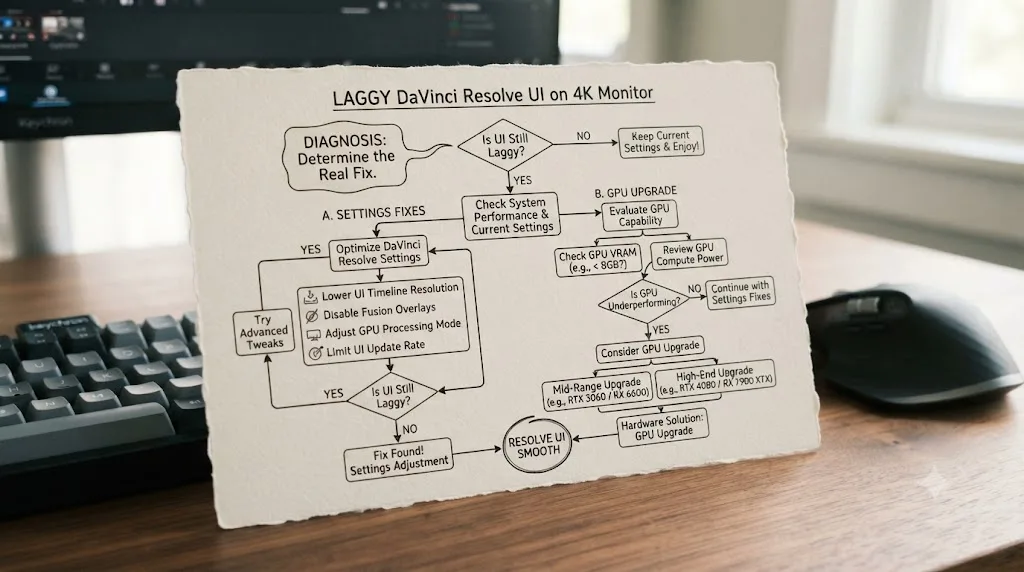

A laggy interface on a 4K, 5K, or 6K monitor isn't a mystery and it isn't corruption. It's your GPU doing two jobs at once, drawing the software and processing your footage, and a high resolution monitor tipping that balance harder than a 1080p screen ever did. Match your scaling instead of letting it fight itself, make sure Resolve and your operating system both agree on which GPU to use, and reach for Hide UI Overlays when you need playback smoothness more than onscreen polish. If you've done all of that and it's still dragging, you haven't failed to find a setting. You've found the actual ceiling of your hardware, and now you know exactly what to upgrade instead of guessing.
Frequently asked questions
- Why is DaVinci Resolve's UI laggy on a high resolution 4K monitor?
- Because DaVinci Resolve draws its own interface, every menu, icon, panel, and the cursor, using the same GPU that processes your footage. A 4K monitor has four times the pixels of 1080p, so the GPU has to composite four times as much interface before it even gets to your timeline. On a weak or shared GPU, that shows up as laggy menus and sluggish scrolling, separate from whatever's happening with playback.
- Why is DaVinci Resolve fine on my laptop screen but slow on my external 4K monitor?
- Your laptop's built-in screen is almost certainly lower resolution than the 4K external display, so it's drawing far fewer pixels of interface. Plug in a 4K monitor and the GPU's compositing workload jumps, sometimes on top of driving a second display at all, which is extra work a single-screen laptop setup never asked of it.
- How do I fix laggy DaVinci Resolve UI on Windows?
- Match your Windows display scaling and Resolve's own UI Display Scale, in Preferences under User and UI Settings, instead of letting them fight each other. Set GPU Selection Mode to Manual and confirm your dedicated GPU is enabled, then, on a laptop, force Resolve.exe to the high performance GPU in Windows' Graphics settings. Turn on Hide UI Overlays in Playback Settings for extra headroom.
- How do I fix laggy DaVinci Resolve UI on Mac?
- Resolve has no UI Display Scale option on macOS at all, that setting is Windows and Linux only. Instead, go to System Settings, Displays, and choose Default for Display instead of a Scaled option, or pick a scaled resolution closer to native. Confirm GPU processing mode is set to Metal, and check Activity Monitor for what's actually driving the lag before assuming it's the monitor.
- Does a 5K or 6K monitor make DaVinci Resolve's interface even slower than 4K?
- Yes, proportionally. A 4K display is about 8.3 million pixels, a 5K display like an iMac or Studio Display panel is about 14.7 million, and Apple's 6K Pro Display XDR is about 20.4 million, according to Apple's own spec sheet. More pixels means more interface for the GPU to draw every single frame, regardless of what's happening in your timeline.
- Will upgrading my GPU fix a laggy DaVinci Resolve interface?
- Often, yes, especially on an older discrete GPU or a laptop's integrated graphics chip. But check your settings first. Mismatched OS and Resolve scaling, the wrong GPU selected, or a laptop defaulting to integrated graphics can produce identical symptoms to underpowered hardware, and none of those cost a dollar to fix.
- Is DaVinci Resolve's UI Display Scale setting available on Mac?
- No. Blackmagic Design's own forum confirms the UI Display Scale option under Preferences, User, UI Settings exists only on Windows and Linux builds of Resolve. macOS users control interface size entirely through the operating system's own Displays settings, not through anything inside Resolve.
Sources
- DaVinci Resolve Reference Manual (VFXPedia mirror): Playback Settings, Hide UI Overlays and Minimize Interface Updates During Playback
- DaVinci Resolve Reference Manual (VFXPedia mirror): Memory and GPU preferences
- Newsshooter: Blackmagic Design DaVinci Resolve 18.1
- Blackmagic Forum: 18.1 - Where is UI Scale Option?
- Blackmagic Forum: UI Display Scale Missing in Preferences
- Blackmagic Forum: UI not scaling correctly on Windows 10 (4K Display)
- Creative COW forum: Unusable on 4K monitors (Windows 10)
- filmmakingelements.com: 4 Fixes To DaVinci Resolve UI Scaling Issues
- Blackmagic Design: DaVinci Resolve Tech Specs
- Blackmagic Forum: Release of DaVinci Resolve Studio 21
- Richard Lackey: DaVinci Resolve Minimum System Requirements, A Reality Check
- Apple: Pro Display XDR Technical Specifications
- Apple Support: Change your Mac display's resolution
- xda-developers: 12 DaVinci Resolve settings to change for faster editing (Nolen Jonker)
Put this guide to work with TryUncle.
Ask about the step you’re on. TryUncle sees your screen and points at the control you need, so you can keep learning in your own project.
Get TryUncle for Mac or WindowsKeep reading
Fixes · Jul 17, 2026 · 25 min
DaVinci Resolve Timeline Won't Scroll or Zoom? Here's the Fix
Fix a DaVinci Resolve timeline that won't scroll or zoom: check 2D Timeline Scrolling, your modifier keys, trackpad gestures, and a stuck UI layout.
Fixes · Jul 20, 2026 · 23 min
DaVinci Resolve Edit Page Toolbar Missing? Here's the Fix
Your DaVinci Resolve Edit page toolbar disappeared? It's almost always a hidden panel or a UI layout glitch, not lost data. Every real cause and fix.
Fixes · Jul 20, 2026 · 26 min
DaVinci Resolve High CPU Usage but Low GPU Usage, Explained
Why DaVinci Resolve pegs your CPU while GPU usage stays near zero, and the real fixes: hardware decoding, transcoding, GPU Selection, and OFX limits.