Articles / Fixesupdated for DaVinci Resolve 21.2, November 2026
DaVinci Resolve Playhead Not Snapping to Frames? Fix It
Quick answer
In DaVinci Resolve 21, the Edit-page playhead can move between video frames during zoomed-in subframe scrubbing for audio work. The Snap magnet aligns editing objects with timeline references; it does not lock every playhead drag to a video frame. For frame-accurate picture navigation, use frame-step commands or timecode.
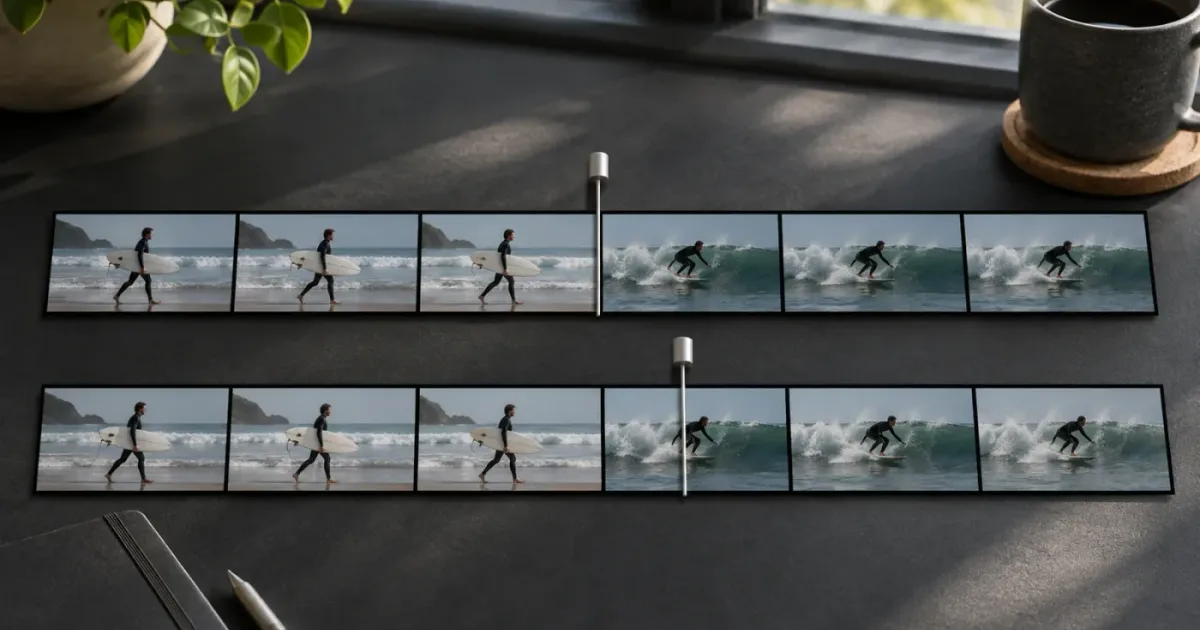
I’d first check what you mean by “snapping.” In Resolve, editors use that word for two different things: a playhead that aligns with edits and markers, and a playhead that stays on whole video frames while you scrub. Resolve 21 treats those differently.
Blackmagic’s Resolve 21 documentation describes subframe scrubbing on the Edit page as an audio workflow, not a fault in frame snapping. I’ll separate that behavior from the Snap control, then show you how to move to a specific video frame without changing the wrong preference.
Why is my DaVinci Resolve playhead not snapping to frames?
In DaVinci Resolve 21, the playhead may scrub between video-frame boundaries on the Edit page because the timeline supports subframe audio work. The magnetic Snap control serves a different purpose: it helps editing objects align with one another.
Blackmagic’s Resolve 21 New Features Guide says that accurate subframe audio adjustments require you to be almost completely zoomed in on the timeline. It describes three related behaviors: audio keyframes can be added or moved with subframe, audio-sample accuracy; clip and timeline markers, including duration markers, can start or end between frames; and the zoomed-in Edit timeline can be scrubbed in subframe increments with audio feedback.
That last behavior is easy to mistake for a broken playhead. You drag the red line, it appears to move smoothly instead of landing at the positions you expect from video frames, and the viewer’s image may not change at every small movement. But Resolve can represent a timeline position for audio that falls between video frames. Turning on the magnet doesn’t turn that position into a video-frame-only position.
There are two separate questions to answer:
- Does a clip, edit point, marker, or playhead line fail to align with another timeline object? Check timeline snapping.
- Does the playhead move smoothly between frame positions while you scrub? In Resolve 21, especially when zoomed far in on the Edit timeline, this can be expected subframe behavior.
The distinction matters because the wrong “fix” can make editing more frustrating. If you want a clip to align with the playhead, the Snap control may be relevant. If you want to inspect picture one frame at a time, use frame-step navigation. If you want to place an audio keyframe between picture frames, Resolve 21 may be doing what you asked.
Resolve 21’s Edit-page subframe scrubbing is an audio feature, not proof that video clips are being placed between frames.
The timeline display can also be deceptive. At a wide zoom level, many frames occupy a small horizontal distance. A tiny mouse movement can cross multiple frame positions, and the playhead line may appear to jump. At a very tight zoom level, the same movement exposes the between-frame behavior Resolve 21 documents for audio work. Neither appearance, by itself, proves that a cut or video clip is positioned incorrectly.
A useful check is to stop dragging and step the playhead by one frame. If the viewer advances to the next picture frame and the displayed frame count changes accordingly, you have a reliable frame-based navigation method. That tells you more than judging a thin red line while dragging at extreme zoom.
One further distinction helps: the playhead can be at a finer time position even though the video image is still held on a whole frame. The display and the picture do not have to change in lockstep during a subframe audio operation. That’s why “the line moved but the picture didn’t” is not enough evidence to conclude that Resolve has put a video cut between frames.
Does the Snap magnet lock the playhead to video frames?
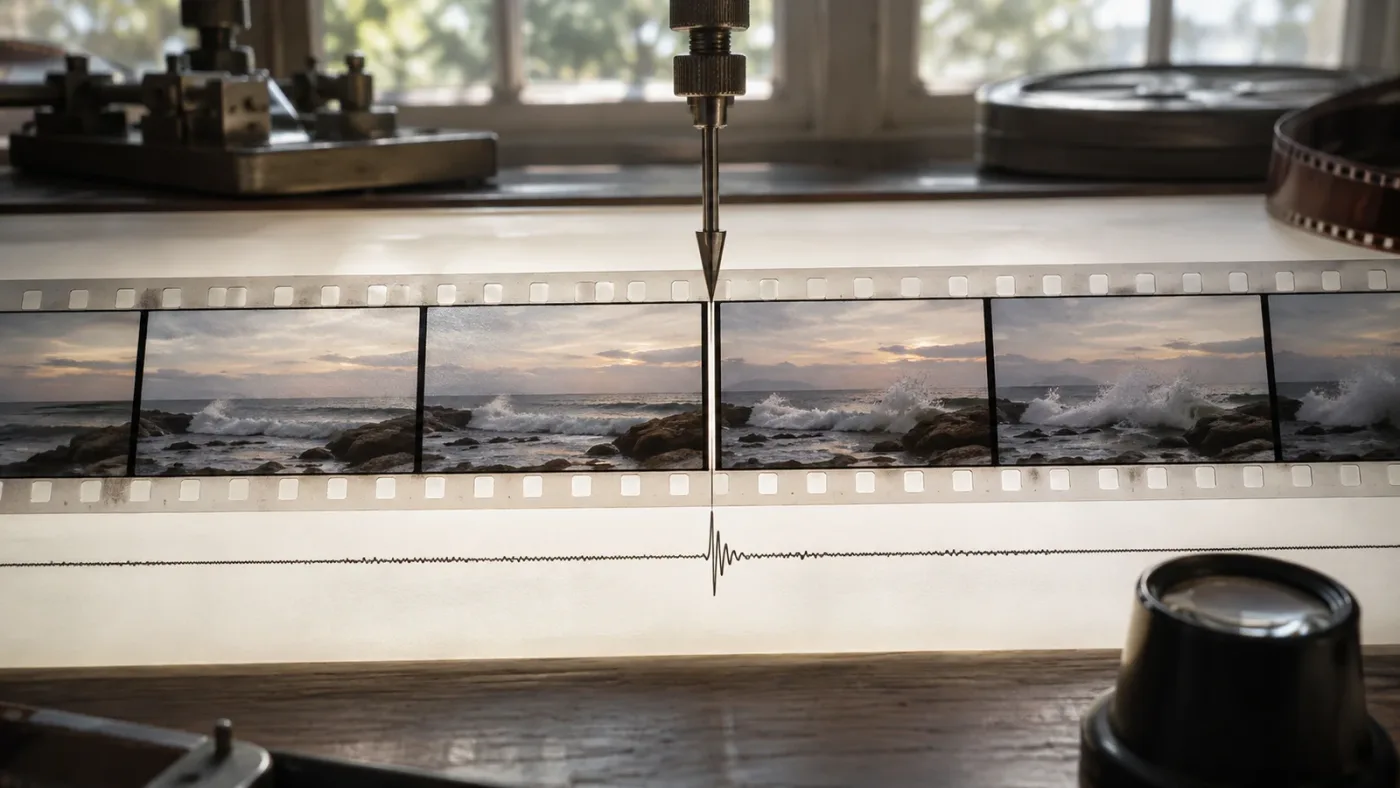
No. Timeline snapping aligns editing elements with timeline references; it is not a universal frame-rate limiter for every playhead movement.
On the Edit page, snapping is useful when moving or trimming a clip and you want its edge to meet another edit, a marker, or the playhead. When enabled, the snapping control acts like a magnet for those edit operations. It helps you land on a matching position without needing to place the pointer at an exact pixel.
But three separate ideas often get lumped together:
| What you’re doing | What controls it | What to expect |
|---|---|---|
| Dragging a clip edge toward an edit or marker | Timeline Snap control | The edge may align to a nearby timeline reference |
| Dragging the playhead to inspect the picture | Scrubbing behavior and timeline zoom | In Resolve 21 Edit, subframe movement can be available when zoomed in |
| Moving one video frame at a time | Frame-step command or timecode navigation | The viewer advances in discrete frame steps |
| Moving an audio keyframe or marker between video frames | Resolve 21 Edit timeline subframe support | The position can fall between video-frame boundaries |
| Moving the Fairlight playhead to the mouse pointer | The Fairlight command documented in Resolve 21 | Pressing C moves the playhead to the pointer location |
The last row is a different action, in a different page. The Resolve 21 New Features Guide says that, like the Edit page, pressing C on the Fairlight page instantly snaps the playhead to wherever the pointer is in the Fairlight timeline. That command is about jumping to the pointer. It doesn’t mean the Fairlight playhead is being locked to whole video frames during every kind of movement.
When testing the magnet, make the test about an object. Turn snapping on, drag a clip edge toward a visible cut, and see whether it aligns. Then separately move the playhead one frame at a time. If the clip aligns but the mouse-scrubbed playhead still moves smoothly, those results aren’t contradictory. They describe different controls.
This distinction also prevents a common misdiagnosis: an editor sees a clip edge not following the playhead, presses a shortcut for snapping, and expects the playhead’s scrubbing behavior to change. The magnet may change the result of a clip or trim operation. It does not necessarily alter how the playhead tracks a mouse drag.
For page-specific names and illustrations, use the DaVinci Resolve 21.1 Manual linked by Blackmagic Design. Page layout and menu labels can shift between versions, so verify that the manual version matches the Resolve version you have open.
A quick way to think about it is “alignment target” versus “navigation increment.” Snap is about finding a nearby target during an editing action. A frame-step command is about moving by a known increment. Those are different questions, even when both involve the playhead or a nearby clip edge.
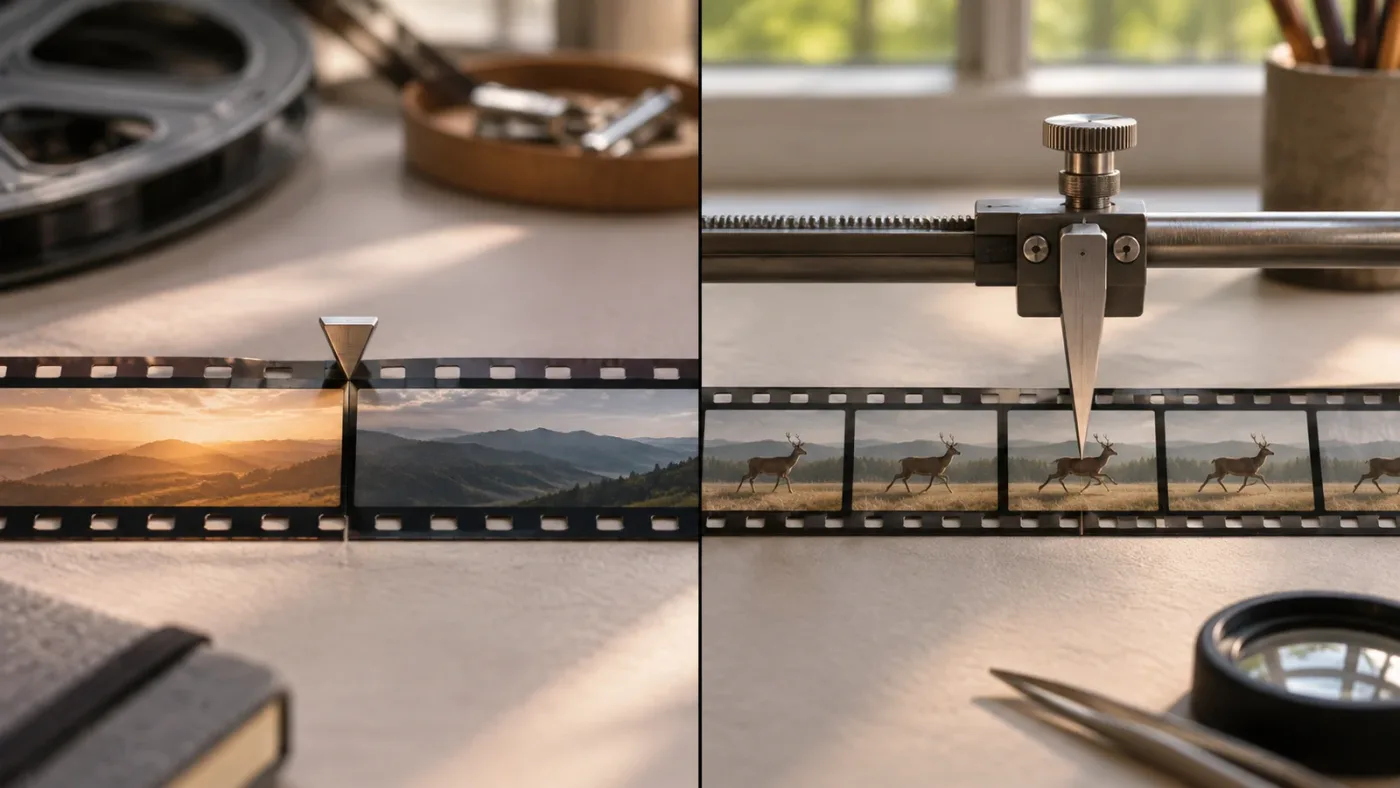
How do I tell whether this is subframe scrubbing or a real alignment problem?
Check what is moving, where you are moving it, and what the timeline timecode reports. A playhead that scrubs smoothly is different from a clip edge that fails to meet a target.
Use this diagnosis before changing settings:
- Name the object you’re testing. Is it the red playhead, a video clip edge, an audio clip edge, an audio keyframe, or a marker? Don’t use “the timeline won’t snap” as a diagnosis until you know which object misses.
- Name the page. The Cut, Edit, and Fairlight pages have different timeline controls and workflows. The Resolve 21 New Features Guide describes subframe keyframe, marker, and scrubbing behavior for the Edit timeline, and separately documents the Fairlight pointer command.
- Name the action. Are you dragging with the mouse, pressing a frame-step command, entering timecode, moving a trim point, or adding a keyframe? A result that’s expected during scrubbing may be unexpected during a trim.
- Look at the time display. Check whether the timecode changes by a whole frame during frame-step navigation, or whether you’re viewing a finer display while scrubbing. Resolve 21’s New Features Guide says the Edit-page timecode display can show frames, subframes, or audio samples.
- Repeat the test at an ordinary zoom level. Resolve’s documented subframe audio adjustments require very high timeline zoom. If the behavior appears only when you’re almost fully zoomed in, that context is relevant.
- Repeat it with an unambiguous target. A clearly visible edit point is easier to test than an audio waveform or a narrow marker close to another reference.
- Keep snapping separate from stepping. Test a clip-edge alignment with Snap on. Then test one-frame navigation. Don’t treat success or failure in one test as evidence about the other.
This sequence is useful because a “miss” can mean different things. A clip might not be close enough to a target for snapping to be obvious. The wrong timeline may have focus. You may be editing audio in a mode that allows a subframe position. Or you may be looking at a one-frame boundary that is hard to distinguish at the current zoom level.
A good test produces a result you can describe precisely: “The video clip edge doesn’t align with the cut when I drag it,” or “The Edit-page playhead scrubs between frame boundaries when the timeline is zoomed in,” or “Pressing next frame doesn’t advance the viewer.” Those are three different reports, and they lead to three different checks.
Do not diagnose a frame problem from the red line alone. Check the time display and the visible picture. If you’re placing an edit, check the clip edge. If you’re placing an audio marker, check the marker’s intended position and whether subframe placement is useful for that task.
A playhead, a clip edge, an audio keyframe, and a marker can each have a different alignment goal.
Here’s a practical symptom map:
| What you observe | What it points toward | Next test |
|---|---|---|
| Smooth playhead movement only at very high Edit-page zoom | Possible subframe scrubbing | Frame-step through a short area and compare |
| Clip edge does not meet a visible edit with Snap enabled | Possible object-snapping issue | Drag the edge toward a clear cut on the active timeline |
| Frame-step shortcut does nothing | Focus or keyboard mapping issue | Click the intended timeline, then invoke the command from the menu or command search |
| Marker is between frames but the video edit is unchanged | Possible subframe marker placement | Check whether the marker is associated with audio timing |
| Viewer appears unchanged but time display advances | Adjacent frames may look alike | Test on footage with clear motion |
That table doesn’t diagnose every possible bug. It does stop one visual impression from turning into five unrelated preference changes. Start with an action you can repeat, and keep the test short enough that the relevant time display remains visible.
How do I move the Resolve playhead exactly one video frame?
Use a frame-step command or enter the intended timecode instead of dragging the playhead. Those methods are designed for precise navigation; a mouse scrub is designed for moving through the timeline.
For an exact visual check:
- Click the timeline or timeline viewer so the intended timeline has focus.
- Position the playhead near the point you want to inspect.
- Use the previous-frame or next-frame command. If you don’t know the assigned keys, open Resolve’s keyboard customization or command search and look for the frame-step commands.
- Watch the viewer and time display. The picture should advance one timeline frame at a time.
- If your keyboard shortcut does something else, check which panel has focus and whether a custom keyboard mapping changed the default.
- For a known location, enter timecode using the timeline’s timecode field or navigation controls, then confirm the displayed frame.
The Resolve 21.1 manual is the right reference for the exact current menu names and keyboard assignments. A custom keyboard preset can change shortcuts, so a key remembered from a tutorial isn’t definitive proof that the current command is mapped the same way on your system.
A frame-based timecode is also more dependable than trying to place the pointer at an exact horizontal coordinate. The timeline is a visual map; timecode and frame stepping are direct ways to specify or traverse positions. That’s especially helpful when the timeline is zoomed out, the pointer is on a high-resolution display, or you’re trying to compare two adjacent frames.
If you need repeatable checks, note the timecode before stepping and after stepping. The rightmost frame field should advance or retreat by one frame, subject to the timecode format in use. If the viewer seems unchanged, check whether the adjacent frames look identical. A one-frame step can be working even when the source footage has little visible movement.
Also verify which viewer is active. Resolve can show source and timeline viewers. Stepping in the source viewer moves through the source clip; stepping in the timeline moves through the assembled sequence. If you’re trying to inspect a cut but the source viewer has focus, the timeline’s edit point won’t behave like the target you intended.
For more commands and shortcut customization, see the DaVinci Resolve keyboard shortcuts reference. Use that as a starting point, then confirm the actual assignment in your keyboard preset.
A worked example makes the check concrete. Say you’re inspecting the last image before a cut. Click the timeline viewer, place the playhead near the edit, and use the previous-frame command until the displayed frame is the one you want to evaluate. Step forward once. If the next image belongs to the following shot, you’re looking at the cut boundary. If the same image remains, check the time display before concluding that the command failed. The footage may contain a held image, a near-identical pair of frames, or a short still segment.
For a second check, enter a timecode you can read from the ruler or another trusted reference. Then step forward and back once. This is a simple way to distinguish “I can’t land accurately with the mouse” from “frame navigation itself isn’t working.” You don’t need to alter Snap or audio alignment to perform either test.
An editor’s input method can matter as much as the command. In a Frame.io article about editing in Resolve, editor Scott Simmons describes himself as “an enthusiastic keyboard-based editor.” That’s a personal workflow preference, not a technical rule, but it points to a useful habit: use discrete keyboard navigation when you need a repeatable frame check, and use mouse scrubbing when you need to scan quickly.
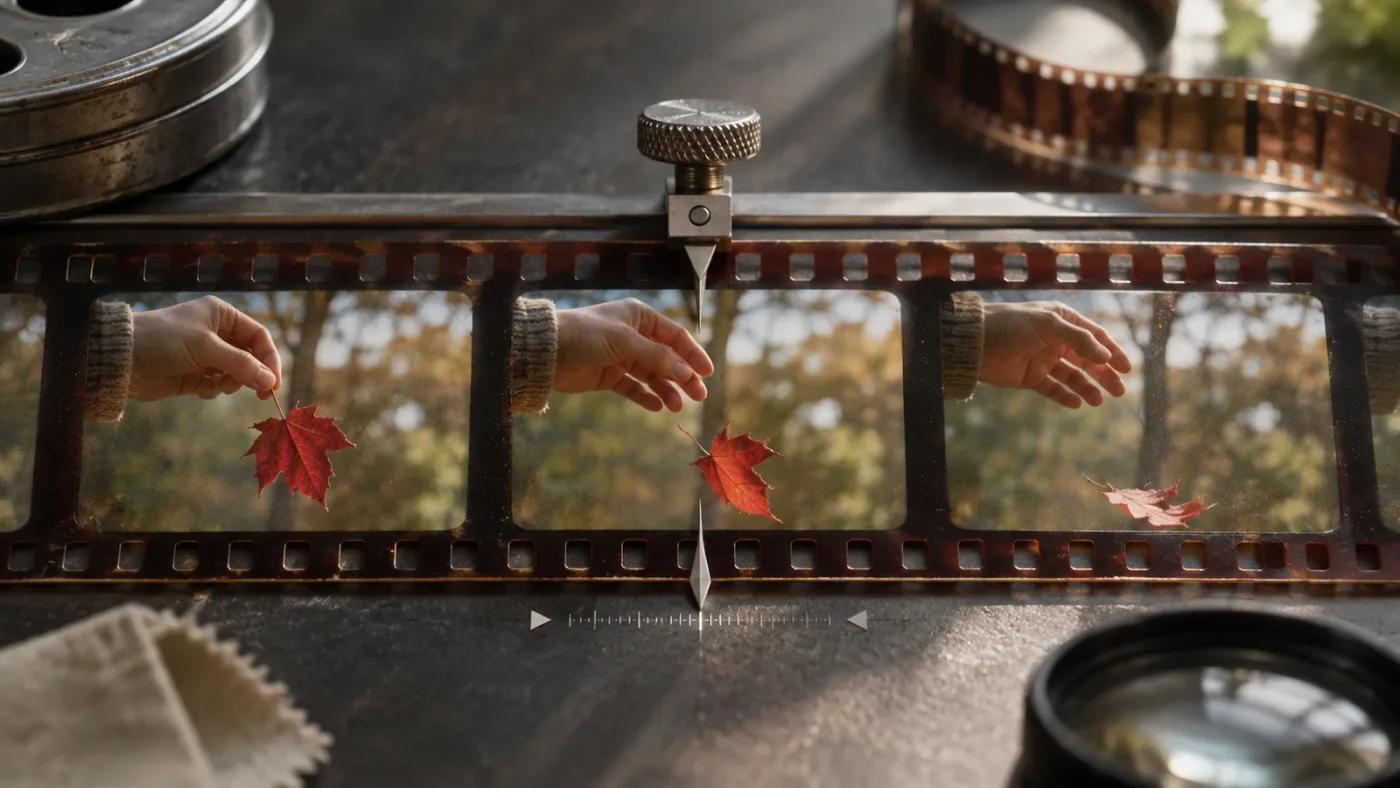
Why does the playhead move smoothly only when I zoom in?
Resolve 21’s documented subframe audio adjustments require a very high timeline zoom, and the Edit timeline can scrub in subframe increments with audio feedback. If smooth movement appears only at maximum or near-maximum zoom, first treat it as a possible subframe workflow.
The guide’s wording is specific: “Accurate subframe audio adjustments require you to be almost completely zoomed in on the timeline.” Blackmagic Design then lists subframe-accurate audio keyframes, markers that can start or end between frames, and subframe scrubbing with audio feedback. That is the strongest documented explanation for why a Resolve 21 Edit-page playhead may appear to glide rather than hop from frame to frame.
At the same time, zoom changes how much horizontal distance represents one frame. When zoomed out, one frame may take up very little screen space, so small hand movements cover a larger portion of the timeline. When zoomed in, the frame boundaries spread across the screen, and subframe positions become easier to see. Neither zoom level makes the magnet a frame-lock control.
Try this comparison:
| Test | Timeline zoom | Action | What it helps you determine |
|---|---|---|---|
| A | Fit or moderate | Scrub a short distance | Whether the movement seems like ordinary broad navigation |
| B | Very high | Scrub the Edit timeline slowly | Whether between-frame movement appears in the zoomed-in context documented for audio work |
| C | Any useful level | Step one frame at a time | Whether frame-based navigation works independently of mouse scrubbing |
| D | Moderate or high | Drag a clip edge to a visible edit with Snap enabled | Whether object snapping works independently of playhead scrubbing |
Write down the outcome rather than relying on the impression that the timeline “feels wrong.” For example: “At maximum zoom the playhead moves between frame positions during a mouse drag, but frame-step advances the viewer one frame at a time.” That statement is much more useful than “Resolve stopped snapping.”
If a frame-step command itself appears to jump several frames, focus on the command, timeline focus, keyboard mapping, or time display. Do not use the behavior of a mouse drag to conclude that frame stepping has failed.
If the issue is that the visible timeline no longer scrolls or zooms as expected, that is another control problem. The timeline scrolling and zooming guide covers that separate symptom. Changing zoom to hide subframe movement can make the timeline easier to inspect, but it doesn’t change what a frame-step command means.
There’s also a useful limit to this test. Zooming in can make subframe motion easier to see, but it does not make the video image itself continuous between frames. A video frame remains the image shown at that frame’s position. Audio can have a finer position, and Resolve 21 can expose that position on the Edit timeline. Don’t infer from the red line’s apparent location that a video clip has gained a fractional-frame edit point.
If the behavior occurs at all zoom levels, test the frame-step command and object snapping independently. If only the mouse drag behaves differently at extreme zoom, keep the test scoped to scrubbing. This avoids treating a deliberate fine-position audio workflow as an application-wide navigation failure.
Should I turn on “Align audio edits to frame boundaries”?
Only when you want audio edits constrained to frame boundaries. It is not a general-purpose switch for making every playhead drag snap to a video frame.
The similarly named setting causes confusion because it sounds like a master alignment control. Blackmagic’s older Resolve 18 Beginner’s Guide lists Align audio edits to frame boundaries among the Editing preferences. The Resolve 18.6 New Features Guide separately explains frame and field boundaries for interlaced projects, including an Align Clips to Frame Boundaries option in Project Settings when interlaced processing is enabled. Those names describe specific editing constraints, not an across-the-board playhead lock.
Resolve 21’s new feature documentation adds a separate behavior: audio keyframes and markers can be moved or placed between video frames, and the Edit timeline can be scrubbed in subframe increments when zoomed in. So don’t assume that turning on an audio alignment option reverses every subframe behavior introduced for audio workflows.
Use this decision table:
| Your actual goal | Should you change audio-boundary preferences? | Better first action |
|---|---|---|
| Move through video one frame at a time | No | Use frame-step navigation |
| Align a video clip edge with a marker or edit | Usually no | Use the timeline Snap control and test the edge |
| Place an audio keyframe precisely between frames | Usually no | Use Resolve 21’s subframe audio workflow and zoom in |
| Keep an audio edit on a frame boundary | Possibly | Check the relevant audio alignment preference and test on a duplicate or safe section |
| Align edits to fields in an interlaced project | Check the project’s interlaced frame-boundary option | Confirm the project format and intended frame or field behavior |
| Make a marker snap to the nearest video frame | Don’t assume the audio preference controls it | Check the marker type, page, and Resolve version |
Changing preferences to suppress an unfamiliar visual behavior can create a different problem. An editor who needs a dialogue edit to land on an audio sample may not want to force it to a video-frame boundary. An editor cutting picture may want frame-level edit points. Those are legitimate but different requirements.
If you decide to change the preference, write down its original state first. Change one relevant option at a time, test the same operation, then decide whether the result matches the task. Avoid changing several timeline preferences at once; if the problem changes, you won’t know which setting mattered.
A safe way to evaluate the choice is to use a duplicate timeline or a short test section. Try one audio edit that needs a frame boundary, then check the result with the time display and playback. If your real task is only inspecting video, don’t change an audio preference at all. Frame stepping answers that need directly.
Also keep the older reference in its proper scope. The Resolve 18 guide establishes that the preference existed in that version. It does not establish the exact label, location, or effect of the option in every Resolve 21 point release. If you’re looking for it in Resolve 21, consult the current manual and confirm that the current project workflow is the one you intend to change.
Why does the picture not change every time I move the playhead?
A playhead position and the visible video frame are not the same thing in every Resolve 21 audio workflow. A subframe playhead movement can change the audio position without producing a new video frame at every small movement.
The New Features Guide describes full audio feedback during subframe scrubbing on the zoomed-in Edit timeline. That’s useful when you’re finding an audio transient or shaping a keyframe, but the video viewer still represents picture as frames. The playhead can therefore move while the picture appears to hold on the same frame.
That does not automatically mean the viewer is frozen or the media is damaged. First check whether the playhead movement remains within the time span of a single video frame. If it does, a repeated picture can be expected while the audio position changes.
Try a clean comparison:
- Step forward one frame and look for a change in the time display.
- Scrub slowly within the same apparent frame interval.
- Listen for audio feedback if you are testing a subframe audio position.
- Step forward again and check whether the next video frame appears.
If the frame-step command advances the time display but the viewer still shows no obvious change, the source may contain nearly identical adjacent frames. That’s a property of the footage, not necessarily of the playhead. If the timecode itself fails to respond, check focus, shortcut mapping, and the selected viewer before changing any preferences.
The same distinction matters when setting markers. A marker may be placed for an audio event that occurs between picture frames. If you expect every marker to represent a unique video frame, a marker that appears between frame positions can look like misalignment even when it was deliberately placed at a finer audio position.
Ask what needs precision. If the task is a visual cut, use frame-based navigation and inspect the cut. If the task is a sound edit, a subframe position may be more useful than forcing the audio event to a picture boundary.
A simple example: imagine moving the playhead through a short interval where a sound begins just before the next picture frame. You may hear the sound change as you scrub, but the viewer continues to show the same image until the timeline crosses into the next video frame. That is not evidence that the video is playing at the wrong frame rate. It reflects the different timing needs of audio and picture.
To keep the test fair, don’t use a freeze frame, a still image, or a portion of footage with little visible motion as your only visual check. A frame-step can work correctly even if the image barely changes. Instead, confirm the displayed time position and, if necessary, test a section with clear motion. This distinguishes a display that looks unchanged from a navigation command that failed.
Why does snapping work for a clip but not for the playhead?
Because the Snap control assists editing-object alignment, while playhead scrubbing and frame stepping are separate actions. A successful clip snap does not prove that every playhead drag should behave the same way.
When you move a clip edge toward a visible edit point, the magnet can help the edge align. When you move the playhead with the mouse, you are navigating the timeline. When you use a frame-step command, you are advancing or retreating in discrete frame increments. Each action has a different purpose.
Test the control with a clip edge, not with the playhead:
- Choose a visible cut or marker as a target.
- Confirm the timeline Snap control is enabled.
- Drag the edge of a clip toward the target.
- Observe whether the edge aligns.
- Undo the test if you don’t want to keep the edit.
- Test frame-step navigation separately.
A magnet icon that appears enabled is not a promise that every object will move toward every visible line. The action, page, target, and selected object all matter. If you’re moving a playhead when you think you’re moving a clip edge, or if another panel has focus, the result may not be the snapping behavior you intended.
There’s another source of confusion: an edit point and a frame boundary are related but not interchangeable concepts. A cut can be aligned to a timeline reference while the playhead remains capable of subframe movement for audio. The clip edge can be frame-aligned without imposing a frame-only constraint on all playhead movement.
If a clip edge itself refuses to align, look for a real snapping problem: confirm the control is on, check that the intended timeline is active, make sure you are dragging an edge rather than the interior of the clip, and use a clear target. If that works, don’t continue changing playhead preferences to address mouse-scrubbing behavior.
One useful distinction is between “near a target” and “at a target.” A clip edge may be visibly close to a marker but not yet aligned. If snapping is working, approaching the target during the relevant drag should make alignment easier to recognize. If it doesn’t, make the test more obvious: use a single clip edge and one clear edit point, not several tightly packed clips and audio markers competing for attention.
If a real edit was made during the test, undo it or repeat the test on a duplicate timeline. The goal is diagnosis, not altering a finished sequence. Keep the operation short, then confirm the edge’s position at a useful zoom level.
What if I’m on the Cut or Fairlight page instead of Edit?
Identify the page before applying advice about subframe scrubbing. The Resolve 21 documentation calls out subframe support for the Edit timeline, while Fairlight has its own documented pointer-jump command.
The Cut page has a more compact editing layout. Its Snap control and timeline interactions may not be displayed in the same place as Edit-page controls. Confirm the active page and inspect the controls visible in that page rather than following a tutorial recorded for a different layout.
Fairlight is the audio-focused page. Blackmagic’s Resolve 21 New Features Guide says that pressing C instantly moves the Fairlight playhead to the pointer, just as in the Edit page. That is a quick navigation command. If you press C expecting it to constrain all playhead movement to video frames, you’re asking the command to do something the guide does not describe.
Before troubleshooting a page-specific control, ask:
- Which page is selected?
- Is the playhead in the timeline, source viewer, or another viewer?
- Are you dragging the playhead, moving a clip, trimming an edge, or placing an audio marker?
- Does the page’s own manual describe the control you are trying to use?
- Is the behavior specific to Resolve 21, or are you following instructions for an earlier version?
The page matters because a feature documented for Edit does not automatically apply identically in Cut or Fairlight. Nor does a time display in one viewer necessarily report the same position as another viewer. A video source viewer and an Edit timeline viewer can each have their own playhead.
If the symptom involves selecting the clip under the playhead rather than aligning to frames, see the separate guide to Selection Follows Playhead. Selection behavior is not the same as snapping, and changing it won’t turn subframe scrubbing into frame-step navigation.
If you switch pages in the middle of troubleshooting, repeat the test rather than assuming it carries over. First click the intended timeline, then do one short test of the same action. If the behavior changes, write down which page and viewer were active. That detail is more useful than a general report that Resolve “sometimes snaps.”
For a deeper explanation of another page-specific timeline behavior, see how the Resolve 21.1 multicam timeline viewer works. The point here is not that the multicam viewer causes subframe movement, but that Resolve’s controls and viewer context matter when describing what you see.
Does Resolve 21.1 or 21.2 change the diagnosis?
The core diagnosis remains the same unless Blackmagic’s release notes document a relevant change: distinguish Edit-page subframe audio behavior from object snapping and frame-step navigation.
Blackmagic’s official Resolve release notes list Resolve 21.1 updates, including 21.1.1 and 21.1.2, and a Resolve 21.2 update. The published summaries describe changes in several editing, timeline, and audio-related areas. They do not describe turning timeline snapping into a global frame-boundary lock. The distinction described here remains the right first troubleshooting check.
That is a careful conclusion, not a claim that every build behaves identically in every edge case. A point release can change controls, fix a bug, or alter a workflow. If the behavior began immediately after an update, capture the exact Resolve version and build number, the page, the action, and whether it happens with a new test timeline. Then compare that report with Blackmagic’s release notes and support materials for that version.
When version matters, avoid vague reports such as “the latest Resolve.” Record:
- The full version shown in Resolve’s About dialog.
- Whether the issue occurs on Edit, Cut, or Fairlight.
- Whether you are dragging the playhead, stepping frames, moving a clip, or placing a marker.
- Whether the timeline is zoomed in enough for subframe positions to be visible.
- Whether the issue reproduces in a new project or only in one existing project.
- Whether a custom keyboard preset is active.
If the issue only happens in one project, compare its timeline frame rate and project settings with a simple test timeline before assuming the installation is broken. Don’t change project frame rate casually to fix a playhead symptom. Project timing affects the edit and should be changed only when the project’s intended timing is wrong.
The 21.2 release summary mentions improvements elsewhere, including audio timecode accuracy for AAF exports from interlaced media and optimized performance for OGraf files. Those notes are worth checking if your symptom is actually about an exported audio handoff or graphics playback. They are not evidence that the subframe playhead behavior has been removed. Keep the reported symptom narrow and match it to the relevant release-note entry.
If you cannot find a release-note entry that matches, don’t infer that the update caused a regression just because the timing overlaps. First reproduce the behavior with the same action in the updated build, then test a clean timeline. A version change may be relevant, but the chronology alone does not identify the control or explain what it does.
How do I check the timeline time display without guessing?
Use the displayed timecode as a diagnostic, but make sure you understand what its fields represent in the current display mode. Resolve 21’s New Features Guide says the Edit-page timecode display can show frames, subframes, or audio samples.
A frame-based display helps you confirm frame-step movement. A subframe or sample display can show finer positions for audio work. If you compare a frame-based expectation with a subframe display, it can seem as though Resolve is reporting an invalid frame position when it is actually reporting a finer timeline position.
The practical check is simple:
- Look at the Edit-page timecode display.
- Determine whether the display is set to frames, subframes, or audio samples.
- Use frame-step navigation once.
- Note how the display changes.
- Scrub at high zoom and compare the movement with the frame-step result.
If you are unsure how to switch or interpret the display, use the Resolve 21 manual linked from Blackmagic Design rather than relying on screenshots from an older tutorial. Interface controls can move between releases, and a tutorial may show an earlier display mode.
Do not assume that a finer time display represents a new project frame rate or a corrupted timeline. A display-format change can make the same position look different without altering the underlying picture edit. Confirm the timeline’s frame rate separately in project settings, and don’t adjust it merely because the time display includes finer-than-frame units.
Keep the check tied to what you’re doing. If you’re moving by a frame-step command, compare the displayed position before and after that command. If you’re scrubbing between frames for audio, the display may be more detailed than the frame count you expected. Don’t compare a sample-level readout to a frame-only readout as if they were the same unit.
If the time display is too small to read, make the relevant viewer or timeline easier to inspect before drawing conclusions. You can temporarily widen the interface area or use the manual to identify the display mode. Avoid switching several layout and display options at once. The goal is to read the same position clearly, not to redesign the workspace.
What should I do if frame stepping also seems wrong?
Treat that as a separate navigation problem. Check focus, the active viewer, keyboard mapping, and the displayed timecode before changing snapping or audio preferences.
Start with these checks:
- Confirm focus. Click the timeline or timeline viewer before invoking a frame-step command.
- Check which viewer is active. Source and timeline viewers can navigate different material.
- Check the command mapping. Custom keyboard presets can change expected keys.
- Use the menu or command search. This separates a keyboard issue from an application behavior issue.
- Watch the timecode. A picture with minimal motion may appear unchanged even though the frame position advanced.
- Test a different clip. A still image or repeated-frame section won’t visibly change at every step.
- Create a simple test timeline if needed. Keep it separate from the project you are troubleshooting.
If menu-based stepping works but the key does not, focus on the keyboard mapping or panel focus. If neither appears to work, confirm that the timeline viewer is active and that you’re actually invoking a frame-step command rather than a playback or navigation command.
If the time display changes by one frame but the viewer image looks the same, compare a section with visible motion. The frame can be different while the image content is nearly identical. If the time display does not change at all, the problem is more likely to involve focus or command execution than the Snap magnet.
If the behavior began after an update, record the before-and-after version and build. Blackmagic’s support page provides current release notes and support resources. Avoid reinstalling Resolve or resetting all preferences as an early step; those actions are disruptive and do not address the documented distinction between scrubbing and snapping.
Here’s a short decision path:
- Does the time display change when you use a frame-step command? If yes, the command moved the timeline even if the image looks similar.
- Does a menu or command-search version of the frame-step command work? If yes, check your keyboard shortcut or focus.
- Does the same command behave differently in the source viewer and timeline viewer? If yes, confirm which viewer is active before continuing.
- Does the issue reproduce in a clean test timeline? If no, compare project-specific settings and the original timeline rather than resetting application preferences.
- Does only mouse scrubbing at high zoom look unusual? Return to the subframe-scrubbing explanation rather than treating it as a frame-step failure.
These checks are deliberately reversible. A test timeline and a short navigation command won’t rewrite project settings. Don’t clear caches, reset all preferences, or reinstall software just because a mouse drag doesn’t land where expected. Those steps are not proportional to a symptom that may be normal subframe navigation.
If you need to ask a colleague or support community for help, include the exact action and the result. “The next-frame command moves the time display one frame but the viewer looks unchanged” is specific. “My playhead doesn’t snap” leaves open whether you dragged, stepped, trimmed, selected another viewer, or placed an audio marker.
How do audio markers and keyframes fit into this problem?
Resolve 21 deliberately allows some audio-related objects to sit between video-frame boundaries on the Edit timeline. That finer positioning is useful for sound work and can look like a frame-snapping failure if you expect every timeline object to share the same boundary.
The Resolve 21 New Features Guide identifies both ordinary markers and duration markers as part of this subframe support. A marker can start or end between frames on a clip or on the timeline. Audio keyframes can also be placed or moved with subframe, audio-sample accuracy. For easier keyframe placement, Blackmagic documents holding Alt, pressing the left mouse button to add the keyframe, dragging it, and releasing to finalize.
This means a frame boundary isn’t the only meaningful timeline position. For a picture cut, whole-frame alignment is essential. For an audio adjustment, a position between picture frames may be useful. The right position depends on what the marker or keyframe is meant to represent.
Here are examples of the distinction, framed as workflow examples rather than observed test results:
- Worked example: picture edit. You want to cut on a visible action. Step through the video frame by frame, identify the intended image, and place the edit using the frame-based timeline position.
- Worked example: audio transient. You want to mark a short sound onset that falls between picture frames. Resolve 21’s documented subframe marker support may let you place that marker more precisely than a whole-frame position.
- Worked example: audio level automation. You want a keyframe near a syllable or transient. Use the audio keyframe workflow and zoom in; don’t interpret a between-frame position as proof that the picture edit moved.
- Worked example: trim alignment. You want the head of one clip to meet a neighboring edit. Use the Snap control for that object-alignment task, then inspect the resulting edit point.
If the timeline contains a mixture of picture and audio work, keep the intent visible. A marker named for an audio event can be different from a marker intended to label a video frame. A keyframe’s placement may be more precise than the viewer’s image update interval. Use names, colors, and a clear time display to avoid mistaking one kind of precision for another.
A between-frame audio position does not automatically mean a video edit is between frames.
For example, imagine a dialogue clip with a quiet breath just before a word. You might want an audio marker or level keyframe positioned at the audible onset, not at the nearest video-frame boundary. That placement helps organize or shape the sound. It does not require moving the picture edit to the same fractional time position.
The opposite case is a visible action cut. If a hand enters the frame, you may need to choose the exact picture frame where the movement should begin. For that job, frame-step through the footage and judge the image. Don’t use a sample-level audio marker as your frame reference unless the sound event is also the intended edit point.
If you’re uncertain which kind of marker you placed, inspect its context and the displayed position. Ask whether it labels an audio event, a clip event, or a picture moment. If a team member later reads that marker, a short name such as “breath starts” or “door impact” can make its purpose clearer than an unexplained colored flag.
What if I’m working with interlaced footage?
Check the project’s interlaced settings and the specific frame or field boundary control before treating the playhead as faulty. Frame and field boundaries are different concepts in interlaced workflows.
Blackmagic’s Resolve 18.6 New Features Guide describes an Align Clips to Frame Boundaries option for projects using Interlaced Processing. When that option is checked, the guide says editing actions and playhead stepping occur at full frame boundaries; when it is unchecked, editing actions and playhead stepping occur at field boundaries. The guide also says that behavior works independently of audio subframe controls.
That documentation is for Resolve 18.6’s interlaced workflow, so don’t assume the exact setting or menu location is unchanged in every Resolve 21 build. Use the current Resolve 21 manual to confirm the control in your version, then check whether the project is actually configured for interlaced processing.
This branch matters because an editor might describe a field-level move as “not snapping to frames.” But a field boundary is not the same as a subframe audio position. Before changing settings, establish:
- Whether the project is interlaced.
- Whether the intended edit should align to a full frame or a field.
- Whether the current action is video editing, audio editing, or playhead navigation.
- Whether the time display is showing frames or a finer unit.
If the project is progressive and you are only trying to move through picture frame by frame, the interlaced boundary preference is unlikely to be the right first fix. Use frame-step navigation and confirm the project’s timeline format rather than enabling or disabling interlaced options at random.
Do not change a timeline’s frame rate or processing mode simply to make a playhead appear to land differently. Those project settings affect the timing and interpretation of the edit. First establish that the project is intentionally interlaced and that the required unit is a field rather than a full frame. If you’re not sure, check the project setup and source delivery requirements before changing anything.
Also keep the source and timeline formats distinct. A source clip’s properties don’t by themselves prove that the timeline uses the same processing mode. For a reproducible diagnosis, note the timeline’s format, the project’s interlaced setting, and the exact command or drag that seems wrong. That way, the person helping you can distinguish field stepping from audio subframe positioning.
Which quick fix matches the symptom?
Use the symptom, not the word “snap,” to choose the next action. The fastest route is to test the control that owns the behavior you actually see.
| Symptom | First check | Avoid doing this first |
|---|---|---|
| Playhead scrubs smoothly on the highly zoomed Edit timeline | Recognize Resolve 21 subframe audio scrubbing; use frame-step for picture inspection | Turning the Snap magnet on and off repeatedly |
| Clip edge won’t align with a visible edit | Confirm timeline snapping and that you are dragging the edge | Changing audio subframe preferences |
| You need to inspect one frame | Use the previous- or next-frame command and check timecode | Trying to position the mouse at a precise pixel |
| Audio marker appears between picture frames | Check whether subframe marker placement is intended | Assuming the marker moved the video edit |
| Keyboard frame step does nothing | Check focus, viewer, and command mapping | Resetting all Resolve preferences |
| Picture looks unchanged after a frame step | Check timecode and test footage with visible motion | Assuming the viewer is frozen |
| Cut point seems to fall between frames in an interlaced project | Check interlaced processing and frame-versus-field alignment | Changing the project frame rate |
| Fairlight playhead needs to jump to the pointer | Use the documented C command in Fairlight | Assuming that command controls general frame snapping |
A sensible order is: identify the object, identify the page, identify the action, then test the relevant control. That order avoids the most common detour: changing preferences that affect audio edit alignment when the actual need is to navigate video one frame at a time.
If the exact symptom remains after those checks, capture a short screen recording that includes the page, timecode display, timeline zoom, and the action you take. A useful report says whether the red playhead, clip edge, marker, or keyframe moves, and whether frame-step navigation works. That information gives support or a colleague something concrete to reproduce.
A small screen recording is most useful when it starts before the action. Show the page and timeline first, then perform one test without switching tools halfway through. Keep the time display visible if you can. You don’t need to capture a whole edit; a few seconds may show whether you’re dragging the playhead, trimming a clip edge, or placing an audio object.
If you can’t record the screen, write down those same details. Include the Resolve version, page, timeline zoom, target object, action, and whether the time display changes. This turns a vague report into a reproducible one without requiring you to reset preferences or rebuild the project.
When can on-screen guidance help with this control?
On-screen guidance can help when you’re unsure which Resolve page, viewer, or control is active, but it can’t replace the distinction between subframe movement and object snapping. Confirm the result yourself in the timeline and time display.
TryUncle is an on-screen assistant for Mac and Windows. You can ask a question by voice or text, and Uncle uses your current screen and conversation to guide you toward the relevant control, one step at a time. That can help when a tutorial’s layout differs from yours or you’re not sure where a timeline preference lives. You still perform the action and check whether it solved the problem.
What is the practical verdict?
If the Edit-page playhead seems not to snap to frames in Resolve 21, first decide whether you’re seeing subframe scrubbing or a true alignment failure. Blackmagic documents subframe scrubbing, audio keyframes, and markers as Resolve 21 Edit-timeline features; the Snap magnet handles a different job.
For picture navigation, use frame-step commands or timecode and verify the frame in the viewer. For clip-edge alignment, test the Snap control against a clear edit or marker. For audio work, keep subframe positions when they serve the edit. Don’t change an audio-boundary preference just to make mouse scrubbing look different.
Use frame stepping for frame-accurate picture navigation, and use Snap for aligning editing objects.
If frame stepping works and clip edges align, but mouse scrubbing still moves smoothly at high zoom, you’ve separated the two behaviors. You can keep editing without forcing an audio workflow into a video-only rule.
Frequently asked questions
- Why is my DaVinci Resolve playhead not snapping to frames?
- On the Resolve 21 Edit page, the playhead can scrub between video-frame boundaries when zoomed in. Blackmagic documents this as part of the timeline’s subframe audio workflow. The Snap control aligns editing objects with timeline references; it is not a general lock that forces every mouse drag to a video frame.
- Does pressing N make the playhead snap to frames?
- No. N is the default shortcut for toggling timeline snapping, though custom keyboard mappings can change it. Snapping helps align editing objects and, depending on the operation, the playhead with timeline references. It does not disable Resolve 21’s documented subframe scrubbing. Use frame-step navigation for discrete picture-frame movement.
- How do I move the Resolve playhead exactly one video frame?
- Give the intended timeline or viewer focus, then use the previous-frame or next-frame command. Check the time display to confirm the position changed by one frame. If a shortcut does something else, use Resolve’s keyboard customization to check its assignment or navigate by timecode.
- Should I turn on Align audio edits to frame boundaries?
- Not as a general playhead fix. That preference concerns audio-edit alignment, not every kind of playhead movement. Use frame-step navigation for picture inspection, and change audio-alignment settings only when you specifically want audio edits constrained to frame boundaries.
- Why does the picture stay the same while the playhead moves?
- A subframe move can change the audio position without crossing into a new video frame, so the viewer can keep showing the same image. Check the time display and use a frame-step command to confirm whether the timeline advances to another picture frame.
- Does Resolve 21.2 change the playhead snapping behavior?
- Blackmagic’s published Resolve 21.2 update summary lists several changes but does not describe replacing the distinction between subframe audio scrubbing, timeline snapping, and frame-step navigation. Check the release notes for your exact build if the behavior changed after updating.
Sources
- DaVinci Resolve 21 New Features Guide
- DaVinci Resolve 21.1 Manual
- DaVinci Resolve Release Notes and Updates
- DaVinci Resolve 18.6 New Features Guide
- DaVinci Resolve 18 Beginner's Guide
- The Pros and Cons of Cutting a Film in DaVinci Resolve
- DaVinci Resolve 21.1 Multicam Timeline Viewer Mode: How It Works
- DaVinci Resolve Keyboard Shortcuts: The Complete Reference
Put this guide to work with TryUncle.
Ask about the step you’re on. TryUncle sees your screen and points at the control you need, so you can keep learning in your own project.
Get TryUncle for Mac or WindowsKeep reading
Guides · Oct 5, 2026 · 13 min
DaVinci Resolve 21.1 Multicam Timeline Viewer Mode: How It Works
Find and use DaVinci Resolve 21.1 multicam timeline viewer mode to switch angles, preview source clips, and keep your edit in sync.
Guides · Jul 8, 2026 · 16 min
DaVinci Resolve Keyboard Shortcuts: The Complete Reference
Every essential DaVinci Resolve keyboard shortcut, organized by page: Edit, Cut, Color, Fairlight, Fusion, and Deliver, plus how to customize and share your own.
Comparisons · Nov 17, 2026 · 22 min
DaVinci Resolve Timeline Viewer vs Source Viewer: Difference
Learn the DaVinci Resolve timeline viewer and source viewer difference, when to use each, how selection and focus affect them, and what changes in Resolve 21.1.