Articles / Comparisonsupdated for DaVinci Resolve 21.0.2 (July 2026)
Free AI Assistant for DaVinci Resolve? The Honest Answer
Quick answer
Yes, partly: DavinciClaude's free tier handles silence cuts, captions, and subtitles with no time limit, and open-source plugins like AutoSubs and BadWords are fully free AI transcription and rough-cut tools. DaVinci Resolve's own Neural Engine AI requires the $295 Studio license, so paid tools add broader scope.
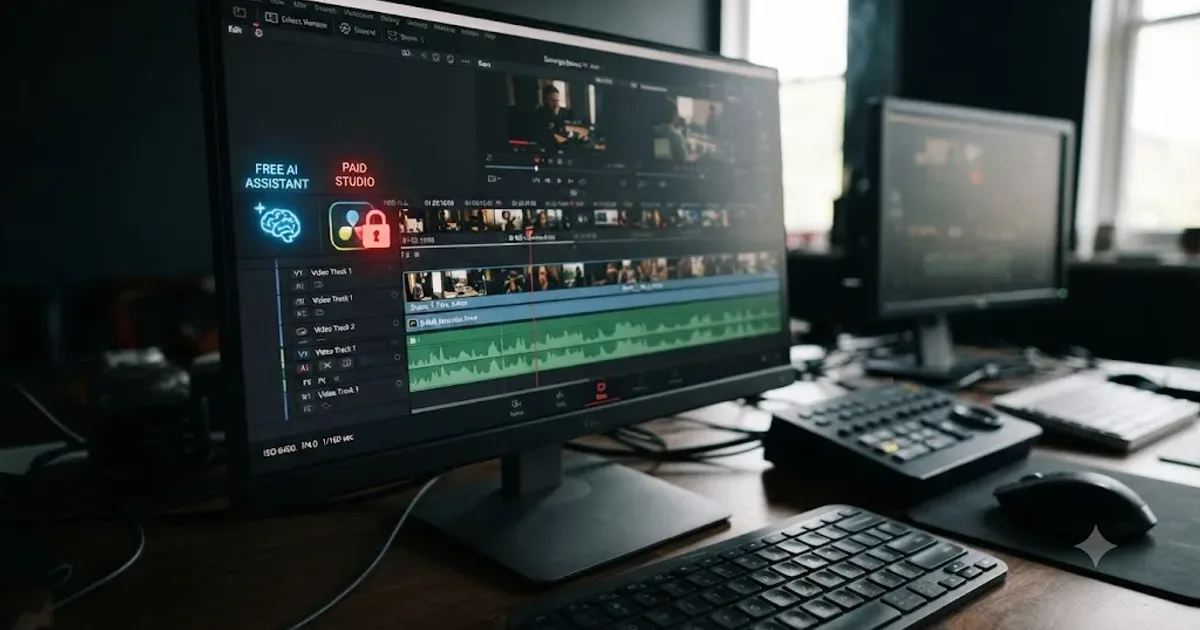
Search "free AI assistant for DaVinci Resolve" and you'll mostly find roundups that quietly bury "free" under a 7-day trial. That's not what you asked. You asked if something exists that costs nothing, does real AI work, and doesn't expire.
It does. Not one thing, a few things, each solving a narrower job than the marketing for the paid tools implies. Some are genuinely free, MIT-licensed, no account required. Others call themselves free while gating the actual AI behind a countdown clock. I dug through both categories and sorted which is which.
Does a free AI assistant for DaVinci Resolve actually exist?
Yes, and the honest table looks like this before anything else.
| Tool | Actually free? | What it does | Requires |
|---|---|---|---|
| AutoSubs | Yes, MIT license, no account | AI transcription, subtitles, translation, on-device | Resolve (free or Studio, not App Store build) |
| BadWords | Yes, MIT license, donation-based | Transcript-driven rough cutting, filler word detection | Resolve (free or Studio), ~15GB disk space |
| CorridorKey-Runtime | Yes, CC BY-NC-SA 4.0 | AI green-screen keying, no chroma card needed | Resolve 20+, RTX 30-series or Apple Silicon |
| DavinciClaude (free tier) | Yes, no time limit, daily-ish core tools | Silence cuts, captions, subtitles, viral clip detection | Resolve 18+ |
| squawk | Was free, now archived | Whisper subtitles for Resolve 18 | Obsolete, superseded by Resolve's own tools |
| CutAgent, Sottocut, Eddie AI, Wideframe, AutoCut | No | Trials only, 7 to 14 days, then a subscription | Varies |
| DaVinci Resolve's own Neural Engine | No | IntelliSearch, Magic Mask, and the rest | $295 Studio license |
A free AI assistant for DaVinci Resolve exists, but it doesn't come from Blackmagic Design. It comes from independent open-source developers publishing MIT-licensed plugins on GitHub, and from one commercial plugin maker who chose to give away a real, unrestricted free tier instead of a trial. Neither Blackmagic's own AI tools nor most of the venture-backed AI startups covered in roundup articles are free in the sense you mean when you type this query.
What actually counts as "free" here?
Before comparing anything, it's worth drawing a line the search results themselves blur constantly. A search for "free AI tool for DaVinci Resolve" surfaces three different things wearing the same word.
The first is a genuinely free tool: no time limit, no credit card, no feature that silently stops working after a week. Open-source, MIT-licensed GitHub projects fall here, and so does a real free tier a commercial company chooses to offer indefinitely.
The second is a free trial dressed up as free: full access for 7 or 14 days, then a paywall. AutoCut's homepage advertises itself prominently and its trial requires no credit card, which is a real, honest trial, just not a free tool in the sense this query means. Sottocut and Wideframe run the same shape of offer.
The third is a free-to-start credit system: no subscription required to begin, but every unit of real work costs money past a small allotment. Eddie AI's Pay As You Go tier, at $15 a credit after a couple of free exports, is this shape. It's not dishonest, but it's not "free" the way a query typed with that exact word implies either.
Only tools in the first category answer the question this page's title asks. The rest are worth knowing about, and I'll cover them, but they get sorted honestly instead of counted toward the "yes" column.
What is DavinciClaude's free tier, and what does it actually include?
DavinciClaude, the DaVinci Resolve plugin from the team behind PremiereCopilot, is the clearest commercial example of a real free tier rather than a trial. Per its own product page and PremiereCopilot's blog coverage of the plugin ecosystem, the free tier covers Smart Silences (automatic dead-air removal), Smart Captions, Smart Subtitles, and Smart Virals (clip extraction for shorts), with no time limit and no credit card required to start.
That's four real, working AI tools running inside your Resolve timeline for zero dollars, indefinitely. The tradeoff sits on the other side of the plugin's feature list. DavinciClaude's headline feature, the chat-based Claude Cut interface that lets you type a compound instruction and watch it execute across silence removal, captions, and B-roll in one pass, sits behind the paid Pro+ tier at $76 a year. The free tier gives you the individual tools; the paid tier gives you the conversational layer that strings them together.
| DavinciClaude tier | Price | What's included |
|---|---|---|
| Free | $0, no time limit | Smart Silences, Smart Captions, Smart Subtitles, Smart Virals |
| Pro+ | $76/year | Claude chat interface, extended limits, additional tools |
| Lifetime bundles | One-time | Individual feature bundles (Podcast or GenAI tools) |
DavinciClaude runs on both macOS and Windows, per its own system requirements, and requires DaVinci Resolve 18 or later on either the free or Studio edition. That cross-platform, low-version-requirement combination makes it the easiest entry point on this whole page if you just want to try an AI plugin without committing to anything.
The free tier genuinely never expires, which separates it from every trial covered later on this page. That's worth restating plainly, because "free tier" and "free trial" get used interchangeably in marketing copy that has every incentive to blur the distinction.
What is AutoSubs, and how is it free with no catch?
AutoSubs is the strongest genuinely free option on this entire page, and it's worth understanding exactly why before comparing it to anything paid. Per its own GitHub README, it describes itself plainly: "Local-first AI subtitles. No cloud, no subscription, no data leaving your machine."
It's not a plugin from a startup hoping to upsell you later. It's an open-source project, MIT-licensed, that connects directly to DaVinci Resolve (also to Adobe Premiere Pro and After Effects, if your workflow spans apps), transcribes your footage using a choice of AI models, Whisper, Moonshine, Parakeet, SenseVoice, or Canary, and generates timestamped, editable subtitles. It supports speaker diarization to label who's talking, translation across more than 100 languages, and export to SRT, plain text, or your clipboard.
Here's the detail that separates it from most of the paid tools in this category: AutoSubs runs on CPU-based inference through ONNX Runtime, so it needs no GPU at all. That matters if your editing machine is a few years old, or a laptop without a dedicated graphics card, since most AI transcription tools quietly assume you have modern GPU hardware sitting idle to throw at the job.
| AutoSubs fact | Detail |
|---|---|
| License | MIT (open source) |
| Cost | $0, no subscription, ever |
| Platforms | macOS (Apple Silicon and Intel), Windows, Linux (.deb and .rpm) |
| GPU required | No, CPU-based inference |
| Works with free DaVinci Resolve | Yes |
| Maintenance | Actively maintained, latest release June 2026, 1,000+ commits |
That last row matters more than it looks. A lot of free GitHub tools for creative software get published once, get a burst of attention, and then go quiet for a year while the app they plug into ships three updates that quietly break them. AutoSubs, by its own release history, doesn't have that problem right now: dozens of releases, over a thousand commits, and a build dated within the same month as this post.
One real limitation worth naming honestly: AutoSubs explicitly doesn't work with the Mac App Store version of DaVinci Resolve. If you installed Resolve that way, you'll need to reinstall from Blackmagic's own site before AutoSubs can connect to it, a small but real friction point that's easy to hit by accident if you didn't know Resolve ships through two separate distribution channels on macOS.
What is BadWords, and how does a fully open-source AI plugin work?
BadWords takes a different angle on the same underlying problem: dialogue-heavy footage that needs cutting down, not just captioning. Per its own GitHub project, it describes its goal in one line: "Cleaner Timelines, Faster. Simpler Rough-Cutting for DaVinci Resolve."
The workflow is genuinely clever, and it's worth walking through because it's a meaningfully different shape than a chat interface. BadWords transcribes your footage locally using Faster-Whisper, then shows you that transcript as color-coded, editable text inside its own app window: red for flagged mistakes, blue for retakes, green for typos. You edit the transcript the way you'd edit a document, deleting a repeated line, cutting a flubbed take, and BadWords maps those text edits back onto your actual DaVinci Resolve timeline, assembling a new, clean sequence with markers showing exactly what it changed.
One feature stands out from everything else in this category. BadWords supports a script comparison mode: paste in the written script you were supposed to say, and it diffs that against what you actually said on camera, highlighting exactly where you went off-book, repeated a line, or skipped a section. That's a genuinely useful feature for scripted content, corporate video, or narration work, and it's not something any of the paid AI editing assistants covered elsewhere on this site advertise doing.
| BadWords fact | Detail |
|---|---|
| License | MIT (open source), donations accepted, no paid tier |
| Platforms | Windows, macOS (non-App-Store build), Linux (any distro) |
| Requires | DaVinci Resolve free or Studio |
| Disk space | About 15GB for the app and AI models |
| GPU | NVIDIA GPU recommended, CPU-only mode available |
| Workflow | Non-destructive; edits a transcript, not your original timeline directly |
The 15GB disk footprint and the NVIDIA-GPU-recommended note are worth taking seriously before you install this on a small SSD or an older laptop. Unlike AutoSubs, BadWords works better with dedicated graphics hardware, though it does have a CPU fallback for machines without one. If you're already tight on storage from raw footage and render caches, budget for the model download before you start.
BadWords' release history backs up its "actively maintained" status with specifics, not just a badge. Version 3.1 fixed a Mac M4 compatibility issue that had broken initialization on earlier releases, along with crashes during project export and import, and a Windows bug where the app's taskbar icon would disappear after minimizing. None of those are hypothetical bugs pulled from a changelog for show, they're exactly the category of issue that makes an unmaintained free tool unusable eighteen months after its first release. BadWords fixing them in a point release is a better signal than any marketing copy about how seriously the project treats its own reliability.
BadWords runs entirely on your own machine, so no subscription, no API key, and no cloud bill ever attaches to it. That's the same structural promise Sottocut makes as a paid product, at $15 a month minimum. BadWords makes the identical architectural bet, for free, because an individual open-source developer built it without a business model attached.
What happened to squawk, and why is it archived now?
Worth a mention specifically because it shows how this category actually evolves, and because you'll still find it recommended in older roundup posts that haven't been updated. Squawk, per its own GitHub repository, was one of the earliest free tools built for exactly this job: automatic subtitles for DaVinci Resolve, powered by OpenAI's Whisper, built for Resolve 18.
It was archived on November 1, 2024. The project's own notes give the reason directly: DaVinci Resolve 18.5 and later shipped native automatic speech-to-text subtitle generation as a Neural Engine feature, which made a dedicated external tool for that specific job redundant for most users. The maintainer also flagged that supporting Resolve 17 and older would have required Python 3.6, a version that had already reached end of life, making further support impractical.
That's a genuinely healthy outcome for an open-source tool, not a failure. It solved a real gap, Blackmagic eventually closed that gap with a first-party feature (gated to Studio, per Blackmagic's own product pages, not the free version), and the tool retired gracefully instead of lingering half-maintained.
A free tool going out of maintenance because the platform absorbed its job is a different story than a free tool going unmaintained because nobody cared. Squawk is squarely the first kind. If you find it recommended somewhere today, that recommendation is stale, and AutoSubs is its actively maintained successor for the same job.
Is CorridorKey-Runtime a free AI tool for DaVinci Resolve too?
Yes, and it's worth including because it covers a completely different job than transcription or cutting: AI-powered keying, pulling a subject off a background without a physical green screen. Per its own GitHub project, it describes itself as a "Native AI keying runtime and OFX plugin for DaVinci Resolve, built in collaboration with Corridor Digital," the VFX and film production studio known for its YouTube channel Corridor Crew.
It ships as an OFX plugin that drops directly into a Resolve node, plus a command-line interface and a standalone desktop GUI for anyone who wants to process footage outside the app first. It offers quality presets from Draft up through Maximum and supports external alpha hints for shots the AI model struggles with on its own.
| CorridorKey-Runtime fact | Detail |
|---|---|
| License | CC BY-NC-SA 4.0 |
| Cost | Free; license prohibits reselling or repackaging as a paid service |
| Windows requirement | NVIDIA RTX 30-series or newer |
| macOS requirement | Apple Silicon |
| Resolve version | 20 or later |
The hardware floor here is real and worth checking before you install anything. This isn't a tool that runs on an older GPU or an Intel Mac; it needs a genuinely modern graphics card or an M-series chip to do the keying work at usable speed. If your machine doesn't clear that bar, this specific tool isn't for you today, regardless of how much you'd like AI keying for free.
The license terms also matter if you ever considered building a service around it: CC BY-NC-SA 4.0 explicitly permits you to use it on your own commercial video work, but it blocks repackaging the tool itself into a paid product. That's a meaningfully different, and more restrictive, license than BadWords' or AutoSubs' plain MIT terms, worth knowing if you were planning to build something on top of it rather than just running it.
Does DaVinci Resolve's own built-in AI count as free?
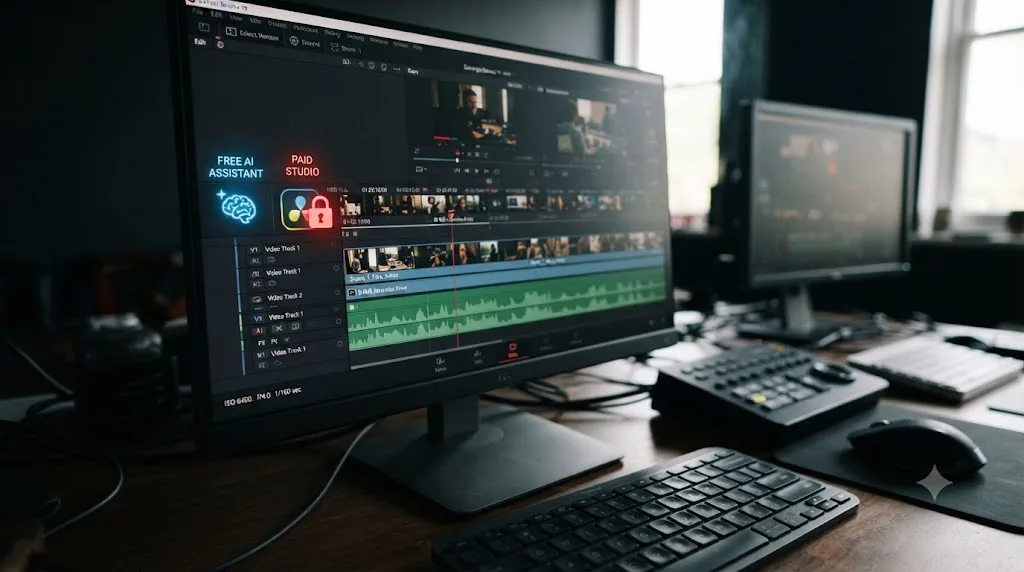
This is the question worth answering carefully, because it's the most common source of confusion in this category. DaVinci Resolve 21 ships nine Neural Engine AI tools, IntelliSearch, CineFocus, AI Speech Generator, AI UltraSharpen, AI Motion Deblur, and the face-manipulation and slate-reading tools, alongside automatic transcription and Magic Mask, per Blackmagic's own Studio product page.
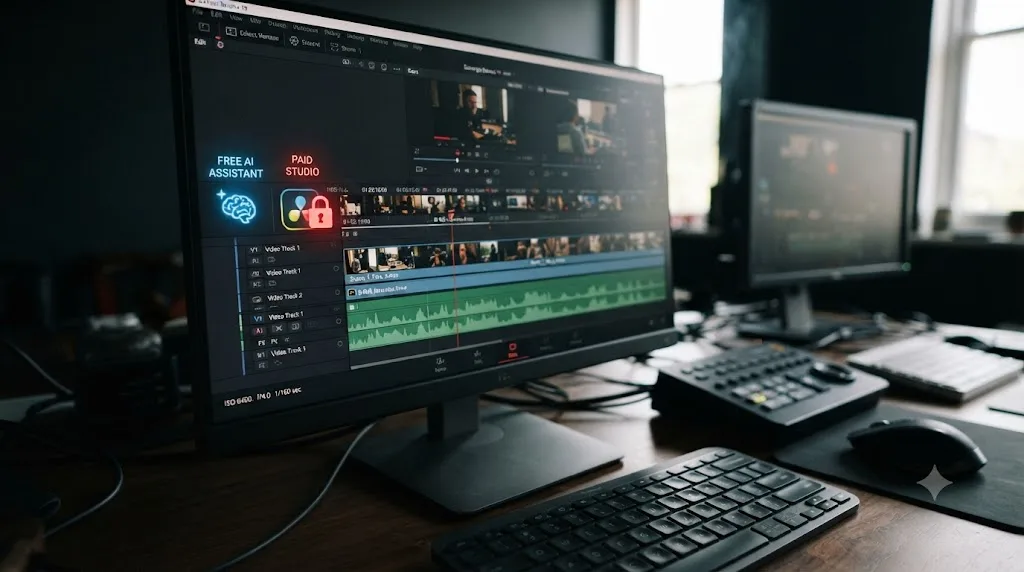
Every single one of them requires the Studio license. Blackmagic's own free version product page makes no mention of any AI or Neural Engine feature at all, and lists "multi-user collaboration and HDR grading" as the free tier's notable additions instead. Our full free vs Studio price breakdown covers every feature gap in detail if you're weighing the $295 purchase for other reasons too, since AI isn't the only thing that upgrade unlocks.
DaVinci Resolve's own Neural Engine AI tools are Studio-only; the free version doesn't ship a single one of them. That's a fact worth sitting with before you go looking for a hidden free-tier AI menu inside the free version. It isn't there, and it isn't a bug or a regional restriction, it's the product's actual design.
This is also the exact gap the open-source tools covered above exist to fill. AutoSubs gives you free-version users transcription and subtitles that Resolve's own free tier withholds. BadWords gives free-version users a rough-cutting workflow that Studio's text-based editing feature would otherwise gate behind $295. Neither tool is competing with Blackmagic's AI; they're covering the exact hole Blackmagic deliberately left in the free tier.
Blackmagic Design CEO Grant Petty, discussing the company's approach to AI in an interview at NAB 2023, framed the philosophy behind that AI investment this way, quoted verbatim from No Film School's coverage of the conversation: "AI should really support the creative because what we want to see is people going in directions that we didn't expect or in new directions." That framing describes why Blackmagic keeps building Neural Engine tools at all. It doesn't describe a plan to make any of them free; the business model behind the free tier depends on the paid tier funding continued development, the same logic the free vs Studio guide covers in full.
Which "free" AI tools for DaVinci Resolve aren't actually free?
This is where most searches for this exact query go wrong, because a lot of legitimate, well-built products use "free" prominently in their own marketing while the actual free thing on offer is a countdown clock. None of this is a knock on these products, which our full comparison of AI assistants for DaVinci Resolve covers on their own paid merits. It's just worth being precise about what "free" means on each specific page before you install anything expecting it to stay free.
| Tool | What's actually free | What isn't |
|---|---|---|
| AutoCut | 14-day trial, no credit card, all features unlocked | After 14 days: $6.60/month minimum, billed annually |
| Sottocut | 7-day trial, no card required | After trial: $15/month minimum, bring-your-own API key |
| Wideframe | 7-day trial | After trial: $100/month flat, no lower tier |
| Eddie AI | 2 free exports a month, or pay-as-you-go credits at $15 each | Any real volume of use, which runs into the credit system fast |
| CutAgent | No free tier or trial listed | €29/month from the first day |
AutoCut's own pricing page is honest about the shape of its offer: a genuine 14-day trial with every feature unlocked and no credit card needed upfront, then a real subscription starting at $6.60 a month for silences-only, or $14.90 a month for the full AI feature set, per AutoCut's own pricing page. That's a fair trial, clearly labeled. It's just not what "free AI assistant" means when someone types that exact phrase into a search bar hoping to spend nothing.
Eddie AI's structure deserves a specific callout because its free tier is the easiest one to misread. Two free exports a month sounds like a working free plan until you actually try to use it on a real workflow: two exports covers roughly one small project a month, not ongoing editing work. Past that, Eddie AI's own pricing page shows credits at $15 each, or a $167-a-month Pro subscription billed yearly, numbers built for production-team budgets, not a creator testing whether AI editing is worth adopting.
A 14-day trial with no credit card required is a genuinely fair way to try software. It is not the same claim as "free," and treating the two as interchangeable is how people end up surprised by a charge two weeks after they thought they'd found a free tool. Read the actual pricing page, not the homepage headline, before you build a workflow around any of these five.
How do all the real free options compare side by side?
Here's every genuinely free tool from this page, stripped down to the facts that decide which one actually fits your work.
| Tool | Job | Platform | GPU needed | License | Status |
|---|---|---|---|---|---|
| AutoSubs | Transcription, subtitles, translation | macOS, Windows, Linux | No | MIT | Actively maintained (June 2026) |
| BadWords | Transcript-based rough cutting | Windows, macOS, Linux | Recommended, not required | MIT | Actively maintained |
| CorridorKey-Runtime | AI green-screen keying | Windows (RTX 30+), macOS (Apple Silicon) | Yes, required | CC BY-NC-SA 4.0 | Active |
| DavinciClaude (free tier) | Silence cuts, captions, subtitles, viral clips | macOS, Windows | No | Proprietary, free tier | Active, commercially maintained |
| squawk | Subtitles (obsolete) | Resolve 18 only | No | MIT | Archived, unmaintained |
None of these five tools do everything a paid assistant like CutAgent or Sottocut does in one package. Each one solves a specific, narrow job well. That's the honest tradeoff of "free": you assemble a stack of single-purpose tools instead of buying one broader subscription that touches color, Fairlight, and Fusion the way CutAgent's paid tier does. For a lot of workflows, silence removal plus subtitles plus a rough cut covers 80 percent of the repetitive work anyway, at zero dollars.
What does a full year of each option actually cost?
Every price on this page so far is a monthly or one-time figure. Stacked over a full year, the actual gap between "free" and "paid" gets a lot more concrete.
| Option | Annual cost | Notes |
|---|---|---|
| AutoSubs | $0 | MIT license, no paid tier exists |
| BadWords | $0 | MIT license, donation-based, no required paid tier |
| CorridorKey-Runtime | $0 | Free license; cost shows up as required GPU hardware instead |
| DavinciClaude free tier | $0 | No time limit |
| DavinciClaude Pro+ | $76/year | Adds the Claude chat interface |
| AutoCut, silences only | $79.20/year | $6.60/month, billed annually |
| AutoCut, full features | $178.80/year | $14.90/month, billed annually |
| Sottocut | $180/year minimum | Plus a bring-your-own API key cost on top |
| DaVinci Resolve Studio | $295 one-time | Not a subscription; pays for itself against any monthly tool within a year |
| CutAgent | About €348/year | €29/month from the first day, no free tier |
| Wideframe | $1,200/year | $100/month flat, no lower tier |
| TryUncle, founder rate | $359.88/year | $29.99/month; rises to $49.99/month once the first 100 seats fill |
| Eddie AI Pro | $2,004/year | $167/month billed yearly; pay-as-you-go credits run higher per unit of real use |
A completely free stack, AutoSubs plus BadWords plus DavinciClaude's free tier, is the only $0-a-year row on this entire page. Every other option, including TryUncle, charges something annually, and the spread between the cheapest paid tool and the most expensive one is roughly $1,900 a year. Studio's one-time $295 is worth noticing too: it beats every subscription on this table within about ten months of ownership, which is part of why Blackmagic can charge once and still fund ongoing Neural Engine development, per the free vs Studio breakdown this site covers separately. None of this means the paid tools are overpriced for what they do; it means "free" and "cheap" are different claims, and this table keeps them from blurring together.
What does a real free-stack session actually look like?
Descriptions like "it transcribes your footage" stay abstract until you picture the actual moment someone uses one of these tools on a real project. Here are two plausible walkthroughs, built from how each project describes its own workflow, not a stopwatch test run on this site's own footage.
Scenario one: a solo YouTuber captioning a 20-minute tutorial with AutoSubs, on a laptop with no dedicated GPU. Picture an editor who just finished cutting a screen-recording tutorial and needs burned-in captions before uploading. She opens AutoSubs, points it at her DaVinci Resolve project, and picks the Whisper model sized for her CPU-only laptop rather than the largest, most accurate one, trading a little transcription precision for a transcription pass that finishes in a few minutes instead of tying up her machine for an hour. AutoSubs generates timestamped subtitles, she skims the transcript for a couple of misheard technical terms, corrects them in the text editor, and exports an SRT file straight into her Resolve timeline. Total cost: zero dollars, a few minutes of review, no cloud upload of a recording that includes her voice and screen.
Scenario two: a podcast editor cleaning a rambling 90-minute interview with BadWords, on a desktop with an NVIDIA GPU. Picture an editor who just imported a raw two-person conversation, full of tangents, false starts, and one long story that needs cutting in half. He drops the audio into BadWords, lets Faster-Whisper transcribe it locally using his GPU, then reads the color-coded transcript on-screen the way he'd read a script doctor's notes: red flags on a rambling tangent, blue on a repeated anecdote told twice. He deletes the sections he doesn't want directly in the text, and BadWords assembles a new, clean timeline back in Resolve with markers showing exactly what got cut. He spends the review time reading text instead of scrubbing ninety minutes of raw audio by ear.
Neither scenario is a benchmark, and neither editor exists outside this paragraph. They're built from how AutoSubs and BadWords themselves describe their transcription and editing flow, the same honest framing this site uses for every tool it hasn't independently timed with a stopwatch.
Do these free tools work on Linux, not just Mac and Windows?
Yes, and this is one of the more pleasant surprises across this whole category. DaVinci Resolve itself ships free and Studio editions for Linux the same as it does for Mac and Windows, per Blackmagic's own product page, and both AutoSubs and BadWords back that up with genuine, native Linux support rather than treating it as an afterthought.
AutoSubs ships a .deb package for Debian and Ubuntu and a separate .rpm for Fedora and openSUSE, installed the same way you'd install any other native Linux application, per its own GitHub README. BadWords goes a step further and claims support for "any distro," installed through a single terminal command that downloads its own setup script and runs without asking for root access.
That matters because a lot of free AI plugins built for creative software quietly only ship for Mac and Windows, leaving Linux editors to either skip the tool entirely or hunt for an unofficial build with no guarantee it still works after the next update. Neither AutoSubs nor BadWords does that here. If you're one of the editors who picked DaVinci Resolve specifically because it's one of the only professional editors with a real native Linux version, both of the strongest free AI tools on this page followed it there.
How do you actually install a free AI assistant stack in DaVinci Resolve?
The general shape is the same across AutoSubs, BadWords, and DavinciClaude's free tier, though the exact steps shift release to release, so treat this as the map, not a click-by-click script.
- Pick the job, not the brand. Decide first whether your actual bottleneck is subtitles, rough-cutting dialogue, or chat-driven silence removal. Installing all three before you know which task eats the most of your week just adds three things that can each break independently.
- Confirm your Resolve install is the right build. Download DaVinci Resolve directly from Blackmagic's own site rather than through the Mac App Store. AutoSubs explicitly states it won't connect to the App Store build, and other scripting-based tools carry the same risk since the App Store version sandboxes the app differently.
- Install through Resolve's Scripts menu, or the tool's own installer. Most of these connect via Workspace > Scripts inside Resolve, or run as a companion desktop app that talks to Resolve over a local connection. Follow the specific project's own README rather than a generic tutorial, since exact install steps change between Resolve point releases and plugin versions.
- Test on a throwaway project before anything billable. Run your first transcription or rough cut on a clip you don't mind losing. Free, open-source tools carry no support contract, and a bug that corrupts a test project costs you nothing; the same bug on a client's paid delivery costs you a deadline.
- Check disk space and hardware requirements before you commit. BadWords alone needs roughly 15GB for its AI models. If you're already tight on storage from raw footage and render caches, confirm you have room, or pick a smaller model size if the tool offers one, before the install stalls partway through a multi-gigabyte download.
That five-step map covers the shape of the install. Here's what step 3 actually looks like on each platform, because "follow the specific project's README" is true but not exactly actionable.
AutoSubs installs through a package manager on every platform it supports, not a drag-and-drop wizard. On macOS, Homebrew handles it in one line: brew install --cask auto-subs. On Debian or Ubuntu, download the .deb file and run sudo apt install ./AutoSubs-linux-x86_64.deb. Fedora and openSUSE users grab the .rpm package instead, per AutoSubs' own GitHub README. BadWords goes even further: a single terminal command on each platform runs its own setup script and needs no administrator privileges, downloading everything into an isolated folder in your user directory rather than touching system files, per BadWords' own GitHub project. That matters for a shared or work-issued machine, where you might not have admin rights to run a traditional installer at all.
Model size is the other decision buried inside step 3. AutoSubs lets you pick which AI transcription model actually runs, and that choice is a real hardware tradeoff, not a checkbox you can ignore. Per its own documentation, RAM needs range from roughly 1GB for the smallest model up to about 10GB for the largest, most accurate Whisper build (large-v3), and the model files themselves run from 60MB to 3.1GB on disk depending on which one you pick. On a CPU-only laptop from a few years back, that's the difference between a transcription pass that finishes in a couple of minutes and one that ties up your machine for twenty. The accuracy loss from picking a smaller model is real, but for a clearly-recorded voiceover or interview, it's usually small enough not to matter.
These tools live and die by Resolve's own scripting API, the same documented interface every third-party Resolve extension, paid or free, depends on. When Blackmagic ships a point release, 21.0 to 21.1 and beyond, that's the layer that can shift underneath a free plugin with no company obligated to patch it same-day. Check a tool's own GitHub activity, recent commits, open issues about the current Resolve version, before trusting it with a deadline project right after you update Resolve itself.
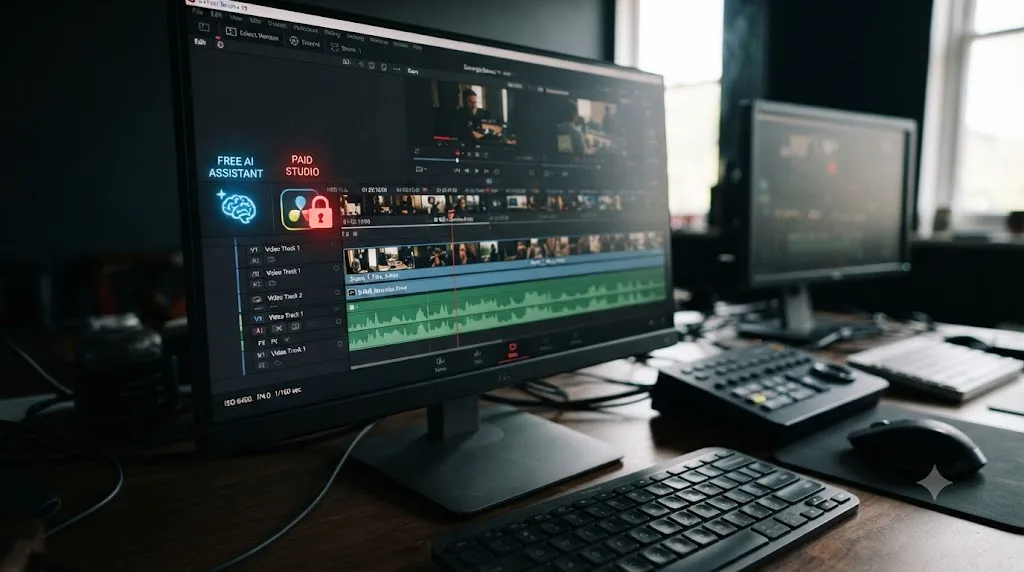
What do you do if AutoSubs or BadWords can't find your DaVinci Resolve install?
This is the single most common install snag across both tools, and it has one root cause more often than any other: the Mac App Store build of DaVinci Resolve. Both projects state it plainly in their own documentation. AutoSubs: the App Store version isn't supported, download DaVinci Resolve directly from Blackmagic's site instead. BadWords: the same warning, word for word in spirit, reinstall from the official site if the plugin won't connect. If a fresh install of either tool can't see your Resolve project, this is the first thing to check, before you assume the plugin itself is broken.
A few other checks worth running through in order before you give up on an install:
- Confirm you're not still on the App Store build. Uninstall it and reinstall from Blackmagic's own download page if you are.
- Give the first run extra time. BadWords in particular takes noticeably longer on its very first launch, first transcription, and first analysis pass, while it finishes hardware initialization and downloads its AI models, per its own release notes. A slow-looking first run that finishes normally on a second attempt is expected behavior, not a bug.
- Check you're on the latest release if you're on Apple Silicon, especially an M4 chip. BadWords shipped a fix in version 3.1 specifically for a Mac M4 compatibility issue that broke initialization on earlier releases. If you're on an M4 Mac and stuck, updating the plugin before troubleshooting anything else is worth trying first.
- Check your free disk space. BadWords needs roughly 15GB for the app and its AI models, plus another 1 to 10GB depending on which models you select. A stalled or silently-failing install is worth checking against available disk space before assuming it's a Resolve compatibility issue.
- Confirm your Linux package matches your distro's family. AutoSubs ships a
.debfor Debian and Ubuntu and a separate.rpmfor Fedora and openSUSE; installing the wrong package format is a common, easy-to-miss mistake on Linux specifically.
None of these are exotic fixes. They're the same five things worth ruling out on any local AI tool before concluding the software itself is broken, and in practice they resolve the large majority of "it won't detect Resolve" reports for both projects.
Is it safe to run open-source AI plugins on client footage?
This is the question worth asking before you install anything on a machine handling an NDA-covered project, and the honest answer cuts in a specific, non-obvious direction.
On pure data privacy, AutoSubs and BadWords are structurally strong. Both run their AI transcription entirely on-device, per their own project pages, meaning no footage, no audio, and no transcript gets uploaded anywhere by design. That's a genuinely stronger privacy posture on paper than most of the cloud-connected paid tools covered in our broader AI assistant comparison, where only Sottocut among the paid options makes the same on-device claim explicitly.
But privacy and safety aren't the same question. An open-source plugin with no company behind it means no monthly invoice, but also no support line when a Resolve update breaks it, and no security team who audited the code before you ran it. A paid vendor has a legal and reputational reason to keep your data safe and to patch a vulnerability fast; an individual maintainer publishing a free tool on GitHub, however well-intentioned, doesn't carry the same institutional weight if something goes wrong.
In practice, that means a specific, practical checklist before you run any of these tools on client work:
| Check | Why it matters |
|---|---|
| Read the project's own README and recent issues | Flags known bugs, unmaintained status, or platform-specific problems before you hit them |
| Confirm the repository is still actively updated | An unmaintained tool (like squawk) may still work, but won't get fixed if a Resolve update breaks it |
| Test on a duplicate project first | The same safety habit any AI tool deserves, free or paid, per our full AI assistant comparison |
| Check what runs locally versus what (if anything) leaves your machine | AutoSubs and BadWords both claim fully local processing; verify that claim holds for the specific feature you're using, since some tools add optional cloud features later |
| Ask your client directly if open-source tooling is acceptable under the NDA | Some contracts specify approved software explicitly; a free GitHub plugin may not be on that list even if it's technically safer than a cloud alternative |
Picture a concrete version of that last row in practice. A freelance editor gets handed a rough cut for a startup's unreleased product launch video, under NDA, three days before it ships. AutoSubs would transcribe the footage entirely on her own laptop, nothing leaves the machine, which clears the plain data-privacy question on its face. But her contract's NDA language requires "client-approved software only" for anything touching the footage before delivery, and an open-source GitHub plugin was never on that pre-approved list, because nobody thought to put it there. The safe move isn't skipping AutoSubs and losing the time it would save. It's a two-line email to the client asking whether a local, on-device, no-upload open-source tool clears their approved-software bar, sent before she runs it, not discovered after delivery if someone asks.
None of this is a reason to avoid these tools. It's a reason to treat "free and open-source" as a different risk profile than "free trial from a funded startup," not automatically safer or riskier, just a different set of tradeoffs to actually think through instead of assuming either direction by default.
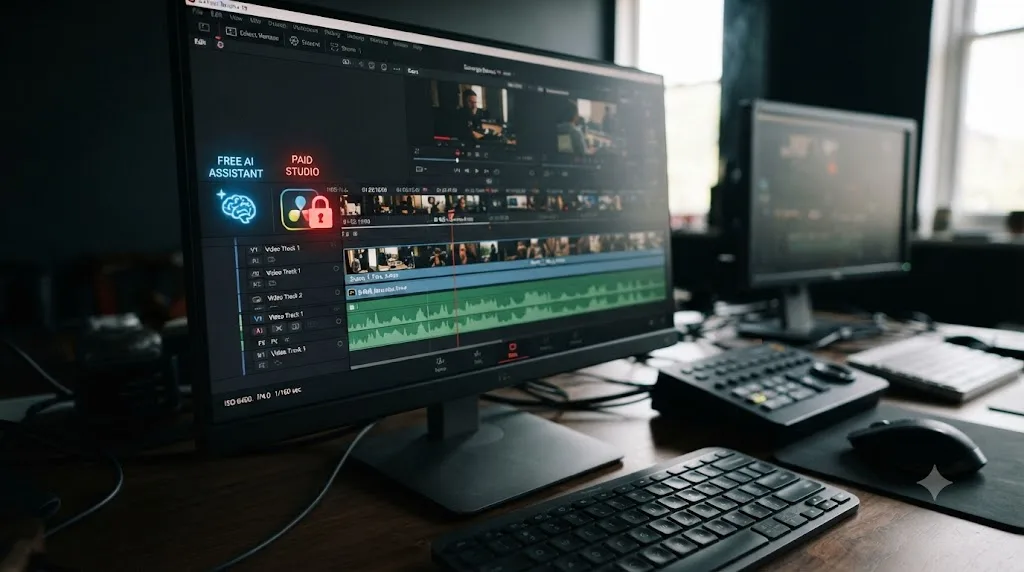
What are the real limits of free AI tools in DaVinci Resolve?
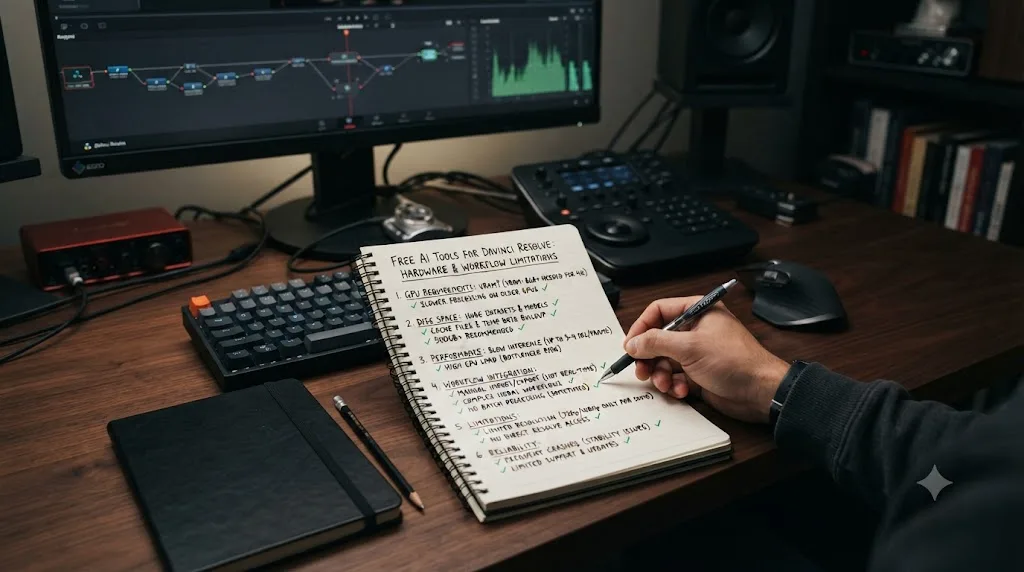
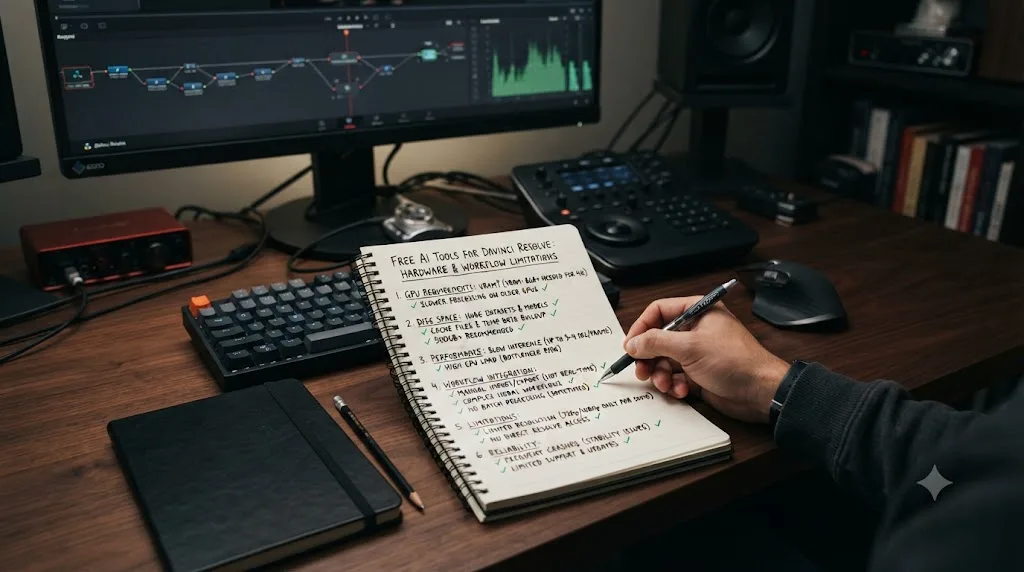
Every free option on this page solves one job, and none of them touch the ground a broader paid assistant covers. Worth naming these limits plainly rather than discovering them mid-project.
None of the free tools here touch color grading. CutAgent's paid tier reaches into color, Fairlight, and Fusion through natural language; AutoSubs and BadWords stay narrowly focused on transcription and cutting. If your actual bottleneck is a repetitive color task, nothing on this page helps, and that's not an oversight, it's simply outside what any of these projects were built to do.
None of them offer a conversational, type-anything interface the way DavinciClaude's paid Claude Cut tier or CutAgent do. AutoSubs and BadWords both have their own specific UI built around their specific job; you're not typing "cut the dead air and add captions" in one sentence and watching both things happen. You're running one tool for subtitles and a separate one for cutting, as two distinct steps.
Hardware requirements bite harder than most free-tool marketing admits. CorridorKey-Runtime needs an RTX 30-series card or Apple Silicon and won't run meaningfully on older hardware. BadWords works better with an NVIDIA GPU even though it has a CPU fallback. If your machine is older or budget-tier, some of these free tools quietly aren't free for you until you also upgrade hardware, which is its own real cost even if the license itself charges nothing.
Zero dollars is a real price a free AI tool can charge you in setup time, GPU requirements, and disk space. BadWords' 15GB footprint, CorridorKey-Runtime's RTX 30-series floor, and the general reality that you're assembling and maintaining a stack of separate tools yourself instead of getting one vendor's unified support, all cost something. They just don't cost money.
And a limit worth stating clearly because it comes up in nearly every AI tool comparison on this site: none of the free AI tools in DaVinci Resolve teach you why a grade looks wrong; they only remove the manual labor around it. AutoSubs won't explain why your subject's skin tone shifted between two clips. BadWords won't tell you why a node tree is grading the whole frame instead of an isolated area. That's not what a transcription tool or a rough-cutting tool is built to do, and no amount of free software changes that.
Do these free tools work if you're not editing in English?
Every example so far assumes English dialogue, and that assumption matters enough to call out directly, because the two transcription-based tools on this page handle other languages differently.
AutoSubs supports translation across more than 100 languages and gives you a choice of underlying AI model, Whisper, Moonshine, Parakeet, SenseVoice, or Canary, rather than locking you into one. That choice matters more outside English, since different transcription models were trained on different language mixes, and swapping models is a real option if your first attempt on, say, Japanese or Korean dialogue comes back rough.
BadWords is more direct about its own limitation. Per its own documentation, its Whisper models "perform best with English and major European languages," and other languages are supported but "might yield lower precision." That's an honest caveat, not marketing softened into a footnote, and it means a rough cut assembled from a Mandarin or Arabic interview will likely need a more careful read-through of the color-coded transcript before you trust its cuts, compared to the same workflow on English dialogue.
Neither limitation is disqualifying. It just changes how much you should trust the first pass. For English and the major European languages BadWords names directly, French, German, Spanish, and Italian among them, both tools are close to a set-and-review workflow. Outside that list, budget real time for correcting the transcript by hand before you let either tool touch your timeline, and don't skip the review step just because the first pass looked plausible at a glance.
Free AI editing vs. an app that helps you while you're using DaVinci Resolve: what's the actual difference?
Every tool covered so far, free or paid, automates a task: transcribe this, cut that, key this subject out. None of them answer a different, quieter question that a lot of people typing "app that helps you while using DaVinci Resolve" are actually asking: what happens the moment you're stuck, not your footage?
That's a structurally different job, and it's worth naming the tool built specifically for it. TryUncle is an AI tutor for DaVinci Resolve on macOS, ask in plain words and Uncle points at the exact control on your screen. It doesn't transcribe your interview, cut your dead air, or key your background out. It watches your actual open project on the Edit, Color, and Fusion pages, and when you ask a question, by typing, speaking, or a generic "what's next" shortcut, it draws a circle around the exact control you need, live, on your own screen. You still make the click.
The distinction matters more than it sounds at first. If you already know exactly what a node-based color workflow requires and you just want the silences gone in the next twenty clips, AutoSubs and BadWords save you real, free time on exactly that task. If you're staring at a node tree that's grading the whole frame instead of just a face, and you don't yet know why, no free transcription tool or paid editing agent helps you understand the mistake. TryUncle is built for exactly that second moment, the gap between doing the task and understanding it.
TryUncle runs on macOS only, at founder pricing of $29.99 a month for the first 100 subscribers, and it's a paid subscription from day one, not a free tool with a paid upsell later. Per TryUncle's own FAQ, it works with both the free and Studio editions of DaVinci Resolve, though Studio-exclusive tools like Magic Mask obviously aren't there for Uncle to point at if you're running the free version. Check TryUncle directly for the current founder-rate seat count, and read our full TryUncle review for the pricing, privacy model, and honest limitations before subscribing.
| Category | What it optimizes for | Cost |
|---|---|---|
| AutoSubs, BadWords, DavinciClaude free tier | Speed on a repetitive task you already know how to do | $0 |
| CutAgent, Sottocut, Eddie AI, Wideframe, AutoCut | Same job, broader scope, faster support | $15 to $299+/month |
| TryUncle | Understanding, in the moment you're stuck on a task you don't yet know | $29.99/month (founder rate) |
If you're weighing this against learning the app from scratch instead, our full breakdown of what to learn first, editing, color, or audio covers the sequencing question, since a free transcription tool or a paid tutor both assume you already have some baseline in the app to build on.
What's the best way to learn DaVinci Resolve fast if you can't pay for anything yet?
This is worth answering directly, since it's the question underneath a lot of "free AI assistant" searches, even when it isn't typed explicitly. If your actual budget is zero, here's the honest sequencing, and it starts before any AI tool at all.
Blackmagic Design's own training program includes free downloadable training books and free certification exams, and it's the closest thing to an official baseline for how the company itself expects new editors to learn the app. Community YouTube channels like Casey Faris publish ongoing, free, structured tutorials covering fundamentals and new features as they ship. Neither is AI-powered, and neither is interactive, but both are real, free, and maintained by people with a track record.
Once you're past fundamentals and editing actual footage, that's the moment a free AI plugin like AutoSubs earns its place: repetitive tasks, subtitles, transcription, are exactly the kind of grind a beginner shouldn't spend hours doing by hand while they're still building other skills. Layer in BadWords once you're regularly cutting dialogue-heavy footage and want the rough-cut assembly automated too.
Guided repetition inside your own project teaches you faster than any tutorial about someone else's footage, and a free tool that removes pure busywork doesn't compete with that, it protects the time you have left for the parts that actually build skill. That's the honest case for combining free structured learning with free AI automation, rather than treating them as competing options.
If you hit a specific wall on a real project, something a general tutorial can't answer because it's about your timeline, your footage, your specific mistake, that's the moment a paid, screen-aware tutor like TryUncle starts to earn a subscription that free resources structurally can't replace, since a static video can't see your actual node tree.
What mistakes do people make chasing "free AI" for DaVinci Resolve?
A handful of avoidable mistakes account for most of the wasted time and surprise charges in this category.
Confusing a free trial with a free tool. AutoCut, Sottocut, and Wideframe all offer genuinely fair trials, 7 to 14 days, often with no credit card required upfront. None of them stay free past that window. Read the pricing page, not the homepage hero text, before assuming a tool is free long-term.
Installing DaVinci Resolve through the Mac App Store, then wondering why AutoSubs won't connect. Several scripting-based tools explicitly require the direct-from-Blackmagic build. If a free plugin won't detect your Resolve install, this is the first thing to check, before assuming the plugin itself is broken.
Running an unmaintained open-source tool on a deadline project. Squawk still shows up in older "free tools" roundups, but it's archived and built for a version of Resolve that's several releases behind. Check a project's last commit date and open issues before trusting it with anything billable.
Buying a $167-a-month Eddie AI Pro subscription for occasional, light editing. Its free tier, two exports a month, genuinely covers light use; the paid tier assumes production-team volume. Match your actual usage to the tier, not the brand name.
Assuming a free AI tool will teach you what you don't yet know. AutoSubs will transcribe your footage perfectly and still leave you confused about why your color grade looks off. Free automation and skill-building solve different problems, and no amount of free tooling substitutes for the second one.
Skipping the hardware check before installing. CorridorKey-Runtime's RTX 30-series requirement and BadWords' 15GB footprint are real, specific, checkable facts. Confirm your machine clears them before you spend an afternoon on an install that was never going to run well on your hardware.
Running BadWords on non-English dialogue and trusting the first pass blindly. Its own documentation admits lower precision outside English and the major European languages. Skipping the transcript review step because it worked fine on your last English-language project is how a wrong cut ends up on a client's timeline.
Which free option actually fits you?
Match yourself to a row before you install anything.
| You are | Pick | Why |
|---|---|---|
| Making talking-head or tutorial videos that need captions | AutoSubs | No GPU required, actively maintained, works with the free version of Resolve |
| Editing long, rambling interviews or podcasts that need trimming | BadWords | Transcript-driven rough cutting, script comparison mode, fully local |
| Doing green-screen-style compositing without a physical green screen | CorridorKey-Runtime | Free AI keying, if your GPU clears the RTX 30-series or Apple Silicon bar |
| Wanting one plugin with a bit of everything, silence cuts through subtitles | DavinciClaude free tier | No time limit, cross-platform, easiest single install |
| Already tried a free stack and need broader scope: color, Fairlight, Fusion | A paid tool from our full AI assistant comparison | Free tools don't reach past cuts and captions into deeper Resolve pages |
| Stuck on understanding Resolve itself, not on repetitive tasks | TryUncle | The only tool on this page built to teach, not automate, and it's not free |
| A total beginner who hasn't opened Resolve yet | Free structured training first | Every tool on this page assumes baseline familiarity with the app |
None of these rows say "install all five." Pick the one row matching your actual bottleneck this month. A free stack of two or three narrowly-scoped tools, chosen deliberately, beats a pile of half-installed plugins you tried once and forgot about.
So does a free AI assistant for DaVinci Resolve actually exist?
Yes. Not from Blackmagic, whose own Neural Engine sits entirely behind the $295 Studio license, and not from most of the venture-backed startups that show up first in a search for this exact phrase, whose free tiers are trials with a countdown attached.
It exists in a quieter corner of this ecosystem: individual developers publishing MIT-licensed tools on GitHub, and one commercial plugin maker who chose to give away a real, permanent free tier instead of a trial. AutoSubs handles transcription and subtitles with no GPU and no subscription. BadWords turns dialogue-heavy footage into a clean cut by editing a transcript. DavinciClaude's free tier covers silence removal and captions indefinitely. None of them do everything, and each one asks something back that isn't money: setup time, a hardware check, the discipline to test on a throwaway project first.
If that's the trade you're willing to make, install the one tool that matches this month's actual bottleneck and skip the rest. If what you're actually missing isn't a repetitive task getting done faster but understanding why a technique isn't working on your own project, that's a different gap, and no free tool on this page, however well built, is trying to close it. That one costs $29.99 a month, and it's worth reading the honest review before deciding if the gap it fills describes you.
Frequently asked questions
- Is there a completely free AI assistant for DaVinci Resolve?
- Yes, more than one. DavinciClaude's free tier covers silence cuts, captions, and subtitles with no time limit. AutoSubs and BadWords are open-source, MIT-licensed plugins that run AI transcription and rough-cutting entirely on your own machine, no subscription and no account required. None of them match a $299-a-month paid tool's full scope, but they are genuinely free, not trials.
- What is the best free AI plugin for DaVinci Resolve right now?
- For subtitles and transcription, AutoSubs is the strongest pick: actively maintained, no GPU required, works on macOS, Windows, and Linux, and connects to the free version of Resolve. For rough-cutting dialogue-heavy footage by editing a transcript, BadWords does a similar job with a different workflow. Pick based on whether you want subtitles out or a cut timeline out.
- Is BadWords or AutoSubs safe to install for client and NDA-covered footage?
- Both process audio entirely on your own computer, with no cloud upload, which is a strong privacy posture on paper. The tradeoff is that open-source tools carry no company, no support contract, and no security audit behind them. Read the source before running it on a locked-down machine, the same caution you'd apply to any script you didn't write yourself.
- Does the free version of DaVinci Resolve include any built-in AI tools?
- No. Every DaVinci Neural Engine tool, IntelliSearch, Magic Mask, automatic transcription, and the rest, is gated behind the one-time $295 Studio license, per Blackmagic's own product pages. The free version is a complete editor, just without any of the AI layer.
- What's the best way to learn DaVinci Resolve fast if I can't afford Studio or a paid AI tool?
- Start with Blackmagic's own free training materials and a structured YouTube channel like Casey Faris to build vocabulary, then edit real footage in the free version. Free AI plugins like AutoSubs save time on repetitive tasks, but none of them teach you the node system or why a grade looks wrong, which is the part that actually takes practice.
- Is there an app that helps you while you're actually using DaVinci Resolve, for free?
- Not for free, no. Open-source plugins like AutoSubs and BadWords automate a specific task, transcription or rough-cutting, but none of them watch your screen and answer a live question about what you're stuck on. TryUncle does that job, and it's a paid subscription, not a free tool.
- Should I pay for TryUncle if free AI tools like AutoSubs already exist?
- They solve different problems. AutoSubs and BadWords automate a task you already know how to do by hand. TryUncle is an AI tutor for DaVinci Resolve on macOS, ask in plain words and Uncle points at the exact control on your screen, for the moment you don't yet know what to do. If your gap is repetitive labor, stay free. If your gap is understanding, that's a different kind of tool.
Sources
- BadWords (GitHub: open-source DaVinci Resolve rough-cutting plugin)
- BadWords (GitLab mirror and original project page)
- AutoSubs (GitHub: local-first AI subtitle generator for DaVinci Resolve, Premiere, After Effects)
- squawk (GitHub, archived: automatic subtitles for DaVinci Resolve with OpenAI Whisper)
- CorridorKey-Runtime (GitHub: free native AI keying OFX plugin, built with Corridor Digital)
- awesome-davinci-resolve (GitHub: community-curated list of DaVinci Resolve plugins and tools)
- DavinciClaude (product site: the AI plugin for DaVinci Resolve)
- PremiereCopilot Blog: 7 Best AI Plugins for DaVinci Resolve in 2026
- DaVinci Resolve Studio product page (Neural Engine feature list, Blackmagic Design)
- DaVinci Resolve product page (free version specs, Blackmagic Design)
- No Film School: The Philosophy of Grant Petty and the Future of Blackmagic Design (Grant Petty quote, NAB 2023)
- AutoCut Pricing
- CutAgent (product site: AI video editing for DaVinci Resolve)
- Sottocut Pricing
- Eddie AI (product site, pricing)
- Wideframe (product site: AI Coworker for Video Editors)
- TryUncle (product site: how Uncle works, pricing, and setup)
- TryUncle FAQ
- DaVinci Resolve Scripting API introduction (ResolveDevDoc)
- DaVinci Resolve - Training (Blackmagic Design)
Put this guide to work with TryUncle.
Ask about the step you’re on. TryUncle sees your screen and points at the control you need, so you can keep learning in your own project.
Get TryUncle for Mac or WindowsKeep reading
Comparisons · Jul 15, 2026 · 36 min
Best AI Video Editing Assistant for DaVinci Resolve, Compared
Sottocut, CutAgent, DavinciClaude, Eddie AI, and Wideframe compared for DaVinci Resolve: pricing, privacy, and what each actually automates.
Comparisons · Jul 15, 2026 · 24 min
PremiereCopilot Alternatives for DaVinci Resolve Users (2026)
PremiereCopilot only works in Premiere Pro. Real AI alternatives for DaVinci Resolve: Eddie AI, CutAgent, Resolve's own AI tools, and TryUncle.
Comparisons · Jul 7, 2026 · 28 min
DaVinci Resolve Studio Price: Free vs. Studio Cost, Explained
DaVinci Resolve Studio costs $295, paid once, not monthly. Here's exactly what that buys, how it stacks up against Premiere Pro and Final Cut Pro, and who needs it.