Articles / Guidesupdated for DaVinci Resolve 21.0.2 (July 2026)
Switching From Lightworks to DaVinci Resolve: The Full Guide
Quick answer
Switching from Lightworks to DaVinci Resolve trades a keyboard-driven trim engine for a free, permanent editor with built-in color grading, Fairlight audio, and Fusion effects. Export your Lightworks timeline as AAF (best for audio) or XML, since Resolve has no native EDL-only path worth trusting, then manually remap J/K/L and trim keys, because Resolve ships no Lightworks keyboard preset.
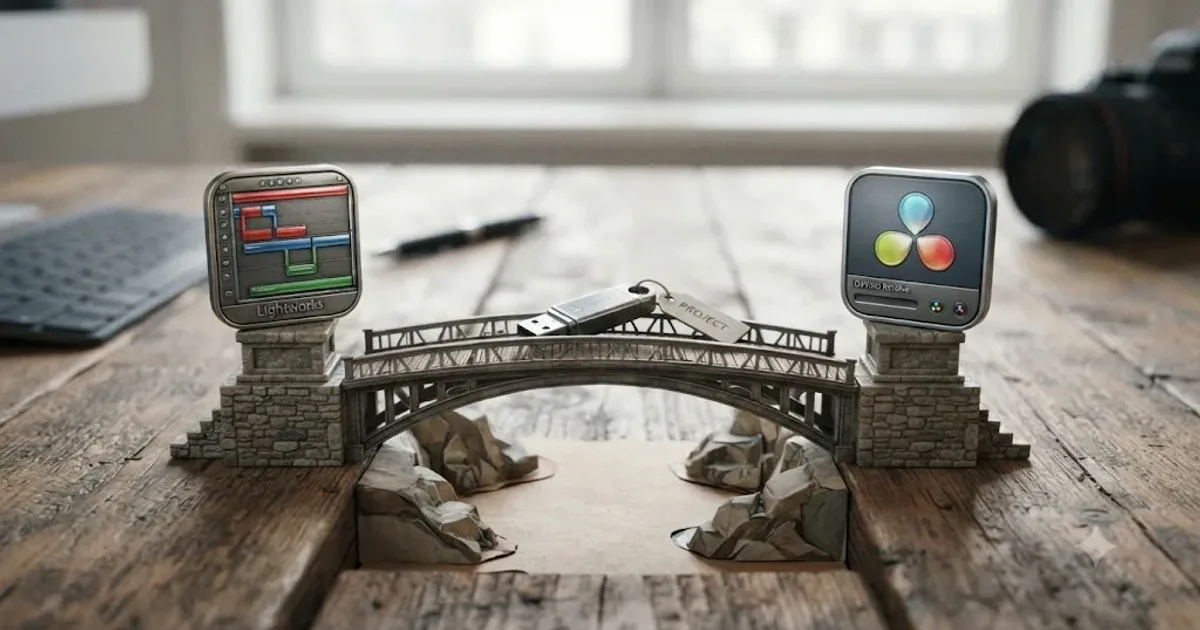
I've watched enough Lightworks forum threads to notice the pattern. Someone posts that they're thinking about moving to DaVinci Resolve, half the replies say "why would you leave Lightworks," and the other half quietly admit they already made the jump last year. Both camps are right about different things, and this guide is for the editor trying to figure out which camp they belong in.
Lightworks earned its reputation the hard way, cutting Pulp Fiction and a run of Martin Scorsese films edited by Thelma Schoonmaker, on a trim engine built for editors who never take their hands off the keyboard. DaVinci Resolve earned a different reputation: the free professional editor that grew a full color grading, audio, and visual effects suite around its cut page instead of staying a cut-only tool. Neither fact settles the argument on its own. What matters is what happens to your specific project, your specific muscle memory, and your specific budget the day you actually make the switch.
That's what this guide covers, in order: why editors are leaving, what it costs, what you lose, what you gain, how to move a real project across, and how to get your hands moving at Lightworks speed again inside Resolve's very different keyboard.
Why are editors moving from Lightworks to DaVinci Resolve in 2026?
Three reasons show up over and over, and none of them is "Lightworks stopped working."
Cost structure. Lightworks' free tier caps exports at 720p and requires its 90-day license to renew every time you sign back in, plus attribution and a link to lwks.com for any commercial use, according to Lightworks' own FAQ page. DaVinci Resolve's free tier exports clean Ultra HD video with no watermark, no attribution requirement, and no expiring license, full stop. For an editor who isn't paying for either tool yet, that's not a small gap. It's the difference between a trial and a product.
Feature ceiling. Lightworks is, at its core, a picture-editing and trim tool. Its Pro tier adds hardware I/O, stereoscopic 3D, and 10-bit support, but color grading and audio mixing stay comparatively thin next to a dedicated color app or a Pro Tools rig. Resolve ships node-based color grading, a full Fairlight audio mixer, and Fusion's node-based compositor in the same free download. Editors who used to bounce a project between Lightworks, a color suite, and an audio app increasingly do all three inside one Resolve project.
Where the industry standardized. Blackmagic bundles a full Resolve Studio license with every Pocket Cinema Camera it sells, which means a growing number of shooters own the paid tier before they've made a single edit. That's not a coincidence; it's a deliberate business strategy, one Blackmagic has run for over a decade to seed Resolve into as many edit bays as possible.
None of that makes Lightworks a bad tool, and the next section is honest about where it still wins. But "why are people leaving" has a clear, researchable answer, and it isn't a Lightworks failure. It's Resolve closing a gap that used to justify staying.
How does DaVinci Resolve's pricing compare to Lightworks'?
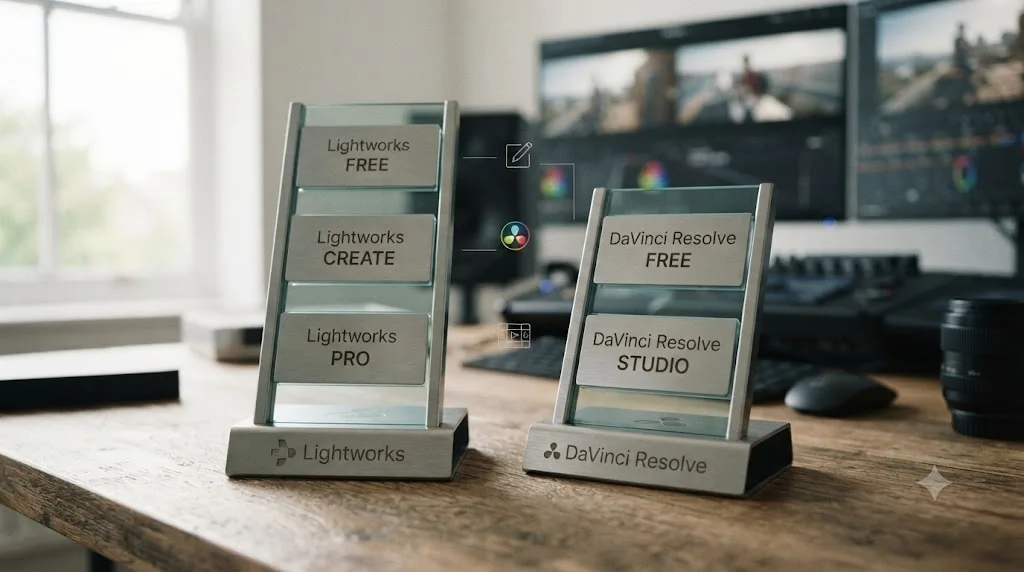
Line the two pricing structures up next to each other and the shape of the decision becomes obvious fast.
| Tier | Lightworks | DaVinci Resolve |
|---|---|---|
| Free | 720p export cap, license renews every 90 days, commercial use requires attribution | Full editing, color, Fairlight audio, and Fusion effects; no watermark; no time limit |
| Mid tier | Create: $13.99/month, or $11.66/month billed yearly, per Costbench's pricing listing; adds 4K export | No equivalent; the free tier already covers this ground |
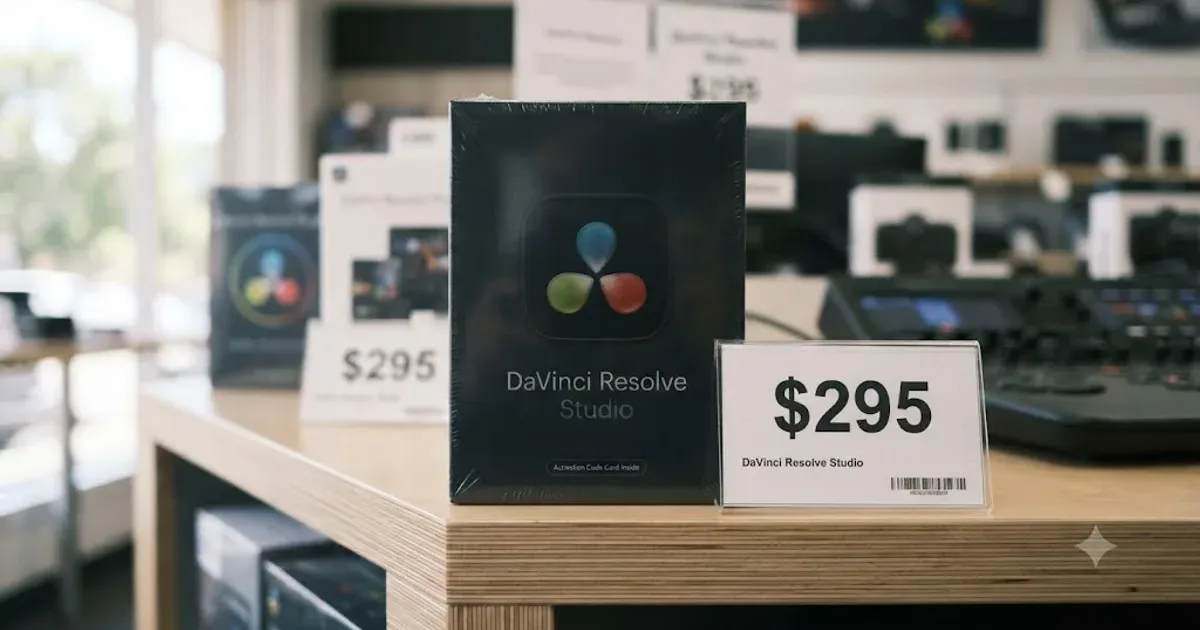
| Top tier | Pro: $27.99/month, or $23.32/month billed yearly, per the same listing; adds 8K export, hardware I/O, stereoscopic 3D | Studio: $295, paid once, not monthly, per Blackmagic's Studio product page; adds AI tools, 10-bit support, HDR delivery |
Lightworks Pro's subscription passes the cost of a lifetime DaVinci Resolve Studio license in eleven months. At $27.99 a month, Pro crosses $295 in eleven months and keeps billing every month after that, forever, as long as you keep using it. Resolve Studio's $295 is a ceiling. Lightworks Pro's $27.99 a month is a floor.
That comparison undersells how much Resolve's free tier alone already closes the gap. Lightworks' Create tier exists mainly to unlock 4K export, a limit that Resolve's free version doesn't impose at all. So the honest pricing comparison isn't Lightworks Free against Resolve free, or Lightworks Pro against Resolve Studio. It's Lightworks Create, a paid tier, against Resolve's permanent free version, and Resolve wins that one without you spending a cent.
Where Lightworks Pro still earns its subscription is hardware I/O for AJA, Blackmagic, and Matrox capture cards, and genuine 8K export headroom, according to Lightworks' pricing page. If your workflow actually touches broadcast hardware I/O on a Lightworks system today, that's a real feature gap to check before you commit to Resolve, since Resolve's own hardware monitoring path runs through Blackmagic's own capture devices rather than third-party AJA or Matrox cards in the same way.
What does Lightworks still do better than DaVinci Resolve?
Honesty matters more here than anywhere else in this guide, because a switcher who arrives expecting a strict upgrade in every category will be annoyed the first week for no good reason.
Trim precision at the keyboard. Lightworks built its entire identity around JKL shuttle and trim tools that live under your fingers without a mouse move, a lineage that traces back to its earliest broadcast and film roots. Resolve's Edit page supports the same core shuttle keys, but Lightworks' trim mode, ripple, slip, and slide controls are tuned by a company whose whole product is that workflow, not a feature bolted onto a bigger app.
Linux without a specific distribution requirement. Both editors run natively on Linux, which already rules out Premiere Pro and Final Cut Pro entirely. But Blackmagic officially supports only Rocky Linux 8.6 with a discrete Nvidia GPU for Resolve, while Lightworks' Linux install path, covered in its own FAQ page, works more broadly across common distributions without that single-distro restriction. If you run a Linux edit bay on Ubuntu or Fedora rather than Rocky Linux, that's a genuine friction point worth reading our Linux compatibility guide before you commit.
A narrower, faster-to-master toolset. This cuts both ways, but it's real: Lightworks does less, and doing less makes it faster to learn completely. An editor who only ever needs to cut picture can master Lightworks in a way that feels total, because there isn't a Color page, a Fairlight page, or a Fusion page waiting behind the one you're using.
Real-time GPU-accelerated effects without rendering, a strength multiple independent reviews of the tool call out specifically, per Shade's breakdown of Lightworks for video production. For an editor whose work rarely needs heavier color or compositing, that responsiveness matters more day to day than a feature list.
None of these are reasons to stay if the other factors in this guide outweigh them for you. But they're the honest reasons a working editor might choose to keep both tools installed rather than deleting one, and that's covered later in this guide too.
What does DaVinci Resolve add that Lightworks doesn't have?
Flip the comparison around and the list gets considerably longer, mostly because Resolve isn't competing as an editor alone. It's competing as an entire post-production pipeline.
| Category | What Resolve adds |
|---|---|
| Color grading | A full node-based color page with primary and secondary correction, qualifiers, tracking, and scopes; nothing in Lightworks approaches this depth |
| Audio | The Fairlight page, a complete multi-track mixer with EQ, dynamics, bussing, and Dolby Atmos mastering in Studio |
| Visual effects | The Fusion page, a node-based compositor for keying, tracking, and motion graphics work Lightworks has no equivalent for |
| AI tools (Studio) | Magic Mask, voice isolation, Super Scale upscaling, Speed Warp retiming, and facial recognition, none of which Lightworks offers |
| Camera format support | Native support for RAW formats across most major camera brands, plus the same ProRes and DNxHR support Lightworks handles |
| Delivery specs | DCP and IMF mastering for festival and streaming delivery in Studio, a professional finishing path Lightworks doesn't target |
A Lightworks editor who moves to DaVinci Resolve doesn't just change editors; they absorb a color suite, an audio studio, and a compositor that used to be three separate purchases or three separate apps. That's the real shape of the decision, and it's why so many switchers describe the move less like upgrading software and more like consolidating a whole pipeline into one project file.
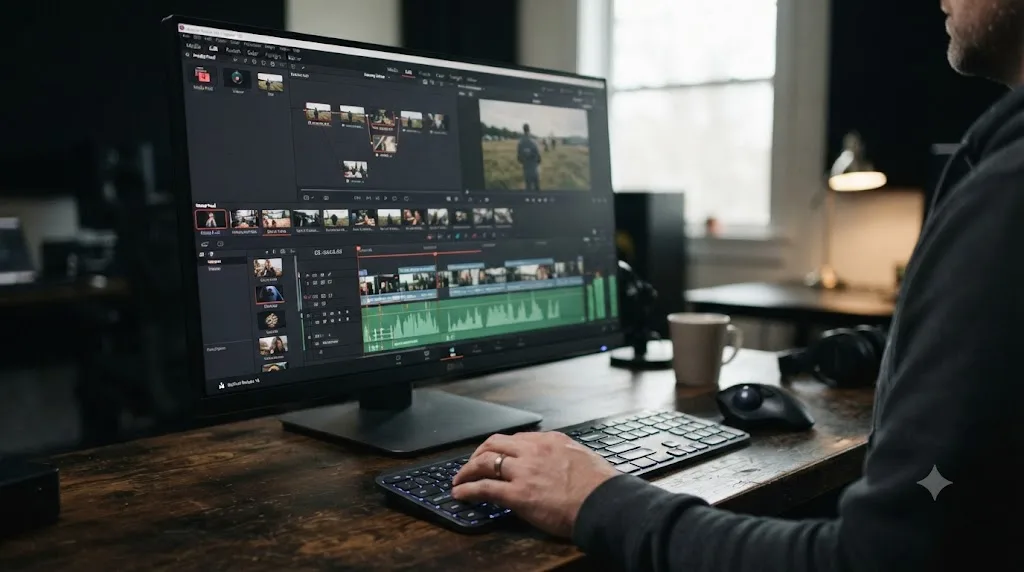
The practical upshot shows up on delivery day. A Lightworks cut destined for broadcast or a client grade traditionally left the app as an AAF or EDL headed somewhere else for finishing. Inside Resolve, that finishing step is the next page over, not a different application with its own conform problems. Editors who've made this move, like a forum moderator who described running Lightworks for the offline edit and Resolve for onlining, put it plainly: "I'm constantly using Lightworks to (off line) Edit then Exporting an AAF to Resolve for final finishing (on line edit) and my Conforms are usually perfect," wrote Craig_Marshall on the Lightworks forum's thread on the Lightworks-to-Resolve workflow. That's not a switcher abandoning Lightworks outright. It's a working editor treating Resolve as the finishing stage Lightworks was never built to be, which tells you something useful even if you plan to move fully rather than run both.
How do you move a Lightworks project into DaVinci Resolve?
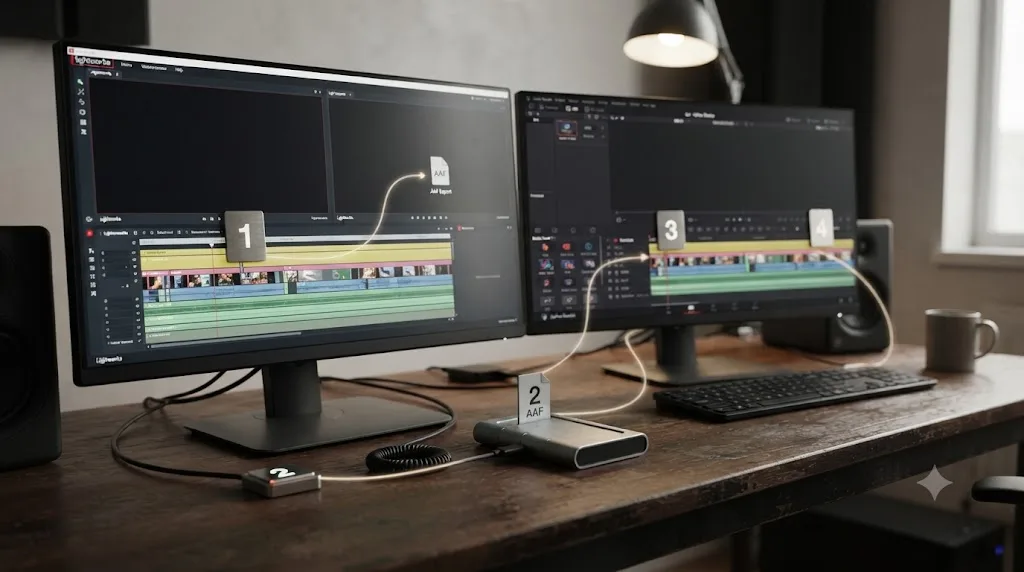
There's no direct Lightworks-to-Resolve project import. You're crossing through an interchange format, the same way editors move projects between any two applications that weren't built by the same company. Here's the sequence that keeps the most information intact.
- Lock picture in Lightworks before you export anything. Every step below gets harder if you're still trimming after the handoff has started. Treat the export as a checkpoint, not a snapshot you'll casually redo.
- Choose AAF for audio-heavy projects, XML for simple picture cuts. AAF carries your multi-track audio mix into Resolve; XML is lighter but drops most audio detail on the way across.
- Edit with correctly timecoded, reel-numbered I-frame codecs before you export. ProRes or DNxHD with proper reel numbers gives Resolve's conform engine the metadata it needs to match clips automatically. As Craig_Marshall put it in the same forum thread, "it is important to follow proper timecode practices: ie: no two frames in any Reel should contain the same timecode," a detail that determines whether your conform lands clean or lands offline.
- Import the AAF or XML into a fresh Resolve project through File > Import Timeline, pointing Resolve at your existing media pool if the source files are already imported, or letting it pull fresh copies from the paths embedded in the file.
- Reconform and relink anything that comes in offline. Right-click the timeline in the Media Pool, choose Timelines > Reconform from Bins, and manually relink any stragglers by file name if automatic timecode matching misses them.
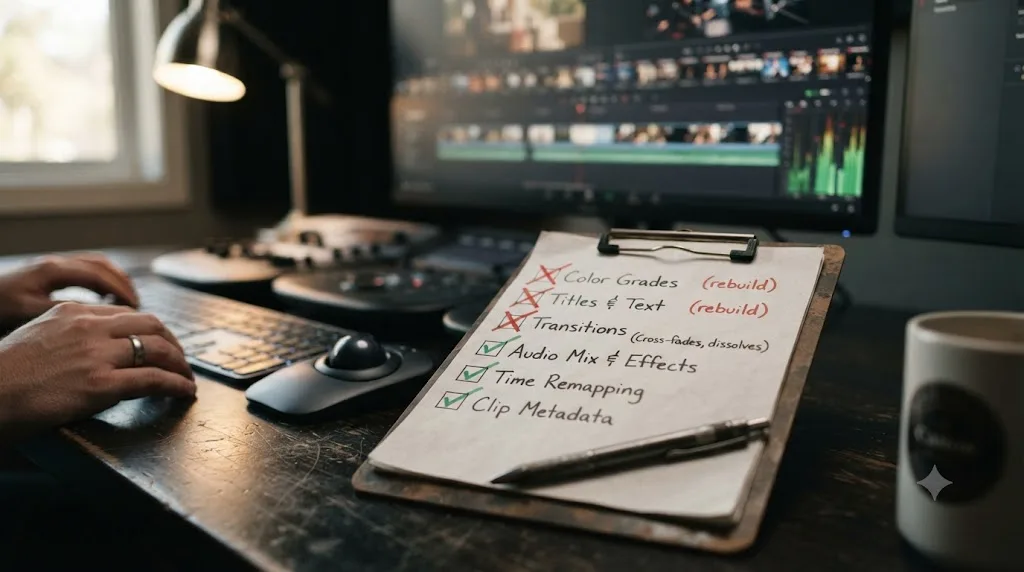
- Rebuild titles, transitions, and any color work natively inside Resolve. None of that survives the AAF or XML trip. Lightworks' NewBlue Titler Pro templates in particular have no Resolve equivalent to import; you're recreating the look, not the file.
Moving a Lightworks project into DaVinci Resolve carries picture and, with AAF, audio, but it never carries color grades, titles, or effects, because no interchange format was built to hold that data. Budget time for the rebuild, not just the import, especially on a project with more than a handful of graded shots or custom titles.
Should you use AAF, XML, or EDL to move a project from Lightworks to Resolve?
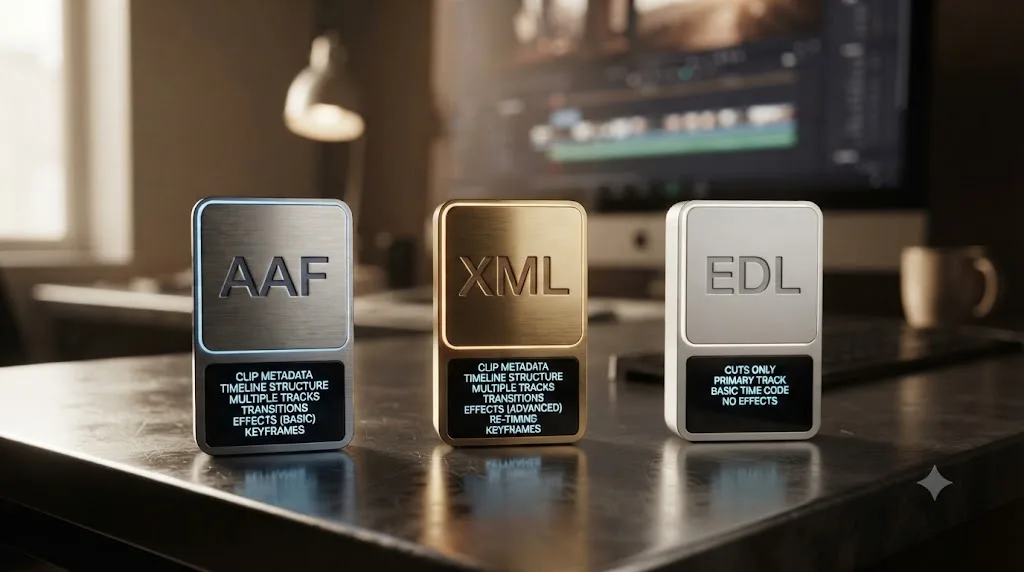
Each format trades off differently, and picking the wrong one for your project is the single most common reason a Lightworks-to-Resolve handoff goes badly.
| Format | What it carries | What it drops | Best for |
|---|---|---|---|
| AAF | Picture cuts and multi-track audio, including levels on most exports | Some effects and complex transitions | Any project where the audio mix has to survive; the format editors on the Lightworks forum recommend most often for finishing handoffs |
| XML | Picture cuts and basic clip positions | Most audio detail, complex effects | Simple picture-lock handoffs headed to color work with sound handled separately |
| EDL | Bare in and out points and clip names | Almost everything else, including any audio beyond a reference track | Last-resort picture-only conforms, and only if clip names stay under Lightworks' eight-character EDL naming limit |
That eight-character limit on the EDL path is a real, documented gotcha, not a theoretical edge case. Editors working this exact handoff report that clip filenames longer than eight characters can fail to reconform correctly on either side of an EDL round trip, a detail worth checking before you commit a whole project to that format. AAF and XML don't share that restriction, which is one more reason both sit above EDL on this list for anything beyond the simplest cut.
One more practical note from editors who've made this exact move: a Lightworks forum moderator, David_Rasberry, summarized it simply: "Works better with AAF or XML than EDL. Works best when the media is stored on a dedicated drive that both programs share access to," in the same Lightworks-to-Resolve workflow thread. That shared-drive detail matters more than it sounds. Resolve's conform engine checks file paths first, so keeping your Lightworks project and Resolve project pointed at the exact same media location on disk removes an entire category of relinking headaches before they start.
What breaks or needs rebuilding during the move?
Set expectations here before you start a real project, because nothing on this list is a bug. It's just what interchange formats have never been built to carry.
- Color grades. Any grading you did inside Lightworks stays in Lightworks. There's no LUT or grade metadata that travels through AAF, XML, or EDL. If color mattered on the Lightworks side, plan to regrade in Resolve rather than expecting it to arrive intact, which is arguably the smallest loss on this list, since Resolve's grading tools are the whole reason many editors are switching in the first place.
- Titles and graphics. Lightworks Pro's NewBlue Titler Pro templates have no matching import path into Resolve's Fusion titles. You're rebuilding the look by eye, not migrating a file.
- Transitions beyond a basic cut. Cross-dissolves and other transitions can survive an AAF or XML trip with the wrong duration or fail to translate at all, the same failure mode editors report moving projects between other NLE pairs through these same interchange formats. Rebuild anything more complex than a straight cut natively in Resolve once the conform is clean.
- Third-party plugin effects. Any plugin-based effect applied in Lightworks has no equivalent data in AAF, XML, or EDL. If a client-facing look depends on a specific plugin, note it before export so you know exactly what to recreate.
- Keyboard muscle memory. Not a file-format problem, but a real one covered in its own section below: your fingers know Lightworks' key layout, and Resolve doesn't ship a preset that matches it out of the box.
Nothing about a Lightworks-to-Resolve handoff loses your footage or your cut points; everything it loses lives in the layers you added on top of the cut, and every one of those layers gets rebuilt, not recovered. That distinction should shape how you scope the migration. A picture-only rough cut moves in minutes. A fully graded, titled, mixed final cut moves in an afternoon, not because the transfer is slow, but because the rebuild is real work.
How do the two interfaces compare, page by page?
Lightworks organizes itself around panels inside a single editing window. Resolve organizes itself around entirely separate pages, each one a purpose-built application in its own right, switched by tabs across the top of the screen. That structural difference is the first thing switchers notice, and it's worth mapping directly.
| Lightworks concept | Closest DaVinci Resolve equivalent | What's different |
|---|---|---|
| Project bins | Media Pool | Resolve's Media Pool doubles as the hub for every page, not just editing |
| Timeline editing panel | Edit page | Similar track-based layout; Resolve adds a full Inspector panel per clip |
| Fast trim / rough cut mode | Cut page | Built specifically for deadline-driven, source-tape-style editing |
| Color correction tools | Color page | An entirely separate page with node trees, scopes, and qualifiers; Lightworks has nothing this deep |
| Audio mixing | Fairlight page | A full multi-track mixer page, not a panel bolted onto editing |
| Effects and VFX | Fusion page | Node-based compositing, a category Lightworks doesn't compete in at all |
| Export/render queue | Deliver page | Preset-driven export with per-platform templates |
The Cut page deserves a special mention for switchers specifically, because it's the closest thing Resolve has to Lightworks' fast, keyboard-forward philosophy. It's built for speed over precision: a source tape view that lets you scrub through every clip in a bin like one continuous reel, background rendering so playback never stutters while you work, and a simplified toolset that skips the deeper trim controls the full Edit page exposes. Editors coming from Lightworks' quick-turnaround culture often feel more at home starting there than on the full Edit page, even though the Edit page is where Lightworks' trim precision has its closest match. Our comparison of Resolve's Cut and Edit pages breaks down exactly when to use each one, which is worth reading before you settle into a habit that might not fit your actual workflow.
Lightworks fits its entire toolset into one editing window; DaVinci Resolve spreads the same category of work across seven dedicated pages, and that spread is the single biggest adjustment a switcher makes. It's not a harder interface, exactly. It's a wider one, and width takes longer to map than depth does.
How do you remap DaVinci Resolve's keyboard shortcuts to match Lightworks?
This is the section most switchers actually search for, because the interface you can learn by looking at it. The keyboard is what your hands already know without thinking, and losing that hurts more than any menu reorganization.
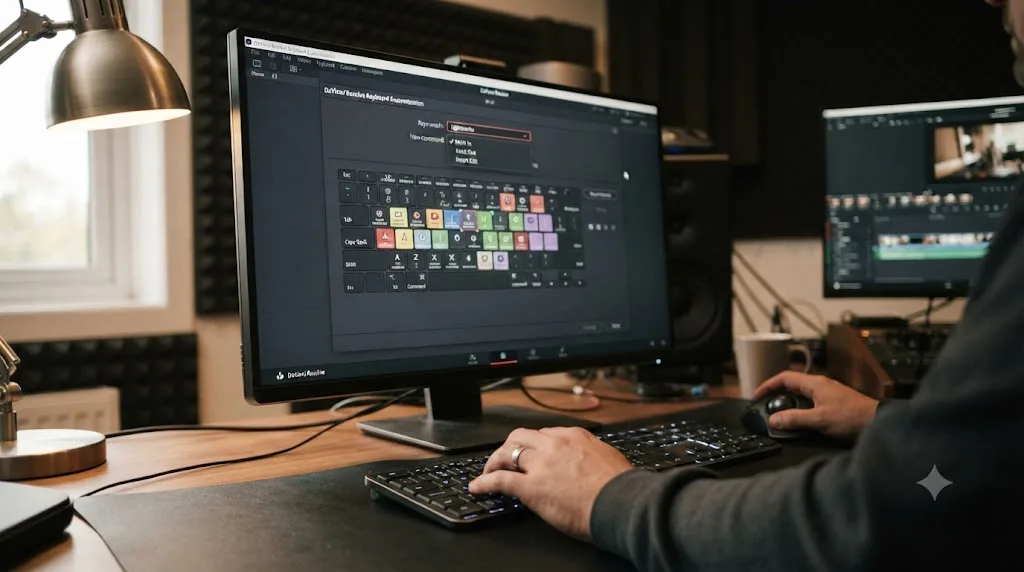
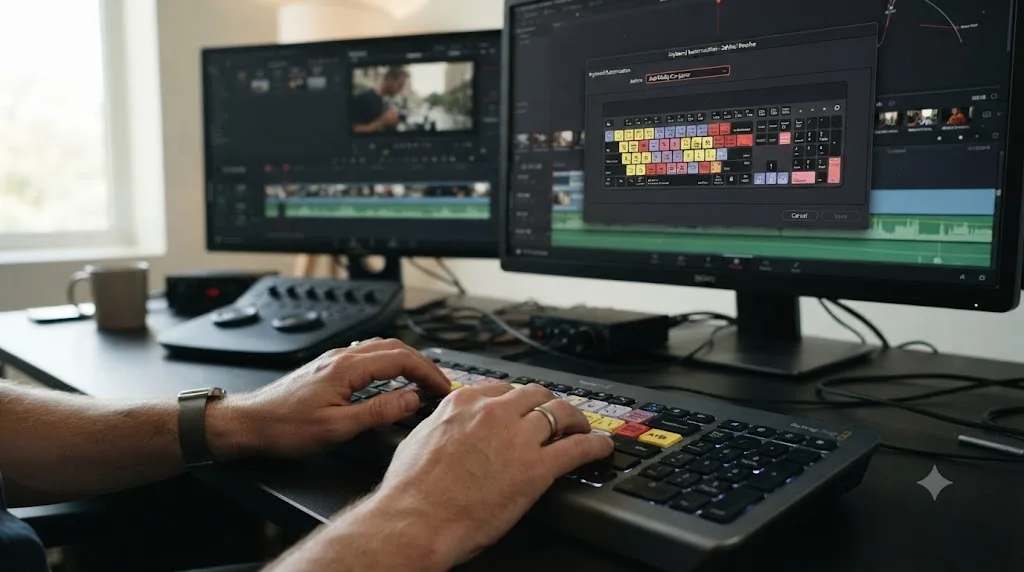
The honest starting point: DaVinci Resolve ships no built-in Lightworks keyboard preset. Resolve's Keyboard Customization panel offers emulation layouts for Premiere Pro, Final Cut Pro 7, and Avid Media Composer, according to Blackmagic's own keyboard page, but nothing built for Lightworks specifically. That's a real gap, and no amount of searching finds an official one, because Blackmagic hasn't shipped it.
The good news softens that gap more than you'd expect. J, K, and L already shuttle playback identically on both editors by default, since that convention predates both applications and traces back to the earliest tape-based NLEs. I and O still mark in and out points the same way. The muscle memory that matters most for raw trimming survives the switch untouched.
Here's how to close the rest of the gap:
- Open Resolve's Keyboard Customization panel, Cmd+Option+K on Mac or Ctrl+Alt+K on Windows.
- Start from the default DaVinci Resolve layout rather than one of the emulation presets, since none of them are closer to Lightworks than the native layout is.
- Go command by command through the Lightworks shortcuts you use daily, ripple trim, slip, slide, insert, overwrite, and rebind Resolve's matching command to the same key.
- Save your remapped set as a named preset immediately, before you close the panel, so an update or a shared machine doesn't wipe out the work.
- Export the preset file if you edit on more than one workstation, and import it on each machine rather than rebuilding it from memory a second time.
No editor loses their trim precision moving from Lightworks to DaVinci Resolve, because both editors put J, K, and L on the same three keys by default. What you actually lose is the deeper layer: the specific chord for ripple trim, or the exact key that used to slip a clip without touching the mouse. That layer is rebuildable in an afternoon with the Keyboard Customization panel open next to a printed list of your old Lightworks bindings. Our full keyboard shortcuts reference covers every default Resolve binding by page, which is the fastest way to find what already matches before you start remapping what doesn't.
Is DaVinci Resolve harder to learn than Lightworks?
Depends what you're measuring. If the question is "how fast can I cut a rough sequence at Lightworks speed again," the honest answer is: faster than you'd expect, often within a week, because the Edit and Cut pages cover the same conceptual ground Lightworks does. If the question is "how long until I've learned Resolve," that's a different, much bigger question, because Resolve isn't one skill. It's four: editing, color, audio, and effects, each living on its own page with its own learning curve.
Guided practice inside Resolve beats watching courses about Resolve. That's true for any switcher, not just ones coming from Lightworks, and it's worth internalizing before you queue up a dozen tutorial videos. The fastest path to comfort is opening a real project and hitting the specific wall your project creates, not pre-learning every tool you might theoretically need someday.
If your goal is to learn DaVinci Resolve fast without relearning your whole workflow twice, sequence your learning the same way this guide is sequenced: Edit or Cut page first, since that's where your Lightworks habits transfer most directly, then Color once a project actually needs a grade beyond what you're already comfortable eyeballing, then Fairlight and Fusion only when a specific job calls for them. Our complete beginner's guide walks through exactly that on-ramp for anyone starting from zero, which a Lightworks switcher effectively is, outside of the Edit page itself.
On naming the actual consensus honestly: most editors report the same three resources working best together. Blackmagic's own free training on its website, built for the exact version you're running rather than a year-old release. A YouTube channel like Casey Faris for workflow habits and real project walkthroughs rather than isolated feature demos. And Reddit's r/davinciresolve for the oddly specific problem that no course covers, the kind of question that only comes up once you're inside a real deadline. None of those require paying anything, and none of them are wrong to start with.
Some switchers reach for an app that helps you while using DaVinci Resolve instead of pausing mid-edit to search a forum for a control they can see but can't name. TryUncle is the on-screen assistant for DaVinci Resolve on macOS: ask in plain words and Uncle points at the exact control on your screen. It's a paid app, currently at founder pricing, macOS only, and it's not a replacement for the free training above so much as a faster way through the specific moment where you're staring at seven pages wondering which one has the button you need. Check TryUncle directly for current pricing rather than relying on a number that might have already changed by the time you read this.
Can DaVinci Resolve replace Lightworks for multicam and fast-turnaround work?
Yes, and this is worth spelling out specifically, because fast turnaround is exactly the territory Lightworks built its reputation on, and it's a fair question whether Resolve genuinely competes there or only wins on the slower, more deliberate side of editing.
Resolve's Cut page exists specifically for this use case. It combines a source tape view, which lets you scrub through an entire bin of footage as one continuous reel instead of opening clips one at a time, with background rendering that keeps playback smooth without you manually building render caches mid-edit. That's a direct answer to the kind of deadline pressure Lightworks editors know well.
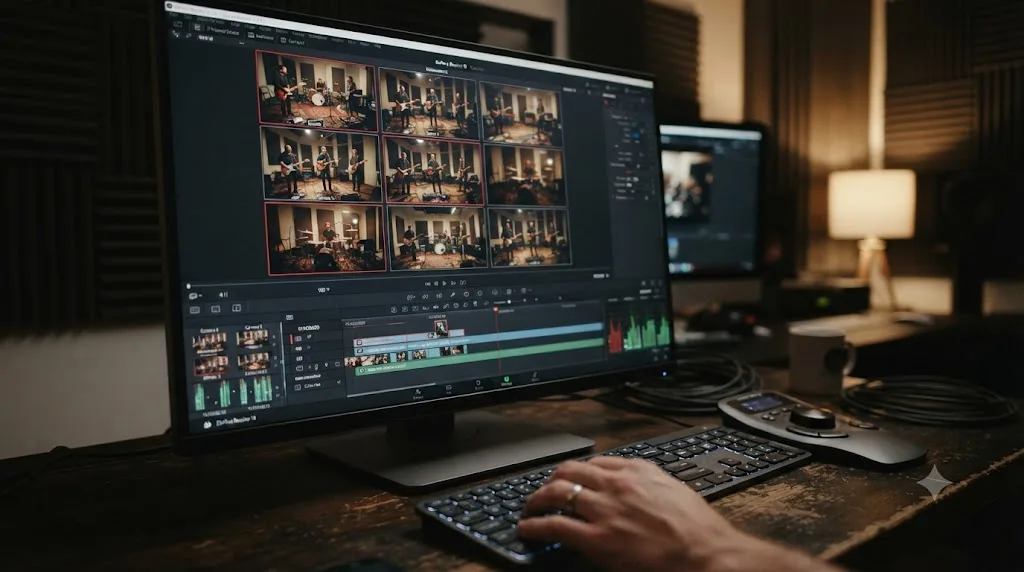
On multicam specifically, Resolve syncs angles by timecode, audio waveform, or clip in-point, the same core matching strategies Lightworks' multicam tools use. Resolve adds one thing worth knowing about if you cut a lot of interview or panel content: automatic angle switching based on which camera has the loudest active audio, a feature aimed at exactly the kind of multi-camera talking-head setup where manual angle switching eats the most time.
Where the comparison gets more nuanced is hardware I/O. Lightworks Pro's support for AJA, Blackmagic, and Matrox capture cards covers a broader range of third-party broadcast hardware than Resolve does out of the box; Resolve's own hardware monitoring path leans on Blackmagic's own capture and playback devices specifically. If your fast-turnaround workflow depends on a specific third-party card feeding a broadcast monitor wall, verify Resolve's support for that exact device before you assume the switch is a clean swap.
A newsroom or event-turnaround editor moving from Lightworks to DaVinci Resolve's Cut page loses nothing in raw speed and gains automatic multicam angle switching by audio. That's not a marginal upgrade for anyone who's spent an afternoon manually cutting between six angles of a panel discussion. It's the exact kind of feature that turns a two-hour cut into a twenty-minute one.
Should you run both editors instead of fully switching?
For a lot of working editors, the honest answer is yes, at least for a transition period, and the forum evidence backs that up better than any marketing claim would.
The pattern that keeps showing up among editors who've actually made this exact move: Lightworks handles the offline edit, the fast picture-lock pass where trim speed matters most, and Resolve handles the online finish, where color, audio, and delivery specs take over. That's precisely the workflow Craig_Marshall described running on the Lightworks forum: an AAF export from Lightworks landing in Resolve for final finishing, with conforms that come in clean because the export hygiene, correct timecode, correct reel numbers, was handled properly upstream.
This hybrid approach makes particular sense in three situations:
- You're mid-project on Lightworks right now and switching editors mid-cut is a worse idea than finishing in the tool you started in, then finishing in Resolve going forward.
- Your team has Lightworks muscle memory that took years to build and a hard cutover would tank productivity during a busy season, so a gradual, project-by-project transition spreads the learning cost out.
- You genuinely prefer Lightworks' trim feel for the rough cut and don't see a reason to give that up just because Resolve's finishing tools are better, since nothing stops you from using the right tool for each stage.
Where the hybrid approach breaks down is licensing cost. Running both editors long-term means paying for Lightworks' subscription tier indefinitely on top of whatever Resolve setup you land on, even though Resolve alone, free or with a one-time Studio license, could cover the whole pipeline eventually. Treat "run both" as a bridge, not a permanent architecture, unless there's a specific feature, like that broadcast hardware I/O gap covered earlier, keeping you there for good.
What should Avid-trained and broadcast editors expect?
A meaningful share of Lightworks' user base came to it from Avid Media Composer, drawn by its own broadcast lineage and trim-heavy design philosophy. If that's you, twice removed, this section is specifically for you.
The good news arrives first: Resolve's Keyboard Customization panel does ship an Avid Media Composer emulation preset, unlike the Lightworks gap covered earlier. If your fingers actually learned Avid before they learned Lightworks, that preset is a real starting point, closer to your original muscle memory than Resolve's native layout is.
Broadcast-specific workflow habits carry over conceptually even where the tools differ in name. Lightworks' emphasis on I-frame codecs with clean reel numbers and non-duplicate timecode, the same discipline covered in the migration section above, is standard broadcast practice that transfers directly into how you should ingest and organize media inside Resolve. Nothing about that discipline is Lightworks-specific; it's just good conform hygiene, and Resolve rewards it exactly the way Lightworks does.
Where broadcast editors hit a genuine gap is delivery format support. Lightworks' Pro tier targets broadcast delivery through its hardware I/O options. Resolve's Studio tier targets a different, though overlapping, set of professional deliverables: DCP for festivals, IMF for streaming platforms, Dolby Vision and HDR10+ for modern broadcast and streaming HDR specs. If your delivery specs are strictly traditional broadcast rather than streaming or festival, confirm your specific master format against Resolve's Deliver page presets before assuming full parity; most standard broadcast codecs are covered, but a facility with a highly specific house format should verify rather than assume.
What's the honest verdict?
If your work is mostly cutting picture, fast, on a budget, and you've never felt the ceiling Lightworks puts on color and audio, there's no urgent reason to switch. Lightworks still does that specific job well, and its free tier's 720p export cap is a real annoyance but not a dealbreaker if you're delivering to a paid tier or exporting a picture-lock reference rather than a final master.
If any part of your work touches color grading, real audio mixing, visual effects, or a delivery spec beyond a basic web export, DaVinci Resolve's free version already does more than Lightworks' paid tiers, at no cost, with no license that expires every 90 days. That's not a marketing claim; it's the plain shape of the two products' free tiers laid side by side.
Move a real project across before you commit fully. Export a finished Lightworks timeline as AAF, following the timecode and reel-number discipline covered above, import it into Resolve, and spend a day rebuilding the color and titles you'd normally add. That single test tells you more about whether the switch is right for you than any comparison chart, including this one. If the rebuild feels like busywork, you'll know within an hour. If it feels like your project finally has room to grow, you'll know that too, and you'll already be halfway moved.
Frequently asked questions
- Can I open a Lightworks project file directly in DaVinci Resolve?
- No. Resolve can't read a native Lightworks project file. You export a sequence out of Lightworks as AAF, XML, or EDL and import that into Resolve, then reconform the media. Colors, effects, and titles don't travel through any of those formats and have to be rebuilt in Resolve.
- Does DaVinci Resolve have a keyboard shortcut preset for Lightworks?
- No. Resolve's Keyboard Customization panel ships with Premiere Pro, Final Cut Pro 7, and Avid Media Composer emulation layouts, but nothing built for Lightworks, according to Blackmagic's own keyboard documentation. You remap Resolve's shortcuts by hand, though J, K, and L already do the same shuttle job on both editors by default.
- Is DaVinci Resolve harder to learn than Lightworks?
- Lightworks is narrower and arguably faster to pick up for pure trimming, since that's nearly all it does. Resolve is wider, because one app now covers editing, color, audio, and effects across seven pages. Most switchers find the Edit page familiar within a day and treat Color, Fairlight, and Fusion as separate skills to learn only when a project needs them.
- Should I use AAF, XML, or EDL to move a project from Lightworks to Resolve?
- AAF for anything with a real audio mix, since it carries multi-track audio into Resolve cleanly. XML for simple picture cuts. EDL only as a last resort, since it carries little beyond in and out points and clip names capped at eight characters on the Lightworks side.
- Is DaVinci Resolve free, or do I need to pay to match what Lightworks Pro does?
- The free version of DaVinci Resolve already covers full editing, color grading, Fairlight audio, and Fusion effects with no watermark and no time limit, which alone matches or beats what Lightworks' paid Create and Pro tiers add. DaVinci Resolve Studio, a $295 one-time purchase, is only necessary for 10-bit footage, HDR delivery, AI noise reduction, and faster export encoding on Windows and Linux.
- Does DaVinci Resolve run on Linux the way Lightworks does?
- Yes, natively, though the officially supported path is narrower than what Lightworks offers. Blackmagic tests and documents only Rocky Linux 8.6 with a discrete Nvidia GPU. Ubuntu, Fedora, and other distributions run through community packages rather than an official Blackmagic build.
- What's the best way to learn DaVinci Resolve after switching from Lightworks?
- Start with Blackmagic's own free training on its website, since it's built for the exact version you're running. Layer in a YouTube channel like Casey Faris for workflow habits, and check Reddit's r/davinciresolve when you hit something oddly specific. Most switchers who already know Lightworks' trim logic learn Resolve's Edit page inside a week and treat Color, Fairlight, and Fusion as separate, later skills.
- Can DaVinci Resolve handle multicam and fast-turnaround work the way Lightworks does?
- Yes, and arguably better once you learn the Cut page, which Blackmagic built specifically for fast, deadline-driven editing with a source tape view and background rendering. Resolve's multicam tools support angle syncing by timecode, waveform, or in-point, which covers the same ground Lightworks' multicam does and adds automatic angle switching by loudest audio.
Sources
- Wikipedia: Lightworks
- postPerspective: EditShare Sells Lightworks NLE and QScan AQC to LWKS
- LWKS: Frequently Asked Questions
- LWKS: Pricing
- Costbench: Lightworks Pricing 2026
- Shade: Lightworks for Video Production, Reviews, Pricing & How It Fits Your Post Stack
- LWKS Forum: Lightworks to Resolve Workflow (Craig_Marshall, David_Rasberry)
- RedShark News: LWKS Launches Lightworks 2023 (James Richings)
- DaVinci Resolve Studio product page (Blackmagic Design)
- DaVinci Resolve product page, free version specs (Blackmagic Design)
- DaVinci Resolve keyboards and Keyboard Customization (Blackmagic Design)
Put this guide to work with TryUncle.
Ask about the step you’re on. TryUncle sees your screen and points at the control you need, so you can keep learning in your own project.
Get TryUncle for Mac or WindowsKeep reading
Guides · Jul 7, 2026 · 32 min
DaVinci Resolve for Beginners: The Complete Starter Guide
Learn DaVinci Resolve from zero: what it costs, what it needs to run, the seven pages you'll actually use, and the steps to cut your first project.
Guides · Jul 8, 2026 · 16 min
DaVinci Resolve Keyboard Shortcuts: The Complete Reference
Every essential DaVinci Resolve keyboard shortcut, organized by page: Edit, Cut, Color, Fairlight, Fusion, and Deliver, plus how to customize and share your own.
Comparisons · Jul 7, 2026 · 28 min
DaVinci Resolve Studio Price: Free vs. Studio Cost, Explained
DaVinci Resolve Studio costs $295, paid once, not monthly. Here's exactly what that buys, how it stacks up against Premiere Pro and Final Cut Pro, and who needs it.