Articles / Comparisonsupdated for DaVinci Resolve 21.0.2 (July 2026)
Best Graphics Card for DaVinci Resolve in 2026
Quick answer
The RTX 5090 is the fastest GPU for DaVinci Resolve in 2026, but the RTX 5070 Ti (16GB, roughly $750-980) is the best value pick for most editors. AMD's RX 9070 XT handles color grading well but trails on AI tools like Magic Mask. Budget at least 12GB of VRAM for comfortable 4K work.
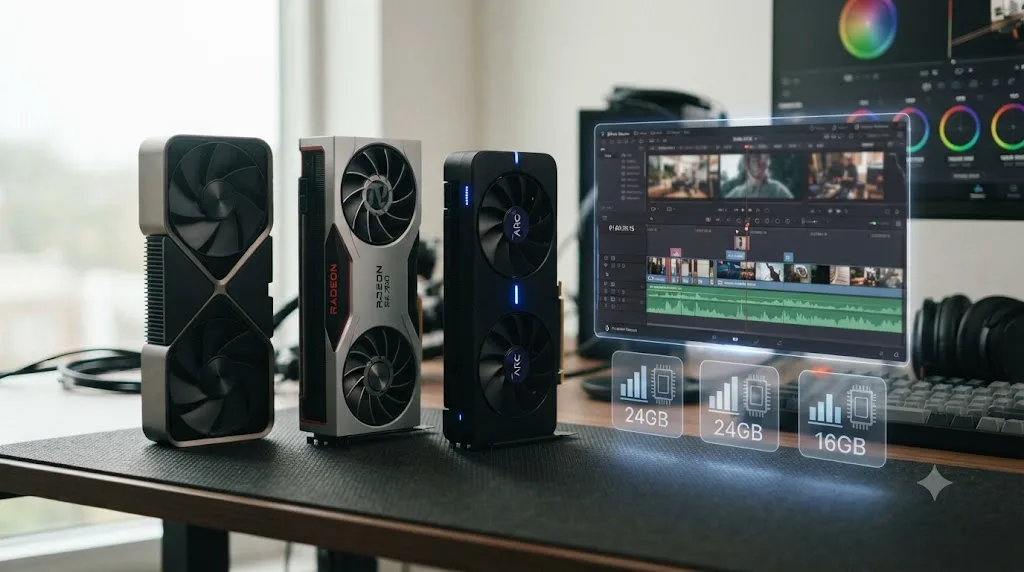
Every "best GPU for DaVinci Resolve" list I read this month names a different card. One site swears by the RTX 5090. Another says that's overkill and pushes the RX 9070 XT. A third buries an Intel Arc pick two paragraphs from a driver-crash warning it never quite resolves.
None of them show their work. So here's the work: real benchmark numbers from Puget Systems, which builds Resolve workstations for a living, current 2026 pricing, and the VRAM math that actually predicts how a card behaves once you're grading real footage instead of a spec sheet. We've spent 7+ years cutting professional, commercial video in Resolve and run a 100,000+ member video-editing community where "which GPU should I buy" is one of the most common questions anyone building a new machine asks, right behind "how much RAM do I actually need."
The short version: buy for VRAM and GPU-bound compute, not brand loyalty, and match the card to the workload you actually run, not the one you imagine running someday.
What's the best graphics card for DaVinci Resolve in 2026?
The RTX 5070 Ti is the best all-around graphics card for DaVinci Resolve in 2026 for most editors, balancing 16GB of GDDR7 VRAM against a $749 MSRP that lands well below flagship pricing. If budget isn't a constraint, the RTX 5090 is the fastest card Resolve runs on today, full stop, but its $1,999 MSRP and 32GB of VRAM only pay for themselves on demanding multicam, RAW, and Fusion work.
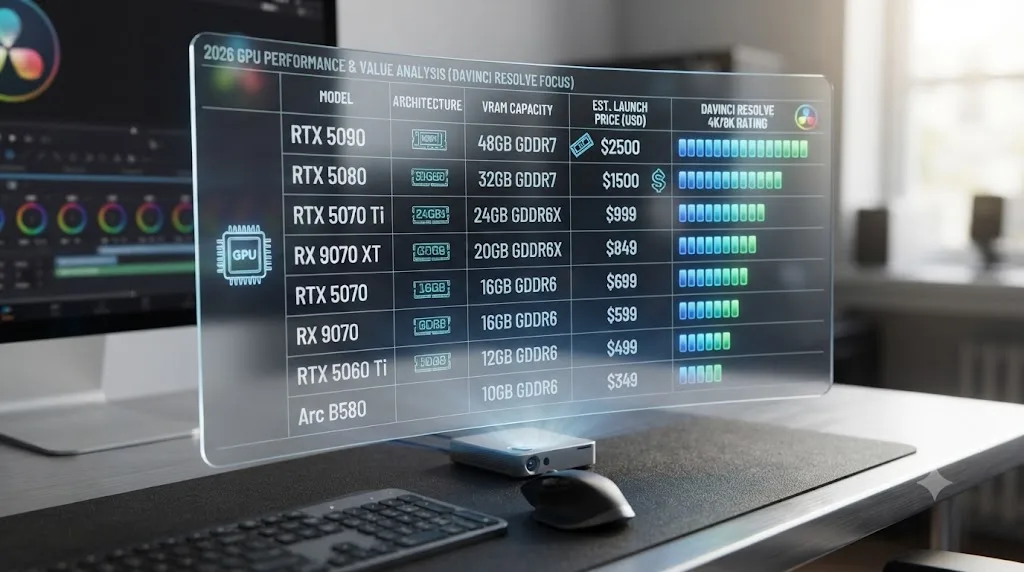
Here's the full 2026 lineup in one table, since no single source lists NVIDIA, AMD, and Intel side by side with real Resolve-specific numbers.
| Graphics card | VRAM | MSRP | Street price (Jul 2026) | Resolve overall vs. prior gen | Best for |
|---|---|---|---|---|---|
| RTX 5090 | 32GB GDDR7 | $1,999 | $2,000+ (supply-constrained) | +17% vs RTX 4090 overall, +50% LongGOP | 6K/8K RAW, heavy Fusion, multi-stream HDR |
| RTX 5080 | 16GB GDDR7 | $999 | ~$1,249.99 | +10% vs RTX 4080 SUPER overall, +34% LongGOP | 4K multicam, HDR delivery, Fusion titles |
| RTX 5070 Ti | 16GB GDDR7 | $749 | ~$979.99 | Strong midrange leader in Puget's tests | 4K-primary editing, best value pick |
| RTX 5070 | 12GB GDDR7 | $549 | Elevated by 2026 shortage | Beats RX 9070 XT by 8% overall | Single-camera 4K, standard grading |
| RTX 5060 Ti (16GB) | 16GB GDDR7 | $429 | ~$470-590 | Budget-tier, AI-capable | Entry 4K, light Magic Mask work |
| RX 9070 XT | 16GB GDDR6 | $599 | ~$690-990 | 2% ahead of RX 7900 XTX, 17% behind RTX 5070 Ti | 4K color grading, Linux workflows |
| RX 9070 | 16GB GDDR6 | $549 | Rising with 2026 shortage | Between RTX 5060 Ti and RTX 5070 tiers | Budget-to-midrange editing |
| Intel Arc B580 | 12GB | $250 | Frequently discounted | Strong GPU Effects score, weak AI, driver risk | Tightest-budget builds, non-AI workflows |
Sources: Puget Systems' RTX 5090 review, RTX 5080 review, RX 9070 XT review, Intel Arc B580 review, and Puget's hardware recommendations page.
The fastest graphics card for DaVinci Resolve in 2026 is the RTX 5090, but the best graphics card for most editors is the RTX 5070 Ti, because value in a Resolve build is measured in VRAM and GPU-bound compute per dollar, not top-line benchmark position. That distinction drives almost every recommendation in this guide, and it's worth holding onto before the specific card sections below try to talk you into more GPU than your actual timeline needs.
How much VRAM do you actually need for DaVinci Resolve?
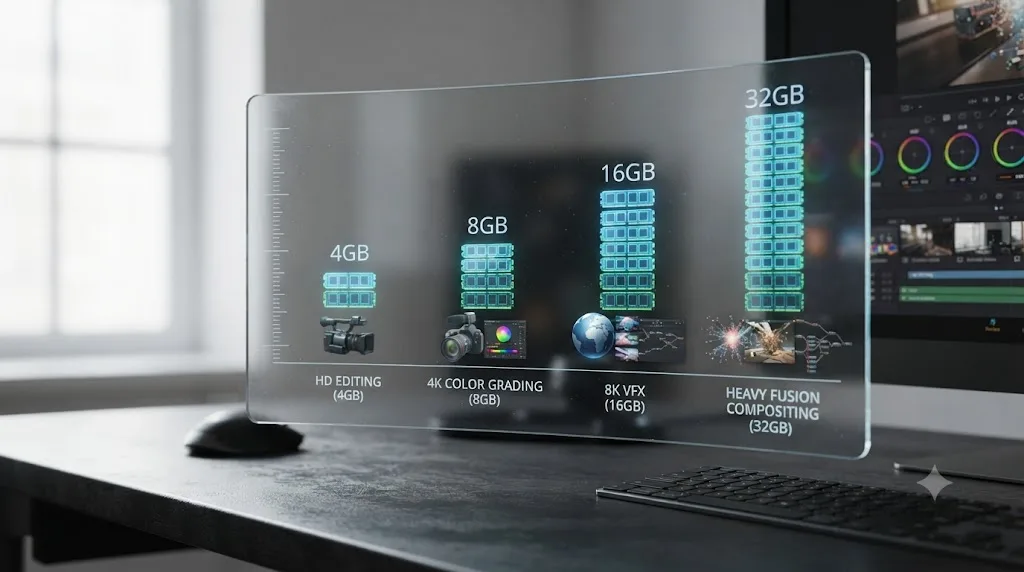
Treat VRAM as your real ceiling for timeline resolution and effects stacking, since it's the single spec that predicts whether Resolve runs smoothly or throws a "GPU memory is full" warning mid-session. Puget Systems, which benchmarks Resolve workstations professionally, recommends at least 8GB for 1080p editing, 12GB for 4K, and 20GB or more for 6K or 8K work, according to its hardware recommendations page.
That's meaningfully higher than Blackmagic's own stated floor. Blackmagic's tech specs page lists a GPU with at least 4GB of VRAM as the minimum DaVinci Resolve will launch and run on, alongside 16GB of system RAM. That number gets you a working install, not a comfortable editing session on real footage with a real grade.
| Workload | Realistic VRAM floor |
|---|---|
| HD editing, light grade, no Fusion | 4-6GB |
| Single-camera 4K, standard grade | 8-12GB |
| 4K multicam, noise reduction, moderate Fusion | 12-16GB |
| 6K/8K RAW, heavy Fusion, HDR grading | 20GB or more |
| Multi-layer Fusion comps, large node trees | 20-32GB |
Source: Puget Systems' hardware recommendations for DaVinci Resolve.
Noise reduction, Magic Mask, Speed Warp, and Fusion compositions all draw from the same VRAM pool your timeline resolution already occupies, so stacking effects pushes real usage well past what plain 4K playback alone would need. That's the same pattern this site's GPU memory is full troubleshooting guide covers in more depth if you're already hitting that error on your current card.
A graphics card's VRAM capacity, not its raw compute score, is the number that decides whether DaVinci Resolve stays smooth or starts throwing memory warnings on a real timeline. Buy past your current resolution and effects load by one comfortable tier, and you'll rarely think about VRAM again until your next upgrade cycle.
Is the RTX 5090 worth it for DaVinci Resolve?
Only if your actual timeline pushes it, which for most editors, it doesn't. The RTX 5090 carries 32GB of GDDR7 VRAM at a $1,999 MSRP and a 575W power draw, and in Puget Systems' dedicated review, it scored 17% faster than the RTX 4090 on Resolve's overall benchmark, 50% faster on LongGOP codec processing, and 42% faster on GPU Effects.
The review's most specific finding is about codec handling rather than raw speed: "In DaVinci Resolve, the H.265 4:2:2 10-bit processing was more than twice as fast as software decoding and exceeded even what we see from Intel Quick Sync." That's the RTX 5090's real differentiator for working editors, not the top-line benchmark score. If your footage is 10-bit 4:2:2 H.265, a format plenty of modern cameras shoot and plenty of GPUs handle poorly, the 5090's media engine is doing real, measurable work that a spec sheet's teraflops figure doesn't capture.
Where the RTX 5090 earns its price is a specific, narrow set of workloads: 6K/8K RAW debayering at full resolution, heavy Fusion comps with deep node trees, and multi-stream HDR delivery where you're exporting several masters at once. Outside those, the jump from an RTX 5080 or 5070 Ti is real but rarely felt on a normal editing day.
The RTX 5090 is the fastest graphics card DaVinci Resolve runs on in 2026, but its real advantage is codec handling and headroom for extreme workloads, not a speed difference you'll notice cutting a standard 4K YouTube video. Buy it because your project files actually demand it, not because it tops every benchmark chart you've seen this year.
RTX 5080 or RTX 5070 Ti: which should you buy?
Buy the RTX 5070 Ti unless HDR delivery or heavier multicam work is a regular part of your job, in which case the RTX 5080's extra headroom is worth the premium. Both cards carry 16GB of GDDR7 VRAM, identical capacity, so the decision comes down to compute and price rather than a VRAM ceiling difference.
Puget's RTX 5080 review, written by Evan Lagergren, found the RTX 5080 "takes a 10% lead over the 4080 SUPER" on Resolve's overall score, with a 34% lead on LongGOP codecs and a 21% lead on GPU Effects, tying the previous-gen card only on the AI subscore. Lagergren's overall read on the card: "a solid GPU that provides good performance nearly across the board."
| Factor | RTX 5080 | RTX 5070 Ti |
|---|---|---|
| VRAM | 16GB GDDR7 | 16GB GDDR7 |
| MSRP | $999 | $749 |
| Street price (Jul 2026) | ~$1,249.99 | ~$979.99 |
| Overall Resolve score | Higher | Strong, close behind |
| Price premium over 5070 Ti | ~25-30% MSRP, similar at street pricing | Baseline |
| Best for | 4K multicam, HDR delivery, Fusion-heavy timelines | 4K-primary editing on a tighter budget |
Sources: Puget's RTX 5080 review and Newegg's RTX 5070 Ti vs RTX 5080 comparison.
The gap that actually matters here is price, not VRAM. Since both cards carry the same 16GB, the RTX 5070 Ti gives you the same headroom against Resolve's VRAM-driven "memory is full" errors as the RTX 5080, for meaningfully less money. You're paying the RTX 5080's premium for extra compute headroom on GPU Effects and LongGOP decoding specifically, not for a bigger buffer against running out of memory.
When two graphics cards share the same VRAM capacity, the cheaper one is very often the smarter DaVinci Resolve buy, because VRAM, not raw compute, is what determines whether your timeline runs out of headroom. Save the premium for a card that actually raises your VRAM ceiling, or spend it somewhere else in the build entirely, like faster storage.
Is the RTX 5070 or RTX 5060 Ti enough for DaVinci Resolve?
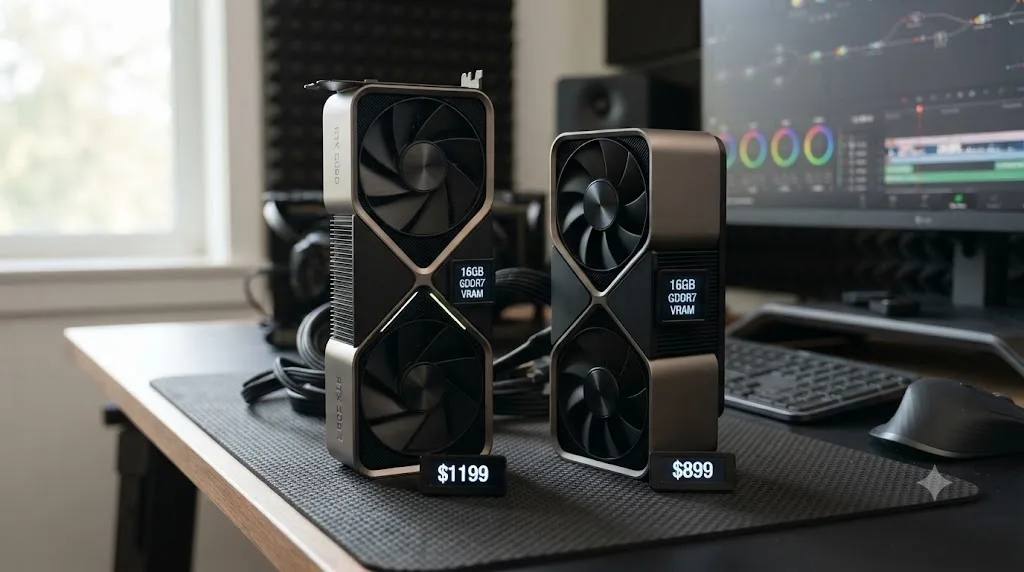
Yes, for single-camera 4K editing with a standard grade, and the RTX 5070 specifically beats AMD's midrange competition on Resolve's own benchmark. In Puget's RX 9070 XT review, the RTX 5070, priced at $549 MSRP with 12GB of GDDR7, outperformed the pricier RX 9070 XT by 8% on Resolve's overall score, despite AMD's card carrying more VRAM at 16GB.
The RTX 5060 Ti comes in two configurations that matter a lot for Resolve specifically: an 8GB model at $379 MSRP and a 16GB model at $429 MSRP, according to NVIDIA's own announcement. That $50 gap between configurations is one of the easiest VRAM-per-dollar wins in the entire current lineup, since 8GB sits right at this guide's 4K comfort floor while 16GB gives you real headroom for Magic Mask and light noise reduction on top of a 4K timeline.
| Card | VRAM | MSRP | Verdict for Resolve |
|---|---|---|---|
| RTX 5070 | 12GB GDDR7 | $549 | Comfortable single-camera 4K, beats RX 9070 XT overall |
| RTX 5060 Ti (8GB) | 8GB GDDR7 | $379 | Right at the 4K comfort floor; skip if you can stretch the budget |
| RTX 5060 Ti (16GB) | 16GB GDDR7 | $429 | Meaningfully more VRAM headroom for $50 more; the better buy of the two |
Sources: Puget's RX 9070 XT review and VideoCardz's RTX 5060 Ti announcement coverage.
If your editing is genuinely single-camera 4K with a normal color pass and light effects, either card handles it in real time. Where they stop being enough is the same place every entry-tier card stops being enough: 4K multicam, RAW debayering, and any effect stack heavy enough to push past the VRAM ceiling this guide's earlier table already laid out.
Should you buy an AMD Radeon RX 9070 XT for DaVinci Resolve?
Yes, specifically if you're budget-conscious, running Linux, or simply prefer AMD, but go in knowing exactly where it trails NVIDIA rather than assuming rough price parity means rough performance parity. The RX 9070 XT carries 16GB of GDDR6 on a 256-bit bus with 644GB/s of bandwidth at a $599 MSRP, according to Tom's Hardware's review.
Puget's dedicated review, also by Evan Lagergren, put real numbers on the gap: the RX 9070 XT's overall Resolve score lands 2% ahead of the previous-gen RX 7900 XTX, 8% behind the RTX 5070, and 17% behind the RTX 5070 Ti. That's a meaningful, consistent deficit against NVIDIA's midrange, not a rounding error.
The card isn't weak everywhere, though, and the codec result specifically deserves attention. On LongGOP codec processing, the RX 9070 XT trails the RTX 5070 Ti by only 11%, while it "beats the 5070 and solidly outpaces the 7900 XTX," per Lagergren's review. Fusion is a genuine bright spot too: the RX 9070 XT "takes the top slot by a slim margin" in Puget's Fusion tests, ahead of every card in the comparison including NVIDIA's.
Where the RX 9070 XT falls apart is AI workloads, the exact category that covers Resolve's Magic Mask, Speed Warp, and AI-driven noise reduction. Lagergren's assessment is blunt: on AI tests, the card is "essentially unusable, being slower than only the 6900 XT," AMD's own previous-previous-generation card. GPU Effects performance is soft too, trailing the cheaper RTX 5070 by 3% and the RX 7900 XTX by 8%.
| If you mostly do this | RX 9070 XT verdict |
|---|---|
| Standard editing, color grading, codec-heavy timelines | Genuinely competitive, especially on LongGOP |
| Fusion compositing | A real strength, edges out NVIDIA in Puget's testing |
| Magic Mask, Speed Warp, AI noise reduction | Avoid; "essentially unusable" per Puget's own testing |
| Linux-based grading workflow | A reasonable choice, alongside this site's AMD GPU troubleshooting guide if setup issues come up |
Source: Puget Systems' RX 9070 XT content creation review.
The RX 9070 XT is a genuinely strong choice for color grading and Fusion work in DaVinci Resolve, but Puget Systems' own testing found it essentially unusable on the AI tools Resolve leans on most, Magic Mask and Speed Warp included. If your workflow never touches those features, the gap barely matters. If it does, that's the deciding factor, not the sticker price.
Is the Intel Arc B580 a safe choice for DaVinci Resolve in 2026?
It's the cheapest capable card in this guide, but it's also the riskiest, and that combination is worth understanding before its $250 MSRP talks you into it. The Arc B580 carries 12GB of VRAM, comfortably clearing this guide's 4K comfort floor on paper, and Puget's review found it genuinely competitive on GPU Effects specifically, ranking "second only to the $600 RTX 4070," beating the RTX 4060 by 30% and the previous-gen Arc A750 by 18%.
That's a real result for a $250 card. But the same review found meaningful weak spots elsewhere: on RAW codec processing, the B580 runs 16% slower than the RTX 4060, and on AI workloads, even the RTX 4060 delivers 43% more performance. Puget's plain recommendation for RAW-heavy work: stick with NVIDIA.
The bigger concern isn't a benchmark score, it's stability. Puget's own review flagged a specific, reproducible problem: the B580 "maxes out available VRAM (despite being a 12GB card) and crashes during some combinations" of tests, which the reviewers suspect is a driver-side bug rather than a hardware limitation. That's not an isolated lab finding either. Editors on Intel's own community forums have separately reported DaVinci Resolve Studio freezing or crashing on the B580, a pattern serious enough that it's shown up repeatedly across multiple community threads rather than a single unlucky configuration.
The Intel Arc B580 delivers real, benchmarked performance for its $250 price in DaVinci Resolve's GPU Effects tests, but both Puget Systems' lab testing and Intel's own community forums have documented DaVinci Resolve crashing on it, so budget for driver troubleshooting time alongside the hardware savings. If your budget is genuinely this tight, it's a defensible gamble. If you can stretch to an RTX 5060 Ti or RX 9070, you're buying a meaningfully calmer experience.
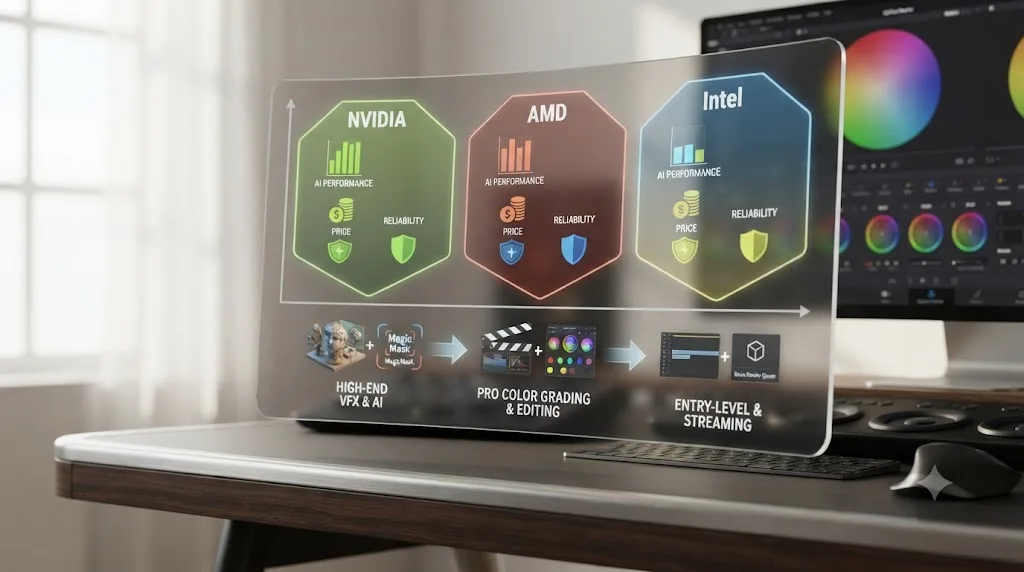
NVIDIA vs AMD vs Intel: which brand should you actually buy for DaVinci Resolve?
NVIDIA, as the safe, well-supported default, unless a specific reason points you elsewhere. Matt Bach, who writes Puget Systems' hardware recommendations for DaVinci Resolve, put the reasoning plainly: "we have also found that NVIDIA cards tend to be slightly more reliable (both from a hardware and driver standpoint), which is why we typically use NVIDIA over AMD unless there is a clear benefit to using an AMD card," according to Puget's hardware recommendations page.
That's not brand loyalty dressed up as advice. It reflects a real, structural gap: Resolve's AI features and CUDA-accelerated tools have a longer, deeper optimization history on NVIDIA hardware than AMD's ROCm/HIP path or Intel's driver stack currently match, which is exactly the pattern this guide's RX 9070 XT and Arc B580 sections both found in their own AI benchmark results.
| Brand | Where it wins | Where it trails |
|---|---|---|
| NVIDIA (RTX 50-series) | AI tools (Magic Mask, Speed Warp, noise reduction), overall reliability, LongGOP codec decoding | Price at every tier compared to AMD's equivalent VRAM |
| AMD (RX 9000-series) | Fusion compositing, price-to-VRAM ratio, Linux driver maturity | AI workloads, described by Puget's own reviewer as "essentially unusable" on the RX 9070 XT |
| Intel (Arc B-series) | Lowest entry price, surprisingly strong GPU Effects score | Documented DaVinci Resolve crashes, weakest AI performance of the three |
Sources: Puget's hardware recommendations page, RX 9070 XT review, and Intel Arc B580 review.
NVIDIA's real advantage in DaVinci Resolve isn't raw teraflops, it's how thoroughly Resolve's AI tools and codec decoding lean on CUDA specifically, a gap AMD and Intel haven't closed as of mid-2026. If your work never touches Magic Mask, Speed Warp, or AI noise reduction, that gap matters far less, and AMD's better VRAM-per-dollar at the same price point becomes the more honest deciding factor.
Choose NVIDIA if: you use Magic Mask, Speed Warp, or AI noise reduction regularly, you want the best-documented driver path, or you're building around DaVinci Resolve Studio's full AI feature set.
Choose AMD if: your work is mostly editing and color grading without heavy AI tool use, you're on Linux, or Fusion compositing is a bigger part of your job than AI effects.
Choose Intel only if: your budget is genuinely this tight, you're not running AI-heavy tools, and you're willing to troubleshoot driver issues as part of the deal.
CUDA, OpenCL, or Metal: which GPU processing mode does DaVinci Resolve use?
DaVinci Resolve picks its GPU processing mode based on your hardware and operating system, not personal preference: CUDA for NVIDIA cards on Windows and Linux, OpenCL for AMD and Intel cards on those same platforms, and Metal for every Mac, since Apple Silicon doesn't use any of the other three. Setting the wrong mode manually is one of the most common causes of a GPU going undetected entirely.
As of the current release, Resolve's stated compatibility floor is CUDA 12.8 or OpenCL 1.2 on Windows, alongside a current NVIDIA Studio driver where applicable, per Blackmagic's tech specs. Every card in this guide, across all three brands, clears that floor comfortably; the practical setup question is almost never whether your GPU supports the right API, it's whether Resolve has actually detected and selected it correctly.
| Platform | GPU type | Processing mode to select |
|---|---|---|
| Windows or Linux | NVIDIA | CUDA |
| Windows or Linux | AMD | OpenCL |
| Windows or Linux | Intel Arc | OpenCL |
| macOS | Apple Silicon | Metal (automatic, no other option exists) |
Source: Blackmagic Design's DaVinci Resolve tech specs.
If you've just installed a new card and Resolve either doesn't see it or defaults to integrated graphics instead, that's almost always a Preferences > System > Memory and GPU setting, not a hardware fault, the exact scenario this site's AMD GPU not detected guide walks through fix by fix, including the Windows-specific laptop routing issue that catches even correctly-installed dedicated GPUs.
How does a Mac's unified memory compare to a discrete GPU's VRAM for DaVinci Resolve?
It's not a bigger-or-smaller-number comparison, it's a different architecture entirely, and that distinction matters more than any spec on the tables above if you're already committed to macOS. Apple Silicon's unified memory shares one pool of RAM between the CPU and GPU, so there's no separate VRAM figure to stack against the RTX or Radeon numbers in this guide. Resolve pulls video frames straight from that shared pool instead of copying them into a dedicated card's memory first.
That architecture has a real practical consequence for buyers: on a Mac, "more VRAM" means buying more unified memory at purchase time, since it's soldered to the chip and can't be upgraded later the way you'd swap a GPU in a PC. The Mac Studio's M3 Ultra chip tops out at 819GB/s of memory bandwidth, according to Apple's own Mac Studio technical specifications, a number that exists on a different scale than any single GPU's bandwidth figure in this guide's comparison table, since it has to serve the entire system, not just graphics.
Whether that architecture translates into faster or slower Resolve performance than a discrete GPU depends heavily on which Mac chip you're comparing and which version of Resolve you're running, and the honest answer has shifted across chip generations. Puget Systems' comparison of its own 17-inch laptop against an M3 Max MacBook Pro found the PC laptop ahead across the board in Resolve specifically: 15-80% faster processing intraframe codecs like ProRes and DNxHR, about 17% faster on RAW codecs like BRAW and RED, and roughly 40% faster on GPU Effects like noise reduction and optical flow. Puget's broader Mac vs PC roundup put it plainly: Resolve is "a strong point for PC," largely because of "how well-optimized Resolve is for NVIDIA GPUs."
The newest Apple chips have narrowed that gap, sometimes closing it entirely in specific tests. Notebookcheck's PugetBench comparison found the M5 Pro "either much faster or just slightly slower" than a mobile RTX 5090 on Resolve's own benchmark, depending on the specific test, with the important caveat that a smaller 14-inch M5 Max chassis "cannot utilize the full potential" of that chip. That comparison is laptop against laptop, not against the desktop cards this guide otherwise covers, and configuration still swings the result significantly.
| Factor | Discrete GPU (this guide) | Apple Silicon unified memory |
|---|---|---|
| Memory model | Dedicated VRAM pool per card | Shared with system RAM, one pool for CPU and GPU |
| Upgrade path | Swap the GPU | Buy a new Mac; memory is fixed at purchase |
| Typical Resolve lead, M3-generation Mac vs PC (per Puget) | PC ahead by 15-80%, depending on codec and task | Trailing on intraframe, RAW, and GPU Effects scores |
| Typical Resolve lead, M5 Pro/Max vs RTX 5090 Laptop (per Notebookcheck) | Roughly matched, configuration-dependent | Roughly matched, configuration-dependent |
Sources: see inline citations above.
If Resolve performance per dollar is genuinely your only goal and you're not locked into macOS for other reasons, the desktop GPU guidance earlier in this post still wins by a wide, well-documented margin over any current Mac. If you're already on Apple Silicon, chip tier and unified memory size are the decisions that matter, not any GPU spec sheet, and this site's used Mac Studio buying guide and M5 MacBook Pro review both cover exactly how much unified memory your specific workload needs.
Apple Silicon doesn't have VRAM to shop for the way this guide's RTX and Radeon cards do, since unified memory shares one pool between CPU and GPU that's fixed the day you buy the machine. That's a genuinely different buying decision, not a smaller version of the same one, and the honest answer for which platform is faster in Resolve specifically has been narrowing with each new Apple chip generation rather than staying fixed.
Do you need DaVinci Resolve Studio to get the most from a powerful GPU?
Yes, for a specific reason worth understanding before you spend on a top-tier card: several of the features that use a powerful GPU's extra headroom hardest are locked to the paid Studio version, not the free one. A high-end RTX 5090 running the free version still edits and color-grades fast, but it never gets to exercise the AI tools this guide has repeatedly flagged as NVIDIA's biggest advantage over AMD and Intel.
| Feature | Free version | DaVinci Resolve Studio |
|---|---|---|
| GPU-accelerated timeline playback and color grading | Yes | Yes |
| Timeline resolution ceiling | Up to 4K | Unlimited, HD through 8K+ |
| Magic Mask | No | Yes |
| Speed Warp | No | Yes |
| AI noise reduction | No | Yes |
| GPU-accelerated H.264/H.265 decode (Windows/Linux) | No | Yes |
Source: DaVinci Resolve Studio product page (Blackmagic Design).
That last row matters more than it looks. On Windows and Linux, GPU-accelerated decoding of H.264 and H.265, arguably the two most common delivery codecs in the world, is a Studio-only feature. A free-version editor with a powerful GPU can still be decoding that footage on the CPU, the exact scenario this site's high CPU, low GPU usage guide covers in depth, which means a chunk of that expensive card's capability sits unused until Studio unlocks the decode path it was bought to accelerate.
A powerful graphics card on DaVinci Resolve's free version still edits fast, but several of the features that specifically justify buying a high-end GPU, Magic Mask, Speed Warp, AI noise reduction, and hardware H.264/H.265 decode on Windows and Linux, are Studio-only. Factor Studio's cost into your budget before you spend the difference between an RTX 5070 Ti and an RTX 5090 on a GPU whose best features you won't be able to turn on.
Does a second GPU speed up DaVinci Resolve?
Sometimes, and it depends heavily on what you're actually rendering. DaVinci Resolve Studio supports up to eight GPUs, but according to Puget Systems' hardware recommendations, real-world performance gains typically peak at around three to four GPUs, and multiple cards show clear benefits for RAW codec processing and GPU Effects while presenting real challenges for Fusion work, which doesn't split cleanly across multiple GPUs the way other tasks do.
The VRAM math is the part that trips people up most. Resolve does not pool VRAM across multiple GPUs into one larger total. Two 16GB cards don't give you an effective 32GB to work with, since each card needs its own full copy of the frame data to process independently. If your bottleneck is running out of VRAM on a single card, adding a second identical card doesn't raise your ceiling; you'd need a single card with more VRAM instead.
| Scenario | Does a second GPU help? |
|---|---|
| RAW codec processing (Blackmagic RAW, R3D) | Yes, meaningful gains |
| GPU Effects rendering | Yes, meaningful gains |
| Fusion compositing | Limited, doesn't split cleanly across cards |
| Running out of VRAM on one card | No, VRAM doesn't combine across GPUs |
| Free version of DaVinci Resolve | Multi-GPU support is a Studio-only feature |
Source: Puget Systems' hardware recommendations for DaVinci Resolve.
For most editors and even most working colorists, one strong card with enough VRAM for the job beats two mid-tier cards on both simplicity and real performance. Multi-GPU builds make sense for studios running RAW-heavy, effects-heavy pipelines at scale, not as a budget workaround for a single card that's running low on memory.
Do laptop GPUs matter for DaVinci Resolve, or should you buy a desktop instead?
Yes, but budget for a real, well-documented gap between a laptop GPU's name and what it actually delivers in Resolve. NVIDIA's laptop lineup borrows desktop model names for very different silicon, and that naming trick catches editors who shop by spec sheet alone.
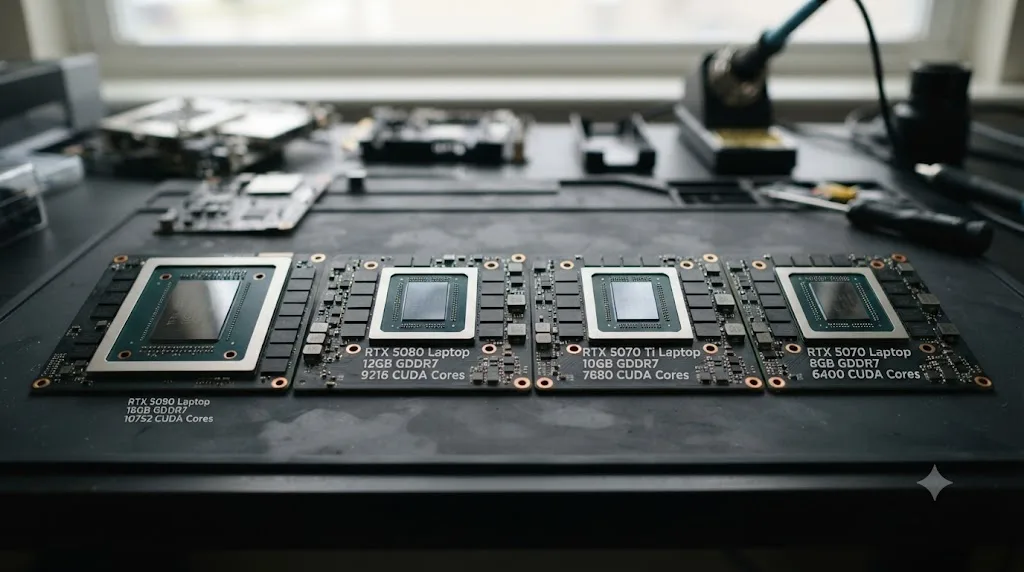
The clearest example: the RTX 5090 Laptop GPU runs on NVIDIA's GB203 chip, the same die used in the desktop RTX 5080, not the larger GB202 die that powers the desktop RTX 5090, according to Notebookcheck's spec breakdown. The desktop RTX 5090 packs 20,760 CUDA cores at full desktop clocks and power. Its laptop namesake carries 10,496 CUDA cores at 95-150W. Same badge, different GPU entirely.
| Laptop GPU | VRAM | CUDA cores | TGP range |
|---|---|---|---|
| RTX 5090 Laptop | 24GB GDDR7 | 10,496 | 95-150W |
| RTX 5080 Laptop | 16GB GDDR7 | 7,680 | 80-150W |
| RTX 5070 Ti Laptop | 12GB GDDR7 | 5,888 | 60-115W |
| RTX 5070 Laptop | 8GB or 12GB GDDR7 | 4,608 | 50-100W |
Sources: NVIDIA's GeForce RTX 50-series laptop page, Notebookcheck's RTX 5090 Laptop spec page, VideoCardz.net's RTX 5070 Ti Laptop spec page, and Tom's Hardware's coverage of the 12GB RTX 5070 laptop GPU.
VRAM actually holds up reasonably well across the laptop lineup, better than the compute gap suggests. That's the one piece of good news here.
Real-world Resolve numbers back up the naming concern. In Puget Systems' 2025 Puget Mobile 16-inch laptop review, a machine built around the RTX 5090 Mobile "nearly match[ed] the performance of high-end desktop workstations" in Resolve, but the review is careful to note that result leans heavily on CPU performance and the card's media engine. GPU Effects, the score that measures compute-bound work like noise reduction and optical flow, ran "a good bit slower" than desktop. LongGOP codec decoding, on the other hand, came out identical, since that work leans on fixed-function hardware that's the same across desktop and laptop silicon.
The previous generation's numbers are more sobering. Puget's laptop-vs-desktop comparison found the RTX 4090 Laptop GPU performs "generally considered to be around an RTX 4070" in straight compute, and on Resolve's RAW, AI, and GPU Effects scores specifically, it ran "about 25% behind the desktop RTX 4080 SUPER" it was compared against.
Thermal design matters more on laptops than on any desktop card in this guide, since the same RTX 5080 Laptop chip can ship at 80W in a thin 14-inch chassis or 150W in a 17-inch workstation replacement. Check a laptop's actual configured TGP in its spec sheet before buying, not just the GPU name on the box; two laptops with an identical GPU name can land in noticeably different real-world Resolve scores.
A laptop GPU's model name tells you its VRAM, but not its real DaVinci Resolve speed, since NVIDIA's mobile chips reuse desktop badges on smaller dies running at a fraction of the power. If you're an on-location colorist working RAW footage between setups, the RTX 5080 Laptop or RTX 5090 Laptop is worth the premium. If your laptop is mostly for rough cuts and proxy editing before a desktop finish, the RTX 5070 Laptop or RTX 5070 Ti Laptop covers it comfortably, and this site's budget laptop guide for DaVinci Resolve covers the entry end of that decision in more depth.
Is a used or refurbished graphics card safe to buy for DaVinci Resolve in 2026?
It depends entirely on what the card did in its previous life, and that history is rarely printed on the listing. With 2026 prices elevated across every brand, as this guide's pricing section further down documents, a used card looks tempting. Buy the right one and you save real money. Buy the wrong one and you inherit somebody else's worn-out hardware with no warranty to fall back on.
MakeUseOf's guide to used GPU red flags lists five signs worth checking before you pay: excessive fan noise, since "excessive fan noise on a used graphics card is a potential sign that it's been mistreated by its original owner"; a crypto-mining history, which can cause internal damage that "despite appearing physically normal" won't show up until the card is under sustained load; visible physical damage like scratched display ports or a warped circuit board; the fact that "most GPU warranties aren't transferable," so a used card almost never comes with the manufacturer support a new one does; and a price that's suspiciously lower than the going secondhand rate for that model.
That mining-history risk matters more for Resolve specifically than it does for most other used-GPU buyers. A card that spent two years mining ran at sustained, near-maximum load nonstop, exactly the kind of load a long Resolve export or a multi-hour Fusion render also puts on a GPU. VRAM chips degraded by that history tend to fail under sustained load first, which in Resolve shows up as visual artifacts, crashes mid-render, or the exact "GPU memory is full" warning this site's dedicated troubleshooting guide covers, not as a problem you'd catch during a five-minute test in a store.
Practical checks before buying, specific to a Resolve workload:
- Ask the seller for total powered-on hours if their monitoring software logged it, and treat "I don't know" as a yellow flag rather than an automatic dealbreaker.
- Confirm every display output works and the card boots reliably, ideally with a full memory diagnostic run, not just a quick desktop glance.
- Prefer sellers who can show original retail packaging or a receipt over an unmarked card pulled from a rack; a gaming card is far less likely to have run 24/7 at full load than one with no history at all.
- Walk away from any card missing its fans or fitted with passive cooling, a common mining-rig modification MakeUseOf's guide flags as a red sign.
- If you can, run an actual DaVinci Resolve export or a stress test before final payment, since VRAM problems specifically tend to surface under sustained load rather than at idle.
Used flagship cards from a previous generation can still make sense for Resolve, VRAM math included. A used RTX 4090 at the right price gives you 24GB of VRAM, more than every current card in this guide except the RTX 5090, for meaningfully less money than a new RTX 5080. What you give up is the RTX 5090's specific codec advantage covered earlier in this guide, the roughly 2x H.265 4:2:2 10-bit decode speed over software, since that's tied to the newer generation's media engine and isn't something a used previous-gen card can match regardless of its VRAM.
A used graphics card's real risk for DaVinci Resolve isn't cosmetic wear, it's invisible VRAM and power-delivery degradation from sustained load, the same kind of load a long render or export puts on a GPU. Buy from a seller who can account for the card's history, test it under real load before final payment, and you can save real money over this guide's new-card pricing without gambling on a render that fails three hours in.
What's the best graphics card for a budget DaVinci Resolve build?
For a genuinely tight budget, the RX 9070 or RTX 5060 Ti (16GB) both clear this guide's real-world 4K VRAM floor at prices well under $500 MSRP, and either is a legitimate step up from anything Intel currently offers at a similar price once you weigh in the Arc B580's documented stability issues. The RX 9070 carries 16GB of GDDR6 at $549 MSRP with 3,584 stream processors across 56 compute units and 576GB/s of bandwidth, sitting between the RTX 5060 Ti and RTX 5070 in this guide's broader tier structure.
| Card | VRAM | MSRP | Trade-off |
|---|---|---|---|
| RTX 5060 Ti (16GB) | 16GB GDDR7 | $429 | Best VRAM-per-dollar in NVIDIA's current lineup; softer on pure compute than the 5070 |
| RX 9070 | 16GB GDDR6 | $549 | More VRAM than the RTX 5070 at a similar price, but shares AMD's AI-workload weakness |
| Intel Arc B580 | 12GB | $250 | Cheapest by a wide margin, but real, documented DaVinci Resolve crash reports |
Sources: VideoCardz's RTX 5060 Ti coverage and Puget's Intel Arc B580 review.
If you never touch Magic Mask, Speed Warp, or AI noise reduction, the RX 9070's extra VRAM over an equivalently priced NVIDIA card is a real, usable advantage for 4K multicam and effects-stacked timelines. If those AI tools are part of your regular workflow, the RTX 5060 Ti's smaller VRAM pool is still the safer bet, since the tools that matter most to you run meaningfully better on NVIDIA's CUDA path regardless of card tier.
A worked example: a YouTuber building a $1,500 4K editing PC
Concrete beats abstract, so here's a realistic build for a solo YouTube creator shooting single-camera 4K H.265 footage, applying a standard color grade, running light Fusion titles, and exporting to YouTube and Instagram regularly, on a total budget of around $1,500 for the whole machine, not just the GPU.
- Allocate roughly a third of the budget to the GPU, since this guide's VRAM and compute findings both point toward the GPU, not the CPU, as the component that actually determines Resolve's day-to-day feel. An RTX 5070 at $549 MSRP fits this budget comfortably and beats the similarly priced RX 9070 XT by 8% on Resolve's overall benchmark.
- Confirm 16GB of system RAM as an absolute floor, per Blackmagic's own stated minimum, and budget for 32GB if the machine will run other apps alongside Resolve during export.
- Skip DaVinci Resolve Studio on day one if the free version's 4K ceiling and standard color tools cover the whole workflow. Add it later specifically when Magic Mask, noise reduction, or hardware H.264/H.265 decode on Windows becomes something the workflow actually needs.
- Prioritize a fast NVMe SSD for cache and media over squeezing more GPU tier into the budget. A GPU that clears this guide's 12GB 4K VRAM floor with room to spare, paired with slow storage, still stutters on scrubbing; the RTX 5070's 12GB comfortably covers this creator's stated workload.
- Leave the AI feature question for later. If Magic Mask or Speed Warp becomes a regular part of the workflow after a Studio upgrade, the RTX 5070's CUDA path is already the right foundation; no hardware change is needed to unlock those tools.
On this budget, for this workload, the RTX 5070 is the honest pick, not because it's the most exciting card in this guide, but because its 12GB VRAM and CUDA support match exactly what a single-camera 4K YouTube workflow needs, with real budget left over for the rest of the machine.
A worked example: a colorist upgrading a workstation for HDR delivery
A different case, where the decision gets genuinely harder: a freelance colorist currently running an older card, taking on more HDR grading work, multi-stream delivery, and 4K multicam projects that regularly push past what their current GPU comfortably handles, with a real budget but real deadline pressure from paying clients.
- Price the RTX 5080 against the RTX 5070 Ti at current street pricing, not MSRP. With both cards carrying identical 16GB VRAM, per this guide's earlier comparison, the RTX 5080's real value is its extra compute headroom on GPU Effects and LongGOP decoding, worth paying for specifically because HDR delivery and multi-stream exports are compute-heavy, not VRAM-heavy, workloads.
- Rule out AMD for this specific workload, honestly. This isn't brand bias; it's this guide's own benchmark findings. Puget's testing found the RX 9070 XT's AI performance "essentially unusable," and HDR grading workflows increasingly lean on Resolve's AI-assisted tools for tasks like noise reduction on underexposed footage, exactly where AMD currently trails hardest.
- Confirm DaVinci Resolve Studio is already part of the plan, not an afterthought. HDR grading tools and multi-stream delivery are both Studio-gated features this workflow explicitly needs, per this guide's Studio-versus-free breakdown above, regardless of which GPU wins the hardware decision.
- Weigh the RTX 5090 only if 6K or 8K sources are a real, recurring part of the client mix, not a hypothetical future job. This guide's earlier section on the 5090 found its clearest advantage is 10-bit 4:2:2 H.265 decoding specifically, worth checking against the actual camera formats regular clients deliver.
- Budget for a driver-stable, well-documented card over the cheapest option that technically clears the VRAM floor. A missed client deadline from a driver crash costs far more than the price difference between a well-supported card and a riskier one, the same reasoning that makes this guide steer budget-tight colorists away from the Arc B580 for paid client work specifically.
For this workload, the RTX 5080 is the defensible upgrade, not because it's dramatically faster than the RTX 5070 Ti on paper, but because HDR delivery and multi-stream exports are exactly the compute-bound tasks where its measured 21% GPU Effects lead and 34% LongGOP lead translate into real time saved on billable work.
Why are GPU prices so high in 2026, and should you wait for them to drop?
Because AI data centers are competing with PC gamers for the same GDDR7 and GDDR6 memory chips, and that competition has pushed memory costs, and therefore GPU prices, up across every brand and every tier in 2026. This isn't a normal, temporary price spike tied to a single product launch; it's a structural memory shortage, and understanding it changes whether waiting for lower prices is a realistic plan.
DRAM contract prices jumped roughly 80% quarter-over-quarter in the first quarter of 2026 alone, with year-over-year increases described as "well above 100%," according to PC Game Check's coverage of the shortage. Samsung and SK Hynix, two of the largest memory manufacturers, planned HBM3E price hikes of nearly 20% for 2026, and that pricing pressure has flowed directly into consumer GPU memory too.
The knock-on effect on the specific cards in this guide has been real and recent. AMD raised its GDDR memory kit prices to board partners by roughly 10% effective July 2026, and ASUS responded by raising RX 9070 XT prices on specific models by as much as 17.5%, with its Prime model moving from $799.99 to $939.99 and its TUF Gaming model from $849.99 to $989.99. NVIDIA's RTX 50-series pricing climbed roughly 19-20% globally since late 2025, and NVIDIA reportedly cut RTX 50-series production by 20-40% in the first half of 2026, tightening supply at the exact moment demand for AI-capable memory was already squeezing it from the other direction.
| Factor | 2026 reality |
|---|---|
| DRAM contract price change, Q1 2026 | Roughly +80% quarter-over-quarter |
| RTX 50-series pricing since late 2025 | Roughly +19-20% globally |
| RX 9070 XT price hikes on specific models | Up to +17.5% |
| RTX 50 Super refresh | Delayed indefinitely as of July 2026 |
| Expected price relief | Unlikely before late 2027 at earliest |
Source: PC Game Check's analysis of the 2026 GPU memory shortage.
None of that means you're stuck paying today's prices with no options. This guide's used and refurbished GPU section above covers the mining-history risk in detail, but a clean, gaming-history previous-gen card, an RTX 4080 SUPER or RX 7900 XTX bought from a seller who can show its history, sidesteps the 2026 memory shortage entirely, since you're paying a used price set before this year's spike rather than a new price inflated by it. Open-box and manufacturer-refurbished listings from NVIDIA, AMD, and major retailers carry real warranties, and often the same shortage-driven pricing pressure with a smaller discount, worth checking specifically if the used-market risk in this guide's earlier section gives you pause.
GPU prices rose across every brand in 2026 because AI data centers and PC gamers are now competing for the same memory chips, and that's a structural shift in memory manufacturing priorities, not a temporary launch-window price spike that resolves itself in a few months. With a next-generation NVIDIA refresh reportedly delayed indefinitely and analysts not expecting real relief before late 2027, waiting for meaningfully lower prices isn't a realistic near-term plan for most editors who need a working machine now.

What should you check before buying a graphics card for DaVinci Resolve?
Match the card to your actual footage and effects usage before you look at a single benchmark chart, since this guide's own findings show the "best" card changes completely depending on whether AI tools, Fusion, or raw codec decoding matters most to your specific work. Here's the practical checklist, in the order that actually saves money and avoids regret.
- Identify your typical timeline resolution and codec, not your aspirational one. If you shoot and deliver single-camera 4K H.265, this guide's 12GB VRAM floor and RTX 5070-tier recommendations apply directly. Don't buy for 8K RAW work you don't currently do.
- List which Resolve features you actually use regularly. Magic Mask, Speed Warp, and AI noise reduction point strongly toward NVIDIA, per this guide's brand comparison section. If none of those show up in your typical project, AMD's better VRAM-per-dollar becomes a much stronger argument.
- Confirm you're running, or planning to run, DaVinci Resolve Studio if you want the GPU's full feature set. A powerful card on the free version leaves real capability, including hardware H.264/H.265 decode on Windows and Linux, unused, per this guide's Studio-versus-free breakdown.
- Check current street price, not MSRP, before comparing cards. This guide's 2026 pricing section documented real, ongoing price increases across every brand; a card's MSRP from its launch announcement may no longer reflect what you'll actually pay.
- Verify your power supply and case clearance before ordering, especially for the RTX 5090. A 575W TDP card needs a PSU with real headroom beyond the rest of your system's draw, a detail benchmark charts never mention but that stops a build cold if you skip it.
- Don't buy a second GPU to solve a VRAM shortage on your current one. Per this guide's multi-GPU section, VRAM doesn't pool across cards; a single card with more VRAM is the only real fix for that specific problem.
- Weigh driver stability and documentation, not just benchmark position, for any AMD or Intel purchase. This guide's Intel Arc B580 section documented real, repeated DaVinci Resolve crash reports; factor troubleshooting time into any budget-tier purchase outside NVIDIA's ecosystem.
- Apply the laptop and used-GPU guidance separately if that's what you're actually buying. Neither follows the same VRAM-first logic as a new desktop card bought at retail; a laptop GPU's real speed trails its model name, and a used card's real risk lives in its history, not its listing photos.
The right graphics card for DaVinci Resolve isn't the one that wins the most benchmark charts, it's the one whose VRAM and feature support actually match the footage, effects, and Resolve edition you use every day. Skip this checklist and you're buying based on a spec sheet. Follow it and you're buying based on your actual workflow, which is the only comparison that predicts how the card will feel six months in.
Setting up DaVinci Resolve once your new card is installed
Installing the card solves half the problem. The other half is confirming Resolve actually selected it and is using the right processing mode, since a freshly installed GPU sitting unused behind a misconfigured preference is a more common problem than most editors expect. Open Preferences > System > Memory and GPU, confirm GPU Selection has your new card checked rather than any onboard integrated graphics, and confirm GPU Processing Mode matches this guide's earlier table for your brand and platform.
If you're on a laptop with hybrid graphics, this is also the point where Windows' own GPU routing can quietly override your choice regardless of what Resolve's own preferences say, a specific failure mode this site's AMD GPU not detected guide walks through with the exact Windows Settings path to fix it.
Desktop builds have their own version of this problem. If your motherboard has resizable BAR, sometimes labeled "Above 4G Decoding," turned off in its BIOS, your new card can still work in Resolve while leaving real performance on the table. Puget Systems enables both settings for every card in its RTX 50-series testing, part of how it reaches the RTX 5090 review numbers cited earlier in this guide, so check your board's BIOS for that setting specifically before assuming a new card is underperforming. And if your system has more than one GPU installed, an older card you forgot to remove, or a CPU with integrated graphics Resolve can see, double check GPU Selection again; Resolve doesn't always default to the most powerful option on its own.
There's a different kind of friction worth naming here too, separate from the driver and preference settings themselves. A brand-new GPU means relearning which Preferences and Project Settings actually matter for your specific hardware, on top of whatever else changed in your build. TryUncle is the on-screen assistant for DaVinci Resolve on macOS: ask in plain words, and Uncle points at the exact control on your screen. That's worth knowing about if a Mac is part of your editing setup alongside a Windows or Linux machine built around one of the cards in this guide. It's a separate, paid purchase from any of the hardware covered here, currently in founder pricing for its first 100 seats, and macOS only, so it won't help directly with a Windows GPU build, but it's worth checking TryUncle for its current rate if a Mac is part of your workflow too.
Verdict: which graphics card should you buy for DaVinci Resolve in 2026?
Buy the RTX 5070 Ti if you want the single best balance of price and performance available right now. Its 16GB of GDDR7 VRAM clears this guide's 4K comfort floor with real headroom, its CUDA support puts every AI tool in Resolve's Studio edition fully within reach, and at roughly $980 street pricing in mid-2026, it sits well below flagship pricing while trailing the RTX 5080 by a margin most editors won't feel on a normal day.
Step up to the RTX 5080 or RTX 5090 specifically if HDR delivery, multi-stream exports, 6K/8K RAW, or heavy Fusion work are a regular, not hypothetical, part of your job. Step down to the RTX 5070 or RTX 5060 Ti (16GB) if your budget is tighter and your projects are simpler, single-camera 4K work. Consider the RX 9070 or RX 9070 XT if AI tools genuinely aren't part of your workflow and you want more VRAM per dollar than NVIDIA's equivalent tier offers. Approach the Intel Arc B580 only with open eyes about the documented DaVinci Resolve stability reports both Puget Systems and Intel's own community forums have logged. If a desktop isn't an option, apply this guide's laptop section and shop a tier higher than you would on a desktop; if new prices are out of reach, apply the used-GPU section and buy from a seller who can account for the card's history.
None of that changes the one principle this whole guide keeps returning to: match VRAM and GPU-bound compute to your actual footage and feature usage, not to whichever card currently sits at the top of a benchmark chart. Do that, and the right graphics card for your specific DaVinci Resolve workflow in 2026 becomes an easy, defensible call, regardless of which brand's logo ends up on the box.
Frequently asked questions
- What's the best graphics card for DaVinci Resolve in 2026?
- For most editors, the RTX 5070 Ti (16GB GDDR7, $749 MSRP) is the best balance of price and performance. If money isn't the constraint, the RTX 5090 is the fastest card available for Resolve, beating the RTX 4090 by 17% overall and 50% on LongGOP codec processing. Budget builders should look at the RTX 5070 or RX 9070, both with enough VRAM for comfortable 4K editing.
- How much VRAM do I need for DaVinci Resolve?
- Puget Systems, which builds Resolve workstations professionally, recommends at least 8GB for 1080p, 12GB for 4K, and 20GB or more for 6K/8K work. Those are real-world comfort numbers, not Blackmagic's bare minimum, which is only 4GB. Noise reduction, Magic Mask, and Fusion compositing all push VRAM usage higher than plain playback.
- Is the RTX 5090 overkill for DaVinci Resolve?
- For most single-camera 4K editing, yes. Its 32GB of VRAM and top-of-stack compute only pay off on 6K/8K multicam, heavy Fusion comps, or multi-stream HDR delivery. For a standard YouTube or client-video workflow, an RTX 5070 Ti or RTX 5080 delivers real-time playback for a fraction of the RTX 5090's $1,999 MSRP.
- Should I buy an AMD Radeon card or NVIDIA for DaVinci Resolve?
- NVIDIA, if you want the safest, best-supported option. Puget Systems' own hardware guidance states NVIDIA cards are typically more reliable from both a hardware and driver standpoint, and Resolve's AI tools (Magic Mask, Speed Warp, noise reduction) lean on NVIDIA's CUDA ecosystem. AMD's RX 9070 XT is a legitimate budget-to-midrange choice for color grading and editing, just not for AI-heavy workflows.
- Does DaVinci Resolve need a powerful GPU or a powerful CPU?
- GPU, for almost everything that matters day to day: playback, color grading, effects, Fusion, and export encoding all lean on the graphics card. The CPU mostly matters for decoding certain codecs your GPU can't hardware-decode and for some OFX plugins. A strong GPU paired with a mid-range CPU outperforms the reverse combination on nearly every Resolve task.
- Why do I need DaVinci Resolve Studio if I already have a good GPU?
- Because some of the features that actually use a powerful GPU's extra headroom, like Magic Mask, AI noise reduction, Speed Warp, and resolutions above 4K, are locked to the paid Studio version. A high-end GPU on the free version still gets you fast playback and color grading, but you won't see its full value until Studio unlocks the AI tools that lean on it hardest.
- Is the Intel Arc B580 good for DaVinci Resolve?
- It's a capable budget card for GPU effects, ranking second only to the pricier RTX 4070 in Puget Systems' testing, but it's the riskiest of the three brands. Editors on Intel's own community forums have reported DaVinci Resolve Studio freezing or crashing on the B580, and Puget's review found the card maxing out its 12GB of VRAM and crashing on some test combinations, likely a driver issue rather than a hardware limit.
- Is a laptop good enough for DaVinci Resolve, or do I need a desktop GPU?
- A laptop works for on-location color and rough cuts, but budget for a real gap between the GPU's name and its actual speed. The RTX 5090 Laptop GPU runs on the same chip as the desktop RTX 5080, not the larger desktop RTX 5090, and Puget Systems found older laptop flagships running roughly 25% behind their desktop counterparts on RAW and GPU Effects work. Shop laptop GPUs one tier higher than this guide's desktop recommendations for the same workload.
Sources
- Hardware Recommendations for DaVinci Resolve (Puget Systems, Matt Bach)
- NVIDIA GeForce RTX 5090 Content Creation Review (Puget Systems)
- NVIDIA GeForce RTX 5080 Content Creation Review (Puget Systems, Evan Lagergren)
- AMD Radeon RX 9070 XT Content Creation Review (Puget Systems, Evan Lagergren)
- Intel Arc B580 Content Creation Review (Puget Systems)
- 2025 Consumer GPU Content Creation Roundup (Puget Systems)
- DaVinci Resolve Studio v20 GPU Scaling Analysis (Puget Systems, Matt Bach)
- DaVinci Resolve - Tech Specs (Blackmagic Design)
- DaVinci Resolve - Studio (Blackmagic Design)
- NVIDIA announces GeForce RTX 5060 Ti at $429 (16GB) and $379 (8GB) (VideoCardz)
- RTX 5070 Ti vs RTX 5080: Which GPU Should You Buy in 2026? (Newegg Insider)
- AMD Radeon RX 9070 XT and RX 9070 Review (Tom's Hardware)
- Why GPU Prices Are Climbing Again in 2026: The Memory Shortage Explained (PC Game Check)
- B580 Stability Issues with DaVinci Resolve (Intel Community forum)
- DaVinci Resolve AMD GPU Not Detected: Every Real Fix (davinciresolve21.com)
- GeForce RTX 50 Series Gaming Laptops (NVIDIA)
- Nvidia GeForce RTX 5090 Laptop - Benchmarks and Specs (Notebookcheck)
- NVIDIA GeForce RTX 5070 Ti Laptop GPU (VideoCardz.net)
- Nvidia quietly launches 12GB RTX 5070 laptop GPU (Tom's Hardware)
- Puget Mobile 16" Laptop (2025) Product Showcase (Puget Systems)
- Puget Systems Laptop vs Desktop Performance Comparison for Content Creation (Puget Systems)
- Puget Mobile 17" vs M3 Max MacBook Pro for Content Creation (Puget Systems)
- Mac vs PC for Content Creation 2024 (Puget Systems)
- Apple's M5 Pro, M5 Max easily beat the RTX 5090 in PugetBench creator benchmarks (Notebookcheck)
- Mac Studio - Technical Specifications (Apple)
- 5 Signs That You Should Walk Away From That Used GPU (MakeUseOf)
Keep reading
Fixes · Jul 7, 2026 · 25 min
DaVinci Resolve GPU Memory Is Full: Every Real Fix
Why DaVinci Resolve throws 'GPU memory is full,' and which fixes actually work: timeline resolution, drivers, effects, and how much VRAM you need.
Fixes · Jul 17, 2026 · 23 min
DaVinci Resolve AMD GPU Not Detected: Every Real Fix
DaVinci Resolve not seeing your AMD GPU? Here's why it happens on Windows, Mac, and Linux, and the exact driver, preference, and Windows fixes that work.
Guides · Jul 23, 2026 · 33 min
Best Budget Laptop for DaVinci Resolve Beginners in 2026
What actually matters when buying a budget laptop for DaVinci Resolve: real GPU/RAM minimums, current laptop picks and prices, and the traps that waste your money.