Articles / Guidesupdated for DaVinci Resolve 21.0.2 (July 2026)
Best NAS for DaVinci Resolve Editing in 2026
Quick answer
For DaVinci Resolve editing, the best NAS depends on team size: a QNAP TVS-h874 or Synology DS1825+ over 10GbE handles 2-4 editors on native 4K, while OWC Jellyfish or Blackmagic's Cloud Store Mini suit larger teams. Solo editors rarely need a NAS at all; a fast internal or Thunderbolt SSD beats one for less money.
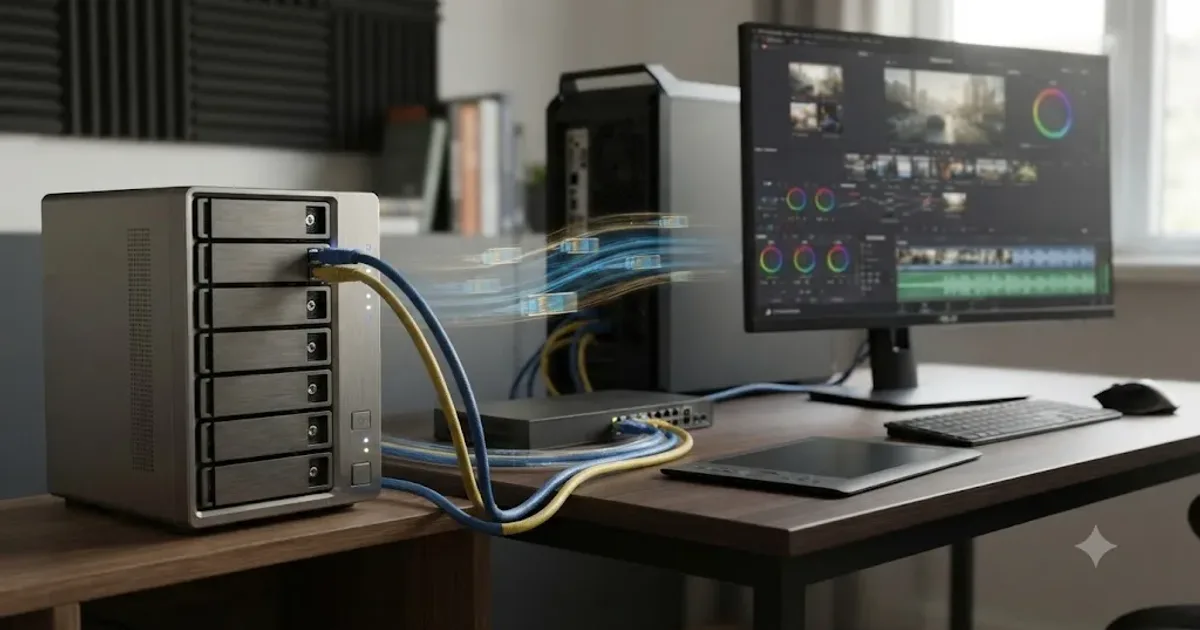
A NAS sounds like the obvious fix the moment a second editor needs the same footage you're cutting. It also sounds like overkill the moment you price one out. Both reactions are correct, depending entirely on how many people actually need to touch that timeline.
We've spent seven-plus years cutting commercial work in DaVinci Resolve and running a 100,000+ member editing community, and "what NAS should I buy" is one of the recurring questions we see there, almost always from someone who hasn't yet asked the question that actually matters: do you need shared storage, or do you need a faster drive? This guide answers both, with real network math, real RAID tradeoffs, and real prices, as of July 2026.
Do you actually need a NAS for DaVinci Resolve editing?
You need a NAS when two or more people must reach the same media and project at the same time. You don't need one to make a single editing station faster; an internal or Thunderbolt SSD does that job better and for less money.
That distinction gets lost constantly. A NAS is not a speed upgrade. It's a bandwidth-sharing and simultaneous-access solution, and it introduces a network, a switch, and a second point of failure that a direct-attached drive never has. If your actual problem is "my drive is full" or "playback stutters," the fix is almost never a NAS. Our cache files filling up hard drive guide and our proxy media setup for a slow laptop guide solve those problems directly, on the machine you already own, for close to nothing.
A NAS earns its keep in three specific situations:
- Two or more editors, colorists, or a Fusion artist need to open the same project and see the same media at once. This is DaVinci Resolve's collaboration feature, and it's the single strongest reason to buy shared storage.
- A single editor's media library has outgrown any drive they can carry or afford internally, and they need centralized, expandable storage that doesn't move machine to machine.
- A facility needs a backup and access-control layer across projects that used to live on a pile of loose external drives, with RAID protecting against single-drive failure and permissions controlling who touches what.
If none of those three apply to you, stop reading the buying advice and go fix your actual bottleneck instead. If one does, here's the decision that follows immediately: what network speed does that use case actually require, because that number, not the NAS brand, is what determines whether your setup works or stutters.
A NAS is a bandwidth and access decision before it's ever a brand decision.
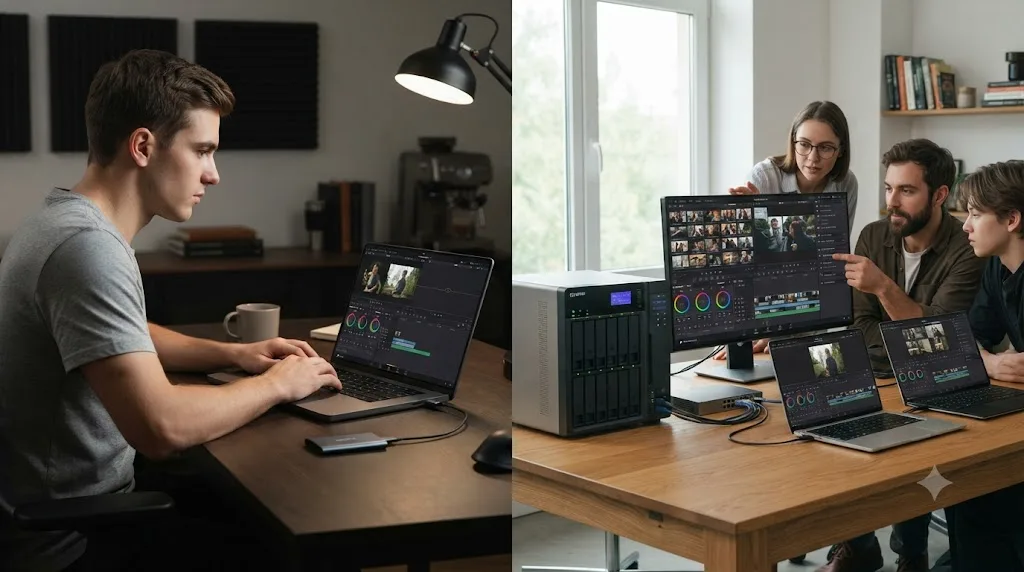
What network speed does DaVinci Resolve need for NAS editing?
DaVinci Resolve needs whatever network speed matches your footage's bitrate times the number of simultaneous streams, and for real 4K work that number is almost always higher than the gigabit Ethernet your NAS ships with by default. Get the math wrong and every other decision in this guide, RAID level, drive count, cache placement, doesn't matter.
Here's what actual codecs demand, and what network tier covers each one, based on figures compiled by The Post Flow's video editing storage guide:
| Codec and resolution | Approx. bitrate | Per-stream throughput | Minimum network |
|---|---|---|---|
| H.264/H.265 4K60 (delivery proxy) | ~150 Mb/s | ~19 MB/s | Gigabit Ethernet |
| ProRes 422 4K30 | ~472 Mb/s | ~59 MB/s | 2.5GbE |
| ProRes 422 HQ 4K60 | ~1,414 Mb/s | ~177 MB/s | 2.5GbE minimum, 10GbE to stack streams |
| 4K DCI 16-bit uncompressed DPX | up to 1.8 GB/s per workstation | up to 1.8 GB/s | 10/25/100GbE |
Studio Network Solutions, which builds shared storage specifically for post-production facilities, puts the general high-throughput floor at roughly 2 GB/s per workstation once you're doing serious uncompressed or high-bitrate work, and notes that Windows, Linux, and Mac workstations can now hit 1 GB/s or higher over Ethernet without needing Fibre Channel at all. That's a meaningful shift from a decade ago, when shared storage for video meant expensive Fibre Channel SANs almost by default.
Team size adds its own multiplier on top of codec math, since a NAS serving four editors needs roughly four times the throughput of one serving a single editor scrubbing the same footage. Need to Know IT's breakdown of real Resolve NAS deployments frames it by headcount rather than just codec:
- 1GbE: fine for a solo editor working from H.264 or HEVC proxies. Not native 4K, not multiple users.
- 10GbE: the realistic minimum for two to four editors cutting native 4K simultaneously. This is where most small studio NAS setups should land.
- 25GbE or higher: needed once you have five or more editors, or anyone working in heavier formats like Blackmagic RAW at 3:1, ProRes 4444, or uncompressed EXR sequences.
Gigabit Ethernet caps out well below the bitrate of a single 4K ProRes 422 stream, so it was never built for real DaVinci Resolve editing off shared storage. A lot of NAS disappointment traces back to exactly this: someone bought an 8-bay NAS with plenty of drive capacity, plugged it into the gigabit port their router already had, and wondered why playback stuttered the moment they moved off compressed delivery footage. The bays were never the bottleneck. The cable was.
One more wrinkle: most budget and mid-range NAS units ship with 2.5GbE as their built-in networking, not the full 10GbE this table calls for. You'll need either a NAS with 10GbE built in, or a PCIe expansion card added to the NAS, plus a matching 10GbE network card or Thunderbolt adapter on every workstation and a switch that supports it. None of that is exotic anymore, but it is a real added cost, covered later in this guide's budget breakdown.
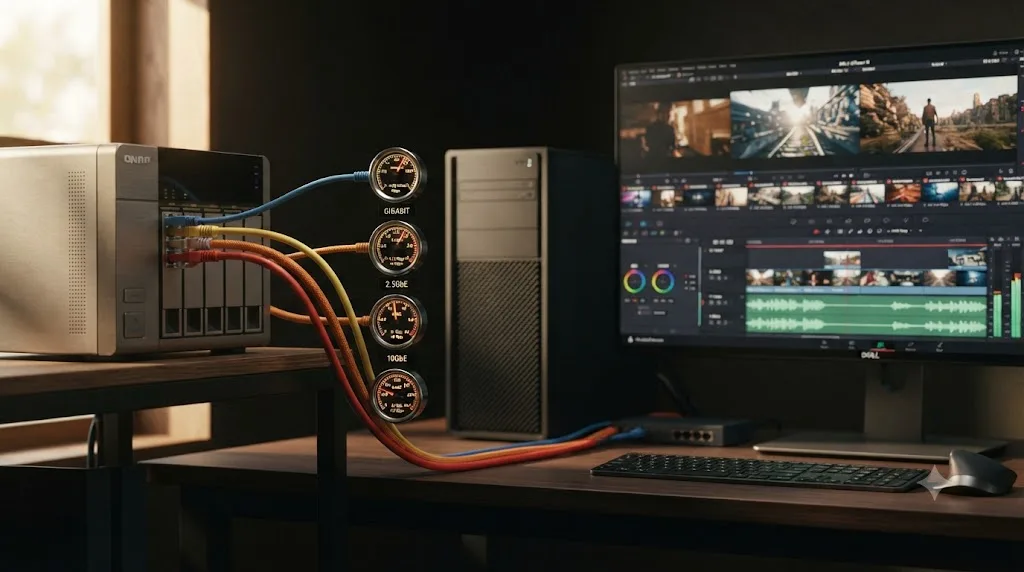
Which NAS is actually good for DaVinci Resolve editing in 2026?
The best NAS for DaVinci Resolve changes with team size, not brand loyalty. A box built for four editors on native 4K is wrong for a solo colorist, and a box built for a solo colorist collapses the moment a second editor joins.
Here's how the real options break down, drawn from current pricing and specs rather than marketing copy:
| NAS | Bays | Network (built-in) | Best fit | Approx. price (diskless) |
|---|---|---|---|---|
| QNAP TS-473A | 4 | Two 2.5GbE, two PCIe slots for upgrade | Solo editor or a team just starting out | $879 |
| UGREEN NASync DXP4800 Plus | 4 | 10GbE built-in | Budget entry into real 10GbE, 2-3 editors | $619.99-$729.99 |
| Synology DS1825+ | 8 | Two 2.5GbE, 10/25GbE via add-in card | SMB-heavy studios, well-documented Resolve workflows | ~$1,219 bare, up to ~$8,649 pre-loaded with drives |
| QNAP TVS-h874 | 8 | 10GbE built-in, ZFS filesystem, NVMe cache slots | 4-6 editor teams | Varies by region and drive config |
| QNAP TVS-h874T | 8 | Dual Thunderbolt 4, 10GbE via PCIe slot | Small studio wanting direct Mac connections plus network access | ~$3,000 before drives |
| Blackmagic Cloud Store Mini | Fixed 8/16TB flash, RAID-0 | 10GbE, 1GbE, USB-C built-in | Turnkey, Resolve-native collaboration with zero NAS configuration | $2,995 |
| OWC Jellyfish Nomad/Tower | Scalable, 16TB to 1PB+ | 10/25/40GbE | 6+ editor facilities on 4K to 8K | ~$9,500 (32TB Mobile) to $30,000+ (80TB Tower) |
A few of these deserve more than a table row.
The Synology DS1825+ is the safest default recommendation for a small studio, and it's the model most thoroughly documented in actual Resolve community threads, not just vendor spec sheets. It runs an AMD Ryzen V1500B quad-core processor with 8GB of ECC DDR4 memory (expandable to 32GB), two M.2 2280 NVMe slots for cache, and rated sequential speeds up to 2,239 MB/s read and 1,573 MB/s write. Out of the box it only ships two 2.5GbE ports, so real 10GbE or 25GbE needs an add-in card, which Need to Know IT prices around 149 AUD for a compatible expansion card in the Australian market; expect a comparable cost in whatever currency you're buying in. It scales to 18 bays and 360TB with two DX525 expansion units if a project outgrows the base chassis.
The QNAP TVS-h874 and its Thunderbolt-equipped sibling, the TVS-h874T, both target the same 4-6 editor sweet spot but solve the "how do editors connect" problem differently. The plain h874 assumes everyone connects over 10GbE Ethernet. The h874T adds two Thunderbolt 4 ports directly on the chassis, which matters if you're a small Mac-based studio and want one or two editors plugged in at full speed without touching a switch at all, alongside a PCIe slot for a 10GbE card to serve everyone else. Both run ZFS under QNAP's QuTS Hero, which adds checksumming and snapshot protection that the more common Btrfs or ext4 filesystems on cheaper boxes don't offer.
The Blackmagic Cloud Store Mini is the one entry here that isn't really a general-purpose NAS at all. It's a fixed appliance, four internal M.2 flash cards in RAID-0, sold specifically to plug into a DaVinci Resolve collaboration workflow with close to zero configuration. StorageReview's testing found it fully saturating its 10GbE port at roughly 1,156 MB/s write and 951 MB/s read in sequential testing, numbers a spinning-disk NAS at this price point can't touch. The tradeoff is capacity and flexibility: it comes in fixed 8TB or 16TB configurations, RAID-0 means no protection against a single drive failure, and at $2,995 for the entry unit, you're paying a premium for turnkey simplicity rather than raw storage per dollar.
OWC's Jellyfish line exists for the tier above all of these: facilities running six or more editors simultaneously on 4K, 6K, or 8K media. OWC's own figures put bandwidth up to 3,700 MB/s read and 2,400 MB/s write on the higher-end units, enough for smooth multicam playback and ingest happening at the same time. Pricing starts around $9,500 for the 32TB raw (roughly 23TB usable) Jellyfish Mobile and climbs past $30,000 for an 80TB Tower or Rack unit. This is facility-grade spending, not a small-team upgrade, and it only makes sense once your editor count and format weight genuinely require it.
A NAS with the right number of bays and the wrong network port is still the wrong NAS. Check the built-in networking before the drive capacity, because capacity is the easy variable to add later and networking usually isn't.
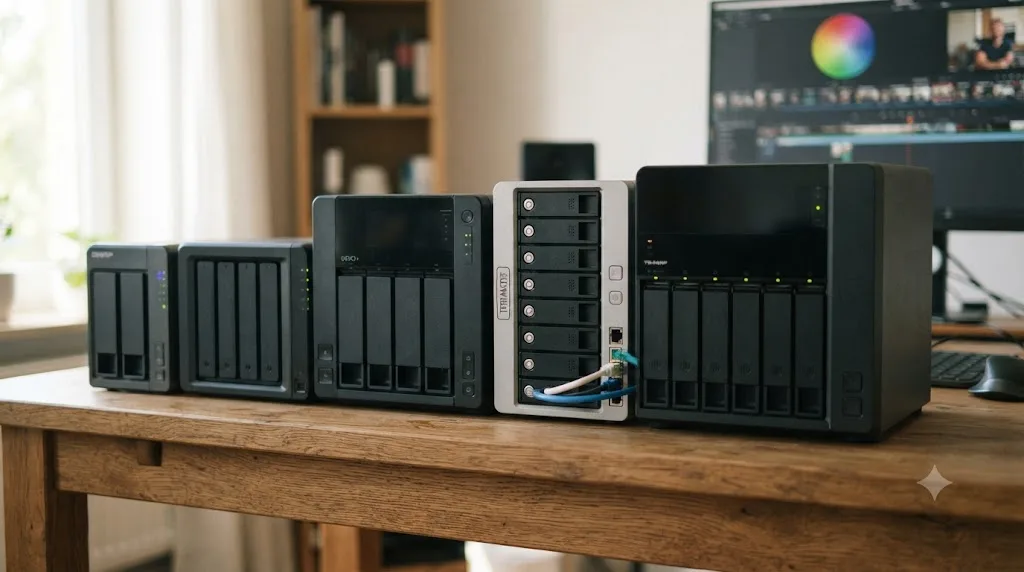
RAID 5, RAID 6, or RAID 10: which is right for a DaVinci Resolve NAS?
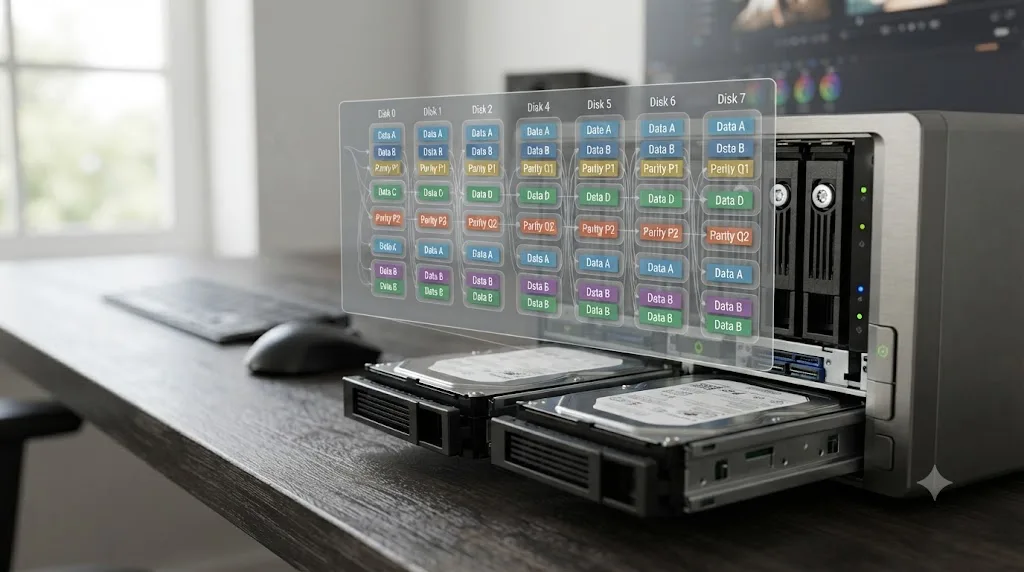
RAID 6 is the right default for any team NAS with six or more bays, because it survives two simultaneous drive failures during the long rebuild window that today's large drives require. RAID 5 is acceptable on smaller four or five bay boxes if you have a real backup plan. RAID 10 wins on raw speed and latency but costs you half your capacity.
Here's the actual tradeoff, not the marketing simplification:
| RAID level | Failures survived | Usable capacity | Best for |
|---|---|---|---|
| RAID 5 | 1 drive | (n-1) drives | 4-5 bay NAS with solid backups elsewhere |
| RAID 6 | 2 drives | (n-2) drives | 6-12 bay team arrays, the safe default |
| RAID 10 | 1 per mirrored pair | 50% of raw | Speed and low latency over capacity, database or cache tiers |
The reason RAID 6 has become the default recommendation for team storage isn't abstract. Modern drives are large, often 12TB, 16TB, or bigger, and a RAID 5 rebuild after a single failure can take many hours to days depending on array size and load, during which a second drive failure destroys the whole array. RAID 6's second parity drive means the array survives that second failure, which matters enormously more once you're protecting a shared project multiple editors depend on, versus a single freelancer's personal archive.
RAID 10 shows up less often as the main storage tier and more often for a specific job: hosting the PostgreSQL database or acting as a fast cache layer, where latency matters more than raw capacity and you're not trying to store terabytes of camera media on it.
None of this replaces a backup. RAID protects against a drive failure. It does nothing against accidental deletion, ransomware, fire, theft, or a facility-wide power event, which is exactly why NAS vendors increasingly bundle snapshot tools and why a genuine 3-2-1 backup strategy, three copies, two media types, one offsite, still applies even after you've bought redundant storage.
RAID is protection against a drive dying, not a substitute for an actual backup. Treat it as one layer in a plan, not the whole plan.
How do you set up DaVinci Resolve's multi-user collaboration on a NAS?
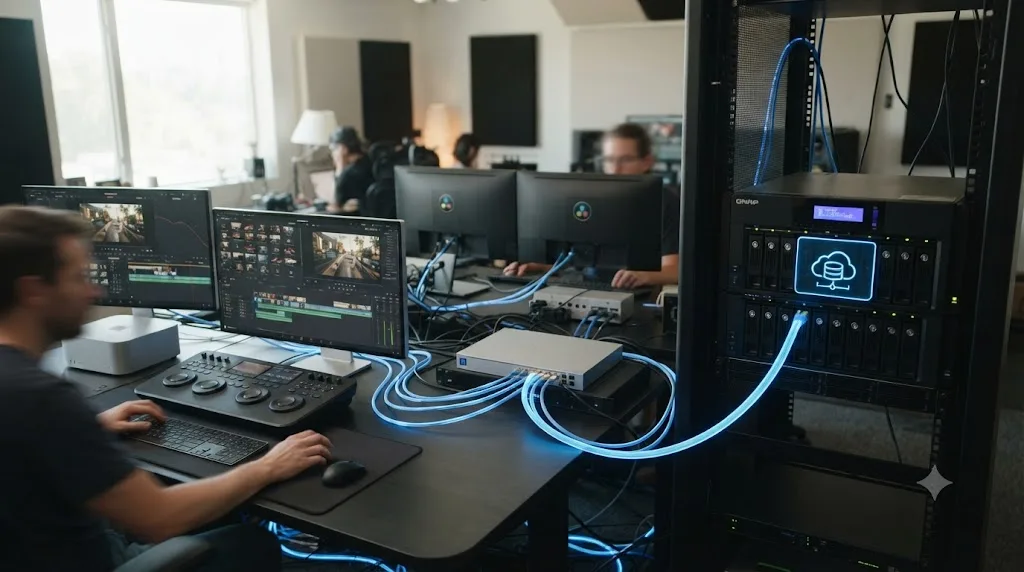
DaVinci Resolve's multi-user collaboration runs on a shared PostgreSQL database plus shared media storage, and it's a Studio-only feature, not something the free version supports at any storage tier. The NAS's job is to host that database somewhere always-on and reachable, and to serve the media everyone's pointing at.
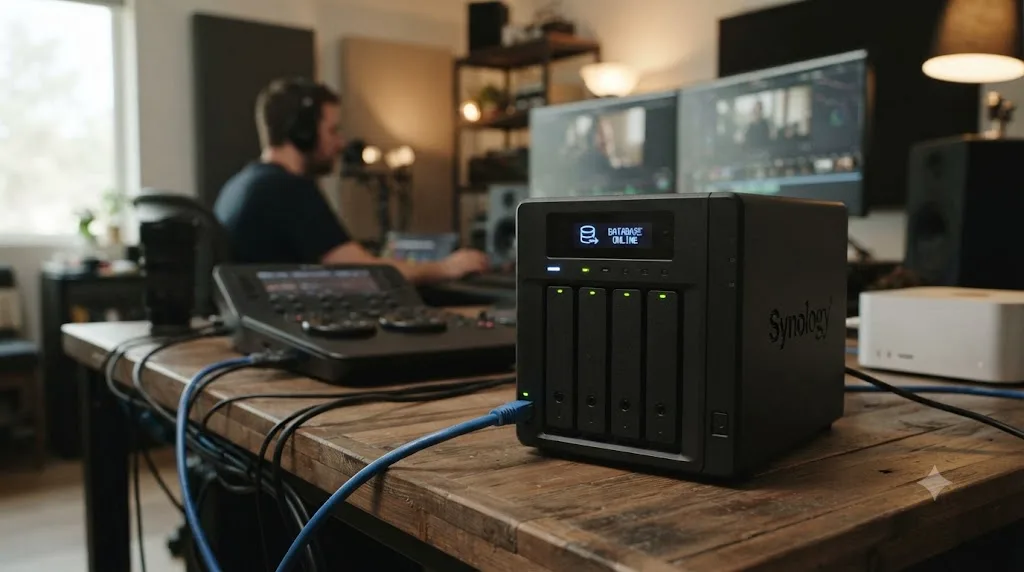
The mechanics, once you strip away the marketing, are straightforward. Blackmagic's DaVinci Resolve Project Server application is, functionally, a friendly GUI wrapped around a PostgreSQL database configuration. You install PostgreSQL, either through the standard DaVinci Resolve installer's optional component, or through your NAS's Docker support if it has Container Station (QNAP) or Container Manager (Synology). That database needs a fixed, reachable address, because every editor's copy of Resolve is going to connect to it by IP, and an address that moves breaks the whole team's access at once.
Robbie Carman, a working colorist and co-founder of the color grading training site Mixing Light, wrote about setting this up for a small facility and landed on hardware most people would consider overkill to worry about: "A Mac Mini even moderately configured makes a fantastic Resolve database server." His point holds because the database itself is lightweight. It's tracking metadata, project structure, and edit history, not pushing the actual video frames, so the machine hosting it doesn't need editing-grade horsepower. What it needs is uptime and a static IP.
That's also why a NAS is often a better host for the database than a spare workstation: NAS boxes are designed to run 24/7, whereas an editor's workstation gets rebooted, put to sleep, or turned off at the end of the day, taking the whole team's shared project access down with it.
Once the database is running, connecting to it from each Resolve install follows a short, repeatable path:
- Confirm every seat is on DaVinci Resolve Studio. Multi-user collaboration is gated to Studio; the free version simply doesn't offer the feature, regardless of what storage or database sits behind it.
- Pick the always-on host for PostgreSQL, ideally the NAS itself via Docker, or a small dedicated machine like Carman's Mac Mini.
- Install PostgreSQL through the Resolve installer's optional component, or through your NAS's container app.
- Assign that host a static IP address so it never changes out from under the team.
- On each workstation, open Project Manager, select the database icon in the lower left corner, and add the shared database by its static IP.
- Keep render cache and Working Folders local on every machine, which the next section covers in detail, since this is where collaboration setups most often go wrong.
One underrated benefit Carman points out: a properly configured shared database isn't limited to the office network. He describes VPNing into his office network from home and reaching the identical database and projects he uses at work, which matters for anyone doing remote color work or handing off a project to a freelancer who isn't physically present.
If your facility uses a genuine SAN rather than a NAS, the principle doesn't change, only the storage layer underneath does. Carman's own facility runs a Small Tree TZ8 unit over 10 Gigabit Ethernet specifically so every workstation resolves the exact same media path, which sidesteps relinking issues entirely. If your media paths do drift between machines, our guide to relinking media when it moves drives covers the fix without touching your edit or grade.
PostgreSQL needs to live on a machine that's always on and reachable, not on whichever editor's laptop happens to be open when someone else needs the project. Get that one detail wrong and the entire collaboration setup becomes unreliable in exactly the way that erodes trust in shared storage fastest.
Should render cache and proxy media live on the NAS or on each workstation?
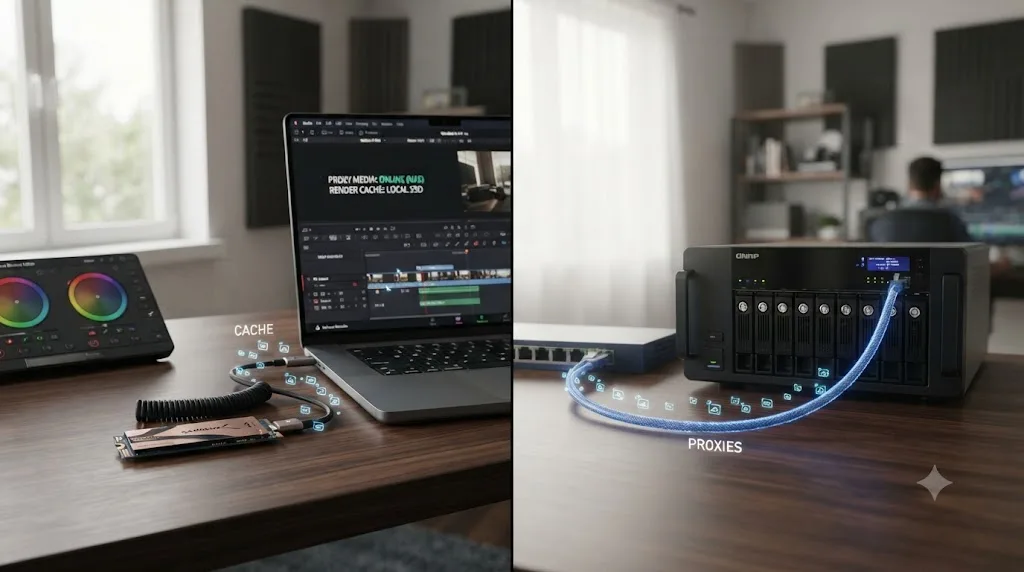
Render cache belongs on a local drive on every workstation, never on the shared NAS. Proxy media is the one file type that can reasonably live on the NAS, and only past a certain team size.
This is the single most repeated mistake in real-world DaVinci Resolve NAS setups, and it's repeated because it feels logical at first: you have shared storage, so why not put everything on it? Because render cache is high-frequency, high-IOPS, user-specific data. Every workstation writing its own render cache over the network at once saturates the exact bandwidth you need for actually streaming media, and it does so constantly, in the background, whether anyone notices or not.
Here's the file placement map that actually works, matching what Need to Know IT's Resolve NAS breakdown recommends:
| File type | Where it belongs | Why |
|---|---|---|
| Camera originals | NAS, HDD RAID array | Large sequential files, needs shared access across editors |
| PostgreSQL database | NAS, SSD/NVMe volume | Needs low latency for constant small reads and writes |
| Render cache | Local NVMe, per workstation | High IOPS, user-specific, never needs to be shared |
| Proxy media | NAS shared volume (team setups only) | Generated once, reused by everyone, worth the shared cost |
Where the NAS goes for proxies specifically depends on team size, not a fixed rule:
- Solo editor on a fast connection: skip proxies on the NAS entirely and use locally generated optimized media instead, since there's no second person who benefits from a shared copy.
- Two to three editors on 10GbE: proxies stored on the NAS start paying off, since one generation pass serves the whole team instead of each editor transcoding the same footage separately.
- Four or more editors, or anyone working remotely: proxies on shared storage become close to mandatory, both for consistency (everyone's playing back the identical proxy, not slightly different local transcodes) and for bandwidth, since proxies are a fraction of the size of camera originals.
Set this correctly in Project Settings, Master Settings, Working Folders. Point Cache Files Location at a local NVMe path on every machine, and if your team uses shared proxies, point the Proxy Media location at the NAS share. Our proxy media setup guide covers the format and resolution choices in depth if you haven't set up proxies before; the codec logic (DNxHR LB on Windows, ProRes Proxy on Mac) applies identically whether the proxies live locally or on shared storage.
Render cache on a NAS is the single fastest way to turn a fast NAS into a slow one. It's not a capacity problem. It's a bandwidth-contention problem that gets worse with every additional editor you add to the same share.
NAS vs external SSD vs Blackmagic Cloud: which storage actually fits your workflow?
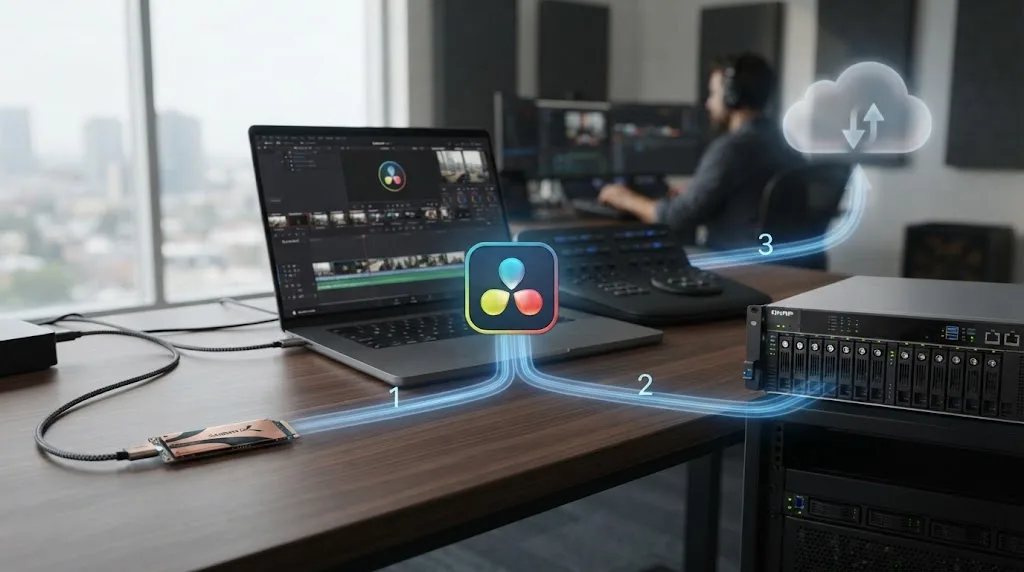
For one editor, an external SSD beats a NAS on speed, latency, and price every single time. A NAS wins the moment simultaneous multi-user access becomes the actual requirement, a problem no single external drive can solve regardless of how fast it is.
Laid out plainly:
| Storage type | Best for | Simultaneous multi-user access | Typical cost tier | Setup complexity |
|---|---|---|---|---|
| Internal or Thunderbolt external SSD | Solo editor, single workstation | No | Low | Minimal |
| NAS (RAID array) | 2+ editors sharing media and projects | Yes, over network | Medium to high | Moderate, network and RAID config |
| Blackmagic Cloud Store Mini | Small team wanting turnkey Resolve-native collaboration | Yes, over 10GbE | Medium-high, fixed capacity | Low, purpose-built for Resolve |
| Blackmagic Cloud (remote, browser-based) | Distributed teams, no local network in common | Yes, over internet | Subscription-based | Low, cloud account setup |
| OWC Jellyfish / SAN | Facility with 6+ editors on heavy formats | Yes, high concurrency | High to very high | High, dedicated IT support usually needed |
Blackmagic's own collaboration page frames this choice directly: creating a Blackmagic Cloud ID costs nothing, and from there you can "use the storage of your choice," including cloud storage through that Blackmagic Cloud ID, or network storage such as a Blackmagic Cloud Store. That's a genuinely different model from a traditional NAS: rather than configuring PostgreSQL and a file share yourself, Resolve's own Project Server application manages a project library, and multiple people can work on the same timeline with changes appearing for review and acceptance in the viewer.
The tradeoff with Blackmagic's own cloud-first path is the same tradeoff any managed service carries: less configuration for you, less control over the underlying hardware, and a dependency on Blackmagic's infrastructure rather than a box sitting in your own closet. A self-managed NAS costs more of your time upfront and gives you a durable asset you fully control afterward. Neither is objectively correct; it depends on whether your team has the appetite to manage a database server and a switch, or would rather pay for that complexity to disappear.
One case this section resolves cleanly: if you're debating a NAS purely to get more storage capacity for one person, don't. A large external SSD or a second internal drive gets you the same capacity without a network, a switch, or RAID configuration standing between you and your files. Save the NAS decision for when access, not capacity, is the actual constraint.
A NAS solves a people problem, not a capacity problem, and buying one to solve the wrong problem just adds a network between you and your footage.
How much does a real DaVinci Resolve NAS setup cost?
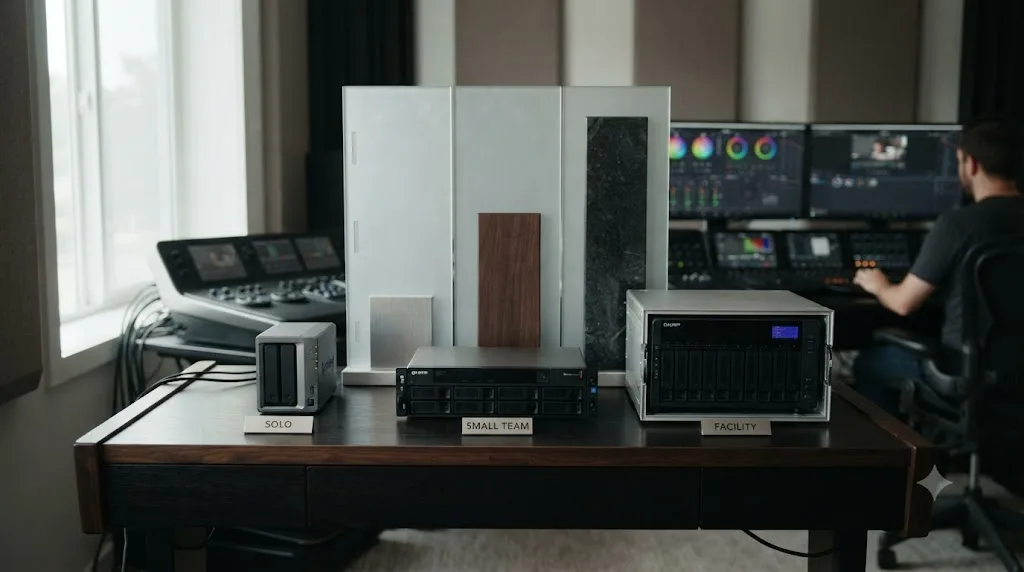
A solo-tier NAS setup for DaVinci Resolve runs roughly $1,500 to $2,500 fully loaded with drives and cache. A small-team setup with 10GbE networking across multiple workstations typically lands between $4,000 and $8,000 before you count camera storage or a Studio license per seat.
Here's what actually goes into each tier, based on real component pricing compiled by The Post Flow:
Solo editor / entry tier
- 4-bay NAS on 2.5GbE (QNAP TS-473A, $879, or a comparable box)
- 500GB-1TB NVMe cache drive, single or mirrored
- Start in RAID 5 with two to three drives, grow into RAID 6 later as bays fill
- Skip a 10GbE upgrade unless you already know you'll add a second editor soon
Small team, 2-4 editors
- 8 to 12 bay NAS (Synology DS1825+ or QNAP TVS-h874 class)
- 10GbE switch, plus a 10GbE network adapter or Thunderbolt-to-10GbE bridge per workstation
- 1TB NVMe cache in RAID 1 for redundancy
- RAID 6 across the main array with a hot spare drive
- A UPS to prevent data corruption from an unexpected power loss
Specific component costs worth knowing, again from The Post Flow's pricing pass:
| Component | Example | Approx. price |
|---|---|---|
| 10GbE PCIe card (Windows tower) | TRENDnet TEG-10GECTX | $62.99-$69.99 |
| Thunderbolt 3 to 10GbE adapter (Mac) | Sonnet Solo10G | ~$200 |
| Thunderbolt 3 to 10GbE adapter (cross-platform) | OWC Thunderbolt 3 10G Ethernet Adapter | ~$230 |
| NVMe cache drive | Samsung 990 Pro 1TB | $238.88 |
| NVMe cache drive (Synology-qualified) | Synology SNV3410 400GB | $434.99 |
| 7200rpm NAS drive, 14TB | Seagate IronWolf 14TB | $594.95 |
| 7200rpm NAS drive, 16TB | Toshiba N300 16TB | $1,057.96 |
| UPS, 1500VA | APC 1500VA | $189.99 |
Two planning rules from that same guide are worth internalizing before you buy anything. Size your throughput for "20 to 30% more than your busiest hour, not your average," since a NAS that's adequate on a quiet Tuesday can choke the exact week your whole team is exporting a final deliverable simultaneously. And leave "30 to 40% of the array free," because a NAS running near full capacity slows down across the board, not just when you're trying to write new files to it.
Camera storage, a Studio license per collaborating seat, and any Blackmagic Cloud subscription costs sit outside these numbers entirely and should be budgeted separately depending on how much footage you shoot and how many people need write access to the shared project.
Budget the network hardware as seriously as the NAS itself, since a 10GbE-capable box connected over a leftover gigabit switch performs exactly like a gigabit NAS.
Why does DaVinci Resolve say "Media Offline" or drop frames when I edit off a NAS?
"Media Offline" on a NAS setup almost always traces to a network drop, a changed mount path, a permissions mismatch across operating systems, or an MTU mismatch between your network card and switch, not damaged footage. Dropped frames usually mean the network can't sustain your codec's bitrate, or render cache is competing with media traffic on the same link.
Work through these in order before assuming the media itself is corrupted:
The NAS share disconnected or wasn't mounted at boot. Network shares don't always reconnect automatically after a reboot or a network hiccup, especially on Windows if the share was mapped without "reconnect at sign-in" checked, or on macOS if the volume wasn't in your login items. Confirm the share is actually visible in Finder or Explorer before touching anything inside Resolve.
The mapped path doesn't match what the project expects. If one editor's machine sees the NAS share at a different drive letter or mount path than another's, DaVinci Resolve will report the media offline even though the files are sitting right there, reachable, just not at the path the project recorded. Resolve's Preferences, Media Storage panel has a Mapped Mount column specifically for this, letting you set translatable path mapping between Mac, Linux, and Windows conventions so a shared project resolves consistently no matter which OS opens it. Our guide to relinking media when it moves drives walks through Change Source Folder versus Relink Selected Clips if a full relink becomes necessary, and neither touches your existing edit or grade.
An MTU mismatch is silently capping your throughput. If your 10GbE network cards are configured for jumbo frames but your switch isn't, or vice versa, packets get fragmented or dropped in a way that doesn't always throw an obvious error, it just makes everything slower and occasionally causes the exact kind of intermittent offline flicker that's maddening to diagnose. Check that every device on the path, NAS, switch, and each workstation's network adapter, agrees on the same MTU setting.
Permissions differ between the account that wrote the file and the account trying to read it. This shows up most often in mixed Mac and Windows studios, where SMB permission handling differs enough between operating systems that a file one editor wrote becomes read-only or invisible to another. Confirm your NAS's shared folder permissions are set for the group everyone's editing under, not per individual user account, unless you specifically need that isolation.
The NAS itself is too full or too busy. An array running past that 30-40% free space threshold, or one already under load from a backup job, a snapshot, or another editor's export, has less headroom to serve your playback request instantly, which can present as stutter or a brief offline state under load even when nothing is actually broken.
Render cache is still writing to the NAS instead of locally. If you skipped or missed the Working Folders setting covered earlier in this guide, every workstation's render cache traffic is competing with the media streaming traffic that's supposed to have priority. Fix the Cache Files Location setting on each machine and this class of problem usually disappears.
If you've checked all of the above and files are still going offline unpredictably, treat it as a hardware-layer problem, a failing cable, a marginal network card, or a drive nearing failure inside the array, rather than continuing to dig inside Resolve's own settings. Our media offline troubleshooting guide covers the full decision tree for causes unrelated to networked storage specifically, including local drive and permission issues that apply whether or not a NAS is involved.
If you get this far and you're still not sure which setting inside Resolve is the one you need, that's a fair place to get stuck. TryUncle is the on-screen assistant for DaVinci Resolve on macOS, ask in plain words and Uncle points at the exact control on your screen, which is useful precisely when a networking fix requires you to find a specific checkbox buried three menus deep in Preferences.
A dropped NAS connection almost never means your footage is gone. It means the path between your screen and that footage broke somewhere, and every fix in this section is about finding exactly where.
Does DaVinci Resolve Studio matter for NAS-based editing?
Yes, specifically for collaboration. You can point the free version of DaVinci Resolve at a NAS and edit as a solo user with no restriction, but multi-user collaboration, the shared database, and simultaneous project access all require DaVinci Resolve Studio, on every seat that needs to collaborate.
This distinction trips people up because a NAS itself doesn't care what version of Resolve is reading from it; it's a generic file server either way. The gate is entirely on Resolve's side. If you're the only person touching a project, the free version reads and writes to a NAS share exactly like it would to a local drive, no license required beyond what you're already running. The moment a second person needs to open that same project simultaneously, edit it, and have your changes and theirs reconciled through Resolve's own collaboration tools, you're in Studio-only territory.
That means your buying decision actually has two separate line items: the NAS hardware itself, and a Studio license for each collaborating seat. Skipping the Studio requirement doesn't save you from needing the NAS, since a facility with multiple free-version installs still can't collaborate on the same project no matter how fast the shared storage underneath them is. Studio's collaboration gate is a software decision Blackmagic made independent of your storage choice, and no amount of NAS spending routes around it.
If your team hasn't settled the free-versus-Studio question yet for reasons beyond collaboration, our free vs Studio guide breaks down the full feature list and current pricing, since collaboration is one gate among several, alongside things like resolutions above 4K, Neural Engine AI tools, and HDR grading.
A NAS never bypasses Resolve's Studio requirement for collaboration. Buy the storage and the licenses as two separate decisions, because they are.
Mac vs Windows vs Linux: does your NAS setup change by platform?
The underlying NAS and network requirements stay identical across Mac, Windows, and Linux. What changes is how each operating system connects to the share, and mixed-platform teams need to actively manage that difference or risk the exact path-mapping and permissions issues covered earlier in this guide.
On Mac, most NAS boxes connect over SMB by default, which macOS handles natively through Finder's Connect to Server. Since Apple Silicon dropped native Thunderbolt-to-Ethernet expansion the way older Intel Macs handled it, reaching 10GbE from a Mac usually means an adapter like the Sonnet Solo10G or the OWC Thunderbolt 3 10G Ethernet Adapter mentioned earlier in this guide's cost breakdown, both of which bridge Thunderbolt to a proper 10GbE port. If your team runs Mac minis or MacBook Pros as edit stations, budget for one of these adapters per machine unless the workstation already has 10GbE built in.
On Windows, 10GbE is more commonly available as a native PCIe card option, like the TRENDnet TEG-10GECTX referenced earlier, and SMB support is native without any extra software. The more common Windows-specific headache is the drive letter itself: Windows assigns letters based on connection order, so a NAS share mapped as Z: on one boot can shift if another drive connects first, which is a separate but related problem to the network-path issues covered above.
On Linux, NFS is often the more natural protocol choice over SMB, and DaVinci Resolve's official Linux support (Ubuntu and CentOS per Blackmagic's tech specs) makes Linux edit stations a real option for facilities standardizing on it, though it remains a smaller slice of the Resolve user base than Mac or Windows, which shows up as thinner community documentation when something goes wrong.
Mixed-platform teams carry the most risk, not because any one OS handles NAS access poorly, but because SMB permission handling, path formatting (forward slashes versus backslashes, drive letters versus mount points), and even filename case-sensitivity defaults differ enough between operating systems to cause exactly the kind of "it works for me but not for you" confusion that eats a whole afternoon. Resolve's own answer to this is the Mapped Mount column in Preferences, Media Storage, which lets you define how a given volume translates across Mac, Linux, and Windows conventions so a shared project resolves consistently no matter who opens it. Set this up once, deliberately, rather than discovering the mismatch mid-project when someone's media suddenly shows offline.
A NAS doesn't care what operating system is reading from it. Your team's mixed-platform habits are what determine whether that indifference stays invisible or turns into a support ticket.
What if you're a solo editor? Do you even need any of this?
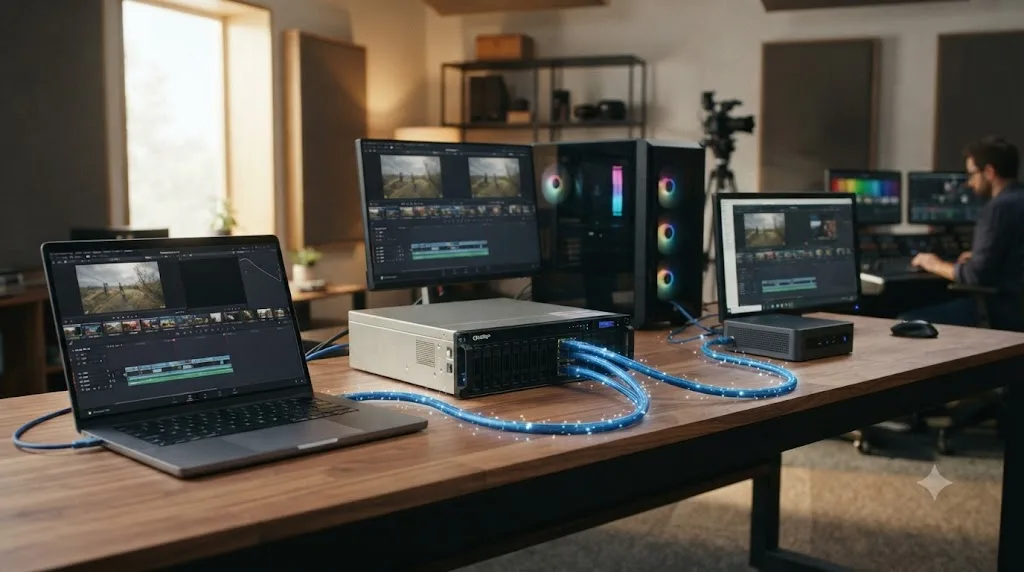
If you're editing alone, almost none of this guide applies to you, and that's not a consolation prize, it's the correct answer. A single fast SSD, internal or Thunderbolt external, will outperform any NAS on this page for latency, cost, and simplicity, because you're never fighting network overhead or another user's bandwidth for the same files.
The one legitimate solo-editor reason to still consider a NAS is pure capacity and organization: years of archived projects that no longer fit on any drive you'd want to carry around, and a desire for one centralized, RAID-protected location instead of a growing shelf of loose external drives. Even then, a 2-bay or 4-bay NAS on a modest 2.5GbE connection, without a 10GbE upgrade, without a shared PostgreSQL database, without any of the collaboration setup covered above, solves that problem completely. You're not editing off the NAS in real time at full 4K bitrates; you're archiving finished projects to it and pulling media back when you need to revisit something.
If your actual daily pain is a laptop that chokes on native footage, or a drive that's constantly full of cache rather than camera media, spend the money there first. Our proxy media setup guide and cache files filling up hard drive guide fix both of those for the cost of your time, not a NAS purchase. And if you're weighing whether your current machine is even the bottleneck, our Mac mini M4 review for DaVinci Resolve walks through when the computer itself, not the storage, is what needs upgrading.
The best NAS for a solo editor is usually no NAS at all. Buy shared storage when a second person needs simultaneous access to your project, not before.
The verdict
Match the NAS to the number of people who actually need simultaneous access, not to the biggest box your budget allows. A solo editor should walk away from this guide having bought nothing, or at most a small archive box on 2.5GbE. A team of two to four editors on native 4K should be looking at a Synology DS1825+ or QNAP TVS-h874 class device over genuine 10GbE, with render cache kept strictly local and a Studio license on every collaborating seat. A facility running six or more editors on heavy formats is in OWC Jellyfish or dedicated SAN territory, where the spending reflects genuinely different throughput and concurrency demands, not just more drive bays.
Whatever tier you land in, get the network right before the RAID level, get the RAID level right before the brand, and never let render cache anywhere near the shared array. Those three rules solve more DaVinci Resolve NAS problems than any specific model recommendation in this guide ever will.
Frequently asked questions
- Do I need a NAS to edit in DaVinci Resolve?
- No, not if you're a solo editor. A NAS earns its cost when two or more people need simultaneous access to the same media and project, or when a single editing station outgrows its internal drive. Below that point, a fast internal SSD or a Thunderbolt external drive is faster and cheaper than any NAS on the market.
- What network speed does DaVinci Resolve need for NAS editing?
- Gigabit Ethernet only covers compressed H.264 or H.265 playback, around 150 Mb/s. ProRes 422 at 4K30 needs roughly 472 Mb/s, which pushes you to 2.5GbE. Multiple editors on native 4K, or anyone on ProRes 422 HQ, BRAW 3:1, or EXR sequences, needs 10GbE as the realistic floor, and 25GbE once you stack five or more editors.
- Can I run DaVinci Resolve's multi-user collaboration on a NAS?
- Yes. Multi-user collaboration in DaVinci Resolve Studio needs a PostgreSQL database and shared media storage, and a NAS can host both if it's always powered on and reachable at a fixed address. The free version of DaVinci Resolve doesn't support multi-user collaboration at all, regardless of what storage sits behind it.
- What RAID level is best for a DaVinci Resolve NAS?
- RAID 6 for team arrays of six to twelve bays, since it survives two simultaneous drive failures during the long rebuild times large drives now take. RAID 5 is acceptable on smaller four or five bay boxes with a solid backup plan. RAID 10 gives the lowest latency and best speed but costs you half your raw capacity to mirroring.
- Is a NAS or an external SSD better for DaVinci Resolve?
- For one editor, an external SSD over Thunderbolt or USB wins on speed, latency, and price every time. A NAS only becomes the better choice when multiple people need to reach the same files at once, since that's a problem an external SSD physically cannot solve no matter how fast it is.
- How much does a NAS setup for DaVinci Resolve actually cost?
- A solo-editor 4-bay NAS on 2.5GbE with cache SSDs and drives runs roughly $1,500 to $2,500 fully loaded. A small team setup with an 8 to 12 bay NAS, a 10GbE switch, per-workstation network adapters, and a hot spare drive typically lands between $4,000 and $8,000 before you count camera storage.
- Does DaVinci Resolve Studio matter for NAS-based editing?
- It matters specifically for collaboration. You can point the free version of DaVinci Resolve at a NAS and edit fine as a solo user, but multi-user features, the shared database, and simultaneous project access are Studio-only, so a facility NAS setup with more than one editor needs a Studio license per seat regardless of the storage box you buy.
- Why does my DaVinci Resolve project say Media Offline when I use a NAS?
- Almost always a network drop, a changed mount path, or a permissions mismatch between operating systems, not corrupted footage. Check that the NAS share is actually mounted and reachable, confirm the mapped path matches what every editor's machine expects, and rule out an MTU mismatch between your network card and switch before you assume the files themselves are damaged.
Sources
- DaVinci Resolve Shared Storage (Studio Network Solutions)
- DaVinci Resolve NAS Setup That Actually Works (2026), Need to Know IT
- Best NAS/Server for Video Editing (2026): Synology, QNAP & Drives, The Post Flow
- The OWC Jellyfish Collaborative Editing Server Lineup (OWC)
- OWC Jellyfish: Shared Storage for Video Teams
- DaVinci Resolve - Collaboration (Blackmagic Design)
- Blackmagic Cloud Store Mini/Max/Ultra (Blackmagic Design)
- Blackmagic Cloud Store Mini/Max/Ultra - Tech Specs (Blackmagic Design)
- Blackmagic Cloud Store Mini and Cloud Pod Review (StorageReview)
- Robbie Carman, Mixing Light: Creating a Shared Database, a Huge Workflow Enhancement for a Small Facility
- How to host a multi-user collaborative environment for DaVinci Resolve 15 Studio (QNAP)
- Blackmagic Forum: Shared storage (10 Gb NAS) best practice
- Synology DiskStation DS1825+ 8-Bay NAS Enclosure (B&H Photo Video)
- DaVinci Resolve - Tech Specs (Blackmagic Design)
- Larry Jordan: Review, OWC Jellyfish Nomad, High-Speed Shared-Storage for Small Workgroups
Put this guide to work with TryUncle.
Ask about the step you’re on. TryUncle sees your screen and points at the control you need, so you can keep learning in your own project.
Get TryUncle for Mac or WindowsKeep reading
Reviews · Jul 22, 2026 · 30 min
Is the Mac Mini M4 Enough for DaVinci Resolve?
A buyer's review of the Mac mini M4 for DaVinci Resolve in 2026: real benchmarks, unified memory needs, the May price hike, and when M4 Pro is worth it.
Fixes · Jul 19, 2026 · 23 min
DaVinci Resolve Cache Files Filling Up Your Hard Drive? Do This
Why DaVinci Resolve's cache fills up your hard drive: which folders are responsible, how to clear each one safely, and how to relocate cache to stop it recurring.
Fixes · Jul 7, 2026 · 26 min
DaVinci Resolve Media Offline: Every Cause and the Fix
Every reason DaVinci Resolve marks a clip media offline, and the exact relink, cache, and codec fixes for each cause, in order of how often they happen.