Articles / Guidesupdated for DaVinci Resolve 21.0.2 (July 2026)
Switching From CapCut to DaVinci Resolve: The Complete Guide
Quick answer
Switching from CapCut to DaVinci Resolve trades templates and auto-captions for free color grading, Fairlight audio, and Fusion effects. There's no CapCut project import, since CapCut has no AAF, XML, or EDL export, so you re-cut from your raw footage. Use the Cut page and PowerGrades to recover CapCut's speed, and remap shortcuts by hand.
I hear the same sentence from three different kinds of people. A TikTok creator who just hit a wall CapCut can't get past. A YouTuber who started on their phone and now shoots on a real camera. A video editing student whose instructor just said "we're not using CapCut in this class." All three end up typing some version of the same search: switching from CapCut to DaVinci Resolve.
We've spent seven years cutting professional, commercial video, and we run a video-editing community that's grown past 100,000 members, which means we've watched this exact switch happen thousands of times, in both directions. The honest version of this guide isn't "CapCut bad, Resolve good." It's what actually changes, what actually breaks, and what you actually have to rebuild by hand, because a switcher who expects CapCut's speed to just show up inside Resolve on day one is going to be frustrated for no good reason.
Why are editors switching from CapCut to DaVinci Resolve in 2026?
Three reasons come up over and over, and none of them is "CapCut got worse."
The ceiling. CapCut is built around templates, sliders, and one-tap effects, a design that makes the first video fast and every video after it roughly the same shape. Editors who want to isolate a face and grade it independently from the background, mix a multi-track dialogue scene, or build a title from scratch instead of a preset run out of room fast. Resolve's Color page, Fairlight audio suite, and Fusion compositor exist specifically for that ceiling.
Ownership of the tool. CapCut is a ByteDance product, the same company behind TikTok, and it commanded roughly 81% of total active users for mobile video editing while generating an estimated $125 million in mobile revenue in 2024, according to Bloomberg's reporting via Yahoo Finance. That scale is exactly why a lot of editors got nervous during the January 2025 divest-or-ban shutdown, when TikTok and CapCut both briefly went dark in the United States. Some switchers cite that specific week as the moment they started looking for a tool their workflow didn't depend on one company staying available.
Where the work is heading. A creator whose channel grows past casual short-form posting eventually needs a video that looks graded, not filtered, and sounds mixed, not just leveled. Resolve is free for that work too, with no watermark and no time limit, the same free tier professional colorists use for feature films.
None of that makes CapCut a bad app. Its whole design is optimized for a different problem than Resolve solves, and the next section is honest about exactly where it still wins.
How does DaVinci Resolve's pricing compare to CapCut's?
Line the two pricing structures up and the shape of the decision gets clearer fast, though CapCut's own numbers come with a real caveat worth stating up front: CapCut's help center says plainly that "pricing for CapCut Pro can vary depending on your region, device, and available promotions," per CapCut's own help article on Pro pricing, so treat the figures below as widely reported rather than a fixed global price list.
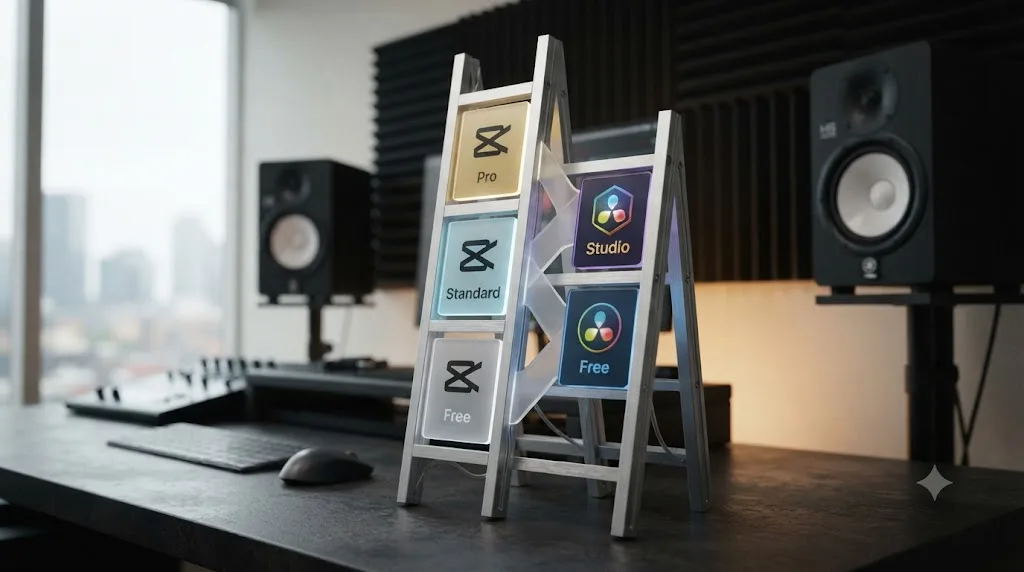
| Tier | CapCut | DaVinci Resolve |
|---|---|---|
| Free | Full basic toolkit, 1080p export cap, watermark on Pro-marked templates and effects | Full editing, color, Fairlight audio, and Fusion effects; no watermark; Ultra HD 60fps |
| Mid tier | Standard, reported at roughly $9.99/month, watermark-free, still capped at 1080p | No equivalent; the free tier already covers this ground |
| Top tier | Pro, $19.99/month or $179.99/year per CapCut's own comparison page, adds 4K export, full AI toolkit, 1TB cloud storage | Studio: $295, paid once, not monthly, per Blackmagic's Studio product page, adds AI tools, 10-bit support, HDR delivery |
CapCut Pro's subscription passes the cost of a lifetime DaVinci Resolve Studio license in a year and three months. At $19.99 a month, Pro crosses $295 in roughly fifteen months and keeps billing every month after that, indefinitely. Resolve Studio's $295 is a ceiling you hit once. CapCut Pro's $19.99 a month is a floor that never stops.
That comparison undersells the gap, because most of what CapCut's paid tiers unlock, 4K export specifically, is something Resolve's permanent free tier already includes at no cost. Per Blackmagic's own tech specs, the free version exports up to Ultra HD (3840x2160) at 60fps in 8-bit, a ceiling CapCut's own free plan doesn't reach; you'd need at least CapCut's Pro tier for the same resolution, according to CapCut's help article on exporting 2K/4K video. So the fair comparison isn't CapCut Free against Resolve free. It's CapCut Pro, a paid subscription, against Resolve's permanent free version, and Resolve wins that one without you spending a cent.
Where CapCut's paid tiers still earn their subscription is the AI toolkit tuned specifically for short-form speed, one-tap background removal, auto-reframe, and text-to-speech, plus the trending template library that Resolve has no equivalent for at any price. If your workflow leans hard on that specific speed, that's a real feature gap to weigh, covered in more depth below.
What does CapCut still do better than DaVinci Resolve?
Honesty matters more here than anywhere else in this guide, because a switcher expecting a strict upgrade in every category is going to be annoyed the first week for no good reason.
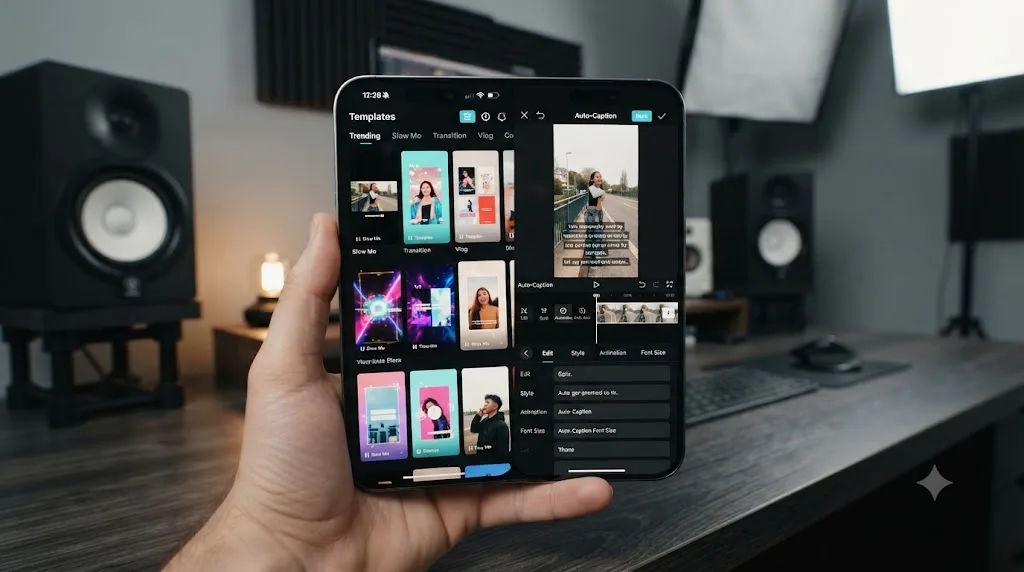
Raw speed on a phone. CapCut's whole design philosophy optimizes for the fastest possible path from raw clip to posted video: auto-captions that transcribe your voice in seconds, trending templates that drop your footage into a pre-timed structure, and one-tap background removal. A thirty-second TikTok can go from shot to posted in minutes. Nothing about Resolve was built to match that specific speed.
A real phone-native app. CapCut runs on the phone in your pocket, shooting, editing, captioning, and posting without a laptop anywhere in the chain. DaVinci Resolve has no iPhone or Android phone app at all, full stop, only a genuinely capable but separate iPad app. If your entire production chain lives on one phone, CapCut is the only one of these two tools built for that reality.
A gentler learning curve for a first video. This cuts both ways, but it's real: CapCut does less, and doing less makes it faster to master completely. Someone who has never opened an editing app before can ship something usable on day one, because templates hide the complexity almost entirely.
Trend-native tools tuned to the exact platforms you're posting to. One-tap trending sound sync, auto-reframe built for vertical conversion, and AI captions styled for the TikTok aesthetic aren't features Resolve competes on at all. That's not a gap Resolve is trying to close; it's simply not the problem Resolve was built to solve.
None of these are reasons to stay if the other factors in this guide outweigh them for you. But they're the honest reasons a working creator might keep CapCut installed even after learning Resolve, and that's covered later in this guide too.
What does DaVinci Resolve add that CapCut doesn't have?
Flip the comparison around and the list gets considerably longer, mostly because Resolve isn't competing as a quick-edit app. It's competing as an entire post-production pipeline.
| Category | What Resolve adds |
|---|---|
| Color grading | A full node-based Color page with primary and secondary correction, qualifiers, tracked power windows, and broadcast scopes; nothing in CapCut's slider-and-filter panel approaches this depth |
| Audio | The Fairlight page, a complete multi-track DAW with EQ, dynamics, bussing, and Dolby Atmos mastering in Studio, versus CapCut's volume, basic noise reduction, and auto-ducking |
| Visual effects | The Fusion page, a node-based compositor for keying, tracking, and custom motion graphics, a category CapCut has no equivalent for |
| Camera format support | Native support for RAW formats across most major camera brands, plus ProRes and DNxHR, well beyond what a phone-shot CapCut project typically needs |
| Delivery specs | DCP and IMF mastering for festival and streaming delivery in Studio, a professional finishing path CapCut doesn't target at all |
| Desktop-scale project structure | Bins, timelines, and render presets built for projects with hundreds of clips, not a single vertical draft |
A CapCut editor who moves to DaVinci Resolve doesn't just change apps; they absorb a color suite, an audio studio, and a compositor that used to be three separate purchases. That's the real shape of the decision. It's why so many switchers describe the move less like upgrading an app and more like graduating into an entirely different category of tool.
The practical upshot shows up the first time a client or a brand deal asks for something CapCut's panel genuinely can't do: an isolated skin-tone correction that survives a camera move, a dialogue mix that doesn't clip on a loud line, a lower-third built to match a specific brand rather than a template someone else already used on a thousand other videos. That's the moment Resolve's extra setup time stops feeling like overhead and starts feeling like the actual job.
Can you import a CapCut project directly into DaVinci Resolve?
No, and this is the single biggest structural difference between switching from CapCut and switching from almost any other editor. CapCut has no AAF, XML, or EDL export, the interchange formats that let editors move a timeline between professional apps. According to CapCut's own help center article on importing a previous project, CapCut "currently does not support cross-draft editing or directly importing one project file into another." Once you export a CapCut project, it becomes a flattened video file, not an editable timeline you can hand to another app.
That's a meaningfully different situation from an editor moving off Premiere Pro, Avid, or Lightworks, all of which export AAF, XML, or EDL specifically so a project can travel to another NLE for finishing. Resolve is ready on its end: right-click in the Media Pool, choose Timelines > Import, and Resolve accepts AAF, EDL, XML, DRT, ADL, and OTIO files without complaint. The problem isn't Resolve's import path. It's that CapCut never built an export path to feed it.
Why does CapCut skip this entirely? Because CapCut wasn't designed as a professional finishing tool that assumes projects leave the app. It was designed as a fast, closed loop: shoot, edit, post, all inside one ecosystem, with drafts synced to CapCut's own cloud storage rather than saved as a portable, industry-standard project file. That design serves CapCut's actual use case well. It just means the "just export and import" workflow that works for Lightworks, Premiere, or Avid switchers doesn't exist here.
Nothing about CapCut's missing interchange format means your footage or your creative decisions are trapped. It means the path across looks different: you're not importing a timeline, you're rebuilding one, using your original footage and your finished CapCut export as a reference. The next section walks through exactly how.
How do you move a CapCut edit into DaVinci Resolve?
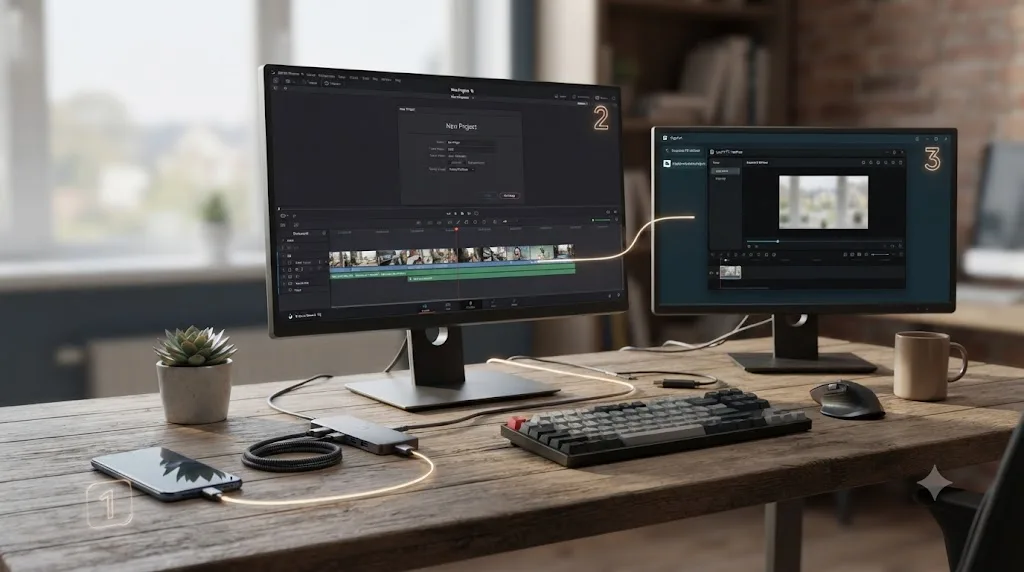
Since there's no project file to hand across, the move is really two separate tasks: getting your raw media into Resolve, and rebuilding the decisions you already made in CapCut. Here's the sequence that keeps the most work intact.
- Locate your original raw footage, not your CapCut export. Your CapCut draft references the source clips you imported, usually still sitting in your phone's camera roll, a cloud drive, or wherever you first pulled them from. That raw footage, not the flattened MP4 CapCut renders out, is what you'll actually edit in Resolve.
- Export your finished CapCut video as a visual reference. You can't import this file as an editable timeline, but keeping it open on a second monitor or in a small preview window while you rebuild gives you an exact map of your cut points, timing, and pacing to match.
- Copy your raw clips onto storage Resolve can reach, and start a new Resolve project with Project Settings matched to your target format, vertical 1080x1920 for TikTok or Shorts, standard 1920x1080 or your camera's native resolution for everything else.
- Rebuild the cut on the Cut or Edit page, using your reference video as the guide. This is the one genuinely manual step in the whole process, and there's no shortcut around it. Budget real time here proportional to how complex your original cut actually was.
- Recreate captions and text natively in Resolve. Use the built-in subtitle tools to auto-transcribe dialogue, then style the result with Fusion Text+ or the Krokodove graphics library rather than trying to match CapCut's specific caption font by eye.
- Rebuild color and audio from scratch on the Color and Fairlight pages. Any CapCut filter, LUT-style preset, or auto-ducking mix has no exportable data behind it. You're recreating the look and the levels, not migrating a setting.
Moving from CapCut to DaVinci Resolve never carries your timeline, because CapCut never built a file that could carry it. That's a real cost worth naming honestly, not glossing over. A fifteen-second TikTok with three cuts rebuilds in minutes. A five-minute vlog with two dozen cuts, captions, and a music bed rebuilds in an afternoon, not because Resolve is slow, but because the rebuild is real, unavoidable work.
What breaks or needs rebuilding during the move?
Set expectations here before you start a real project, because nothing on this list is a bug. It's just what a closed, template-first app was never built to hand off.
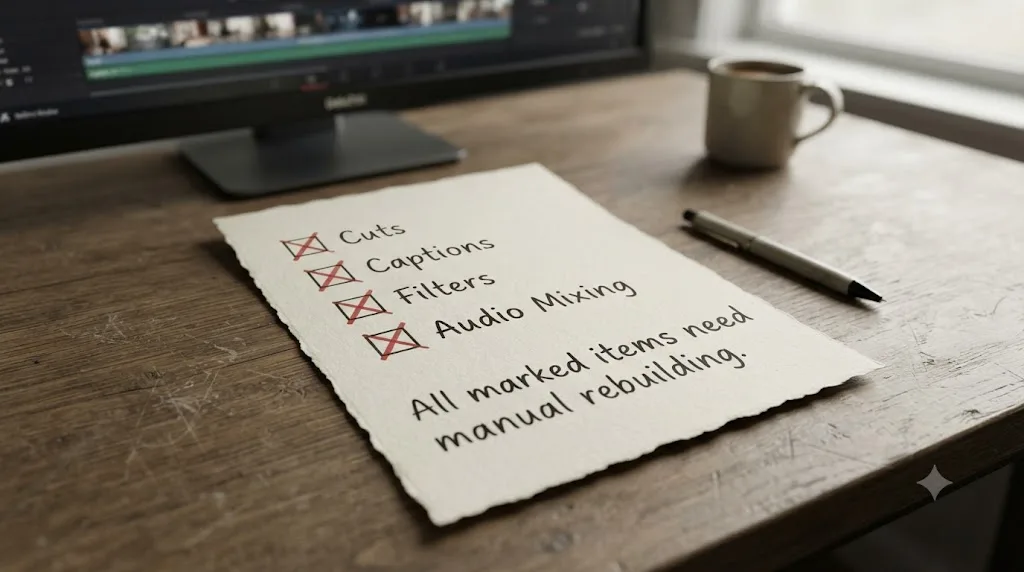
- Every cut and trim decision. Since there's no timeline file, every cut point you made in CapCut has to be recreated by eye against your reference export. This is the single biggest time cost of the whole move.
- Templates and trending effects. Any CapCut template, transition preset, or trending effect exists only inside CapCut's ecosystem. If a specific look mattered, plan to rebuild something similar in Fusion rather than expecting an import.
- Color filters and LUT-style presets. CapCut's slider-based color adjustments and one-tap filters carry no metadata anywhere. Regrade in Resolve's Color page instead, which is arguably the smallest loss on this list, since Resolve's grading tools are the whole reason many switchers are here.
- Auto-captions and their specific styling. CapCut's caption font, animation, and timing don't transfer. Resolve's subtitle tools re-transcribe your audio from scratch; the visual style is a separate, manual rebuild in Fusion.
- Auto-ducking and any AI-assisted audio mix. CapCut's automatic music-under-dialogue balancing has no equivalent setting to import. Rebuild the mix manually on Fairlight, which, once you learn it, does a more precise job than an automatic ducking algorithm anyway.
Nothing about a CapCut-to-Resolve move loses your footage; everything it loses lives in the decisions you made on top of that footage, and every one of those decisions gets rebuilt, not recovered. That distinction should shape how you scope the switch. Don't move your whole back catalog at once. Move your next new project, and treat your CapCut archive as finished work you'll leave exactly where it is.
How do the two interfaces compare, page by page?
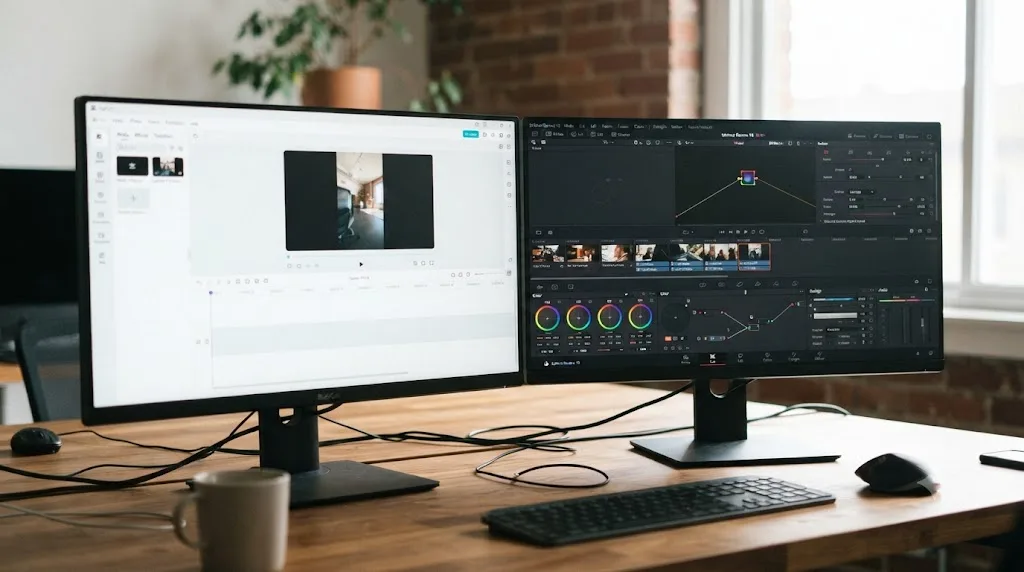
CapCut organizes itself around one editing screen with panels for effects, text, and audio layered on top. Resolve organizes itself around entirely separate pages, each a purpose-built application in its own right, switched by tabs across the top. That structural difference is the first thing switchers notice.
| CapCut concept | Closest DaVinci Resolve equivalent | What's different |
|---|---|---|
| Media library / drafts | Media Pool | Resolve's Media Pool doubles as the hub for every page, not just editing, and organizes into nested bins |
| Main timeline | Edit page | Similar track-based layout; Resolve adds a full Inspector panel per clip and precise roll/slip/slide trim tools |
| Quick template-based editing | Cut page | Built for the same speed-first philosophy: a source tape view, background rendering, and one-click smart edits |
| Filters and color sliders | Color page | An entirely separate page with node trees, scopes, and qualifiers; CapCut has nothing this deep |
| Volume, ducking, basic EQ | Fairlight page | A full multi-track DAW page, not a panel bolted onto editing |
| Text, stickers, effects | Fusion page | Node-based compositing and title-building from scratch, a category CapCut's panel doesn't compete in |
| Export screen | Deliver page | Preset-driven export queue with per-platform templates you build once and reuse |
The Cut page deserves special attention for CapCut switchers specifically, because it's the closest thing Resolve has to CapCut's speed-first philosophy. It skips the deeper trim controls the full Edit page exposes in favor of a source tape you scrub like one continuous reel and background rendering that keeps playback smooth without manual render caching. Our comparison of Resolve's Cut and Edit pages breaks down exactly when each one earns its keep, which is worth reading before you settle into the full Edit page purely out of habit.
CapCut fits its entire toolset into one screen with panels; DaVinci Resolve spreads the same category of work across seven dedicated pages, and that spread is the single biggest adjustment a switcher makes. It's not a harder interface so much as a wider one, and width takes longer to map than depth does, especially coming from an app designed to have almost no width at all.
Is DaVinci Resolve harder to learn than CapCut?
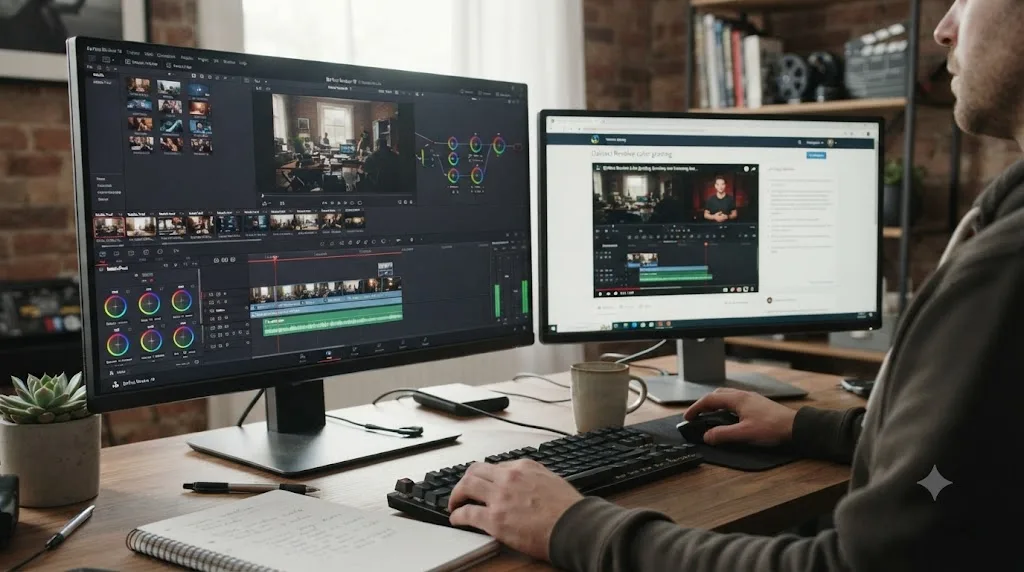
For a first video, yes, and there's no honest way to soften that. CapCut's templates hide the underlying complexity almost entirely; someone with zero editing experience can ship a usable, trend-appropriate video on day one. Resolve is a professional tool with seven distinct pages, and even limiting yourself to the two most relevant for short-form work, Edit or Cut and Color, means learning a timeline that's more powerful and less immediately intuitive than a template you drop clips into.
But "harder to learn" and "slow forever" are different claims, and switchers often conflate them. Guided practice inside Resolve beats watching courses about Resolve. That's true for every switcher, not just ones coming from CapCut, and it's worth internalizing before you queue up a dozen tutorial videos before touching the app. The fastest path to comfort is opening a real project and hitting the specific wall it creates, not pre-learning every tool you might theoretically need someday.
On naming the actual consensus honestly: most editors report the same three resources working best together. Blackmagic's own free training on its website, built for the exact version you're running rather than a year-old release. A YouTube channel like Casey Faris for workflow habits and real project walkthroughs rather than isolated feature demos. And Reddit's r/davinciresolve for the oddly specific problem no course covers, the kind of question that only comes up once you're inside a real deadline. None of those require paying anything, and none of them are wrong to start with. Our complete beginner's guide walks through that on-ramp in order, which a CapCut switcher is effectively following from zero outside of basic cutting instincts.
If you want an app that helps you while you're actually using DaVinci Resolve, rather than a course you watch beforehand, that's a narrower and newer category. TryUncle is the on-screen assistant for DaVinci Resolve on macOS: ask in plain words and Uncle points at the exact control on your screen. It's not the only tool in that category, and it's fair to name the others honestly: Sottocut and CutAgent automate edits directly on your timeline rather than teaching you to do them yourself, and PremiereCopilot's own roundup of AI plugins covers several more that touch Resolve in similar ways. Uncle's job is different: it watches, points, and lets you make the click. It's a paid app, currently at founder pricing, macOS only, and it shortens exactly the moment where a CapCut switcher is staring at seven pages wondering which one has the button they need. Check TryUncle directly for current pricing rather than relying on a number that might already be out of date by the time you read this.
How do you keep CapCut's speed once you're inside DaVinci Resolve?
This is the part most CapCut switchers actually worry about, more than the interface itself: losing the ten-minute edit and gaining a forty-minute one instead. The good news is Resolve has real answers to this, they're just not switched on by default the way CapCut's templates are.
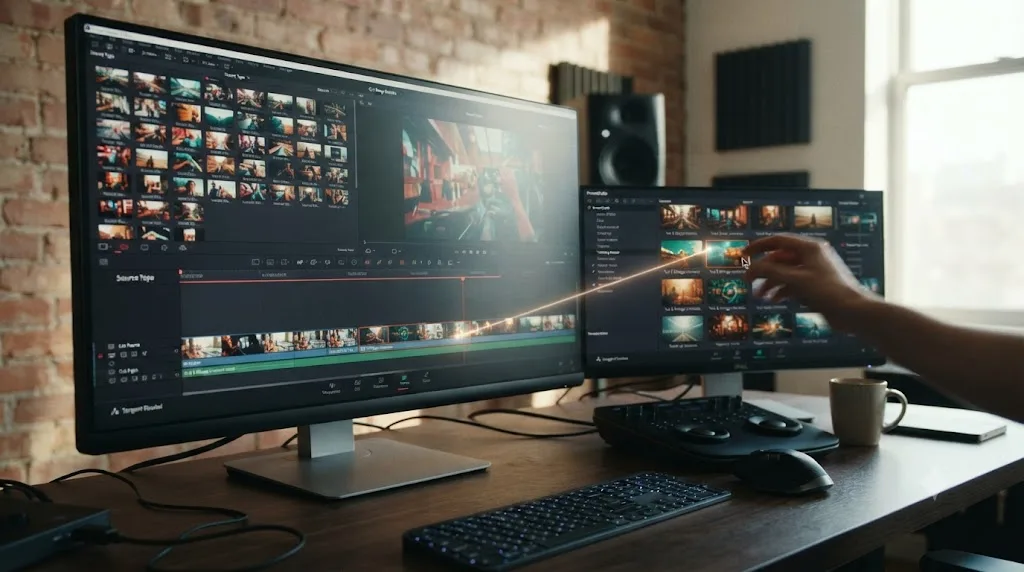
Start on the Cut page, not the Edit page. It exists specifically for this exact problem: fast, deadline-driven editing with a source tape and background rendering, the closest thing Resolve has to CapCut's philosophy of speed over precision.
Build PowerGrades for the two or three looks you actually reuse. A PowerGrade is a saved node tree you apply to any clip in one click, the direct equivalent of CapCut's one-tap filters, except you build it once from a real grade instead of picking from someone else's preset. Our guide to using PowerGrades covers the setup in full.
Save a Compound Clip or a render preset for anything you rebuild often. A vertical export preset for TikTok, Shorts, and Reels, built once on the Deliver page, turns a five-minute manual export setup into a one-click job for every video afterward.
Remap a handful of shortcuts instead of learning Resolve's full default set on day one. CapCut's gestures are touch-first and don't map cleanly onto Resolve's keyboard, so there's no equivalent preset to import the way Premiere or Avid users get. Open Keyboard Customization, Cmd+Option+K on Mac or Ctrl+Alt+K on Windows, and remap only the handful of commands you actually use daily: cut, trim, and playback shuttle come first. Our complete keyboard shortcuts reference covers every default binding by page, which is the fastest way to find what's already close to what you want before you start remapping from scratch.
None of Resolve's speed tools are switched on by default, which is exactly why CapCut feels faster the first week. That's a setup cost, not a permanent gap. Once your PowerGrades, export presets, and core shortcuts exist, most of the speed difference between the two apps closes for anything beyond a true same-day trend edit.
What are the exact export settings for TikTok and YouTube Shorts after switching?
Both apps can hit the same target numbers; the difference is how much manual setup it takes to get there.
YouTube classifies any video with a square or vertical aspect ratio and a runtime up to three minutes as a Short, a length ceiling that took effect for standard channels on videos uploaded on or after October 15, 2024, per YouTube's own help page on the change. For the encoding side, YouTube's recommended upload settings call for MP4 with H.264, AAC-LC audio, and a bitrate target around 8 Mbps for 1080p SDR content, per YouTube's own encoding guide. TikTok's ad specification, the closest thing to a documented bitrate standard the platform publishes, sets a floor of 516 kbps for vertical video, per TikTok's official Auction In-Feed Ads specification; in practice, most editors export well above that, since the platform re-compresses whatever you upload.
| Setting | YouTube Shorts | TikTok |
|---|---|---|
| Resolution | 1080 x 1920 | 1080 x 1920 (540 x 960 documented minimum) |
| Aspect ratio | 9:16 | 9:16 |
| Container | MP4 | MP4 |
| Codec | H.264 | H.264 |
| Bitrate | ~8 Mbps at 1080p (YouTube's general SDR target) | 5,000-8,000 kbps practical target, 516 kbps documented floor |
| Audio | AAC-LC, 48kHz | AAC |
| Max duration | 3 minutes | Up to 10 minutes on default accounts |
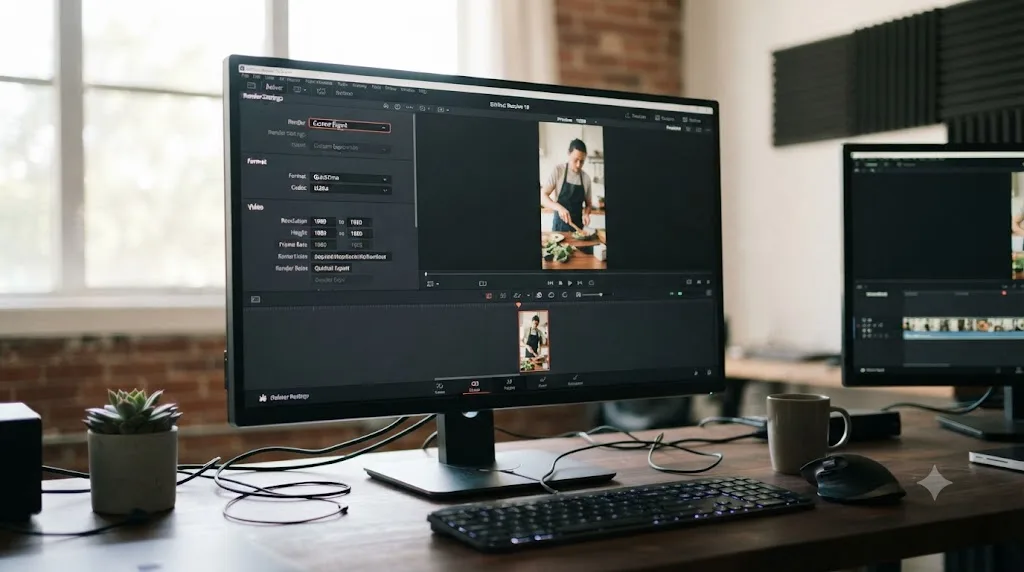
In CapCut, hitting these numbers is close to the default path, since the vertical project preset and H.264 export are already the standard configuration. In DaVinci Resolve, it's a setup you build once and reuse: set the timeline to 1080x1920 under Project Settings > Master Settings, then on the Deliver page set Format to MP4, Codec to H.264, resolution to match your timeline, and audio to AAC. Save it as a named render preset, and every export after the first one is a single click, at which point the setup-time gap with CapCut mostly disappears. Our Instagram Reels export settings guide covers the closely related numbers for that platform if you're delivering the same vertical master to all three.
Should you keep using CapCut after switching to DaVinci Resolve?
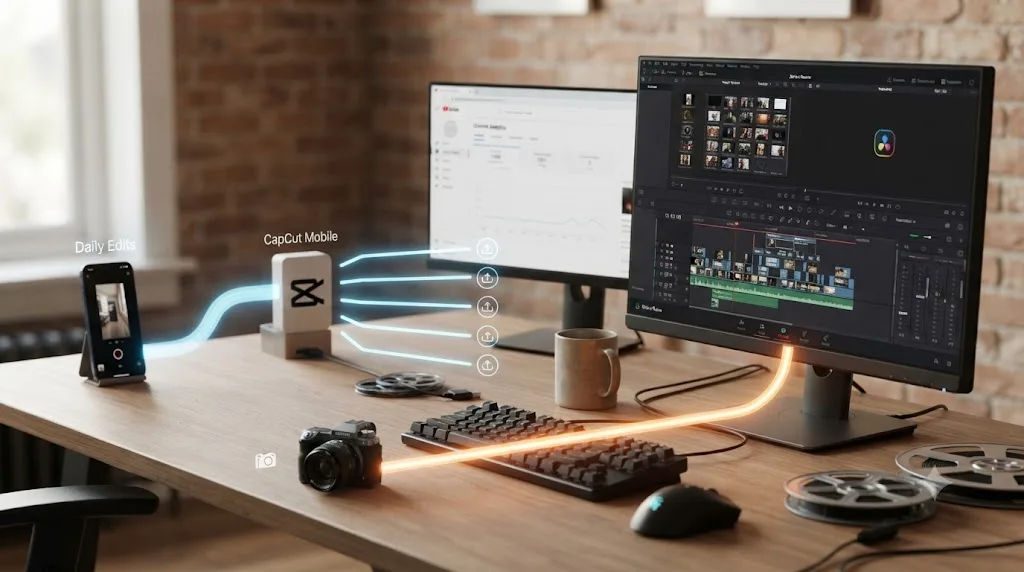
For a lot of working creators, yes, and there's no penalty for saying so. The pattern that shows up over and over: CapCut handles the same-day trend edit where speed is the entire point, and Resolve handles anything where color, audio, or a client's production value takes over.
This hybrid approach makes particular sense in three situations:
- You post daily or near-daily short-form content and a hard cutover to Resolve for every single video would tank your posting cadence during exactly the period you're still learning.
- Your phone-shot footage needs real color work before it becomes a finished video, in which case CapCut can still handle the fast cut and captions while Resolve handles the grade, using footage exported from CapCut as reference rather than trying to import the project itself.
- You're building a channel that mixes daily shorts with weekly long-form work, where CapCut's speed serves the daily cadence and Resolve's depth serves the weekly deliverable that actually needs to hold up.
Where the hybrid approach breaks down is cost, specifically if you're paying for CapCut Pro just to unlock 4K or watermark-free templates you'd get for free inside Resolve anyway. Run the math on what you're actually paying CapCut for before assuming "keep both" is free. If it's genuinely the templates and auto-captions, keep paying. If it's mainly the resolution ceiling, Resolve's free tier already solves that for nothing.
What do creators who depend on CapCut actually say about switching tools?
Marketing pages describe what a company wants you to believe about its own product. Creators living inside the actual workflow describe something more useful, and the closest real-world test of CapCut dependency happened in January 2025, when TikTok and its sister app CapCut both went dark in the United States during the divest-or-ban shutdown.
YouTube creator Seth "Seth the Nerfer" Beavers, who edited exclusively in CapCut, described exactly the friction a forced switch creates: "Using a touch screen, it works very well, and I'm practiced in it. So, now I have to learn a new editing program," he told Digiday in January 2025, adding that the alternatives he tried came with their own tradeoffs: "I've tried other editing software, and you have to pay to get rid of watermarks, or they don't have as many features, like iMovie."
Ali Grant, co-CEO of the influencer agency The Digital Department, described the outage's ripple effect on working creators in the same Digiday piece: "CapCut also took longer to come back than TikTok, so even when creators were able to post again to TikTok, they were without their go-to editing app." That's a useful data point independent of any feature comparison: for a meaningful share of working creators, CapCut isn't a nice-to-have, it's the tool their entire production pipeline assumes is available, a dependency CapCut's own scale, over 200 million monthly active users as of the most recent widely reported figures, according to Rest of World's tracking, only deepens over time.
On the DaVinci Resolve side, Blackmagic Design CEO Grant Petty framed the company's push into vertical, social-first editing when Resolve first added native vertical resolution support: "This is a major update with new added support for social media vertical resolutions. Now, customers can work quickly and easily to create video posts for sites such as TikTok, Snapchat, Facebook shorts, Instagram TV and more," Petty said in Blackmagic's release, covered by PetaPixel. That statement matters as context for a CapCut switcher specifically: Resolve's vertical, social-native support isn't a recent bolt-on. It's a feature Blackmagic has been building out for years, even if the core app still assumes a desktop workflow CapCut never required.
The creators most dependent on CapCut aren't hobbyists experimenting with a fun app; they're people whose posting schedule and income both assume it works. That's the real lesson from watching what happened when it briefly didn't. If you're switching by choice rather than necessity, you're in a better position than the creators the shutdown caught off guard, since you get to plan the rebuild instead of doing it under pressure.
What are common mistakes creators make when switching from CapCut?
A handful of avoidable mistakes account for most of the regret switchers report after moving too fast.
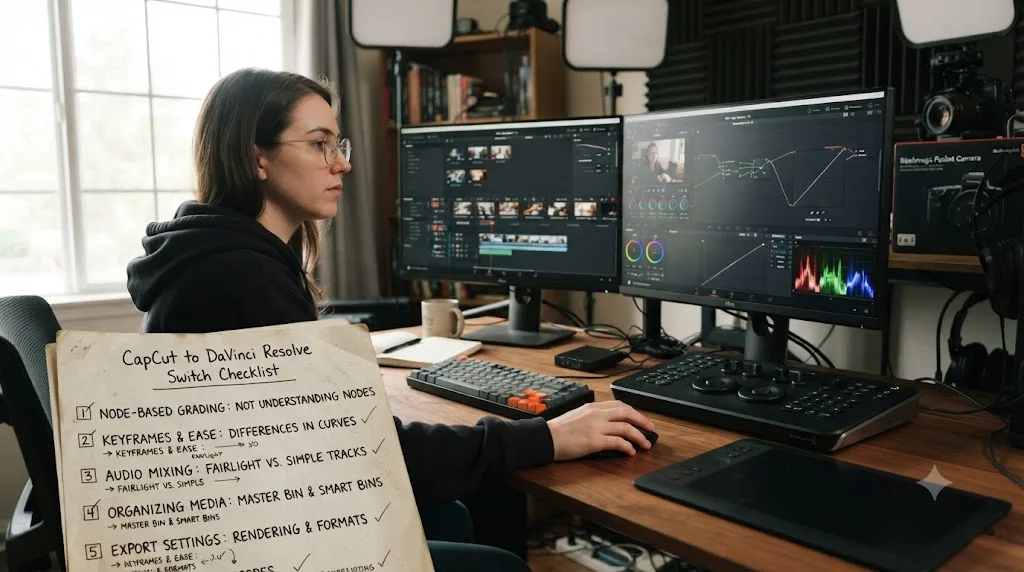
Deleting your CapCut drafts before confirming your Resolve rebuild is actually finished. Since there's no project import, your CapCut draft is your only reference for a cut you haven't rebuilt yet. Keep it until the Resolve version is done and exported.
Buying DaVinci Resolve Studio before confirming the free version isn't enough for your actual work. The free tier covers full editing, color, audio, and vertical export with no watermark. The Studio-only triggers, resolutions past 4K, 10-bit color, advanced HDR, mostly matter for demanding production, not a standard TikTok or Short. Check the free vs Studio guide against your actual needs before spending $295.
Trying to rebuild a complex CapCut edit from memory instead of using the export as a visual reference. Cut points you're confident you'll remember slip after the first ten minutes of rebuilding. Keep the finished CapCut video open and playing alongside your Resolve timeline the entire time.
Assuming CapCut's free tier has no real cost because there's no watermark on core editing. The watermark shows up specifically on Pro-tier templates, transitions, filters, and fonts. A creator who builds an identity around a specific premium template style can end up paying monthly without realizing the free tier they started on never actually covered that particular asset.
Trying to force DaVinci Resolve into a phone-only workflow it was never built for. If your entire production chain has to run on an iPhone or Android phone with no laptop involved, Resolve simply isn't an option; there's no phone app, and the iPad app, while real and capable, needs an iPad specifically.
Ignoring platform export specs and letting Resolve's manual export settings silently under-deliver. CapCut's defaults are tuned to TikTok and Shorts out of the box. Resolve's aren't, until you build the preset yourself. Check the export table above against whatever you're about to render before assuming the numbers matched CapCut's defaults automatically.
Which situation fits you?
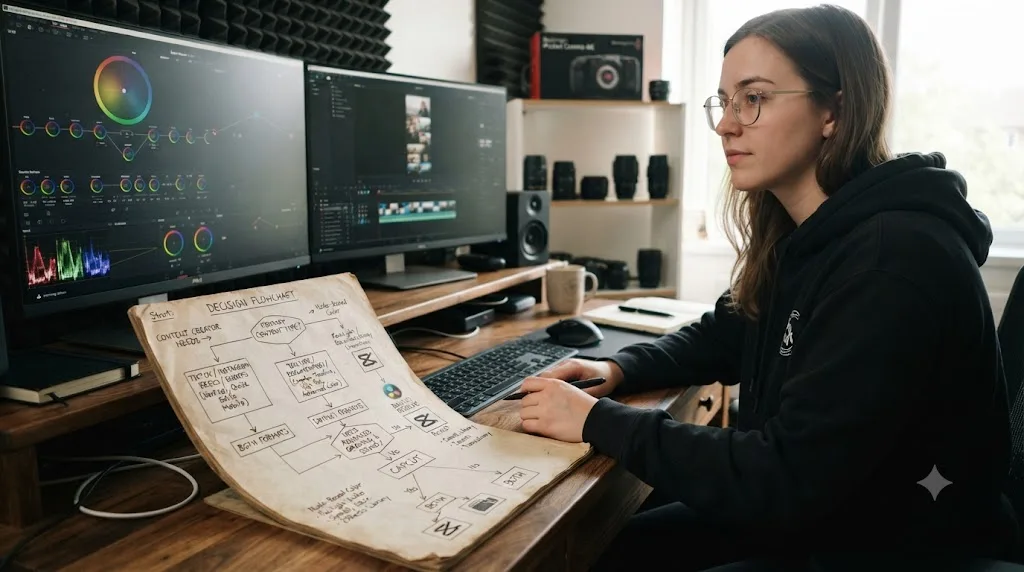
Checklists beat a single verdict here, because "should I switch" depends entirely on your hardware, your posting cadence, and what your content is actually for.
| You are | Lean toward | Why |
|---|---|---|
| Shooting and editing entirely on a phone with no laptop | Stay on CapCut, or add Resolve for iPad | Resolve has no phone app; CapCut is the only one of the two that runs there |
| Posting daily or multiple times a day, mostly trend-driven content | Keep CapCut for daily posts | Templates and auto-captions cut real minutes off every single edit |
| A total beginner who's never edited before | Start on CapCut, add Resolve when you hit its ceiling | Templates hide complexity; a usable video ships on day one |
| Already frustrated by CapCut's color or audio limits | Switch to DaVinci Resolve | Node-based color and Fairlight audio handle what sliders and basic ducking can't |
| Building a portfolio or chasing brand deals that judge production value | Switch to DaVinci Resolve | CapCut's own comparison page admits Resolve's color and audio are a different category |
| Worried about depending on a single company's free app | Learn DaVinci Resolve now, even gradually | Free, permanent, no license or account dependency the way CapCut's cloud drafts create |
| Producing a mix of daily shorts and weekly long-form | Run both, in sequence | CapCut for fast daily posts, Resolve for the weekly deliverable that needs to hold up |
| On a strict $0 budget with no plan to ever pay | Either, but Resolve's free ceiling is higher | Resolve's free tier hits Ultra HD 60fps with no watermark; CapCut's free tier caps at 1080p |
If you're still torn, ask one question: does your next video need to post in the next hour, or does it need to look better than the last ten videos you made? "Post in the next hour" still favors CapCut. "Look better than the last ten" is the entire reason this guide exists.
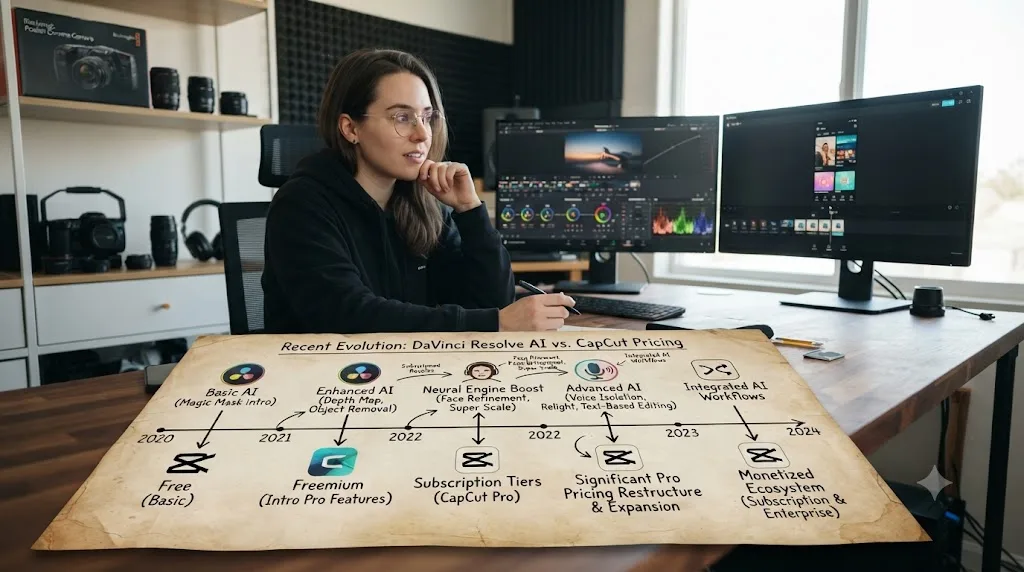
What's changed most in this comparison recently?
If you compared these two apps back when Resolve first added native vertical support in 2022, you'd have written a very different guide than this one, and the shift on both sides is worth naming.
On CapCut's side, the change is scale and monetization pressure. What started as TikTok's companion editing app now reportedly commands roughly 81% of mobile video editing's active user base, per Bloomberg's reporting, and its 2026 pricing restructure split the paid tier into a Standard and Pro layer, per CapCut's own current pricing page. The January 2025 shutdown, however brief, exposed exactly how dependent working creators had become on a single free-to-use app, and CapCut's continued growth since then suggests that dependency has only deepened.
On DaVinci Resolve's side, the change is continued expansion into territory CapCut used to own uncontested, alongside its own core professional identity. Resolve 21 shipped nine AI tools built on the DaVinci Neural Engine, IntelliSearch for finding clips by plain-language description, CineFocus for rescuing soft shots, and Smart Reframe, the closest direct equivalent to CapCut's auto-reframe, according to Blackmagic's official Resolve 21 release notes. Most of that lineup sits behind the $295 Studio license, but the free version's core editing, color, and audio depth hasn't shrunk to make room for any of it.
Neither company is copying the other's core identity, but each has spent real engineering effort closing the specific gap where it was previously weakest. CapCut into a deeper AI toolkit and higher resolution export for creators who want more polish without leaving the app. DaVinci Resolve into vertical-native workflows and AI-assisted reframing for creators who want more speed without leaving a professional-grade tool. Watch that pattern more than any single feature release: it's a better predictor of where both apps head next than either company's product pages.
What's the honest verdict?
If your entire production chain runs on a phone, and your content is mostly same-day, trend-driven short-form video, there's no urgent reason to abandon CapCut. It still does that specific job better than Resolve does, and its free tier's 1080p cap is a real limitation but not a dealbreaker for most feed content.
If any part of your work touches real color grading, audio mixing that goes beyond basic ducking, custom motion graphics, or a client who's paying based on how the final video actually looks, DaVinci Resolve's free version already does more than CapCut's paid tiers, at no cost, with no watermark and no expiring plan. That's not a marketing claim. It's the plain shape of the two products' free tiers laid side by side.
Move one real project across before you commit fully. Pull your raw footage into a new Resolve project, keep your finished CapCut export open as a reference, and spend an afternoon rebuilding the cut, the captions, and a real grade. That single test tells you more about whether the switch is right for you than any comparison chart, including this one. If the rebuild feels like busywork you resent, keep CapCut for what it's good at and revisit Resolve later. If it feels like your footage finally has room to become something better than a template, you'll know that within the first hour, and you'll already be halfway there.
Frequently asked questions
- Can I import my CapCut project directly into DaVinci Resolve?
- No. CapCut has no AAF, XML, or EDL export, the interchange formats professional editors use to move a timeline between apps, according to CapCut's own help center. Resolve can import AAF, EDL, XML, DRT, ADL, and OTIO timelines through Timelines > Import in the Media Pool, but there's nothing on the CapCut side to feed it. You move your raw footage across and rebuild the cut.
- Is DaVinci Resolve actually free like CapCut?
- Yes, and more permanently. DaVinci Resolve's free version exports Ultra HD video at 60fps with no watermark and no time limit, per Blackmagic's own tech specs. CapCut's free tier caps export at 1080p and puts a watermark on anything built from a Pro-marked template, effect, or font, so a creator chasing 4K or a specific trending template ends up paying either way.
- Does DaVinci Resolve have templates and auto-captions like CapCut?
- Not the same way. Resolve has no trending-template marketplace and no one-tap caption styling tuned to TikTok's look, though its subtitle tools can auto-transcribe dialogue. What it has instead is PowerGrades for reusable color looks, Fusion Text+ and the Krokodove graphics library for custom titles, and Compound Clips for reusable timeline structures, all built for control rather than speed.
- Is DaVinci Resolve harder to learn than CapCut?
- For a first video, yes, noticeably. CapCut's templates hide the underlying complexity almost entirely. Resolve is a professional tool spread across seven pages. Most switchers get comfortable on the Edit or Cut page within a couple of weeks and treat Color, Fairlight, and Fusion as separate skills to pick up only when a project actually needs them.
- Can DaVinci Resolve edit vertical video for TikTok and YouTube Shorts like CapCut?
- Yes, including in the free version, with no watermark. Set the timeline to 1080x1920 under Project Settings > Master Settings, or give one timeline its own vertical format when you create it. It just won't auto-reframe or auto-caption the way CapCut does by default; you set that up once and reuse it.
- Should I keep using CapCut after switching to DaVinci Resolve?
- Plenty of working creators do, and it's a defensible split. CapCut for the same-day trend edit that has to post in the next hour, Resolve for anything where color, audio, or a client's production value actually matters. Running both costs nothing extra if you're on CapCut's free tier and Resolve's free version.
- What's the fastest way to learn DaVinci Resolve after switching from CapCut?
- Start with Blackmagic's own free training, built for the exact version you're running, then layer in a YouTube channel like Casey Faris for workflow habits and Reddit's r/davinciresolve for the oddly specific question no course covers. TryUncle is a separate option worth knowing about: it watches your Resolve screen live and points at the control you're asking about, instead of you pausing your edit to search a forum.
Sources
- CapCut vs DaVinci Resolve (CapCut's own comparison page)
- CapCut Standard vs Pro comparison (official, pricing and features)
- How much does CapCut Pro cost (CapCut Help Center)
- How Do I Import a Previous Project into the Current Project (CapCut Help Center)
- How Do I Export 2K/4K Videos in CapCut (CapCut Help Center)
- Costbench: CapCut Pricing 2026
- Digiday: Creators are split on whether to keep using TikTok's editing app CapCut post-shutdown
- Bloomberg (via Yahoo Finance): The Rise of ByteDance's CapCut Threatens Adobe and Canva
- Rest of World: Stat of the Day, CapCut's 200 million monthly active users
- DaVinci Resolve product page, free version specs (Blackmagic Design)
- DaVinci Resolve Studio product page (Blackmagic Design)
- DaVinci Resolve - Tech Specs (Blackmagic Design)
- DaVinci Resolve - What's New (Blackmagic Design, Resolve 21)
- DaVinci Resolve keyboards and Keyboard Customization (Blackmagic Design)
- PetaPixel: DaVinci Resolve 18.1 Adds Support for Social Media-Friendly Vertical Video
- PetaPixel: DaVinci Resolve 21 officially released with new photo editing, AI tools, and much more
- YouTube recommended upload encoding settings (YouTube Help)
- Understand three-minute YouTube Shorts (YouTube Help)
- TikTok Auction In-Feed Ads specifications (TikTok Ads Manager Help)
Put this guide to work with TryUncle.
Ask about the step you’re on. TryUncle sees your screen and points at the control you need, so you can keep learning in your own project.
Get TryUncle for Mac or WindowsKeep reading
Comparisons · Jul 13, 2026 · 30 min
DaVinci Resolve vs CapCut for YouTube Shorts and TikTok
DaVinci Resolve vs CapCut for YouTube Shorts and TikTok: pricing, speed, templates, AI captions, color grading, and the exact export settings for both.
Guides · Jul 7, 2026 · 32 min
DaVinci Resolve for Beginners: The Complete Starter Guide
Learn DaVinci Resolve from zero: what it costs, what it needs to run, the seven pages you'll actually use, and the steps to cut your first project.
Guides · Jul 8, 2026 · 16 min
DaVinci Resolve Keyboard Shortcuts: The Complete Reference
Every essential DaVinci Resolve keyboard shortcut, organized by page: Edit, Cut, Color, Fairlight, Fusion, and Deliver, plus how to customize and share your own.