Articles / Guidesupdated for DaVinci Resolve 21.0.2 (July 2026)
DaVinci Resolve Export Settings for Facebook Video Ads
Quick answer
DaVinci Resolve export settings for Facebook video ads change by placement. Export MP4, H.264, AAC audio at 128+ kbps: 4:5 at 1440x1800 for Feed, 9:16 at 1440x2560 for Stories and Reels, 1:1 at 1080x1080 minimum for In-Stream and Marketplace. Keep every file under 4GB and build a version per placement instead of one square master.

DaVinci Resolve export settings for Facebook video ads change depending on which placement your ad runs in, and that's the part most settings sheets skip. Feed wants a different shape than Stories. Stories wants a different shape than In-Stream. Export one file and hope it covers all of them, and Facebook either letterboxes it, crops it, or serves it into a placement it was never framed for.
As of July 2026, DaVinci Resolve 21.0.2 is current, and Meta's own ads guide publishes separate technical specifications for each major Facebook placement rather than one universal number. After seven years of professional, commercial video editing, a good chunk of it delivering paid social ads exactly like these, we've learned the hard way that guessing at a single "Facebook size" costs more render time than just building the two or three versions the platform actually asks for. Below is what Meta's own specification pages say for Feed, Stories, Reels, In-Stream, Marketplace, and the smaller placements most guides skip, where they disagree with each other, and exactly where each number goes on the Deliver page.
What are the exact DaVinci Resolve export settings for Facebook video ads?
Container and codec stay identical across every placement. Meta's ads guide asks for MP4, MOV, or GIF, with H.264 compression using square pixels, fixed frame rate, and progressive scan, per Meta's general video ad specification page. Audio rides alongside as stereo AAC at a minimum of 128 kbps. That part of the spec sheet is the same whether the ad lands in someone's Feed or plays mid-roll inside a creator's video.
What changes is resolution, aspect ratio, duration, and safe zone, and it changes by placement, not by campaign. Here's the full sheet:
| Placement | Aspect ratio | Resolution | Max file size | Duration (Awareness objective) |
|---|---|---|---|---|
| Facebook Feed | 4:5 | 1440 x 1800 | 4 GB | 1 second to 241 minutes |
| Facebook Stories | 9:16 | 1440 x 2560 | 4 GB | 1 second to 3 minutes |
| Facebook Reels (ads) | 9:16 | 1440 x 2560 | 4 GB | Unrestricted per spec |
| Facebook In-Stream Video | 16:9 to 1:1 | 1080 x 1080 minimum | 4 GB | 5-15 seconds (desktop), 5 seconds to 10 minutes (mobile) |
| Facebook Marketplace | 1:1 | 1080 x 1080 minimum | 4 GB | 1 second to 241 minutes |
There is no single resolution that's correct for every Facebook ad placement, and any settings sheet that gives you one number is simplifying past the part that actually matters. Every one of those five rows comes straight from Meta's own placement-specific ads guide pages, Feed, Stories, Reels, In-Stream, and Marketplace, and none of them match each other closely enough to share one export.
One honest caveat before you build anything: the duration and text-length figures above come from Meta's Awareness objective spec pages, the platform's default starting objective and the one most guides quote. Other campaign objectives, Sales, Leads, Traffic, and Engagement, can carry slightly different limits for the exact same placement. Before you lock a final export, check the spec sheet Ads Manager itself shows you for the objective you're actually running, since that's the number that governs your specific campaign.
Should you export one video for every Facebook placement, or a version per placement?
Build a version per placement whenever you can. Meta's own Advantage+ placements system, which serves your ad across Feed, Stories, Reels, In-Stream, Marketplace, and the Audience Network from a single campaign, will auto-crop or auto-format one video to fit each surface if that's all you give it. That auto-crop is a fallback, not a feature you should be relying on for anything that has a face, a logo, or text near the edge of frame.
Jon Loomer, a longtime Meta ads consultant and educator, put it plainly when Meta shifted its own recommendation: "Meta now recommends a 4:5 aspect ratio for Facebook Feed and a handful of other placements. This will take up more real estate than 1:1 and could lead to better results," in a post explaining the change. That single update is a good example of why a static export gets stale: Meta had asked advertisers to upload 1:1 creative for years, then quietly started recommending 4:5 for that same placement instead, without changing what Ads Manager technically requires you to upload.
Inside Ads Manager, the tool that fixes this is asset customization. Instead of handing Meta one video and letting Advantage+ crop it per surface, you upload a placement-specific version for each one, and Meta serves your intentional 9:16 cut to Stories and your intentional 4:5 cut to Feed rather than auto-cropping a single master into both shapes. That's an Ads Manager setting, not a DaVinci Resolve one, but it's the reason building multiple exports out of Resolve pays off: you're feeding that customization step real, purpose-built files instead of one video Meta has to guess at reframing.
A single square export handed to Advantage+ placements gets auto-cropped for every surface it lands on, and auto-crop doesn't know where your logo or your CTA text actually sits. If you're only going to build one version, 4:5 at 1440x1800 covers Feed and, per Meta's current guidance, several other feed-style placements decently. But 4:5 still gets pillarboxed into a full vertical 9:16 slot for Stories and Reels, which is the exact letterboxing problem a purpose-built vertical export avoids entirely.
For a small campaign or an early test, one 4:5 master and one 9:16 master covers the overwhelming majority of Facebook's placement surface. Add a 1:1 export only once you're specifically targeting In-Stream or Marketplace, since those two lean square rather than tall.

What are DaVinci Resolve's export settings for Facebook Feed video ads?
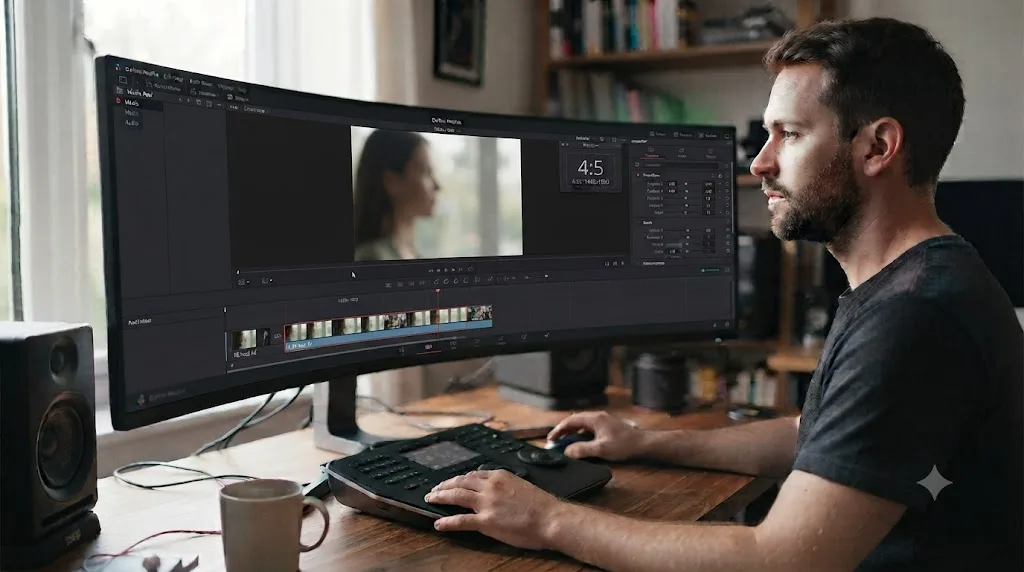
Facebook Feed video ads export at 4:5, not the square 1:1 shape many older tutorials still recommend. Meta's own Feed ads guide names an aspect ratio of 4:5 at 1440x1800 pixels, per that specification page, with a minimum width and height of 120 pixels for anything smaller.
| Field | Facebook Feed |
|---|---|
| Aspect ratio | 4:5 |
| Resolution | 1440 x 1800 |
| Minimum dimensions | 120 x 120 |
| Container | MP4, MOV, or GIF |
| Codec | H.264 |
| Audio | AAC, minimum 128 kbps stereo |
| Max file size | 4 GB |
| Duration (Awareness) | 1 second to 241 minutes |
| Body text | 50-150 characters |
| Headline | 27 characters |
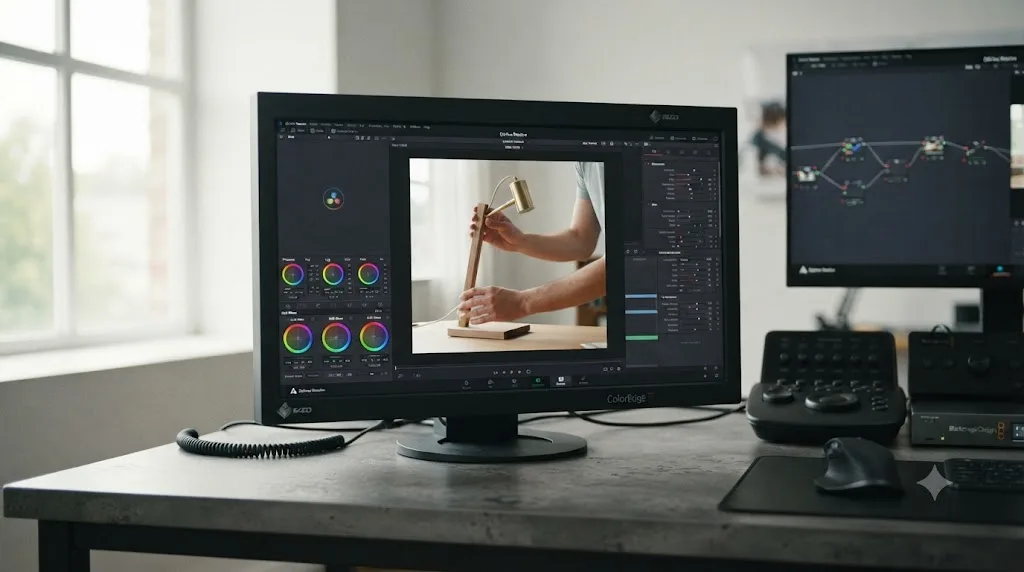
On the Deliver page, build a timeline at 1440x1800 (tick Use Custom Settings when you create it, or change it after the fact in Timeline Settings), and reframe your source footage with the Transform controls so subjects sit inside the taller, narrower frame instead of getting squeezed. Set Format to MP4 and Codec to H.264, then match the render resolution and frame rate to that same 1440x1800 timeline.
One detail worth flagging before you build a single Feed asset and call it done: Meta's own spec page notes that "for awareness-focused campaigns on mobile Facebook Feed, the lower portion of your video ad, including headline, description and call-to-action button, will not display." That's not a safe zone inside your video frame, it's a Facebook interface behavior that hides ad copy under the video on mobile for that specific objective, and it's worth checking your actual ad preview in Ads Manager rather than assuming your headline and CTA are always visible underneath the video.
What are the export settings for Facebook Stories video ads?
Facebook Stories video ads export full-screen vertical, at 9:16 and 1440x2560 pixels, a genuinely larger frame than the Feed placement covered above. Meta's Stories ads guide names that resolution directly, per that specification page, with a minimum width of 250 pixels and a 1 percent tolerance allowed on the aspect ratio itself before Meta's system flags it as out of spec.
| Field | Facebook Stories |
|---|---|
| Aspect ratio | 9:16 (1% tolerance) |
| Resolution | 1440 x 2560 |
| Minimum width | 250 pixels |
| Container | MP4, MOV, or GIF |
| Codec | H.264 |
| Audio | AAC, minimum 128 kbps stereo |
| Max file size | 4 GB |
| Duration | 1 second to 3 minutes |
| Body text | 125 characters |
| Headline | 40 characters |
| Safe zone | Top 14%, bottom 20% clear |
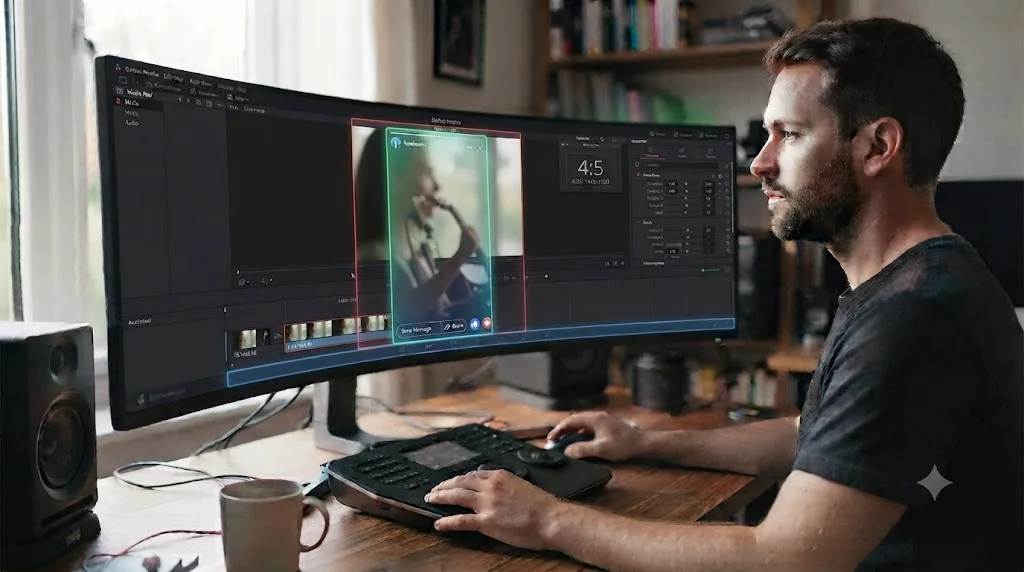
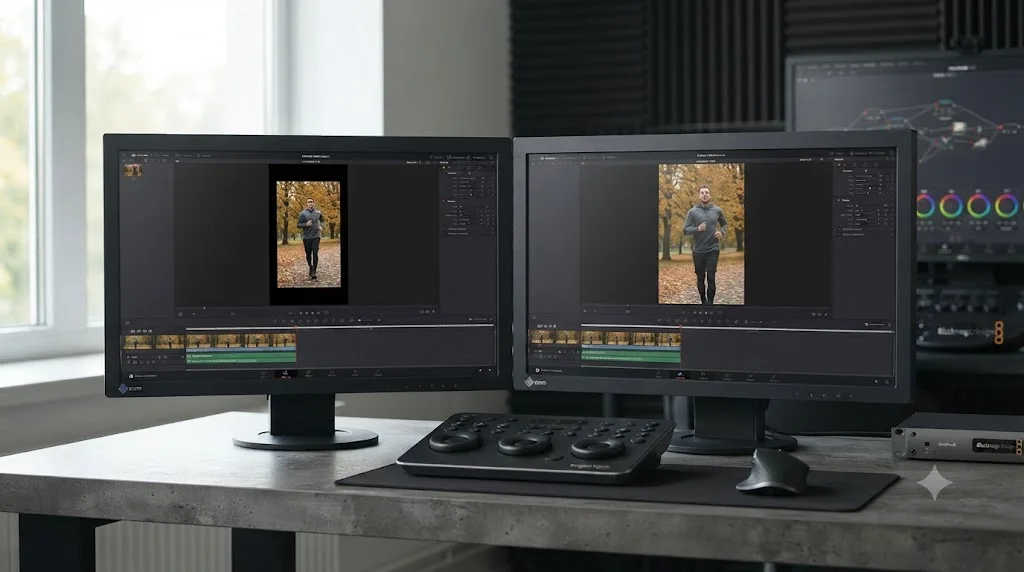
Build this one as its own timeline rather than a crop of your Feed version. Open Timeline Settings, set resolution to 1440x2560, and reframe shot by shot with the Transform controls so faces and burned-in text sit inside the tall frame. Studio owners can lean on Smart Reframe here, DaVinci Resolve's Neural Engine tool that auto-tracks a subject across a shot when converting horizontal footage to vertical; free-version editors do the identical job by hand with keyframed Transform values, and the exported file is indistinguishable once the keyframes are placed.
The safe zone matters more here than on Feed, because Stories plays full-screen with Facebook's own interface, profile photo, username, timer bar, and reply field, stacked directly over the top and bottom of your video. Keep your subject and any burned-in text inside the middle 66% of the vertical frame, roughly the space left once you clear the top 14% and bottom 20% Meta's spec calls out.
What are the export settings for Facebook Reels ads, and how do they differ from Instagram Reels ads?
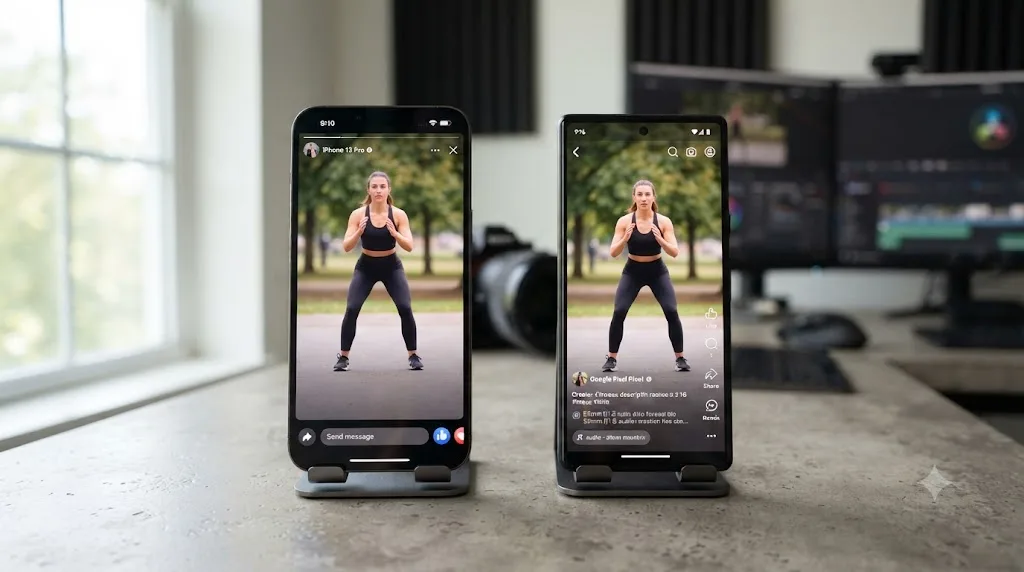
Facebook Reels ads share the same container, codec, and resolution as Facebook Stories ads, 9:16 at 1440x2560, but they don't share the same safe zone, and that's the detail worth slowing down for. Meta's Facebook Reels ads spec page names H.264 compression, MP4/MOV/GIF containers, and the same 1440x2560 resolution as Stories, per that specification page, but it defines a wider protected zone: the top 14%, the bottom 35%, and roughly 6% on each side.
| Field | Facebook Stories | Facebook Reels (ads) |
|---|---|---|
| Aspect ratio | 9:16 | 9:16 |
| Resolution | 1440 x 2560 | 1440 x 2560 |
| Safe zone (top) | 14% | 14% |
| Safe zone (bottom) | 20% | 35% |
| Safe zone (sides) | Not specified | ~6% each |
| Body text | 125 characters | 40 characters |
| Headline | 40 characters | 55 characters |
| Duration | 1 second to 3 minutes | Unrestricted per spec |
A caption or logo positioned safely for Facebook Stories can still land under Facebook's own interface once the same file runs as a Facebook Reels ad, because the two placements protect different amounts of the bottom of frame. That 15-point gap between a 20% and a 35% bottom margin is exactly the kind of spec drift that turns a perfectly clean export into a covered-up call to action, and it's invisible until you preview the ad in its actual placement.
If you've already built the Instagram Reels export covered in our Instagram Reels export settings guide, know that Facebook Reels ads and Instagram Reels ads are documented on separate Meta spec pages and don't automatically share a safe zone either. Building one 9:16 export at 1440x2560 with text kept out of the widest safe zone among the three, Facebook Reels' bottom 35%, is the single version that clears all three placements (Facebook Stories, Facebook Reels, and Instagram Reels) without a re-render, at the cost of a slightly more conservative caption position than any one placement strictly requires.
What are the export settings for Facebook In-Stream video ads?
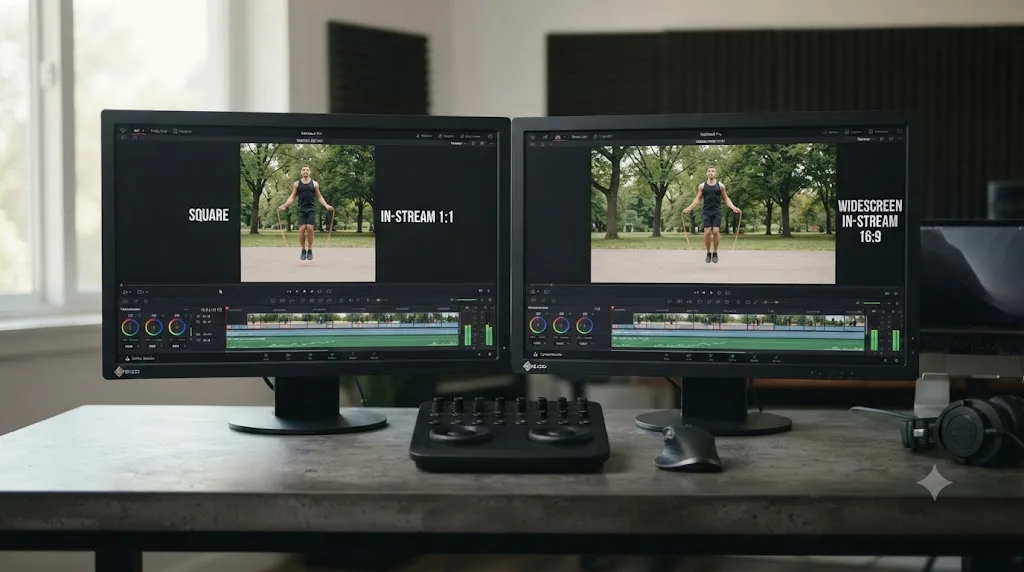
Facebook In-Stream video ads, the mid-roll ads that play inside creator video content, export closer to square or standard widescreen than any placement covered so far. Meta's In-Stream ads guide allows an aspect ratio range from 16:9 down to 1:1, with a minimum resolution of 1080x1080 pixels, per that specification page.
| Field | Facebook In-Stream Video |
|---|---|
| Aspect ratio | 16:9 to 1:1 |
| Minimum resolution | 1080 x 1080 |
| Container | MP4, MOV, or GIF |
| Codec | H.264 |
| Audio | AAC, minimum 128 kbps stereo |
| Max file size | 4 GB |
| Duration (desktop) | 5-15 seconds |
| Duration (mobile) | 5 seconds to 10 minutes |
| Body text | 125 characters |
| Headline | 40 characters |
The duration split between desktop and mobile is worth reading twice, because it isn't a soft recommendation. Meta's spec page states that on desktop, videos exceeding 15 seconds get trimmed at that point, with viewers needing to click a card to see the rest. Build your key message, your hook, your product, your offer, into the first 15 seconds regardless of which device your audience watches on, since desktop viewers may never see anything past it.
Because the aspect ratio range spans 16:9 to 1:1 rather than naming one fixed shape, 1080x1080 square is the safest single export for this placement: it satisfies the 1:1 end of the range outright, and a 16:9 video pillarboxed inside it still displays correctly, just with black bars on the sides rather than a rejected upload. If your source footage is genuinely widescreen and you'd rather not pillarbox it, export at 1920x1080 instead; both are valid per Meta's stated range, and which one looks better depends entirely on whether your framing was shot for square or for widescreen originally.
What are the export settings for Facebook Marketplace video ads?
Facebook Marketplace video ads export square, at 1:1 with a 1080x1080 minimum resolution, matching the tighter end of the In-Stream range covered above rather than the tall 4:5 or 9:16 shapes used elsewhere on Facebook. Meta's Marketplace ads guide names that resolution directly, per that specification page, alongside the same 120-pixel minimum width and height floor that Feed uses.
| Field | Facebook Marketplace |
|---|---|
| Aspect ratio | 1:1 |
| Minimum resolution | 1080 x 1080 |
| Minimum dimensions | 120 x 120 |
| Container | MP4, MOV, or GIF |
| Codec | H.264 |
| Audio | AAC, minimum 128 kbps stereo |
| Max file size | 4 GB |
| Duration (Awareness) | 1 second to 241 minutes |
| Headline | 25 characters |
Marketplace's context matters as much as its resolution. This placement surfaces inside a shopping-focused feed, next to product listings, which is a different viewing intent than a scroll through friends' Stories. A 1:1 square export built with the product itself centered and visible in the first frame, since Marketplace thumbnails and previews crop tighter than a full-bleed Feed video, tends to read clearer here than repurposed brand or lifestyle footage shot for a different placement entirely.
Because 1080x1080 sits exactly on the low end of what In-Stream's 1:1 option also accepts, a single square export built for Marketplace can double as your In-Stream square version without a second render, provided your text and CTA both fit inside Marketplace's tighter 25-character headline limit.
What about Facebook Audience Network, Right Column, and other smaller placements?
Audience Network and Facebook Right Column don't get the same attention as Feed or Stories, but they're real placements with their own Meta spec pages, and if you're running Advantage+ placements, your ad may already be serving into both without you building anything for them specifically.
Audience Network covers three ad formats, native, banner, and interstitial, that show your ad inside other apps and websites in Meta's ad network rather than inside Facebook itself. Meta's Audience Network spec page names a 9:16 aspect ratio with a minimum resolution of 1080x1080 pixels, per that specification page, a shorter maximum duration of 2 minutes, and, unusually for a Meta ad placement, sound that's recommended rather than strictly required.
Facebook Right Column is the placement that runs beside the News Feed on desktop, one of the oldest surviving ad slots on the platform. It splits into two shapes: 1:1 at 1440x1440 for desktop and mobile, or 4:5 at 1440x1800 for mobile only, per that specification page, the second of which is pixel-identical to the Feed resolution covered earlier in this guide.
| Field | Audience Network (Native/Banner/Interstitial) | Facebook Right Column |
|---|---|---|
| Aspect ratio | 9:16 | 1:1 or 4:5 (mobile only) |
| Resolution | 1080 x 1080 minimum | 1440 x 1440 (1:1) or 1440 x 1800 (4:5) |
| Minimum dimensions | Not specified | 120 x 120 |
| Container | MP4, MOV, or GIF | MP4, MOV, or GIF |
| Codec | H.264 | H.264 |
| Audio | AAC, 128 kbps minimum, sound recommended not required | AAC, minimum 128 kbps stereo |
| Max file size | 4 GB | 4 GB |
| Duration | 1 second to 2 minutes | 1 second to 241 minutes |
| Body text | 125 characters | 50-150 characters |
| Headline | 40 characters | 27 characters |
| Description | 30 characters | Not specified |
Facebook Right Column's 4:5 option matches the Feed export pixel for pixel, so a campaign running both placements doesn't need a sixth render. The same 1440x1800 file that satisfies Feed's spec satisfies Right Column's mobile 4:5 option too. Right Column's 1:1 option at 1440x1440 is a different fixed size than the 1080x1080 square built for In-Stream and Marketplace, close enough that most advertisers reuse the Marketplace square rather than building a dedicated 1440x1440 export, but build the exact size if you're running Right Column as a deliberate, standalone placement rather than letting Advantage+ auto-crop into it.
Audience Network's 9:16 shape and 1080x1080 minimum sit comfortably inside the Stories and Reels export built earlier in this guide. A 1440x2560 file exceeds Audience Network's minimum resolution in both dimensions, so the same vertical export that covers Stories and Reels also covers Audience Network without a separate timeline, provided the duration fits inside Audience Network's tighter 2-minute ceiling.
Before you build a dedicated export for either of these two placements, check whether they're worth the render time. Open your account's Placements breakdown inside Ads Manager reporting and look at how much of your actual spend and results come from Audience Network and Right Column specifically, rather than assuming every placement in Meta's spec pages deserves an equally careful export. Advantage+ placements in practice tends to weight delivery toward Feed, Stories, and Reels first, and for a lot of accounts Audience Network and Right Column end up a small fraction of total delivery, in which case reusing an existing export, as described above, is a reasonable trade against building a sixth or seventh timeline nobody watches.
What bitrate should you use for a Facebook video ad export?
Here's the honest answer nobody selling a definitive Facebook ads settings sheet wants to give you: Meta doesn't publish an official video bitrate table for ads, the way YouTube does for its uploads. Every Facebook placement spec page covered in this guide names the codec, the container, the resolution, and the audio bitrate, but not a target video bitrate.
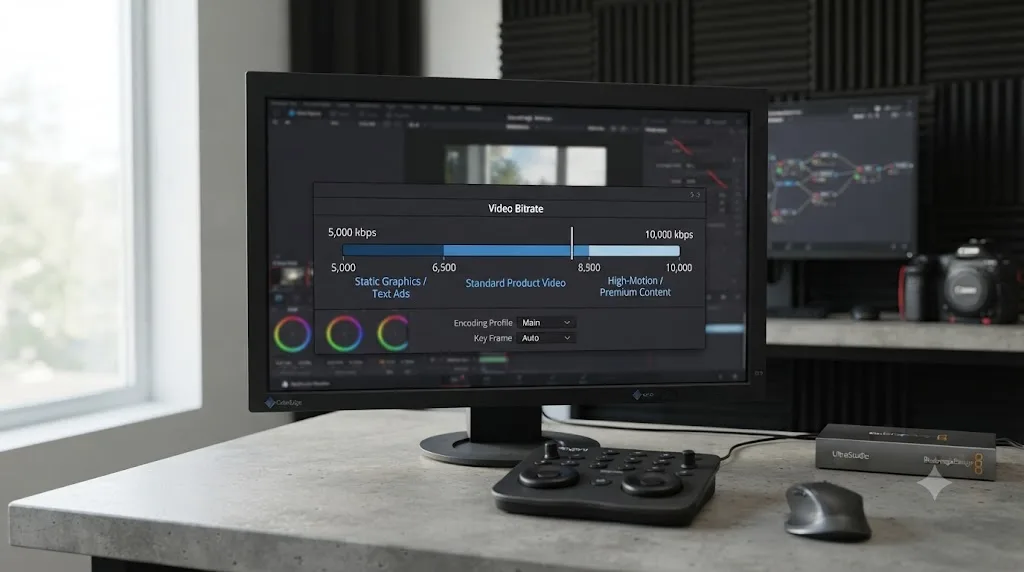
Meta doesn't publish an official bitrate table for Facebook video ads, which is exactly why bitrate advice for this platform is all over the place online. In the absence of an official number, use a practitioner range grounded in what actually holds up under Meta's own re-compression. A bitrate between 5,000 and 10,000 kbps for a 1080p or 1440p export sits comfortably above the point where banding and blockiness start showing up in skies and skin tones, without inflating your file size for no visible benefit once Meta's encoder finishes with it, a range consistent with general export practitioner guidance for social platforms that don't publish their own bitrate table, documented in Mark Ledbetter's export settings guide.
| Content type | Recommended bitrate | Why |
|---|---|---|
| Talking-head, static product shot, slideshow-style ad | 5,000-6,500 kbps | Mostly static frames compress efficiently |
| Standard b-roll cut, moderate motion | 6,500-8,500 kbps | The middle of the range covers most everyday ad content |
| Fast motion, product demos, screen capture | 8,500-10,000 kbps | Motion-heavy footage is the most bitrate-hungry content there is |
| Graded footage with skies, fog, or dark gradients | Top of range or higher | Smooth gradients band first under low bitrate |
If you're exporting at the larger 1440x2560 resolution used for Stories and Reels, scale the bitrate up rather than reusing the 1080p figures unchanged; adding roughly 30-40% to whichever row above matches your content is a reasonable adjustment for the extra pixel count.
Because there's no published ceiling, you can't meaningfully overshoot a Facebook ad bitrate the way you can waste render time overshooting a platform with a hard published number. Facebook re-encodes what you send regardless, so the practical risk sits entirely on the low side. If you're deciding between two numbers in that table and genuinely unsure, pick the higher one.
Should you export H.264 or H.265 from DaVinci Resolve for Facebook video ads?
H.264, without exception, across every placement covered in this guide. This is one of the few places every Facebook ad spec agrees completely: Feed, Stories, Reels, In-Stream, Marketplace, Audience Network, and Right Column all name "H.264 compression standard with square pixels, fixed frame rate, progressive scan" as the video encoding requirement, worded almost identically across each placement's own spec page.
That matters because a growing share of source footage doesn't start as H.264. Many recent iPhones and several current mirrorless cameras record in H.265 (HEVC) by default to save storage, which means the file sitting in your camera roll or memory card before it ever touches Resolve may already be the wrong codec for the deliverable you're building.
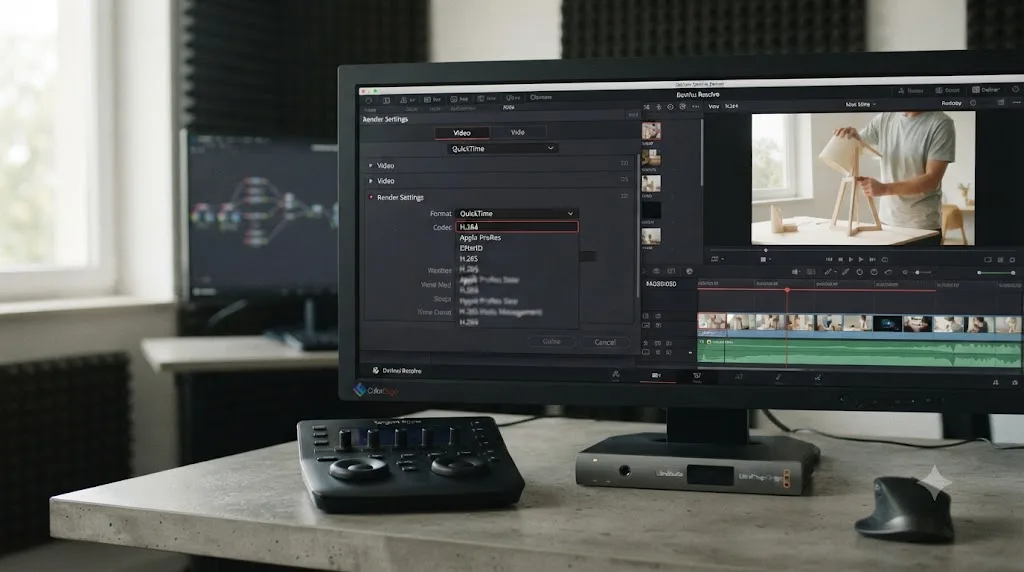
That's not something to fix at the export stage alone; it's worth checking earlier in your pipeline too. If your camera source is HEVC, Resolve transcodes it during import and grading regardless, so the footage inside your timeline isn't the constraint. What matters is the codec you explicitly choose on the Deliver page's Video tab: confirm Codec reads H.264, not "same as source" or a default carried over from a preset built for something else, like the HDR-focused H.265 workflow covered in our general export settings guide.
| Platform | H.265 status |
|---|---|
| YouTube (HDR uploads) | Recommended alongside VP9 Profile 2 and AV1 |
| Facebook Feed, Stories, Reels, In-Stream, Marketplace, Audience Network, Right Column | Not offered as an alternative; H.264 required |
Resolve 21 added a new MainConcept encoder option for H.265 and MV-HEVC with 4:2:2 color, per Blackmagic's own release notes, and it's a genuinely useful addition for HDR delivery to platforms that ask for it. Facebook video ads just aren't one of those platforms right now, so leave that encoder alone here and export H.264 every time.
What frame rate should you export for Facebook video ads?
Match your timeline. Meta doesn't publish a specific frame rate number anywhere in this guide's placement specs, main or minor. Every one of those pages names the same requirement instead: "fixed frame rate," the same wording quoted in the codec section above, per Meta's general video ad specification page. Fixed means constant, not variable, and that's a narrower requirement than picking a specific number.
That "fixed" word matters more than it looks like it should, because a meaningful share of phone footage doesn't start that way. Many phones record variable frame rate (VFR) video, especially in low light where the camera drops frames to maintain exposure, and a VFR file dropped straight onto a fixed-frame-rate Resolve timeline can drift out of audio sync by the time it reaches the end of a 30-second ad. Resolve conforms VFR footage to your timeline's fixed rate on import, which is exactly why setting your Timeline Settings frame rate correctly before you start editing matters more here than the export step itself.
Beyond that constant-versus-variable requirement, standard practice is simple: export at whatever frame rate your timeline already runs, and set your timeline to match your source footage rather than a platform default. Footage shot at 24fps exports at 24fps (or 23.976 if that's what your camera actually recorded). Footage shot at 30fps exports at 29.97 or 30. A product demo or a fast-motion clip shot at 60fps for smoothness exports at 60fps, or gets deliberately retimed down in the Edit page if you want the eventual 24-30fps look instead.
Converting a timeline's frame rate at export time, rather than matching what you shot, is one of the more common causes of judder in a finished ad that nobody can quite explain. A 24fps sequence force-converted to 30fps at render, or the reverse, either duplicates or drops frames to make the math work, and that shows up as a subtle stutter that's genuinely hard to diagnose after the fact since the file plays back "fine," just not smoothly. Check the Deliver page's Frame rate field reads the same number as your Timeline Settings before you render, not a leftover value from a different preset.
If you've ever inherited an ad brief with mismatched clips, say a 24fps hero shot cut against 30fps b-roll pulled from a phone, resolve the mismatch on the Edit page before you ever reach Deliver. Right-click the offending clip in the Media Pool, open Clip Attributes, and check what frame rate Resolve actually detected versus what you expect; a source tagged incorrectly at import is a different problem than a genuinely mixed-frame-rate shoot, and only one of those needs a real retime. Once every clip on the timeline reads as the same frame rate in Clip Attributes, the fixed-frame-rate requirement Meta's spec asks for takes care of itself at render.
What audio settings does Facebook actually want?
AAC, stereo, with a bitrate floor Meta states explicitly and applies consistently across every placement: 128 kbps minimum. That's the one audio number Meta's ads guide names directly on every spec page covered in this guide, Feed, Stories, Reels, In-Stream, and Marketplace alike, and it's described as a required minimum rather than a suggestion.
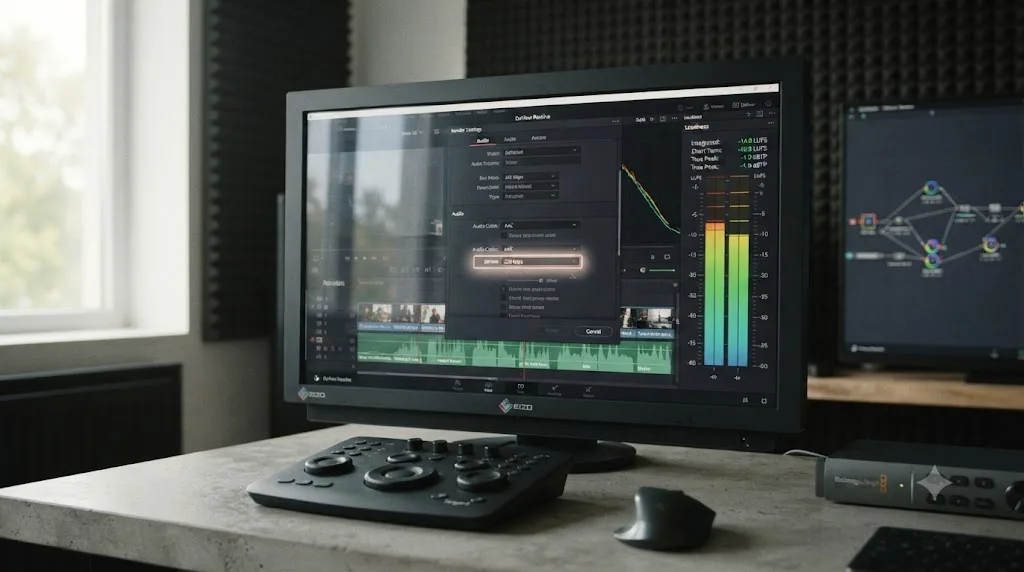
On Resolve's Deliver page, that's the Audio tab: Codec set to AAC, Bitrate set to at least 128 kbps, ideally up to 256 kbps since the cost in file size is small relative to a 4 GB ceiling, and Output Track pointed at your finished stereo mix rather than an isolated dialogue or music stem. The single most commonly missed setting on this entire page is the Export Audio checkbox at the top of the tab. It's on by default, but it's also the first thing that gets unchecked accidentally while troubleshooting something unrelated, and a silent ad is a far worse outcome than a slightly conservative bitrate. If your export comes out silent, our no audio troubleshooting guide runs the deeper checklist beyond that one checkbox.
Sound-off viewing matters more for ads than almost any other content type on this site. A meaningful share of Facebook and Instagram feed traffic scrolls with sound muted by default, especially in the first second before someone decides whether to tap for audio, and an ad that depends entirely on spoken dialogue to land its hook loses that entire silent-scroll audience before the message ever lands. Burn in captions or key on-screen text for anything the ad's message depends on, independent of whatever audio codec and bitrate you've correctly dialed in on the Deliver page.
Loudness deserves its own line, even though it isn't a codec-level field. Facebook, like most platforms, applies its own playback normalization rather than preserving your mix at whatever level you rendered it, which means an overly hot mix gets turned down automatically while a properly leveled one plays close to how you built it. Meta doesn't publish an exact ads-specific LUFS target, so the safest bet is mixing toward the same -14 LUFS integrated figure that's become the de facto web video standard, since normalization only ever pulls loudness down and a mix with reasonable headroom survives that pass looking more natural. Our loudness normalization guide covers exactly how to set and hit that target on the Fairlight page.
How long can a Facebook video ad be, and how long should yours be?
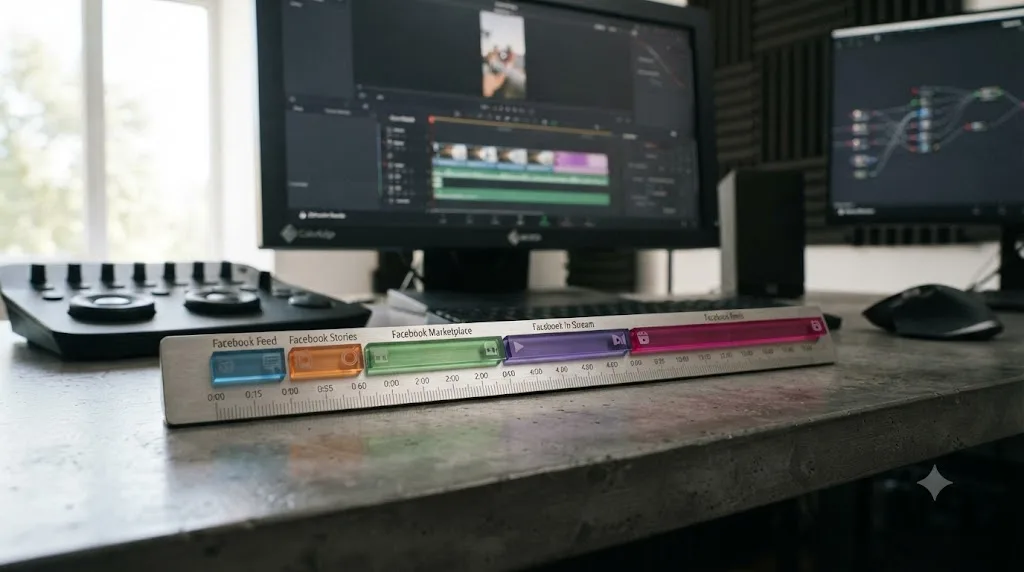
It depends entirely on placement, and the ceiling is far higher than most advertisers assume. Facebook Feed and Marketplace, at the Awareness objective, technically allow anywhere from 1 second to 241 minutes, a duration nobody actually uses but that Meta's own spec page states plainly. Facebook Stories caps at 3 minutes. Facebook In-Stream splits by device: 5 to 15 seconds on desktop, where anything longer gets trimmed at 15 seconds with a click required to see more, and 5 seconds to 10 minutes on mobile.
| Placement | Technical maximum | Practical target |
|---|---|---|
| Facebook Feed | 241 minutes | 6-15 seconds for most ad creative |
| Facebook Stories | 3 minutes | Under 15 seconds; full-screen attention is brief |
| Facebook Reels (ads) | Unrestricted per spec | 15-30 seconds, matching organic Reels pacing |
| Facebook In-Stream (desktop) | 15 seconds (hard trim point) | Build your full message inside 15 seconds |
| Facebook In-Stream (mobile) | 10 minutes | Still favors short; mobile viewers skip just as readily |
| Facebook Marketplace | 241 minutes | 6-15 seconds; shopping context rewards speed |
That technical maximum is a ceiling, not a target, and the In-Stream desktop trim point is the one hard rule in this table worth building your creative around directly: a message that doesn't land inside the first 15 seconds on desktop In-Stream literally gets cut off before a viewer can choose to keep watching. That's not a recommendation to keep things short for engagement reasons; it's a mechanical fact about how the placement renders.
Inside Resolve, none of this changes your export settings, only your timeline planning. Build your ad's hook and core message into the opening seconds regardless of which placement you're targeting, since even the placements with a generous technical ceiling, Feed and Marketplace at 241 minutes, still compete for attention in a fast-scrolling feed where most viewers decide whether to keep watching within the first few seconds.
Do you need to worry about safe zones and text limits for Facebook video ads?
Yes, on the full-screen vertical placements specifically, and it's a framing decision you make while editing, not a checkbox on the Deliver page. Getting it wrong means Facebook's own interface covers up your captions, your logo, or your call to action after you've already rendered and uploaded.
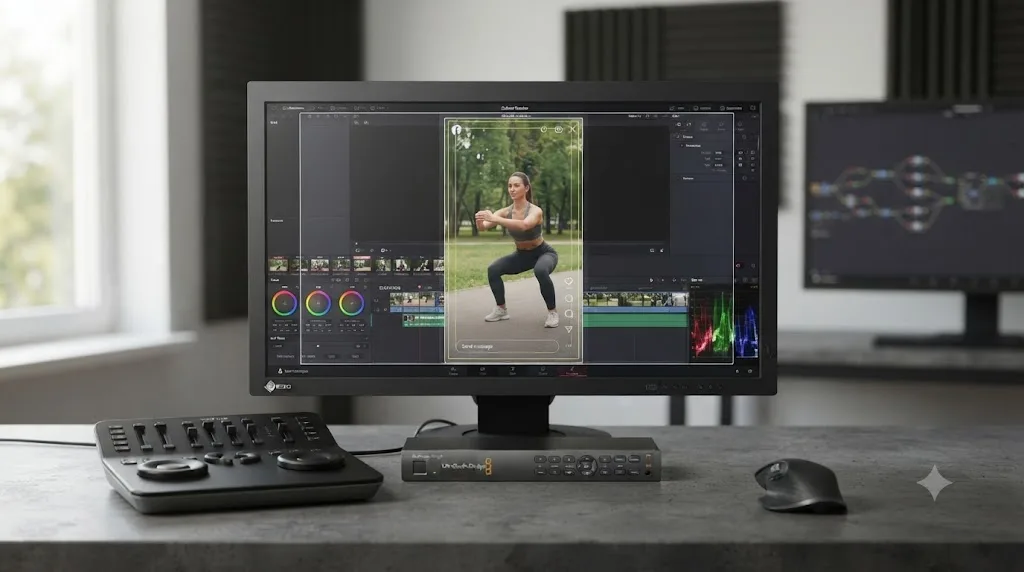
Facebook Stories reserves the top 14% and bottom 20% of the frame for its own interface, profile photo, username, timer bar, and reply field. Facebook Reels ads reserve a wider zone, the top 14%, the bottom 35%, and roughly 6% on each side, to clear the profile icon, caption, sound credit, and action button column stacked over a Reel. Facebook Feed and In-Stream don't publish a comparable percentage-based safe zone, since neither one plays full-screen the way Stories and Reels do, but Feed's own spec page notes that for Awareness campaigns, the lower portion of the ad, headline, description, and CTA button, simply doesn't display on mobile at all.
| Placement | Top margin | Bottom margin | Side margin |
|---|---|---|---|
| Facebook Stories | 14% | 20% | Not specified |
| Facebook Reels (ads) | 14% | 35% | ~6% each |
| Facebook Feed, In-Stream, Marketplace | No published percentage safe zone | Lower ad copy may not display on mobile Feed | Not applicable |
Text length limits ride alongside safe zones, and they differ enough between placements to catch a copy-pasted ad script off guard. Feed allows 50-150 characters of body text and a 27-character headline. Stories and In-Stream both allow 125 characters of body text with a 40-character headline. Reels ads cut body text down to 40 characters but extend the headline to 55. Marketplace trims hardest, a 25-character headline with no separate body text field listed. Write your shortest headline first, then expand it per placement rather than writing long copy and hoping it truncates gracefully.
DaVinci Resolve has a built-in Safe Area overlay you can enable from the Viewer Overlay button, with Extents, Action (90% of frame), Title (80% of frame), and Center crosshairs available as generic guides. Be honest with yourself about what that overlay actually represents: it's a broadcast-television convention, not calibrated to any specific Facebook placement's current percentages. Use it as a rough visual reference while editing, then check your final composition against the specific percentages in the table above, especially on the Reels bottom margin, which eats more of the frame than Resolve's stock 90% action-safe guide assumes.
Does your color grade survive Facebook's compression?
Mostly, if you set it up correctly before you ever hit render. The two places a careful grade falls apart on the way to a Facebook ad are gamma tagging and bitrate starvation, and only one of those is something Resolve's export settings can fix directly.
Gamma tagging is the sneakier of the two. Export standard Rec.709 rather than Rec.709-A for a Facebook ad. Rec.709-A exists specifically to tell macOS playback software to interpret a file at gamma 2.4 instead of 2.2, which can help a file look correct in QuickTime Player on a Mac, but Facebook's own mobile and desktop playback pipeline isn't that specific viewer, and tagging for one player's quirk can shift how your grade reads once it's re-encoded and displayed across a mix of Android and iOS devices, the exact audience an ad campaign is trying to reach uniformly.
Bitrate starvation is the other half, and it's the same physics covered in the bitrate section above: gradients in skies, fog, and dark backgrounds are the first place a low bitrate shows visible banding, because those regions are long runs of nearly identical values that a starved encoder can't afford to preserve precisely. A heavily graded ad with lifted shadows or a specific brand look is exactly the content that needs the top of the bitrate range covered earlier, not the bottom, since a paid campaign is the last place you want banding undermining a brand's carefully built color identity.
An ad isn't the file viewers watch; Facebook re-encodes what you upload, the same way YouTube re-encodes every video it receives. That means your export is a source file for Facebook's own compression pass, not the final image a viewer sees. Handing it a soft, low-bitrate, or incorrectly tagged file doesn't just look slightly worse today; it gives Facebook's encoder a worse starting point to compress from, and there's no recovering detail that never made it into the upload in the first place, which is a genuinely costly mistake when you're paying to put that file in front of an audience.
One honest caveat about HDR: none of the placements in this guide document an HDR delivery path the way YouTube does with its Rec.2020 PQ/HLG requirements. If you're grading HDR footage for a Facebook ad, deliver an SDR trim rather than assuming Facebook's pipeline handles HDR metadata the way YouTube's does; our HDR grading guide covers building that SDR trim from an HDR master without regrading from scratch.
What changes if your source footage is already vertical, shot on a phone?
Most reframing advice, including the Transform-controls workflow covered earlier in this guide, assumes you're converting horizontal footage into a vertical placement. A lot of ad creative doesn't start that way anymore. If you shot straight to vertical on a phone for Stories or Reels, the math runs in the opposite direction once you need to build a Feed or square export from the same footage, and it catches people off guard because the fix isn't "zoom in," it's "decide what to lose off the top and bottom."
Here's why. A typical phone clip shot vertically comes in at 1080x1920, a 9:16 frame. Scale that clip up to 1440 pixels wide, the width every vertical Facebook placement in this guide uses, and the height lands at almost exactly 2560 pixels, DaVinci Resolve's Stories and Reels export resolution, with no cropping needed at all. Vertical phone footage and Facebook's own vertical placements are built for each other.
Feed and the square placements aren't. Scale that same 1080x1920 clip to fill a 4:5 Feed frame at 1440x1800, and the math works out differently: matching the 1440-pixel width still produces a 2560-pixel-tall image, but the target frame is only 1800 pixels tall. Roughly 760 pixels of vertical footage, split across the top and bottom, falls outside the frame and has to go somewhere. Scale it to fill a 1080x1080 square instead, and the crop is even more aggressive, since a square frame is shorter relative to its width than 4:5 is.
| Target placement | What gets cropped from a 9:16 source | Amount (approximate) |
|---|---|---|
| Facebook Stories / Reels (9:16) | Nothing | 0px |
| Facebook Feed (4:5) | Top and bottom | ~760px combined at 1440px width |
| Facebook Marketplace / In-Stream (1:1) | Top and bottom | ~840px combined at 1080px width |
Vertical phone footage needs top-and-bottom headroom for Feed and square Facebook placements, not side-to-side headroom the way horizontal footage does for Stories and Reels. That's the opposite instinct from the horizontal-to-vertical reframing most tutorials cover, and it's easy to miss if you've internalized "leave room on the sides" from cutting down widescreen footage.
The practical fix happens at the shoot, not in Resolve. If you know a piece of vertical footage needs to serve both a full-screen placement and a Feed or square placement, frame your subject in the vertical middle third of the shot rather than filling the whole 9:16 height, and shoot a little wider than you think you need. That gives you real headroom above the subject's head and below their feet, the exact region a 4:5 or 1:1 crop removes, instead of discovering during the Deliver page reframe that your subject's feet or a burned-in caption falls right where the square crop needs to cut.
If the footage is already shot tight and you're stuck reframing after the fact, the same Transform controls used for the Feed timeline earlier in this guide handle a vertical-to-4:5 crop the same way they handle a horizontal-to-vertical one, just cropping height instead of width. It's a per-shot decision either way, one most editors can make faster by eye on the Edit page than by calculating exact pixel offsets, since the goal is simply keeping the subject and any burned-in text inside whatever region survives the crop.
Does the free version of DaVinci Resolve limit Facebook video ad exports?
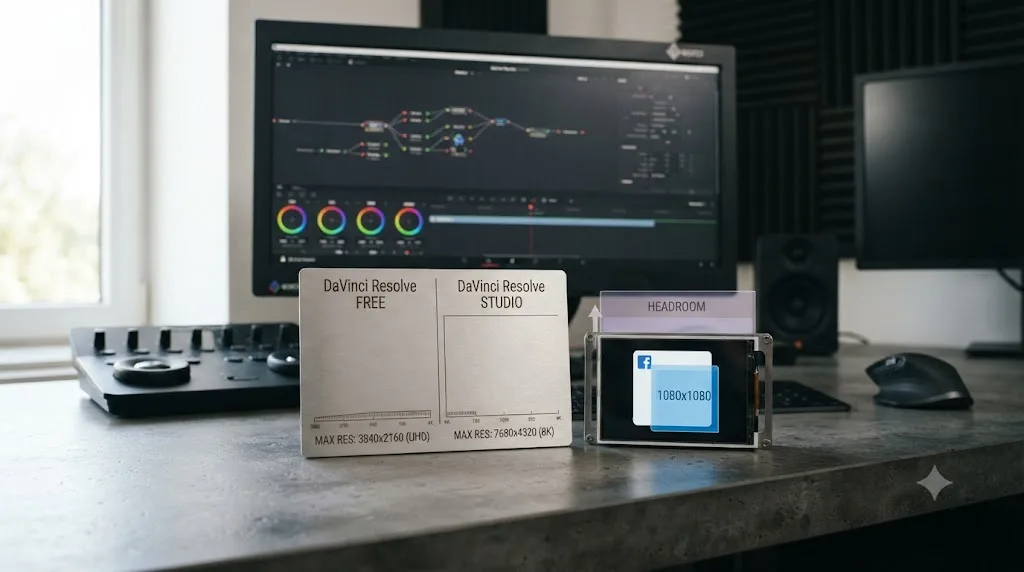
Barely, and less than it limits any other export type covered on this site. Per Blackmagic's own tech specs, the free version renders up to Ultra HD 3840x2160 at 60fps in 8-bit color. Every resolution covered in this guide, from Marketplace's 1080x1080 up through Stories and Reels' 1440x2560, sits comfortably inside that ceiling with plenty of room left over.
| Free | Studio | |
|---|---|---|
| Max export resolution | Ultra HD 3840x2160 | Beyond 4K |
| Max export frame rate | 60fps (8-bit) | 120fps (10-bit) |
| Facebook ad resolution ceiling reached? | No, not close | No, not close |
| Smart Reframe (AI auto-track for vertical reframing) | Not available | Available |
| H.264 hardware encoding (Windows, Linux) | CPU-based | GPU-accelerated |
The one genuine Studio trigger for Facebook ad work specifically is Smart Reframe, the AI tool covered earlier that auto-tracks a subject when converting horizontal footage to vertical for Stories or Reels placements. Free-version editors do the identical reframing job by hand with keyframed Transform values on the Edit page; it takes longer per shot, but the exported file is indistinguishable from Smart Reframe's output once the keyframes are placed correctly. If you're building the Feed, Stories, and square versions of every ad by hand and the manual reframing is eating real production time, that's the actual cost-benefit question Studio's price is answering, not any limitation in ad export quality itself. Our free vs Studio comparison covers the full boundary between the two tiers.
The other free-version gap, hardware-accelerated encoding on Windows and Linux being Studio-only, matters for render speed rather than output quality. At the modest 1080p to 1440p resolutions and short runtimes typical of ad creative, that speed difference costs far less time than it does exporting a full-length 4K YouTube master; a free-version CPU export of a 15-second ad finishes quickly on most modern hardware regardless of which tier you're running.
What's the fastest way to fix a bad-looking Facebook video ad upload?
Work through these in order before you assume Facebook simply ruined a good export. This is one of the recurring questions in our 100,000+ member editing community: an ad that looked perfect in Resolve, then looked soft, cropped, or covered up the moment it went live.
- The ad looks cropped, letterboxed, or has bars on the sides. Your export doesn't match the placement's actual aspect ratio. Check the resolution and shape you rendered against the table in the first section of this guide; a 4:5 Feed export pillarboxed into a 9:16 Stories slot is a common cause.
- Banding or blockiness in skies, shadows, or skin tones. Bitrate is under what the content needs. Check it against the table in the bitrate section above, and move toward the top of the range for anything graded or gradient-heavy.
- The video uploaded but plays back oddly, glitches, or gets rejected. Almost certainly a codec issue. Confirm the Deliver page's Codec field reads H.264, not H.265, especially if your source footage came from a recent iPhone or camera recording HEVC by default.
- Captions, your logo, or a call to action are covered by Facebook's interface. A safe zone miss. Compare your composition against the Stories or Reels safe zone percentages covered earlier, remembering they're different from each other.
- Colors look flat or washed out compared to your grade in Resolve. Check whether you exported with Rec.709-A instead of standard Rec.709; that Mac-specific gamma tag can shift how the file reads once Facebook re-encodes and displays it across a mix of devices.
- The ad plays fine in Resolve but shows black bars or looks stretched once live. Check for anamorphic or non-square pixel source footage that didn't get conformed to square pixels before export; Meta's own spec requires square pixels specifically, and an unconformed anamorphic source is one of the few things that can look correct in Resolve's viewer and wrong everywhere else.
- A Right Column or Audience Network placement looks auto-cropped oddly even though Feed and Stories look fine. You're most likely letting Advantage+ placements auto-crop a Feed or Stories asset into a shape it wasn't built for. Build the dedicated export covered in the Audience Network and Right Column section above, or confirm through Ads Manager's placement report whether that placement is worth the render time in the first place.
- No audio in the upload. Export Audio was unchecked on the Deliver page's Audio tab. It's the single most common export mistake beginners make across every platform, not just this one. Our no audio troubleshooting guide runs the deeper checklist if it's checked and the file is still silent.
- The render itself won't finish or errors out. That's a resources or media problem, not a settings problem, most often GPU memory or a single corrupted clip the render hits. Our render failed guide walks the full diagnosis.
TryUncle is the on-screen assistant for DaVinci Resolve on macOS. Ask in plain words and Uncle points at the exact control on your screen. For hunting down a specific checkbox on the Deliver page against a campaign deadline, that's a faster path than searching a ten-minute tutorial video for the twenty seconds of it you actually need. TryUncle runs as a paid macOS app at founder pricing; check the current rate on its site before subscribing.
How do you render every Facebook ad placement in one overnight batch?
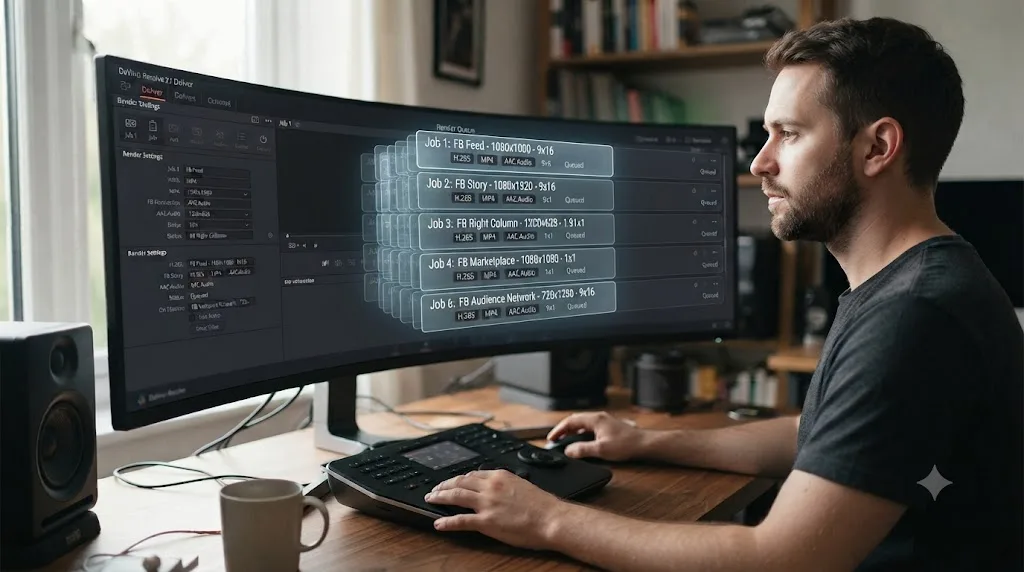
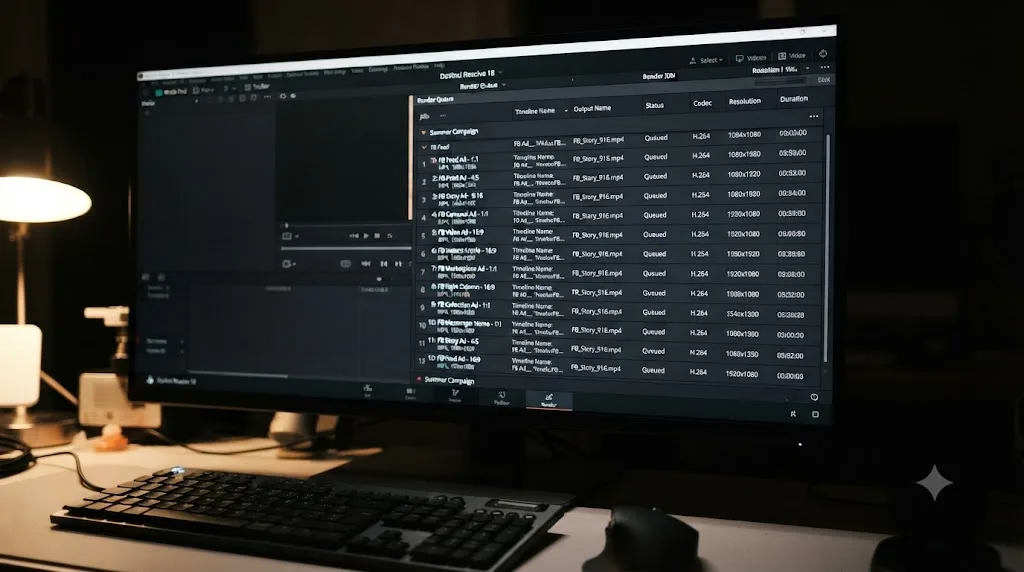
Once you've built the Feed, Stories or Reels, and square timelines this guide covers, and saved each one as a named preset the way the next section describes, you don't have to render them one at a time and babysit each export separately. DaVinci Resolve's Render Queue on the Deliver page holds multiple jobs at once and works through all of them without you touching the app again.
- Open the first timeline you need, Feed for example, and load its saved preset (or dial in the settings manually if you haven't saved one yet).
- Click Add to Render Queue. The job appears in the Render Queue panel on the right side of the Deliver page, not yet rendering.
- Switch to the next timeline, Stories or Reels, load that preset, and click Add to Render Queue again. Repeat for every placement you're delivering this campaign.
- Once every job you need sits in the queue, click Render All (or select specific jobs and click Start Render if you only want a subset to run right now).
- Walk away. Resolve processes each queued job in sequence, and if you're delivering ahead of a launch deadline the next morning, this is the exact overnight, unattended workflow our guide to queuing renders overnight covers in more depth, including how to keep your machine from sleeping mid-render.
A queued render job renders whatever timeline was active when you clicked Add to Render Queue, not whatever timeline happens to be open when the render actually starts. That single fact causes the most common mistake in this workflow: duplicating a project quickly, forgetting to switch to the matching timeline before adding the next job, and ending up with four Feed-shaped renders and zero Stories files by the time the queue finishes. Check the Timeline field at the top of each queued job in the Render Queue panel before you walk away, not after.
Disk space is the other thing worth checking first. Every placement in this guide caps out at a 4 GB file size ceiling, but actual ad creative at these durations and bitrates renders far smaller than that in practice, typically well under a few hundred megabytes per file even at the top of the 5,000-10,000 kbps bitrate range covered earlier. Queuing three or four placements together rarely threatens disk space the way a queue full of full-length 4K masters would, but it's still worth a glance at available space before an unattended overnight run, since a render that fails silently on a full drive still costs you the morning you were trying to save.
How do you save this as reusable Facebook ad export presets?
Once you've built the correct exports for the placements you actually run ads on, don't rebuild them from scratch every campaign. Any combination of settings on the Deliver page saves as a one-click preset.
- Dial in the full setup on the Deliver page for one placement at a time: Format MP4, Codec H.264, resolution matched to the placement (1440x1800 for Feed, 1440x2560 for Stories or Reels, 1080x1080 for In-Stream or Marketplace), frame rate matched to your timeline, bitrate from the table earlier, and audio set to AAC at 128 kbps or higher.
- Click the three-dot options menu at the top right of the Render Settings panel.
- Choose Save As New Preset and name it specifically: "FB Feed 4x5," "FB Stories 9x16," or "FB InStream Square," not a generic label you'll have to reverse-engineer next quarter.
- The preset appears in the strip alongside Resolve's stock YouTube, Vimeo, and ProRes Master presets, ready for any project on this machine.
Three presets cover most Facebook ad workflows: one at 1440x1800 for Feed, one at 1440x2560 for Stories and Reels, and one at 1080x1080 for In-Stream and Marketplace. Build all three once, and the placement-by-placement spec sheet in this guide becomes background knowledge you rarely need to reopen.
Remember that a preset is a snapshot of a spec sheet on the day you built it, and Meta has changed placement recommendations before, the 4:5 Feed shift Jon Loomer flagged earlier landed with no advance notice to individual advertisers. Revisit your saved presets occasionally against Meta's current ads guide pages rather than trusting a preset saved once to stay accurate forever.
Which settings should you actually memorize?
MP4, H.264, AAC audio at 128 kbps or higher, under 4 GB. That part never changes across any Facebook placement. What changes is the shape: 4:5 at 1440x1800 for Feed, 9:16 at 1440x2560 for Stories and Reels, and 1:1 at 1080x1080 minimum for In-Stream and Marketplace, with the Reels placement specifically needing a wider bottom safe zone than Stories even though the resolution is identical.
Guided practice inside Resolve beats guessing at a single Facebook export and hoping it clears every placement Meta decides to serve it into. Build the two or three versions your campaign actually needs, save them as named presets, queue them together for an unattended render when you're on a deadline, and preview each one in Ads Manager's own placement preview before you spend a single dollar putting it in front of an audience. That last check catches more real problems than any setting on the Deliver page, because it's the only step that shows you exactly what each placement's interface does to your frame once the ad is live.
Frequently asked questions
- What resolution should I export from DaVinci Resolve for Facebook video ads?
- It depends on the placement. Facebook Feed wants 4:5 at 1440x1800, Facebook Stories and Facebook Reels ads want 9:16 at 1440x2560, and Facebook In-Stream and Marketplace ads want 1:1 with a 1080x1080 minimum. There's no single resolution that's correct for every Facebook placement at once.
- What's the difference between DaVinci Resolve export settings for Facebook Feed and Facebook Stories ads?
- Feed ads are 4:5 (1440x1800), a tall rectangle, not a full vertical frame. Stories ads are 9:16 (1440x2560), a full-screen vertical frame with a safe zone that reserves the top 14% and bottom 20% for Facebook's own interface. Exporting a Feed-shaped file into the Stories slot gets letterboxed, not stretched to fit.
- Should I export H.264 or H.265 from DaVinci Resolve for Facebook video ads?
- H.264. Every Facebook ad placement spec, Feed, Stories, Reels, In-Stream, and Marketplace, names H.264 as the required compression standard. Meta's ads guide doesn't offer H.265 as an alternative the way YouTube's HDR upload page does, so leave Resolve's H.265 encoder alone for this deliverable.
- What bitrate should I use for a Facebook video ad export from DaVinci Resolve?
- Meta doesn't publish an official bitrate table for ads. A practical range for a 1080p or 1440p export is 5,000 to 10,000 kbps, leaning toward the top for motion-heavy or heavily graded footage. Facebook re-encodes whatever you upload, so there's more risk in going too low than in going too high.
- How long can a Facebook video ad be?
- It depends on placement and campaign objective. Facebook Feed and Marketplace Awareness ads allow 1 second to 241 minutes, Facebook Stories ads allow 1 second to 3 minutes, and Facebook In-Stream ads run 5 seconds to 15 seconds on desktop or up to 10 minutes on mobile. Other campaign objectives can carry different limits for the same placement, so check Ads Manager for your specific one.
- Do Facebook Reels ads use the same export settings as Instagram Reels ads?
- Almost, with one real difference: safe zones. Both use 9:16 at 1440x2560 with H.264 and AAC audio. But Meta's spec page for Facebook Reels ads reserves the bottom 35% of the frame for interface elements, while Instagram's unified Stories and Reels safe zone reserves the bottom 20%. A caption placed safely for Instagram can still sit under Facebook's own UI.
- Does the free version of DaVinci Resolve limit Facebook video ad exports?
- No. The free version exports up to Ultra HD 3840x2160 at 60fps in 8-bit, and every Facebook ad placement in this guide, even the largest at 1440x2560, sits well inside that ceiling. Studio only matters here if you're reframing footage with Smart Reframe or delivering HDR, neither of which any current Facebook ad placement requires.
- What are DaVinci Resolve's export settings for Facebook Audience Network and Right Column ads?
- Audience Network (native, banner, and interstitial) wants 9:16 at a 1080x1080 minimum resolution, H.264, AAC audio, and a maximum 2-minute duration. Facebook Right Column wants 1:1 at 1440x1440, or 4:5 at 1440x1800 on mobile only, the same resolution used for Facebook Feed. Both placements reuse an existing Stories, Reels, or Feed export for most campaigns rather than needing a dedicated render.
Sources
- Meta Ads Guide: Video ad specifications and requirements
- Meta Ads Guide: Awareness video ad specs on Facebook Feed
- Meta Ads Guide: Awareness video ad specs on Facebook In-Stream Video
- Meta Ads Guide: Awareness video ad specs on Facebook Stories
- Meta Ads Guide: Awareness video ad specs on Facebook Reels
- Meta Ads Guide: Awareness video ad specs on Facebook Marketplace
- Meta Ads Guide: Awareness video ad specs on Audience Network Native, Banner and Interstitial
- Meta Ads Guide: Traffic video ad specs on Facebook Right Column
- Meta for Business: Video Requirements Chart (one-sheeter)
- Jon Loomer Digital: Meta now recommends a 4:5 aspect ratio for Facebook Feed
- Testament Productions (Mark Ledbetter): Best Export Settings for Premiere Pro & YouTube
- DaVinci Resolve - Tech Specs (Blackmagic Design)
- DaVinci Resolve - What's New (Blackmagic Design)
- CineD: DaVinci Resolve 21.0.1 Released - Improved RAW Decoding, Better HDR Delivery, and Sony Alpha 7R VI Support
Put this guide to work with TryUncle.
Ask about the step you’re on. TryUncle sees your screen and points at the control you need, so you can keep learning in your own project.
Get TryUncle for Mac or WindowsKeep reading
Guides · Jul 12, 2026 · 26 min
DaVinci Resolve Export Settings for Instagram Reels
Exact DaVinci Resolve export settings for Instagram Reels: 1080x1920 vs 1440x2560, H.264 only, bitrate, safe zones, and duration, sourced from Meta's own specs.
Guides · Jul 7, 2026 · 25 min
DaVinci Resolve Export Settings for YouTube: The Right Numbers
The exact DaVinci Resolve export settings for YouTube: resolution, bitrate, codec, and audio numbers pulled straight from YouTube's own encoding guide.
Comparisons · Jul 7, 2026 · 28 min
DaVinci Resolve Studio Price: Free vs. Studio Cost, Explained
DaVinci Resolve Studio costs $295, paid once, not monthly. Here's exactly what that buys, how it stacks up against Premiere Pro and Final Cut Pro, and who needs it.