Articles / Comparisonsupdated for DaVinci Resolve 21.0.2 (July 2026)
DaVinci Resolve RAM Speed vs RAM Capacity: Which Matters More?
Quick answer
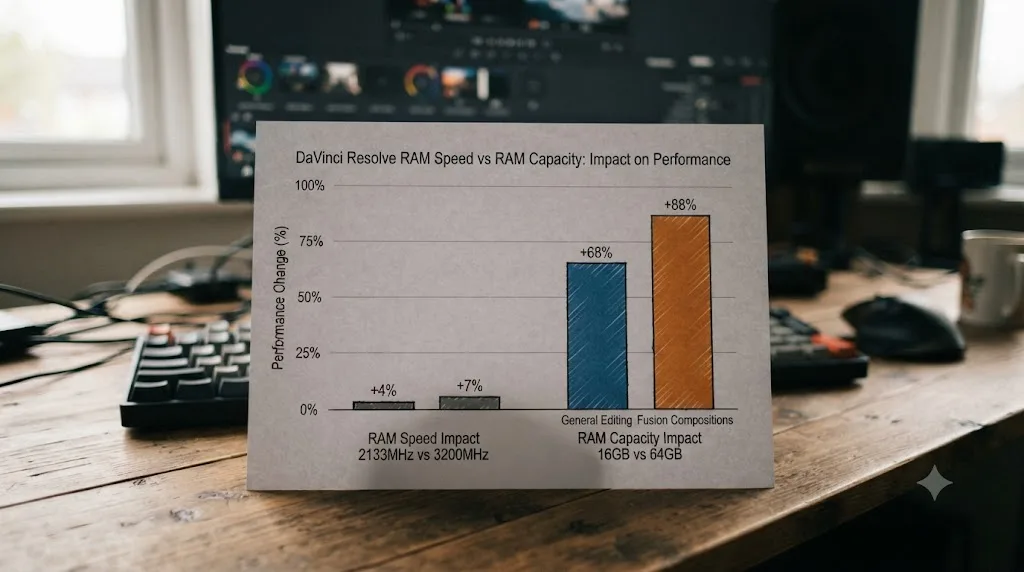
RAM capacity matters far more than RAM speed for DaVinci Resolve. Puget Systems benchmarks show DDR5 speed (4800-6400 MT/s) shifts scores by under 2%, while dropping from 64GB to 16GB cuts overall performance 9% and Fusion performance 31%. Buy 32-64GB of RAM at your platform's default speed before spending extra on a faster kit.
Somebody in every hardware thread swears their DDR5-6400 kit made DaVinci Resolve "noticeably snappier." Somebody else just bought 128GB of the slowest RAM their motherboard supports and edits 8K RAW without a hiccup. Both of them are telling the truth about their own machine, and neither of them has actually isolated the variable.
We run a 100,000+ member video-editing community, and "should I buy faster RAM or more RAM" is one of the recurring questions that shows up right behind "which GPU should I buy" every time someone posts a new build. So here's the actual answer, backed by controlled benchmarks that swap one variable at a time instead of two different machines and a vibe.
RAM capacity decides whether DaVinci Resolve runs at all. RAM speed only decides how fast it runs once it's already running. That's the whole argument in one sentence, and the rest of this guide is the evidence.
What matters more for DaVinci Resolve, RAM speed or RAM capacity?
RAM capacity matters more, by a wide and repeatable margin. Puget Systems, which builds and benchmarks Resolve workstations for a living, tested both variables in isolation on the same hardware, and the gap between them isn't close. Changing RAM speed across the full range of DDR5 kits sold today moved Resolve's benchmark score by less than 2%. Changing RAM capacity from 16GB to 64GB moved it by 9% overall, and by 31% in Fusion specifically, according to Puget Systems' analysis of when RAM capacity impacts performance.
That asymmetry holds up because of what each spec actually does. RAM speed affects how quickly data already sitting in memory moves between RAM and the CPU. RAM capacity affects whether your project's data fits in memory at all. Resolve, especially with Fusion loaded, is far more likely to run out of room than to be bottlenecked by how fast the room it has moves data around.
| Spec | Real-world effect on DaVinci Resolve | Source |
|---|---|---|
| RAM speed (DDR5-4800 to DDR5-6400) | Under 2% score difference | Puget Systems DDR5 speed testing |
| RAM capacity, general editing (16GB vs 64GB) | 9% score difference | Puget Systems RAM capacity testing |
| RAM capacity, Fusion (16GB vs 64GB) | 31% score difference | Puget Systems RAM capacity testing |
| RAM capacity, GPU Effects and AI tools | No measurable difference | Puget Systems RAM capacity testing |
If you're building or upgrading a machine on a fixed budget, this table is the buying decision in miniature: every dollar spent chasing a higher megahertz number is a dollar not spent on the spec that actually moves the needle.
Does RAM speed actually change DaVinci Resolve's performance?
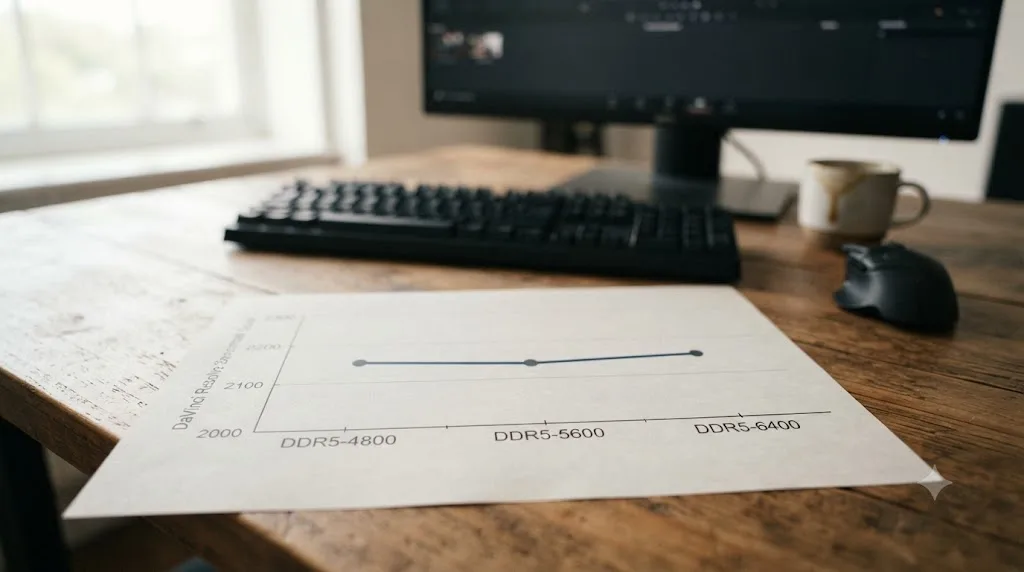
Barely, and the data is specific enough that you don't have to take that on faith. Puget Systems tested DaVinci Resolve across a full range of DDR5 speeds on both Intel and AMD platforms, running everything else in the system identically and swapping only the RAM kit. On the Intel platform, Resolve's benchmark score moved from 3123 at DDR5-4800, to 3173 at DDR5-5600, to 3177 at DDR5-6400 XMP, a total spread under 2% across a RAM speed jump of 1,600 MT/s. On AMD, DDR5-5600 and DDR5-6000 landed at an identical 2913 points.
Puget's own summary of the result doesn't hedge: "DaVinci Resolve, for both Intel- and AMD-based systems, shows little correlation between performance and RAM speed and has a low spread of scores, just a few percent," per Puget Systems' DDR5 speed impact article. That puts Resolve near the bottom of every content creation app Puget tested for RAM speed sensitivity, well behind applications like Unreal Engine, where shader compilation showed a real, double-digit swing from the same speed range.
A DDR5 kit rated 1,600 megahertz faster than another buys DaVinci Resolve about two percent, roughly the same gain you'd get from closing a handful of browser tabs. That's not a knock on fast RAM as a product. It's a statement about which apps actually use the extra bandwidth, and Resolve simply isn't one of the apps where it shows up.
There's a stability cost to chasing speed too, and it's worth knowing before you buy a kit rated above your CPU's official support list. Puget documented a real compatibility failure during their own testing: "A great example is what we saw when using the DDR5-6400 RAM on AMD, [where] we couldn't get it to work while running any content creation applications." Overclocked RAM that isn't on your motherboard's validated list can refuse to boot reliably or crash under sustained load, exactly the kind of instability an editing session can't afford.
What do the full DDR5 speed benchmark numbers look like across every speed tested?
Messier than the headline number suggests, and that mess is itself the point. Puget didn't just test three speeds and call it done. They ran DaVinci Resolve across six different DDR5 speeds on Intel and six on AMD, using a matched 2x32GB kit on each platform so both memory channels stayed populated and neither system was starved for bandwidth in a way that would have skewed the results.
| RAM speed (Intel) | DaVinci Resolve score |
|---|---|
| DDR5-4400 | 3087 |
| DDR5-4800 | 3123 |
| DDR5-5200 | 2963 |
| DDR5-5600 | 3173 |
| DDR5-6000 | 2960 |
| DDR5-6400 (XMP) | 3177 |
| RAM speed (AMD) | DaVinci Resolve score |
|---|---|
| DDR5-4400 | 2860 |
| DDR5-4800 | 2883 |
| DDR5-5200 | 2867 |
| DDR5-5600 | 2913 |
| DDR5-6000 (JEDEC) | 2897 |
| DDR5-6000 (optimized timings) | 2913 |
Look at the Intel column closely and you'll notice something odd if you were expecting a straight climbing line: DDR5-5600 scored higher than DDR5-6000, and DDR5-5200 scored lower than DDR5-4800. If RAM speed genuinely drove Resolve's performance, faster kits would win every time. They don't. Puget's own explanation covers exactly this pattern, describing "little correlation between performance and RAM speed" with "a low spread of scores, just a few percent." Once the swing between the fastest and slowest kit tested sits inside normal run-to-run variance, chasing a specific megahertz number stops being an optimization and starts being noise chasing.
When a benchmark bounces up and down instead of climbing in a straight line as speed increases, that's the data telling you the variable barely matters. A genuinely speed-sensitive application, the kind Puget found in Unreal Engine's shader compilation tests, climbs in a fairly consistent line as MT/s goes up. Resolve's line looks more like a calm week on a seismograph.
Does single-stick vs dual-channel RAM configuration change the story?
It changes the story enough that it's worth getting right before you even think about which speed to buy. Every benchmark in this guide, including Puget's own DDR5 speed testing, ran on a matched 2x32GB kit in dual-channel mode. That's not an incidental detail. Populating two identical sticks across your motherboard's paired slots roughly doubles the memory bandwidth available compared to running a single stick of the same total capacity, because the CPU can talk to both sticks at once instead of queuing every request through one.
A single 64GB stick and two 32GB sticks add up to the same capacity on a spec sheet, but they aren't the same machine in practice. If dual-channel bandwidth genuinely mattered to Resolve the way it does to a handful of other, more bandwidth-hungry applications, running single-channel would show up as a real penalty rather than a rounding error. Since Puget's own speed testing was already run in the best-case, fully dual-channel setup and still barely moved the needle, a single-stick configuration would only shrink an already-tiny variable further, not somehow reveal a hidden performance cliff.
Buy your RAM in matched pairs across your motherboard's dual-channel slots, not as a single large stick, even though the total capacity on the box looks identical. This costs nothing extra at most capacities, since kits are already sold as matched pairs, and it removes one more variable you'd otherwise have to debug later if a machine feels slower than a similarly specced build. On a Threadripper or Xeon workstation with four or eight memory channels, the same logic applies at a larger scale: populate every channel with a matched module instead of leaving slots empty, since an unbalanced or partially populated channel configuration is one of the more common reasons a high-end workstation underperforms its spec sheet.
How much RAM capacity does DaVinci Resolve actually need in 2026?
More than Blackmagic's own minimums suggest, and the gap between the official floor and the comfortable number is bigger than most other specs on the sheet. Blackmagic's published minimum system requirements list 8GB of system memory on macOS, rising to 16GB with Fusion, and 16GB on Windows, rising to 32GB with Fusion, per Blackmagic Design's DaVinci Resolve 20 Minimum System Requirements. Those numbers get Resolve to launch and run a simple project. They say nothing about what happens once your timeline, your cache, and a handful of Fusion nodes are all competing for the same pool.
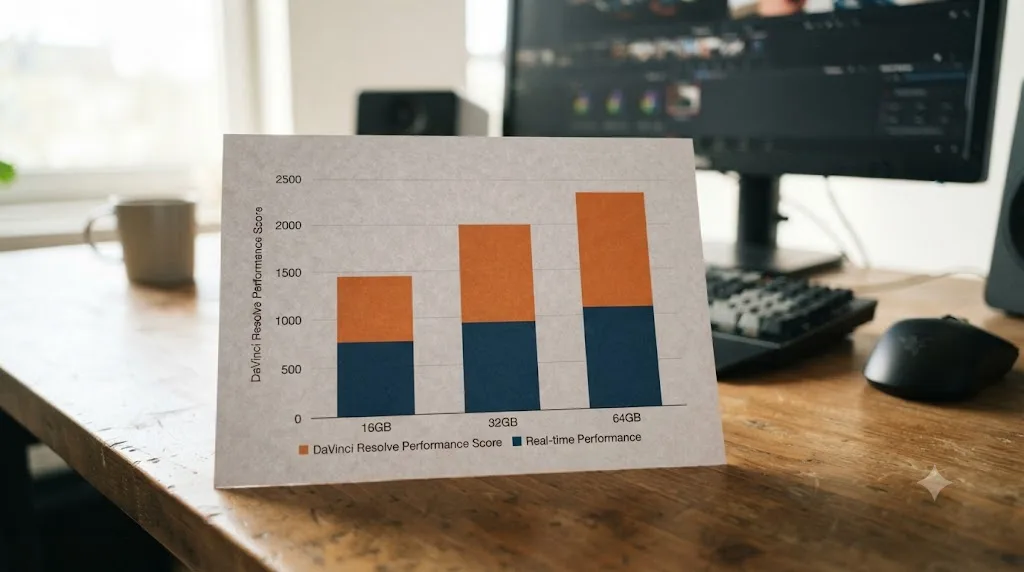
Puget Systems tested 16GB, 32GB, and 64GB configurations directly against each other on identical hardware, an AMD Ryzen 9 9950X3D2 system with an RTX 5080, and found a clear, repeatable pattern. Overall content creation performance dropped 9% going from 64GB down to 16GB, and only 2.5% going from 64GB down to 32GB. Their conclusion, stated plainly: "our testing showed that a system with 16 GB of RAM reduced performance across all content creation applications in the PugetBench for Creators benchmark suite," per Puget Systems' RAM capacity testing.
| Platform | Blackmagic minimum | Blackmagic minimum with Fusion | Puget Systems' real-world floor |
|---|---|---|---|
| macOS | 8GB | 16GB | 24GB-32GB for standard editing |
| Windows | 16GB | 32GB | 32GB for standard editing, 64GB with Fusion |
| Linux | 16GB (matches Windows guidance) | 32GB | 32GB for standard editing, 64GB with Fusion |
Sixty-four gigabytes of RAM is the professional default for DaVinci Resolve today, not a luxury reserved for Fusion specialists. Puget's guidance for lighter budgets is specific too: 32GB "can be a cost-effective option, particularly for students or hobbyists," while professionals doing regular content creation work "should consider 64 GB of RAM for their system, as this was the sweet spot in our testing."
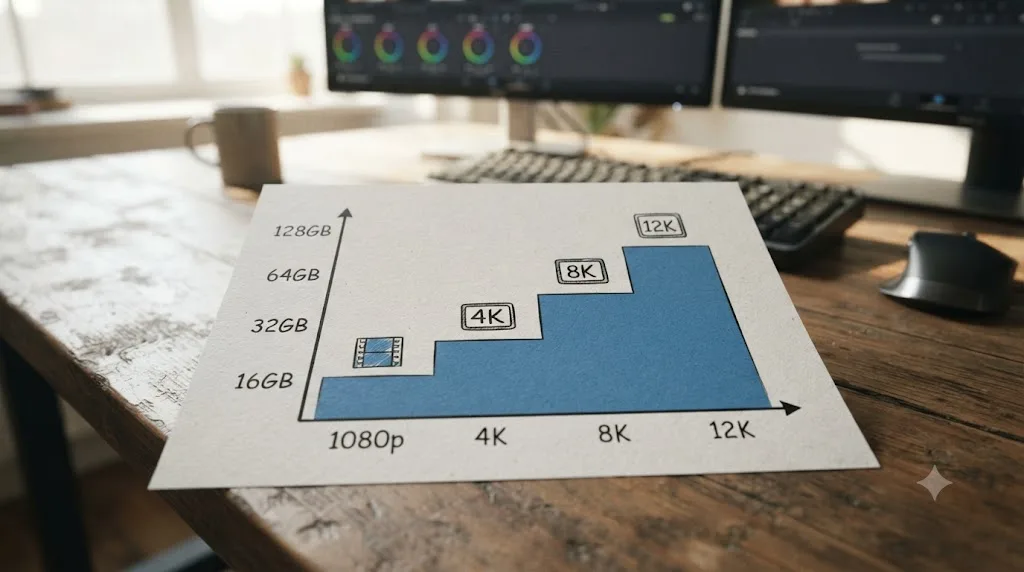
How much RAM does Puget Systems recommend by footage resolution?
Their separate hardware recommendations page breaks the same question down by the one variable that changes it most: your footage's resolution. Higher-resolution frames simply take up more memory per frame, whether Resolve is holding them in a playback cache, a Fusion buffer, or a render queue, so the recommended RAM climbs as resolution climbs.
| Footage resolution | Puget's recommended RAM |
|---|---|
| 1080p | 64GB |
| 4K | 96GB |
| 6K | 128GB |
| 8K | 192GB |
| 12K | 256GB |
Puget's own framing keeps this honest rather than alarmist: "the exact amount of RAM you need is going to depend on the resolution, length, and complexity of your project, but Resolve in general is fairly light on RAM requirements," from Puget Systems' DaVinci Resolve hardware recommendations. Read that table as a professional ceiling for demanding, resolution-heavy work, not a floor everyone needs to hit. A 1080p YouTube channel doesn't need 64GB any more urgently than a documentary editor cutting 8K RAW needs 192GB, but if you're already shooting and delivering at a given resolution, this table shows roughly where the comfortable number sits, rather than the bare minimum.
There's a second variable buried in that same guidance that's easy to miss: multitasking. Puget notes that if you "often work with multiple programs at the same time, you may want to have even more RAM in your system as each program will need its own chunk of RAM." A colorist who keeps Resolve, a browser full of reference tabs, and a messaging app open all day is drawing from the same 64GB or 96GB pool as Resolve itself. The resolution-based RAM table above assumes Resolve has the machine mostly to itself, so add headroom on top of it for every other application you routinely run alongside your edit.
Why does Fusion need so much more RAM capacity than editing or color grading?
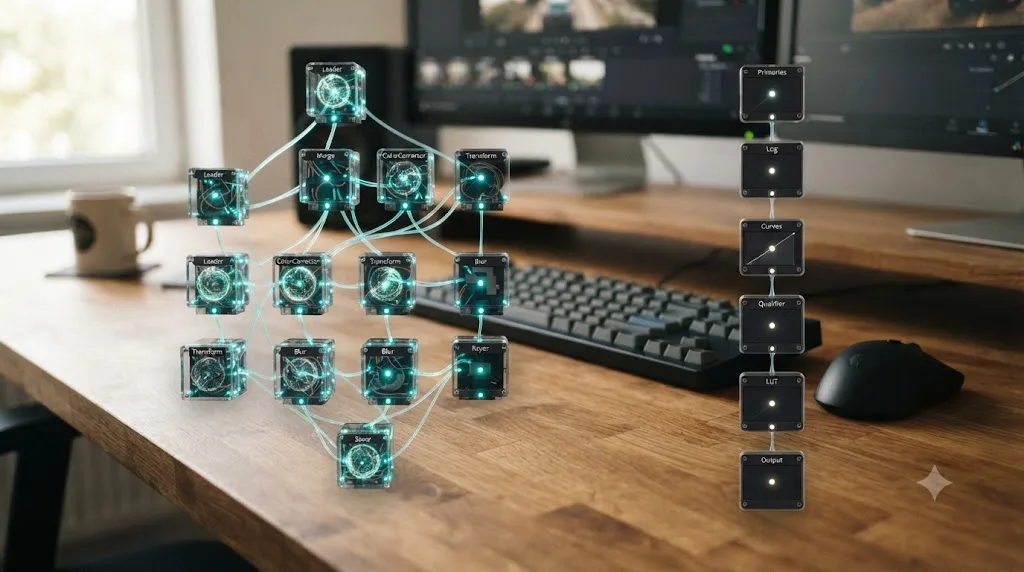
Because Fusion keeps every intermediate result from every node in memory at once, not just the current frame you're looking at. A color grade is a straightforward line of nodes stacked on top of each other. A Fusion composition is a web, and every strand of that web wants its own memory buffer held live so you can tweak one node without recomputing the whole chain downstream of it. Picture a simple title comp with a tracker, a blur, and a glow stacked on top of a background. Each of those four nodes holds its own rendered frame in memory simultaneously, because dragging the glow's slider shouldn't force Resolve to recompute the tracker from scratch. Add a dozen more nodes for a real composite and that memory footprint stacks up fast, in a way a linear color grade simply never does.
Puget's testing measured that difference directly, and the result is the single most lopsided number in this entire comparison. "Most interestingly, the Fusion score shows that lower memory capacity has the greatest impact on Fusion performance, resulting in a 31% reduction," comparing 16GB against 64GB, per Puget Systems' RAM capacity analysis. Nothing else in their entire testing suite, across any application, showed a gap that size from capacity alone.
Fusion is the one part of DaVinci Resolve where RAM capacity changes the experience by double digits, not by a rounding error. Standard editing and grading fared much better in the same test: LongGOP and Intraframe codecs each showed only a 3% difference between 16GB and 64GB, and RAW footage showed 7%. If Fusion never touches your workflow, you genuinely don't need to chase 64GB as urgently. If it does, Puget's own recommendation settles it: "Based on the results above, 64 GB of RAM is the threshold for Fusion."
This is the same memory-hungry behavior covered in more troubleshooting depth in our guide to DaVinci Resolve using swap memory instead of RAM. If you're already seeing a frozen UI and a maxed-out disk light specifically when you open the Fusion page, that's this exact capacity ceiling showing up as a symptom rather than a benchmark score.
Should you buy DDR4 or DDR5 RAM for DaVinci Resolve?
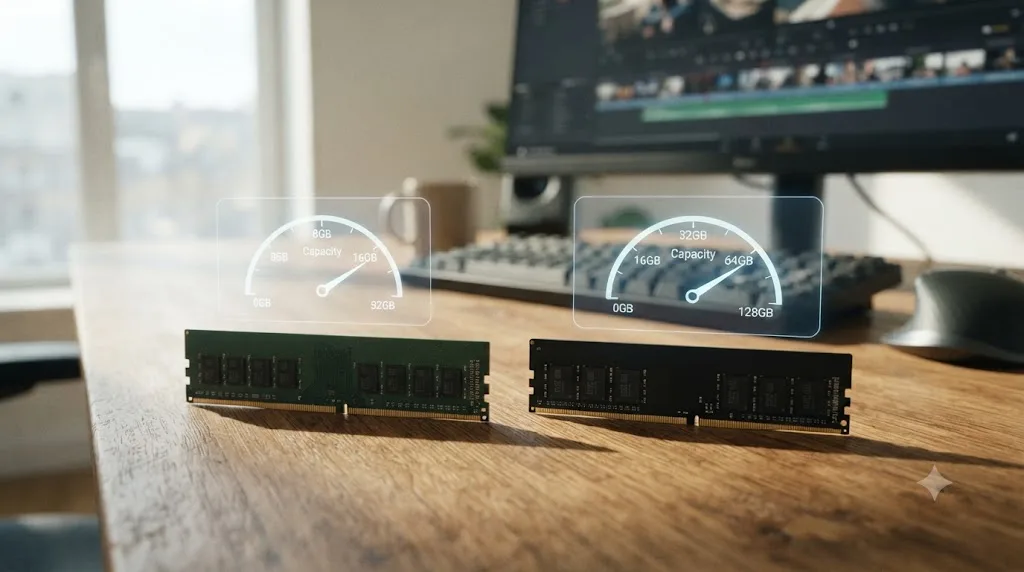
Buy whichever generation your CPU platform actually supports, since the DDR4-versus-DDR5 question mostly resolves itself the moment you pick a CPU. Every current Intel and AMD platform capable of running Resolve well ships as DDR5-only or offers DDR5 as the mainstream option, and DDR5's real advantage for this specific app isn't its higher rated speed. It's that DDR5 makes reaching 64GB and 128GB configurations more common and often cheaper per gigabyte over time than late-generation DDR4 kits at the same capacity.
Given how little RAM speed moved Resolve's benchmark score in Puget's testing, chasing DDR5's headline megahertz numbers specifically for Resolve is close to pointless. What DDR5 buys you that actually matters here is easier access to the capacity tier that does move the needle. If you're already on a DDR4 platform with a clear upgrade path to 64GB, there's no urgent case for a full platform swap on RAM grounds alone. If your current DDR4 board tops out at 32GB or 64GB total and Fusion is a growing part of your work, that ceiling, not the DDR generation, is the actual reason to consider a new motherboard and CPU eventually. Frame that upgrade around the capacity you're missing, not around a speed number Resolve won't reward you for chasing.
The RAM generation printed on the box matters less for DaVinci Resolve than the capacity you can afford to fill it with. Treat DDR4 versus DDR5 as a platform decision driven by your CPU choice, not a performance lever you pull independently for Resolve specifically.
If speed barely matters, what RAM speed should you actually buy?
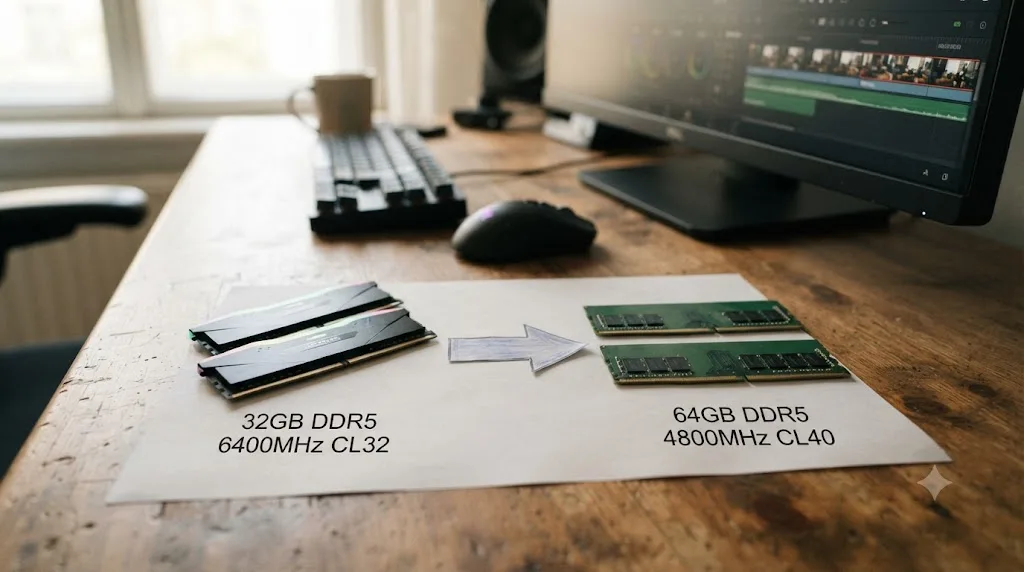
Whatever your CPU manufacturer officially lists as supported, run at the kit's rated timings out of the box. Puget Systems' own conclusion on this, after testing the full range, is direct: "for content creation, you are likely better off sticking to the supported memory frequencies and default timings for professional use due to stability and warranty reasons," from Puget Systems' DDR5 speed impact article.
That's not a compromise recommendation. It's the actual optimal choice once you account for the whole picture, not just the benchmark score. Puget's broader guidance backs it up: "if you are looking for the best mix of performance and stability, using RAM that matches the CPU manufacturer's specifications is probably the right way to go." A kit rated above your platform's supported speed can require manual overclocking through XMP or EXPO profiles, and Puget documented a real failure case where a faster-rated AMD kit simply wouldn't run reliably with any content creation application loaded.
There's a cost angle here too that's easy to miss. RAM kits get meaningfully more expensive per gigabyte as their rated speed climbs, especially at the top of a given generation's range. Since speed buys Resolve almost nothing, that price premium is close to pure waste for an editing-focused build. Put the money you'd have spent on a DDR5-8000 flagship kit toward doubling your capacity instead, and you'll feel the difference in Fusion and heavy timelines in a way you'd never feel from the speed bump.
Is 32GB or 64GB the right capacity for your workflow?
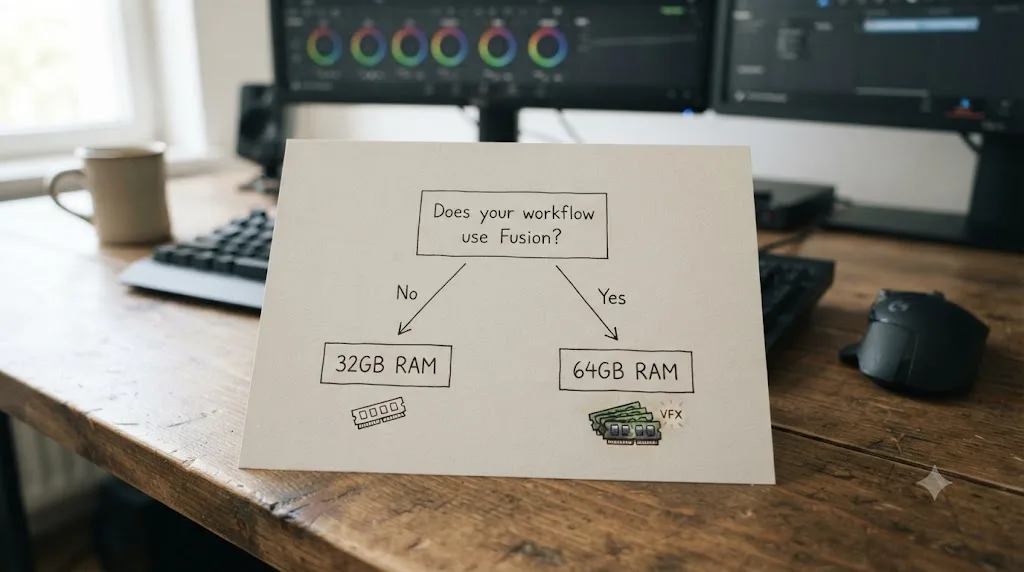
Depends entirely on whether Fusion is a regular part of your job, and this is the one place in this guide where the "just buy more" instinct actually has real data behind it rather than being reflexive advice.
| Your workflow | Recommended capacity | Why |
|---|---|---|
| HD or 1080p editing, light grading, no Fusion | 16GB-32GB | Blackmagic's floor plus real headroom; Puget found only a 2.5% gap between 32GB and 64GB for general editing |
| Single-camera 4K editing and grading, no Fusion | 32GB | Cost-effective per Puget's own guidance, "particularly for students or hobbyists" |
| 4K multicam, RAW footage, moderate Fusion titles | 64GB | RAW showed a 7% capacity-driven gap, and any Fusion use pushes toward the 31% ceiling |
| Regular Fusion compositing, deep node trees | 64GB minimum | Puget's stated "threshold for Fusion," where 16GB cost 31% of performance |
| Professional mixed workflow across editing, color, and Fusion | 64GB-128GB | Matches Puget's general recommendation that "most professional content creators... should consider 64 GB" |
If you genuinely never open the Fusion page, 32GB is a defensible, budget-conscious choice backed by real testing rather than a corner you're cutting. The moment Fusion enters your workflow, even occasionally for a title card or a simple tracked graphic, the math changes, and 64GB stops being a luxury tier and starts being the number that keeps your session usable.
What does 32GB vs 64GB actually look like for three different editors?
Numbers are easier to trust once you see them applied to a real workflow instead of a table. Here are three common setups and how the capacity math plays out for each.
A wedding videographer cutting 4K multicam with light color correction and no Fusion is squarely in the "32GB is fine" camp. Their footage is RAW-adjacent but not extreme, their node trees stay simple, and Puget's own testing puts the gap between 32GB and 64GB at just 2.5% for that kind of general content creation work. Spending the difference on a better GPU or a faster drive would move their render times more than the extra RAM would.
A solo YouTuber who edits in 1080p or 4K but builds their own animated lower thirds and transitions inside Fusion sits right at the edge Puget calls "the threshold for Fusion." Their timeline work alone might run fine on 32GB, but the moment they open a Fusion composition with more than a handful of nodes, that same 32GB machine is the one showing stutters their non-Fusion friend never sees. Sixty-four gigabytes removes that specific pain point without requiring a full platform change.
A motion designer or colorist building deep Fusion comps daily, layered tracking, multiple glows, particle systems, and grain, is the exact profile behind Puget's 31% number. For this editor, 64GB isn't a nice-to-have upgrade; it's the difference between a Fusion page that responds instantly to a slider tweak and one that visibly catches up a beat behind every adjustment. If their projects also involve 6K or 8K source footage, Puget's resolution-based table pushes the comfortable number higher still, toward 128GB.
The same 64GB number can be overkill for one editor and genuinely limiting for another, so match the capacity decision to how often Fusion actually opens on your machine, not to what a forum post recommends for "professional work" in general.
Do high-end Threadripper or multi-GPU workstations change this RAM guidance?
Not the core finding, but it does shift where the floor sits. Once you're building or buying a studio-tier workstation for heavy Fusion work, multicam 8K, or running Resolve alongside other applications in an active pipeline, the whole conversation moves up a tier, and Puget's own configurations reflect that.
Puget's Threadripper TRX50 build for DaVinci Resolve starts its RAM tier at 128GB, sold as 4x32GB DDR5 RDIMM modules across four memory channels, with configurations scaling up to 256GB, 384GB, and 512GB for studios that need it, per Puget Systems' DaVinci Resolve Threadripper workstation configurations. That's not an upsell for its own sake. A quad-channel Threadripper platform can move roughly twice the memory bandwidth of a dual-channel consumer desktop at the same rated speed, and studios running Resolve alongside Photoshop, After Effects, and a browser full of client review tools all day genuinely draw down a 64GB pool faster than a single-application benchmark ever will.
None of this contradicts the core finding in this guide. RAM speed still isn't the lever that matters on a Threadripper build any more than it is on a consumer desktop. What changes is the baseline capacity number, because "enough RAM for Resolve alone" and "enough RAM for a full studio pipeline running Resolve as one of several open applications" are two different questions with two different answers. If your DaVinci Resolve workstation is also your studio's general-purpose creative machine, size your RAM for the whole pipeline, not just for Resolve in isolation.
These platforms typically ship with registered ECC DDR5 rather than the unbuffered DIMMs in a consumer desktop, which raises a related question worth answering on its own.
Should you worry about ECC memory for DaVinci Resolve?
For most editors, no. ECC (error-correcting code) memory catches and corrects the rare single-bit memory error before it can corrupt data in RAM, and it matters most on servers and workstations that run unattended for long stretches, where a single flipped bit during an overnight render could quietly damage a file nobody checks until it's too late.
Mainstream desktop and laptop platforms, the ones most DaVinci Resolve editors actually buy, don't offer true system-level ECC as an option regardless of how much you spend on the RAM kit itself. It's worth separating that from "on-die ECC," a built-in error-correction feature standard on all DDR5 modules that corrects errors inside the chip itself; that's a manufacturing reliability feature every DDR5 stick already has, not the same thing as the system-level ECC a server platform reports and logs. Full system-level ECC shows up on workstation-class platforms instead: Puget's Threadripper TRX50 configuration for Resolve ships with registered ECC DDR5 as standard equipment, tied to that platform's workstation motherboard and RDIMM slots rather than something you can add to a regular consumer build. If you're not already shopping in that Threadripper-or-Xeon-workstation tier, ECC isn't a box you're choosing to tick or skip. It's simply not on the menu.
Don't let ECC memory talk you into overspending on a consumer desktop build for DaVinci Resolve, since true system-level ECC isn't something regular consumer platforms support at any price. If you're already committed to a Threadripper PRO or Xeon W workstation for other reasons, like dual GPUs or a genuinely massive RAM capacity, ECC comes bundled with that platform decision rather than being a separate one you make about Resolve specifically.
Does RAM capacity or speed matter more on a laptop or an Apple silicon Mac?
Capacity, even more decisively than on a desktop, because on Apple silicon there's no upgrade path after purchase and no separate speed dial to shop for at all. Every M-series chip uses unified memory, one pool shared by the CPU and GPU, soldered to the chip package at the factory. Whatever configuration you buy is the ceiling for the life of the machine.
Richard Lackey, whose configuration guides are widely cited in the color grading community, found Apple silicon handles smaller memory pools more gracefully than you'd expect from the Windows-side numbers in this guide: "The exception is an Apple Silicon powered Mac, the 8GB systems run Resolve just fine," and specifically that "DaVinci Resolve runs happily on an M1 Mac Mini with only 8GB of unified memory and plays 4K media on a 4K timeline with most operations on the Resolve Color Page processed in real time," per Richard Lackey's DaVinci Resolve system requirements guide. That's a capacity story about efficient memory management, not a speed story, since Apple sets the memory speed for every configuration and gives buyers no choice in the matter at all.
On a Windows laptop, the same capacity-over-speed logic holds, but with a practical wrinkle: RAM is soldered on a growing number of thin-and-light models, the same trend affecting current MacBooks, so the buying decision matters even more since you can't fix an undersized configuration later with an upgrade. Our guides on the best budget laptop for DaVinci Resolve beginners and the Mac mini M4 both walk through exactly how much RAM or unified memory different laptop and small-desktop workloads actually need before you commit to a configuration you can't change.
On Apple silicon, RAM speed isn't even a purchasing decision, since Apple controls the memory design entirely; only capacity is yours to choose, and it's fixed the day you buy. That makes getting the capacity number right at purchase time more important on a Mac than on almost any Windows desktop in this guide.
Does more system RAM help GPU-accelerated tools like Magic Mask or noise reduction?
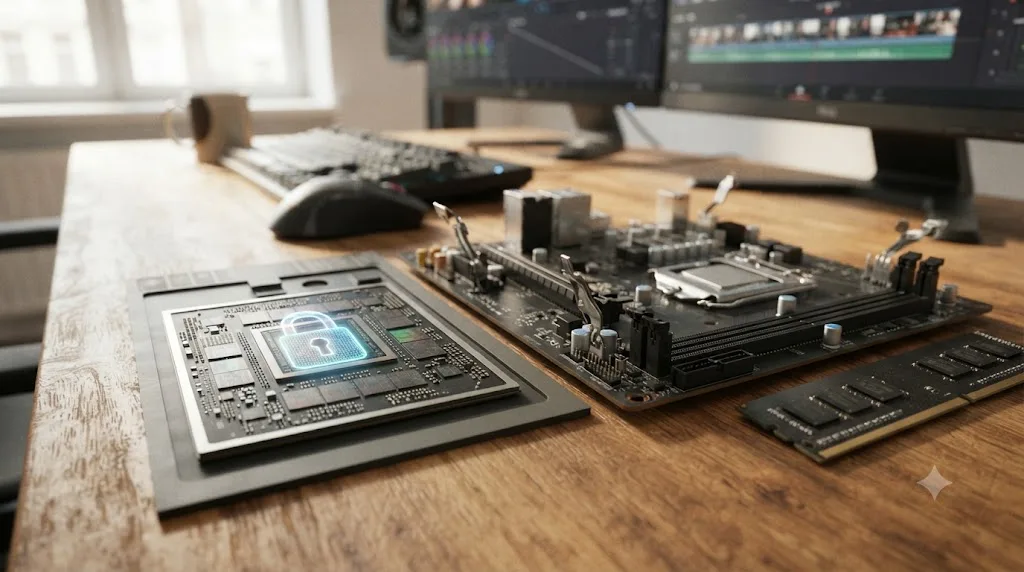
No, and this is the exception that proves how narrowly "RAM capacity matters" actually applies. Magic Mask, Speed Warp, AI-driven noise reduction, and most of Resolve's GPU-accelerated effects run on your graphics card's VRAM, a physically separate memory pool from your system RAM. Puget Systems' capacity testing confirmed this directly: GPU Effects and AI tools "showed no difference in performance across any of the three capacities tested," 16GB, 32GB, and 64GB alike.
GPU-accelerated tools like Magic Mask and Speed Warp don't care how much system RAM you have, because that work never leaves the graphics card. If your bottleneck is specifically AI tools throwing a "GPU memory is full" warning, more system RAM does nothing for it. That's a VRAM ceiling, a completely different budget line, covered in full in our best graphics card for DaVinci Resolve guide, which walks through how much VRAM different resolutions and effect stacks actually need.
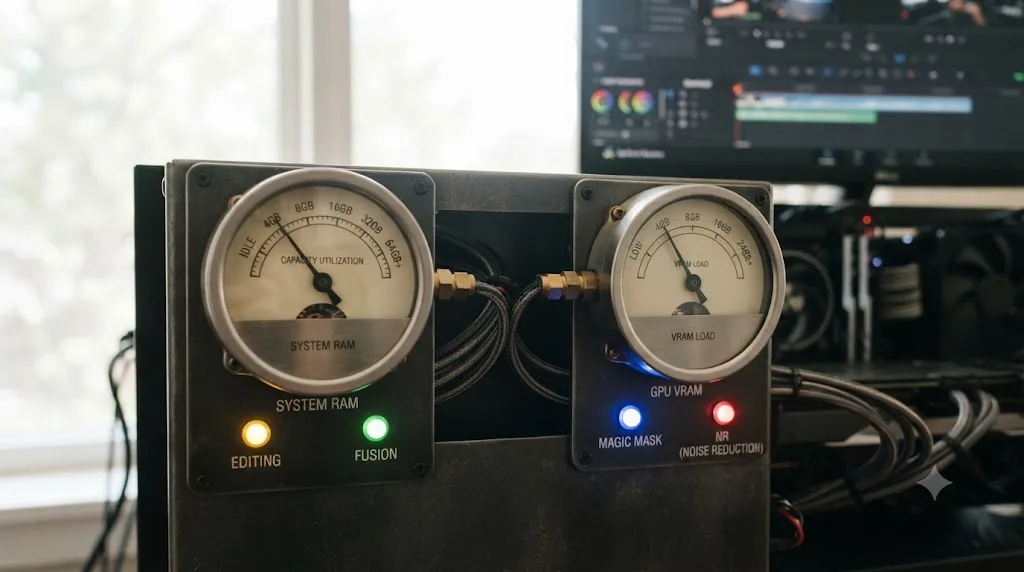
The practical takeaway is a two-pool budget, not a one-number answer. System RAM capacity governs how much of your project, your Fusion nodes, and your cache fit in memory at once. VRAM governs how much resolution and how many GPU effects you can stack before the graphics card itself runs out of room. Confusing the two, or assuming a bigger number in one pool compensates for a small number in the other, is the single most common mistake in DIY Resolve builds.
Does this change for shared projects, render nodes, or collaborative Resolve workflows?
A little, and mostly by multiplying the same capacity math across more machines instead of changing it. If your team collaborates through Project Server or Blackmagic Cloud, every editor and colorist connecting to that shared project still needs their own local RAM to match their own workload, whether that's light multicam editing or heavy Fusion work. Our guide on Project Server vs Blackmagic Cloud collaboration covers the setup differences, but the RAM guidance in this article applies per seat, not per project: a Fusion artist connected to a shared project still needs the same 64GB-and-up their solo counterpart would need, since the memory pressure happens locally on their own machine as they work the composition.
Render nodes are a slightly different story. A dedicated machine whose only job is chewing through a render queue overnight rarely needs Fusion-tier capacity unless the queued jobs themselves are Fusion-heavy comps, in which case that render node needs the same 64GB floor as an interactive Fusion workstation, since it's rendering the same node trees, just without a human watching the timeline update live. A render node handling straightforward color and cut-only exports can often get by on the lighter end of this guide's editing recommendations, since it's not holding a live, interactive Fusion cache the way an artist's own machine does.
In a shared or multi-machine Resolve pipeline, size each machine's RAM for what that specific seat actually does, not for the heaviest workload anyone on the team ever runs. A render farm stacked with Fusion-spec RAM on every node is safe but often wasted money if half those nodes only ever render straightforward cuts.
How do you check how much RAM you have and whether it's running at the right speed?
Before you buy anything, confirm what you're actually starting from. It takes two minutes on either platform.
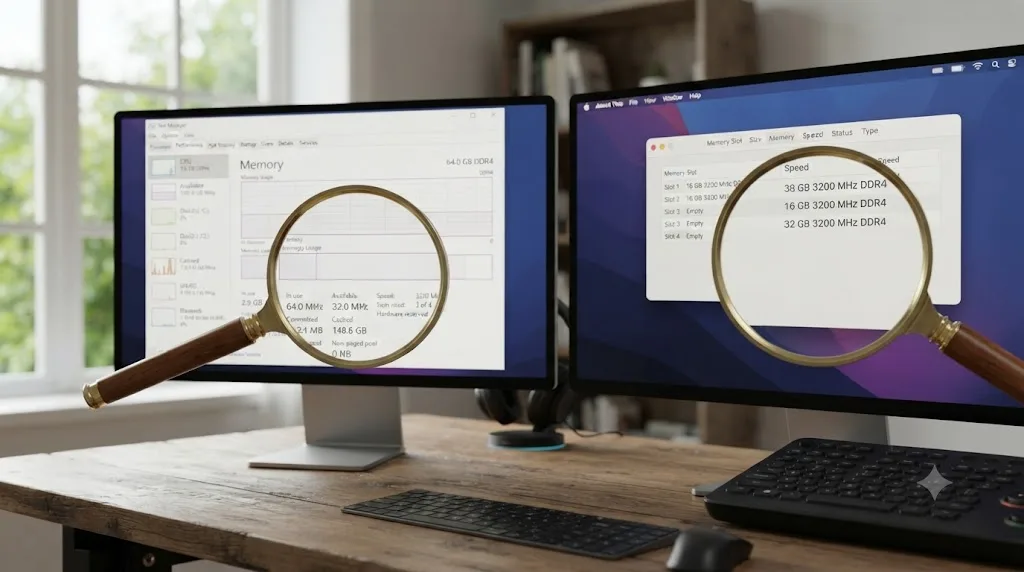
On Windows, open Task Manager with Ctrl+Shift+Esc, click the Performance tab, and select Memory in the left column. That panel shows your total installed capacity, how many of your motherboard's memory slots are filled, and the speed your RAM is currently running at in MT/s. If that number is lower than the kit's rated speed printed on the box, your BIOS likely hasn't had its XMP or EXPO profile enabled yet, and your RAM is running at a slower JEDEC default instead of its full rated speed. Given how little speed matters to Resolve specifically, that's not an emergency, but it's worth fixing for free performance in other applications that do care, and it takes one trip into your BIOS to toggle the profile on.
On macOS, click the Apple menu, choose About This Mac, and open the Memory tab. Intel Mac users can go one level deeper through System Information under the Memory section, which lists each installed module's size and speed individually, useful if you're checking whether a used Mac's RAM sticks actually match each other for dual-channel operation. Apple silicon Macs don't show a separate installed-module breakdown the same way, since unified memory isn't a component you can inspect module by module; the total figure listed under About This Mac is the whole story on those machines.
Once you know your starting point, check it against the numbers already in this guide. Are you below 32GB and starting to see slowdowns, especially with Fusion involved? Are you already at 64GB or more and wondering if a speed upgrade is worth the money? Knowing your current capacity and current speed before you spend anything tells you which half of this guide actually applies to your specific machine.
How do you configure DaVinci Resolve's own memory settings once your RAM is installed?
Buying the RAM is only half the job. Resolve has its own internal settings that decide how much of what you installed it's actually allowed to touch, and leaving them on their defaults isn't always the right call once you know your real capacity.
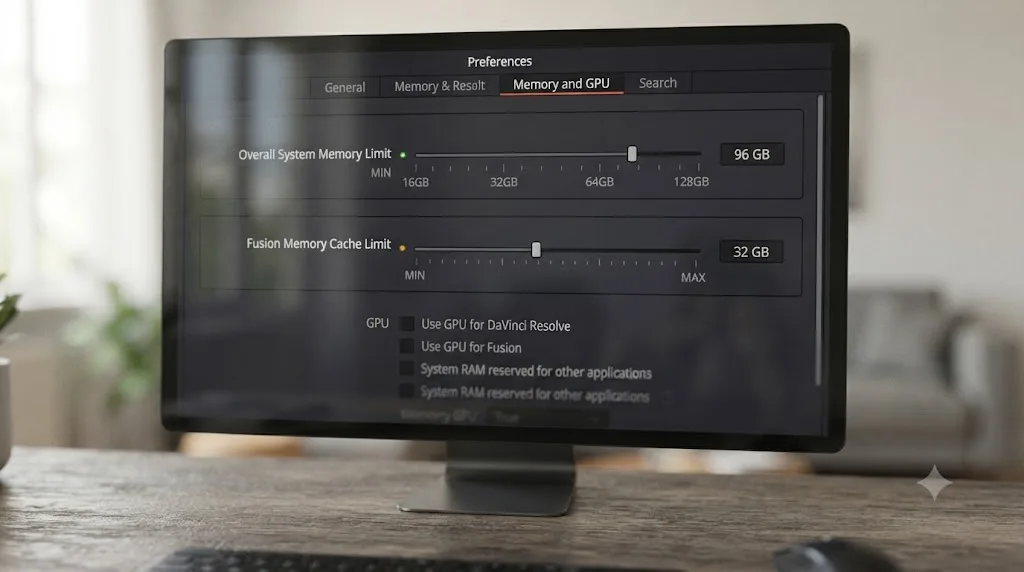
Open Preferences, then go to the Memory and GPU tab. Two sliders matter here. "Limit Resolve Memory Usage" caps the total system RAM Resolve is allowed to draw on, and its maximum and default setting is 75 percent of your system's total RAM, according to DaVinci Resolve's own manual on Memory and GPU preferences. "Limit Fusion Memory Cache" sits underneath that same ceiling. Whatever you allocate to Fusion's cache is drawn from the pool Resolve is already allowed to use, not from a separate additional pool, so raising the Fusion slider without also raising the overall Resolve slider first does nothing.
Here's where this actually changes your buying decision rather than just being a settings tour. If you've just upgraded from 16GB to 64GB specifically because Fusion was choking, the default 75 percent ceiling, 48GB on a 64GB machine, is already generous, and you likely don't need to touch it. But if you're running Resolve on a 32GB machine alongside Photoshop, a browser, and a messaging app, that same default 75 percent figure, 24GB, can starve the other applications you're running at the same time. Manually dialing Resolve's ceiling down to something closer to 50-60 percent leaves more headroom for everything else without meaningfully hurting Resolve's own performance, since it was Fusion and RAW footage that showed the real capacity sensitivity in Puget's testing, not everyday multitasking overhead.
A RAM upgrade you just paid for doesn't automatically hand all of that capacity to DaVinci Resolve. Check the Memory and GPU tab in Preferences and confirm the ceiling matches what you actually meant to buy. This is a five-minute check that a lot of otherwise well-specced machines skip entirely.
What does actually installing more RAM look like?
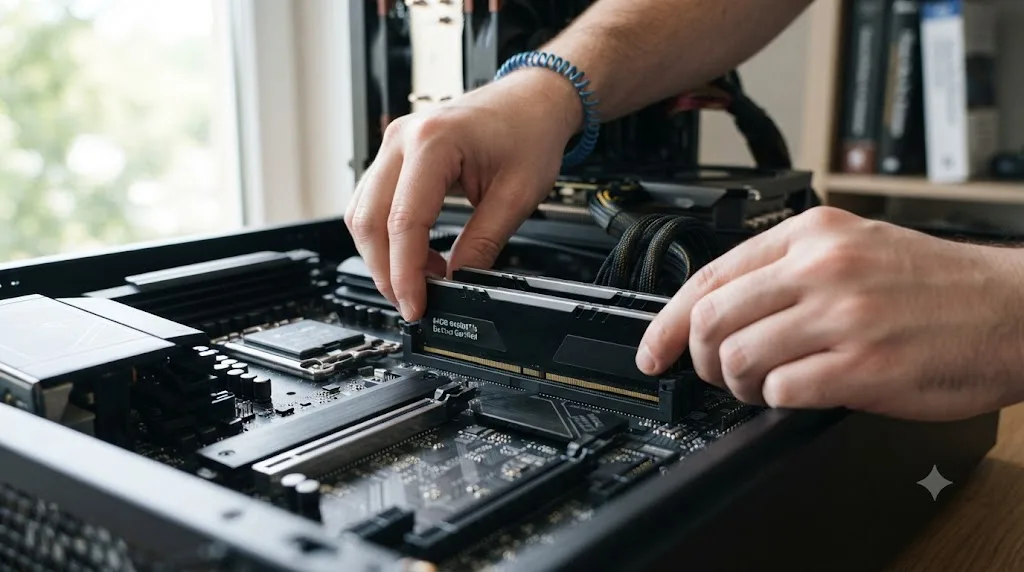
If you've decided you need more capacity, the physical part of the job is simpler than the research that got you there. On a desktop, power the machine down completely, unplug it, and ground yourself before touching anything, either by touching an unpainted metal part of the case or using a wrist strap, since a static discharge can damage a memory module or motherboard slot. Buy your new sticks as a matched kit rather than mixing brands or speeds, seat them fully in the correct paired slots for dual-channel operation (check your motherboard manual for which slots pair together, since it's rarely just "1 and 2"), and make sure each stick clicks into place on both ends.
Boot up and confirm the total capacity is recognized correctly before you do anything else, using the same Task Manager or About This Mac steps from earlier in this guide. If the system doesn't boot at all, reseat each stick individually and test them one at a time in a single slot to isolate whether one module or slot is the problem, rather than assuming the whole kit is faulty. If the system boots but reports less capacity than you installed, or reports it at a slower speed than the kit's rating, that's the moment to go into BIOS and confirm XMP or EXPO is enabled, since fresh RAM often boots at a conservative JEDEC default until you turn that profile on manually.
Laptops are a different story depending on the model. Many current thin-and-light laptops, including recent MacBooks and a growing share of Windows ultrabooks, solder RAM directly to the motherboard, which means there's no upgrade to perform at all; the configuration you bought at checkout is permanent. Check your specific model's specifications before assuming an upgrade is even possible, since attempting to open a soldered laptop looking for slots that don't exist wastes time and risks damaging a machine that was never designed to be opened.
A RAM upgrade is a five-minute physical task on most desktops and workstation laptops, and a zero-minute impossibility on most modern ultra-thin laptops, so confirm which category your machine falls into before you buy the RAM at all.
What if you can't hit the recommended RAM capacity right now?
Not everyone can buy their way to 64GB the week they read a benchmark article, and Resolve gives you a few real levers to pull in the meantime rather than just telling you to suffer or upgrade.
Lowering your Fusion Memory Cache slider in Preferences, covered earlier in this guide, frees up headroom for the rest of the system even if it doesn't add capacity you don't have. Switching heavy source footage to proxy media shrinks the amount of decoded frame data Resolve has to hold in memory during playback, which is exactly the workflow our proxy media setup guide for slow laptops walks through in detail. Closing other memory-hungry applications while you're actively working a Fusion composition, rather than leaving a browser with forty tabs open in the background, buys back real headroom on a 16GB or 32GB machine without spending a cent.
None of these are substitutes for the real fix if Fusion is a genuine, daily part of your job; they're bridges to get you through a project before you can budget for the upgrade. If you're stuck on less RAM than this guide recommends, proxy media and a lower Fusion cache ceiling won't make a 16GB machine perform like a 64GB one, but they will buy you real breathing room until you can make the jump.
What are the most common RAM-related problems in DaVinci Resolve, and how do you fix them?
Work through this table before you assume a slowdown is a RAM problem at all. Plenty of Resolve symptoms that look like a capacity ceiling are actually something else entirely, and the fix for a genuine RAM problem doesn't help if the real cause is sitting somewhere else in the pipeline.
| Symptom | Likely cause | What to check first |
|---|---|---|
| Fusion page gets sluggish or unresponsive after a few nodes | System RAM capacity ceiling | Check current usage in Task Manager or Activity Monitor while the Fusion page is open; if RAM is maxed out, this matches Puget's 31% capacity-driven Fusion gap |
| "GPU memory is full" warning during grading or AI tool use | VRAM ceiling, not system RAM | This is a graphics card memory problem, covered in our GPU memory is full guide; adding system RAM won't touch it |
| Playback stutters and the disk activity light stays lit | System RAM exhausted, forcing swap or page file use | See our guide to DaVinci Resolve using swap memory instead of RAM for the fix |
| Timeline gets slower the more tracks you add | Could be RAM, could be render cache or GPU load | Our timeline slows down after adding tracks guide walks through isolating which one it actually is |
| Project takes minutes to open, RAM usage looks fine | Media indexing or database issue, not a memory ceiling | Check our guide on projects taking a long time to load media before assuming it's a RAM problem |
| Machine feels the same after a RAM speed upgrade | Expected, per this guide's entire benchmark data | Confirm capacity, not speed, was your actual bottleneck before buying a faster kit |
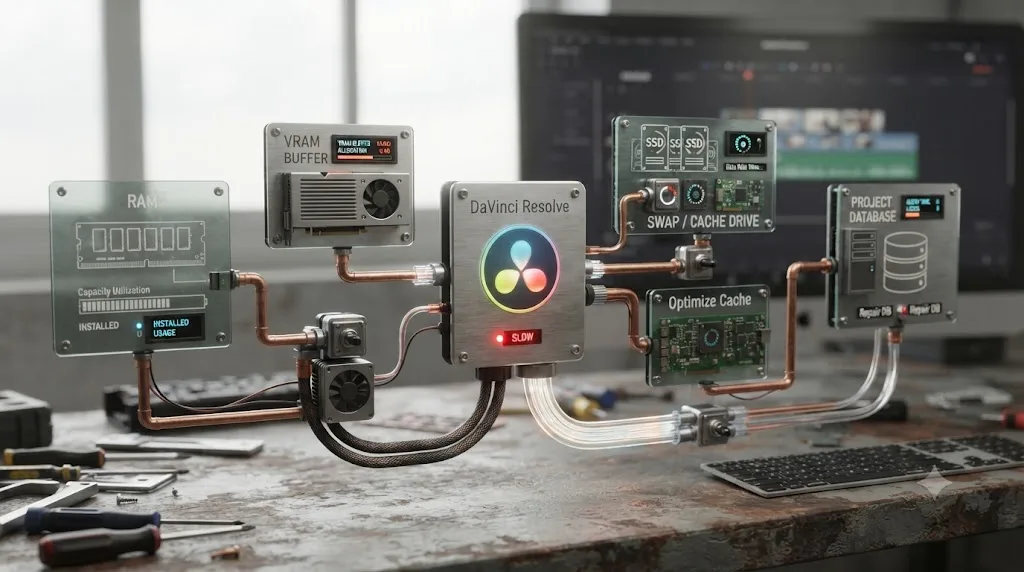
A slow Fusion page and a "GPU memory is full" warning look similar from the driver's seat, but they point at two completely different parts of your machine. Diagnosing which pool is actually maxed out, system RAM or GPU VRAM, before you spend money is the single highest-value five minutes in this entire guide.
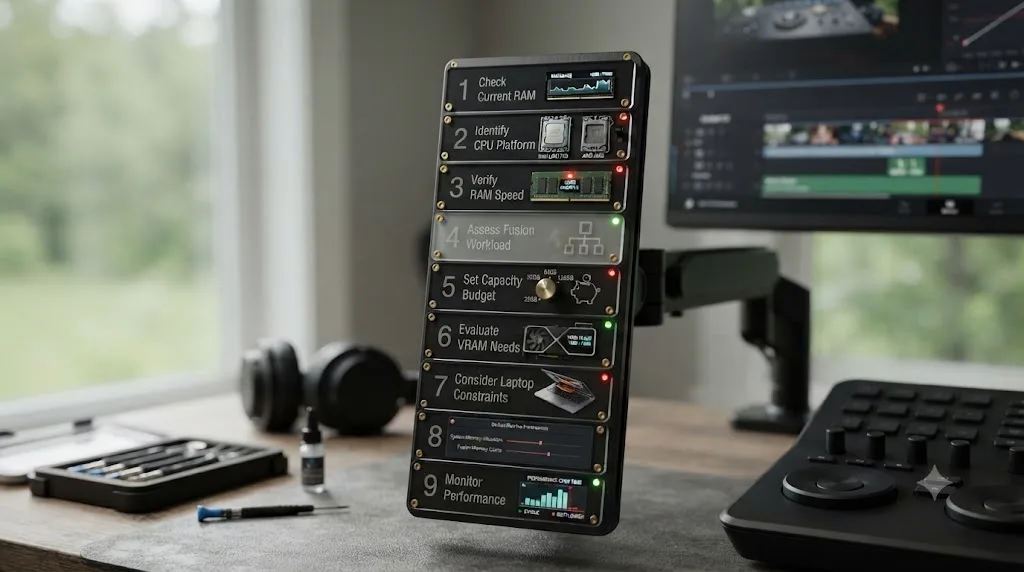
What's the full buying checklist for RAM speed vs RAM capacity in DaVinci Resolve?
Work through it in order, and let the benchmark data, not marketing copy on a RAM kit's box, decide where your budget goes.
- Check your current RAM speed and capacity first. Use Task Manager on Windows or About This Mac on macOS before you spend anything, so you know which half of this guide actually applies to your machine.
- Pick your CPU platform first. DDR4 versus DDR5 is a platform decision, not an independent Resolve performance lever, since RAM speed barely moves Resolve's score either way.
- Buy RAM at your CPU manufacturer's officially supported speed and timings, as a matched dual-channel pair. Puget's own conclusion: match the spec sheet for the best mix of performance and stability, and skip the premium for a faster-rated kit.
- Decide if Fusion is a real part of your workflow. This single answer decides more of your RAM budget than any other question in this checklist.
- If Fusion is in the mix, budget for 64GB minimum, and scale up per Puget's resolution table if you shoot 6K, 8K, or 12K. Puget's testing found a 31% performance drop at 16GB, the largest capacity-driven gap measured across any Resolve workload.
- If Fusion isn't in the mix, 32GB is a legitimate, cost-effective choice. The gap to 64GB for pure editing and grading is only 2.5% in Puget's testing.
- Treat VRAM as a separate budget line entirely. More system RAM does nothing for GPU memory errors, and more VRAM does nothing for system RAM swap thrashing.
- On a laptop or Apple silicon Mac, buy your capacity ceiling for the life of the machine, not for today's project. Soldered memory means there's no upgrade path later, so the buying decision carries more weight than it would on an upgradable desktop.
- Confirm Resolve's own Memory and GPU preferences match the capacity you just bought. The default 75 percent ceiling is usually right, but a heavily multitasked machine may need it dialed down to leave headroom for everything else you run.
If you're staring at your own Preferences > System > Memory and GPU panel trying to figure out whether your current RAM configuration is actually the bottleneck or something else entirely, that's exactly the kind of "which setting am I even looking at" moment TryUncle was built for. TryUncle is the on-screen assistant for DaVinci Resolve on macOS. Ask in plain words, and Uncle points at the exact control on your screen, instead of you cross-referencing a benchmark article against a Preferences panel that may have moved since the last Resolve update. It's a paid app on founder pricing, so check TryUncle's site for the current rate before assuming it fits your setup.
The verdict
We've spent 7+ years cutting professional, commercial video in Resolve, and every machine that's ever choked on us mid-session choked on capacity, never on a RAM speed rating. The benchmarks back that experience up point for point. RAM speed shifts Resolve's performance by a couple of percent at most, a difference you'd struggle to feel with a stopwatch, let alone by eye. RAM capacity shifts it by up to 31% the moment Fusion enters the picture, and by a real, measurable 9% even in ordinary editing.
If you're building or upgrading a machine for DaVinci Resolve, spend your RAM budget on gigabytes, not megahertz. Buy your platform's officially supported speed as a matched dual-channel kit, skip the premium overclocked kit, and put that money toward 32GB if you're editing and grading, or 64GB the moment Fusion becomes part of your regular workflow. Check your Memory and GPU preferences once the new RAM is installed, since a capacity upgrade that Resolve isn't configured to use fully is money left on the table. That's the one RAM decision in this entire guide that's actually worth optimizing.
Frequently asked questions
- Does RAM speed matter for DaVinci Resolve?
- Barely. Puget Systems' testing found DaVinci Resolve's benchmark score moved from 3123 to 3177 across DDR5-4800 through DDR5-6400 on an Intel platform, a swing of under 2%, and landed identical on AMD between DDR5-5600 and DDR5-6000. RAM speed is one of the least impactful specs you can spend extra money on for this app.
- How much RAM capacity do I need for DaVinci Resolve in 2026?
- Blackmagic's stated minimum is 8GB on macOS and 16GB on Windows, rising to 16GB and 32GB respectively once you use Fusion. Puget Systems' real-world testing goes further, calling 64GB 'the threshold for Fusion' and the sweet spot for professional content creation work generally, with 32GB as a legitimate cost-effective floor if you skip Fusion.
- Is 32GB or 64GB RAM better for DaVinci Resolve?
- 64GB if Fusion is part of your workflow, 32GB if it isn't. Puget Systems found only a 2.5% overall performance gap between 32GB and 64GB for general content creation, but Fusion specifically dropped 31% going from 64GB down to 16GB, so compositing-heavy editors should skip 32GB entirely and go straight to 64GB.
- Should I buy DDR4 or DDR5 RAM for DaVinci Resolve?
- Buy whichever your CPU platform supports. DDR5's real advantage for Resolve is that it makes reaching 64GB and 128GB configurations easier and cheaper per gigabyte over time, not that it runs at a higher megahertz rating. The capacity you land on matters more than the DDR generation printed on the stick.
- What RAM speed should I actually buy if speed barely matters?
- Whatever your CPU manufacturer lists as officially supported, at the kit's rated timings. Puget Systems' own conclusion was direct: for content creation, match the CPU maker's specifications for the best mix of performance and stability, since a faster-rated kit outside that spec risks compatibility problems for a performance gain Resolve mostly won't show.
- Does more RAM help GPU-accelerated tools like Magic Mask, Speed Warp, or noise reduction?
- No. Puget Systems found GPU Effects and AI tools showed no measurable performance difference across 16GB, 32GB, and 64GB system RAM configurations, because that processing happens on the graphics card's VRAM, a separate memory pool your system RAM capacity or speed doesn't touch.
- Does RAM capacity or speed matter more on a laptop or Apple silicon Mac?
- Capacity, even more so than on a desktop, because Apple silicon's unified memory is fixed at purchase with no upgrade path afterward. Richard Lackey's testing found 8GB unified memory Macs run standard Resolve editing comfortably, which is a capacity story, not a speed one. Speed isn't a buying variable on Apple silicon at all since Apple controls the memory design end to end.
- Is it ever worth paying more for faster RAM instead of more RAM for DaVinci Resolve?
- Almost never. Every benchmark in this guide points the same direction: capacity changes Resolve's real-world performance by up to 31% on Fusion-heavy projects, while speed changes it by low single digits at best. On a fixed budget, spend it on capacity first.
Sources
- Impact of DDR5 Speed on Content Creation Performance (2023 update) (Puget Systems, Evan Lagergren)
- When Does RAM Capacity Impact Performance? (Puget Systems, Peter Emery)
- Puget Systems: Hardware Recommendations for DaVinci Resolve
- Puget Systems: DaVinci Resolve Threadripper TRX50 Workstation Configurations
- DaVinci Resolve 20 Minimum System Requirements (Blackmagic Design)
- DaVinci Resolve - Tech Specs (Blackmagic Design)
- Richard Lackey: DaVinci Resolve Minimum System Requirements, A Reality Check
- DaVinci Resolve Manual: Memory and GPU Preferences (VFXPedia mirror)
Keep reading
Fixes · Jul 25, 2026 · 27 min
DaVinci Resolve Using Swap Memory Instead of RAM: The Fix
Why DaVinci Resolve falls back to swap or the page file instead of RAM, what it means for performance, and the exact settings that stop it.
Comparisons · Jul 31, 2026 · 40 min
Best Graphics Card for DaVinci Resolve in 2026
Best graphics card for DaVinci Resolve in 2026: RTX 50-series vs Radeon RX 9070 vs Intel Arc, with benchmark data, VRAM guidance, and current pricing.
Reviews · Jul 22, 2026 · 30 min
Is the Mac Mini M4 Enough for DaVinci Resolve?
A buyer's review of the Mac mini M4 for DaVinci Resolve in 2026: real benchmarks, unified memory needs, the May price hike, and when M4 Pro is worth it.